Use Fireflies App Cards in HubSpot
Last updated: December 24, 2025
Fireflies App Cards allow you to view meeting insights directly inside HubSpot—so you don’t need to jump between tools. You can see recent meetings, summaries, sentiment, and key moments right from your Contact and Company records.
This makes it easier to review conversations, prepare for follow-ups, and stay in context while working in HubSpot.
🔄 Before You Start
If you connected HubSpot before December 2024, you’ll need to disconnect and reconnect the integration to enable App Cards.
Make sure Fireflies is already connected to HubSpot.
📌 Need help reconnecting? Follow the HubSpot + Fireflies integration setup guide first.
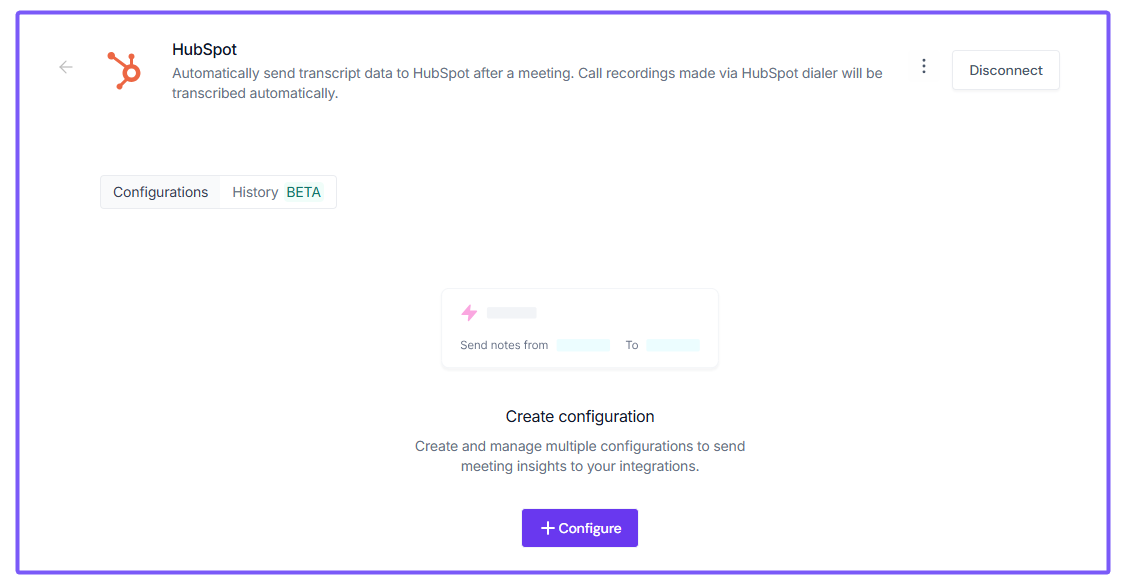
Pre-December 2024 users: If you set up your HubSpot integration before December 2024, you'll need to reconnect (disconnect and reconnect) to enable App Cards functionality.
🧩 What Are Fireflies App Cards?
Fireflies App Cards are built-in widgets that show meeting data inside HubSpot records.
They are:
Free for all Fireflies users
Available on Contact and Company records
Automatically updated after meetings
🗂 Types of Fireflies App Cards
Card Type | What It Shows | Where It Appears |
Recent Meetings | Titles, dates, sentiment, and short summaries from the last 3 meetings | HubSpot Contact and Company records |
Soundbites | Key moments from the last 3 meetings, with direct timestamp links | HubSpot Contact and Company records |
➕ Add Recent Meetings Card
Display your latest meeting data directly within HubSpot Contact and Company views. Automatically displays the three most recent meetings for each contact or company.
What you can view:
Meeting title with direct link to Fireflies
Meeting date and time
Sentiment analysis (positive, neutral, or negative)
Meeting summary/gist
Click any meeting title to access the full transcript in Fireflies.
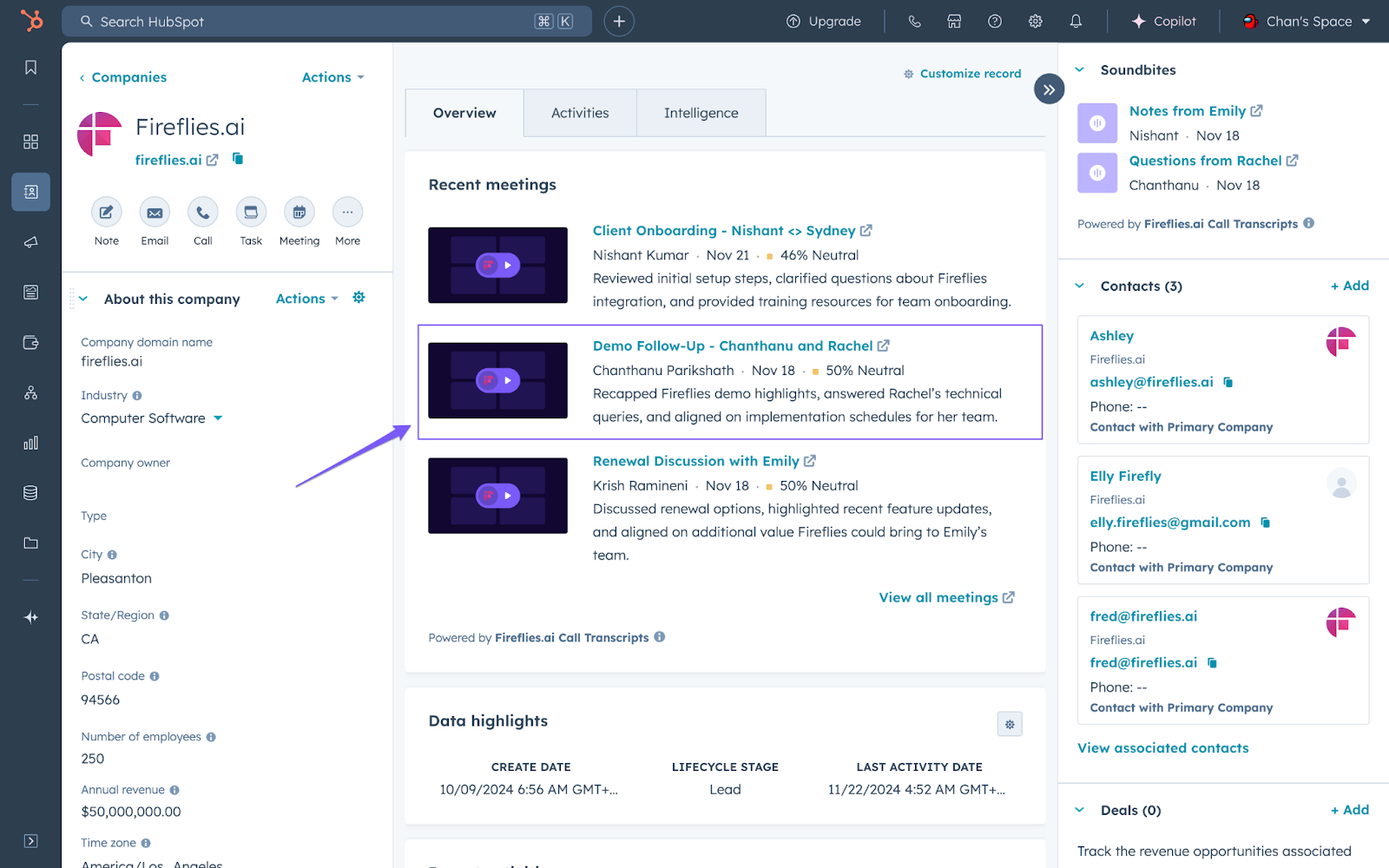
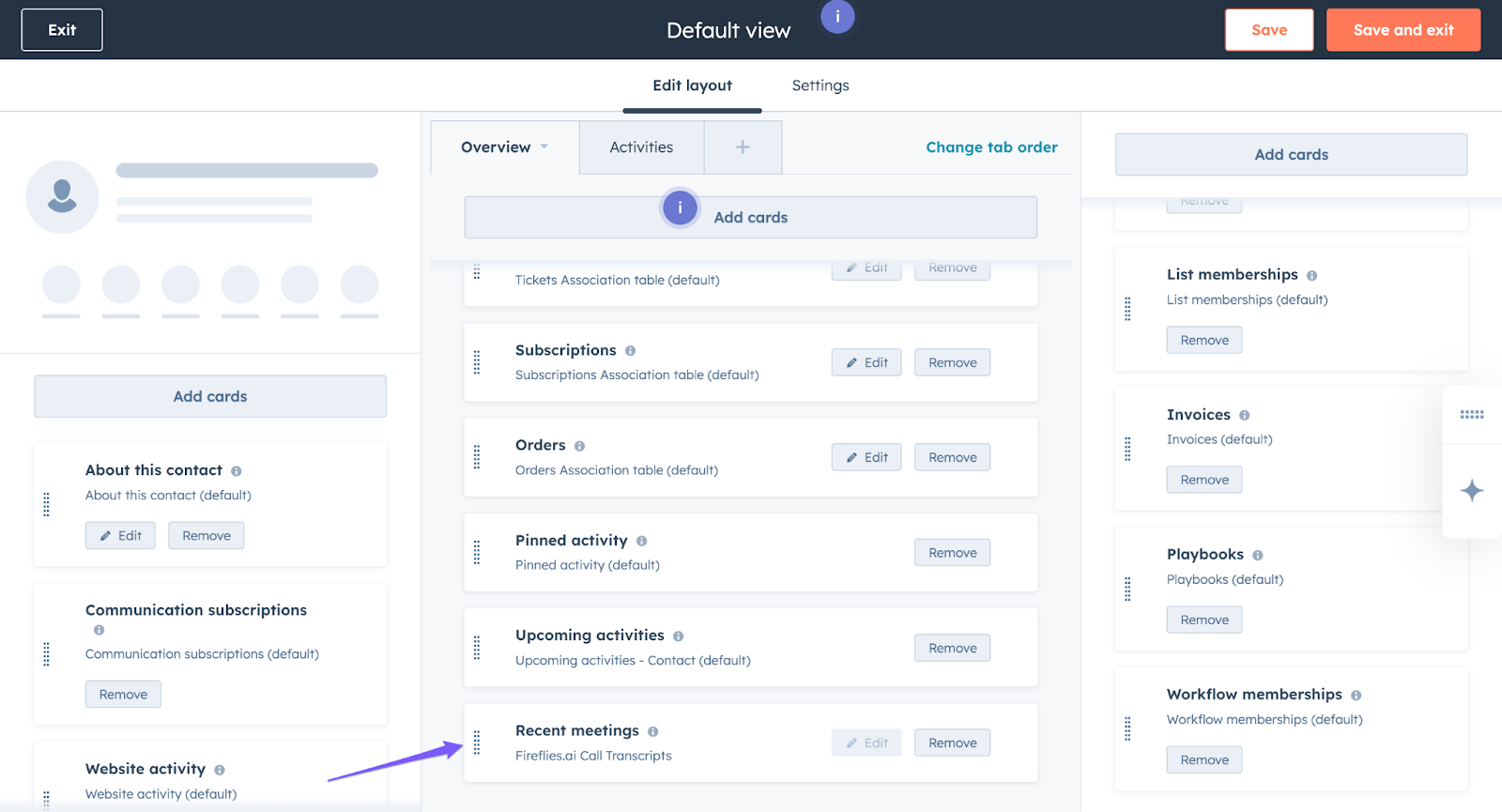
How to add Recent Meetings cards to contacts
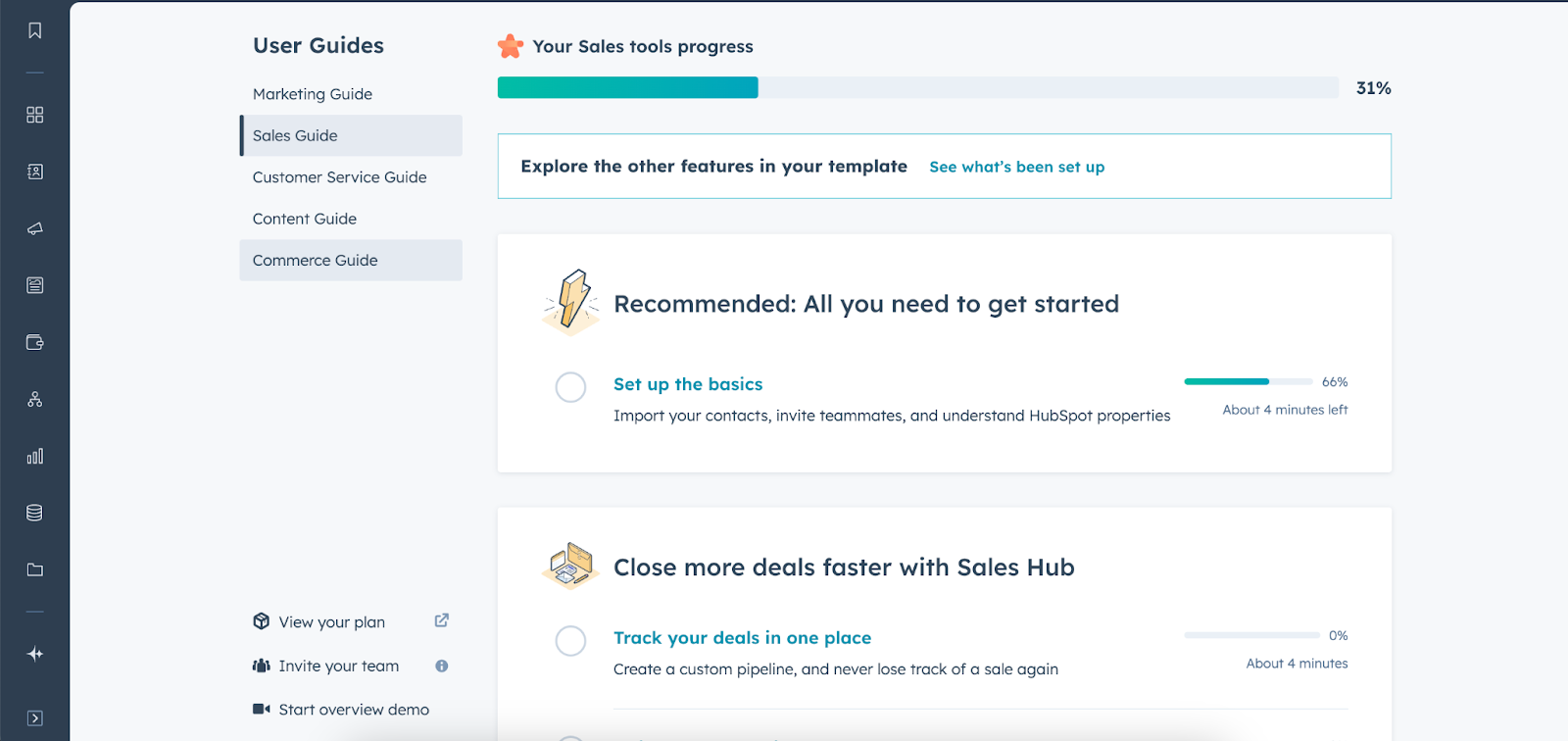
Log in to your HubSpot account and open any contact record
Click Customize record in the top right
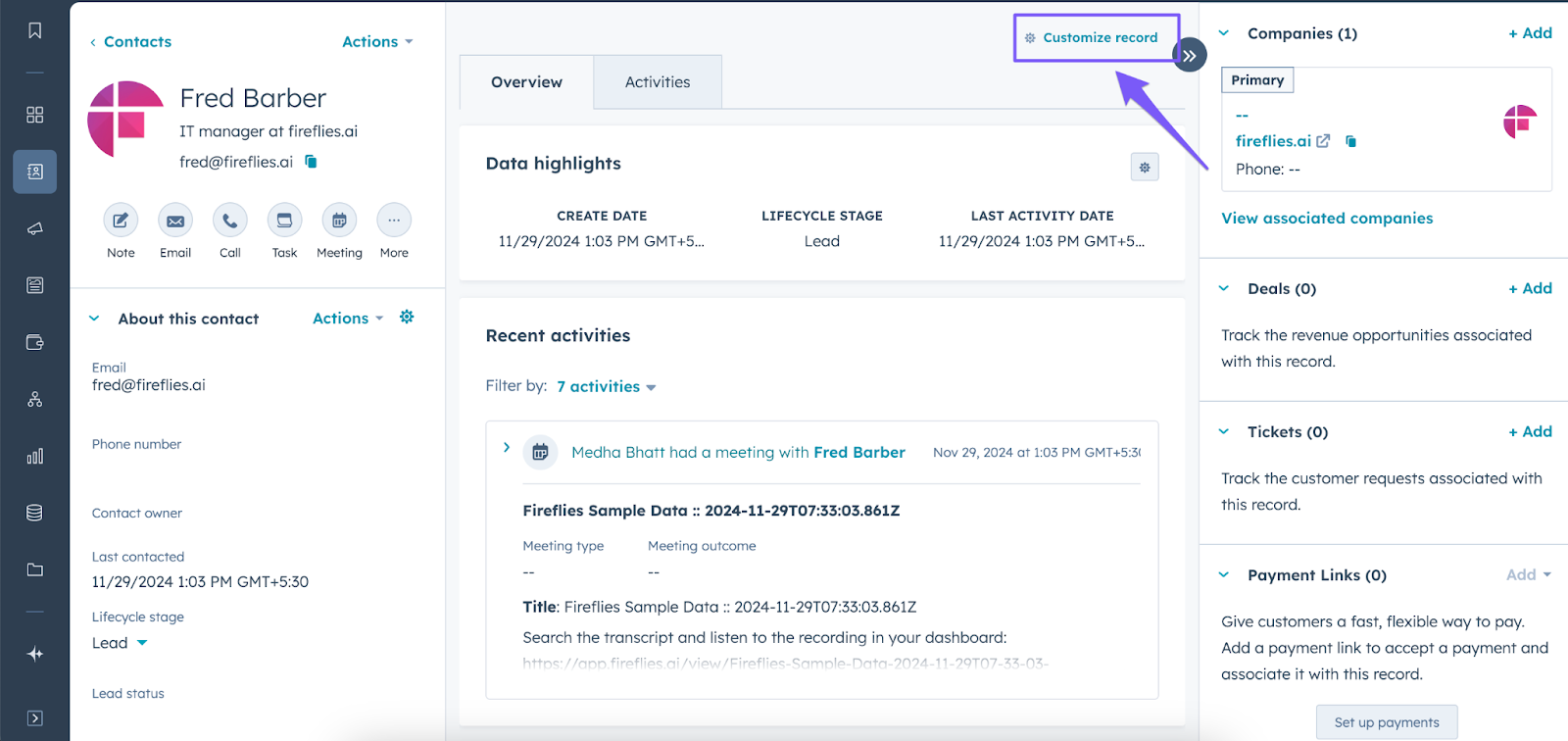
Select Default View
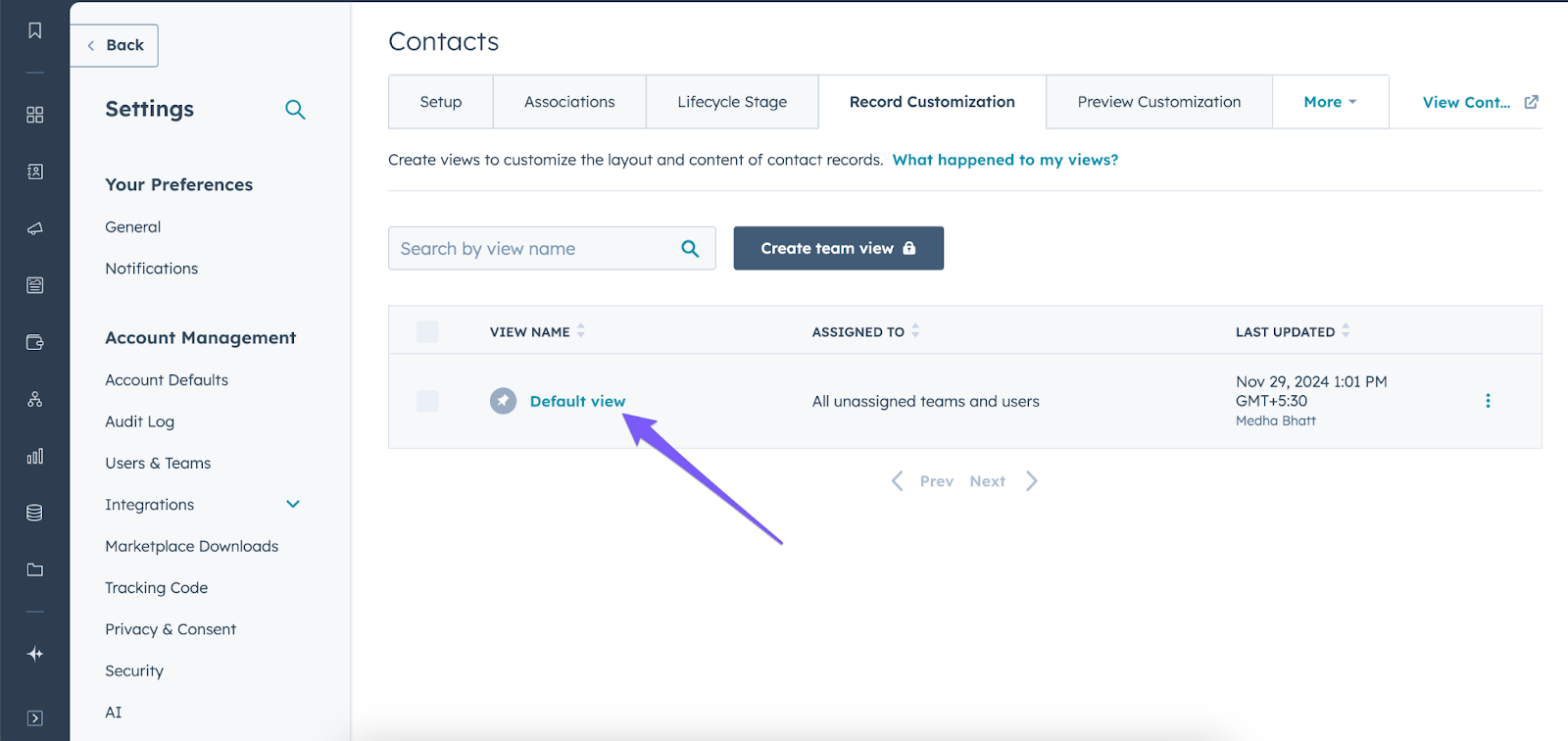
Click Add Cards in the middle section

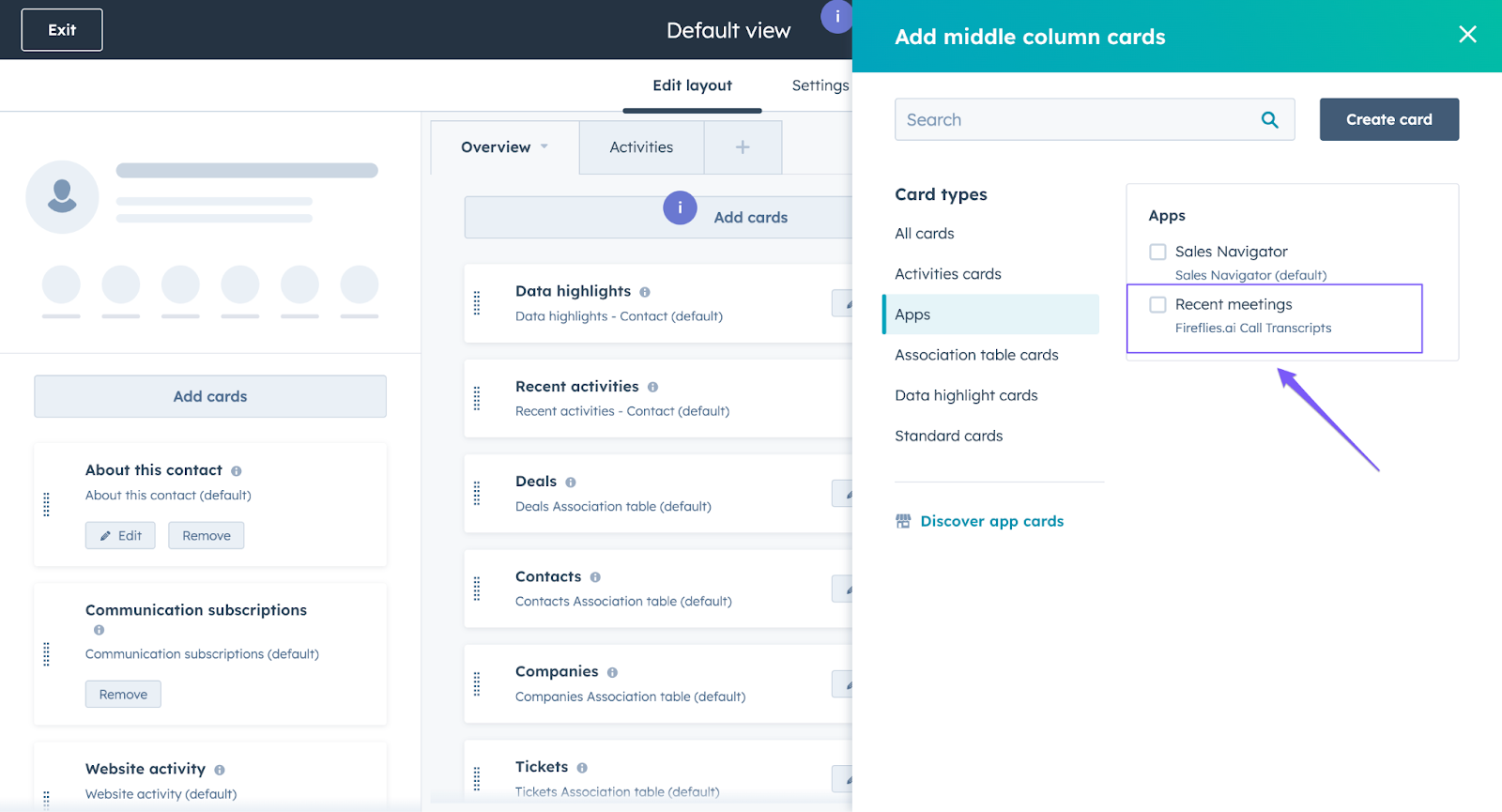
Navigate to the Apps tab
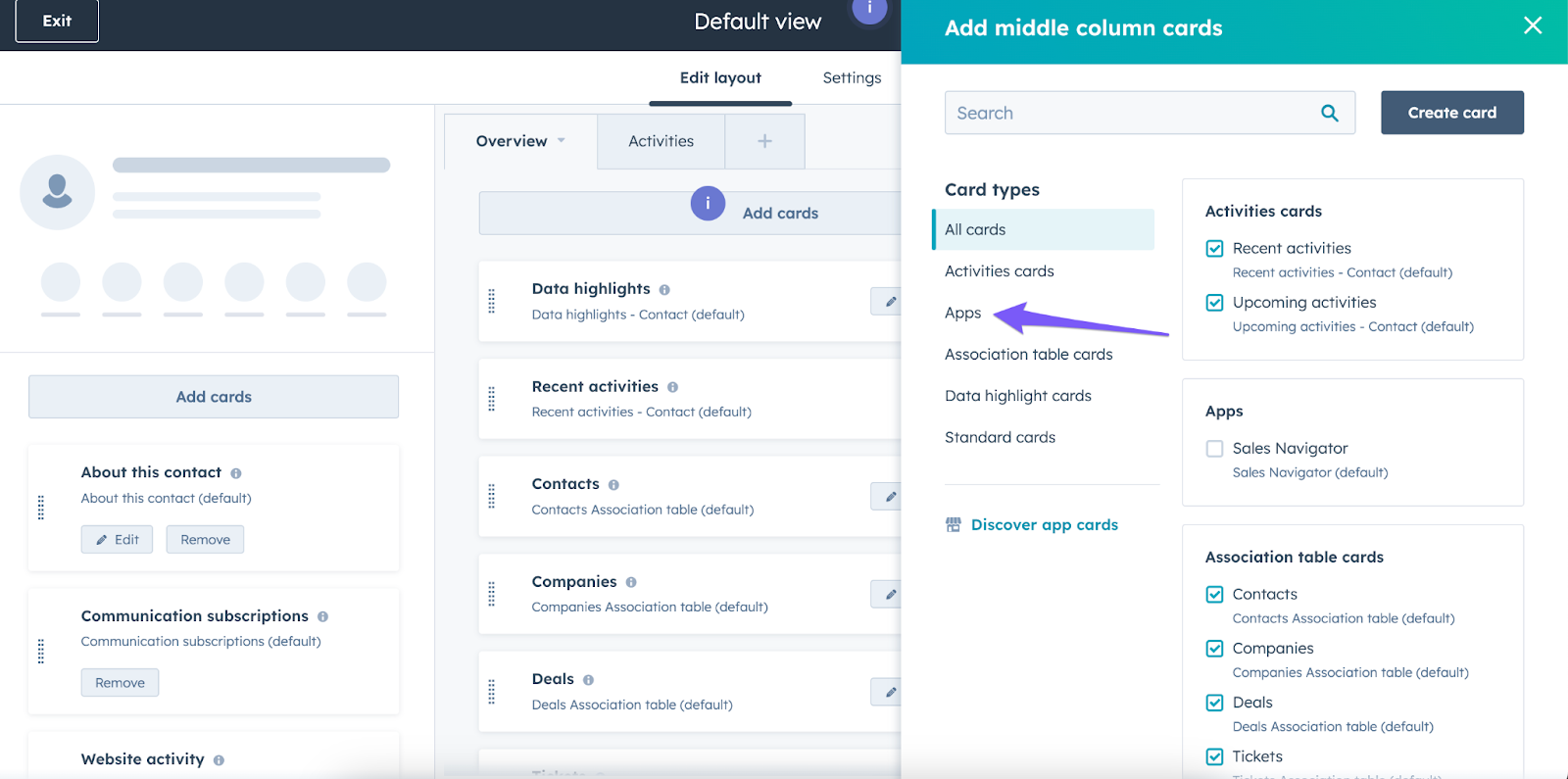
Select Recent Meetings from Fireflies.ai Call Transcripts
Check the box to add the card
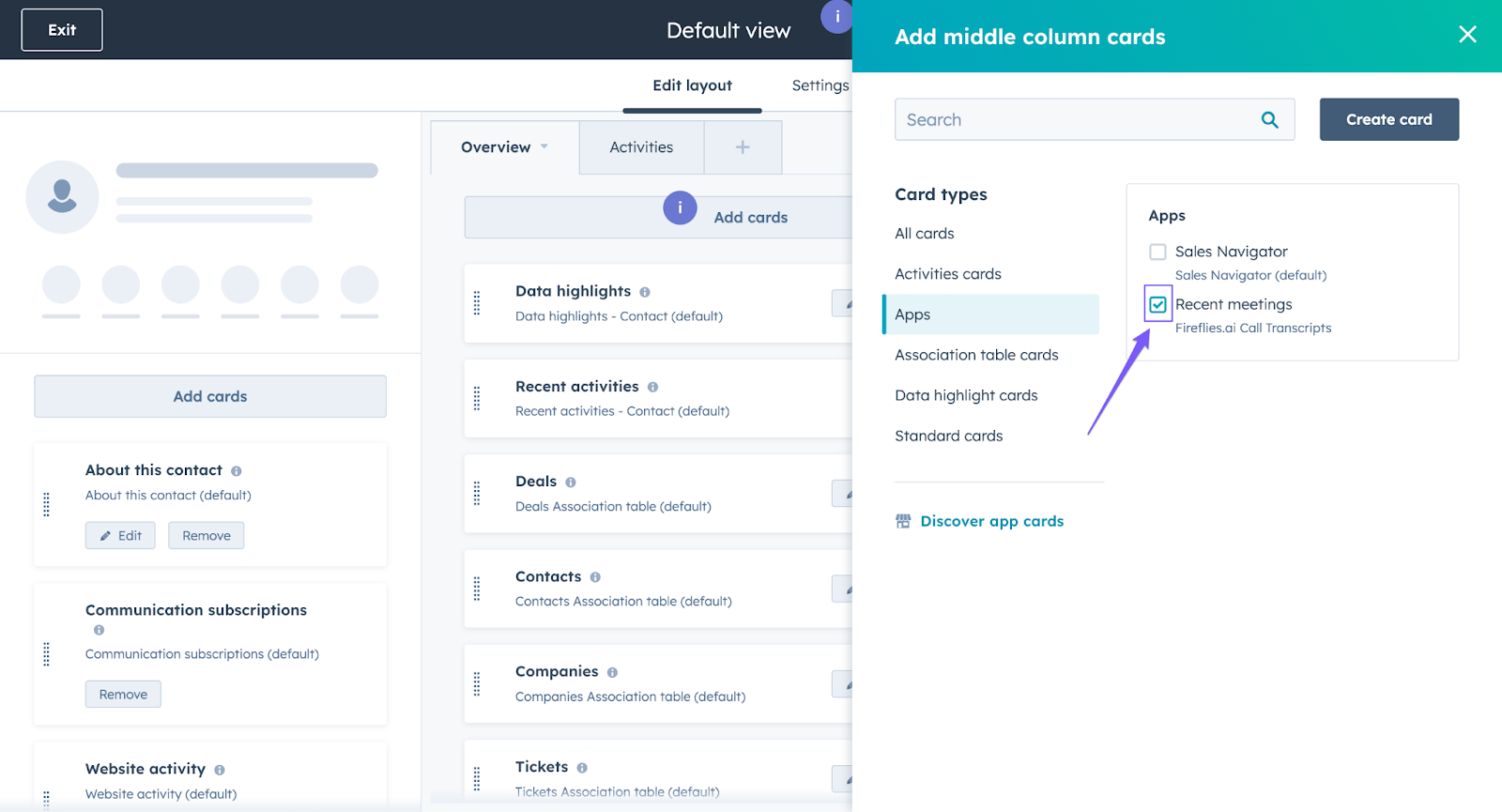
Drag the card to your preferred position using the dot handle
The card appears at the bottom initially
Drag it to the top or wherever you prefer
Click View all meetings to access the full Fireflies dashboard when needed
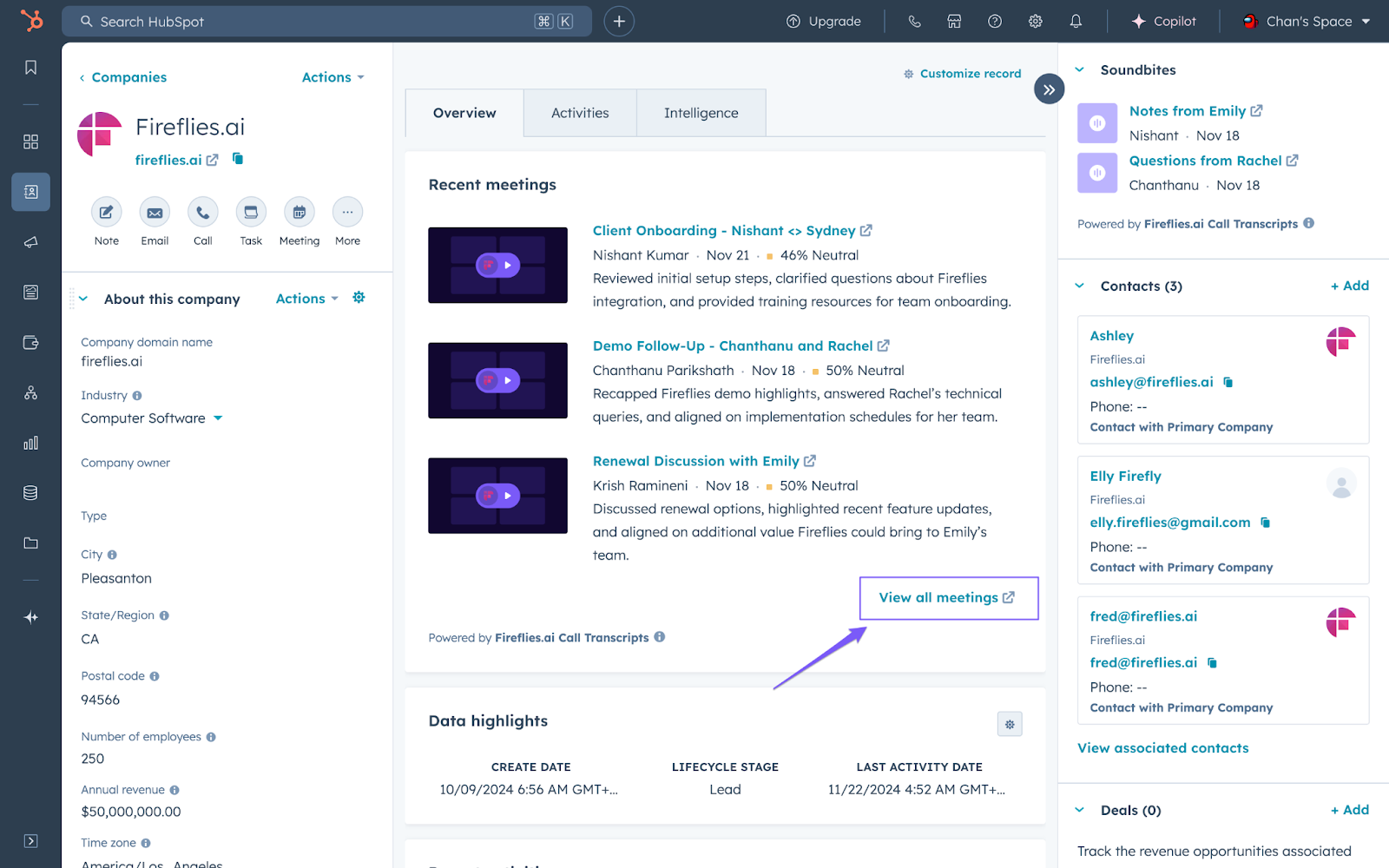
For Companies: Open any Company record and follow the same steps to add Recent Meetings at the account level
➕ Add Soundbites Card
Capture and display key moments from your last three conversations per Contact or Company. Reference important discussion points without reviewing entire transcripts.
What you can view:
Key moments from conversations
Direct links to specific timestamps in meeting recordings
Click any soundbite to jump to that exact moment in the Fireflies recording.
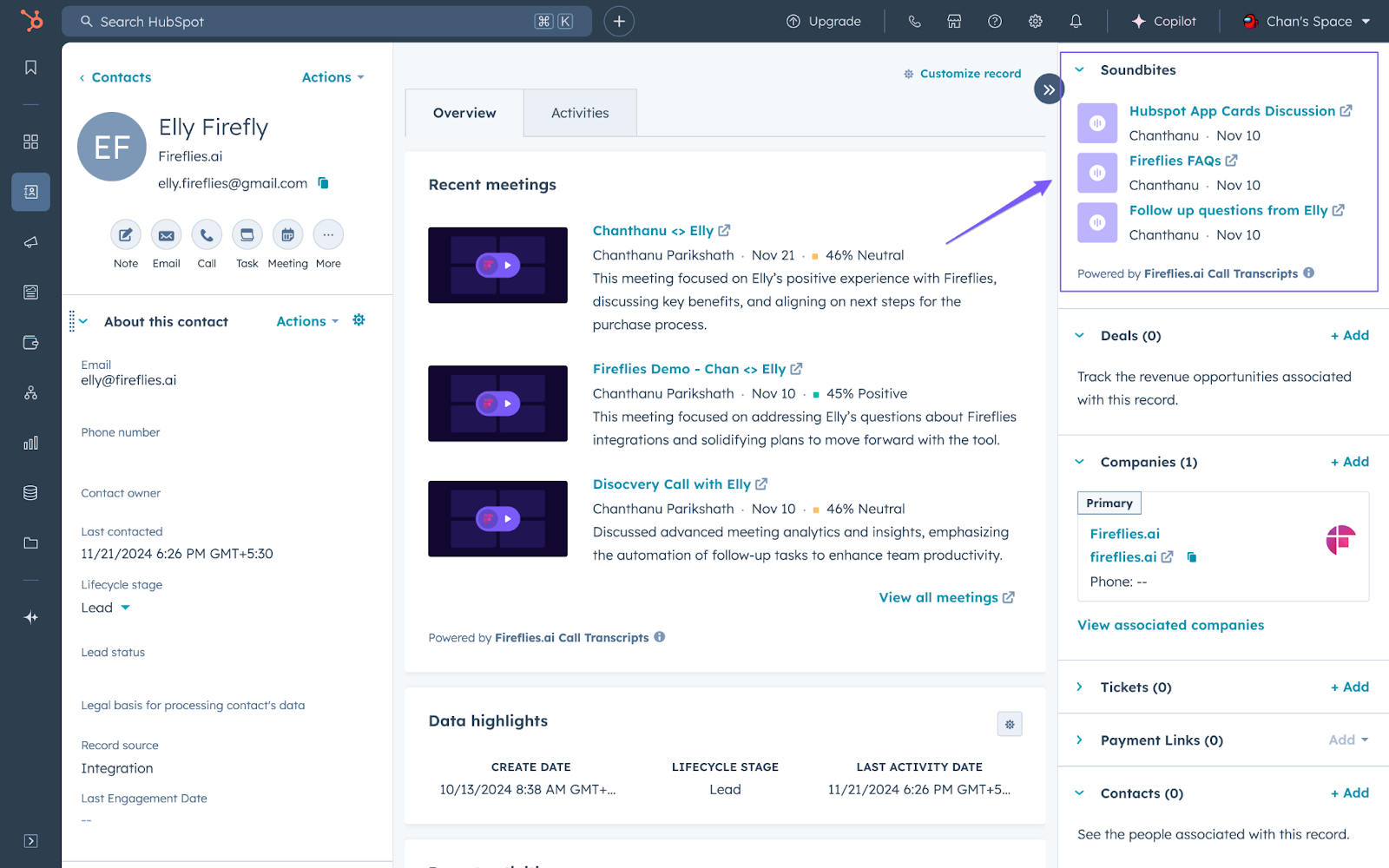
How to add Soundbites cards to contacts
Open any contact record
Click Customize record
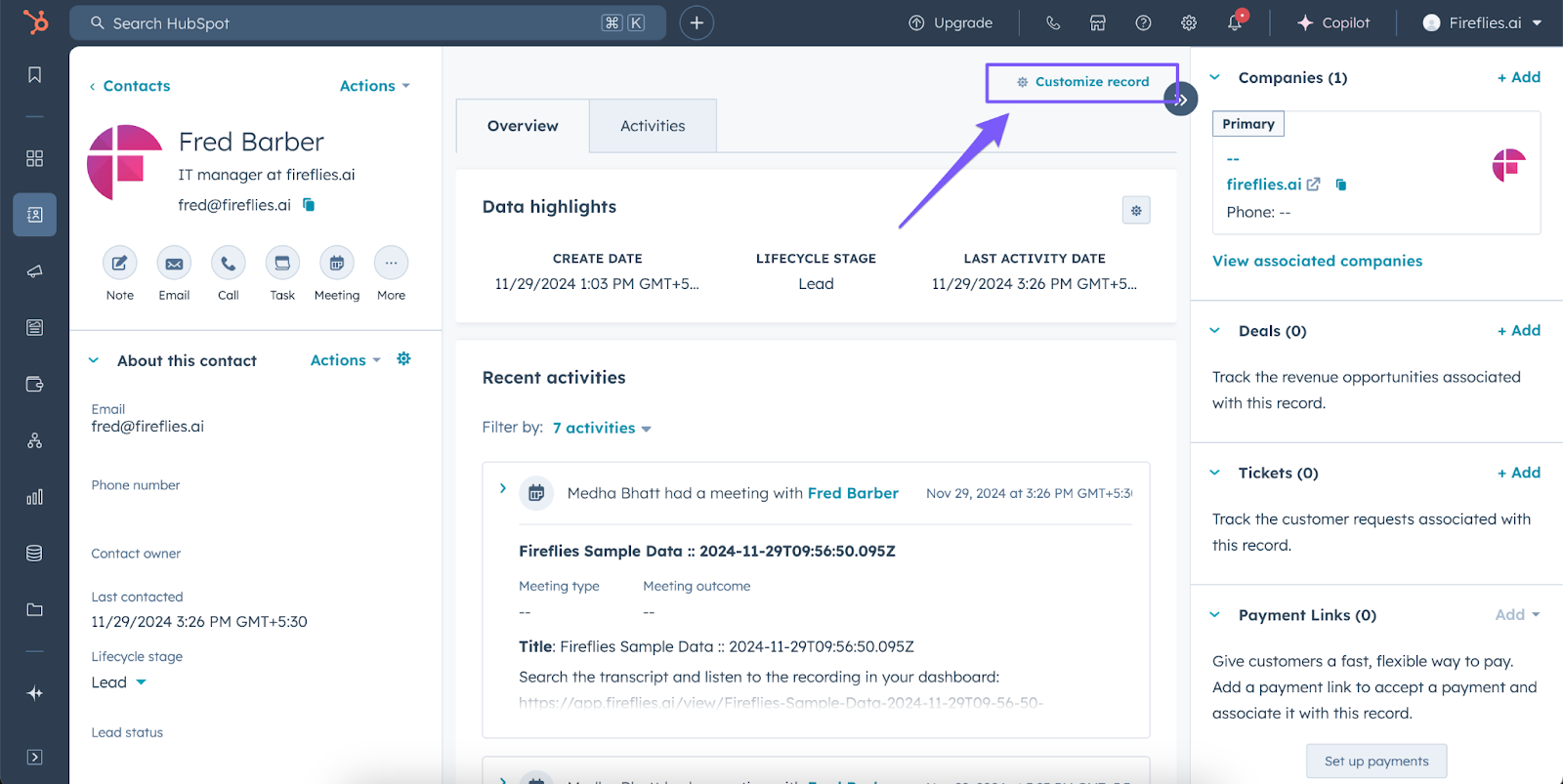
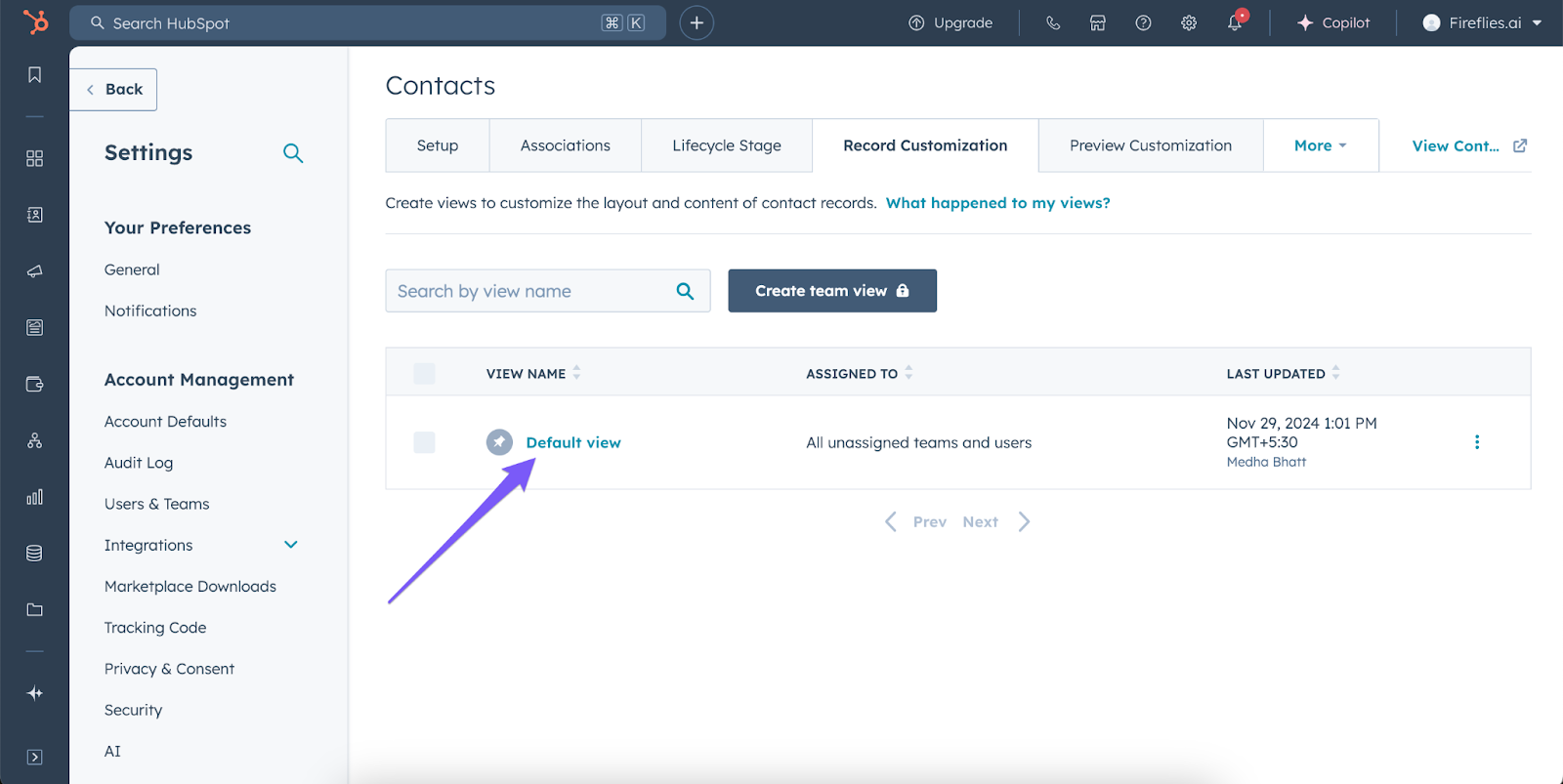
Click Default view
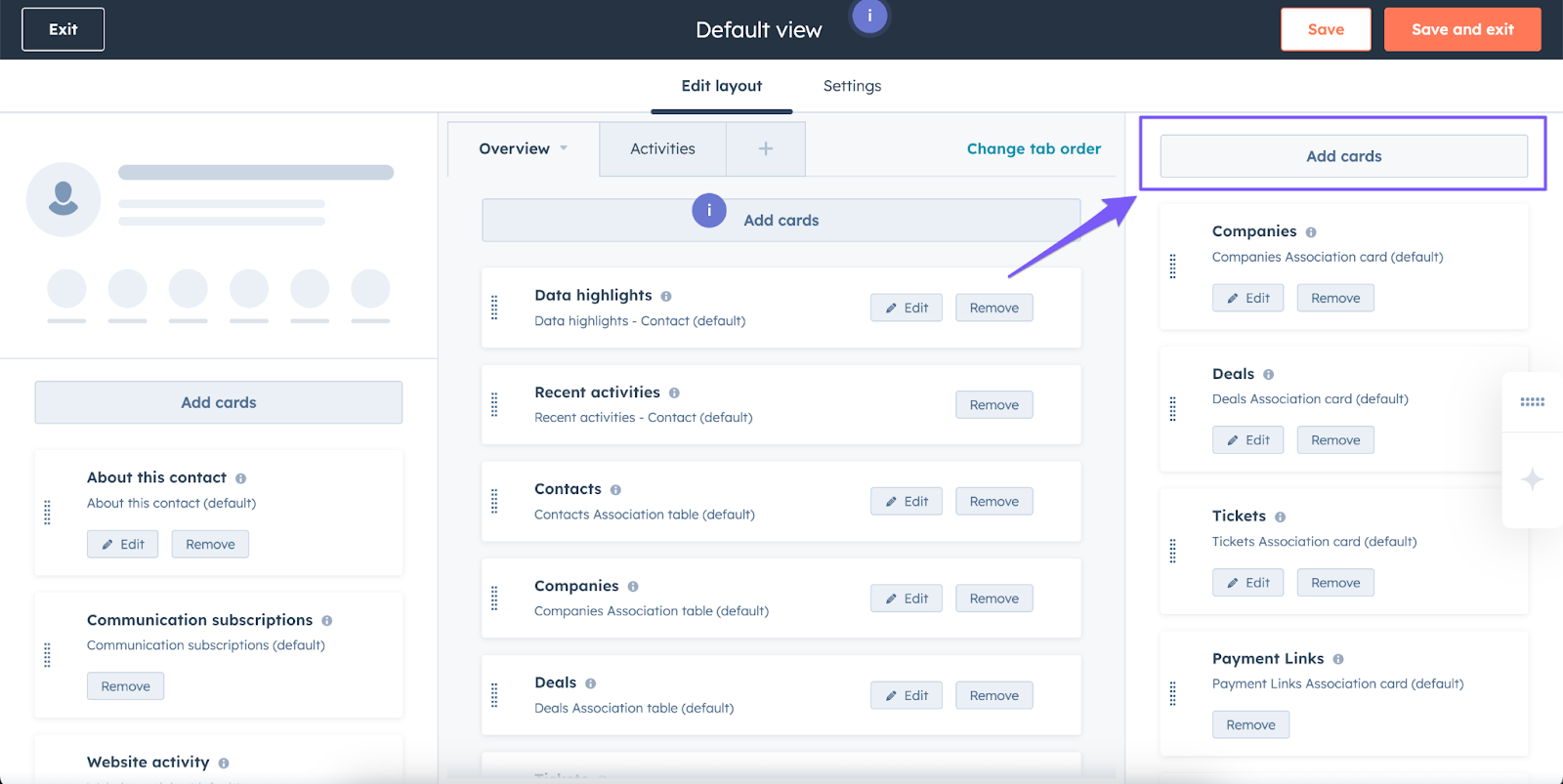
Click Add cards on the right side of the screen
Click Apps
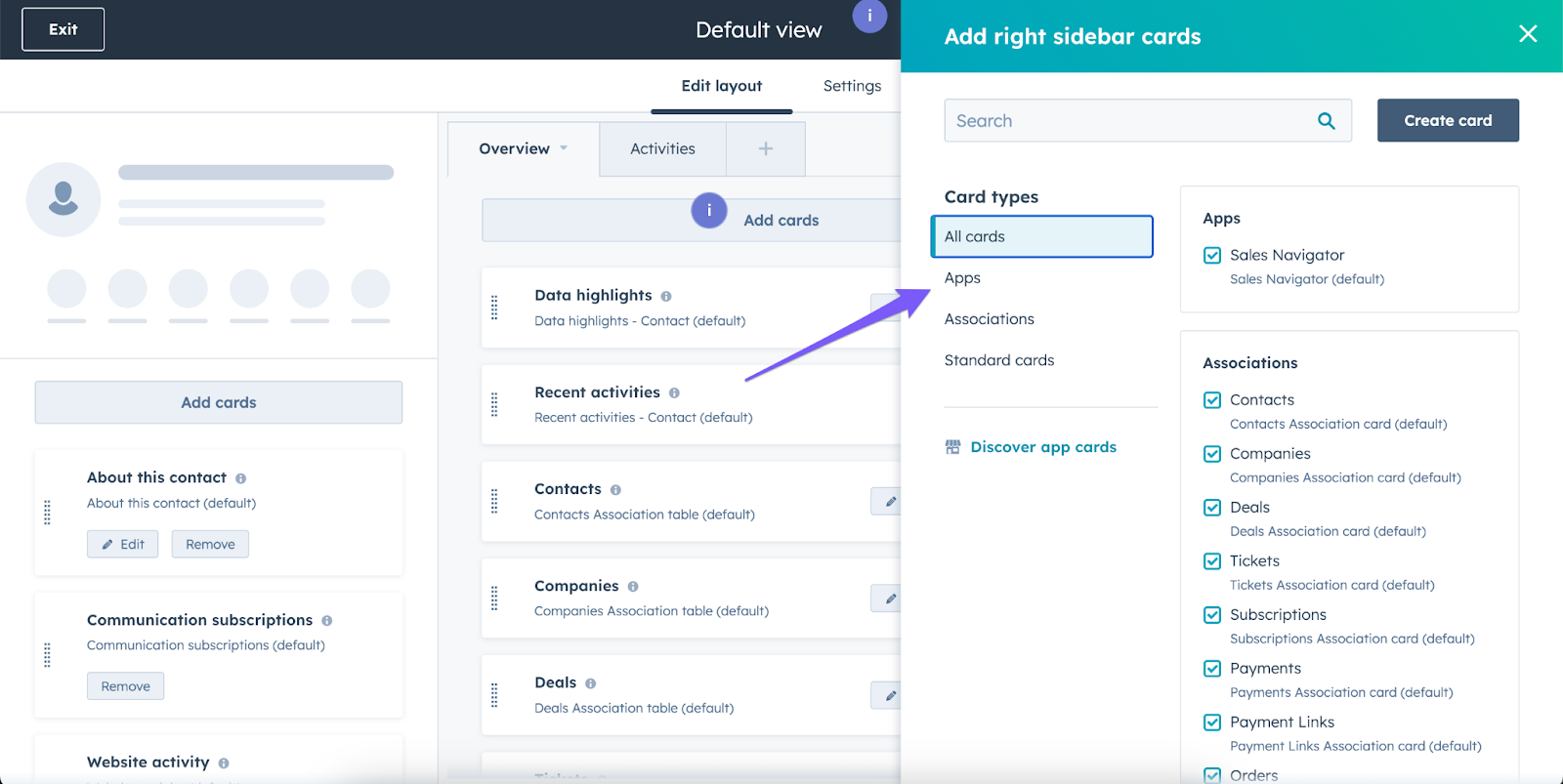
Select Soundbites and Confirm the selection – notice the checkmark in the box
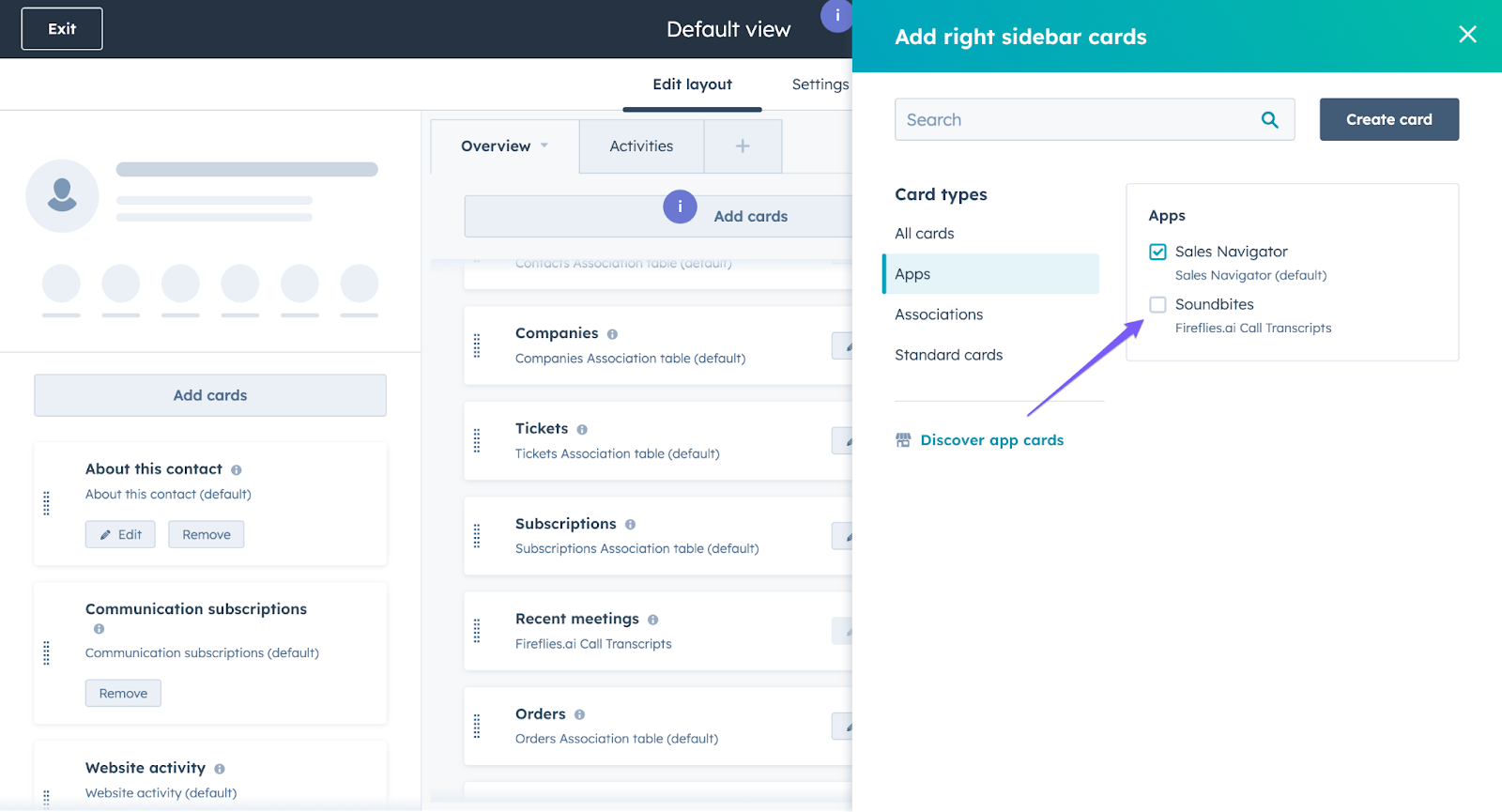
Close the view and reposition the card
Soundbites will appear at the bottom of the right side
Drag it to your preferred position using the dots
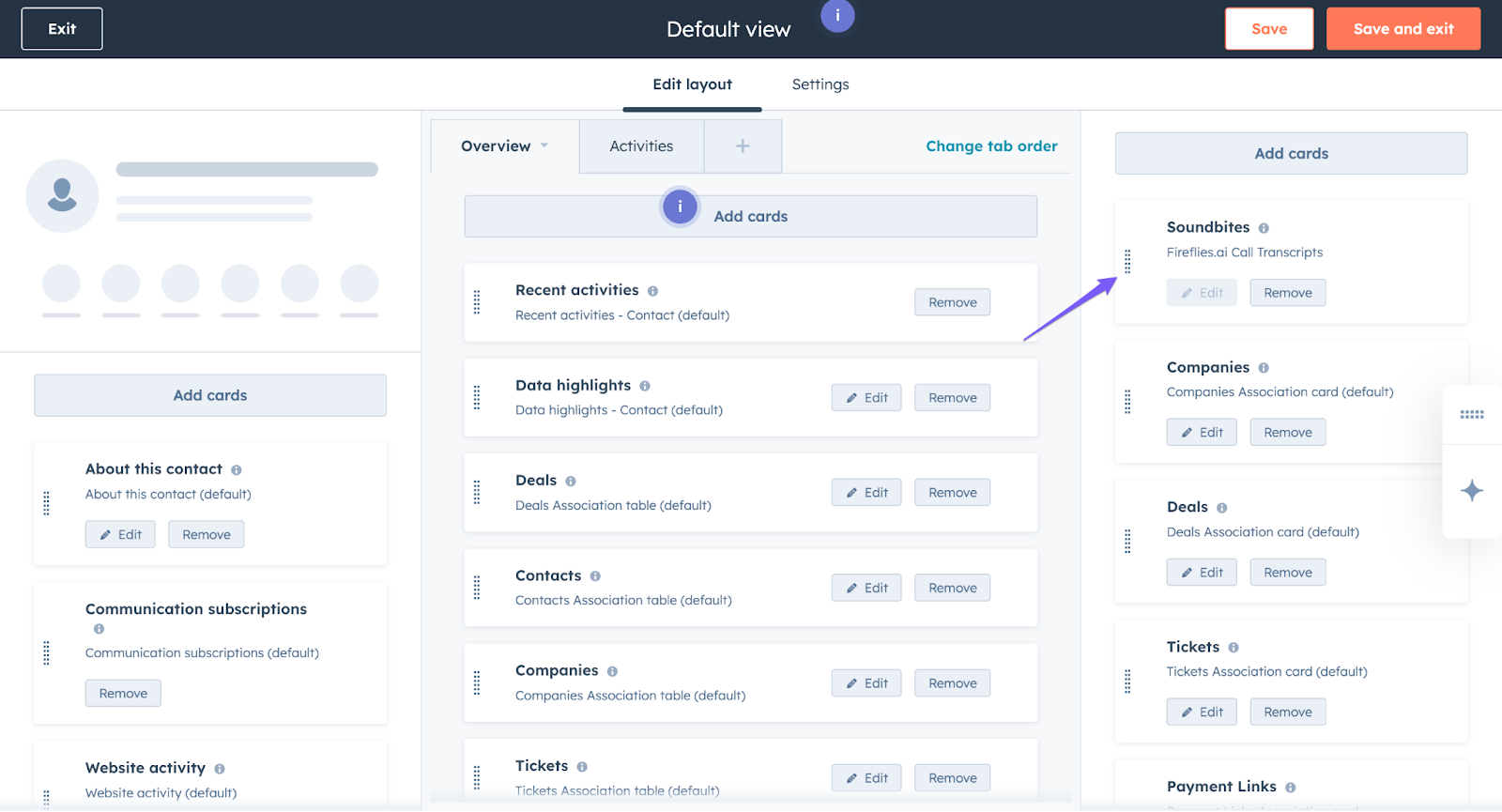
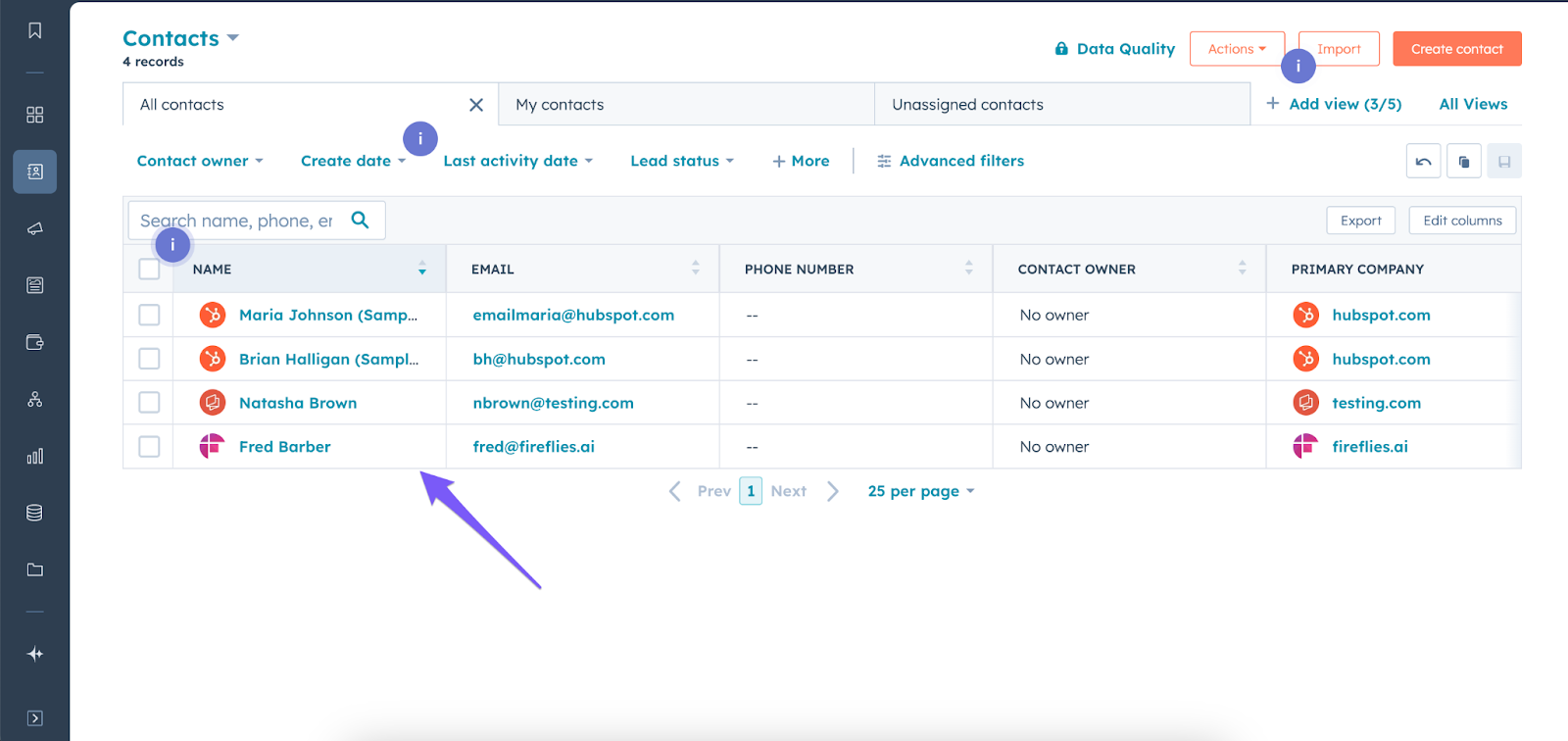
For Companies: Open any Company record and follow the same steps to add Soundbites at the account level
🧠 Making Sense of It All
App Cards are completely free for all Fireflies users
Pre-December 2024 integrations need reconnection to work properly
Cards work at both the contact and company levels for comprehensive CRM integration
Soundbites provide direct timestamp links for quick reference to key moments
Recent Meetings cards show sentiment analysis to gauge conversation tone
📚 Related Guides
How to integrate HubSpot with Fireflies -> Set up and manage the main HubSpot + Fireflies integration.
Save meeting notes under HubSpot Contacts -> Automatically log meeting summaries and transcripts under contact records.
Save meeting notes under HubSpot Deals ->Attach meeting insights directly to your sales deals.
How to automatically create HubSpot tasks from meeting action items -> Turn follow-ups from meetings and calls into HubSpot tasks.