How to Manage Your Payment Cards in Fireflies (Add New, Change Default, or Remove Cards)
Last updated: July 17, 2026
Need to update the card used for your Fireflies subscription? Whether you're adding a new card, switching to a different default card, or removing an old one, you can easily manage your payment cards from your Billing settings. You can keep your billing information up to date and avoid interruptions to your subscription.
📌 Before You Manage Your Payment Cards
Before you add, change, or remove a payment card, keep the following in mind:
Billing Admin Access: Only the current Billing Admin can manage payment cards for your workspace.
Paid Plan Required: Payment cards can only be managed for workspaces with an active paid Fireflies subscription.
Changing Your Default Card: To change your default payment card, you must have at least two saved payment cards in your account.
Default Payment Card: Fireflies always charges the card marked Active for future subscription renewals and invoices.
Card Updates: You can't edit the details of an existing card. If your card expires or its details change, add it as a new card and set it as the default before removing the old one.
Removing Your Default Card: If your current default payment card is the only saved card on your account, you won't be able to remove it while your paid subscription is active. If you're leaving Fireflies, you can remove your last saved payment card after your subscription ends and your workspace moves to the Free plan.
🚀 Steps to follow
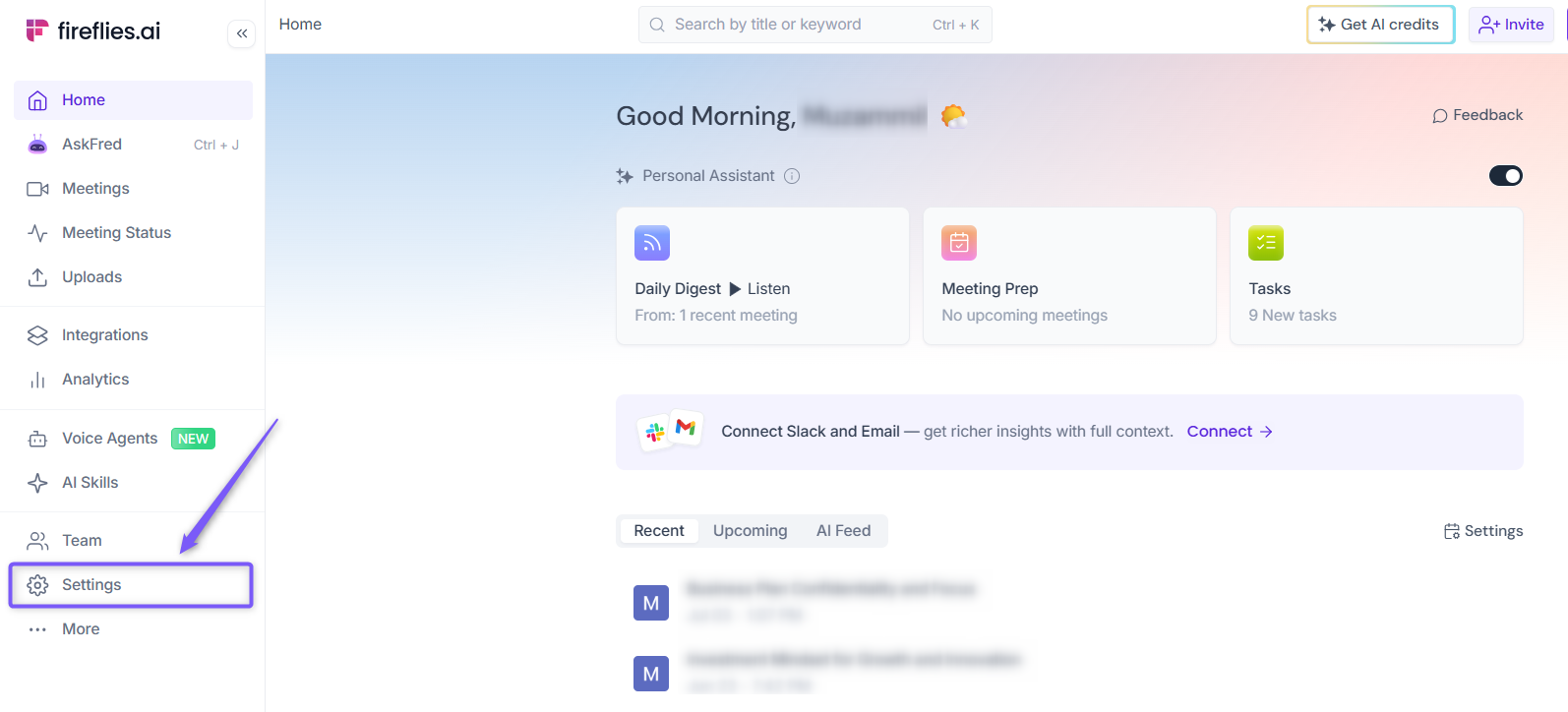
Step 1: Log in to your Fireflies account, open Settings from the left navigation menu.
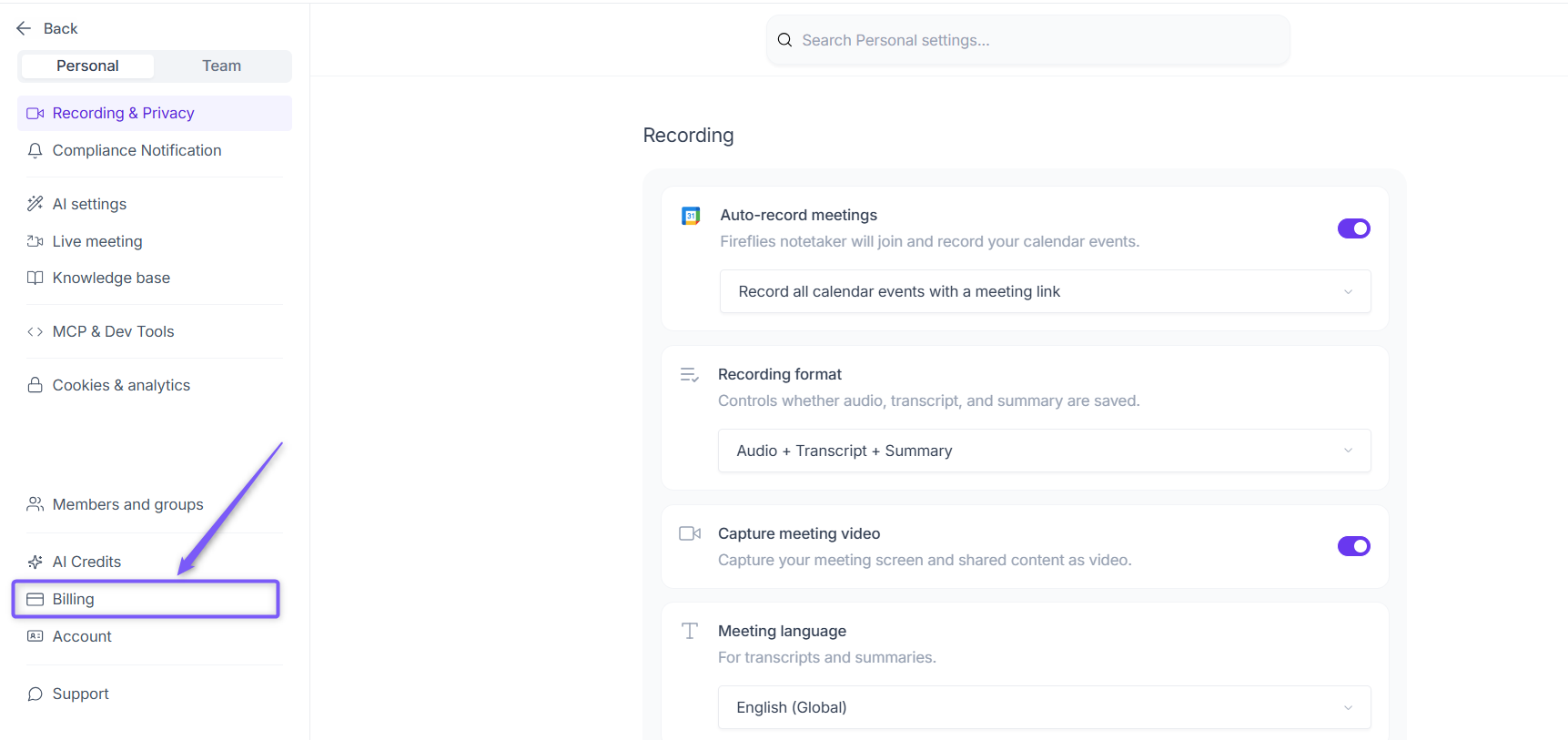
Step 2: Navigate to Billing from the left panel.
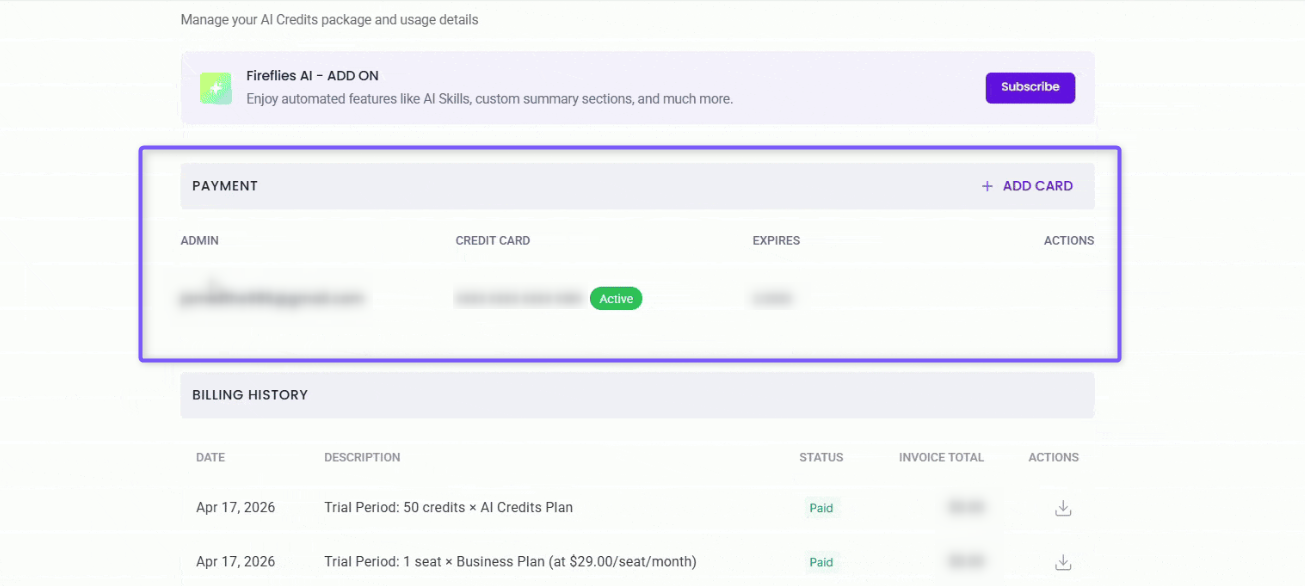
Step 3: Scroll down to the Payment section. Here, you'll find all your saved payment cards.
➕ Add a New Payment Card
Need to use a different card for your Fireflies subscription? Whether your current card has expired, you've received a new card, or you want to use a different card for billing, you can easily add it to your workspace.
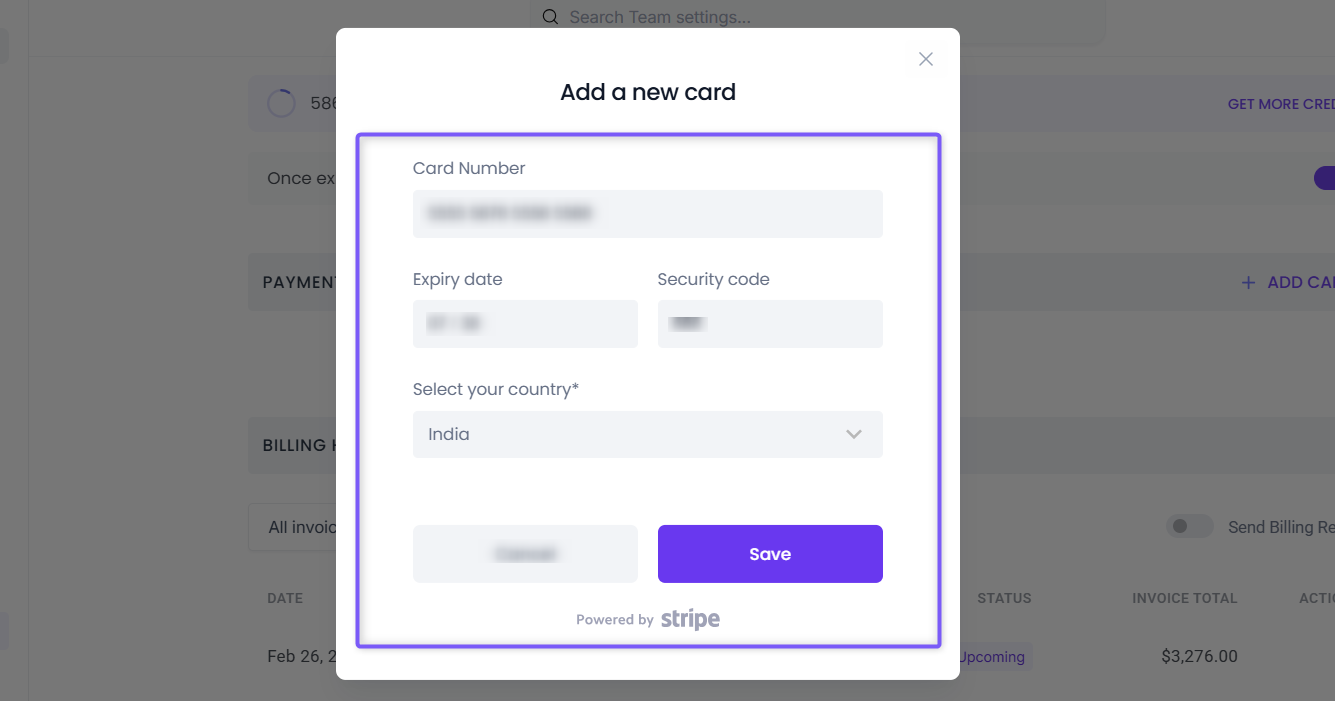
1. Click ADD CARD in the top-right corner of the Payment section.
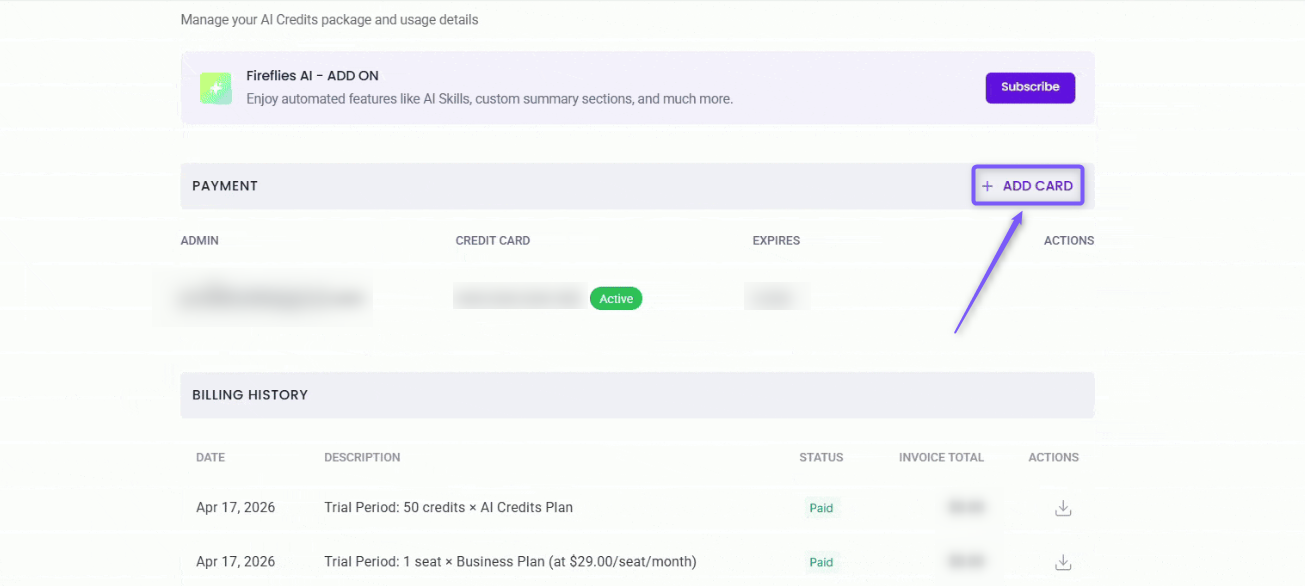
2. Enter your card details, including the Card Number, Expiry Date, Security Code (CVC), and Country/Region, then click Save.
Once the card is added, it will appear in the Payment section.
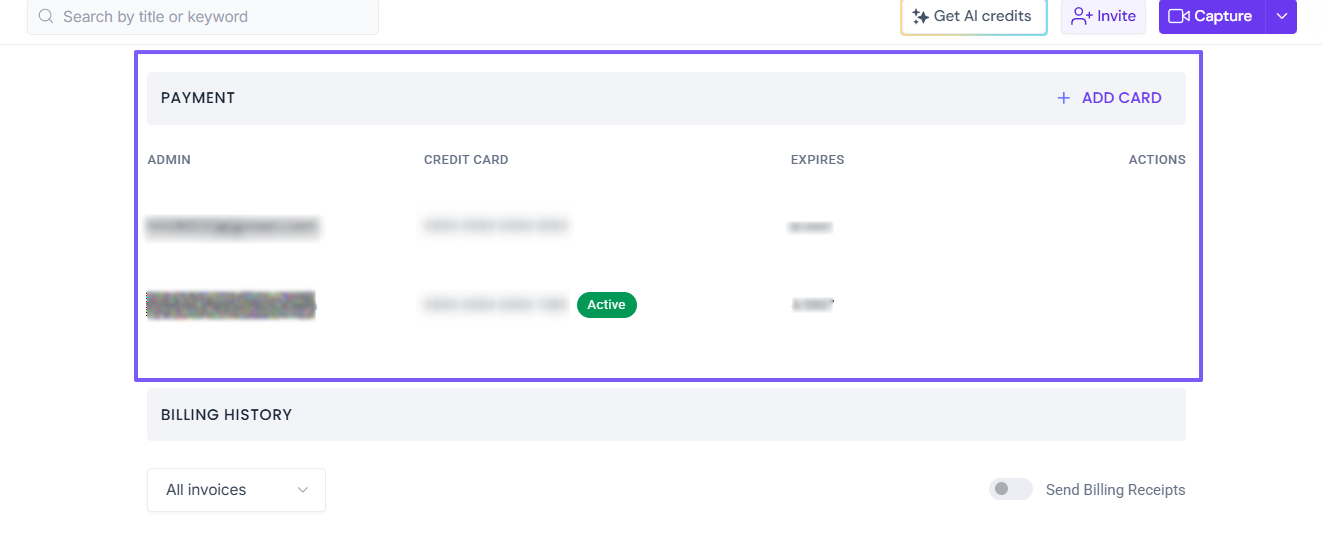
💡Tip: Adding a new card doesn't automatically make it your default payment card. After saving the card, follow the steps in Change Your Default Payment Card to use it for future invoices.
🔄 Change Your Default Payment Card
If you have multiple saved payment cards, you can choose which one Fireflies uses for future subscription payments by making it your default card.
💡 Tip: You must have at least two saved payment cards before you can change your default payment card. If you only have one saved card, add another card first.
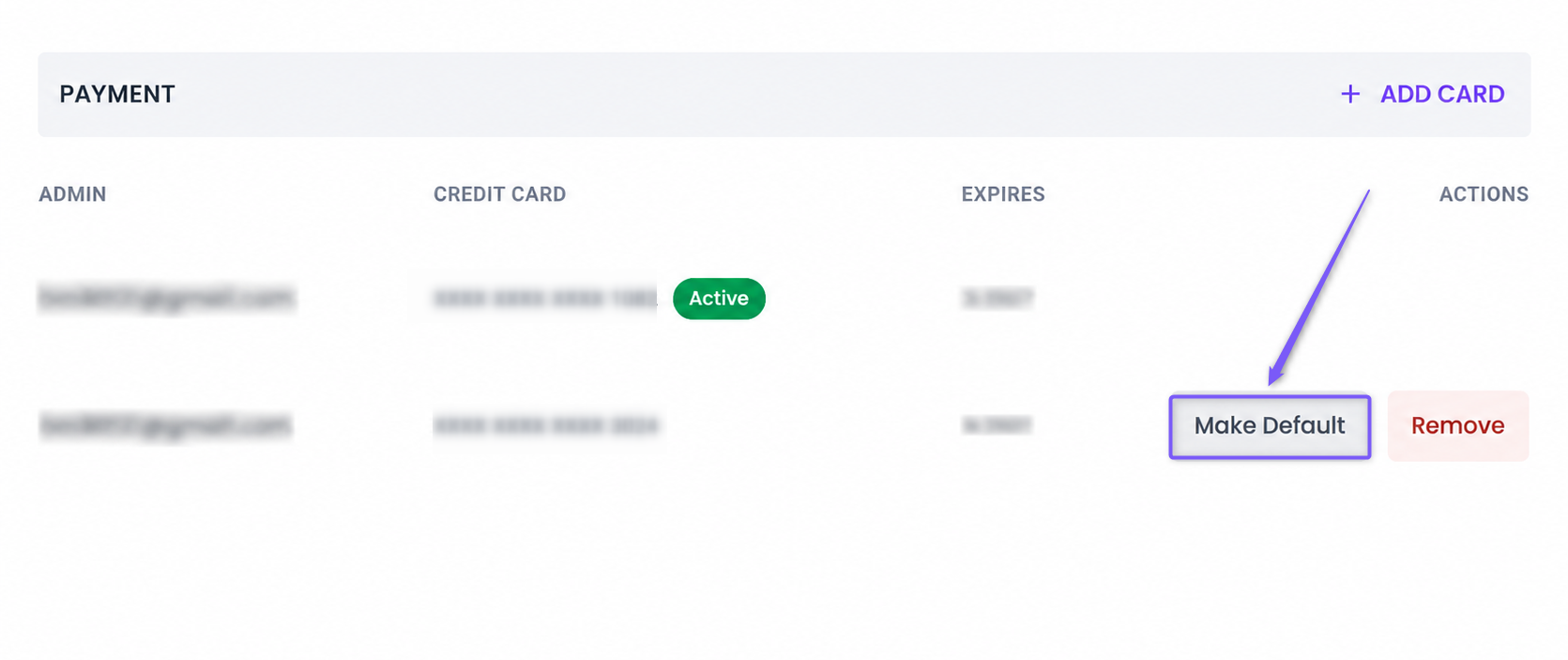
1. Hover over the card you want to set as your default and click Make Default under the Actions column.
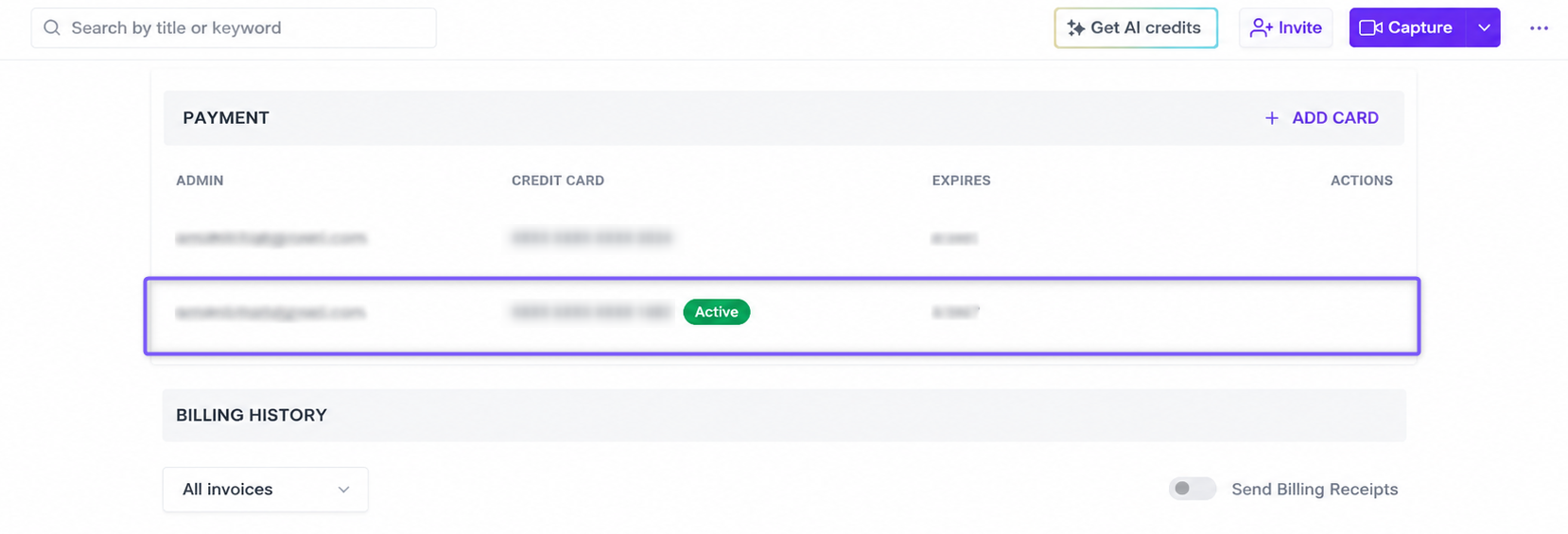
2. Confirm that the selected card displays the Active status. This card will be used for all future Fireflies invoices.
🗑 Remove a Payment Card
Remove a payment card you no longer use to keep your billing information up to date. Before removing a card, ensure it is not your current default payment method.
Hover over the card you want to remove and click Remove under the Actions column.
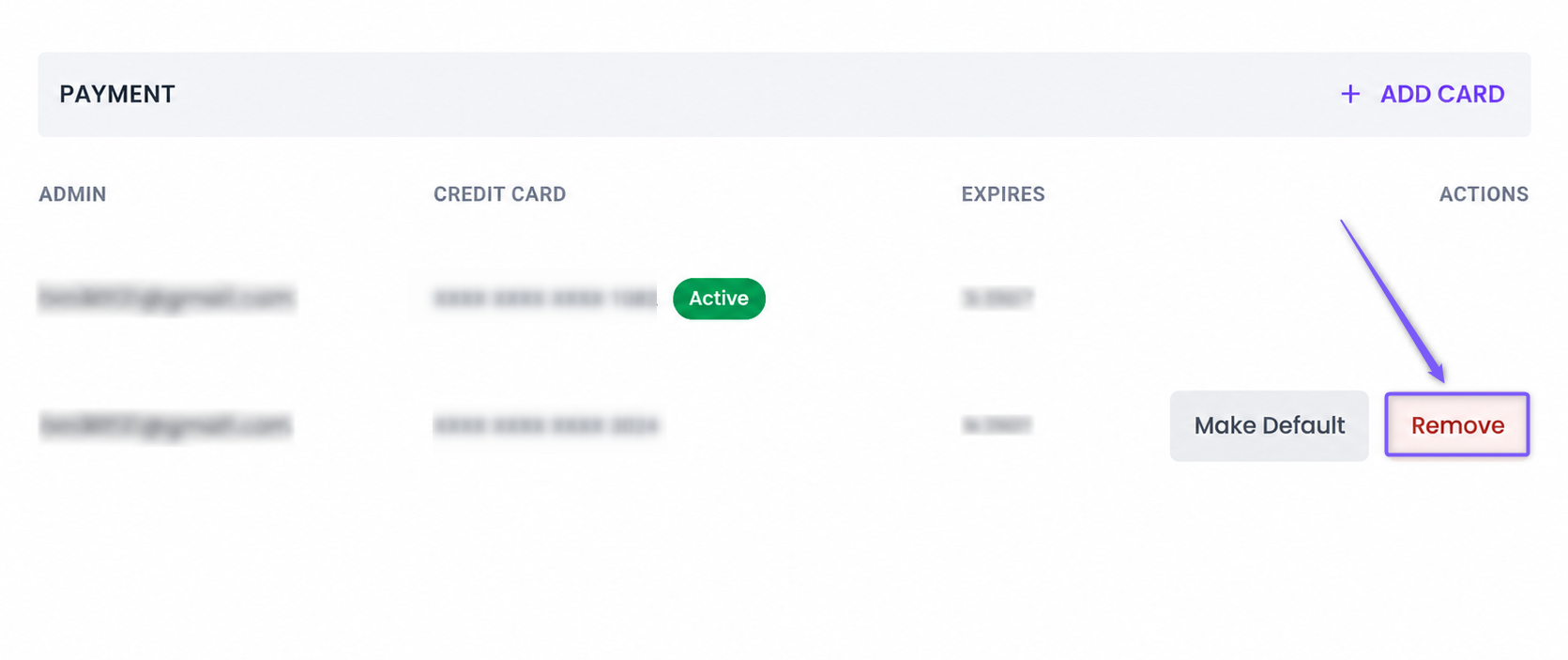
Can't remove your default payment card?
Your default payment card is used to automatically renew your Fireflies subscription. To help prevent any accidental service interruptions, you won't be able to remove it if it's the only saved payment card on your account.
Depending on what you'd like to do, choose one of the following:
Keep your paid subscription? Add a new payment card and make it your default payment card. Once the new card is marked Active, you can remove your previous card.
No longer need your paid subscription? Cancel all active paid subscriptions (including AI Credits, if applicable). Your payment card can only be removed after your subscription ends and your workspace moves to the Free plan.
✅ What to Expect After Managing Your Payment Cards
After you add, change, or remove a payment card, here's what happens next:
New Cards Are Saved: Any new payment card you add is saved to your Fireflies account and is available for future use.
Default Card Used for Billing: The card marked Active is used for future subscription renewals and invoices.
Removed Cards Can't Be Used: Once you remove a payment card, it can no longer be used for future payments unless you add it again.
Active Subscription Requires a Default Payment Card: Your default payment card remains linked to your workspace until your paid subscription ends. If you've canceled your subscription, you'll be able to remove your last saved payment card after your workspace moves to the Free plan.
Secure Payment Information: Your payment card details are handled securely. Once you remove a saved payment card, it is no longer available for future subscription payments unless you add it again.
Changes Take Effect Immediately: Any payment card you add, remove, or set as the default is updated immediately in your Billing settings.
❓Troubleshooting & FAQs
Q1. I don't see the Billing tab.
The Billing tab is only available to the current Billing Admin for paid Fireflies workspaces. If you're part of a team, ask your Billing Admin for access or to manage your payment cards.
If you're an admin of an individual workspace, ensure you're on a paid Fireflies plan. Billing settings aren't available on the Free plan.
Q2. Why can't I change my default payment card?
To change your default payment card, you must have at least two saved payment cards in your account. If you only have one card, add another payment card first.
Q3. Can I edit an existing payment card?
No. If your card details have changed or your card has expired, add it as a new payment card and, if needed, set it as your default payment card.
Q4. When will Fireflies start using my new default payment card?
As soon as you set a card as Active, Fireflies uses it for future subscription renewals and invoices.
Q5. Can I save multiple payment cards?
Yes. You can save multiple payment cards to your Fireflies account and switch your default payment card whenever needed.
Q6. What happens if I remove a payment card?
Once you remove a payment card, it can no longer be used for future subscription payments. If you need to use it again, you'll need to add it as a new payment card.
Q7. Why can't I remove my default payment card?
If it's the only saved payment card linked to your active paid subscription, you won't be able to remove it. Depending on what you'd like to do:
Want to keep your subscription? Add a new payment card and make it your default, then remove the old card.
No longer need your paid subscription? Cancel all active paid subscriptions (including AI Credits, if applicable). Your payment card can be removed once your paid subscription ends and your workspace moves to the Free plan.
Q8. I canceled my subscription. Why can't I remove my payment card?
When you cancel a paid subscription, it remains active until the end of your current billing cycle. During this time, your default payment card can't be removed. Once your subscription ends and your workspace moves to the Free plan, you'll be able to remove your last saved payment card.
Q9. Where can I view my invoices?
You can view and download all your subscription invoices from the Billing page.
👉 Related: How to View Your Invoices and Bills on Fireflies
Q10. Is my data safe with Fireflies?
Yes. Fireflies follows strict data security and privacy policies to keep your information safe — regardless of the plan you're on. 📌 Learn about Fireflies' policy on keeping your information safeManage Your Fireflies Account, Subscription, Billing, and Refunds
If you have any questions or need assistance, please don’t hesitate to reach out. We’re here to help!
Click the chat button (purple) in the bottom-right corner of your Fireflies home dashboard to start a conversation, or contact our support team.