How to Record Offline & In-Person Meetings on the Fireflies Mobile App
Last updated: October 21, 2026
Want to capture an in-person meeting, interview, or quick voice note on the go?
Use Fireflies Mobile’s One-Touch Record to record, pause, and save — anytime, anywhere.
👉 New to the Mobile App? Start here to download, sign in, and get familiar with the basics →
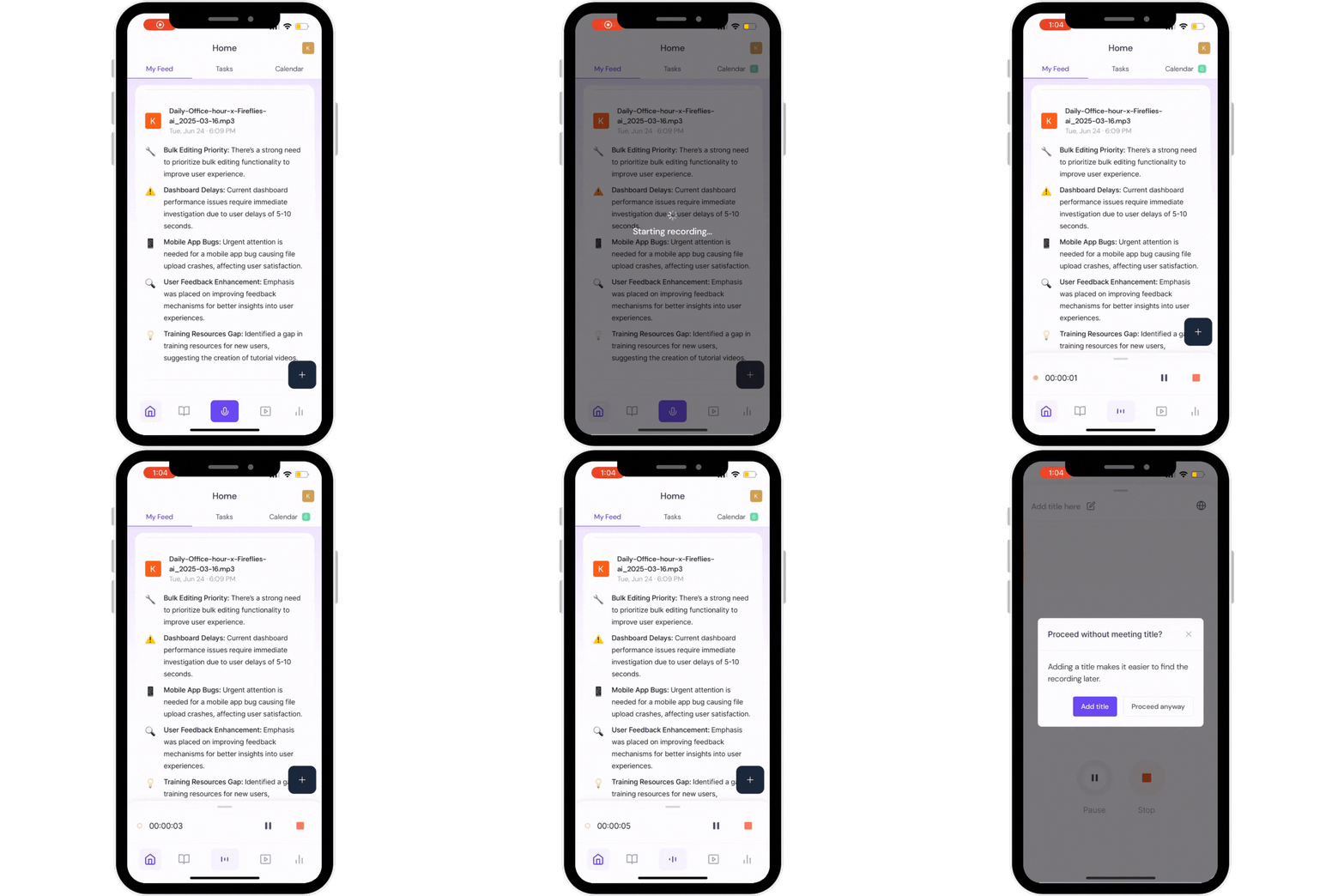
1. Tap the Mic Button
On your Home Feed, tap the purple Record button at the bottom to start recording immediately.
Need a break? Tap Pause ⏸, then Resume when you’re ready.
📝 3. Add a Title
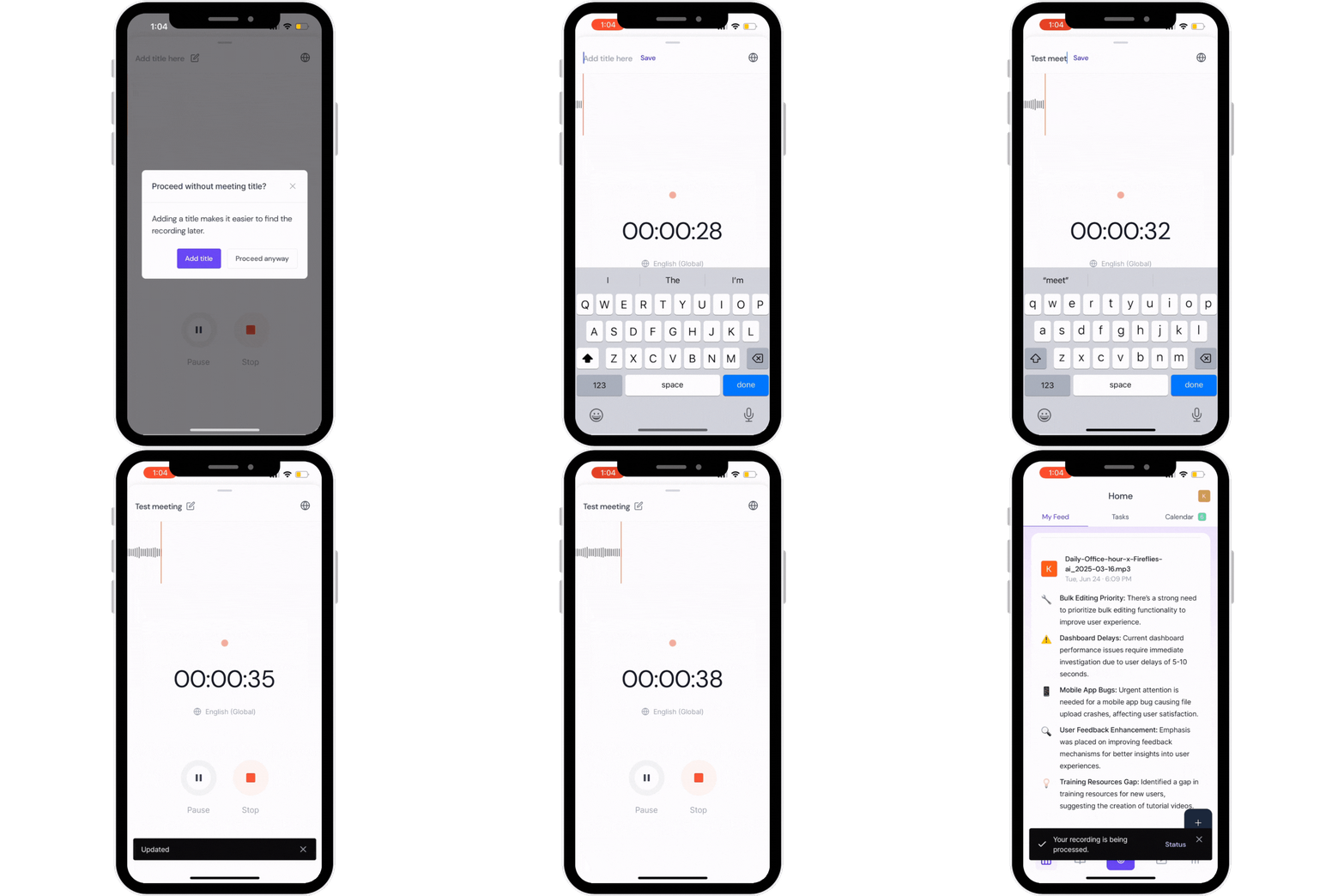
When recording starts, Fireflies will prompt you to add a title — so it’s easier to find later.
Choose Add Title or Proceed Anyway if you’re in a rush.
✅ 4. Stop & Save
Tap Stop to finish. Fireflies will process your audio and save it in your Notebook.
See how to find your recordings →
📌 5. Check Recording Status
You’ll see a status update in your Home Feed while Fireflies processes your recording.
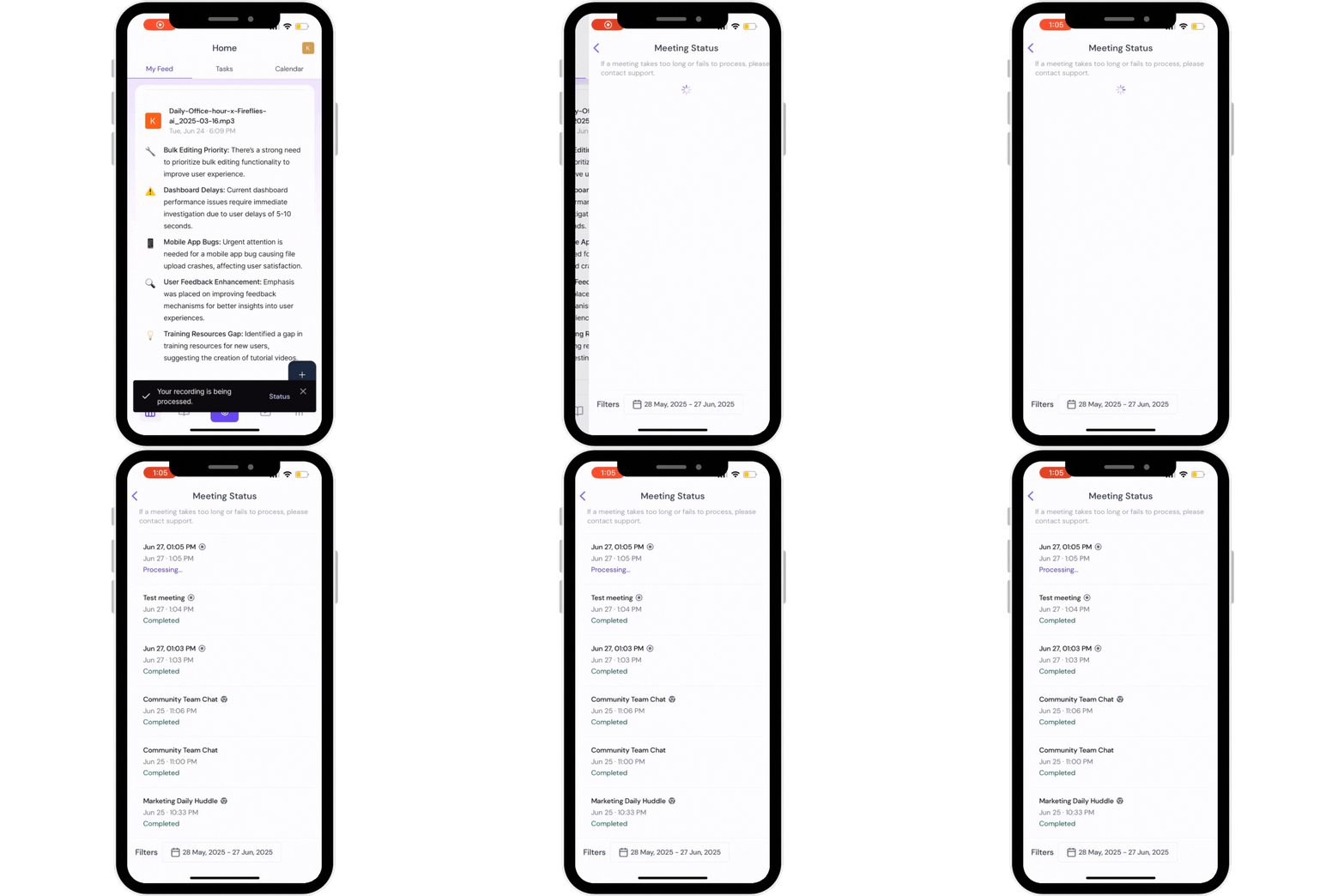
All these recordings and Meeting Status will be available on your Fireflies Web App as well
✅ That’s it!
Capture in-person meetings anytime — all from your pocket.
🎙 Want to dictate text on your phone?
Besides recording in-person meetings, you can use Fireflies Talk to dictate messages, emails, notes, and other text on your iPhone or Android device.
✅ Explore the guide to learn more about Fireflies Talk and how to set it up on your mobile device.