Managing Soundbites (Edit, Delete, Download, Share)
Last updated: April 20, 2026
Efficiently managing your soundbites ensures that important moments from your meetings are always organized and easy to access. Whether you're looking to edit titles, delete unnecessary clips, share highlights with your team, or download them for offline use, this guide will walk you through the process step by step.
Don’t have any soundbites yet?
Create one first before adding it to a playlist. Check out How to Create Soundbites (Manual & Automatic Methods) to get started.
Let’s dive in and simplify soundbite management for you! 🚀
🚀Navigation
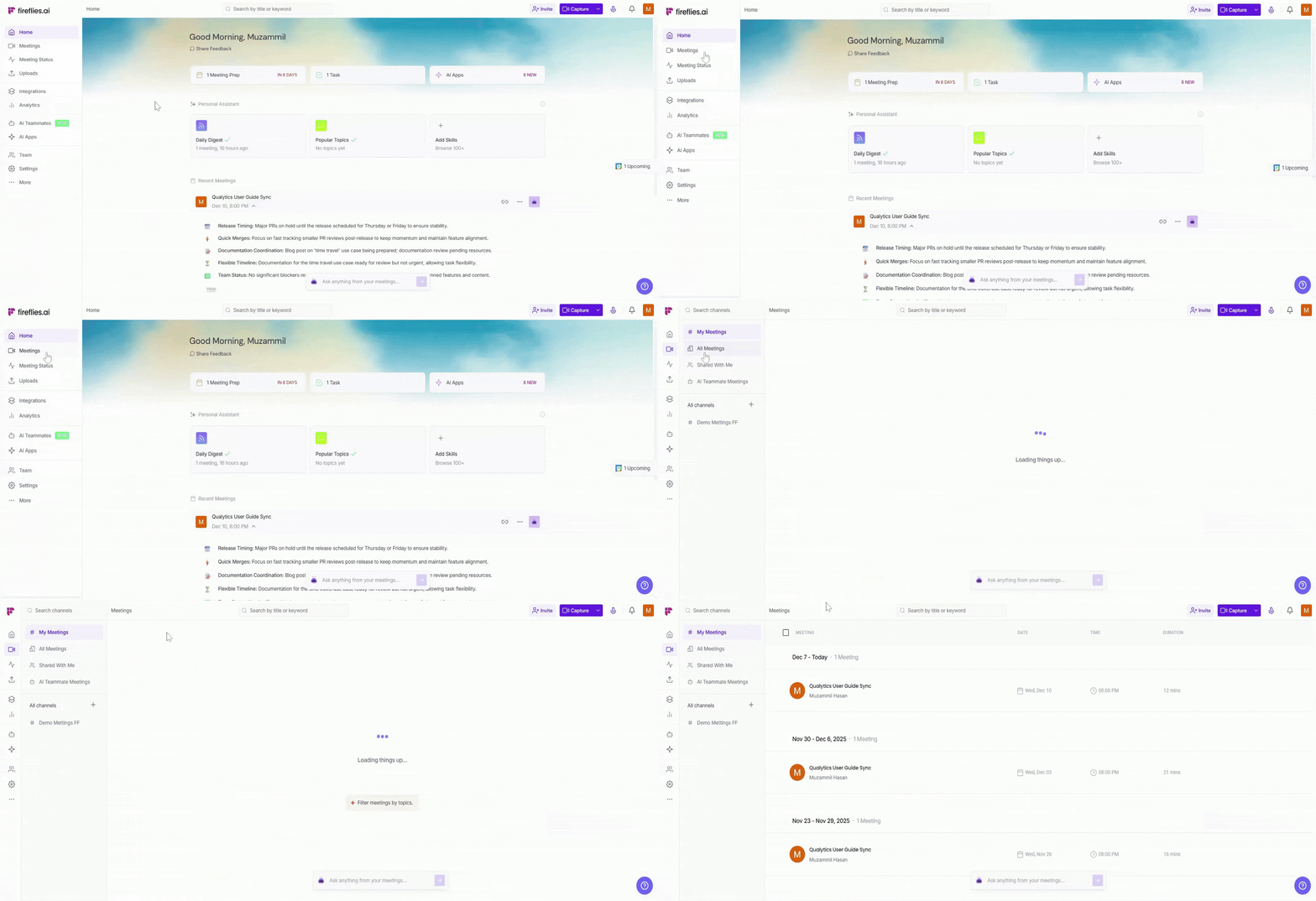
Step 1: Log in to your Fireflies account and click on the Meetings tab from the left-hand menu to open your meeting notebook.
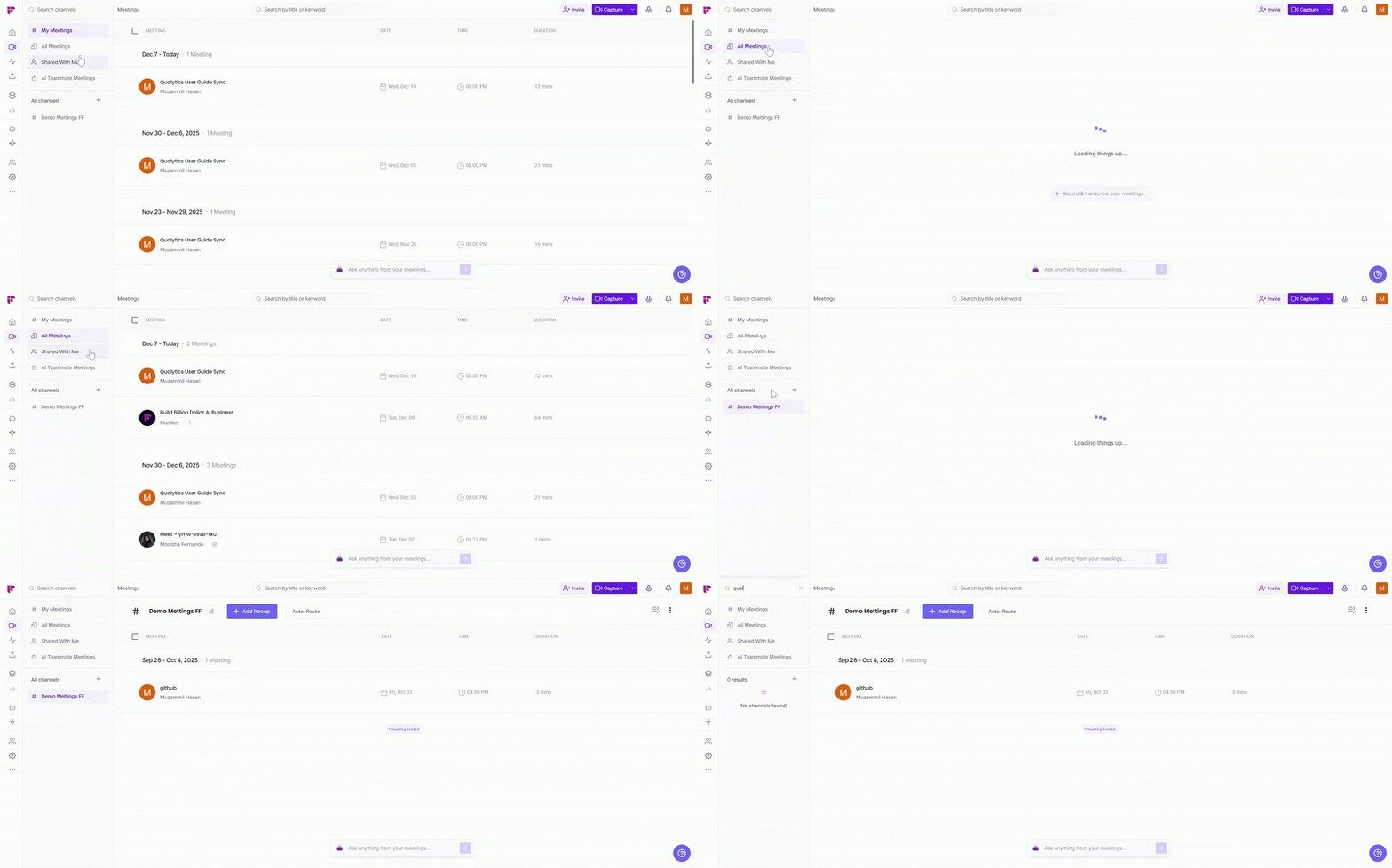
Step 2: Now, search for the meeting you want to use by typing keywords in the search bar or using the category filter (e.g., My Meetings, All Meetings, Channels) to find the relevant meeting.
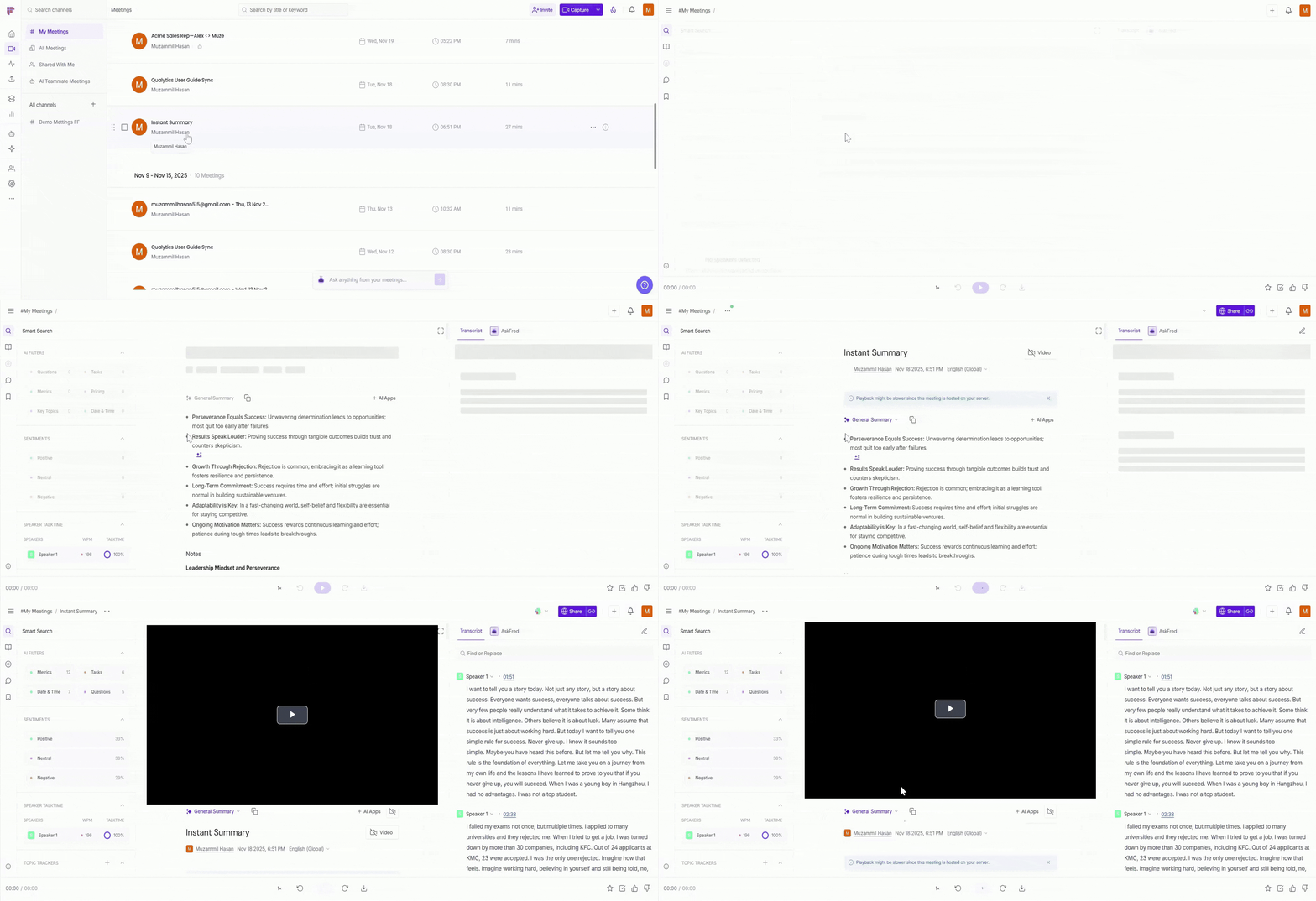
Step 3: Open the meeting you want to manage soundbites by clicking on it to access the meeting transcript and soundbites.
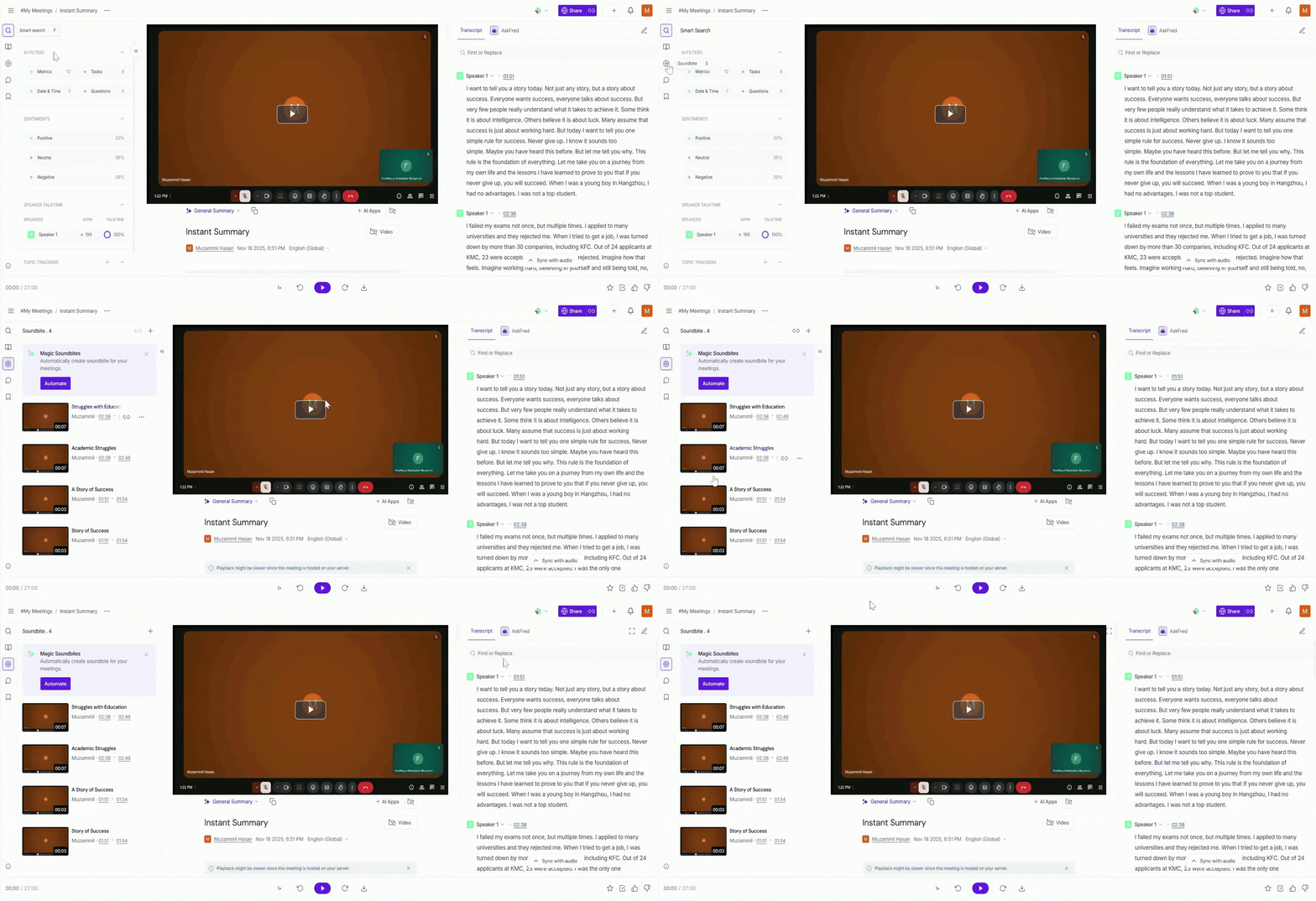
Step 4: Click on the Soundbites tab from the left menu to open and manage your created soundbites.
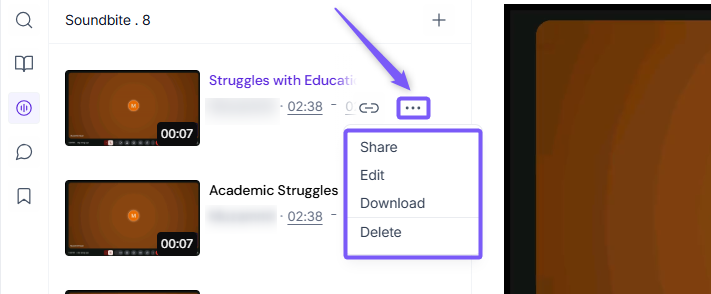
Step 5: Click on the horizontal ellipsis (⋯) next to the soundbite you want to manage—this is where you can edit, share, download, or delete the soundbite.
🔗 Share a Soundbite
Sharing a soundbite makes it easy to pass important meeting moments to teammates, stakeholders, or anyone who needs context—without sharing the entire recording.
Here’s how you can do it:
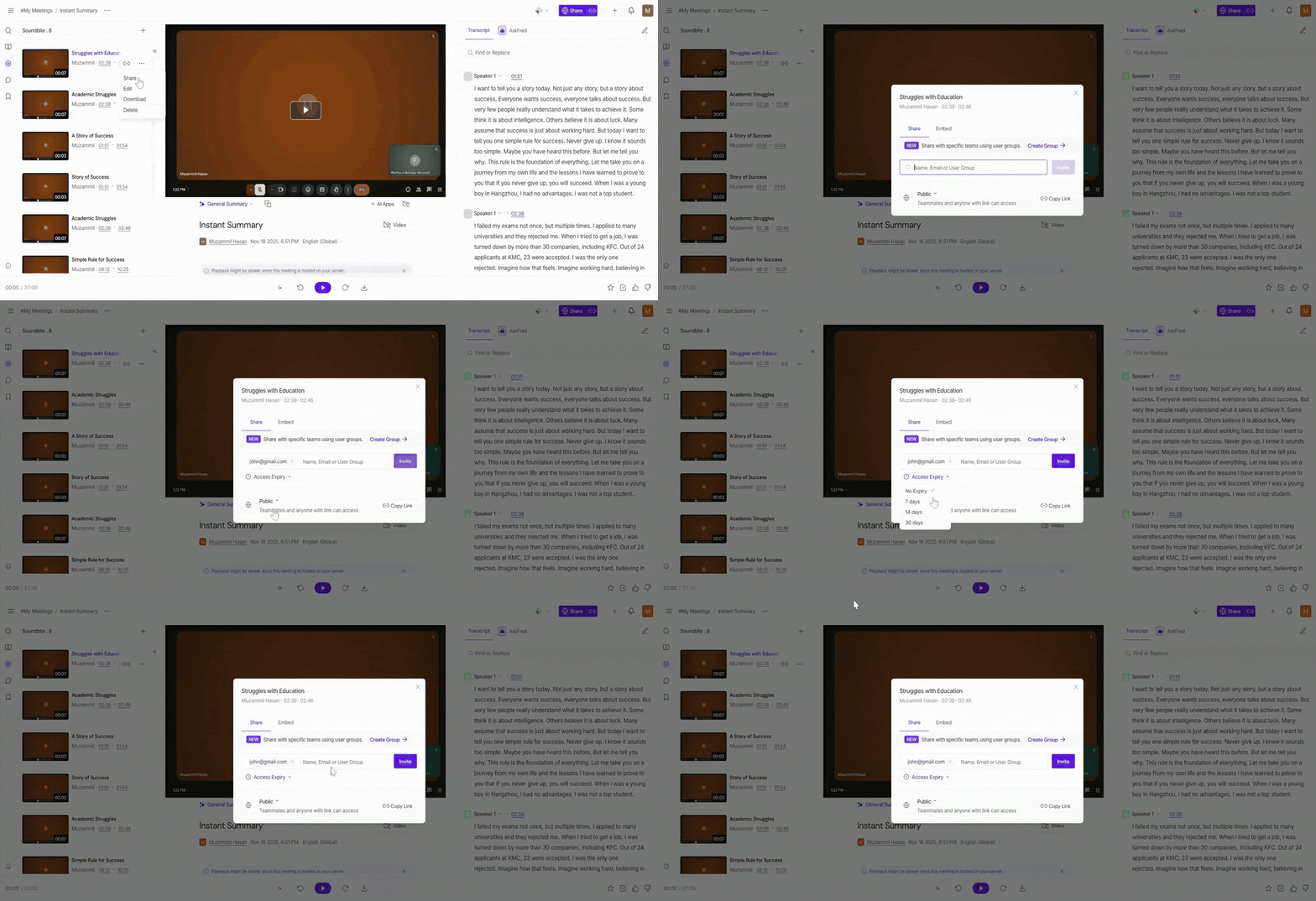
Click on Share from the ellipsis (⋯) menu next to the soundbite. A sharing window will open.
Type the name or email of the person you want to share the soundbite with and click Invite.
You can also choose an access expiry period—no expiry, 7 days, 14 days, or 30 days—based on how long you want them to have access.
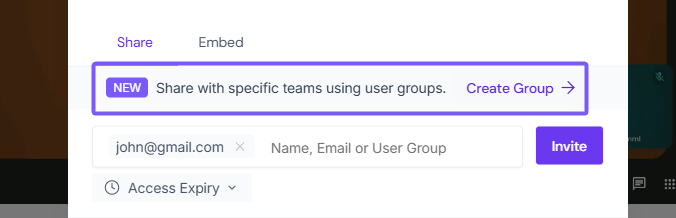
You can also share with specific teams using User Groups.
👉 Learn more about creating User Groups →
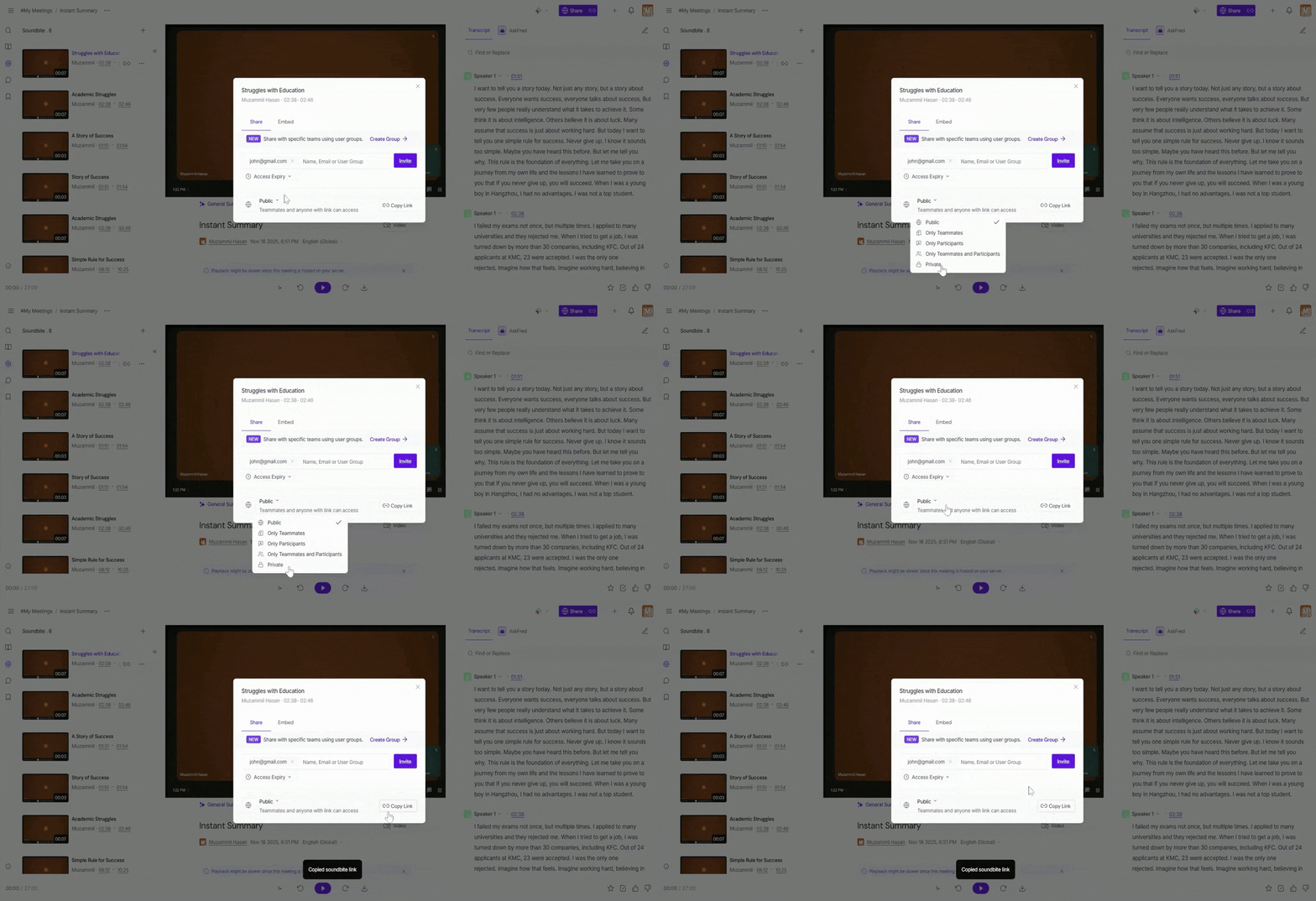
Set the access level (Public, Teammates only, Participants only, Private) from the dropdown.
Click Copy Link to share the soundbite with others.
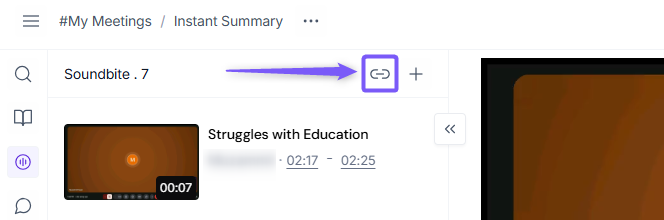
Copy all soundbites at once:
You can also click the Copy icon at the top to copy the entire soundbite URL to your clipboard, allowing you to share it instantly anywhere.
✏ Edit a Soundbite
Editing a soundbite helps you refine the clip by updating the title, adjusting the start and end time, or changing who can view it—ensuring the soundbite stays accurate and shareable.
Here’s how you can do it:
Click on the ellipsis (⋯) next to the soundbite you want to edit and select Edit.
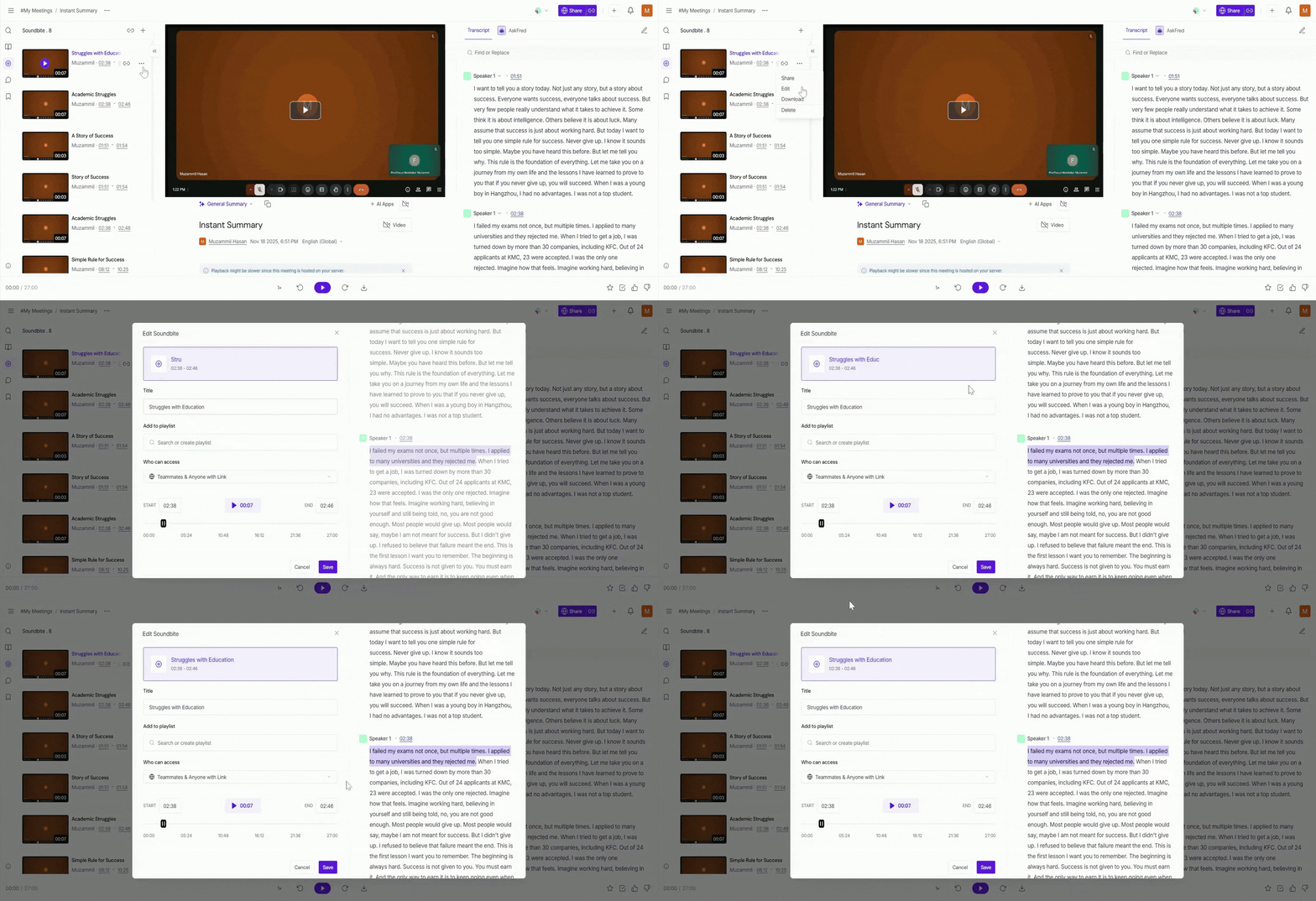
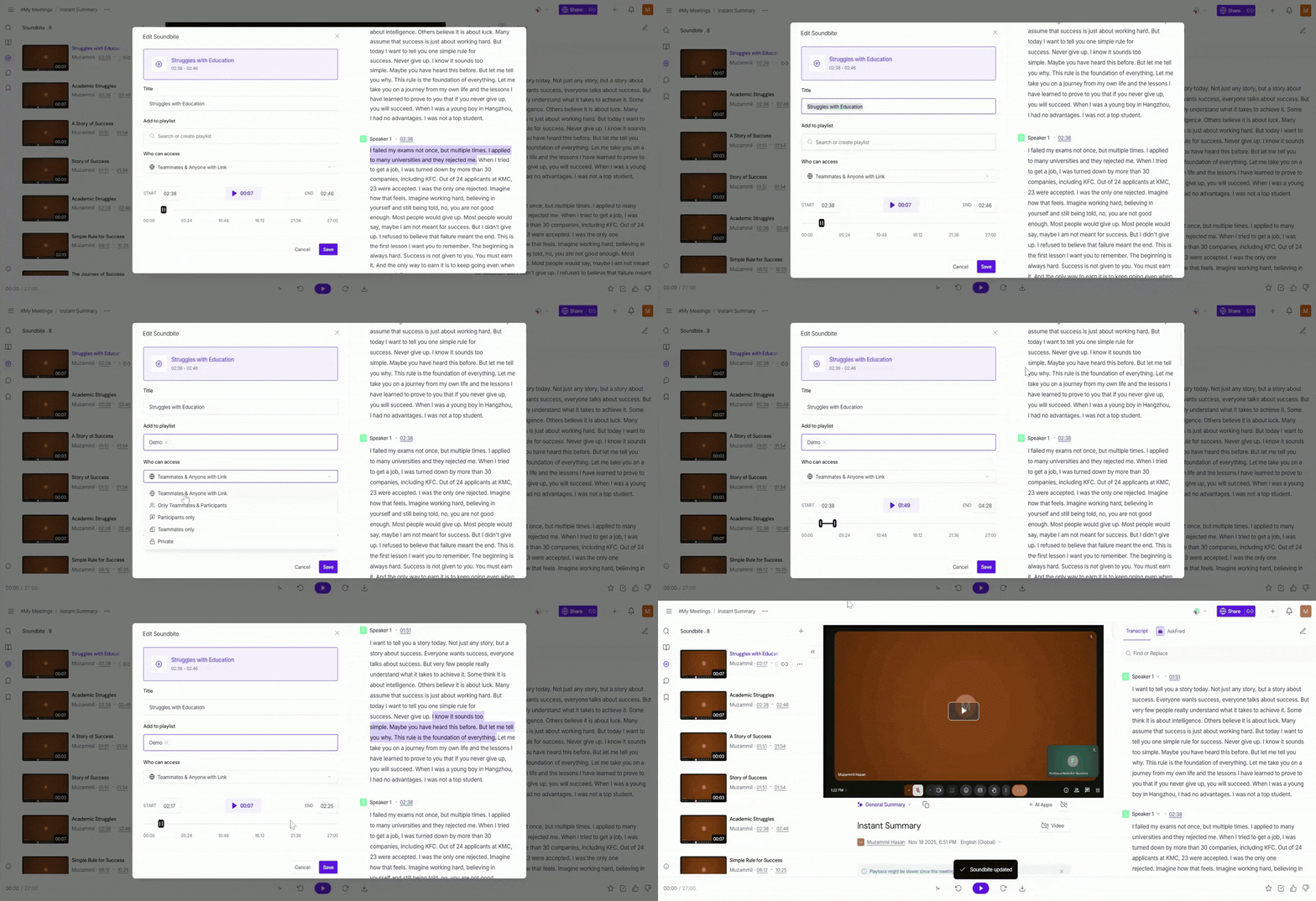
Update the title, adjust the start/end time, modify the selected text, choose who can access the soundbite from the dropdown, and then click Save to apply your changes.
⬇ Download a Soundbite
Downloading a soundbite allows you to save the clip locally so you can use it outside Fireflies or share it offline.
Click on the ellipsis (⋯) next to the soundbite you want to download.
Select Download from the dropdown menu.
Your soundbite will download as an audio file to your device.
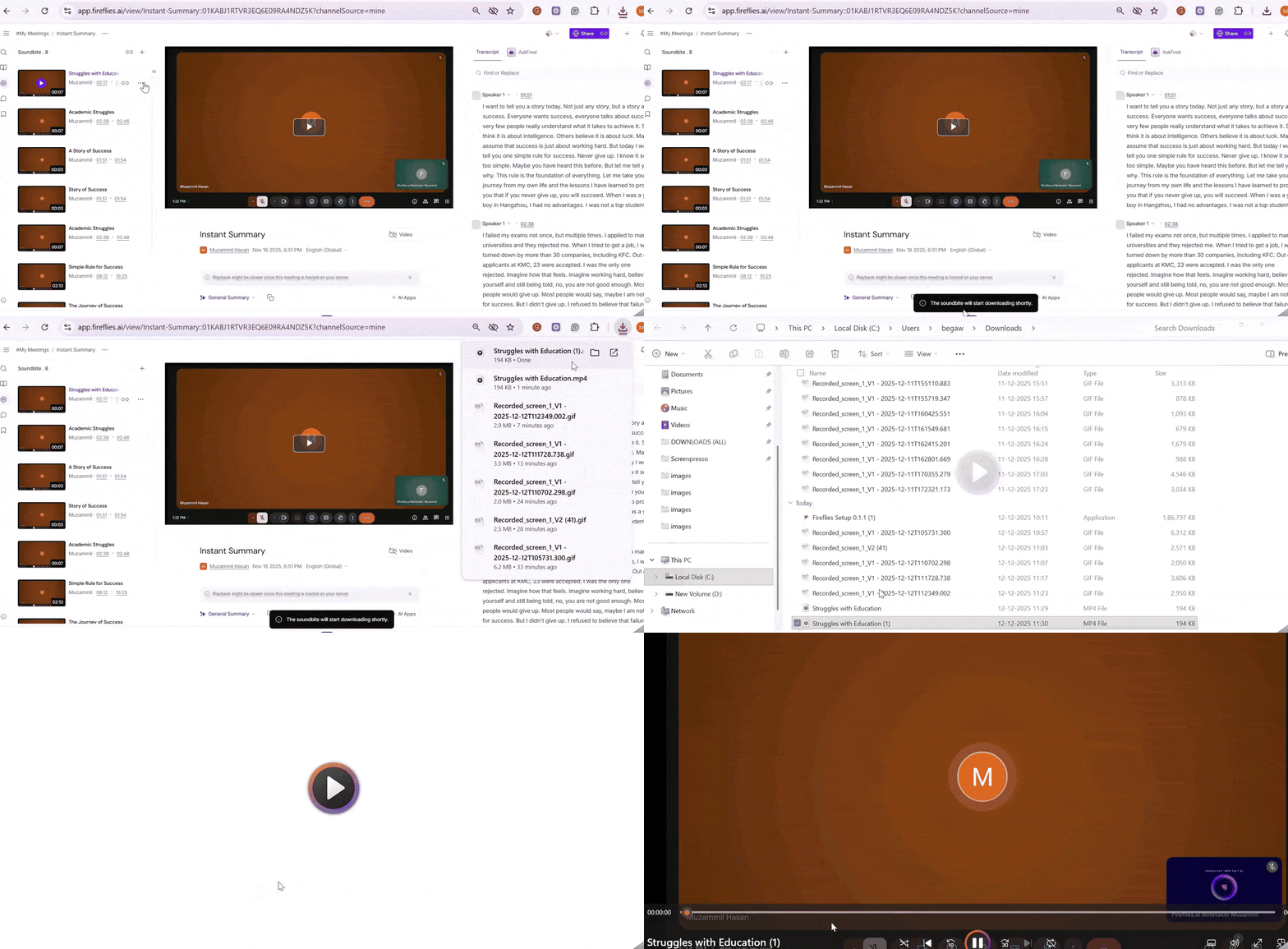
Audio-only soundbites download as MP3, while soundbites with video download as MP4.
🗑 Delete a Soundbite
Deleting a soundbite helps you clean up clips that are outdated, duplicated, or no longer relevant.
Click on the ellipsis (⋯) next to the soundbite you want to remove.
Select Delete from the dropdown menu.
Confirm the action when prompted and click on the Delete button to permanently remove the soundbite.
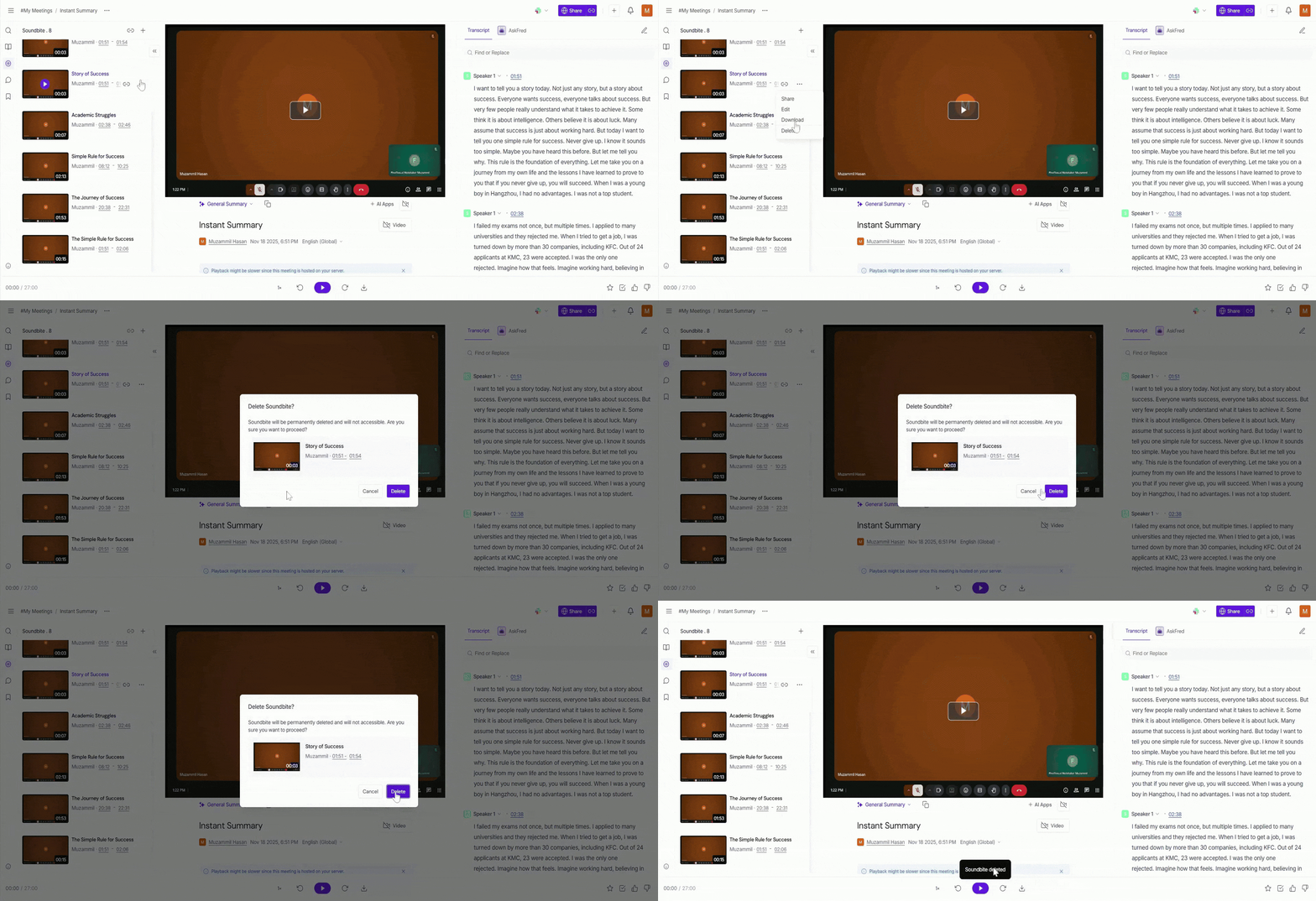
Once a soundbite is deleted, it’s permanently removed and cannot be recovered—so be sure you no longer need the clip before confirming.
🛠 Troubleshooting & FAQs
Q1. I can’t find the soundbite I want to manage.
All your soundbites—manual or automatic—are stored inside the Soundbites tab on the left menu.
Q2. The Edit / Share / Download options are not showing.
Make sure you’re clicking the ellipsis (⋯) next to the soundbite. The management menu won’t appear unless you click the correct icon.
Q3. Changes to my soundbite (title or timing) aren’t saving.
After editing, ensure you clicked Save in the modal before closing it.
Q4. The link I shared isn't opening for someone.
Check the access level for the soundbite. Set it to Anyone with the link if the viewer is outside your team.
Q5. My downloaded file looks different—MP3 vs MP4.
Audio-only soundbites download as MP3, and Soundbites containing video download as MP4
Q6. I accidentally deleted a soundbite—can I recover it?
A: Unfortunately, deleted soundbites cannot be recovered. Make sure to double-check before confirming deletion.
🔄️ Recap
You can now easily manage your soundbites—edit them for accuracy, share them with the right people, download them for offline use, and delete the ones you no longer need.
These tools help you keep important meeting moments organized, accessible, and ready to use anytime.
📌 Related Guides
Explore more resources to help you organize and work efficiently with your meeting content:
Learn About Playlists — Organize your soundbites into collections for easier access and sharing.
Learn About the Fireflies Notepad — Understand how meeting notes, markers, and soundbites come together.
AI Meeting Summaries: View, Customize, Expand, Regenerate — Get more out of your meeting summaries with advanced options.
Soundbites: How to Extract Meeting Clips and Highlights — Learn how to create soundbites automatically or manually.