How to integrate Microsoft Dynamics 365 with Fireflies
Last updated: August 26, 2026
How to Integrate Microsoft Dynamics 365 with Fireflies
Sync Fireflies meeting notes, participants, and tasks directly to Microsoft Dynamics 365 — so your CRM stays fresh, without manual copy-pasting.
Whether you’re in sales, customer success, or recruiting, this integration helps keep company records updated and action items tracked, using context from every call Fireflies captures.
🚀 What Can This Integration Do?
Once connected, Fireflies can:
✅ Push meeting transcripts, summaries, and action items directly into Microsoft Dynamics 365
✅ Log notes to the right contacts, leads, or opportunities automatically
✅ Create new contacts or leads from participants (if they don’t already exist)
✅ Create follow-up tasks directly in your CRM
✅ Apply smart rules to control which meetings get logged
This makes it easy to centralize insights and automate follow-ups across your workflows — all without lifting a finger.
🔧 Step-by-Step: Setting Up Microsoft Dynamics 365 + Fireflies
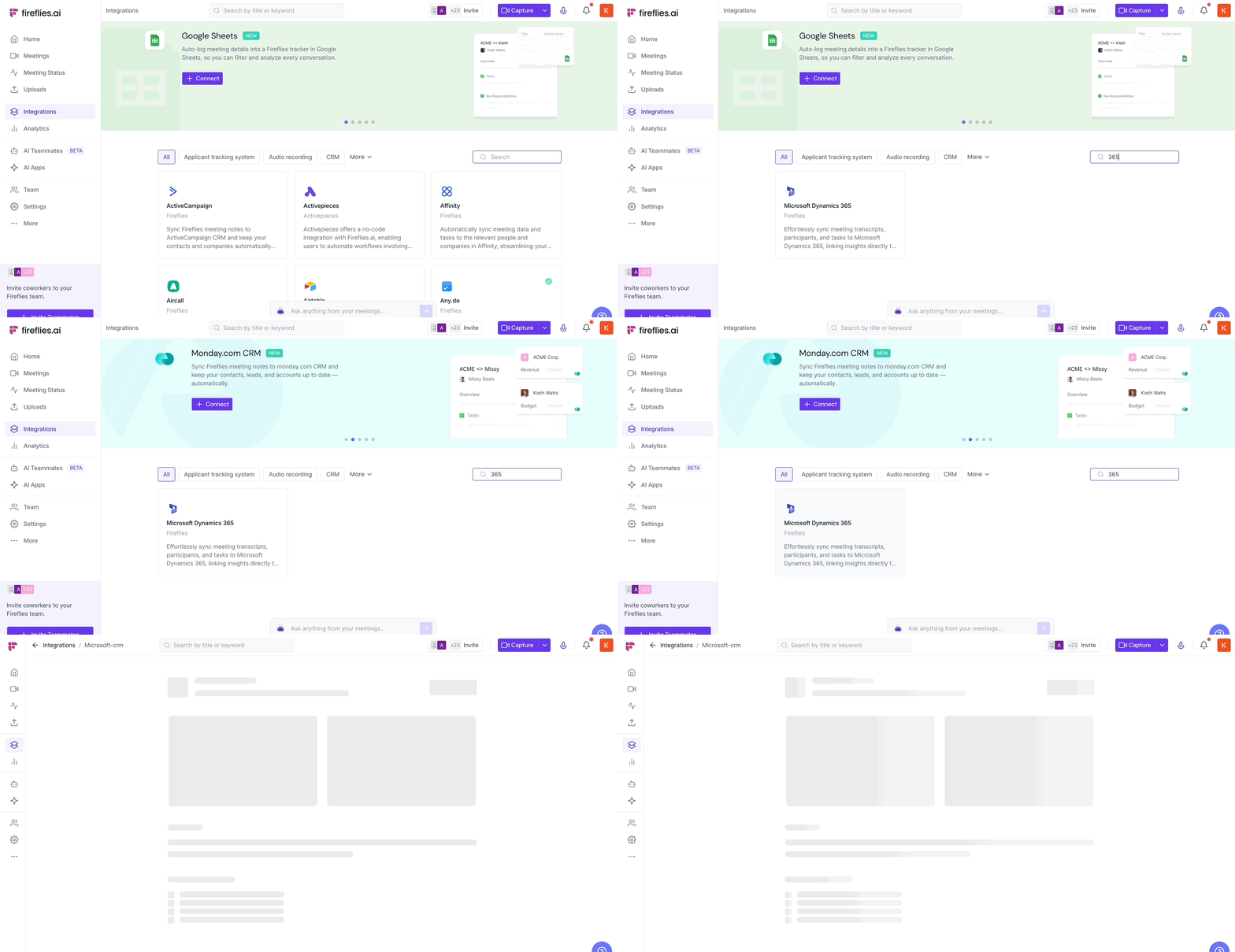
From your Fireflies dashboard, navigate to Integrations

Search for Microsoft Dynamics 365 and click it
2. Click Connect
Hit the Connect button on the Microsoft Dynamics 365 integration page

3. Enter Your Dynamics 365 Domain
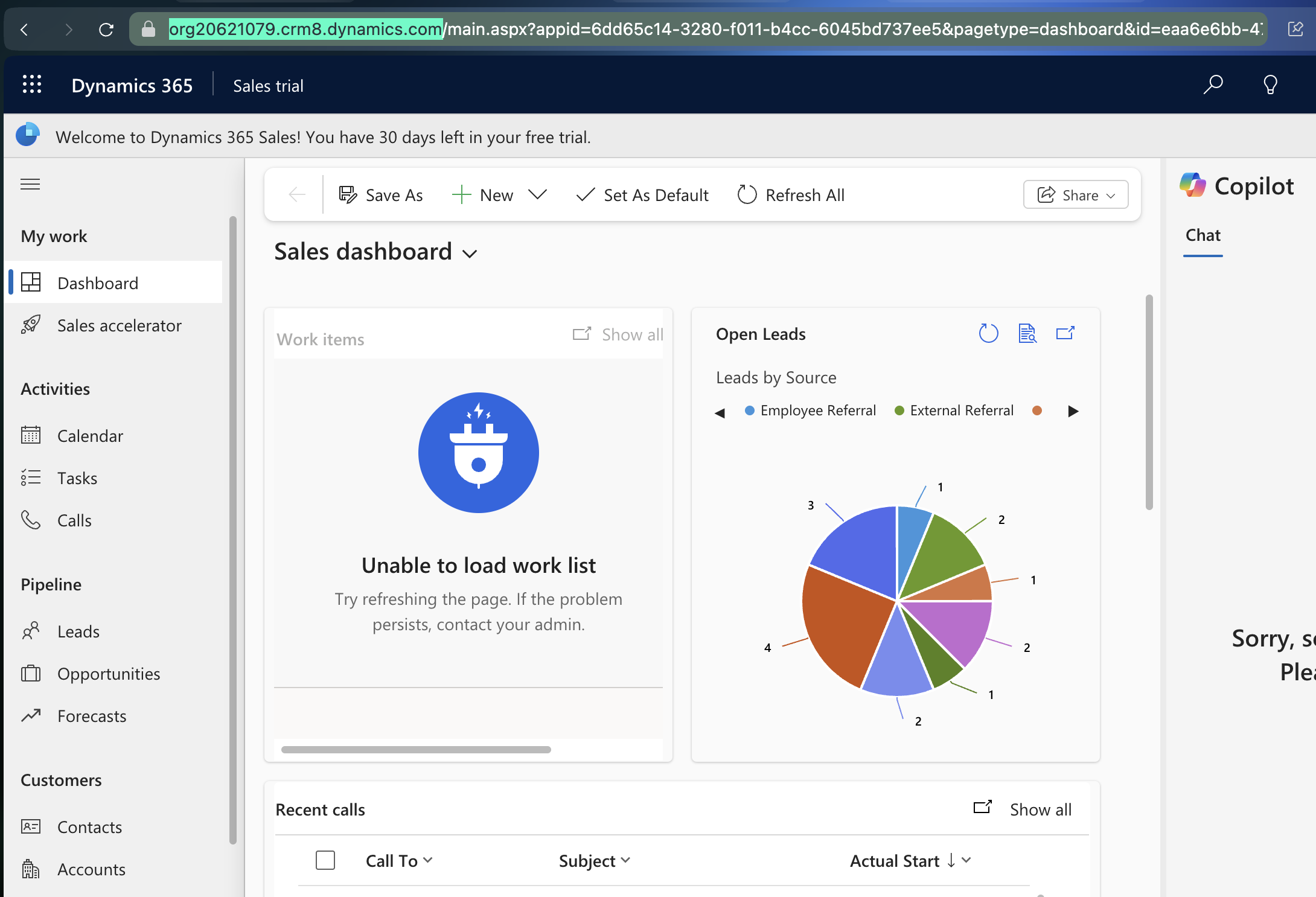
A popup will ask for your Microsoft Dynamics 365 domain.
This is required for authentication.
✅ Where to find this:
Log into your Microsoft Dynamics 365 dashboard.
Then copy the base URL from your browser — it should look like:https://your-org.crm8.dynamics.com
Paste this URL in the field, then click Authorize to proceed.
⚙ Configuration Options
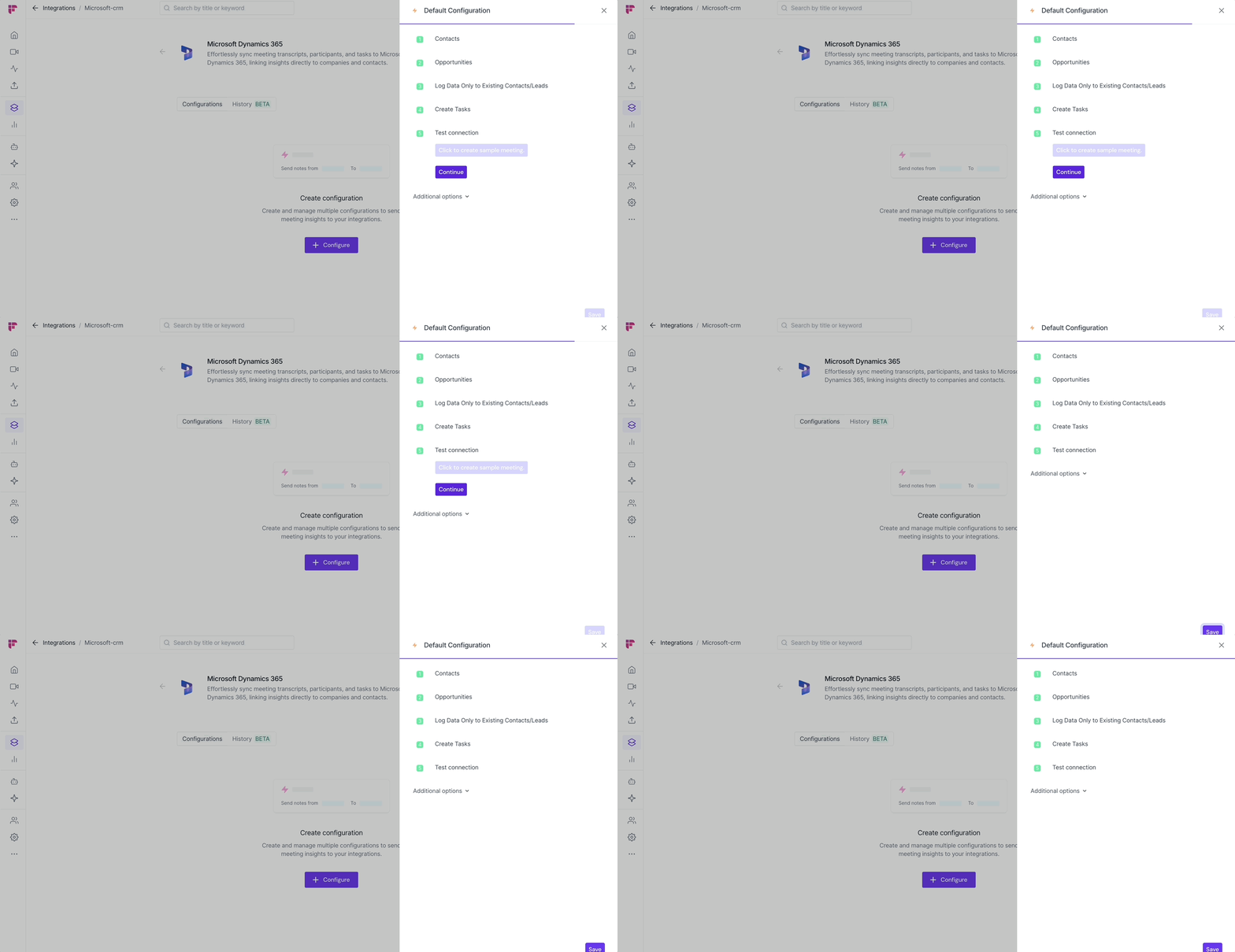
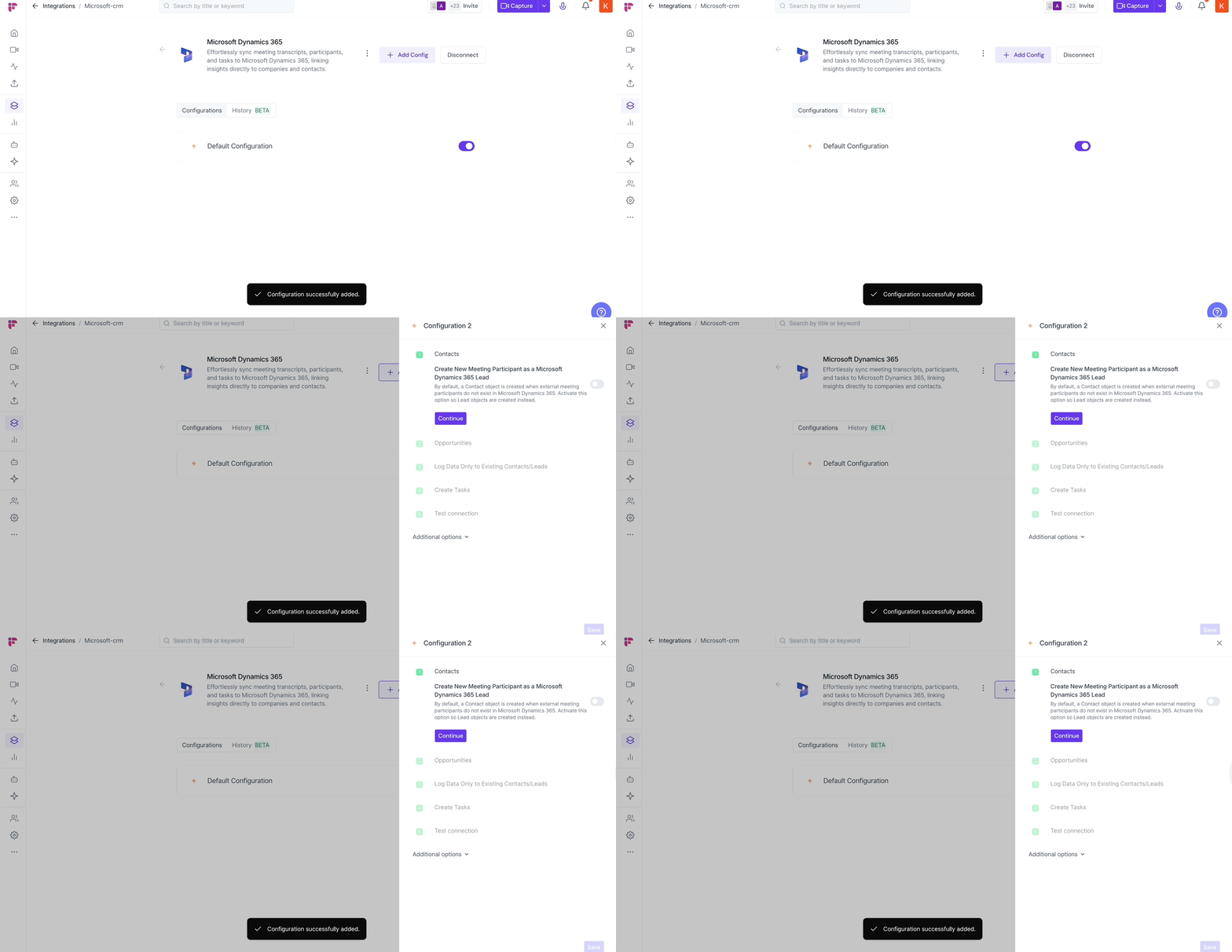
Once connected, you’ll be prompted to set up your first configuration. You can always edit, rename, or add more later.
🧩 1. Choose What Fireflies Should Do
You’ll see a list of toggles:
Contacts: Fireflies will auto-log meeting notes to matching contact records
Opportunities: Attach meeting notes to open Opportunities linked to the contact
Create new Leads: If a participant isn’t found, Fireflies can create a new Lead object
Log to existing only: Toggle this ON if you only want Fireflies to push data for existing contacts/leads (without creating new ones)
Create Tasks: Automatically generate tasks in Dynamics based on action items from the meeting
👉 Tip: Use Create Tasks to make sure action items never fall through the cracks.
🧪 2. (Optional) Test the Connection
Click Test Connection to run a sample meeting and verify everything’s working.
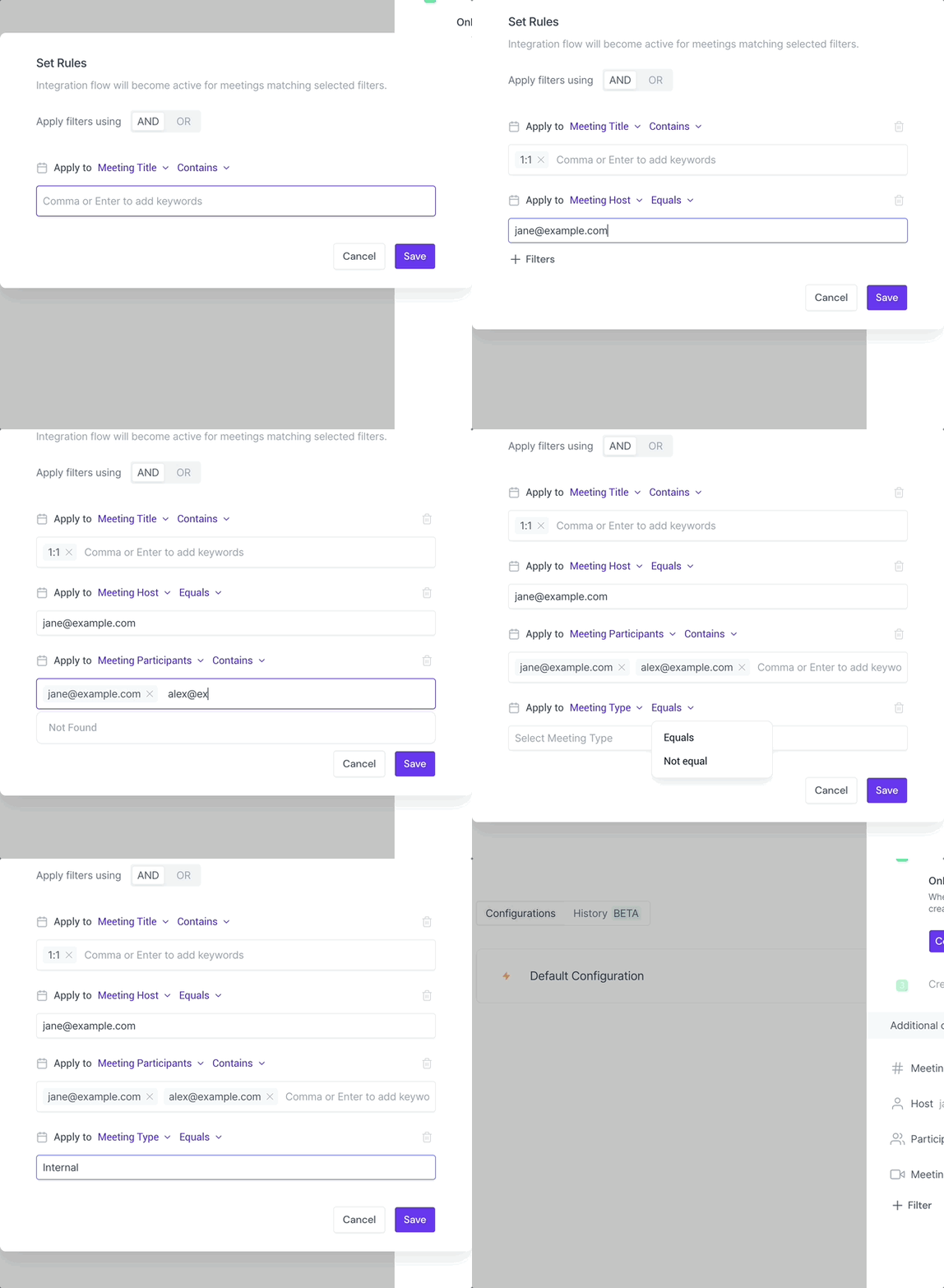
🎯 Add Integration Rules (Filters)
Want to limit what gets synced to Dynamics?
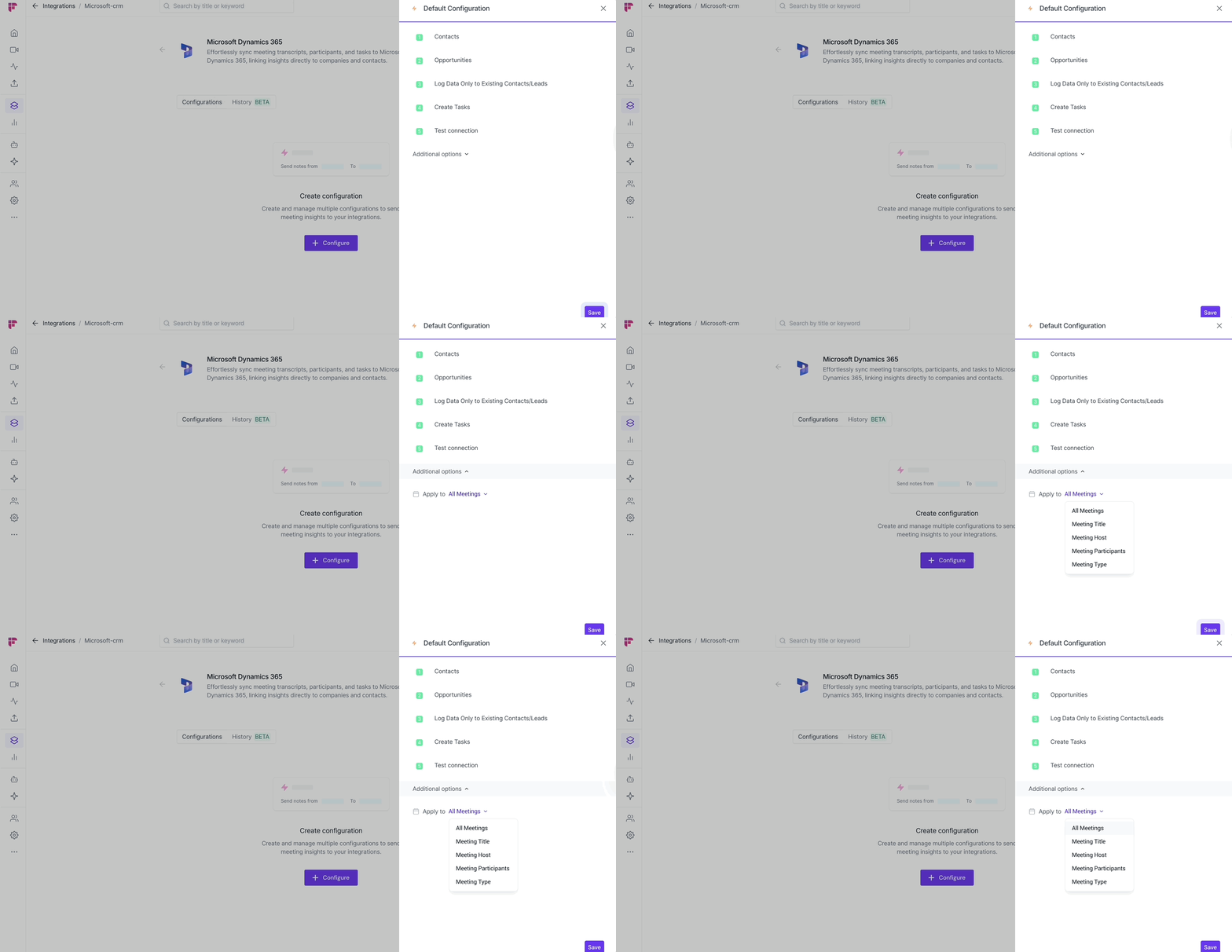
Click Additional Options to apply smart filters.
⚠ Integration Rules are available only on Business & Enterprise plans
You can filter meetings by:
Meeting Title
Host
Participants
Meeting Type (e.g., external or internal)
🧠 Example: Only push notes from meetings hosted by Alex that include “Client Demo” in the title.
These filters are stackable using AND/OR logic, so you can create very specific rules.
👥 Team Integration Settings
Workspace admins can control how the Microsoft Dynamics 365 is used across their team. The available options depend on your plan and workspace role.
Click the vertical ellipsis (⋮) next to your Microsoft Dynamics 365 and select Team Permissions from the dropdown list.

Business and Enterprise
If you are a Workspace Admin on a Business or Enterprise plan, you can manage granular Integration Permissions for the integration, including who can access and connect it.
📖 See Integration Permissions: Control Who Can Access and Connect Integrations for detailed instructions on managing integration permissions.

Free and Pro
Free and Pro users do not have access to the full Integration Permissions dashboard. Instead, Team Permissions opens a modal with the available workspace-level settings.
Apply to entire workspace → Toggle this ON to apply the Microsoft Dynamics 365 integration across your Fireflies workspace. All team meetings accessible by the team admin will have notes sent to Microsoft Dynamics 365, keeping everything centralized.
📌Meetings that are set to private in a teammate’s Privacy Settings won’t be pushed to Microsoft Dynamics 365 unless you’re a Super Admin who can access meetings regardless of privacy settings.
Restrict non-admin usage → Toggle this ON to prevent non-admin members from creating their own Microsoft Dynamics 365 configurations. This helps maintain consistent settings and avoid unintended changes.
After adjusting the toggles to fit your team’s workflow, click Save to apply the changes.

Note: Business and Enterprise Workspace Admins have access to granular integration permissions, while Free and Pro workspaces have more limited workspace-level controls.
✏ Managing Configurations
Once your config is saved:
You’ll see it listed under the “Configurations” tab
You can toggle it ON/OFF anytime
You can rename it — e.g., “Only Client Demos” or “Push Only to Open Opportunities”
You can add more configs using + Add Config (helpful if you want different rules per region, team, or workflow)
✅ Manually send meeting notes to Microsoft Dynamics 365
Prefer sending only certain meetings to Microsoft Dynamics 365? Fireflies also allows you to manually send meeting notes directly from the Notepad.
This is helpful when you want to review or edit notes first and then send only the relevant conversations to Dynamics 365 contacts or records—without setting up automation rules or configuration.
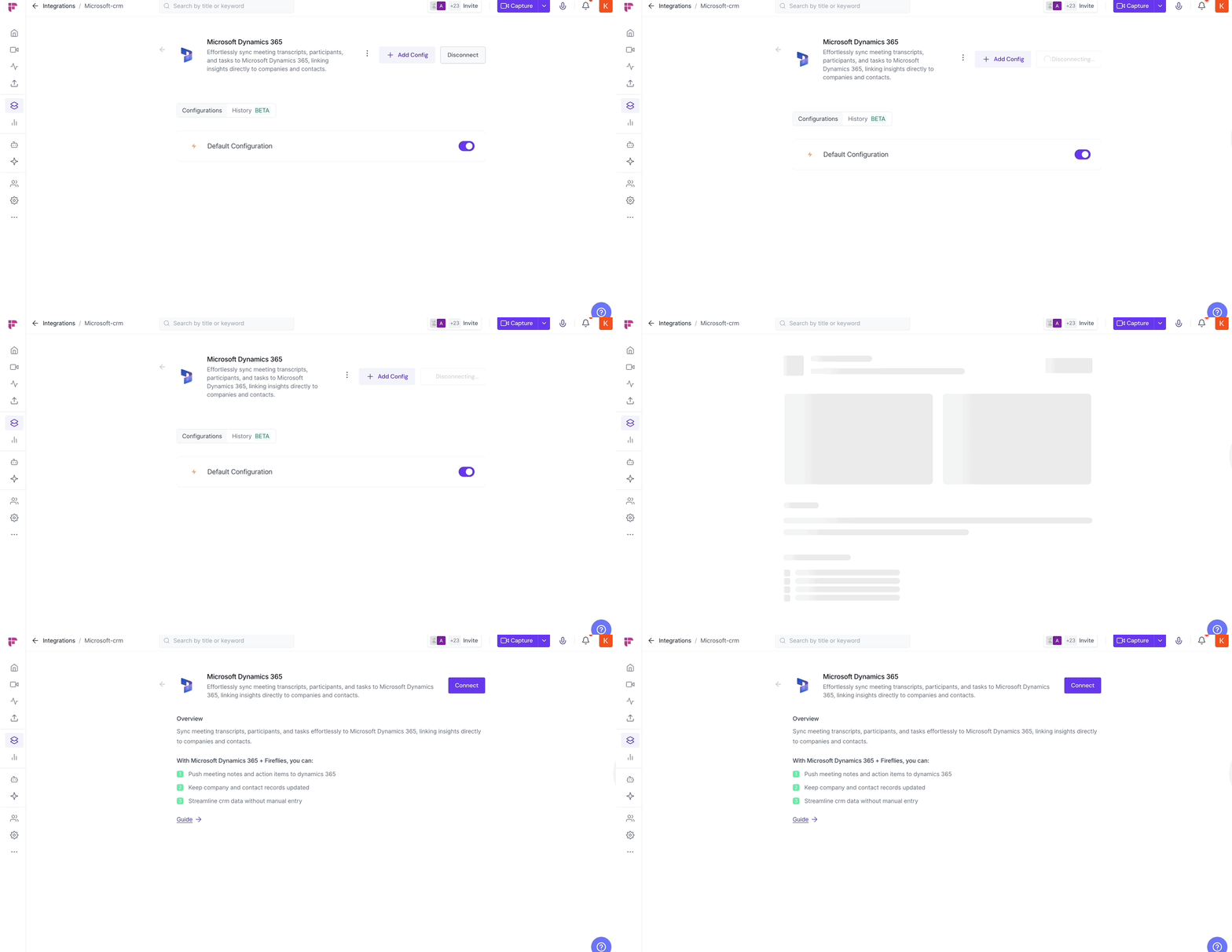
🔌 How to Disconnect or Pause
To pause syncing, toggle off your configuration
To fully remove the integration, click Disconnect from the top of the integration screen
⏪ Push Past Meetings to Microsoft Dynamics 365
Sometimes, the meetings you want in Microsoft Dynamics 365 happened before you connected the integration. Whether you enabled the integration later or want to add older meeting notes to Microsoft Dynamics 365, Push Past Meetings lets you choose a date range and meeting type, then send those meetings in just a few clicks.
Note: Make sure you've connected Microsoft Dynamics 365 and created at least one push configuration before using Push Past Meetings. If you haven't, complete the Setting Up Your Configuration section above first.
Follow the steps below to push past meetings to Microsoft Dynamics 365.
From the Microsoft Dynamics 365 integration page, click Push past meetings.

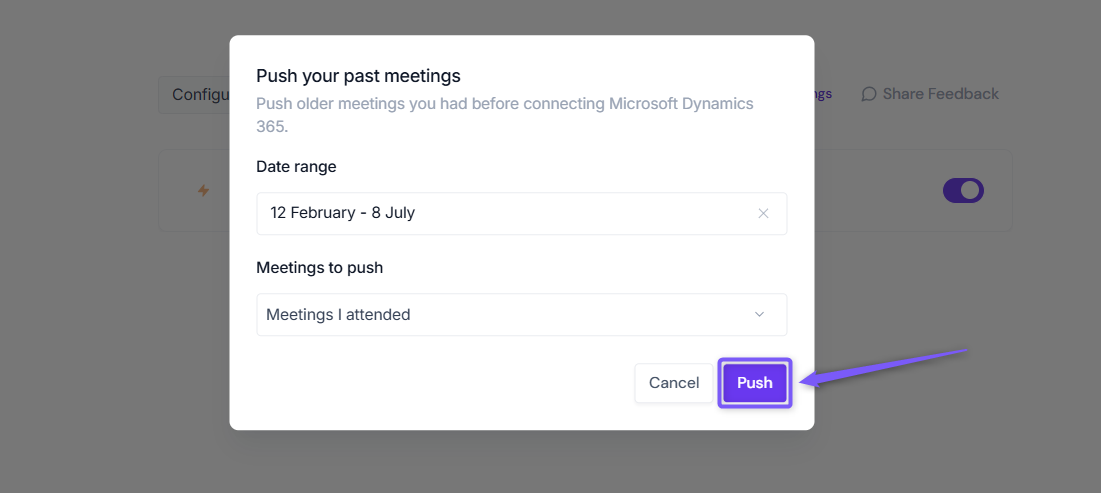
A dialog box will appear. Choose the following:
Date range → Select the meetings you want to send by choosing Last 7, 14, 30, 60, or 90 days, or specify a custom date range.
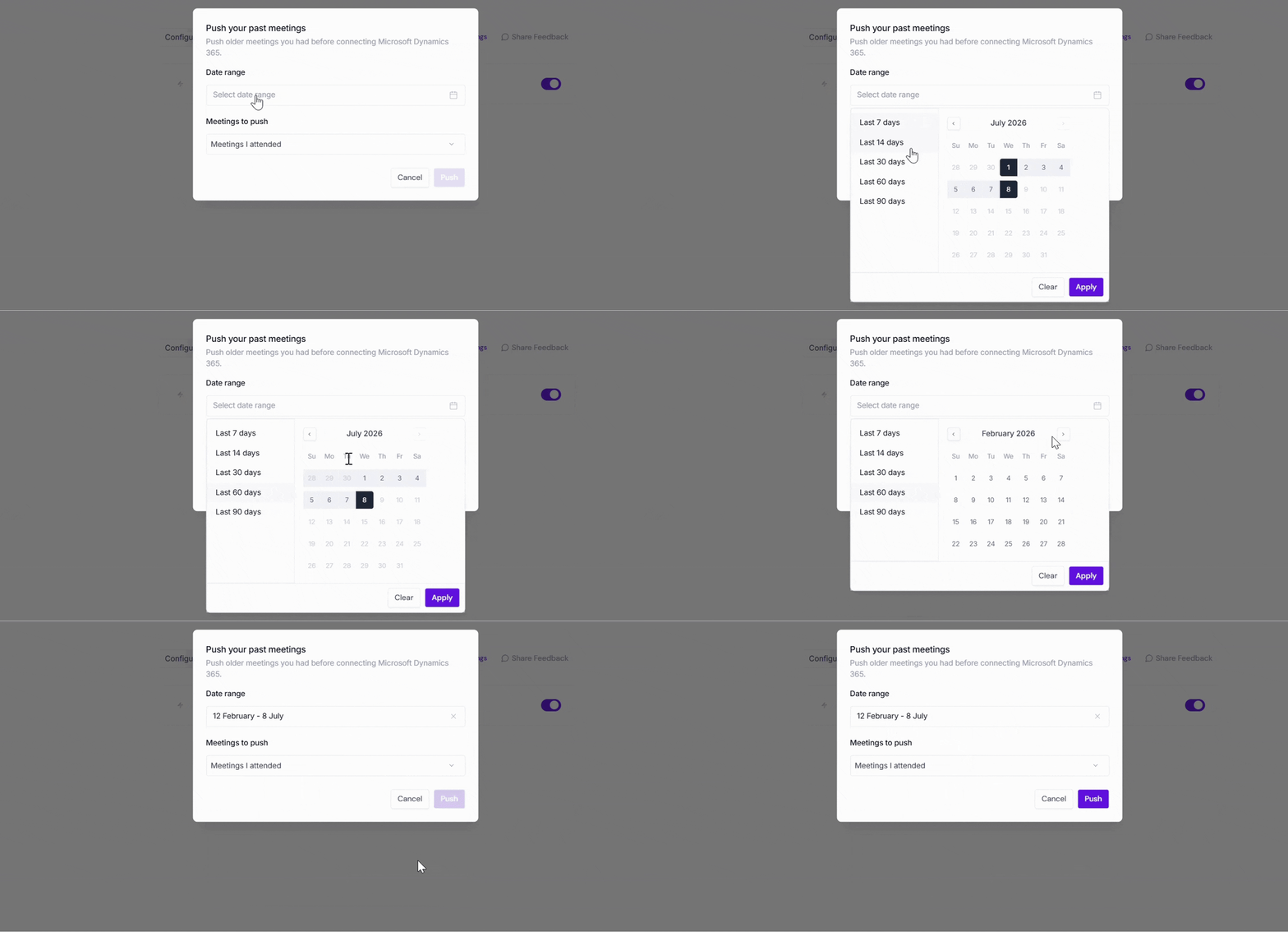
Meetings to push → Choose whether to push Meetings I attended, Meetings I organized or joined, or All my meetings.
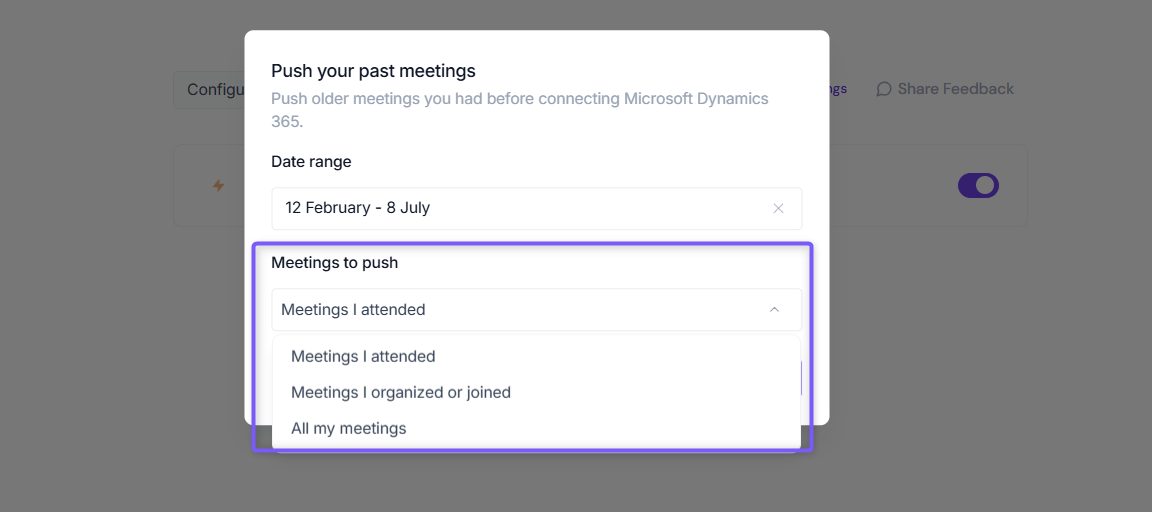
Click Push. Fireflies will send the matching meeting notes to Microsoft Dynamics 365 using your existing configuration settings.
Meetings recorded after you connect Microsoft Dynamics 365 are sent automatically. Push Past Meetings is only needed for meetings that happened before the integration was connected.
✅ What Happens After Setup?
From now on, once a meeting ends:
Fireflies will automatically push transcripts, summaries, and action items to your CRM
Notes will appear under the appropriate Contact, Lead, or Opportunity
Tasks will be created if that setting was enabled
Everything happens behind the scenes — no manual work required.