How to enable Microsoft Dynamics 365 integration for teams?
Last updated: August 28, 2025
This guide covers steps to enable Microsoft Dynamics 365 integration for teams.
Pre-requisite
Ensure you've completed the steps to integrate Microsoft Dymanics 365 integration for teams.
Related: How to integrate Microsoft Dynamics 365 with Fireflies
Steps
Workspace admins can control how the Microsoft To Do integration works across their team with two options under Integration Scope:
To set up team options, click on the 3 dots on your integration page
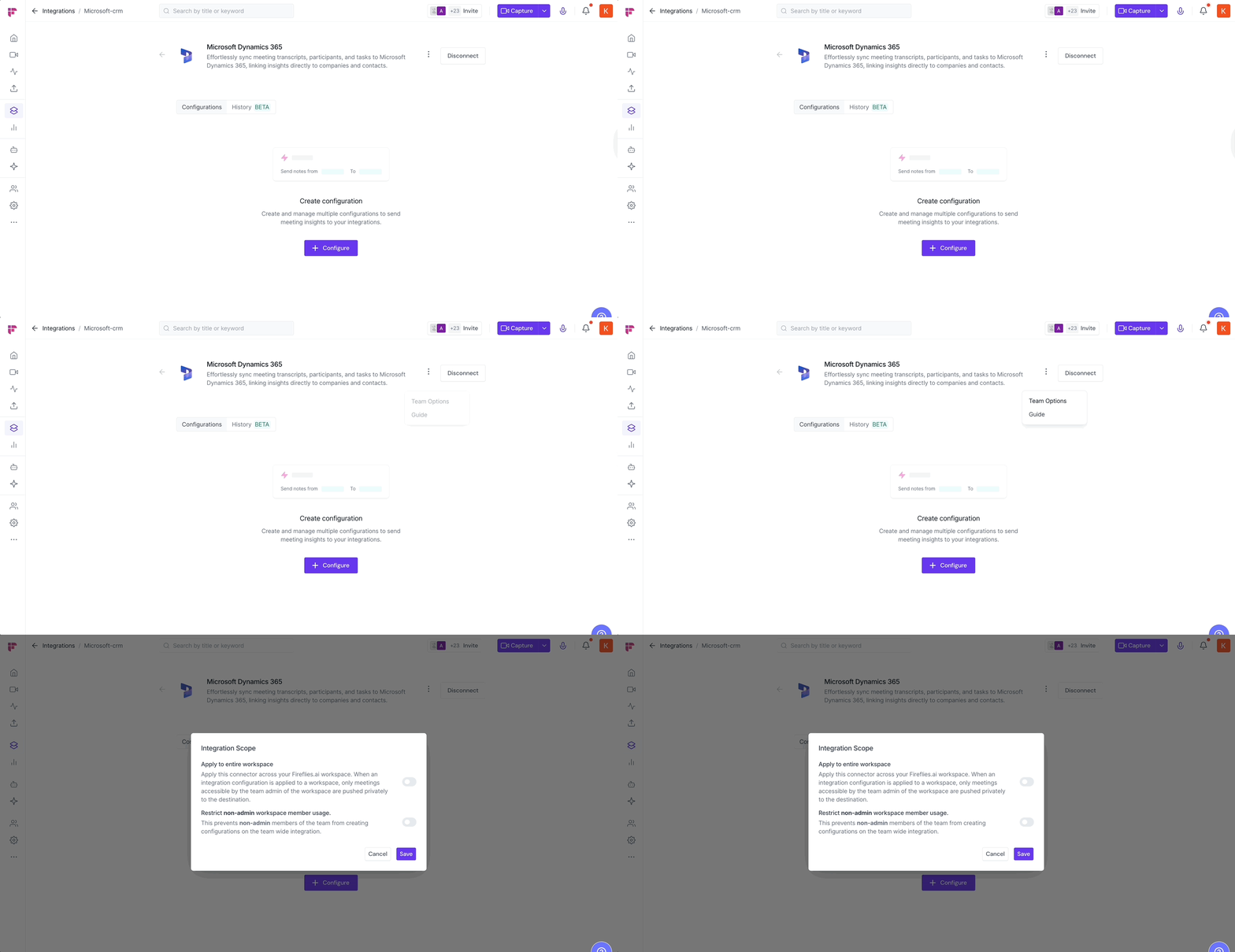
You will see a pop up with 2 Options, toggle on based on your preference and hit save
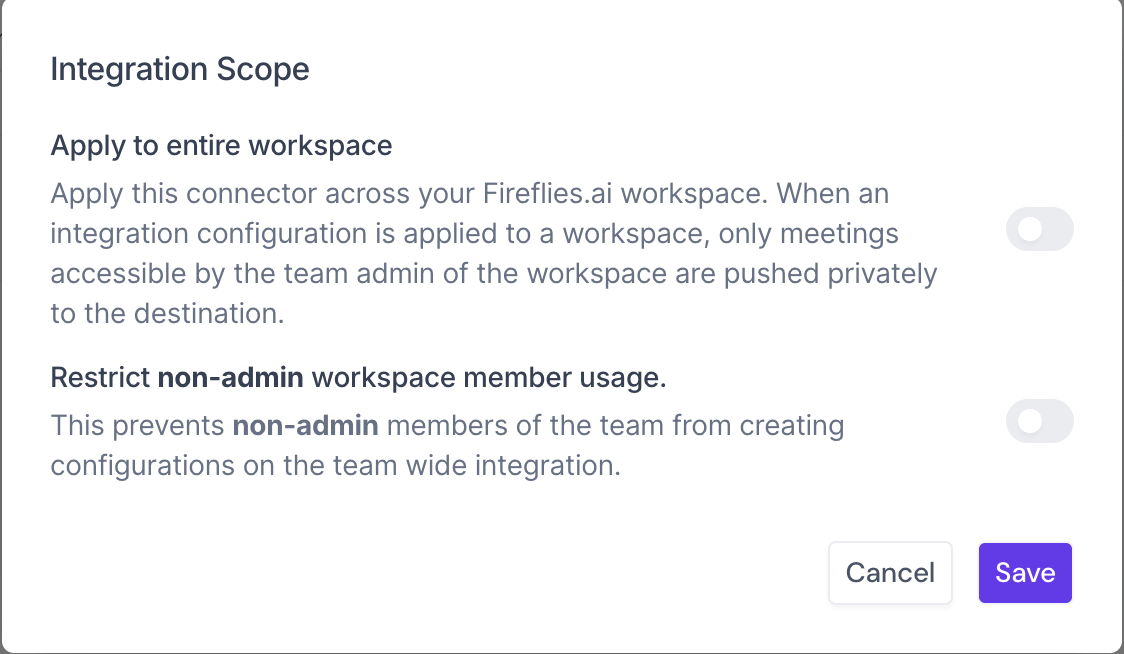
A. Apply to entire workspace
Use this to auto-push action items from admin-accessible meetings to Microsoft To Do for the whole team.
Great for setting a shared config that covers everyone.
Only the admin’s meetings will be pushed.
B. Restrict non-admin workspace member usage
Block teammates from creating their own configs on top of the team-wide integration.
Keeps things centralized and clean.
Prevents conflicting setups by individual users.