How to Hide, Move, and Manage the Live Assist Pane
Last updated: September 7, 2026
Live Assist is available in the Floating Pane, which opens automatically when you start a meeting capture with Fireflies.ai Notetaker or Take Notes without a bot.
You can adjust the pane to keep it out of the way, position it where you need it, or hide it while presenting. This guide shows you how to move, resize, collapse, expand, hide, and reopen the Floating Pane during a meeting.
Let's get started 🚀
🚀 How to Open Live Assist on the Desktop App
Live Assist is available in the real-time Floating Pane, which opens automatically whenever you start capturing a meeting using Fireflies.ai Notetaker or Take Notes (without bot).
Capture meetings with Fireflies.ai Notetaker (bot).
Capture meetings using Take Notes (system audio, without a bot).
If you haven't started a meeting capture yet, follow Getting Started with the Fireflies Desktop App to learn how to start a capture.
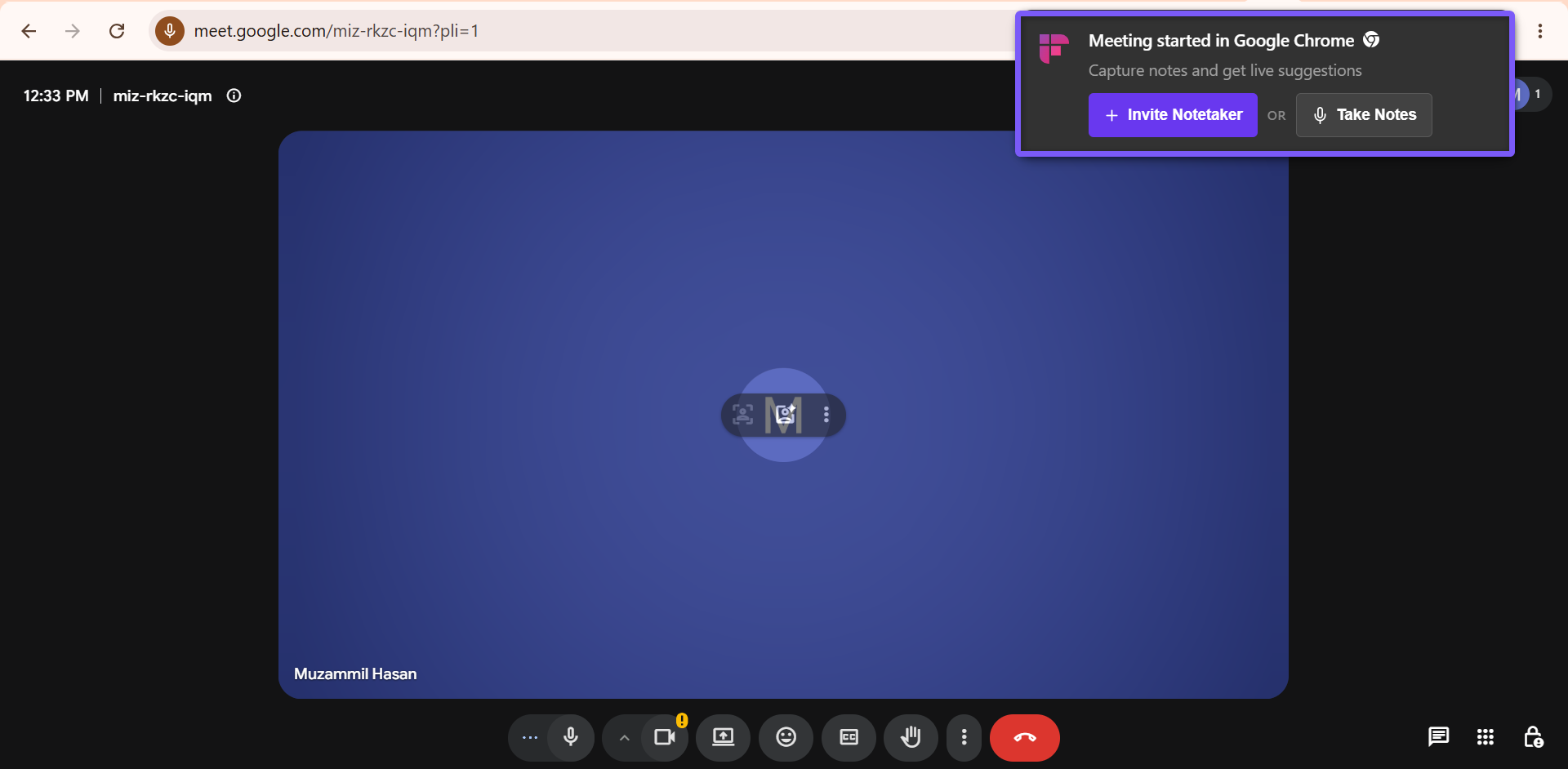
Once meeting capture begins, the real-time Floating Pane opens automatically, giving you access to Live Assist, AskFred, AI Skills, transcripts, notes, and other in-meeting features.
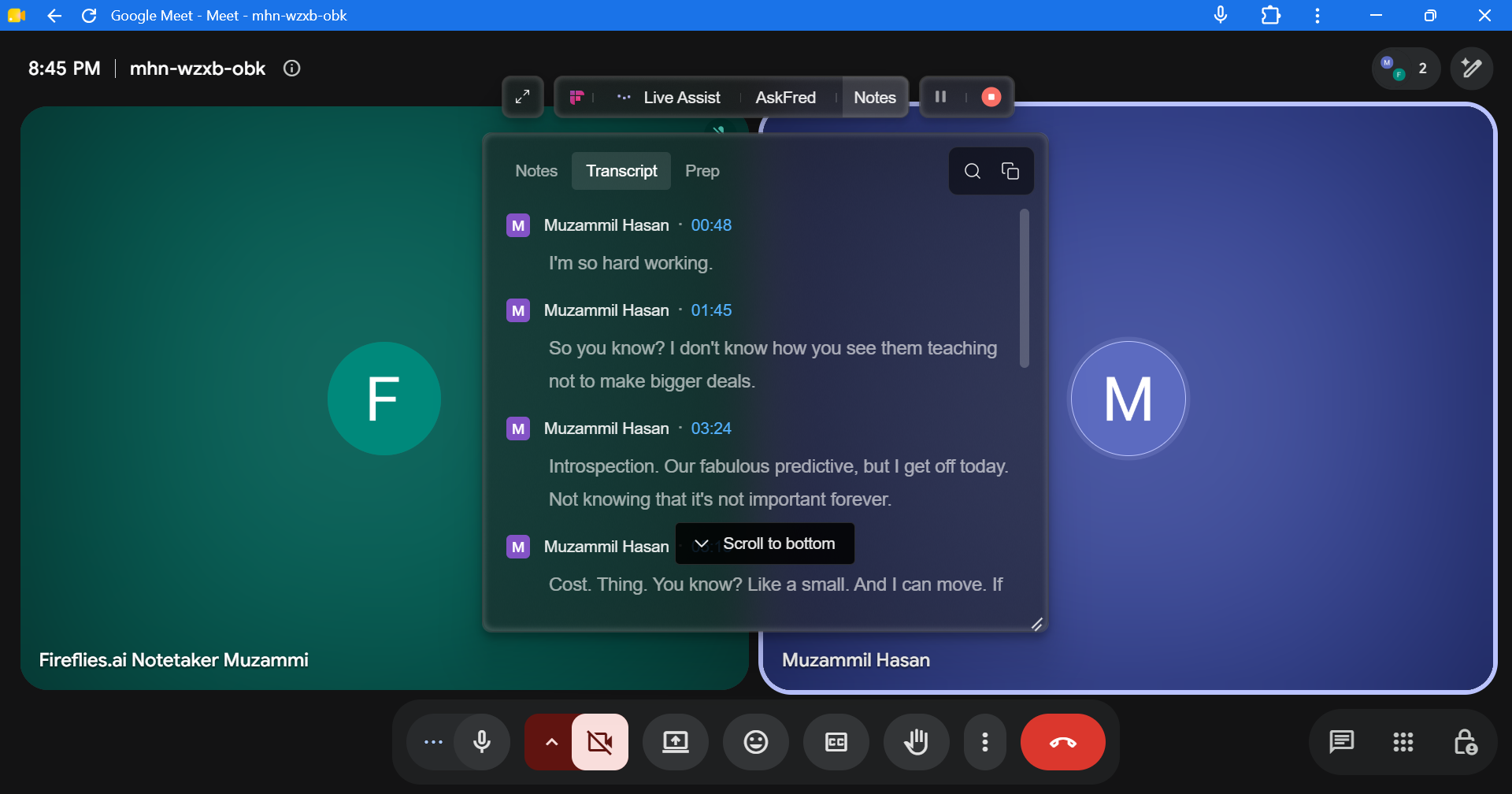
🪟 Floating Pane
The Floating Pane is a sleek, movable overlay that gives you quick access to Live Assist while you're recording. It stays on top of other windows, allowing you to view live transcripts, ask questions, generate AI insights, and take notes without leaving your meeting.
By default, the Floating Pane auto-opens when Fireflies joins a meeting (as a bot) or captures system audio (without a bot).
Key features:
Drag it anywhere: Click and drag the top toolbar bar to reposition the pane on your screen.
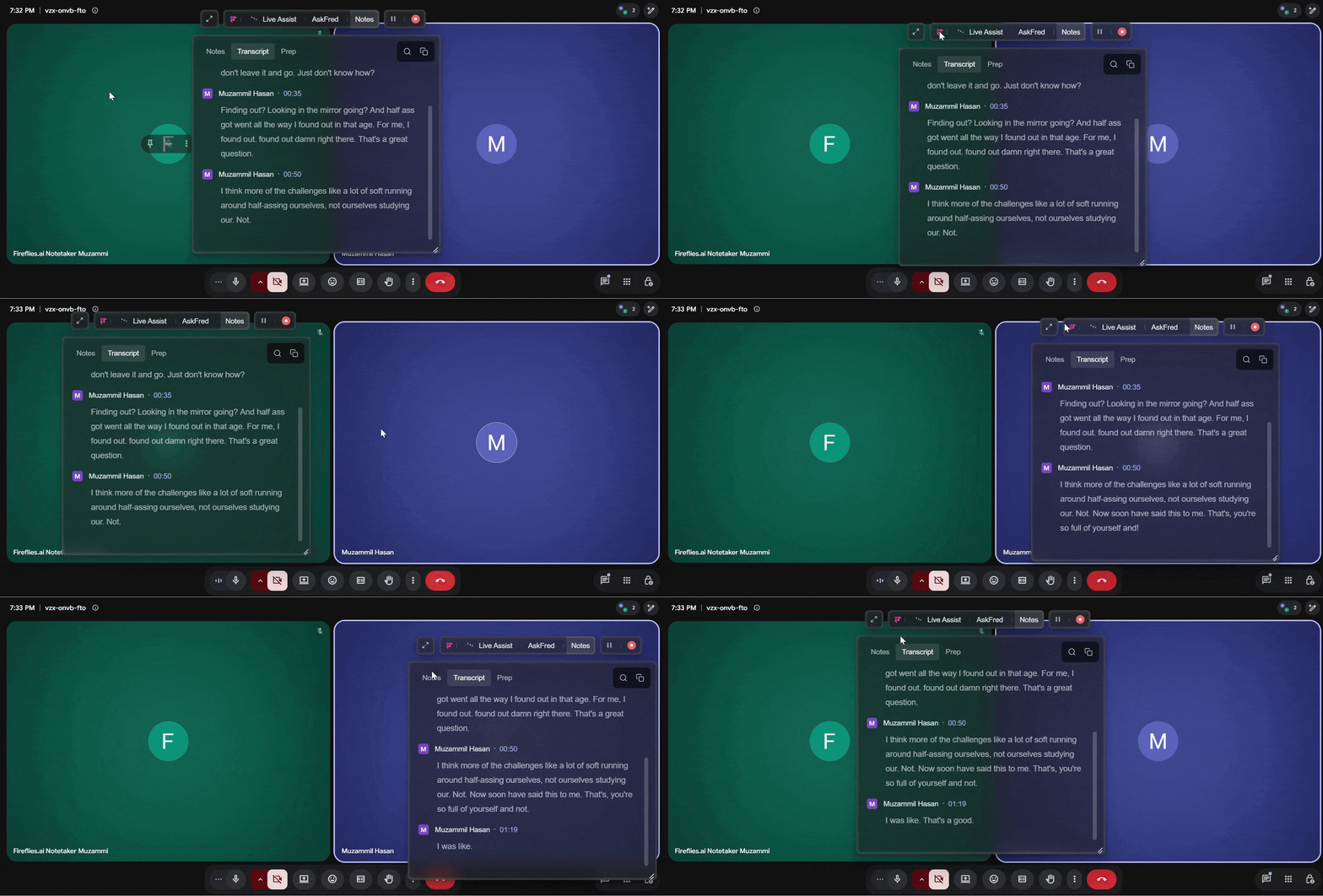
Collapse/Expand: Floating pane can be collapsed into a compact floating toolbar that remains visible on your screen. From the toolbar, you can quickly switch between Live Assist, AskFred, and Notes, and reopen any panel when needed.
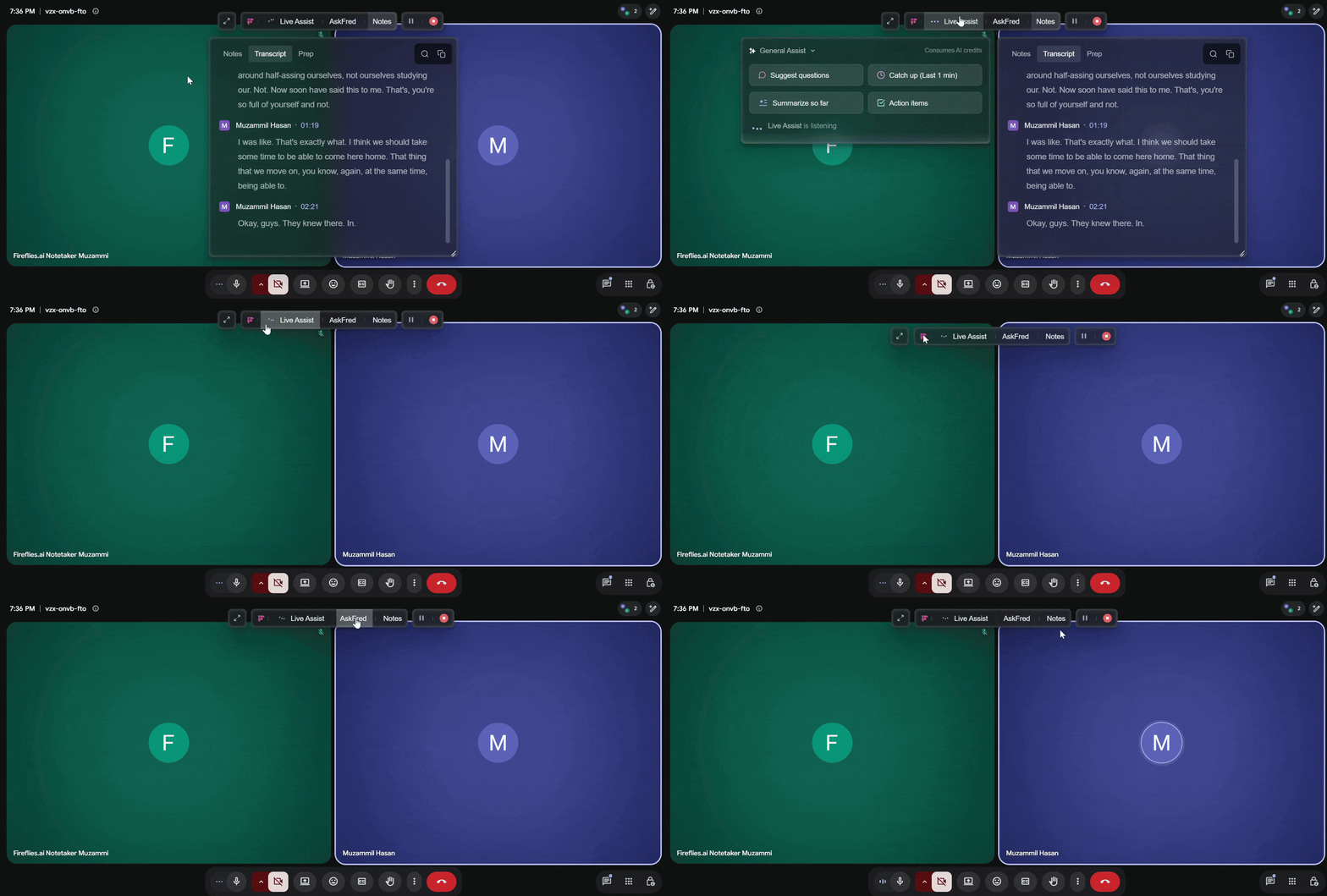
Full screen mode: Click the Expand icon to open the Floating Pane in a larger workspace for easier viewing during long meetings.
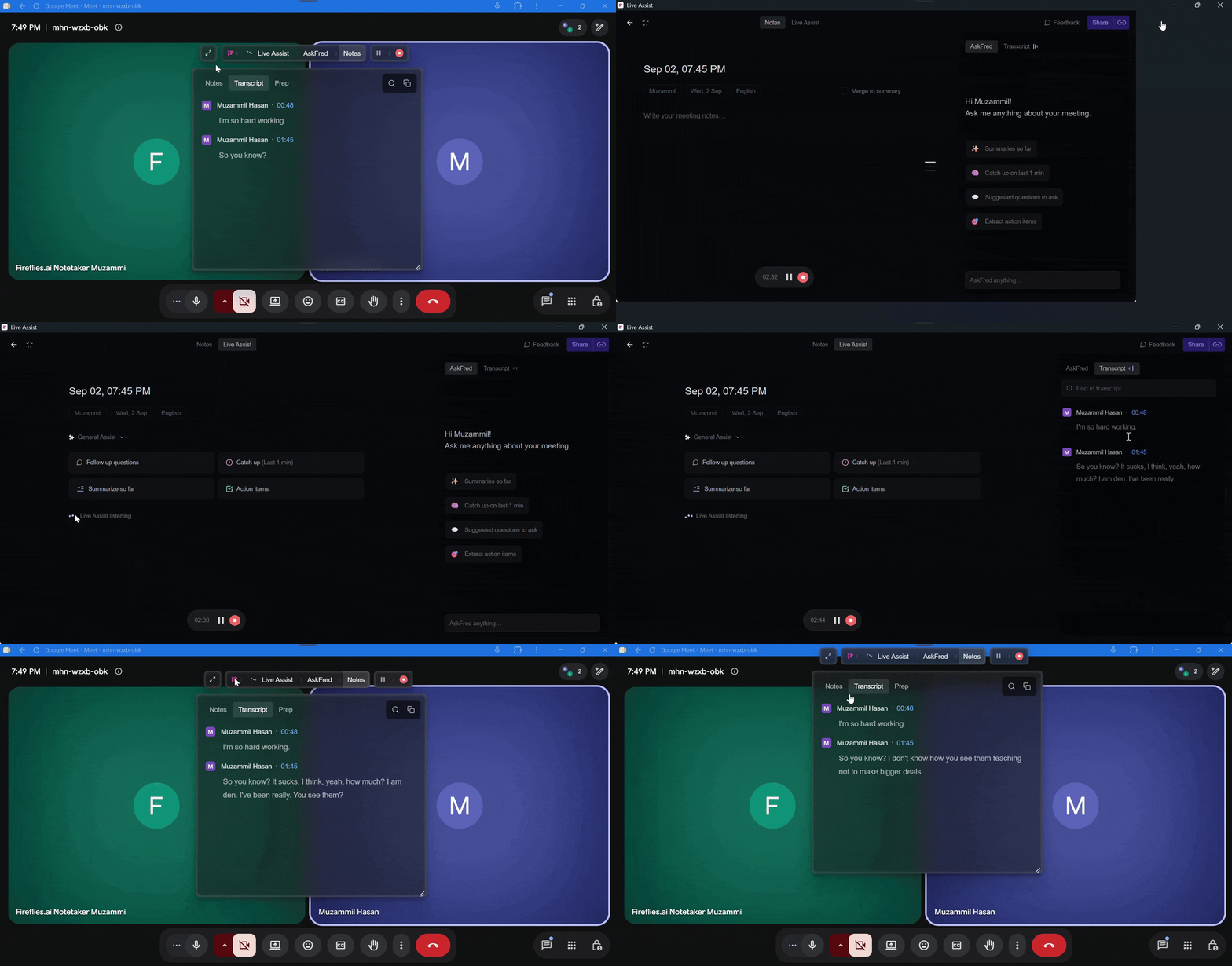
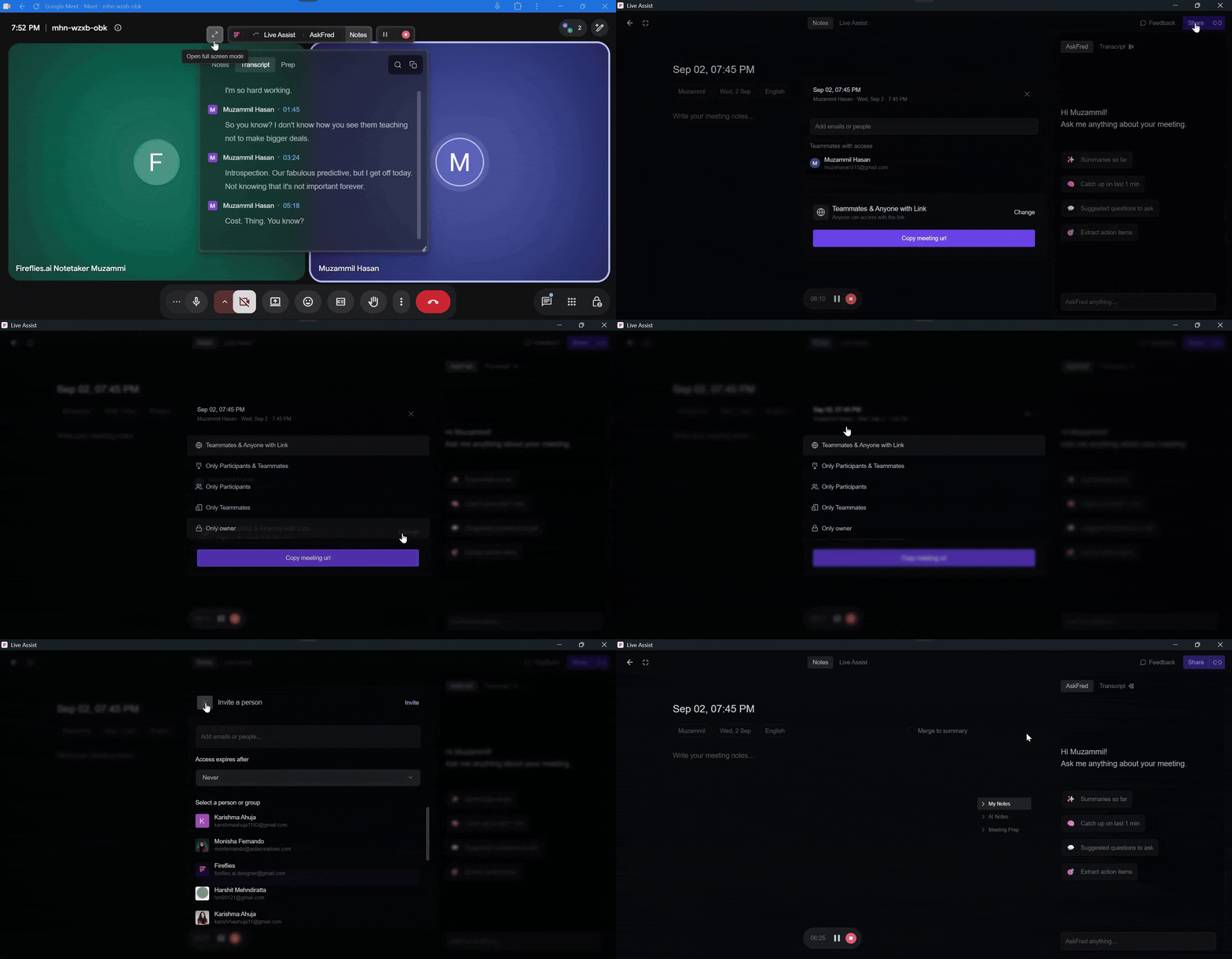
Privacy controls (host only): Open the pane in full-screen mode and click Share in the top-right corner to control who can access the meeting notes and Live Assist view.
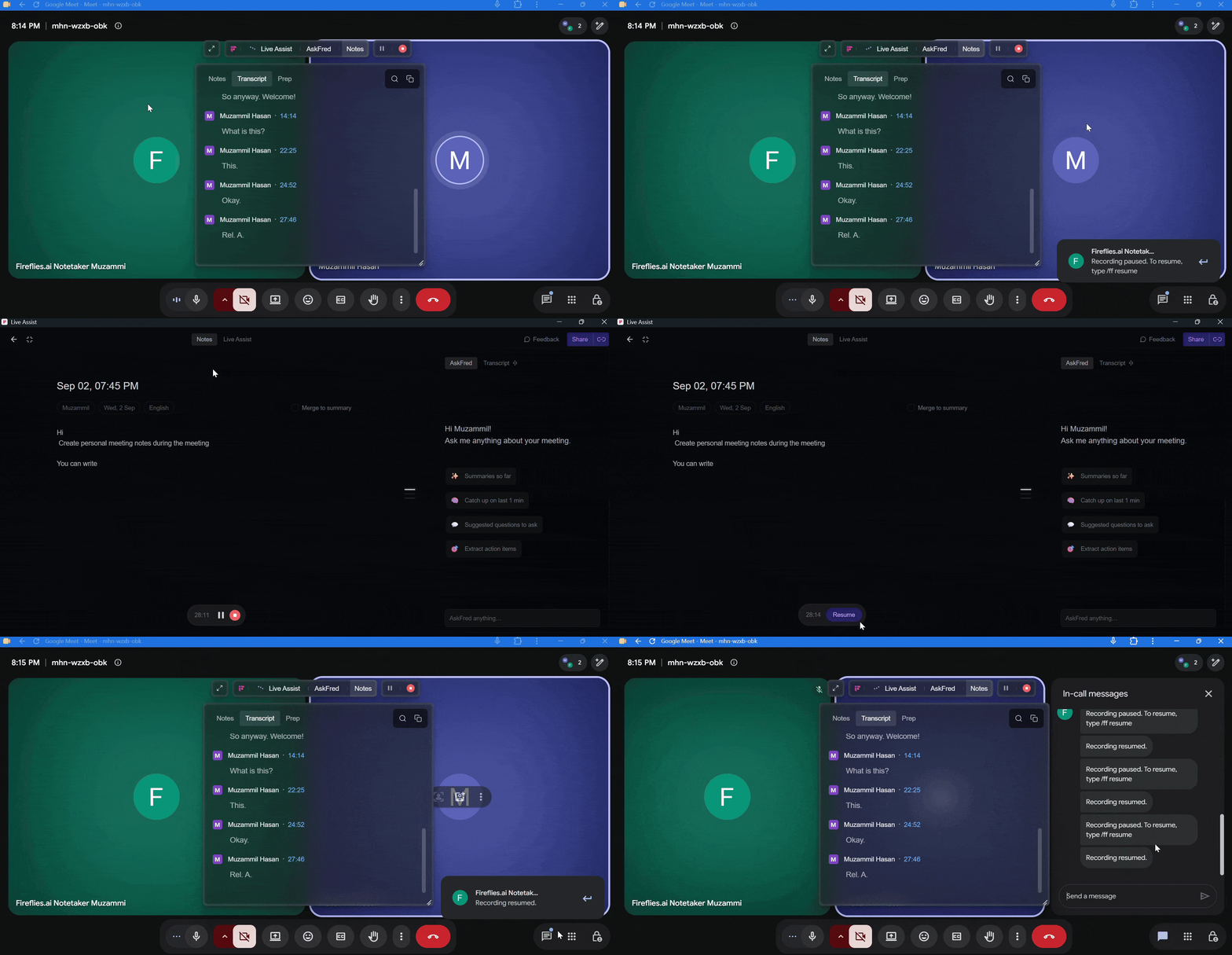
Pause/Resume Recording: Temporarily pause the recording during a meeting, then click Resume to continue recording without starting a new recording.
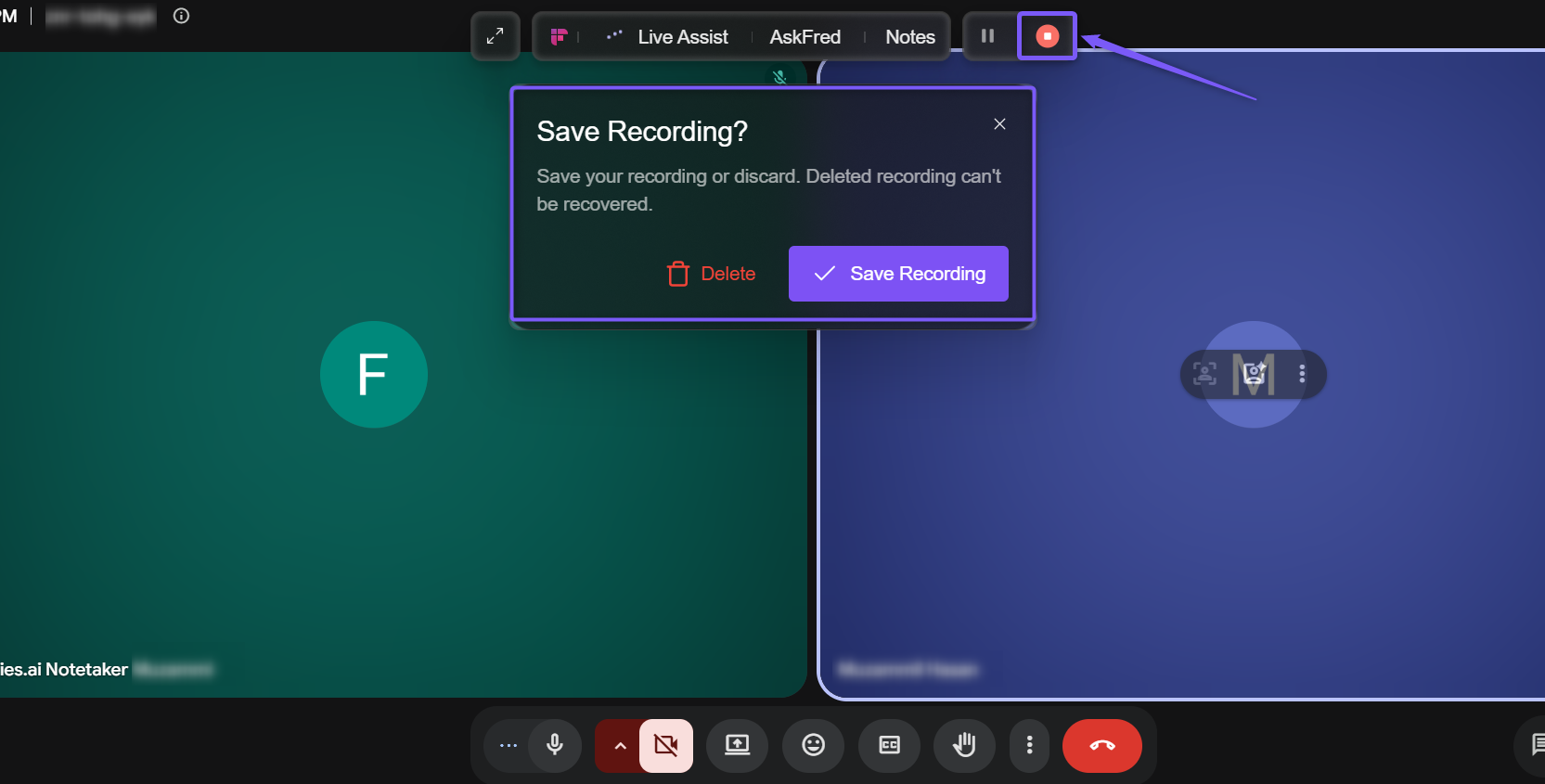
Stop recording: Click Stop to end the recording. You'll be prompted to either Save Recording or Delete it before closing the session.
Resize: Drag the bottom-right corner of the Floating Pane to resize it as needed.
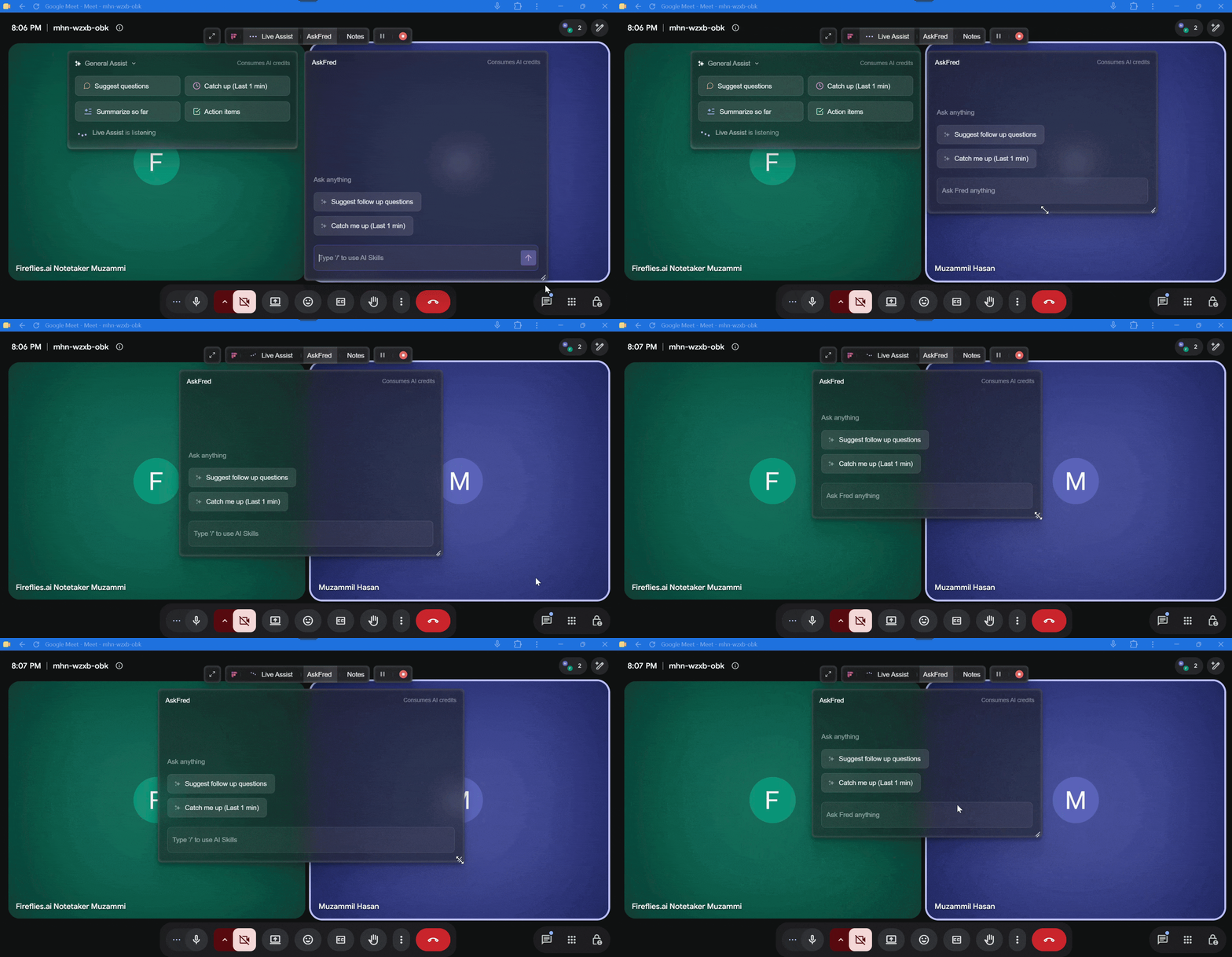
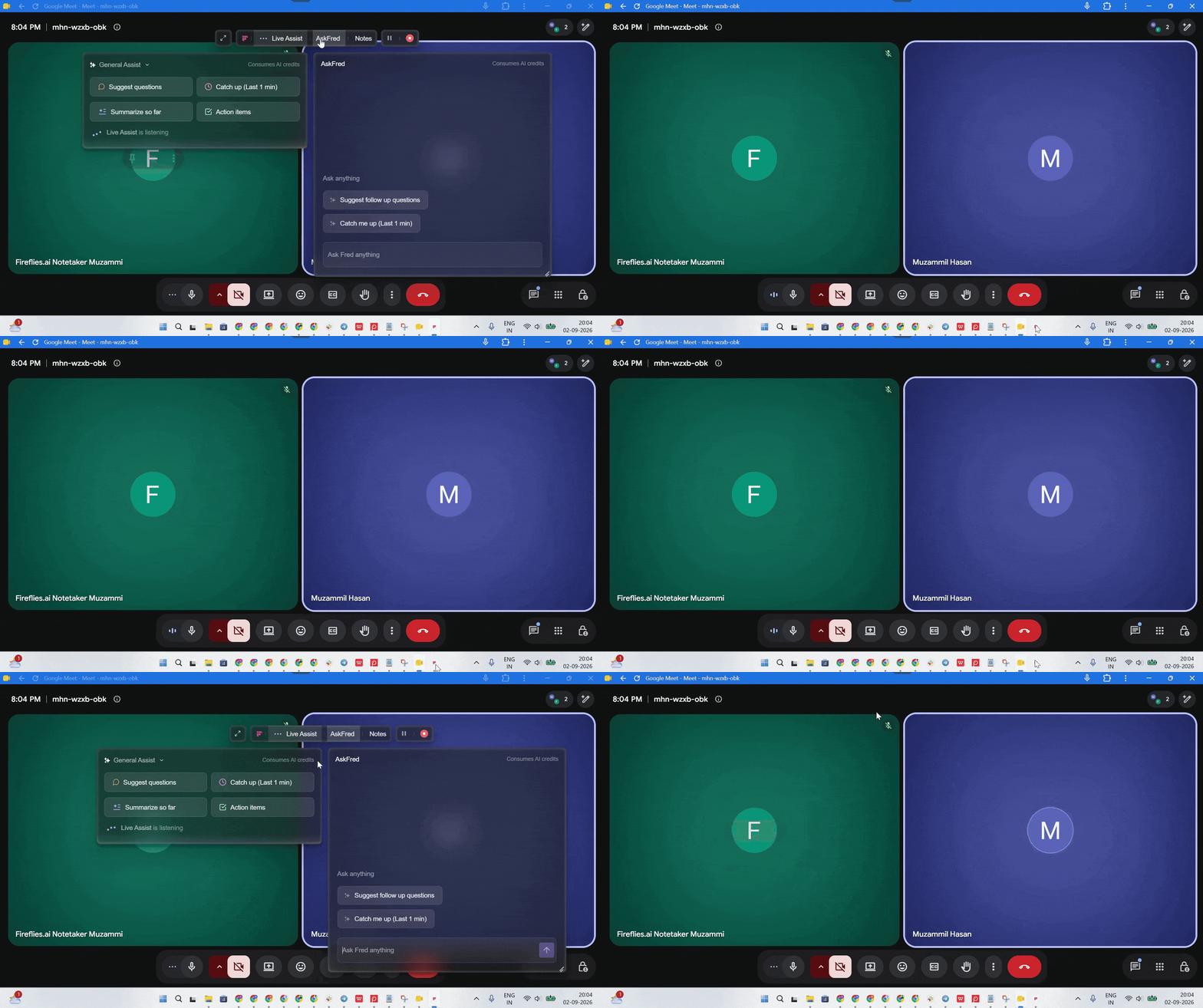
Hide/Reopen the Floating Pane: Click the Fireflies Desktop App icon in your taskbar (Windows) or Dock (macOS) to hide the Floating Pane. Click the icon again to reopen it.
💻 Screenshare privacy
By default, the Floating Pane is hidden during screen sharing to keep your Live Assist panel private while presenting. To change this setting:
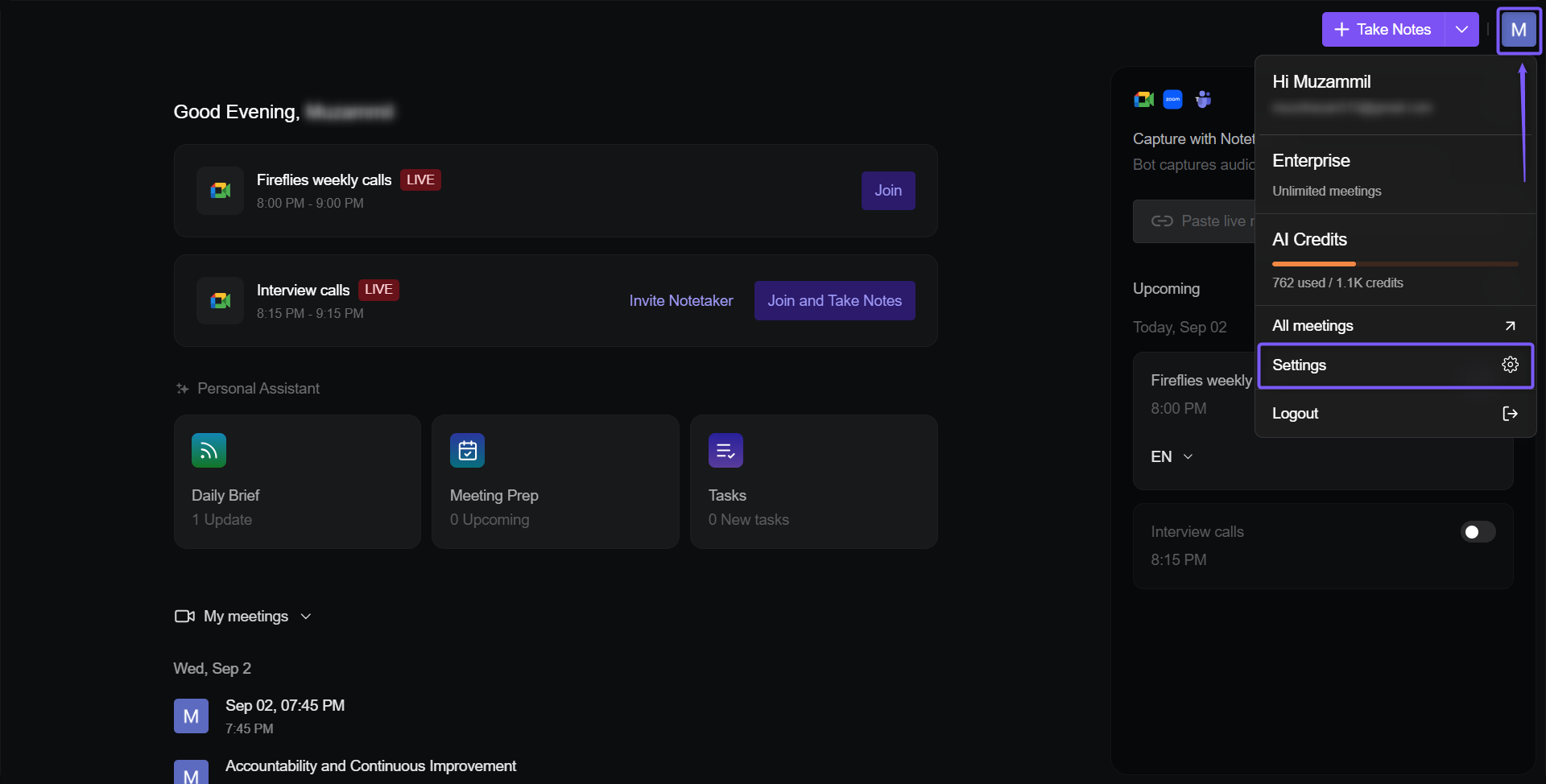
Open the Fireflies Desktop App and click Preferences > Settings.
Under the Meeting Preference tab, scroll to Preference.
Find Hide floating dock when screen sharing. Turn the toggle off if you want the Floating Pane to remain visible while screen sharing, or turn it on if you want the Floating Pane to remain hidden while screen sharing.
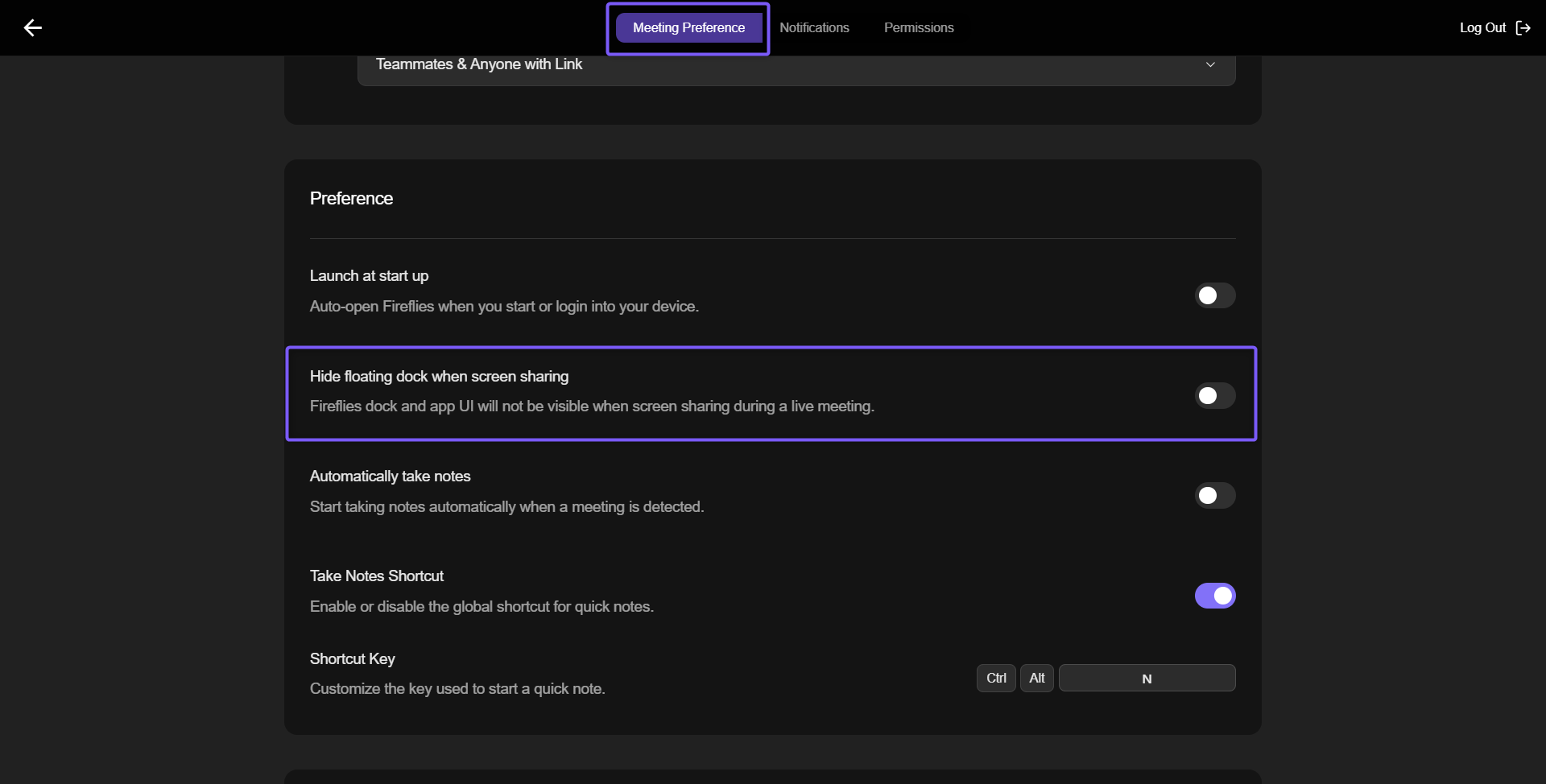
The setting takes effect immediately. After changing it, you cannot take screenshots or screen recordings of the Fireflies Desktop App. If screenshots or screen recordings are blocked, the setting has been applied successfully.