How to stop Fireflies from auto-joining your meetings (Disable Auto-join Settings)
Last updated: October 8, 2026
If you no longer want Fireflies to automatically join your meetings, you can turn off the auto-join feature in just a few clicks. This guide walks you through the exact steps, so you stay in control of when Fred joins.
There are 2 ways you can disable Fireflies from auto-joining your meetings.
1. Disable Auto-Join from Settings
1. Open your Fireflies web app and click on Settings in the main navigation menu.
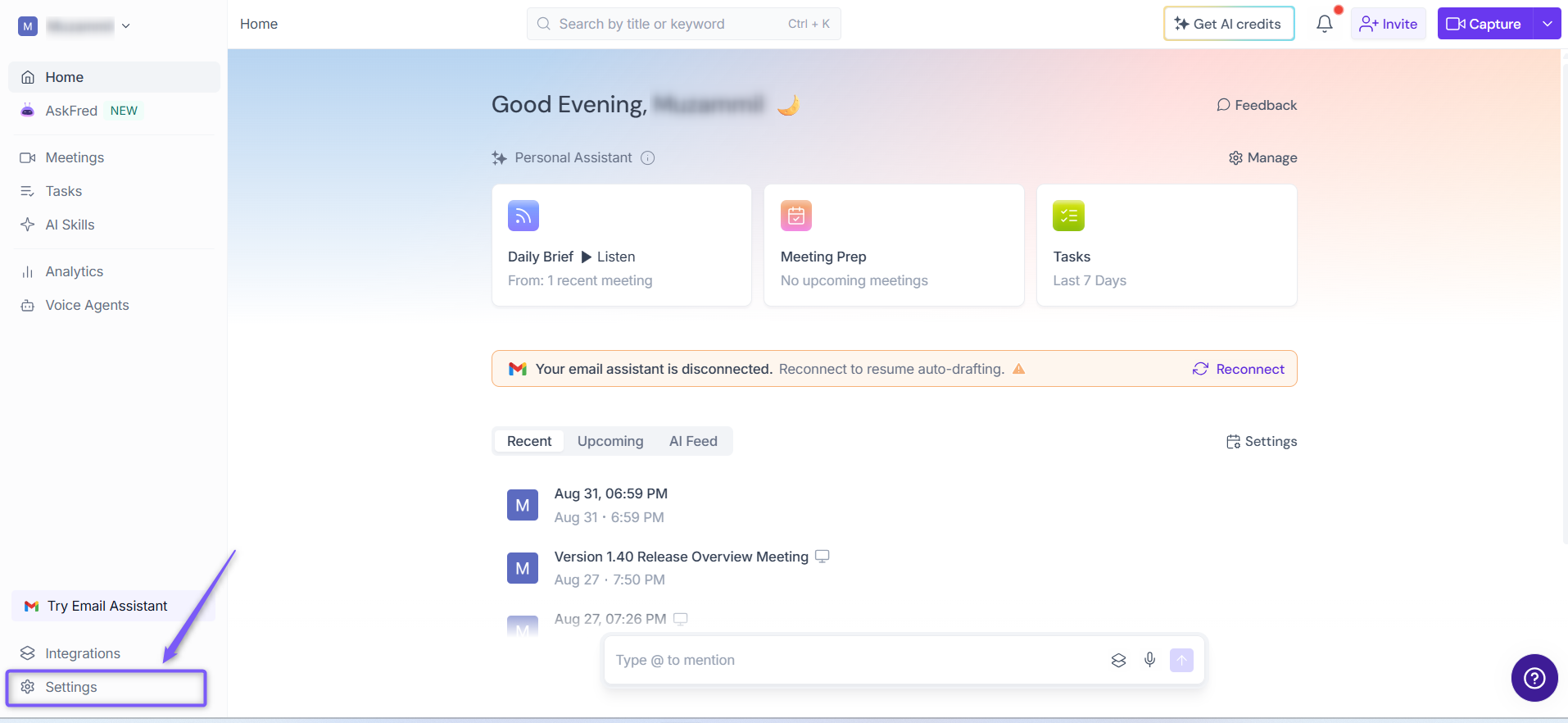
2. Navigate Recording & Privacy (Personal tab) and find the Recording section.
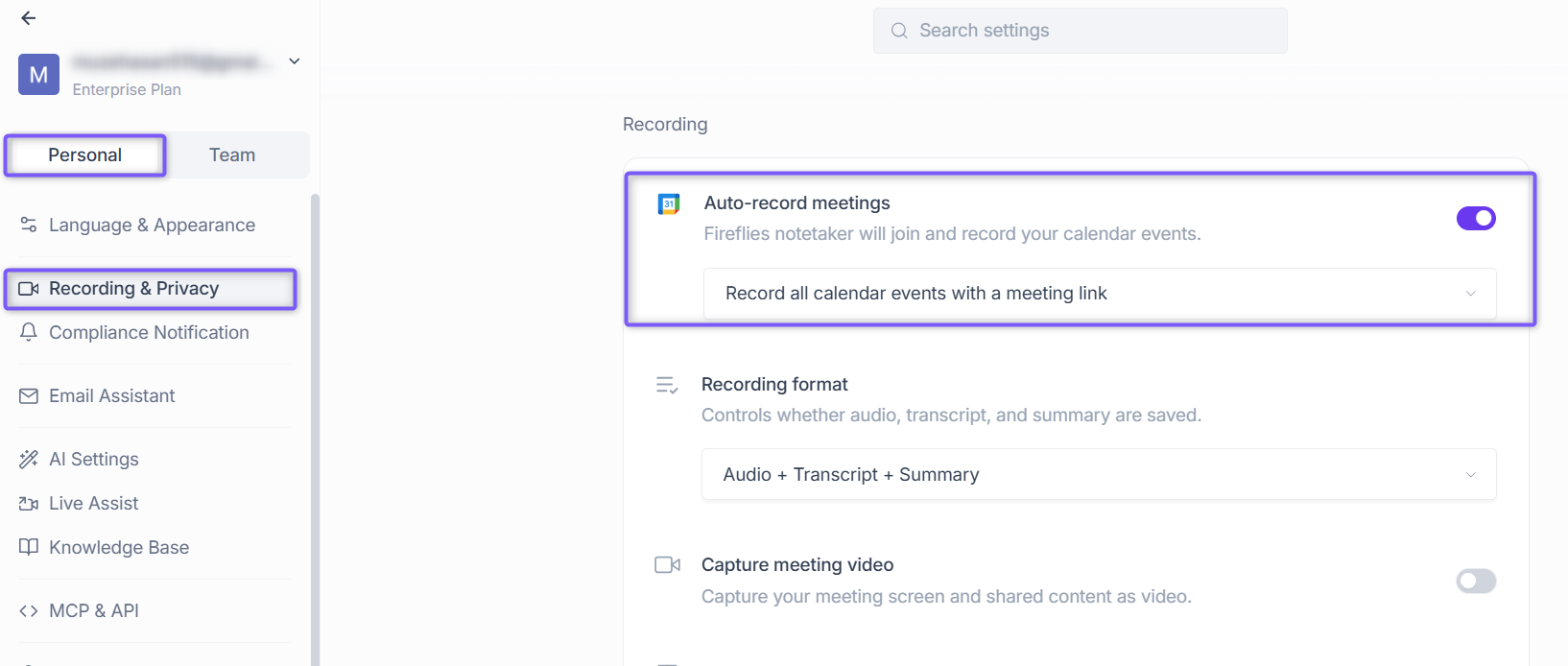
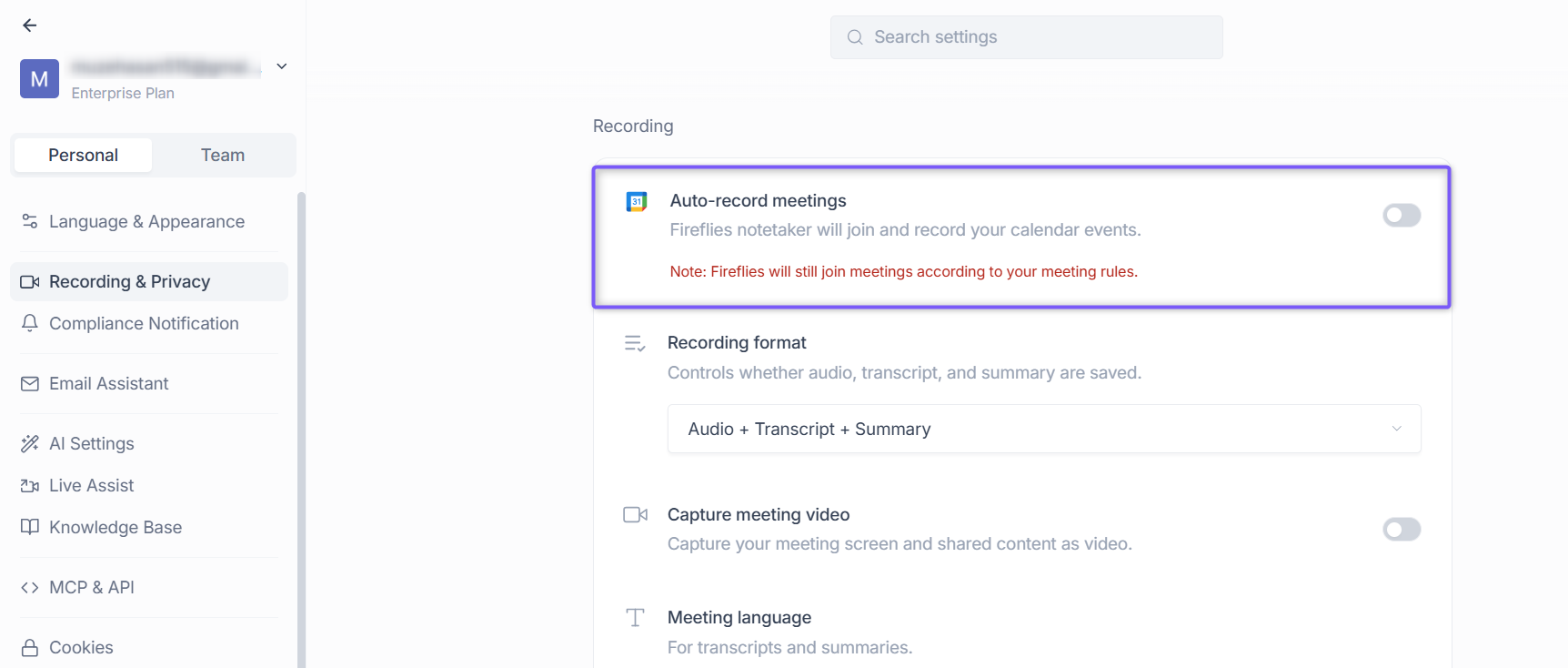
3. Toggle off Auto-record meetings to stop Fireflies from automatically joining and recording your calendar events.
Fireflies saves this setting automatically, so you don't need to click Save.
Note: Fireflies may still join meetings according to your configured meeting rules. See How to use Recording Rules to record or skip specific meetings for more information.
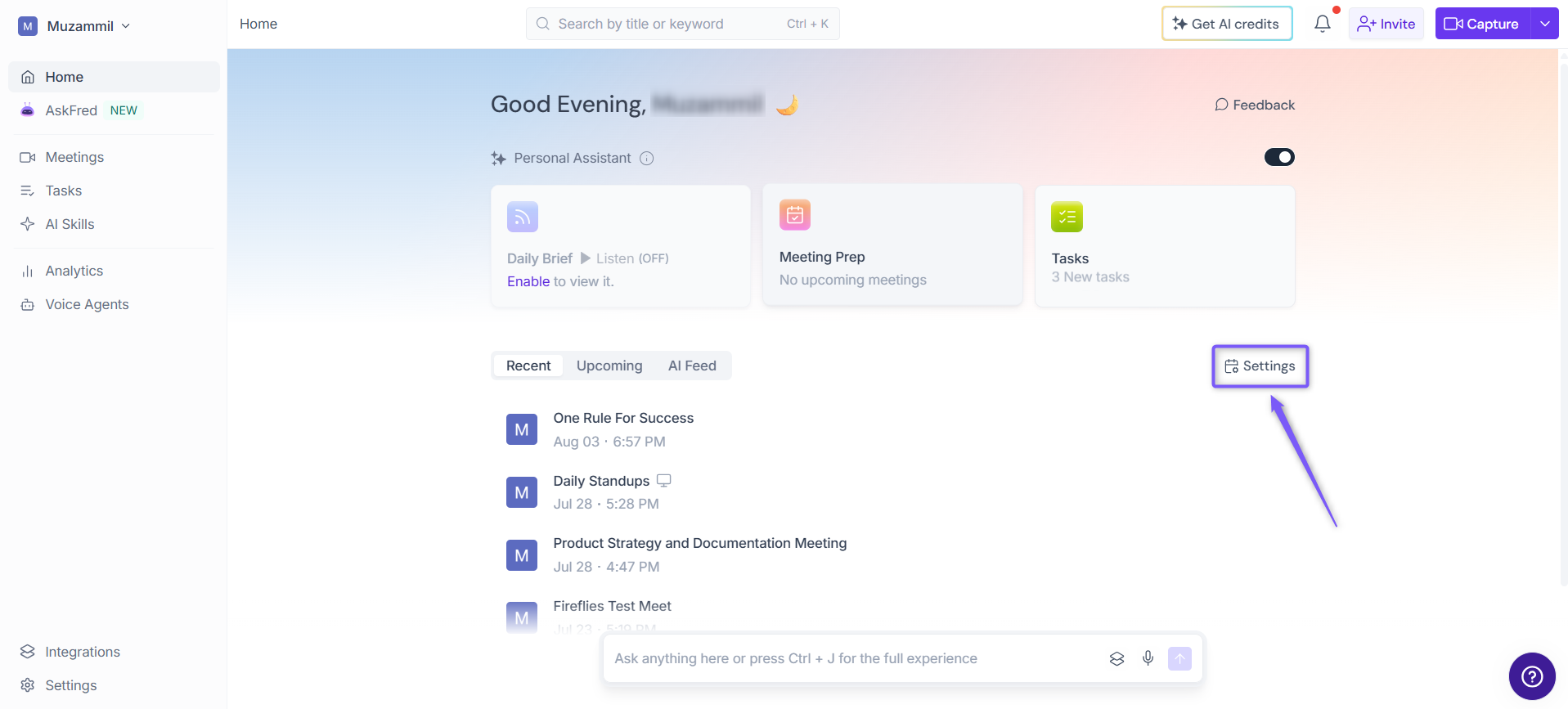
2. Disable Fireflies Auto-join from the dashboard (Alternative)
1. From the Fireflies Home page, click Settings on the right side of the page.
2. In modal window, under Auto-join calendar meetings, Fireflies is set to All meetings by default.
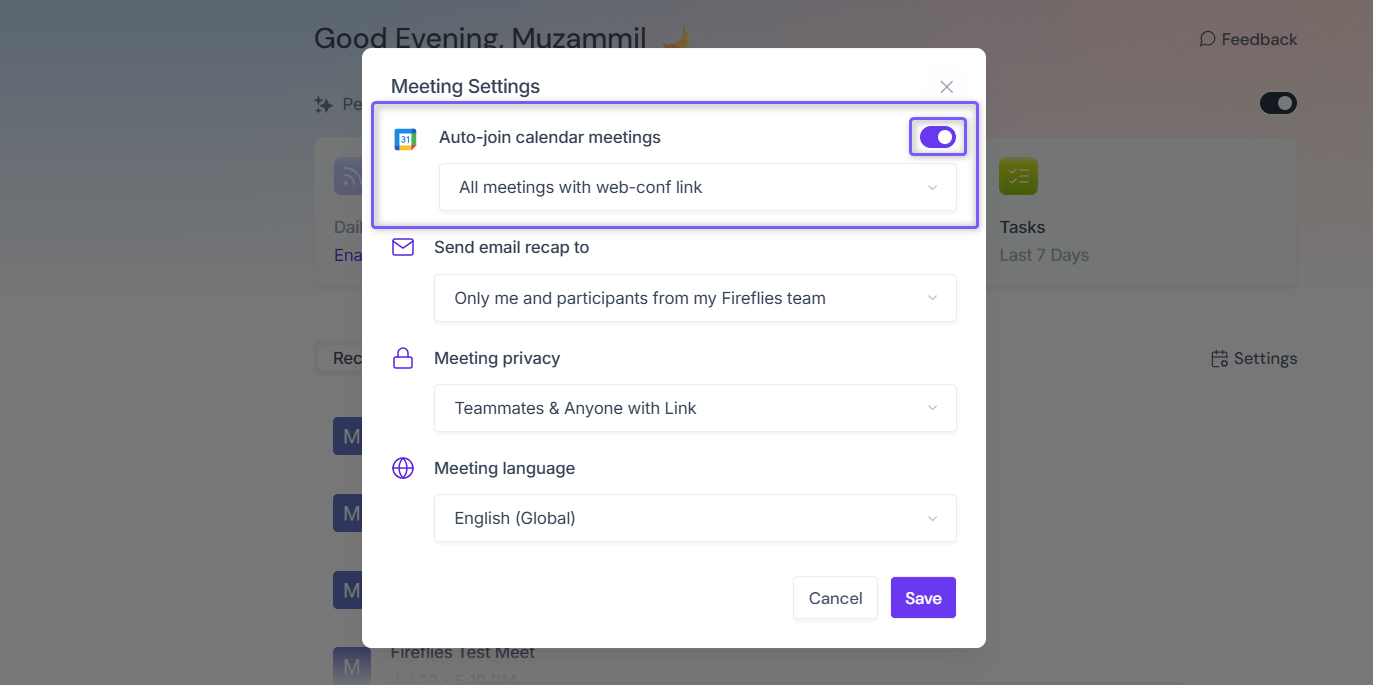
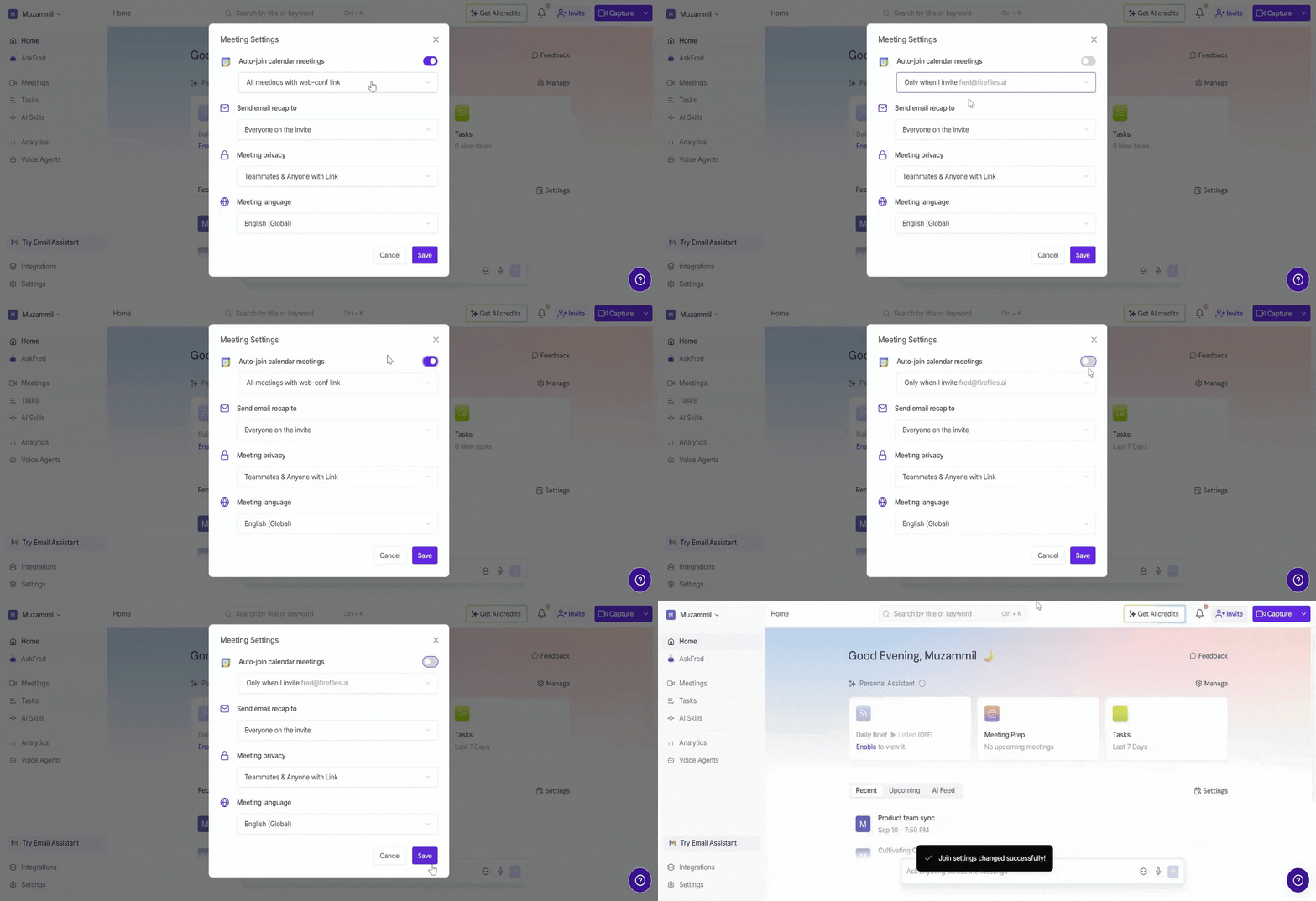
3. Click the dropdown and select Only when I invite fred@fireflies.ai, or toggle off Auto-record meetings to disable auto-join.
This gives you absolute control to manually select each meeting for Fireflies to join by inviting fred@fireflies.ai.
TL;DR
Two ways to keep Fred out unless you say otherwise:
❌ Toggle OFF auto-join to stop all automatic joining
✅ Switch to manual mode to invite Fred only when needed
Want to learn more about how auto-join preferences work?
Check out: 📄 Why is Fred from Fireflies joining (or missing) meetings? Fix with these auto-join settings
Need to manually invite Fred to a meeting?
Here’s how: 📄 How to invite Fireflies to meetings