How to control who gets meeting recaps (Email Settings) and who can view them on Fireflies (Privacy Settings)
Last updated: June 5, 2026
This guide is about fixing your default settings before the meeting happens—so you can decide who receives the meeting recap by email, and who can access the full meeting notes in Fireflies.
We'll walk you through the two separate settings that often get mixed up:
Recap Email Settings: who gets emailed the recap link 📩
Privacy Settings: who can actually open and access the meeting content inside Fireflies 🔒
👉 Want to share a recap manually after the meeting ends instead? See: 📄 How to share meeting recaps or notes, summaries and transcripts with teammates, attendees, specific user groups, external people or non-fireflies users
1. Who should receive the recap email? (Email Delivery)
Fred can email a meeting recap after every call. You can control who receives it by default.
There are two ways to set this:
Option 1: From the Fireflies Collapsible Side Panel
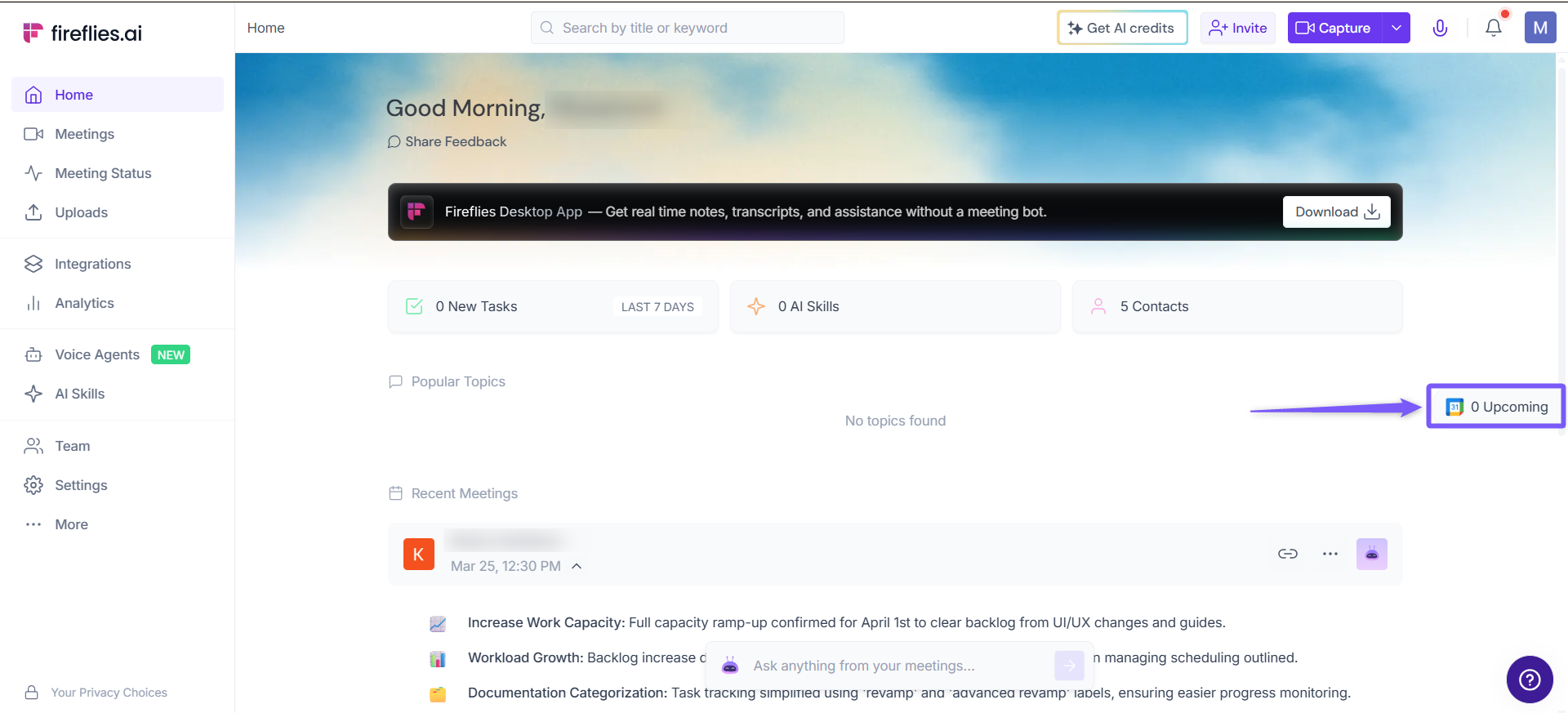
1. On the Fireflies homepage, click the Upcoming button on the right side to open the collapsible side panel.
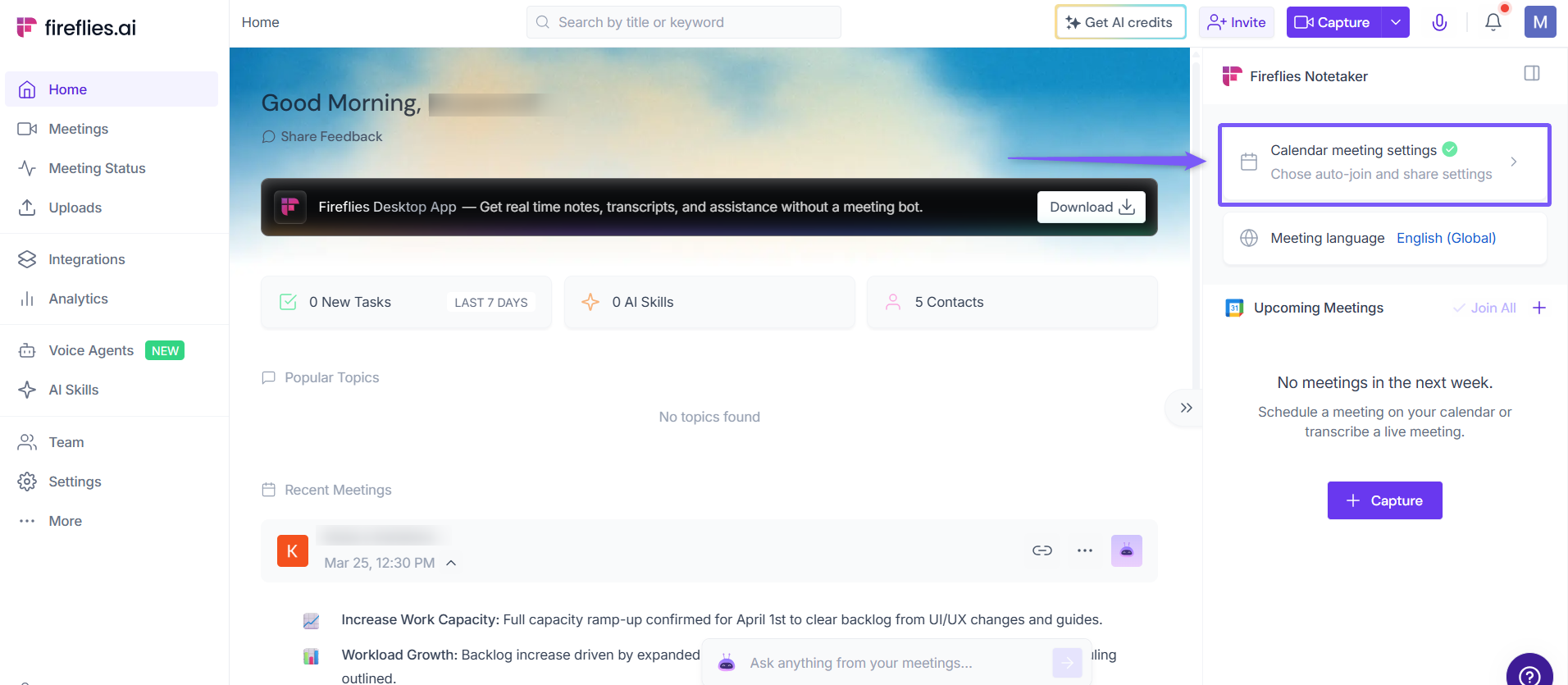
2. Click Calendar meeting settings under Fireflies Notetaker.
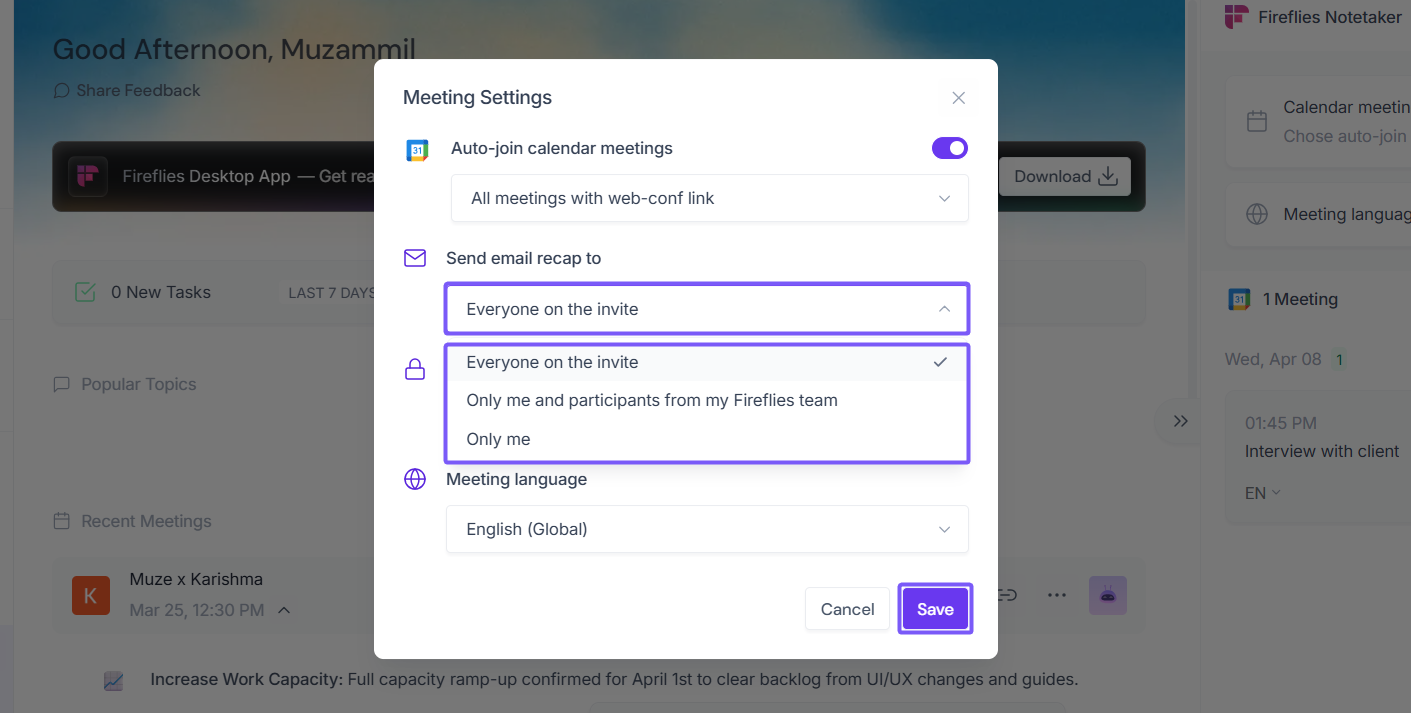
3. In the Meeting Settings modal, click the dropdown under Send email recap to. By default, this is set to Everyone on the invite.
Everyone on the invite — Sends the recap to all calendar invitees (internal + external)
Only me and participants from my Fireflies team — Recap goes only to people on the invite who are part of your Fireflies workspace
Only me — No one else receives the recap by email
Select your preferred option and click Save.
Option 2: From Settings
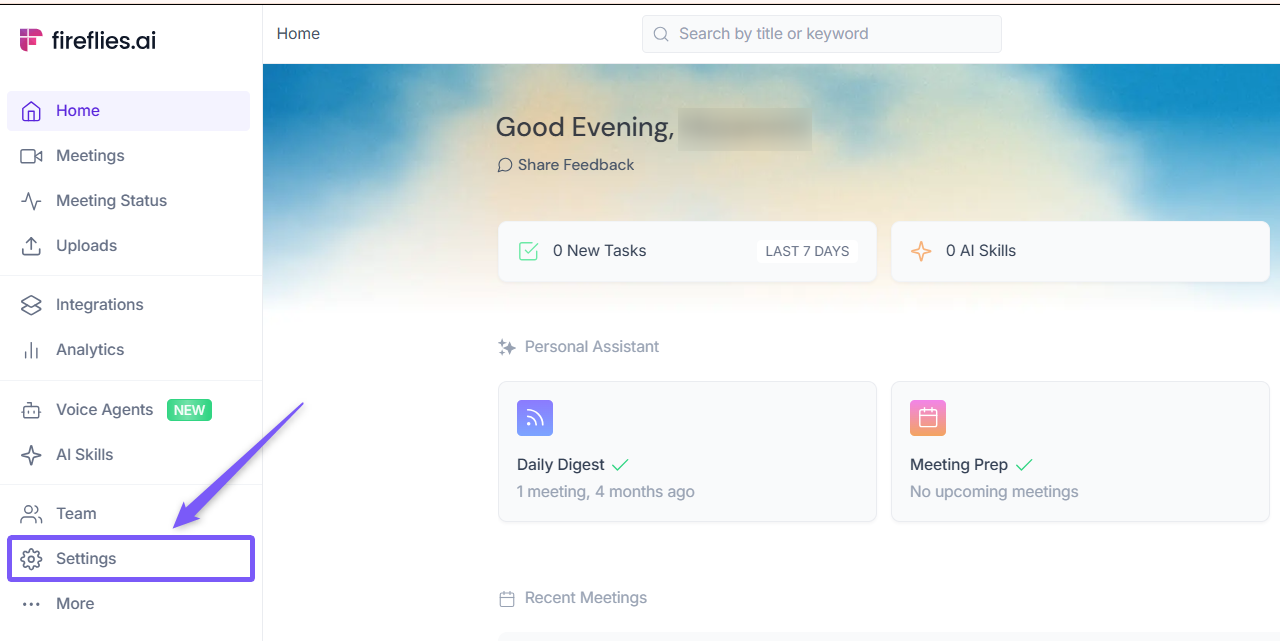
1. Open your Fireflies web app and click on Settings in the main navigation menu.
3. From the left panel, click Recording & Privacy (Personal tab). Scroll down to find Email Notification section.
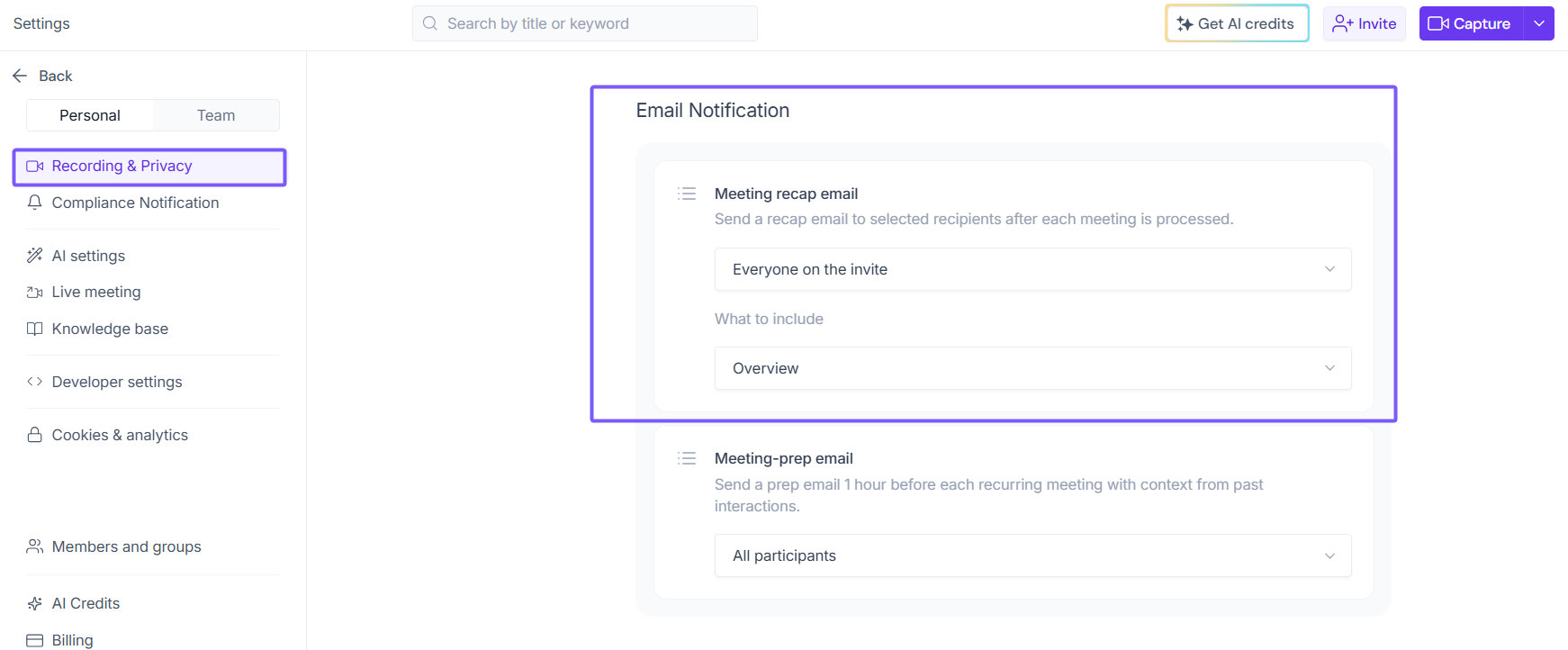
4. Click the dropdown under Meeting recap email to view the available options.
Everyone on the invite — Sends the recap to all calendar invitees (internal + external)
Only me and participants from my Fireflies team — Recap goes only to people on the invite who are part of your Fireflies workspace
Only me — No one else receives the recap by email
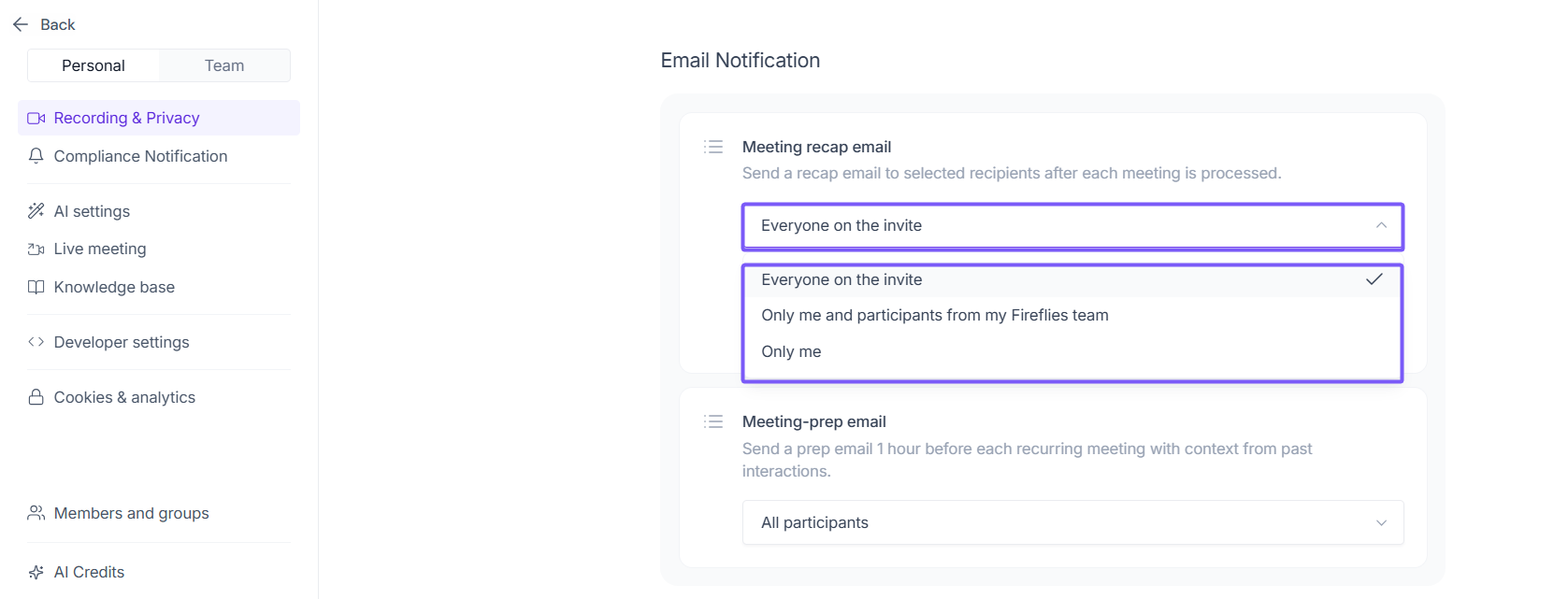
Select the desired option, your changes are saved automatically.
These recap emails include a summary + a link to the full notes. But they do not override the privacy of the actual meeting. That’s handled by privacy settings discussed below
2. Customize the meeting notes content sent via email
Want to control what shows up inside the recap email? Fireflies lets you decide which parts of the AI-generated summary are included.
To do this:
1. Navigate to Settings → Recording & Privacy (Personal tab).
2. Scroll down to the Email Notification section.
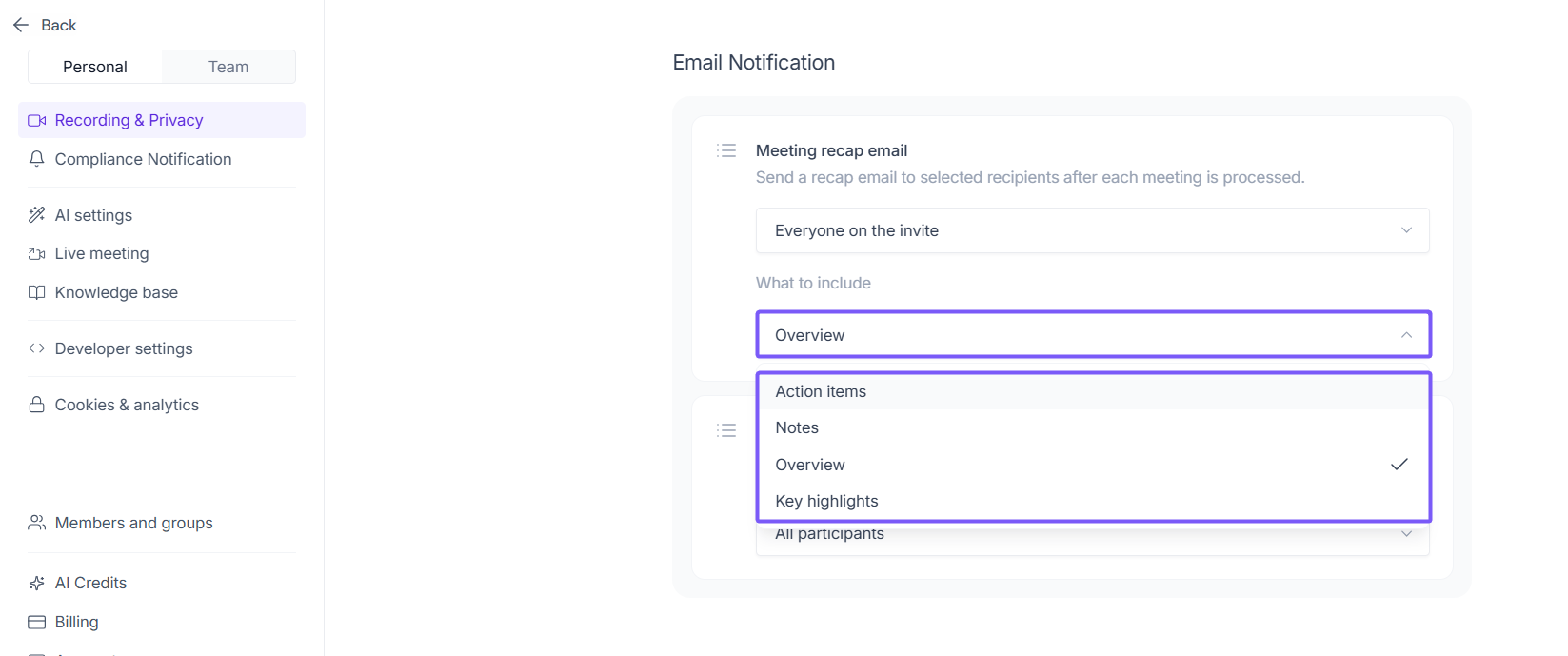
3. Under Meeting recap email, click the What to include dropdown and select your preferred option:
Action items — A list of tasks discussed
Notes — Bullet points summarizing the conversation
Overview — A high-level overview of the discussion
Key highlights — Short pointers capturing important moments
For even more flexibility, check out the Custom Summary App to design your own summary layout.
3. Who Can View the Meeting Inside Fireflies? (Privacy Settings)
This setting controls who can open the full transcript, summary, and recording inside Fireflies — not just who received the recap email. It applies across your Fireflies workspace.
There are two ways to set this:
Option 1: From the Collapsible Side Panel
1. On the Fireflies homepage, click the Upcoming button on the right side to open the collapsible side panel.
2. Click Calendar meeting settings under Fireflies Notetaker.
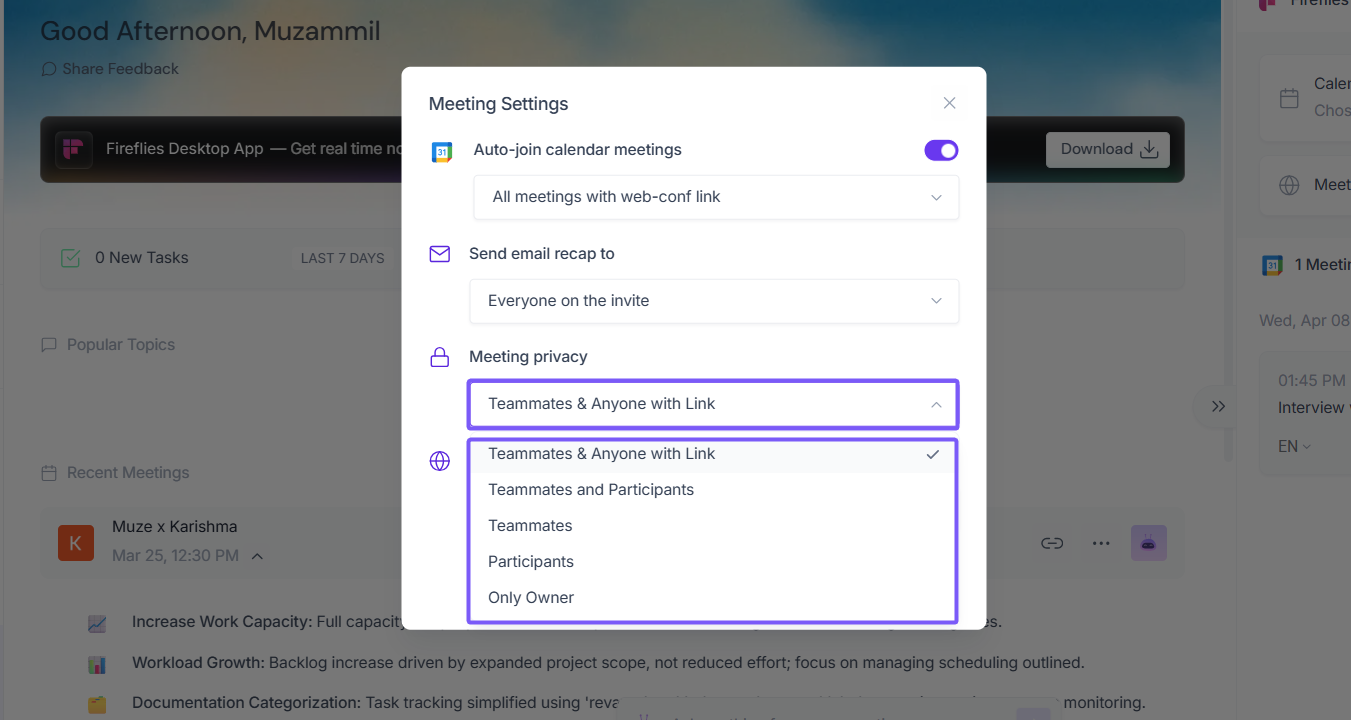
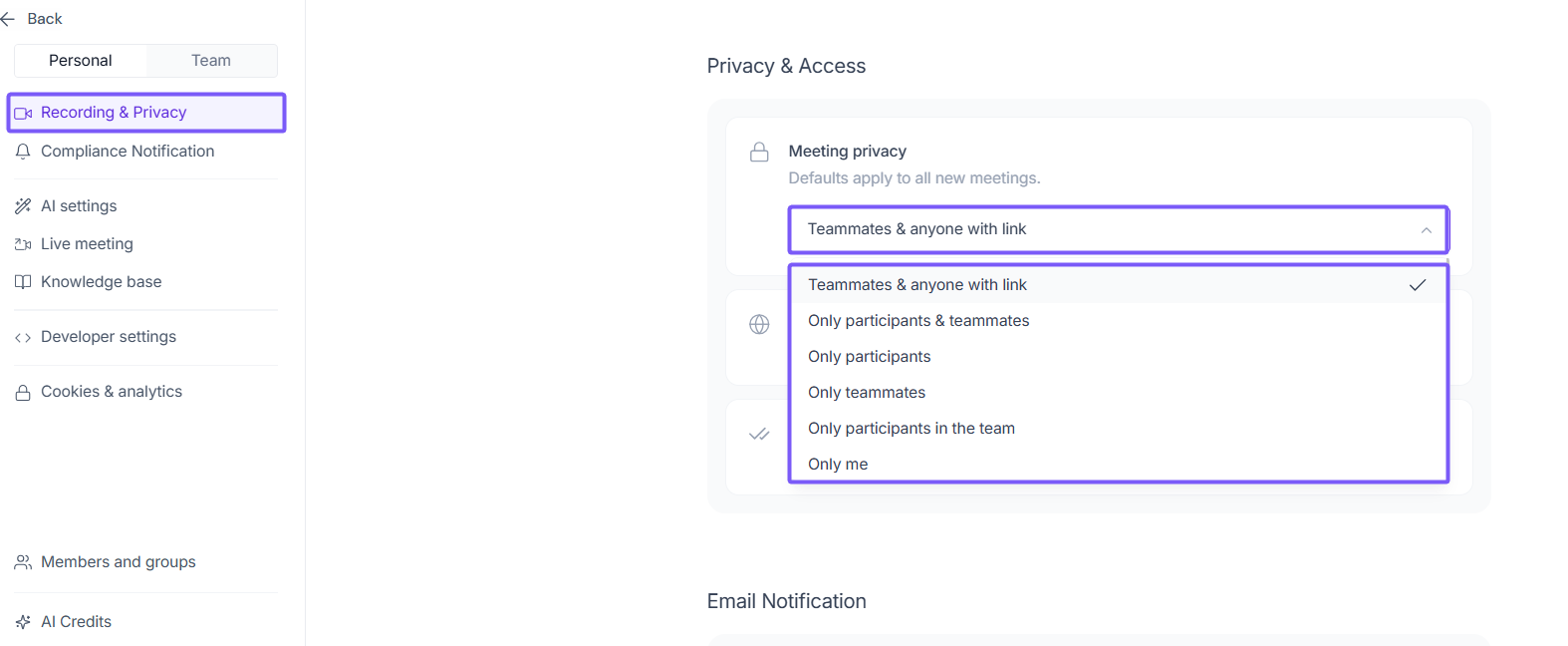
3. In the Meeting Settings modal, click the dropdown under Meeting privacy. By default, this is set to Teammates & Anyone with Link. Available options:
Teammates & Anyone with Link — Anyone with the recap link can view it, even if they weren't in the meeting (Default)
Teammates and Participants — Both your teammates and meeting invitees can access the meeting
Teammates — Everyone in your Fireflies workspace can view the meeting
Participants — Only people who were invited to the meeting can access it
Only Owner — Only you can view the meeting
Select your preferred option and click Save.
Note: If your privacy setting is "Anyone with the link," and someone forwards the recap email or link, anyone who clicks it will be able to view the meeting.
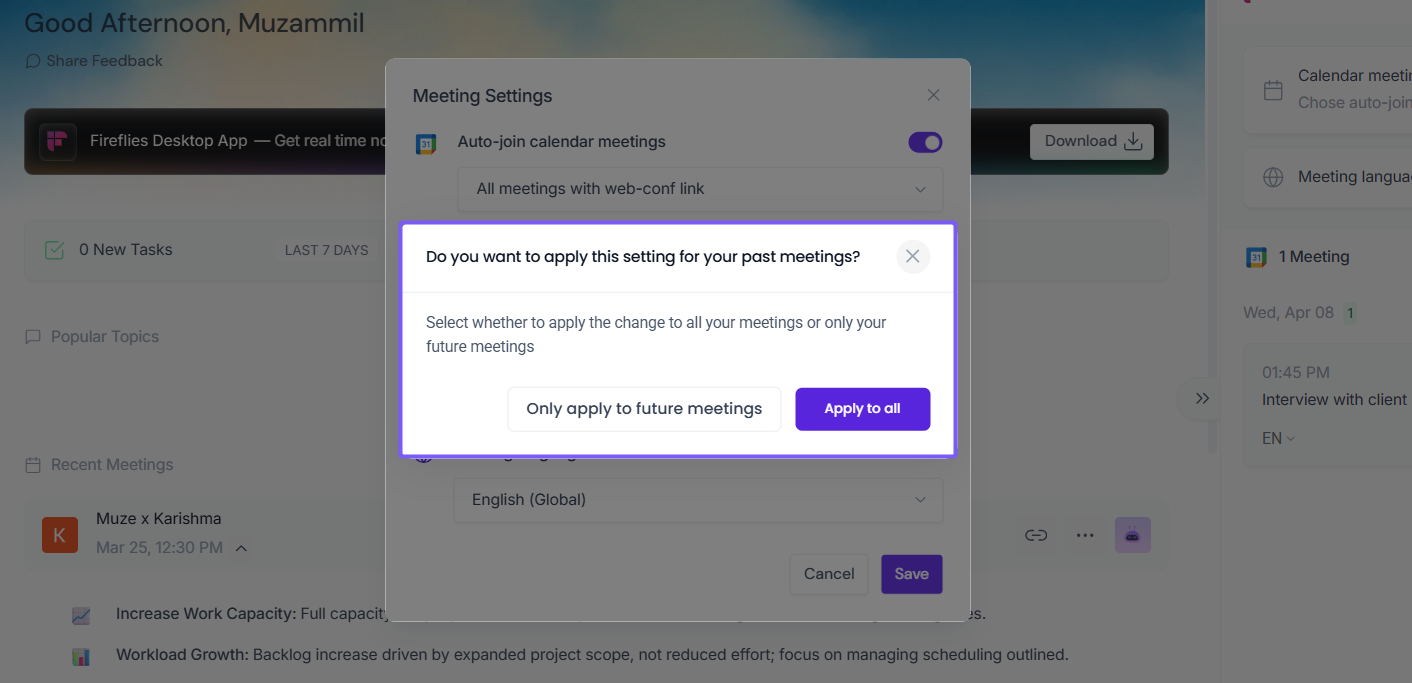
After you save your preference, you'll be prompted to choose whether you want this new privacy setting to apply only to future meetings or also to all past meetings you've hosted. This lets you quickly enforce consistent access across your meeting history.
Option 2: From Settings
1. Navigate to Settings → Recording & Privacy (Personal tab).
2. Scroll down to the Privacy & Access section.
3. Under Meeting privacy, click the dropdown and select your preferred option.
4. Admin controls for workspace-wide defaults
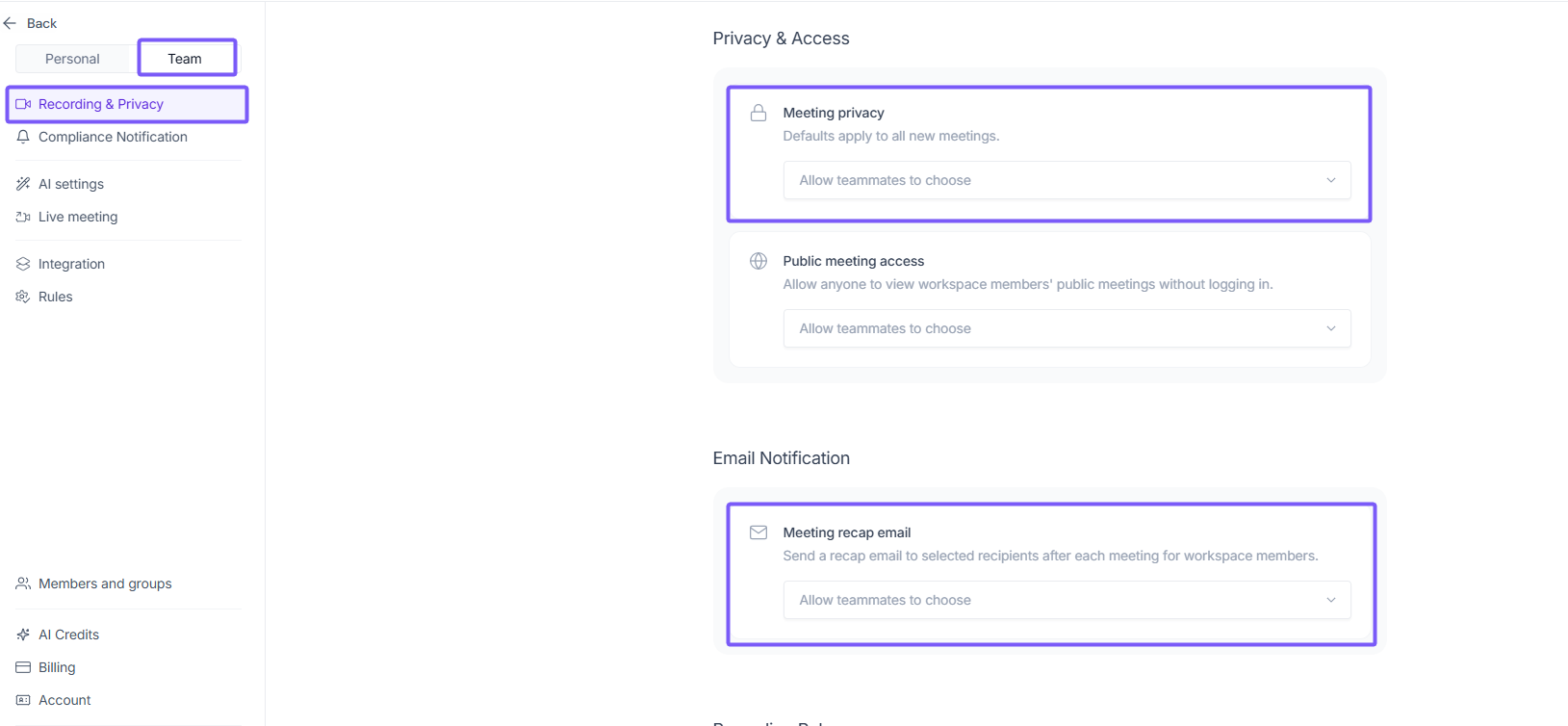
If you're an admin, you can set team-wide defaults:
1. Navigate to Settings and switch to the Team tab.
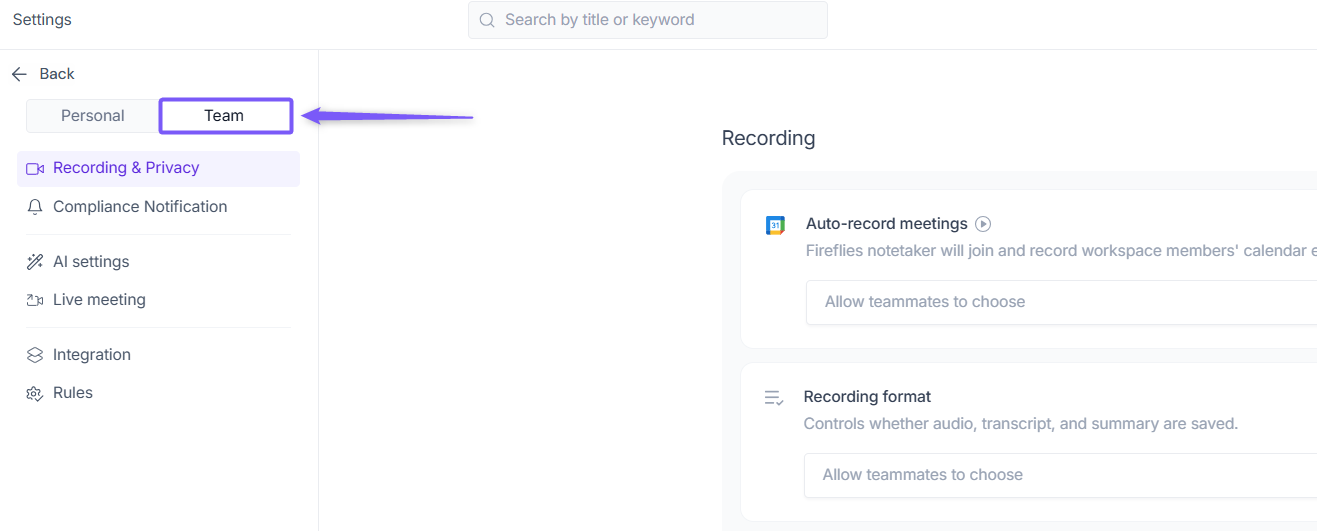
2. Click the Recording & Privacy and Scroll down to adjust both Email Delivery and Privacy Settings for everyone
This helps prevent accidental oversharing or under-sharing at scale.
🔗 Sharing Meetings with External Users
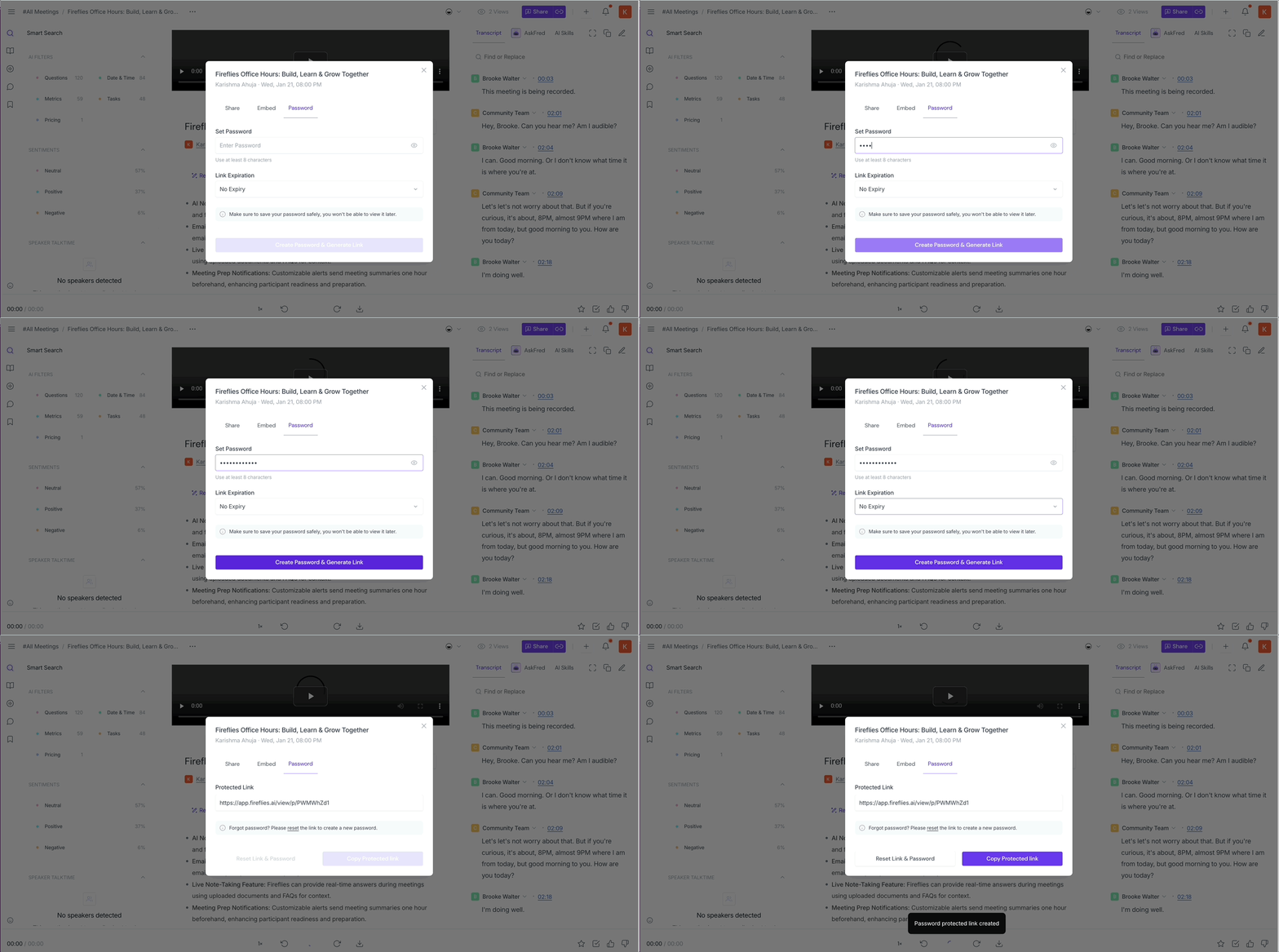
If you need to share a meeting with someone outside your team, Business and Enterprise users can generate a password-protected link without changing the meeting's privacy settings. The recipient does not need a Fireflies account, just the link and password to access the notes, transcript, and recording. You can also set an expiry to control how long the link remains active.
Note: Password-protected meeting links are available on Business and Enterprise plans only. If you are on a lower plan, consider upgrading to access this feature.
👉🏻 For step-by-step instructions, refer to How to Share a Fireflies Meeting with a Password-Protected Link →
Final takeaway: Keep your meeting sharing intentional
Now that you know the difference between email settings and privacy controls, you can:
Share recaps automatically with the right people
Make sure the meeting content isn’t accidentally exposed
Customize what your teammates and guests actually see
Take 2 minutes to check your defaults under Settings >Recording & Privcay. A quick tweak now could prevent unnecessary visibility issues down the line.
If you're ever unsure what a guest or teammate will see, try sending a recap to yourself with the current settings to preview the experience.
🛠 Troubleshooting tip: If someone expected a recap but didn’t get it, check this article: 📝 Troubleshooting why meeting recap emails were not received.