How to Share Meeting Recaps with Teammates, Participants, Specific People, User Groups, and Non-Fireflies Users
Last updated: July 15, 2026
Sharing a meeting recap in Fireflies is simple - whether you're sending it to a teammate, client, meeting attendee, specific User Group, or someone outside your workspace. With multiple sharing options, you stay in control of who can view your meeting transcripts, summaries, recordings, and notes. This guide walks you through each sharing method and helps you choose the right option for every situation.
📌 Before you start
Before sharing a meeting recap, make sure:
You have a active Fireflies account and are signed in.
The meeting has been recorded and processed, so the transcript, summary, and meeting notes are available.
You are the meeting owner/host or have permission to share the meeting recap.
Can't change the summary template?
If your Workspace Admin has assigned or enforced an AI Summary Template, the summary you share will reflect that template. If you need a different summary format, contact your Workspace Admin or use another available summary template before sharing.
→ Learn more about: Fireflies AI Meeting Summaries: View, Customize, Expand & Regenerate and Team Settings: A Complete Guide for Workspace Admins.
🚀 Navigation
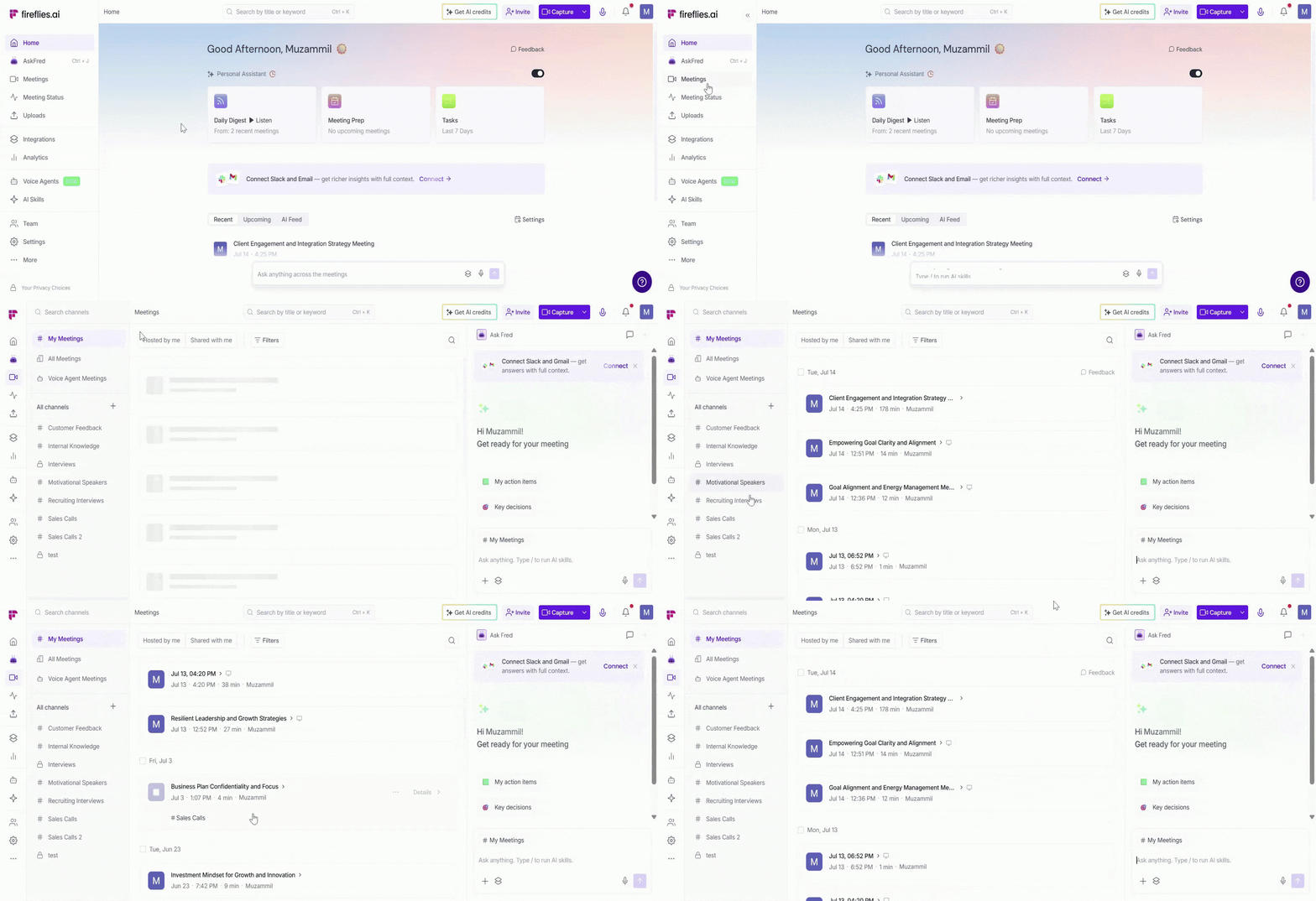
Step 1: Log in to your Fireflies account and click on the Meetings tab from the left-hand menu.
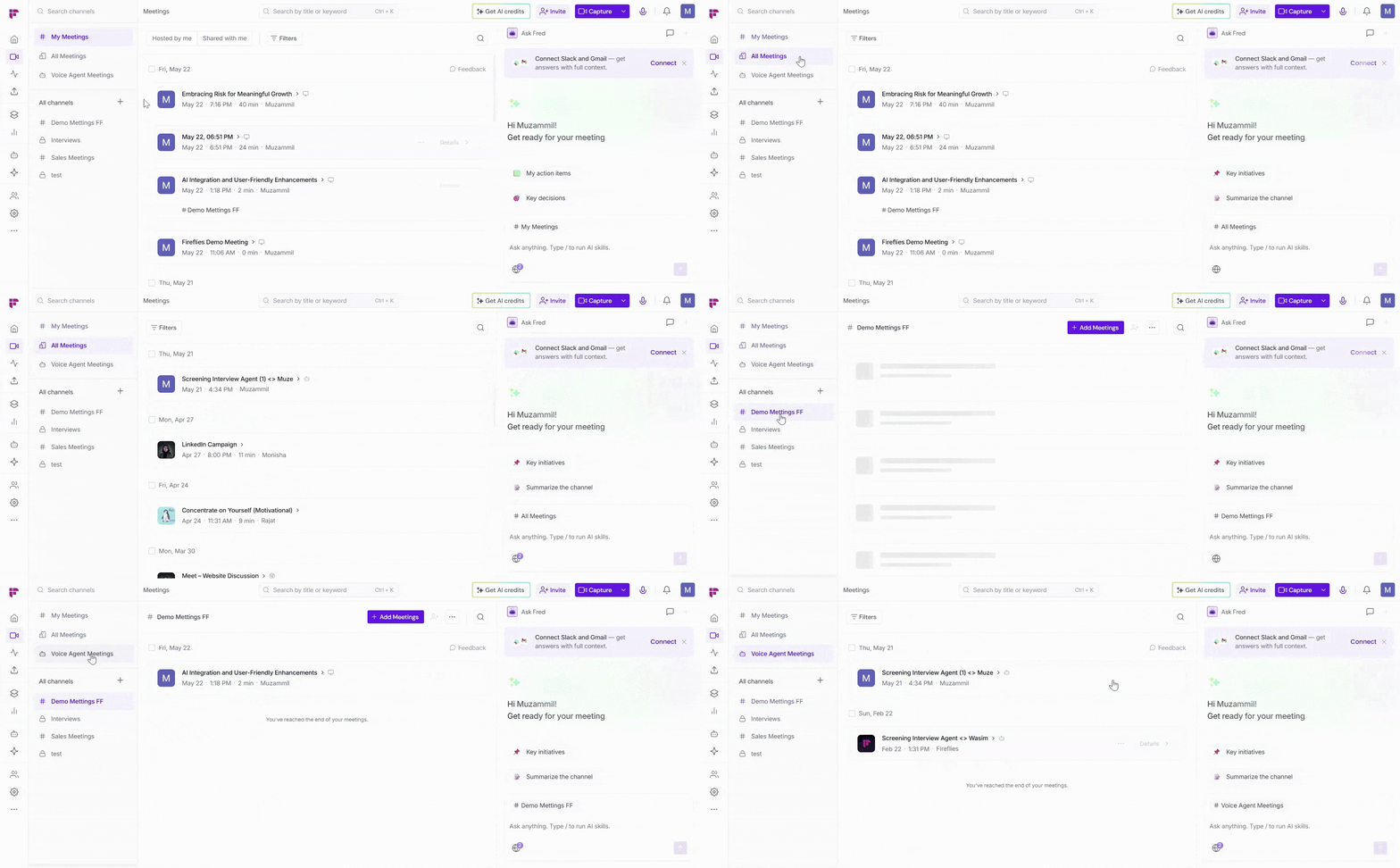
Step 2: Locate the meeting you want to share by entering keywords in the search bar or using the available filters, such as My Meetings, All Meetings, or Channels.
💡 Need a better way to organize your meetings? Learn how to use Channels to group related meetings, making them easier to find and manage. See Learn about Fireflies Channels to organize your meetings.
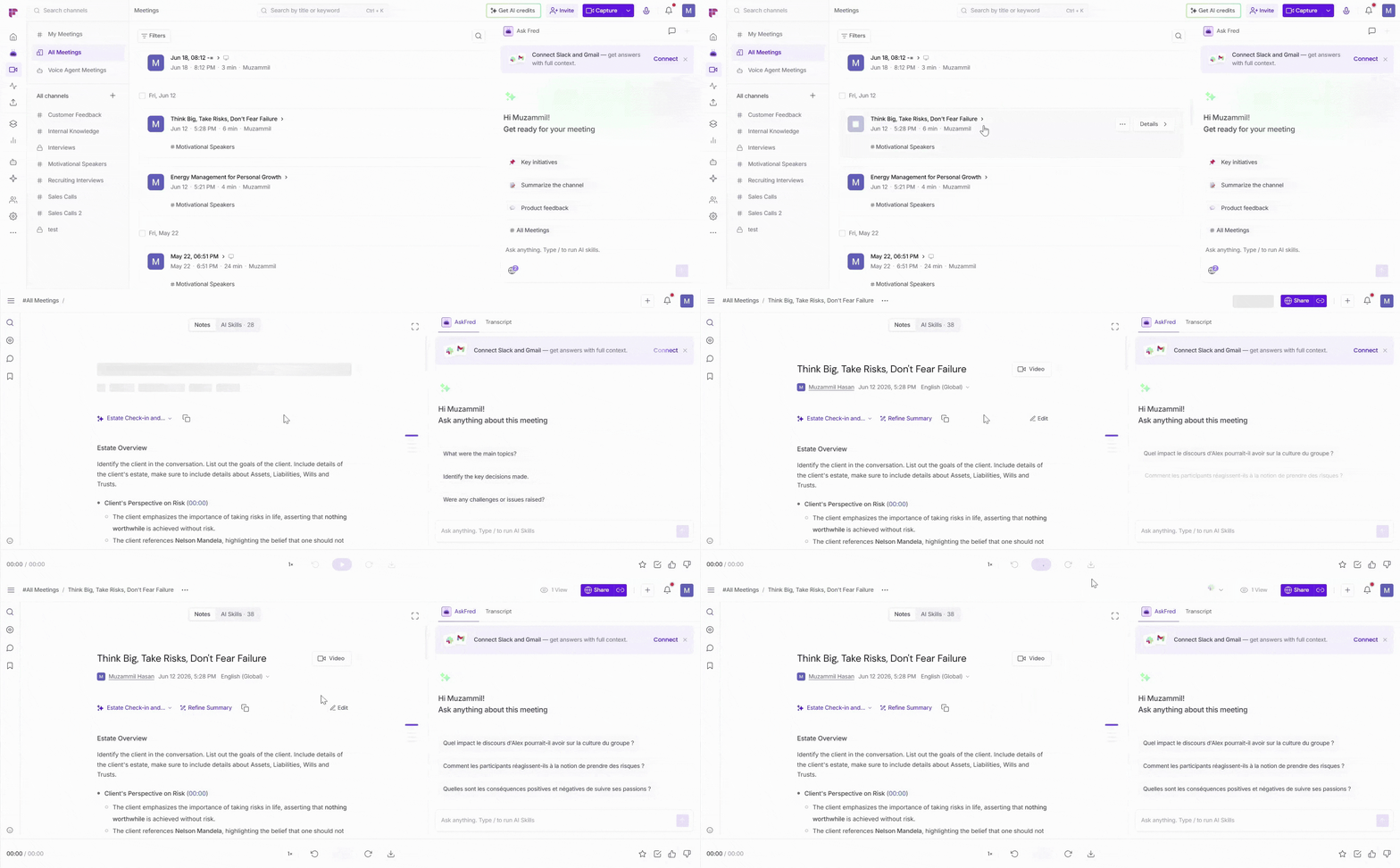
Step 3: Open the meeting that you want to share.
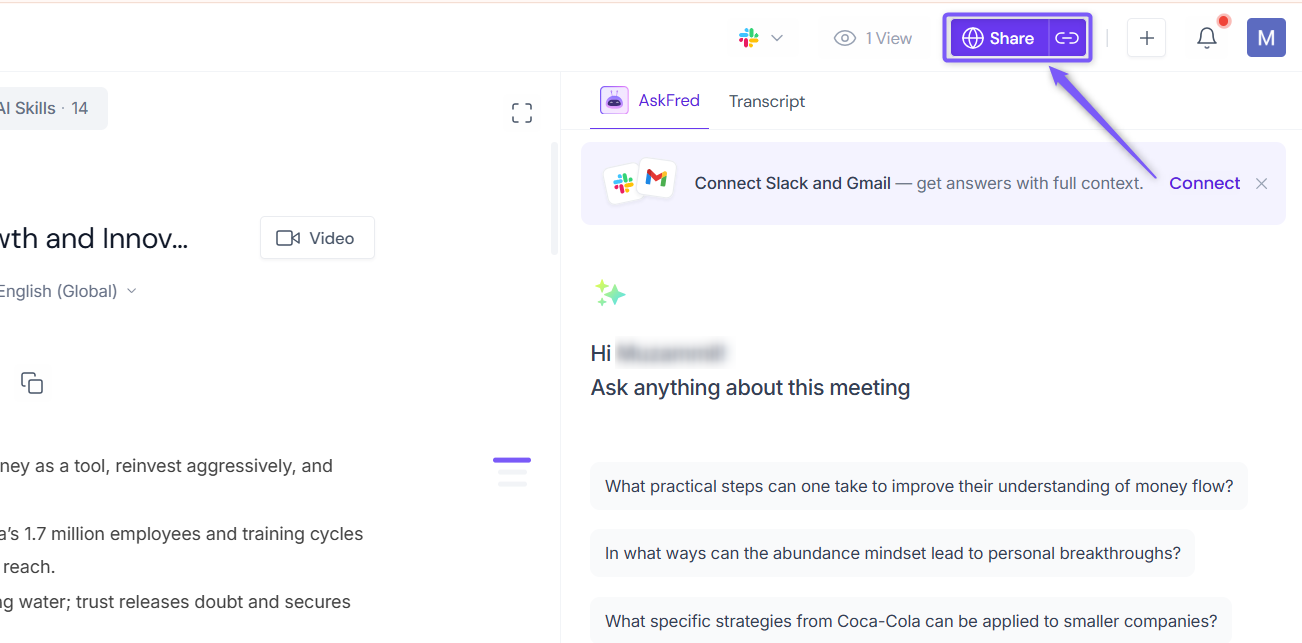
Step 3: Click Share in the top-right corner.
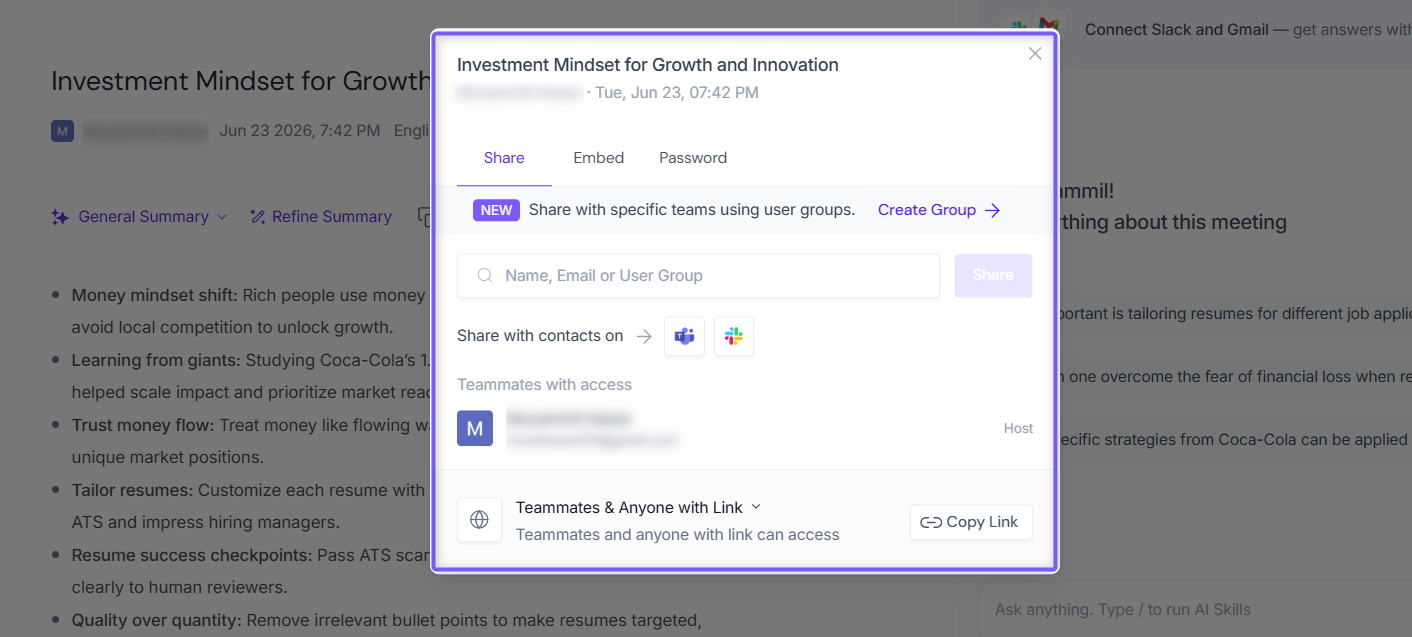
Step 4: A modal window will appear, where you can manage access to your meeting recap and choose how you'd like to share it.
🔒 Understand the Privacy Options
Before sharing your meeting recap, choose the privacy setting that best matches who you want to share it with.
Privacy Setting | Who Can Access the Meeting Recap | Best For |
Teammates & Anyone with Link (Default) | Anyone with the meeting recap link and everyone in your Fireflies workspace. | Sharing with teammates while allowing anyone with the link to view the meeting recap. |
Teammates & Participants | Everyone in your Fireflies workspace and all meeting participants, including external attendees. | Meetings with both internal teammates and external participants. |
Participants | Only people who attended the meeting. | Client calls or meetings where only attendees should have access. |
Teammates | Only members of your Fireflies workspace. | Internal meetings and team knowledge sharing. |
Only Owner | Only you can access the meeting recap until you share it with specific people or User Groups. | Confidential meetings, 1:1s, interviews, or private notes. |
💡 Tip: Your selected privacy setting determines who can access the meeting recap. The sections below explain when to use each option and how to share with different recipients.
🌐 Share with Anyone Using a Link (Default)
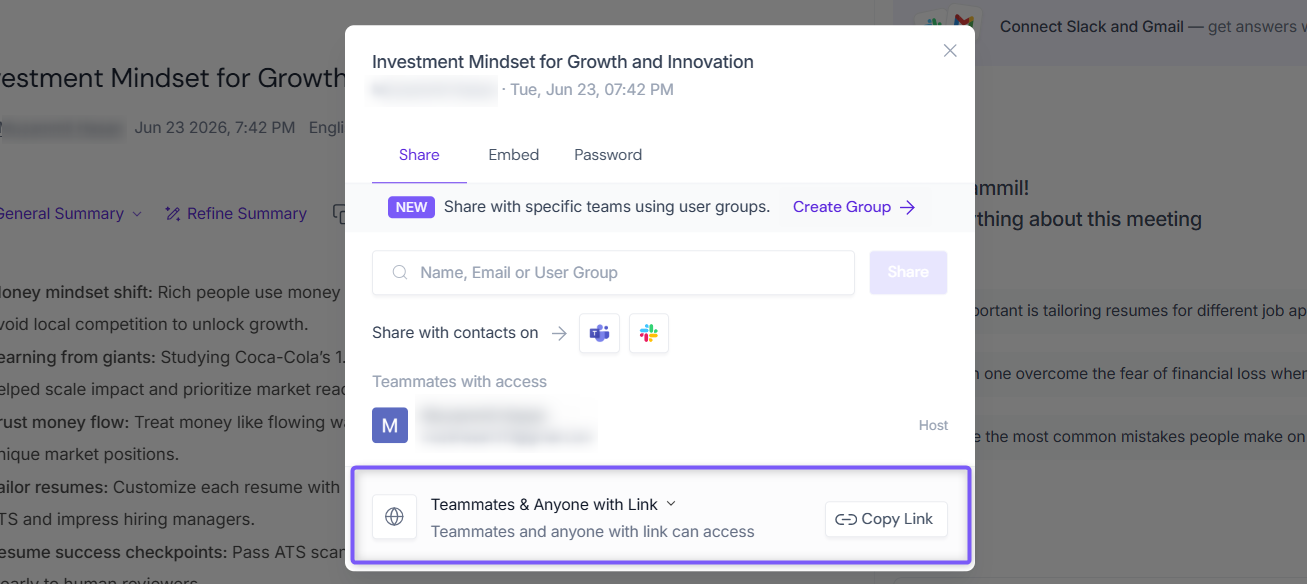
By default, meeting recaps use the Teammates & Anyone with Link privacy setting. This lets you share a meeting recap with anyone using a single link, without inviting recipients individually
💡 Non-Fireflies users may be prompted to sign in or create a Fireflies account to view the full meeting recap.
👉 Want non-Fireflies users to view meeting recaps without signing in? Learn how to enable Public Meeting Access.
👥 Share Within Your Workspace or with Meeting Participants
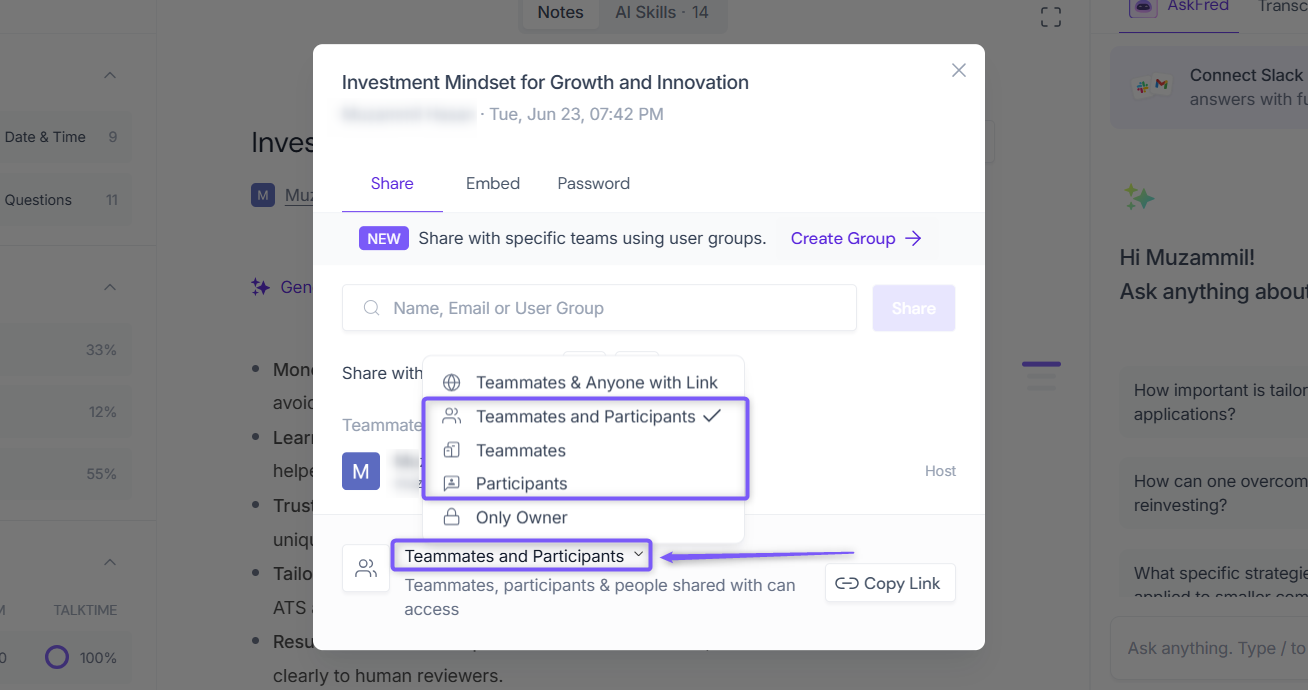
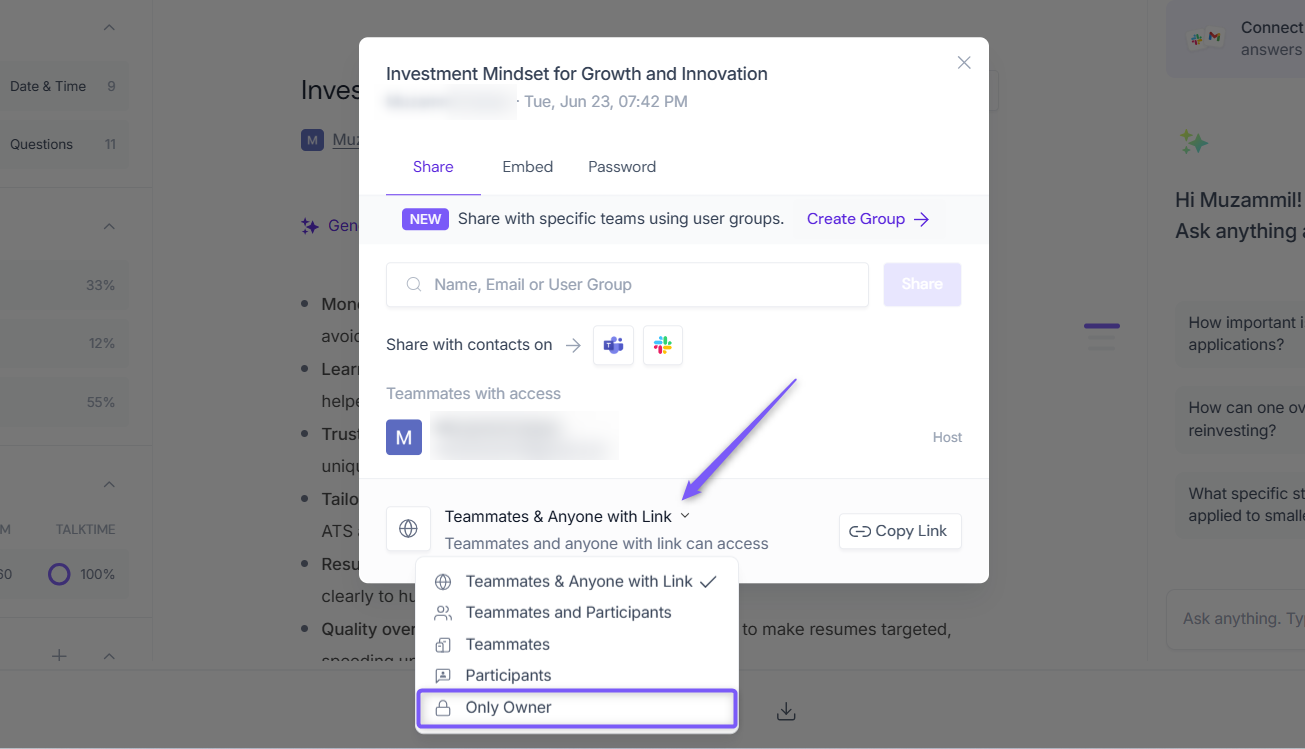
Use the Privacy dropdown to choose who can access your meeting recap within your workspace or among meeting attendees.
1. In the Share window, click the Privacy dropdown.
2. Select one of the following options:
Teammates & Participants: Shares the meeting recap with everyone in your Fireflies workspace and all meeting attendees, including external participants. Best for meetings with both internal and external attendees.
Teammates: Shares the meeting recap only with members of your Fireflies workspace.
Participants: Shares the meeting recap only with people who attended the meeting.
Teammates are users in your Fireflies workspace, while Participants are people who attended the meeting and may include external attendees.
3. Share the meeting recap using one of the following methods:
Copy Link to share the meeting recap directly.
Invite specific users by entering their email address.
Invite a User Group to share the meeting recap with multiple teammates at once.
💡 Don't have a User Group yet? See Learn About User Groups to create and manage User Groups.
4. Click Share to send the meeting recap to the selected recipients.
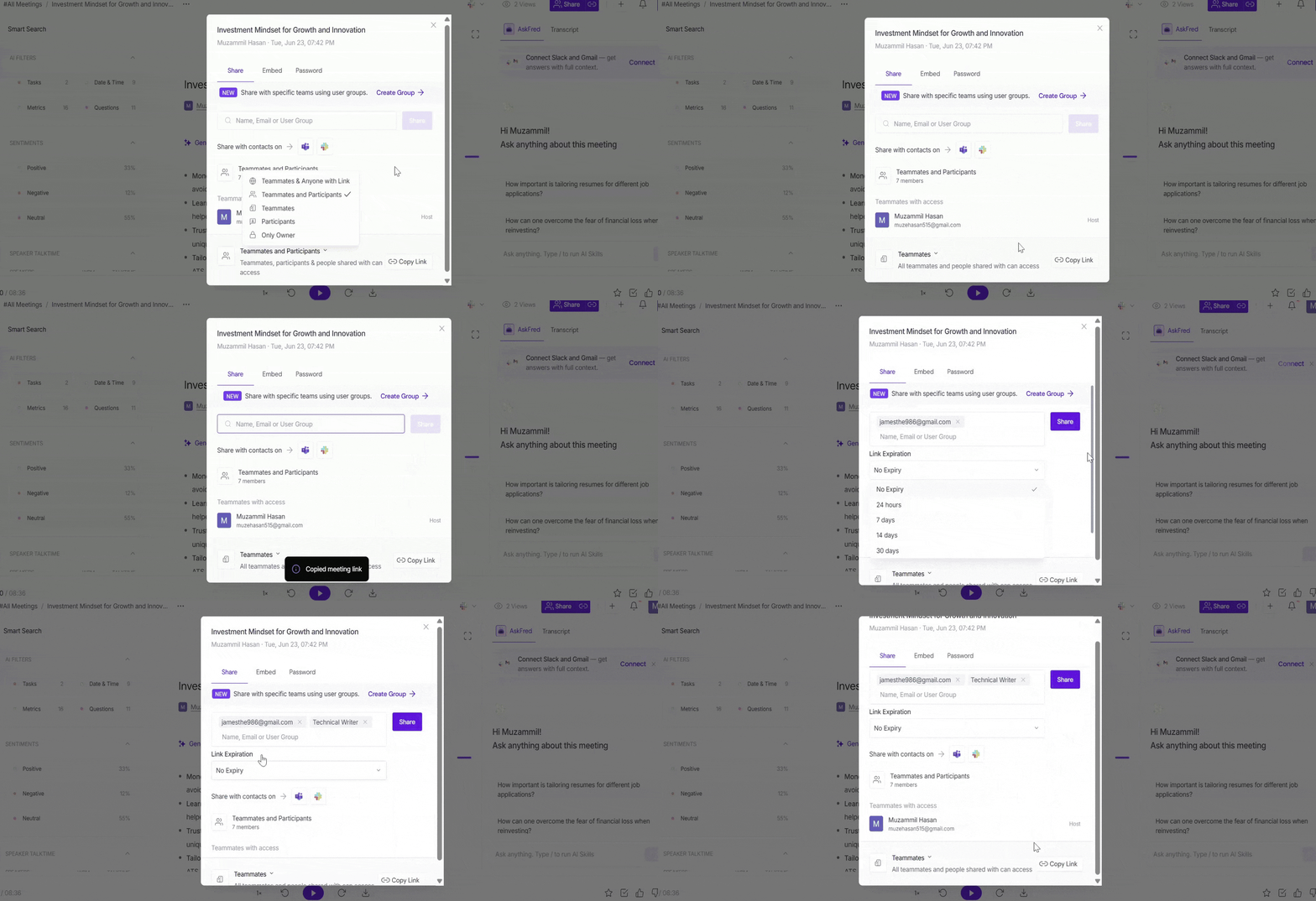
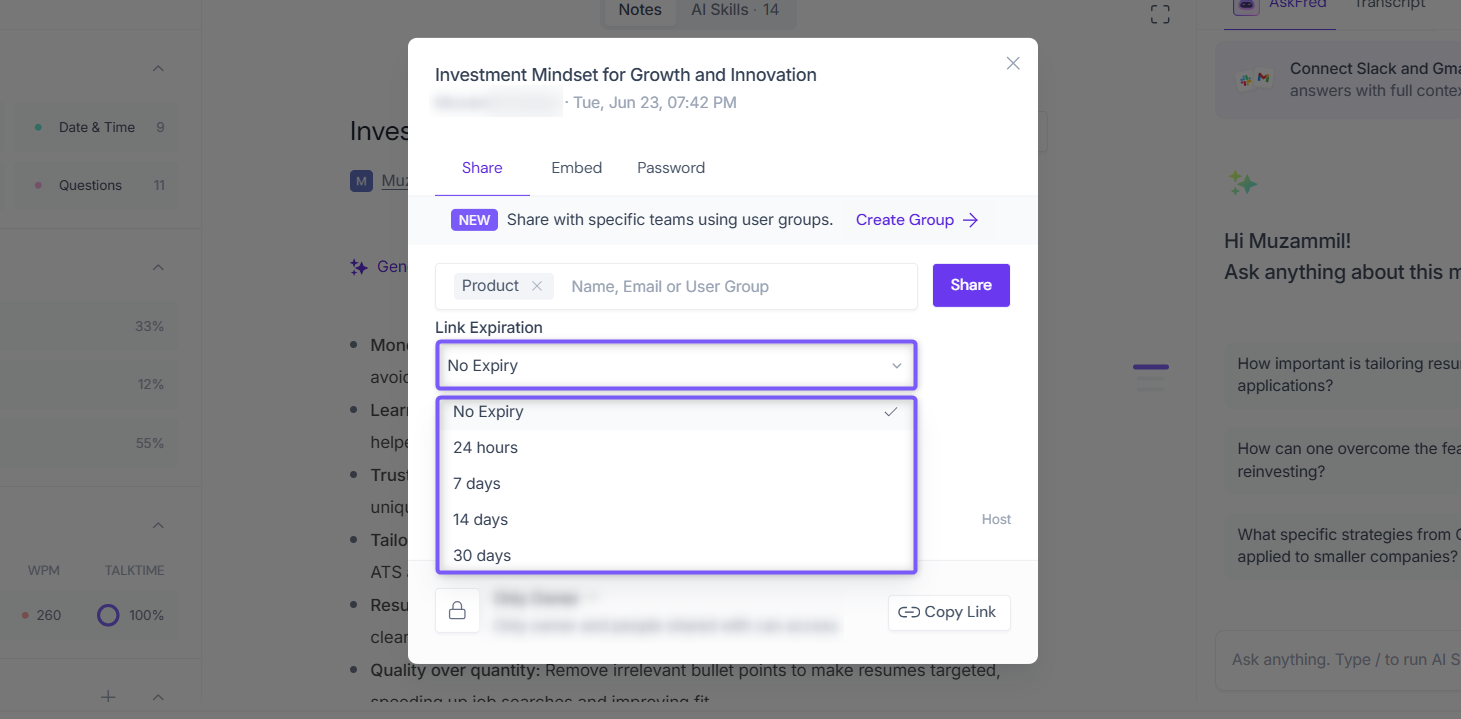
Tip: Set a Link Expiration period if you want the shared meeting recap link to expire automatically. You can choose 24 hours, 7 days, 14 days, 30 days, or No Expiry.
📧 Share the Recap with People You Choose (via Email or User Groups)
Not every meeting recap needs to be shared with everyone. Whether you're inviting a specific person by email or sharing with a User Group, Fireflies allows you to control exactly who can access your meeting recap - keeping your transcripts, summaries, recordings, and notes private and accessible only to the people you choose.
This option is ideal for:
Executive or leadership meetings
Performance reviews or HR discussions
Legal or confidential vendor conversations
Sharing follow-ups with a small project team
📌 Importat Note:
Set the Privacy option to Only Owner so only invited people or User Groups can access the meeting recap.
User Groups are available on Business and Enterprise plans.
Make sure the User Group has already been created before sharing the meeting recap. See this guide for instructions.
🚀 Steps to follow:
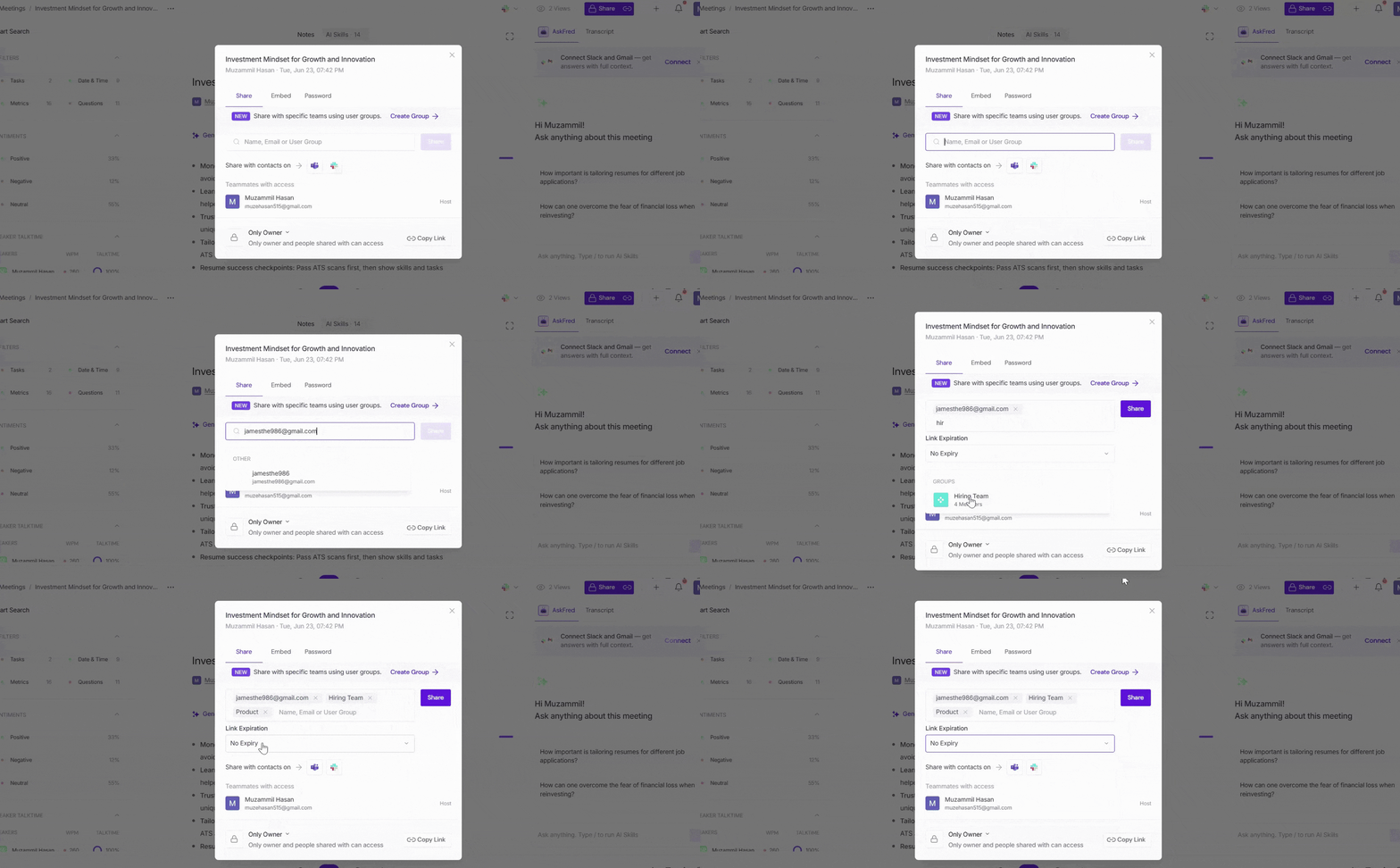
1. Click on the Privacy Setting dropdown and select Only Owner as the privacy setting.
2. In the search box, either:
Enter the email address of the person you want to share with, or
Search for and select a User Group. (If you don't see the User Group you need, click Create Group to create one directly from here.)
3. Click Share to send the meeting recap to the selected recipients.
💡 Tip: If you're sharing sensitive meeting information, set a Link Expiration period to limit how long the shared link remains accessible.
How Recipients Access the Meeting Recap?
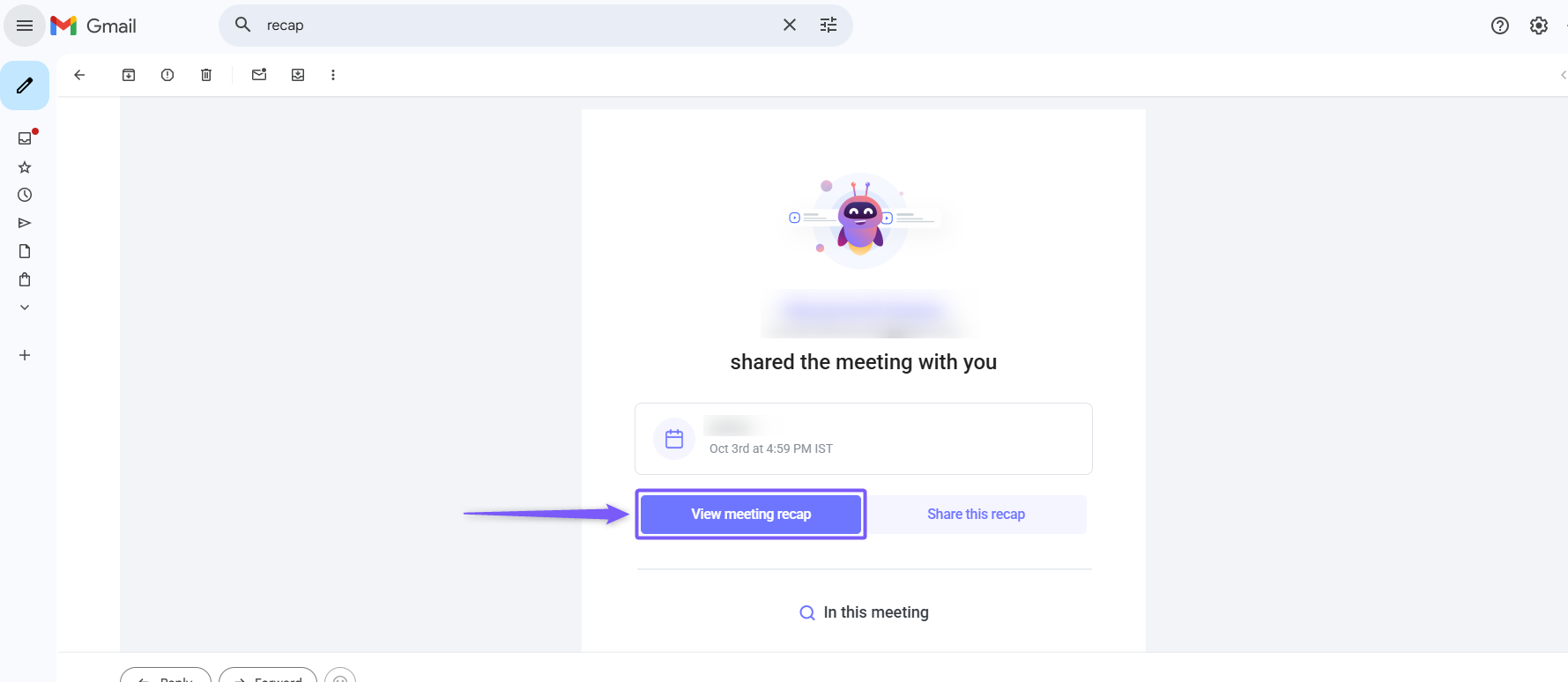
Once shared, Fireflies sends recipients an email with a link to the meeting recap.
Alternatively, if the recipient has a Fireflies account, they can also access the shared meeting recap from the Shared with Me section.
📌 Related article: How to configure meeting recap emails and privacy settings
How to remove users from shared access
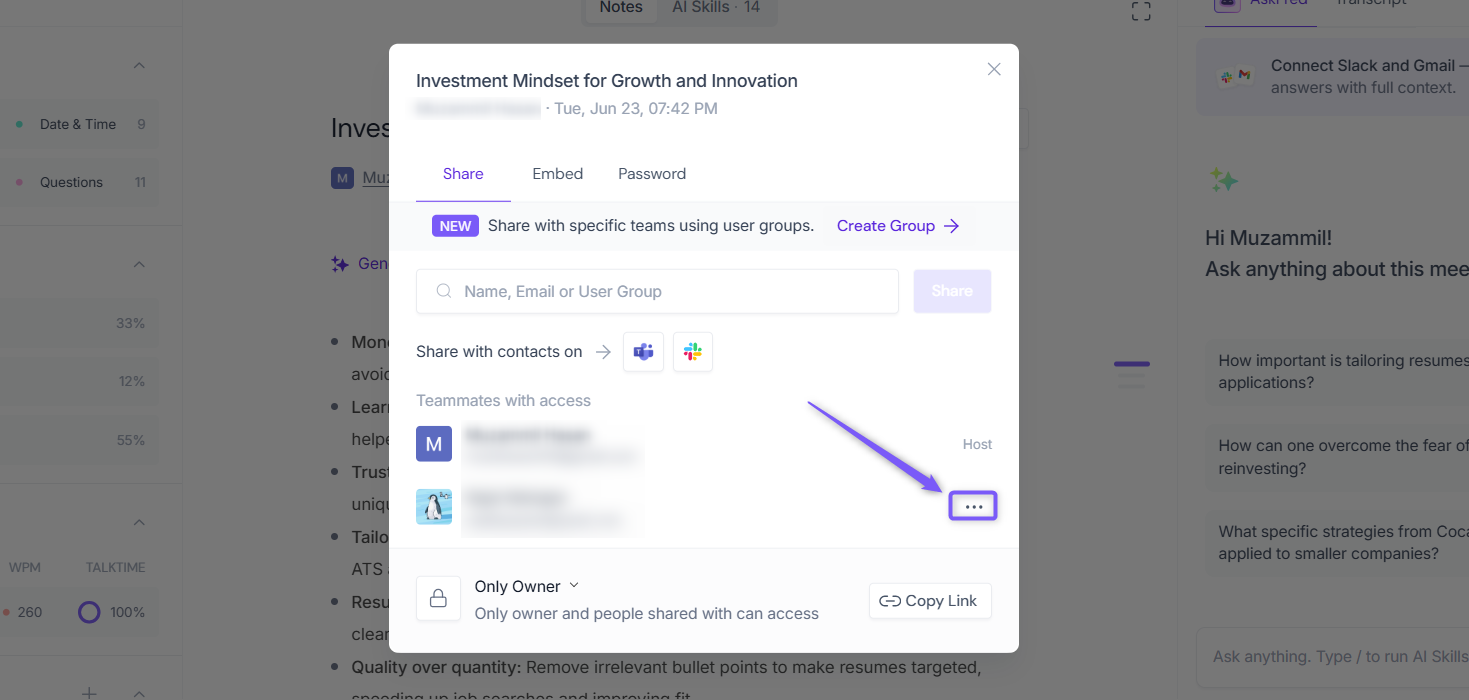
1. Open the meetings and click Share.
2. Hover over the person's name and click the three-dot menu (⋯) icon next to their name.
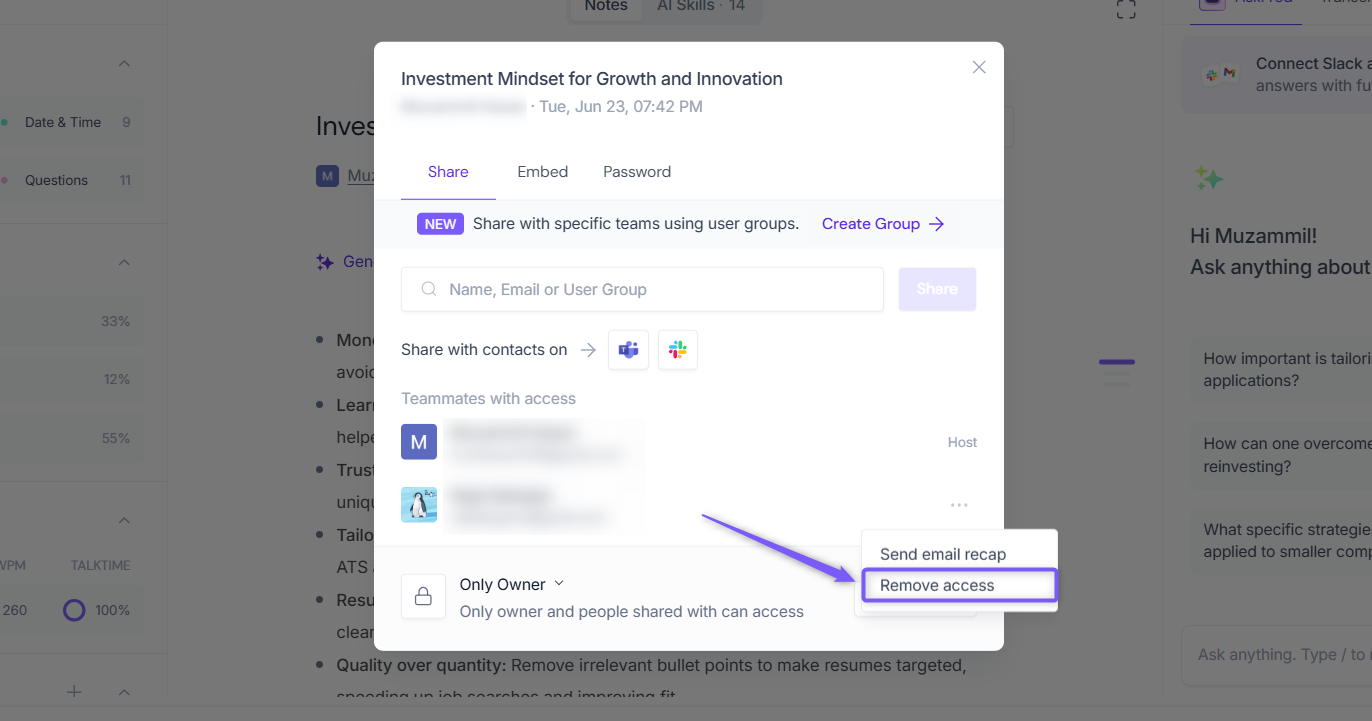
3. From the dropdown, select Remove access.
🌐 Share with Non-Fireflies Users (Public Meeting Access)
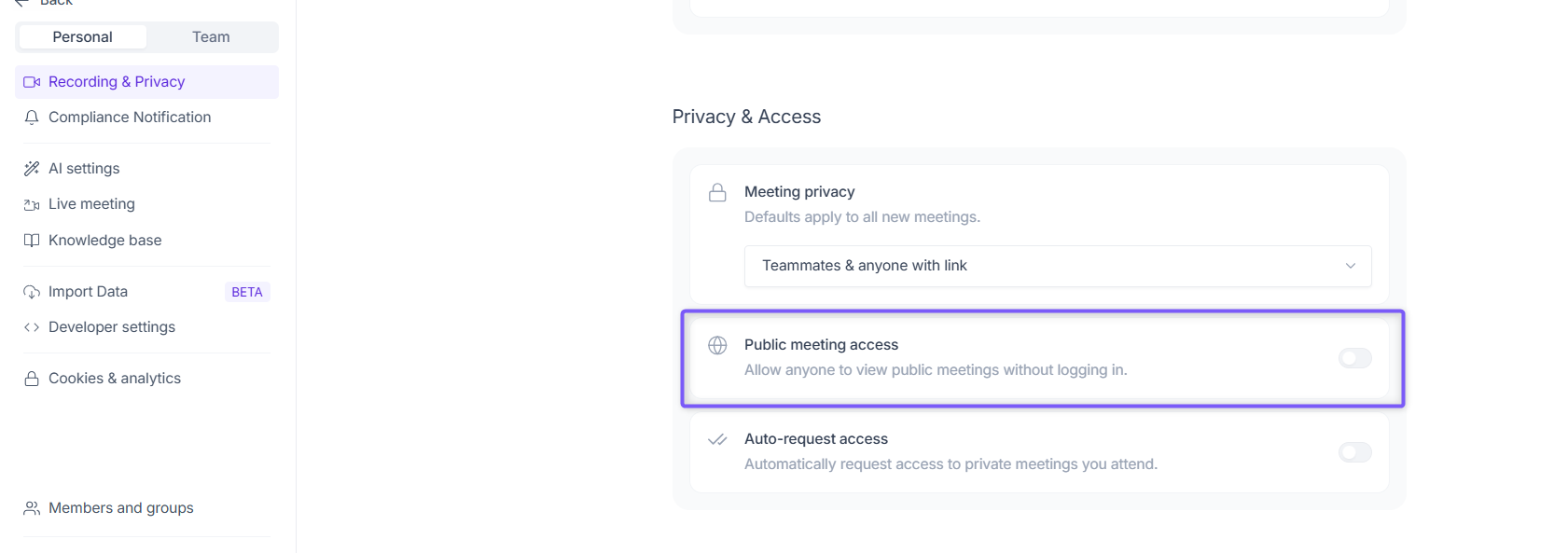
Need to share a meeting recap with clients, vendors, or other people outside your Fireflies workspace? Seamless Public Meeting Access (also called Public Guest Access) lets you securely share meeting recaps through a public link, allowing non-Fireflies users to view them without creating a Fireflies account or signing in.
📌 Available on Business and Enterprise plans.
Sharing meeting recaps with non-Fireflies users does not use additional workspace seats or credits.
👉 Learn more about the Public Meeting Access feature and what non-Fireflies users can view.
🔒 Share with a Password-Protected Link
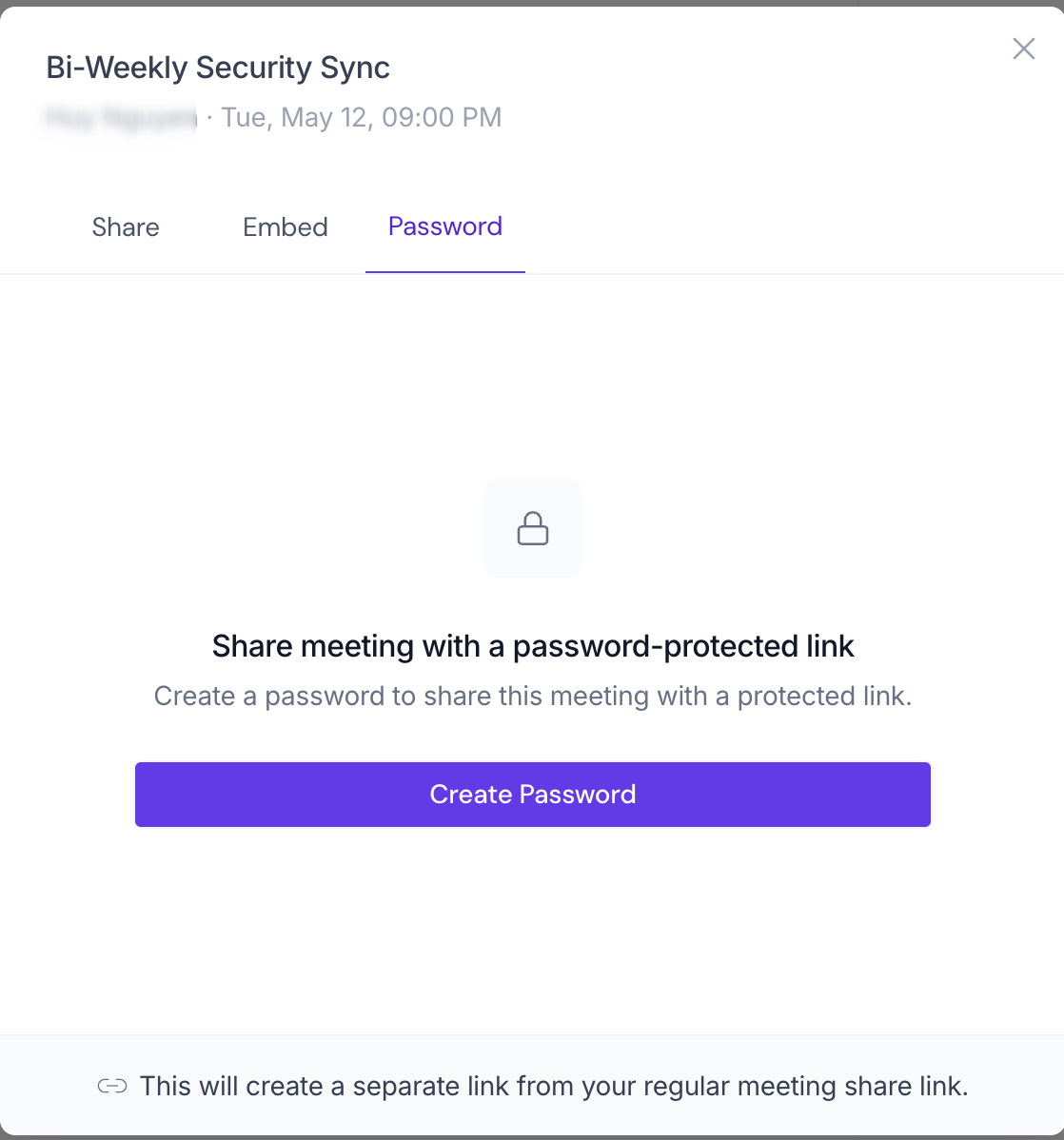
Need to add an extra layer of security when sharing a meeting recap? Fireflies lets you create a password-protected sharing link, so only recipients with both the link and password can access the meeting recap.
📌 Available on Business and Enterprise plans. Password-protected links are separate from your regular meeting share link and do not change your meeting's existing privacy settings.
👉 Leran more about How to Share a Fireflies Meeting with a Password-Protected Link.
❓Frequently Asked Questions (FAQs)
Q1. Can I share a meeting recap with someone who doesn't have a Fireflies account?
Yes. If you're on a Business or Enterprise plan, enable Public Meeting Access to let non-Fireflies users view shared meeting recaps without signing in.
Q2. What's the difference between Teammates and Participants?
Teammates are members of your Fireflies workspace, while Participants are people who attended the meeting and may include external attendees.
Q3. Can I share a meeting recap with only specific people?
Yes. Set the privacy option to Only Owner, then share the meeting recap with specific people by email or a User Group.
Q4. I don't see my User Group while sharing. What should I do?
Make sure the User Group has already been created. If it doesn't exist, create the User Group first, then return to the Share window and select it.
Q5. The recipient didn't receive the meeting recap email. What should I do?
First, check your Meeting Recap Email settings to make sure recap emails are enabled. If the email still isn't received, ask the recipient to check their Spam or Promotions folder, or share the meeting again.
Q6. Can I change the link expiration after sharing?
No. To use a different expiration period, you'll need to share the meeting again and choose a new Link Expiration setting.
Q7. Can I password-protect a shared meeting?
Yes. Business and Enterprise users can create password-protected sharing links for an extra layer of security.
Q8. What happens if I delete a User Group?
Any shared access granted through that User Group is automatically removed. Members of the deleted group will no longer have access to the shared meeting.
Q9. Can I remove access after sharing a meeting recap?
Yes. Open the Share window and remove access for individual users or User Groups at any time.
Q10. Does sharing with non-Fireflies users use additional workspace seats or credits?
No. Sharing meeting recaps with non-Fireflies users does not use additional workspace seats or credits.
🔄 Quick Recap
Choose the appropriate Privacy setting based on who needs access to your meeting recap.
Share with teammates, meeting participants, or both using the Privacy options.
Share privately with specific people or User Groups by setting the privacy option to Only Owner.
Use Public Meeting Access to securely share meeting recaps with non-Fireflies users without requiring them to sign in (Business and Enterprise plans).
Add an extra layer of security by creating a password-protected sharing link.
You can remove access for individual users or User Groups at any time from the Share window.