Public Meeting Access: How to Allow Non-Fireflies Users to View Shared Meeting Recaps
Last updated: June 26, 2026
Need to share meeting recaps with clients, vendors, or other people outside your workspace? Public Meeting Access allows you to securely share meeting recaps with non-Fireflies users, making it easier to collaborate and keep everyone informed. This guide explains how to enable the feature and what non-Fireflies users can view when you share a meeting recap.
⚠ Before you begin
Before enabling Public Meeting Access, keep the following in mind:
Public Meeting Access is available only on Business and Enterprise plans.
What non-Fireflies users can view depends on your plan and whether Public Meeting Access is enabled.
A guest is someone without a Fireflies account, while an external user (such as a client or vendor) may already have one.
💸Don’t worry - sharing meeting recaps with guests or external users does not use additional workspace seats or credits on your plan.
💡 Looking for different ways to share meeting recaps? Learn how to share with teammates, participants, user groups, external users, and more in How to Share Meeting Recaps.
🔓 How to Enable Public Meeting Access
Enable it for your own meetings (Personal)
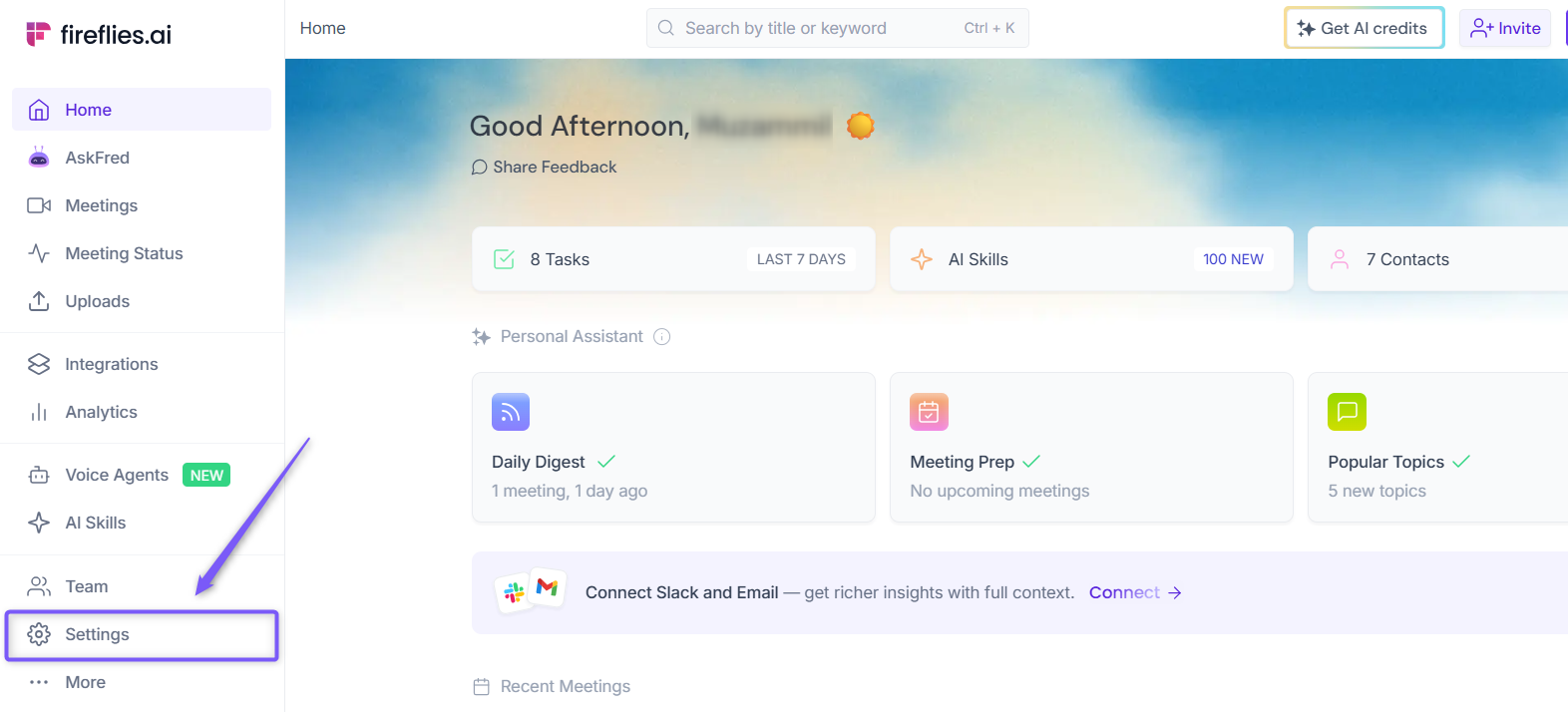
1. Log in to your Fireflies account and open the Settings page from the left sidebar.
2. Under the Record & Privacy (Personal tab), scroll down to Privacy & Access section.
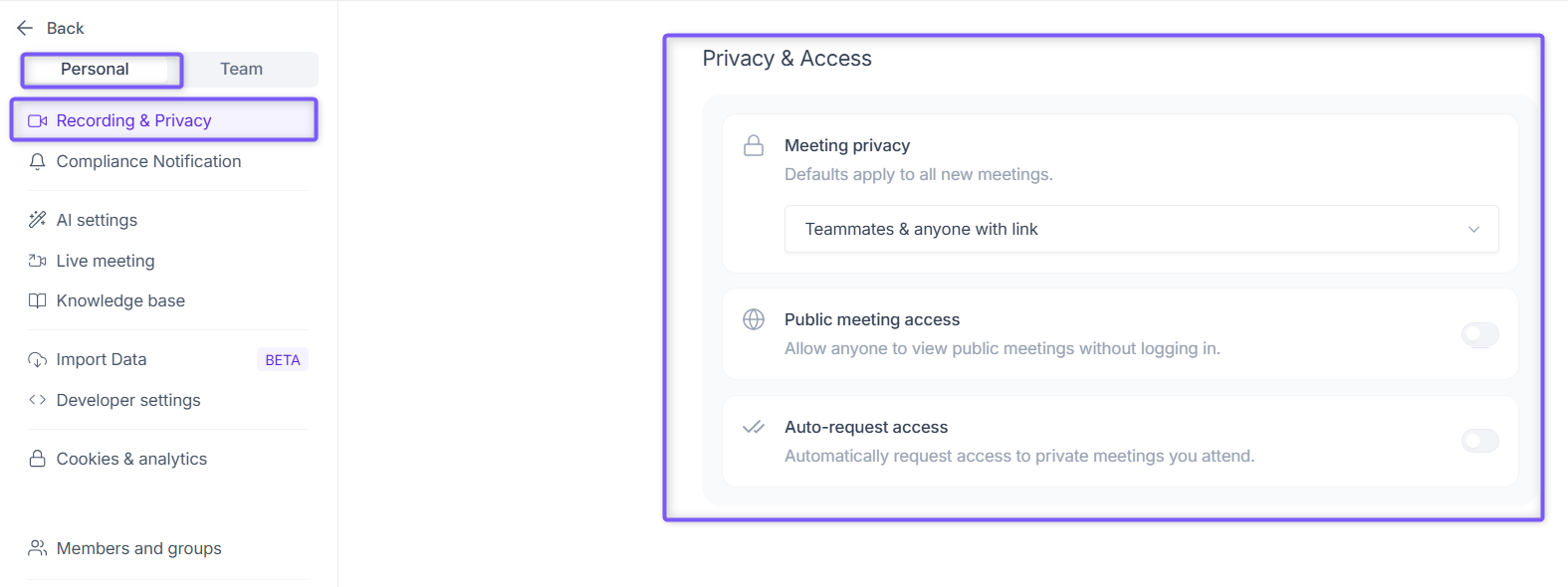
3. Locate the Public meeting access setting. By default, it is disabled (greyed out). Depending on your preference:
Enable it to allow non-Fireflies users to view your shared meeting recaps without signing in.
Disable it to require non-Fireflies users to sign in to view the full meeting recap.
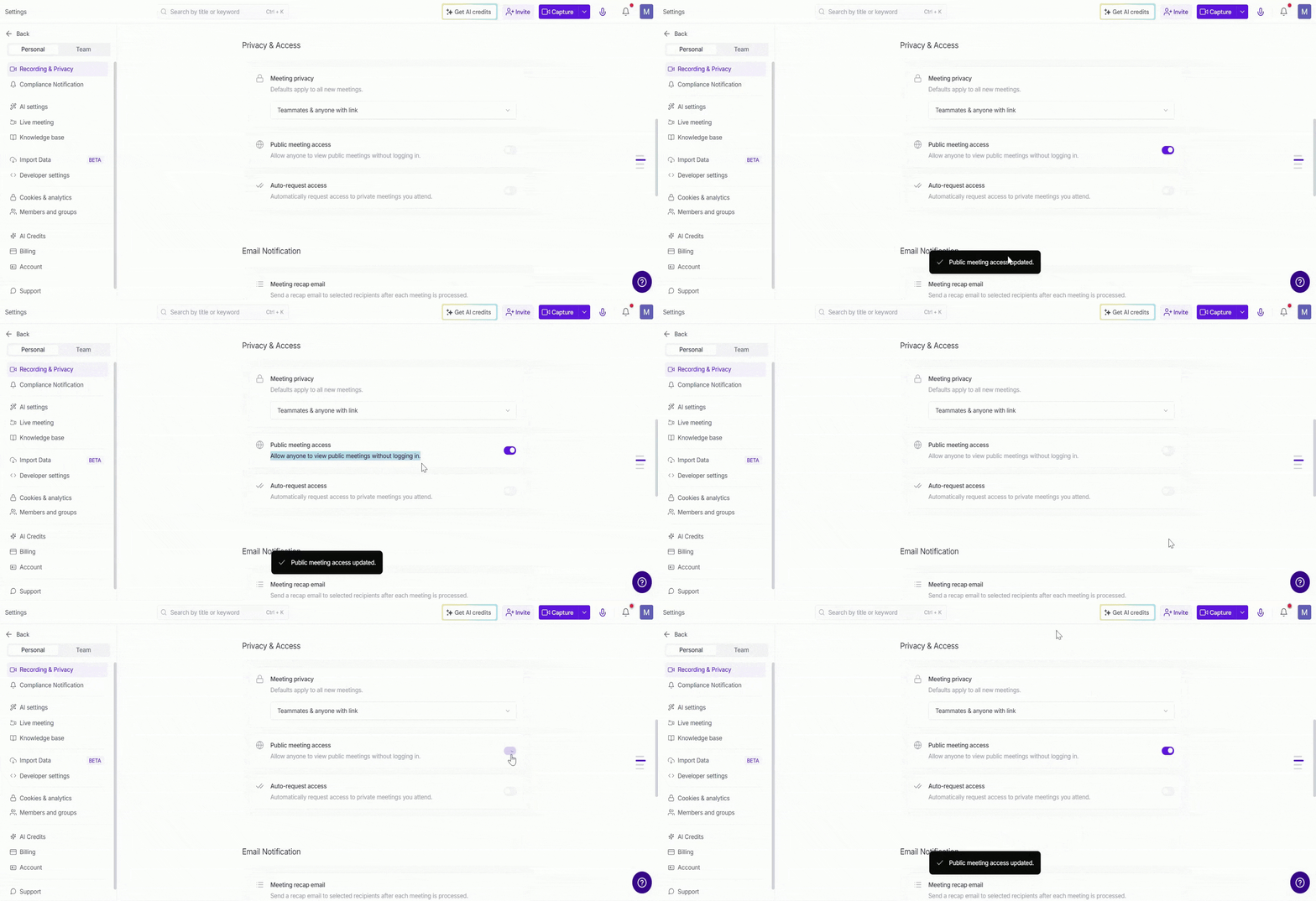
This setting only affects public links. It doesn’t override recap email delivery or internal teammate access.
🏢 Alternatively, if you're a Workspace Admin
You can manage Public Meeting Access for your entire workspace (team members).
1. In Settings, switch to the Team tab and click Recording & Privacy.
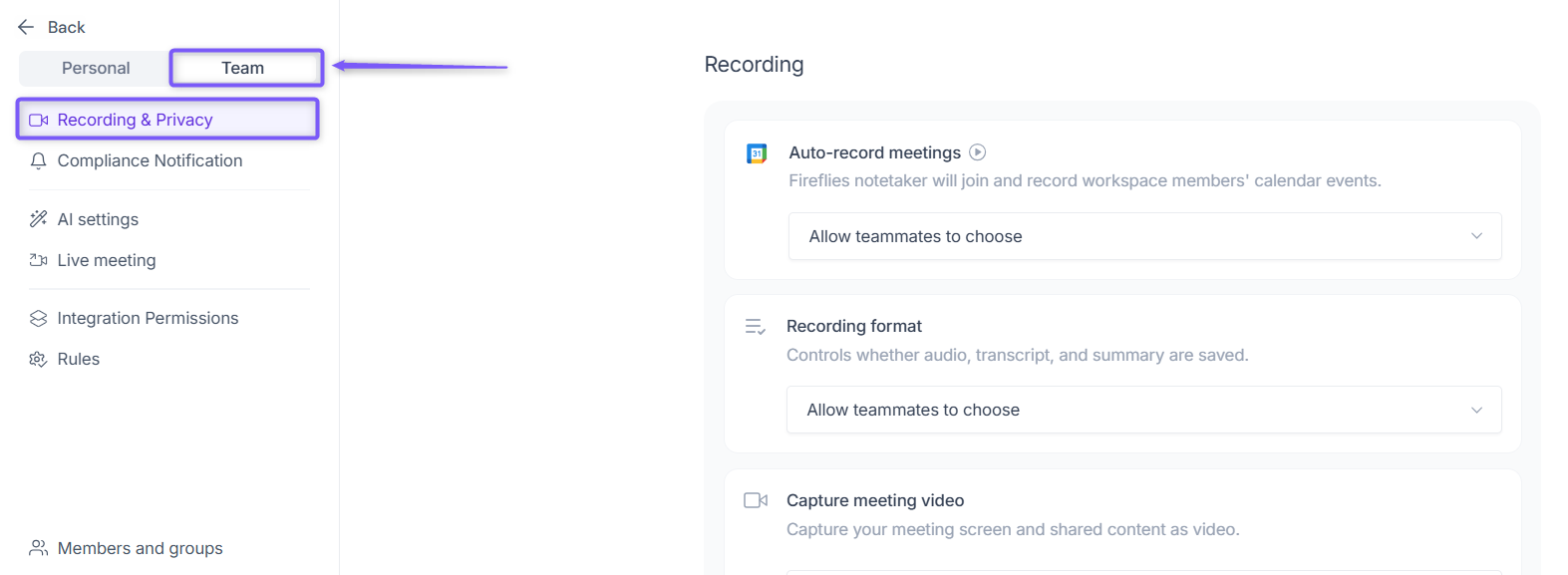
2. Under Public meeting access, choose one of the following options:
Allow teammates to choose: Each teammate manages their own Public Meeting Access setting.
Enable for all teammates: Public Meeting Access is enabled for everyone in the workspace.
Disable for all teammates: Public Meeting Access is disabled for everyone in the workspace.
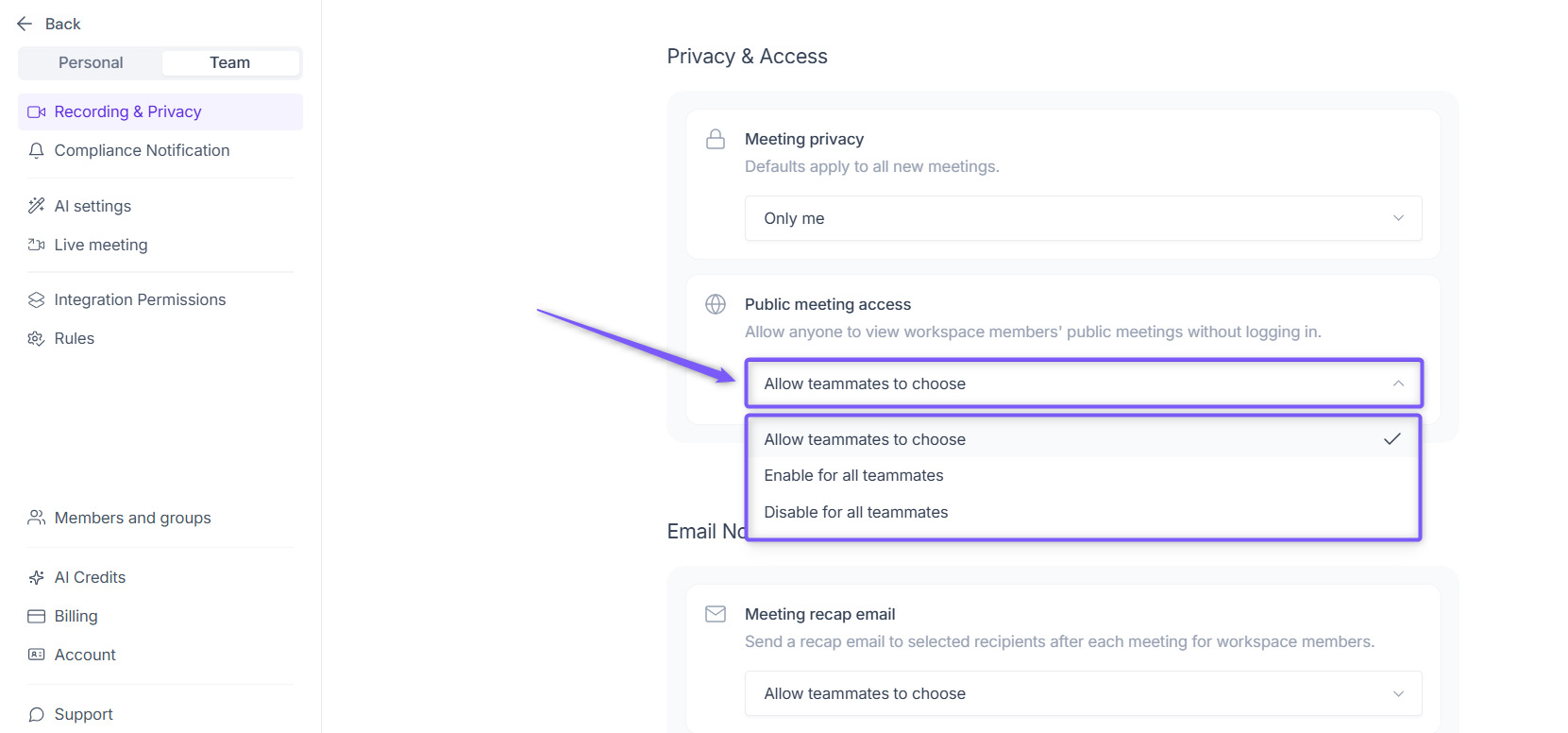
This overrides individual settings. Useful for organizations that want to standardize guest experience or tighten privacy controls.
🔗 Share a Meeting Recap with Non-Fireflies Users
Once Public Meeting Access is enabled, you can share a meeting recap with non-Fireflies users using a public link.
1. Open the meeting recap you want to share from Meeting Notepad.
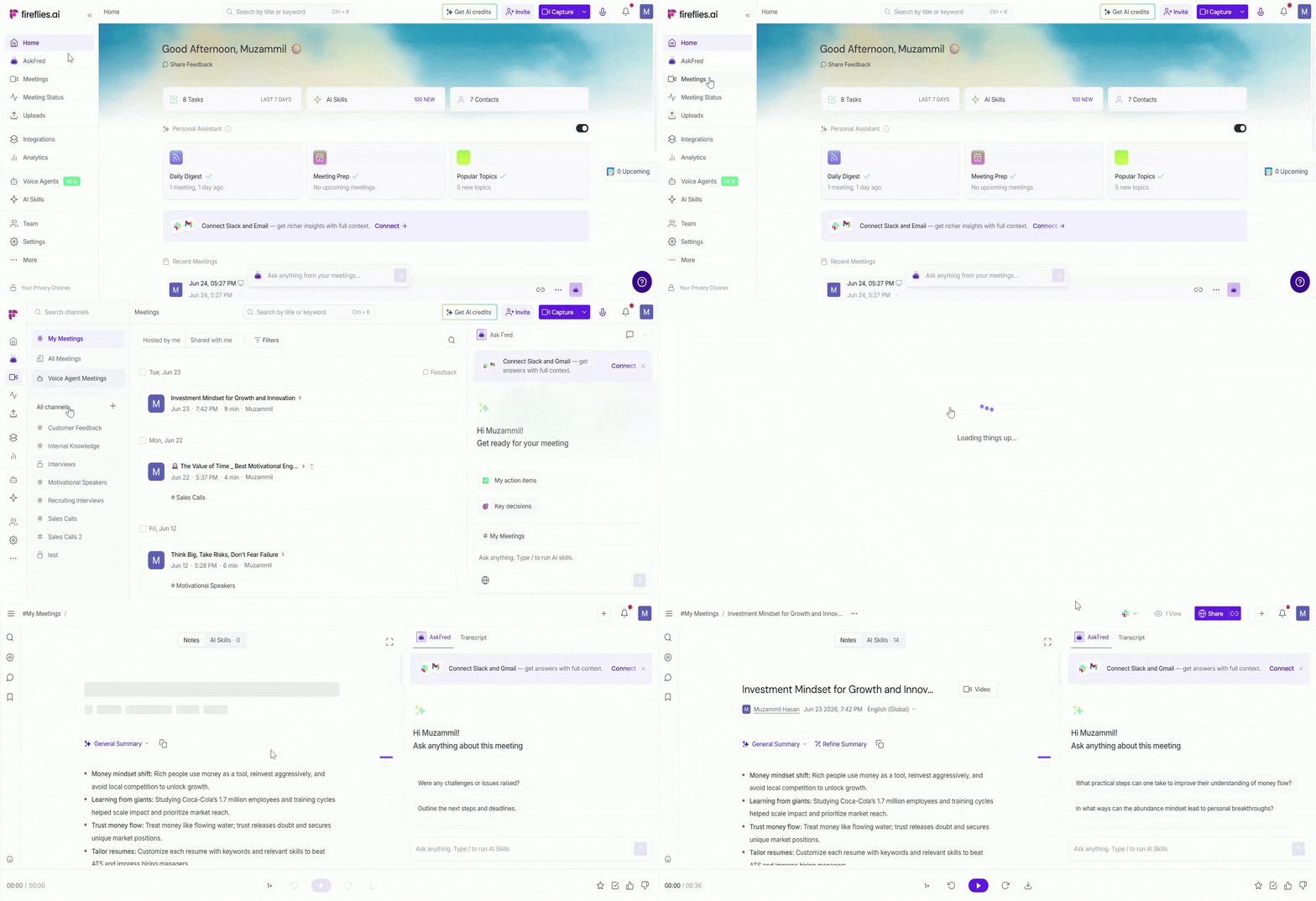
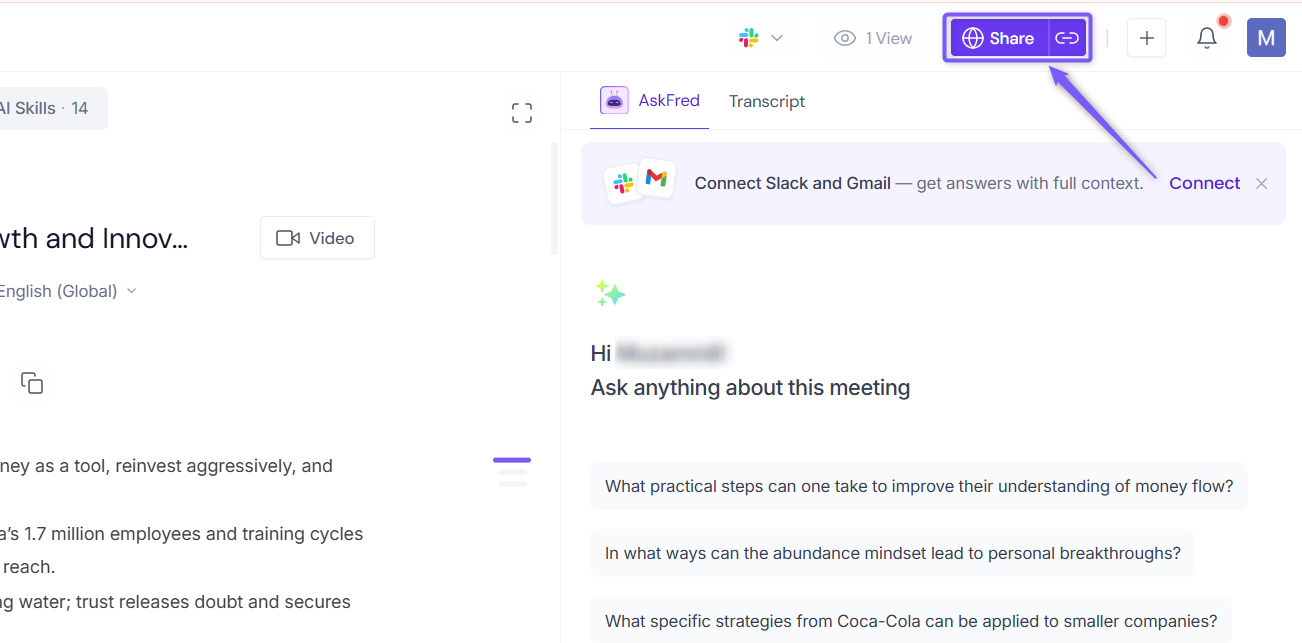
2. Click Share in the top-right corner.
3. Click the Privacy Setting dropdown and select Teammates & Anyone with Link as the privacy setting.
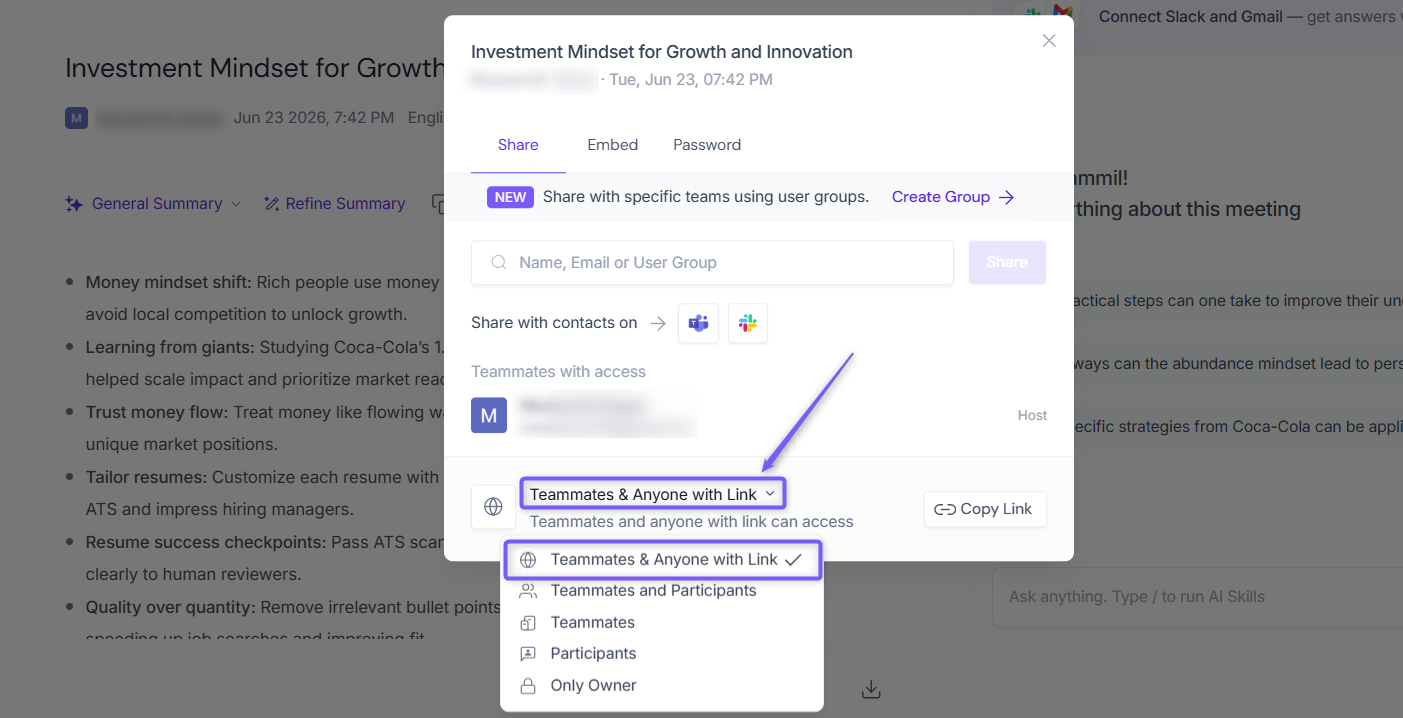
4. Click Copy Link and share it with non-Fireflies users.
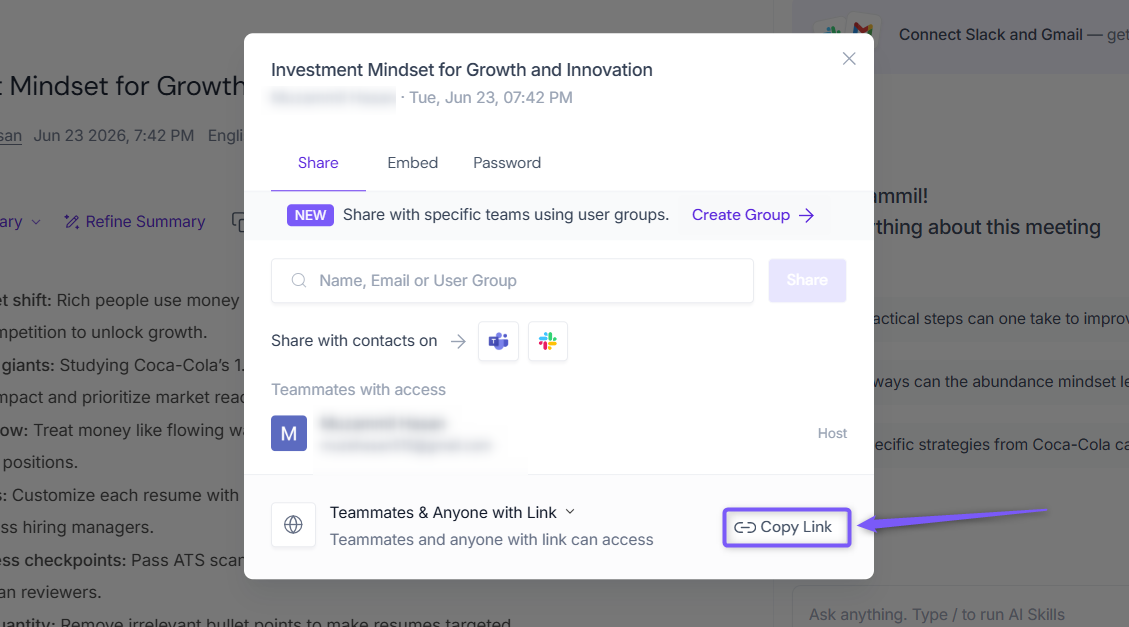
Public Meeting Access only affects users who open a shared meeting recap link. It does not change your meeting's privacy or sharing permissions.
👀 What Non-Fireflies Users (guests) Can View
What non-Fireflies users can view depends on your Fireflies plan and whether Public Meeting Access is enabled.
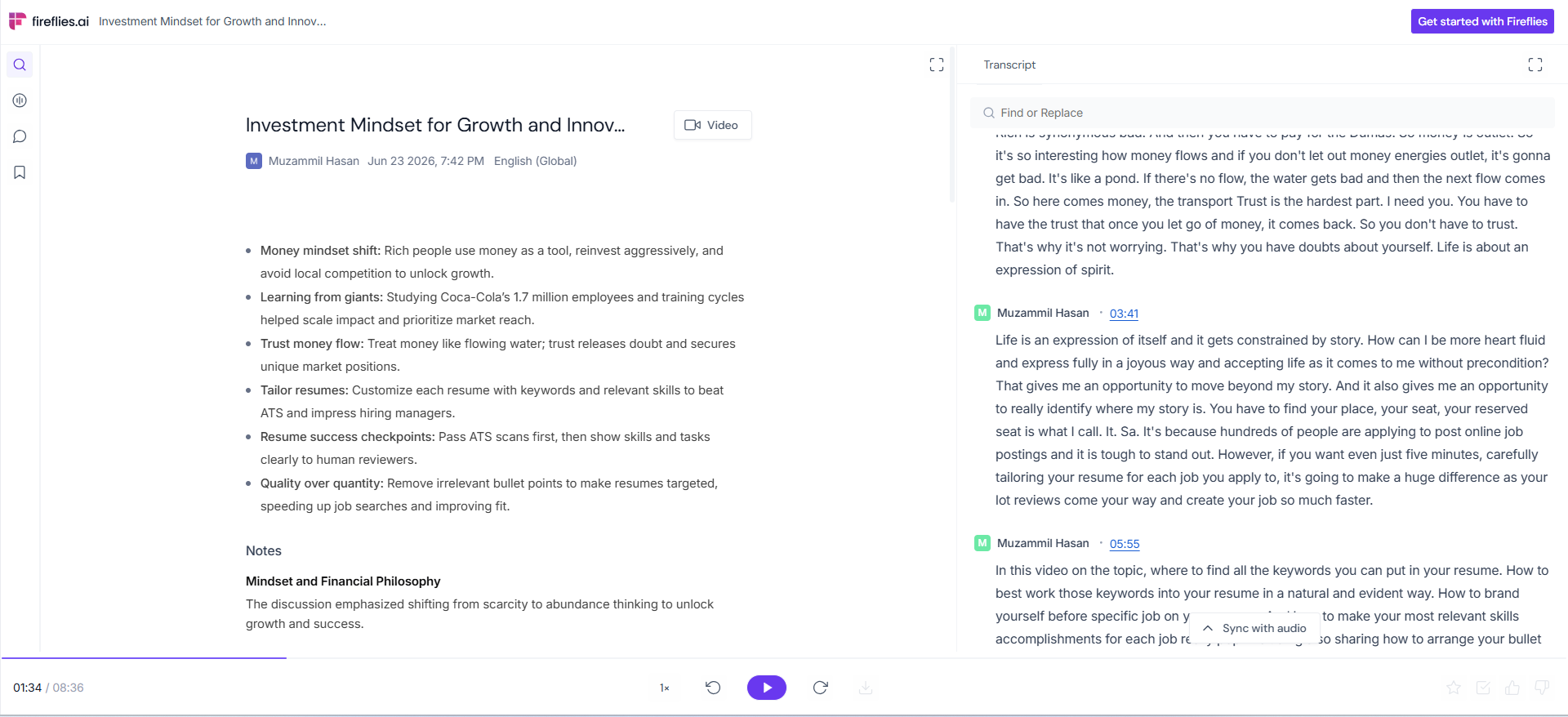
Scenario 1: Seamless, Instant Access (Business or Enterprise with Public Meeting Access enabled)
When Public Meeting Access is enabled, non-Fireflies users can open the shared meeting recap link without signing in to Fireflies.
✅ Guests can instantly view (no login/signup required):
Full meeting transcript
AI-generated summary and notes
Audio recording
Video recording (if available)
🔒 However, guests will need to log in or sign up to:
Use AskFred or AI Skills
Create or view Soundbites
Add or see comments on the transcript
Scenario 2: Limited Access without logging into Fireflies (Free or Pro plans, or Public Meeting Access disabled)
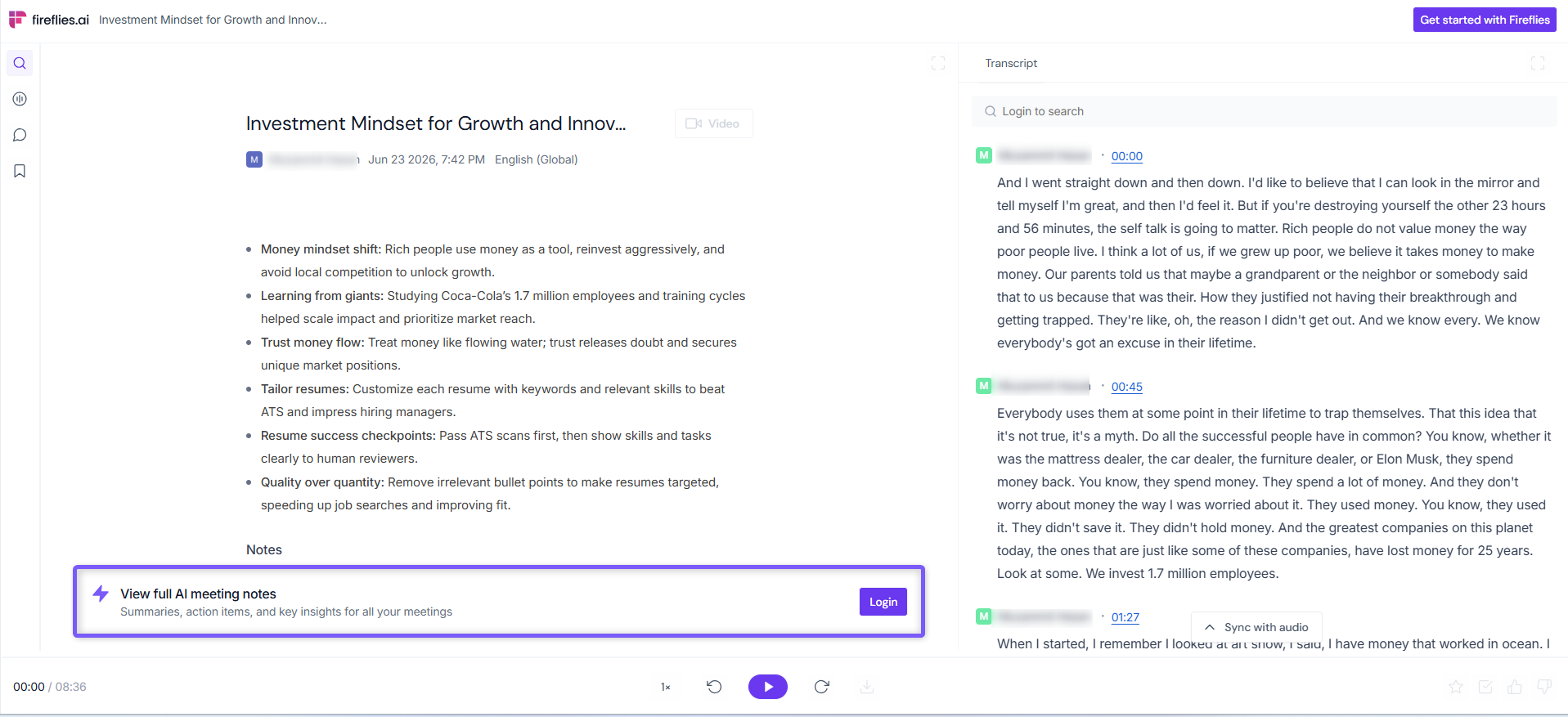
In the following situations, guests will have limited access to meeting notes and will be prompted to sign up or log in to Fireflies to view the full meeting recap content
You are on a Free or Pro plan.
OR you are on a Business or Enterprise plan but have NOT enabled the Public Meeting Access feature.
✅ Guests can instantly view (no login/signup required):
Full meeting transcript
Audio playback and controls
🔒 However, guests will need to log in or sign up to:
AI-generated summary (action items, notes, and outline)
Video recording (only available on Business/Enterprise)
Soundbites created from the meeting
Transcript search for keywords or phrases
AI filters, sentiment filters, or speaker labels
🔄 Quick Recap
Public Meeting Access is available on Business and Enterprise plans.
Enable Public Meeting Access to let non-Fireflies users view shared meeting recaps without signing in.
To share a recap publicly, set the meeting's privacy to Teammates & Anyone with Link and share the link.
What non-Fireflies users can view depends on your Fireflies plan and whether Public Meeting Access is enabled.
Some features, such as AskFred, AI Skills, Soundbites, and comments, still require users to sign in to Fireflies.