How to remove Fireflies from a meeting (or stop it from joining)
Last updated: September 29, 2026
Want to make sure Fireflies doesn’t attend a certain meeting—whether it's a private 1:1, a confidential HR sync, or something you'd rather not record? This guide walks you through how to remove Fireflies from an ongoing meeting, stop it from joining scheduled meetings, and manage how Fireflies joins future meetings.
Prefer no visible bot at all? If you want Fireflies to stay out of the meeting entirely, use the Fireflies Desktop App to record meetings using your computer's system audio, so no bot joins the call.
See: How to Record Meetings Without a Bot on the Fireflies Desktop App
Option 1: Remove Fireflies during a live meeting
If Fireflies has already joined and you want it to leave, here’s how you can do it from either your video conferencing platform or your Fireflies Dashboard:
A. From your video conferencing platform:
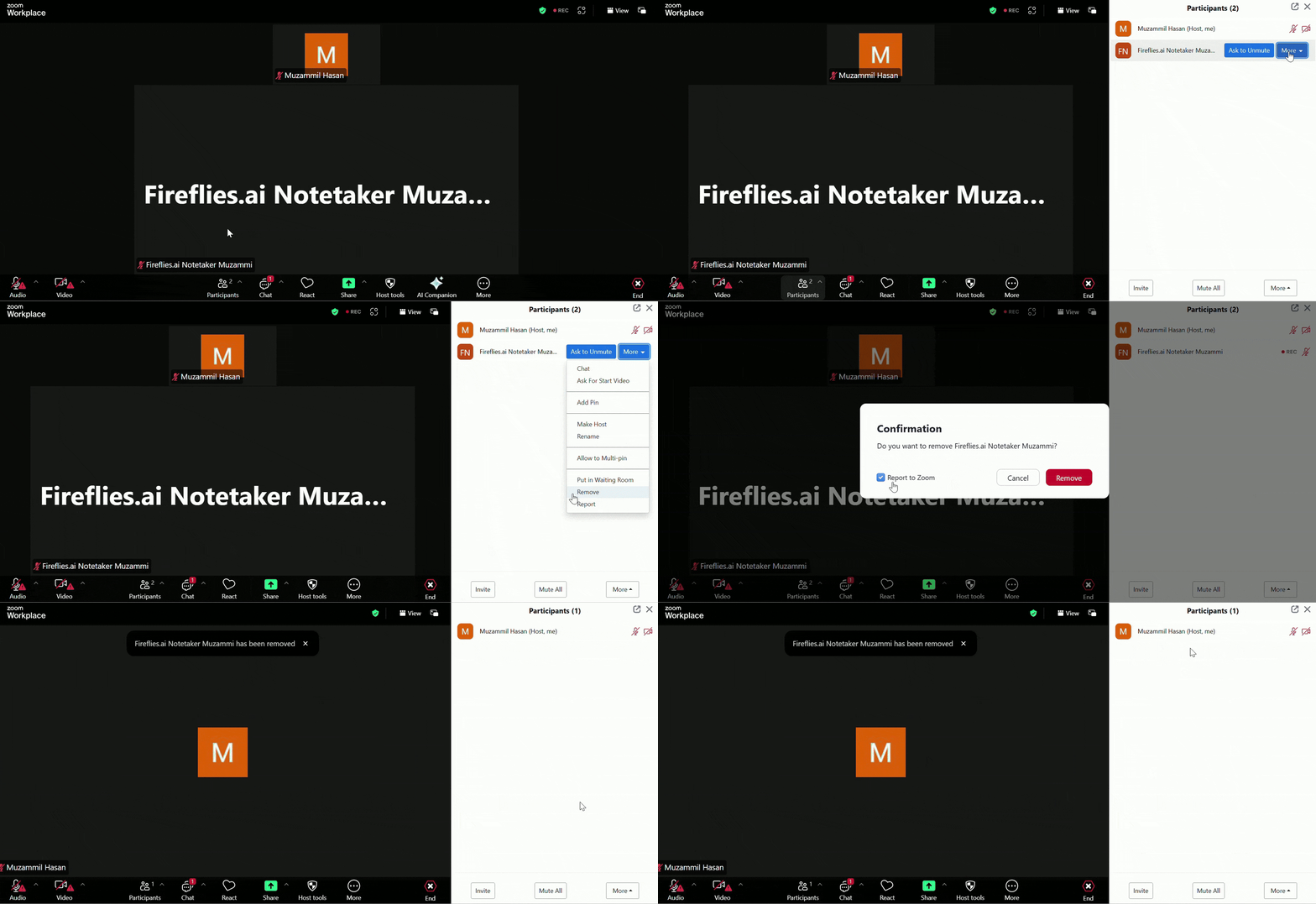
Zoom: Open the participant list → click More next to Fireflies Notetaker → choose Remove.
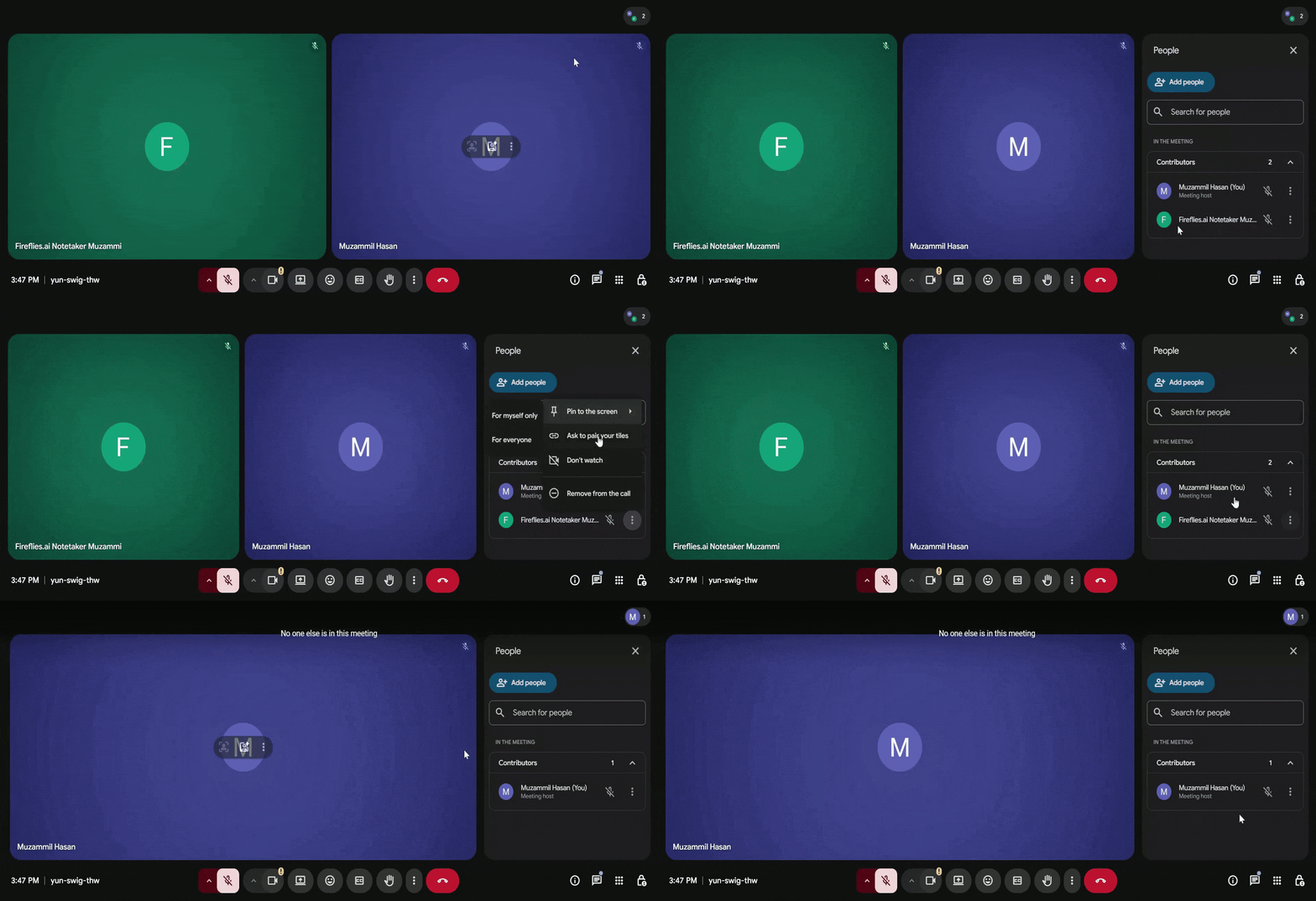
Google Meet: Open participant list → click (⋮) next to Fireflies → select Remove from the call.
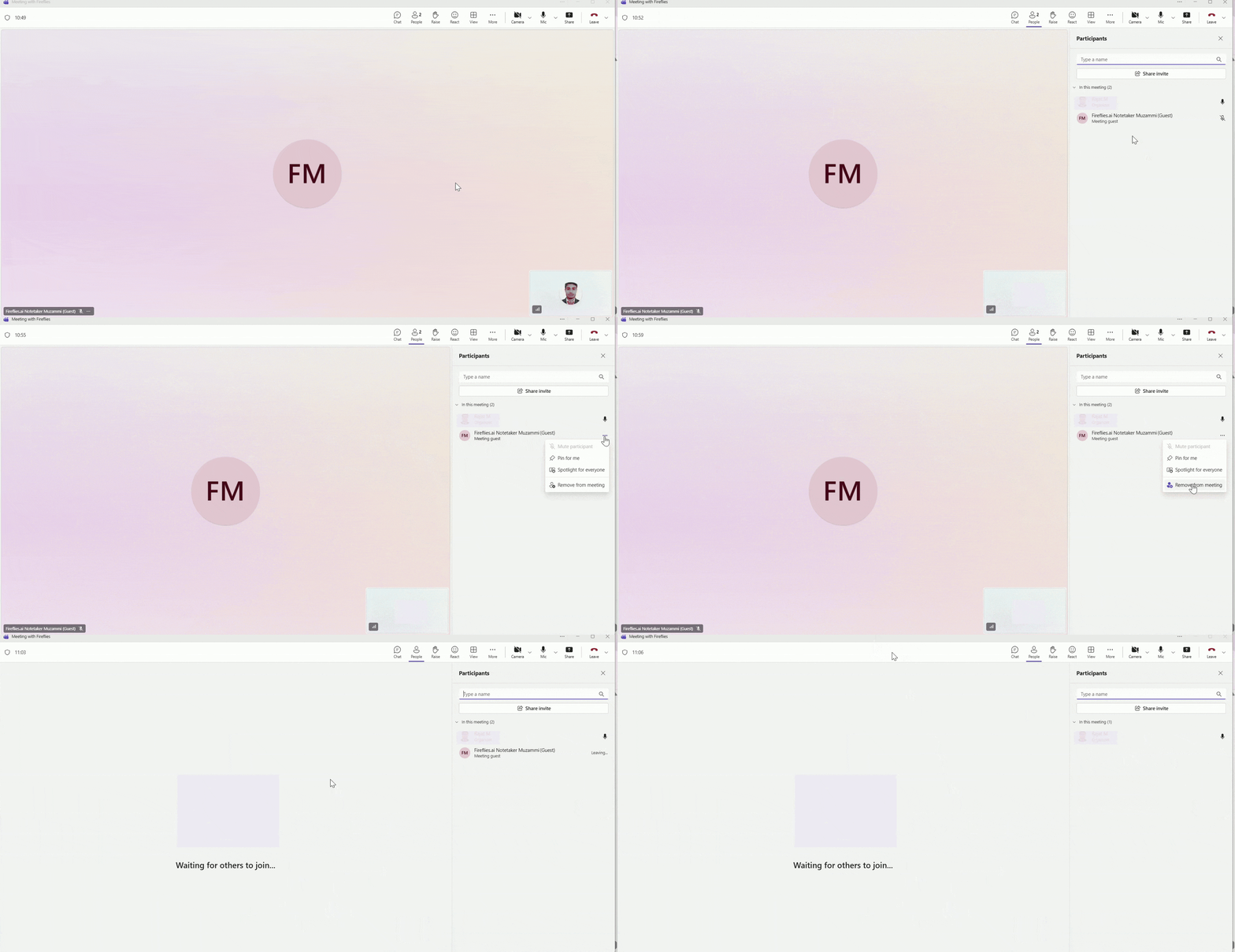
Microsoft Teams: Open participant list → click (...) next to Fireflies → select Remove from meeting.
B. From your Fireflies dashboard:
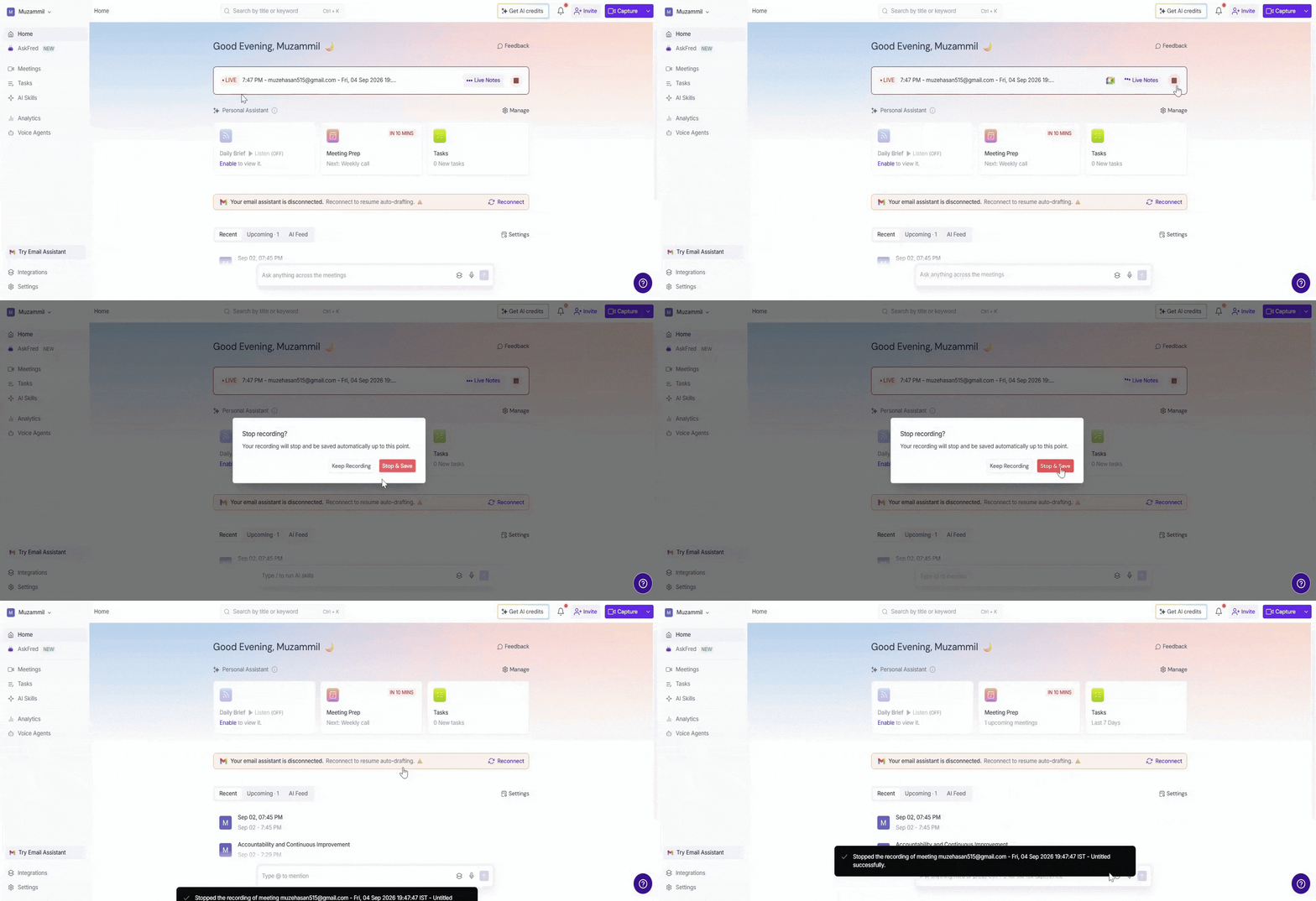
Go to the Fireflies Home dashboard
Locate the Live meeting banner at the top
Click the Stop icon to end Fireflies’ participation
If Fireflies is removed before 3 minutes, no transcript or notes will be created.
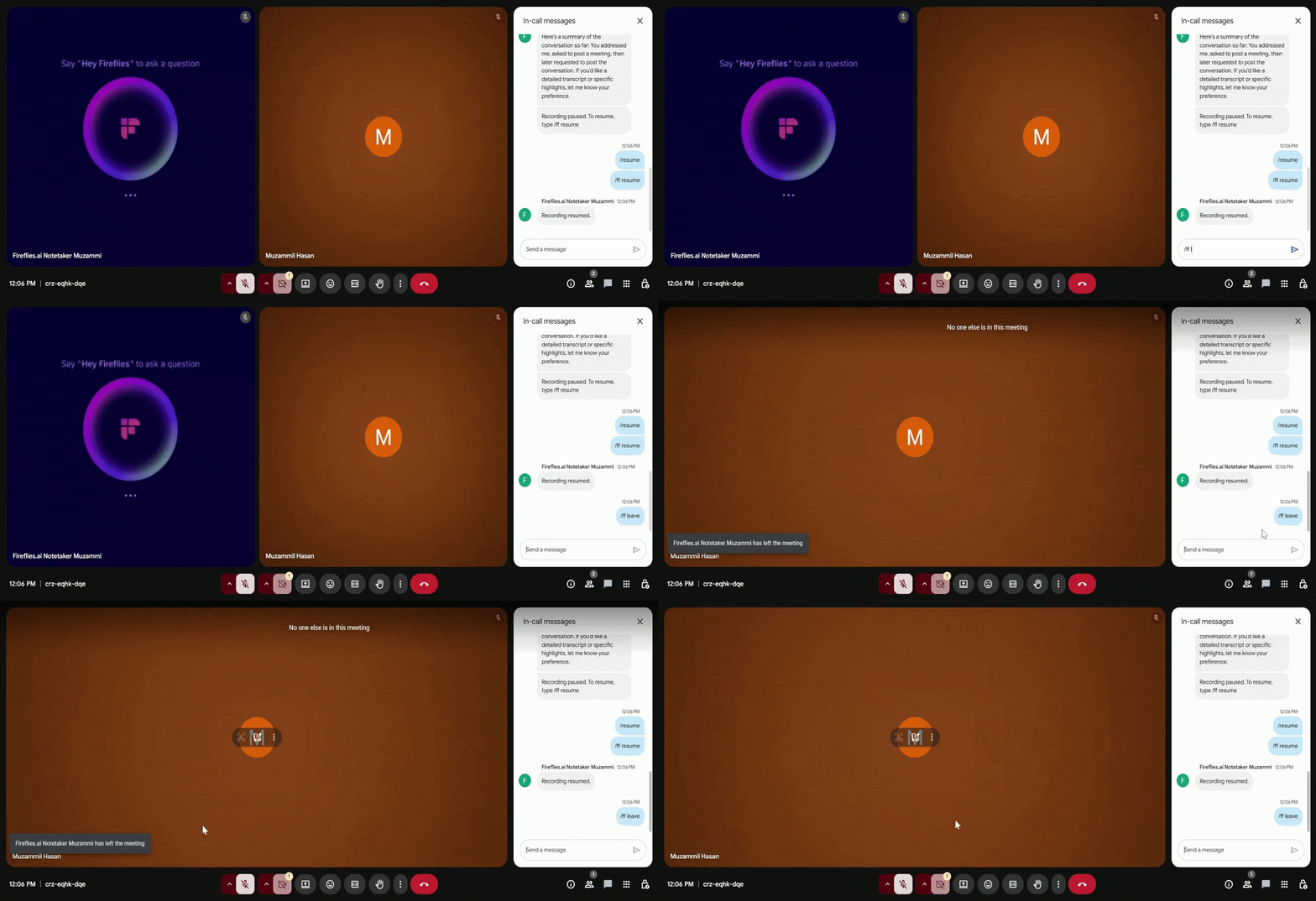
C. Using a Chat Command
Type /ff leave in the meeting chat, and Fireflies will exit the meeting right away.
D. From the Live Assist real-time panel (Desktop App)
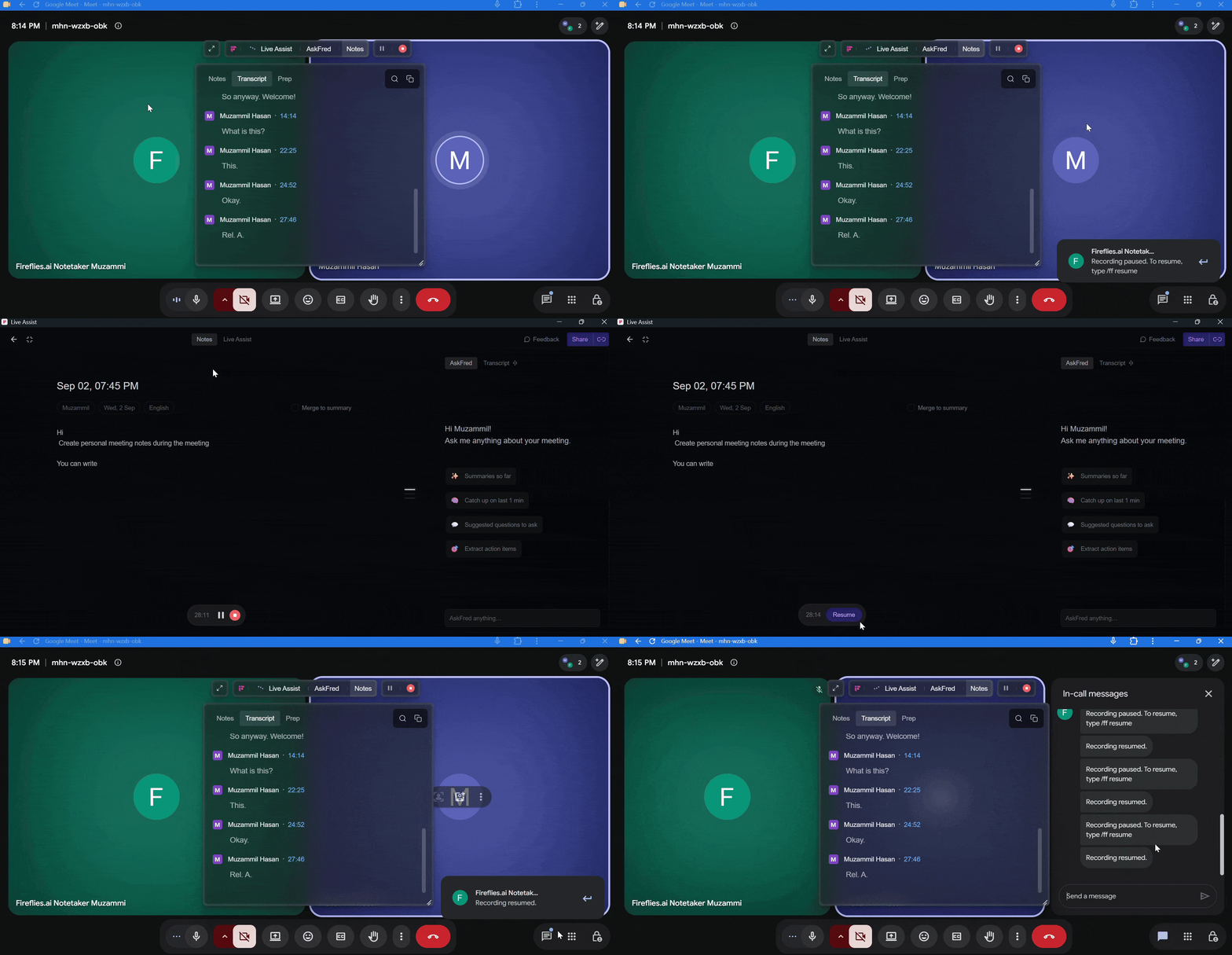
The Fireflies Desktop App opens a real-time Floating Pane automatically whenever you start capturing a meeting, whether using Fireflies.ai Notetaker (bot) or Take Notes (without a bot). From this pane, where you can also view the live transcript, summary, and use AskFred, you get these controls:
Pause/Resume Recording: Temporarily pause the recording during a meeting, then click Resume to continue recording without starting a new recording.
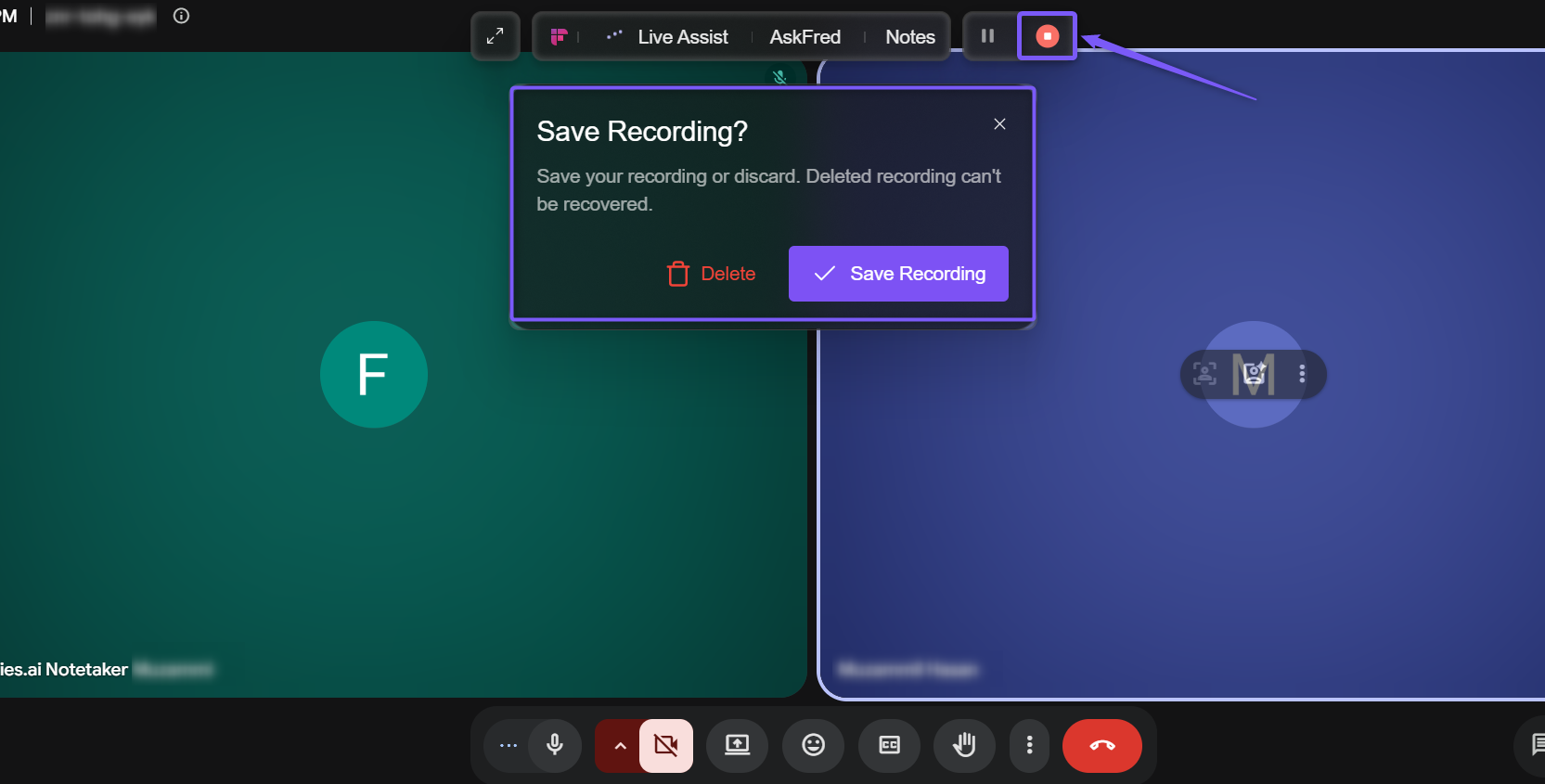
Stop recording: Click Stop to end the recording. You'll be prompted to either Save Recording or Delete it before closing the session.
Option 2: Remove Fireflies from a meeting you've already scheduled
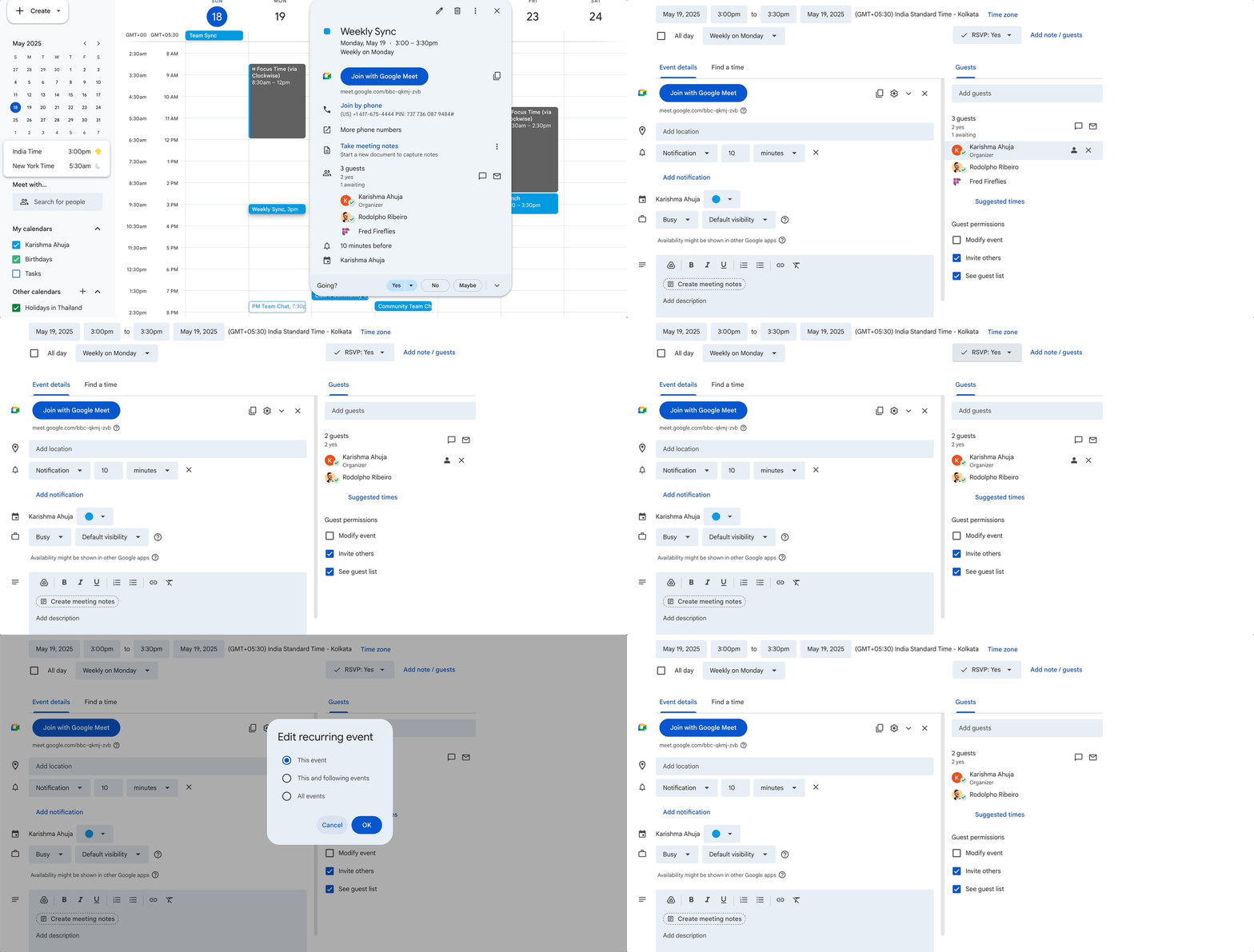
If you’ve invited fred@fireflies.ai to a meeting by adding it as a guest, here’s how to stop it from joining:
A: From your calendar
Open your Google or Outlook calendar
Find the event and open to edit the invite
Remove
fred@fireflies.aifrom the guest listSave and update the event
B: From the Fireflies dashboard
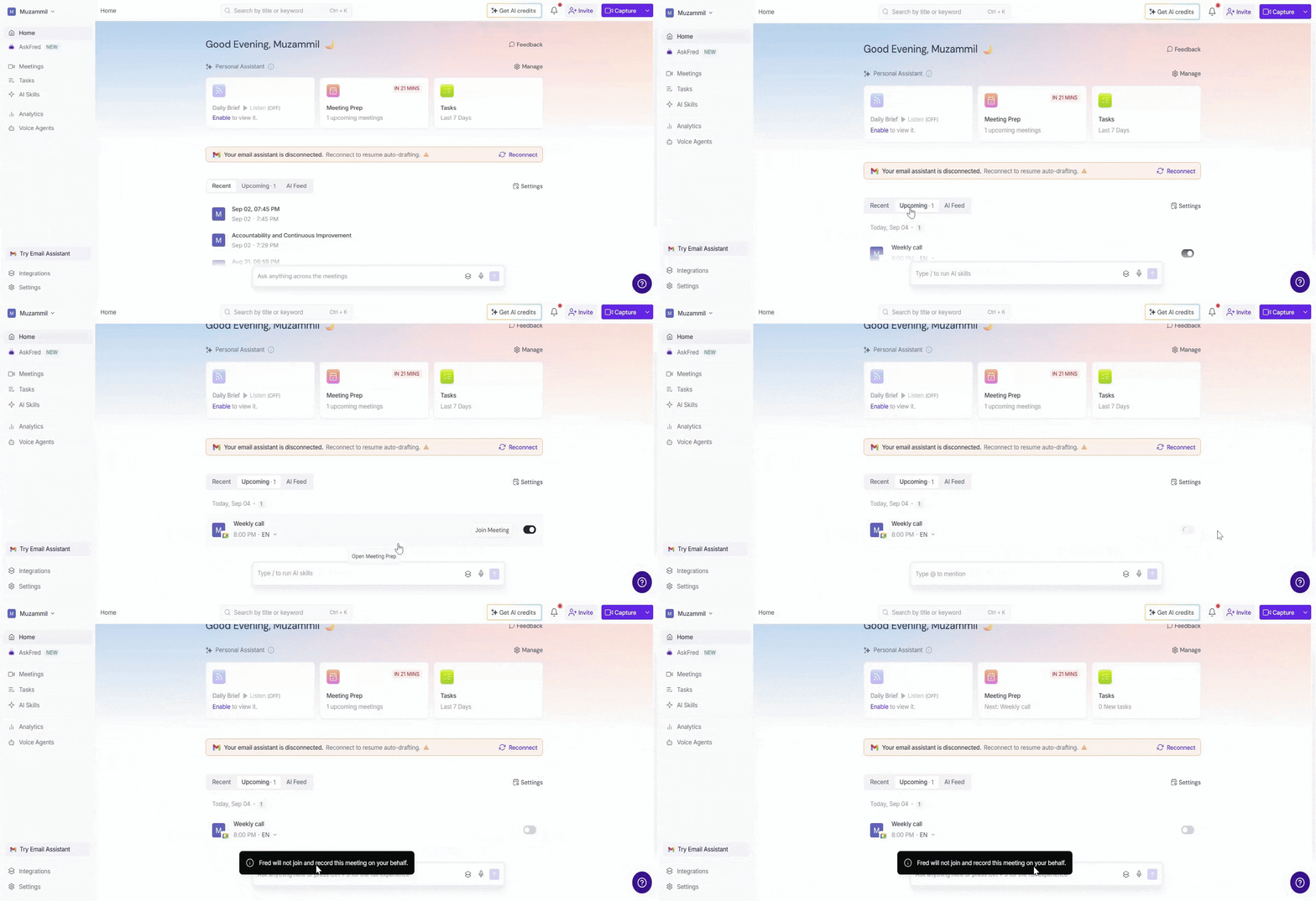
On the Fireflies homepage, click the Upcoming tab.
Under Upcoming Meetings, find your meeting (this is enabled by default).
If Fireflies is scheduled to join, toggle it OFF
Once turned off, Fireflies will not attend or record the meeting.
Option 3: Prevent Fireflies from joining future meetings
If you want Fireflies to stay out of specific types of meetings in the future, you have two powerful tools:
A. Use Recording Rules to block meetings
Want Fireflies to skip certain meetings (e.g., interviews, HR calls, or confidential discussions)?
You can create Recording Rules to block meetings based on:
Keywords (e.g., “confidential”, “therapy”)
Email addresses (e.g.,
ceo@yourcompany.com)Domains (e.g.,
@recruiters.com)
🧠 Recording Rules override your Auto-join settings. Even if Fireflies is set to join all meetings, it will skip meetings that match your Recording rules.
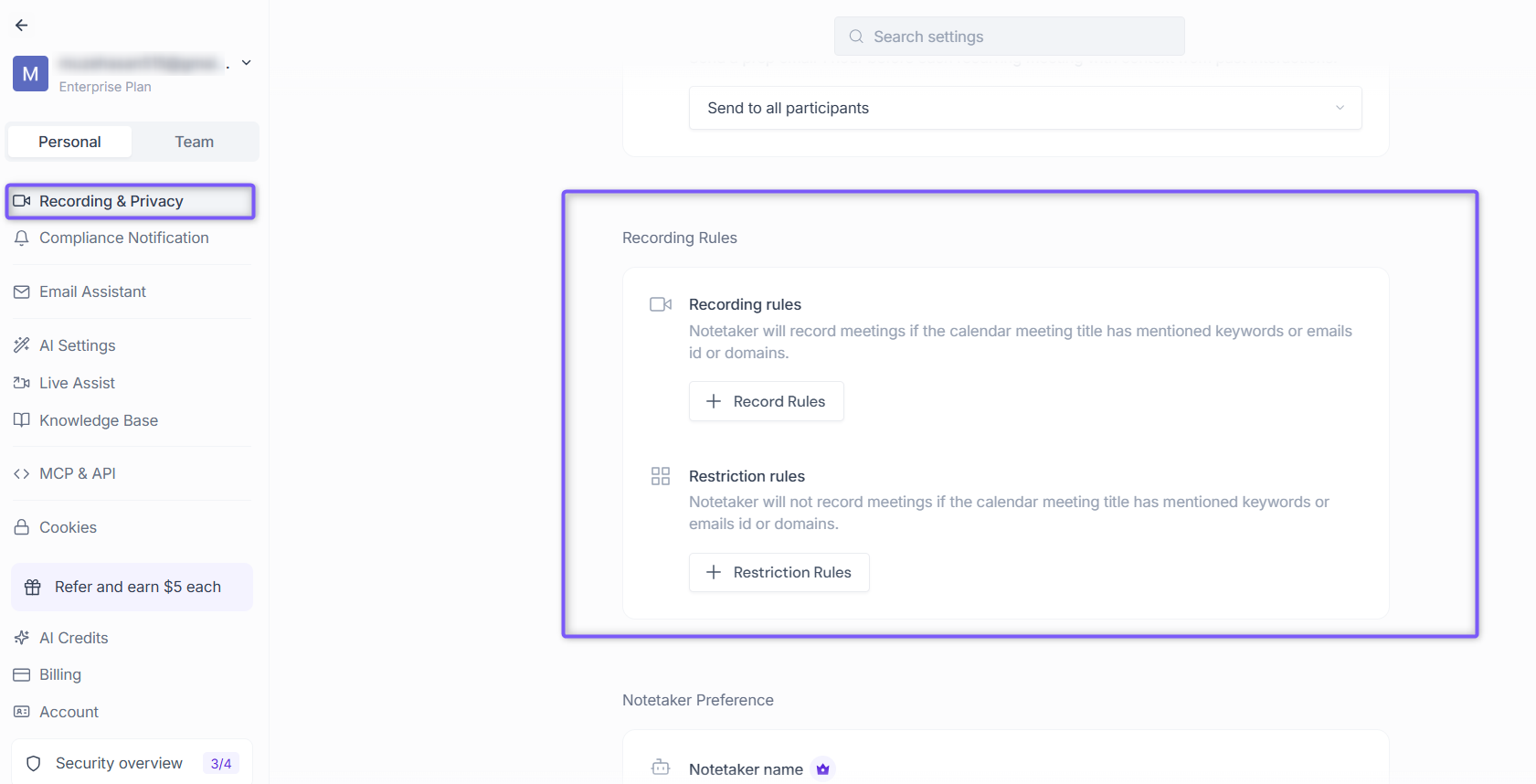
To create or edit Recording rules, follow this step-by-step guide: 📝How to Use Recording Rules to Make Fireflies Record or Skip Specific Meetings
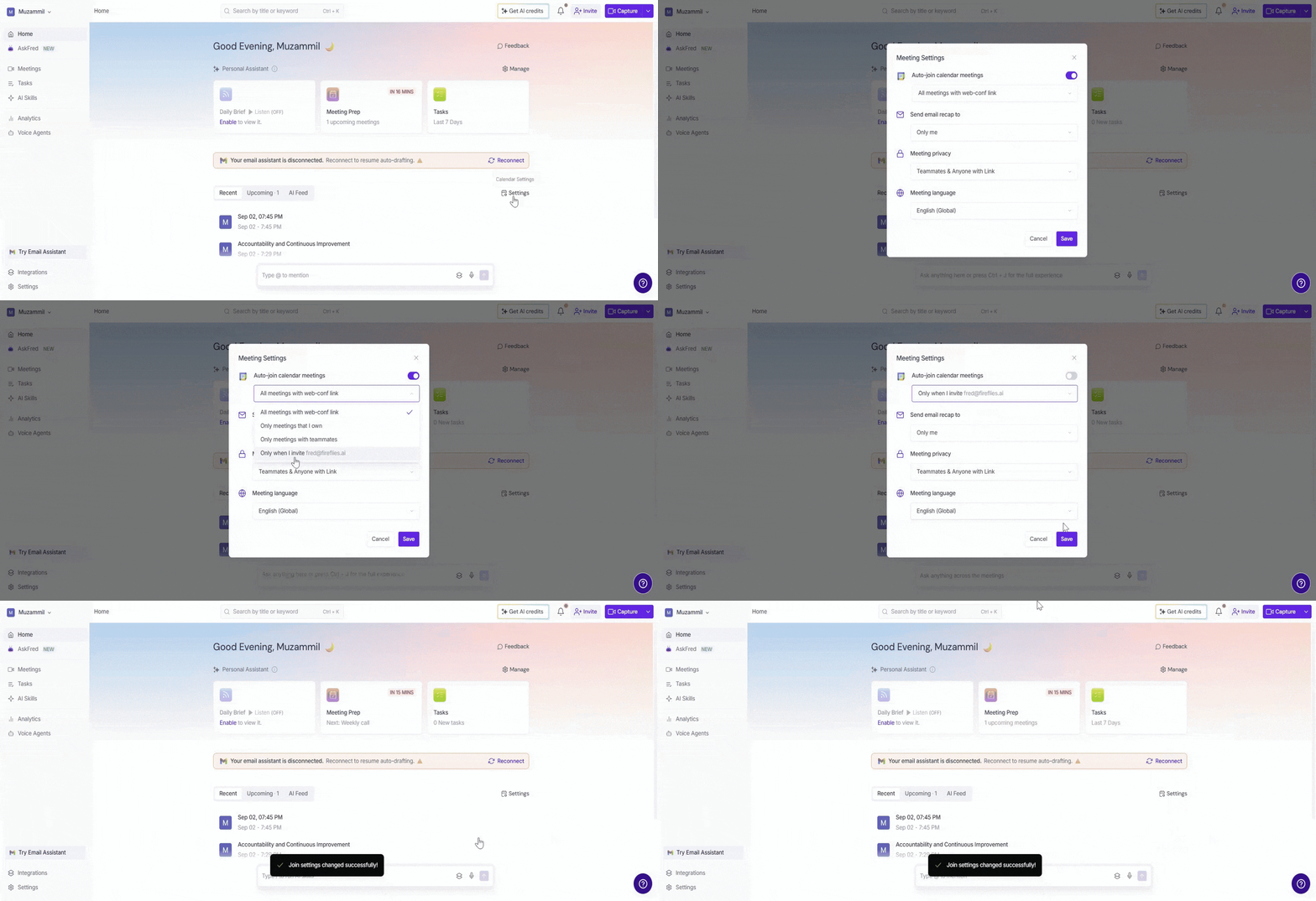
B. Change Fireflies' Auto-Join preference to "Only when I invite"
Want to avoid surprises and decide exactly which meetings Fireflies joins? You can tell Fireflies to sit back unless you personally invite it. Here's how to turn on manual control:
Go to Fireflies Dashboard or Settings
Find Auto-record meetings or Auto-join calendar meetings
Select Only when I invite fred@fireflies.ai from the options
For step-by step guide to set it up, follow this guide: How to stop Fireflies from auto-joining your meetings (Disable Auto-join Settings)
📌 Fireflies still joined an un-intended meeting?
Double-check your Auto-Record(join) preferences
Review your Recording Rules
Make sure
fred@fireflies.aiwasn’t manually invited
📝 Why is Fred from Fireflies joining (or missing) meetings? Fix with these auto-join settings