How to Clone Your Voice for Fireflies Voice Agents
Last updated: May 21, 2026
What if your Voice Agent could sound exactly like you? With Voice Cloning, you can make it sound like you - not a generic AI voice. Just read a short paragraph out loud and Fireflies will create your custom voice clone in less than a minute, ready to use for interviews, demos, onboarding calls, support conversations, and more. No extra cost and no complicated setup.
New to Voice Agents? Before creating a voice clone, check out What are Voice Agents and how to set them up to learn how Voice Agents work and where they can be used.
⚡Before You Start
Before creating a voice clone, here are a few things to know:
Voice Cloning is available on all paid Fireflies plans at no additional cost.
You must record your voice live using your microphone, uploading pre-recorded audio is not supported yet.
For best results, record in a quiet environment with minimal background noise.
You can use a voice clone with a custom Voice Agent, a template-based Voice Agent, or an existing Voice Agent.
Voice Cloning supports multiple languages:
View the Full List of Supported Voice Cloning Languages ✅
No. | Supported Languages |
1 | Arabic |
2 | Bulgarian |
3 | Chinese |
4 | Croatian |
5 | Czech |
6 | Danish |
7 | Dutch |
8 | English |
9 | Filipino |
10 | Finnish |
11 | French |
12 | German |
13 | Greek |
14 | Hindi |
15 | Hungarian |
16 | Indonesian |
17 | Italian |
18 | Japanese |
19 | Korean |
20 | Malay |
21 | Norwegian |
22 | Polish |
23 | Portuguese |
24 | Romanian |
25 | Russian |
26 | Slovak |
27 | Spanish |
28 | Swedish |
29 | Tamil |
30 | Turkish |
31 | Ukrainian |
32 | Vietnamese |
🚀 How to Clone Your Voice
Step 1: Log in to your Fireflies account and click Voice Agents from the left side menu.
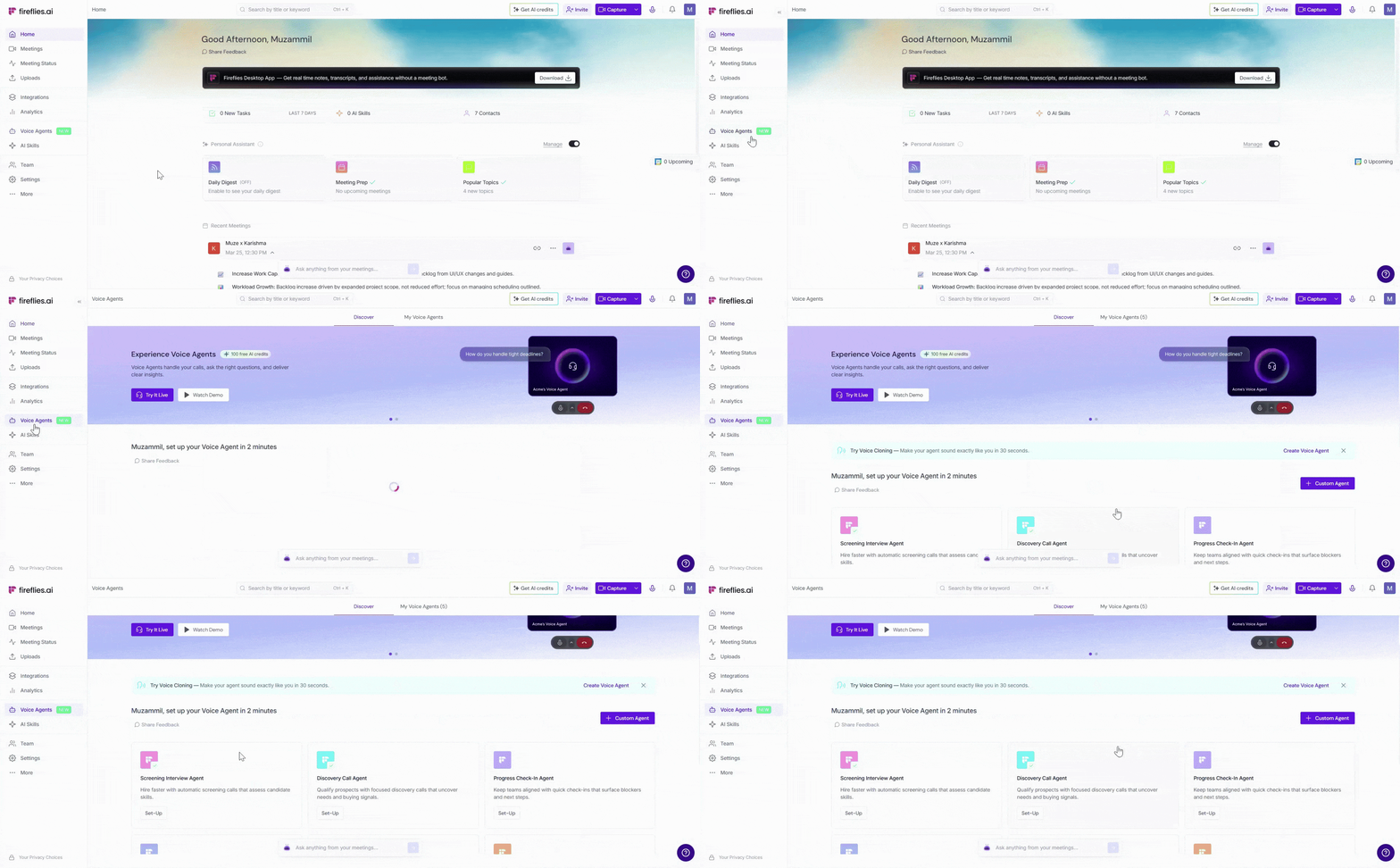
Step 2: Open the Voice Agent where you want to use Voice Cloning.
We assumes you already have a Voice Agent set up. If you need help creating one first, check out the guides below and then return here to clone your voice:
If you already have a Voice Clone that’s active and in use,
Go to the My Voice Agents tab.
Click the ellipsis (...) menu and select Edit.
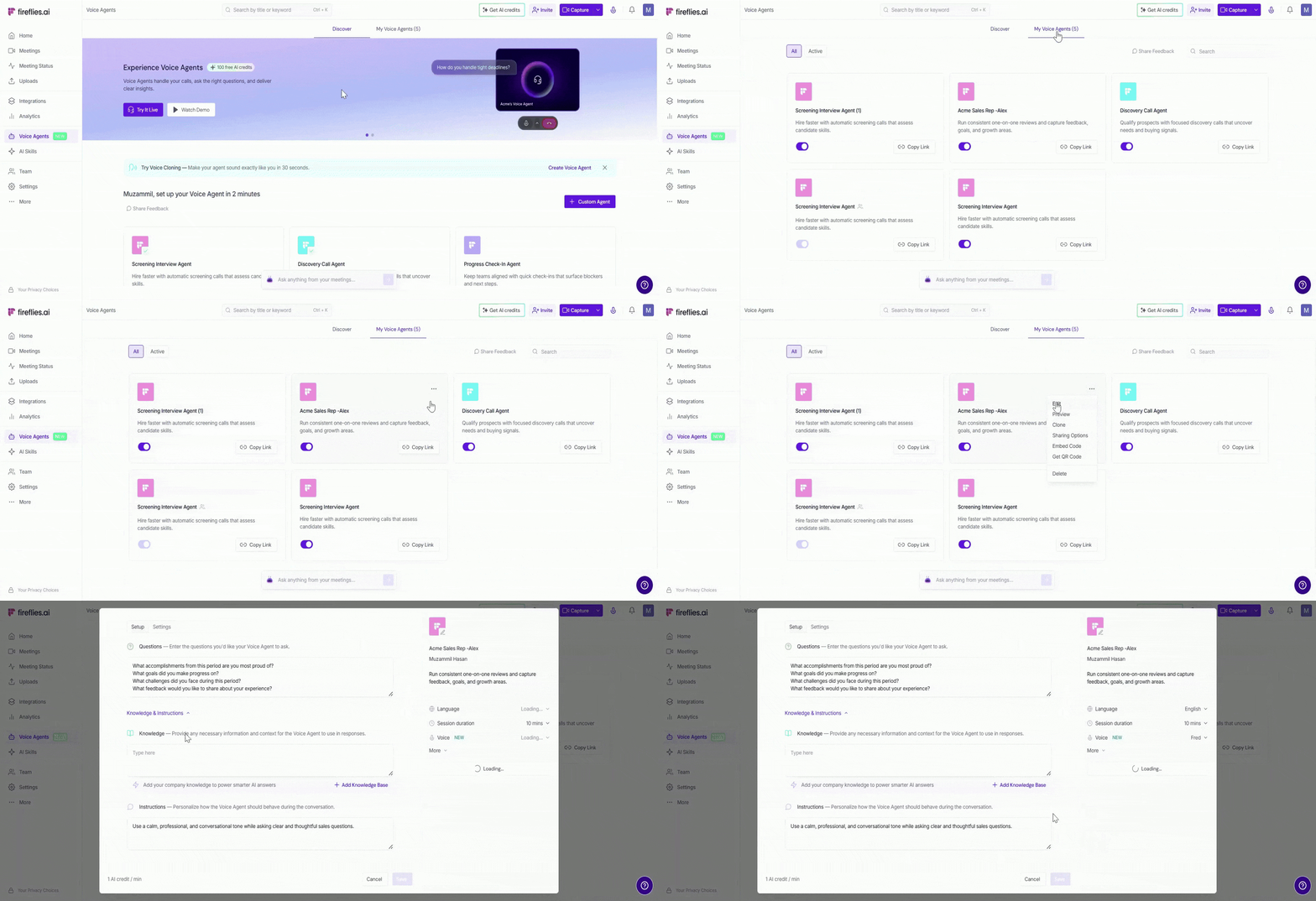
Step 3: Once inside the Voice Agent, scroll to the Voice section and continue with the steps below.
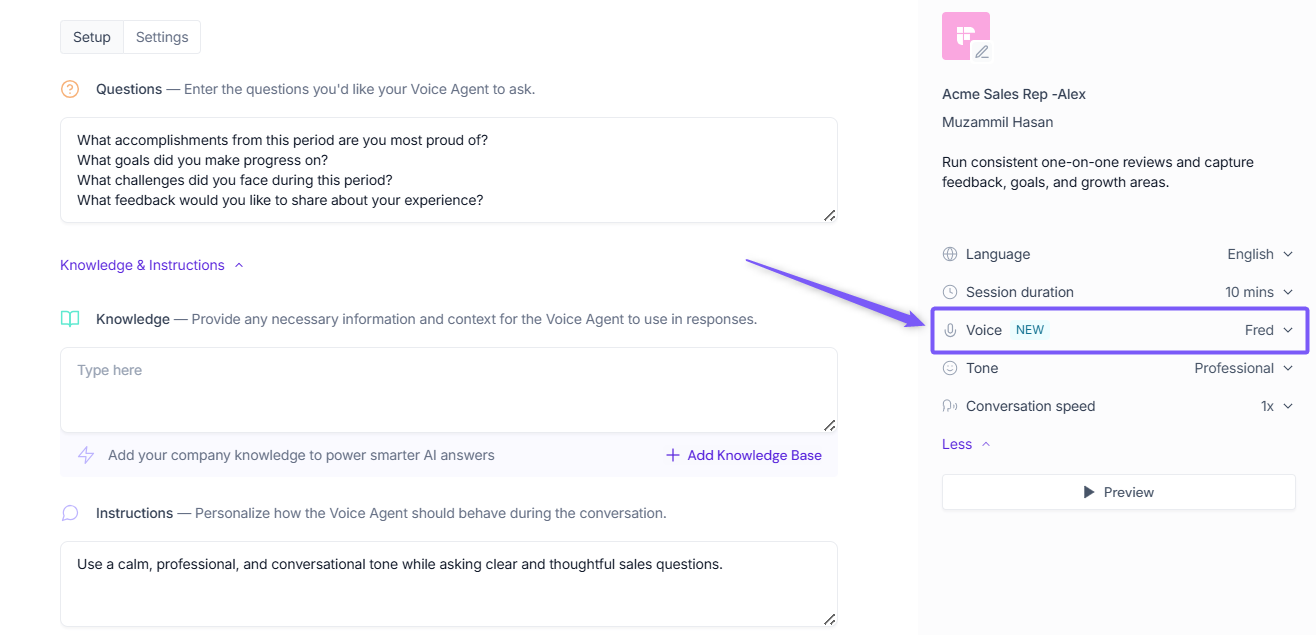
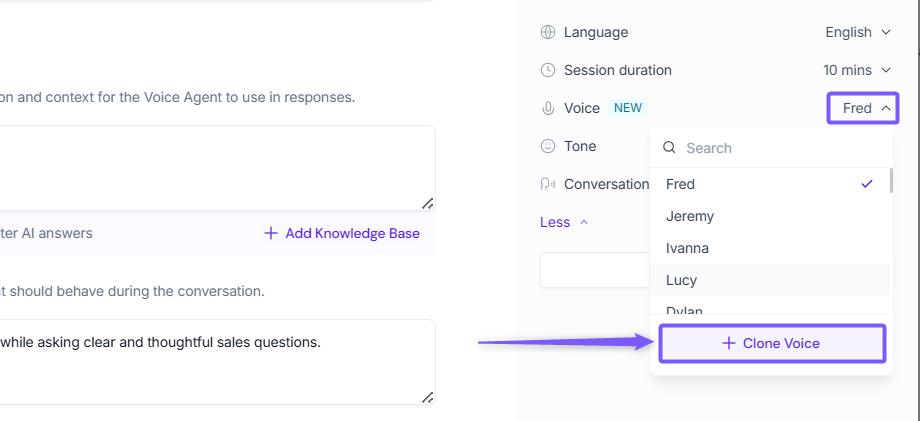
Step 4: Click the Voice dropdown menu and select + Clone Voice.
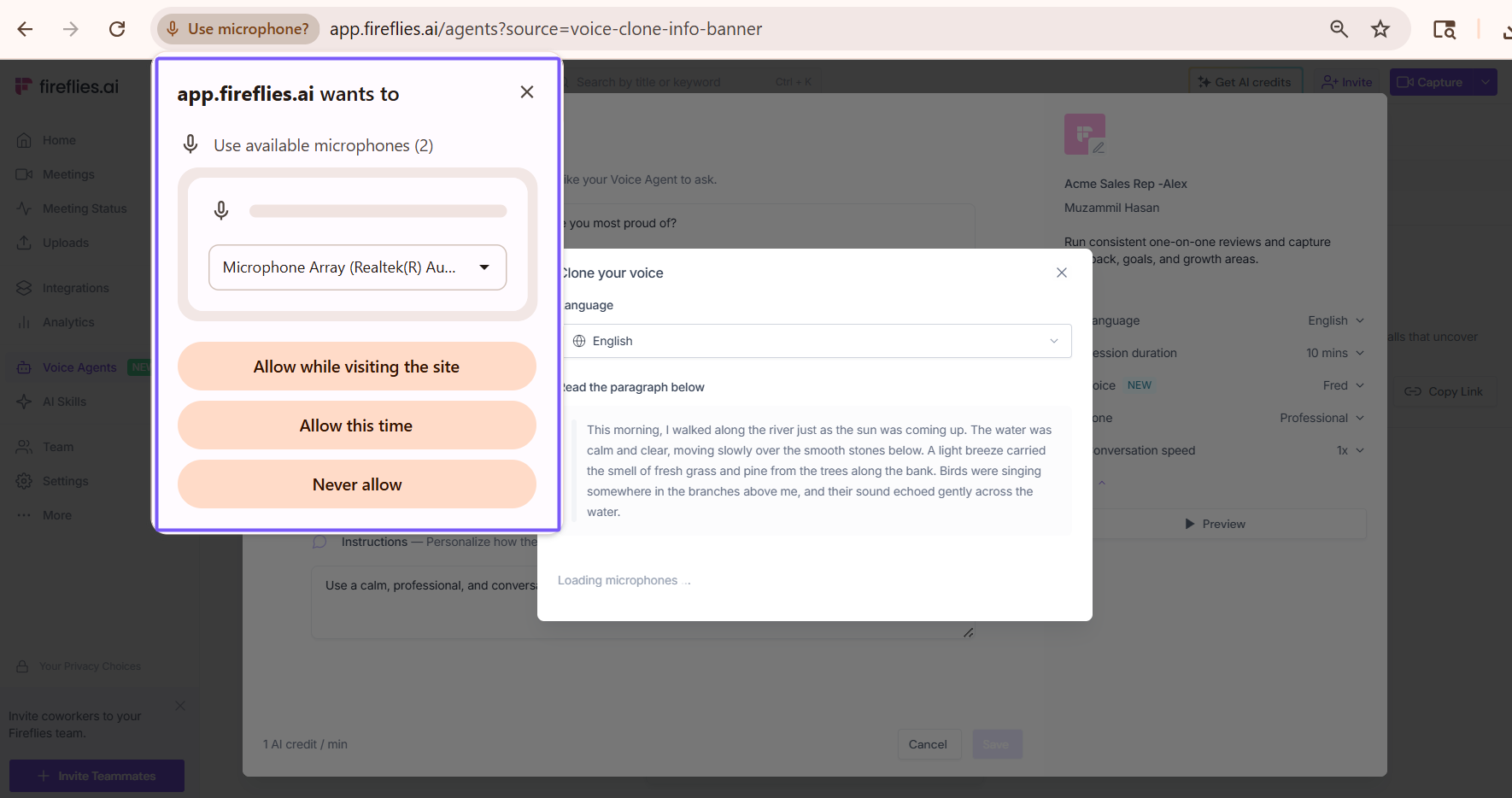
Step 5: A browser pop-up will appear asking for microphone access. Select your microphone device and click Allow so Fireflies can record your voice sample.
📌 This microphone permission is required to record and create your voice clone.
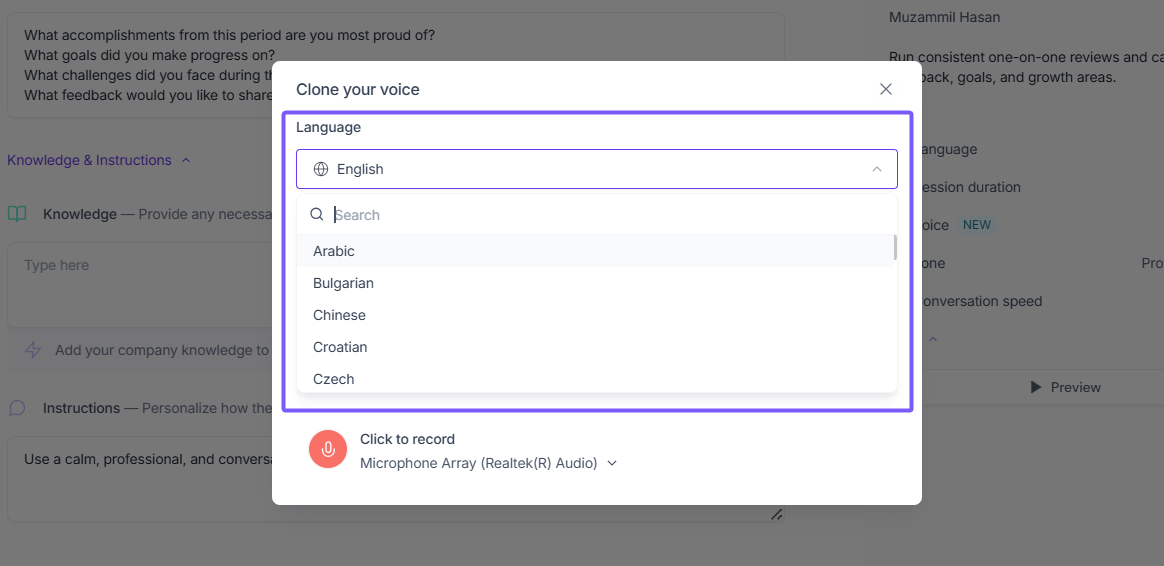
Step 5: In the Clone your voice modal, select your preferred language from the Language dropdown.
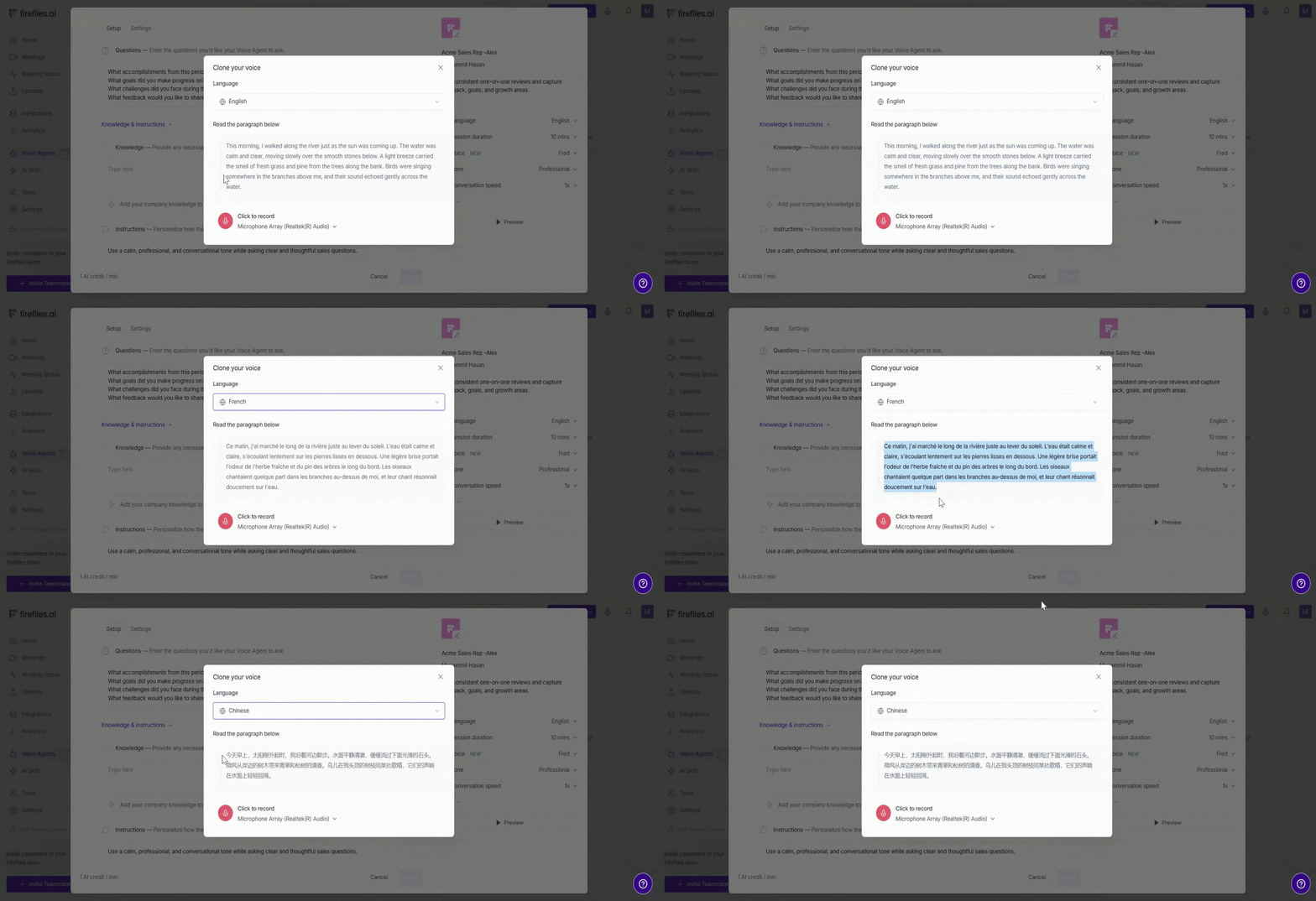
Step 6: Once you select your preferred language, a paragraph will appear below in the selected language. In the next step, you’ll need to read the paragraph out loud to create your voice clone.
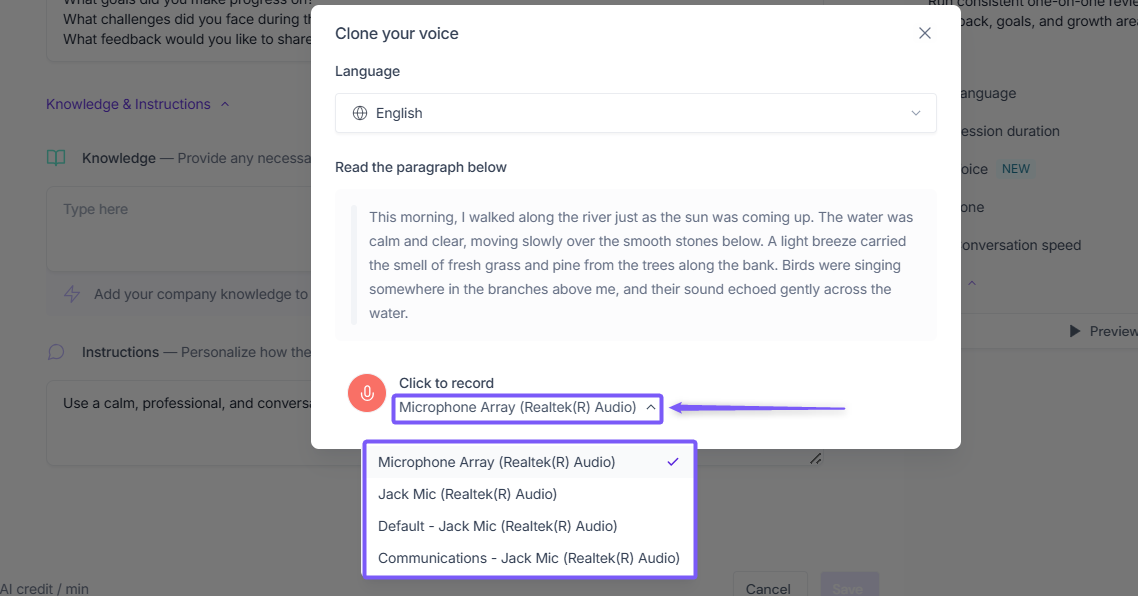
Step 7: If you want to check or change the microphone being used for recording, click the microphone name dropdown. This will show all available microphones connected to your browser or device.
Step 8: Click the microphone 🎙 icon to start recording your voice sample.
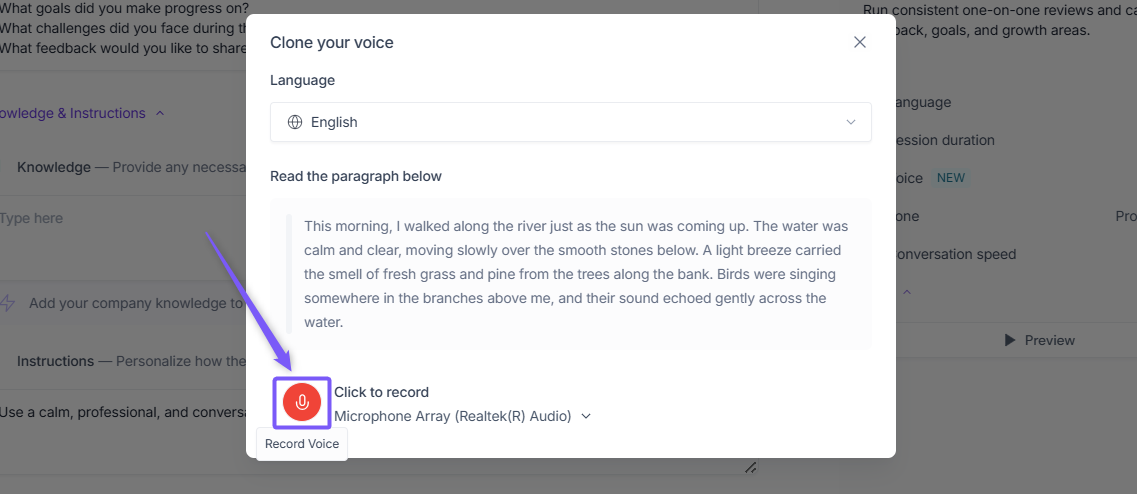
Step 9: Recording begins automatically after a 3- second countdown. Read the paragraph clearly and naturally while recording.
📌 The maximum recording time is 1 minute. After recording for at least 10 seconds, you can:
Pause or resume the recording
Restart and record again
Stop the recording and save it for review
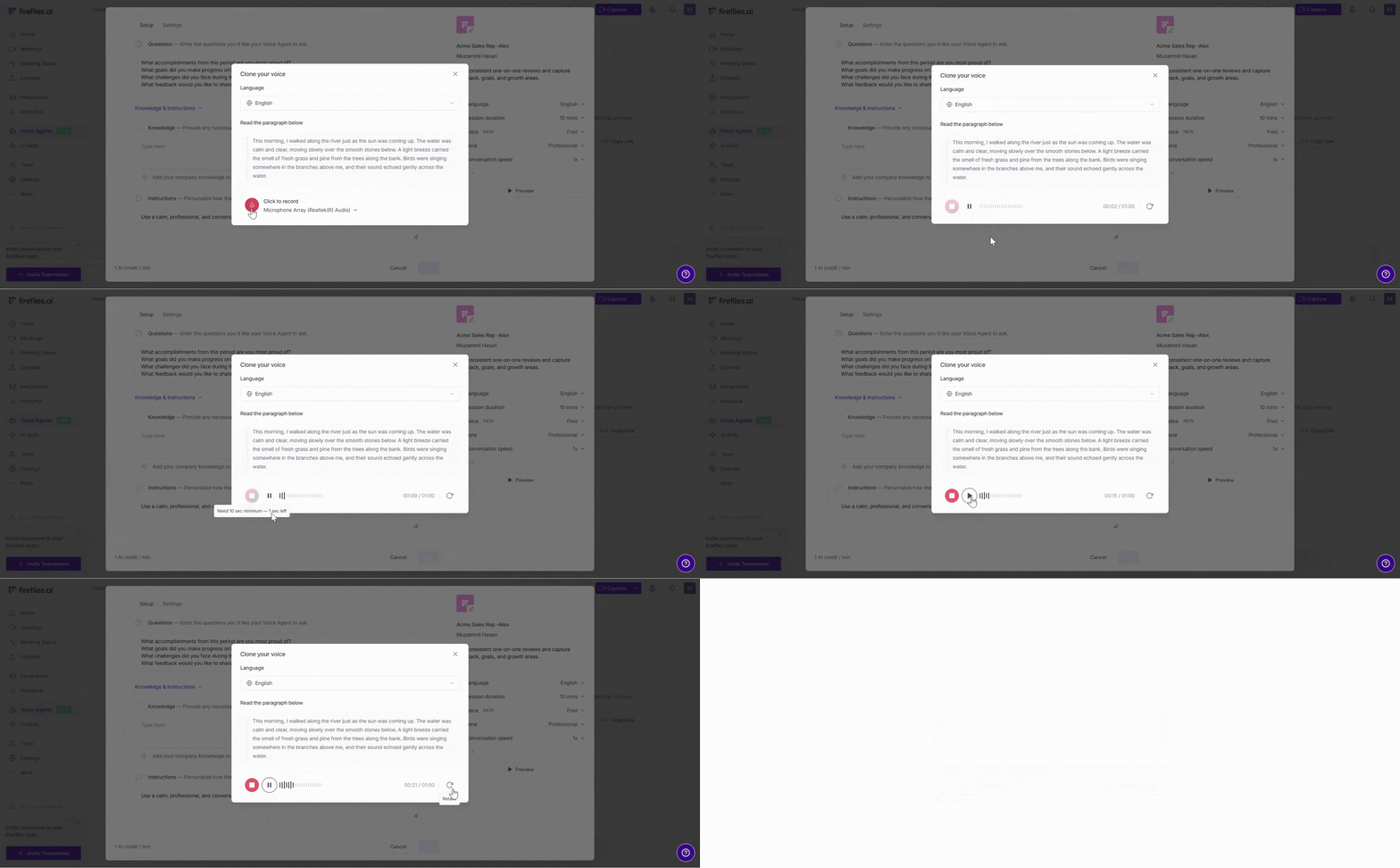
For best results, record in a quiet environment and speak clearly in a natural tone. Avoid speaking too fast or too slowly, simply read the paragraph normally as shown on your screen.
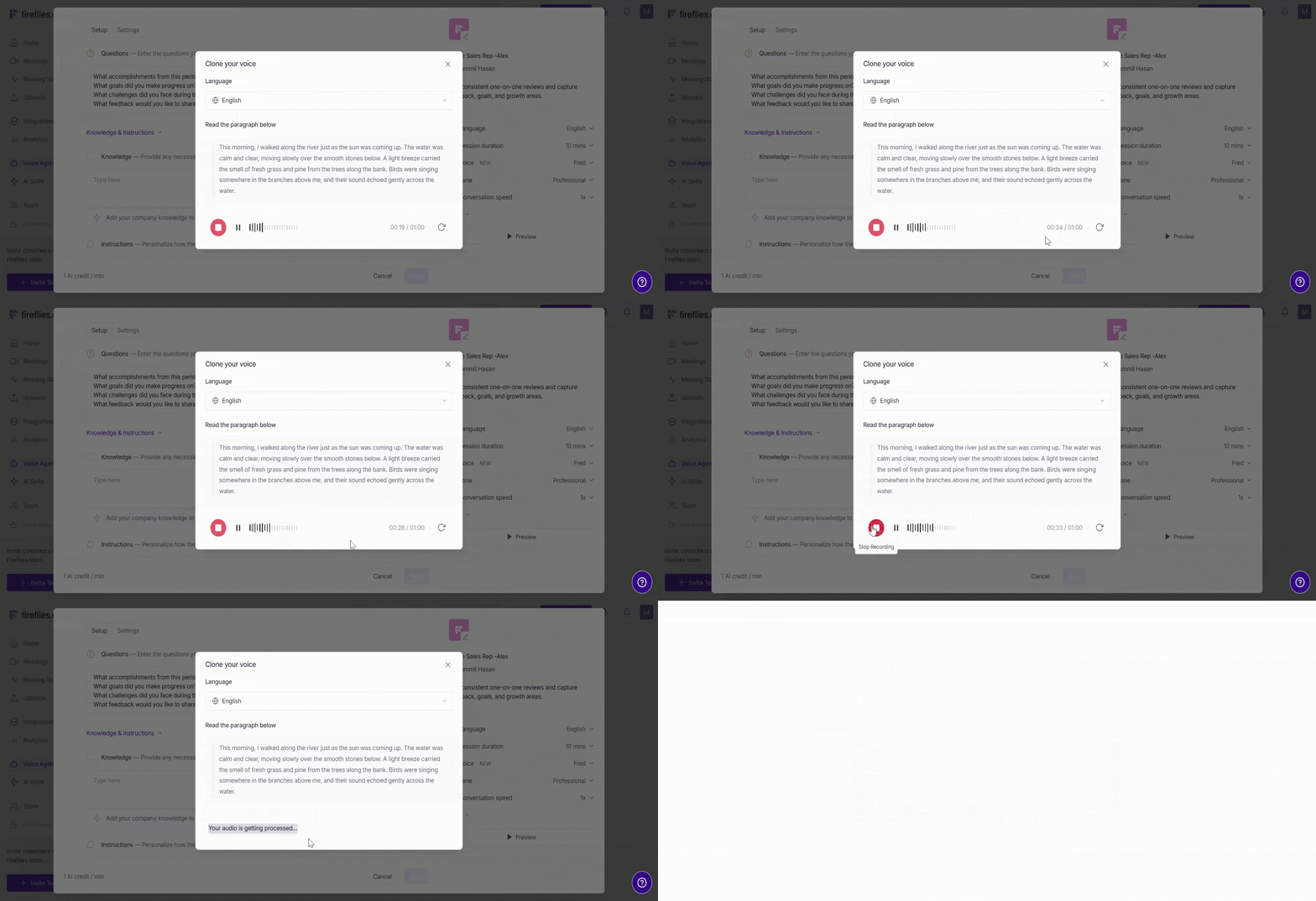
Step 10: Once you are done recording, you have two options:
If you finish early, click the Stop and Save button to stop the recording and save it for review.
✅We recommends recording for at least 30 seconds for better voice quality.
If you continue recording, Fireflies will automatically stop and save the recording once the 1 minute limit is reached.
Your voice sample will then begin processing, which may take a few seconds.
Step 11: A preview screen will appear where you can listen to your voice clone before saving it.
Click the Play button to listen your audio.
If you are not satisfied with the recording, click the Re-take icon button to re-record your voice sample.
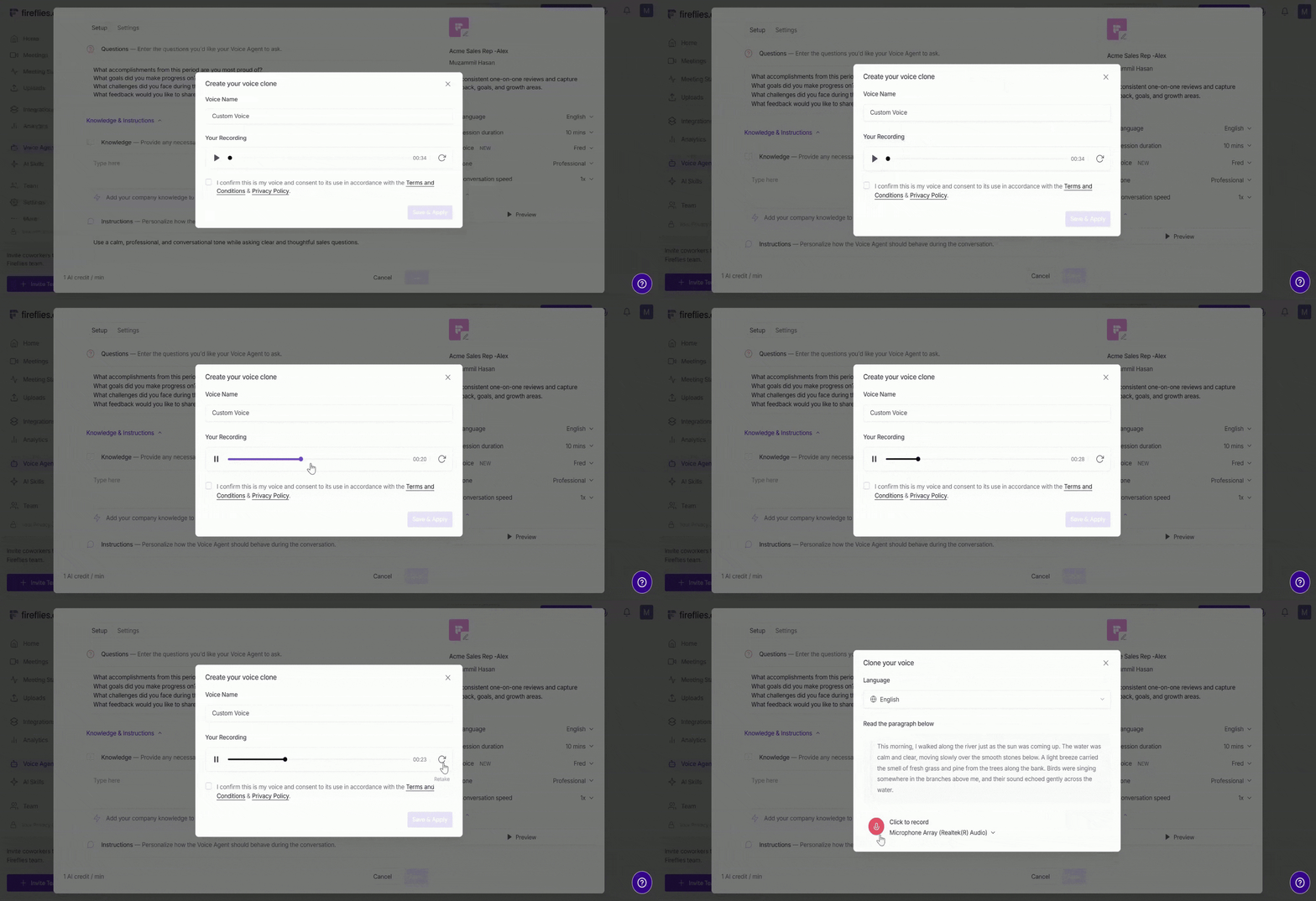
Step 12: Once you are satisfied with the preview, complete the following before saving:
Enter a Voice Name to help identify and manage your cloned voice later.
Check the consent box to confirm: "I confirm this is my voice and consent to its use in accordance with the Terms and Conditions & Privacy Policy."
📌 You can click the Terms and Conditions and Privacy Policy links to review them before continuing.
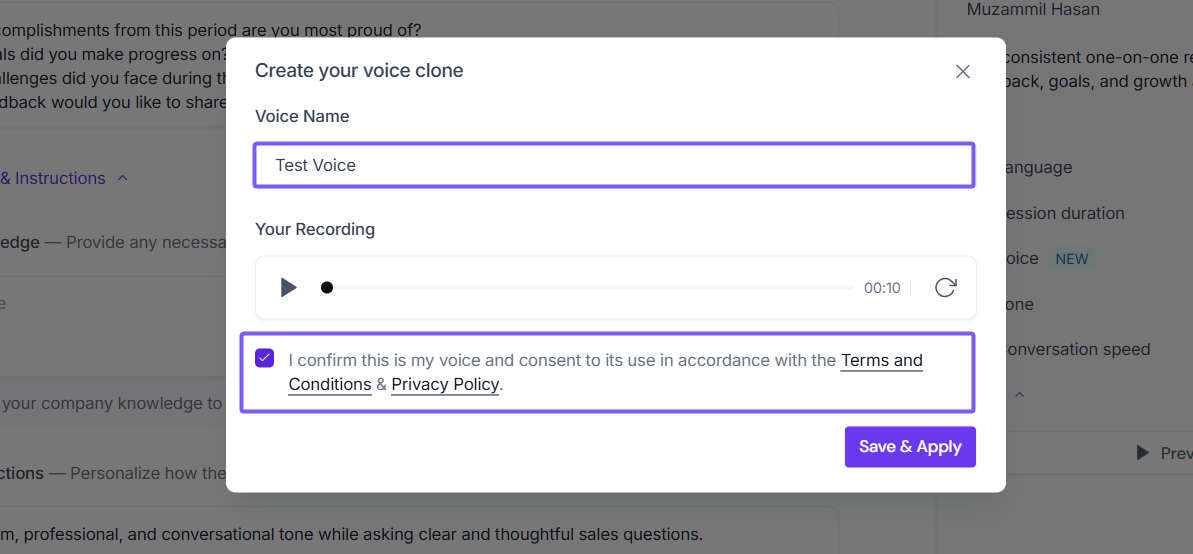
Step 13: Click Save and Apply.
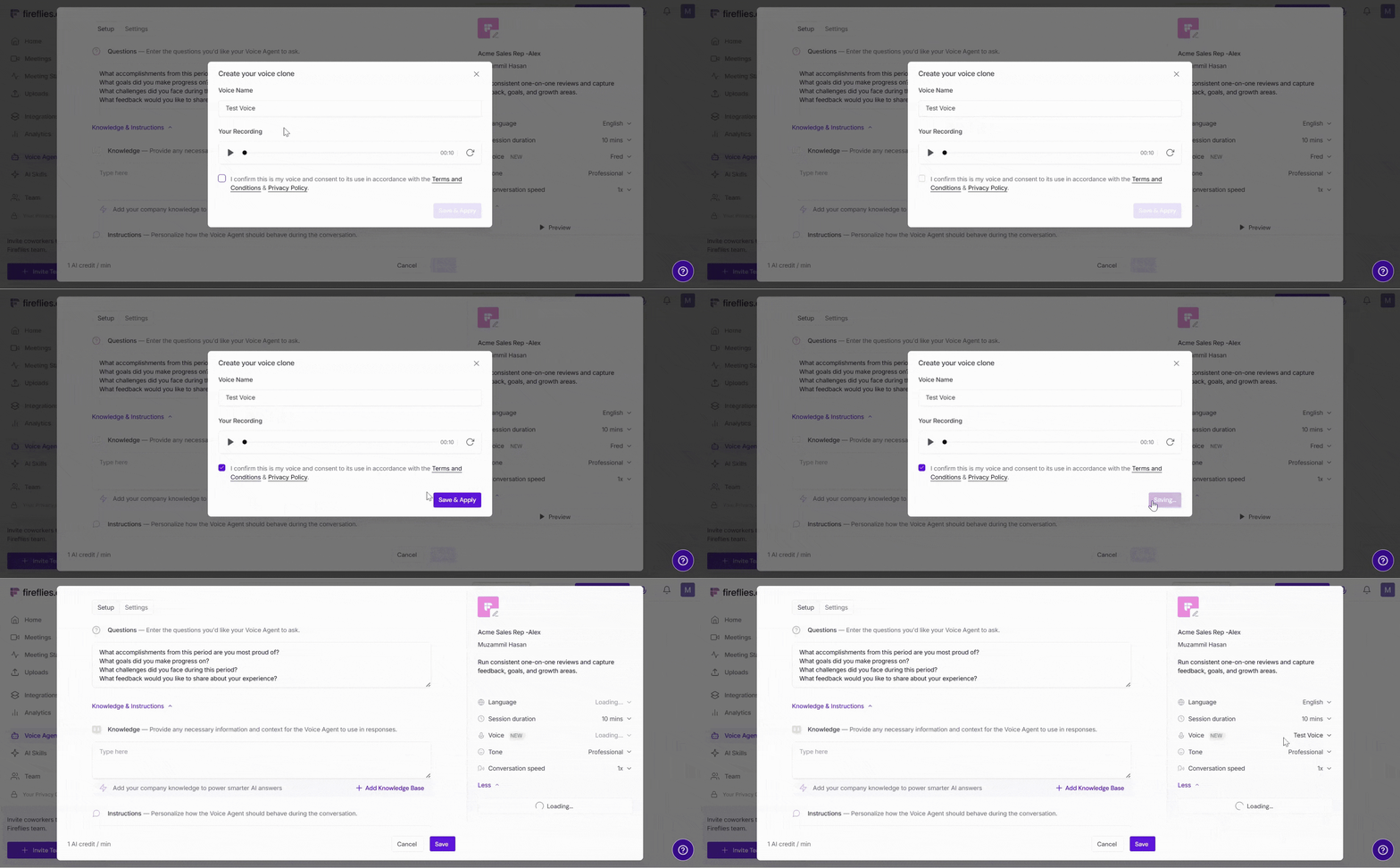
Your cloned voice is now ready to use in your Voice Agent.
✅Use Your Cloned Voice in a Voice Agent
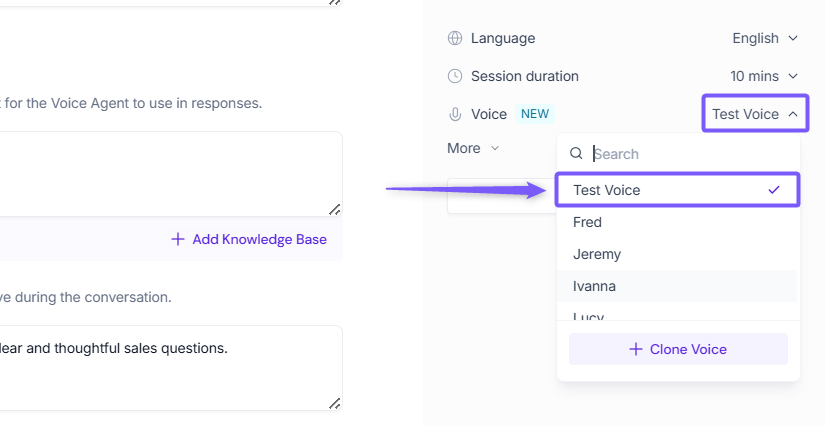
Once your voice clone is created, it will automatically appear in the Voice dropdown inside your Voice Agent settings.
Step 1: Open the Voice dropdown in your Voice Agent settings and select your cloned voice from the list of available voices.
Step 2: Click the Preview button to hear how your cloned voice sounds before saving.
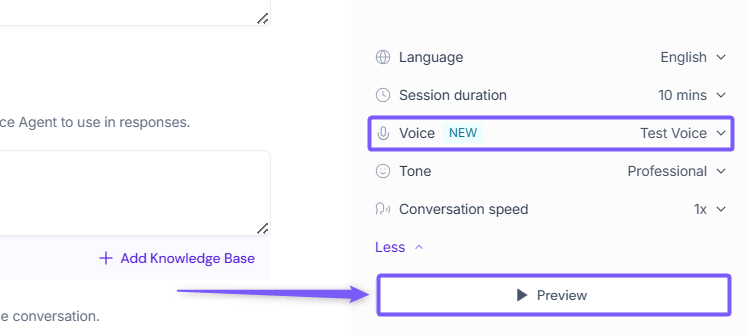
Step 3: Once selected, click Save to update an existing Voice Agent, or click Create if you are setting up a new one.
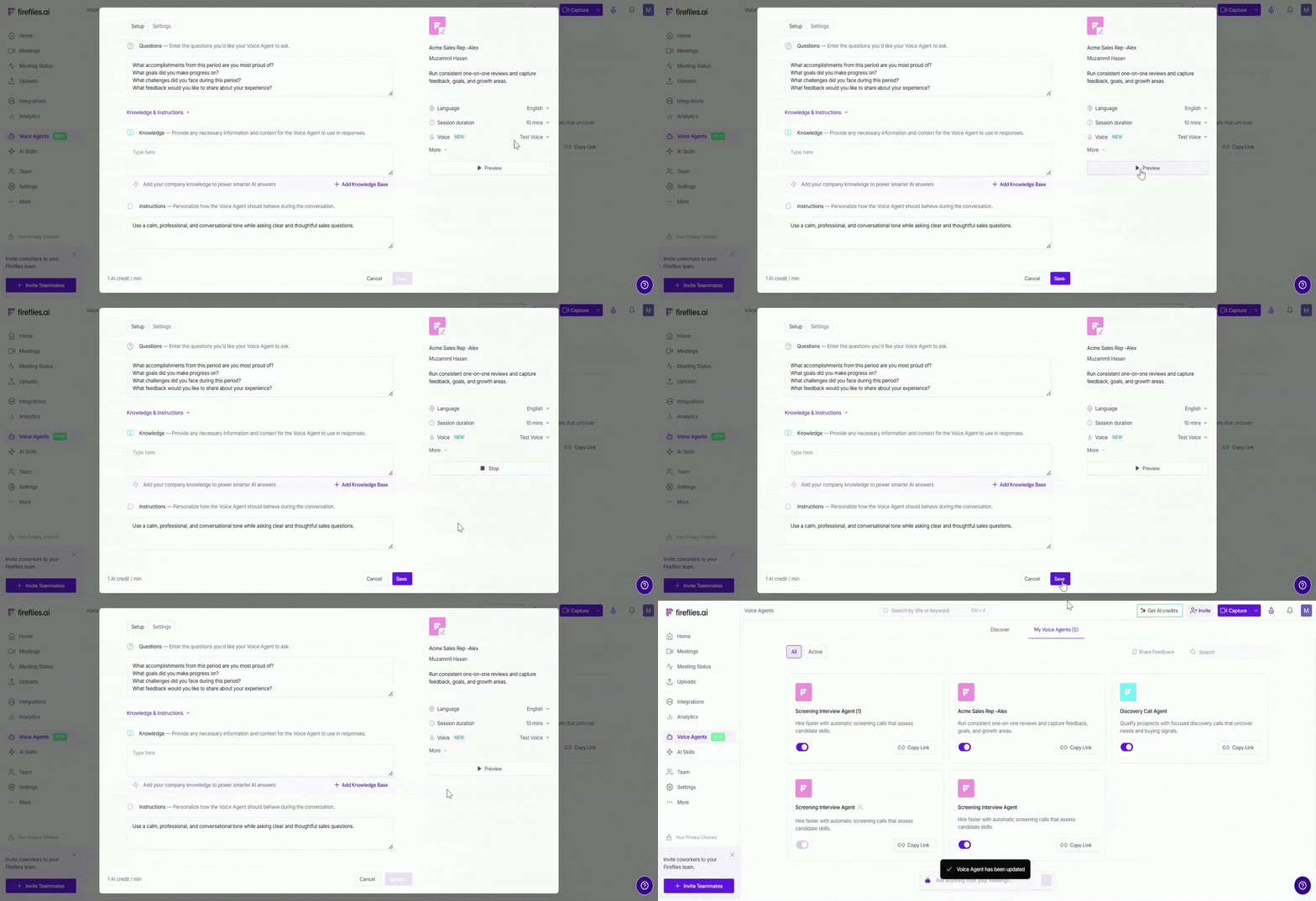
Your Voice Agent will now use your cloned voice during conversations.
🛠 Manage Your Cloned Voices
You can manage your cloned voices anytime from the Voice dropdown inside your Voice Agent settings. This allows you to create multiple voice clones, switch between them, or remove ones you no longer need.
➕ Add a new voice clone
Click the Voice dropdown and select + Clone Voice. Then follow the same steps above to record and create your new voice clone.
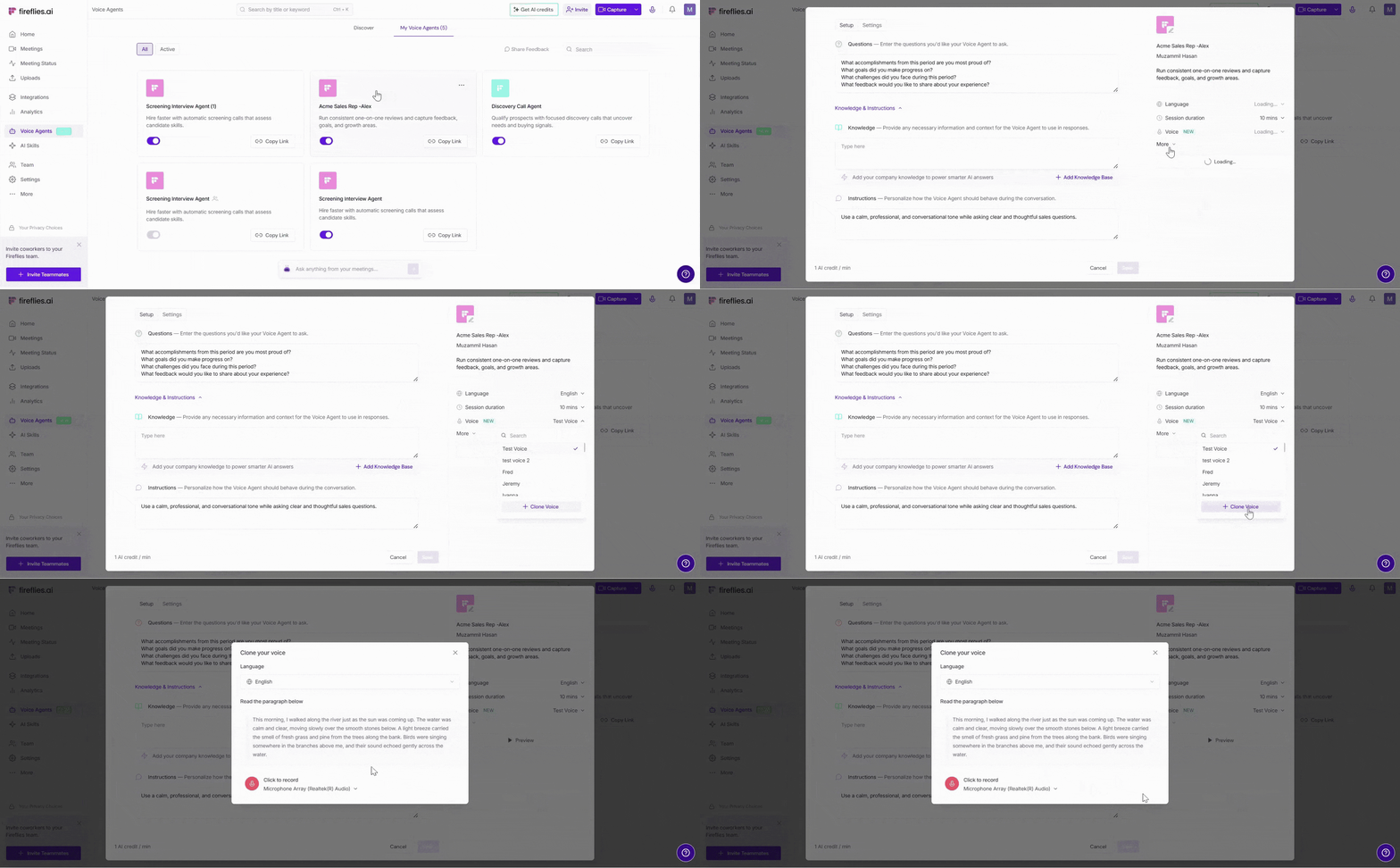
Each voice clone must have a unique name, duplicate voice names are not allowed.
❌ Delete a cloned voice
Click the Voice dropdown, hover over the cloned voice you want to remove, and click the Delete 🗑 icon.
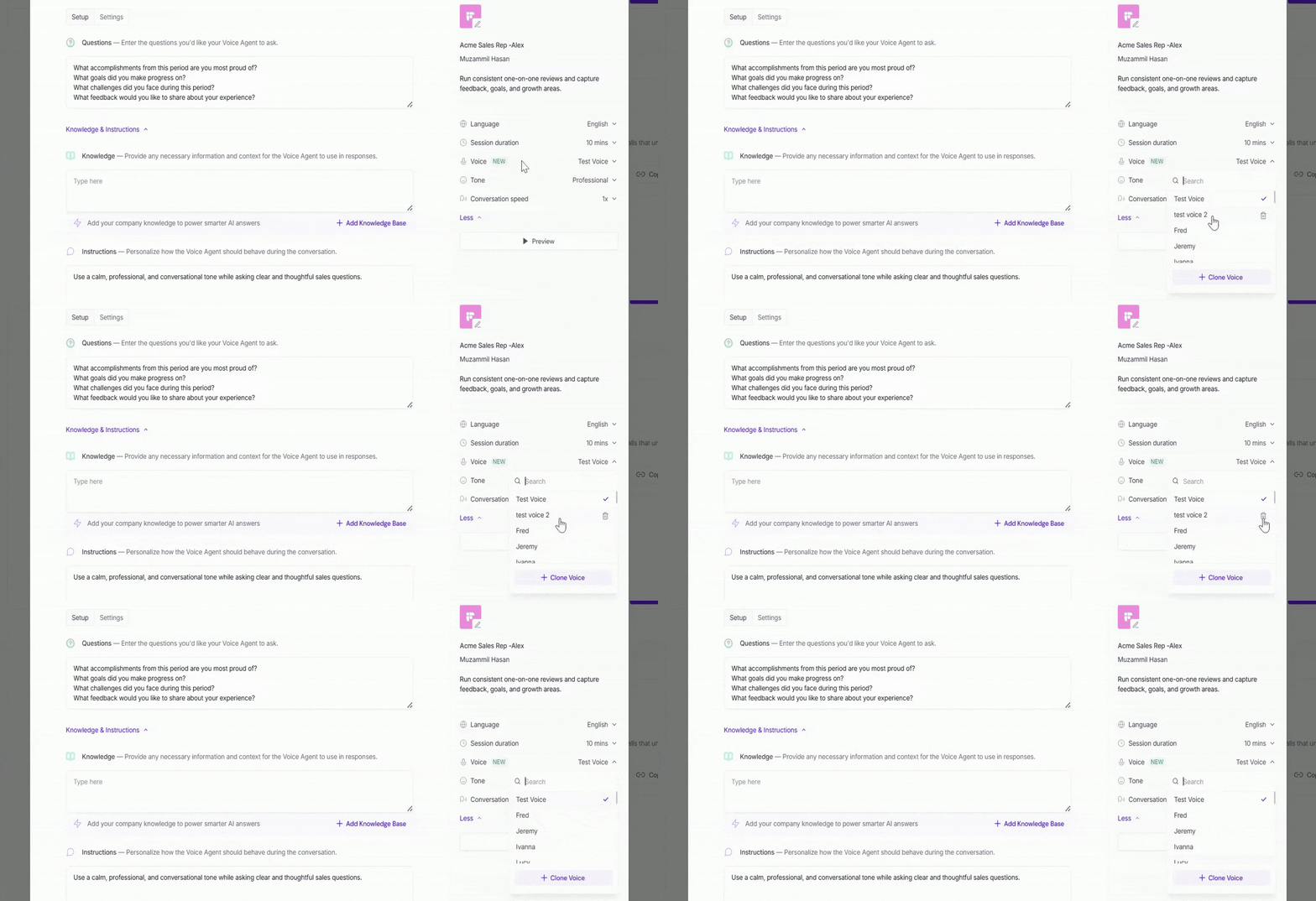
You can only delete your own cloned voices. Built-in default voices cannot be deleted. Deleting a voice clone is permanent and cannot be undone.
🔐 Privacy & Security
Your cloned voice is private by default. Here are a few important things to know about how Voice Cloning works in Fireflies:
Only you can create, manage, and use your cloned voices.
Other workspace or team members cannot view, access, or use your cloned voices.
If your Voice Agent has team visibility or is shared with other users, they can still use the Voice Agent, but they cannot view, access, or modify your cloned voice settings.
Voice cloning is scoped per user, which means only the owner who created the cloned voice can access and use it. The cloned voice cannot be transferred or shared with other users.
Important:
If you have questions about how your voice data is stored or protected, check out the Policy on Keeping Information Safe guide, along with the Terms and Conditions and Privacy Policy before creating a voice clone.
❓ Troubleshooting & FAQs
1. I do not see the Clone Voice option?
Refresh the page and reopen the Voice Agent settings.
Make sure you are using a paid Fireflies plan.
2. My microphone is not working?
Check that your browser has permission to access your microphone.
Make sure the correct microphone device is selected.
Try refreshing the page and recording again.
Try check your browser microphone permission settings, check this.
3. Does Voice Cloning work on mobile devices?
Yes, as long as your browser allows microphone access.
4. Why does my cloned voice not sound accurate?
For best results, record in a quiet environment and speak clearly in a natural tone.
5. Can I rename a cloned voice later?
No. Currently, you must create a new voice clone if you want a different voice name.
6. Can I use the same cloned voice across multiple Voice Agents?
Yes. Once created, your cloned voice can be used in any Voice Agent under your account.
7. Can I create multiple voice clones?
Yes. You can create and manage multiple cloned voices from the Voice dropdown.
8. Does Voice Cloning cost extra?
No. Voice Cloning is included with paid Fireflies plans at no additional cost.
9. Is there a limit to how many voice clones I can create?
No specific limit is enforced right now. You can create and manage multiple voice clones anytime from the Voice dropdown. If this changes in the future, Fireflies will share updates in the product or documentation.
Still stuck? Contact support via this link for more help.
🔁 Recap
Here is everything you can do with Voice Cloning in Fireflies:
Create a custom voice clone for your Fireflies Voice Agent
Record and review your voice sample
Use your cloned voice in new or existing Voice Agents
Create and manage multiple voice clones
Add multiple cloned voices and switch between them anytime.
Understand how voice cloning privacy and access work
Your cloned voice is now ready to use across your Voice Agents to make conversations feel more natural and personal.