How to send AI Skill outputs to any integrated tool
Last updated: June 26, 2026
AI Skills can automatically send summaries, insights, reports, scorecards, and analysis directly to your connected integrations.
Whether you want to organize AI-generated outputs in storage tools like Google Drive and Dropbox, or automatically push meeting insights into tools like HubSpot, Notion, Slack, or Salesforce, Fireflies helps automate the entire workflow.
This guide covers:
Understanding Per Meeting vs Scheduled AI Skills
Connecting AI Skills to integrations
Running AI Skills and sending outputs automatically
Managing AI Skill configurations and settings
Viewing outputs inside connected tools
🔑 Prerequisites
Before you begin, make sure:
You have access to AI Skills in your Fireflies workspace.
At least one supported integration is connected in your workspace (Google Drive, Dropbox, OneDrive, Box, HubSpot, Notion, Slack, and more).
You have an AI Skill created or enabled from the AI Skills page.
Don’t worry, we’ll also cover how to connect integrations and enable AI Skills throughout this guide, along with links to dedicated setup guides where needed.
🔌 Supported Integrations by AI Skill Type
The integrations available to you depend on how your AI Skill is set to run - either Per Meeting or on a Schedule basis. The table below shows which integrations are currently supported for each run type.
AI Skill Type | Supported Integratios |
Per Meeting AI Skills (triggers after each meeting) | HubSpot, Salesforce, Slack, Notion, Jira, Airtable, Monday.com, Trello, Google Docs, Microsoft Word, WhatsApp, Telegram, Zoho, Pipedrive, Dropbox, Google Drive, OneDrive, Box, Amazon S3, and more |
Scheduled AI Skills (runs daily, weekly, or monthly) | Google Drive, Dropbox, OneDrive, Box, Amazon S3, Google Docs, Microsoft Excel, Microsoft Teams, Notion, Slack Assistant, Email, and more |
💡 If you don’t see a specific integration, check whether the AI Skill is configured as a Per Meeting or Scheduled AI Skill.
🔗 Connect AI Skills with Integrations
You can connect integrations to AI Skills either from the Integrations page or directly inside the AI Skills settings, both methods stay fully synchronized automatically.
Method 1: Connect AI Skills from the Integrations Page
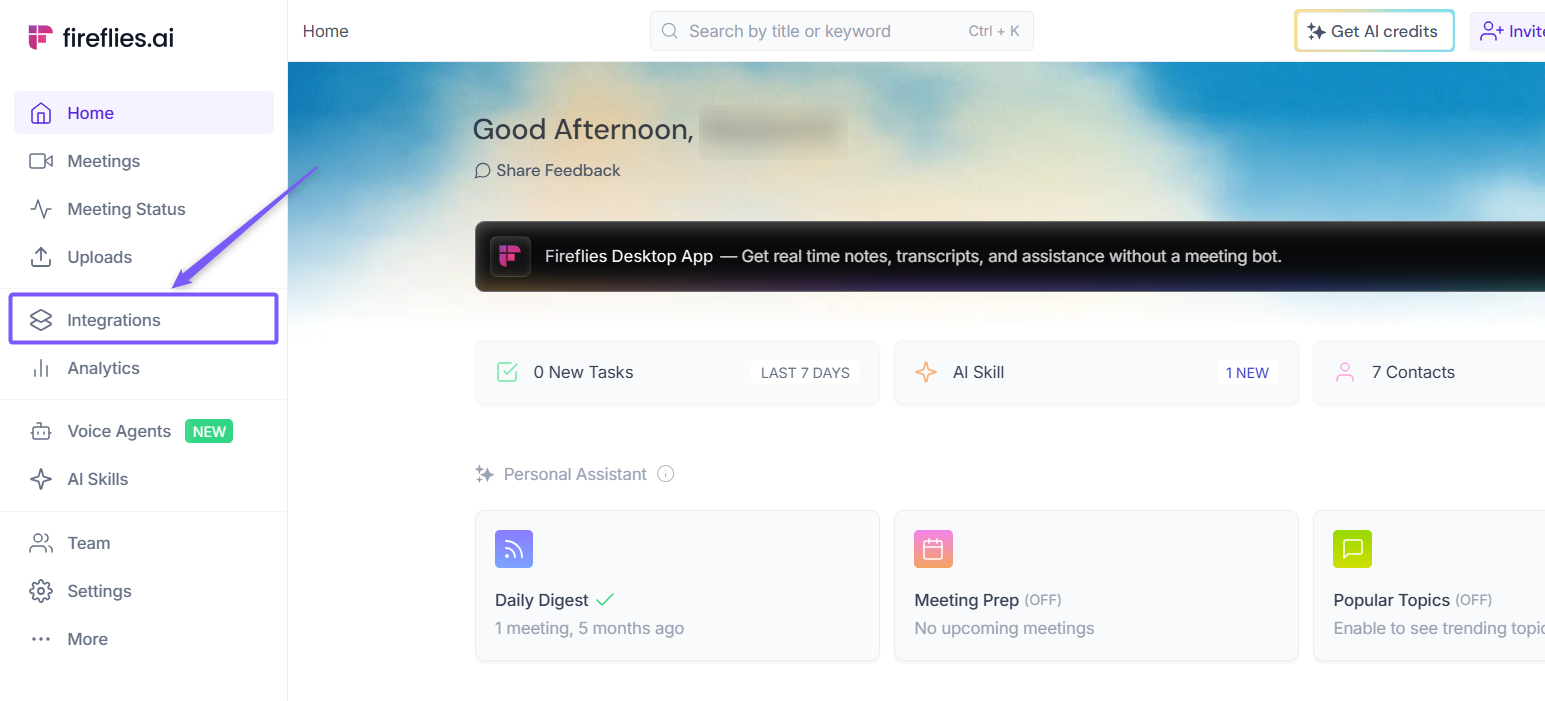
Step 1: Log in to your Fireflies account and click on the Integrations tab.
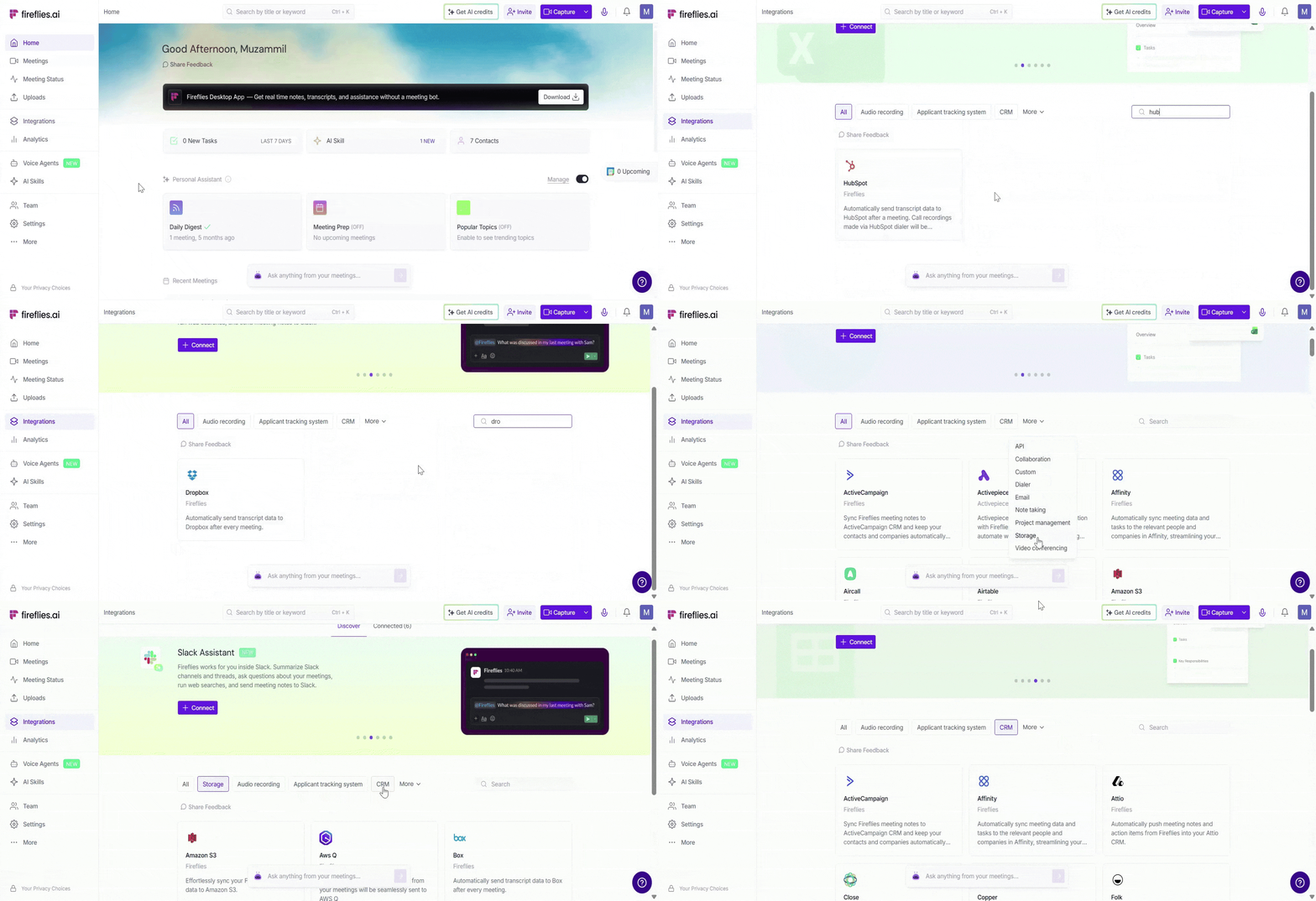
Step 2: Search for a specific integration or browse by category to explore supported integrations.
For demonstration purposes, we’re using Dropbox (the same steps apply to other supported integrations like HubSpot, Notion, etc.).
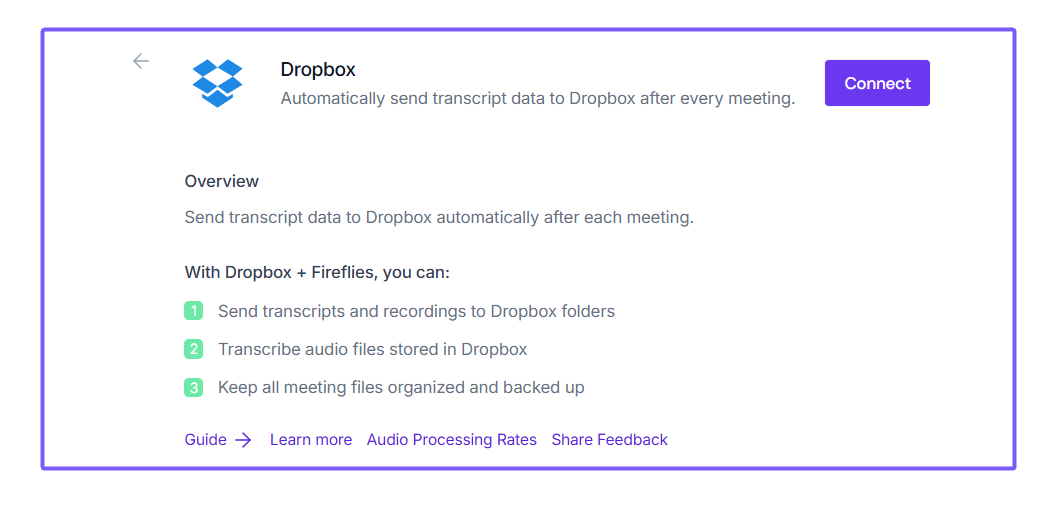
Step 3: If the integration is not connected yet, first click Connect and authenticate the integration with your Fireflies workspace.
📌 Need help connecting an integration? Refer to the integration’s setup guide for detailed connection steps.
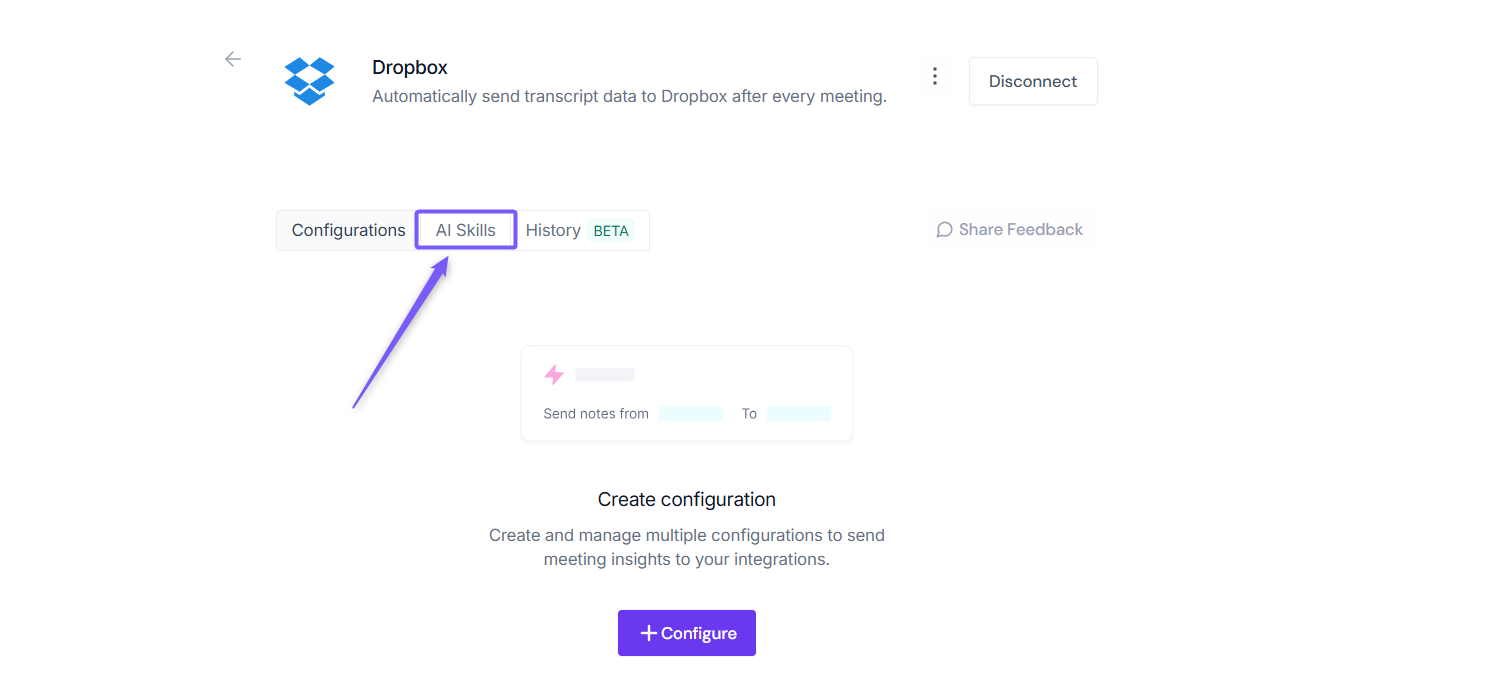
Step 4: Once the integration is connected, you’ll see the AI Skills tab inside the integration page. Click on it to continue.
Step 5: Any AI Skills you have already created will appear automatically in the list.
If no AI Skills appear yet, create or enable one first from the AI Skills page.
📌 Learn more:
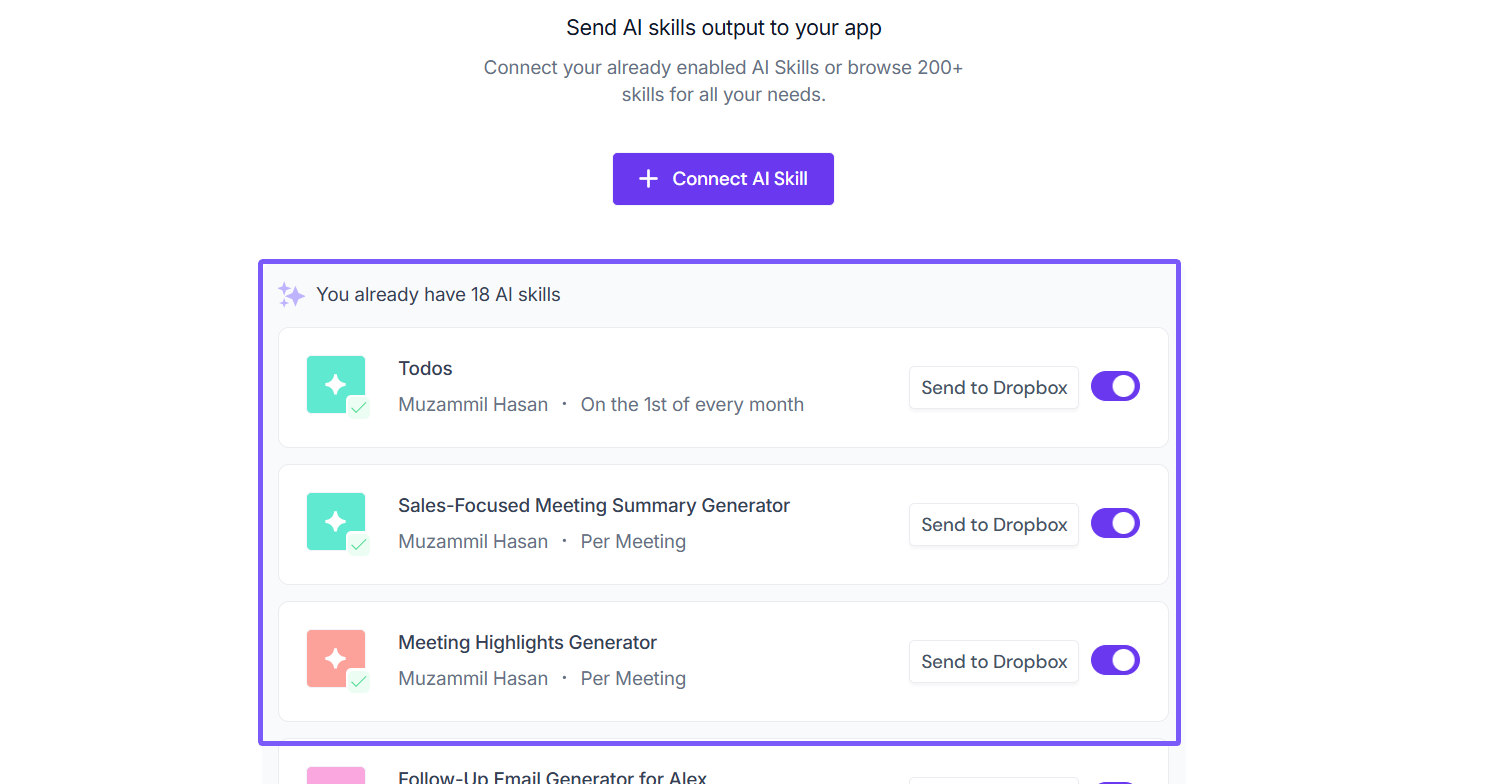
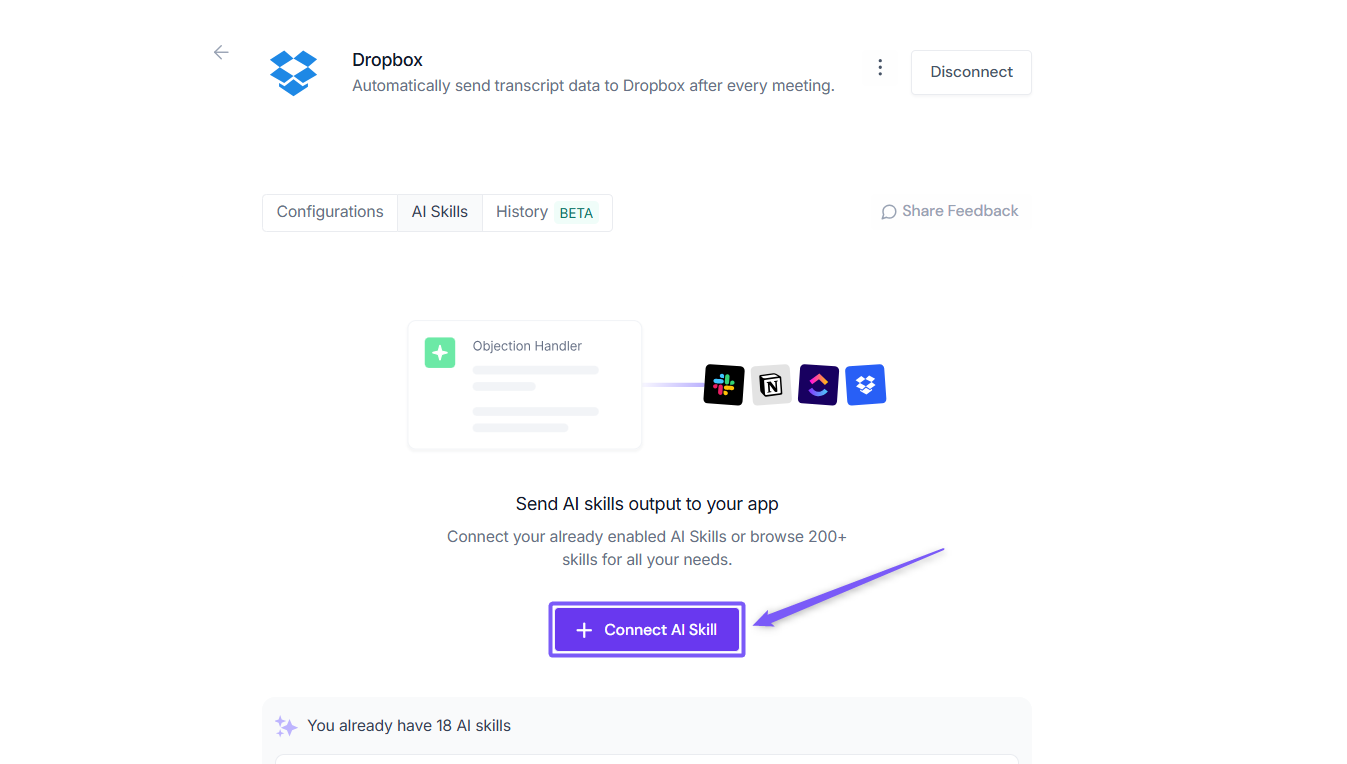
Step 6: Click Connect AI Skill to connect your AI Skill with the selected integration.
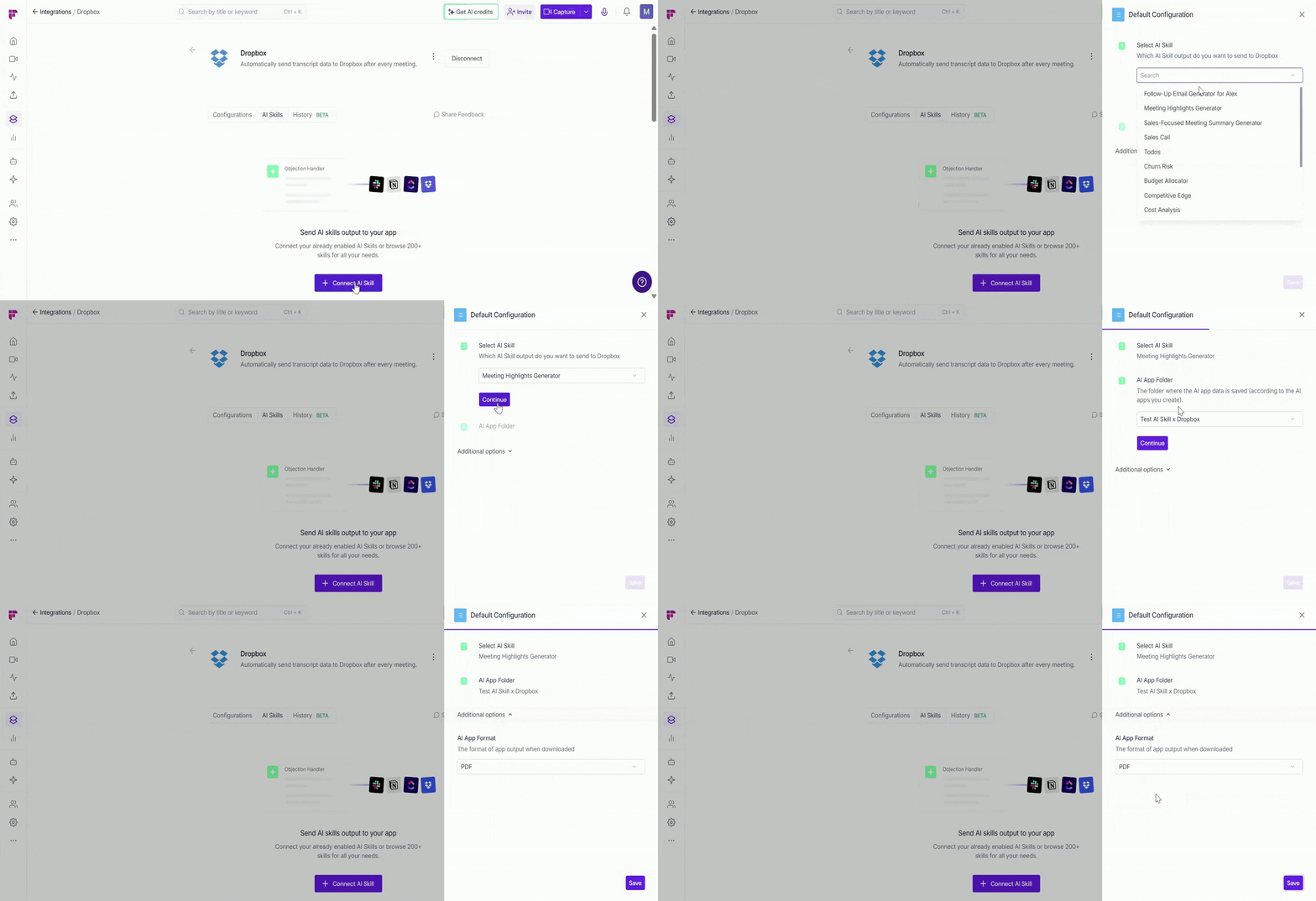
Step 7: Configure your AI Skill by choosing the right settings below.
Select AI Skill: Choose which AI Skill output you want to send to Dropbox (the same steps apply to other supported integrations as well). Use the search bar to find your AI Skill, then click Continue.
AI Skill Folder: Select the destination folder where the AI Skill outputs will be saved based on the AI Skills you run.
💡 If you don’t see the folder you want to use, first create it inside the connected integration (such as Dropbox, Google Drive, or OneDrive), then refresh and select it here.
AI App Output Format: Under Additional Options, choose the AI Skill output format for downloaded files (such as PDF, DOCX, or Markdown).
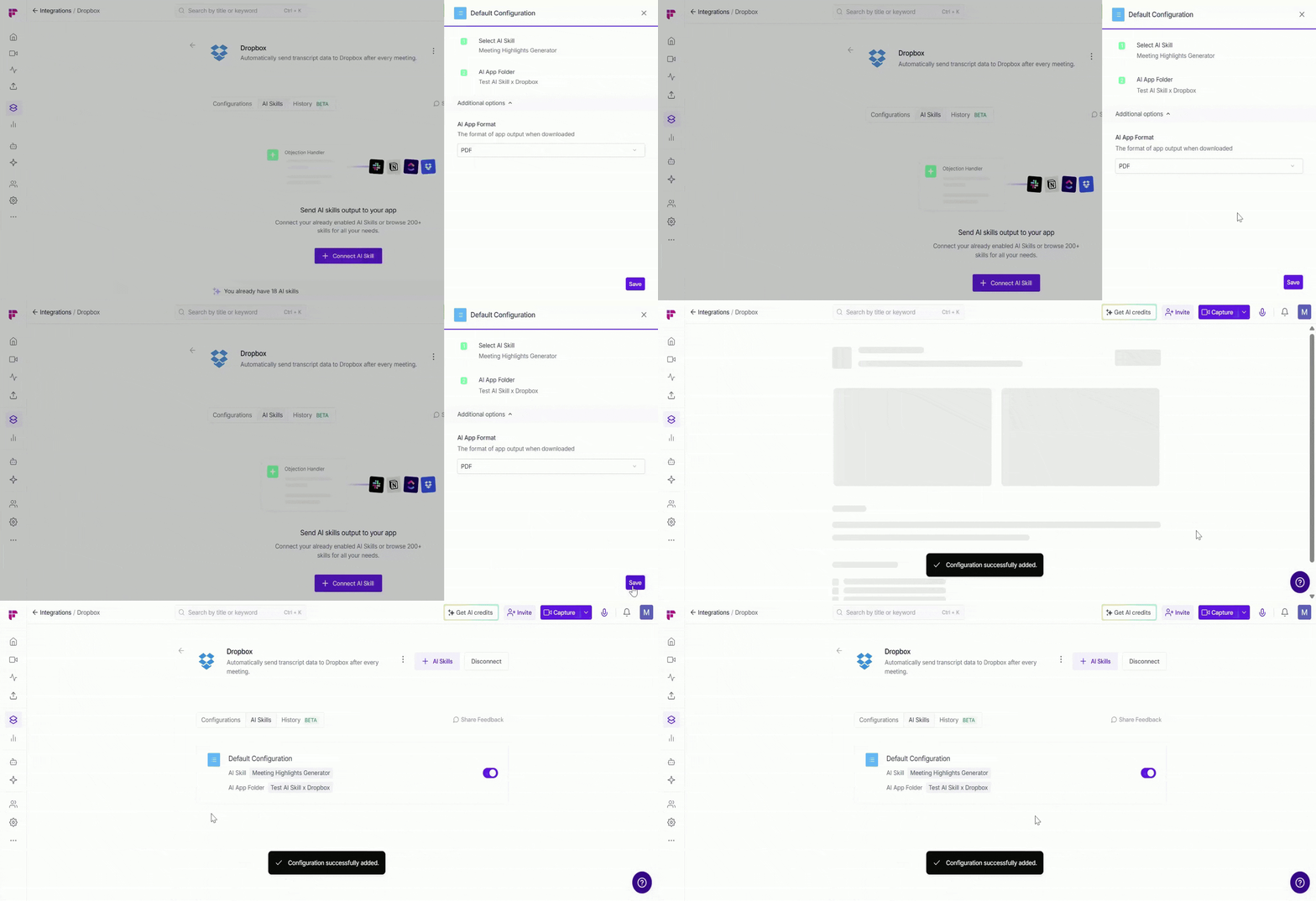
Step 8: Click Save to finish the configuration setup.
Method 2: Connect Integrations from the AI Skills Feed
This method works best when you want to connect integrations directly from the AI Skill settings while creating or editing the skill.
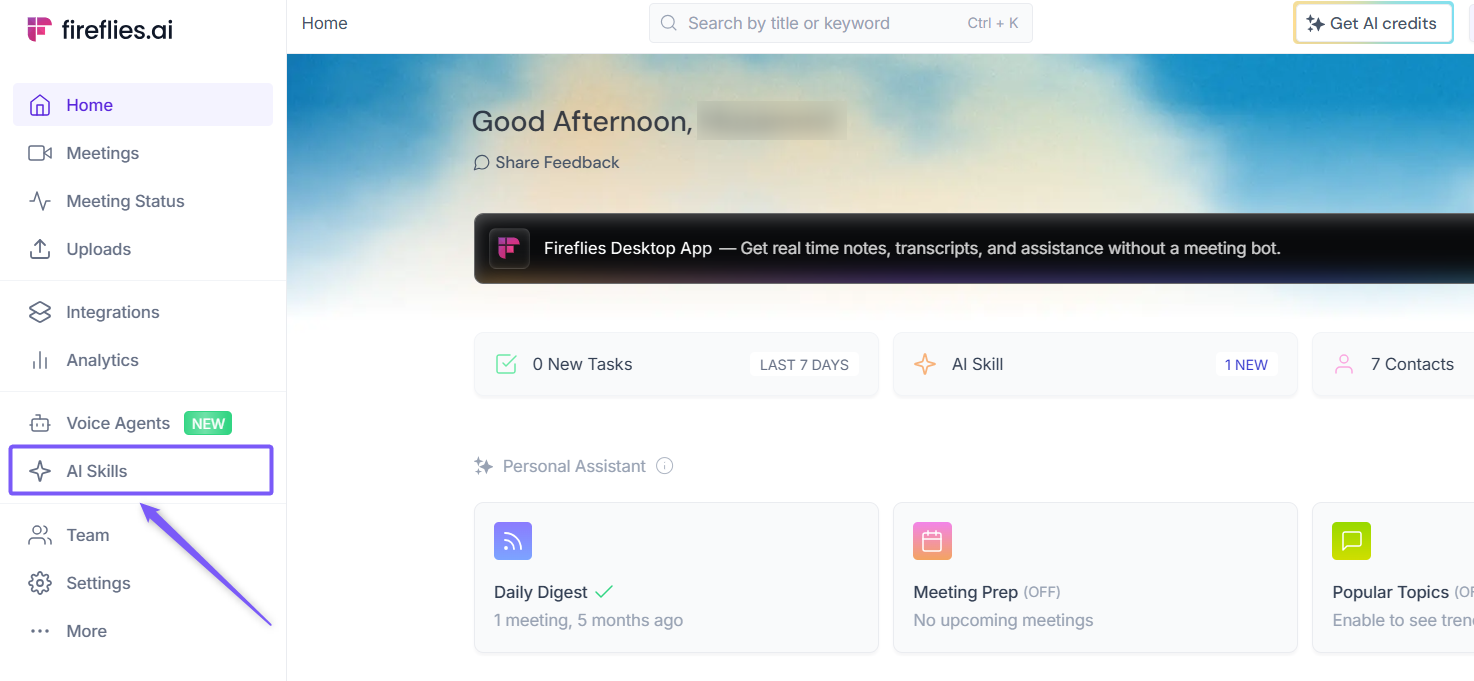
Step 1: From theFireflies home dashboard, click AI Skills in the left navigation menu.
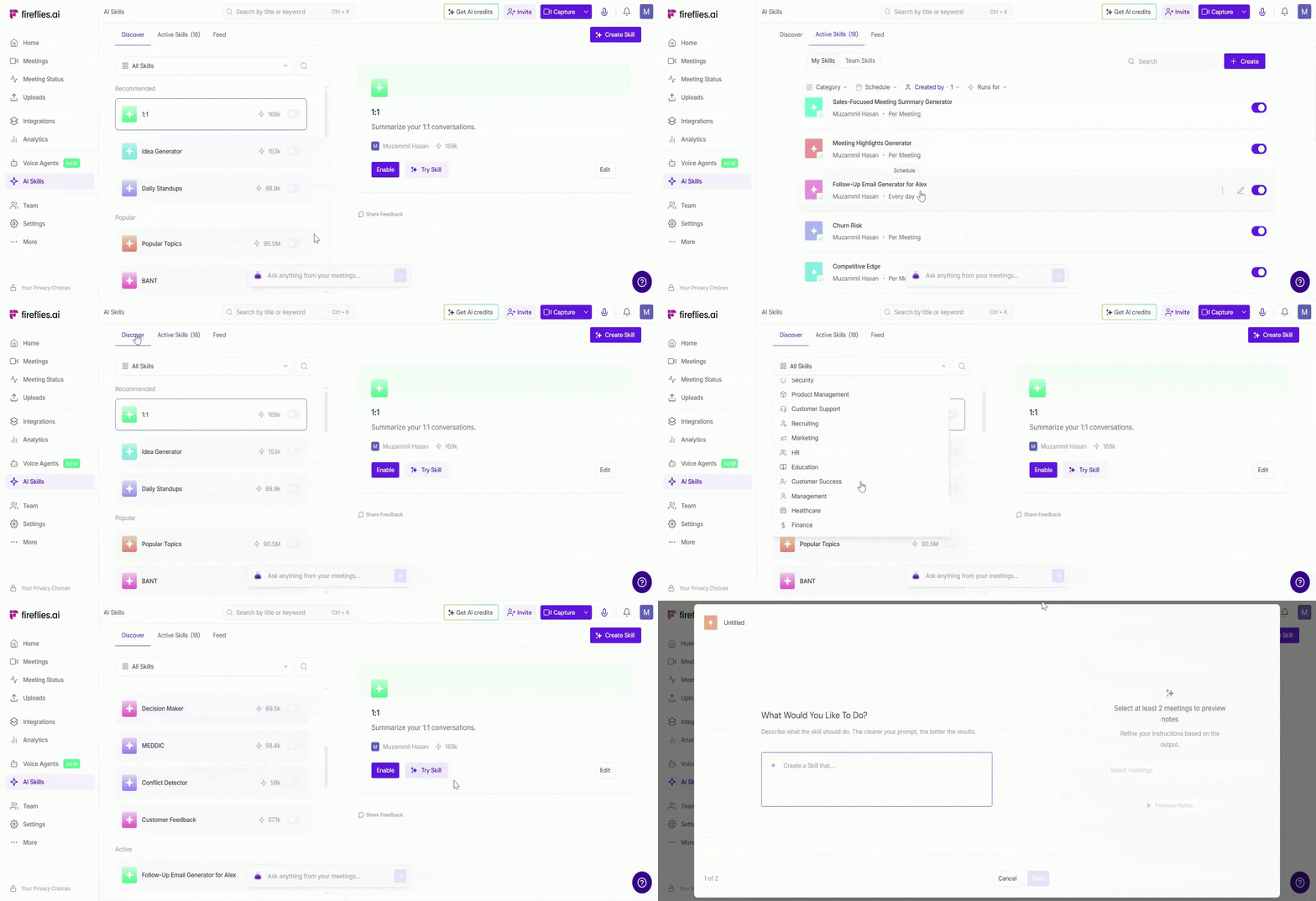
Step 2: If you already have an active AI Skill, open it from the Active Skills tab.
💡If you haven’t created an AI Skill yet, first create one from scratch or enable a pre-built template from the Discover tab, which includes 200+ ready-to-use AI Skill templates.
Step 3: Select the AI Skill you want to connect to an integrated tool, then click Edit.
Example: For this walkthrough, we’ll use the BANT Sales AI Skill as an example.
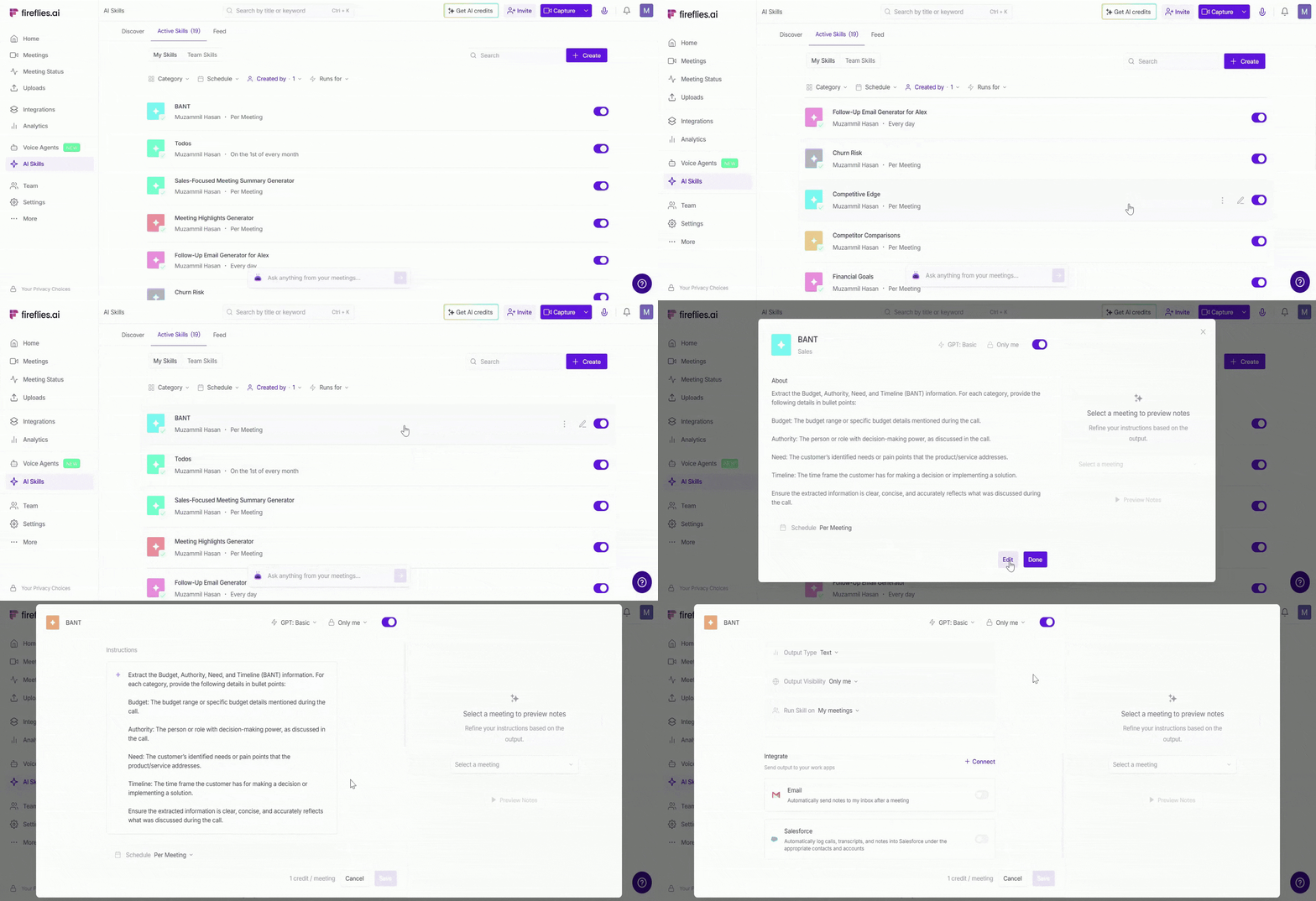
Step 4: Scroll down to the Integrate section to view and manage connected integrations for the AI Skill.
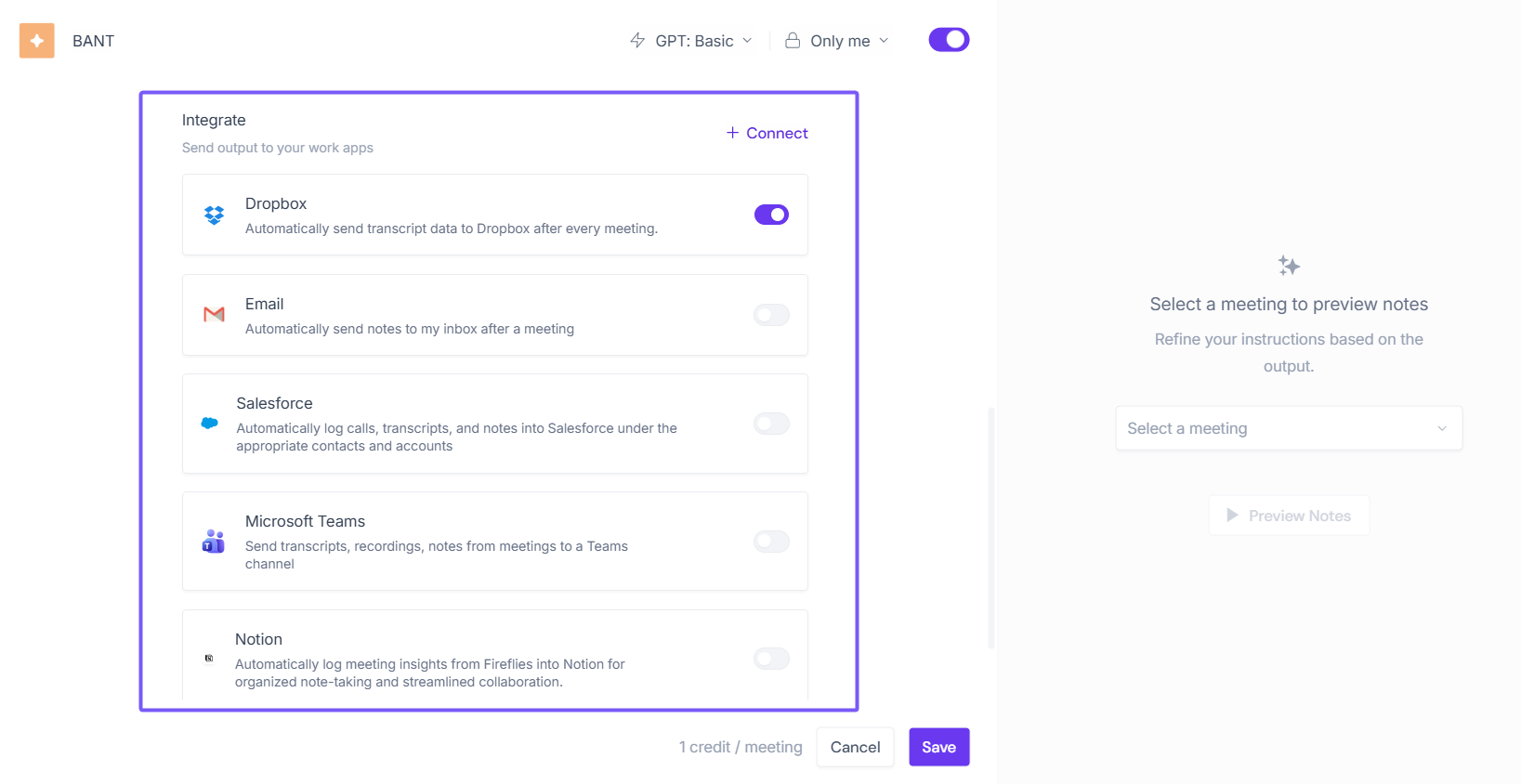
Step 5: Click Connect to view all the supported integrations the ones you haven’t connected yet will appear in the dropdown list.
💡 The integrations shown here depend on the AI Skill run type. Per Meeting AI Skills support more integrations than Scheduled AI Skills.
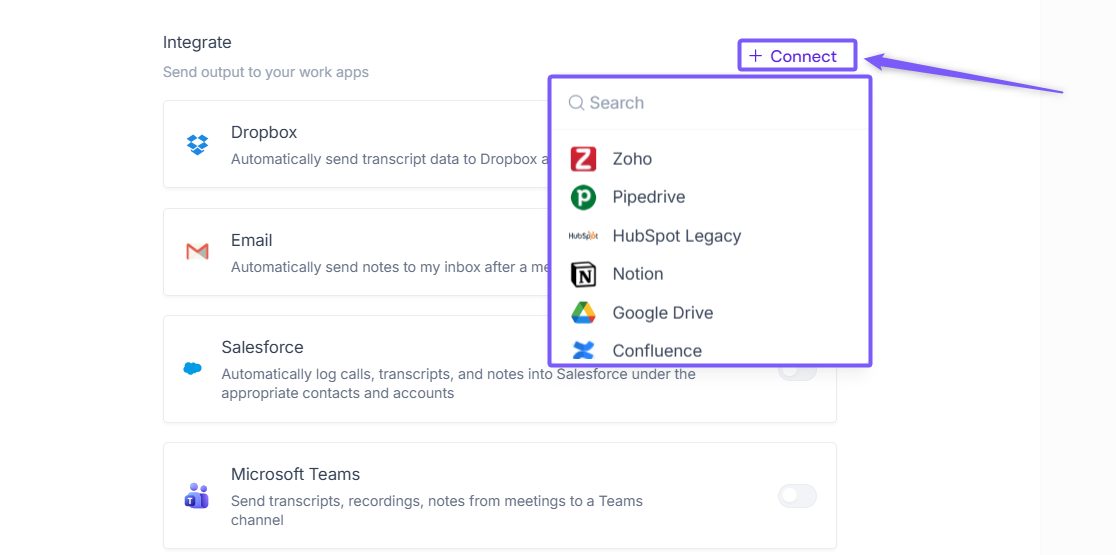
Step 6: Select the integration you want to connect with the AI Skill and authenticate.
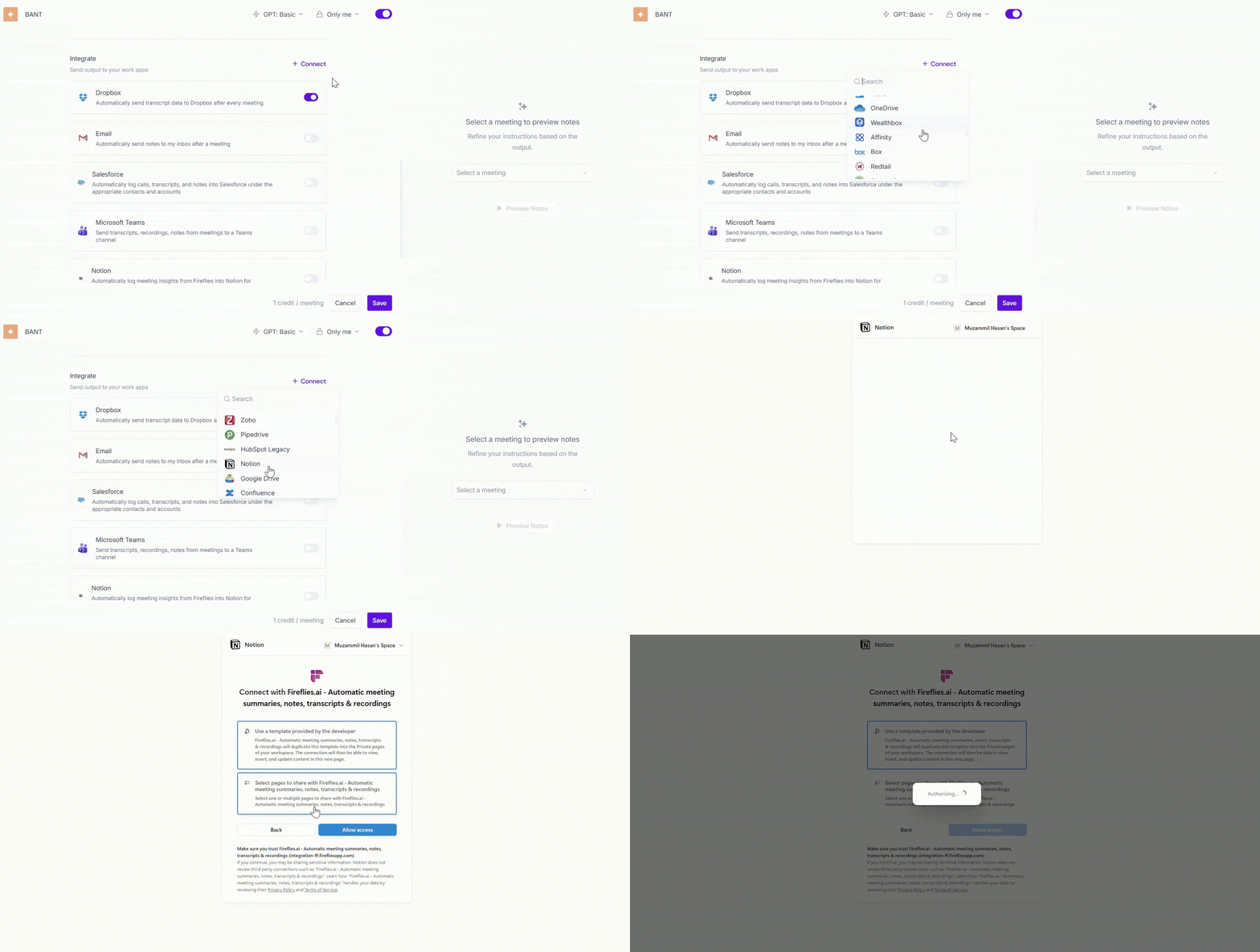
📌 Need help with integrations?
Follow our full guide here → How Integrations Work in Fireflies
📦 Using a storage integration?
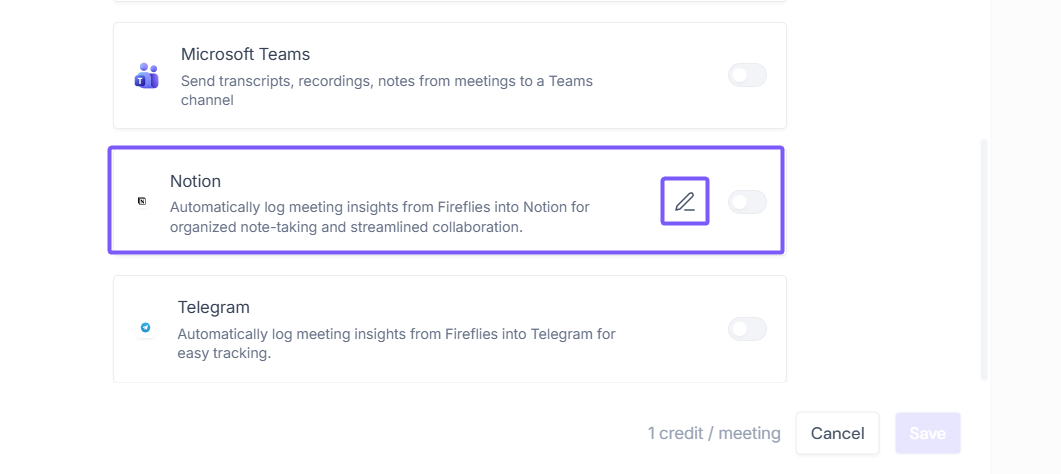
Step 7: Once connected, the integration will appear as a tile in the Integrations section.
Click the pencil icon next to it to configure where the AI Skill outputs should be sent (similar to Method 1).
Step 8: For demonstration purposes, we uses Notion as an example, so you’ll need to select the page where the AI Skill outputs should be sent.
These setup steps may vary depending on the integration you selected. Some integrations, like HubSpot, may include additional configuration options such as contacts, companies, or other destination settings.
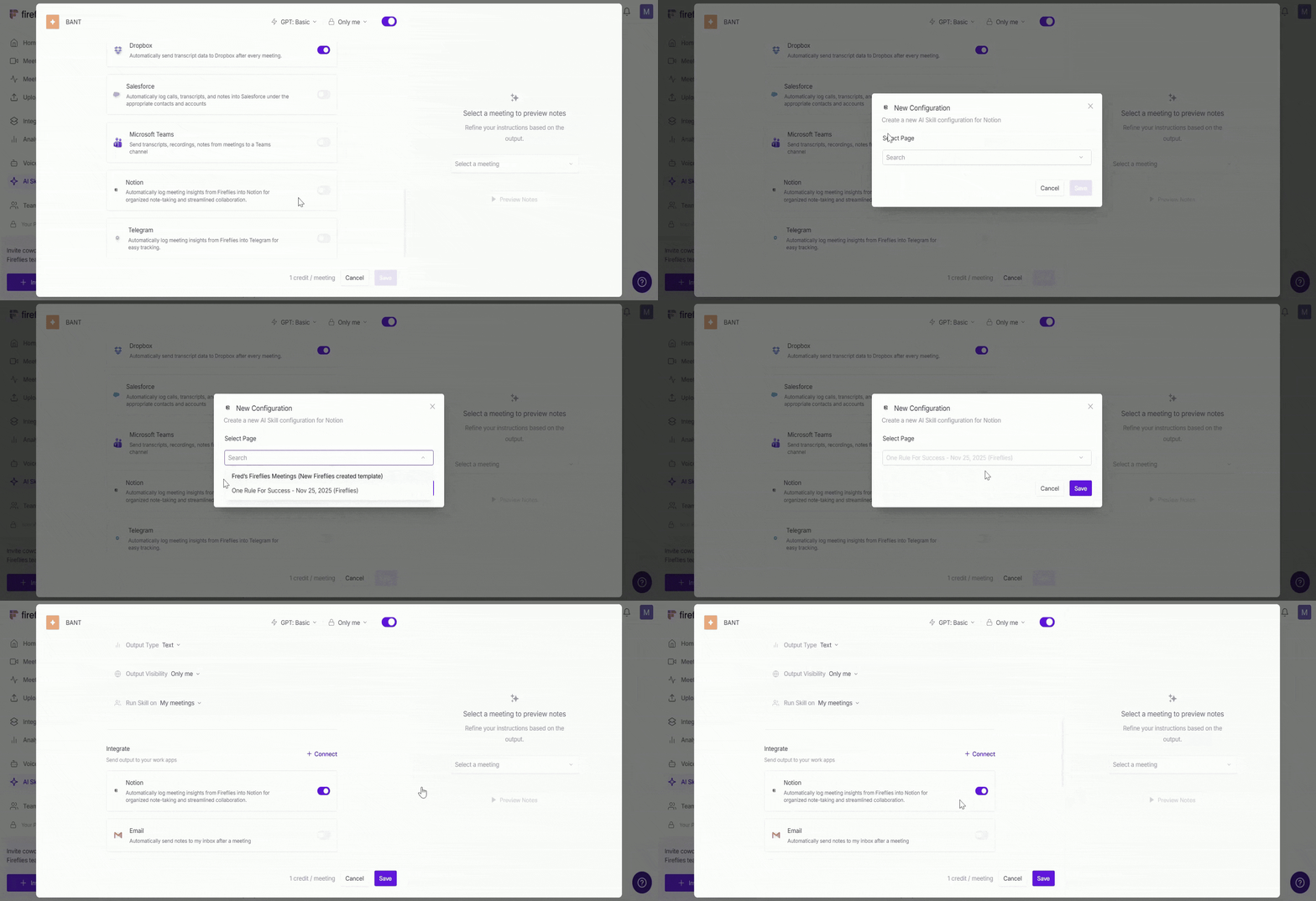
Step 9: Integrations with the toggle turned ON are active and will receive AI Skill outputs. You can enable or disable them anytime using the toggle.
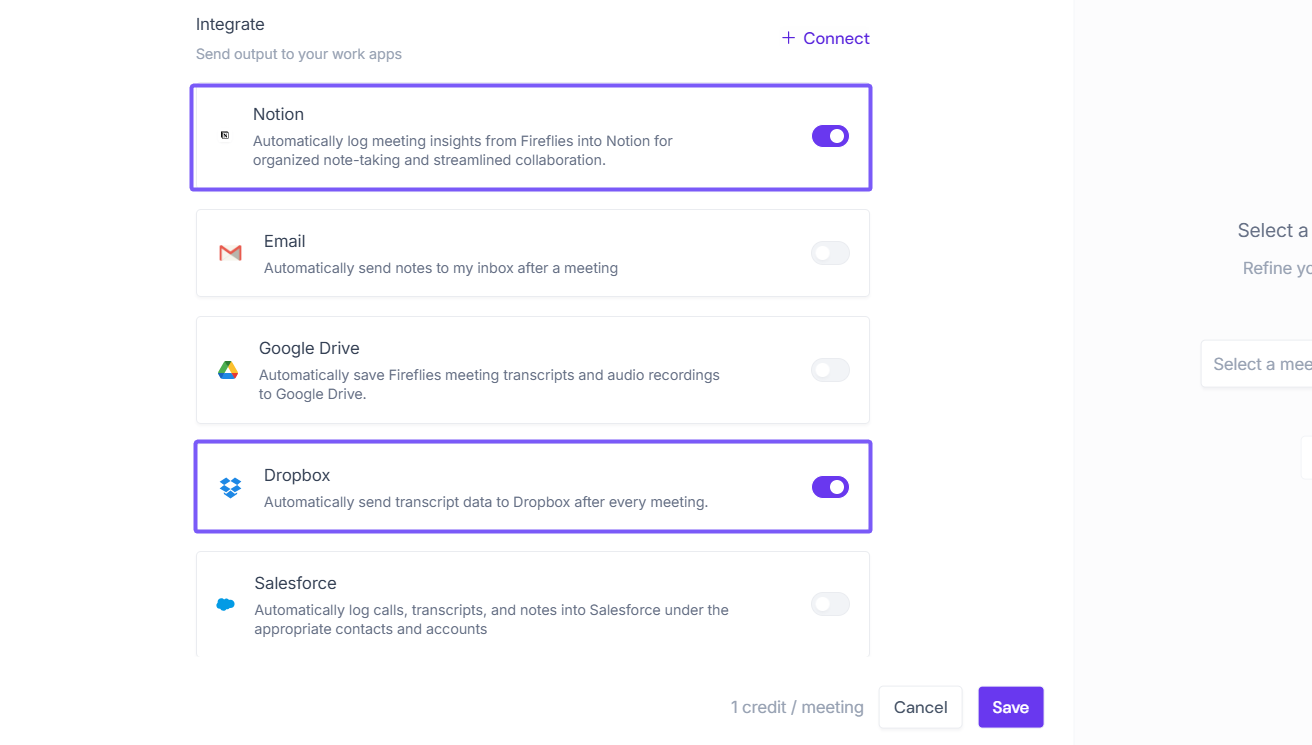
Step 10: Click Save to finish the configuration setup.
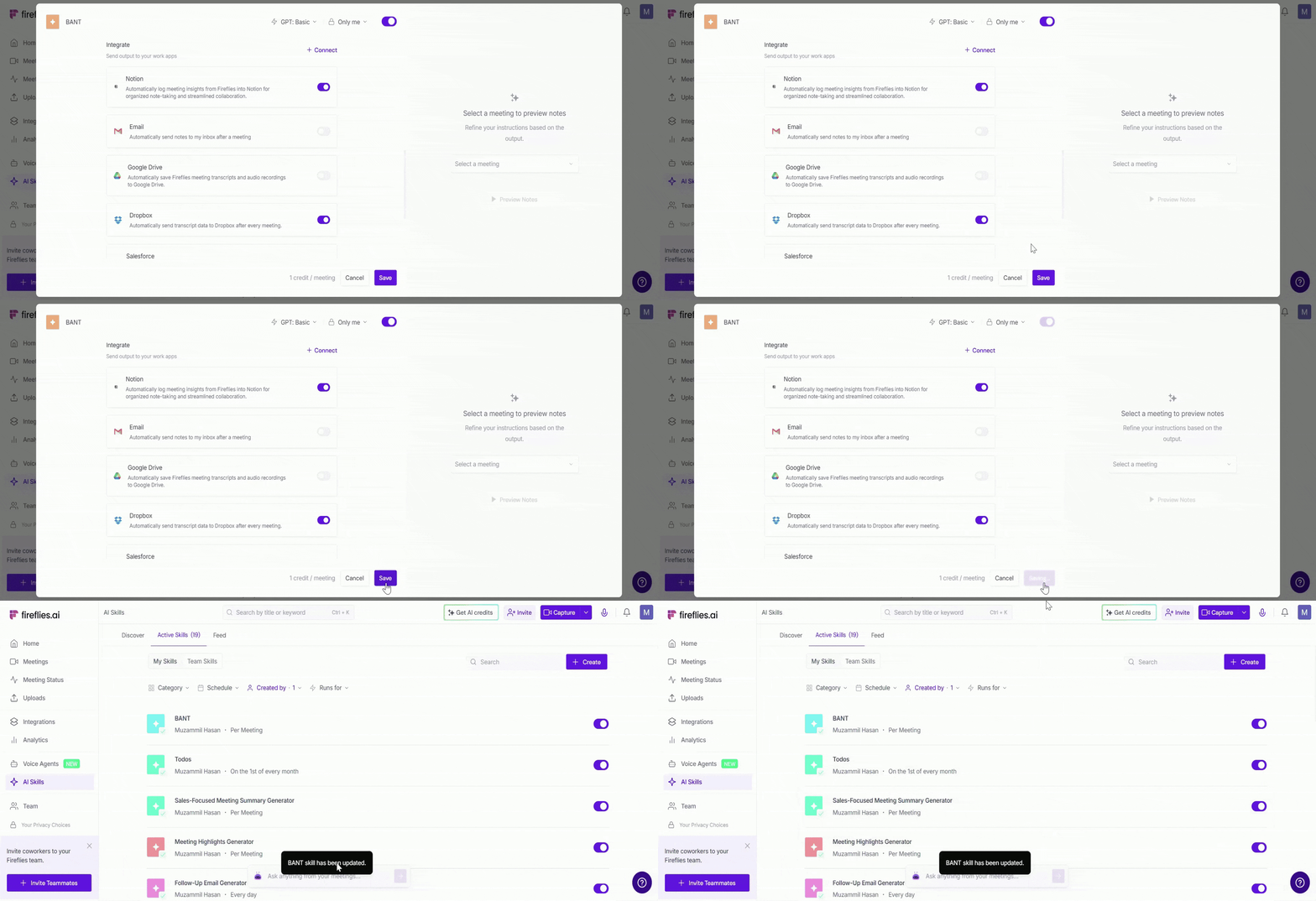
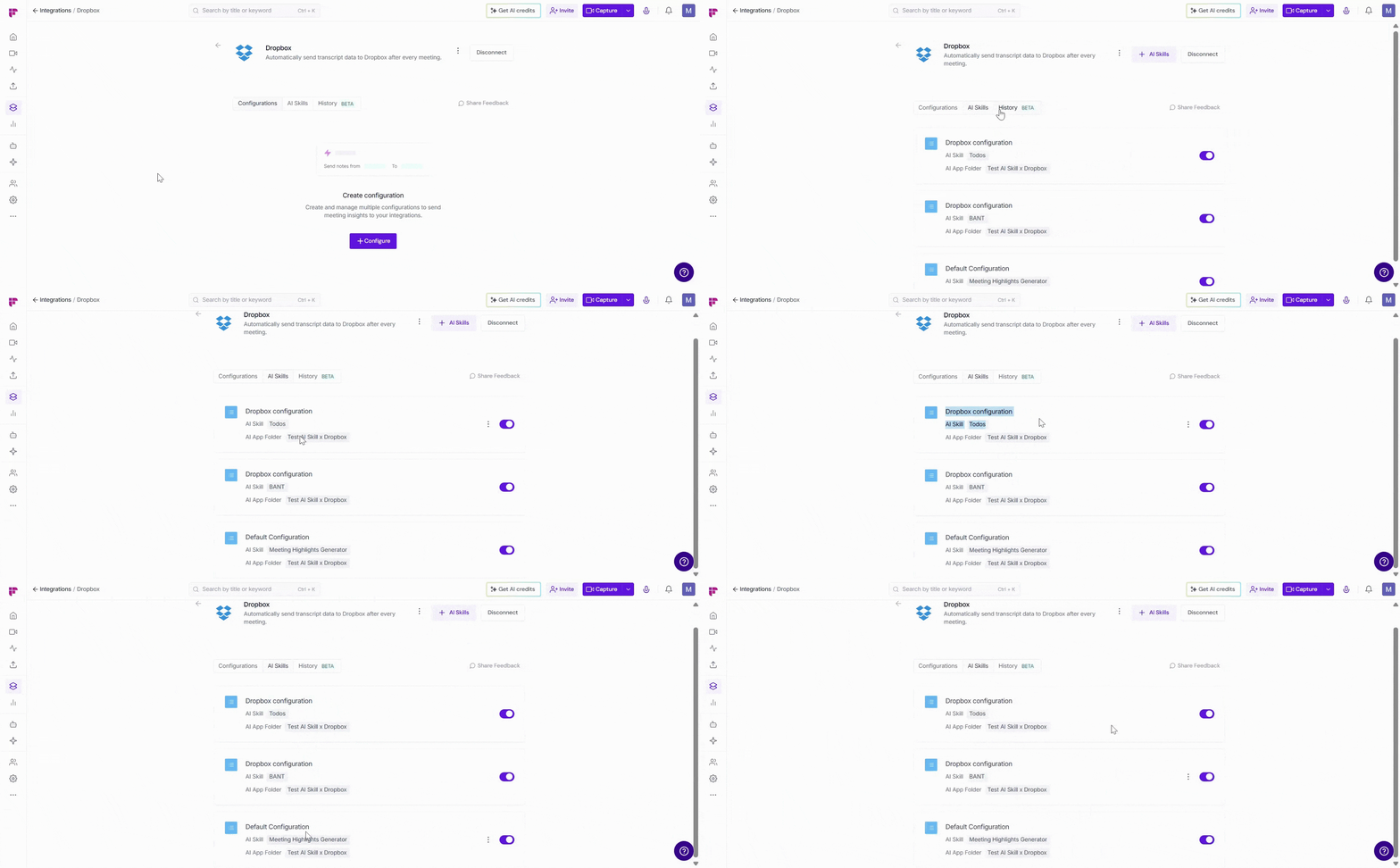
The best part is that everything stays fully synchronized, any change you make here (enabling, disabling, or updating a configuration) instantly reflects on the Integrations page, and vice versa.
▶ Run AI Skills and Send Outputs to Integrations
Once your integration is connected, AI Skill outputs are automatically sent to the selected integration whenever the AI Skill runs.
AI Skills can run in different ways depending on your workflow:
Run Manually: Run the AI Skill on a specific meeting whenever needed from meeting notepad.
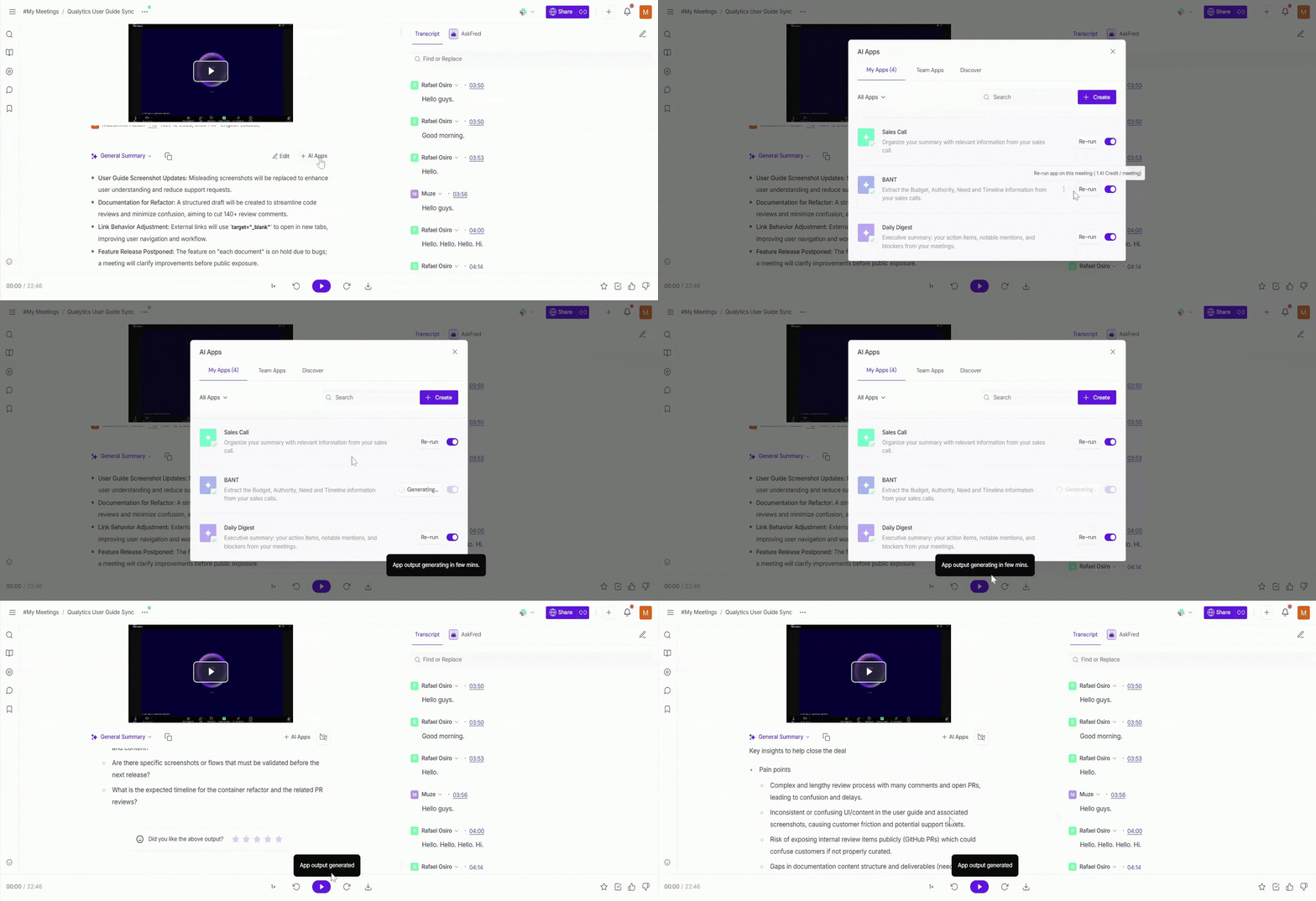
Run Automatically (Per Meeting): Automatically run the AI Skill after every matching meeting.
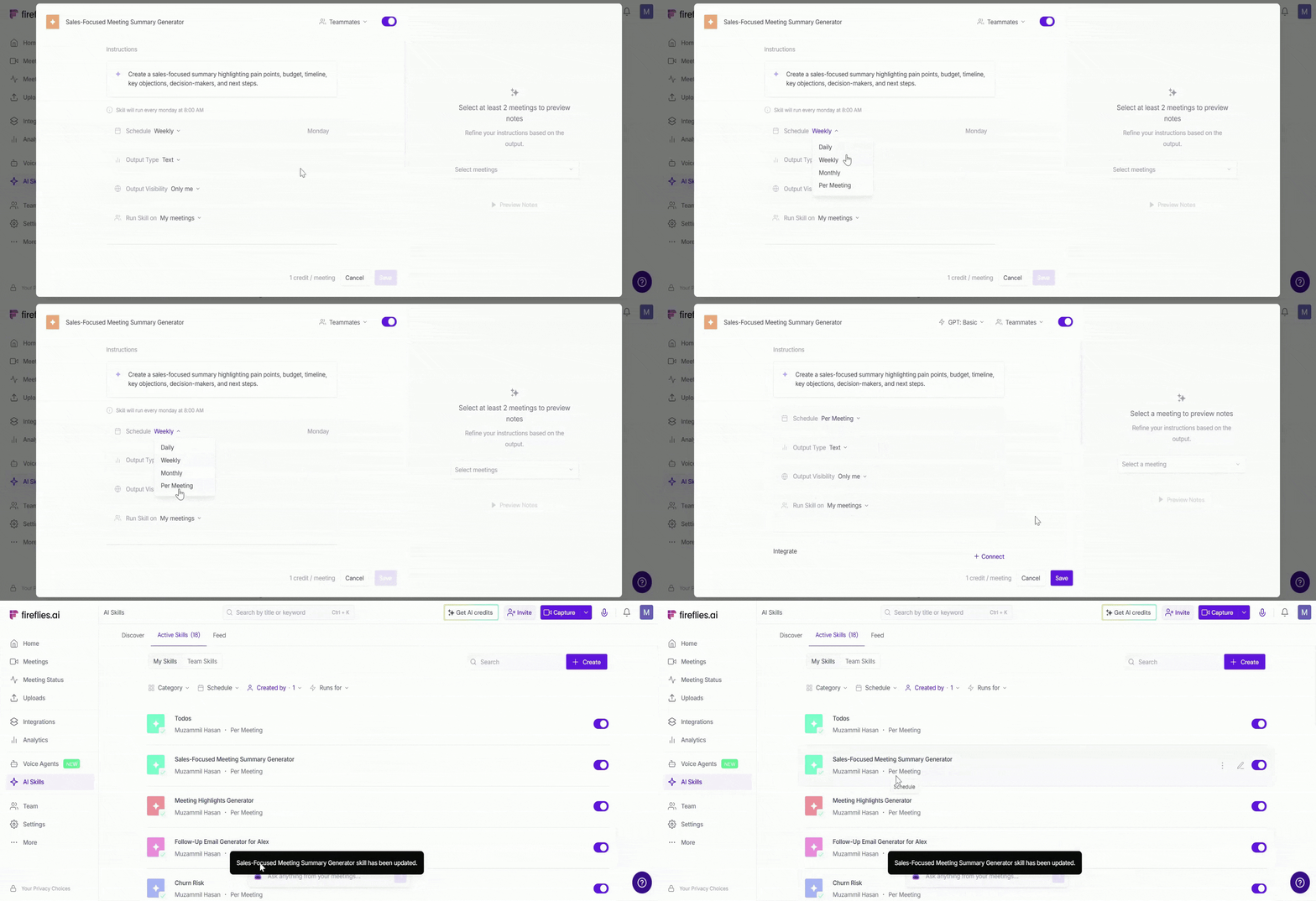
Run on a Schedule: Generate combined outputs across multiple meetings daily, weekly, or monthly.
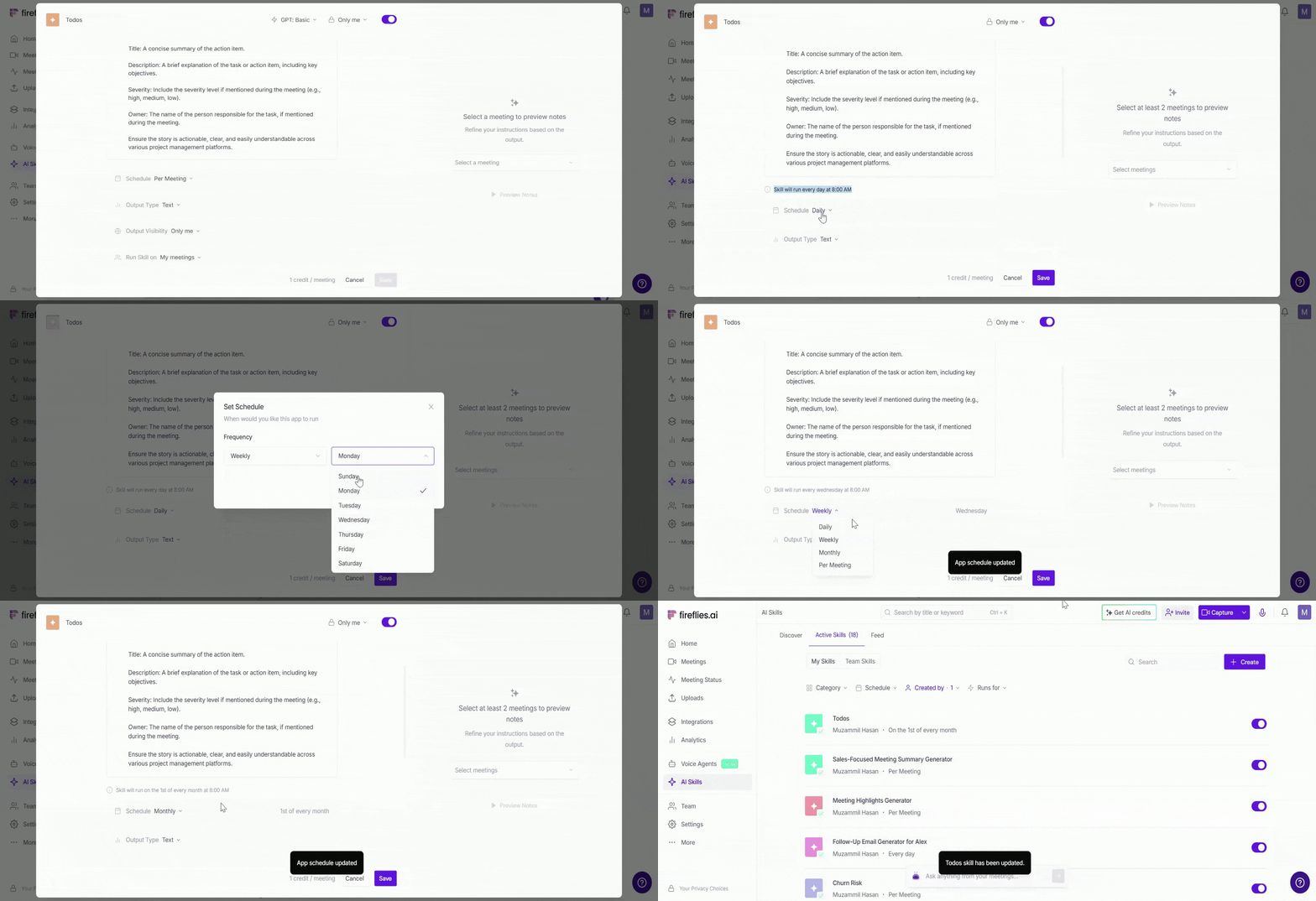
📌 To learn step-by-step how to run AI Skills on meetings, refer to this guide.
📤 View AI Skill Outputs in Connected Integrations
Once an AI Skill runs, Fireflies automatically sends the generated output to the connected integration based on your configuration settings.
Depending on the integration, outputs may appear as files, CRM notes, workspace pages, messages, or project updates.
Fireflies also supports tables for compatible AI Skills, and they are included in the output file when sent to integrations.
Examples:
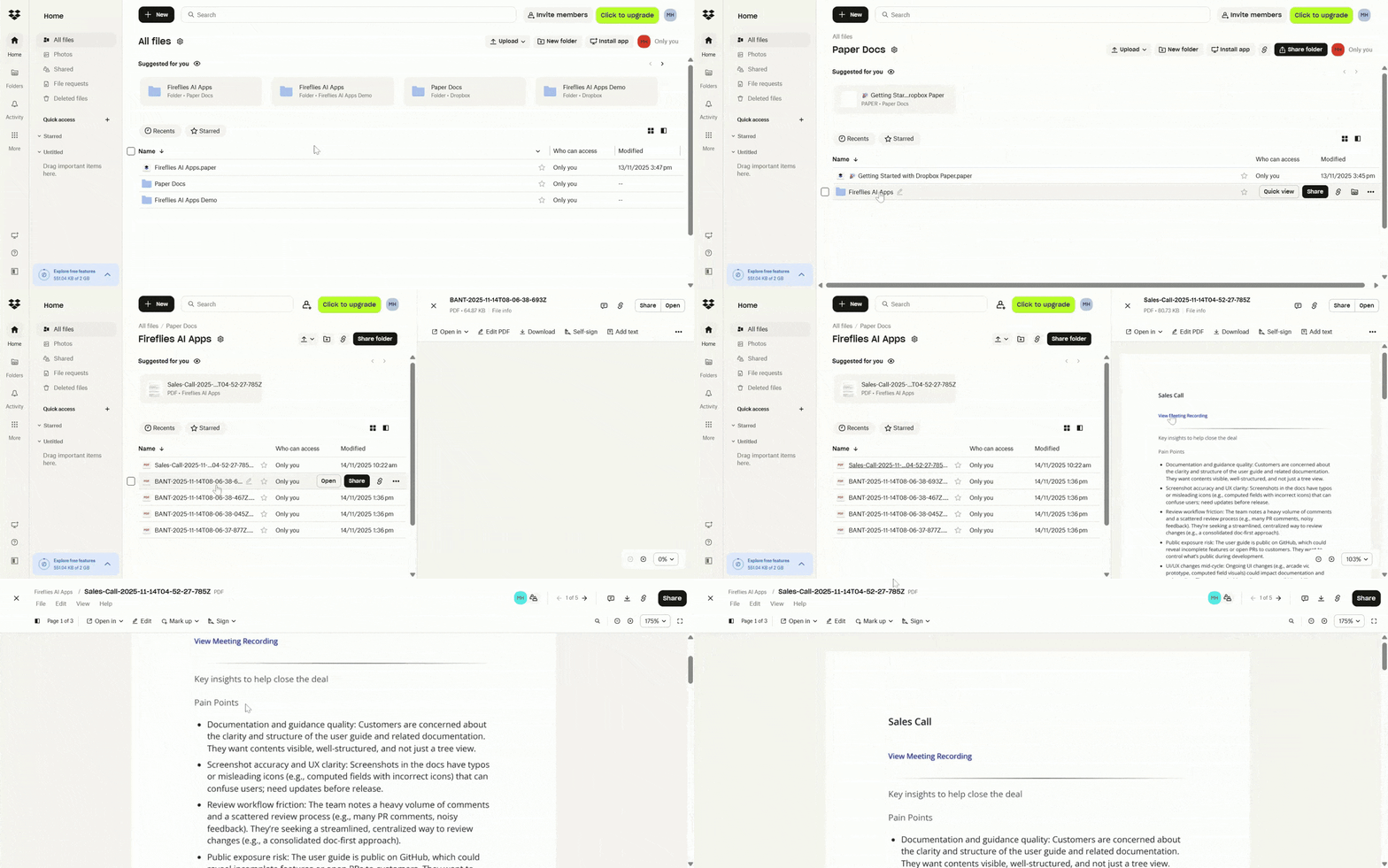
1. Storage Integrations: For storage integrations like Dropbox, Google Drive, OneDrive, Box, and Amazon S3, AI Skill outputs are saved inside the selected folder as downloadable files.
How it appears in Dropbox:
Fireflies creates a Fireflies AI Skills subfolder inside your main Fireflies folder.
The AI Skill output file includes:
The meeting title
A link to the meeting recording
The AI Skill content/output
Fireflies branding at the footer
👉 Want to fully integrate Fireflies with your Dropbox Workspace? Check out: How to Integrate Fireflies with Dropbox.
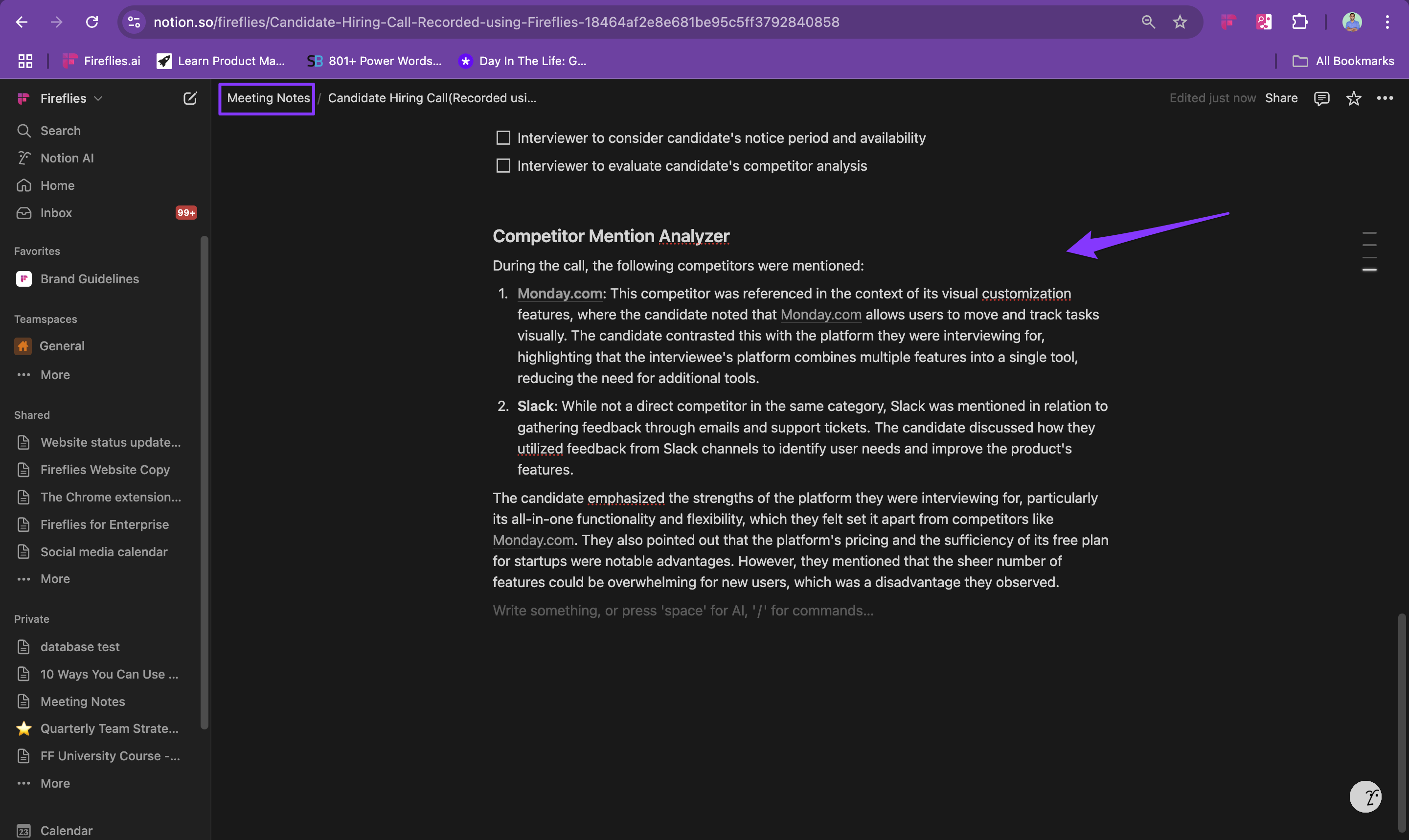
2. Collaboration Integrations (Notion)
For collaboration tools like Notion, AI Skill outputs automatically appear inside the selected Notion page.
👉 Want to fully integrate Fireflies with your Notion workspace? Check out: How to Integrate Fireflies with Notion.
3. CRM Integrations (HubSpot)
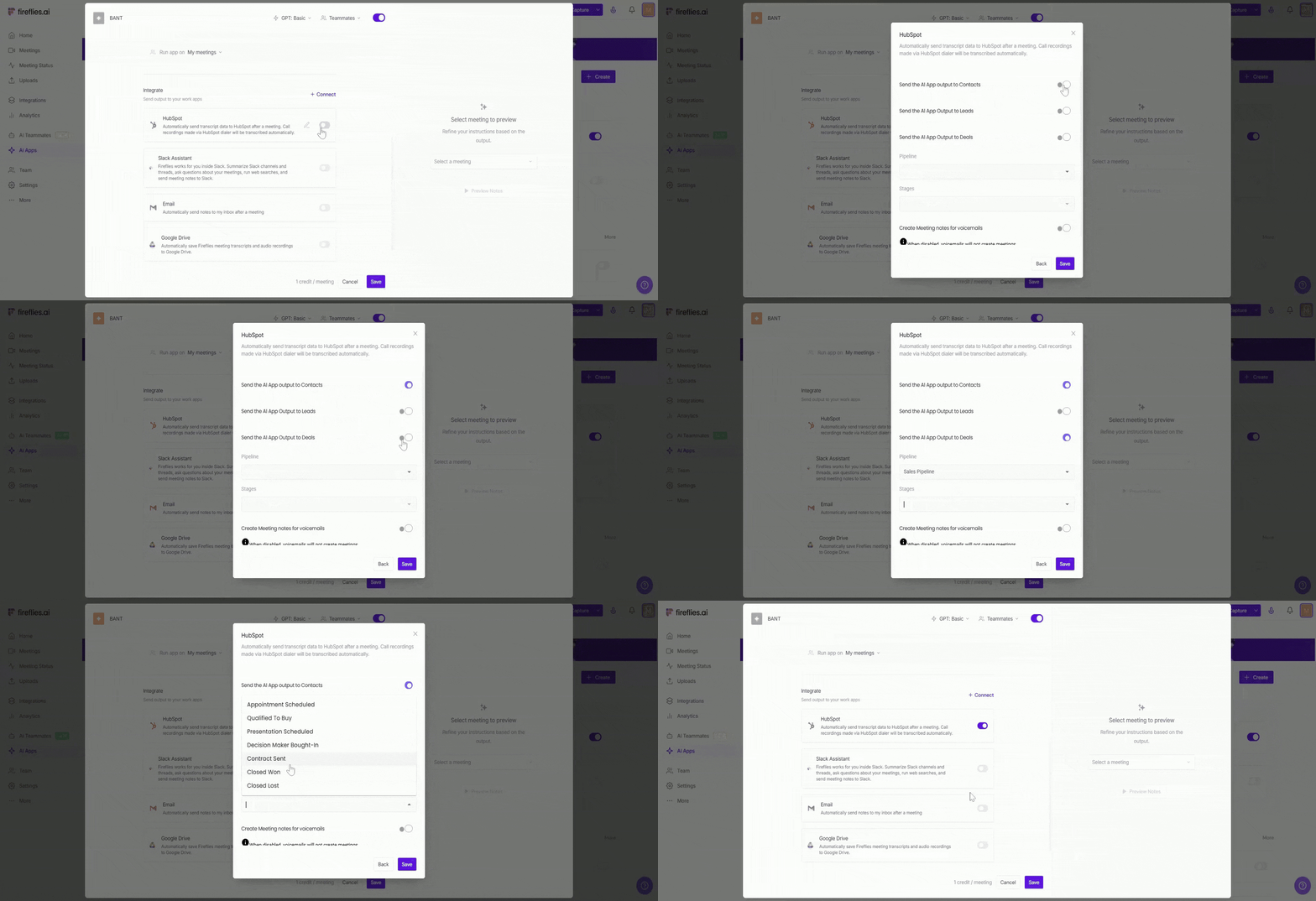
For CRM integrations like HubSpot, you can choose where the AI Skill outputs should be logged, such as Contacts or Deals and configure additional CRM settings like pipeline or deal stage before saving.
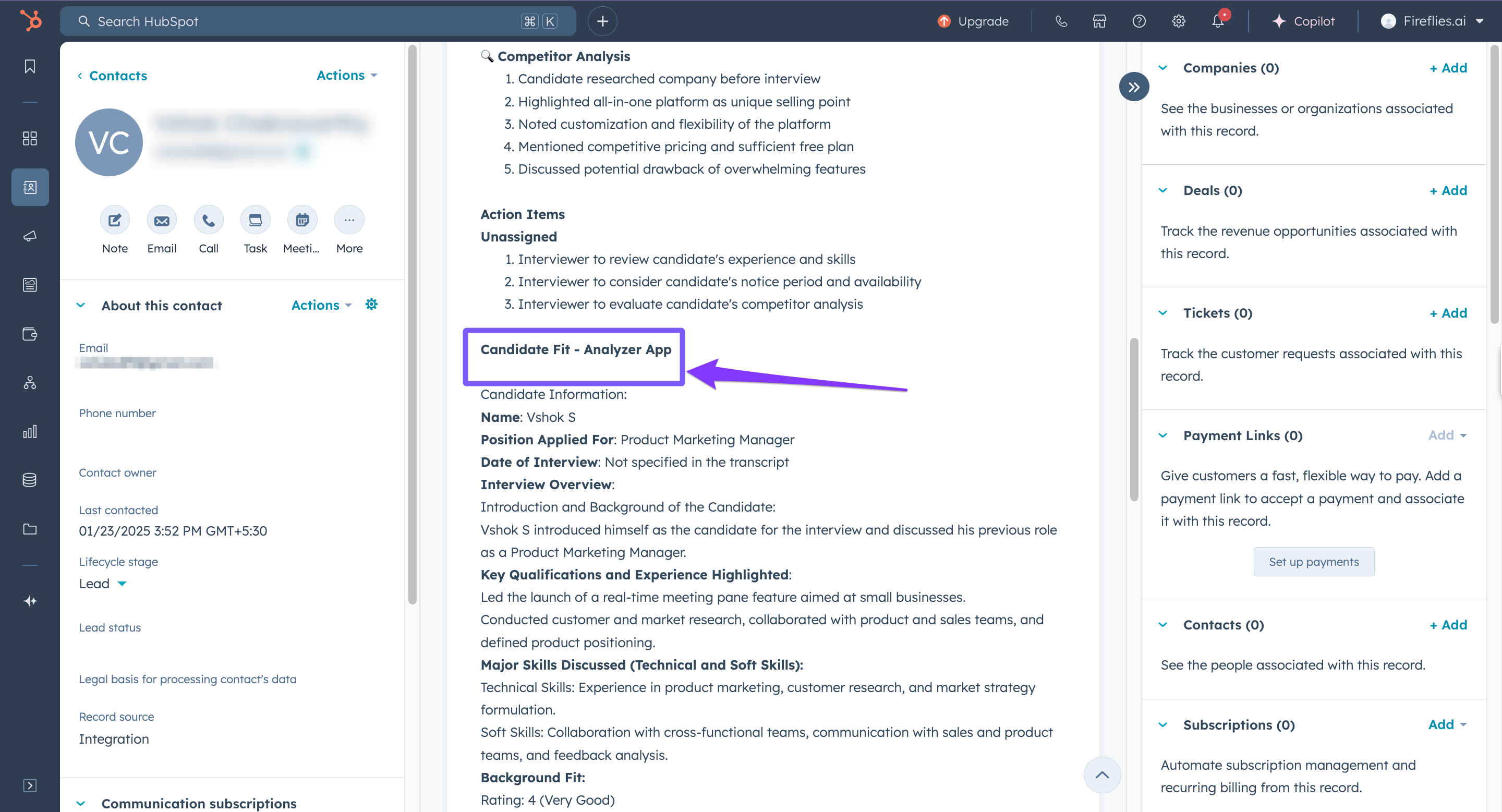
Once the AI Skill runs, the generated output automatically appears inside the selected HubSpot record activity timeline.
👉 Want to fully integrate Fireflies with HubSpot workflows? Check out: How to Integrate Fireflies with HubSpot.
🛠 Manage AI Skill Configuration
As your workflows change, you may need to update where and how AI Skill outputs are sent. Fireflies allows you manage these integration settings anytime using the options below.
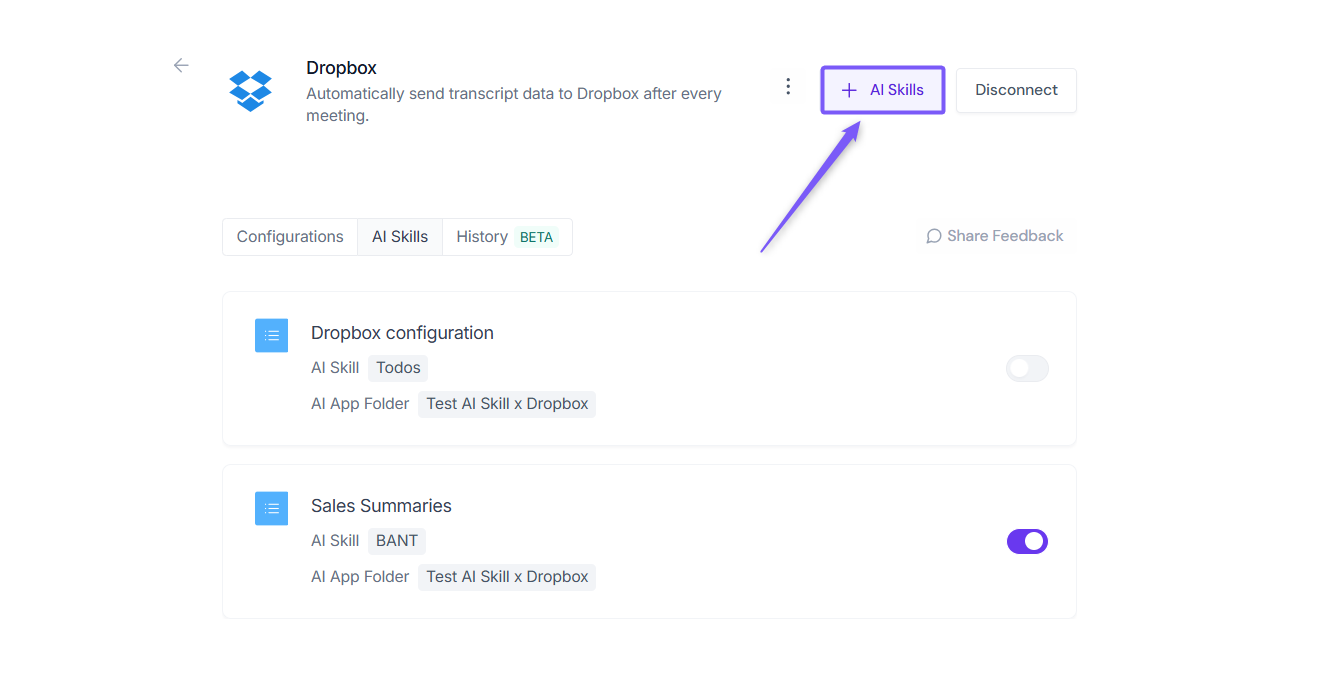
➕ Add AI Skill Configuration → You can run multiple AI Skills on the same meeting by clicking + AI Skills and selecting the skills you want to run.
Each skill generates its own output, so you can run different analyses (Sales, Finance, Follow-up) on the same meeting without any conflict.
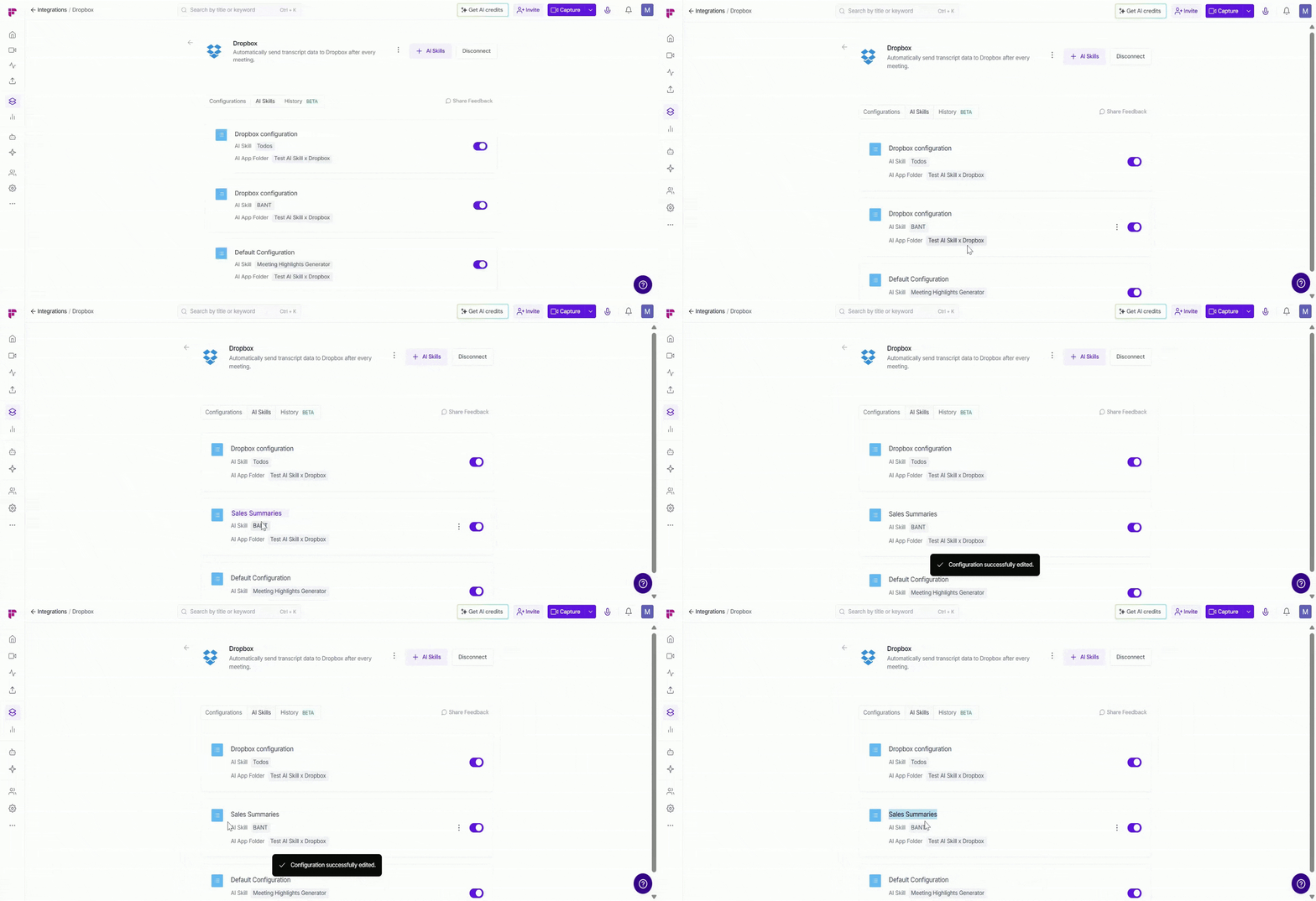
✏ Edit Configuration Name → Rename your AI Skill configuration to make it easier to identify, especially when managing multiple integrations or folders. Just click the configuration name (e.g., Default Configuration), type a new name (e.g., Sales Summaries or FYI Sales), and click outside the field to save.
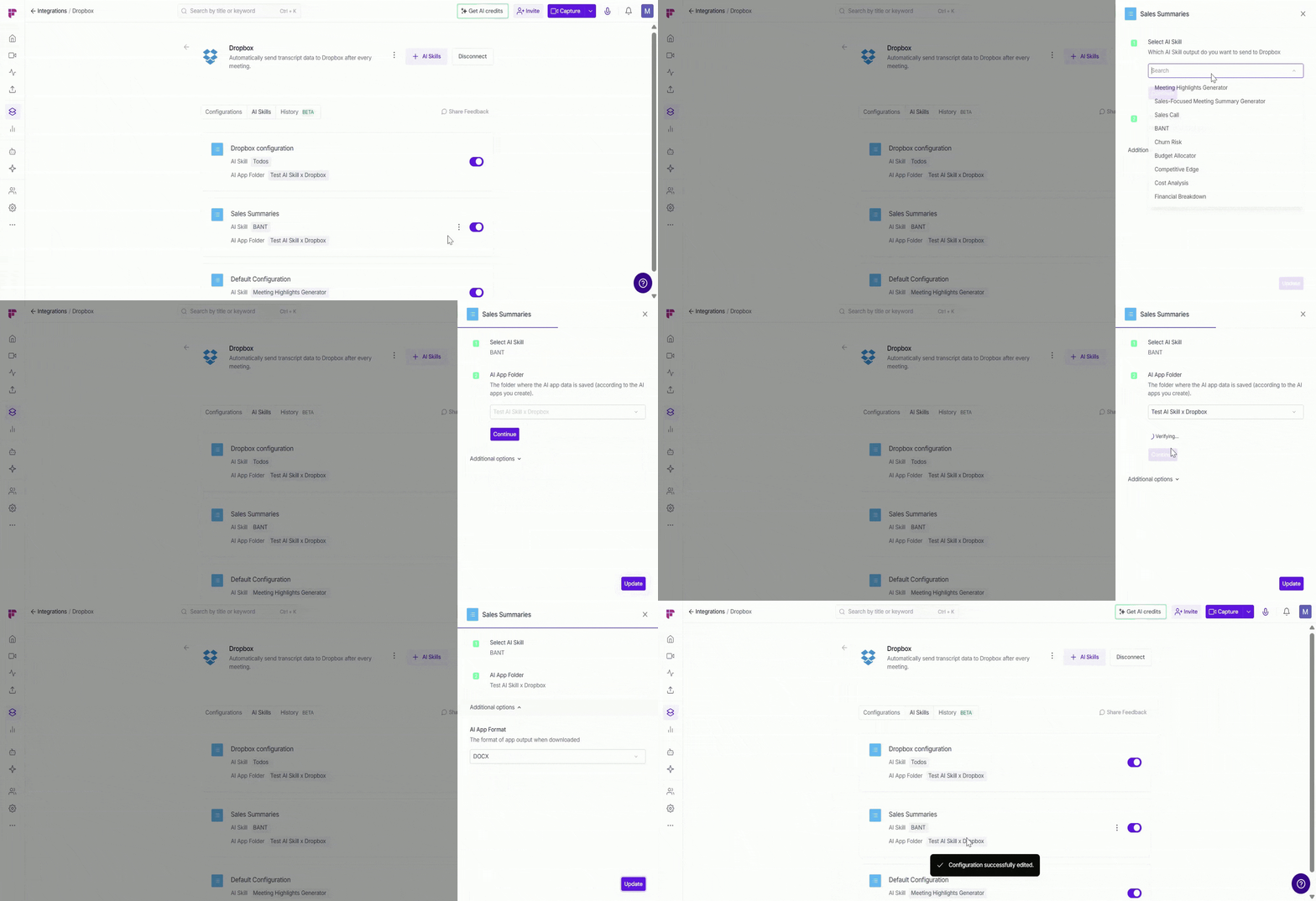
⚙ Edit Configuration Settings → Update the AI Skill, connected folder, or output format anytime. Click the vertical ellipsis (⋮) next to the configuration, select Edit, make your changes, and click Update to save.
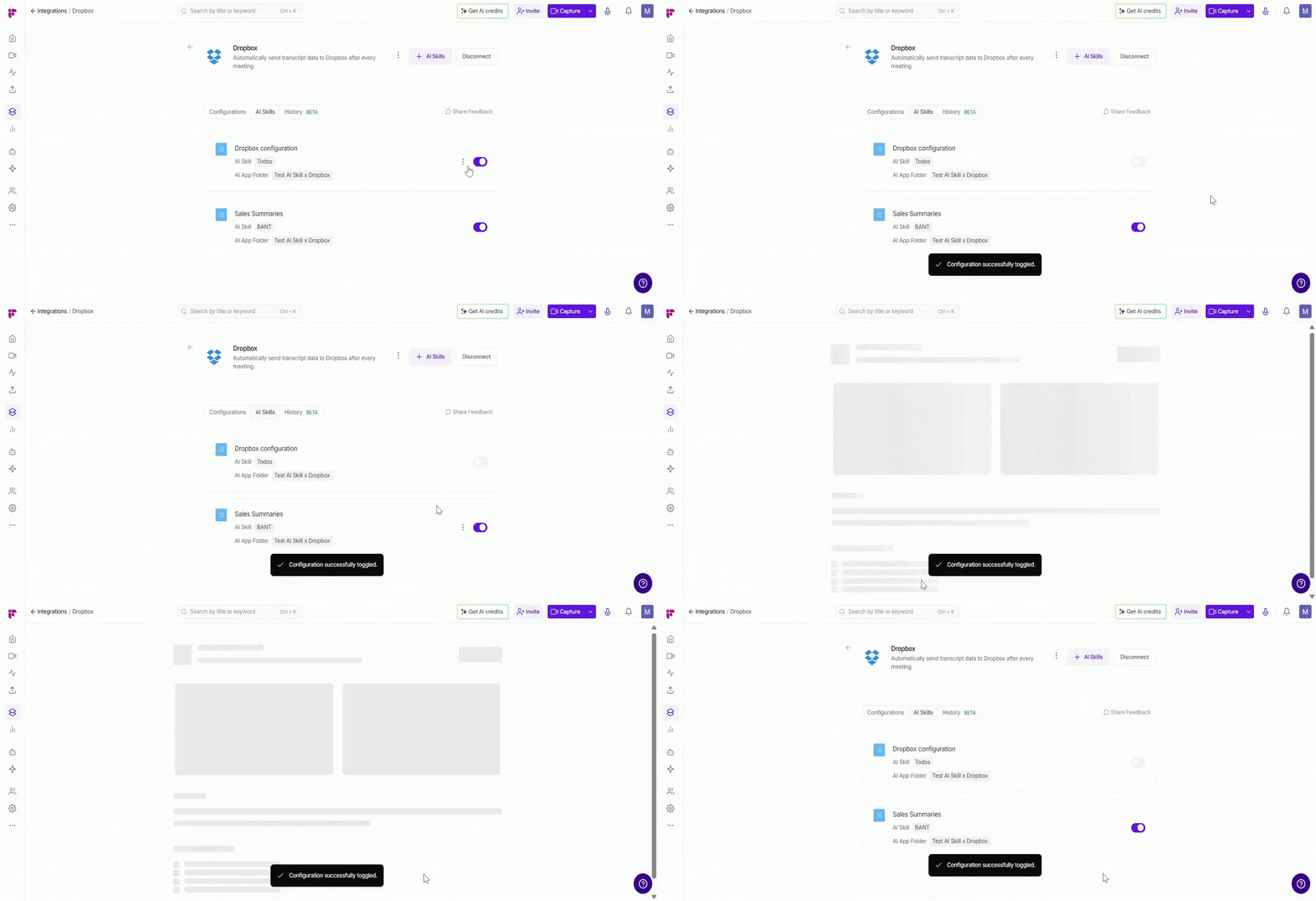
🔘 Enable or Disable a Configuration → Use the toggle next to a configuration to control whether it actively sends AI Skill outputs to the connected integration. Toggle ON to activate it or OFF to pause it without deleting the setup.
💡 Fireflies remembers your configuration settings when you enable it again later.
🗑 Delete Configuration → If a configuration is no longer needed, such as when you stop sending AI Skill outputs to a specific storage folder. you can safely delete it. Click the vertical ellipsis (⋮) next to the configuration, select Delete, and confirm.
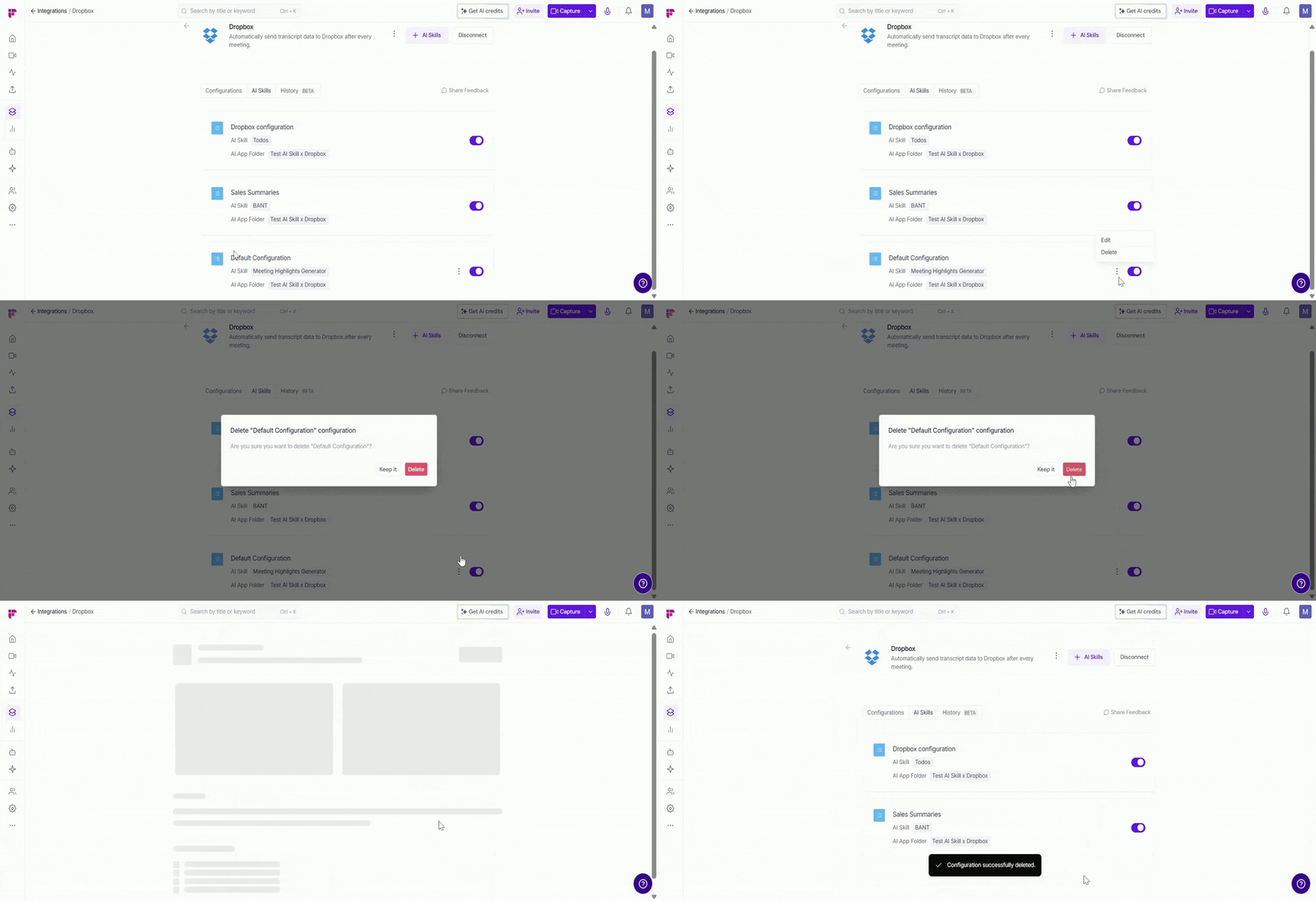
Deleting a configuration means Fireflies will stop sending AI Skill outputs to that storage integration, so be sure it’s no longer required before removing it.
❌ Disconnect Integration
If you no longer want an AI Skill to send outputs to a specific storage integration, such as when changing folders, reorganizing workflows, or switching tools. You can disconnect it at any time.
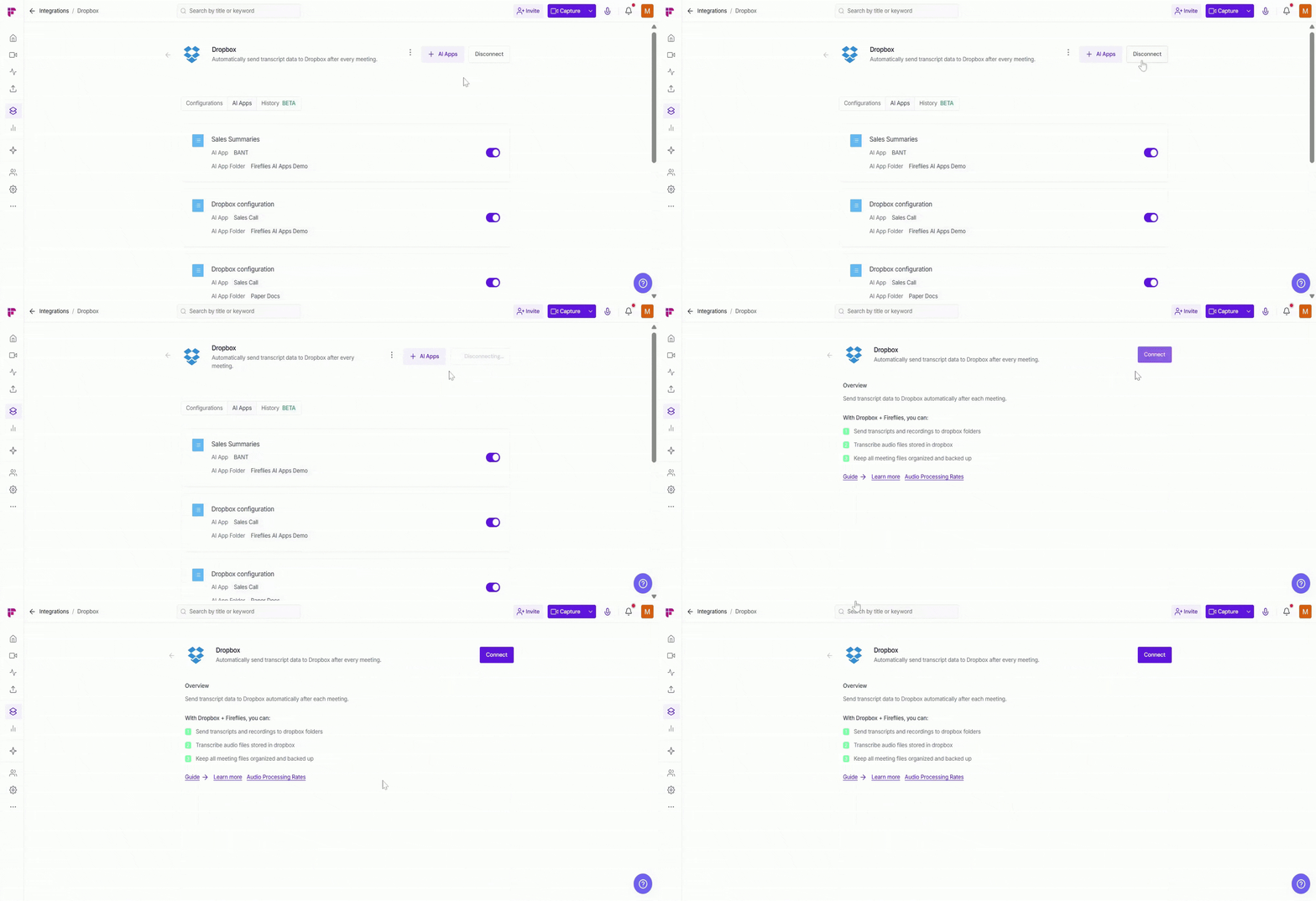
Click the Disconnect button to remove the integration from the AI Skill.
Once disconnected, Fireflies will stop sending AI Skill outputs to that integration. You can reconnect it anytime.
❓ Troubleshooting & FAQ
1. Why can’t I see a specific integration?
The integrations available depend on whether the AI Skill runs Per Meeting or on a Schedule.
2. Why didn’t the AI Skill output send to my integration?
Check that:
The integration is connected
The AI Skill configuration is enabled
The AI Skill successfully ran on the meeting
The AI Skill is set to the correct run type (Per Meeting or Scheduled)
Your workspace has sufficient AI Credits available to run the AI Skill
3. Can I connect multiple integrations to the same AI Skill?
Yes. You can connect multiple integrations and create different configurations for the same AI Skill.
4. Can I run multiple AI Skills on the same meeting?
Yes. Each AI Skill generates its own separate output.
5. Are changes synced between the AI Skills page and Integrations page?
Yes. Any updates made in one place automatically sync with the other.
6. Why didn’t my AI Skill run?
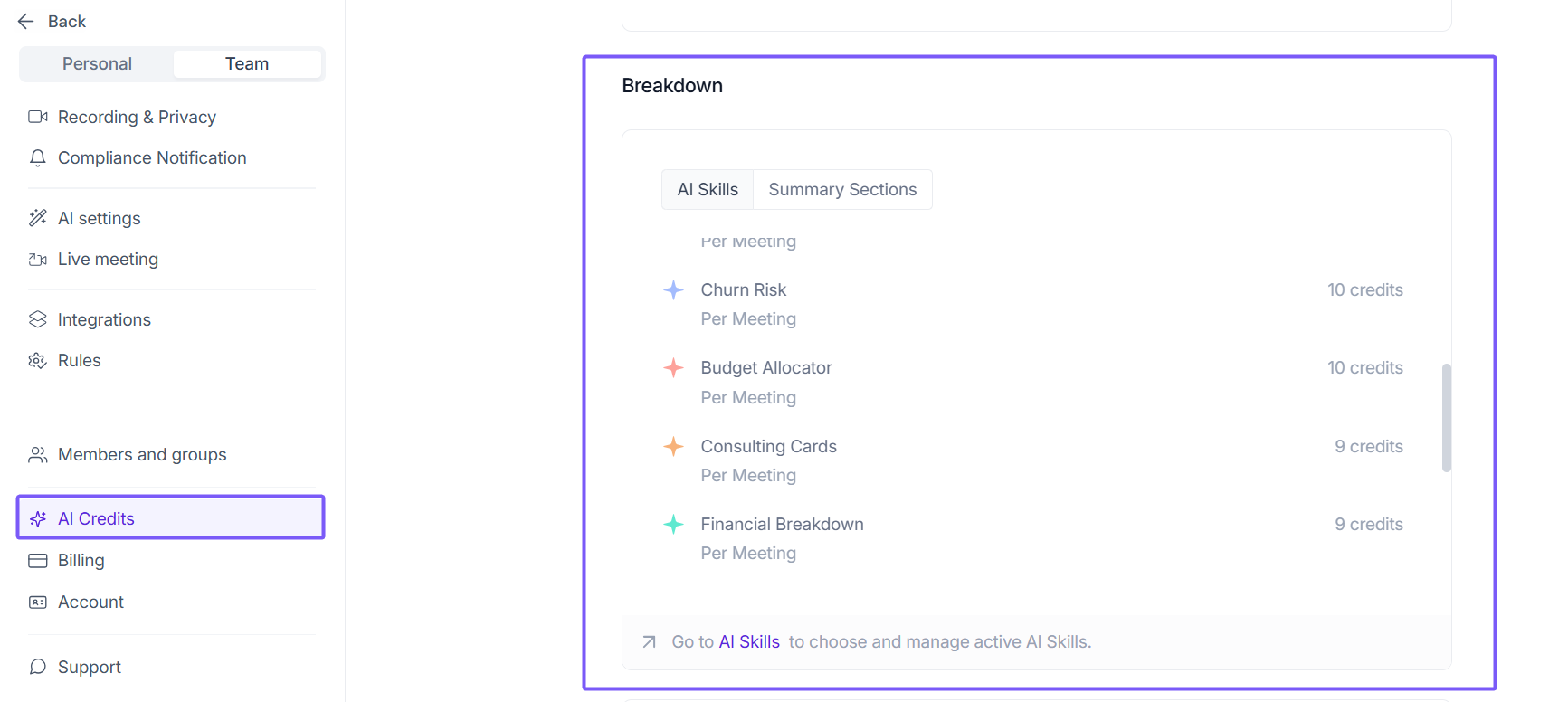
AI Skills use dynamic AI credit pricing. AI credits are charged per request, so the number of credits used depends on the complexity and effort required to generate the output. If your workspace doesn't have enough AI credits available, the AI Skill may not execute successfully.
7. Can I customize my AI Skill?
Yes — you can customize your skill anytime. Just go to the AI Skills feed, choose your skill, click Edit, and update its instructions, rules, and settings.
8. How are AI Credits used for AI Skills?
AI Skills use dynamic AI credit pricing. AI credits are charged per request, so the number of credits used depends on the complexity and effort required to generate the output. Simpler requests may use fewer credits, while more complex requests may use more.
📌 Workspace admins can monitor AI Credit usage anytime from Settings.
🔄 Recap
Here’s a quick summary of what you learned in this guide:
AI Skills can automatically send outputs to connected integrations
Per Meeting and Scheduled AI Skills support different integrations
AI Skills use dynamic AI credit pricing. AI credits are charged per request, and the number of credits used depends on the complexity and effort required to generate the output.
Integrations can be connected from the Integrations page or AI Skills settings
AI Skill outputs can appear in storage tools, CRMs, collaboration apps, and more
You can manage, update, or disable AI Skill configurations anytime
Multiple integrations and configurations can be connected to the same AI Skill