What calendars are supported?
Last updated: November 27, 2026
This guide explains what calendars Fireflies support and how to integrate them with your Fireflies account.
Supported calendars
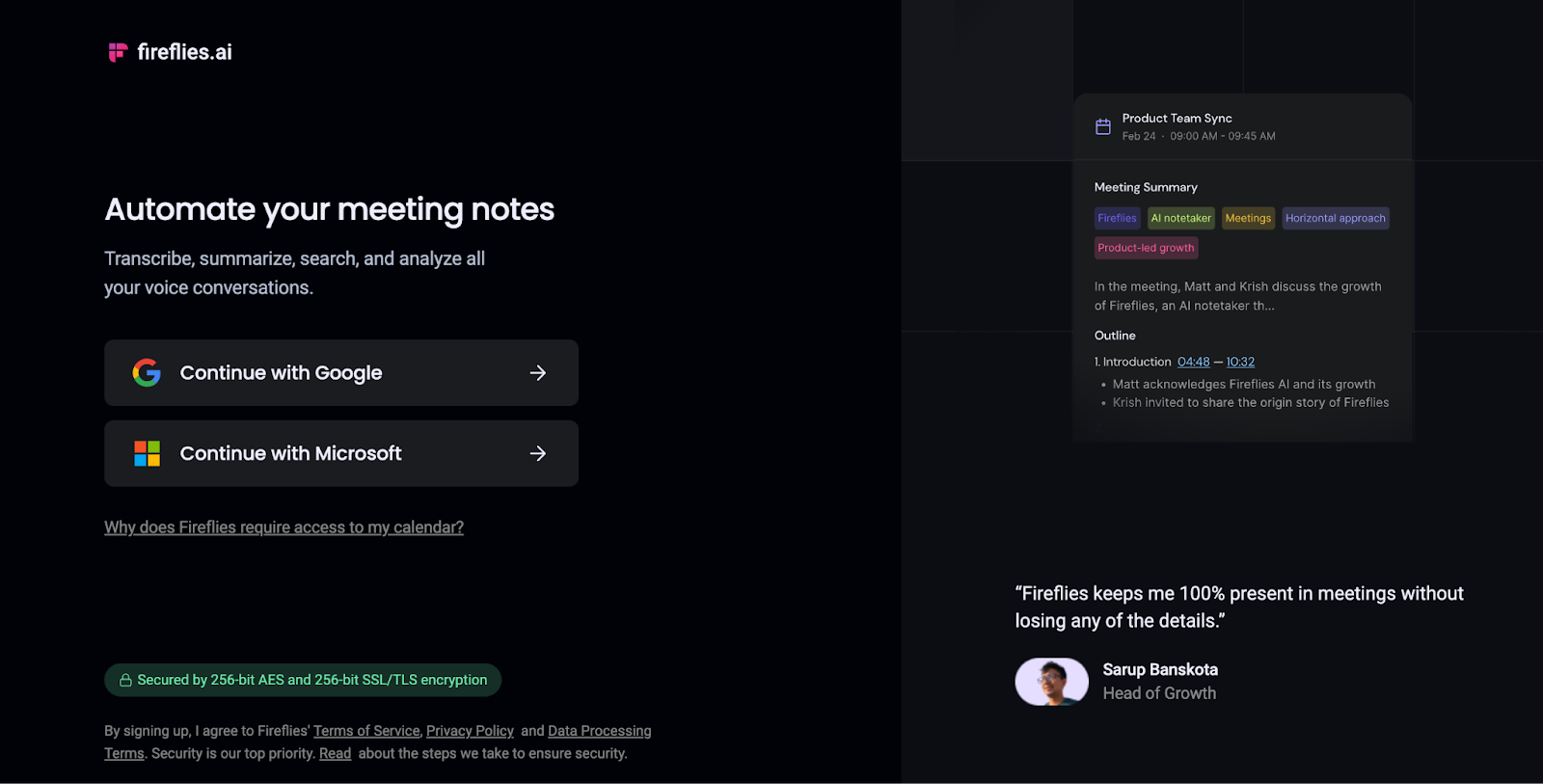
Fireflies currently supports:
Google Calendar
Outlook Calendar
Apple (iCloud) Calendar isn't currently supported. Signing in with Apple doesn't automatically connect a calendar to your Fireflies account.
Fireflies supports only one calendar per account.
If you sign up with Google, Fireflies will only join meetings on your Google Calendar. The same applies to Outlook.
If you want to use a different calendar, you can connect your Google or Outlook calendar to your Fireflies account. If you signed up using Apple, use the Connect to calendar button on your dashboard to connect either calendar.
Related: How can I change my email address on Fireflies?
How to integrate your calendar with Fireflies
When you sign up for Fireflies using your Google or Outlook account, the associated calendar is automatically integrated.
If you signed up using Apple, you can connect your Google or Outlook calendar using the Connect to calendar button on your dashboard. The email address must be registered with Google or Microsoft authentication.
Related: How to set up your Fireflies account
This integration allows Fireflies to access your meeting schedule and join calls as fred@fireflies.ai, just like any other participant. It will follow the invites you create through your chosen calendar.
You can control which meetings Fireflies joins by configuring your Join Settings.
Related: Learn about the Fireflies auto-join and e-mail recap settings