Set up Private Storage for your workspace
Last updated: September 9, 2025
Private Storage allows you to store meeting data in your own storage bucket — giving you full control over where your information lives. This guide shows how to configure Private Storage and what to expect once it’s enabled.
🔒 What is Private Storage?
Private Storage lets Fireflies store your meeting transcripts, audio, and summaries in a storage bucket that you own and manage. It’s perfect for teams with strict compliance or data governance needs.
Store data in a location you choose
Meet internal or external compliance requirements
Maintain exclusive access to your data
Available to customers on the Enterprise plan
Data is processed on Fireflies’ servers in the U.S. but stored in your designated bucket location
🤔 Confused about Fireflies’ approach to security? Check out How Fireflies keeps your information safe
⚙ How to enable Private Storage
You can access Private Storage from either Team Settings or Billing Settings.
From Team Settings:
Go to the Team tab in the left-hand menu
Click the Settings icon
At the top, find the Private Storage section
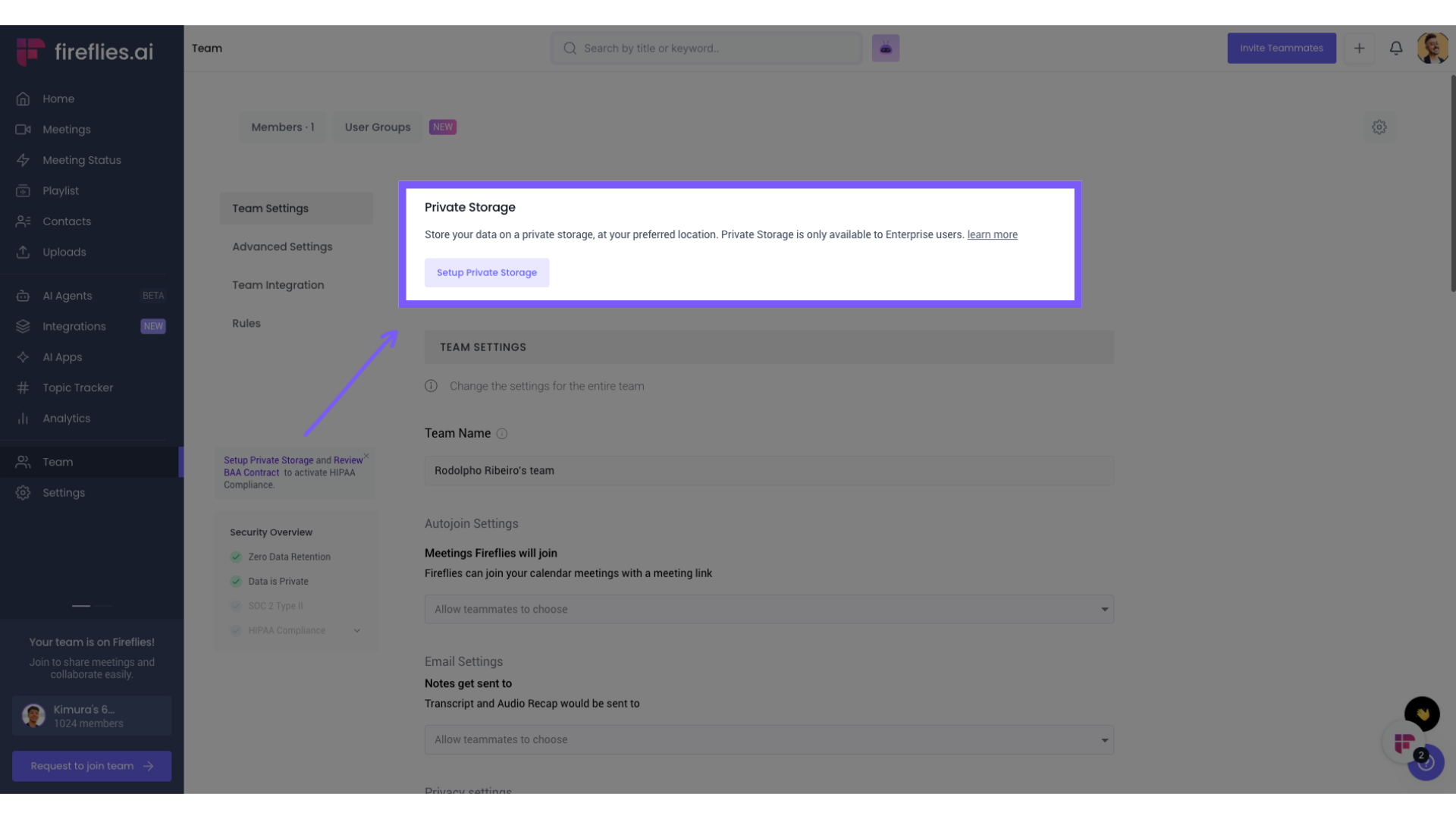
Click Setup (you won’t see a toggle yet)
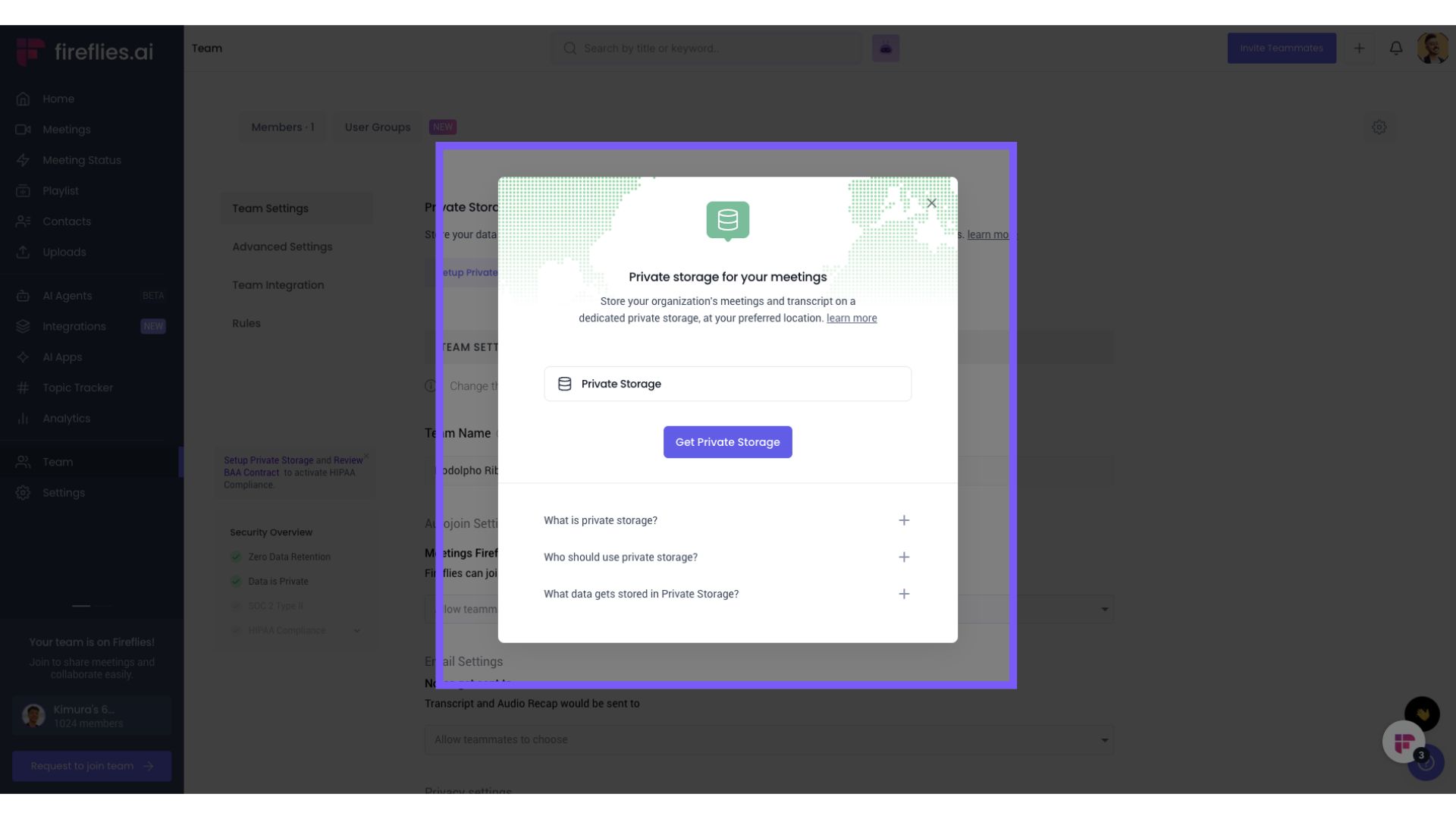
In the popup, choose a Bucket Name and Storage Location
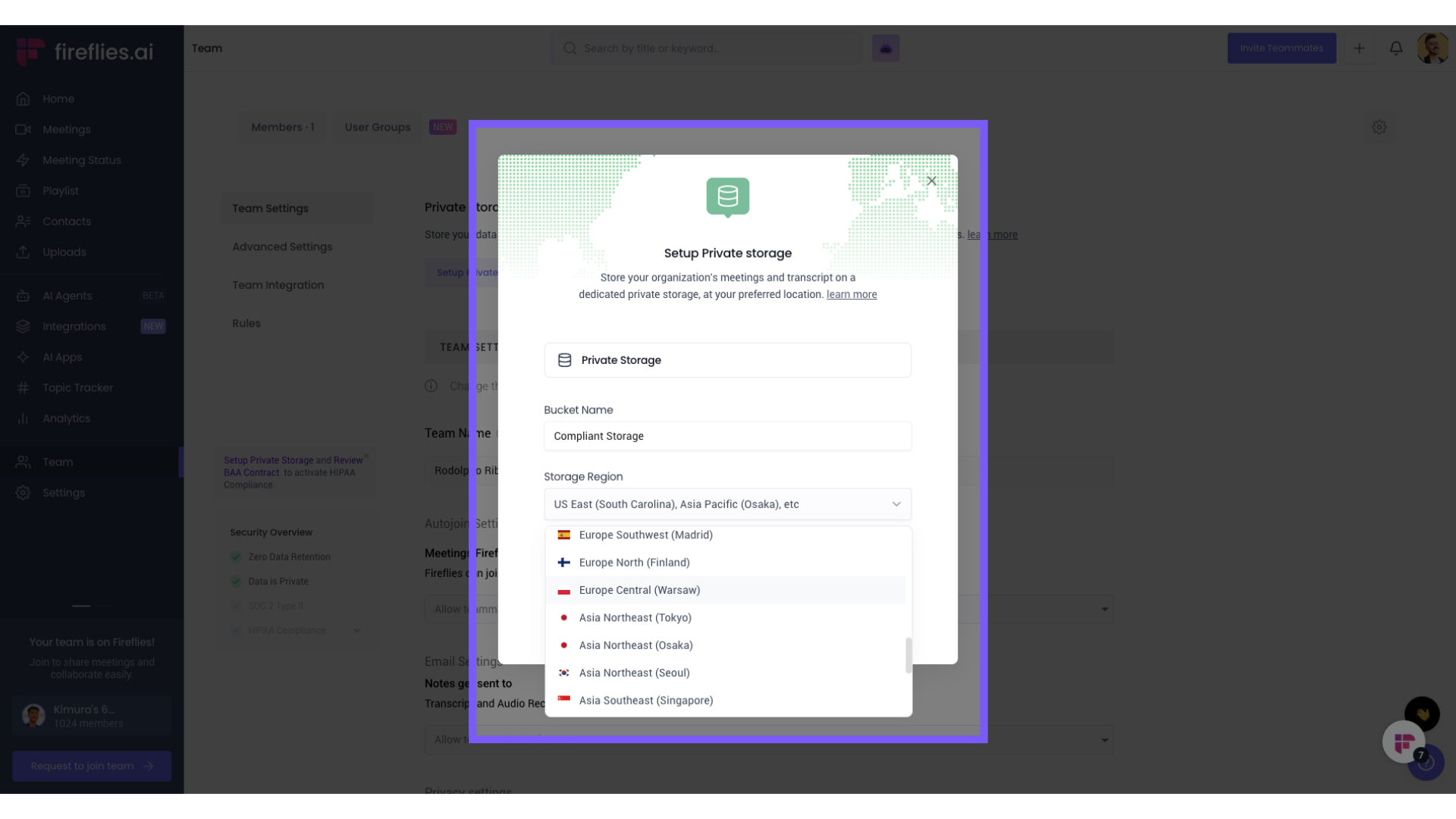
Click Set up private storage
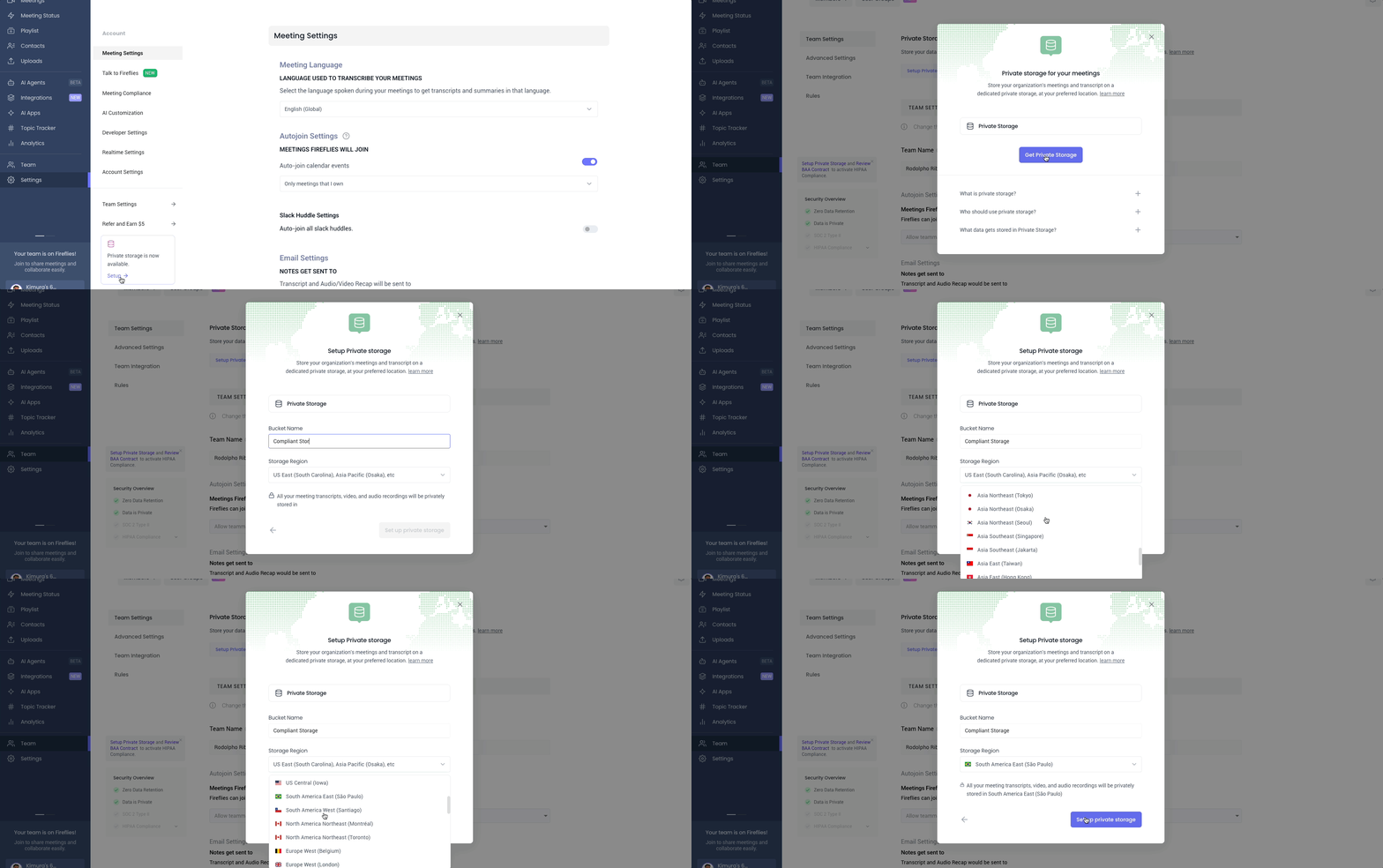
Once configured, the toggle will appear so you can turn Private Storage on or off as needed. When enabled, all new meeting data is stored in your selected bucket
🧹 How to disable Private Storage
You can revert back to Fireflies’ default storage anytime:
Go to the Team tab > Team Settings
Toggle Private Storage OFF
Confirm when prompted
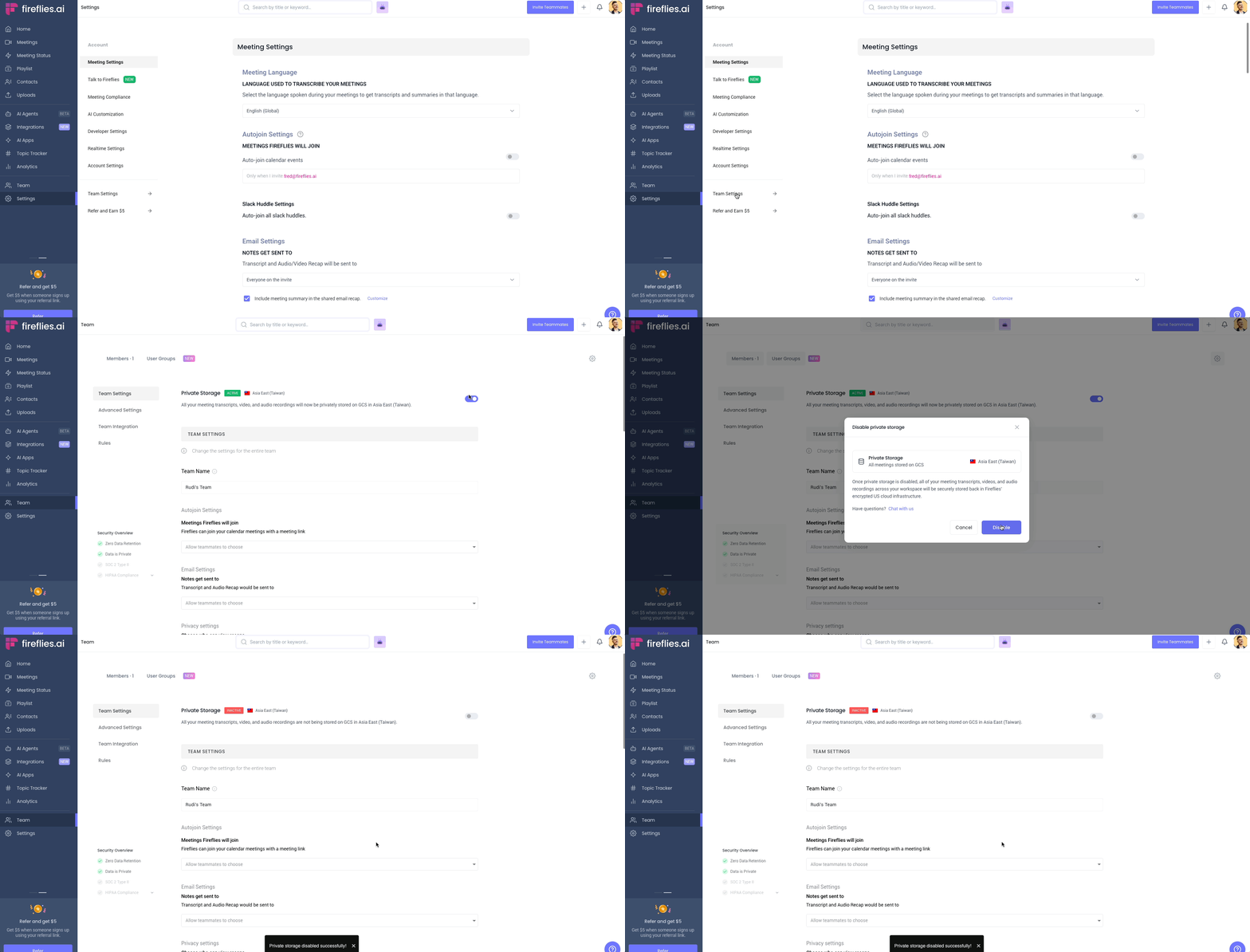
When you disable Private Storage, all meeting data — including transcripts, recordings, and summaries — will be securely stored in Fireflies’ encrypted cloud servers located in the US
🏢 Bring Your Own Storage (BYOS)
For organizations with the most stringent data requirements, we also offer Bring Your Own Storage (BYOS) — a fully customized storage solution that goes beyond our standard Private Storage offering.
What's the difference between BYOS and Private Storage?
Private Storage:
Self-service setup through your Team Settings
Standard bucket configuration options
Toggle on/off anytime
Suitable for most compliance needs
Bring Your Own Storage (BYOS):
Fully customized storage architecture
Tailored to your specific infrastructure and compliance requirements
Requires coordination with our Customer Operations and Customer Success teams
More comprehensive data sovereignty solution
BYOS requirements and setup
Who can use BYOS:
Exclusively available to Enterprise plan customers
Requires consultation with our Customer Operations or Customer Success teams
Supported platforms:
Amazon Web Services (AWS)
Google Cloud Storage (GCS)
Getting started with BYOS: Since BYOS isn't self-service and requires custom configuration, you'll need to work directly with our team:
Contact your Customer Success Manager or reach out to our Customer Operations team
Discuss your specific requirements — compliance needs, data residency, and infrastructure preferences
Technical consultation — our team will design a solution tailored to your organization
Implementation and testing — we'll handle the setup and ensure everything works seamlessly
Go live with your custom storage solution
🧠 Making sense of it all
Private Storage is available to Enterprise customers and can be set up through Team Settings
BYOS is also Enterprise-only but requires working with our Customer Operations or Customer Success teams
You'll choose your storage location during the initial setup — if you ever need to update it later, our support team will be happy to help you make that change
All new meetings will be stored in your bucket once enabled (for both Private Storage and BYOS)
Private Storage can be toggled on or off at any time from Team Settings
BYOS provides more customization but requires team coordination for any changes