How to Invite Teammates from your Slack Workspace
Last updated: September 8, 2026
Bring your Slack teammates into Fireflies so everyone’s meeting notes, transcripts, and action items stay in one shared workspace.
Connecting Slack makes it quick to find and invite teammates directly — no need to copy emails or send manual invites.
🔑 Prerequisites
You’re logged in to your Fireflies account.
You’re a member of the Slack workspace you want to connect.
Each teammate you invite uses one workspace seat and will be billed according to your plan.
You can check plan details or seat usage anytime in your Fireflies Billing FAQs.
🚀 Invite Teammates from Your Slack Workspace
Step 1: Log in to your Fireflies account. You can access your Team settings in either of the following ways:
From Settings: Click Settings from the left navigation, select the Team tab, and click Teammates and groups.
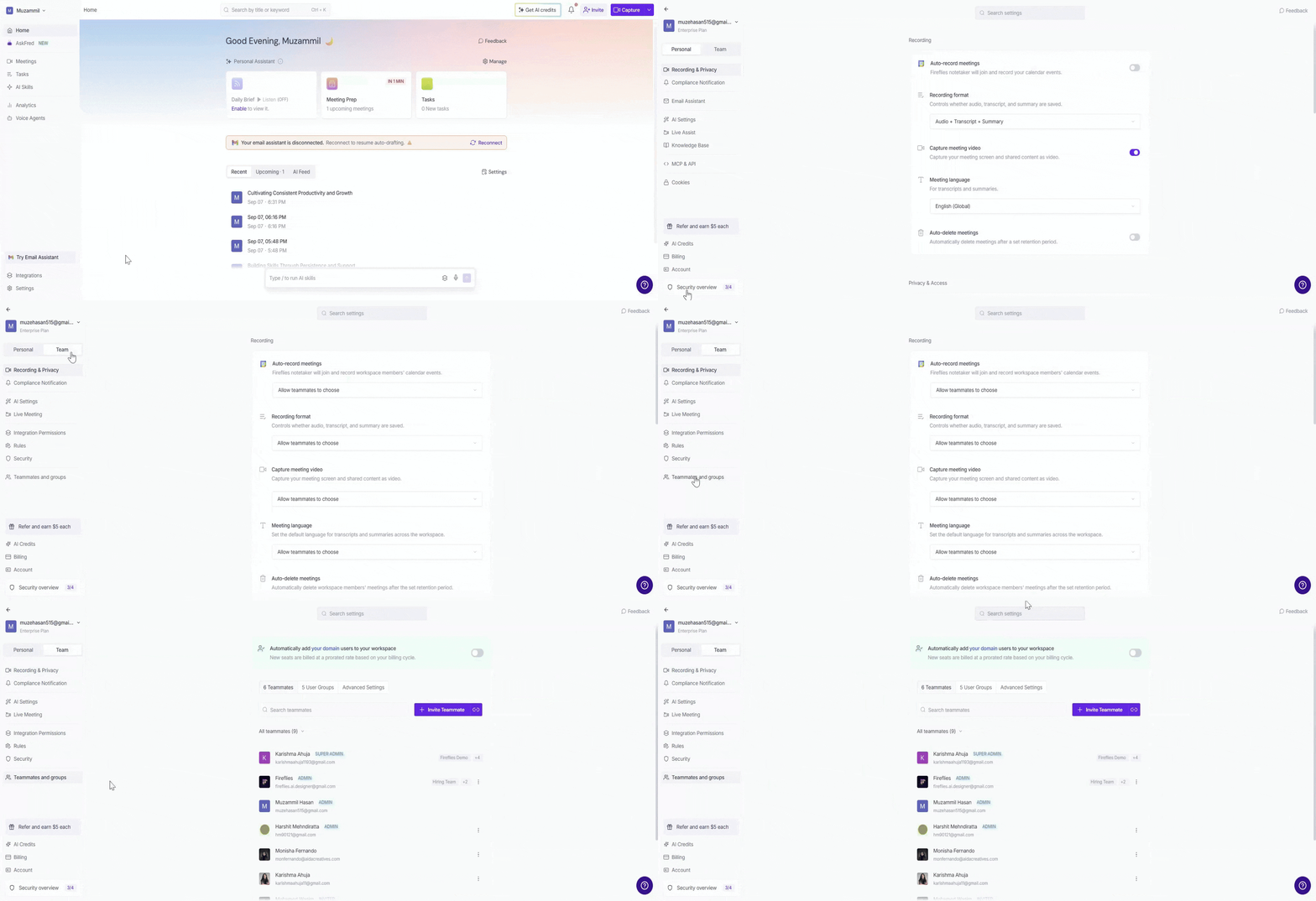
From your profile menu: Click your profile menu in the top-left corner and select My Team.
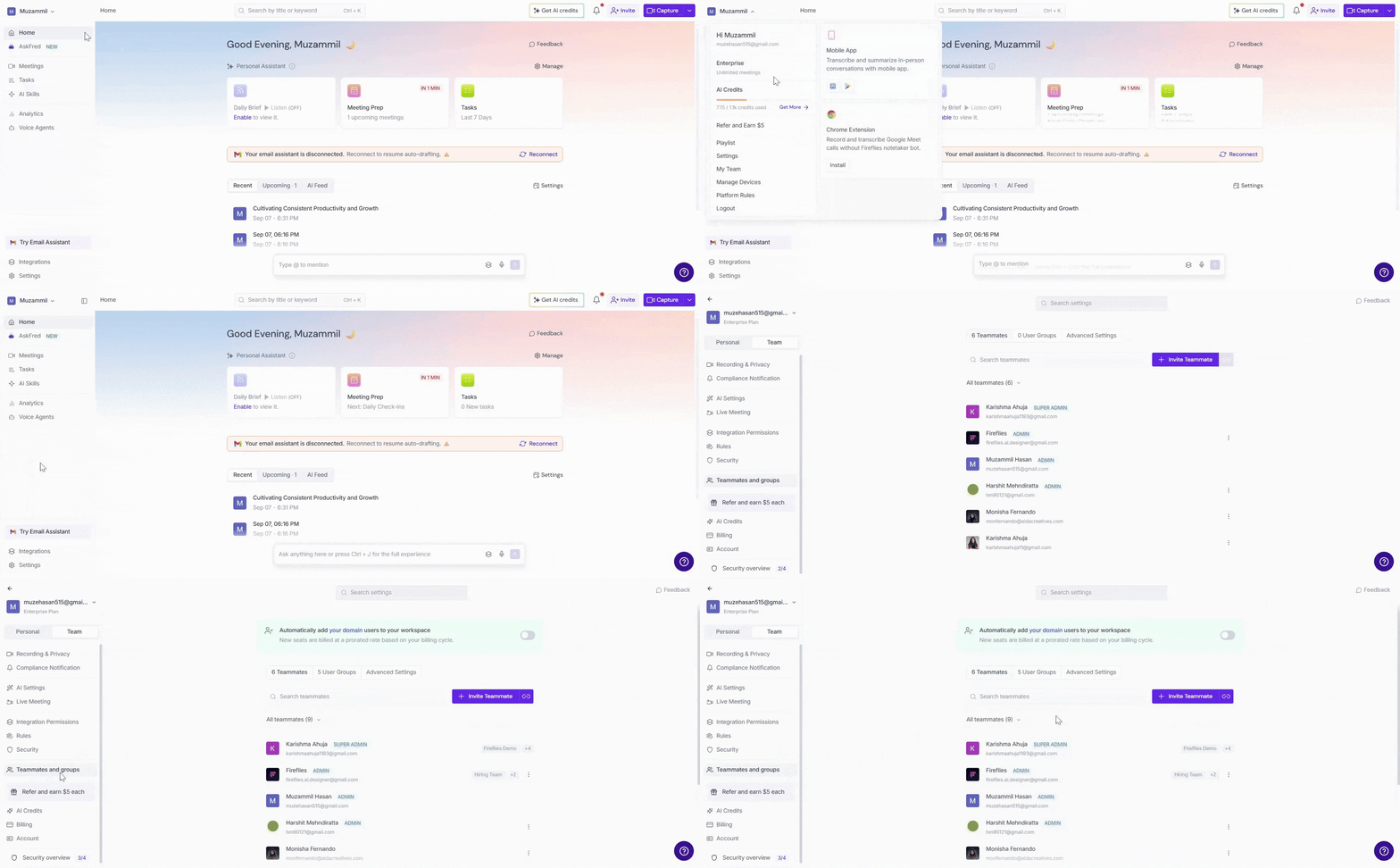
Step 2: Both options take you to the Members and Groups settings, with the Teammates tab selected by default.
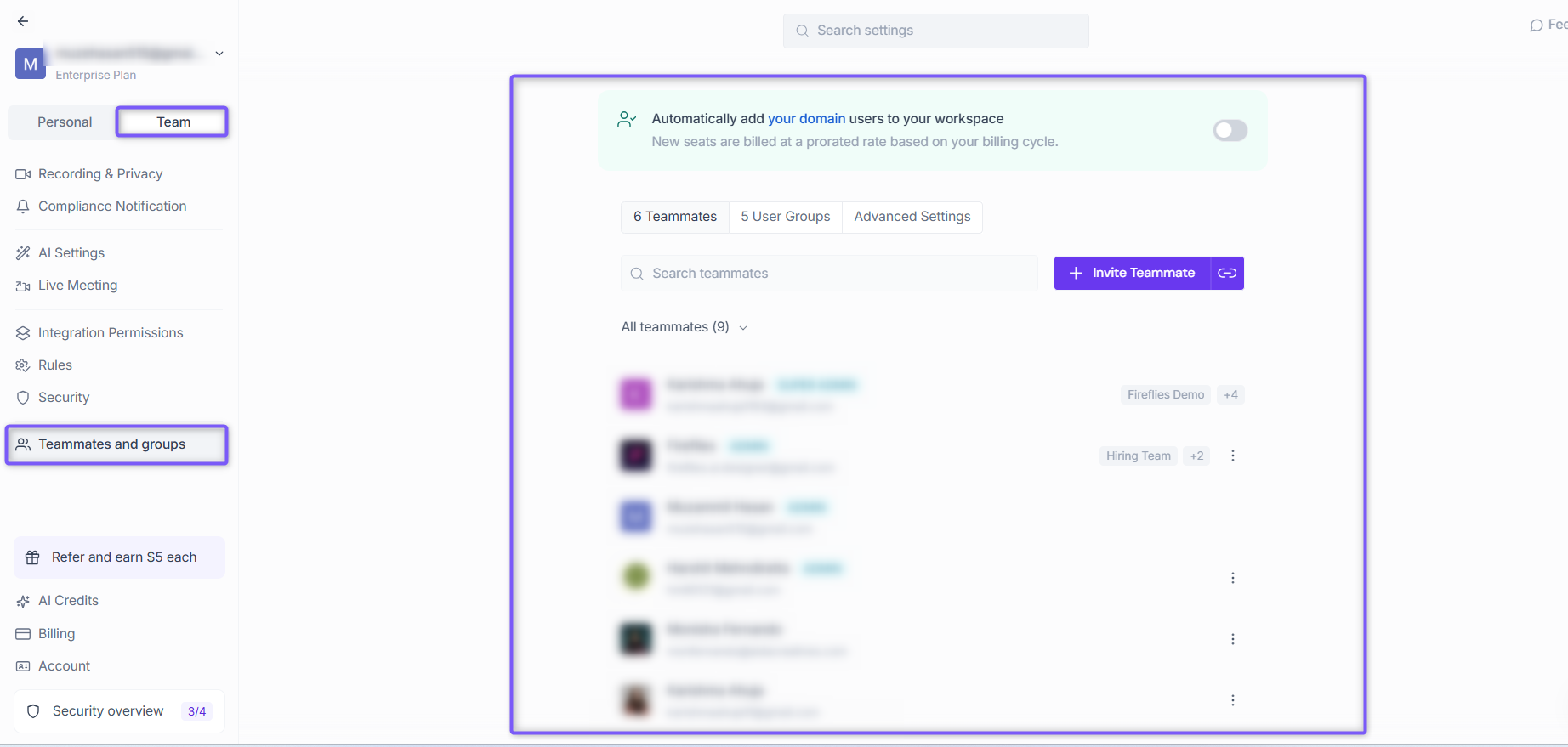
Step 3: Click on the Invite Teammate button.

Step 4: Click the dropdown arrow under Invite teammates from other workspaces, then select Slack from the list.
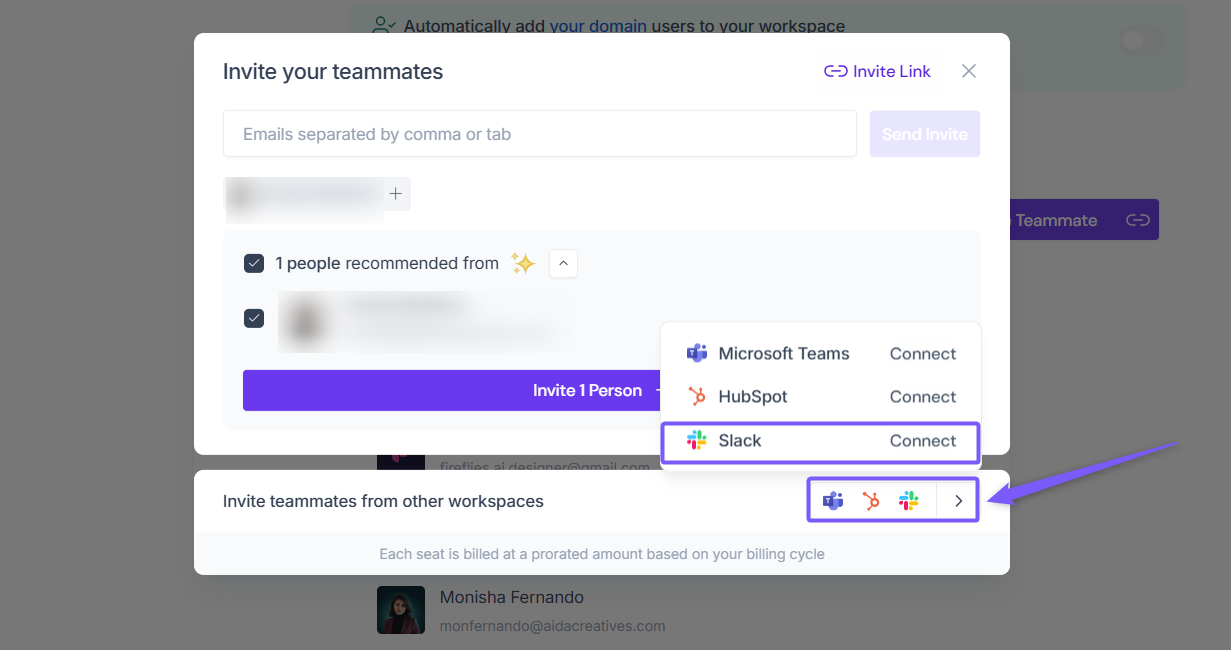
Step 5: After clicking the Slack icon, you’ll be redirected to the Slack login page. Sign in to your Slack workspace to continue.
If you don’t yet have a Slack account or workspace, create one here first before connecting it with Fireflies.

Step 6: Choose your Slack workspace, select a channel from “Where should Fireflies.ai post?”, and click the Allow button to authorize Fireflies to your workspace..
You must select a channel before clicking Allow. If you don’t have one yet, create a Slack channel first.
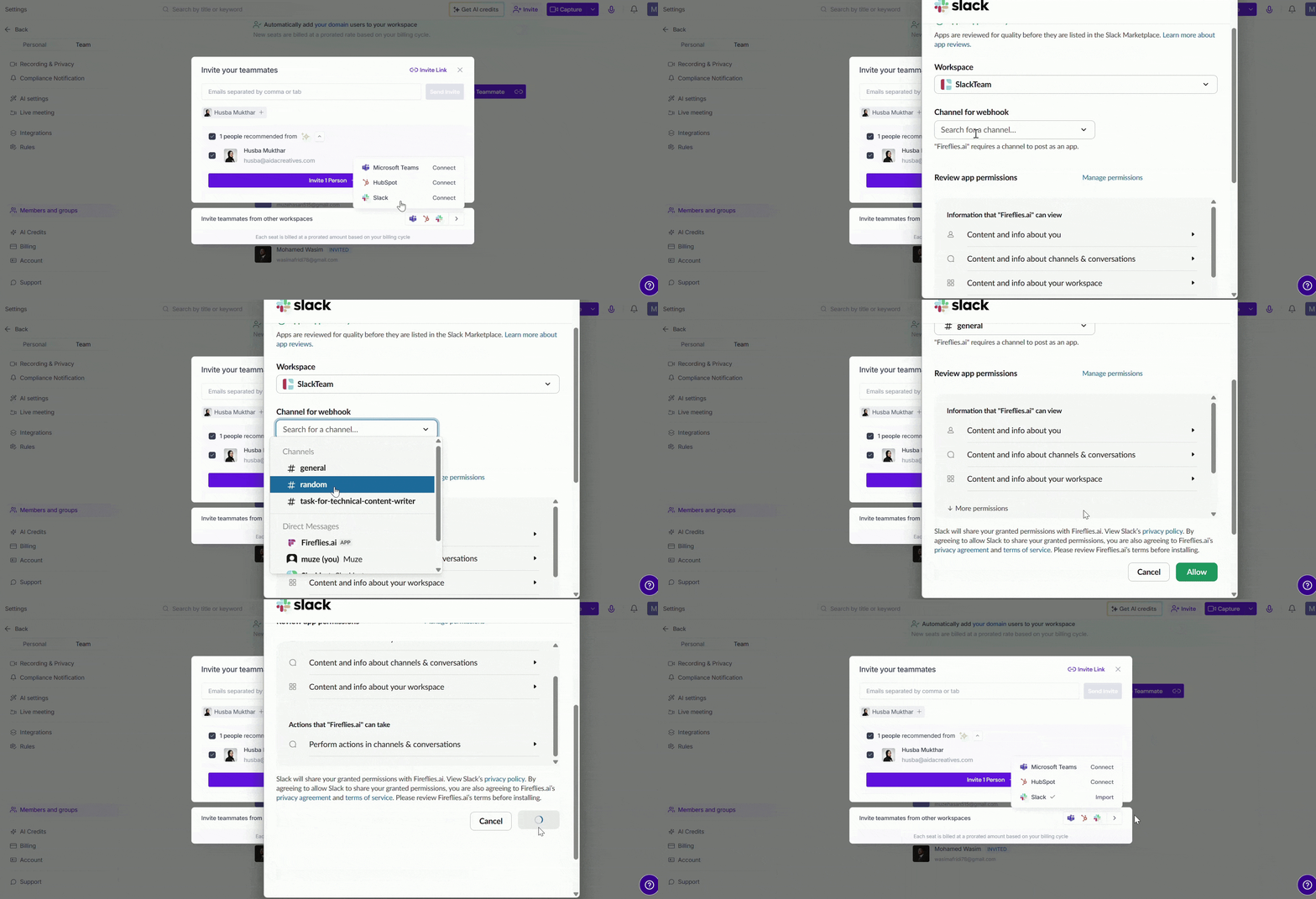
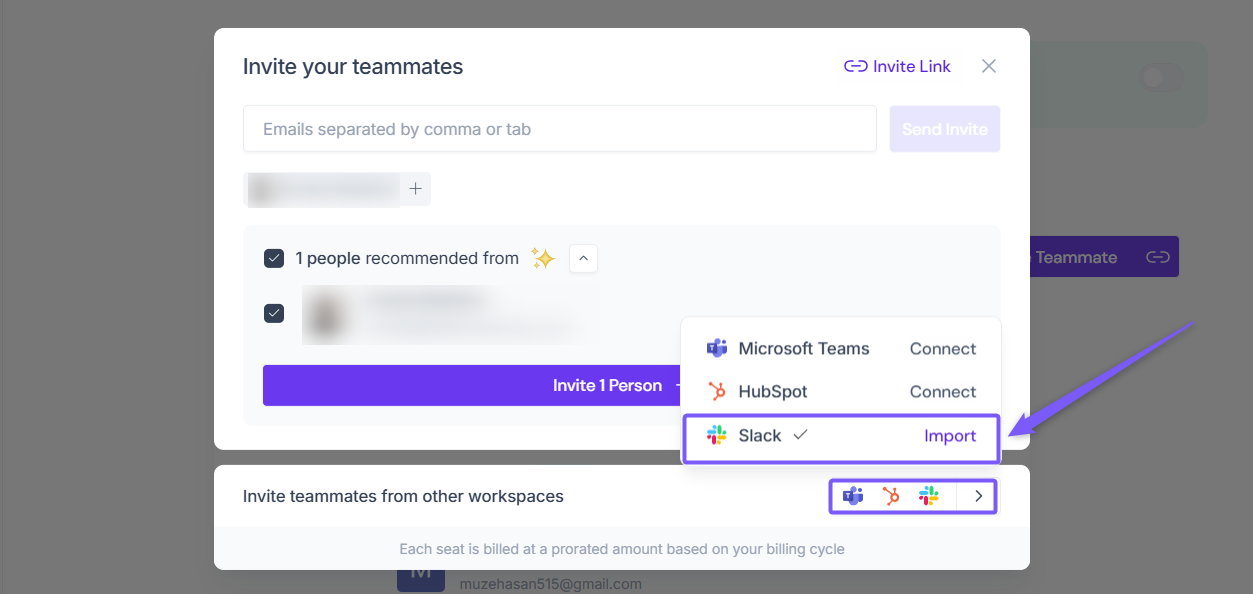
Step 7: Go to the Invite Teammates window again, click the dropdown under Invite teammates from other workspaces, then click Import next to Slack to load your teammates.
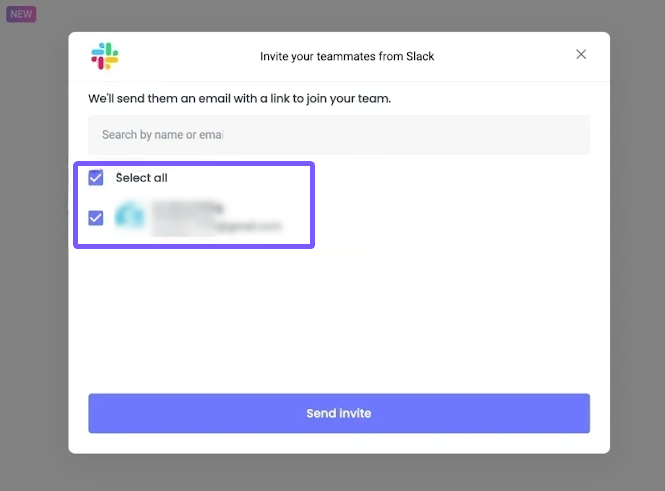
Step 8: You’ll see a modal window showing your Slack workspace teammates, where you can select individuals or choose Select All before sending invites.
If the list doesn’t appear right away, refresh the page and click the Slack icon again after authorization.
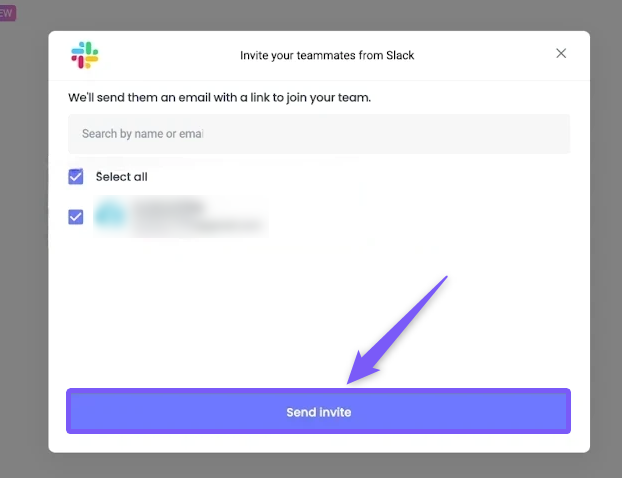
Step 9: Click the Send Invite button to invite your selected Slack teammates to Fireflies — they’ll receive an email invitation to join your workspace.
👥 How Teammates Join Your Fireflies Workspace
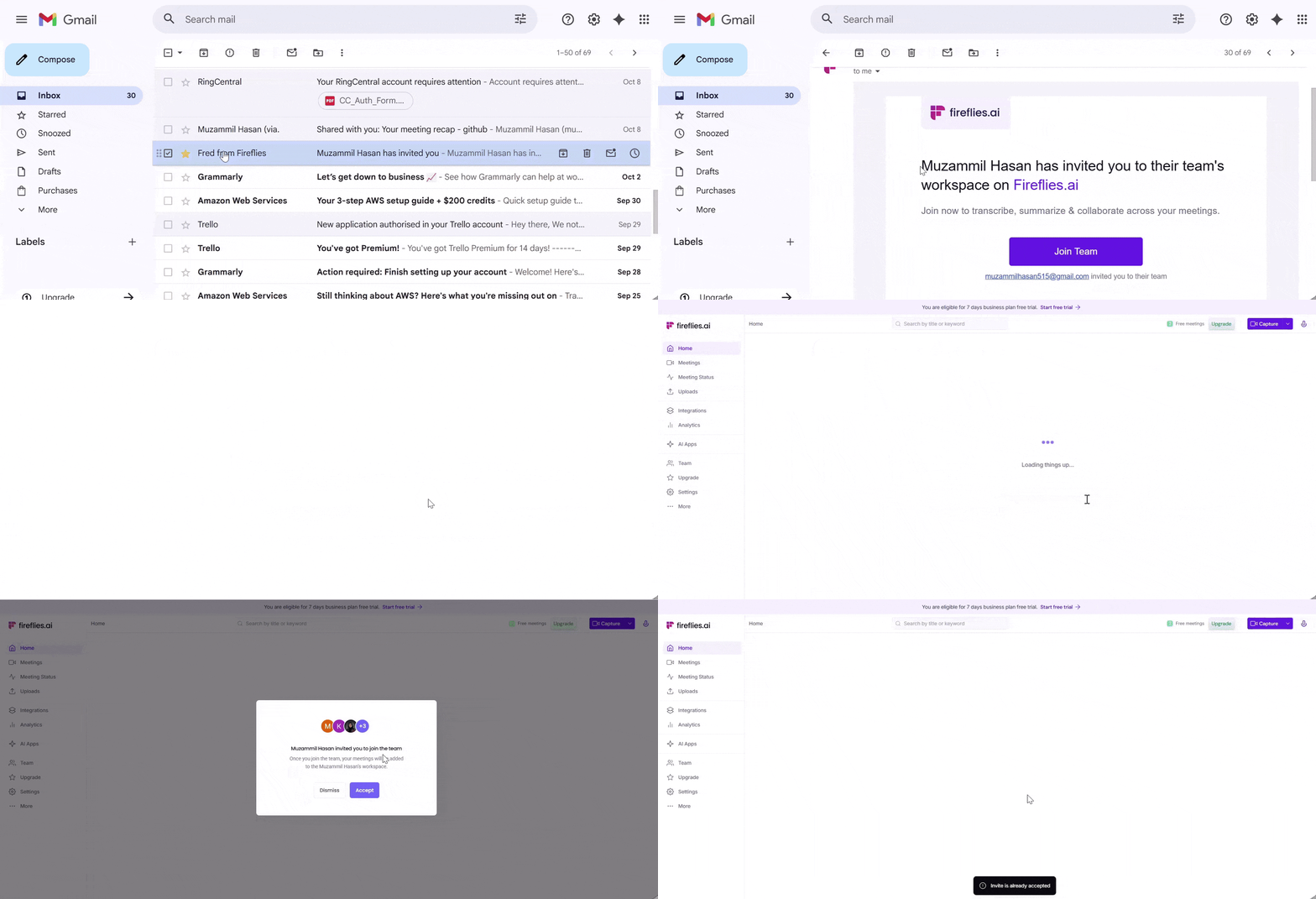
After you send invites via Slack, your teammates will receive an email from Fred from Fireflies (fred@fireflies.ai) with the subject line “[Your Name] has invited you to their team’s workspace on Fireflies.ai.”
To join the workspace:
Open the invitation email sent by Fireflies. If it’s not visible, check the Spam or Promotions folder.
Click the Join Now button in the email.
On the confirmation page, click Accept Invitation to join your Fireflies workspace.
Once accepted, they’ll be instantly added to your Slack workspace and can start accessing shared meetings, notes, and summaries.
🧩 Troubleshooting & FAQs
1. I don’t see my Slack teammates after connecting.
Try refreshing the page and clicking the Slack icon again in the Invite Teammates window. Make sure you’ve authorized Fireflies to the correct Slack workspace.
2. The Slack authorization failed.
Disconnect and reconnect Slack under Settings → Integrations → Slack. Ensure you’re signed in to the right Slack account before reauthorizing.
3. My teammates didn’t get the invite email.
Ask them to check their Spam or Promotions folder for an email from Fred from Fireflies (fred@fireflies.ai). If still missing, resend the invite from the Team tab.
4. I don’t have a Slack workspace or channel.
You’ll need a Slack workspace and at least one channel before connecting. You can create them here.