How to Make a Teammate an Admin or Revoke Admin Access in Fireflies
Last updated: September 9, 2026
As your team grows, you may need to give teammates admin access or remove it based on role changes. Fireflies makes it easy to make someone an admin or switch them back to a non-admin when needed.
Only Admin or Super Admin can make or remove admin access.
Changes are applied instantly and update what a teammate can manage in the workspace.
🚀 Navigation
Log in to your Fireflies account. You can access your Team settings in either of the following ways:
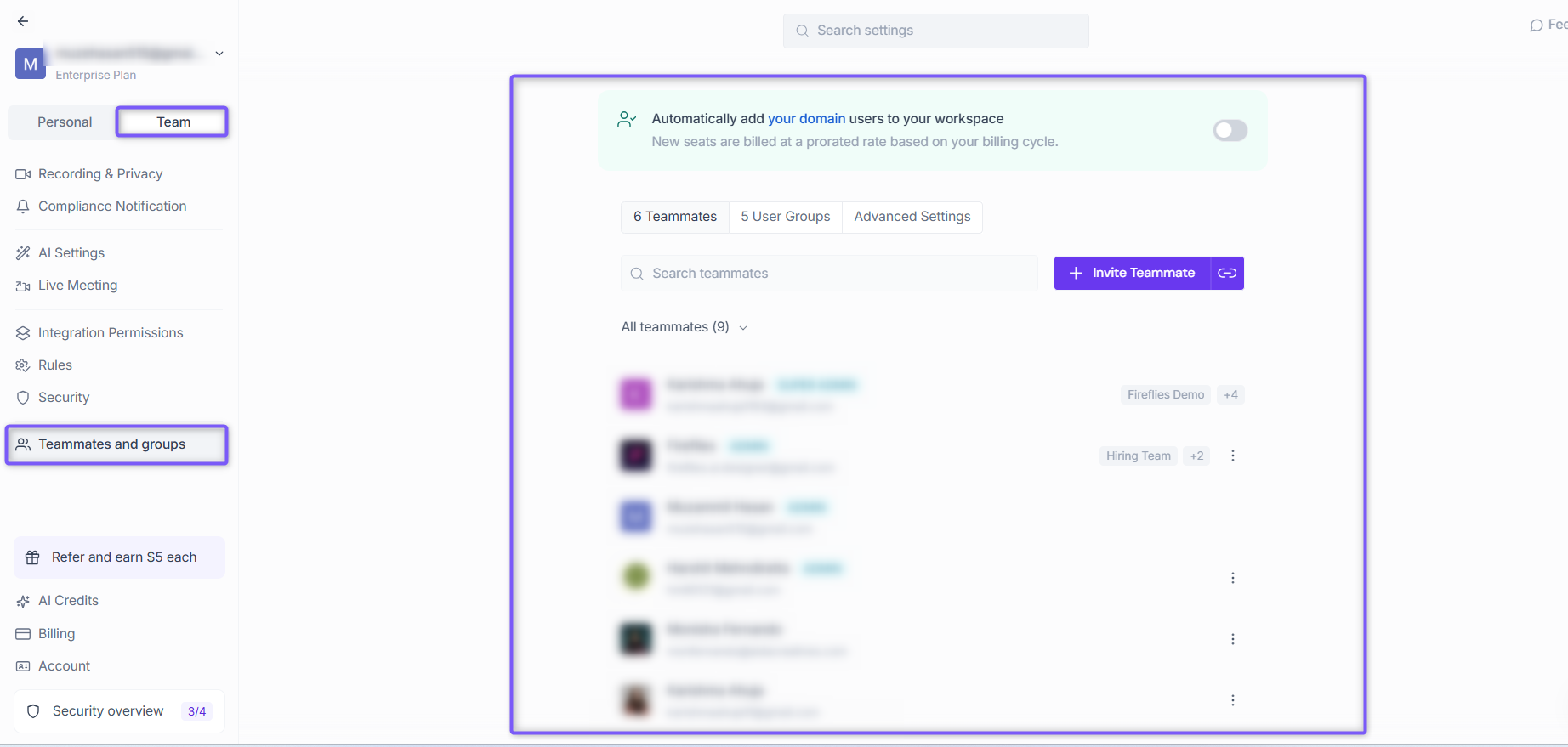
From Settings: Click Settings from the left navigation, select the Team tab, and click Teammates and groups.
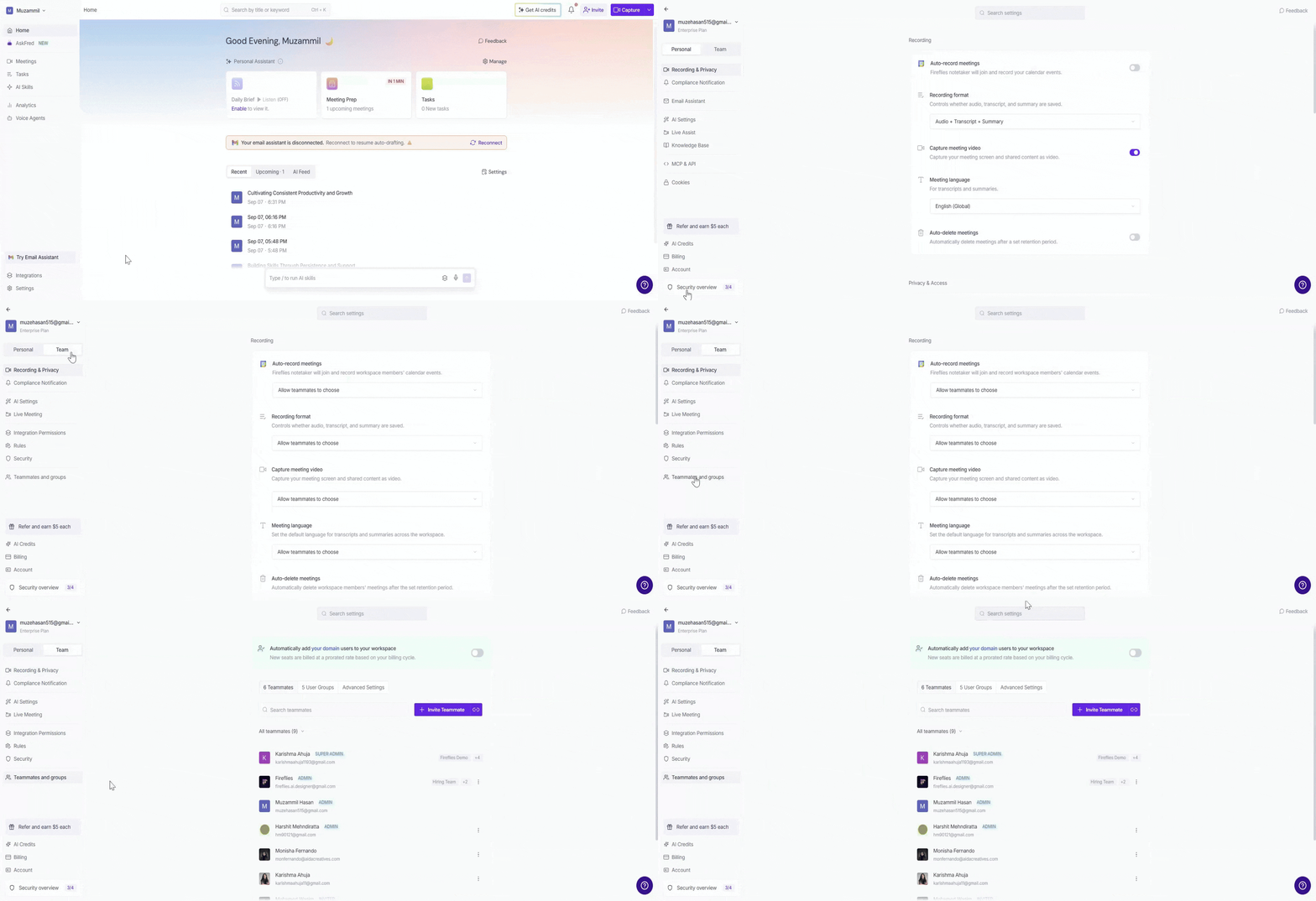
From your profile menu: Click your profile menu in the top-left corner and select My Team.
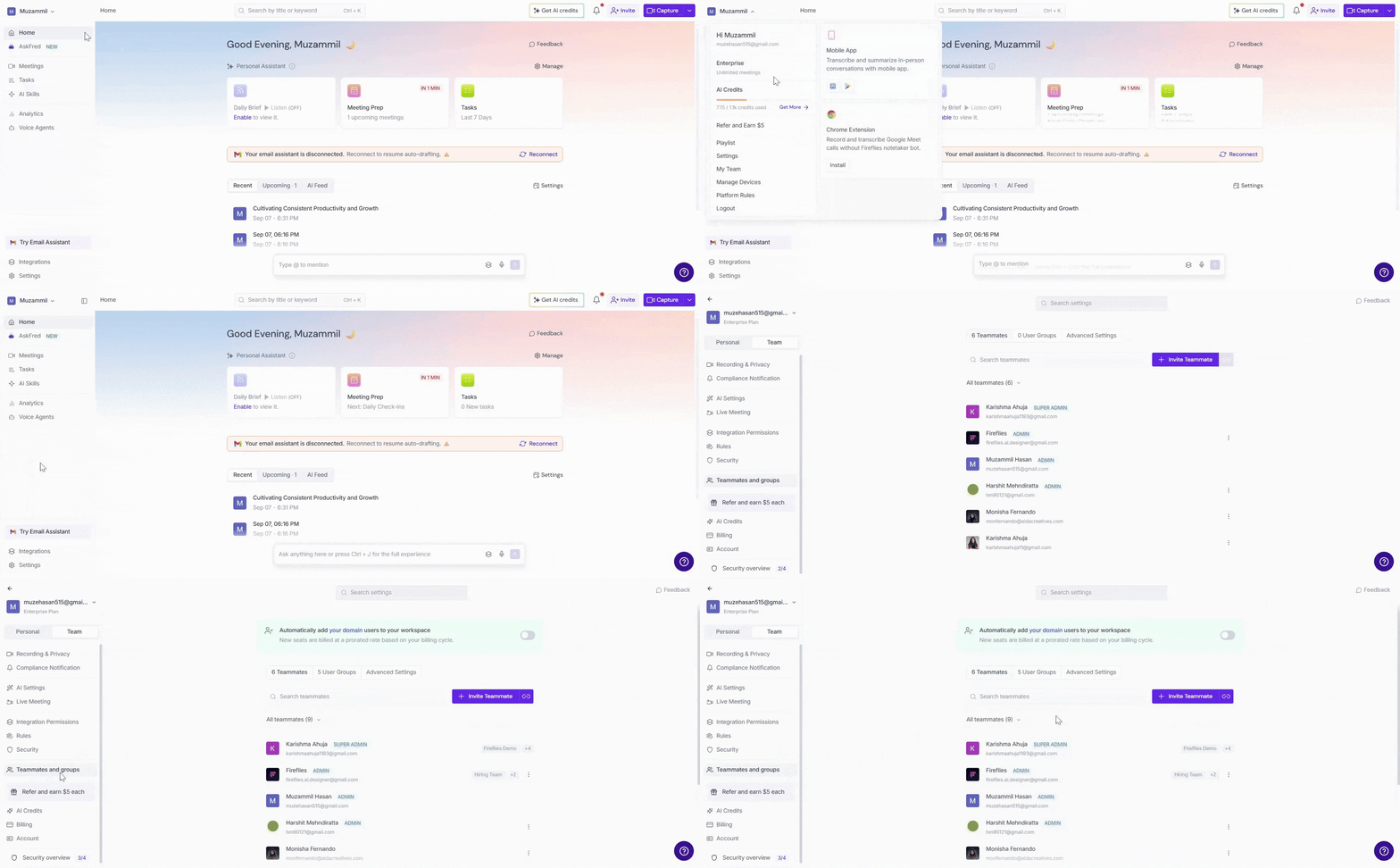
Both options take you to the Members and Groups settings, with the Teammates tab selected by default.
⭐ How to Make a Teammate an Admin
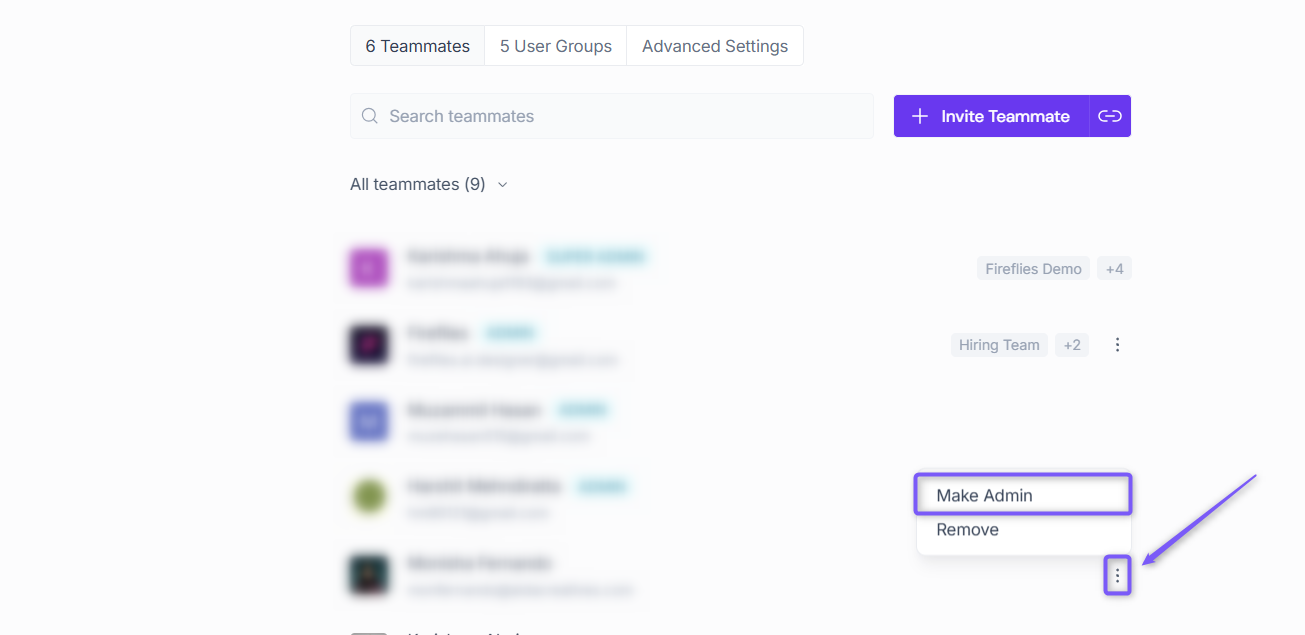
Under the Teammates tab, find the teammate you want to give admin access to.
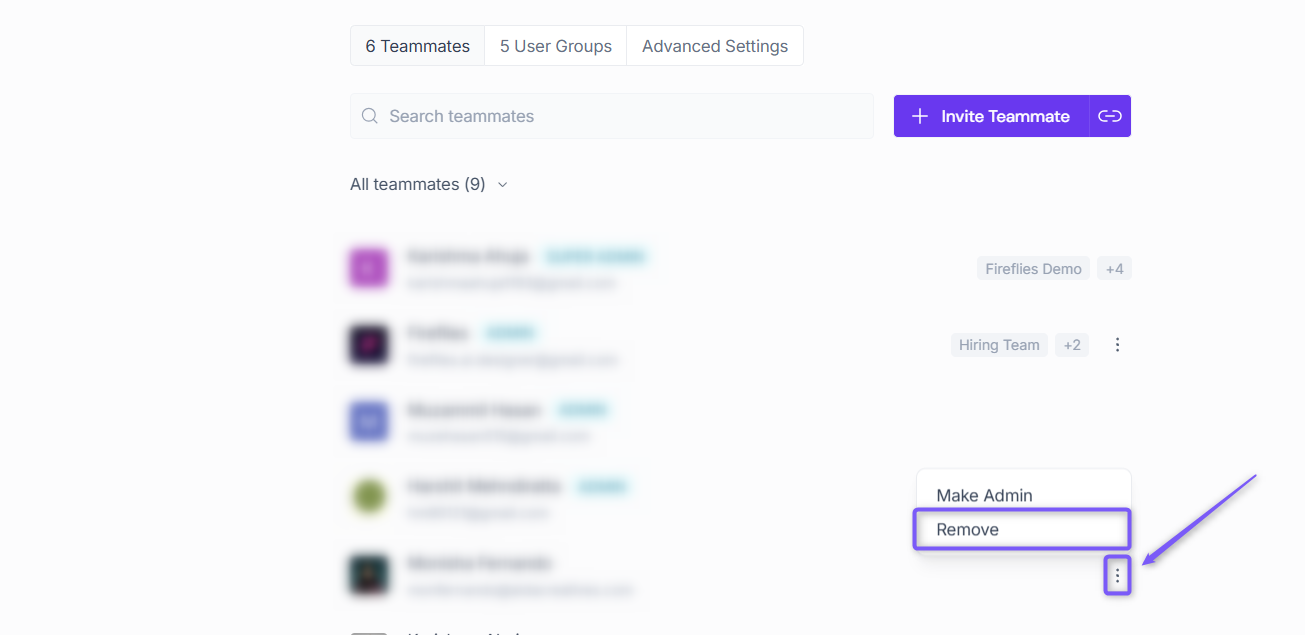
Click the three-dot menu next to their name and select Make Admin.
The teammate will be granted admin privileges immediately.
A green Admin label will appear next to their name, indicating that they now have admin access.
🚫 How to Remove Admin Access from a Teammate
Remove admin access to change a teammate back to a regular member.
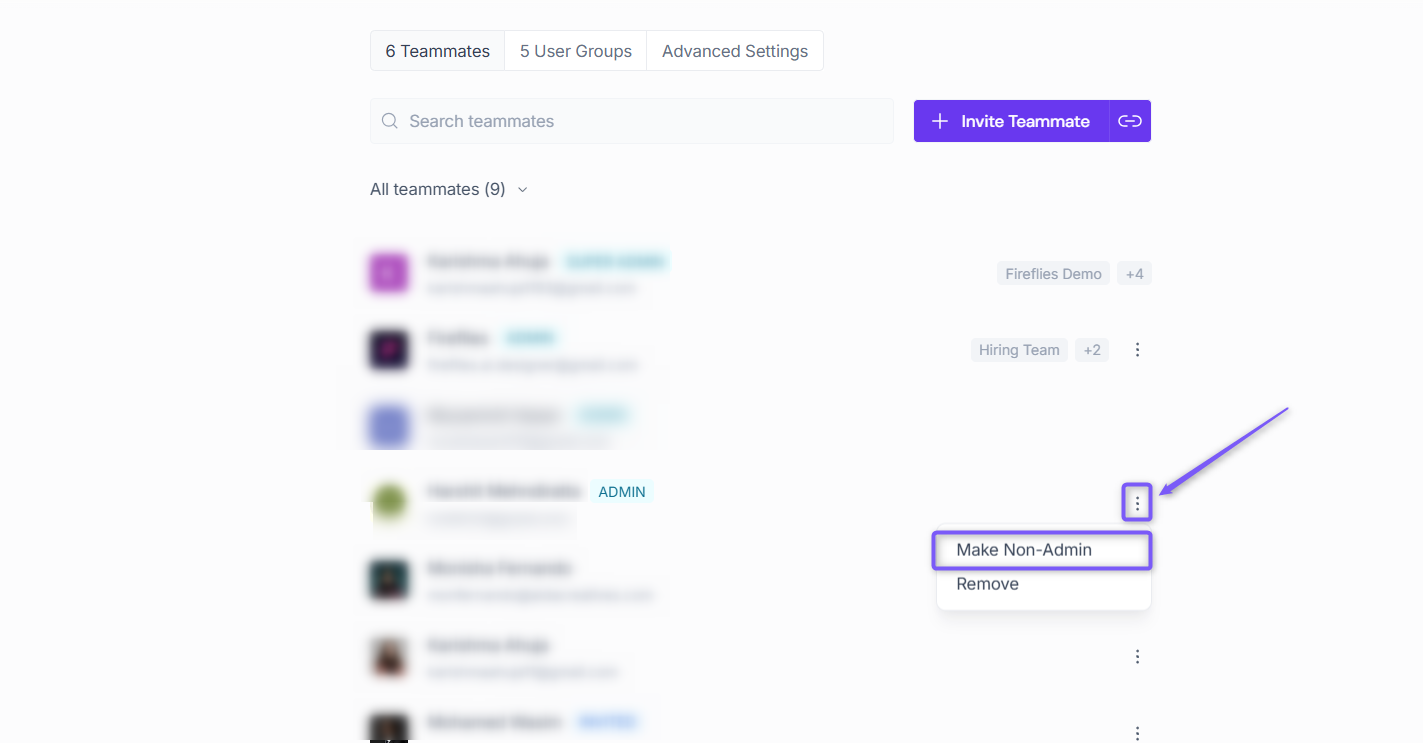
Under the Teammates tab, find the admin whose access you want to revoke.
Click the three-dot menu next to their name and select Make Non-Admin.
The teammate will no longer have admin access and will continue as a regular user.
The teammate will no longer have admin access and will continue as a regular user.
You’re all set — admin roles have been updated for your team. You can manage access anytime based on your team’s needs.
📌 Note: You can also Remove a teammate from the same three-dot menu if you want to remove them from the workspace entirely.
Learn more: How to Deactivate, Reactivate, and Remove Teammates in Fireflies