How to Re-invite or Cancel an Invite for Teammates in Fireflies
Last updated: September 9, 2026
Keep your workspace organized by managing teammates who haven’t joined yet.
From the Team tab in your Fireflies dashboard, you can easily re-invite teammates to send them a fresh join link or cancel/remove pending invites that are no longer needed.
This ensures only active teammates appear in your workspace and everyone has the correct access.
🔑 Prerequisites
You’re logged into the Fireflies web app.
You have access to the Team section in your workspace.
Only admins or users with Team Management permissions can re-invite or remove pending invites.
For details on how to invite teammates to Fireflies, see the How to Invite Teammates to Fireflies
🚀 Navigation
Log in to your Fireflies account. You can access your Team settings in either of the following ways:
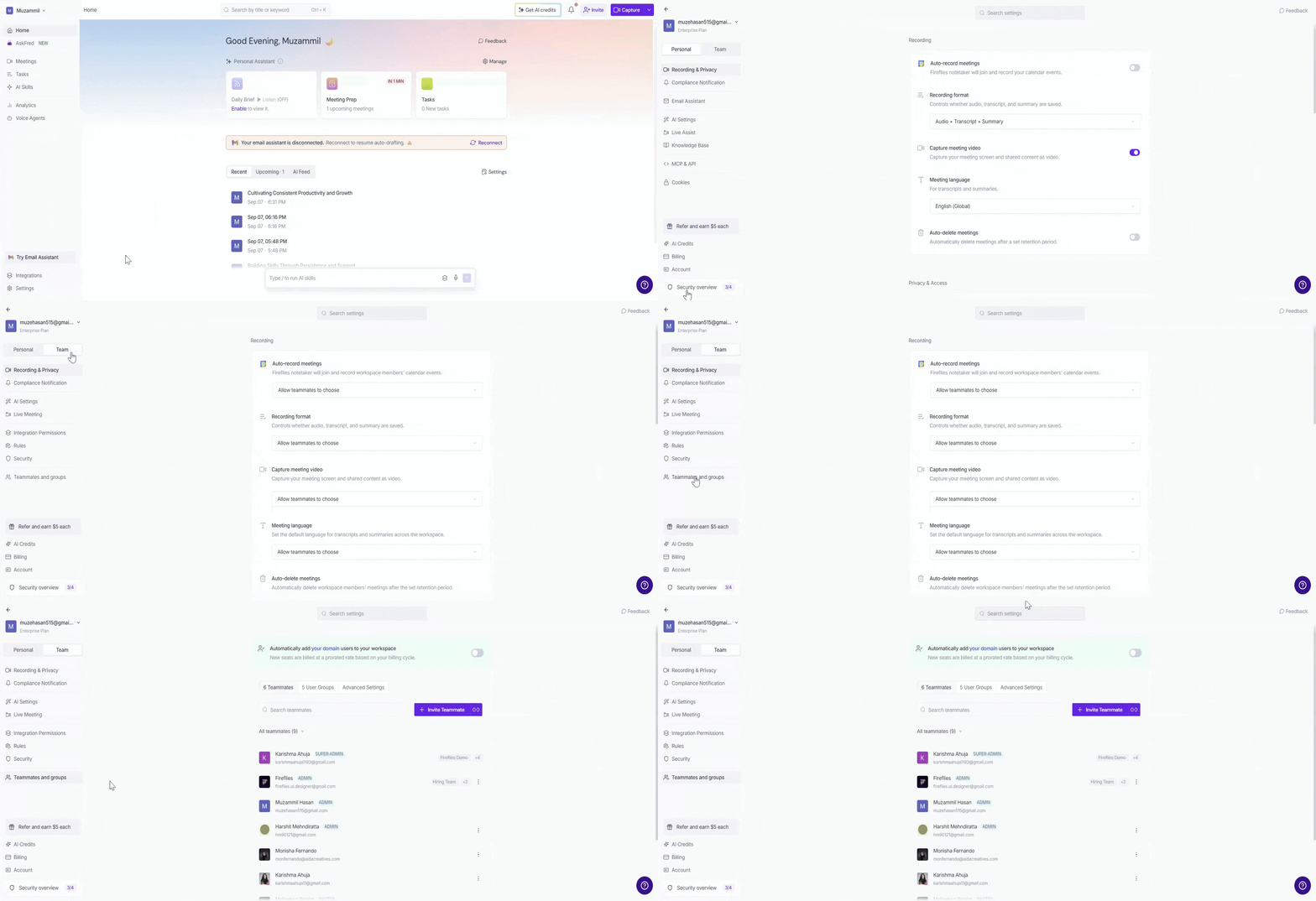
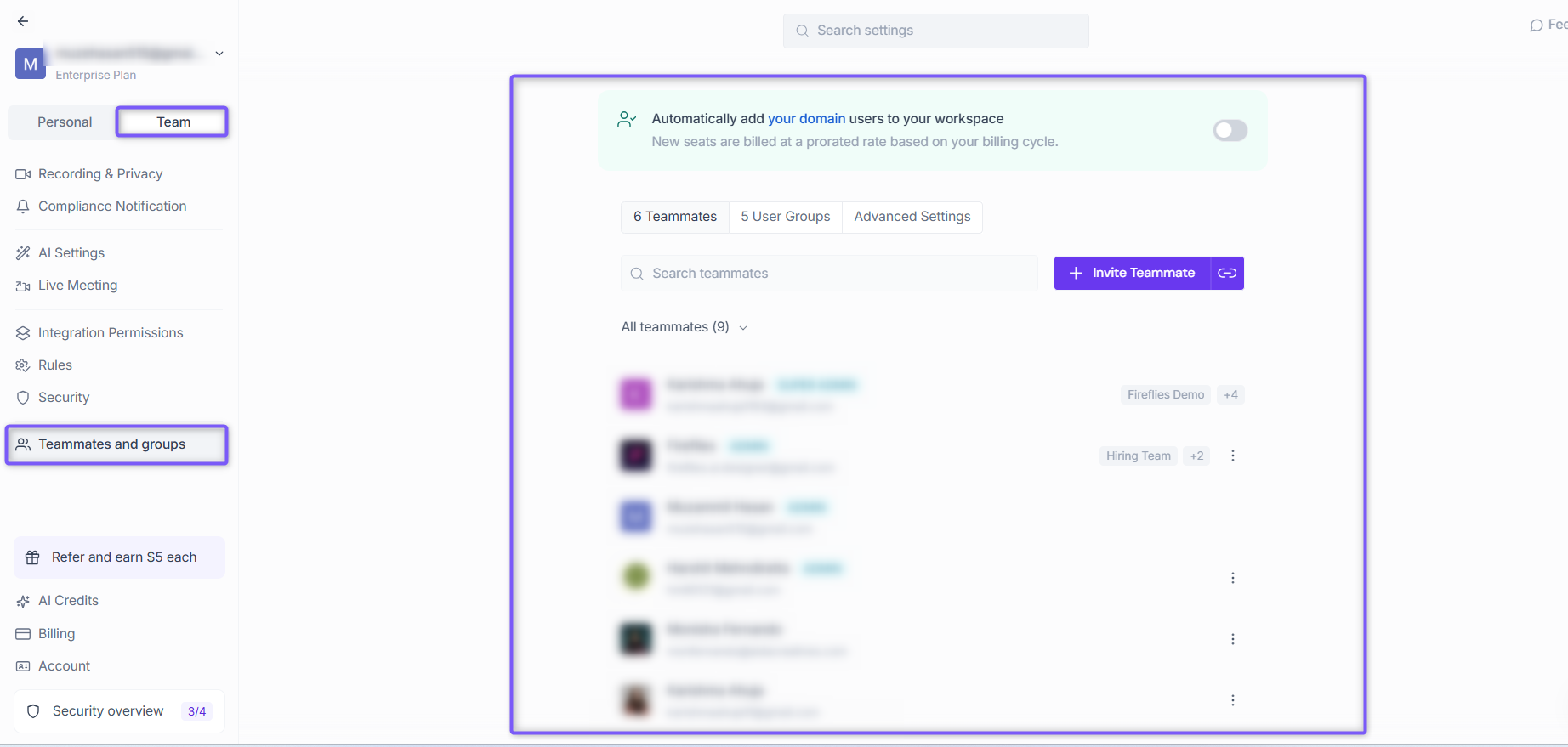
From Settings: Click Settings from the left navigation, select the Team tab, and click Teammates and groups.
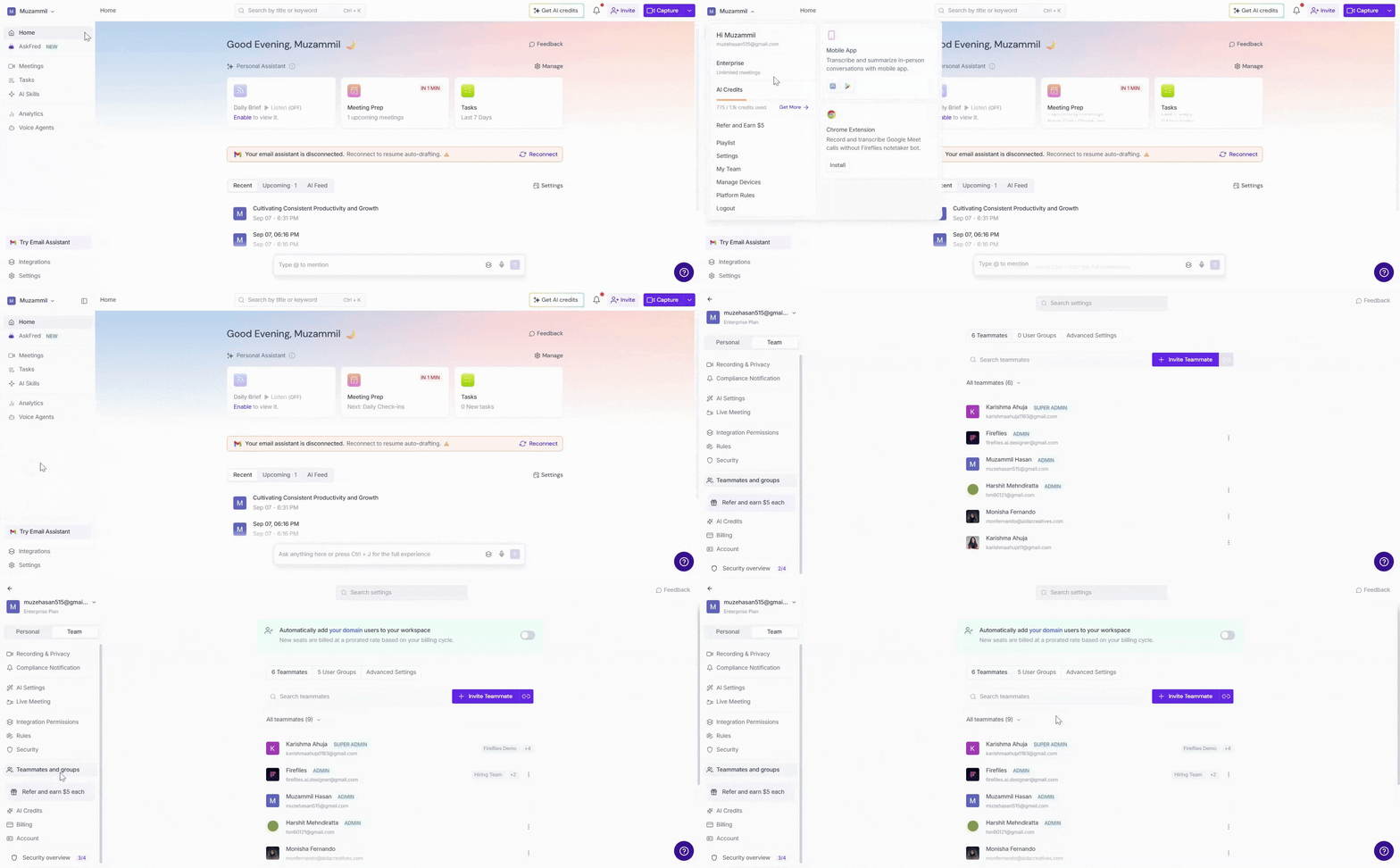
From your profile menu: Click your profile menu in the top-left corner and select My Team.
Both options take you to the Members and Groups settings, with the Teammates tab selected by default.
🔁 Re-invite a Teammate
If a teammate hasn’t joined your workspace yet, you can send them a new invitation email right from the Team tab.
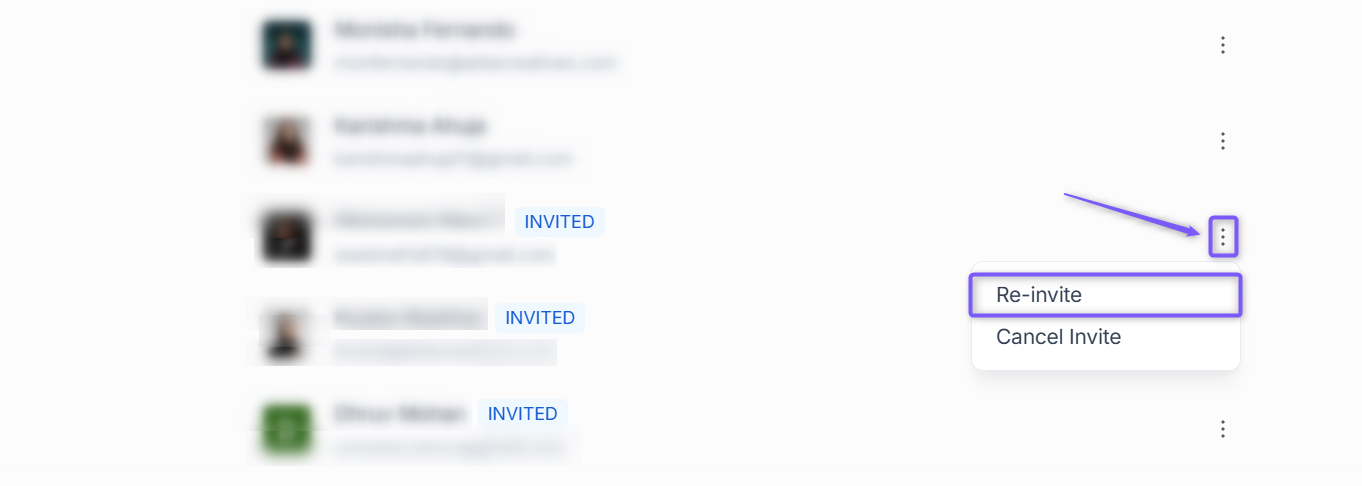
Under the Members tab, look for teammates with the status Invited — this means they haven’t accepted the invite yet.
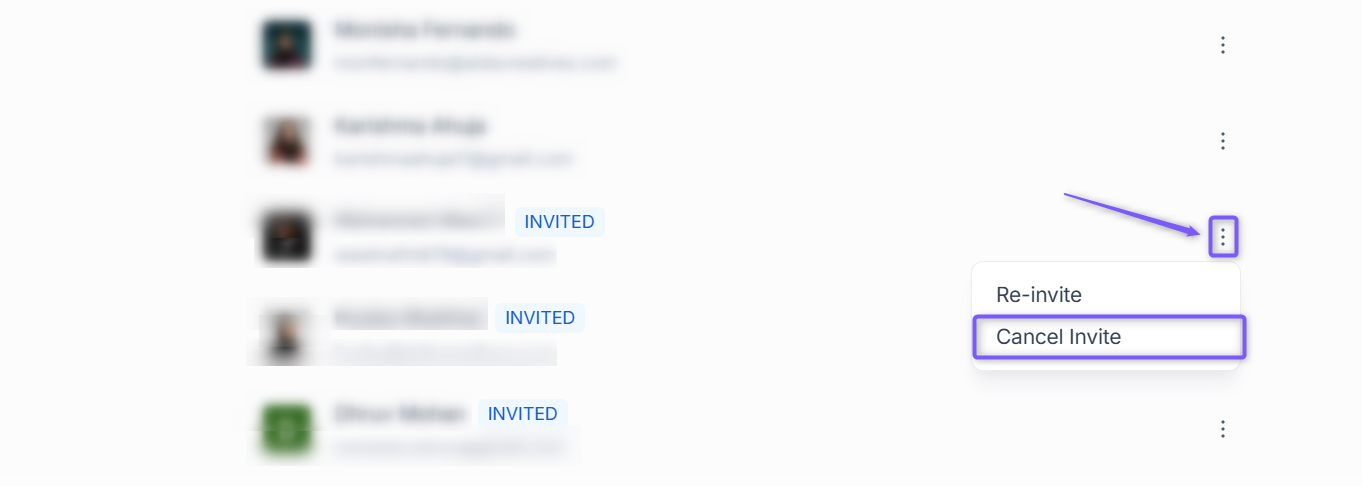
Click the three-dot menu next to their name and select Re-invite.
Fireflies will send them a new invitation email to join your workspace.
Re-inviting reminds teammates to join without sending a new link. You can resend the invite once every 24 hours if they haven’t joined yet.
❌ Cancel a Pending Invite
If a teammate has not yet accepted their invitation, you can cancel the pending invite.
Under the Teammates tab, find the teammate with the INVITED status.
Click the three-dot menu next to their name and select Cancel Invite.
Confirm the action when prompted.
If you cancel an invitation, you can send a new invitation to the teammate later if you want them to join your workspace.
🗑 Remove a Teammate
If a teammate has already accepted the invitation and joined your workspace, you can manage their access from the three-dot menu next to their name.
Under the Teammates tab, find the teammate you want to manage.
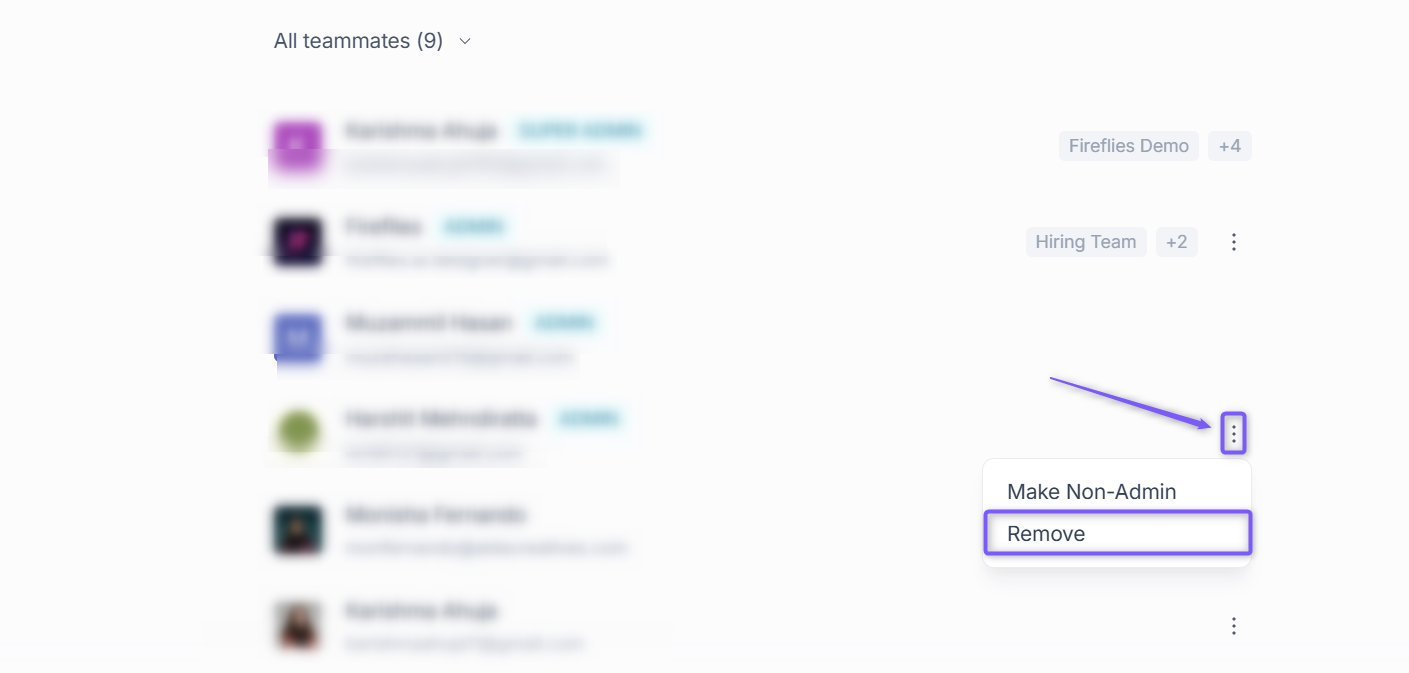
Click the three-dot menu next to their name.
Select Remove to remove them from your workspace.
Removed teammates or cancelled invites will no longer appear under your team list. You’ll need to send a new invite if you want to add them again later.
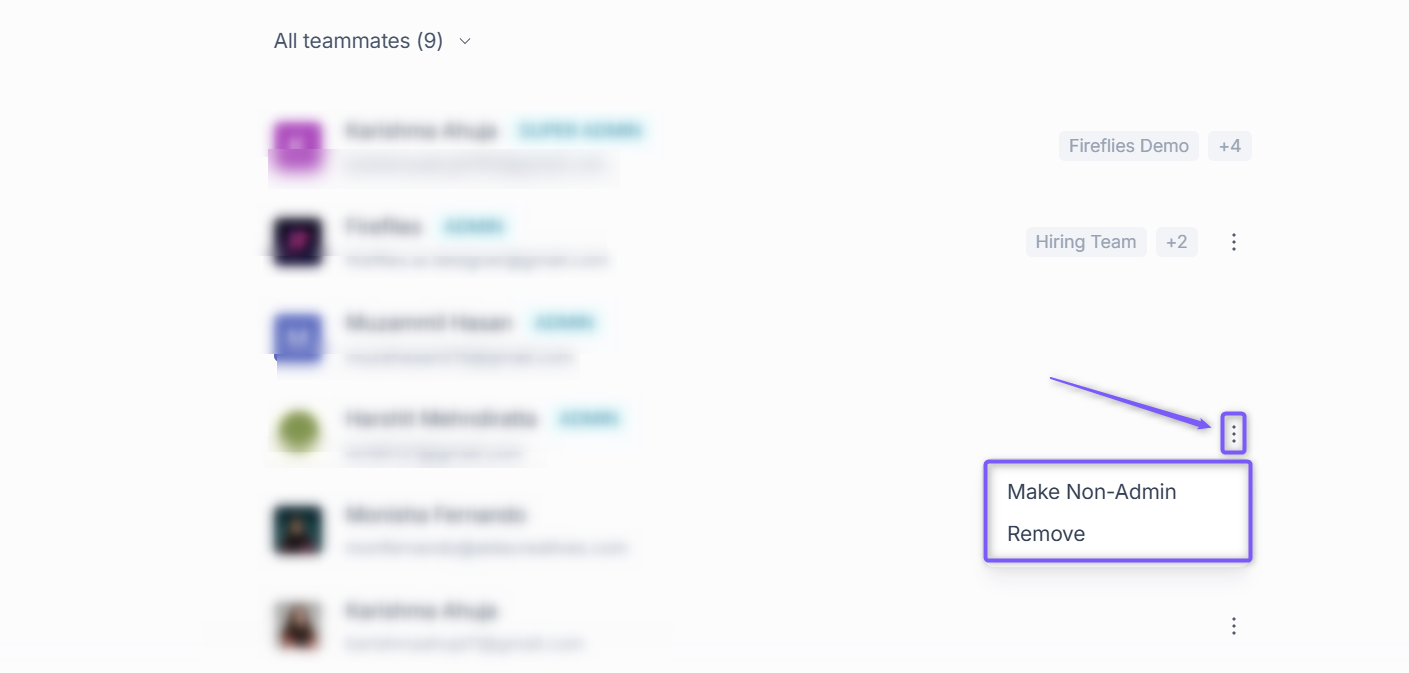
💡 You can make a teammate an Admin or make them a Non-Admin to revoke their admin access without removing them from the workspace. For more details, see How to Make a Teammate an Admin or Revoke Admin Access.
Need help? If you don’t see the Re-invite or Remove options, check the Team Management Features for Admins guide or contact Fireflies Support.