How to Use Voice Commands to Create Tasks in Asana and Other Tools
Last updated: December 12, 2025
Voice commands allow you to create tasks in your connected project management tools—like Asana, Monday.com, Trello, and others—by simply speaking during your meetings. Fireflies listens for the specific phrases you set up, and when it detects them, it automatically creates tasks in the project or list you’ve selected.
In this guide, you’ll learn how to set up voice commands, integrate them with your project management tools (e.g., Asana), and use them to create tasks directly from your meetings.
🔑 Prerequisites
Before you start using voice commands to create tasks in your project management tools, make sure the following are in place:
Voice Commands are set up in Fireflies. Follow the guide on How to add or remove voice commands to configure them.
Your project management tool (e.g., Asana, Monday.com, Trello) is integrated with Fireflies. You can refer to the guide on How to integrate Asana with Fireflies (or similar guides for other tools).
You must be on a paid Fireflies plan, as voice commands are only available on paid plans.
Fireflies must join your meetings to record and transcribe conversations.
🚀 Set Up Voice Commands for Integrations
Step 1: Choose Your Project Management Tool
Log in to your Fireflies account, click on the Integrations tab, and search for the project management tool you want to connect.
For demonstration purposes, we’ll use Asana. Select the integration to get started.
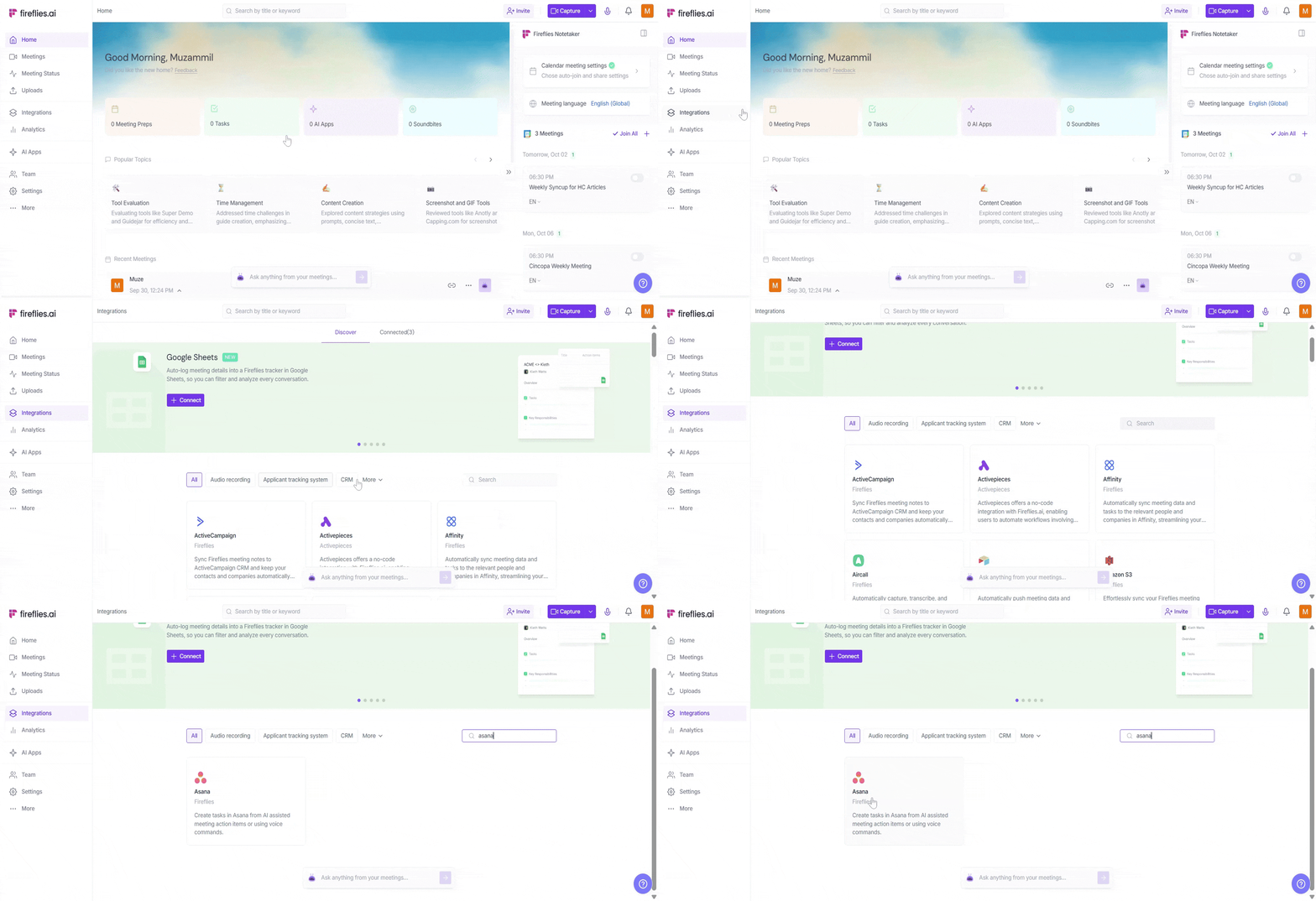
You can follow the same steps for any supported project management tool (Monday.com, ClickUp, Trello, etc.). The setup process is similar across all tools.
Step 2: Connect Your Tool to Fireflies
For demonstration purposes, we’re using the Asana integration as an example. Open the Asana integration and follow the prompts to connect it to your Fireflies workspace so tasks can be created automatically.
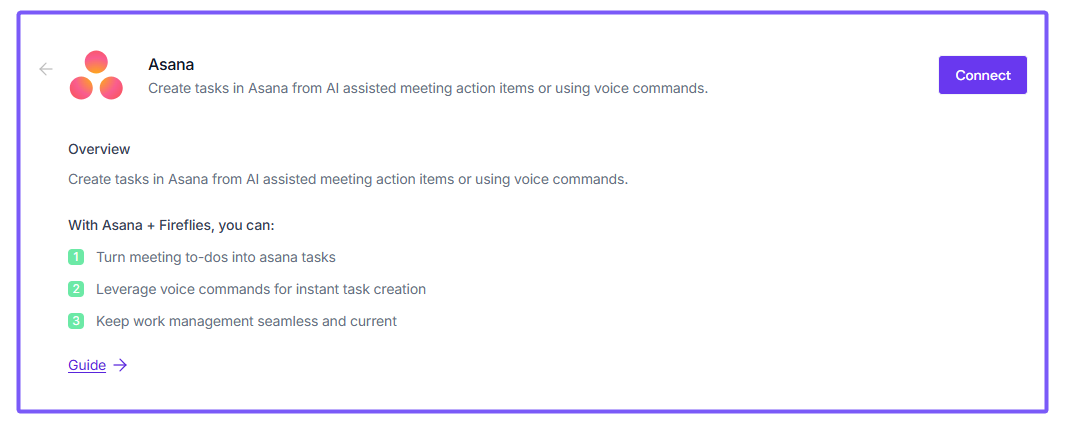
📌 For detailed steps, see the guide on How to integrate Asana with Fireflies.
Step 3: Create Tasks Using Topic Tracker & Voice Commands
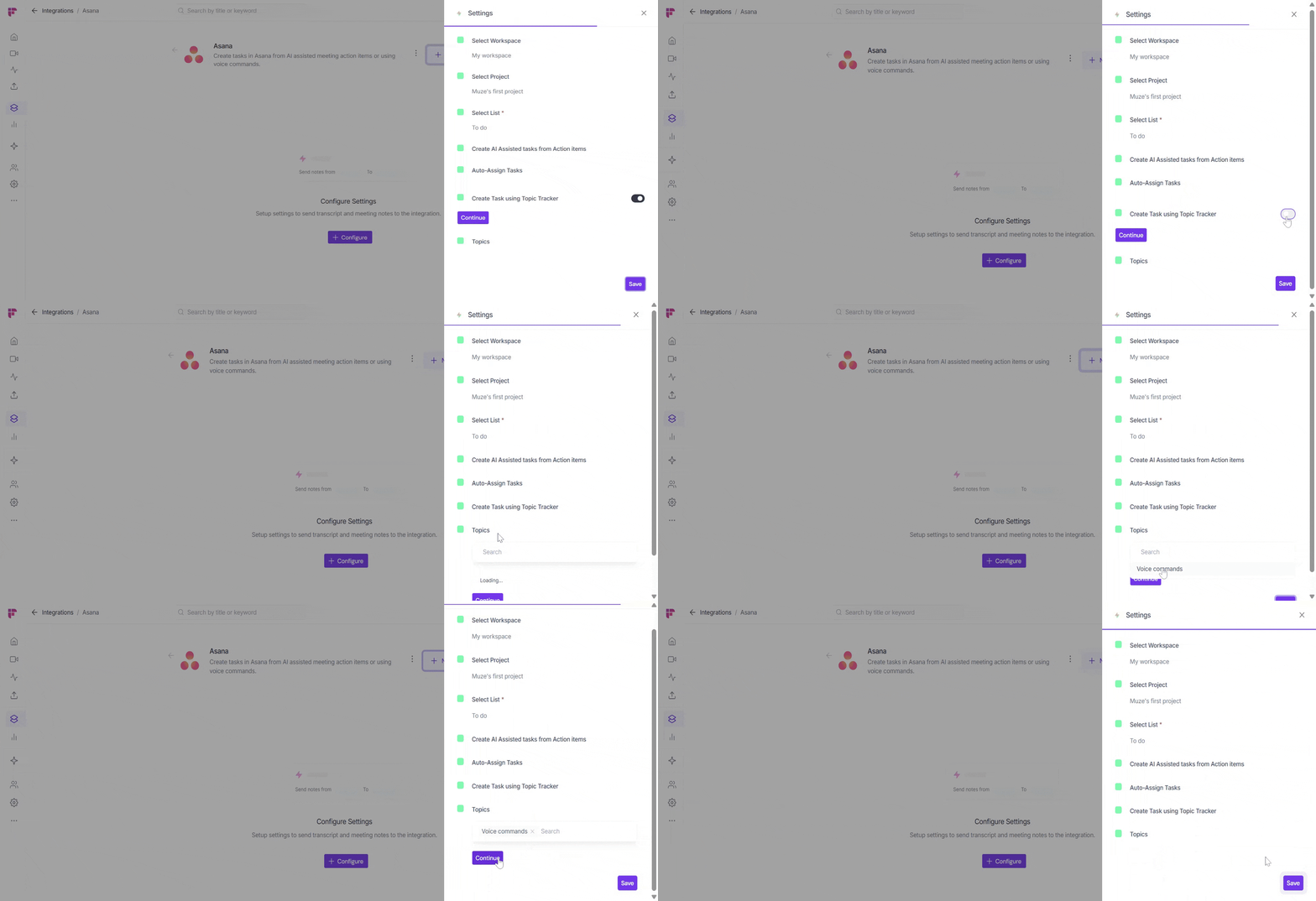
After connecting your tool (e.g., Asana), scroll to Create Task using Topic Tracker and turn it ON to allow Fireflies to auto-create tasks when your tracked keywords are mentioned in the meeting.
Select the Voice Commands and keywords you’ve created—such as “remind me,” “follow up,” or “create task”—to create tasks directly from what you say in meetings.
Step 4: Save Your Settings
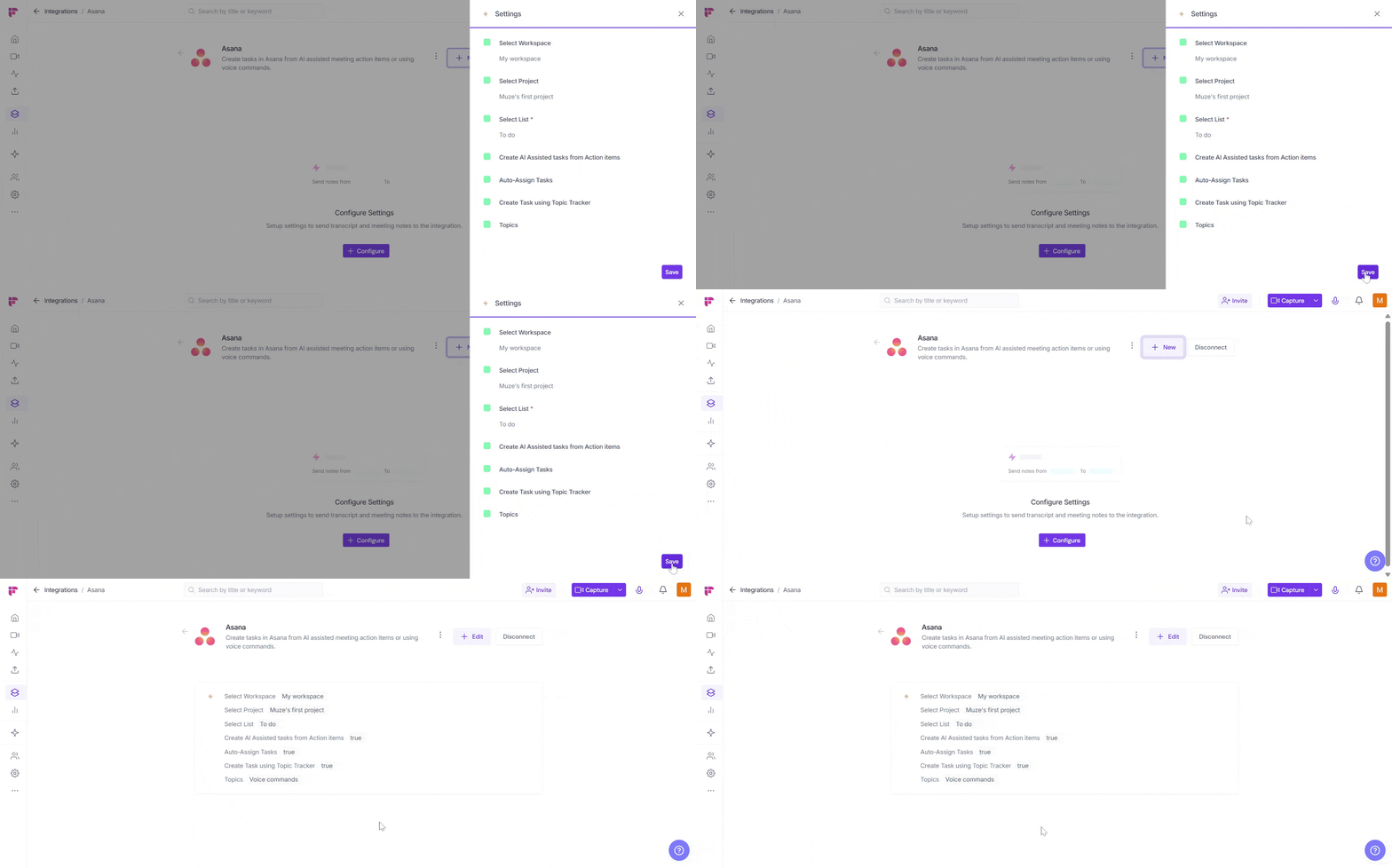
Click Save to activate the integration — a flash message will confirm that your configuration has been successfully added.
Step 5: Fireflies Creates Tasks From Your Keywords
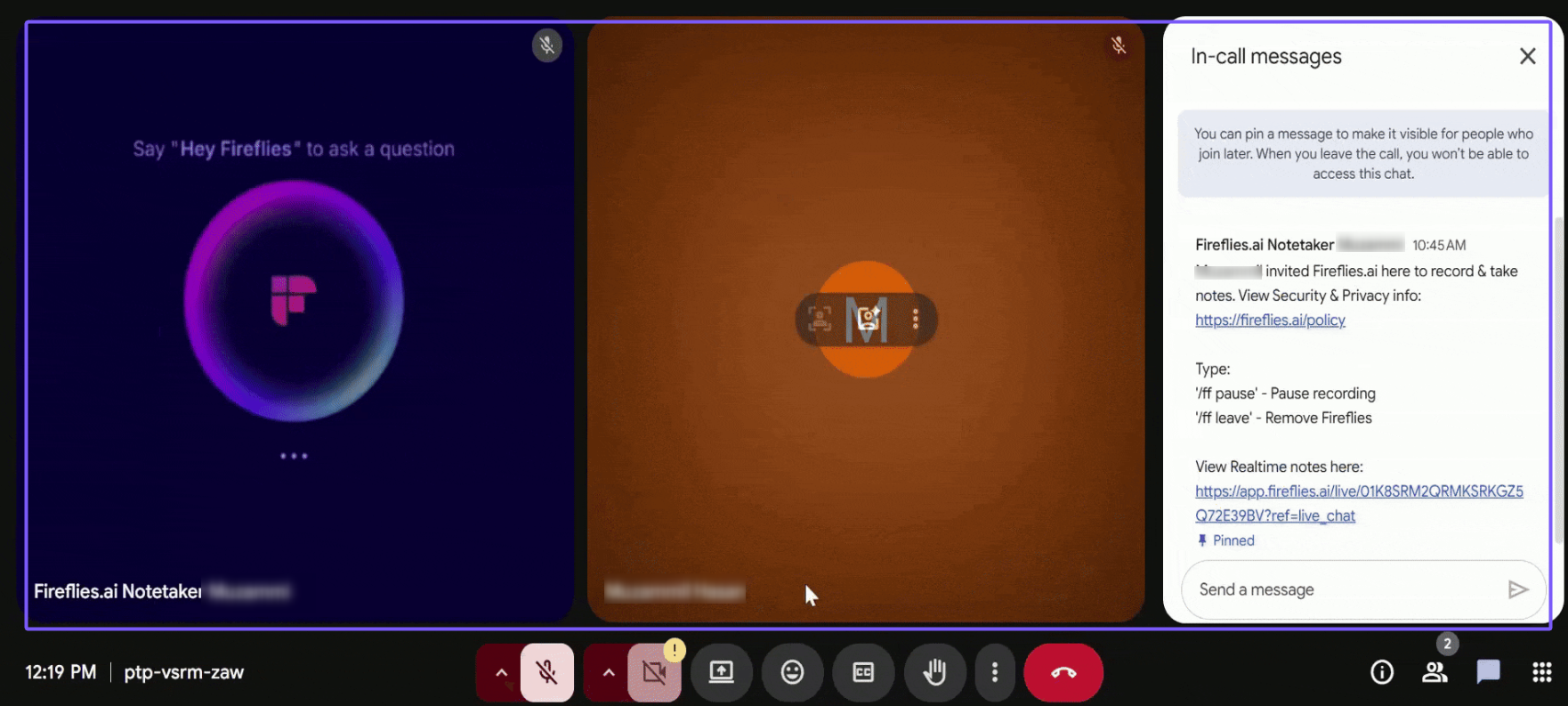
Start or join your meeting and make sure Fireflies joins so it can capture the audio and create a transcript.
After the meeting is processed, Fireflies will scan the transcript for your Topic Tracker keywords and Voice Command phrases, automatically creating tasks or action items in your connected tool (e.g., Asana).
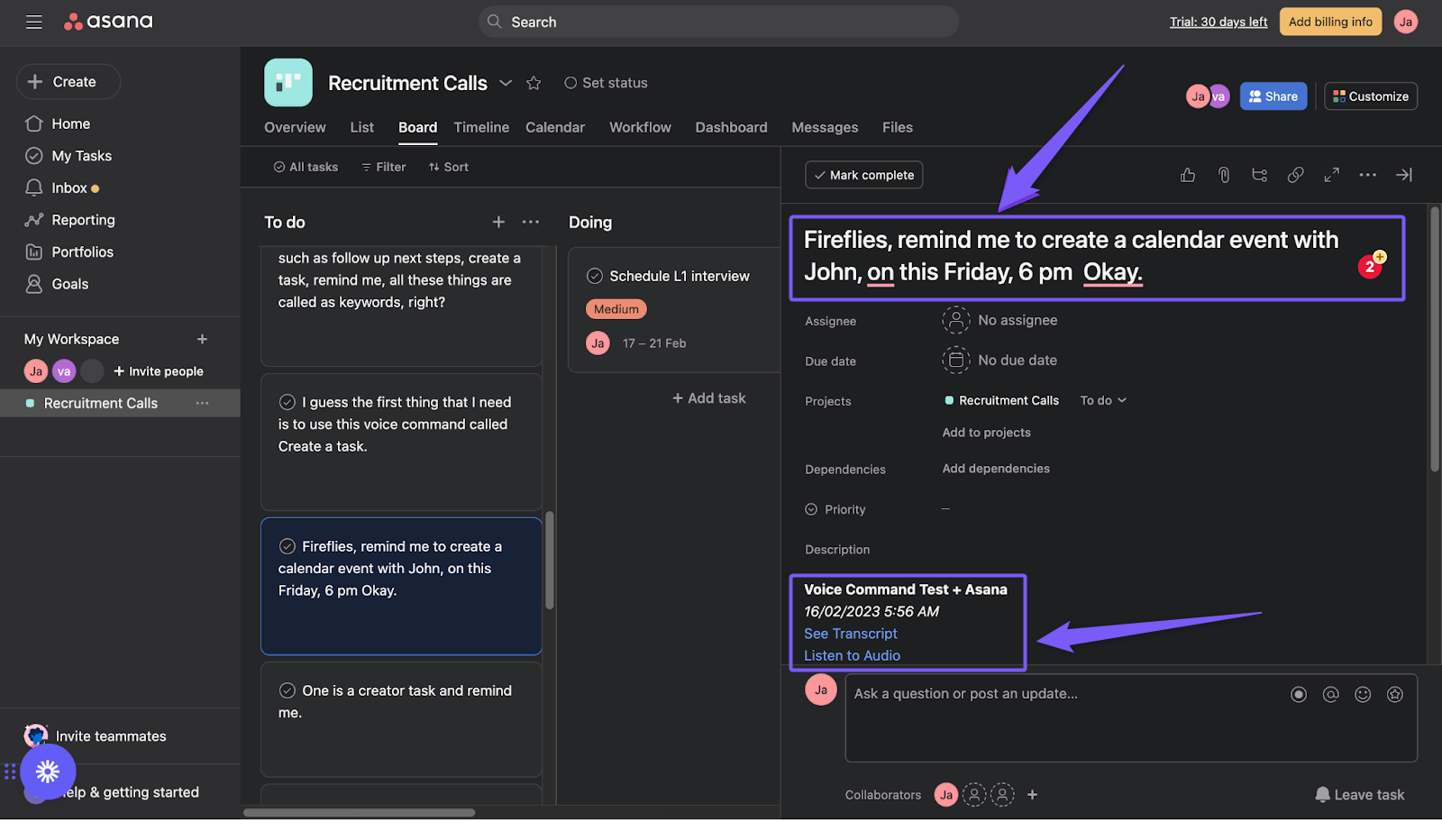
During the conversation, use voice commands. For example, let’s use the command Remind me. You can say something like, “Remind me to create a calendar event with John on this Friday, 6 pm.”
📤 View the Task in Asana
After the meeting is complete, go to your specific task list in Asana. Here, you’ll find the task Fireflies created based on your voice command. The task description will also include a link to the meeting transcript and recording for reference.
🛠 Troubleshooting & FAQs
Tasks are not being created in Asana
Ensure the Asana integration is connected and that the “Create Task Using Topic Tracker” toggle is turned ON.
Voice commands are not being detected
Verify that your voice command keywords are correctly set up in Fireflies and that Fireflies is joining the meeting to capture the audio.
No tasks appeared after the meeting
Fireflies creates tasks only after the meeting is processed. Make sure Fireflies joined the meeting and that the transcript is available.
I don’t see the option to create tasks with voice commands
Voice commands are only available on Pro plans and above. Make sure your plan supports voice command functionality.
The wrong project or task list is receiving tasks
Check your Asana integration settings and confirm that the correct project and task list are selected.
🔁 Recap
Voice commands let you create tasks automatically in Asana and other connected tools by simply speaking during meetings.
Fireflies listens for the keywords or phrases you’ve set up in Topic Tracker and Voice Commands.
After the meeting is processed, Fireflies will create tasks based on the keywords mentioned in the meeting.
Tasks are created in the selected project or task list within your tool and include a link to the meeting transcript.
📚 Related Guides
Here are some helpful guides to explore more ways you can use Topic Tracker and integrations:
Similarly, you can configure other Project Management Integrations to create tasks based on voice commands.