Voice Commands: How to Add or Remove Commands
Last updated: April 20, 2026
Voice commands are a type of Topic Tracker that work when you say certain keywords in a meeting. When Fireflies hears those keywords—like “create task” or “follow up”—it can automatically create a task or action in your connected apps after the meeting.
This helps you capture important next steps without typing or switching tools during the call. In this guide, you’ll see what voice commands are, where to find them, and how to add or remove the keywords you want Fireflies to listen for.
Voice Commands are available only on paid Fireflies plans. If you’re on the free plan, you won’t be able to add or edit voice commands.
🔑 Prerequisites
Before you start using voice commands, make sure the basics are in place so everything works smoothly:
You must be signed in to your Fireflies workspace to access the Topic Tracker page, where voice commands are managed.
You need to be on a Pro or above Fireflies plan, since voice commands are not available on the free plan.
Your project management or CRM integrations should be enabled so Fireflies can create tasks or actions using your voice commands.
Fireflies must be joining your meetings, so a transcript is available. Voice commands only work when Fireflies can process your meeting after it ends.
🚀 Manage Your Voice Commands
1. Open the Voice Commands Topic
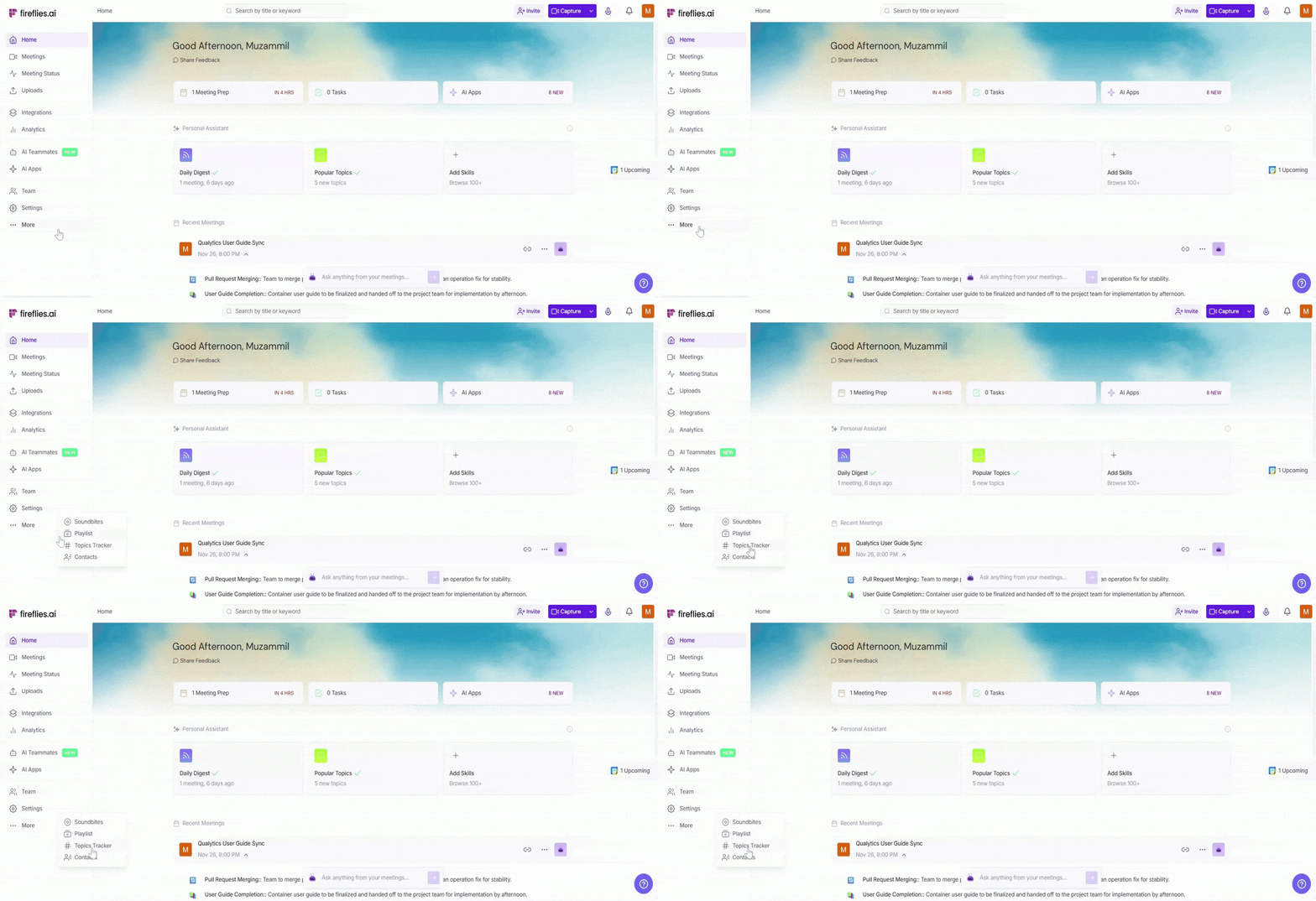
Log in to your Fireflies account, click More in the left-side menu, and select Topics Tracker to access the Topic Tracker page.
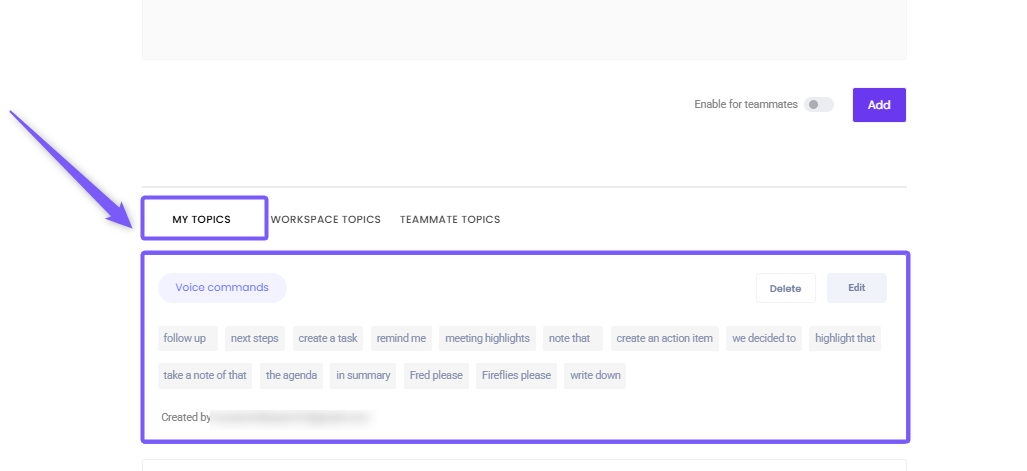
A Topic Tracker window will appear. Under the My Topics tab, you’ll see the default topic named Voice commands.
2. Edit a Voice Command
You can update your voice commands anytime to keep your keywords accurate—this is where you add new keywords or remove the ones you no longer need.
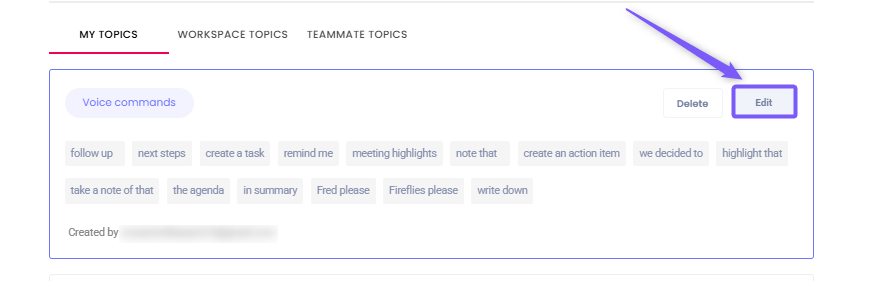
To edit them, hover over the Voice commands topic and click on the Edit button.
Add a keyword: Add a keyword or phrase you want Fireflies to detect by typing it in the field and pressing Enter to save it.
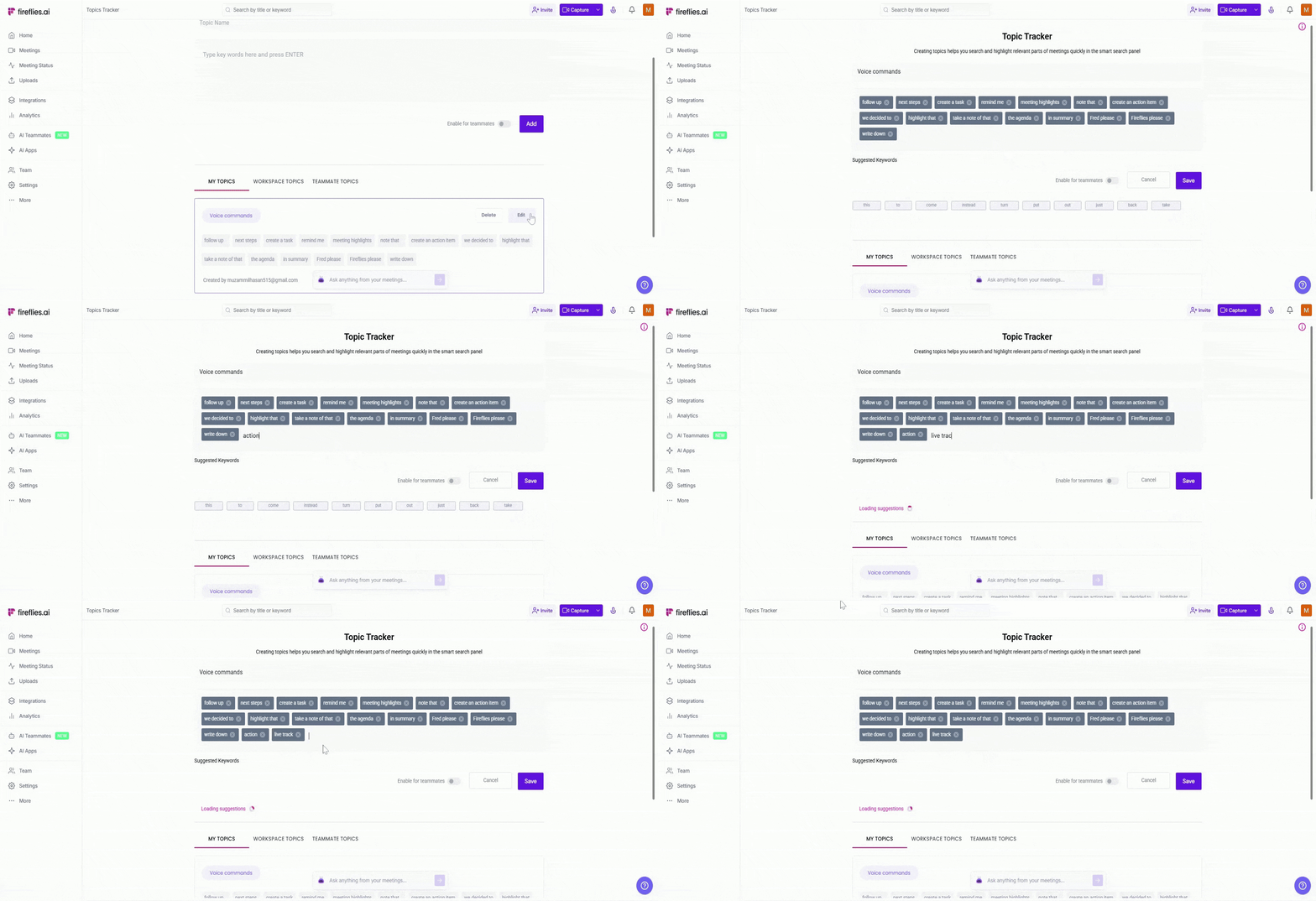
Remove a keyword: Remove a keyword by clicking on the cross (x) icon next to the word you no longer want Fireflies to detect.
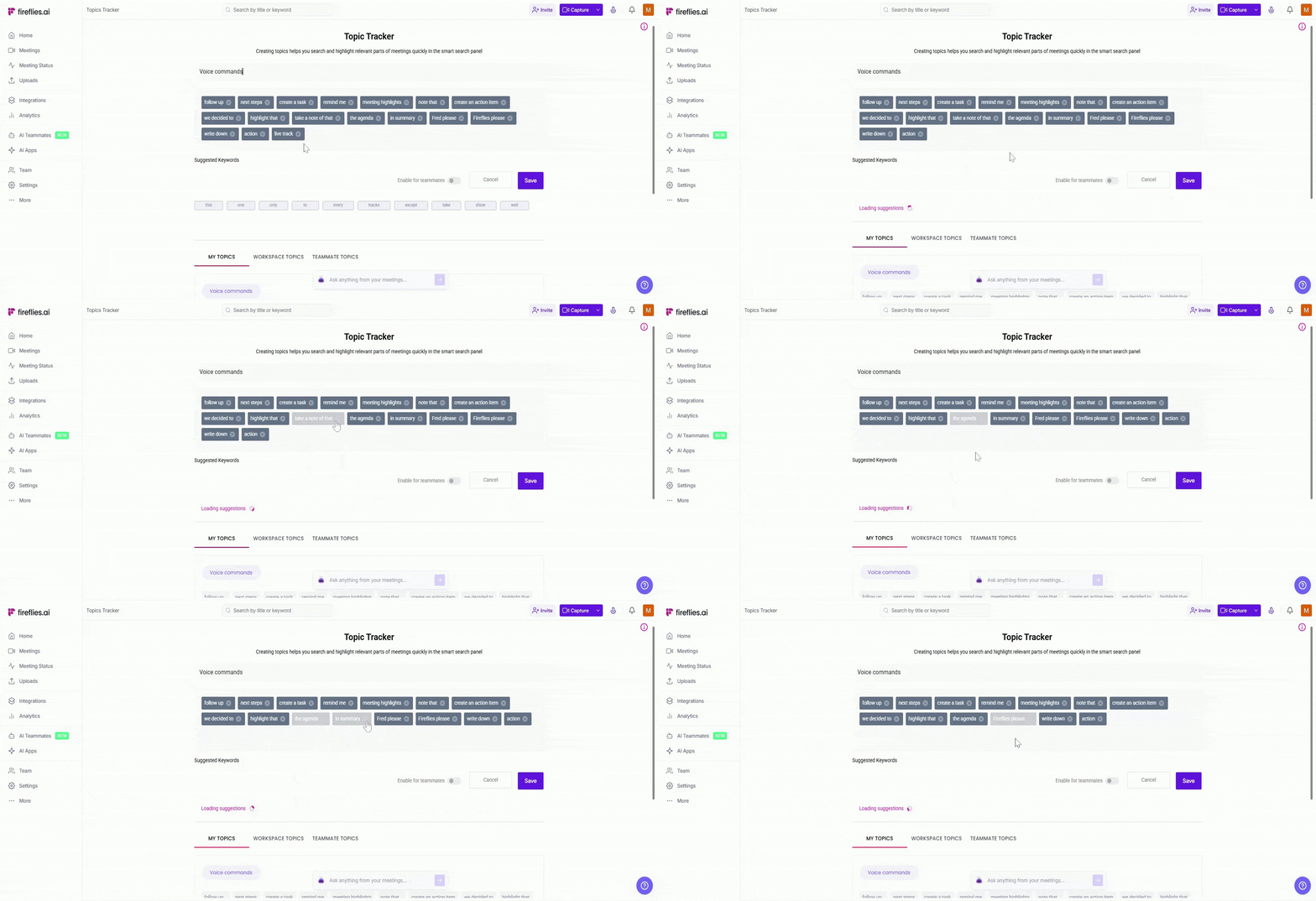
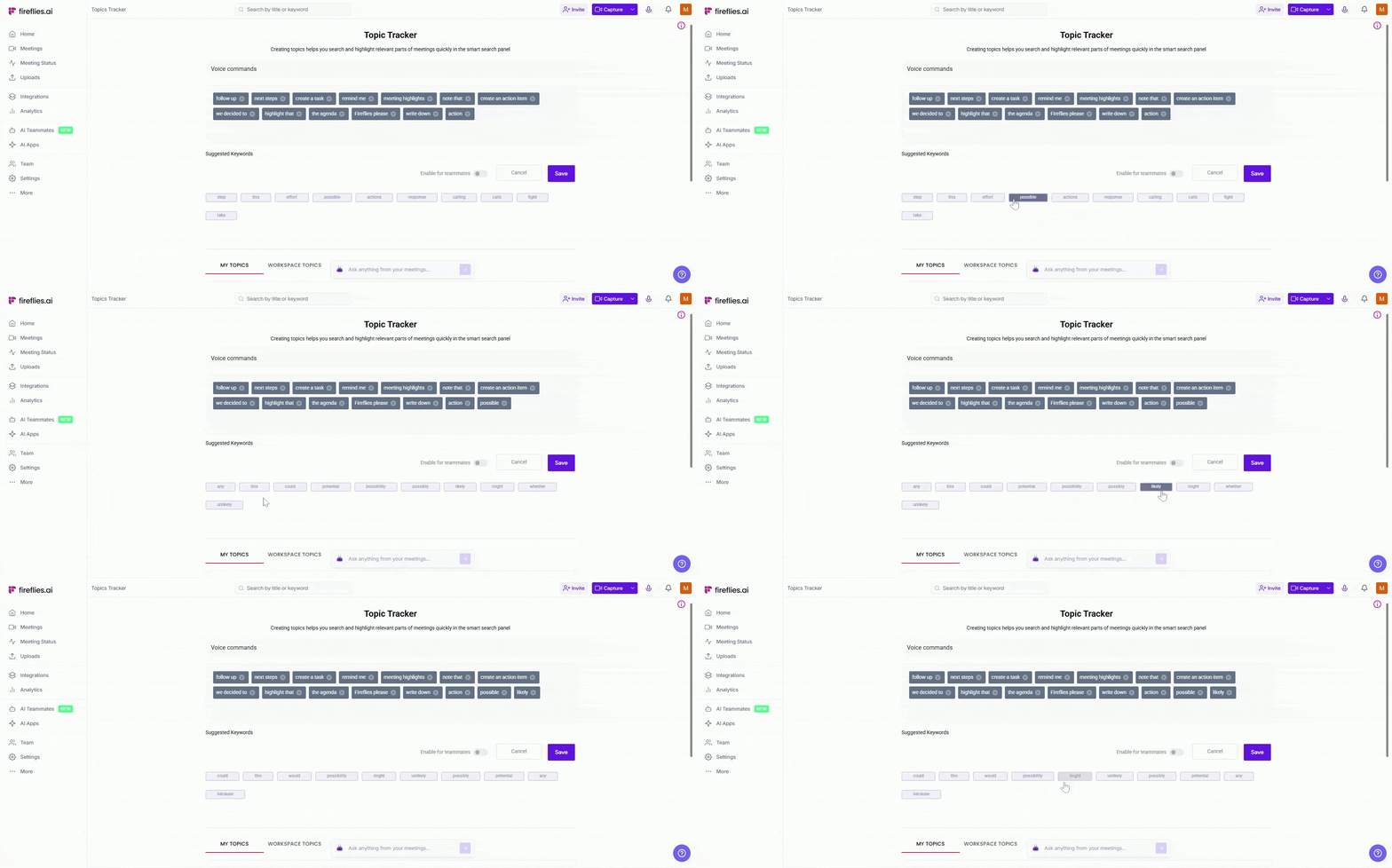
Use suggested keywords: Fireflies will show related keyword suggestions as you type—select any to add it instantly.
3. Delete the Voice Commands Topic
You can remove the entire Voice Commands topic if you no longer want to use voice-based triggers.
Hover over the Voice commands topic and select Delete.
A confirmation message will appear—select Delete Topic to permanently remove the voice command topic and all its keywords.
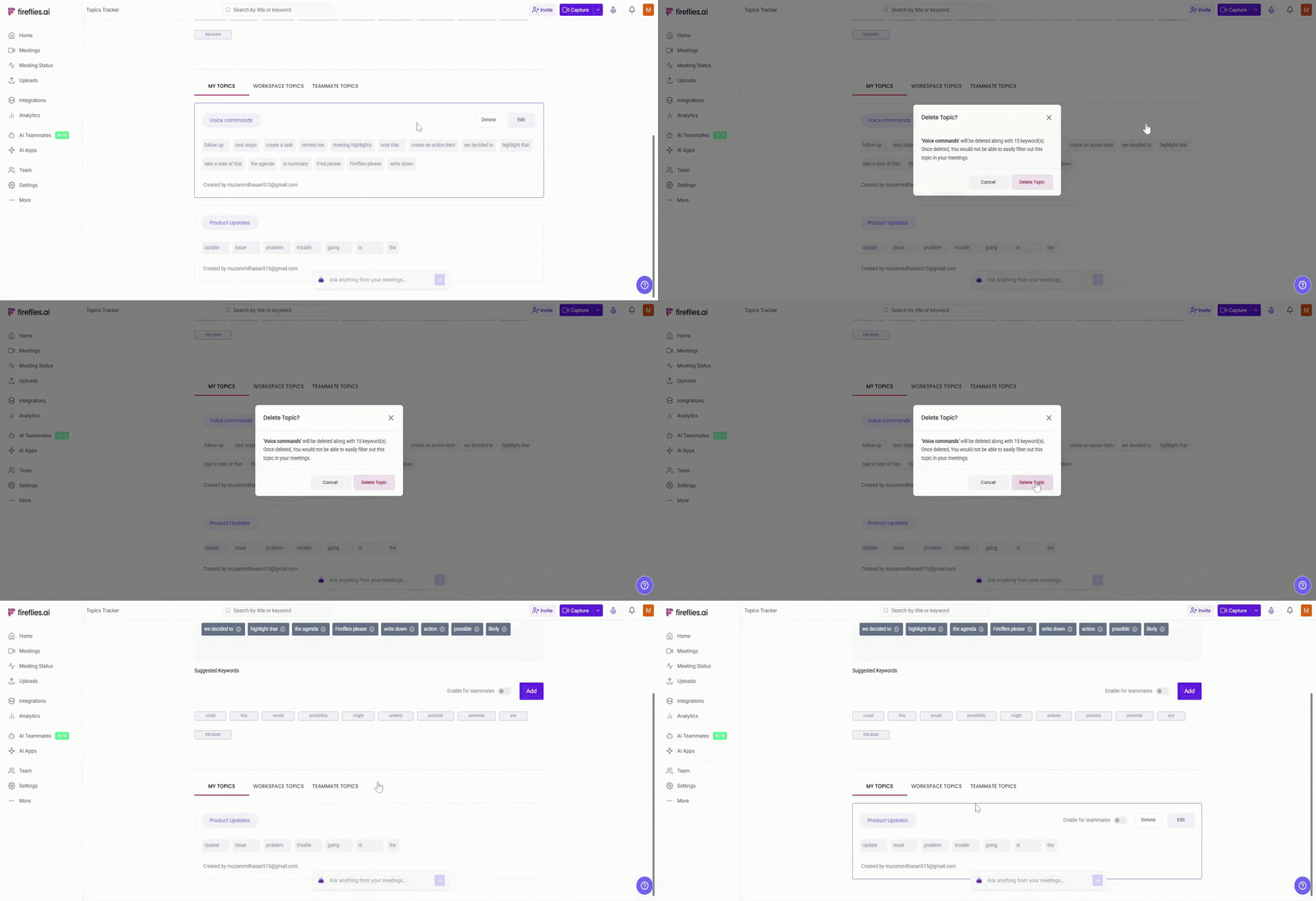
Only Workspace Admins can delete the Voice Commands topic for the entire workspace.
🛠 Troubleshooting & FAQs
I can’t find voice commands in Topic Tracker
Voice commands are available only on Pro plans and above. Free plans won’t show this option.
My voice commands aren’t working after the meeting
Fireflies must join the meeting and create a transcript. Voice commands only work after the meeting is processed.
Tasks are not being created in my apps
Check that your integrations (e.g., Asana, HubSpot, Monday.com) are enabled and connected.
Fireflies did not detect the keyword I said
Make sure the keyword is added correctly in the Voice commands topic. Try using simple, clear phrases.
I can’t delete or share voice commands for the whole team
Only Workspace Admins can manage team-wide settings or delete the Voice commands topic.
🔁 Recap
Voice commands are a type of Topic Tracker that listens for keywords you say during a meeting.
You can add, edit, and remove voice command keywords from the Voice commands topic in Topic Tracker.
Only users on Pro plans and above can manage voice commands.
You need active integrations (like Asana or HubSpot) for tasks to be created automatically.
Fireflies must join the meeting so a transcript is available—voice commands work only after the meeting is processed.