How to Set Up Topic Tracker on Fireflies
Last updated: September 7, 2026
Topic Tracker makes it easy to find the parts of a meeting that matter to you. Instead of reading the full transcript or jumping around the recording, you can tell Fireflies what keywords or phrases you care about—like "follow-up," "pricing," "next steps,” or anything that fits your workflow.
Whenever these keywords come up in a meeting, Fireflies highlights them for you. You can click a topic to instantly see every place it was mentioned and understand the context without searching manually.
This helps different teams in different ways—for example:
Sales teams can track words like budget, timeline, or decision maker.
HR teams can follow topics like hiring plans or candidates.
Project teams can monitor things like deadlines or action items.
Topic Tracker is available only on paid Fireflies plans. If you’re on the free plan, you won’t be able to use Topic Tracker.
🔑 Prerequisites
Before you start setting up Topic Tracker, make sure the basics are in place so everything works smoothly:
You must be signed in to your Fireflies workspace to access the Topic Tracker page.
You need to be on a Pro or above Fireflies plan because Topic Tracker isn’t available on the free plan.
If you want to create or enable topics for your whole team, you need admin permissions. Regular users can only manage their own topics.
Fireflies must be joining your meetings so transcripts are available. Topic Tracker only works when there is a transcript to analyze.
🚀 Set Up Your First Topic
Step 1: Log in to your Fireflies account, Click Settings.

Step 2: Under the Personal tab, select AI Settings.

Step 3: Locate the Topic Tracker section. If you haven’t created any topics yet, click Create a Topic.

Step 4: Enter your Topic title and keywords
Topic Title: This is the label for the topic you want Fireflies to track. Pick a name that clearly describes what you want to monitor.
Example: “Project Updates”, “Client Feedback”, “Objections”, “Action Items”

Keywords: These are the words or phrases Fireflies will search for in your meetings. Add all keywords that relate to your topic. Type each keyword and press Enter to add it. Example: “update”, “issue”, “concern”, “next action”, “problem”, “feedback”

Step 5: Enable the topic for your team (Optional)
If you are a workspace admin, you will see a checkbox labeled Enable for teammates.
Checked (✔) this if you want this topic and its keywords to be available for everyone in your team.

This option is only available to Workspace Admins. Regular users will not see this.
Step 6: Click Save topic to save your topic and see it listed under My topics.

📂 Where to Find Your Topics
After you create a topic, it appears in the Topic Tracker section under Settings (Personal tab) → AI Settings.
Click Edit to open the Topic trackers window, where you can view and manage your topics.

On the Topic Tracker page, use the dropdown to view topics based on who created them:
My Topics – These are the topics you created. You can edit, delete, or update the keywords for these topics anytime.
Workspace Topics – These are topics created by workspace admins and shared with the entire team. Everyone in the workspace can see and use them.
Teammate Topics – These are topics created by your teammates. If you're an admin, you can also edit or delete these topics.

⚙ Manage Topic Tracker
Once you’ve created topics, you can update them anytime. This helps keep your keywords accurate as your projects, clients, or workflows change. You can edit a topic, delete it, or (if you’re an admin) enable it for your team—all from the same Topic Tracker page.
1. Edit a Topic Tracker
You can edit a topic anytime if you need to change the topic name or update the keywords you’re tracking. This is helpful when your project focus changes or you want Fireflies to track more specific terms.
Hover over the topic you want to update and click on the Edit to open it for changes.

Update the topic name and keywords by adding new ones or removing any you no longer need, adjust the Enable for teammates checkbox if you're an admin, and select Save to apply your changes.

2. Delete a Topic Tracker
If you no longer need a topic, you can remove it from the Topic Tracker page. This helps you keep your list organized and ensures you only track the topics that are still relevant to your work.
Hover over the topic you want to remove and click on the Edit button.

Click Delete. A confirmation window will appear. Confirm to permanently delete the topic and its keywords.

You can delete only the topics you created. Workspace Admins can manage and delete topics for the entire team.
3. Enable a Topic for Teammates
You can share a topic with your entire workspace if you want everyone to track the same keywords. This is helpful for team-wide processes like project updates, customer feedback, or action items.
Select the topic you want to share and and click Edit.
Look for the Enable for teammates checkbox.
Checked (✔️) to make the topic available for all teammates in your workspace.

🧩 Use Topic Tracker in Meetings and Insights
Topic Tracker helps you quickly review the exact moments where your keywords were mentioned during a meeting and also gives you a summary of how often those topics appear across all your calls. This makes it easy to understand both the details inside a single meeting and the overall patterns across your conversations.
📝 Use Topic Tracker in a Meeting recap
Click Meetings tab from the left navigation, then open the meeting where you want to view Topic Tracker mentions.

Click on the Smart Search tab and scroll down—you will find the Topic Tracker section listed below.
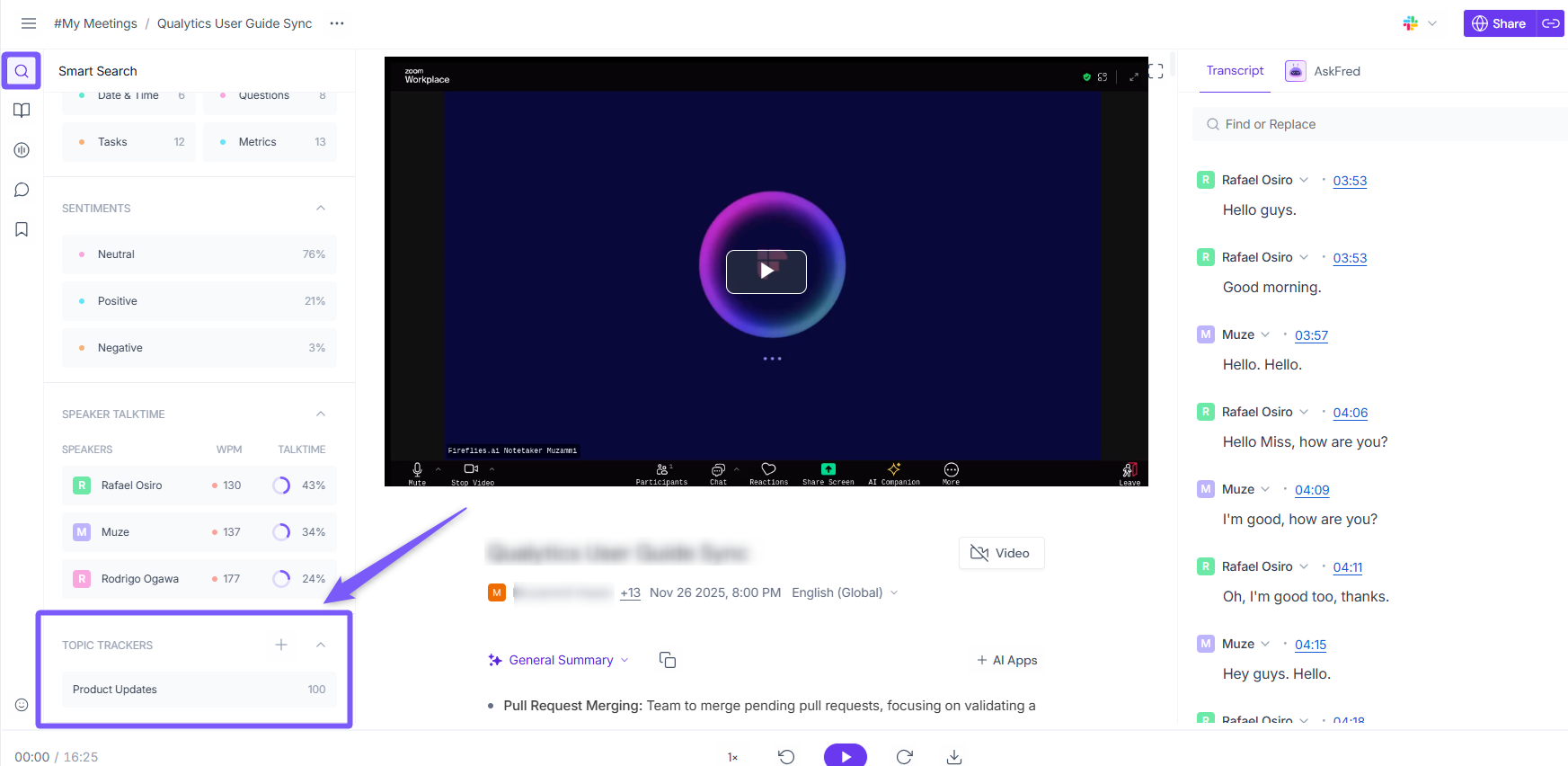
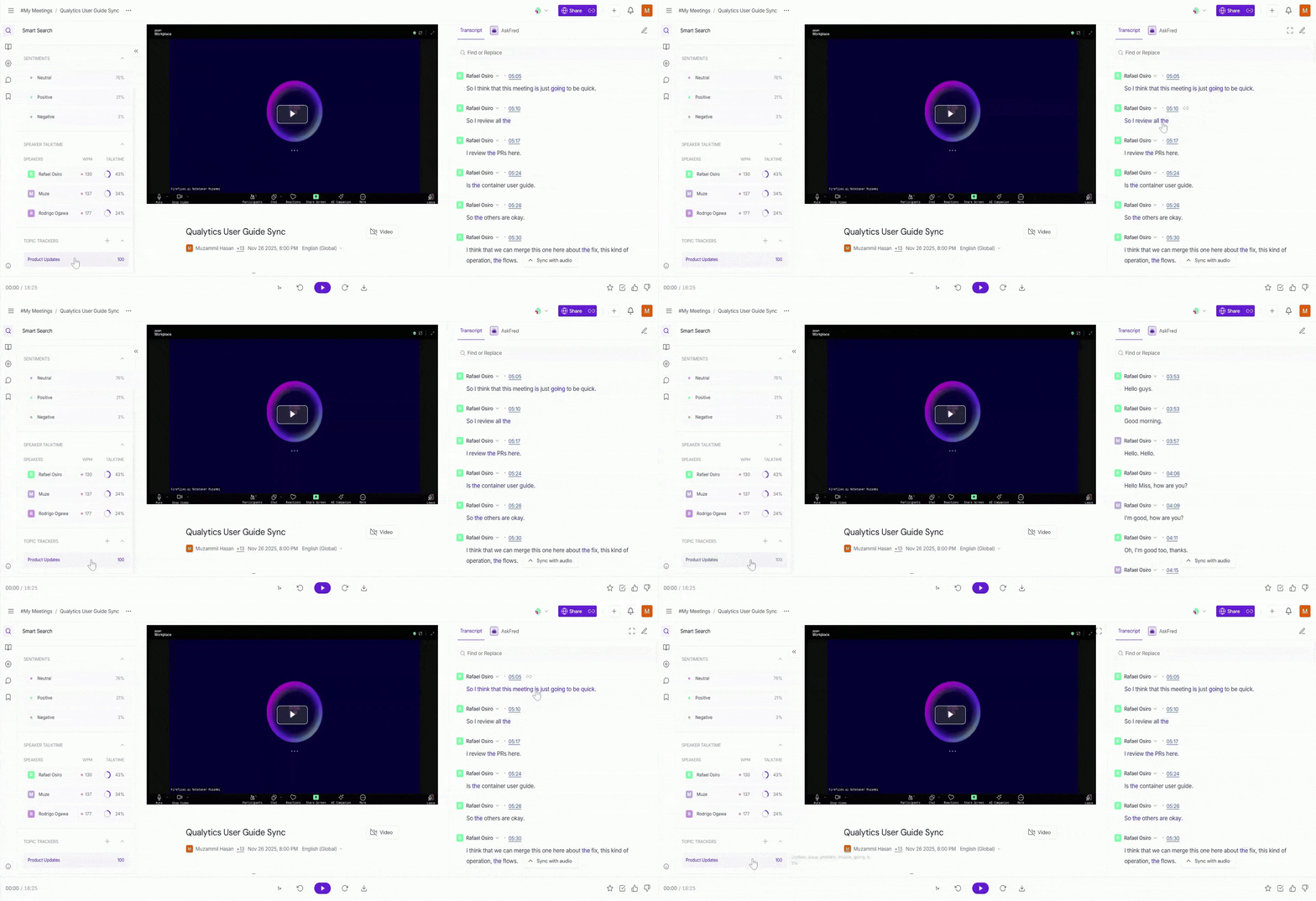
Select the topic you want to review, and each time you click it, the transcript on the right side will highlight all the moments where your added keywords were spoken during the meeting.
🔍 Use Topic Tracker to Get Insights
Topic Insights help you understand how often your keywords appear across all your meetings. You can see every topic, how many conversations include it, and all the moments where those keywords were mentioned.
Click on the Analytics tab from the left-side panel to open your analytics dashboard.

Select the Topics Insights tab to view all your topics along with the number of conversations and total keyword mentions.

Review your topic details to see each keyword along with the number of meetings it appears in and how many times it was mentioned.

Select any keyword to open its detailed view, where you’ll see all the meetings it appeared in, along with the highlighted transcript segments for each mention.

Apply filters such as My Meetings, All Meetings, Host, Participant, Meeting Type, or Date Range (Last 7 days, 14 days, 30 days, or a custom date) to narrow down your topic insights.

📊 Use Topic Tracker to Trigger Integrations
You can connect Topic Tracker with your integrated apps to automate tasks—such as creating follow-ups, logging action items, or updating project tools—whenever your keywords are mentioned in a meeting. For example, the Asana Integration uses the Topic Tracker.
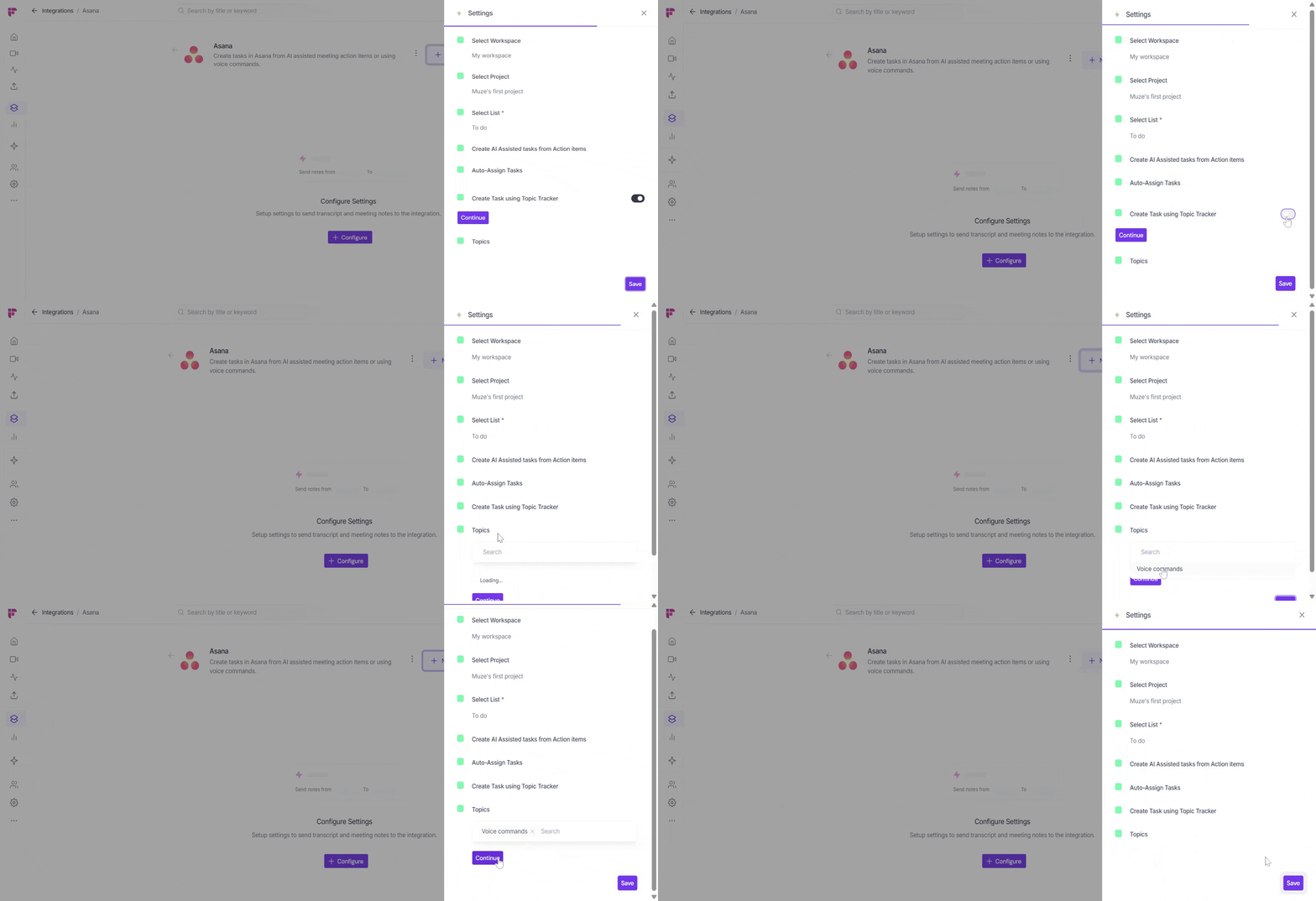
Learn more about how to use Topic Tracker to trigger integrations →
🛠 Troubleshooting & FAQs
1. Fireflies isn’t detecting my keywords
Check your topic and make sure the keywords are added correctly. Try adding clearer or more specific keywords.
2. No highlights appear in the transcript
Topic Tracker requires a Fireflies transcript to identify and highlight keyword mentions.
3. I can’t enable a topic for my team
Only Workspace Admins can use the Enable for teammates checkbox.
4. My teammates can’t see the topic I created
Make sure you’re a Workspace Admin and the Enable for teammates checkbox is checked.
5. Can I edit or delete a topic later?
Yes. Go to Settings → AI Settings → Topic Tracker and click Edit to manage your topics.
6. Does Topic Tracker work with all meetings?
Yes—Topic Tracker can identify matches in meetings that have a Fireflies transcript.
7. Does deleting a topic remove past insights?
No, your historical analytics data stays available even if the topic is removed.
🔁 Recap
Topic Tracker highlights where your selected keywords were mentioned in a meeting.
You can create, edit, and delete topics anytime.
Admins can enable topics for their entire workspace.
In Smart Search, you can review keyword moments inside a meeting.
In Analytics → Topic Insights, you can see how often your keywords appear across all meetings.
📚 Related Guides
Looking to do more with Topic Tracker or voice commands? These guides will help you explore related features: