Invite Teammates via Link, Email, or Company Domain
Last updated: April 10, 2026
Bring your teammates into Fireflies using their email addresses, a shareable invite link, or by recognizing your company domain. This keeps everyone in the same workspace, so meetings, notes, and action items stay in one place.
🔑 Prerequisites
You’re logged into the Fireflies web app.
You have permission to access the Team section.
(Optional) You’re an admin if you plan to enable auto-add for company domain invites.
Each teammate you add to your workspace counts as one seat, which is billable under your subscription plan.
For more details, see Fireflies Billing FAQs
🚀 Navigation
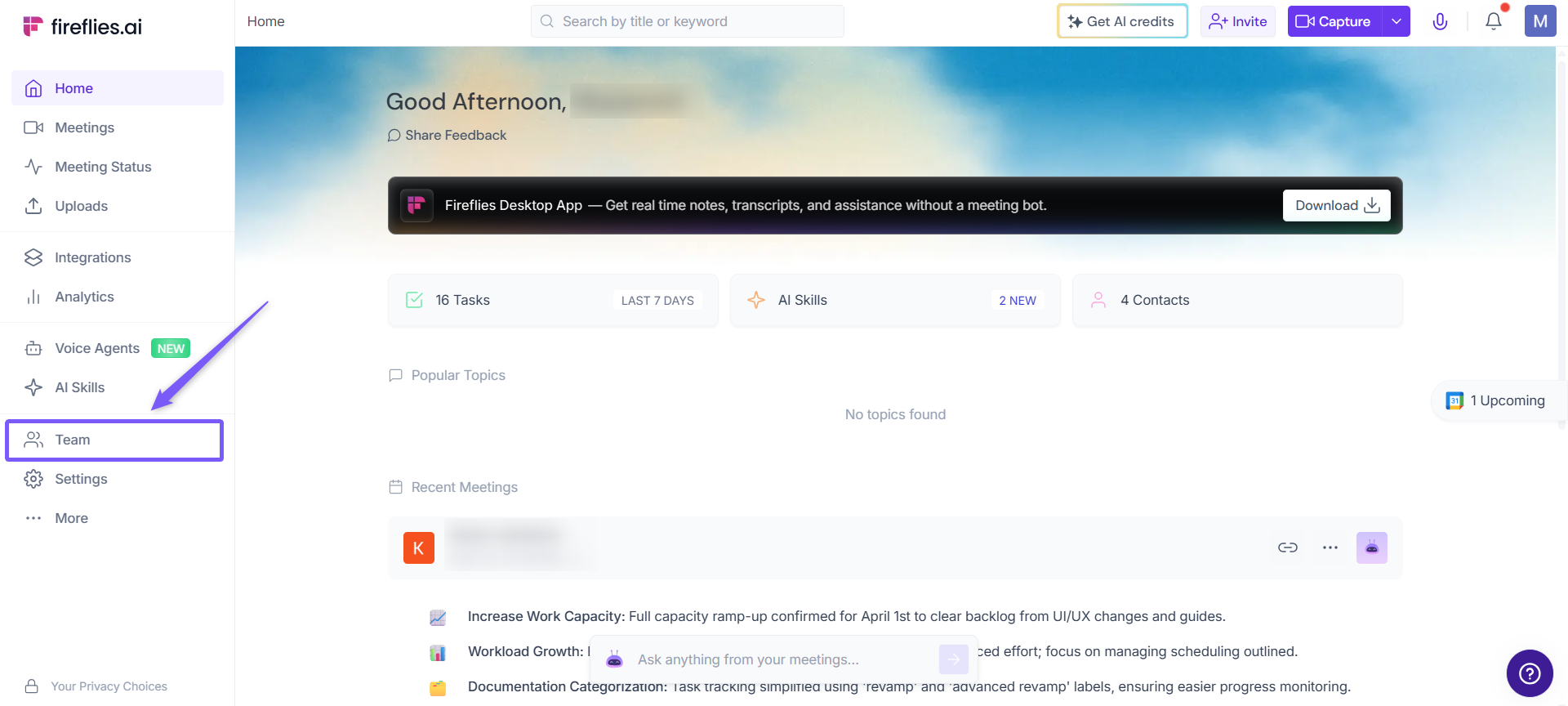
Step 1: Log in to your Fireflies account and click Team in the left sidebar.
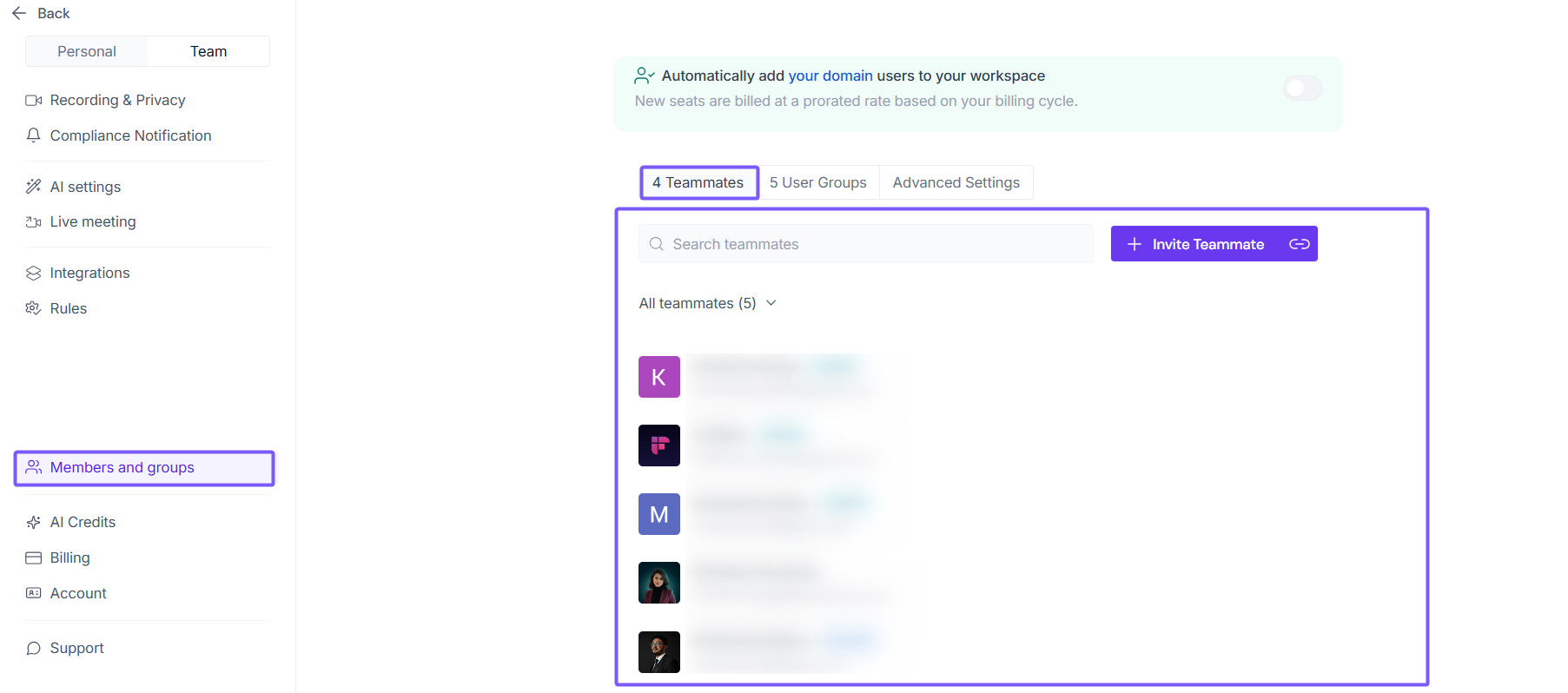
Step 2: You’ll be redirected to the Members and Groups settings. By default, the Teammates tab is selected.
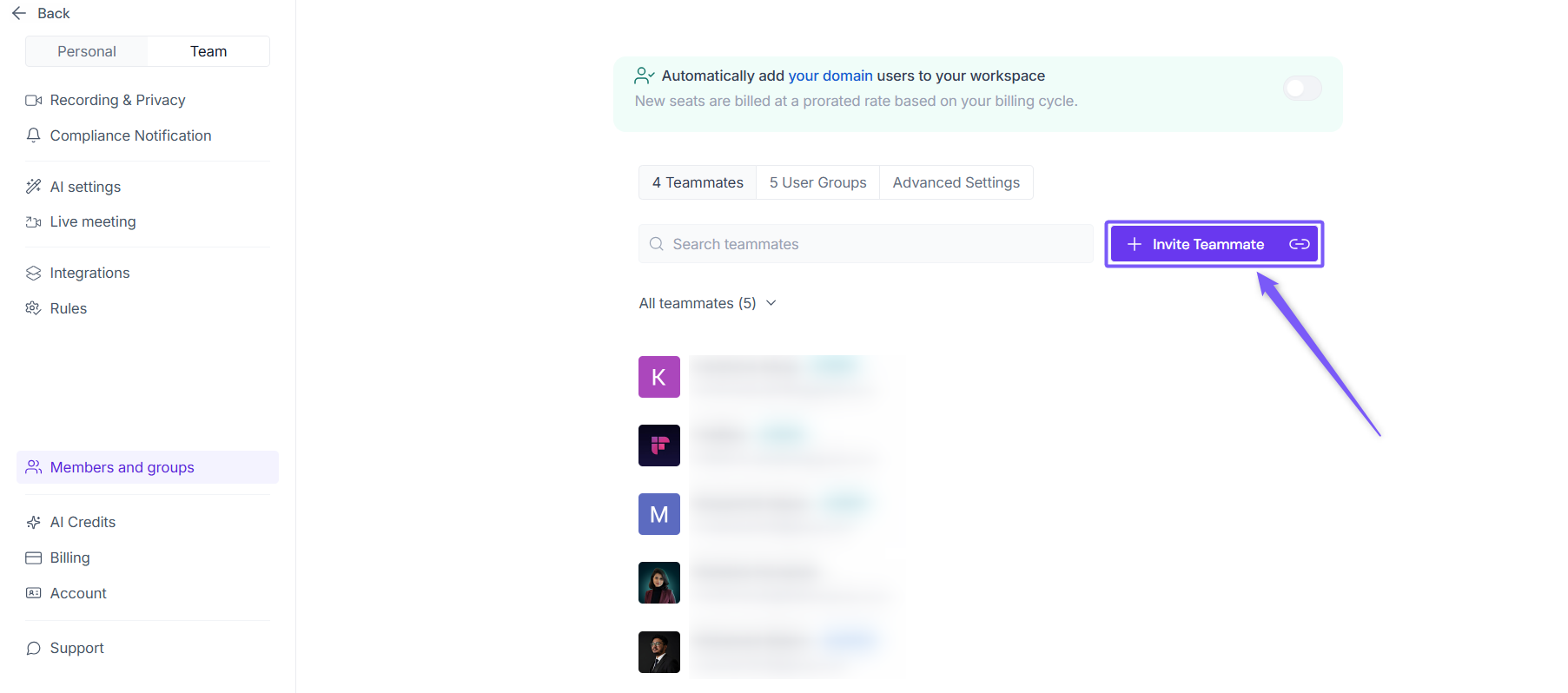
Step 3: Click on the Invite Teammate button.
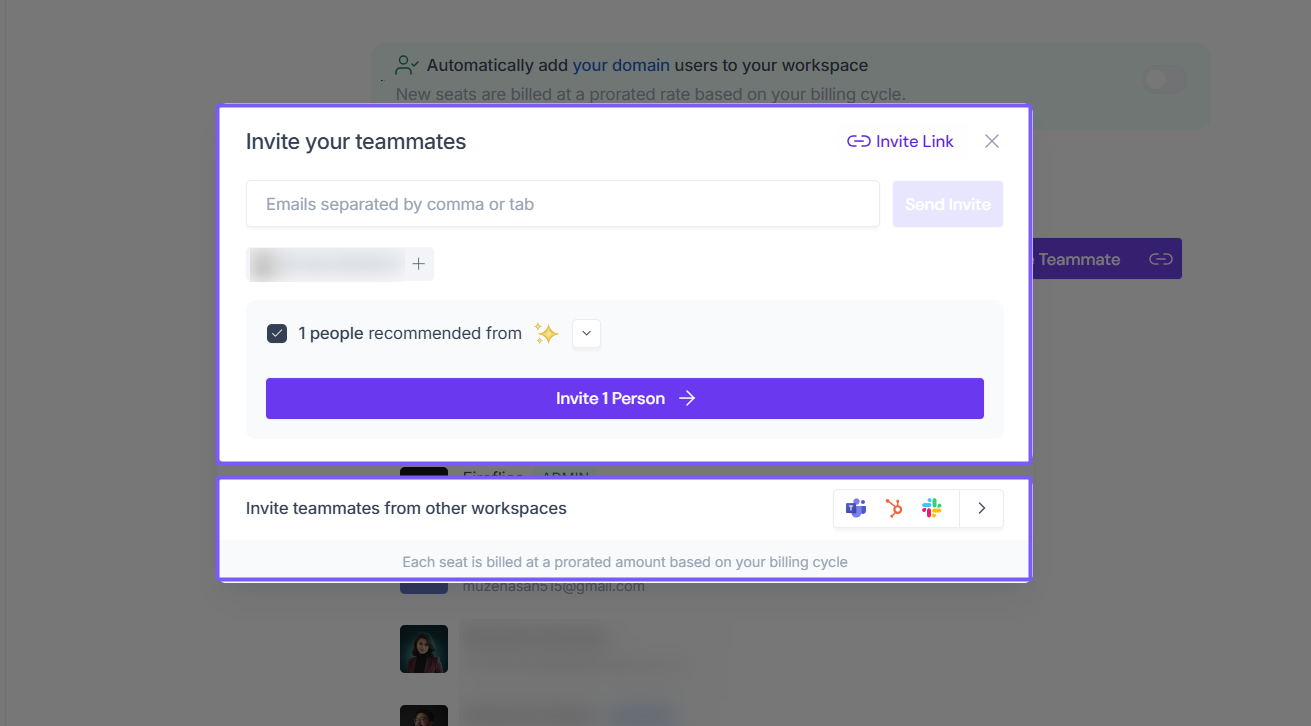
The Invite your teammates window opens — where you can add teammates by email, copy a shareable invite link, or invite suggested teammates from your company domain.
💌 Ways to Invite Teammates
You can invite teammates to Fireflies in three easy ways — using a shareable invite link, by email, or through your company domain.
Each method works slightly differently, so choose the one that best fits how your team collaborates.
1⃣ Invite with a Shareable Link
Use this when you want to share one link with multiple teammates.
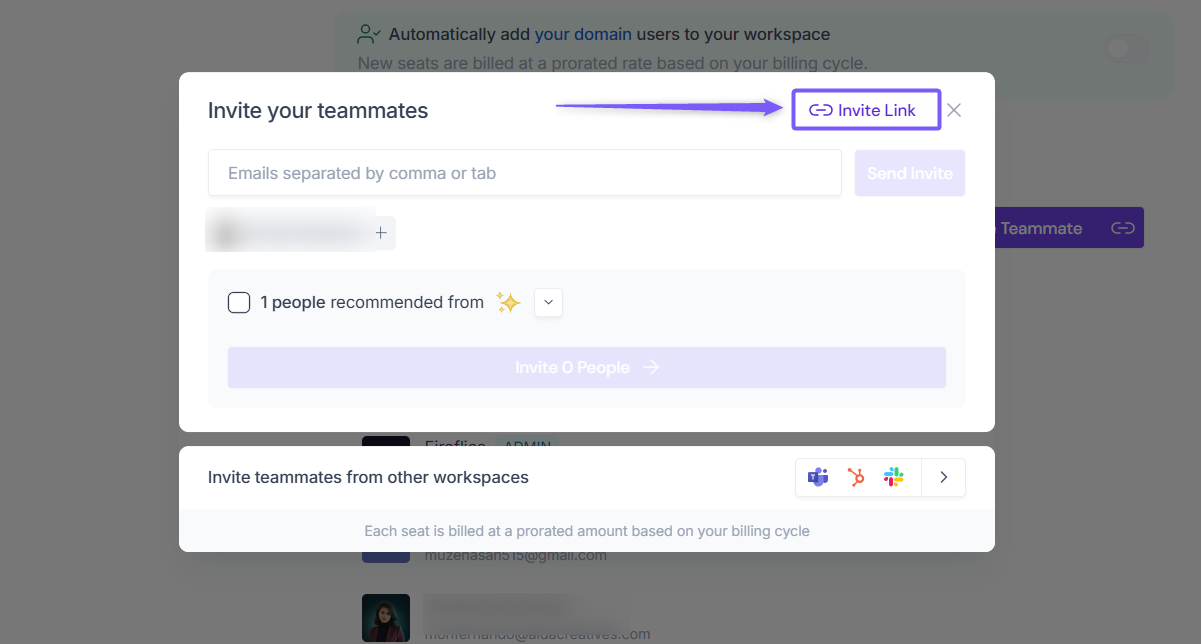
Step 1. In the Invite your teammates window, click Copy link in the top right corner.
Step 2. Share this link with your teammates via Slack, Teams, or email.
Step 3. They can open the link and click Accept Invitation to join your workspace.
Perfect for large teams or quick onboarding—just share one link and everyone can join instantly.
2⃣ Invite by Email
Use this when you want to invite teammates individually or in bulk.
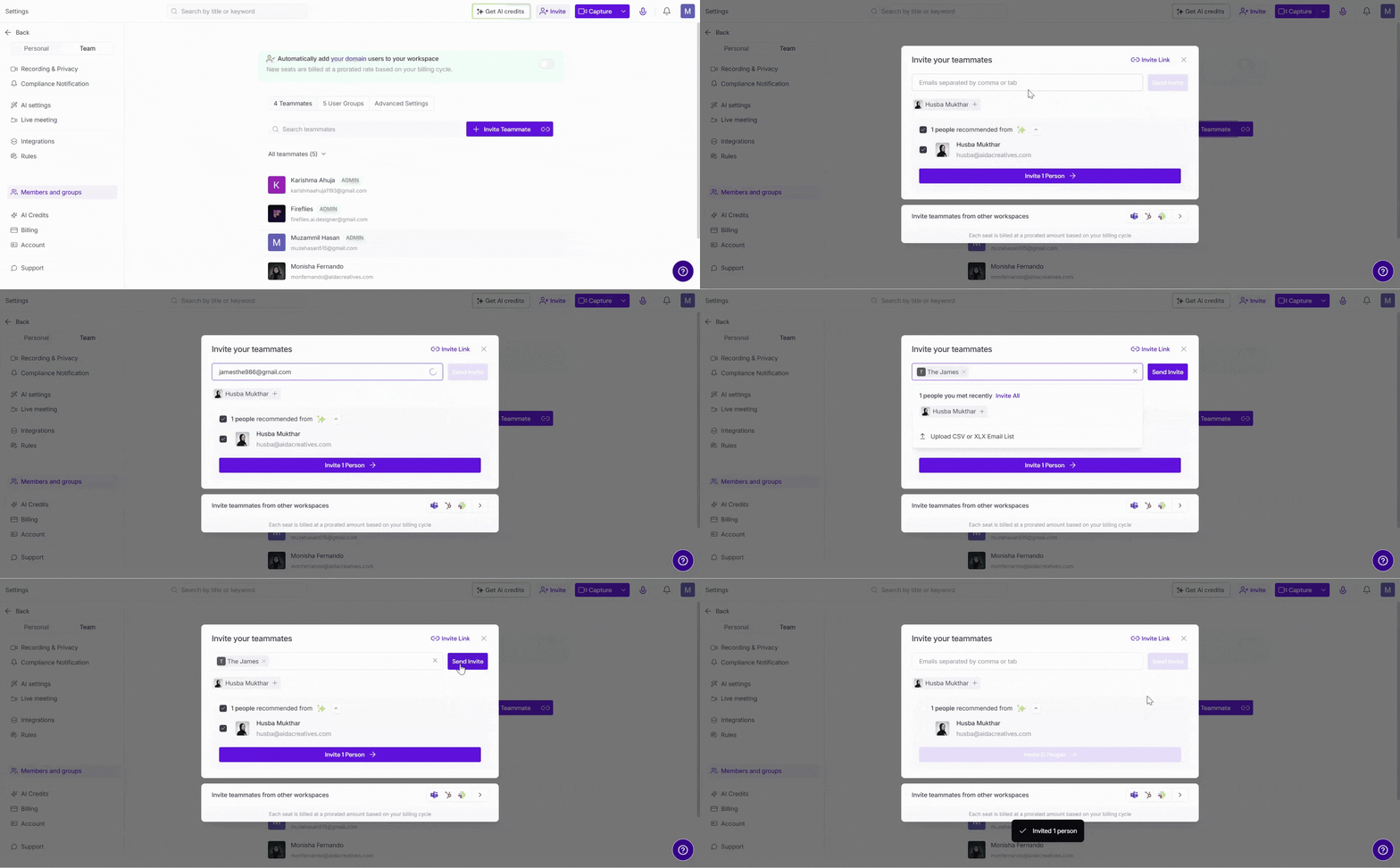
Step 1. In the Invite your teammates window, enter one or more teammate email addresses in the text box. You can add multiple emails at once, separated by commas.
Step 2. Click Send Invite.
Step 3. Your teammates will receive an email from Fireflies — they just need to click Join Now → Accept to join your workspace.
Use this when adding a few new hires or inviting department heads together in one go.
3⃣ Invite by Company Domain
Fireflies automatically detects teammates who use the same company email domain (like @yourcompany.com). This helps you quickly bring in your colleagues without typing every address manually.
This feature works only for business domains (like @company.com), not for personal ones ( @gmail.com, @outlook.com).
You can either invite them manually or automatically add new users from your domain.
Option A — Manually Invite Suggested Teammates
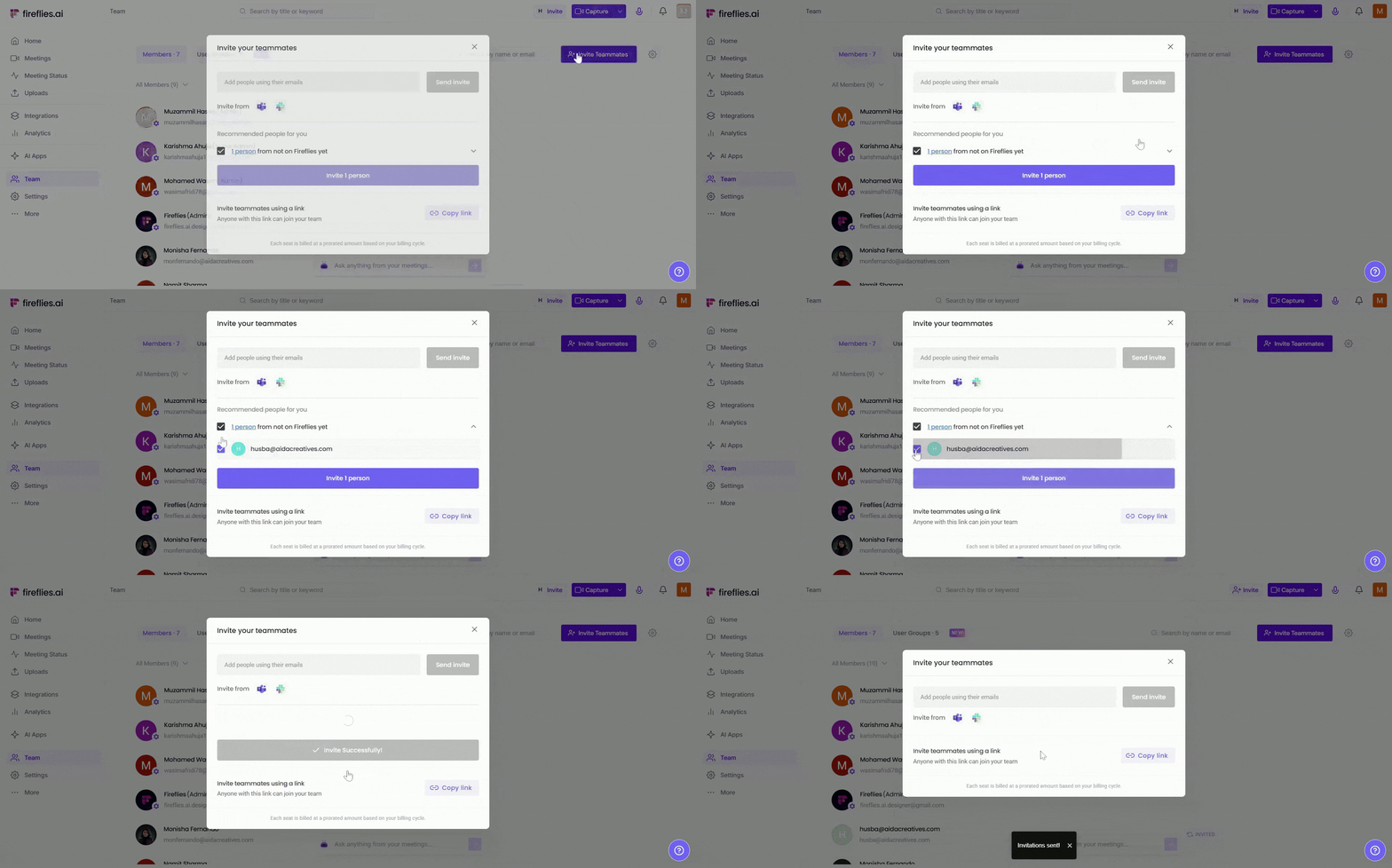
In the Invite your teammates window, check the Recommended people for you list.
Expand the list using the dropdown icon.
Click Invite all to add everyone, or select teammates individually and click Invite.
Use this when you want to review who’s joining before sending invites.
Option B — Automatically Add New Users
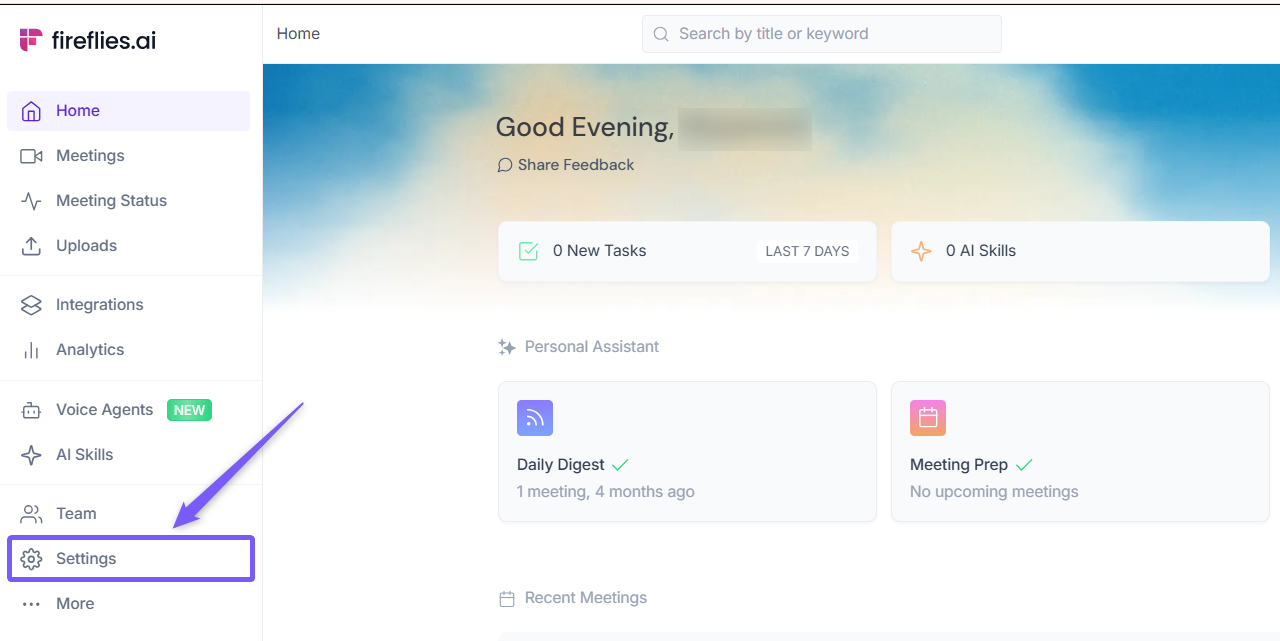
Open your Fireflies web app and click on Settings in the main navigation menu.
From the left panel, click Members and groups. By default, you’ll land on the Members tab.
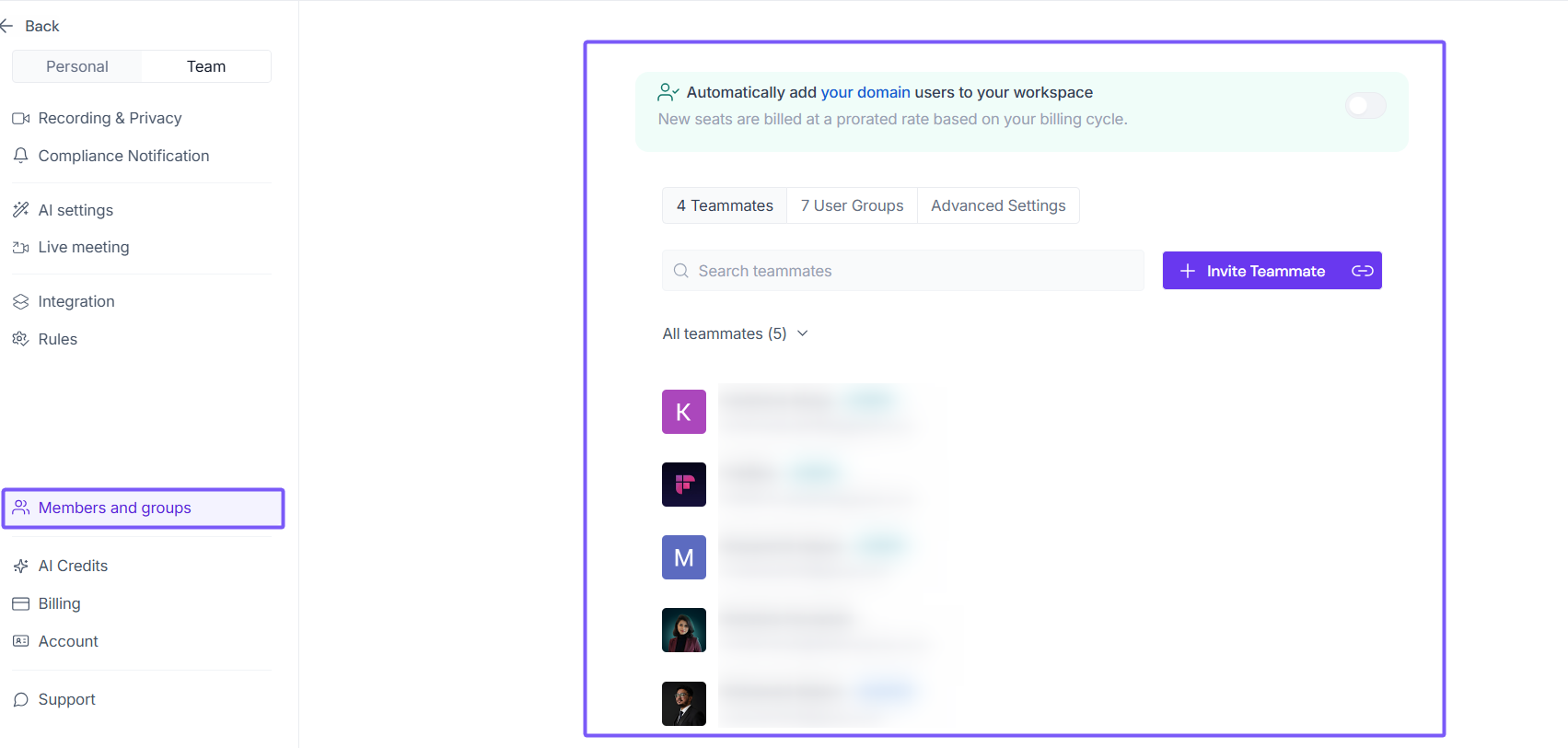
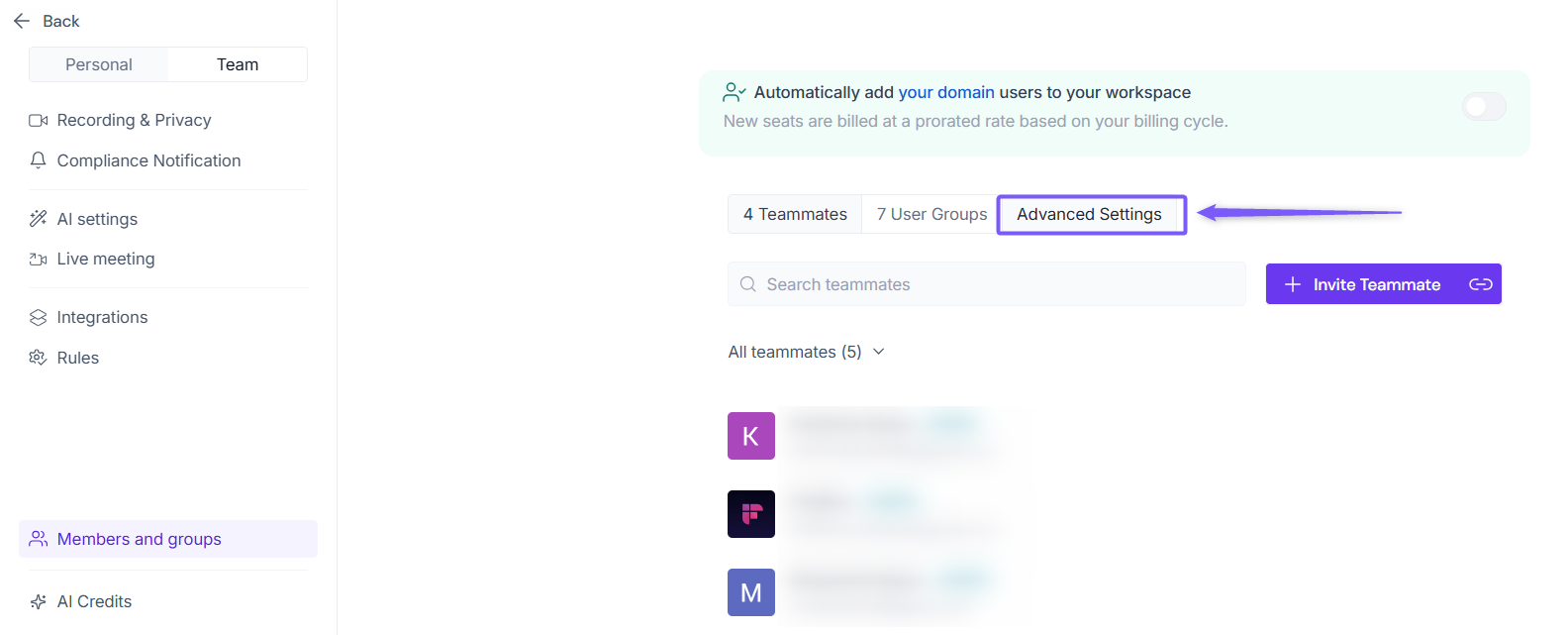
Once there, click the Advanced Settings tab at the top.
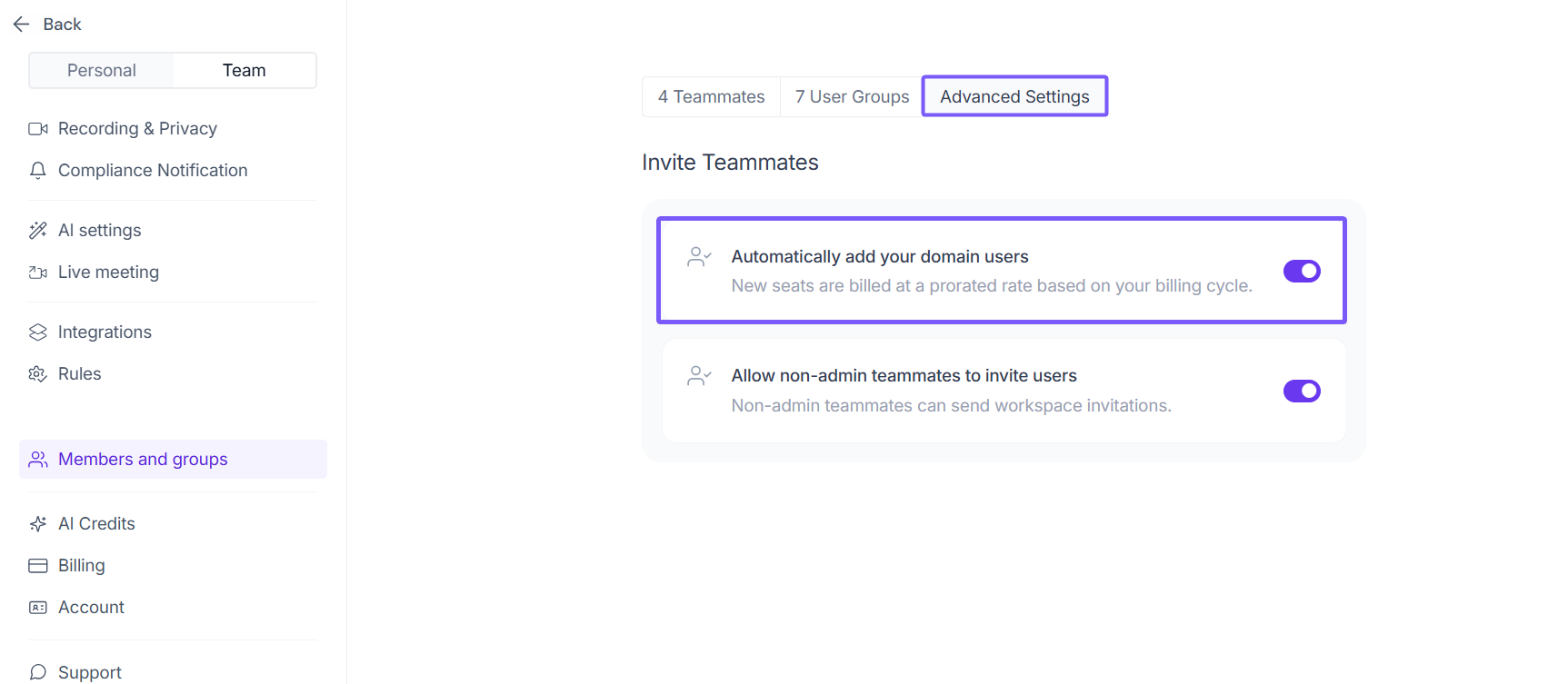
Locate Automatically add your domain users and toggle it on to automatically add new users from your domain to your workspace.
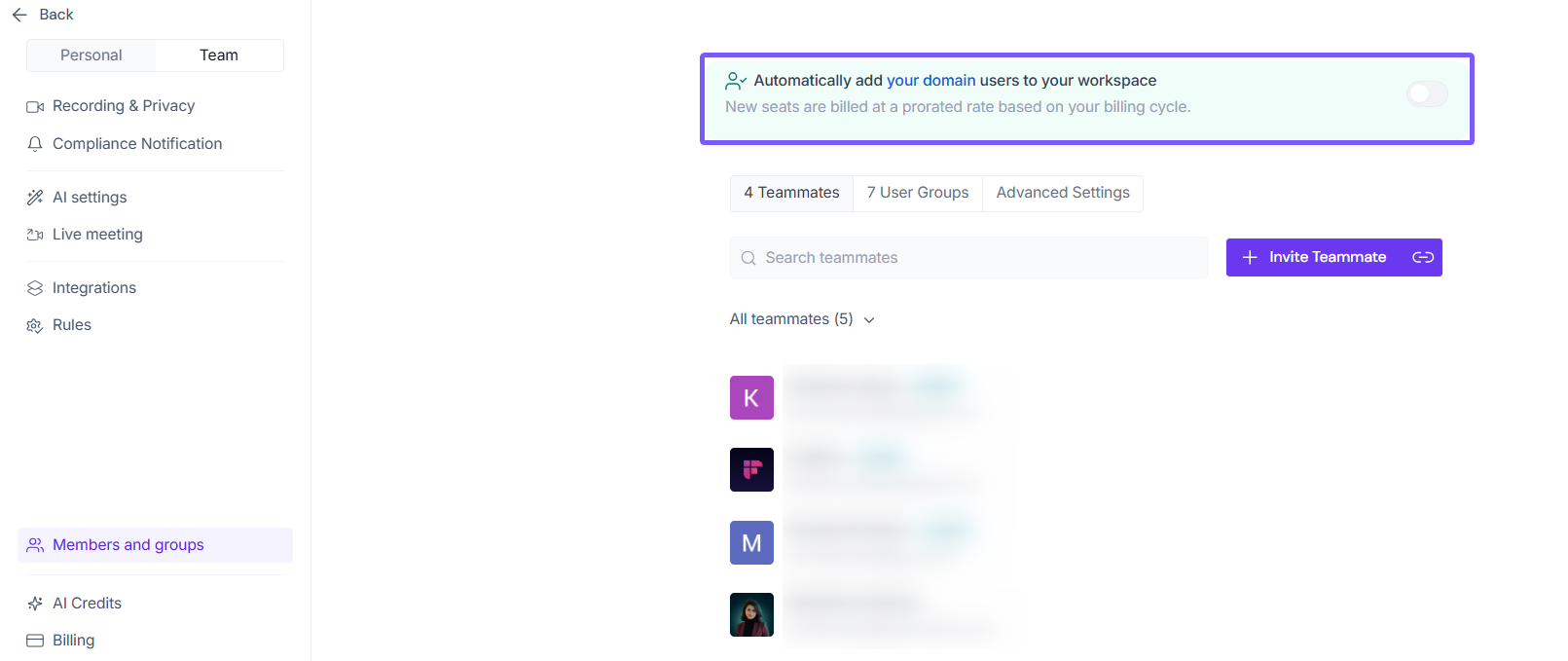
💡Alternatively, you'll also find this option as a banner at the top of the Members and Groups page — toggle it on from there.
Note: Each new user added automatically will take up a paid seat in your workspace. The cost is calculated based on the remaining days in your current billing cycle.
👥 How Teammates Join Your Fireflies Workspace
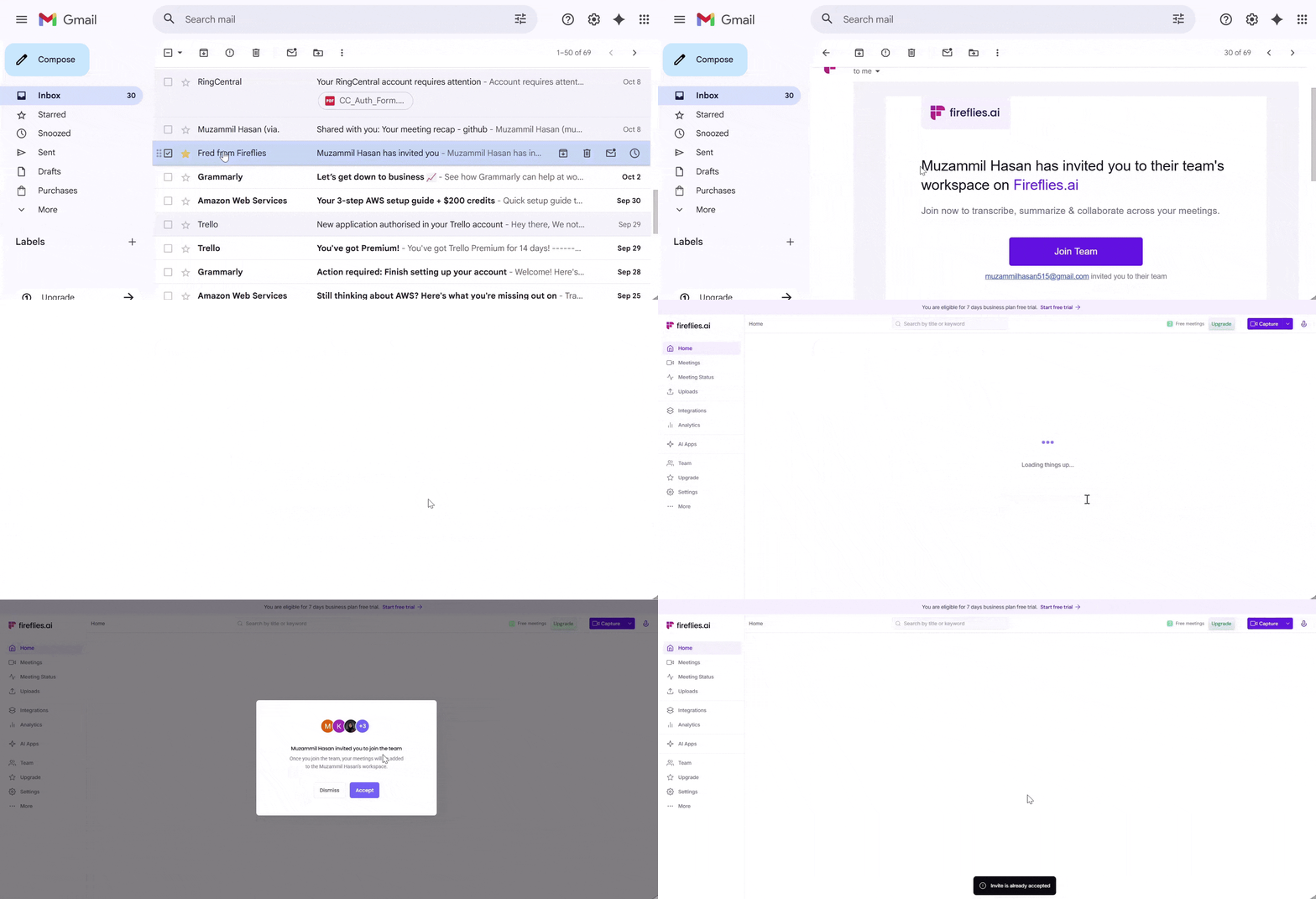
After you send an invite, your teammates will receive an email from Fred from Fireflies (fred@fireflies.ai) with the subject line “[Your Name] has invited you to their team’s workspace on Fireflies.ai.”
To join the workspace:
Open the invitation email in your inbox. If it’s not there, check the Spam or Promotions folder.
Click the Join Team button in the email.
On the confirmation page, click Accept Invitation to join your Fireflies workspace.
Once accepted, you’ll be instantly added to the team and can access meetings, notes, and summaries.
🛠 Manage Invites & Teammates as an Admin
Once teammates accept their invites, admins can manage their roles, re-invite them, or remove them from the workspace to keep things organized.
You can do all of this easily from the Team Members tab.
From here, you can:
Re-invite teammates who haven’t joined yet.
Remove teammates from the workspace.
For teammates with company domain emails, you can also deactivate or reactivate them — follow this step-by-step guide: Deactivate or reactivate teammates.
Make Admin or Make Non-Admin to adjust access levels — follow this step-by-step guide: How to make a teammate an admin.
📘 Related Guides
To learn more about inviting teammates to Fireflies, check out these guides: