How to Re-invite or Cancel an Invite for Teammates in Fireflies
Last updated: December 2, 2025
Keep your workspace organized by managing teammates who haven’t joined yet.
From the Team tab in your Fireflies dashboard, you can easily re-invite teammates to send them a fresh join link or cancel/remove pending invites that are no longer needed.
This ensures only active teammates appear in your workspace and everyone has the correct access.
🔑 Prerequisites
You’re logged into the Fireflies web app.
You have access to the Team section in your workspace.
Only admins or users with Team Management permissions can re-invite or remove pending invites.
For details on how to invite teammates to Fireflies, see the How to Invite Teammates to Fireflies
🔁 Re-invite a Teammate
If a teammate hasn’t joined your workspace yet, you can send them a new invitation email right from the Team tab.
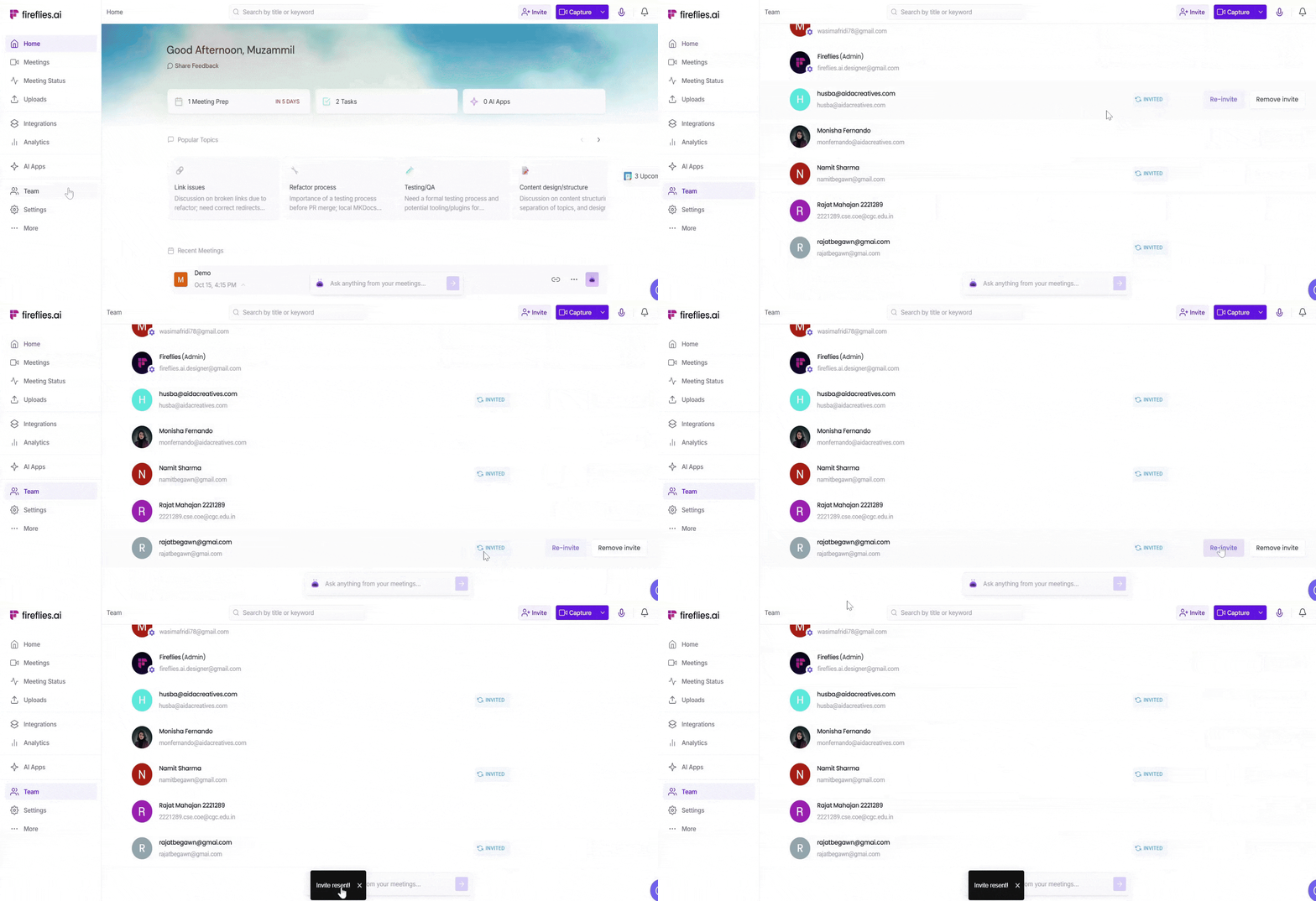
Go to your Fireflies web app and click Team in the left sidebar.
Under the Members tab, look for teammates with the status Invited — this means they haven’t accepted the invite yet.
Hover over their name and click Re-invite.
Fireflies will send them a fresh Join Invitation email to join your workspace.
Re-inviting reminds teammates to join without sending a new link. You can resend the invite once every 24 hours if they haven’t joined yet.
🗑 Remove a Teammate or Pending Invite
You can remove teammates from your workspace at any time — whether they’ve already joined or are still invited.
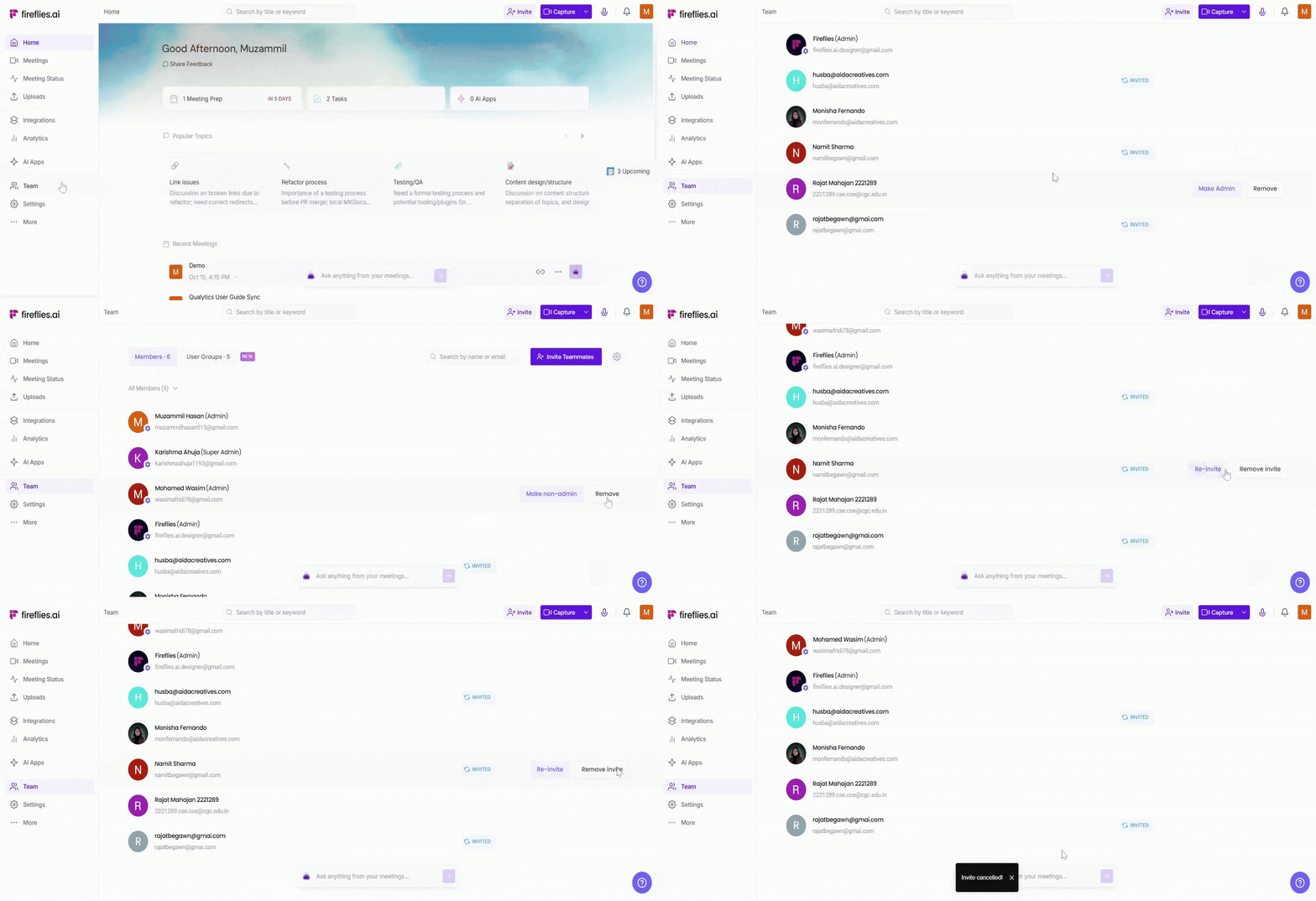
Go to your Fireflies web app and click Team in the left sidebar.
Under the Members tab, find the teammate you want to remove.
If they haven’t joined yet, their status will show as Invited.
Hover over their name and click Remove Invite.
Confirm the action when prompted. Once removed, they’ll lose access to your workspace.
Removed teammates or cancelled invites will no longer appear under your team list. You’ll need to send a new invite if you want to add them again later.
Need help? If you don’t see the Re-invite or Remove options, check the Team Management Features for Admins guide or contact Fireflies Support.