How to Edit Billing Information from the Fireflies Dashboard
Last updated: April 3, 2026
Keeping your billing details up to date ensures your invoices reflect the correct information — especially important for finance teams managing expenses and tax records.
This guide walks you through the steps to update your billing information on Fireflies.
Steps to Edit Billing Details
1. Go to the Fireflies web app and click the Settings from left side menu.

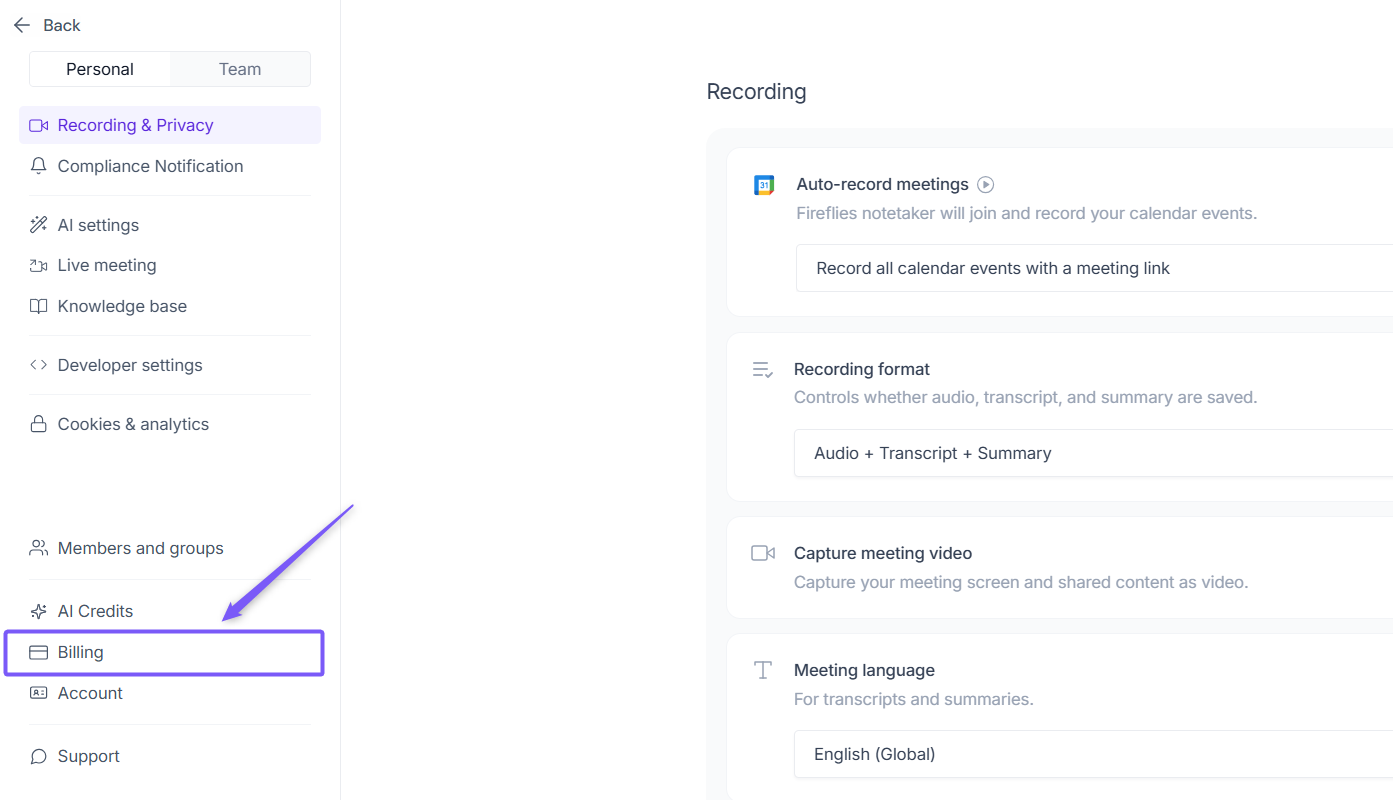
2. Navigate to Billing from the left panel.
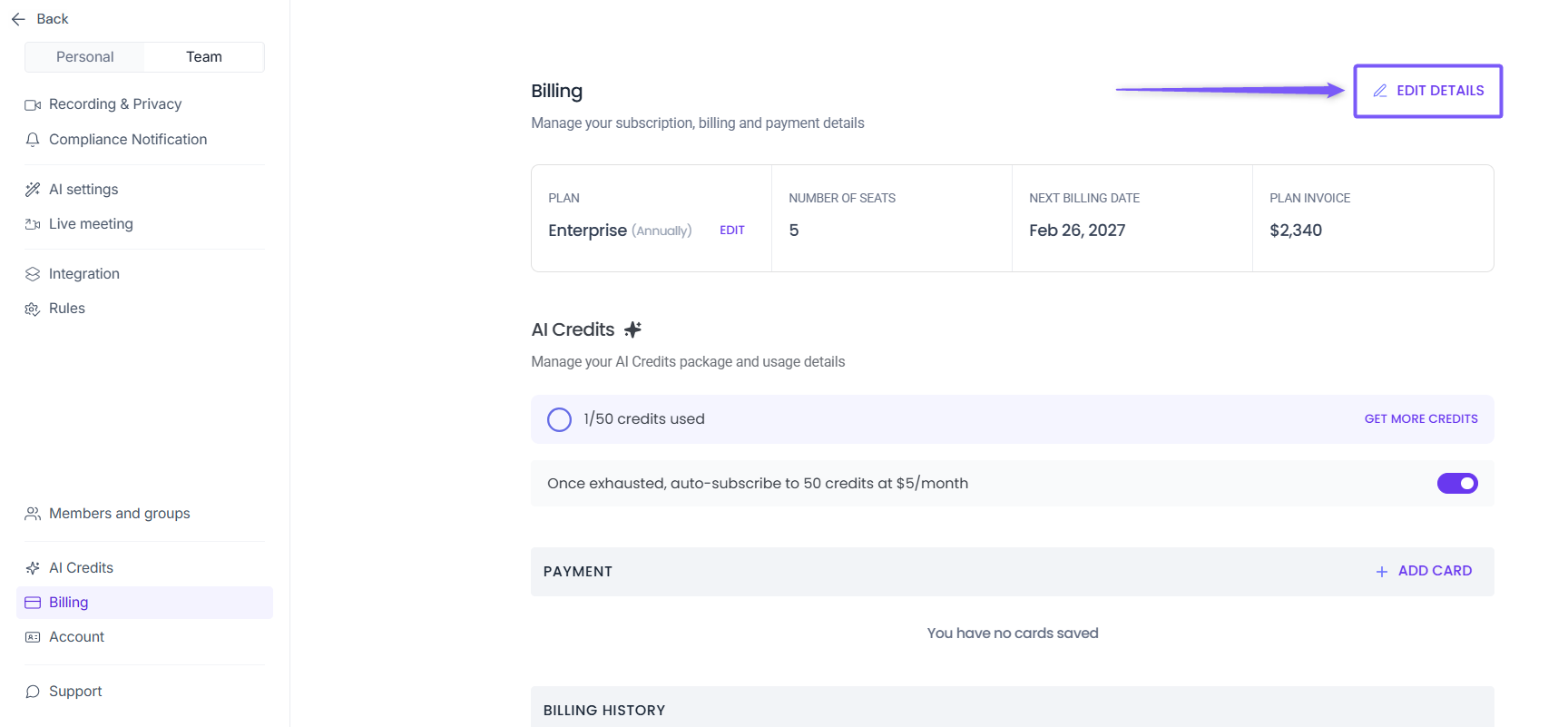
3. Click Edit Details at the top right.
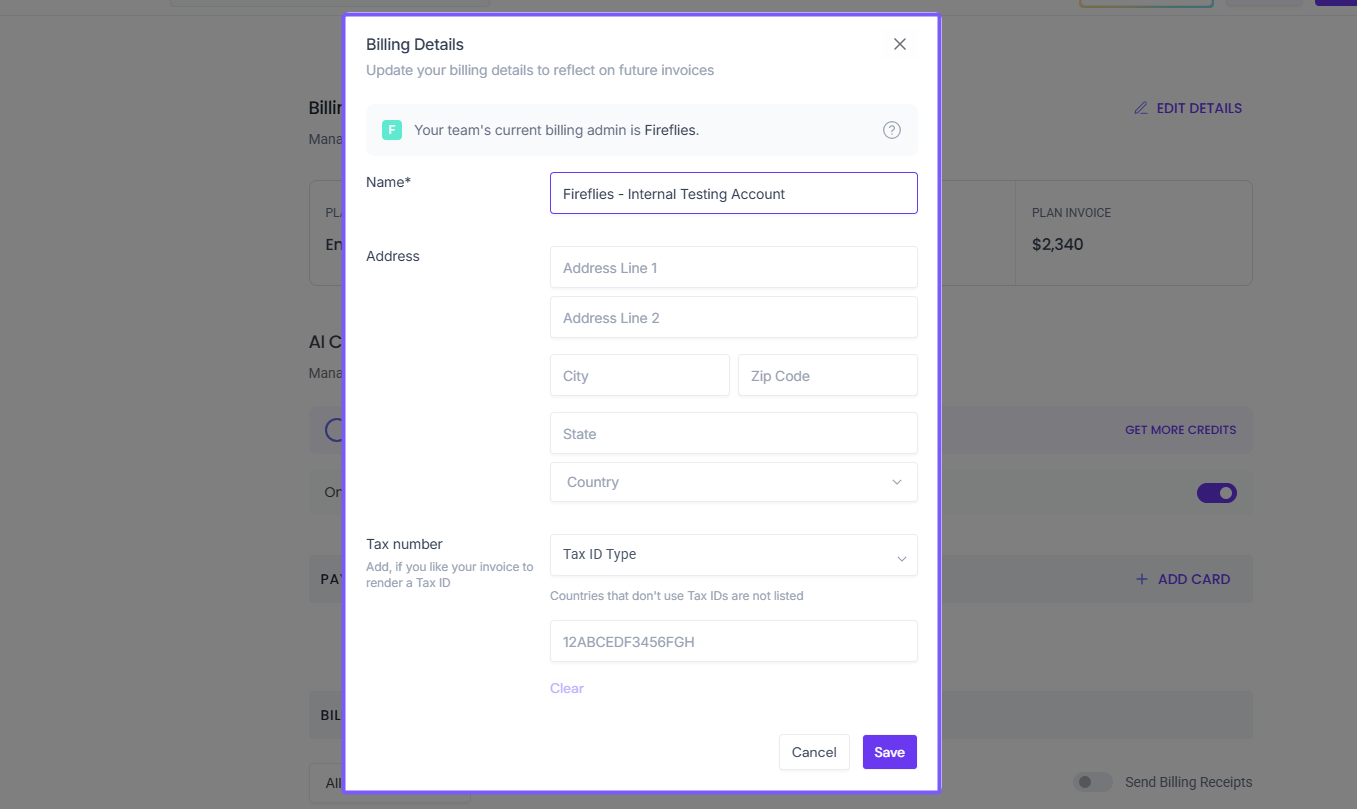
4. Enter your updated billing details and click Save.
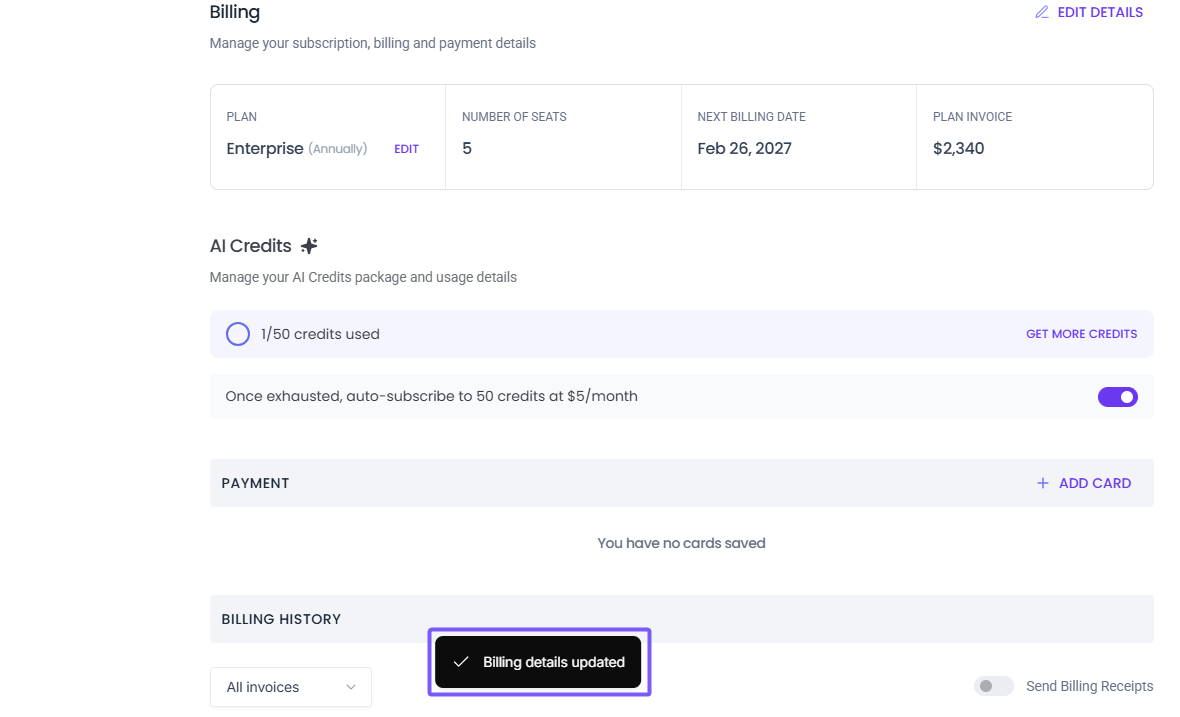
You will see a confirmation message — Billing details updated.
How to View Updated Details on an Invoice
To verify your changes, follow these steps:
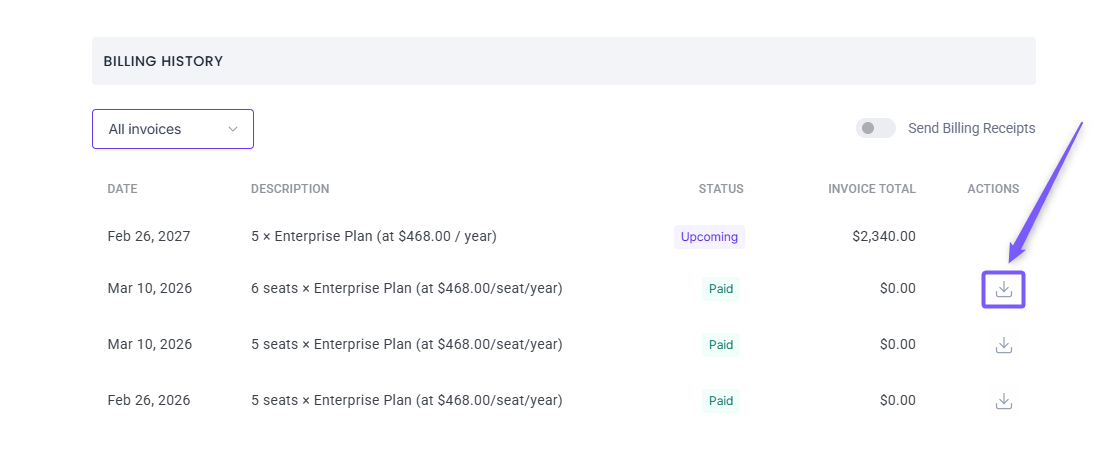
1. Scroll down to the Billing History section and click the download icon next to any past invoice.
2. Open the downloaded invoice — your updated billing details will reflect within the invoice.
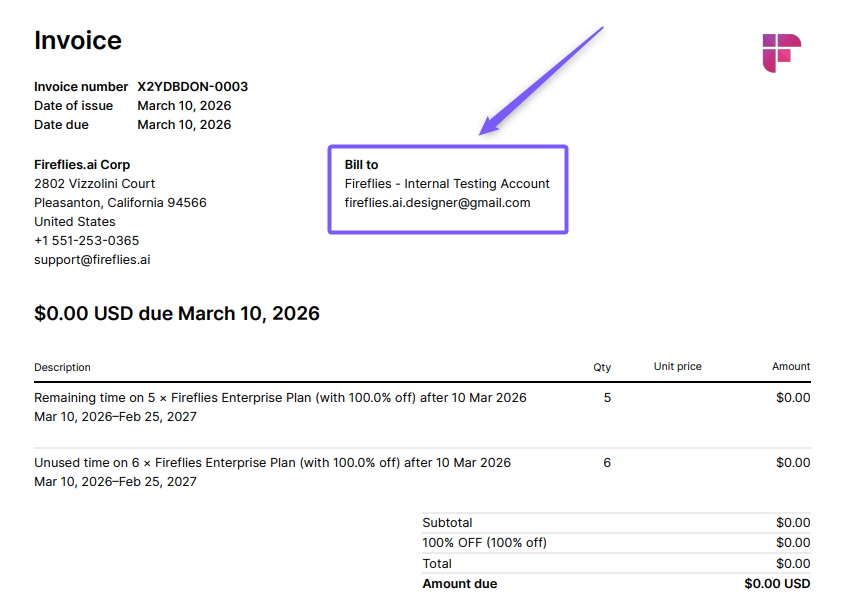
Note: Only the address will be updated and not the name. To update the name, please contact support.