How to Integrate Monday.com with Fireflies
Last updated: August 27, 2026
Keeping your project boards updated with meeting outcomes is easier when tasks are created automatically. With the Fireflies + Monday.com integration, meeting notes and action items are converted into tasks and added directly to your boards — no manual updates needed.
Let’s get started 🚀
🔍 What Does this Integration Do?
The Monday.com + Fireflies integration helps turn meeting discussions into actionable tasks inside your boards.
Create tasks from meeting action items → Automatically capture follow-ups and add them to Monday.com
Choose where tasks are created → Send tasks to the right board and group
Auto-assign tasks → Assign tasks to team members based on meeting context
Use integration rules → Control which meetings create tasks
This helps teams stay organized, ensure follow-ups are captured, and reduce manual updates after every meeting.
🔑 Prerequisites
Before connecting Monday.com with Fireflies, make sure you have:
An active Fireflies account
A Monday.com account
You must install the Fireflies app in Monday.com before completing the connection in Fireflies — we’ll guide you through this in the next steps.
Once these are ready, you can proceed with the setup.
🔗 Connect Monday.com to Fireflies
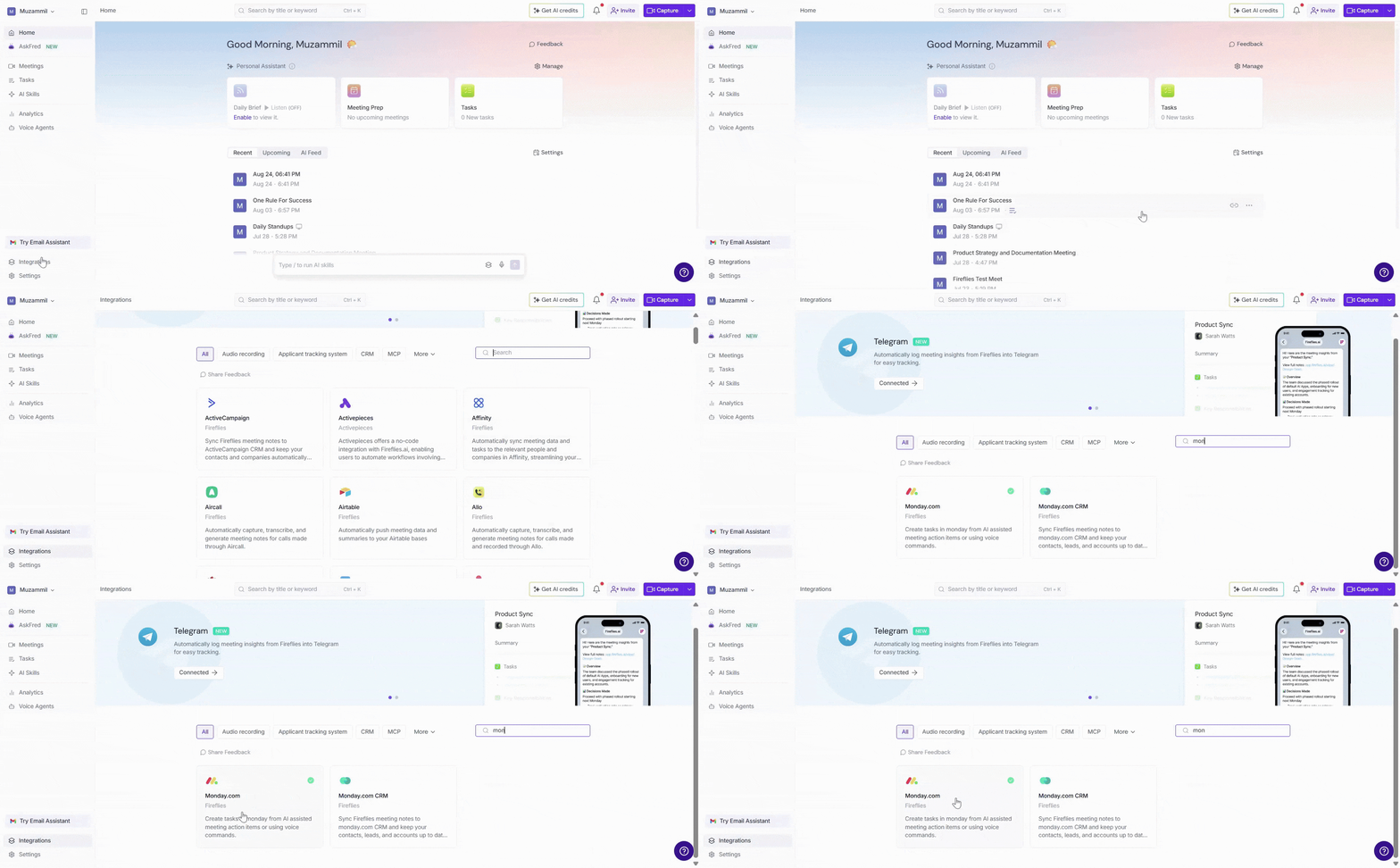
Step 1: Log in to your Fireflies account, click on the Integrations tab, and search for Monday.com. Click on it to get started.
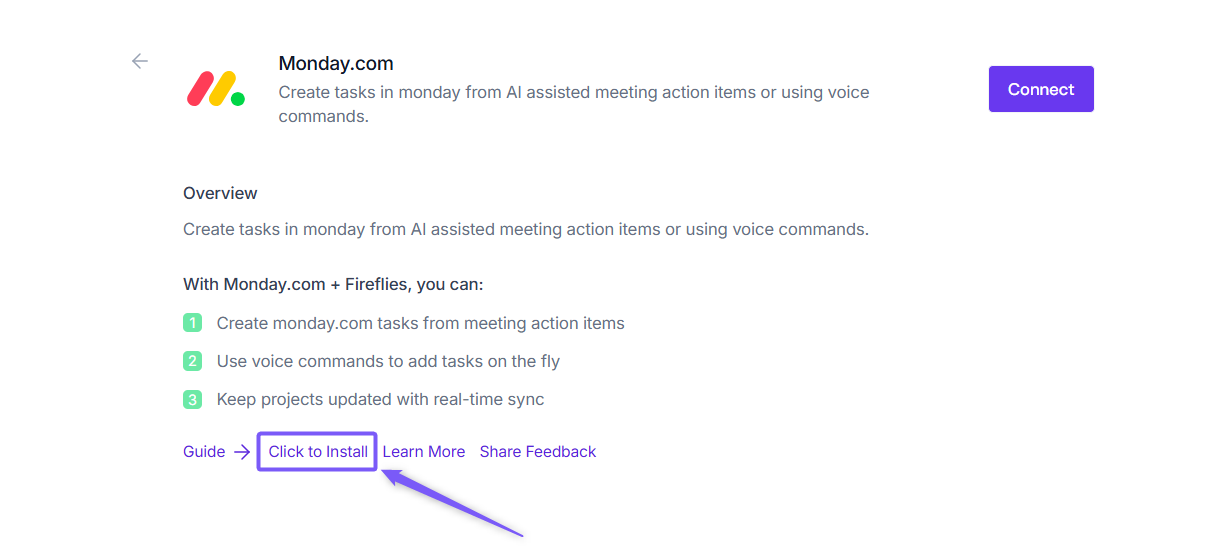
Step 2: Click Click to Install to install the Fireflies app on Monday.com. You’ll be redirected to Monday.com.
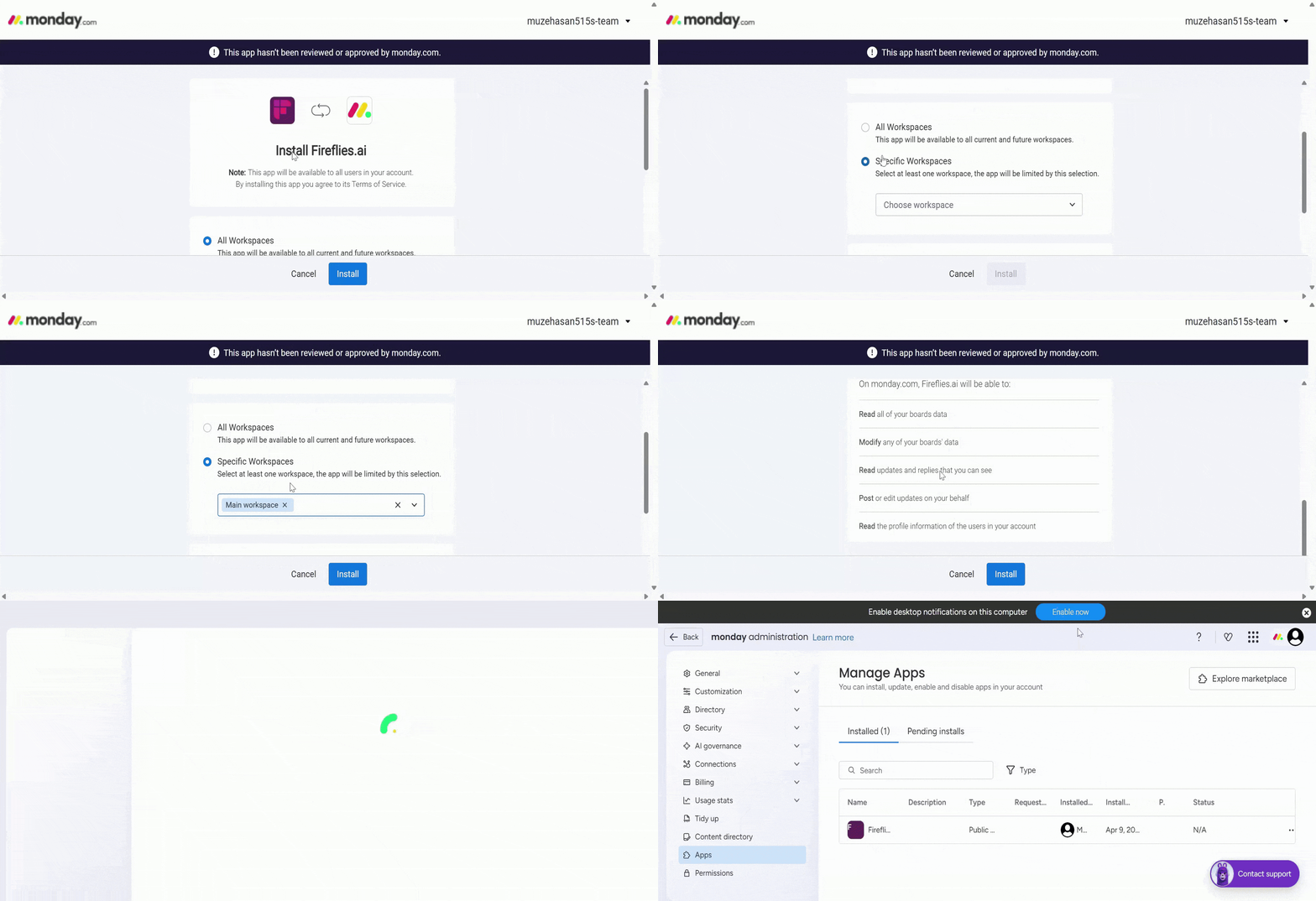
Step 3: Choose the workspaces you want Fireflies to access, then click Install.
📌 We recommend selecting All workspaces so Fireflies works across your entire account.
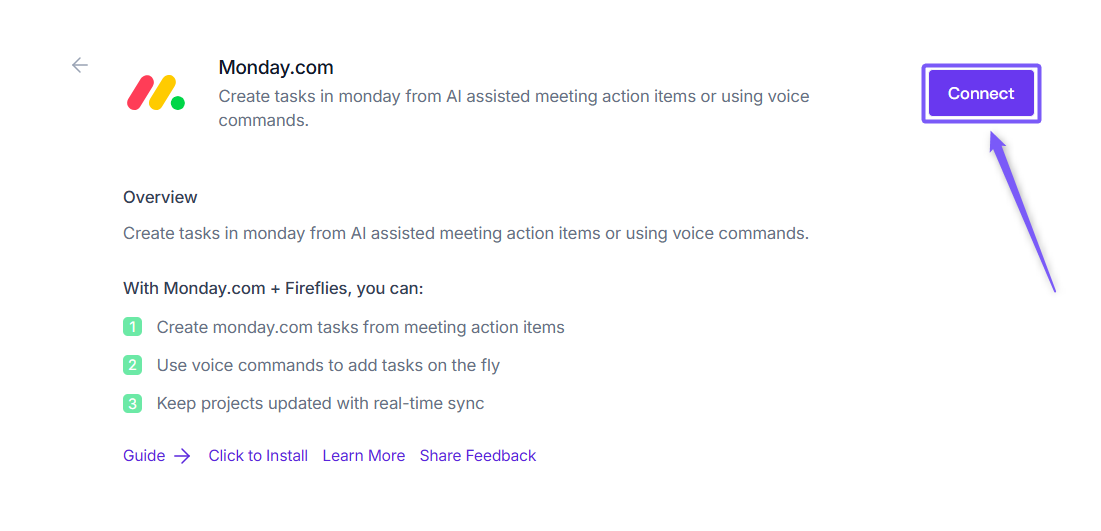
Step 4: After installation, return to Fireflies and click Connect and you’ll be redirected to the Monday.com login page. Complete the sign-in process, and you will be redirected to the authorization page.
Step 3: Click on the Authorize button to authorize Fireflies to read and write tasks in your Monday.com account, including task creation and modifications.
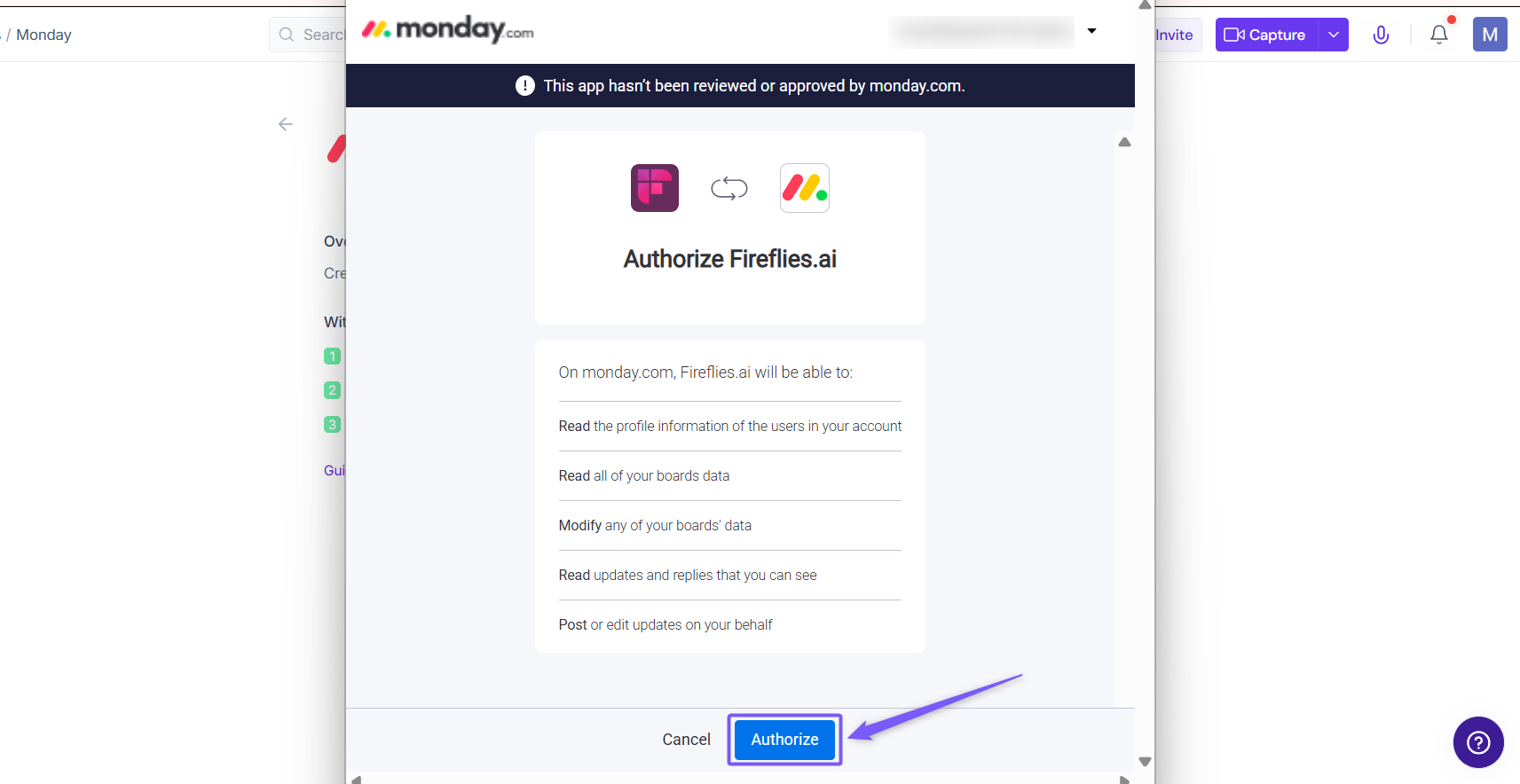
Once approved, you’ll be redirected back to Fireflies to configure your integration setup.

⚙ Setting Up Your Configuration
Step 1: Select Board
Choose the Monday.com board where Fireflies should create tasks.
Select a board from the dropdown to continue
If you don’t select a board, you can click Skip to proceed
💡 Don't see a Board? Create one directly in Monday.com and come back to continue.
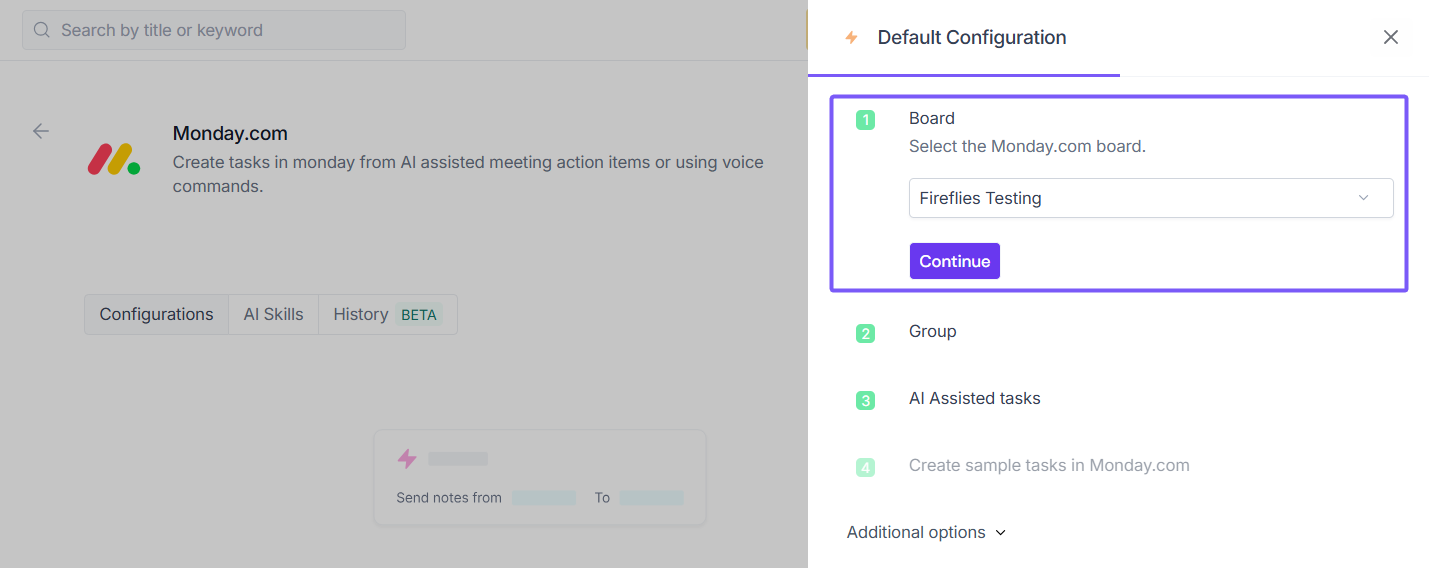
Step 2: Select Group
Choose the group within the selected board where tasks should be created.
Select a group to continue
If no group is selected, you can skip this step and proceed
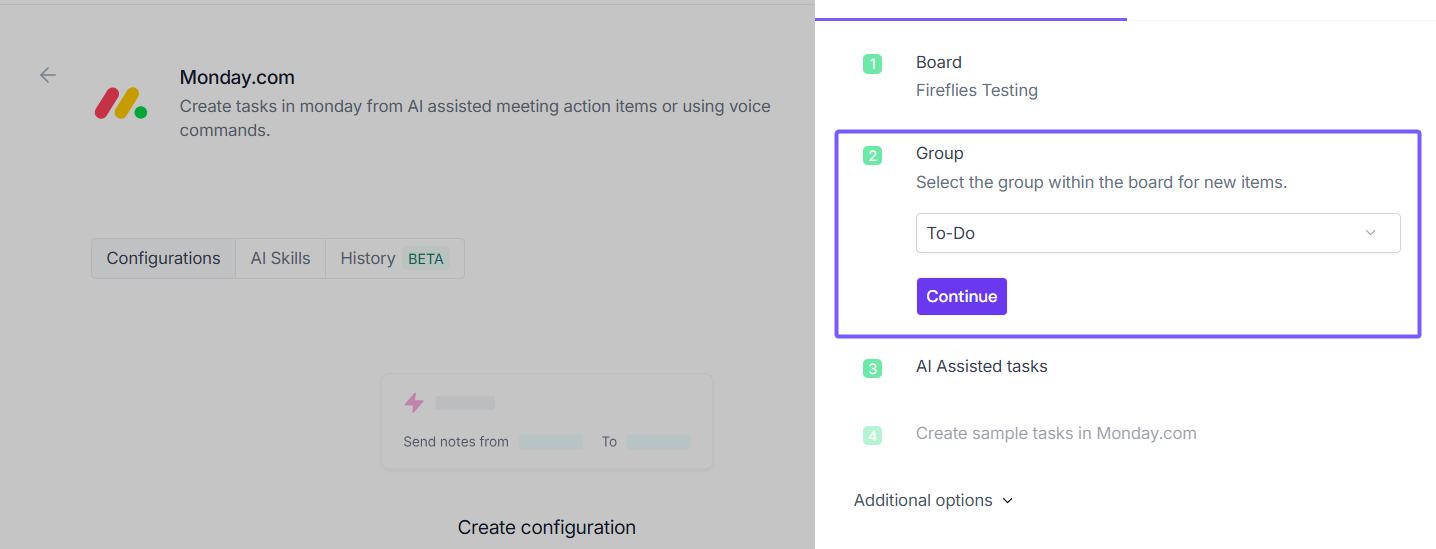
Don't see a Group? Create one directly in Monday.com and come back to continue.
Step 3: AI Assisted tasks
Choose how tasks should be created and assigned in monday.com.
Auto-Assign Tasks → When enabled, Fireflies will automatically assign tasks to users who have access to the selected board; otherwise, tasks will remain unassigned
Only filter and create tasks assigned to me → When enabled, only tasks assigned to you will be created; otherwise, all meeting tasks will be created
Click Continue to proceed.
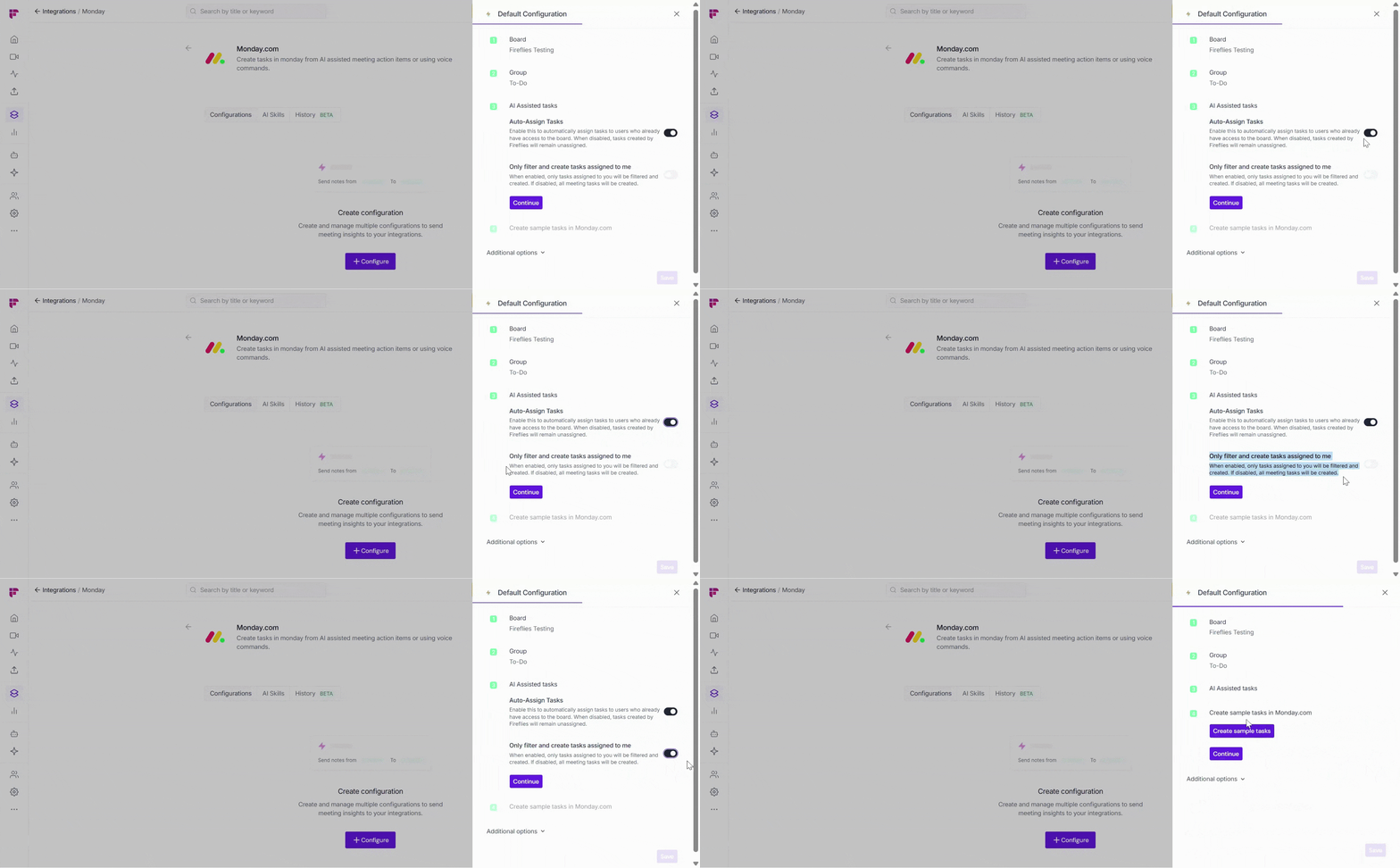
Step 4: Create Sample Tasks in Monday.com
Before finishing setup, you can test the integration.
Click Create sample tasks → Fireflies will generate a test task in your selected board.
Open Monday.com to confirm the task appears successfully.
Once verified, click Continue to complete the setup.
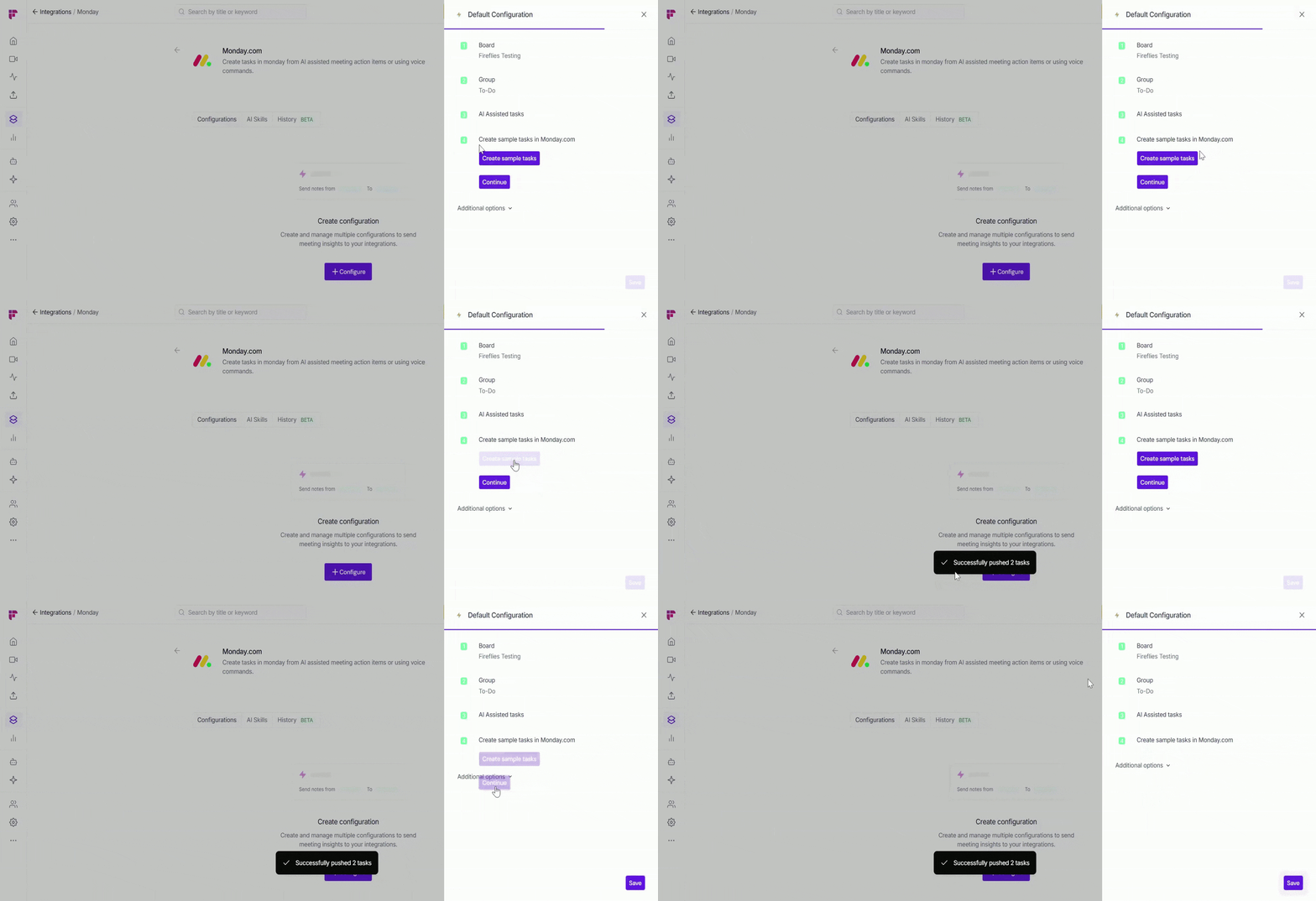
🧩 Additional Options – Integration Rules
By default, Fireflies creates tasks in Monday.com for every meeting. If you want more control, you can use Integration Rules to decide which meetings should create tasks.
Integration Rules are available on Business or higher plans.
💡 Learn more about our different pricing plans and how to get started.
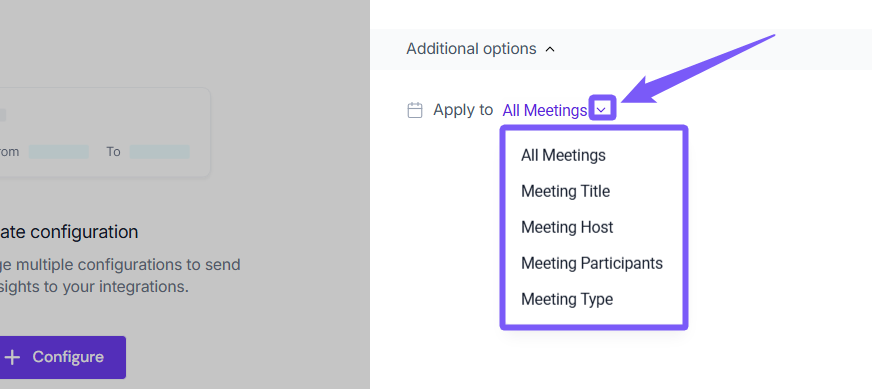
🗂 All Meetings
Create tasks from every meeting — calls, standups, or reviews — with no filters applied.
📝 Meeting Title
Only create tasks when the meeting title matches specific rules (Contains, Starts with, Equals, Doesn’t Contain).
Example: “Client Call”, “Sprint Review”
👤 Meeting Host
Filter meetings based on who hosted them.
Equals → Only meetings hosted by a specific person
Not Equal → Exclude meetings hosted by a specific person
👥 Meeting Participants
Control which meetings create tasks based on attendees.
Contains → Include meetings with specific participants
Doesn’t Contain → Exclude meetings with certain participants
🎦 Meeting Type
Filter by meeting type.
Example: External → Only client-facing meetings create tasks
🔀 Apply Multiple Filters
Combine rules for more precise control.
Example: Title contains “Client” AND host is sales@company.com
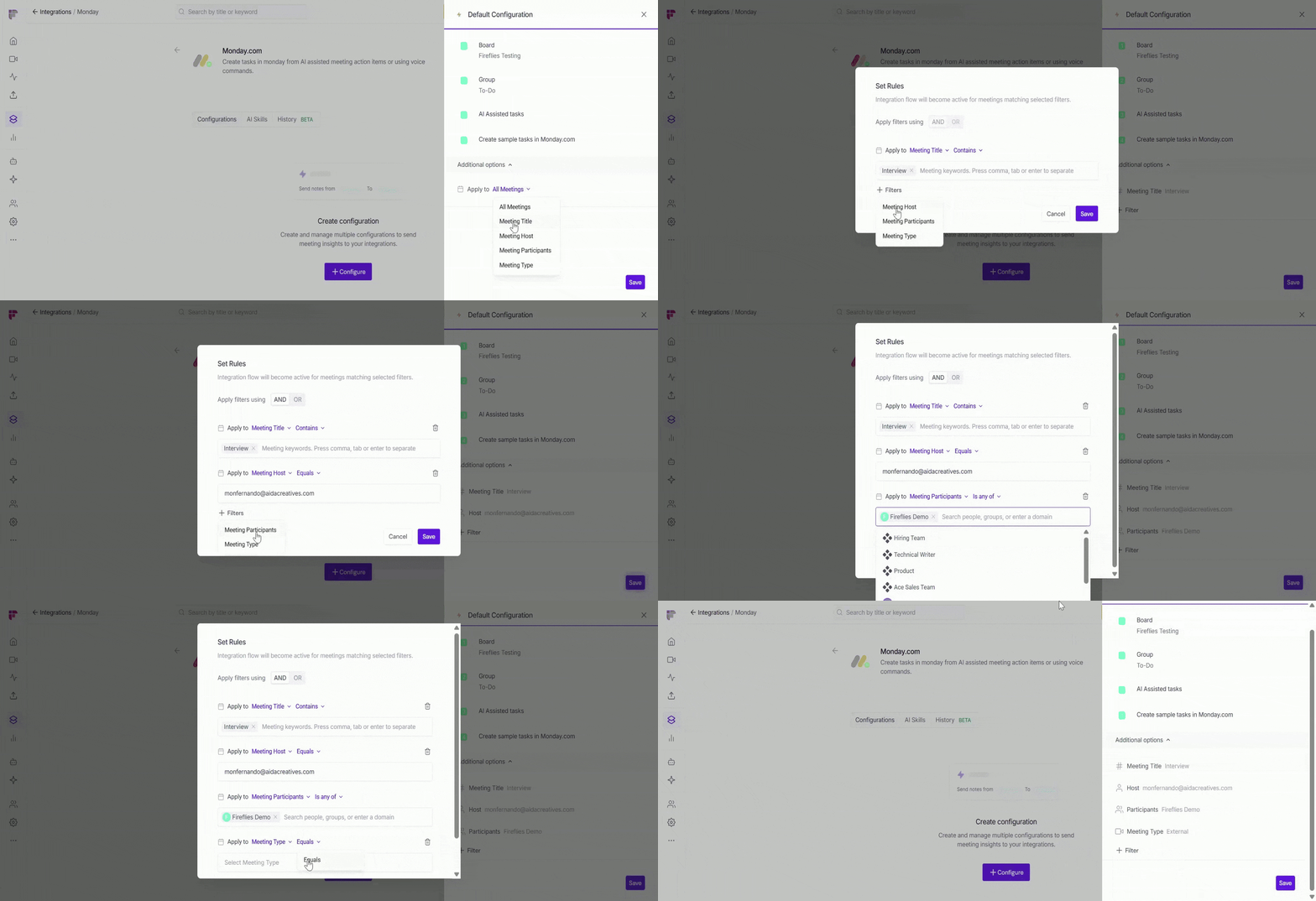
You can view all applied filters in your configuration. Fireflies will only create tasks in Monday.com for meetings that match all conditions.
✅ Example applied: Title contains = Interview, host = John, participant = Mary, type = External.
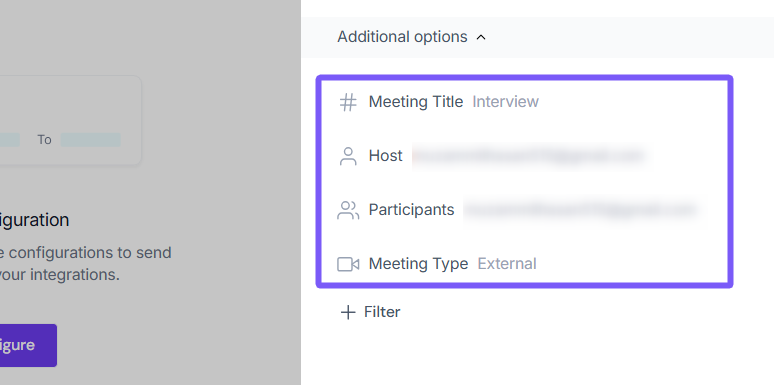
💾 Save Your Configuration
Click Save to activate the integration — a flash message will confirm that your configuration has been successfully added.
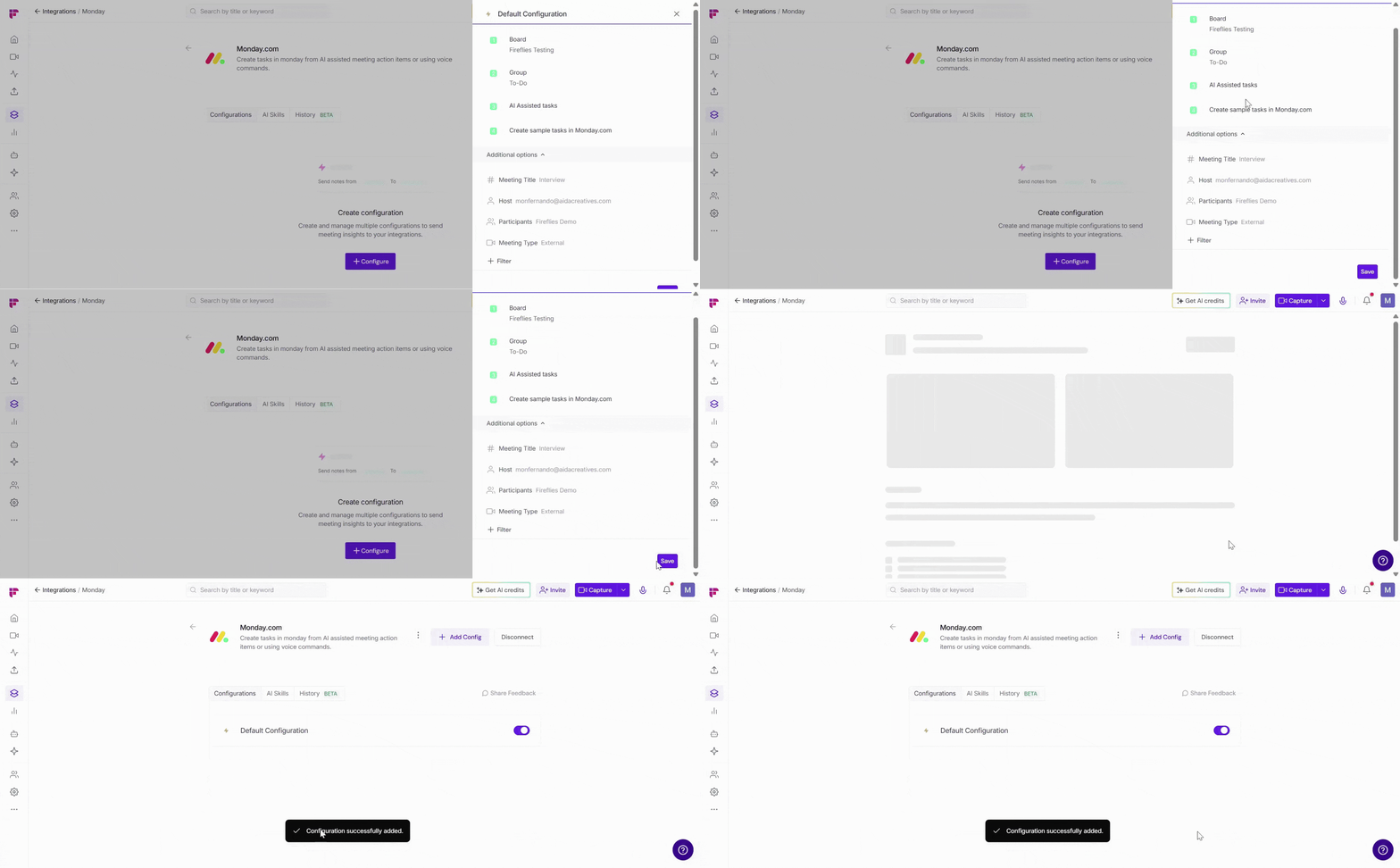
You can set up multiple configurations — for example, one for internal team boards and another for client project boards.
👥 Team Integration Settings
Workspace admins can control how the Monday.com integration is used across their team. The available options depend on your plan and workspace role.
Click the vertical ellipsis (⋮) next to your Monday.com and select Team Permissions from the dropdown list.
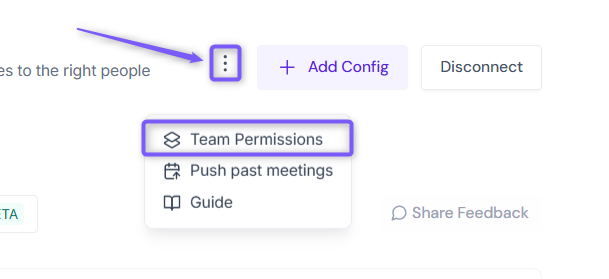
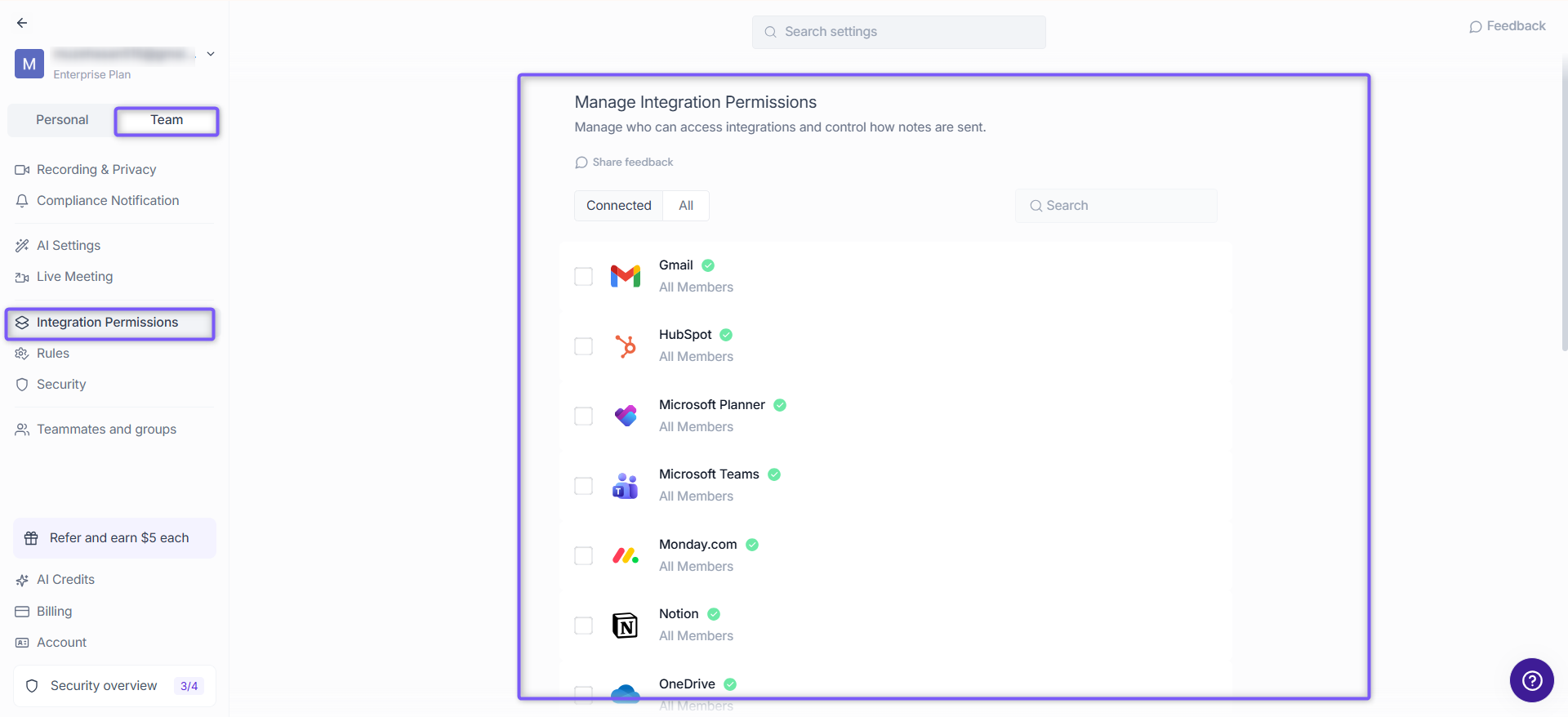
Business and Enterprise
If you are a Workspace Admin on a Business or Enterprise plan, you can manage granular Integration Permissions for the integration, including who can access and connect it.
📖 See Integration Permissions: Control Who Can Access and Connect Integrations for detailed instructions on managing integration permissions.
Free and Pro
Free and Pro users do not have access to the full Integration Permissions dashboard. Instead, Team Permissions opens a modal with the available workspace-level settings.
Apply to entire workspace → Toggle this ON to apply the Monday.com integration across your Fireflies workspace. All team meetings accessible by the team admin will have notes sent to Monday.com, keeping everything centralized.
📌Meetings that are set to private in a teammate’s Privacy Settings won’t be pushed to Monday.com unless you’re a Super Admin who can access meetings regardless of privacy settings.
Restrict non-admin usage → Toggle this ON to prevent non-admin members from creating their own Monday.com configurations. This helps maintain consistent settings and avoid unintended changes.
After adjusting the toggles to fit your team’s workflow, click Save to apply the changes.
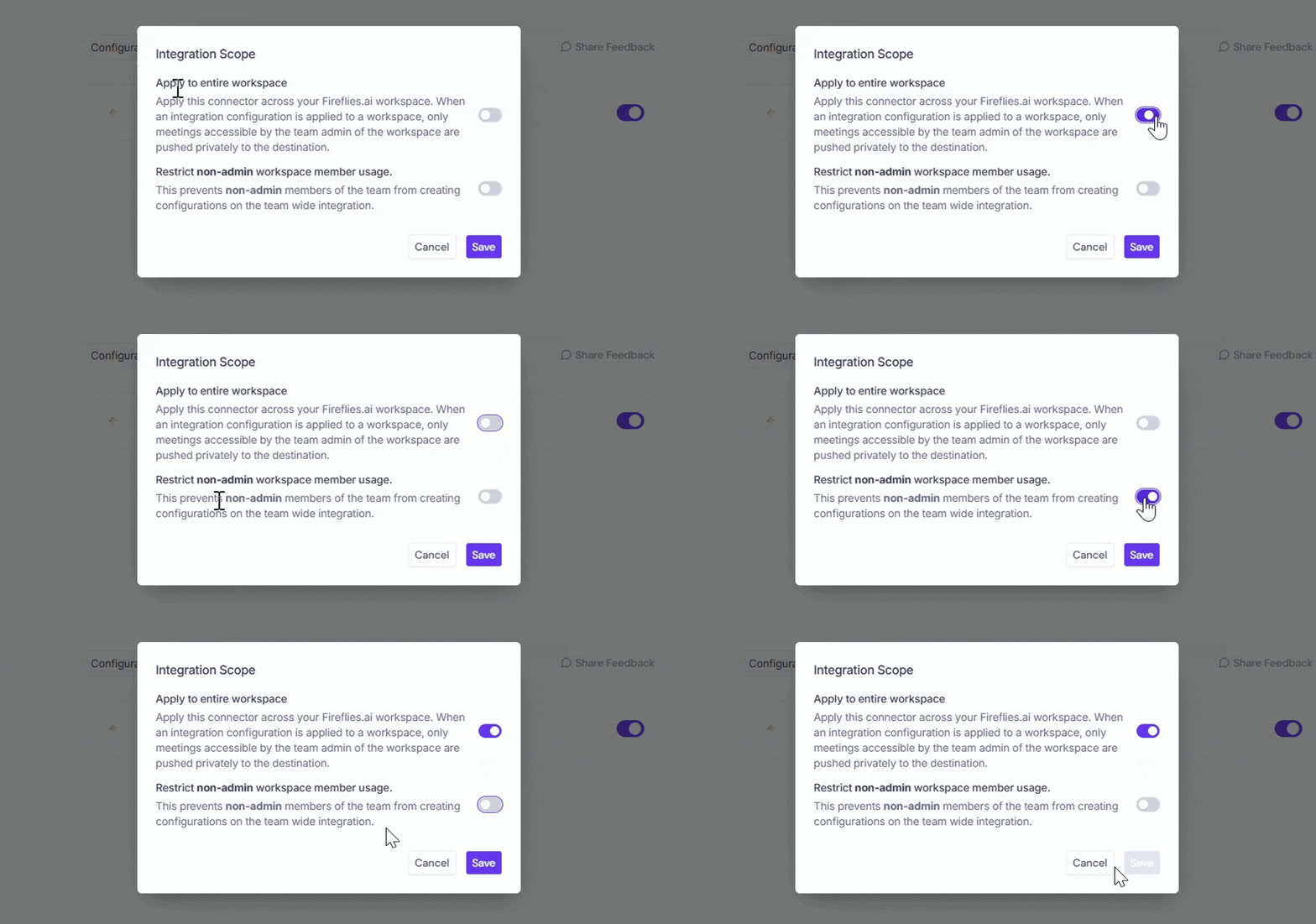
Note: Business and Enterprise Workspace Admins have access to granular integration permissions, while Free and Pro workspaces have more limited workspace-level controls.
🛠 Manage Configuration
Over time, you may need to update your Monday.com integration — for example, to rename a configuration, update rules, or remove configurations you no longer use. Fireflies provides a few simple options to manage this.
✏ Edit Configuration Name → Give each Monday.com configuration a clear, descriptive name so it’s easy to recognize. Click the configuration name (for example, Default Configuration), type a new name (such as Monday Meeting Tasks), and click outside the field to save.
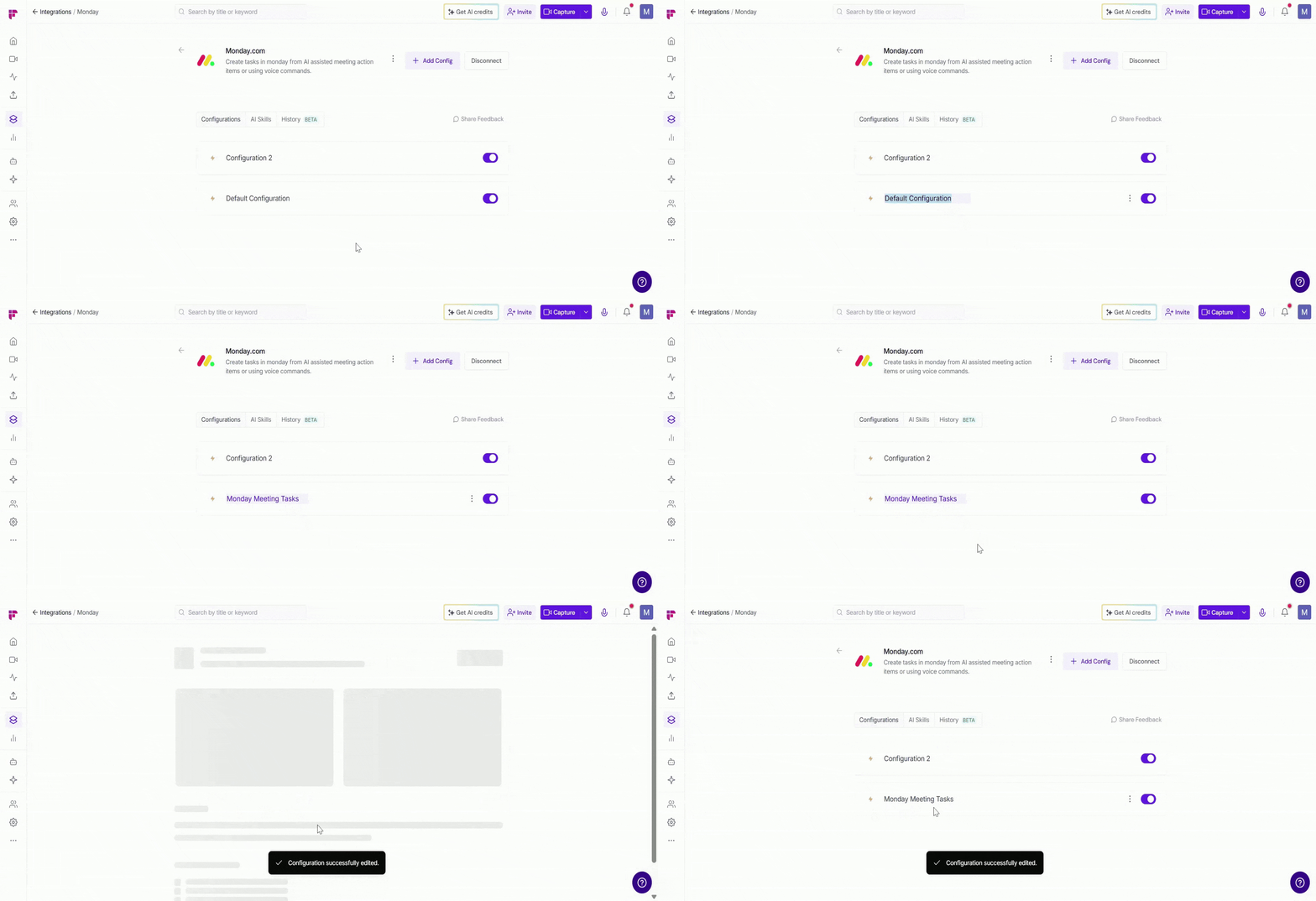
⚙ Edit Configuration Settings → Need to update your task settings or integration rules? Click the vertical ellipsis (⋮) next to a configuration, select Edit, update the settings, and click Update to save your changes.
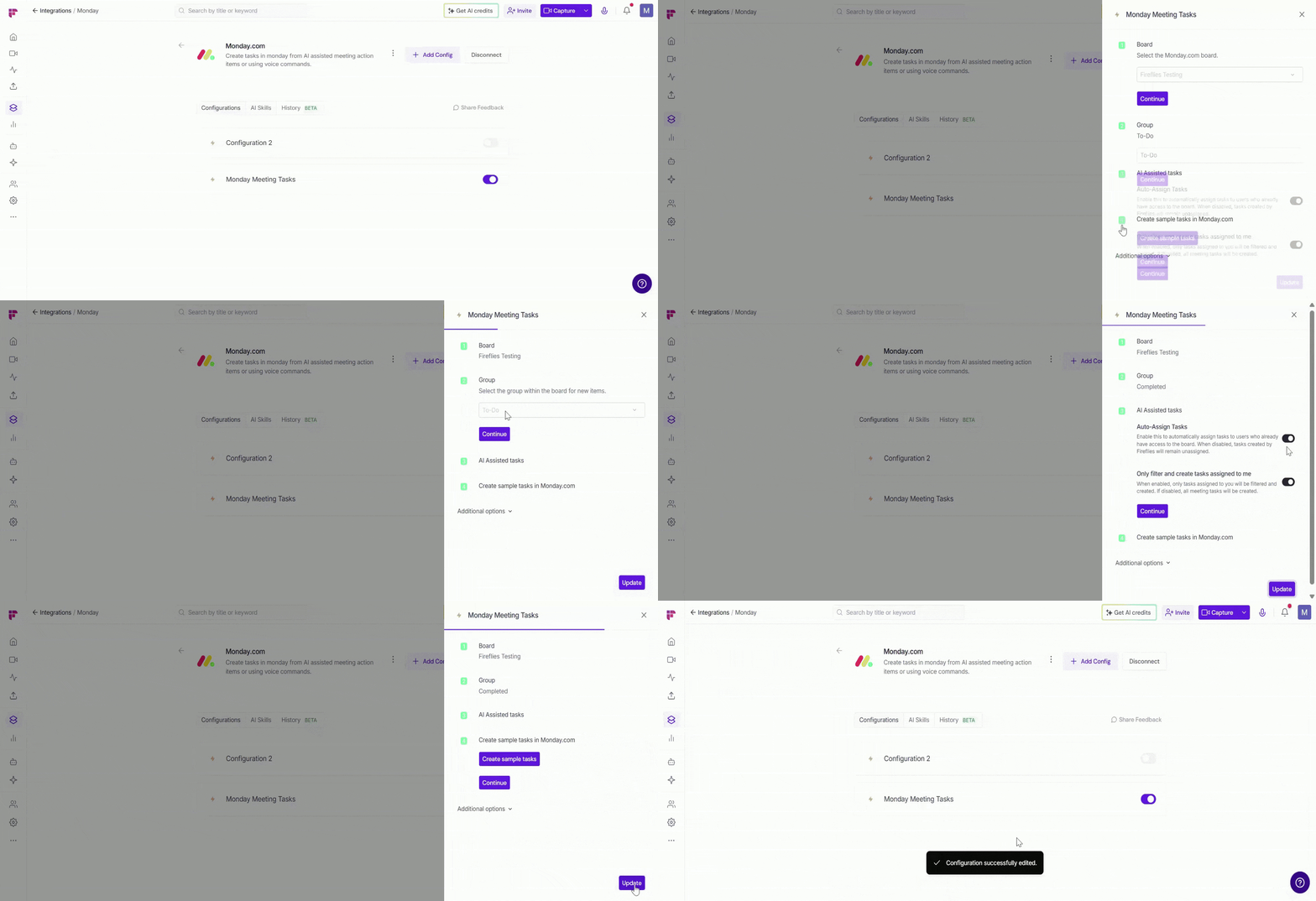
🔘 Enable or Disable a Configuration → Use the toggle next to a configuration to control it quickly. Toggle ON to allow Fireflies to create tasks in Monday.com; toggle OFF to pause the integration without deleting it.

This is helpful if you have multiple configurations and only want one active at a time.
🗑 Delete Configuration → If a configuration is no longer needed (for example, you no longer want tasks created in Monday.com), you can delete it. Click the vertical ellipsis (⋮) next to the configuration, select Delete, and confirm.
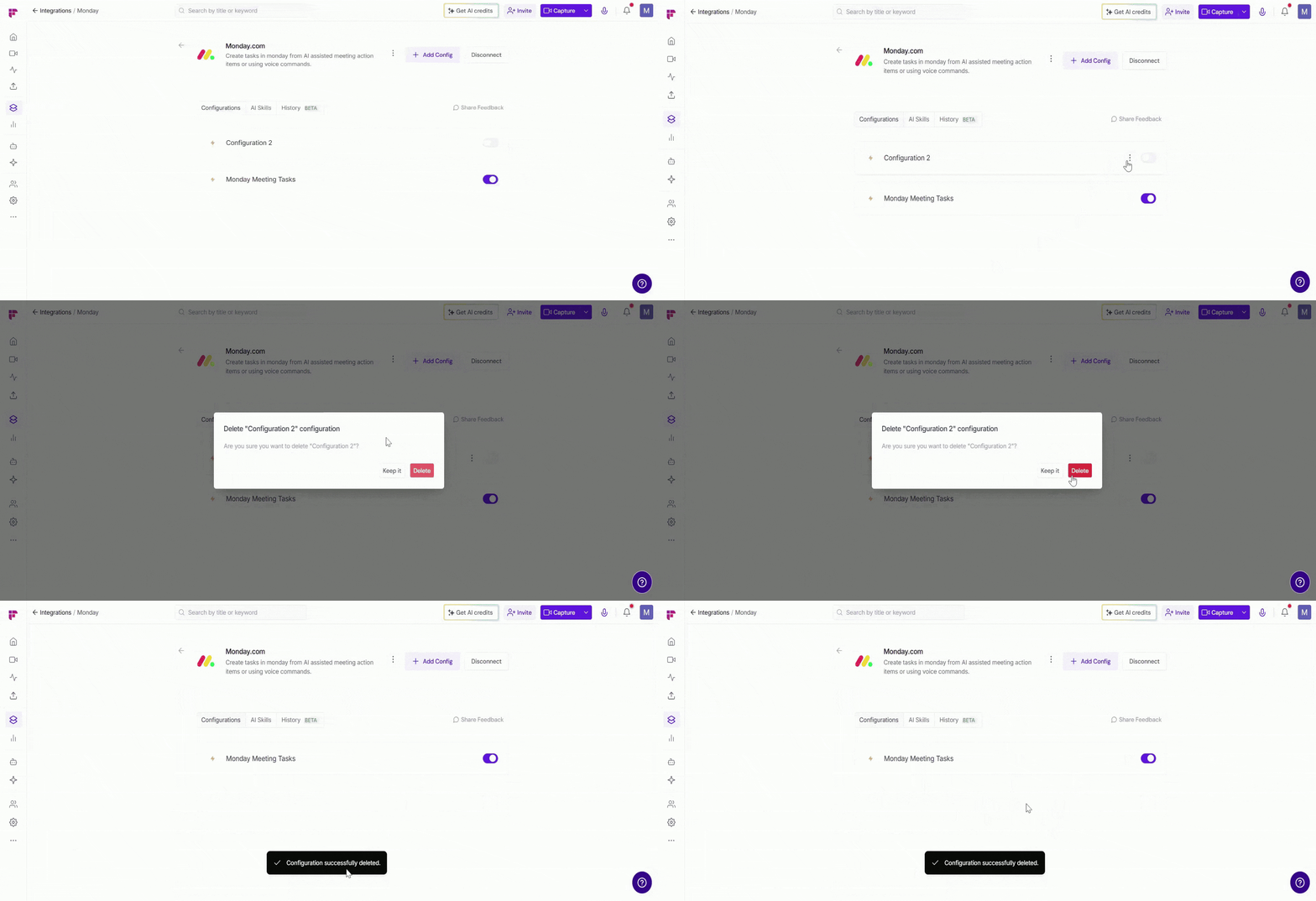
Deleting a configuration stops Fireflies from creating tasks in monday.com, so make sure it’s no longer needed before removing it.
📤 How Tasks Appear in Monday.com
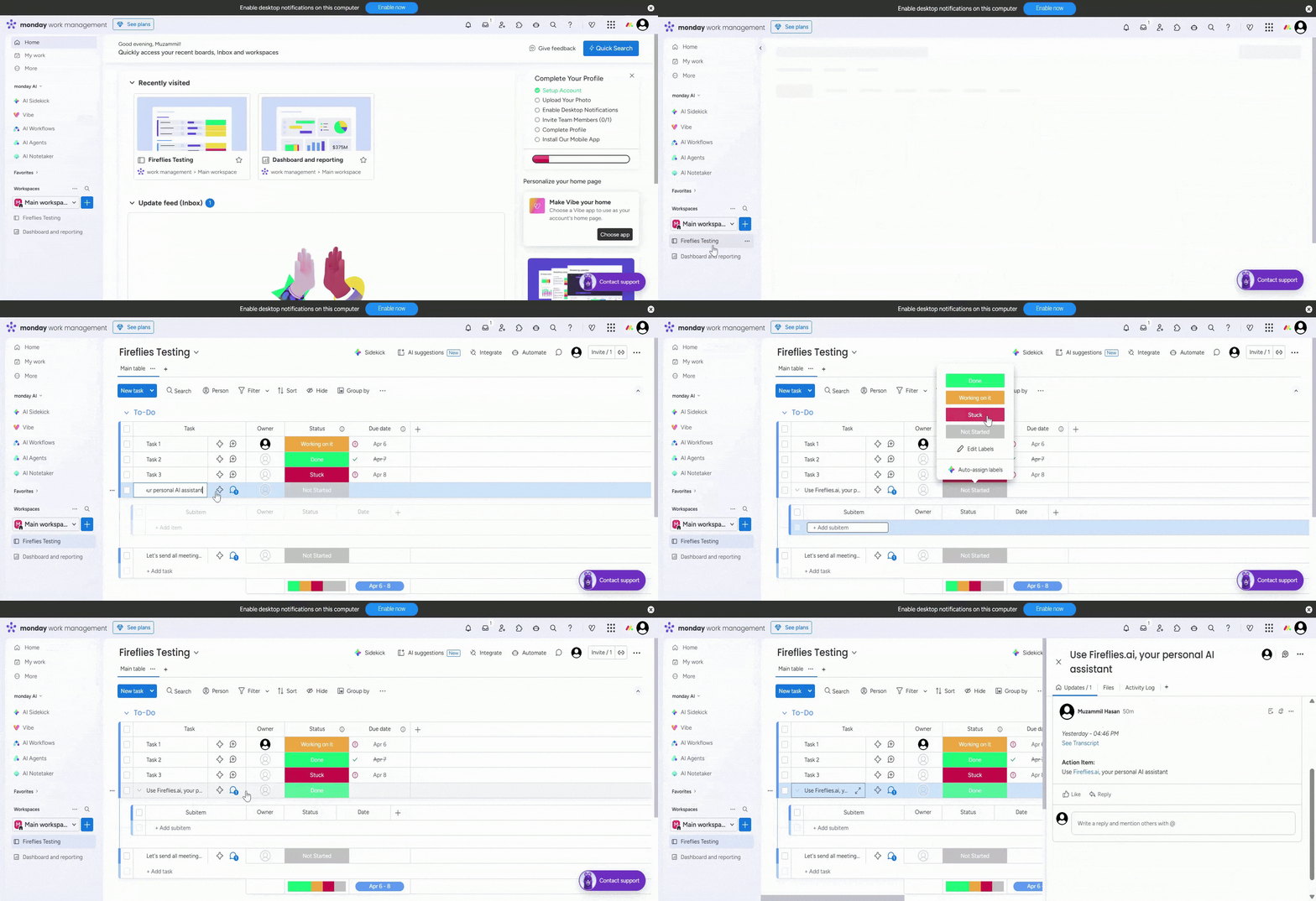
Once set up, Fireflies creates tasks directly in your selected Monday.com board and group — added as new items with the task name, assignee, status, and due date populated automatically.
Your team can view, update, and manage meeting tasks right alongside existing work.
⏪ Push Past Meetings to Monday.com
Sometimes, the meetings you want in Monday.com happened before you connected the integration. Whether you enabled the integration later or want to add older meeting notes to Monday.com, Push Past Meetings lets you choose a date range and meeting type, then send those meetings in just a few clicks.
Note: Make sure you've connected Monday.com and created at least one push configuration before using Push Past Meetings. If you haven't, complete the Setting Up Your Configuration section above first.
Follow the steps below to push past meetings to Monday.com.
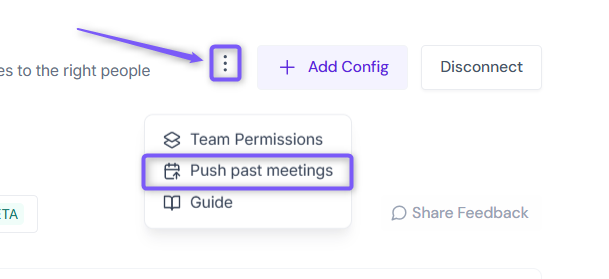
From the Monday.com integration page, click Push past meetings.
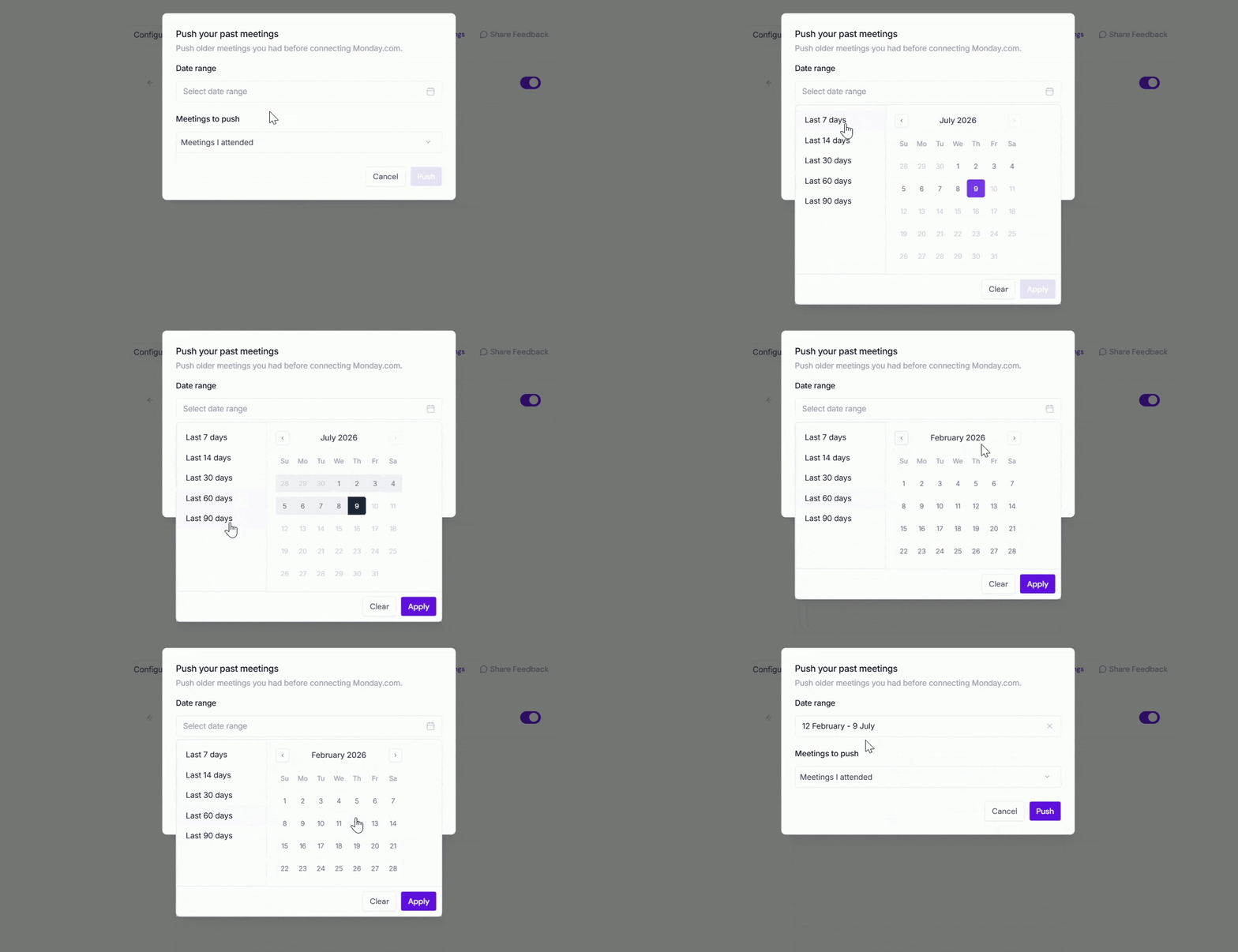
A dialog box will appear. Choose the following:
Date range → Select the meetings you want to send by choosing Last 7, 14, 30, 60, or 90 days, or specify a custom date range.
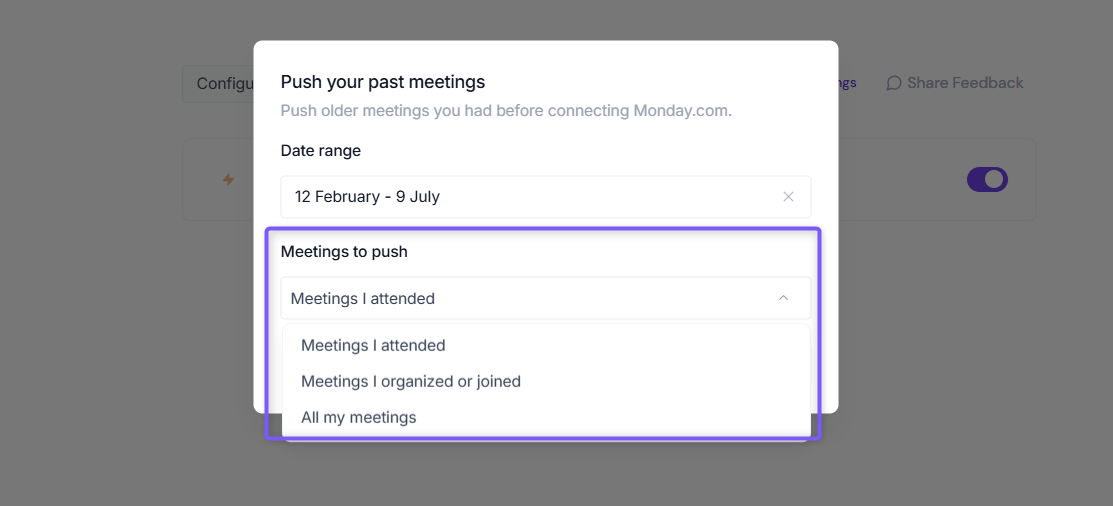
Meetings to push → Choose whether to push Meetings I attended, Meetings I organized or joined, or All my meetings.
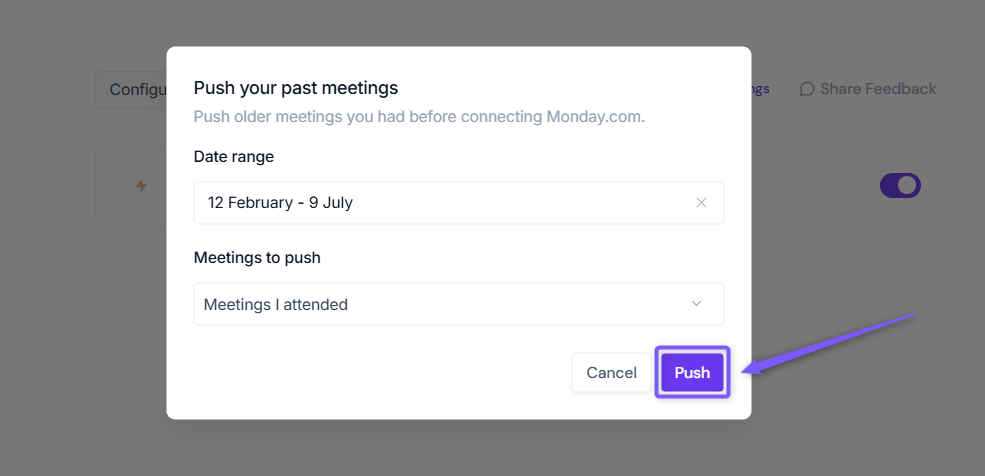
Click Push. Fireflies will send the matching meeting notes to Monday.com using your existing configuration settings.
Meetings recorded after you connect Monday.com are sent automatically. Push Past Meetings is only needed for meetings that happened before the integration was connected.
✅ Manually send meeting notes to Monday.com
Prefer sending only certain meetings to Monday.com? Fireflies also allows you to manually send meeting notes directly from the Notepad.
This is helpful when you want to review or edit notes first and then send only the relevant conversations to Monday.com - without setting up automation rules or configuration.
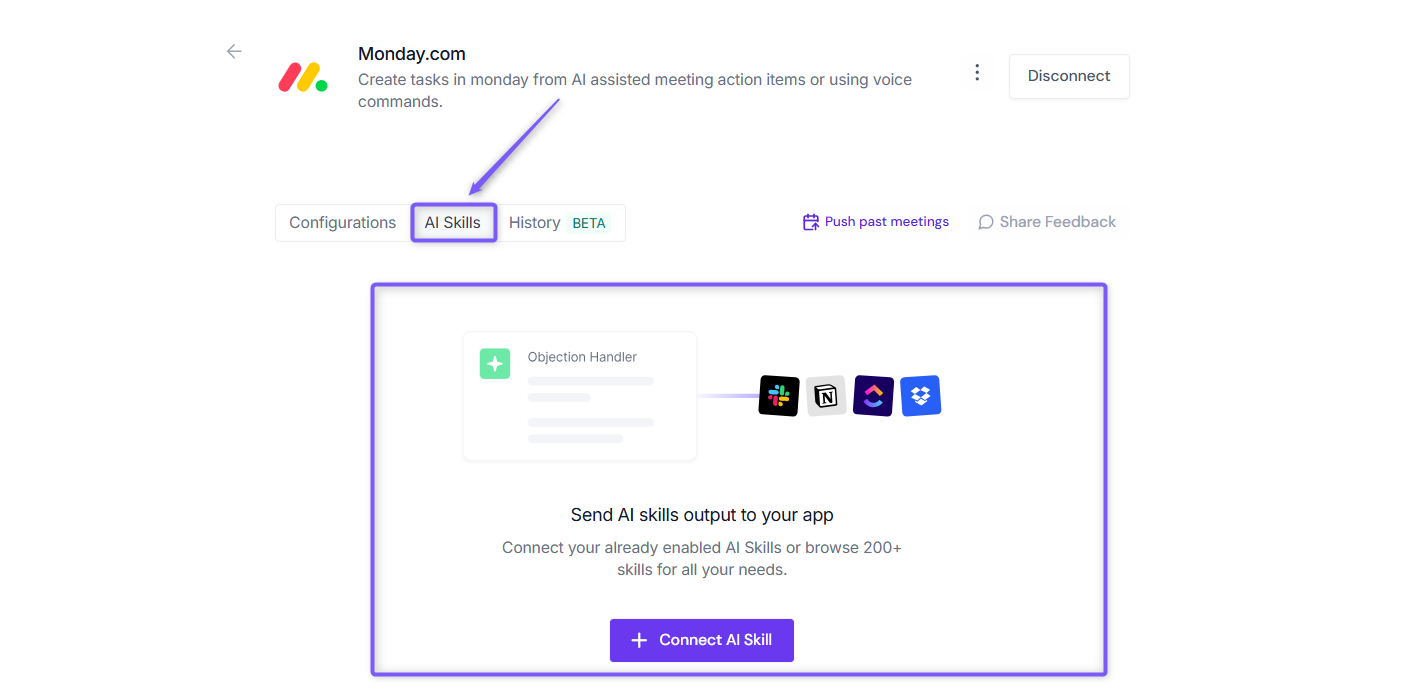
✅ Send AI Skill Outputs to Monday.com
Want to send more than just meeting notes to Monday.com? Fireflies also allows you to send AI Skill outputs directly to your connected Monday.com account.
This is helpful when you want custom AI-generated content, such as project updates, customer insights, follow-up emails, call analyses, or action item reports, automatically logged to Monday.com for your team to review and act on.
👉 Learn how: Send AI Skill Outputs to Any Integrated Tool.
❌ Disconnect Integration
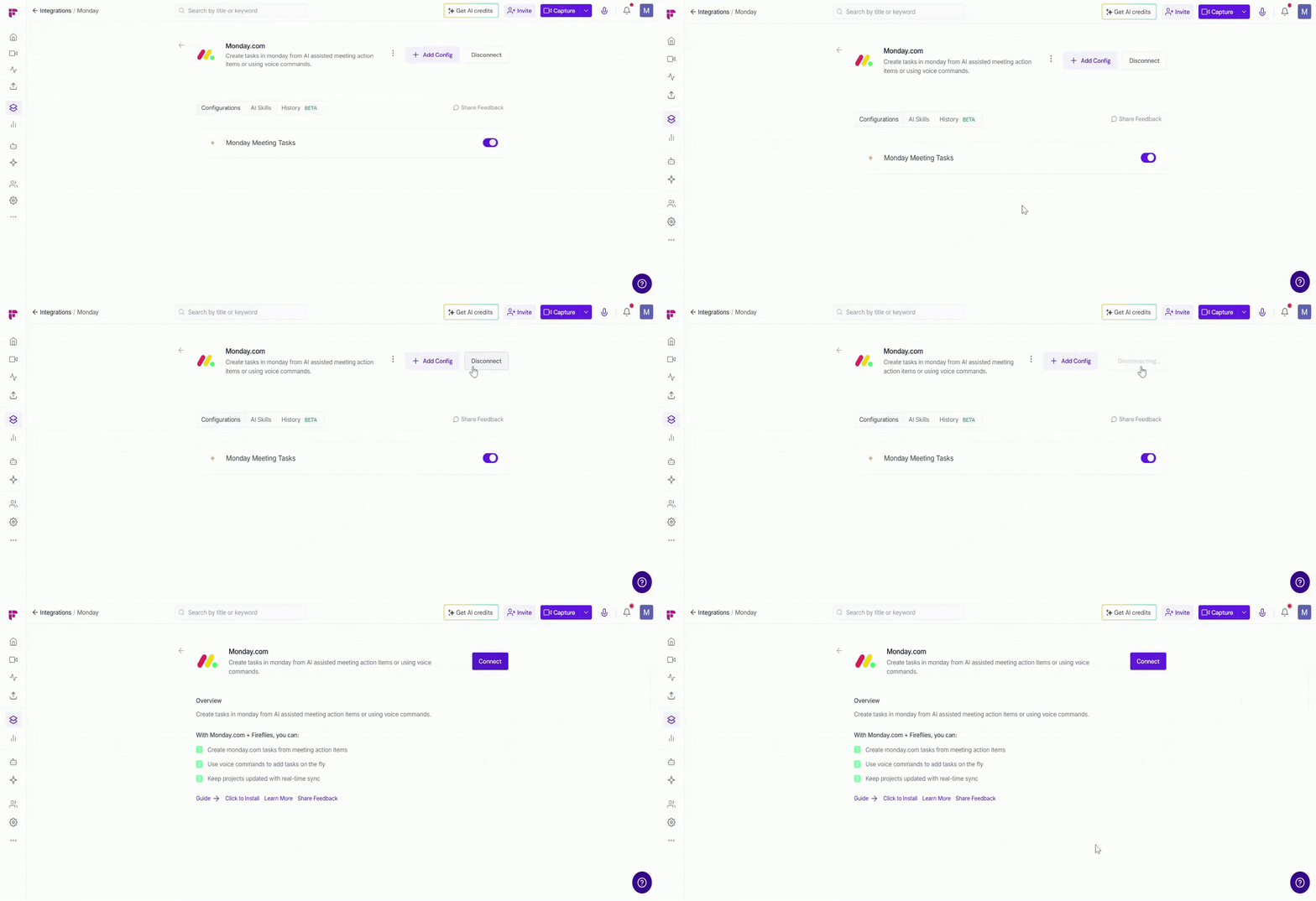
If you no longer need Fireflies connected to Monday.com, you can disconnect the integration at any time.
Click the Disconnect button to remove the integration. This action immediately ends the connection
Once disconnected, Fireflies will stop sending tasks to Monday.com. You can always reconnect later if needed.
🔧 Troubleshooting
Issue | What to Check / Do |
Tasks not appearing in Monday.com | Make sure the Monday.com integration is connected and the configuration is enabled. |
Tasks created in the wrong board/group | Verify the selected board and group in your configuration settings. |
Tasks not assigned automatically | Check if Auto-assign is enabled and ensure users have access to the selected board. |
Sample task not created | Try clicking Create sample tasks again and confirm you have access to the selected board. |
Integration disconnected or inactive | Go to Integrations → Monday.com in Fireflies and reconnect the integration. |
Still stuck? Contact support via this link for more help.
❓ Frequently Asked Questions
Q1. Who needs to install the Fireflies app on Monday.com?
Only a Monday.com workspace admin can install the Fireflies app and grant access across workspaces.
Q2. Can I control which meetings create tasks?
Yes. You can use integration rules to decide which meetings should create tasks.
Q3. What happens if I toggle the configuration OFF vs delete it?
Switch OFF: Temporarily pauses the integration but keeps your setup saved
Delete: Permanently removes the configuration and stops task creation
Q4. Will Fireflies create tasks from past meetings?
No. Fireflies only processes meetings that occur after the integration is set up.
Q5. Why are tasks showing up unassigned?
This happens when Auto-assign is disabled or when the user doesn’t have access to the selected board.
Q6. Can I edit tasks after they are created?
Yes. You can edit, move, or update tasks directly in Monday.com without affecting the integration.
🔄 Recap
The Monday.com + Fireflies integration helps turn meeting discussions into organized tasks on your boards.
Create tasks automatically from meeting action items
Send tasks to the right board and group
Assign tasks to team members based on settings
Use meeting rules to control which meetings create tasks
This helps teams capture follow-ups and keep boards updated without manual effort.
📌 Related Guides
Manually Send Fireflies Tasks to Project Management Tools→ Choose exactly which tasks to push and where.
Project Management Platform Supported → Know all project management platforms you can integrate with Fireflies.