How to Set Up Automatic User Provisioning with SCIM
Last updated: September 29, 2026
Setting up SCIM (System for Cross-domain Identity Management) gives your IT team automatic, reliable account lifecycle management for Fireflies.
It's the perfect partner to SAML SSO. While SSO creates users "Just-In-Time" (JIT) when they first sign in, adding SCIM 2.0 lets you pre-create accounts and immediately deactivate users from Fireflies when they're removed from your Identity Provider (IdP).
🔍 What Does SCIM Provisioning Do?
This setup connects your Identity Provider (like Okta or Entra ID) to Fireflies using the SCIM 2.0 standard. Once configured, it allows your IdP to:
Automatically provision (create) new user accounts in Fireflies.
Automatically update user profile details.
Automatically de-provision (deactivate) user accounts in Fireflies when they are removed from your IdP.
🔑 Prerequisites
Before you can enable SCIM provisioning, you must first have Single Sign-On (SSO) set up for your Fireflies account.
🔗 Get Your SCIM Credentials from Fireflies
To connect your IdP, you'll first need to get two pieces of information from your Fireflies account.
SCIM Connector Base URL:
https://user-service-rest.fireflies.ai/scim/v2
SCIM Access Token
Step 1: Generate your token
Note: Only the Admin Account that set up SSO will be able to create SCIM Tokens.
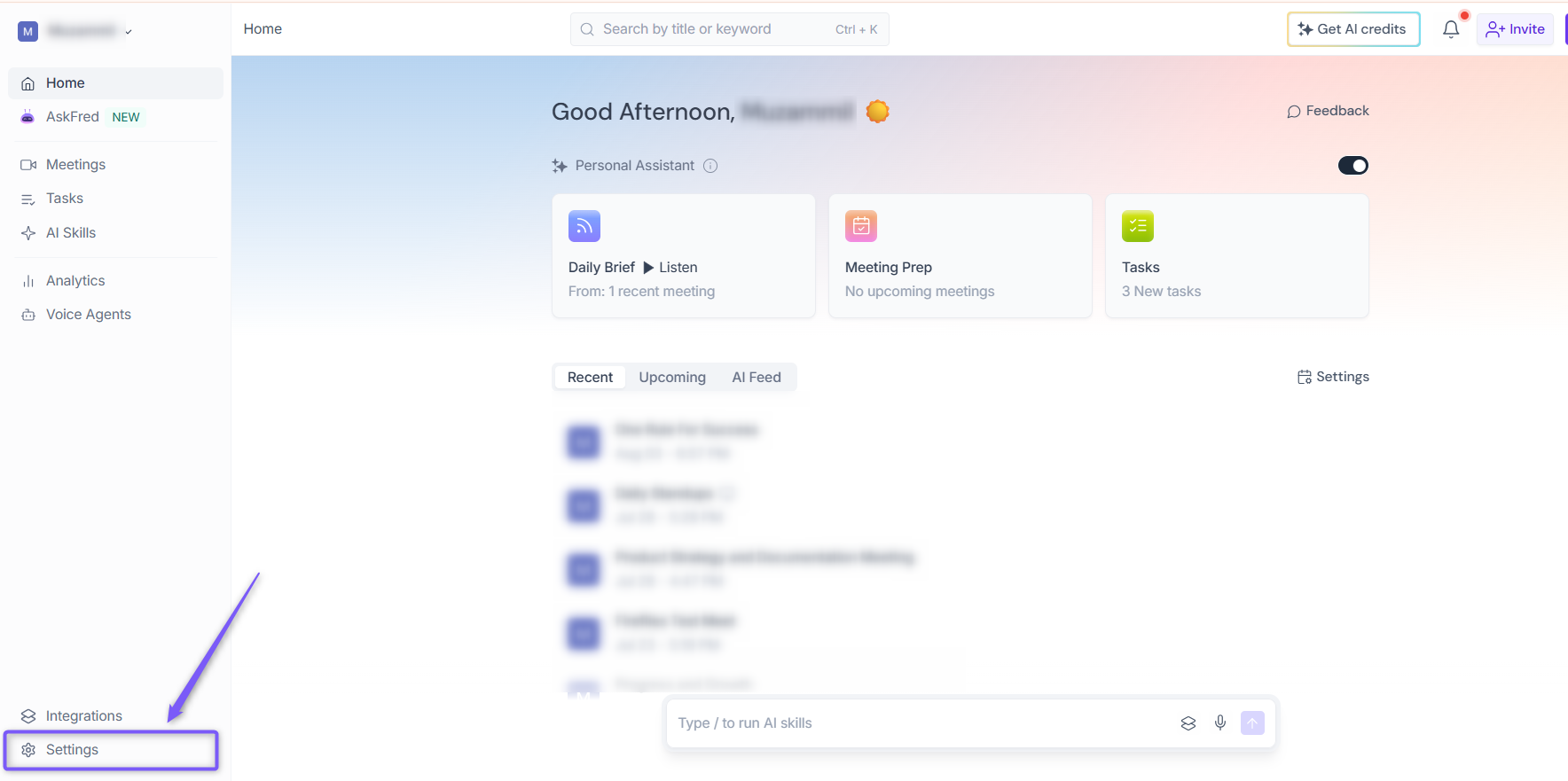
1. Open your Fireflies web app and click on Settings in the main navigation menu.
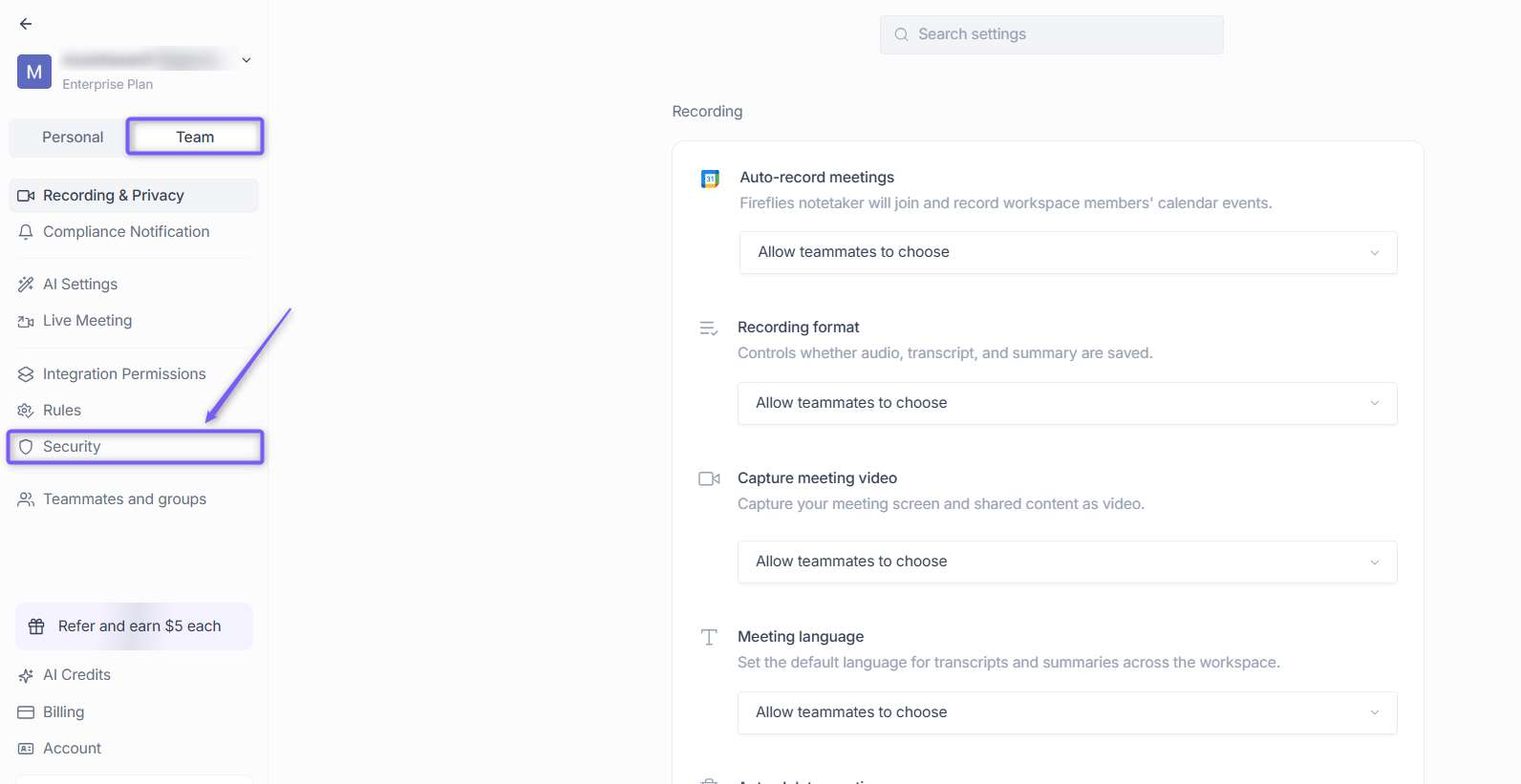
2. Switch to the Team tab, then click Security.
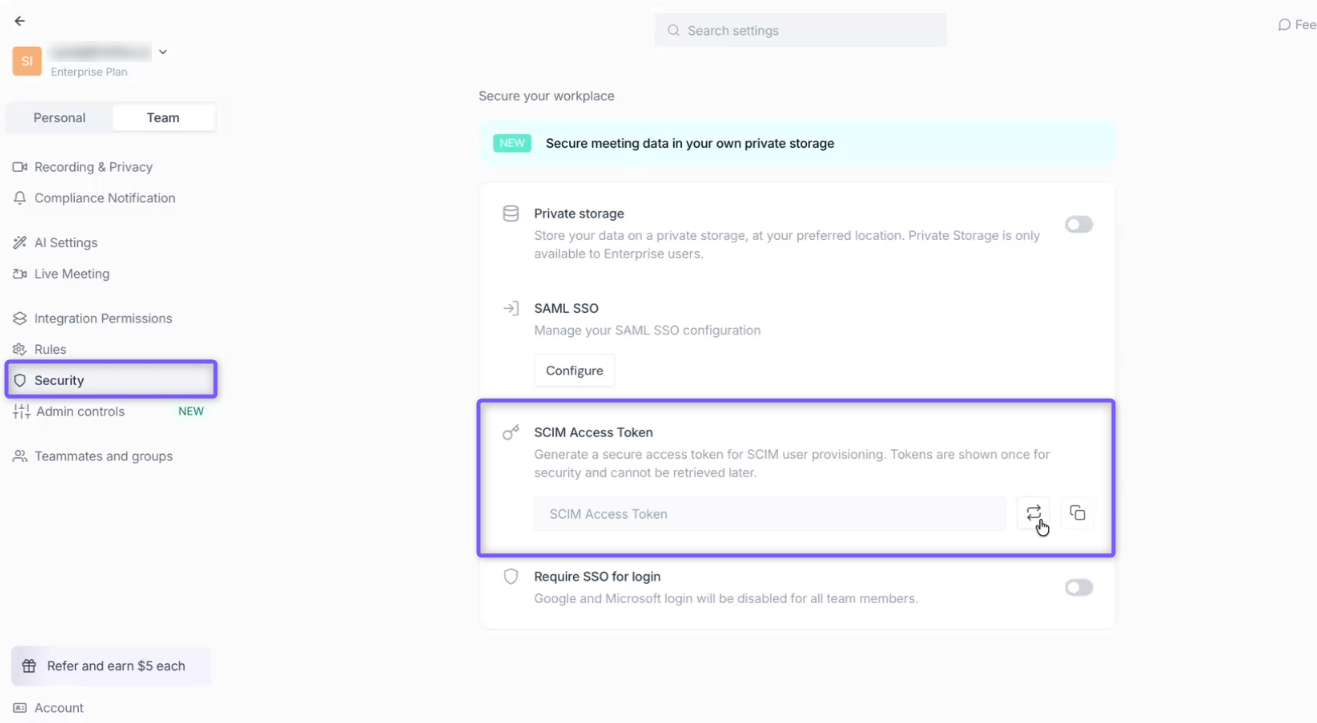
3. Scroll down to the Secure your workplace section and locate the SCIM Access Token.
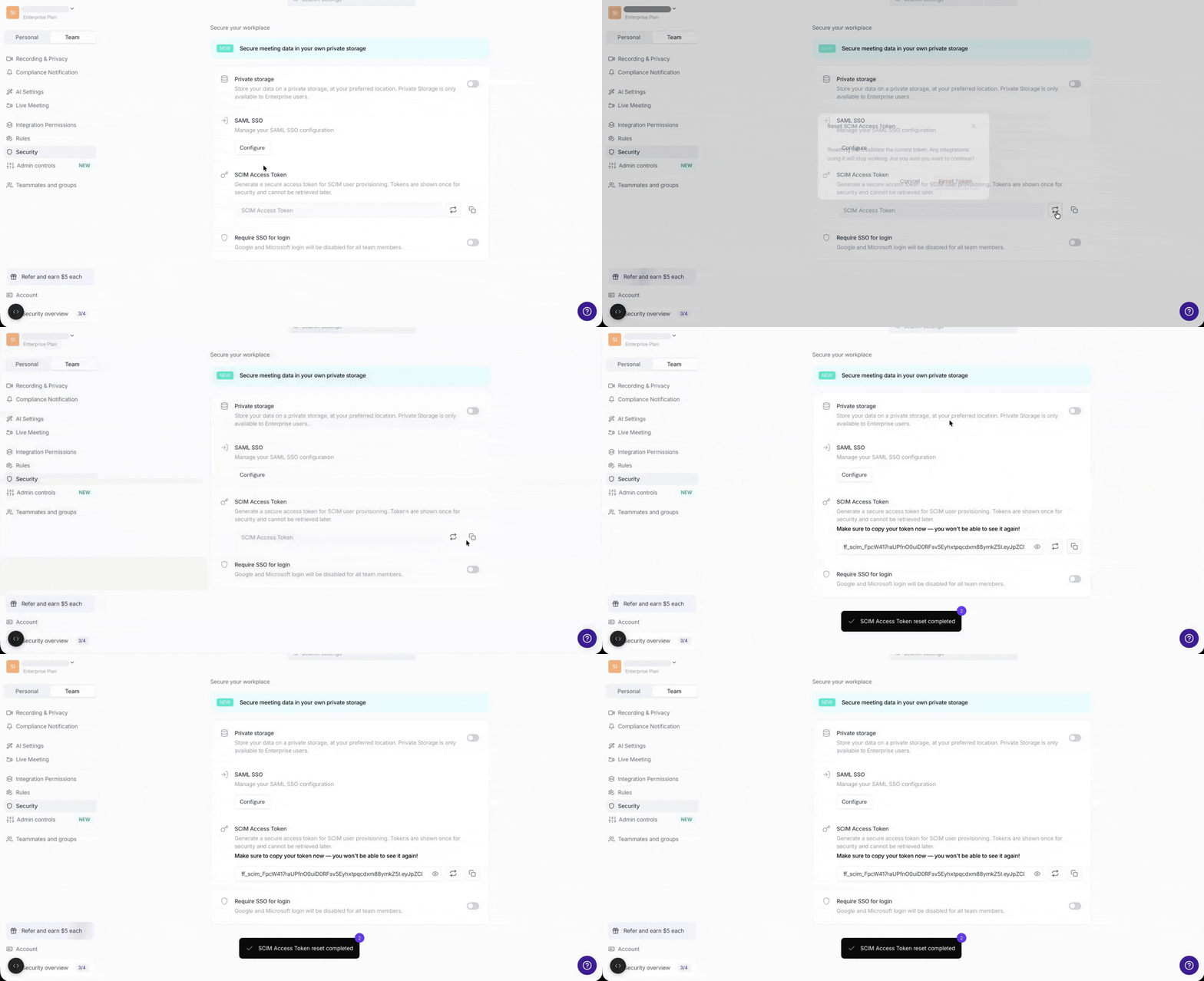
4. Click the rotate icon (↻) to generate your token, then click the copy icon to copy it immediately, as you won't be able to see it again.
Note: To revoke or rotate this token, generate a new token to automatically invalidate the previous one.
⚙ Setting Up Your Configuration
Here are the specific instructions for connecting SCIM with Okta and Entra ID.
1⃣ Configure in Okta
Step 1: Open your Fireflies app
From your Okta dashboard, open the Fireflies application you previously set up for SSO.
Step 2: Enable SCIM provisioning
Click the General tab.
In the App Settings section, click Edit and check the box for SCIM provisioning.
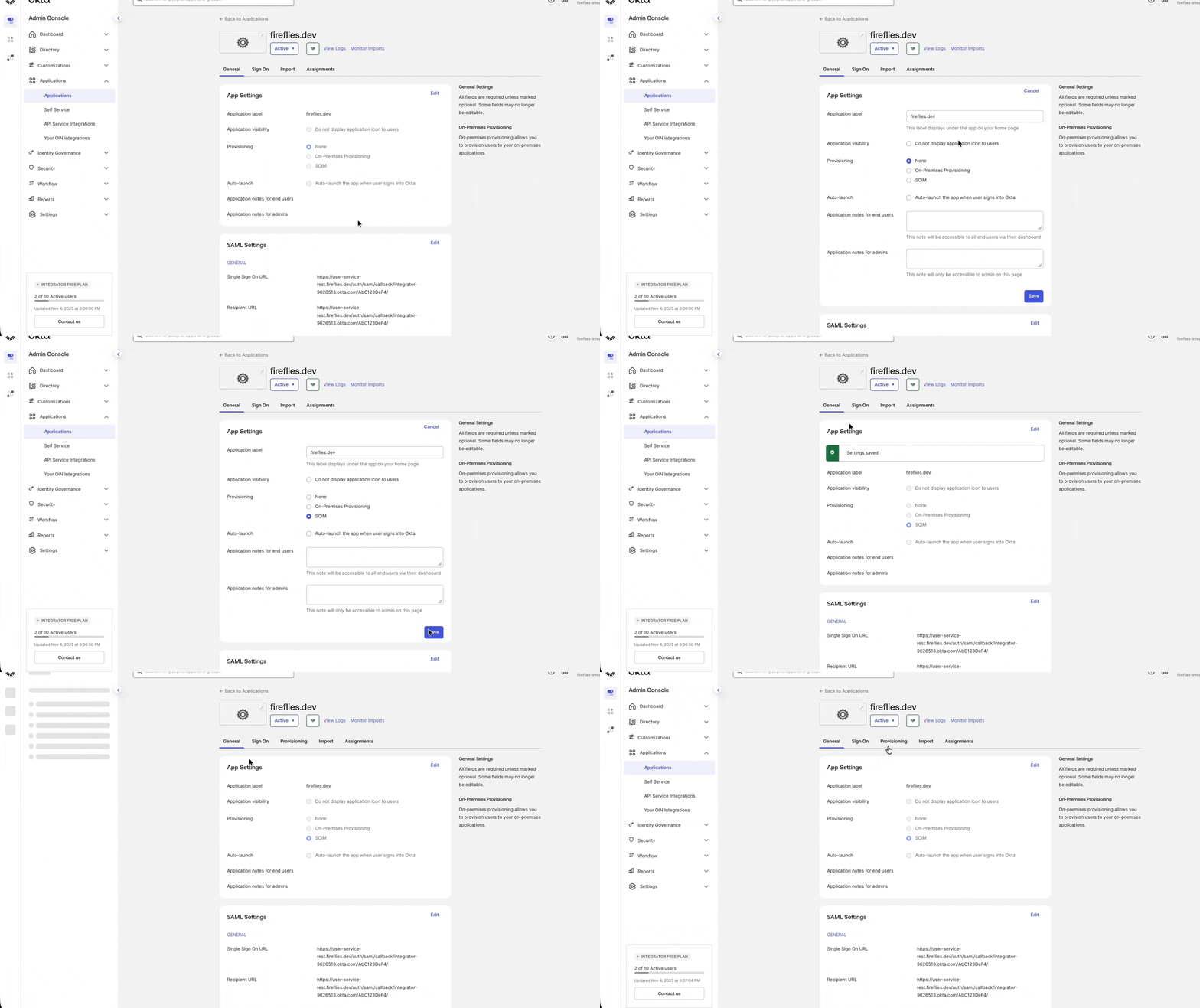
Step 3: Configure provisioning integration
Click the Provisioning tab.
Under Settings, click Integration and then click Edit.
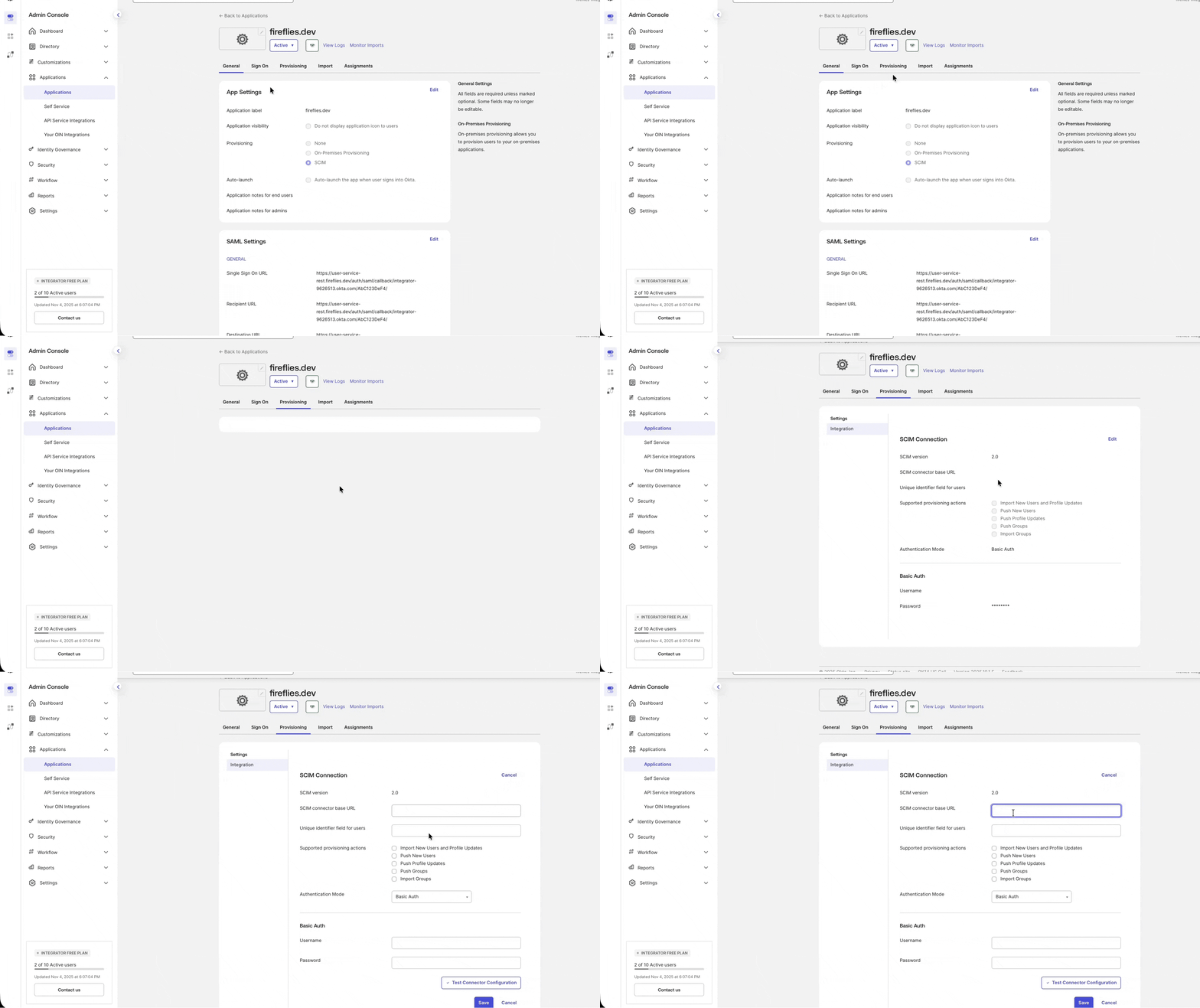
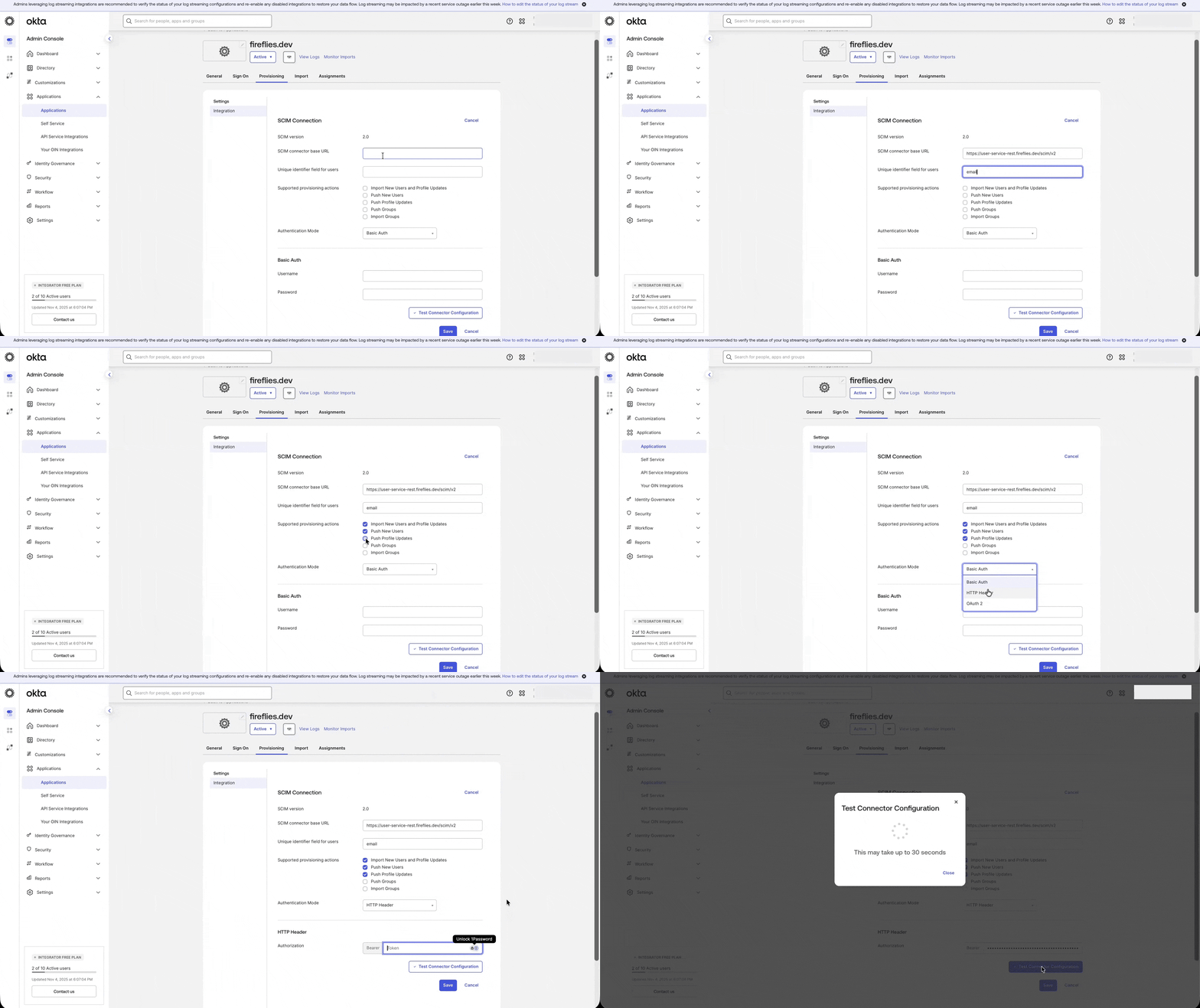
Step 4: Configure the SCIM connection using the values shown in the table below.
Field | Description | Value |
|---|---|---|
SCIM Connector Base URL | The SCIM endpoint Fireflies uses for user provisioning. |
|
Unique identifier field for users | The user attribute used to uniquely identify users during provisioning. |
|
Supported provisioning actions | Select the provisioning actions that Okta can perform for Fireflies. | Enable Import New Users and Profile Updates, Push New Users, and Push Profile Updates. |
Authentication Mode | The authentication method used to connect to the Fireflies SCIM endpoint. |
|
Authorization | The bearer token used to authenticate SCIM requests. | Enter your SCIM Access Token generated in Fireflies. |
Step 4: Click Test Connector Configuration to verify the SCIM connection. If the test is successful, click Save to apply the SCIM connection settings.
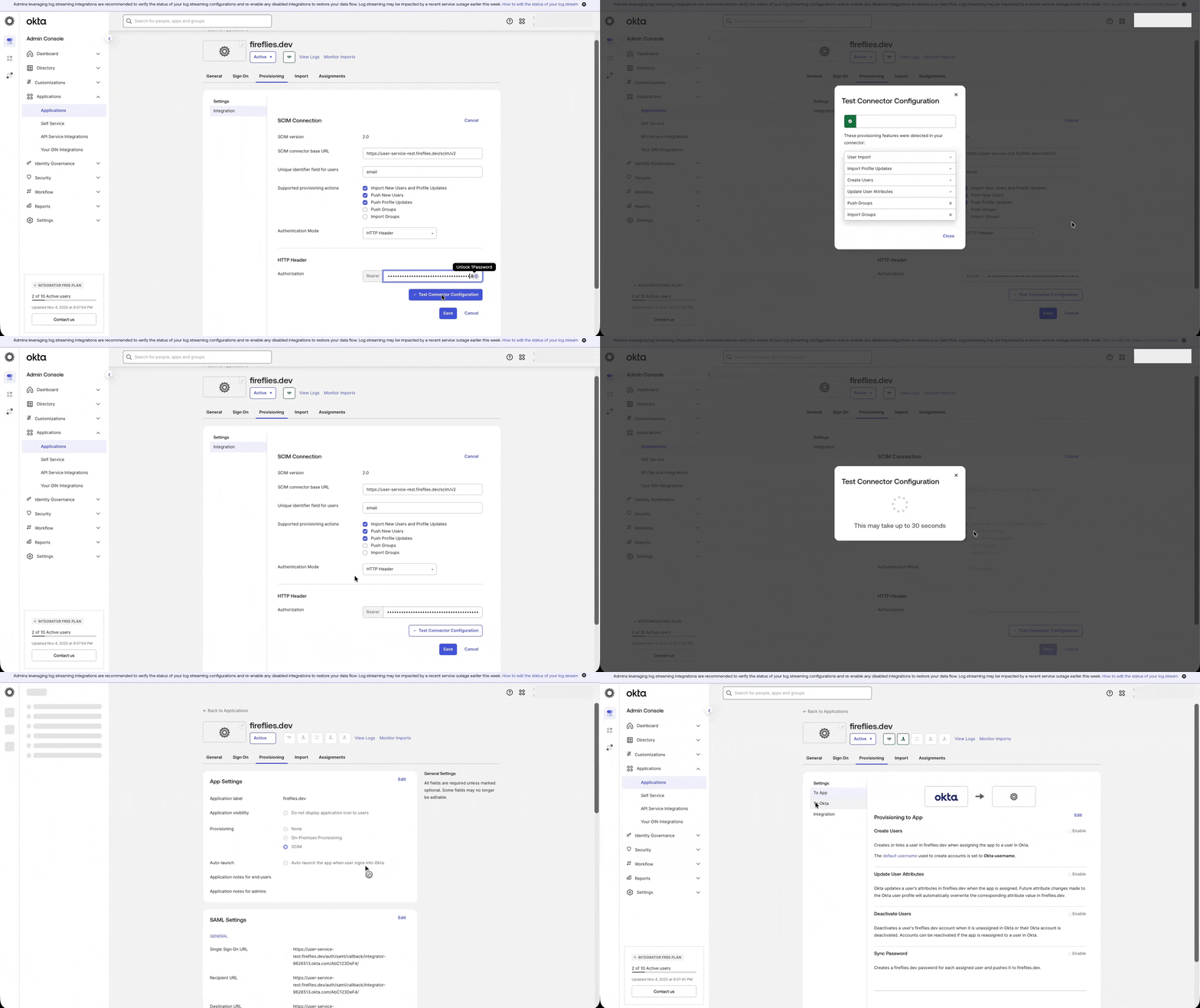
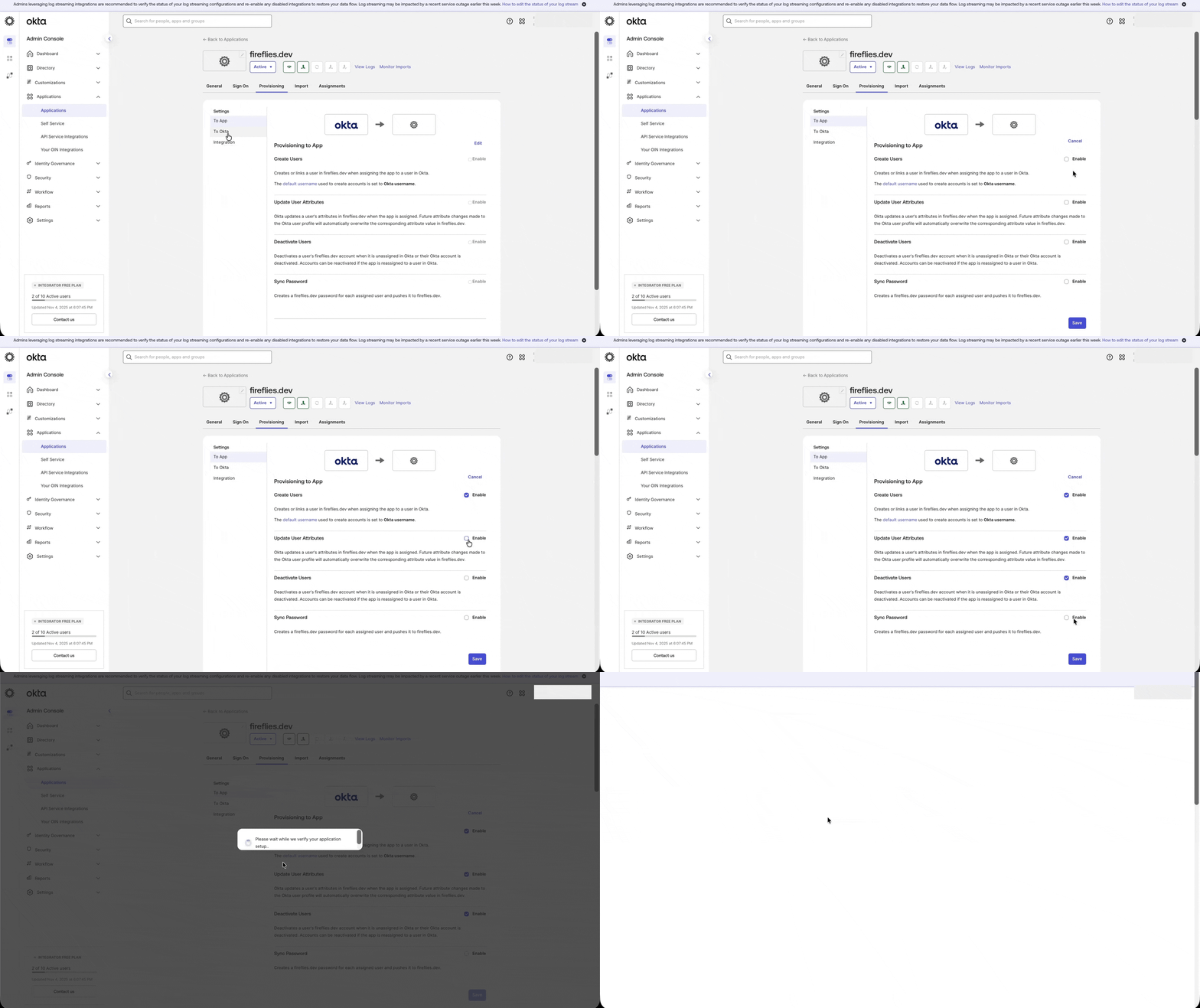
Step 5: Under Provisioning > To App, click Edit, then enable the following provisioning options:
Create Users – Automatically creates new users in Fireflies when they are assigned in Okta.
Update User Attributes – Synchronizes user profile changes from Okta to Fireflies.
Deactivate Users – Automatically deactivates users in Fireflies when they are unassigned or deactivated in Okta.
After enabling these options, click Save.
2⃣ Configure in Entra ID (formerly Azure AD)
Step 1: Open your Fireflies application
In your Entra ID portal, navigate to Enterprise applications and open your Fireflies application.
Step 2: Connect your application
Click on Provisioning and then click Connect your application (or Get started).
Step 3: Enter Tenant URL
For Tenant URL, enter:
https://user-service-rest.fireflies.ai/scim/v2
Step 4: Enter Secret Token
For Secret token, enter your SCIM Access Token (the one you generated in Fireflies).
Step 5: Test and create
Click Test connection to ensure the credentials are correct, and then click Create (or Save).
Microsoft Entra ID users: For the complete Microsoft Entra ID provisioning workflow, including assigning users, provisioning users on demand, and verifying provisioned users in Fireflies, see How to Set Up SCIM User Provisioning with Microsoft Entra ID.
3⃣ Configure in OneLogin
Step 1: Open the SCIM Provisioner application
Log in to your OneLogin admin portal and open the SCIM Provisioner with SAML (SCIM v2 Core) application you previously created.
Step 2: Configure SCIM API connection
Go to the Configuration tab.
In SCIM Base URL, enter:
https://user-service-rest.fireflies.ai/scim/v2Under API Connection, ensure API Status is set to Enabled.
In SCIM Bearer Token, paste your SCIM Access Token generated in Fireflies.
Step 3: Enable provisioning workflow
Go to the Provisioning tab.
Check Enable provisioning.
Enable the following actions:
✅Create user
✅Update user
✅Delete user
Step 4: Test and create
Save your configuration and test the provisioning connection to ensure it is working correctly.
👤 Manage User Roles via SCIM
Once SCIM provisioning is configured, you can also manage Fireflies user roles directly from your Identity Provider (IdP). Changes to supported roles, such as Admin and User, are automatically synchronized with your Fireflies workspace, eliminating the need to update roles manually in Fireflies.
To learn how to configure and manage user roles, see:
📌 Manage User Roles via SCIM → Learn how to assign, update, and synchronize Fireflies user roles using your Identity Provider.
👥 Manage User Groups via SCIM
Once SCIM provisioning is configured, you can also manage Fireflies user groups directly from your Identity Provider (IdP). Changes to group membership are automatically synchronized with your Fireflies workspace, eliminating the need to manage groups manually in Fireflies.
To learn how to configure and manage user groups, see:
📌 Manage User Groups via SCIM → Learn how to create, manage, and synchronize Fireflies user groups using your Identity Provider.
🧩 Additional Options
Supported SCIM Features
For advanced configurations, Fireflies' SCIM 2.0 implementation currently supports the following features:
Provision a user to Fireflies (
POST /scim/v2/Users)Retrieve a user from Fireflies (
GET /scim/v2/Users/<user_id>)Update a user in Fireflies (
PUT /scim/v2/Users/<user_id>orPATCH /scim/v2/Users/<user_id>)List all users in Fireflies (
GET /scim/v2/Users)De-provision a user from Fireflies (
DELETE /scim/v2/Users/<user_id>)
❌ Disconnect Integration
To disable automatic provisioning, you can disconnect the SCIM integration from within your Identity Provider.
In Okta: Navigate to the Provisioning tab in your Fireflies app, click Edit under Integration, and uncheck Enable SCIM provisioning.
In Entra ID: Navigate to the Provisioning tab in your Fireflies app and stop the provisioning service.
🔄 Recap
Setting up SCIM with Fireflies provides automatic, reliable account lifecycle management. It allows you to pre-create accounts and immediately deactivate users when they leave, ensuring your Fireflies workspace is always in sync with your Identity Provider.
📌 Related Guides
Manage User Roles via SCIM – Learn how to assign, update, and synchronize Fireflies user roles directly from your Identity Provider.
Manage User Groups via SCIM – Create and manage Fireflies user groups directly from your Identity Provider.
How to Set Up SCIM User Provisioning with Microsoft Entra ID – Learn complete Microsoft Entra ID provisioning workflow.
How to Set Up SSO for Okta – Use Okta's SSO in Fireflies for a streamlined access.
Set Up SAML SSO for Azure AD – Enable SAML SSO with Azure ADD to enhance security and simplify user access.
Set Up SAML SSO for Google Workspace – Enable secure single sign-on with Google Workspace to centralize authentication and simplify user access.