How to Integrate Dialpad with Fireflies
Last updated: April 20, 2026
Fireflies automatically records, transcribes, and summarizes your Dialpad meetings — no manual setup needed. Just include your Dialpad meeting link in a calendar event connected to Fireflies, and the bot will auto-join, capture the call, and generate searchable notes in your Fireflies workspace.
Perfect for teams who want accurate call records without the hassle of taking notes.
Let’s get started 🚀
🔍 What Does the Dialpad Integration Do?
With Fireflies + Dialpad, you can:
Automatically record and transcribe Dialpad meetings.
Get AI-powered summaries of key points and action items.
Search and review calls easily in your Fireflies Notebook.
Enjoy a hands-free setup — just include the Dialpad link in your invite.
🔑 Prerequisites
Before you start, make sure these are ready:
Fireflies Account: Log in to your workspace and connect your calendar (Google or Outlook).
Dialpad Account: Have an active Dialpad account to host or join meetings.
Calendar Access: Ensure your calendar is connected to Fireflies so it can detect and join Dialpad meetings automatically.
Meeting Link: Every Dialpad meeting must have a valid join link for Fireflies to access.
No extra setup needed — Fireflies joins your meeting automatically, just like any other participant.
🔧 Set Up Dialpad for Fireflies
Follow these quick steps to make sure Fireflies can join and capture your Dialpad meetings automatically.
Step 1: Connect Your Calendar
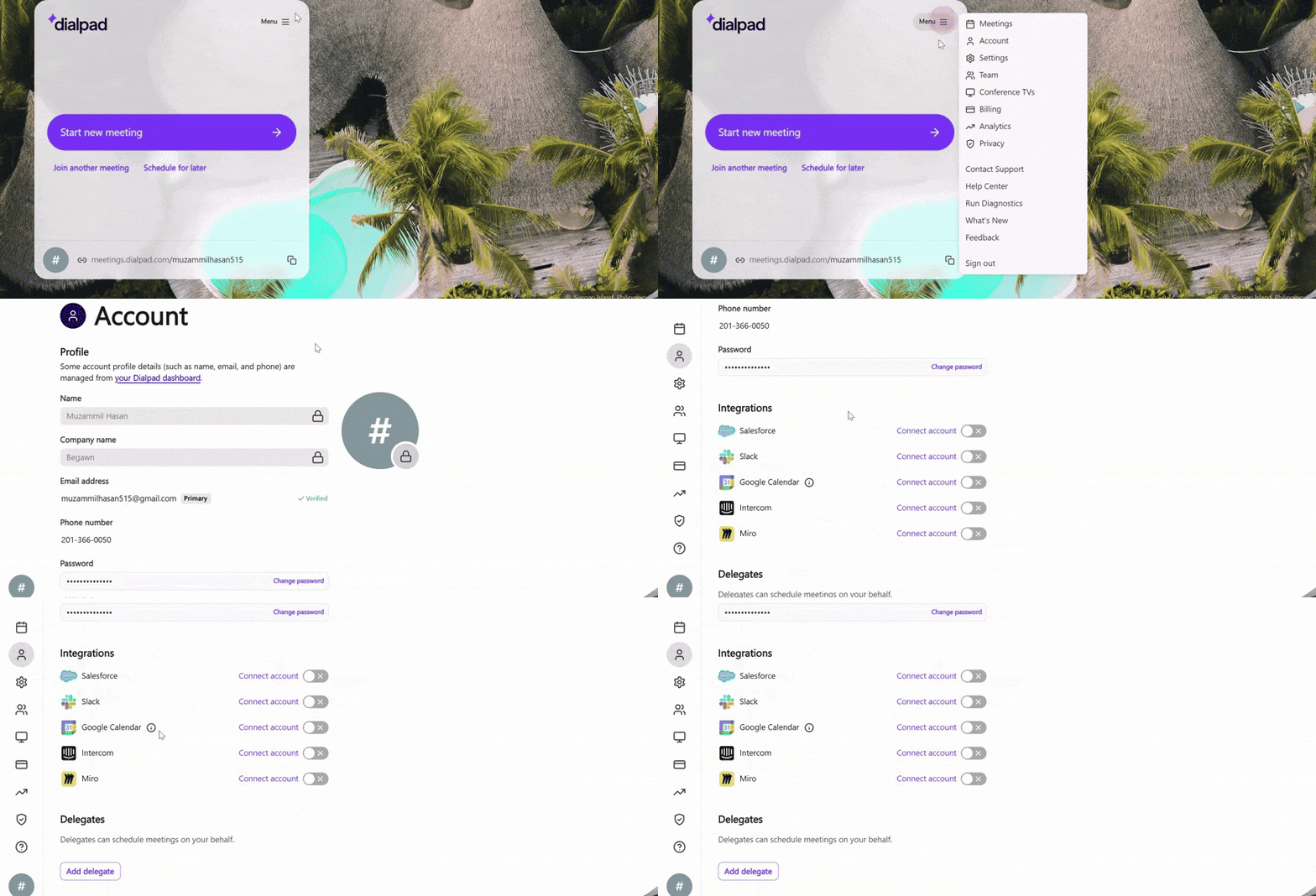
Open your Dialpad account, click the Menu icon → select Account, then scroll down to the Integrations section.
Find Google Calendar and click the toggle next to the Google Calendar to link it.
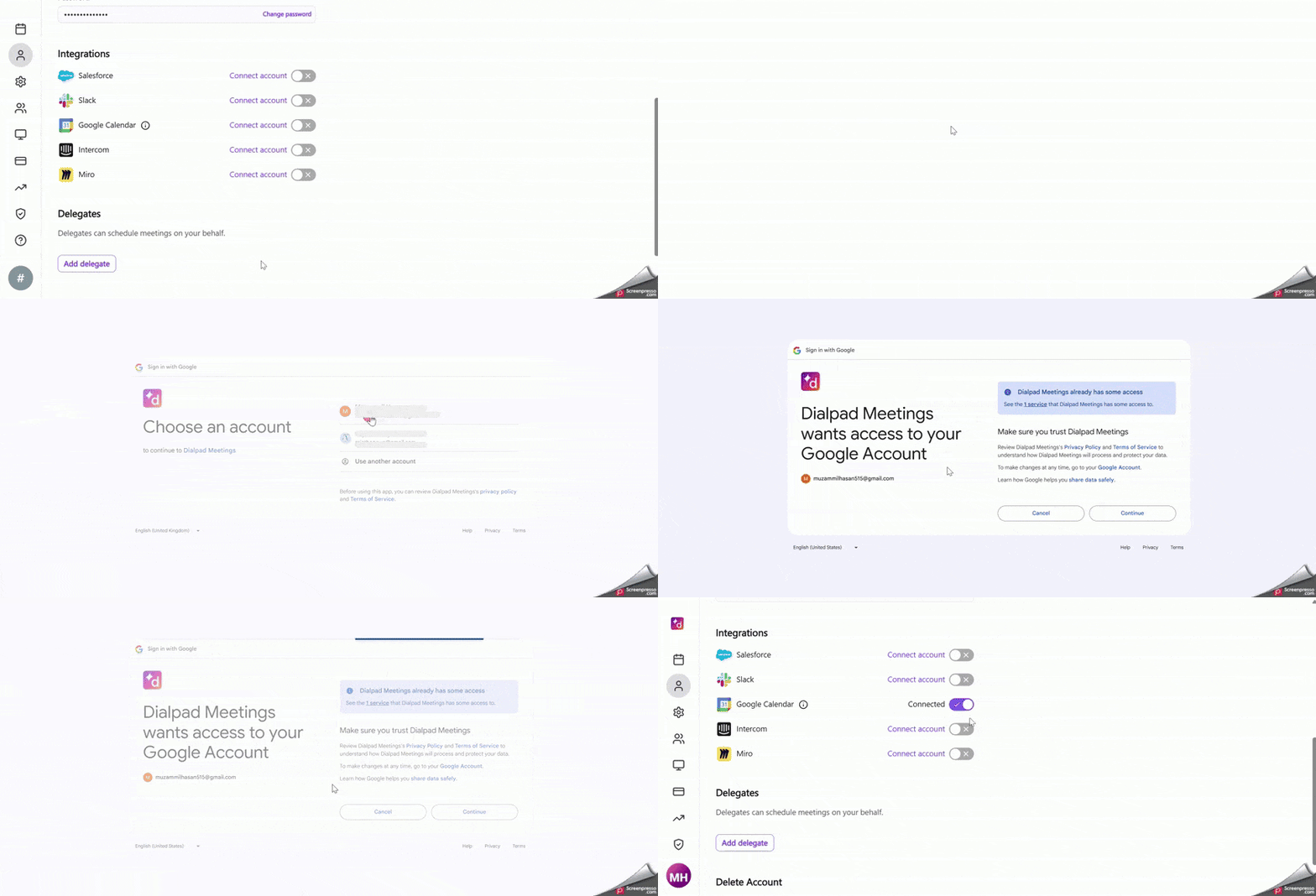
This allows Fireflies to automatically detect and join your upcoming Dialpad meetings — no manual setup needed.
Make sure to connect the same Google Calendar that’s linked with your Fireflies account for smooth auto-joining.
Step 2: Get Your Dialpad Meeting Link
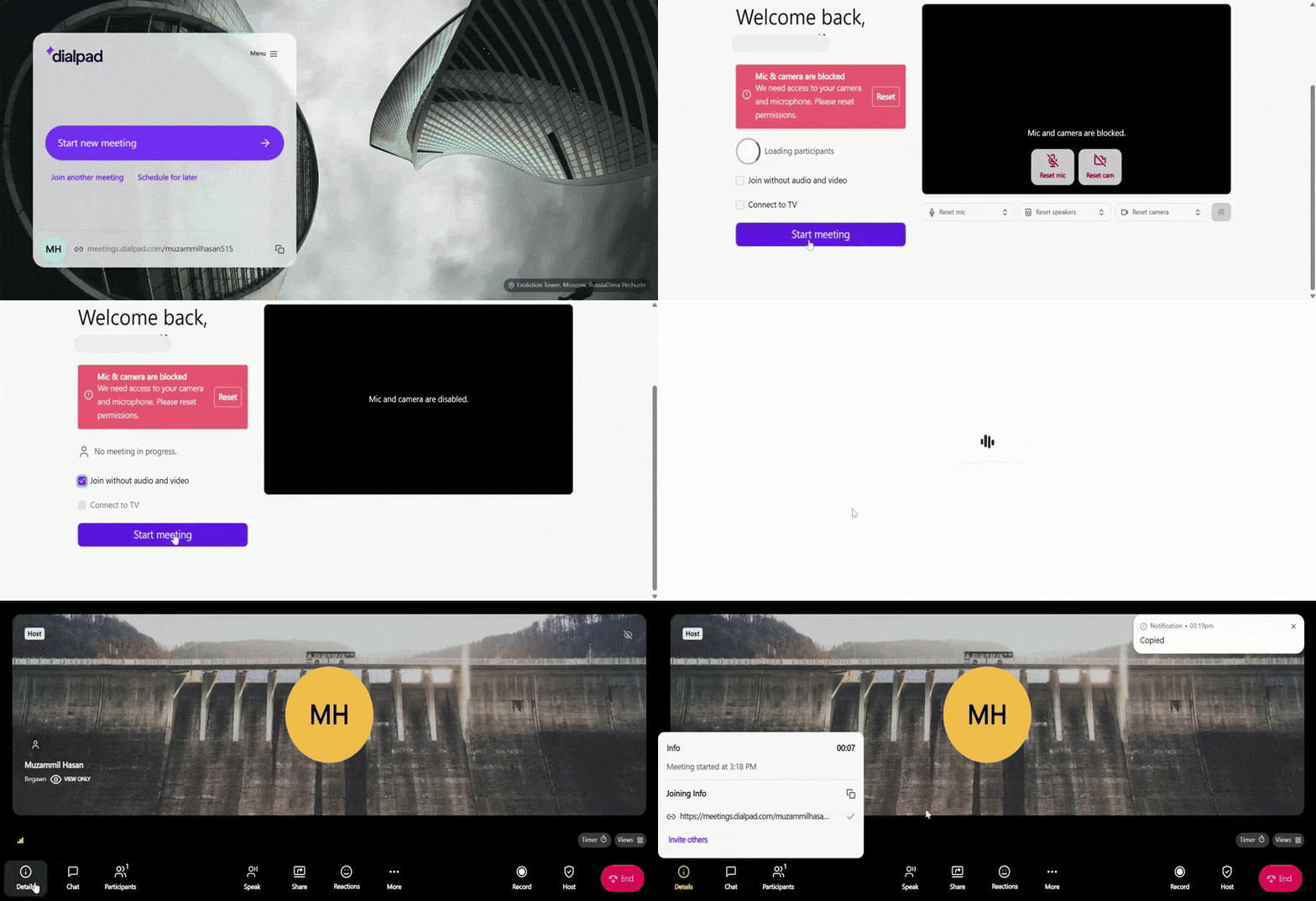
You’ll see your personal meeting link at the bottom of your Dialpad Meetings dashboard.
By default, Dialpad gives you a unique meeting link — for example:
https://meetings.dialpad.com/weekly-project-reviewClick the copy icon next to your link — Fireflies will use it to automatically join and record your meetings.
If you’d like, you can customize your meeting URL (for example, rename it to weekly-project-review) by following this Dialpad guide.
Step 3: Add Your Dialpad Link to Google Calendar
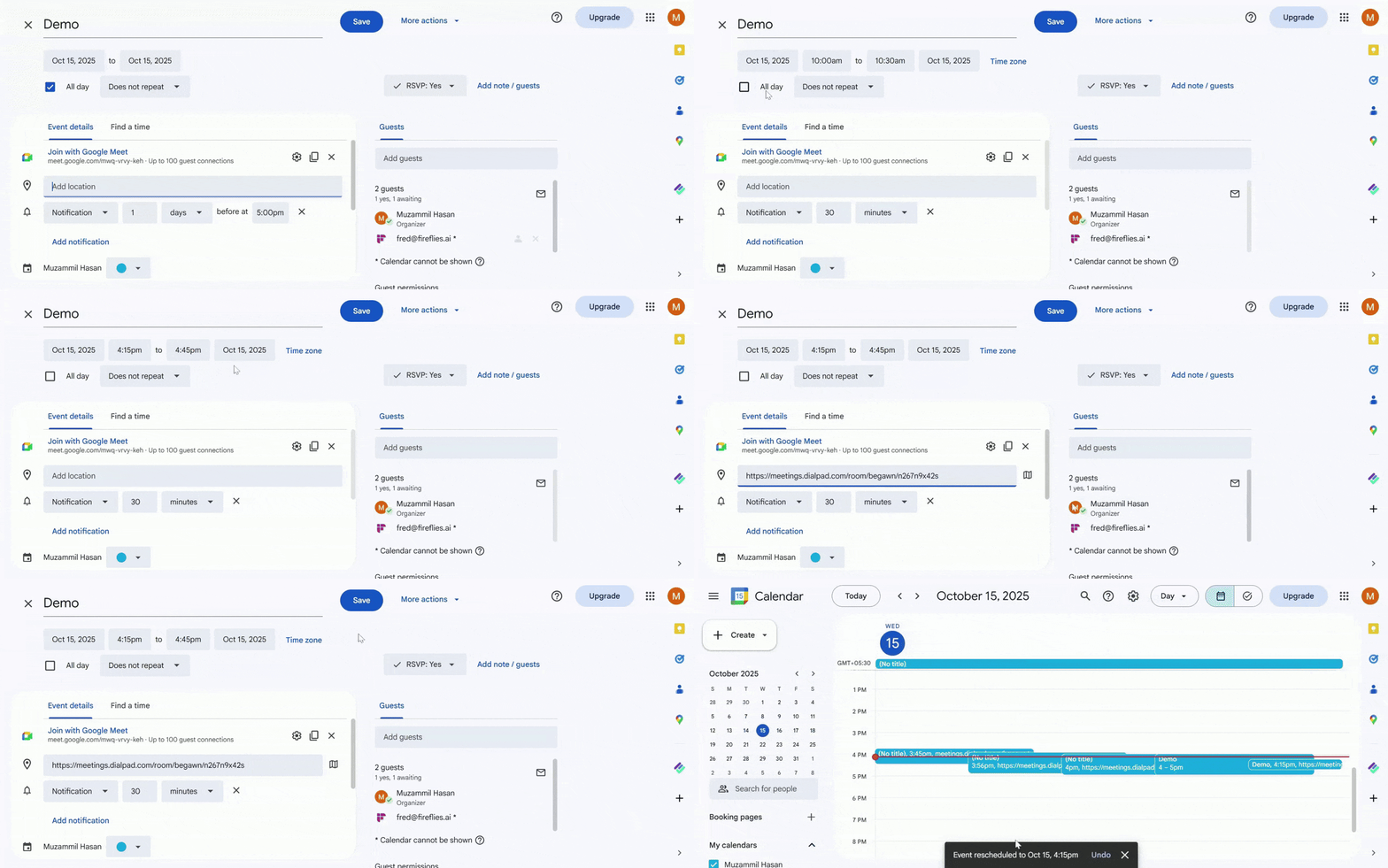
Open your Google Calendar — make sure it’s the same account connected to Fireflies.
Create a new meeting or open an existing one.
Paste your Dialpad meeting link (for example,
https://meetings.dialpad.com/weekly-project-review) into the location or description field.Add participants and meeting details, then click Save.
Once the event is on your connected calendar, Fireflies will automatically detect the Dialpad link, join the meeting, and capture everything in real time.
Step 4: Configure Auto-Join Settings
By default, Fireflies automatically joins all meetings with supported links — including Dialpad. If you’d like more control, you can adjust when Fireflies joins your meetings.
Learn how to manage Auto-Join settings → [Auto Join Settings]
Step 5: Alternate Ways to Invite Fireflies
If you prefer manual control instead of Auto-Join, you can directly invite Fireflies to a Dialpad meeting — just like any other participant.
Learn how to invite Fireflies manually → [Invite Fireflies manually]
✅ What Happens After Setup
Once Fireflies joins your Dialpad meeting:
It appears as a participant (Fireflies.ai Notetaker)
Captures the conversation in real time
Generates meeting transcripts, summaries, and key action items once the meeting ends
You’ll find all your Dialpad meeting notes inside Fireflies — searchable, timestamped, and ready to share with your team.

🛠 Troubleshooting
Issue | What to Do/Check |
Fireflies didn’t join my Dialpad meeting | Make sure the Dialpad meeting link is in your calendar invite (and that it’s the same calendar connected to Fireflies). |
Recording or transcript missing | Confirm that the Fireflies Notetaker successfully joined the meeting. If it didn’t appear in the participant list, recheck your meeting invite and ensure the event was created in the connected calendar. |
Dialpad link not detected | Make sure the full Dialpad meeting link (e.g., |
Fireflies joined late or left early | Check if the meeting started late or ended early — Fireflies joins based on the scheduled time in your calendar. Consider extending your meeting duration in future invites. |
❓ Frequently Asked Questions
1. Do I need to install anything for Dialpad integration to work?
No — Fireflies automatically detects your Dialpad meeting link from the calendar invite and joins the meeting on its own. No extra installation or plugins are needed.
2. Can I use the same Dialpad link for multiple meetings?
Yes! You can reuse your personal Dialpad link for recurring meetings. Just make sure it’s added to the same calendar connected to Fireflies, so the bot knows when to join.
3. Will Fireflies join unscheduled Dialpad meetings?
No — Fireflies only joins meetings that appear in your connected calendar or where it’s manually invited.
4. What happens after my meeting ends?
Fireflies automatically processes your meeting to create a recording, transcript, and AI summary, all available in your Fireflies Notebook
5. Can I stop Fireflies from joining certain Dialpad meetings?
Yes — update your Auto-Join Settings to control which meetings Fireflies can or cannot join.
🔄 Recap
The Dialpad + Fireflies integration makes meeting documentation effortless and automatic:
Seamless → Fireflies automatically joins your Dialpad meetings to record, transcribe, and summarize — no setup or plugins required.
Organized → All your meeting notes are saved in your Fireflies Notebook, making them searchable and easy to revisit.
Hands-free → Focus on the conversation — Fireflies handles the note-taking and captures every important detail for you.
📚 Related Guides
Supported Web Conferencing Platforms → Explore all web conferencing platforms compatible with Fireflies — including Zoom, Microsoft Teams, Google Meet, and more.
How to Integrate Jitsi with Fireflies → A similar guide showing how to add meeting links to calendars so Fireflies can auto-join.