How to Set Up and Manage Fireflies Deal Intelligence with HubSpot
Last updated: May 18, 2026
Fireflies Deal Intelligence for HubSpot helps sales teams review deal health and spot risks by bringing together HubSpot deal data and sales conversations in one place. This gives teams clear visibility into deal progress, key signals, and potential risks—all inside Fireflies.
🔑 Prerequisites
Before you start using Deal Intelligence in Fireflies, make sure everything’s connected and ready to go
You must be a Fireflies Admin to access Deal Intelligence
If you are an existing user who has HubSpot connected with Fireflies, you will need to reconnect and connect again to access Deal Intelligence
If you don't have HubSpot connected to Fireflies yet, ensure you connect it following the steps below
Your meetings are linked to HubSpot contacts, companies, or deals.
For now, Deal Intelligence in Fireflies is built specifically for HubSpot CRM users. Support for other CRMs will roll out soon — so if your team uses a different platform, stay tuned!
🚀 Connect to HubSpot for Deal Intelligence (New users)
Step 1: Log in to your Fireflies account. From the left sidebar, go to Analytics and click Sales.
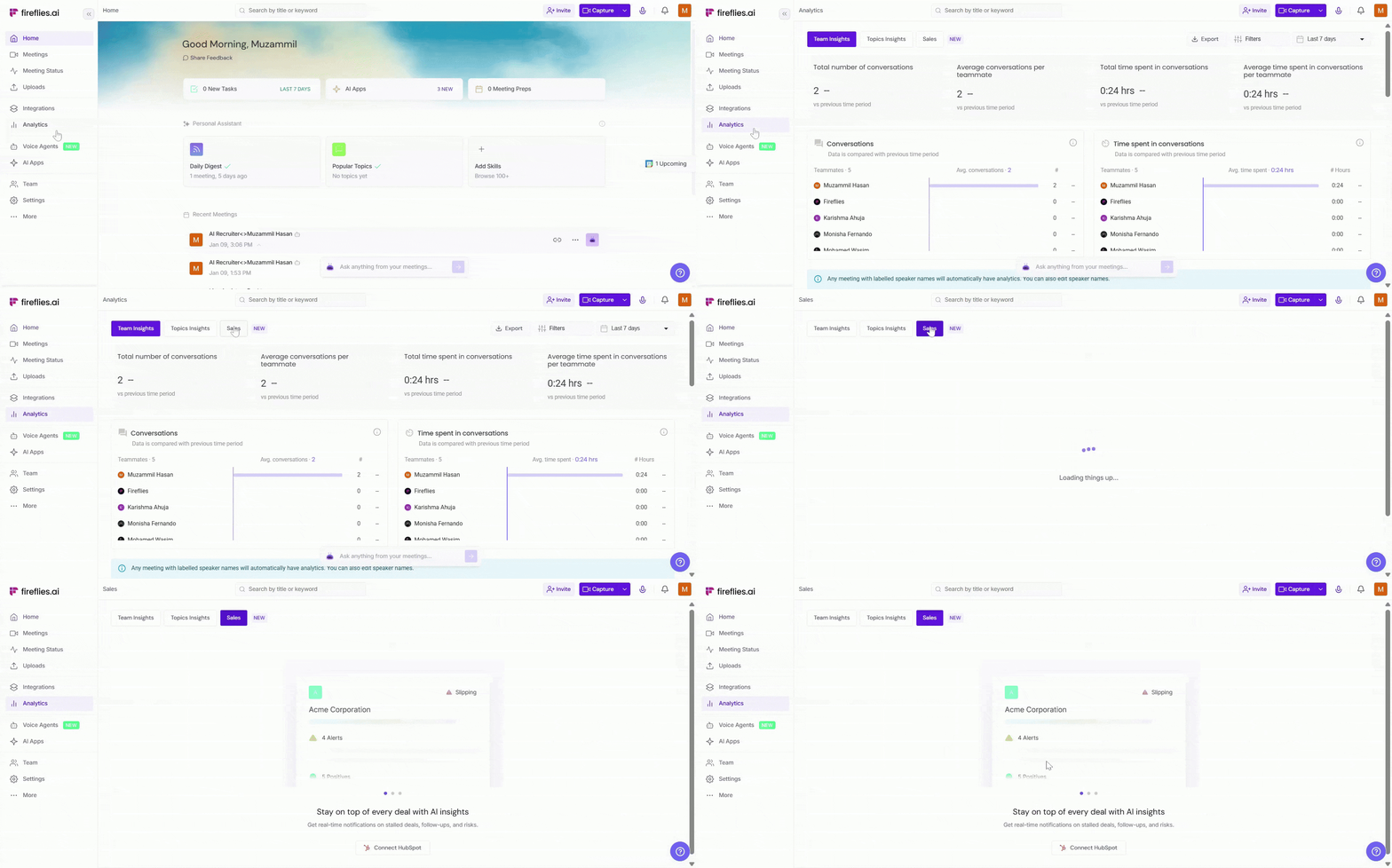
Step 2: Select your HubSpot account and authorize the connection.
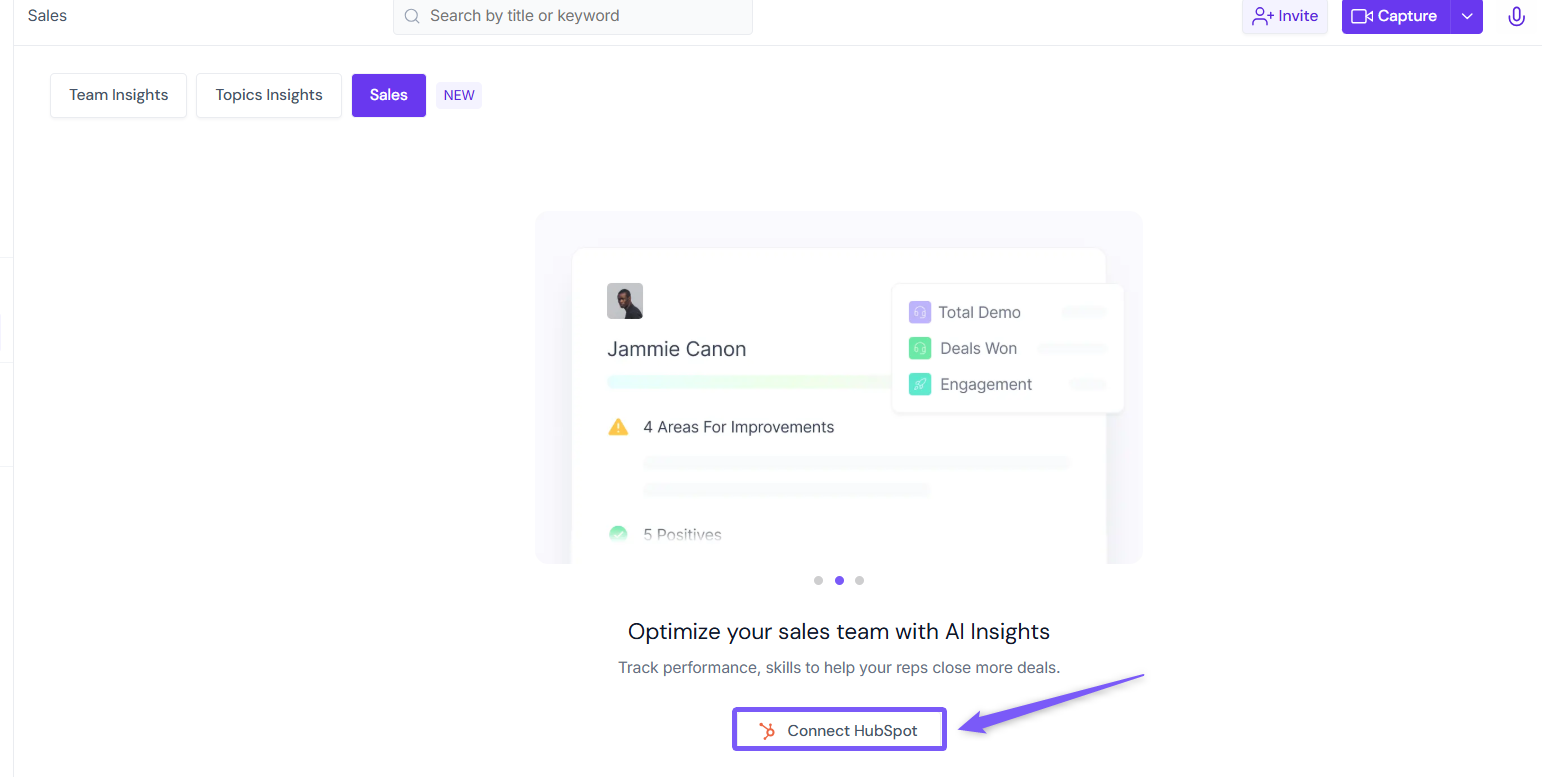
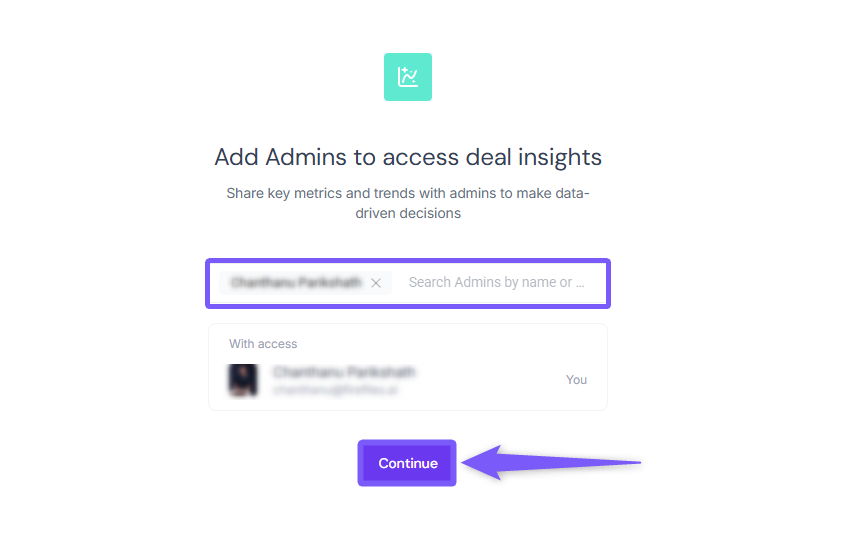
Step 3: Add admins who should have access to Deal Intelligence by typing their names, selecting them from the list, and clicking Continue to save.
Anyone added here must also have access to the meetings linked to those deals — that’s how Fireflies keeps insights accurate and relevant.
🔎 Exploring Deal Intelligence for HubSpot
Once your HubSpot account is connected, Deal Intelligence helps you review deal activity, customer conversations, follow-ups, and sales insights — all in one organized workspace inside Fireflies.
Here’s how to explore your connected HubSpot deals and understand what’s happening across your pipeline.
1. View All Deals at a Glance
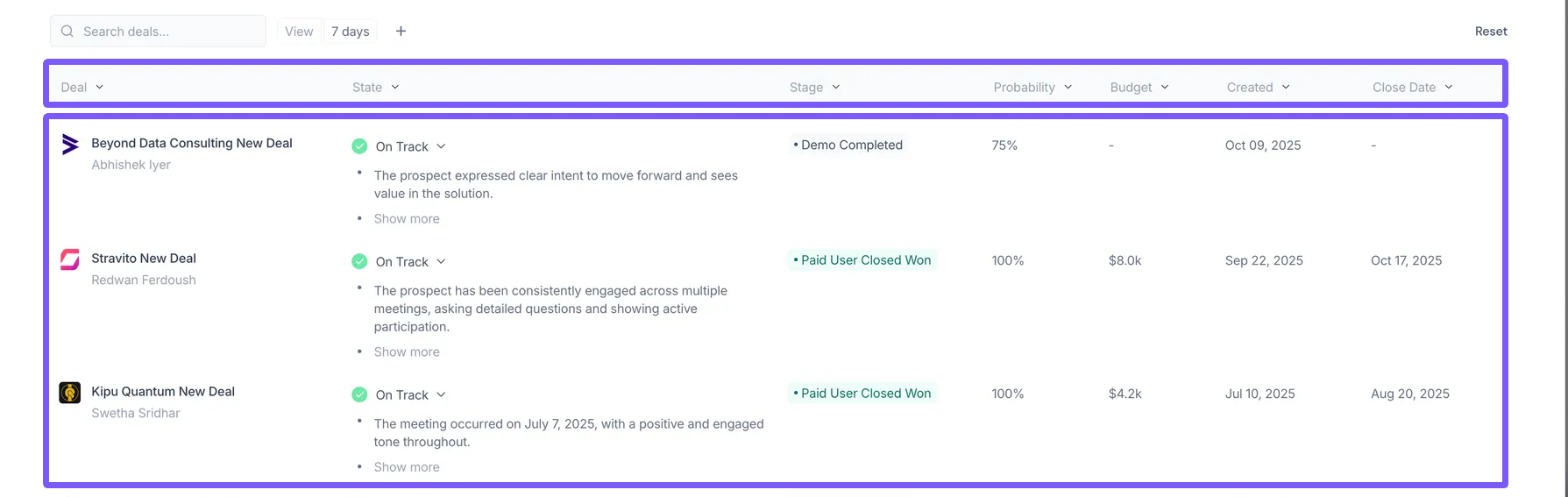
Once your HubSpot account is connected, you’ll see all your deals neatly organized in the Deals dashboard.
Each card gives you the context you need at a glance — who owns the deal, what stage it’s in, and how it’s progressing.
You’ll instantly spot key details like:
Deal name and owner
Stage, probability, and budget
Created and close dates
Health indicators: On Track, At Risk, or Slipping
It’s a quick, effortless way to understand your pipeline’s overall health without leaving Fireflies.
2. Filter Deals for Sharper Insights
When your pipeline starts filling up, filters help you cut through the noise and focus on what actually needs attention. They’re designed to make deal tracking easier — whether you’re checking recent updates or comparing performance across reps and deal sizes.
You can use filters in two simple ways 👇
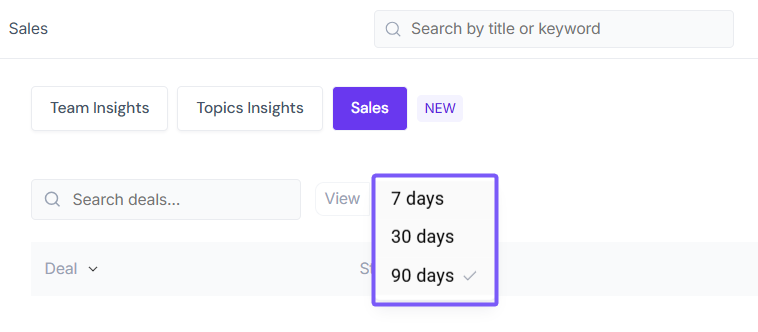
A. Filter by Duration
Quickly view deals from the past 7 days, 30 days, or 90 days by selecting a duration from the dropdown.
This helps you track short-term changes and spot deals that need quick follow-ups.
B. Apply Multiple Filters Together
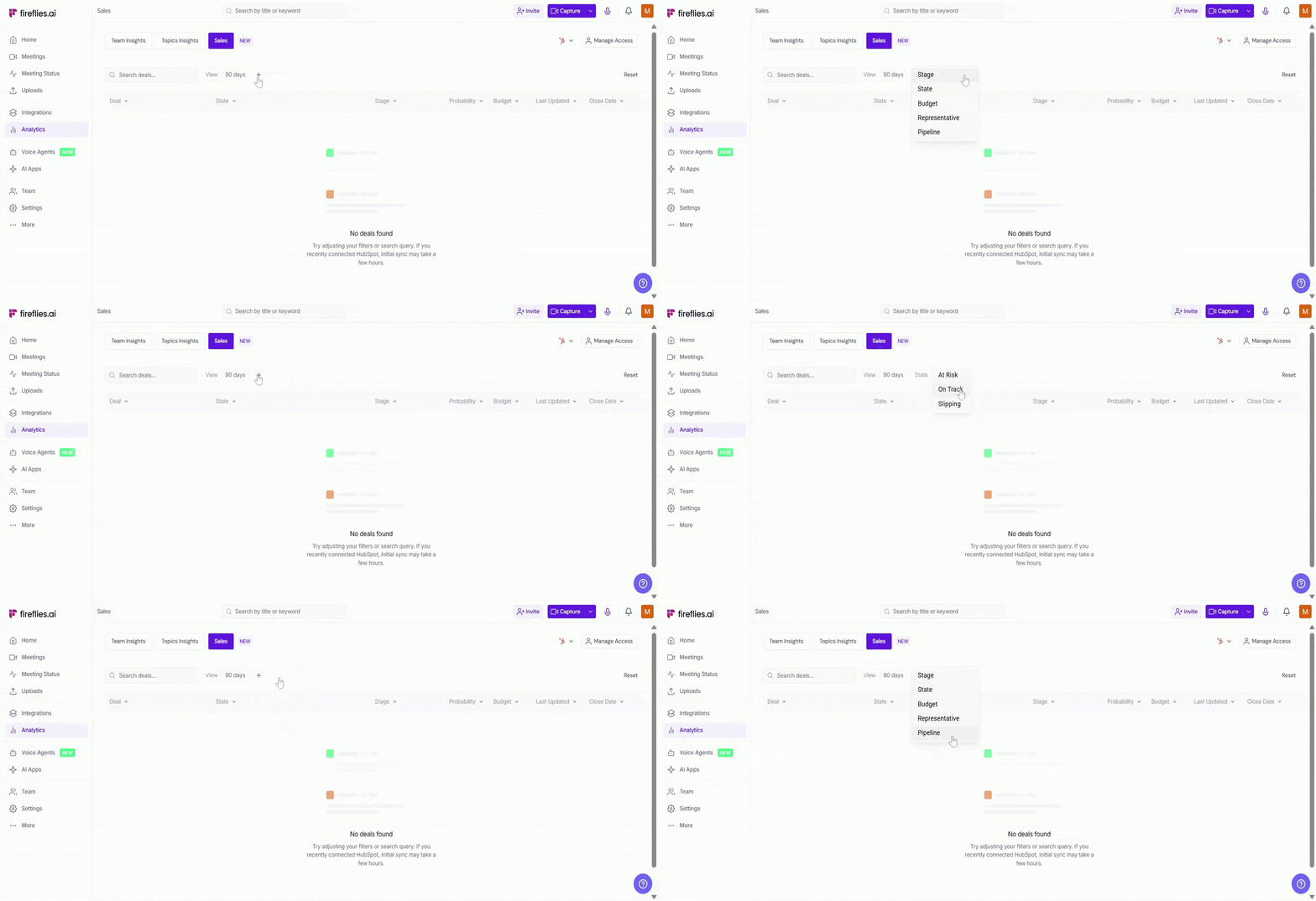
Need deeper insights? Combine filters to narrow down results by:
Stage — e.g., Demo Completed, Closed Won, Negotiation/Contract Sent
State — focus on deals that are On Track, At Risk, or Slipping
Budget range — set a minimum and maximum value to find deals within a target range
Representative — view deals handled by specific team members
Pipeline — filter deals by HubSpot pipelines to analyze performance across different sales flows
Combine duration and filters to zoom in on the most valuable opportunities — like high-value deals closing soon or reps driving the most momentum.
3. Open a Deal to View Details
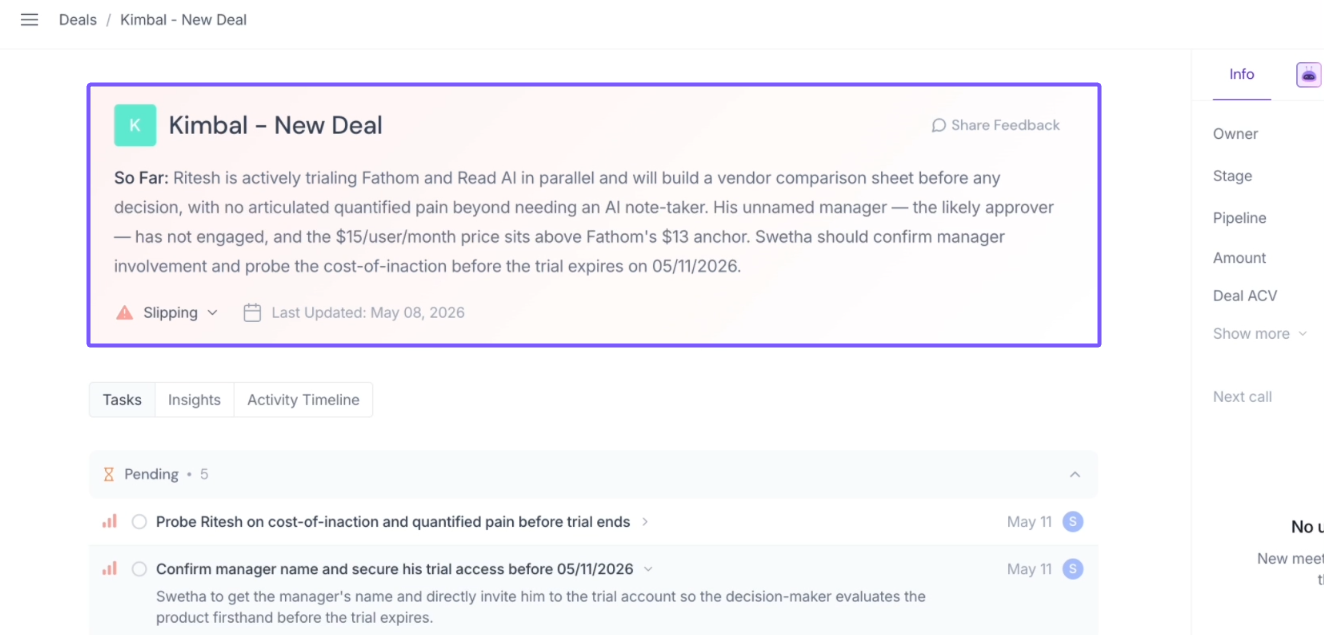
Each deal in Fireflies Views includes a quick AI-generated summary, current deal status, and the latest update timestamp, giving your team immediate context before diving into deal activity.
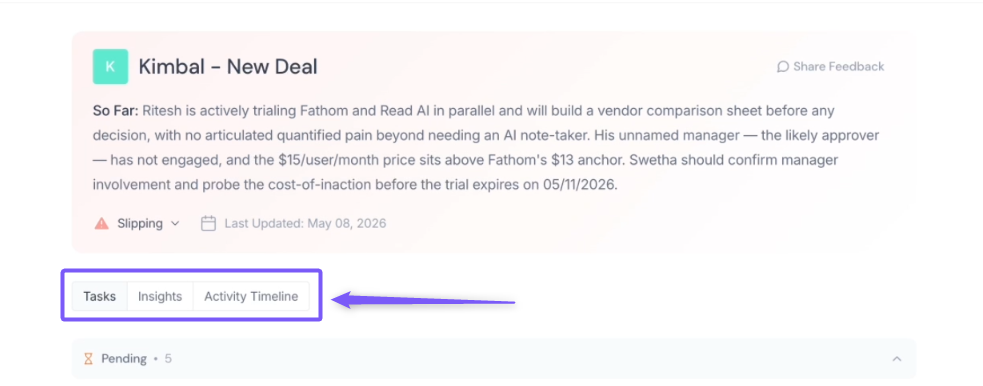
The deal workspace is organized into dedicated sections for tasks, insights, and activity timeline, helping your team quickly track follow-ups, risks, and next steps.
Tasks Tab
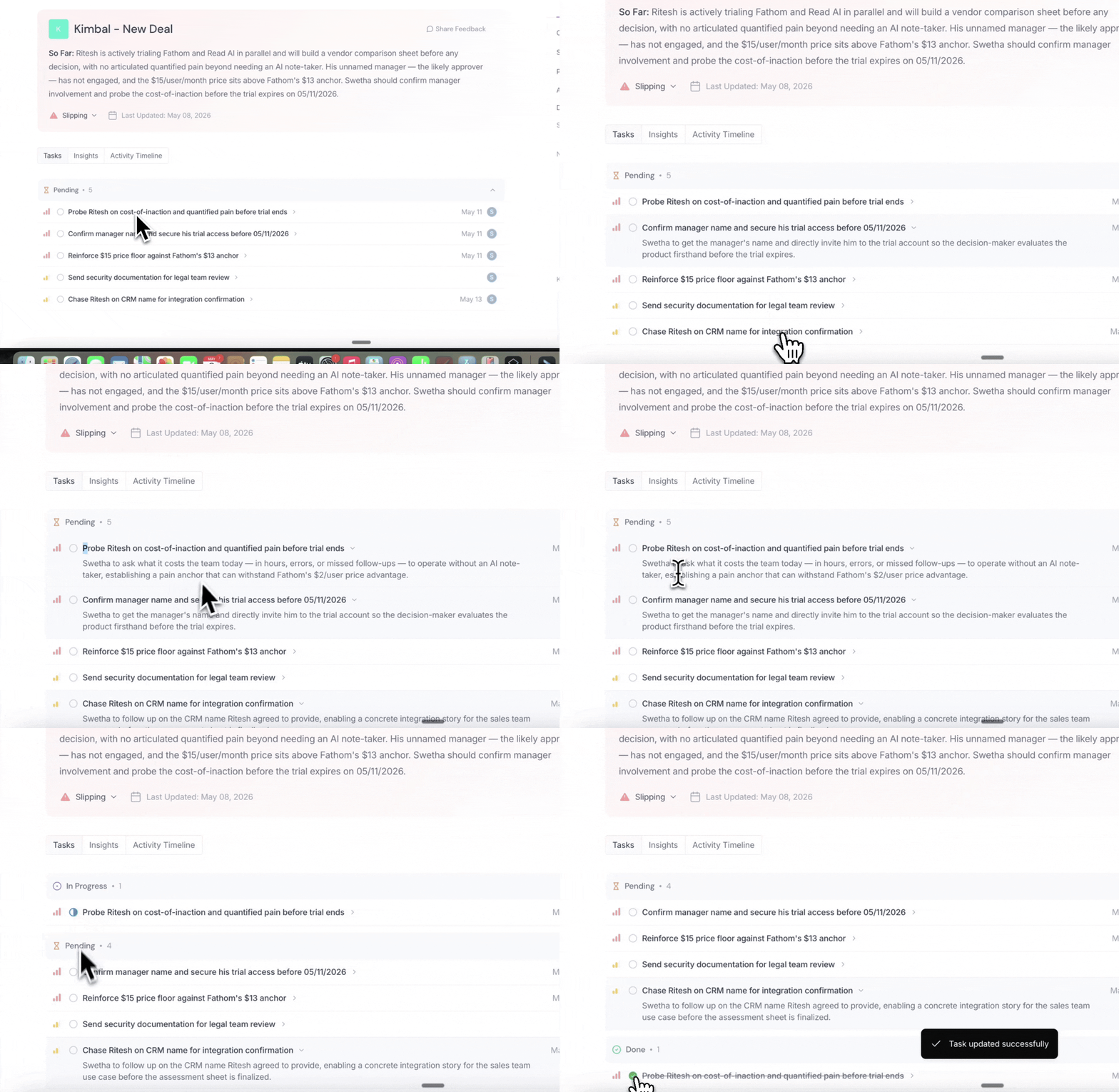
Automatically captures sales follow-ups and action items from your meetings in the Tasks tab, organized into sections like Pending, In Progress, and Done, making it easy to track what still needs attention.
You can:
Expand a task to view more context pulled directly from the conversation.
Click a task once to move it to In Progress.
Click the same task again to mark it as Done.
Automatically move completed tasks into the Done section.
Insights Tab
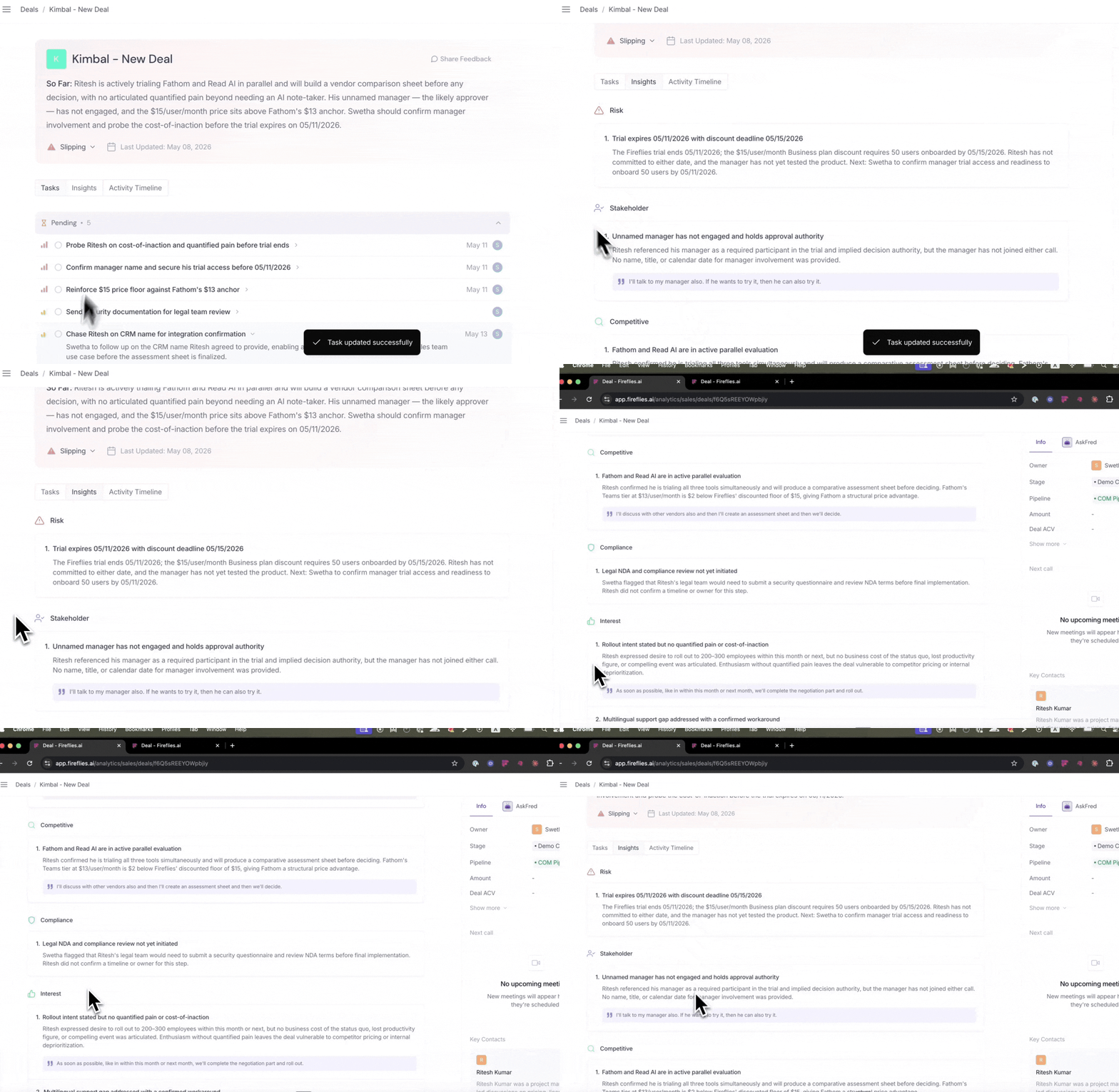
Review important deal signals captured from customer conversations - including risk, stakeholder, competitor, compliance, interest, pain point, and other key discussion highlights.
Each insight includes supporting meeting context, helping your team quickly understand what’s moving or blocking the deal.
Activity Timeline
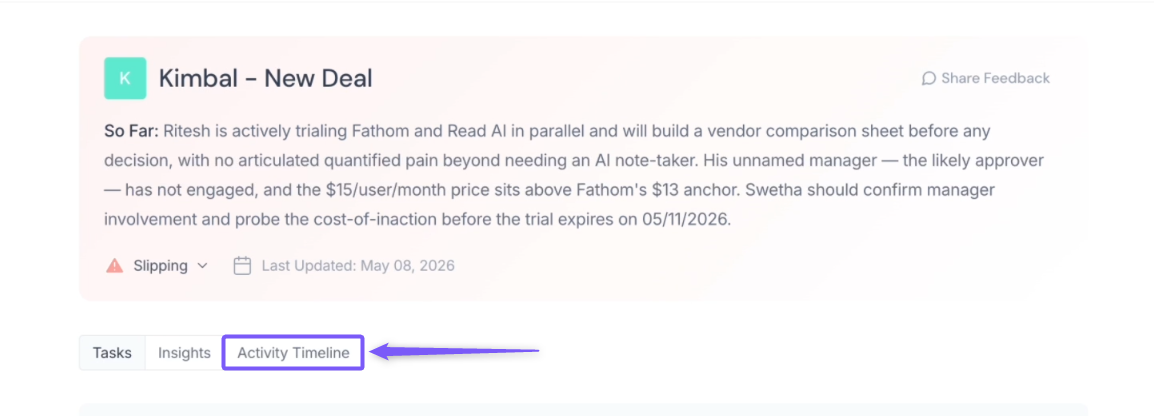
View meetings and interactions in chronological order to track how the deal progressed over time. This helps your team quickly review past conversations, follow-ups, and customer engagement history - all in one timeline.
4. Review Deal Information
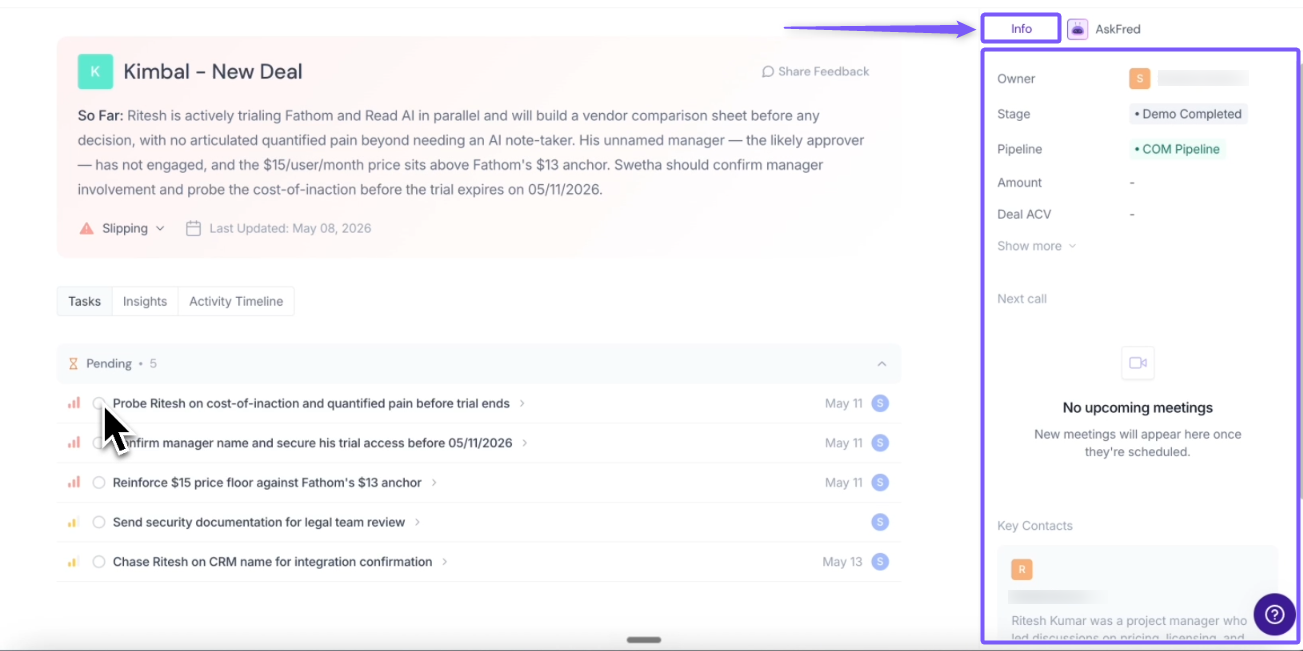
Use the Info tab on the right-side panel to quickly review key deal information and stay updated on the current deal status without leaving the workspace.
You can view details such as:
Deal owner
Deal stage and pipeline
Amount and Deal ACV
Upcoming meetings
Key contacts associated with the deal
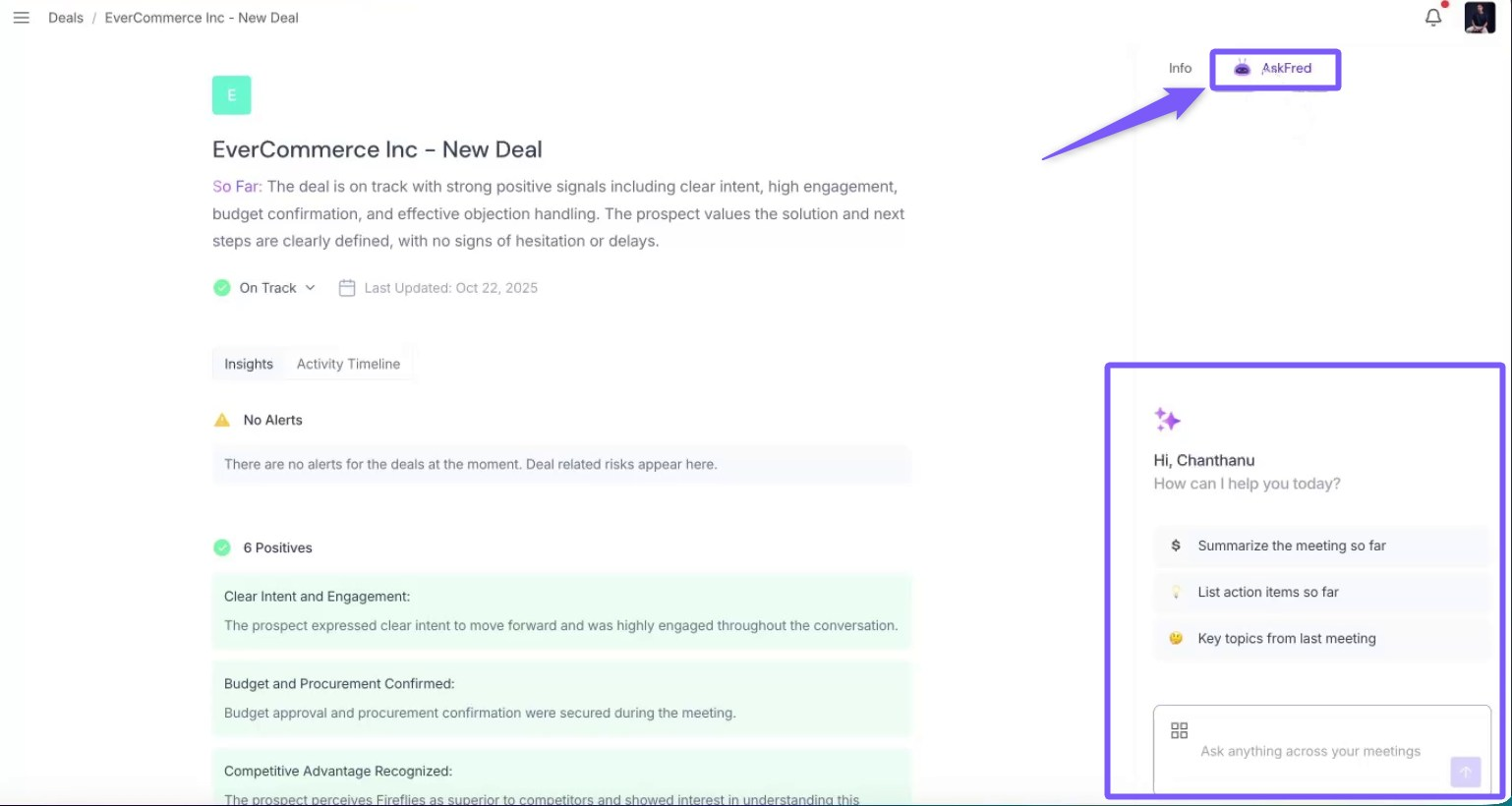
5. Ask Fred Inside a Deal
When reviewing a deal, use the Ask Fred tab from the right-side panel to get quick answers without leaving the workspace.
Type your question, and Fred instantly pulls insights from your meetings and HubSpot data.
You can ask things like:
“Summarize the last customer call.”
“List action items so far.”
“What are the main objections to this deal?”
It’s a quick way to turn deal conversations into clear, actionable insights.
6. Review Contacts Linked to the Deal
Every deal comes with people behind it — and that’s where the Contacts tab helps.
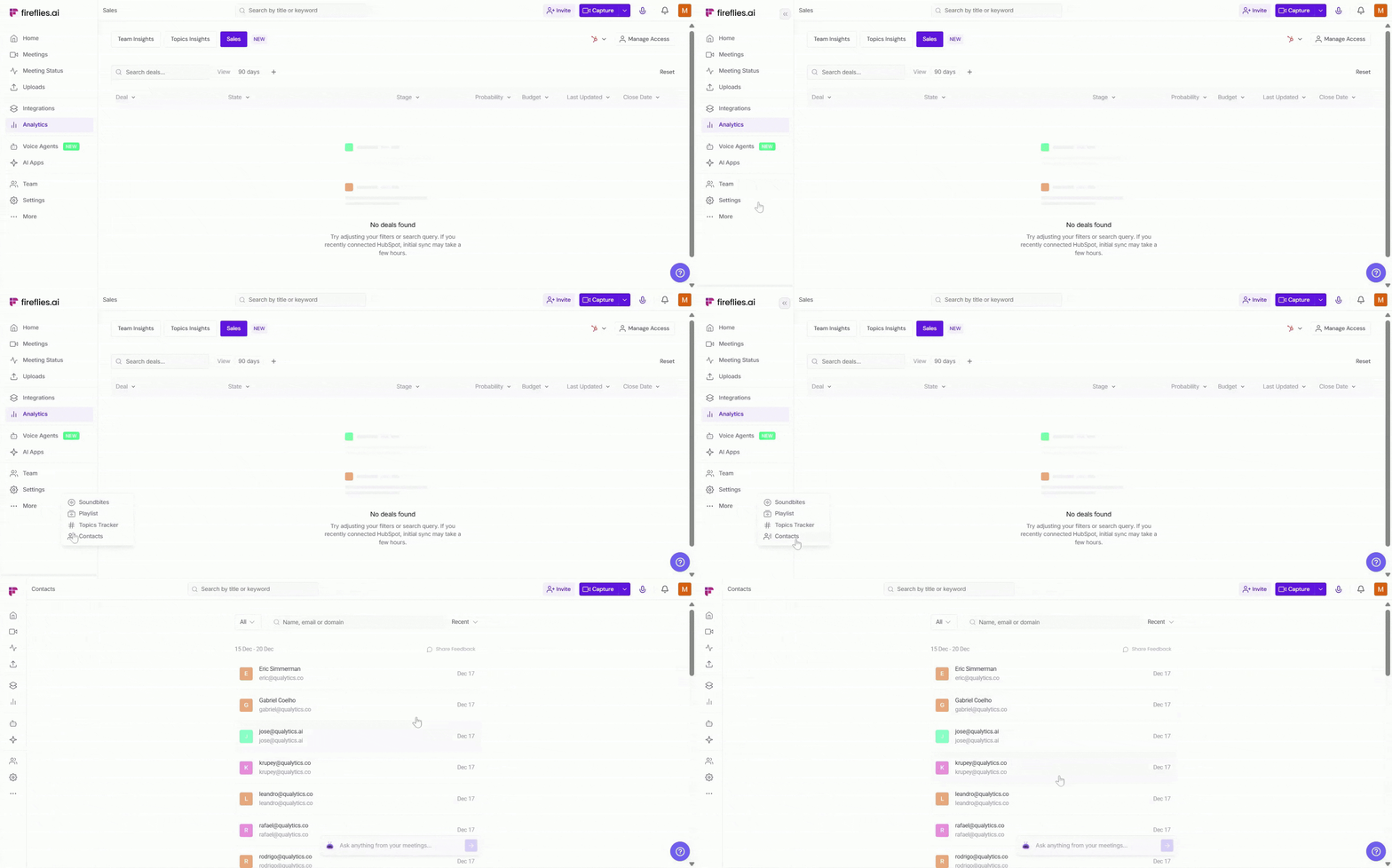
From the left navigation bar, click More → Contacts to view everyone connected to your deals, along with their meeting history and related conversations.
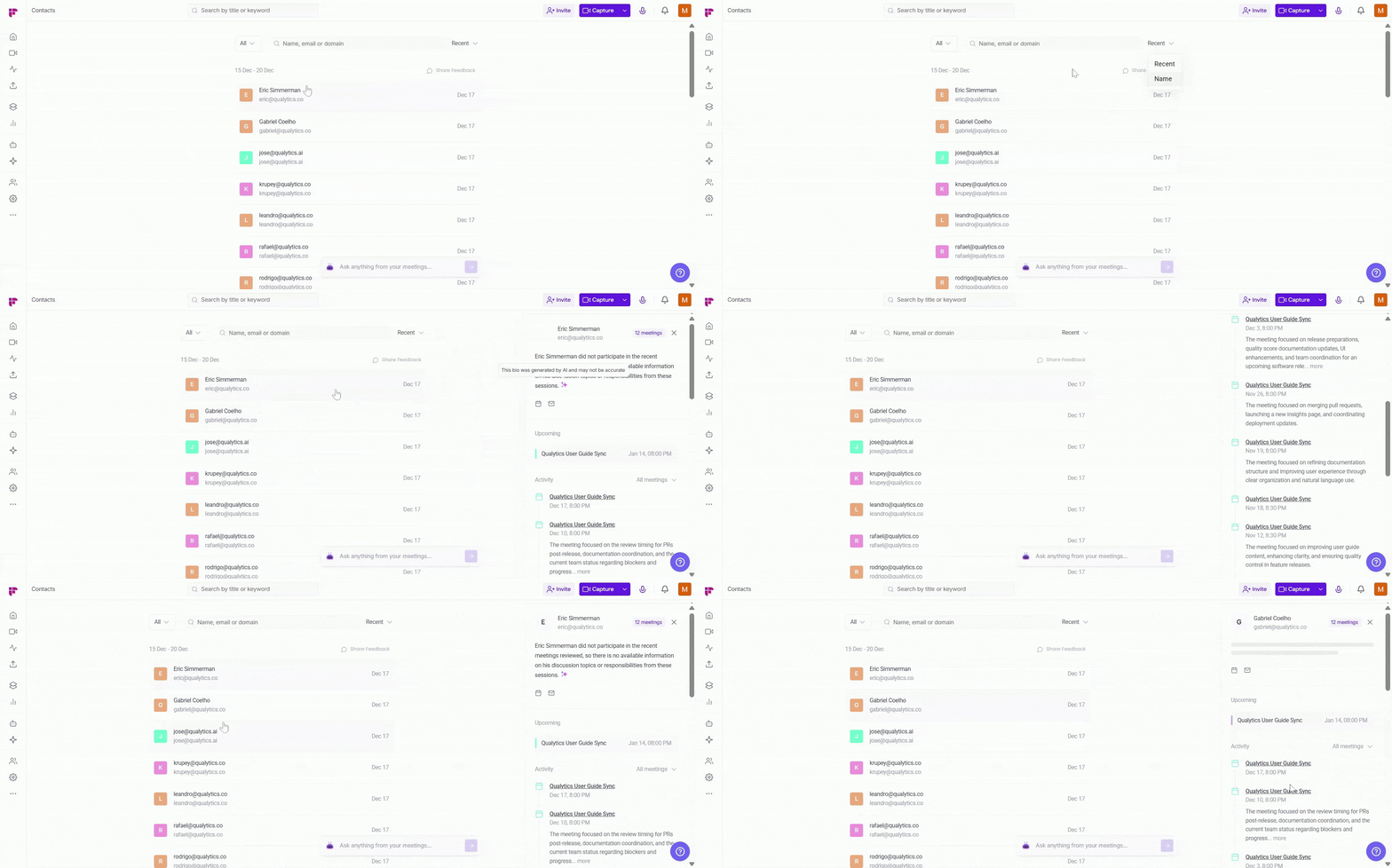
You can click into any contact to view past conversations, track recent activity, or even schedule your next meeting right from the same view.
📌 Learn more: Fireflies Contacts Feature.
🔐 Manage Access to Deal Intelligence
Deal Intelligence is only visible to individuals you have explicitly allowed. This helps keep sensitive deal insights secure and shared only with the right users.
If you’re setting this up for the first time, you can easily choose which admins should be able to view Deal Intelligence from the Sales view.
To manage access:
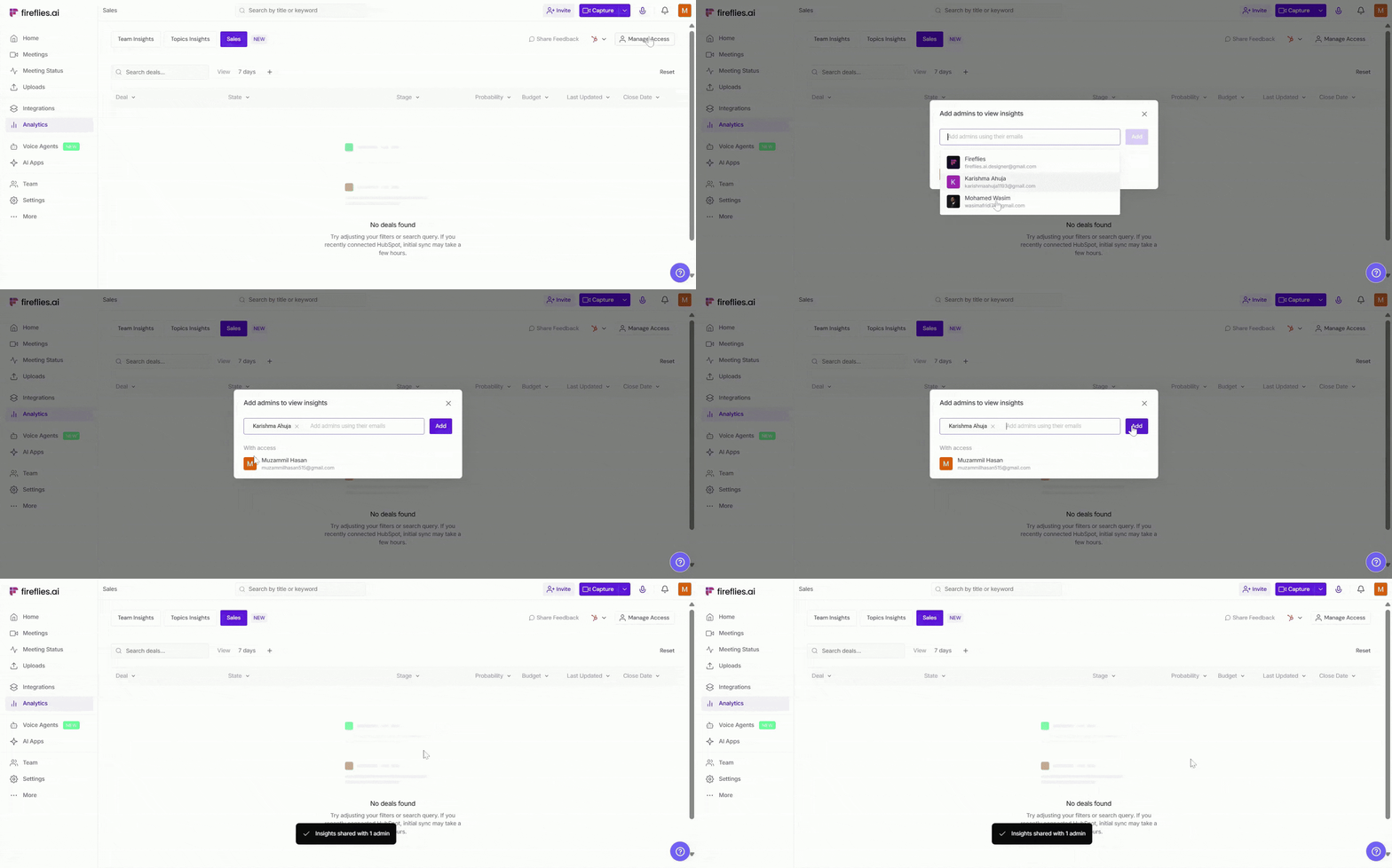
Go to Analytics → Sales to open the Sales dashboard.
Click Manage Access at the top-right corner.
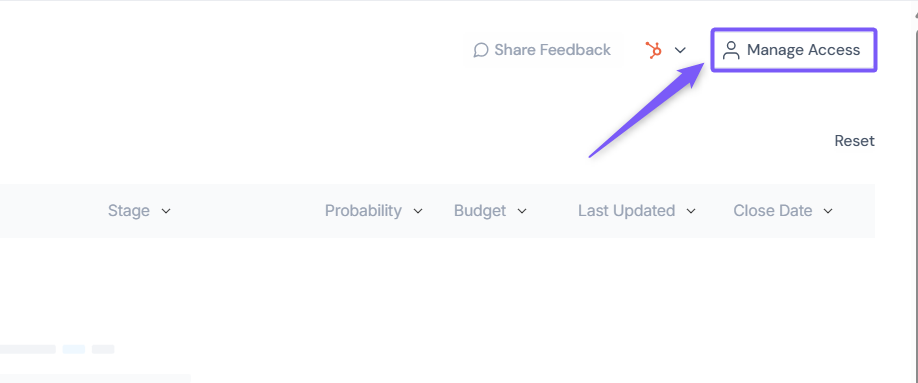
Enter the email address of the admin you want to allow to view Deal Intelligence insights, then click Add.
The admin is listed under With access and has permission to view Deal Intelligence insights.
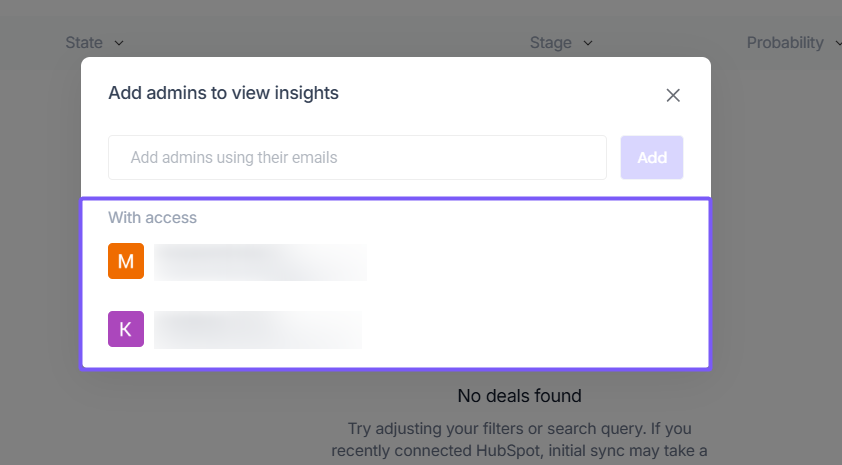
You can remove an admin’s access at any time by clicking Remove next to the admin’s name.
❌ Disconnect HubSpot
If you no longer want to keep HubSpot linked to Deal Intelligence, you can easily remove it at any time.
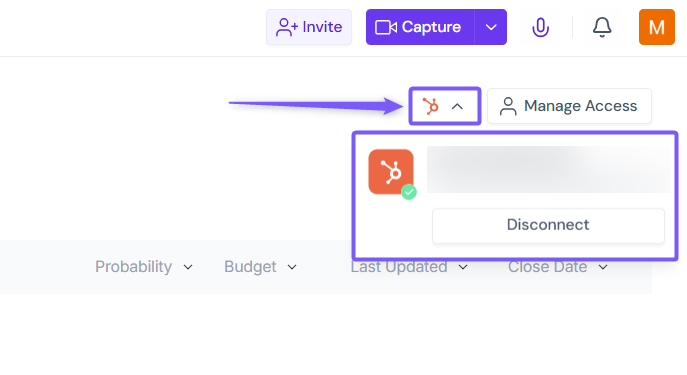
Click the Access icon on the top-right corner of the Deals dashboard, then select Disconnect.
A confirmation window will appear — click Disconnect again to confirm.
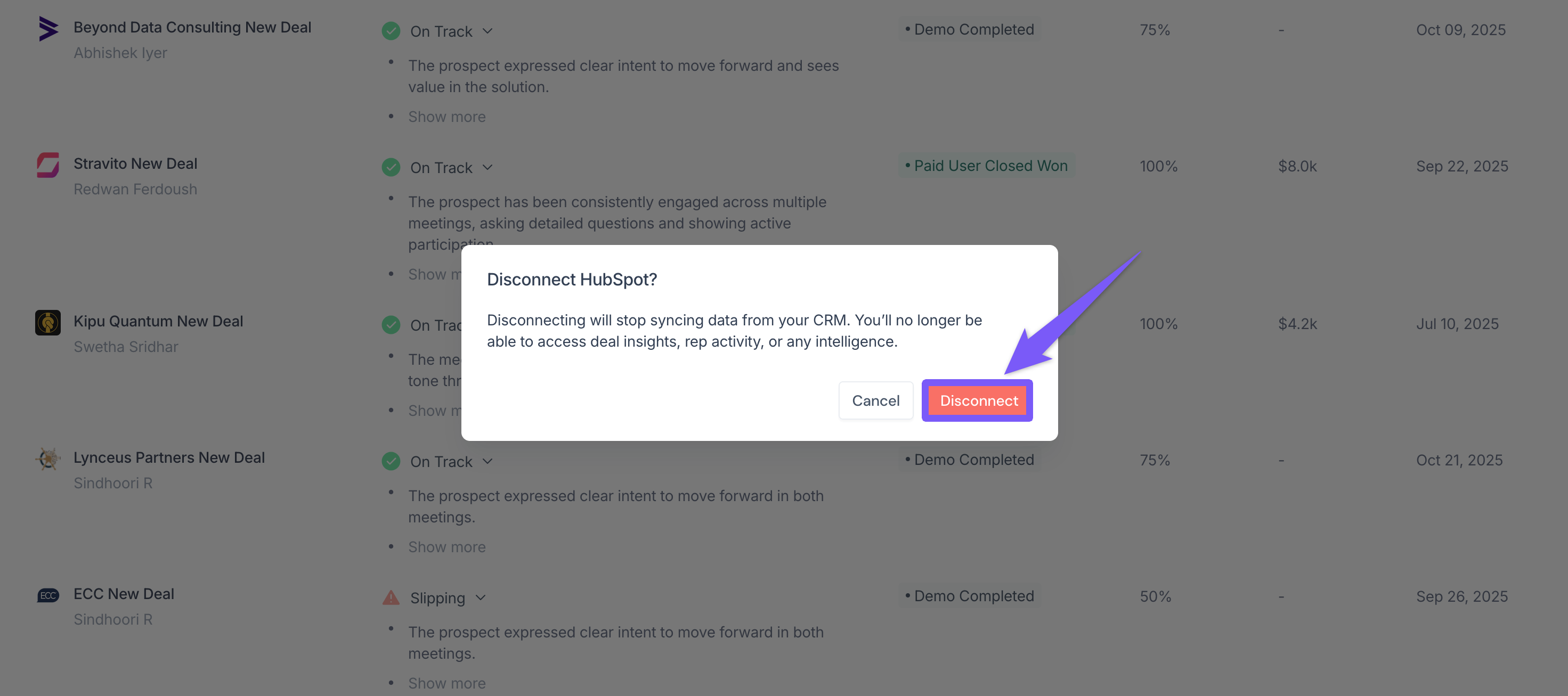
Once disconnected, Fireflies will stop syncing HubSpot deal data and related meeting insights. You can always reconnect later whenever you’re ready to resume syncing.
🛠 Troubleshooting & FAQs
1. I don’t see any deals in Fireflies.
Make sure your HubSpot account is connected properly and your meetings are linked to HubSpot deals. Only deals associated with synced meetings will appear in Deal Intelligence.
2. My deal information isn’t updating.
Deal data refreshes automatically after your HubSpot connection is active. If updates seem delayed, reconnect HubSpot from the Sales dashboard and refresh the page.
3. Ask Fred isn’t showing any results.
Ensure the meeting has been transcribed and linked to the deal. If there’s no recent meeting activity, Ask Fred may not have enough context to generate insights.
4. Why don’t I see meeting insights for a deal?
You must have access to the meetings associated with that deal in Fireflies. Without meeting access, related insights and summaries won’t appear.
5. Can I use Deal Intelligence with other CRMs?
Not yet, Deal Intelligence currently supports HubSpot CRM only. Support for additional CRMs is coming soon.
6. Why don’t I see the Tasks tab or updated Insights view?
The upgraded Deal Intelligence experience is currently rolling out gradually. Some features may only be available to selected workspaces during the early rollout phase.
Still stuck? Contact support via this link for more help.
🔁 Recap
You explored how to use Deal Intelligence in Fireflies to:
Connect HubSpot and manage Deal Intelligence access
View all deals and monitor pipeline health at a glance
Apply filters to focus on important opportunities
Open a deal to review tasks, insights, meeting activity, and deal details
Track follow-ups and update task statuses inside the Tasks tab
Review customer signals like risks, competitors, stakeholders, and buyer interest from the Insights tab
Use Ask Fred for quick deal summaries and next steps
Review contacts and conversations linked to each deal
Disconnect HubSpot or manage admin access whenever needed
📌Related Guides
Learn about Global AskFred — Discover how to use AskFred across Fireflies to summarize meetings, extract insights, and answer deal-related questions.
Explore All CRM Guides — Learn how Fireflies integrates with different CRM tools beyond HubSpot.
What is Fireflies.ai — A quick overview of Fireflies and how it captures, organizes, and analyzes your meeting data.