How to Integrate Aircall with Fireflies
Last updated: October 28, 2025
Integrating Fireflies ensures all your call notes are instantly created and organized under the right contacts. You’ll save hours of manual data entry and never miss a key detail.
Let's get started! 🚀
🔍 What Does the Integration Do?
The Fireflies + Aircall integration streamlines your call documentation workflow:
Automatic Transcription: Transcribes all Aircall calls (inbound and outbound) and voicemails on your selected numbers.
Instant Summaries: Generates detailed notes, summaries, and action items for every conversation.
CRM Sync: Automatically stores the transcript and summary under the appropriate contact in your Fireflies Notebook.
🔑 Prerequisites
Before setting up the connection, ensure you meet these requirements:
A Fireflies Account: Make sure it's active and has the necessary permissions turned on so it can connect to other tools.
An Aircall account (must be on Essentials, Professional, or Custom plans).
You must be an admin of your Aircall account to successfully set up this integration.
🔗 Connect Aircall to Fireflies
We'll complete the entire connection process directly from your Fireflies dashboard.
Step 1: Access Integrations
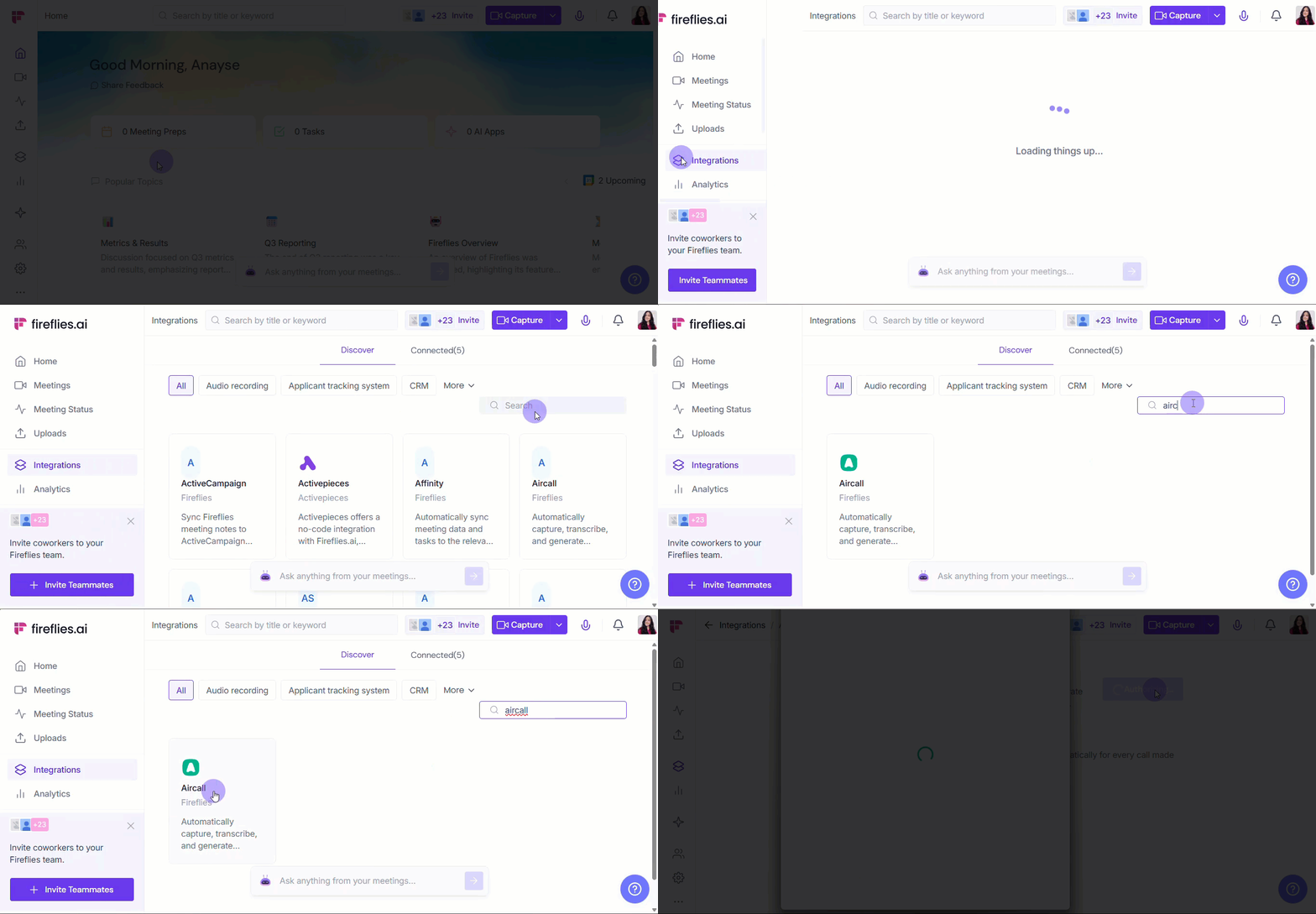
Log in to Fireflies and click Integrations in the sidebar. Search for Aircall and select the app tile.
Step 2: Start the Connection
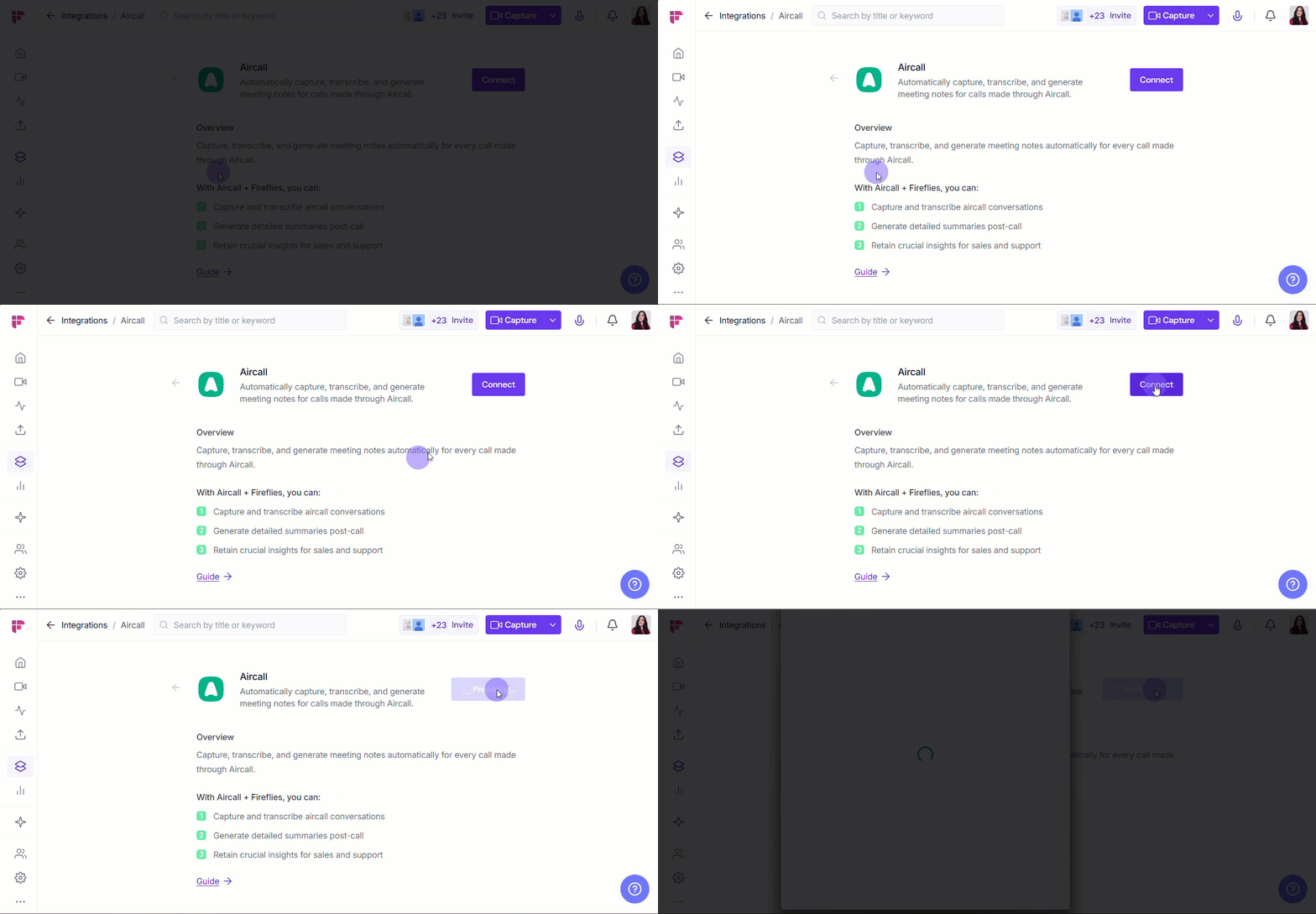
Click Connect in the Aircall integration page.
Step 3: Authorize Aircall Access
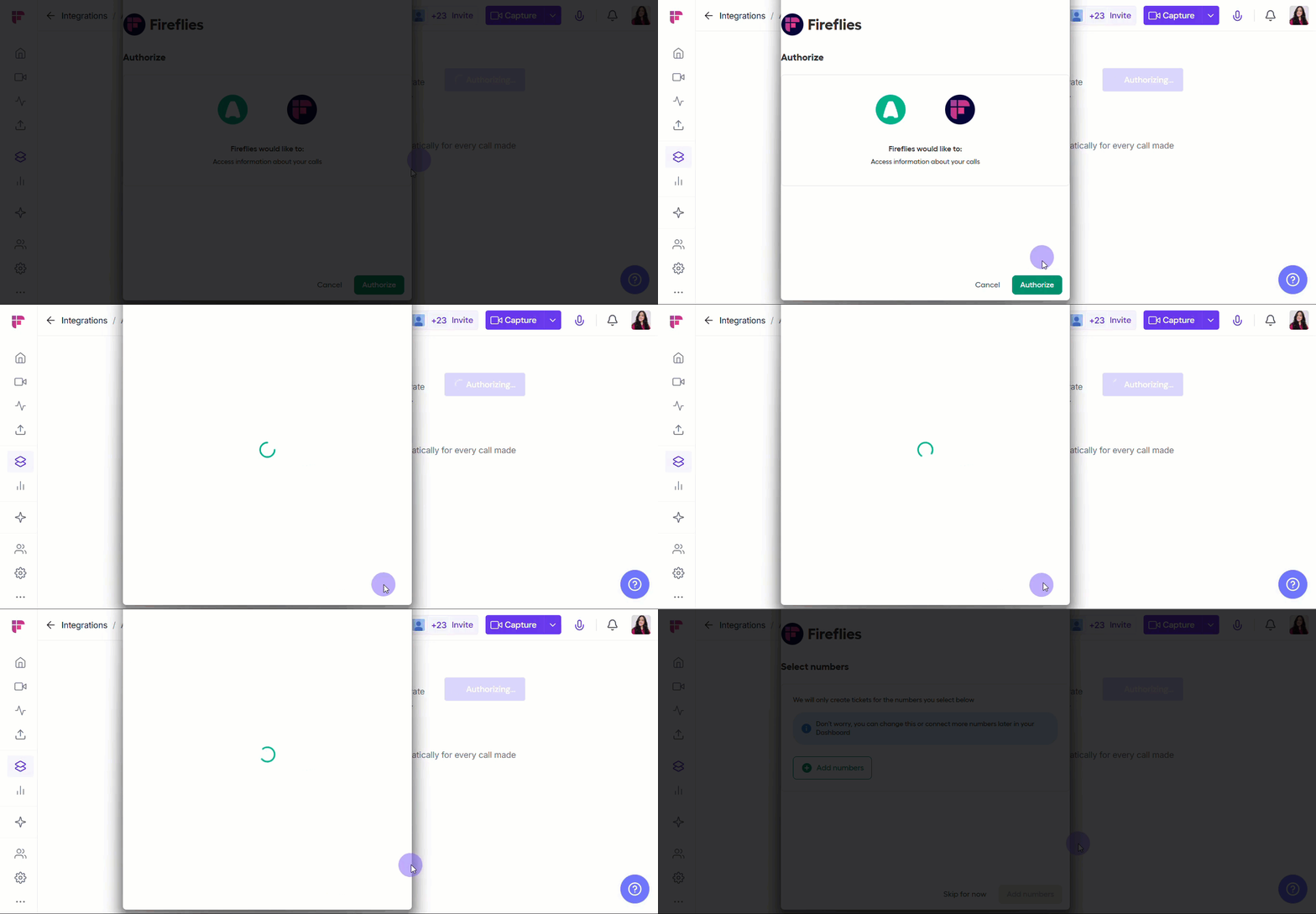
Sign in to your Aircall Account and click Authorize to grant Fireflies access to your account.
Step 4: Select Phone Numbers (Optional)
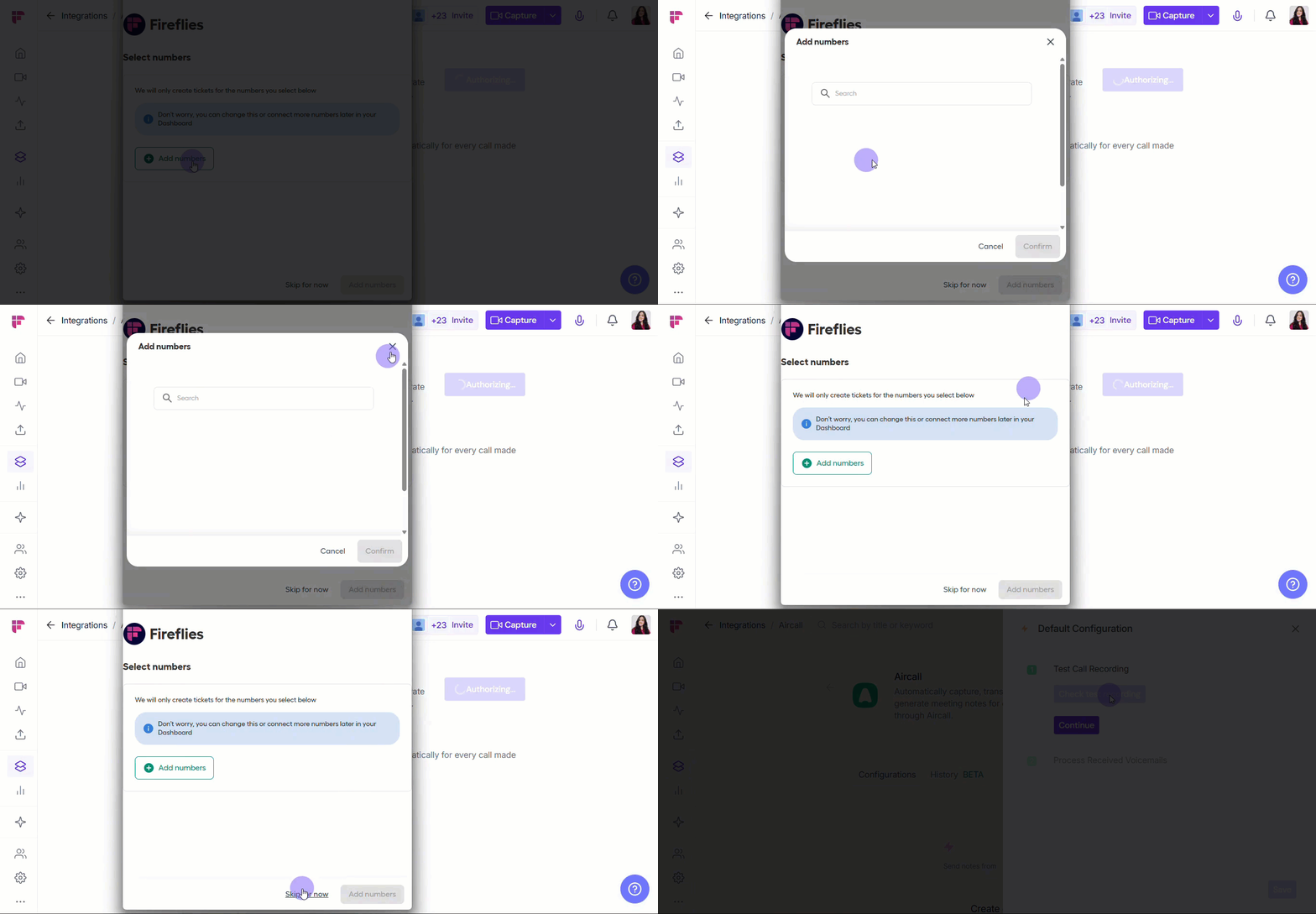
Click Add numbers.
Select one or multiple phone numbers you want Fireflies to record and transcribe.
Click Confirm. Finishing this step will open the Default Configuration side panel.
Tip: You can select numbers later by selecting Skip for now.
⚙ Set Up Default Configuration
By default, Fireflies transcribes both calls and voicemails. You can easily disable voicemail processing.
Step 1: Test Your Connection (Optional)
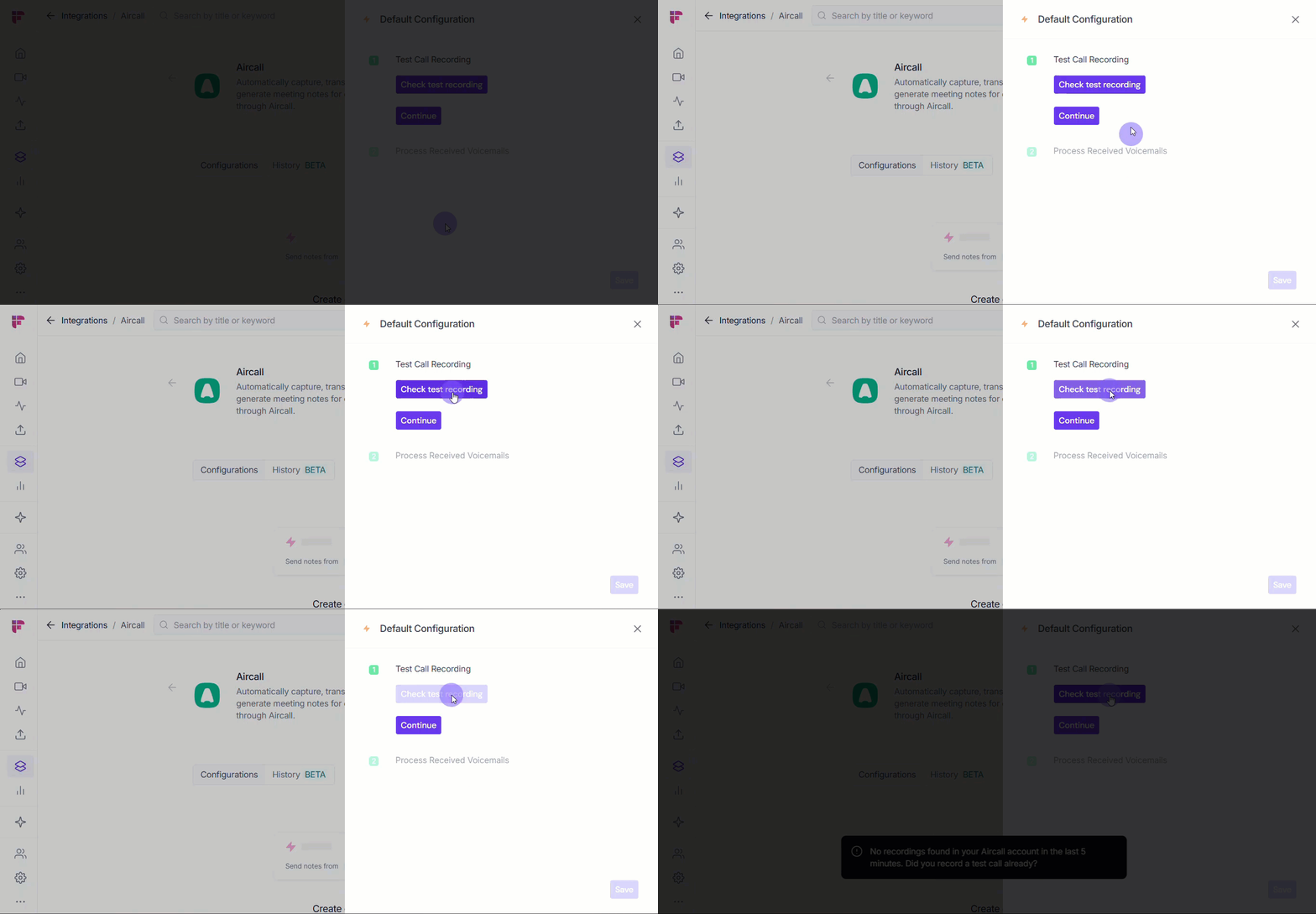
If you have previous recordings on your Aircall database and want to test if Fireflies has access to it, select Check test recording. If you don’t want to do this now, select Continue.
Step 2: Process Received Voicemail Settings
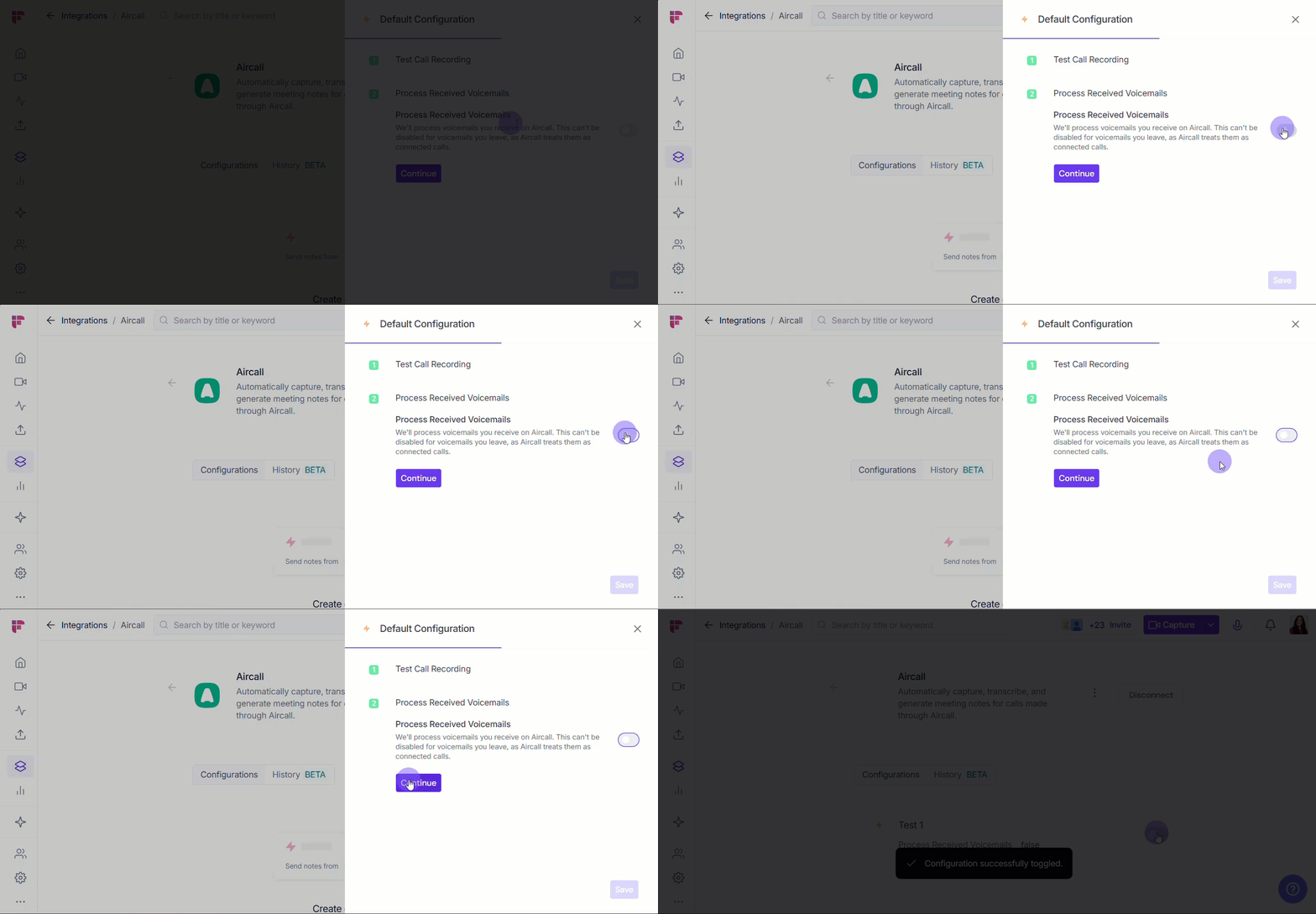
If you want Fireflies to transcribe voicemails you receive, turn on Process Aircall Voicemail and select Continue.
Step 3: Confirm Your Settings
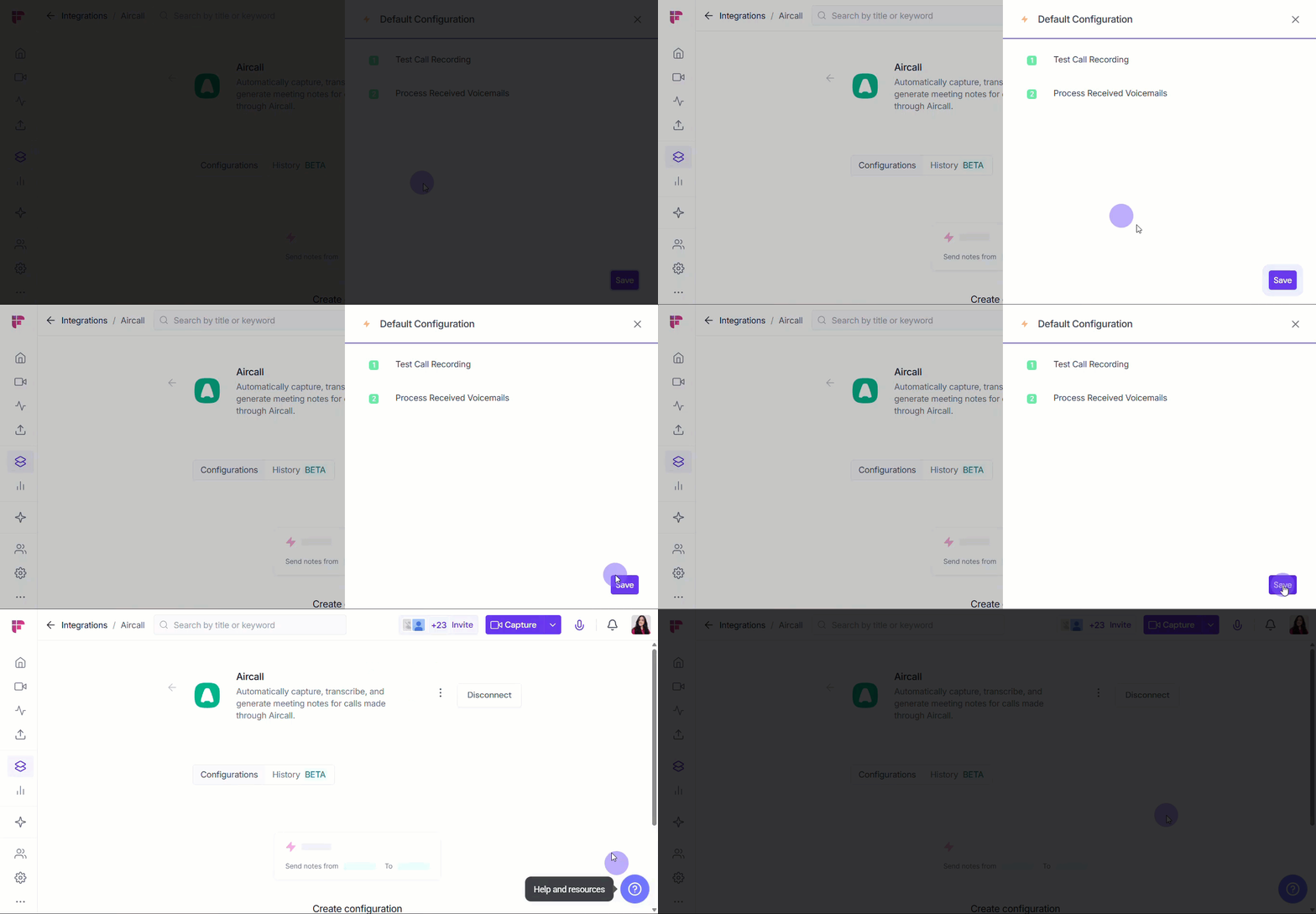
Select Save to confirm your settings.
🛠 Manage Configuration
Over time, you may need to adjust your Aircall integration. Fireflies gives you a few simple options:
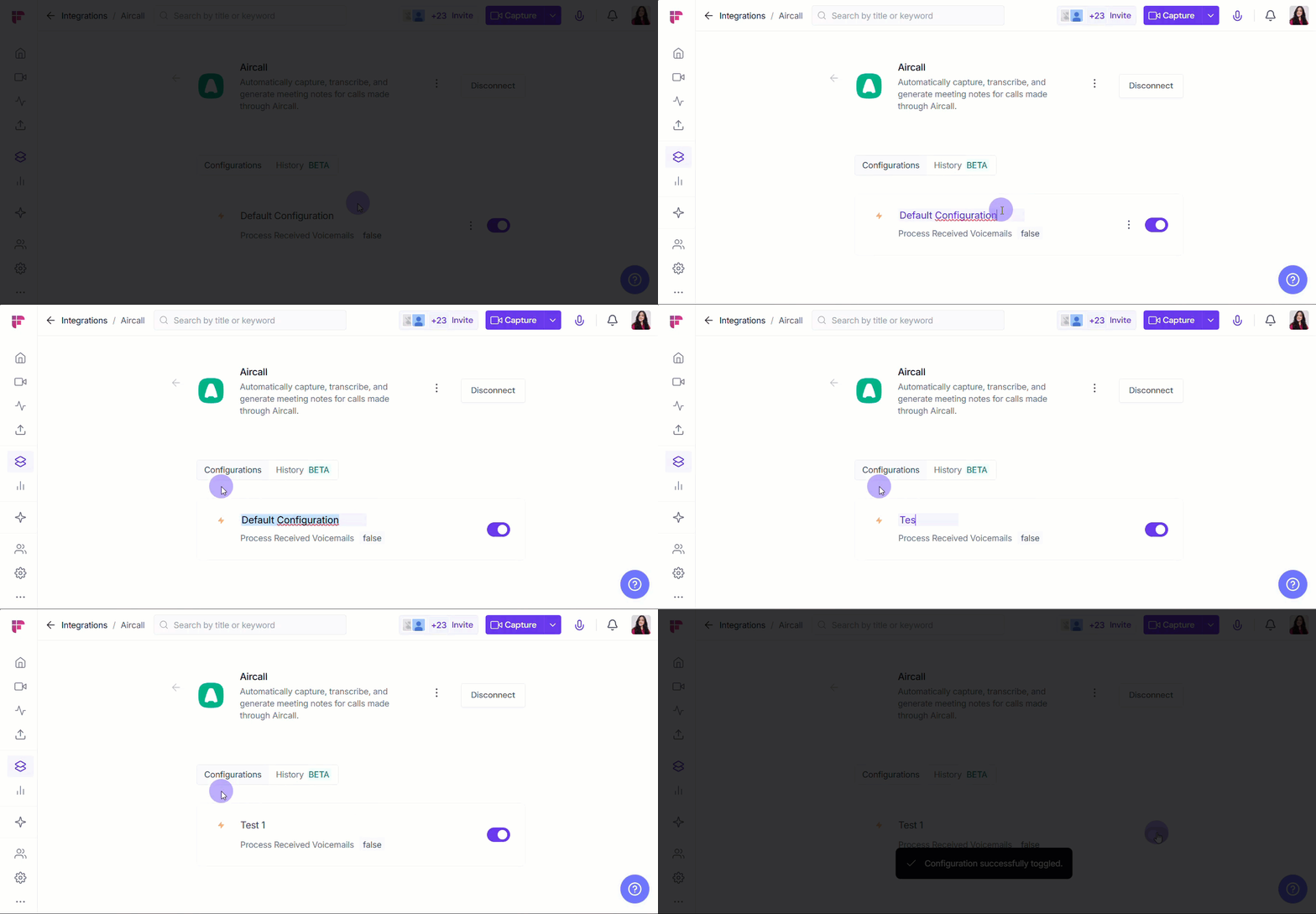
✏ Edit Configuration Name → Give your configuration a clear, descriptive name so it’s easy to recognize. Just click the configuration name (e.g., Default Configuration), type the new name (e.g., Client Meetings), and click outside the field to save.
⚙ Edit Configuration Settings → Need to adjust where your meeting data goes or how it's organized? Click the vertical ellipsis (⋮) next to a configuration, select Edit, modify your settings, and click Update to save.
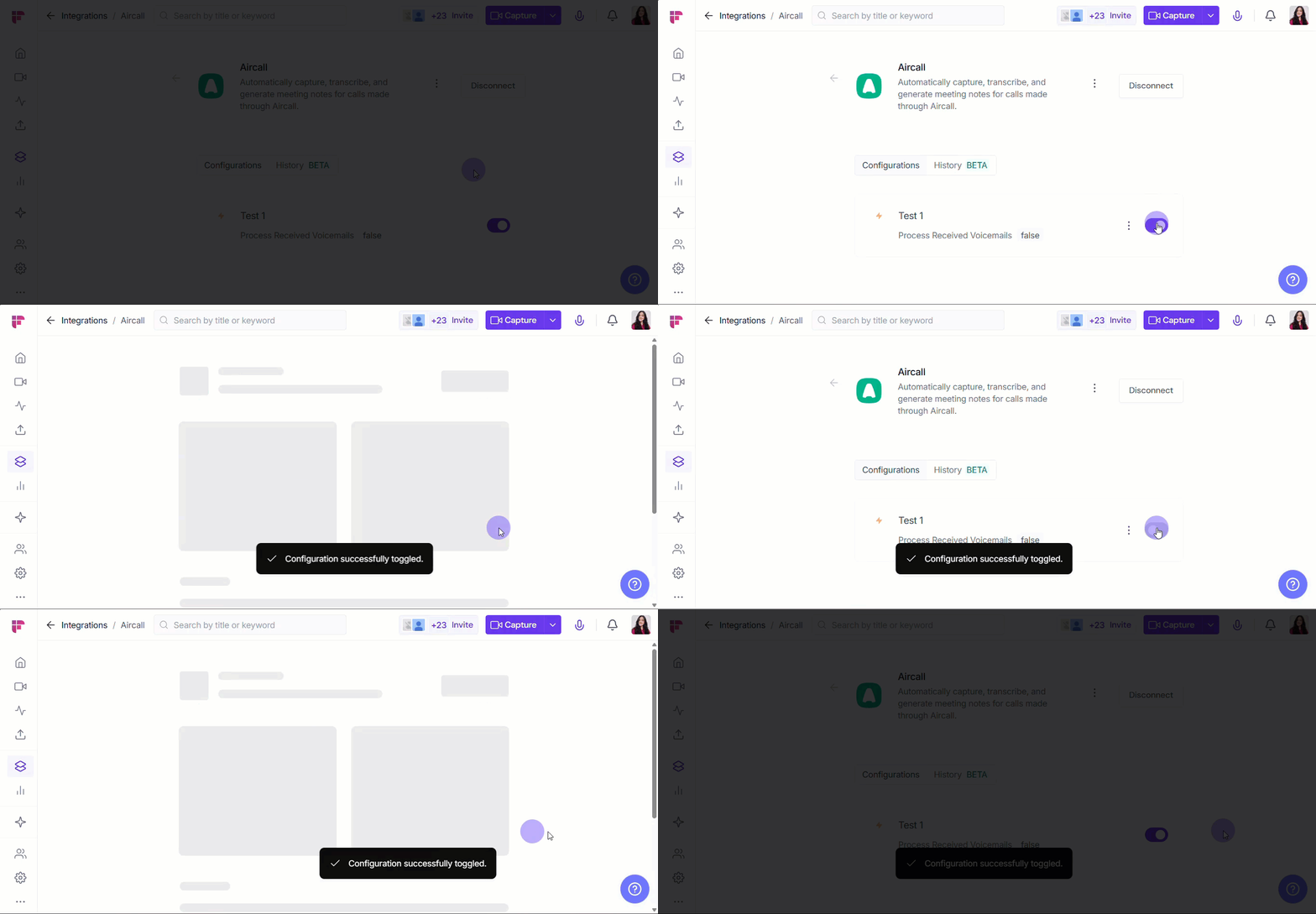
🗑 Delete Configuration → If a configuration is no longer useful, you can safely delete it. Click the vertical ellipsis (⋮) next to the configuration, select Delete, and confirm.
Deleting a configuration means Fireflies will no longer send meeting data to Aircall. Make sure it’s no longer needed before you remove it.
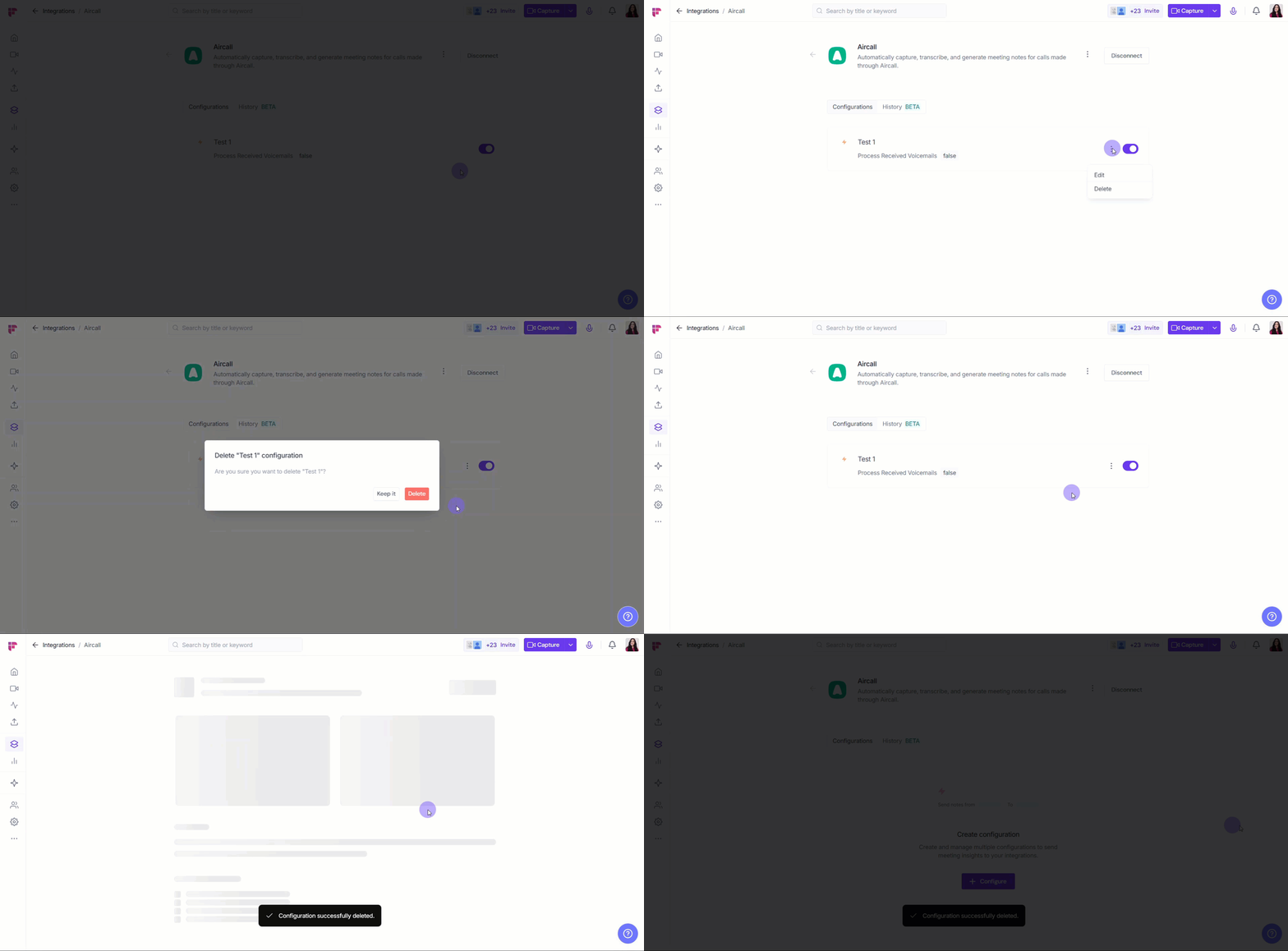
🔘 Enable or Disable a Configuration → Use the toggle switch next to a configuration to quickly control it. Turn it on to deliver meeting data (transcripts, recordings, summaries); turn it off to pause without deleting.
Fireflies remembers your settings when you turn configurations back on.
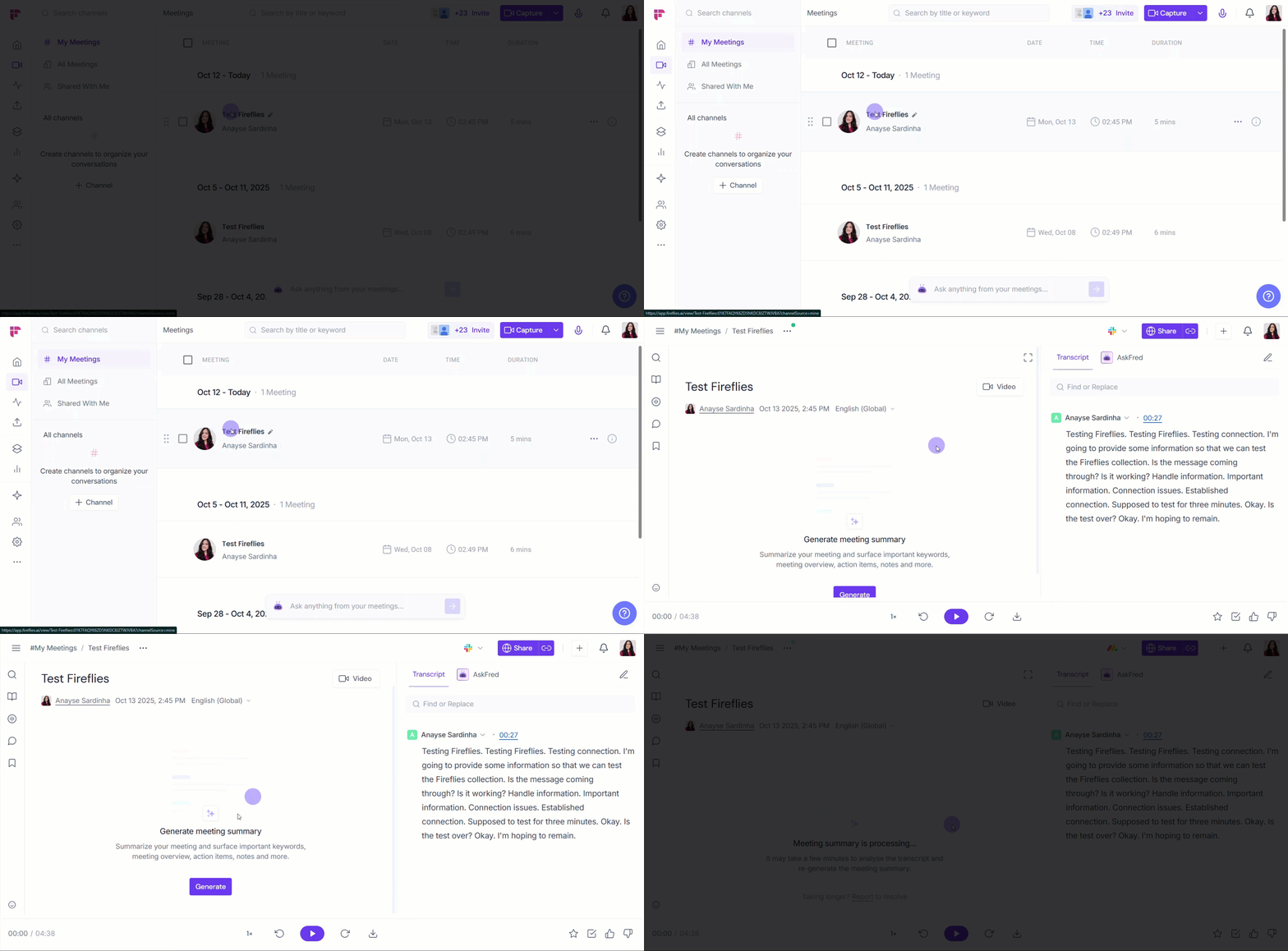
📤 What Happens After the Meeting?
All calls recorded using Aircall will be visible in the Meetings page in Fireflies.
❌ Disconnect Integration
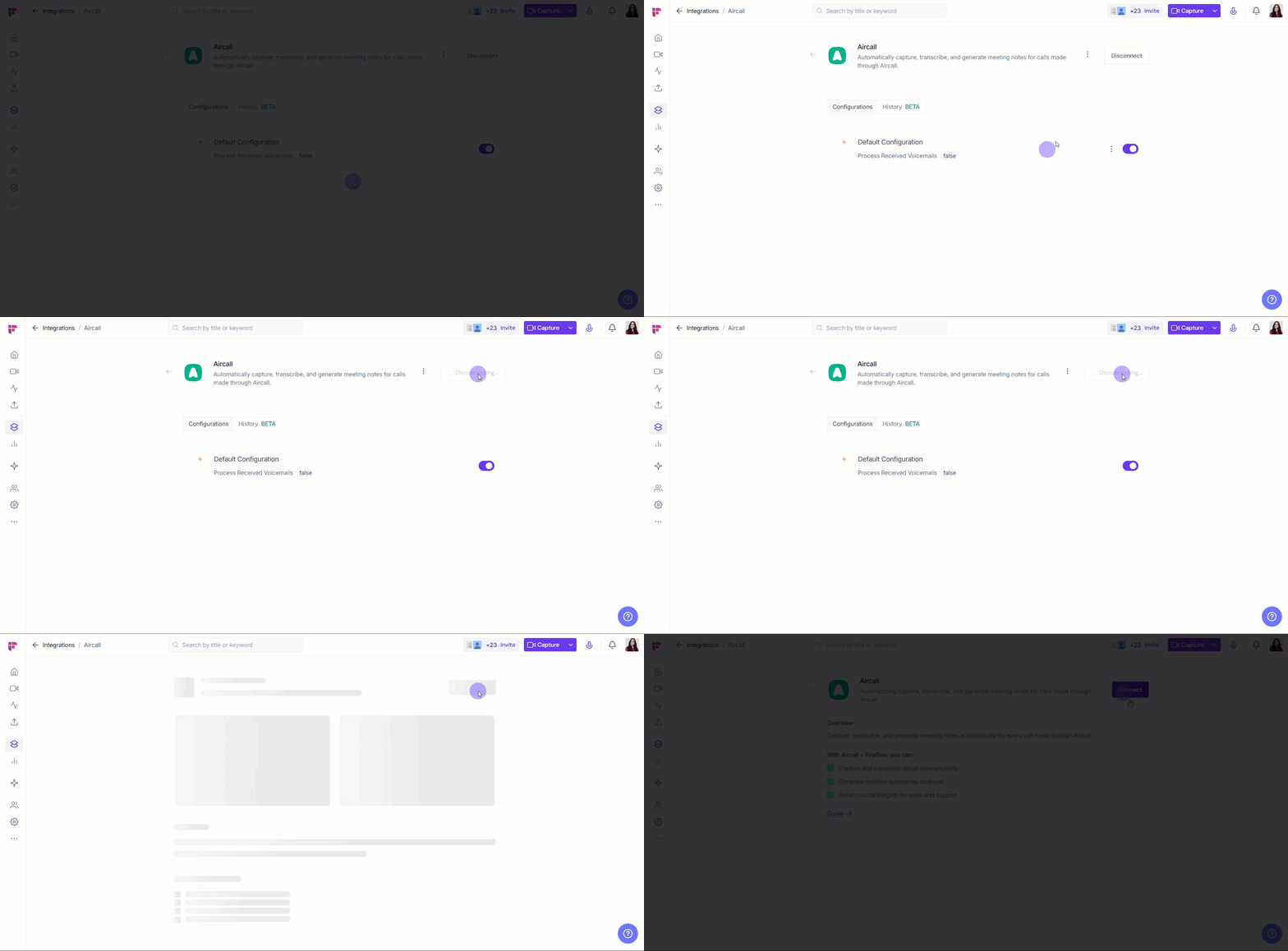
If you no longer need Fireflies connected to Aircall, click the Disconnect button to immediately end the connection.
Once disconnected, Fireflies will stop sending data to Aircall. You can always reconnect later if needed.
🛠 Troubleshooting
If your calls aren't showing up in Fireflies or the integration isn't behaving as expected, here are a few things to check:
My recent call or voicemail didn't get transcribed.
The integration requires two conditions: the call must be actively recorded and the phone number must be selected in Fireflies.
Check if you clicked Start rec in the Aircall dialer for that specific call.
Verify that the call was made on one of the Selected phone numbers in your Fireflies configuration settings.
Voicemails are being transcribed, and I don't want them to be.
Fireflies transcribes voicemails by default, which is controlled by a specific setting. Go to your Fireflies Aircall configuration settings on the Integrations page and turn off the Process Aircall Voicemail setting.
I'm making calls from the Aircall mobile app, but they aren't being transcribed.
Calls from the mobile app are supported, but they still need to meet the core requirements. Ensure the call was recorded through the official Aircall application and that the phone number used is one of the Selected phone numbers in your Fireflies integration settings.
I cannot set up the connection — the authorization step keeps failing.
Connecting Fireflies to Aircall is an administrative function for security and team control. You must be an Admin of your Aircall account to successfully set up this integration.
❓ Frequently Asked Questions (FAQ)
Q1. Which Aircall plans are compatible?
Aircall has 3 plans that support this integration: Essentials, Professional, and Custom.
Q2. Does this integration transcribe voicemails?
Yes, by default. If you don’t want voicemails transcribed, you must disable the Process Aircall Voicemail setting in the configuration panel.
Q3. Will Fireflies transcribe calls from the Aircall mobile app?
Yes, as long as the call is recorded through the official Aircall application and the number is selected in your Fireflies integration settings.
Q4. Can I set up the integration if I am not an Aircall Admin?
No, only Aircall account Admins can enable this integration.
🔄 Recap
You've successfully connected Aircall and Fireflies! This powerful integration ensures that all your call insights, summaries, and action items are automatically generated and linked to the right contacts in your CRM. Now you can focus entirely on the conversation, knowing that documentation and follow-up are completely automated.
📚 Related Guides
📌 How to set up Topic Trackers → Use Topic Trackers to categorize your Aircall conversations.
📌 Why is Fred from Fireflies joining (or missing) meetings? Fix with these auto-join settings → Manage your team's auto-join preferences for other meeting platforms.
📌 How to invite Fireflies to meetings → Learn the different ways to invite Fireflies to record your calls.
📌 Learn about the Fireflies Auto-join and Email Recap settings → Control your personal preferences for when Fireflies joins meetings and sends summaries.
📌Pre-Meeting Setup: All you need to do for the best meeting experience →
Get advice on how to setup your calls for a smooth experience.