AI Personal Assistant: Your Daily Digest, Meeting Prep, Topics & More
Last updated: March 17, 2026
The AI Personal Assistant helps you stay organized by automatically surfacing the insights that matter from your meetings. It learns from your activity and highlights the right information at the right time.
It includes three default skills:
Daily Digest: A quick snapshot of the last 24 hours, including action items, blockers, and important updates.
Meeting Prep: Briefs that help you walk into upcoming calls fully prepared.
Topics: Key themes and discussion patterns gathered from recent meetings.
You can also browse more than 200 AI skills to automate different parts of your workflow and enable the ones that fit your needs.
Default skills (Daily Digest, Meeting Prep, and Topics) are auto-enabled for new users who signed up after 1st Dec, while existing users who signed up before 1st Dec need to turn them on manually.
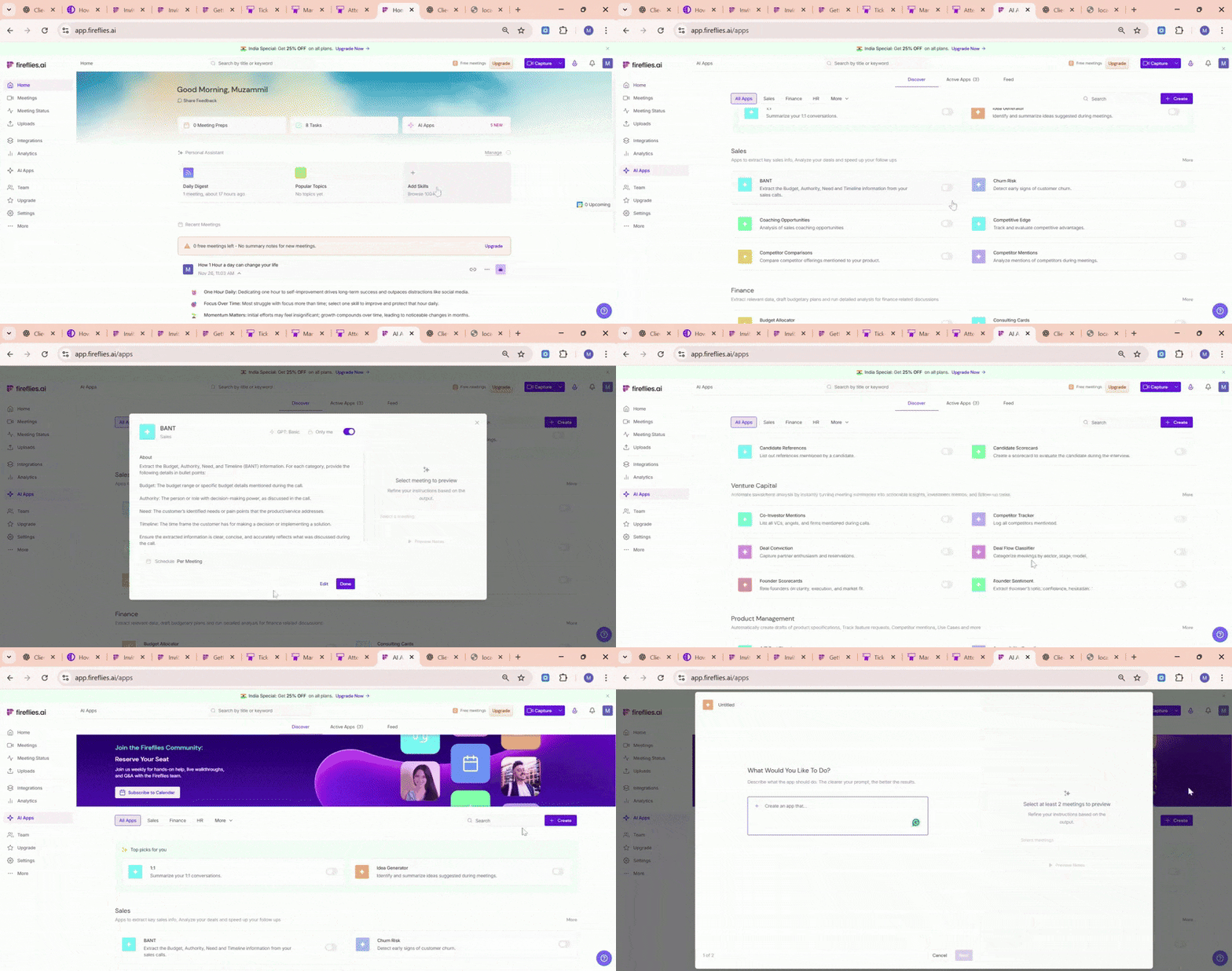
👉🏻 Each AI skill uses 1 AI credit per meeting when it processes your audio and generates an insight.
New Users (Fresh Sign-Up)
When you create a new Fireflies account, the AI Personal Assistant card appears on your Home dashboard immediately. However, the assistant cannot generate insights until it has enough meeting history to analyze.
The default skills—Daily Digest, Meeting Prep, and Topics—are enabled automatically, but their cards will remain empty until you complete a few meetings. No sample data is shown, and insights begin only after your initial meetings have been processed.
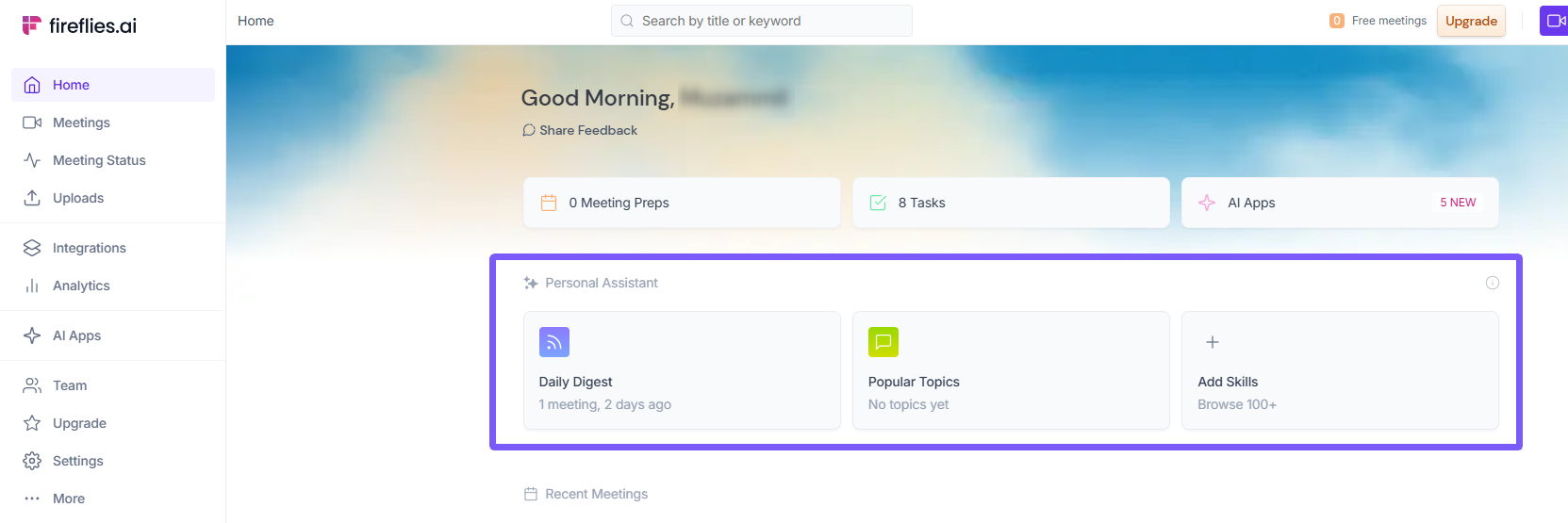
To start seeing insights, you need to complete at least 3 meetings and wait for the next 24-hour processing cycle.
1. Daily Digest
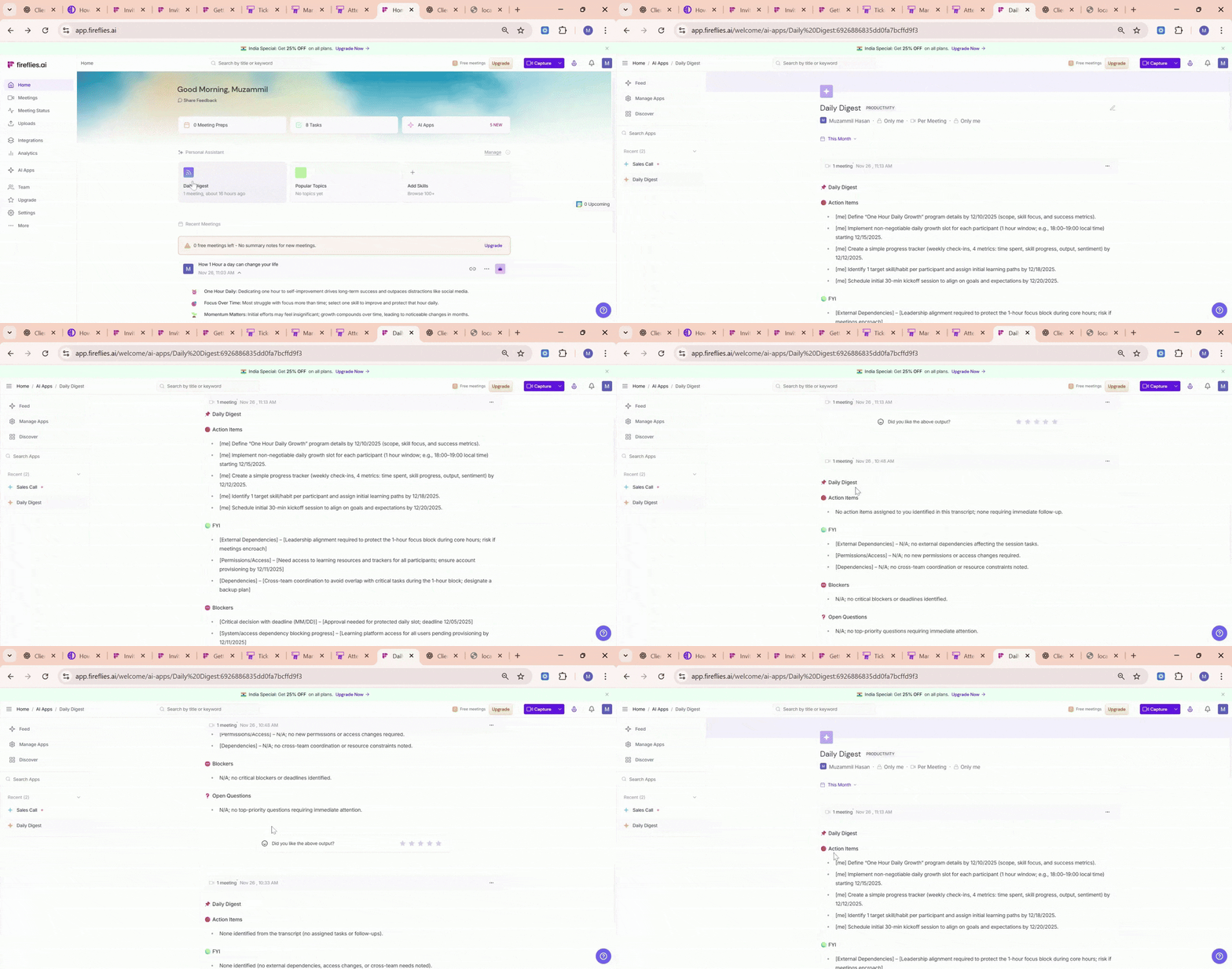
For new users, the Daily Digest card appears on the Home dashboard even before any meetings are completed. Until your own meeting data is available, the assistant displays sample insights to show what the Daily Digest looks like and how it will work once your meetings are processed.
These sample items may include examples such as:
Action items
Blockers
Follow-ups
Key updates
Once you complete at least 3 meetings and the system runs its next 24-hour refresh cycle, the sample content is replaced with your actual meeting insights.
2. Meeting Prep (Upcoming Meetings)
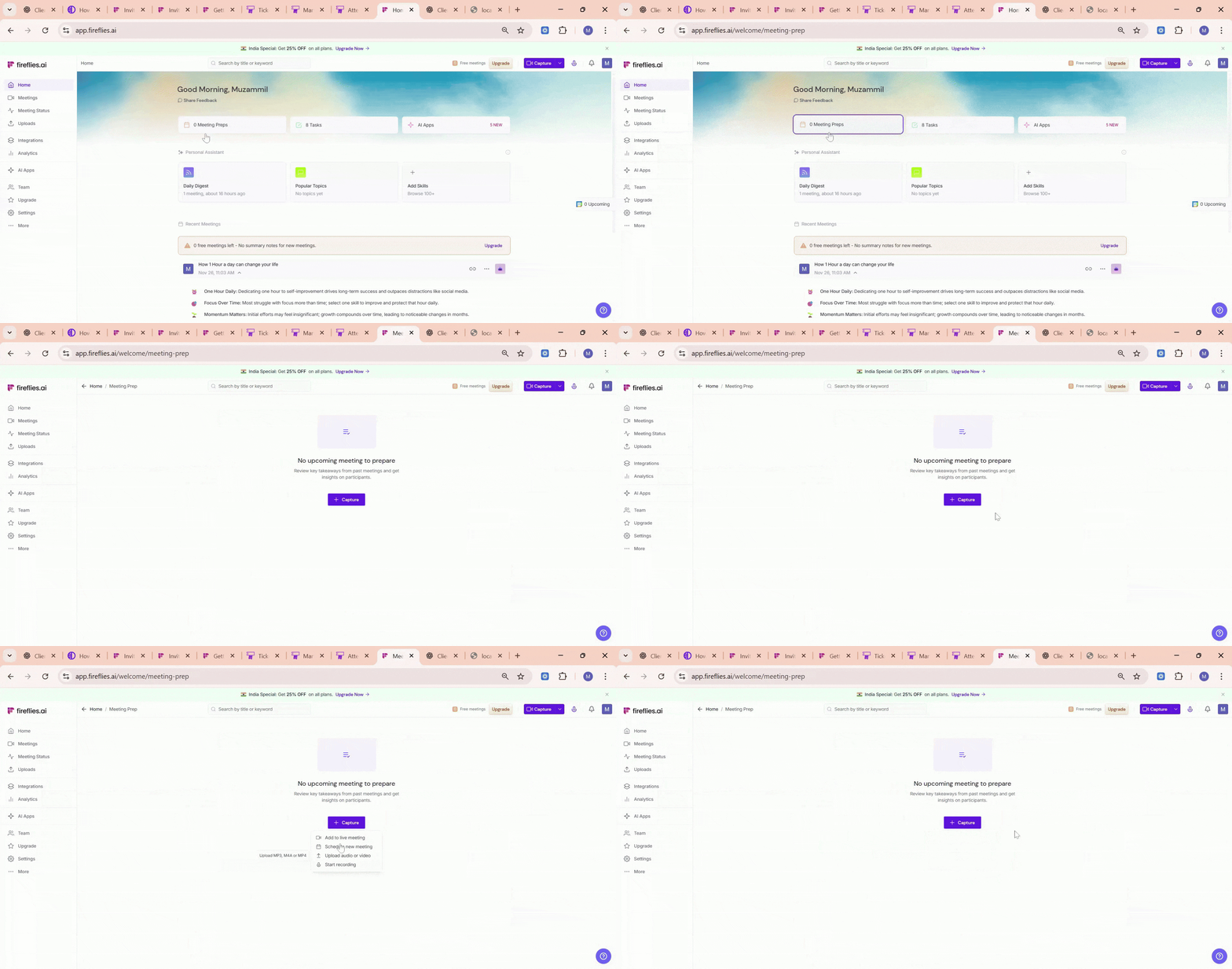
Meeting Prep appears when something is scheduled on your connected calendar. If you already have a few completed meetings in your account, the assistant uses that history to generate a brief for whatever is coming up next.
If nothing is scheduled yet, you may see:
“No upcoming meeting to prepare”
“Capture Meetings or upload meetings
Once your calendar is connected and something is on the schedule, Meeting Prep is created automatically. If you’ve had past discussions with the same people or topics, the assistant includes that context to help you prepare.
3. Popular Topics
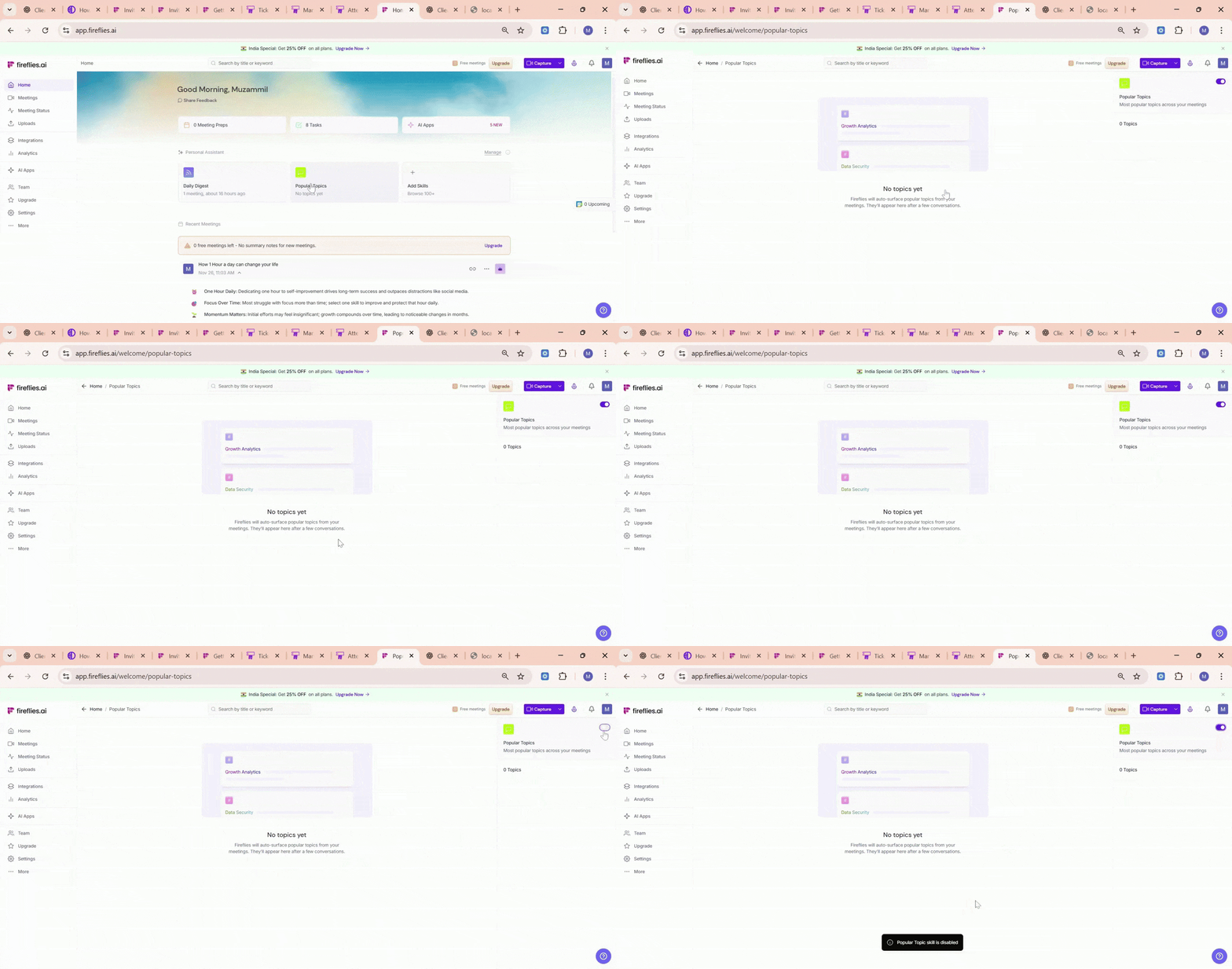
Popular Topics identifies repeated themes across your recent discussions. For new users, this section may appear empty until enough meeting history is available for the assistant to detect patterns.
You may see messages such as:
“Not topics yet.”
“Topics will appear once more meetings are processed.”
As soon as you have completed a few meetings and the system has enough information, Popular Topics will start showing common themes, frequently mentioned points, and recurring patterns.
You can also toggle this skill on or off at any time based on your preferences.
4. More AI Skills
New users can browse and enable 100+ AI skills to automate different parts of their workflow, including summaries, follow-ups, research, sales insights, interview analysis, and more.
The default skills—Daily Digest, Meeting Prep, and Topics—are enabled automatically at signup. Once there is enough meeting history, the assistant begins generating insights for these skills.
You can turn any skill on or off at any time.
You can also create your own AI skills from scratch or use an existing template to build customized automations.
5. AI Credit Usage
For new users, the default skills are turned on automatically. Each skill uses 1 AI credit per meeting when it processes your audio and generates an insight. Credits are only used once real outputs are created.
You can turn any skill off at any time to stop credit consumption.
Existing Users (Already have an account)
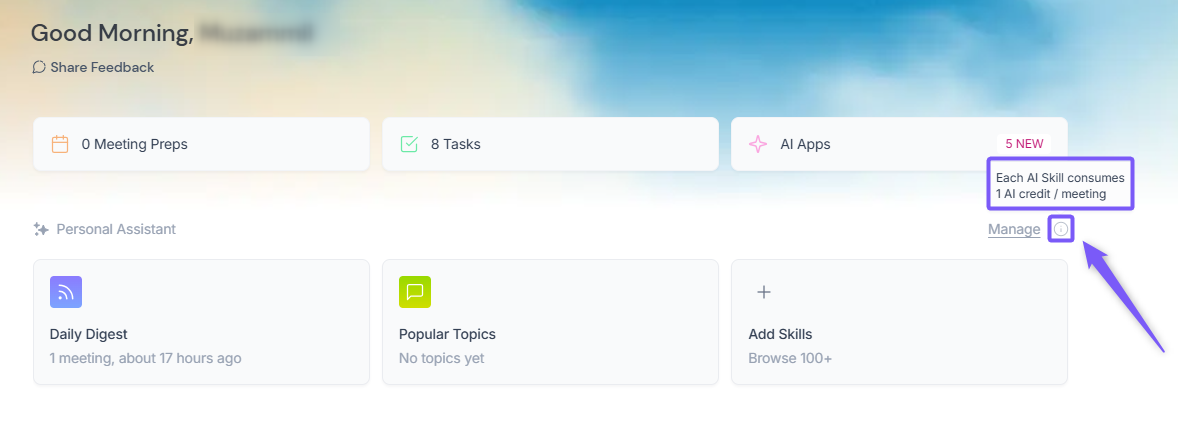
If you already have more than three completed meetings in your account, the AI Personal Assistant becomes fully active. With enough meeting history available, it can analyze your recent calls and display the most relevant insights on the Home dashboard. This helps you quickly identify key items that may need follow-up or attention.
1. Daily Digest
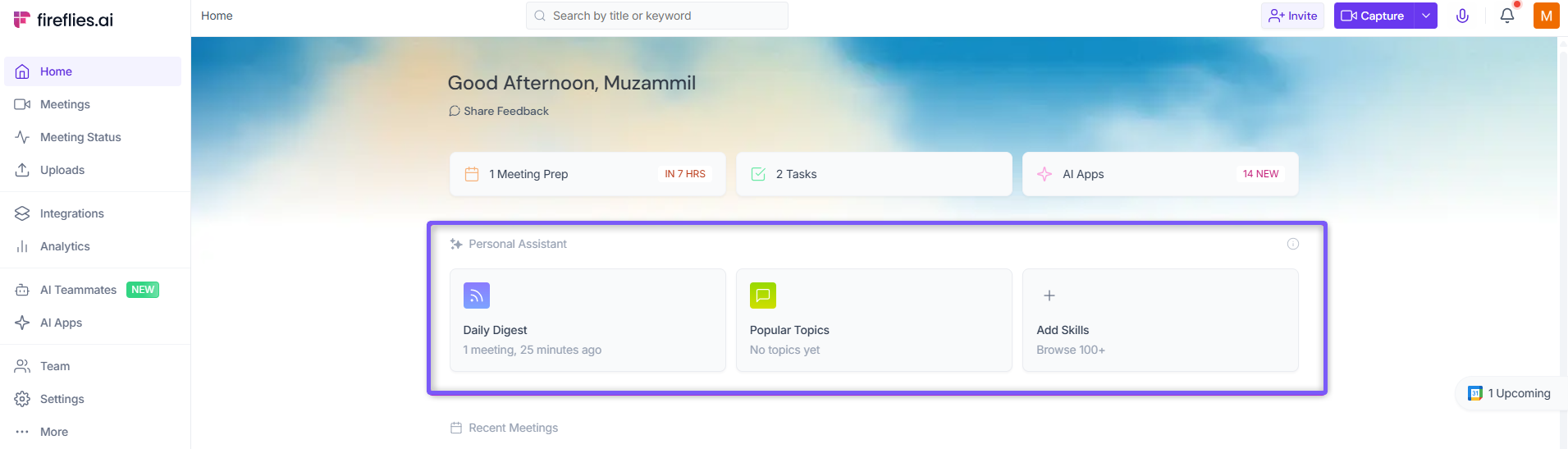
The Daily Digest provides a clear summary of everything discussed in your meetings over the last 24 hours. It helps you quickly understand what happened without needing to review each call individually.
The digest includes:
Action items you may need to complete
Blockers or issues that were raised
Follow-ups or next steps
Other important points that may require your attention
The Daily Digest refreshes automatically once every 24 hours based on your latest meetings, ensuring you always have an up-to-date overview of your recent activity.
2. Meeting Prep (Upcoming Meetings)
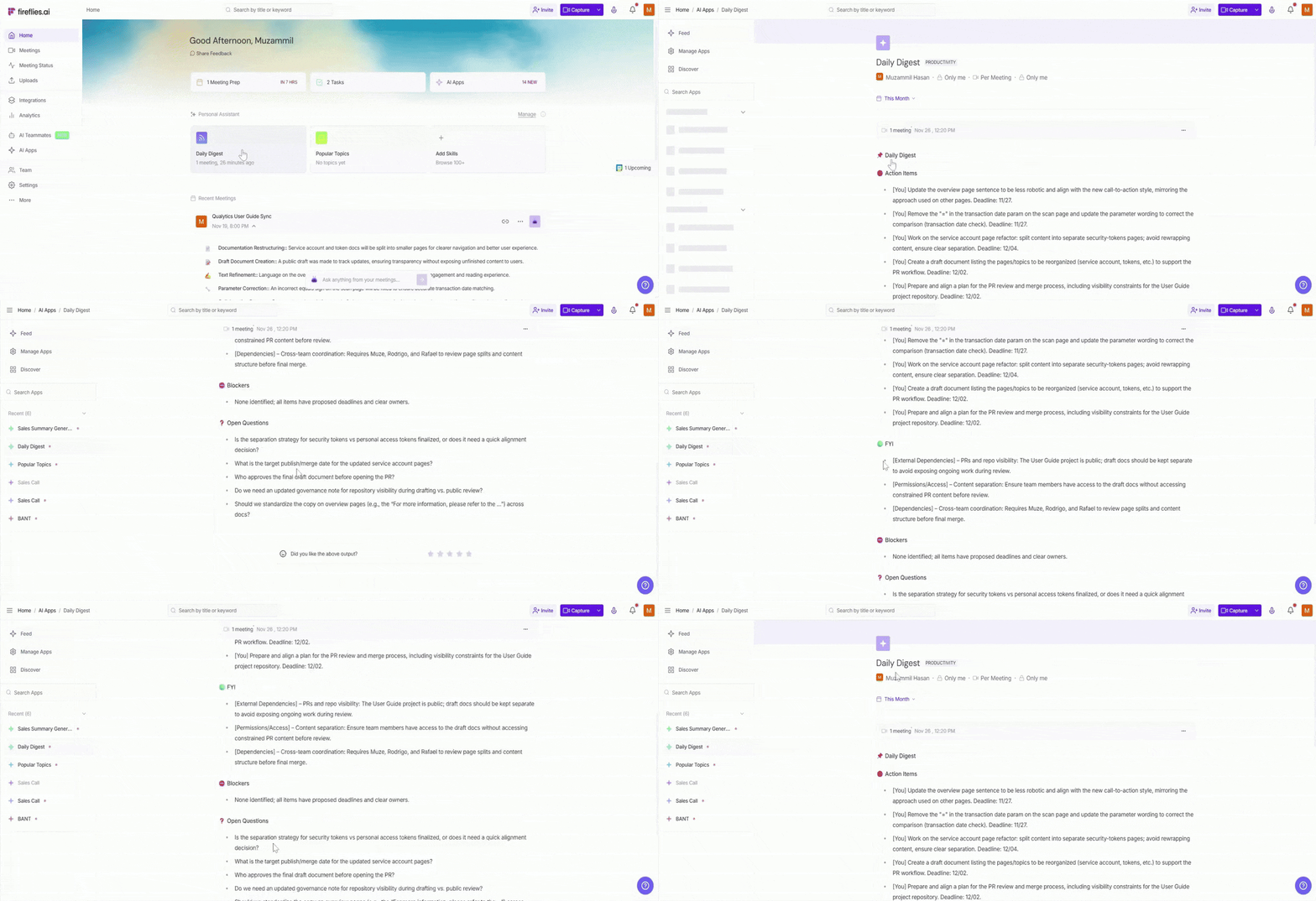
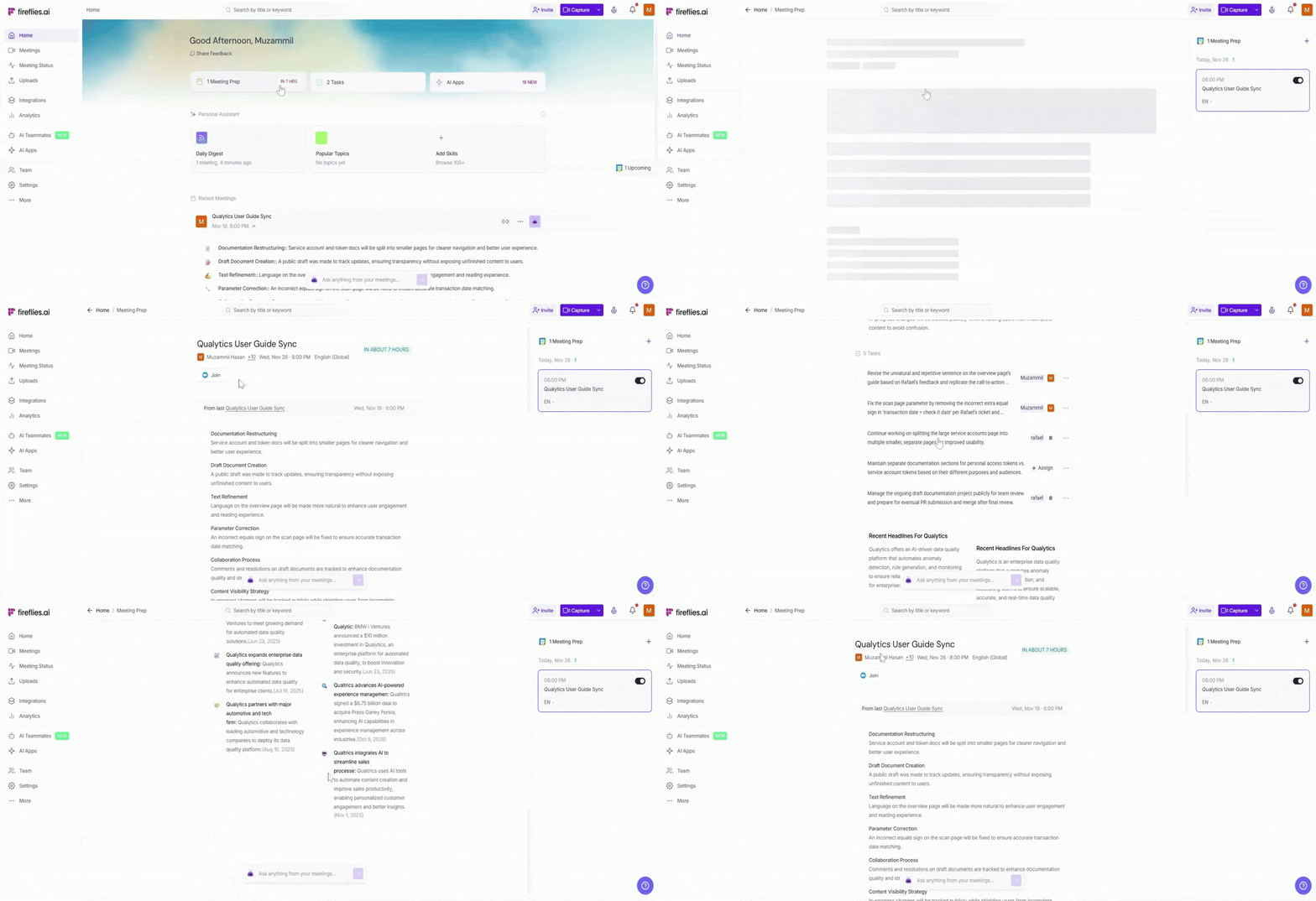
Meeting Prep generates a brief for your upcoming calls so you can review important details before the meeting starts. It helps you stay prepared without manually digging through past notes or conversations.
Each brief includes:
Key points discussed in earlier meetings
Items or decisions that may need to be revisited
Relevant context to help you enter the call with clarity
Meeting Prep is created automatically for events on your connected calendar, making it easy to stay organized and ready for every discussion.
3. Popular Topics
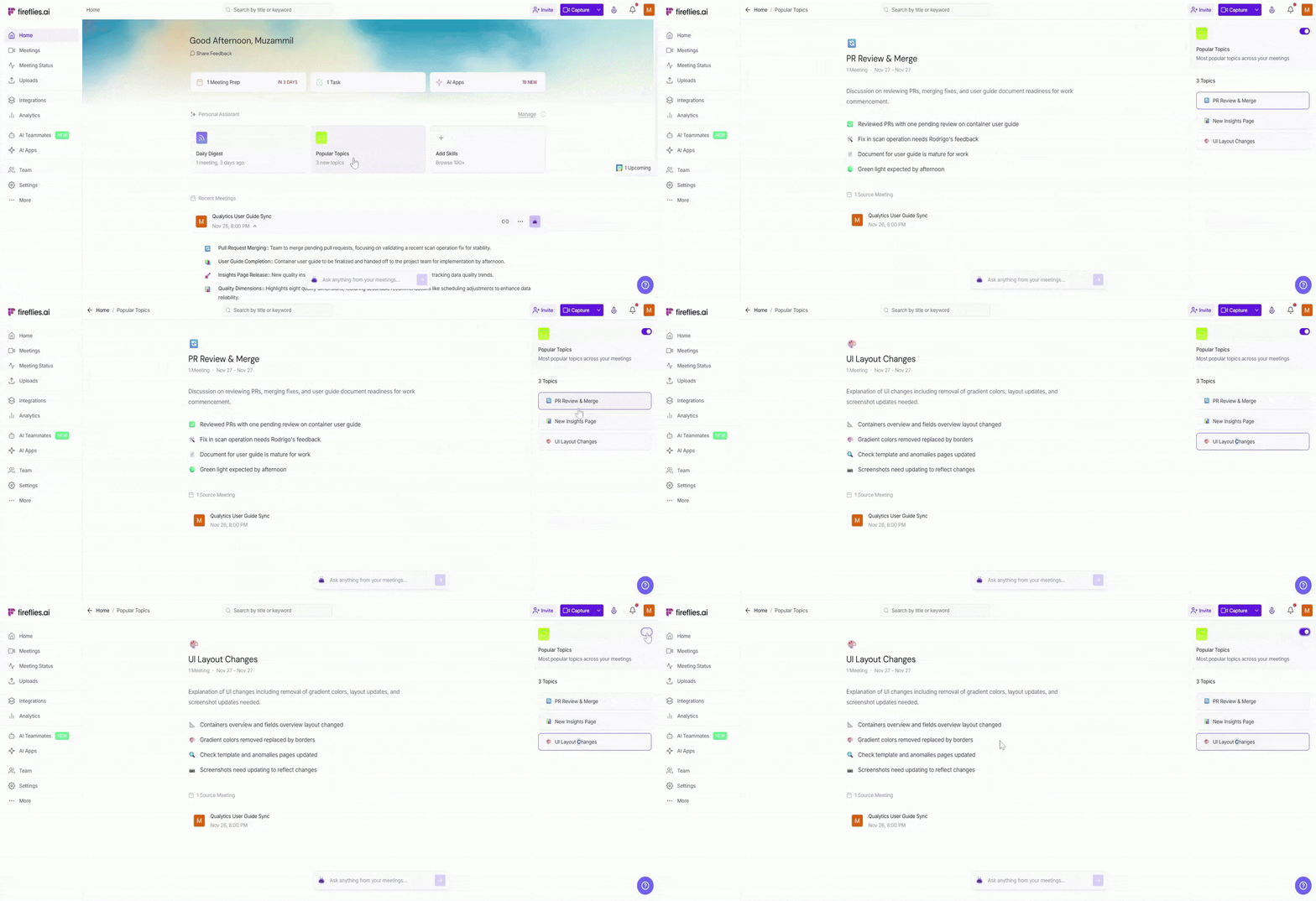
Topics identify repeated discussions across your recent meetings and group them into clear themes. This helps you understand what subjects are coming up most often and where attention may be needed.
You’ll see:
Common themes across multiple calls
Frequently mentioned issues or points
Patterns in ongoing discussions
If there isn’t enough meeting history yet, the Topics section may take some time to populate. It will begin showing insights as more meetings are processed.
You can also toggle this skill on or off at any time based on your preferences.
4. More AI Skills
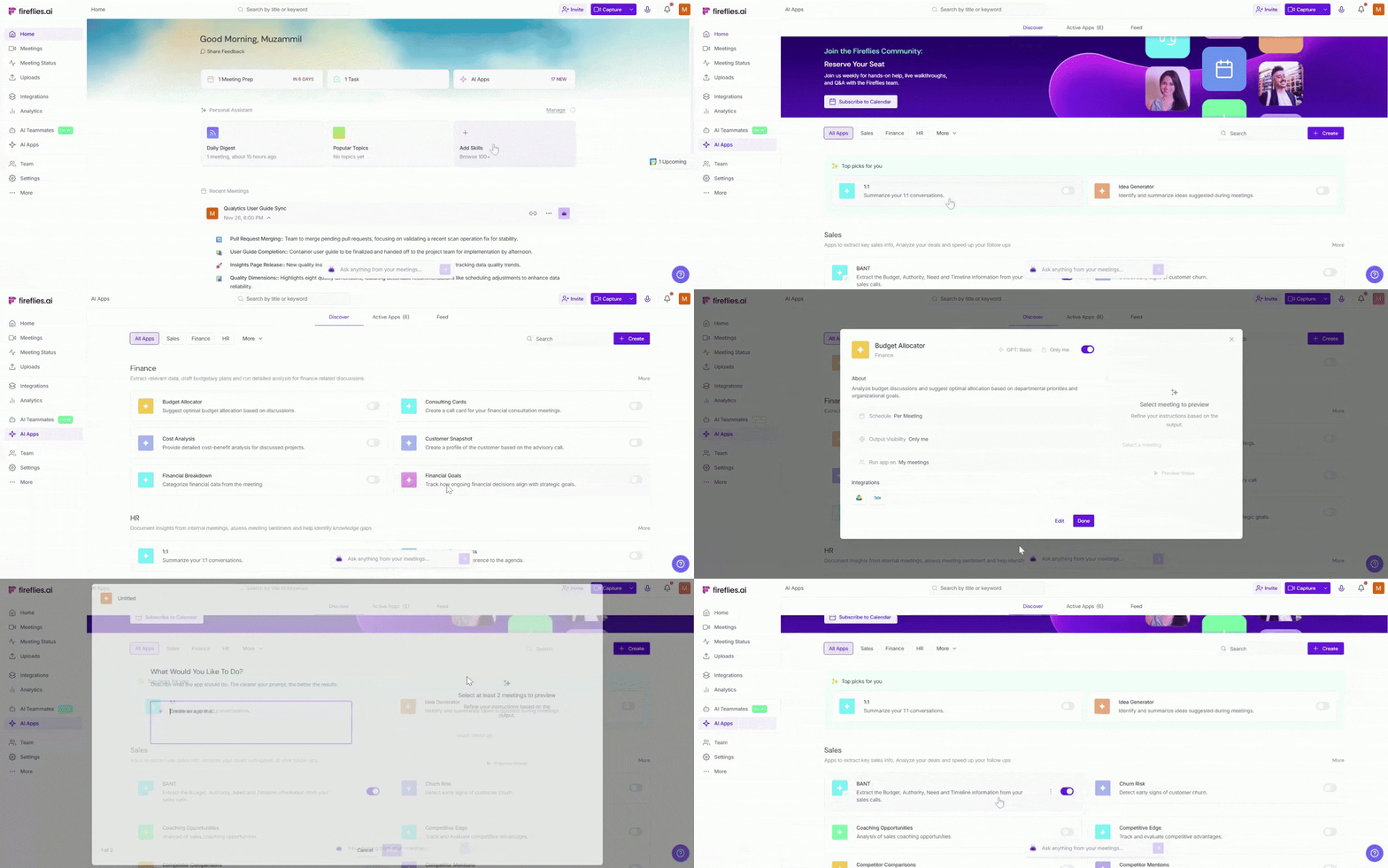
In addition to the default skills, you can browse a wide range of 200+ AI skills designed to automate different parts of your workflow. These skills can help with tasks like summarization, follow-ups, research, sales support, recruitment insights, and more.
You can enable or disable any skill at any time, depending on what fits your workflow and preferences.
For existing users, default skills are not automatically turned on. Users can review the available skills and choose which ones they want to enable.
5. AI Credit Usage
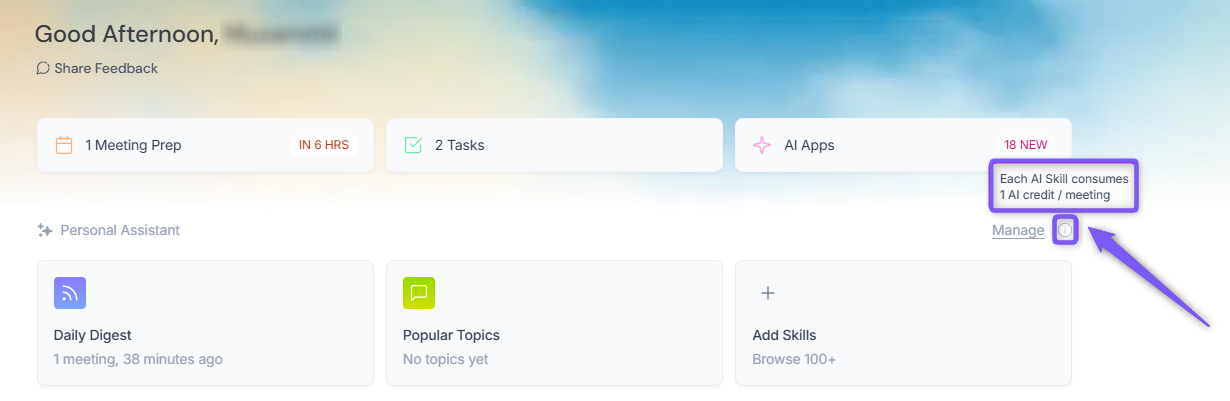
Each AI Skill uses 1 AI credit per meeting. Credits are only consumed when a skill processes a meeting and generates an output.
Two-Week Output Period
For existing users, the AI Personal Assistant produces outputs for two weeks. During these:
Skills can process meetings and generate insights
No AI credits are charged
Users can view outputs without any additional setup
After the two-week period ends, the outputs stop. A paywall is displayed, prompting the user to add AI credits to continue using these skills.
❓Frequently Asked Questions
1. Why do I need three meetings before insights appear?
The assistant needs enough data to analyze your activity accurately.
2. How long does it take for insights to update?
Insights refresh during the system’s 24-hour processing cycle.
3. Can I turn off default or any skills?
Yes. All skills can be enabled or disabled at any time.
4. Do skills use credits even if they show no insights?
No. Credits are used only when a skill processes a meeting and generates an output.
5. Do existing users get free access?
Yes, existing users get a two-week preview where no credits are charged.
6. Can I create my own AI skills?
Yes. You can create a skill from scratch or use an existing template.
🔁Recap
A quick overview of how the AI Personal Assistant behaves for both new and existing users:
New users see the AI Personal Assistant immediately after signing up, with default skills enabled automatically.
Insights for new users remain empty until they have completed 3 meetings and the 24-hour processing cycle has run.
Existing users with limited meeting history may also see empty states until enough data is available.
Existing users with more than three meetings get full insights right away, including Daily Digest, Meeting Prep, and Topics.
Existing users receive a 2-week preview during which no AI credits are charged.
All skills—default or additional—can be turned on or off anytime.
When active, each skill uses 1 AI credit per meeting to generate outputs.
Users can browse and enable 100+ additional AI skills based on their workflow.