Understand Fireflies Analytics and Conversation Intelligence
Last updated: July 23, 2026
Every meeting contains valuable information, but it’s not always easy to capture everything in the moment. Fireflies helps you go beyond recordings and notes by turning your conversations into actionable insights. With Conversation Intelligence, you can understand how conversations flow, identify patterns, and uncover opportunities for improvement—helping you make more informed decisions after each meeting.
Fireflies offers two ways to analyze your meetings:
Smart Search — detailed, meeting-level insights within each meeting note
Analytics Dashboard — aggregated insights across all your meetings to track trends and performance
In this guide, you’ll learn how to use both to better understand your conversations and take action on what you find.
🔍 Analyze a single meeting using Smart Search
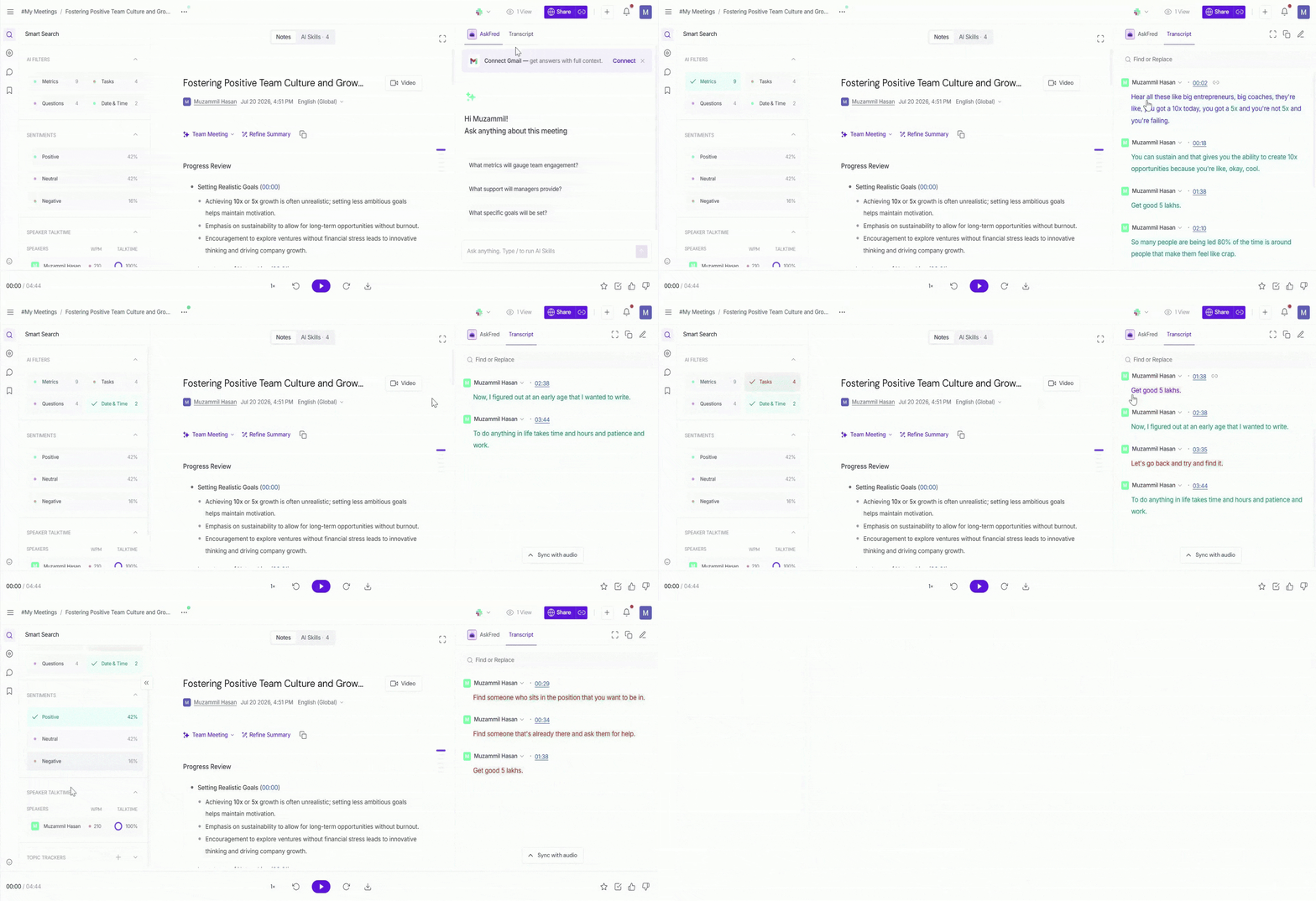
Want to quickly understand what happened in a meeting without rewatching the full recording? Smart Search in the meeting notepad highlights key moments, questions, tasks, speaker insights, and sentiment.
Use Smart Search to:
Review key moments from a meeting
Find questions, tasks, or topics quickly
Understand how the conversation flowed and who spoke the most
Where to find it
1. Log in to your Fireflies account and click on the Meetings tab from the left-hand menu.
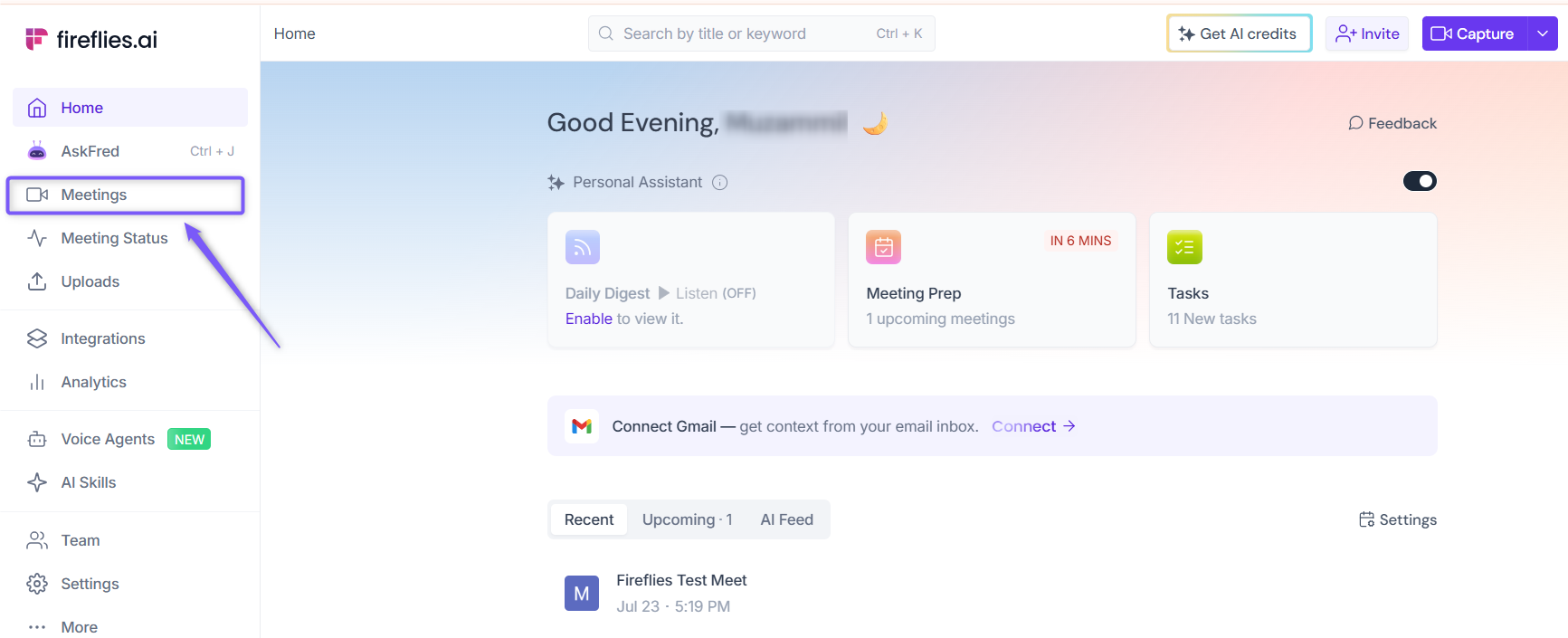
2. Open the meeting you want to share from your Meetings notebook.
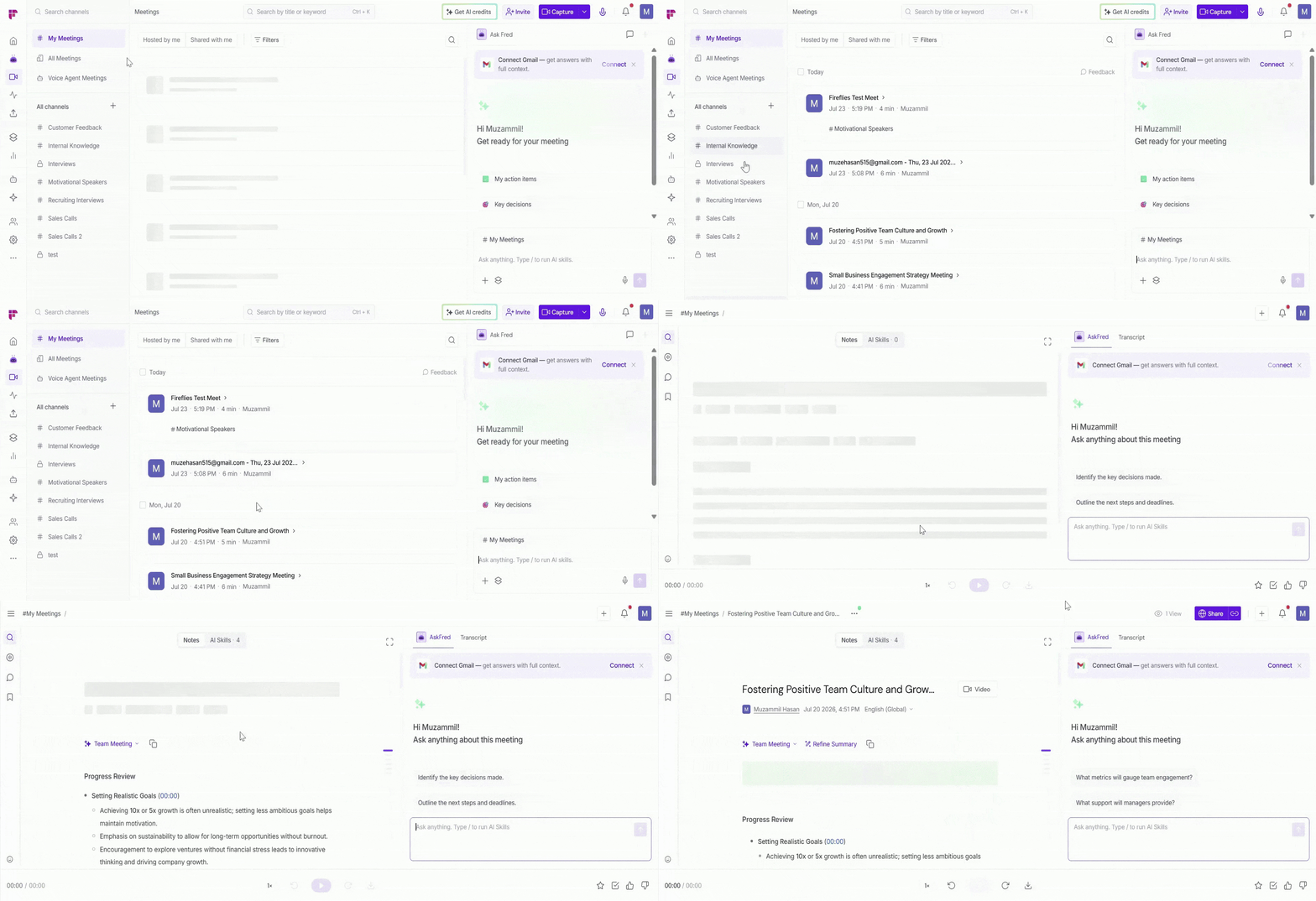
3. In the meeting notepad, click the Smart Search icon in the left panel.
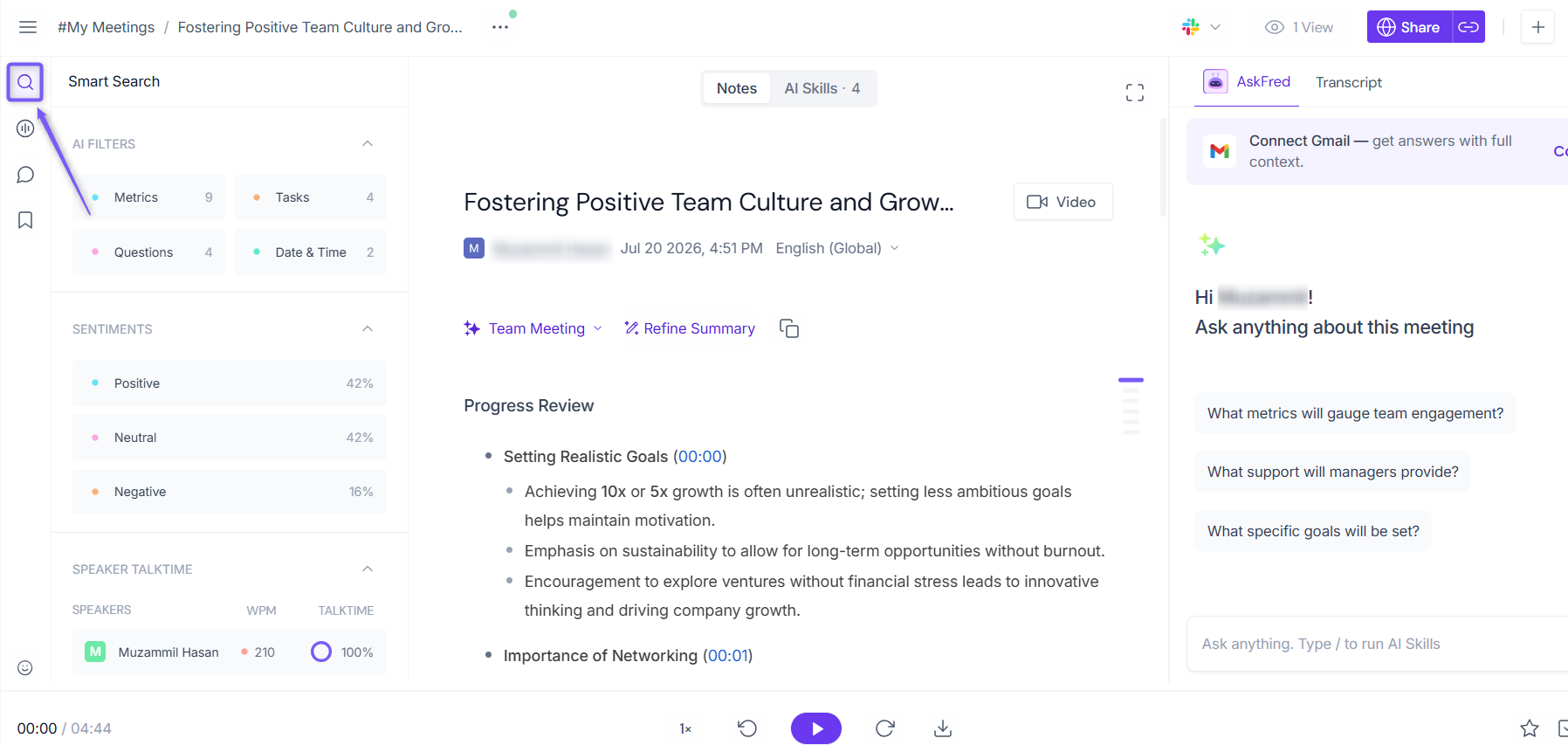
What you can analyze
Once you open Smart Search, you’ll see different insight sections that help you explore your meeting. Smart Search helps you quickly surface key insights from the meeting, such as:
Section | Description | How it helps |
AI Filters | Highlights specific parts of the conversation like questions, tasks, date & time references, and metrics(numbers) | Quickly find key moments without scanning the full transcript |
Sentiments | Breakdown of conversation tone (positive, neutral, negative) | Helps you understand how the discussion felt overall |
Speaker Talk Time | Shows how much each participant spoke, including talk time % and WPM | Helps analyze participation and conversation balance |
Topic Trackers | Displays topics or keywords discussed and how often they appear | Helps identify important themes and recurring discussions |
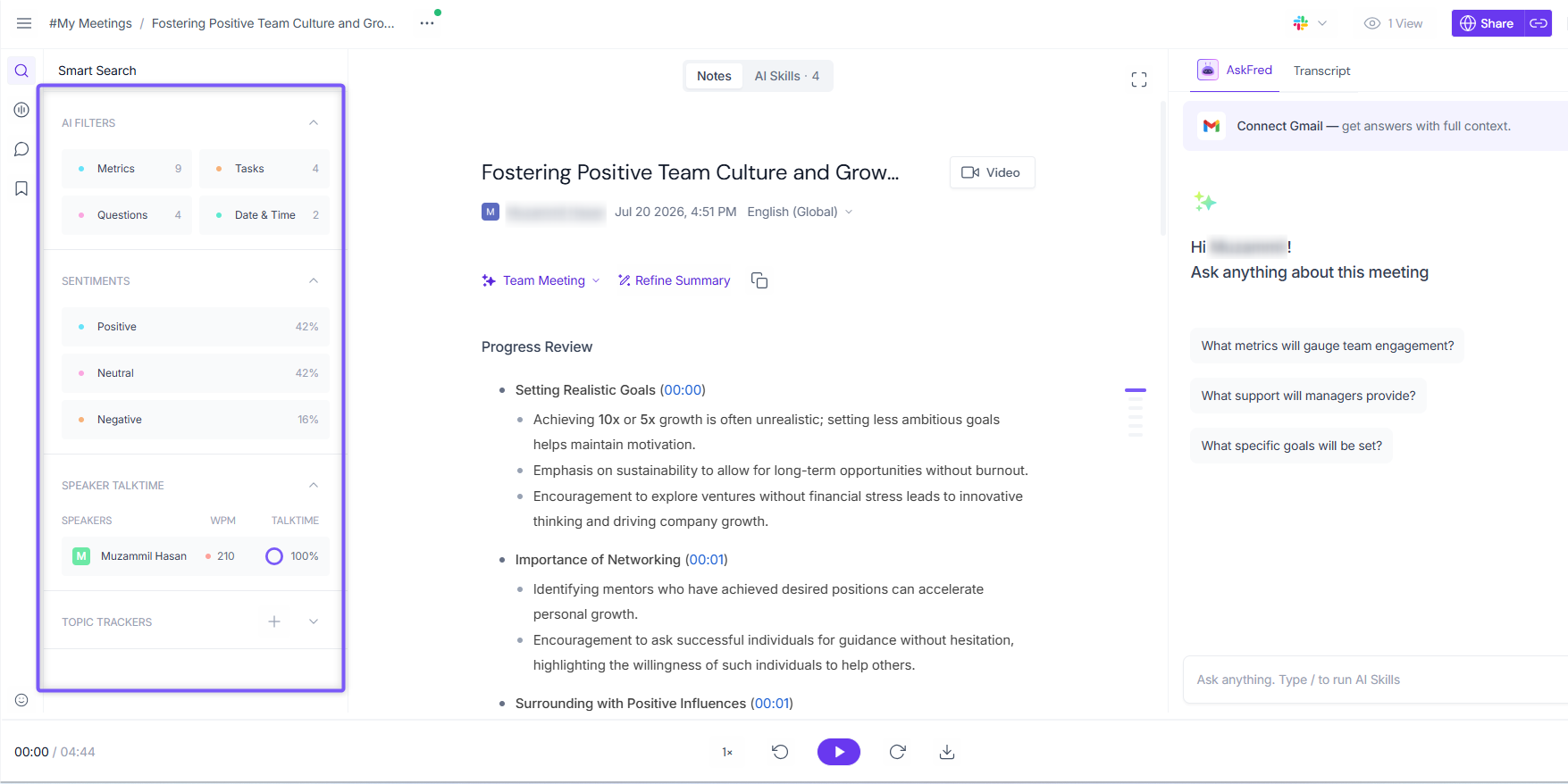
These insights help you quickly review conversations, follow up on action items, and understand how the meeting progressed - without manually scanning the full transcript.
Clicking any option highlights the relevant parts of the transcript on the right side, so you can quickly review key moments.
📊 View overall analytics (Analytics dashboard)
Want to see the bigger picture across all your meetings? The Analytics dashboard brings together conversation data from all your Fireflies recordings in one place — helping you track trends, measure performance, and understand how your conversations evolve over time.
The Conversation Intelligence (Analytics dashboard) is available on Business and Enterprise plans only.
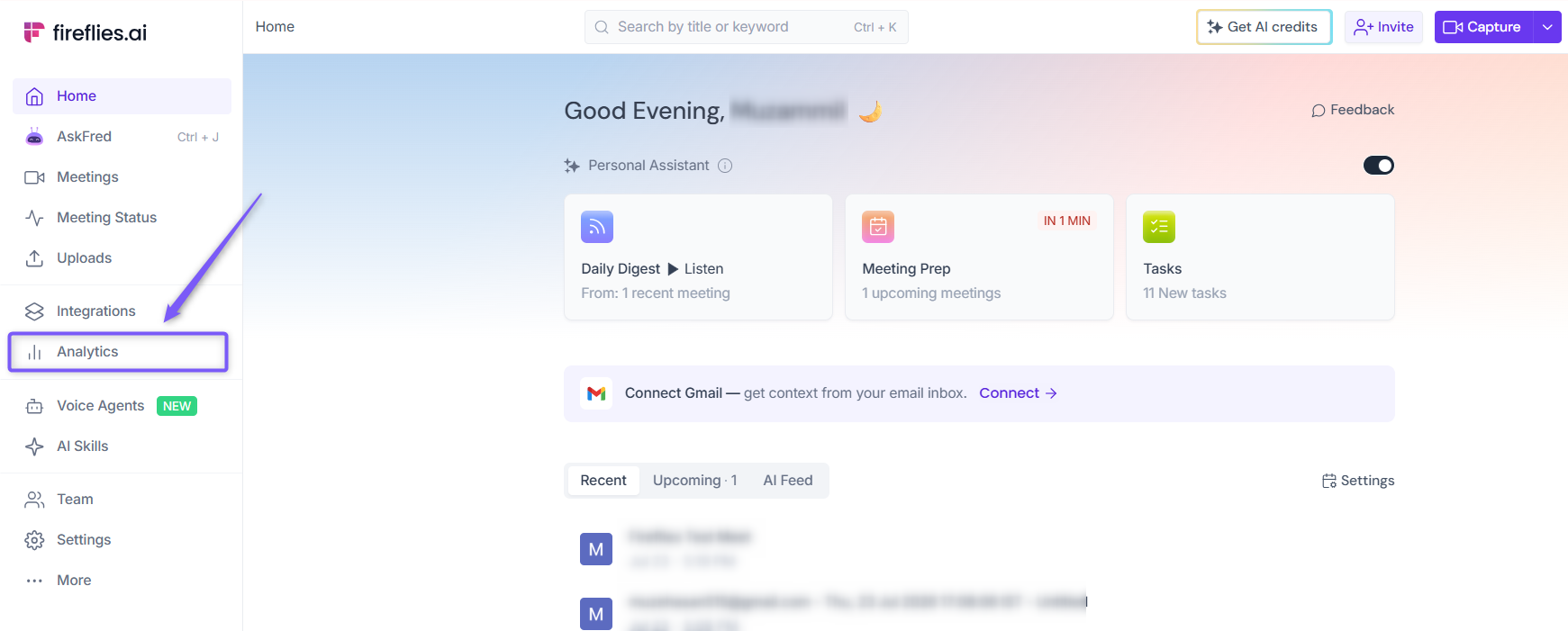
To access the Analytics dashboard, click Analytics from the left sidebar in your Fireflies dashboard.
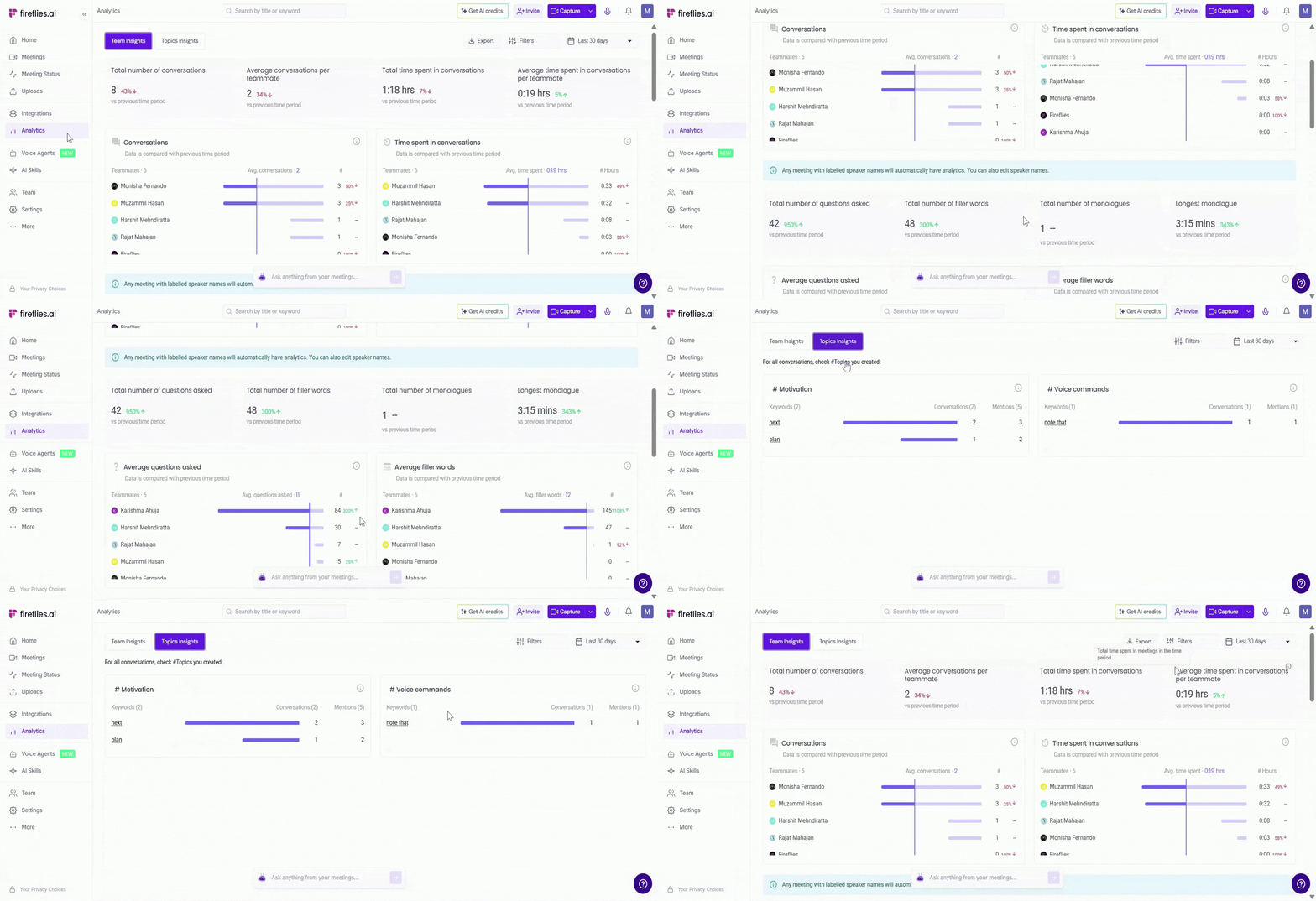
The Analytics dashboard aggregates your conversation data and organizes it into two tabs:
Team Insights — key metrics and performance data across all your meetings
Topics Insights — important topics, keywords, and trends from your conversations
👥Individual vs Team Analytics
What you see on the Analytics dashboard depends on your user type:
Individual user — You’ll see aggregated metrics from your own meetings only
Team admin — You’ll see a combined view of all your teammates’ meetings, with the ability to view and analyze each teammate’s performance and activity
1. Individual User (Team Insights Dashboard)
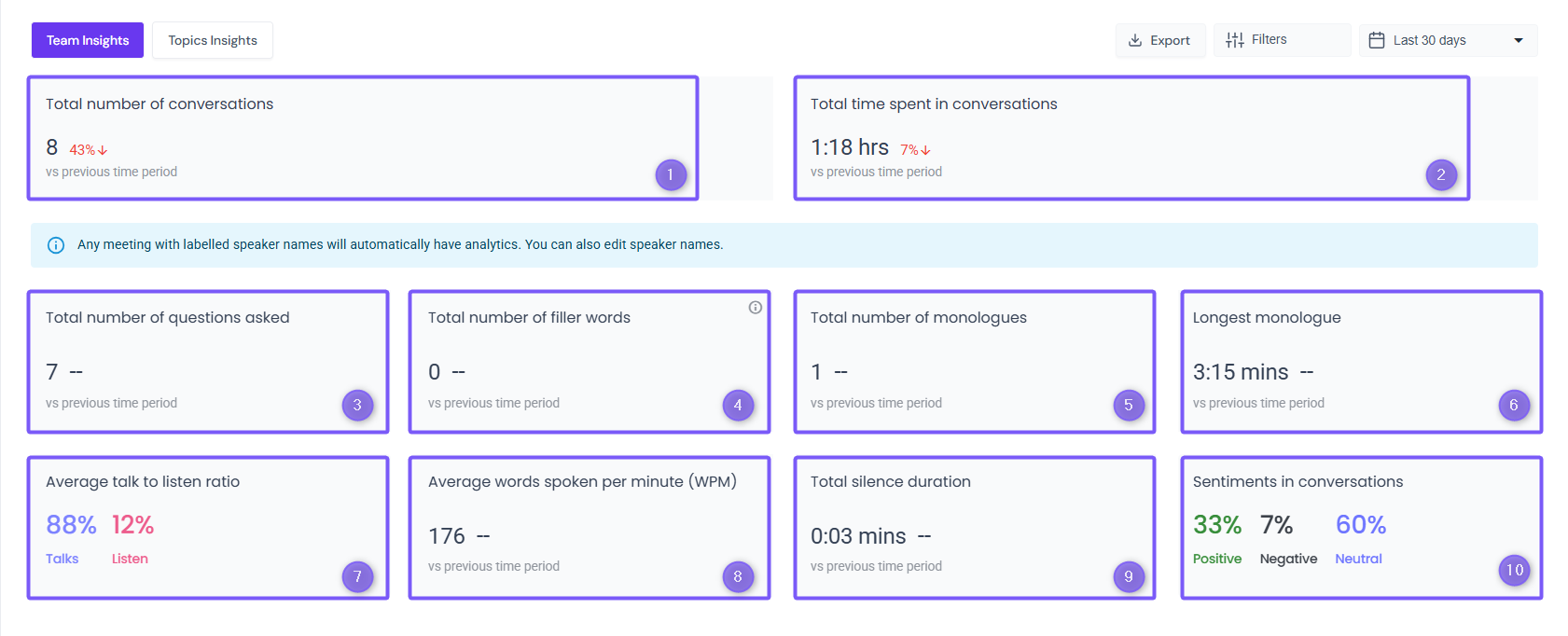
If you are not part of a team or are not a team admin, the Team Insights tab shows aggregated metrics from your own meetings only — helping you track your personal conversation patterns and performance over time.
Ref. | Metric | What it means |
1. | Total number of conversations | Total meetings recorded by Fireflies in the selected date range |
2. | Total time spent in conversations | Total time spent in meeting or Combined duration of all your meetings |
3. | Total number of questions asked | Total questions asked across your meetings |
4. | Total number of filler words | Count of 'Um' & 'Ah' along with double words in all the meetings in the time period |
5. | Total number of monologues | This is the count of all monologues in your meetings. Any speaker talking for 90 seconds or more uninterrupted in a meeting would be counted as a monologue. |
6. | Longest monologue | The longest uninterrupted speech by a single speaker |
7. | Average talk to listen ratio | Average balance between time spent talking and listening |
8. | Average words spoken per minute (WPM) | Average speaking speed across meetings; recommended range is 140–160 words per minute |
9. | Total silence duration | Total duration of silence (no one speaking) across meetings |
10. | Sentiments in conversations | Distribution of conversation tone across meetings (positive, neutral, negative) |
2. Team Admin (Team Insights Dashboard)
If you are a team admin, you'll see a combined view of all your teammates' meetings — giving you a workspace-wide picture of conversation activity and performance. Each metric is broken down per teammate so you can compare performance and identify coaching opportunities.
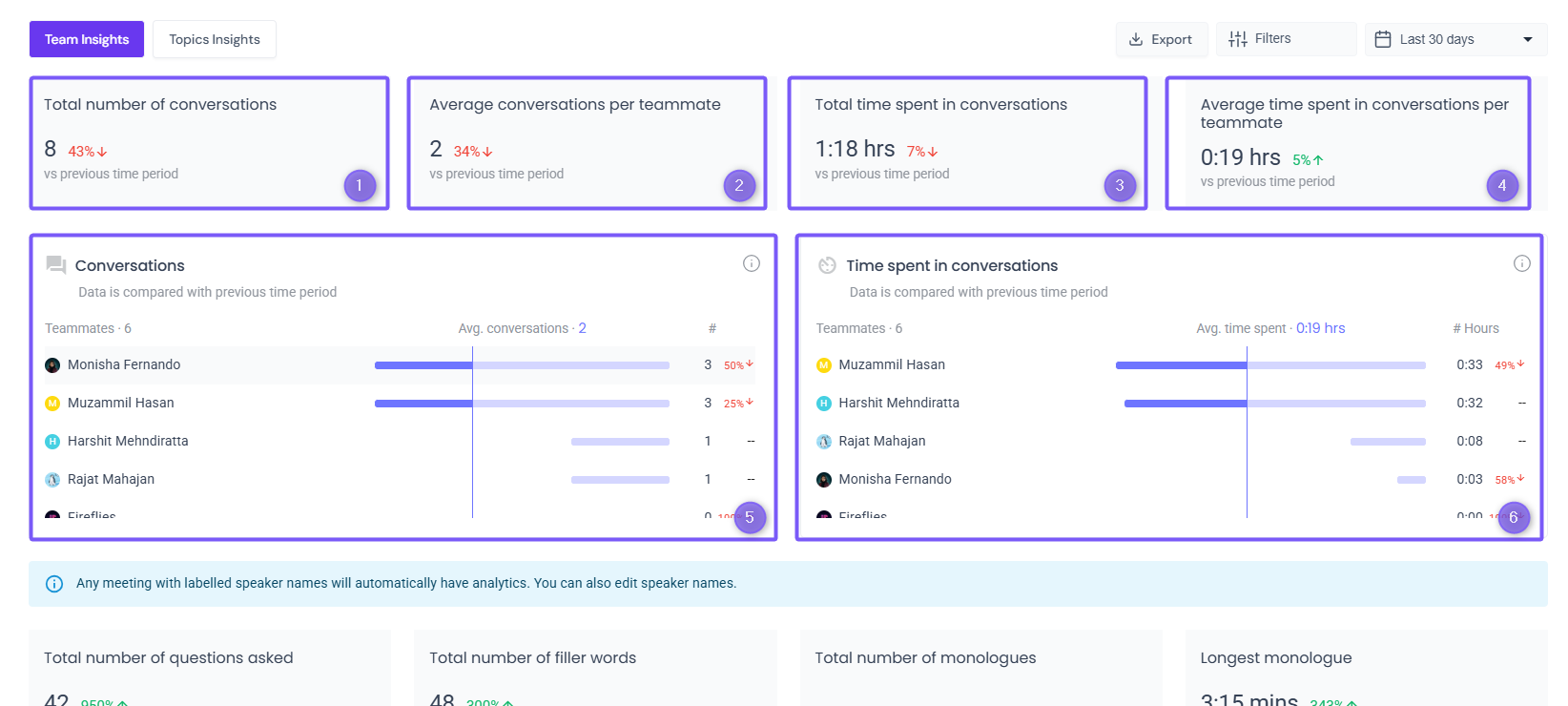
In addition to the standard metrics, team admins see two extra summary cards at the top:
Summary Cards
Ref. | Metric | What it means |
1. | Total number of conversations | Total meetings recorded across all teammates in the selected date range |
2. | Average conversations per teammate | Average number of meetings per teammate in the selected period |
3. | Total time spent in conversations | Combined meeting duration across all teammates |
4. | Average time spent in conversations per teammate | Average meeting time per teammate in the selected period |
5. | Conversations (per teammate) | Bar chart showing number of meetings per teammate vs. team average |
6. | Time spent in conversations (per teammate) | Bar chart showing hours spent per teammate vs. team average |
Any meeting with labelled speaker names will automatically have analytics. You can also edit speaker names anytime.
Below the summary cards, you'll find detailed per-teammate breakdowns for each metric:
Ref. | Metric | What it means |
1. | Total number of questions asked | Total questions asked across all teammates in meetings |
2. | Total number of filler words | Count of 'Um' & 'Ah' along with double words in all the meetings in the time period |
3. | Total number of monologues | This is the count of all monologues in your meetings. Any speaker talking for 90 seconds or more uninterrupted in a meeting would be counted as a monologue. |
4. | Longest monologue | Longest uninterrupted speech across all teammates (90 secs or more counts as a monologue) |
5. | Average questions asked | Average questions asked by teammate shown as a bar chart |
6. | Average filler words | Average filler words by teammate shown as a bar chart |
7. | Number of monologues | Individual monologue count per teammate shown as a bar chart |
8. | Longest monologues | Longest uninterrupted speech per teammate shown as a bar chart |
9. | Average talk to listen ratio | Average balance between time spent talking and listening |
10. | Sentiments in conversations | Overall positive, negative, and neutral sentiment summary |
11. | Talk to listen ratio | Talk to listen ratio in meetings by teammates in the time period |
12. | Silence duration | Total duration of silence (no one speaking) across meetings |
13. | Average words spoken per minute (WPM) | Average speaking speed across meetings; recommended range is 140–160 words per minute |
14. | Sentiments in conversations (per teammate) | Distribution of conversation tone across meetings (positive, neutral, negative) |
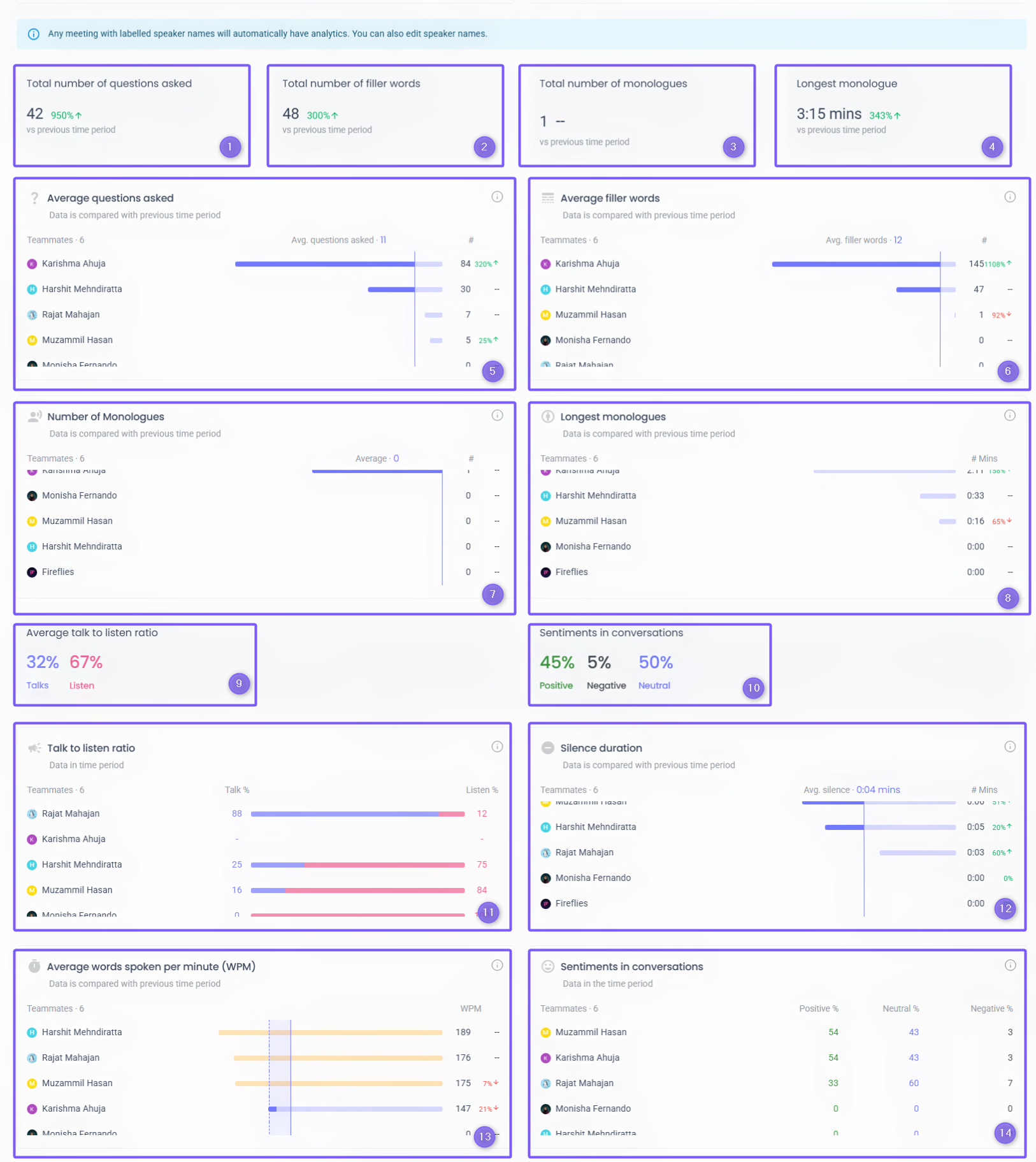
📌 Each metric is compared against the previous time period so you can track progress and spot changes in your team's conversation patterns.
🔎 Filter and Export analytics
Get more targeted insights by refining your analytics data based on time, meeting details, and participants.
1. Date range
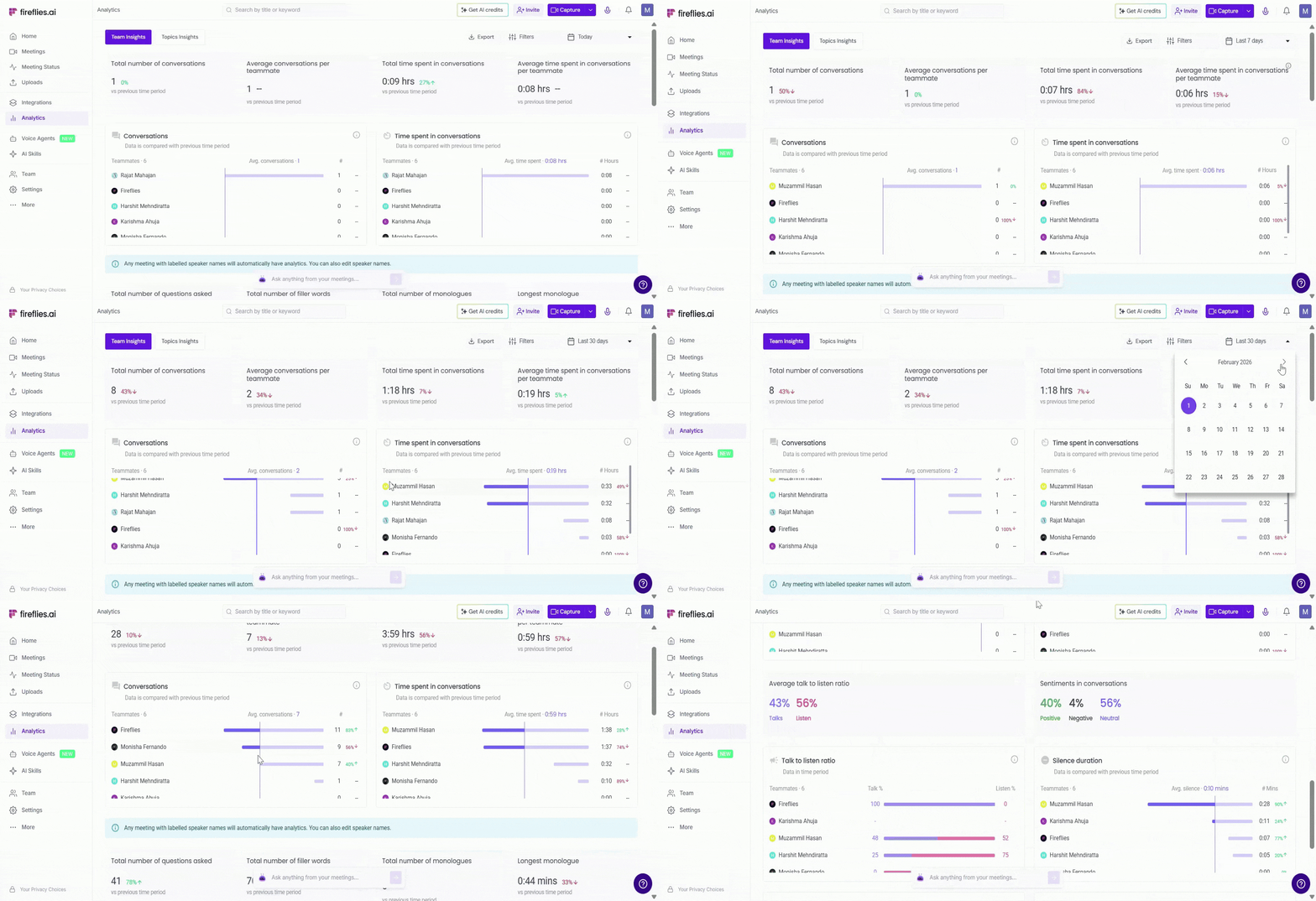
Select the date range from the top right corner of the dashboard to view insights for a specific period. You can choose from Last 30 days, Last 7 days, Today, or a custom date range.
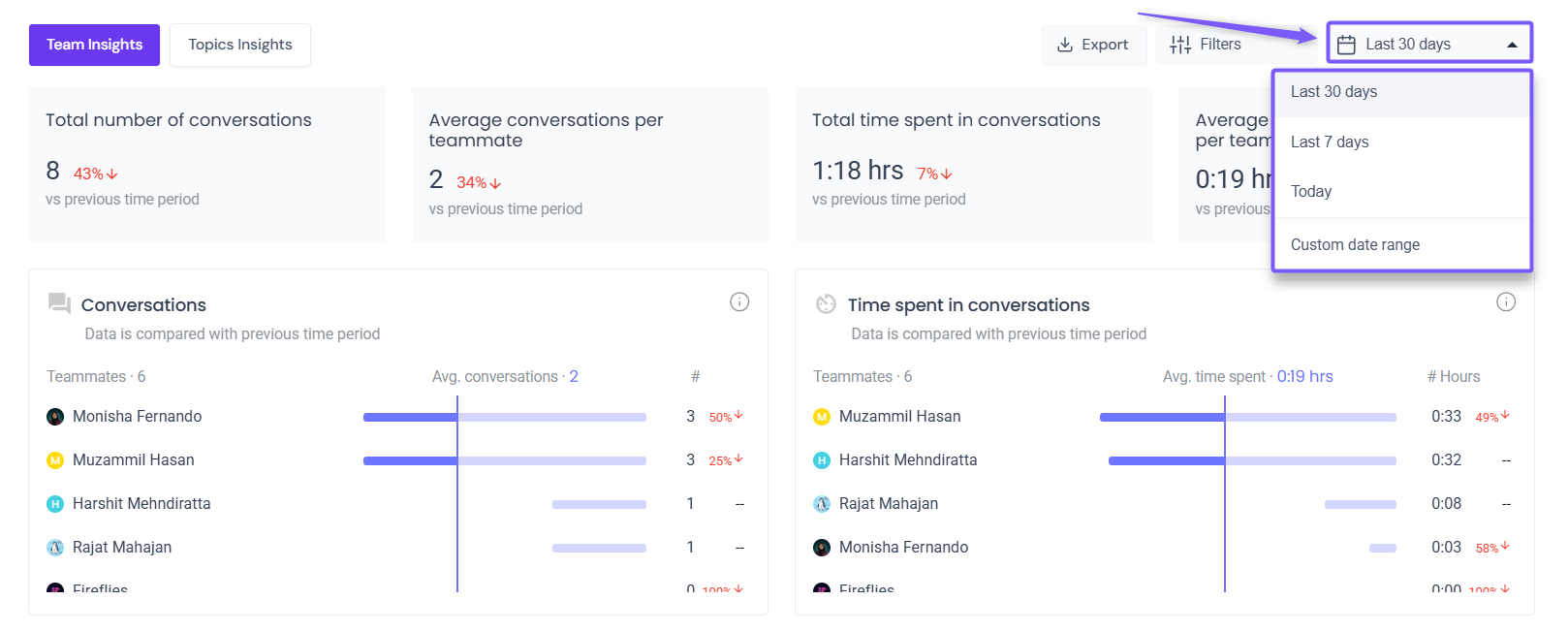
Once selected, all metrics update automatically based on the chosen date range.
2. Filters
Analyze your conversation data by applying filters based on meeting title, organizer, participant, duration, and meeting type (internal or external). You can also save commonly used filter combinations as Views for quick access and reuse.
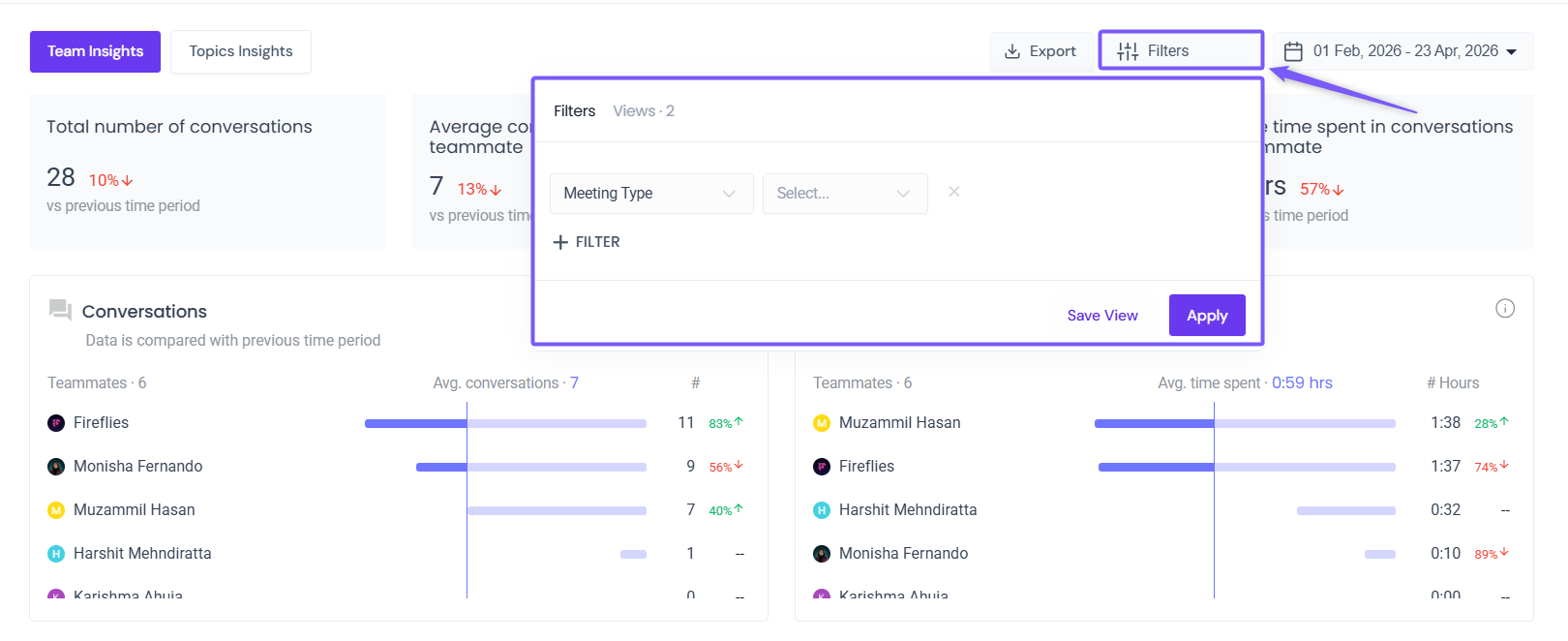
Want to learn how to use filters in detail? Check out this dedicated guide → How to use Filters to view specific call analytics
3. Export analytics
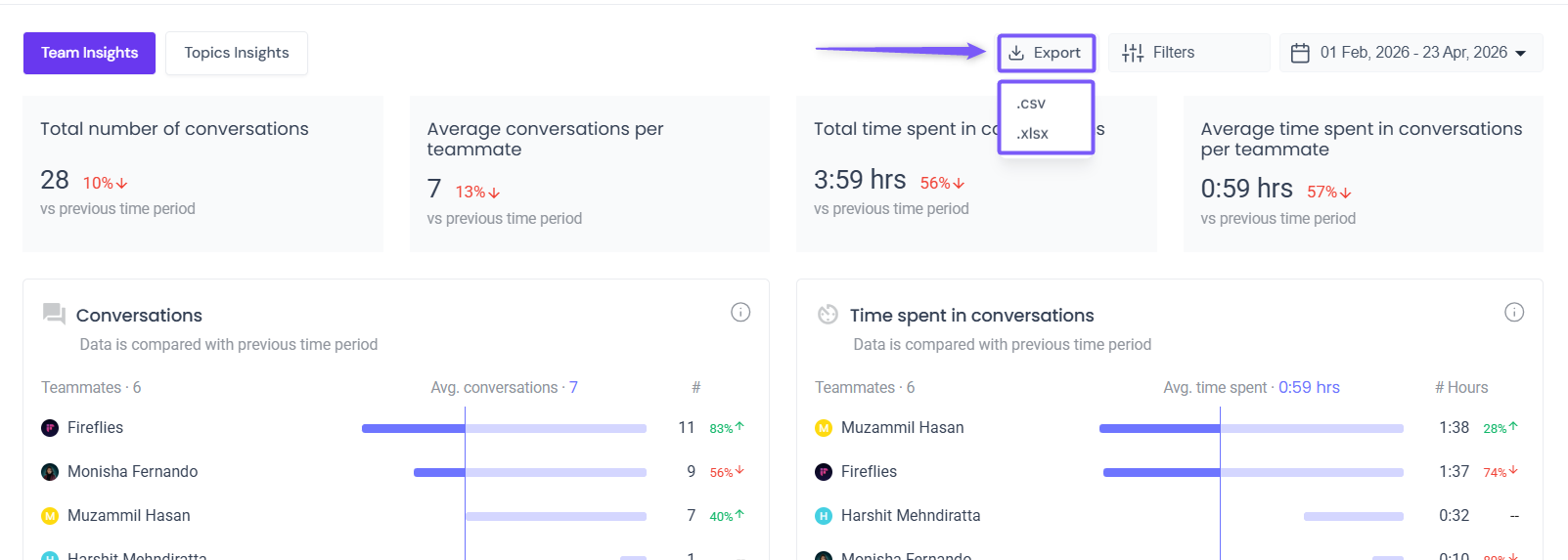
You can export your analytics data to download and share insights outside Fireflies. Click Export at the top of the dashboard and choose your preferred format — .csv or .xlsx.
This is useful when you want to analyze data in spreadsheets, share reports with your team, or keep records of your analytics over time.
🧠 Topics Insights
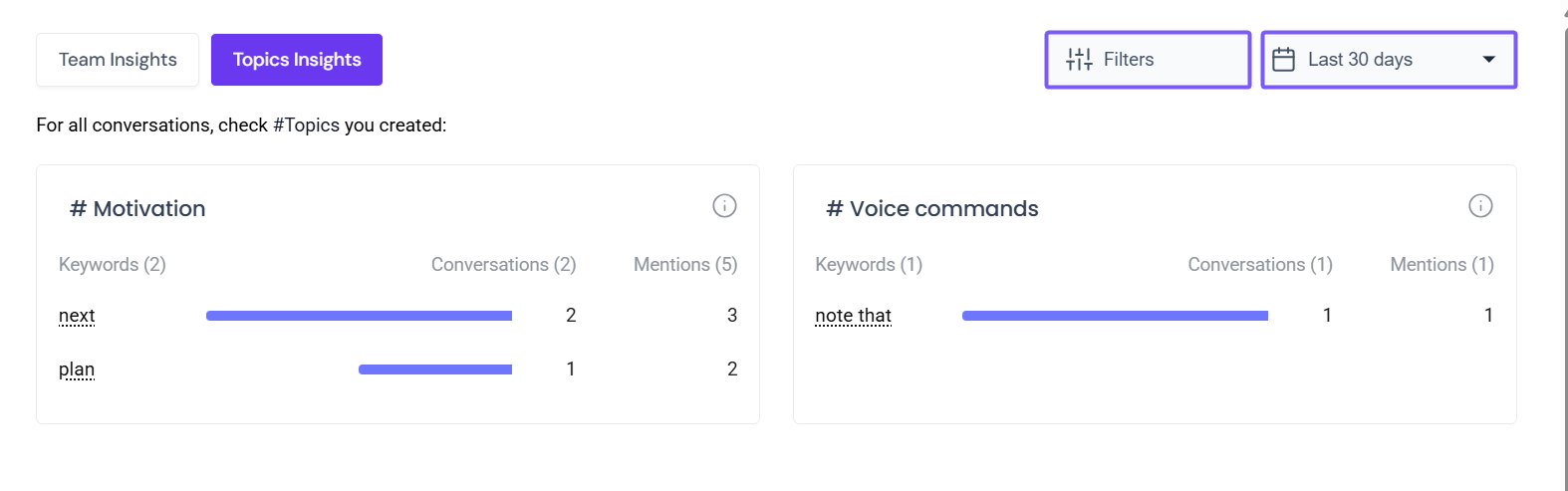
Want to understand what your meetings are focused on over time? The Topics Insights tab brings together important topics and keywords from all your meetings in one place, making it easier to spot trends and patterns across your conversations.
📌 Related: Want to learn how to create and manage topics in Topic Trackers? Check out this guide → How to Set Up Topic Tracker on Fireflies
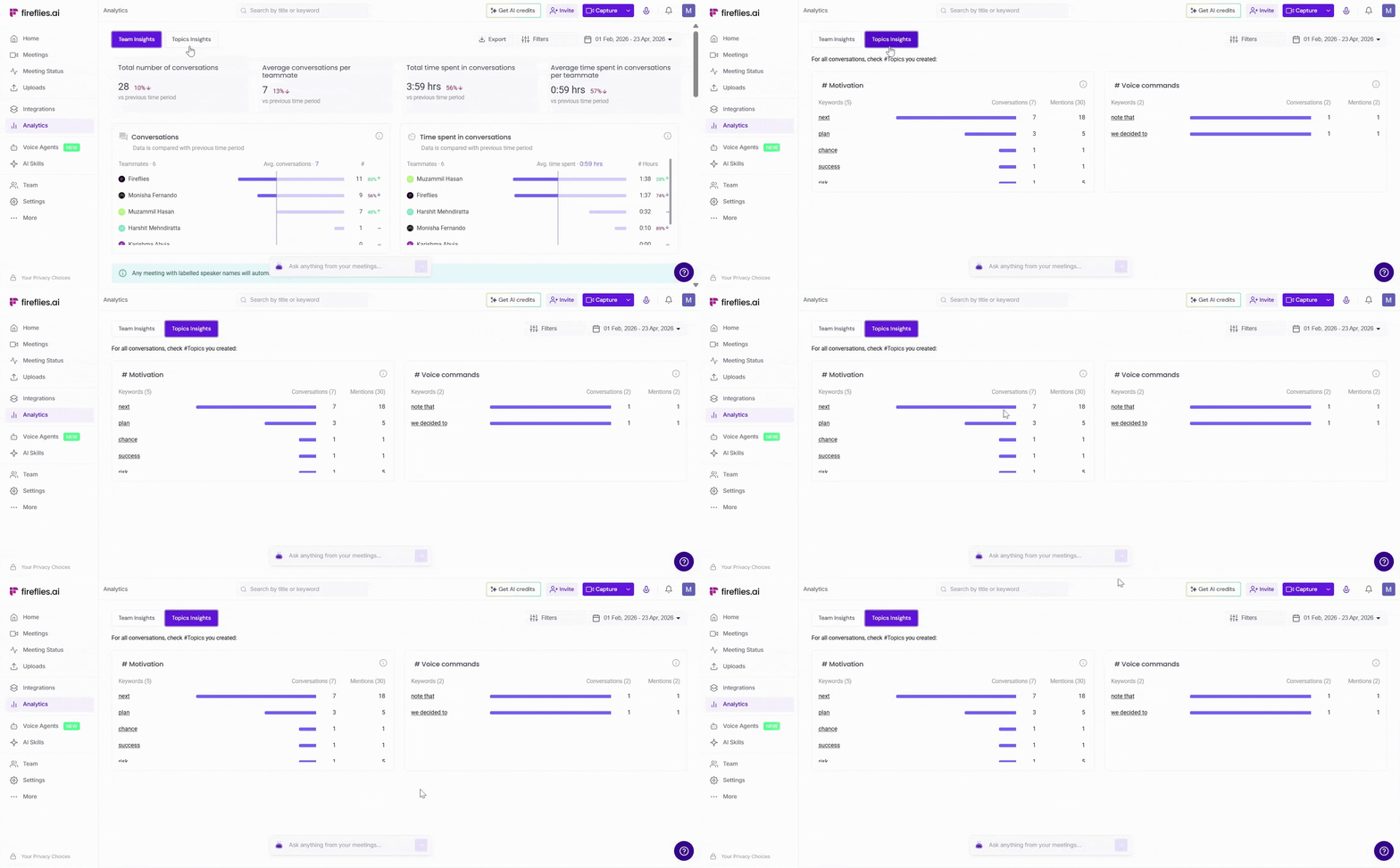
Click the Topics Insights tab at the top of the Analytics dashboard to open the Topics Insights page.
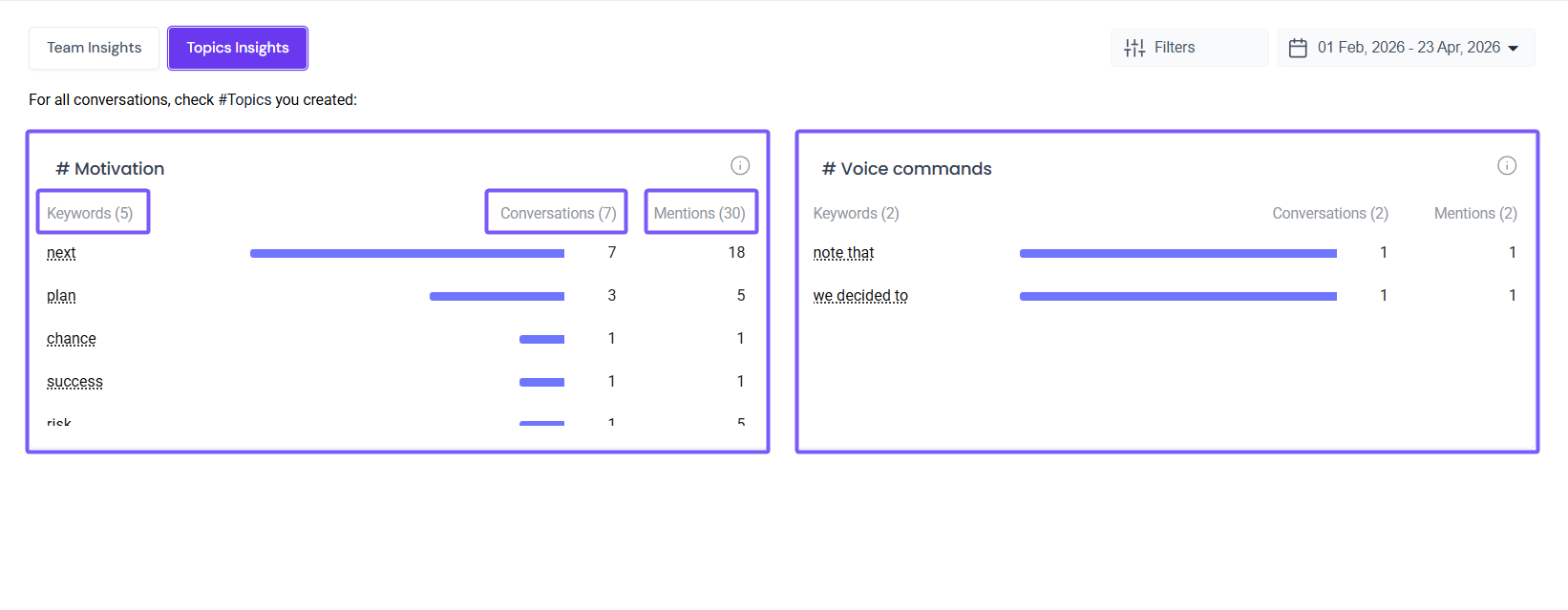
Topics Insights are based on the topics you've created on the Topics page. For each topic, you can see:
Keywords — the specific words being tracked under that topic
Conversations — the number of meetings the keyword appeared in
Mentions — the total number of times the keyword was mentioned across all meetings
You can also:
Filter by date range to view topics within a specific time period
Filter topics by meeting title, organizer, participant, duration, or meeting type to analyze trends for specific meetings or individuals.
Notes & Limitations
Conversational metrics are automatically tracked for Zoom, Google Meet, Microsoft Teams, Webex, Skype, Dialpad, Lifesize, and GoToMeeting.
Metrics are not currently tracked for Chrome extension meetings. This is planned for a future update.
For unsupported platforms, you can manually add speaker labels to enable conversational metrics.
Total number of conversations and time spent are tracked automatically for all platforms and do not require speaker labels.
✅ Quick recap
Use Smart Search to analyze insights from a single meeting
Use the Analytics dashboard to view aggregated insights across all meetings
Switch between Team Insights and Topics Insights to explore different data views
Apply date range and filters to refine your analysis
Export analytics to share or review data outside Fireflies
📌 Related Guides
Fireflies for Sales – Explore the complete Fireflies for Sales bundle, including Deal Intelligence, Autofill CRM, Sales Assist, AI Skills, and Meeting Prep.
Deal Intelligence – Learn how to monitor deal health, track pipeline progress, and review AI-powered insights from HubSpot or Salesforce.
How to Invite Fireflies to Meetings – Learn how to invite Fireflies to your meetings for recording and transcription.