How to use Filters to view specific call analytics
Last updated: February 10, 2026
This article explains how to use filters in the Analytics dashboard.
Introduction to Filters on the Fireflies Analytics dashboard
Fireflies offers Conversation Intelligence, which helps you quantify your conversations and gain insights into what's working and what's not.
You can see these insights on the Fireflies analytics dashboard.
Fireflies also gives you Filters to get analytics of meetings that only meet certain criteria.
You can filter by criteria such as meeting title, organizer, participants, duration, or type.
Filter Category | Sub Operators | Role |
Meeting Title | Is, Is not, Contains, Does not contain | Display analytics of meetings that match a specific title |
Meeting Organizer | Contains, Does not contain | Display analytics of meetings based on the organizer's email ID |
Meeting Participant | Contains, Does not contain | Display analytics of meetings based on the participant's email ID |
Meeting Duration | Is, Is not, Is greater than, Is less than, Is at least, Is at most | Display analytics of meetings based on their duration |
Meeting Type | External Meeting, Internal Meeting | Display analytics of internal or external meetings |
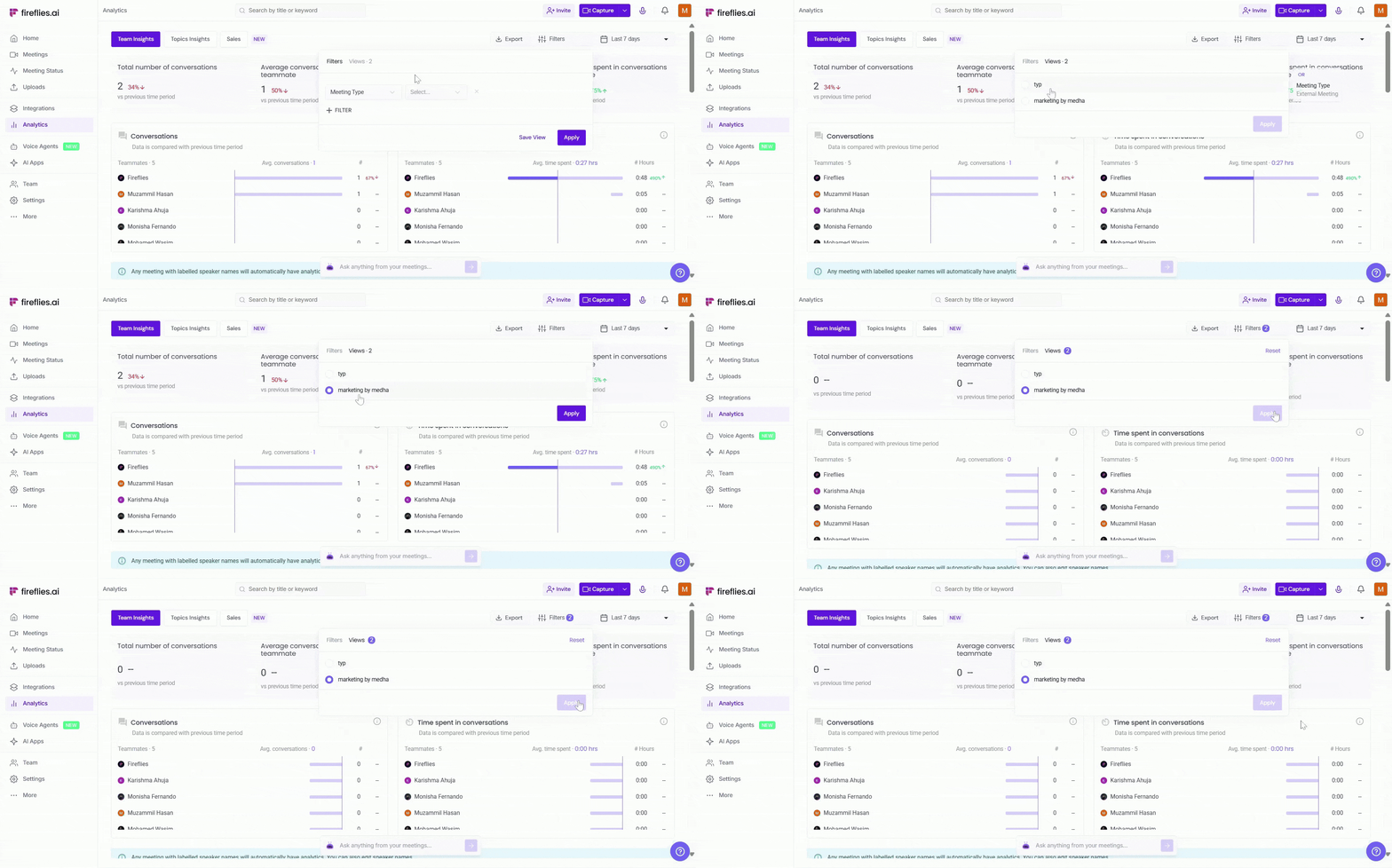
Frequently used Filters can be saved as Views allowing you to quickly access the information you need.
Note:
If you're a Workspace admin, you can see your and your teammates' analytics.
Individual users or non-admins can only view the analytics of their own meetings.
How to use the Filters on the Analytics dashboard
You can apply one or multiple filters at once. Here's how to do it:
1. Apply one filter
Log into your Fireflies account and click Analytics on the navigation bar.
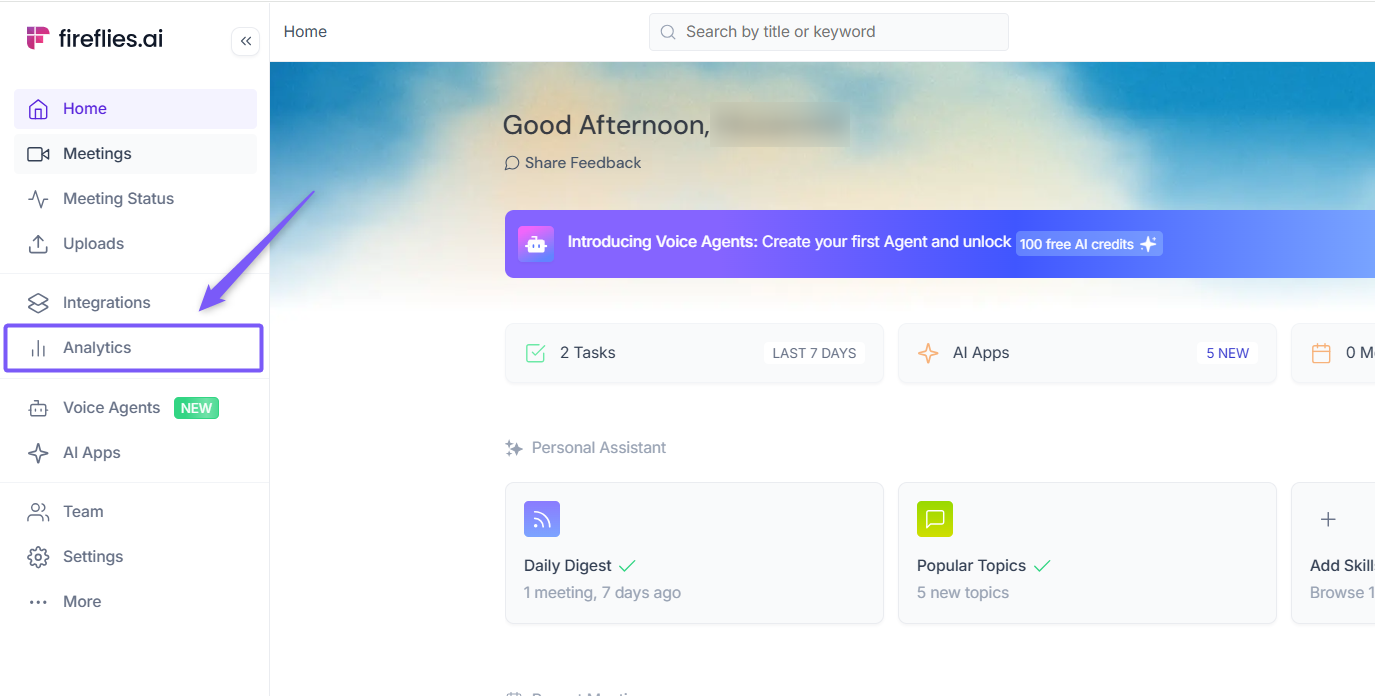
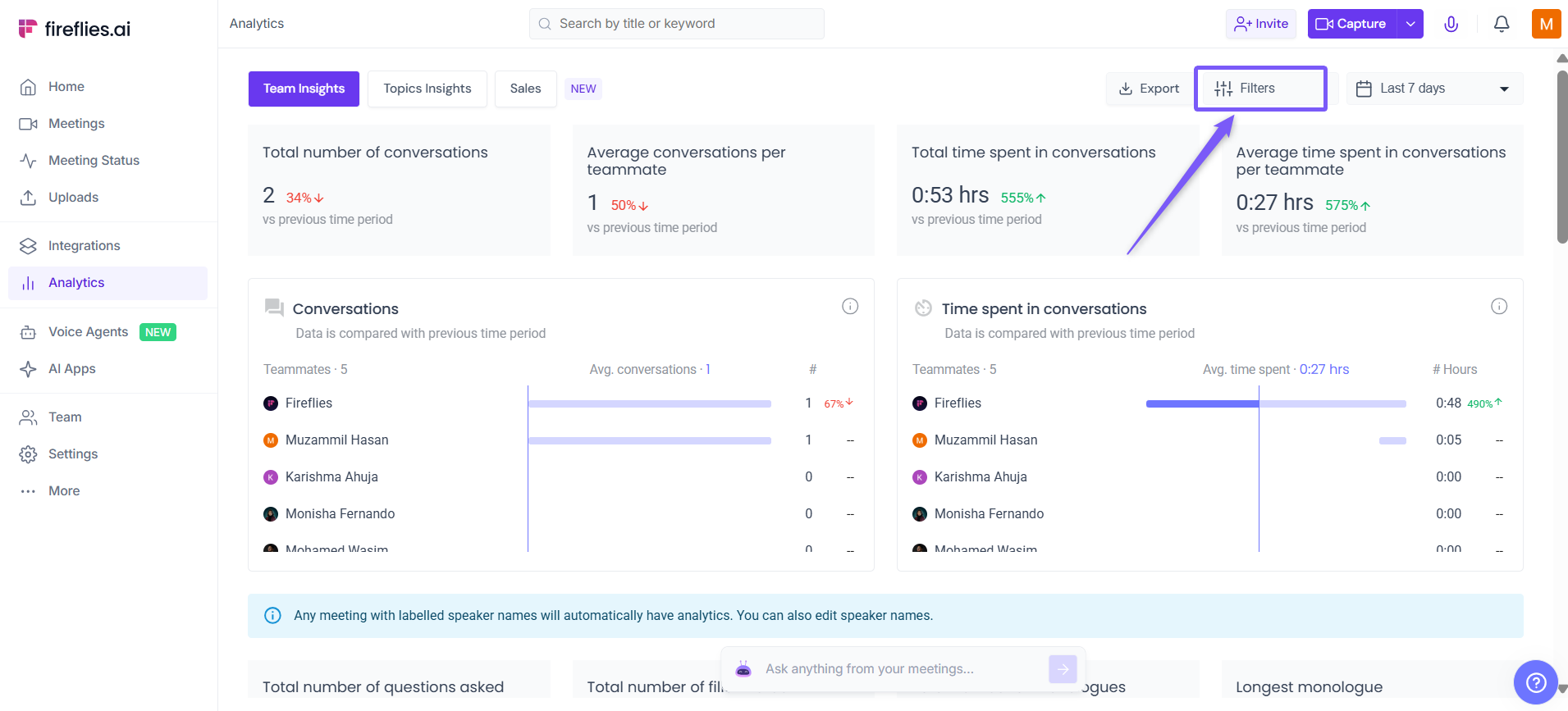
Click Filters.
Select the filter you want to apply.
For example, we will filter analytics for meetings with a Meeting Title that Contains the word Marketing.
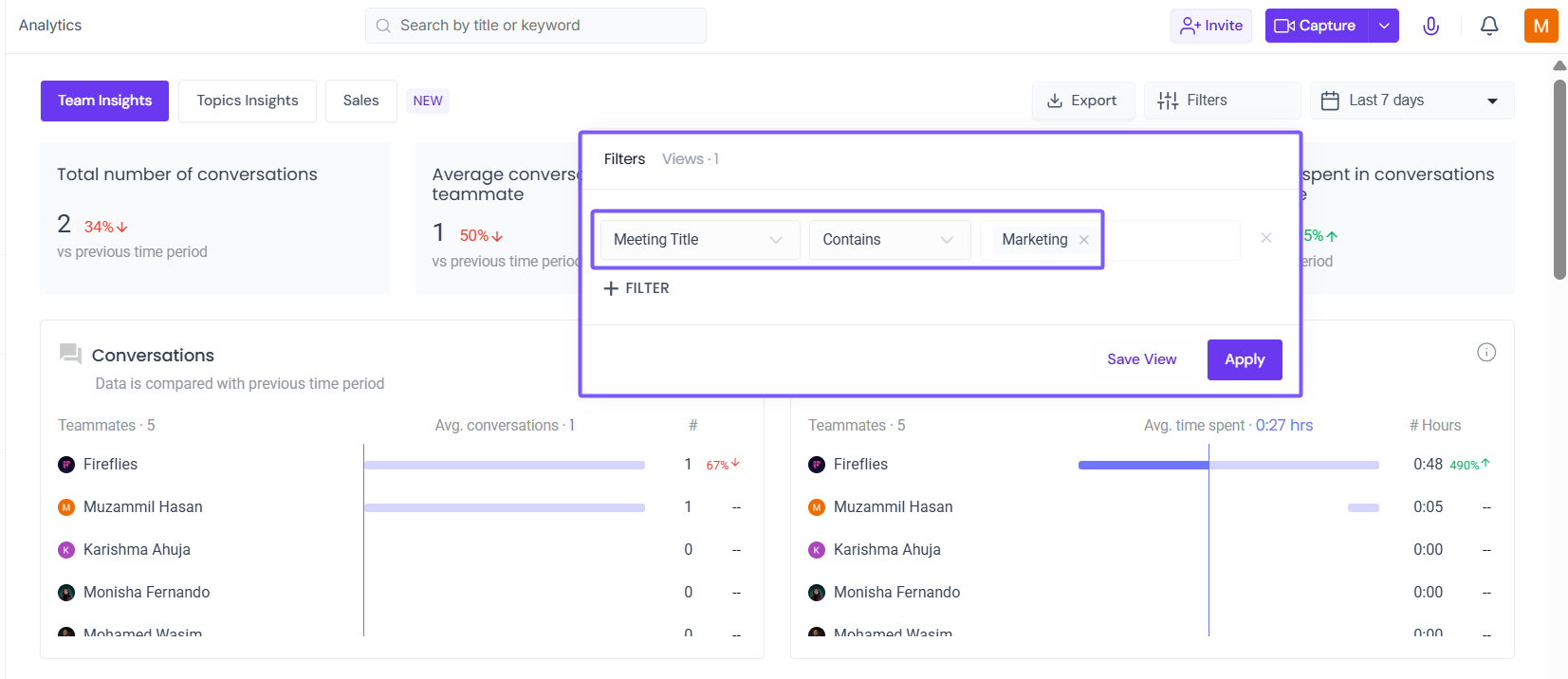
Click Apply.
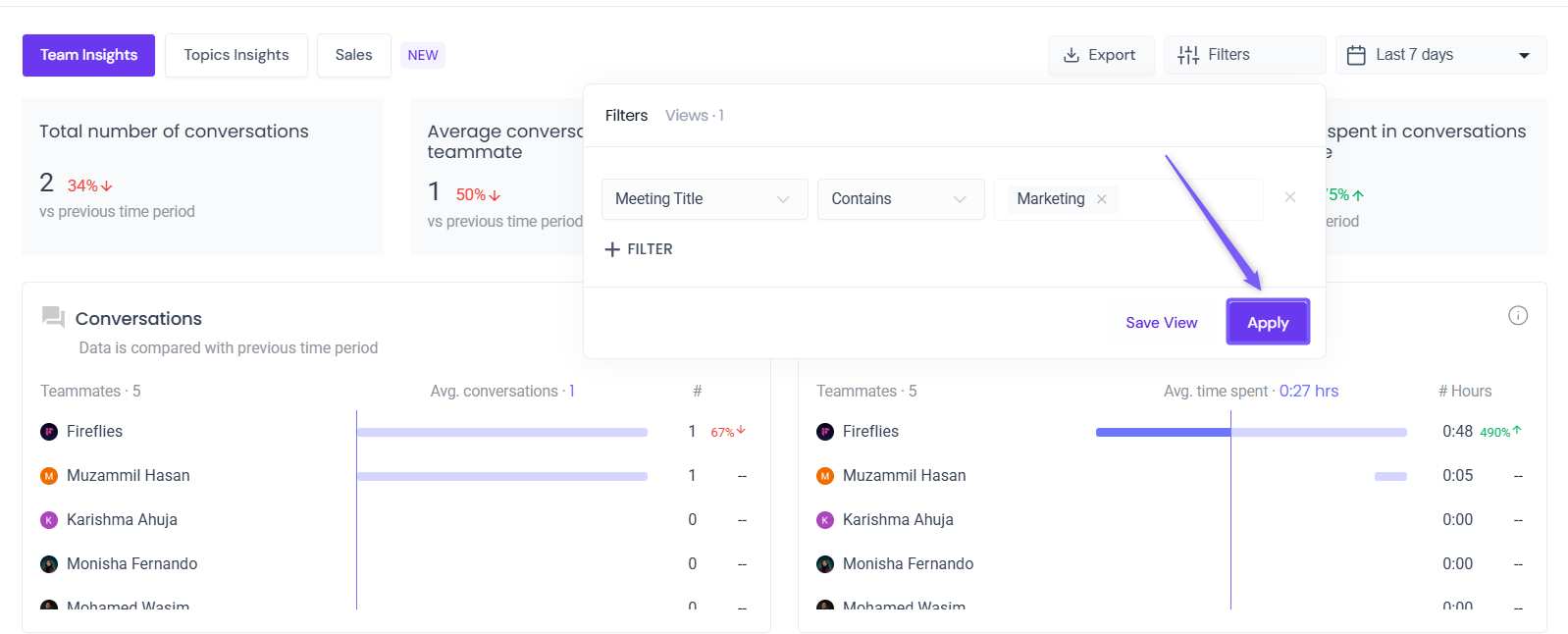
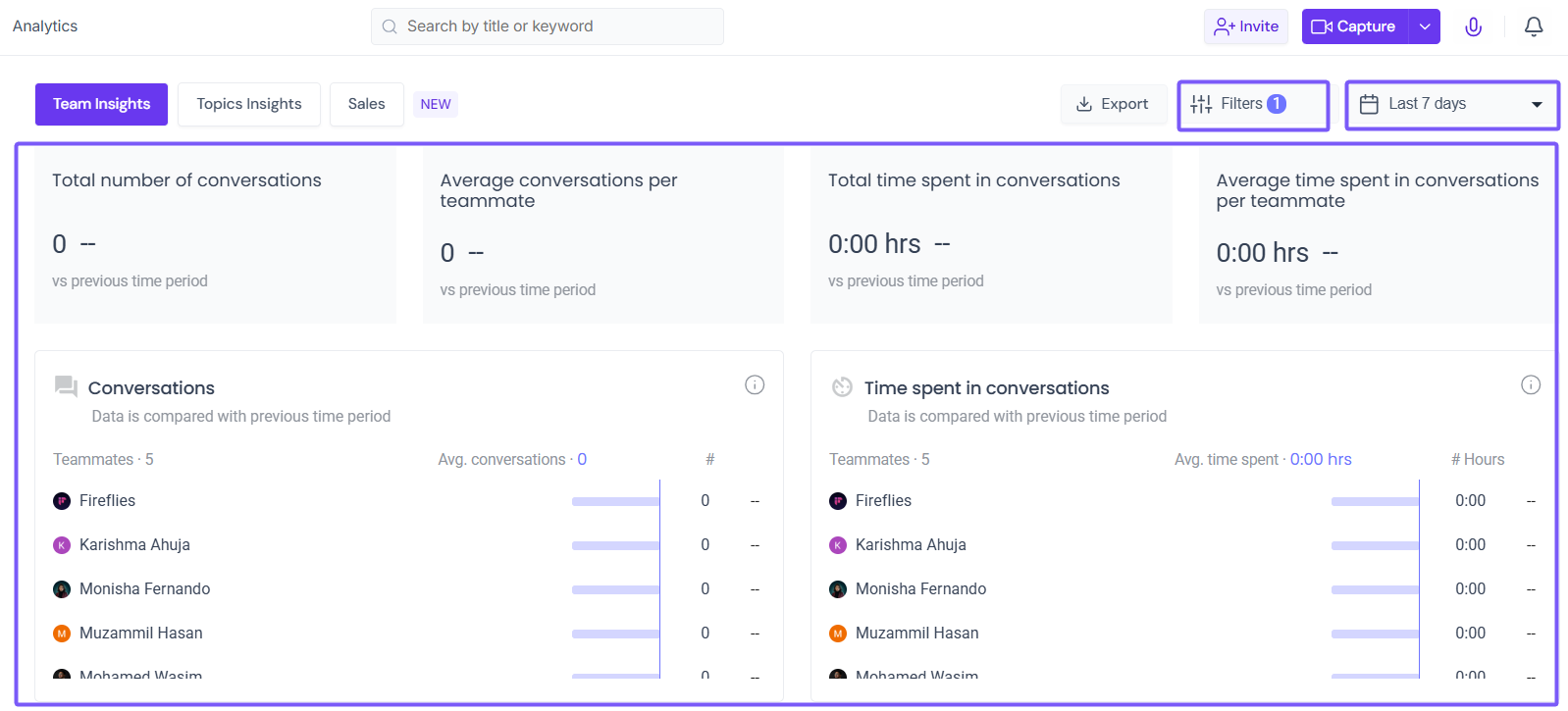
This generates the analytics of all meetings with the word Marketing in the title over the last 7 days.
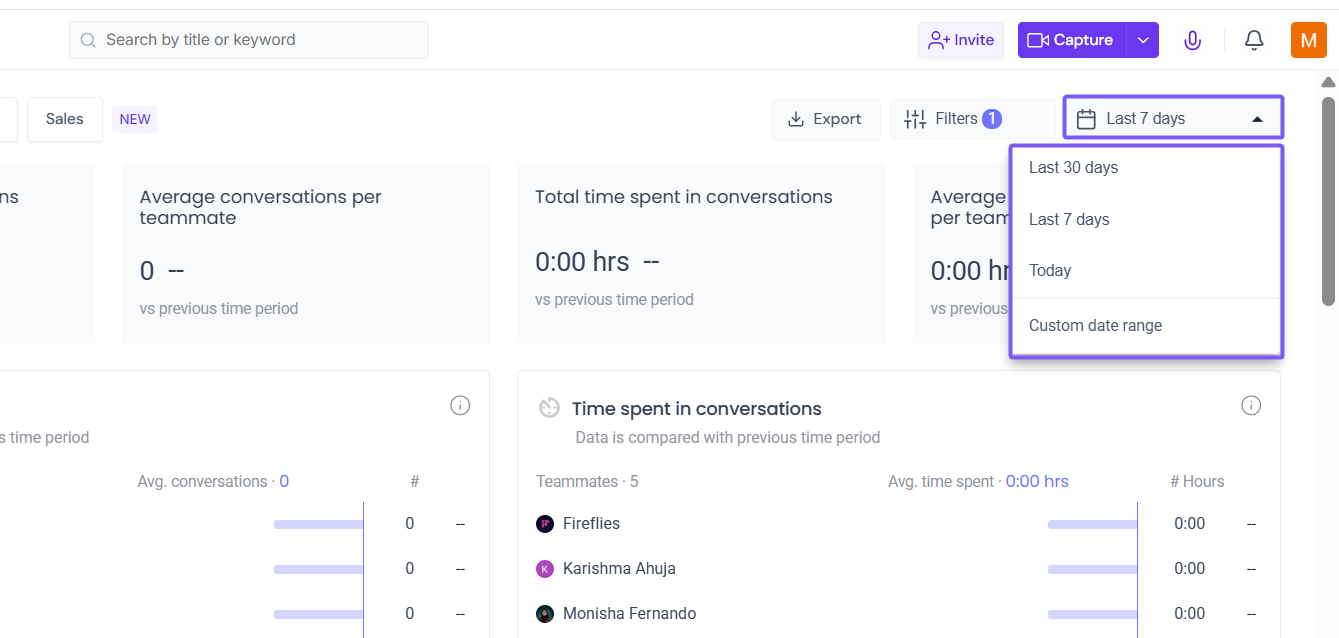
You can customize the date range and view the analytics for the last 30 days or set a specific custom date range, as you prefer.
2. Apply multiple filters
To add an additional filter category, click +FILTER in the Filters menu.
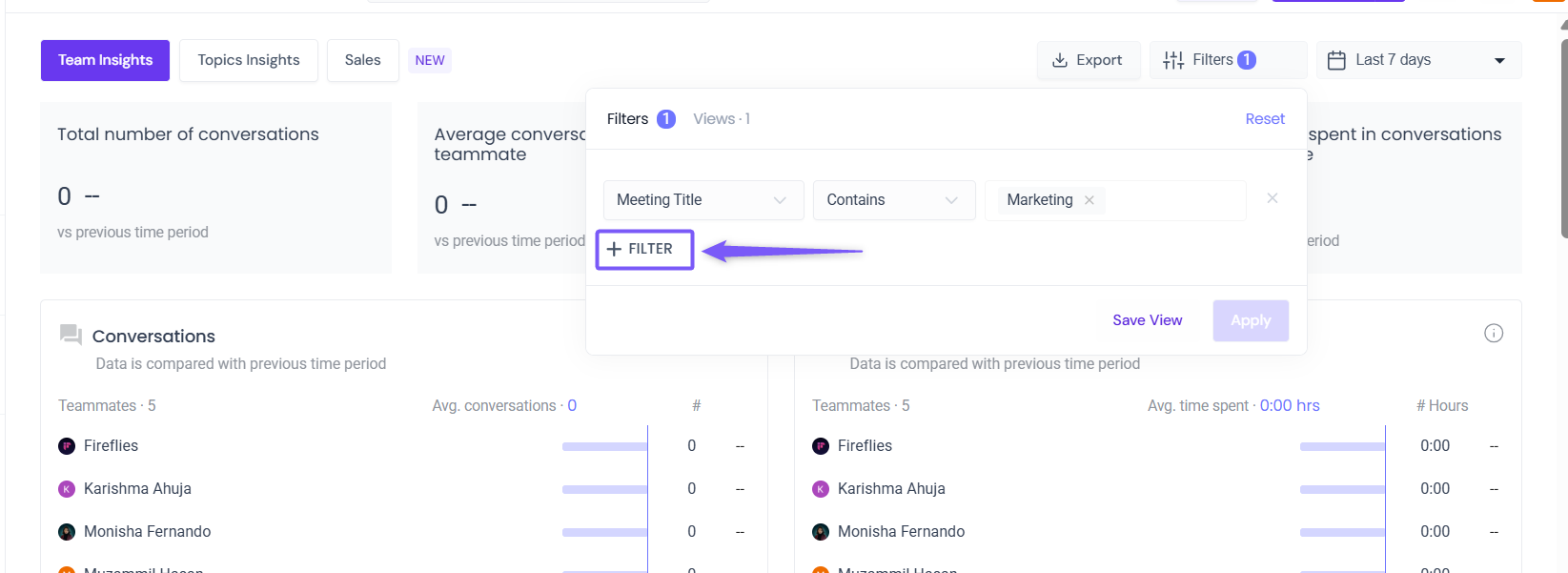
Add another filter.
For example, apply the Meeting Organizer filter to get the analytics for meetings that Contain “medha@fireflies.ai” as an organizer.
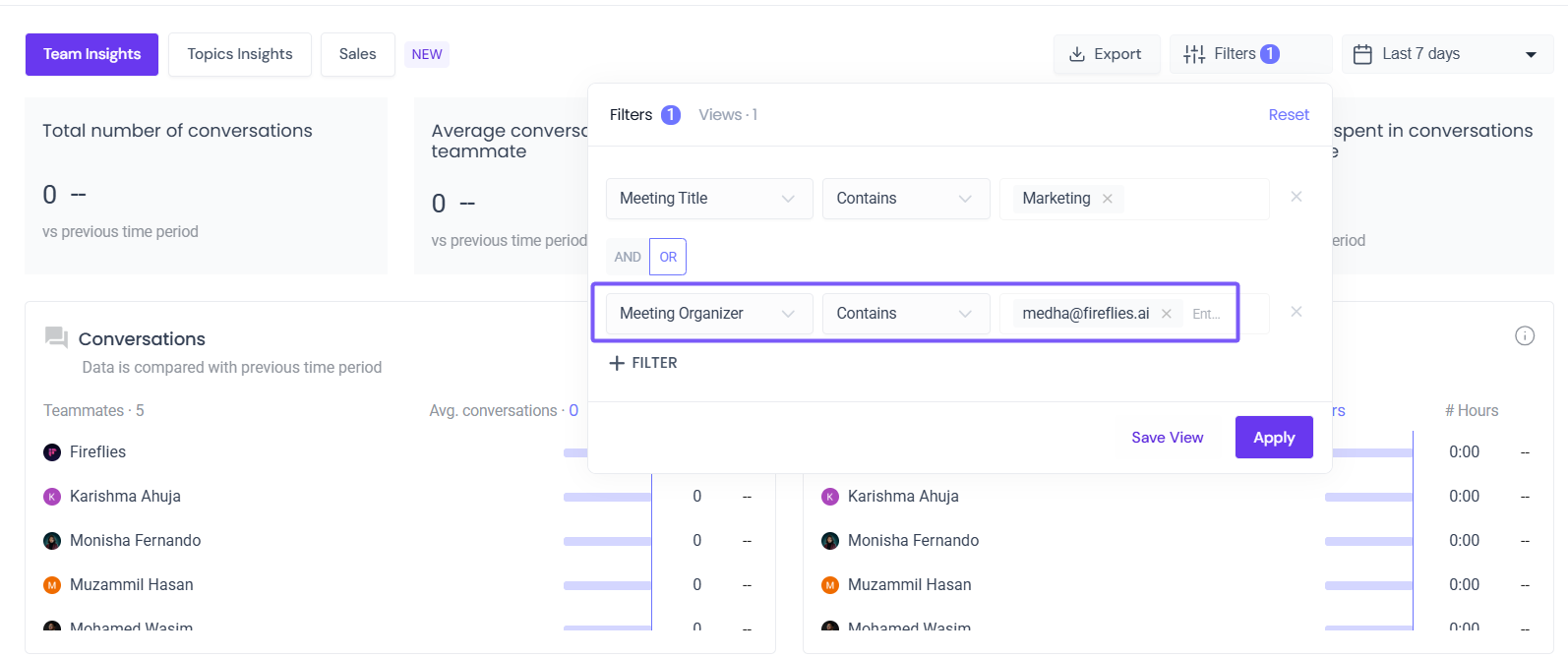
You can use the AND and OR filters to further filter the results:
AND filter: Shows analytics of meetings that meet the conditions of all the applied filters.
OR filter: Shows analytics of meetings that satisfy the conditions in either or all the filters.
For example, here, we have analytics of meetings that either have “Marketing” in the Meeting Title OR have “medha@fireflies.ai” as a Meeting Organizer.
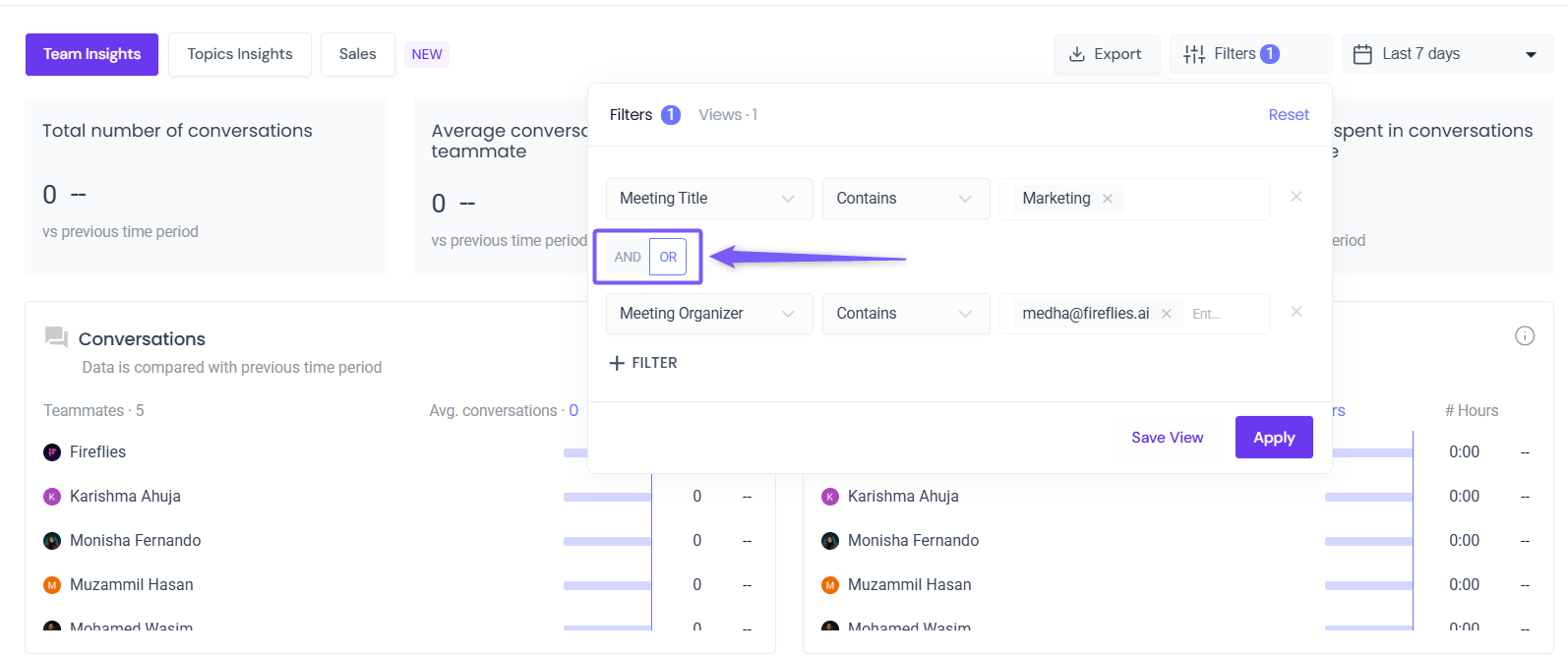
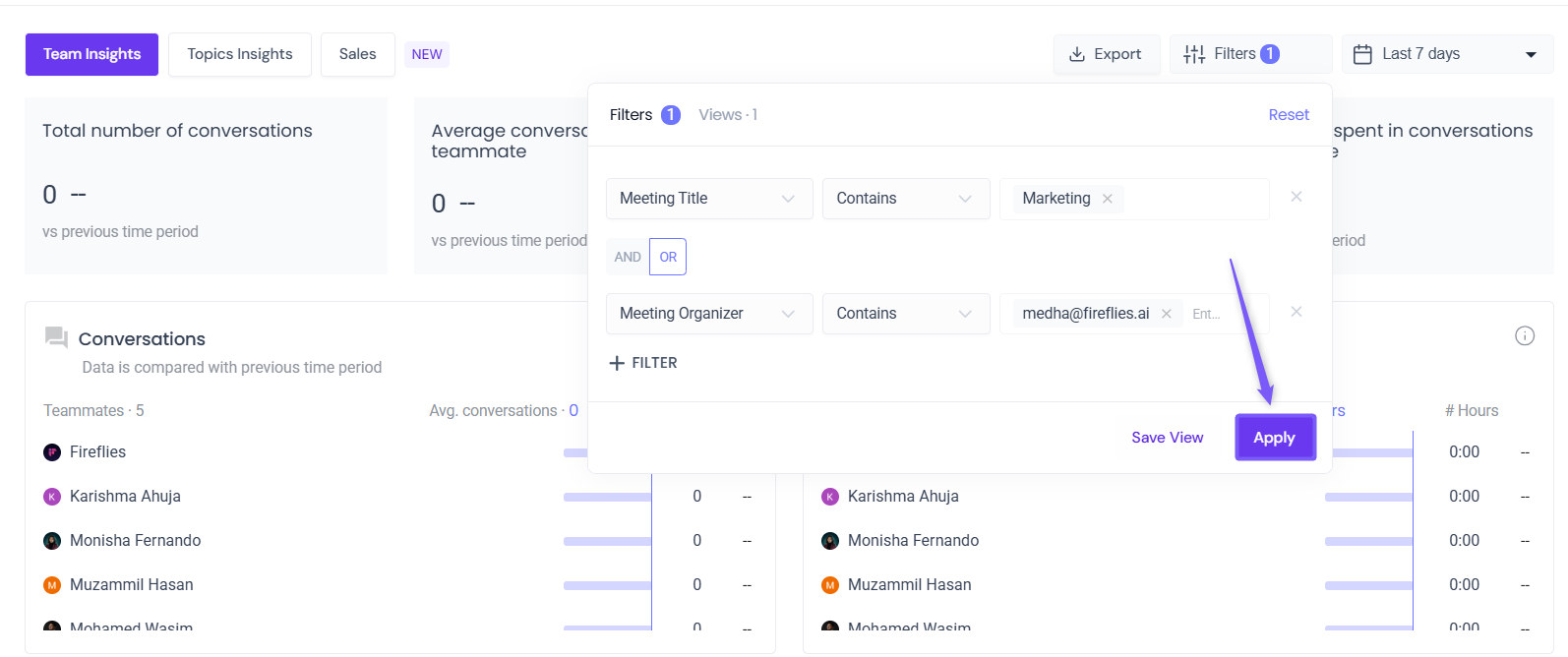
Once you’ve added all filters and applied the AND/OR conditions, click Apply.
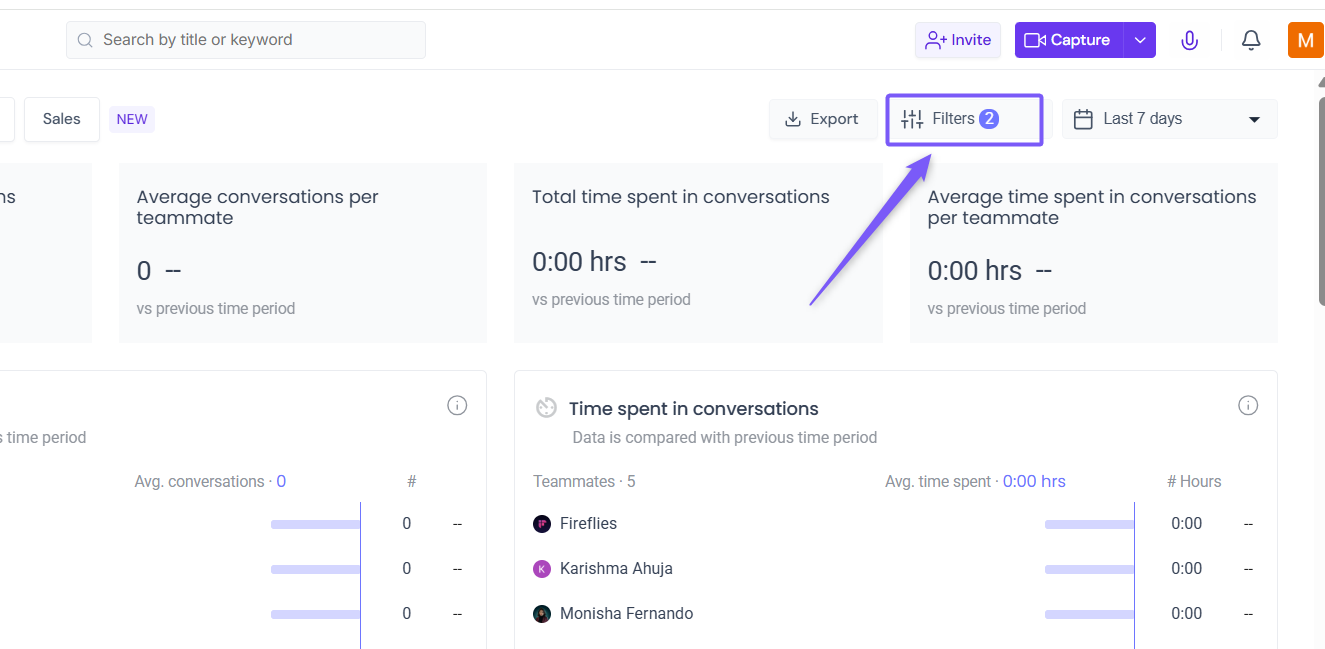
Note: When a filter is applied, the Filters will highlight the number of active filters applied in blue.
How to save filters as views
You can save frequently used filters as views for future use. Here’s how to do it:
Once you have selected all the filters, click Save View.
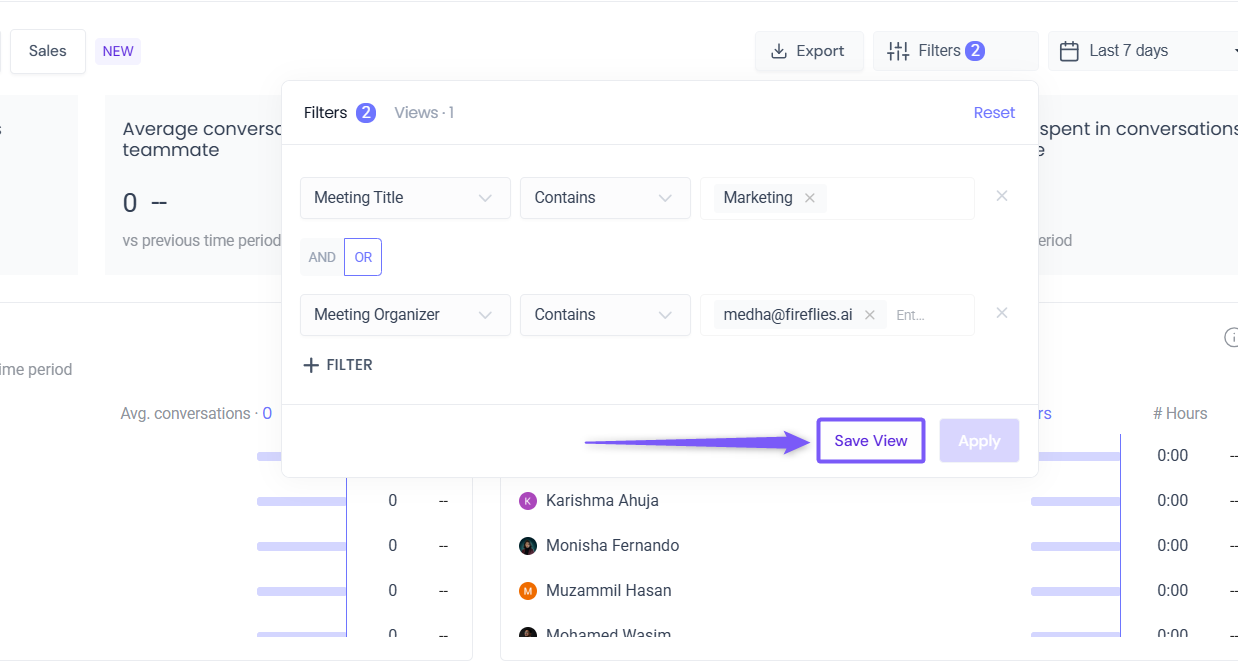
Enter a name for the filter and click Save..
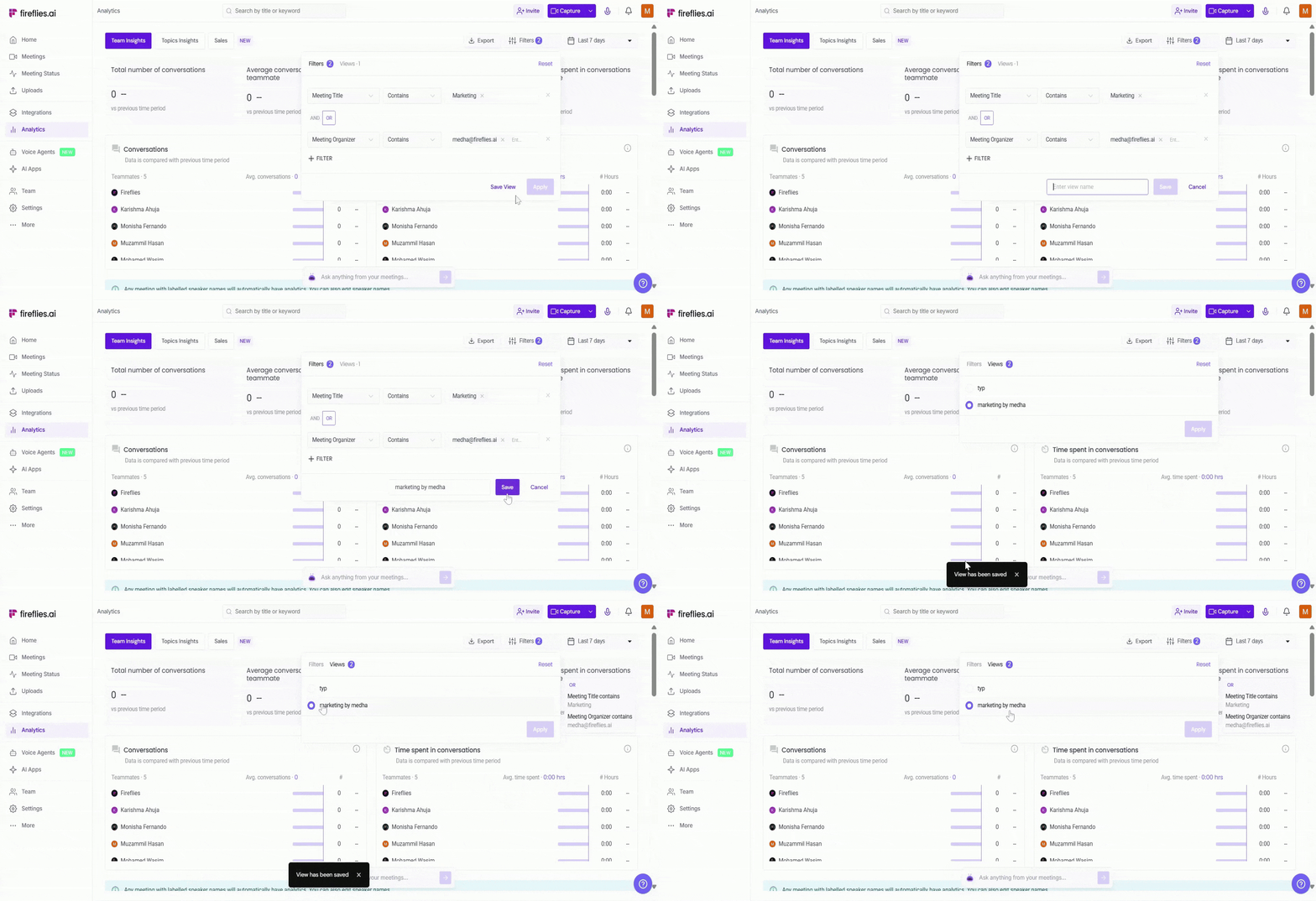
How to apply a Filter View
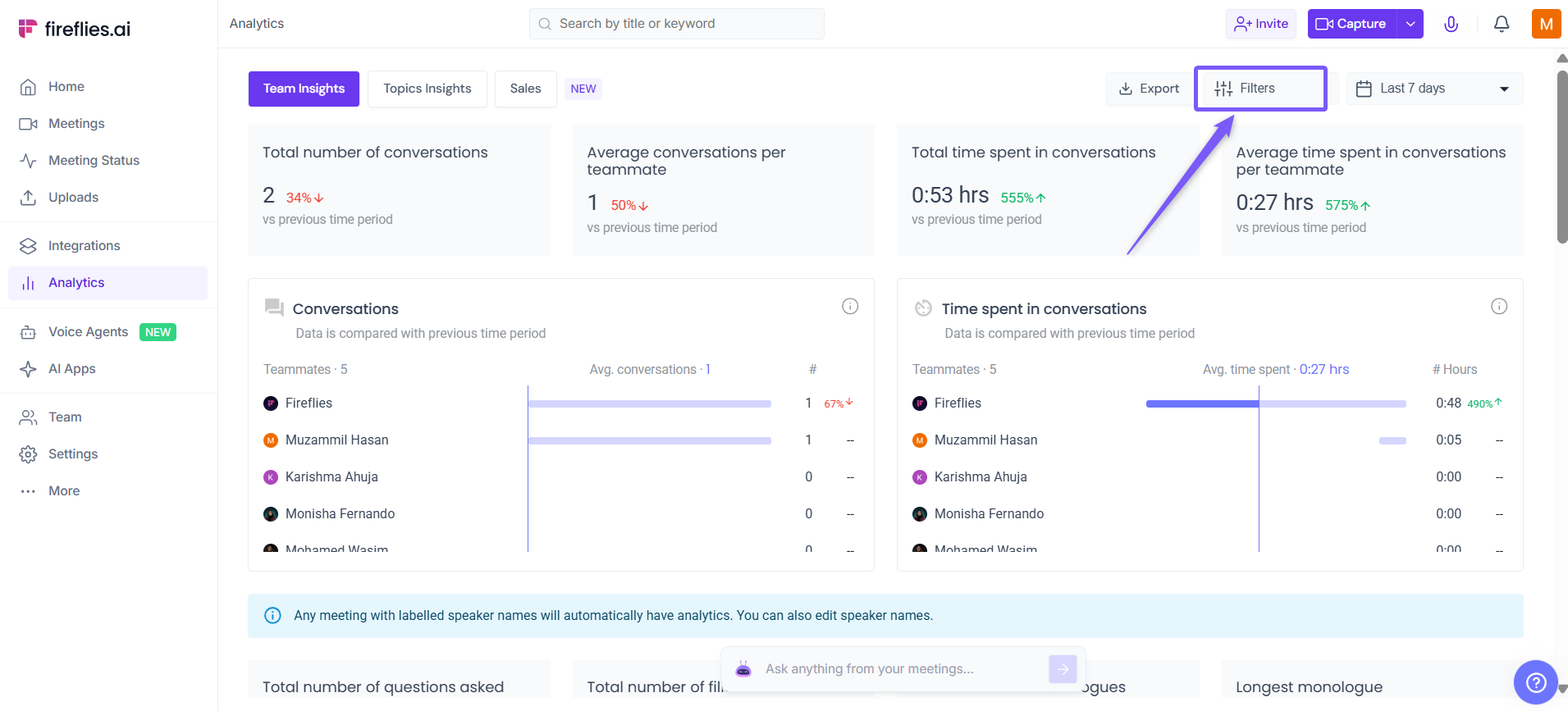
Click Filters.
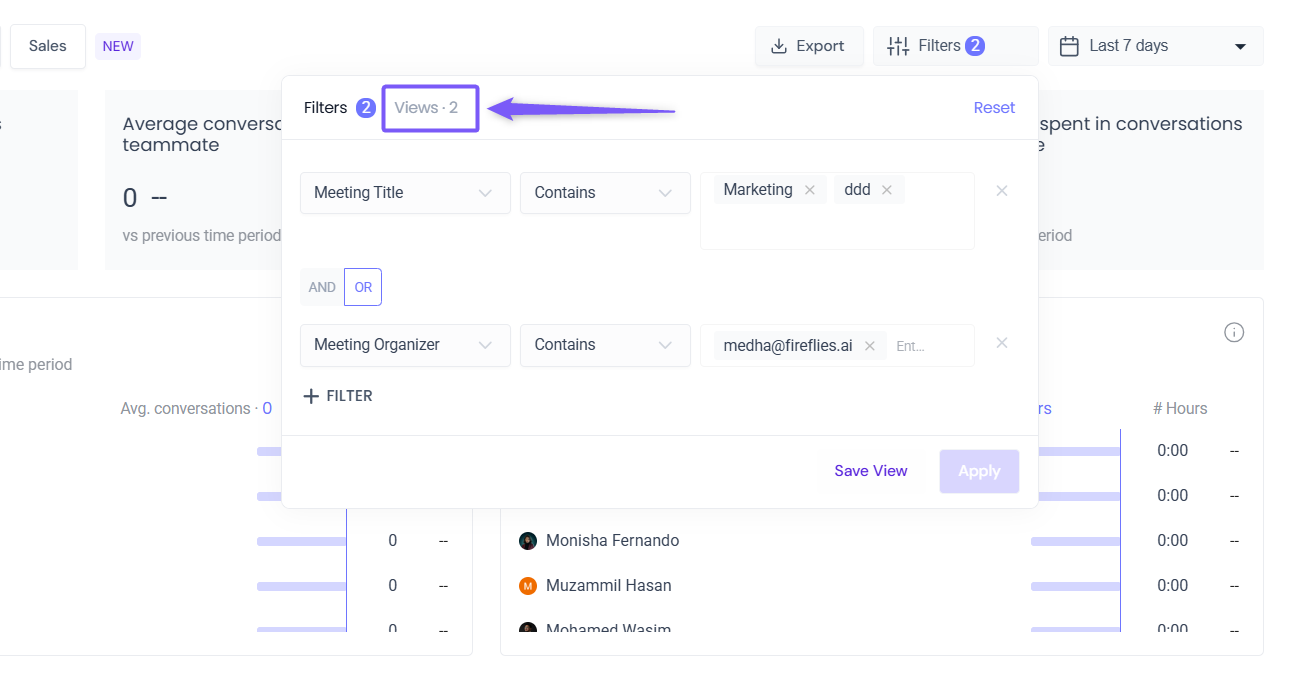
Click Views.
Select the View you want to apply and click Apply.