How to Re-transcribe a Meeting in a Different Language
Last updated: June 22, 2026
Need your meeting transcript or summary in a different language? Fireflies makes it easy. By updating the meeting language, you can re-transcribe an already processed meeting and generate a new transcript and summary in the selected language.
This is useful if the meeting was transcribed in the wrong language or if you need the transcript and summary in another supported language.
📌 Before You Start
Before re-transcribing a meeting, ensure that:
The meeting has already been processed and a transcript is available.
You are the host or owner of the meeting.
The meeting has not already reached the maximum limit of 3 re-transcriptions.
📝 Steps to Follow
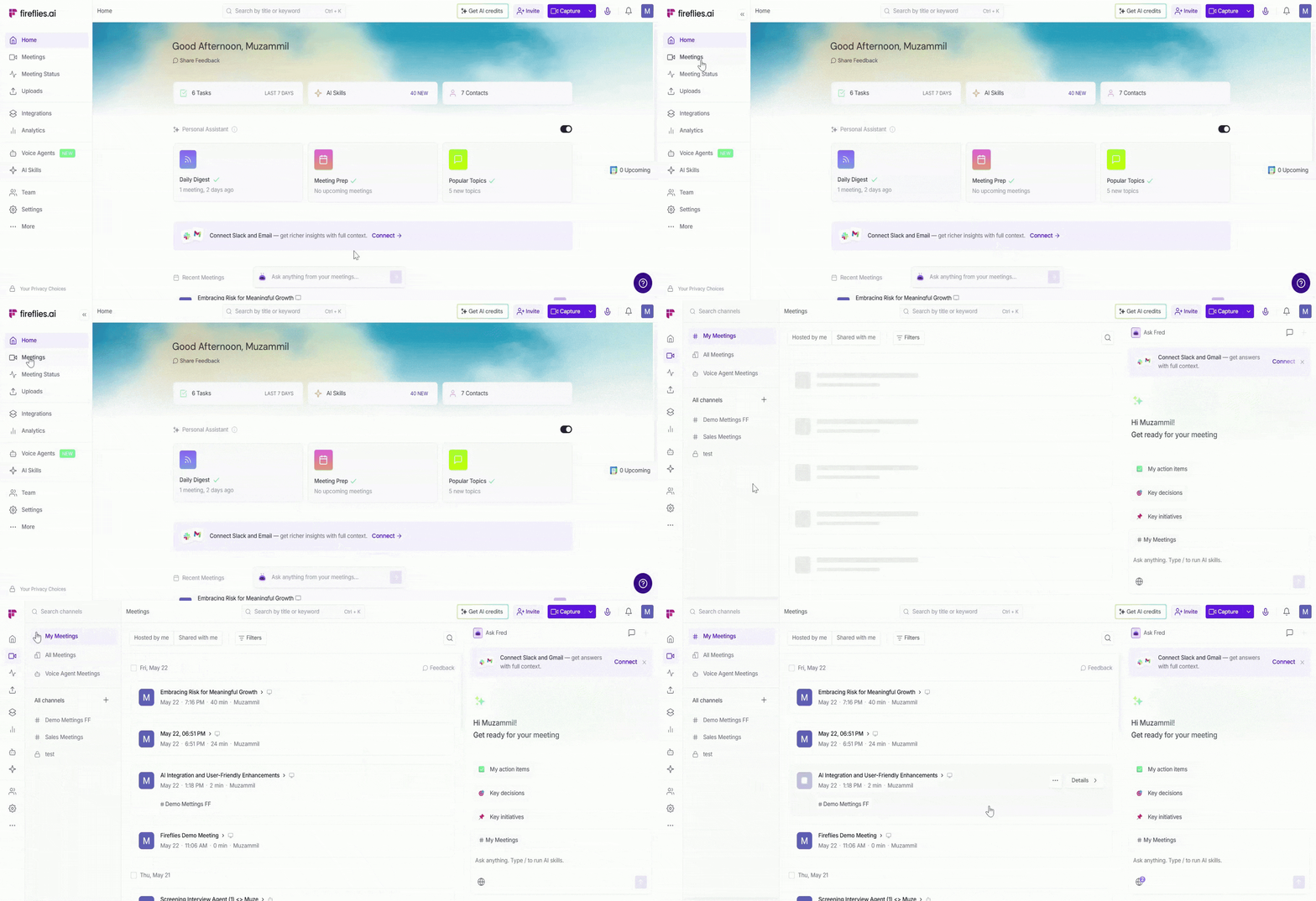
Step 1: Log in to your Fireflies account and click on the Meetings tab from the left-hand menu.
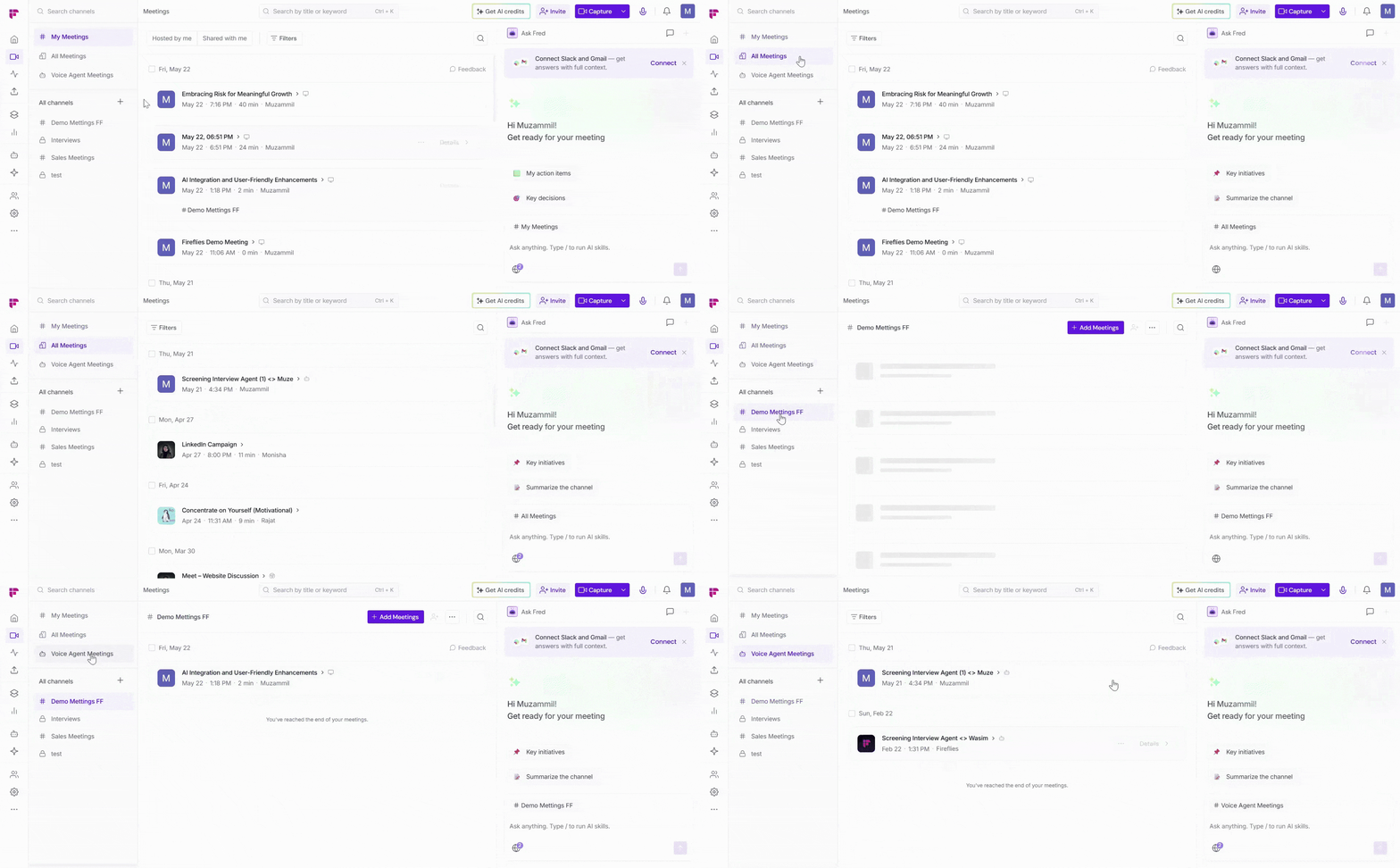
Step 2: Locate the meeting you want to re-transcribe by entering keywords in the search bar or using the available filters, such as My Meetings, All Meetings, or Channels.
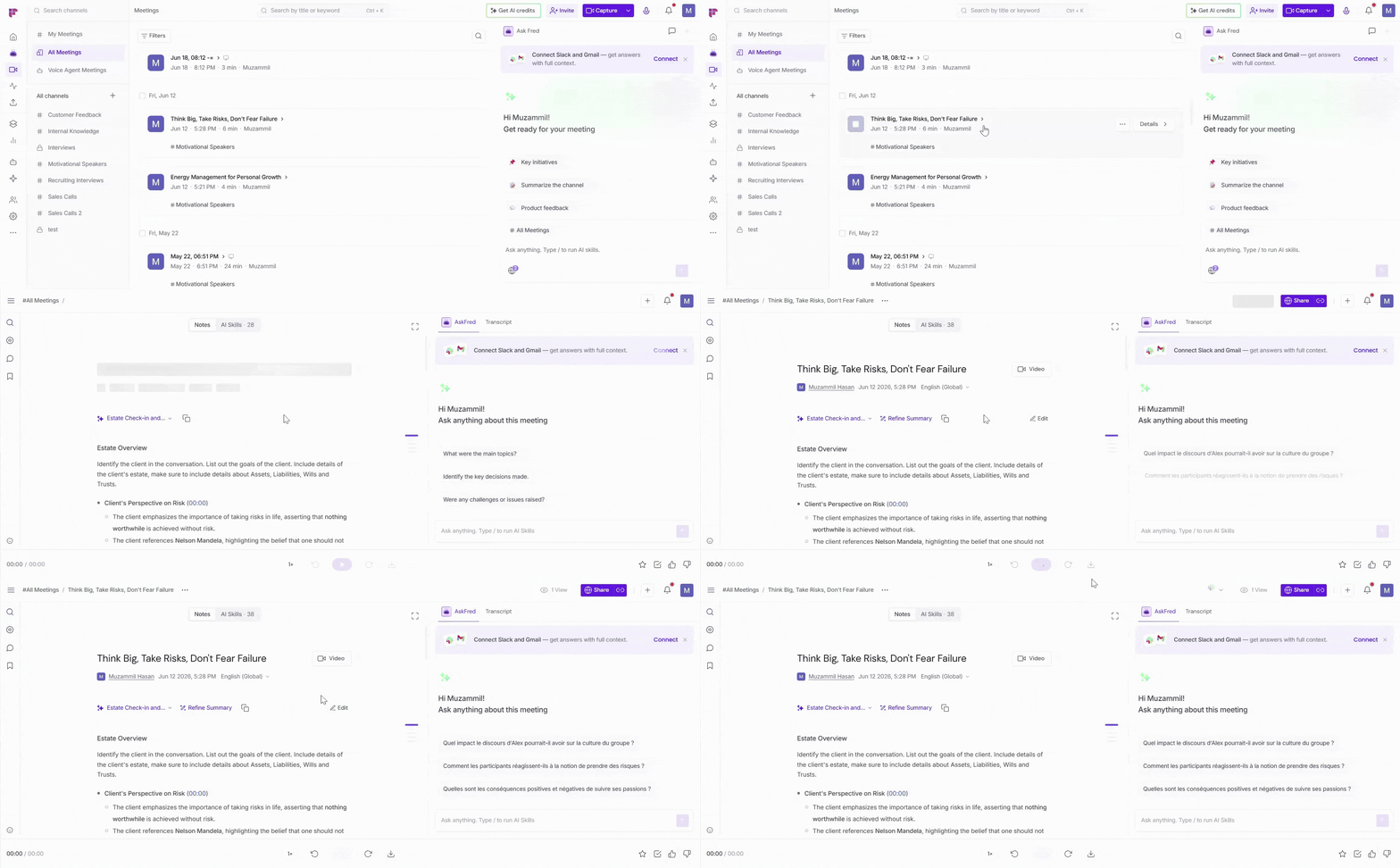
Step 3: Open the meeting that you want to reprocess in a different language.
Step 4: Update the meeting language using one of the following methods:
Click the ellipsis (...) menu next to the meeting title and select Update Language.
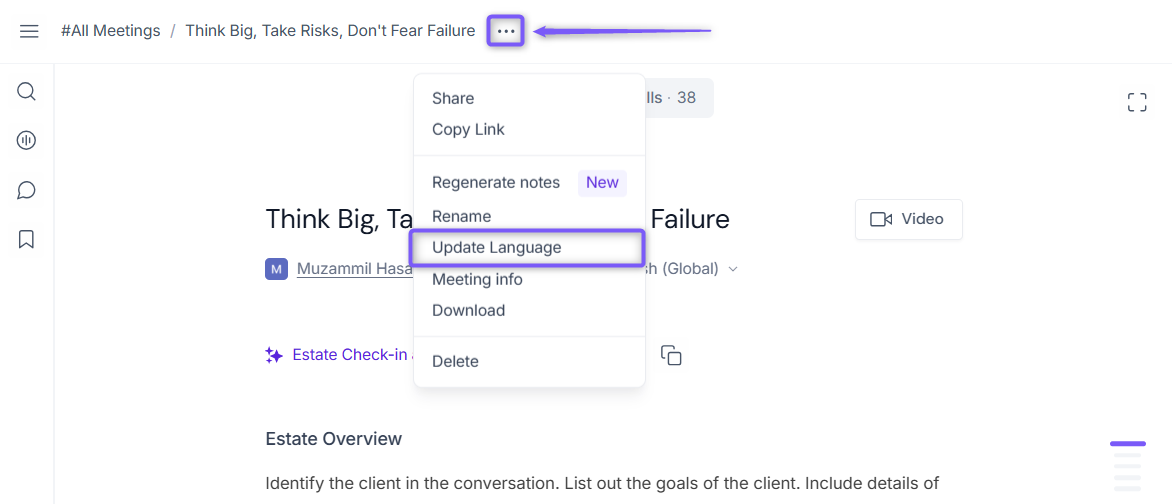
Alternatively, locate the meeting language currently selected, shown below the meeting title (e.g., English (Global)), and click the language dropdown.
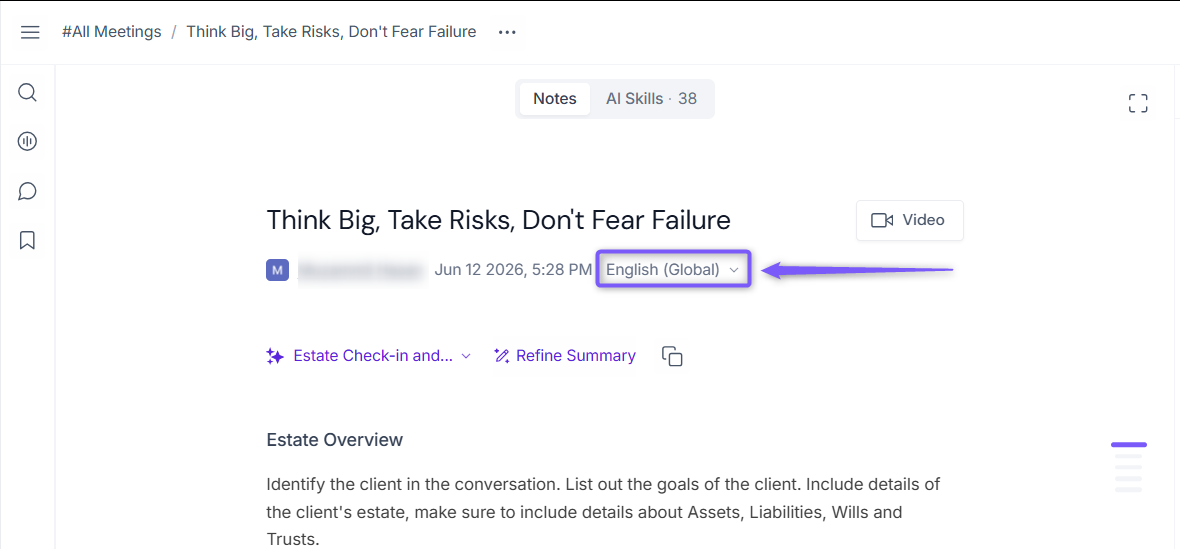
If you do not see the Update Language option, verify that the meeting meets the requirements above.
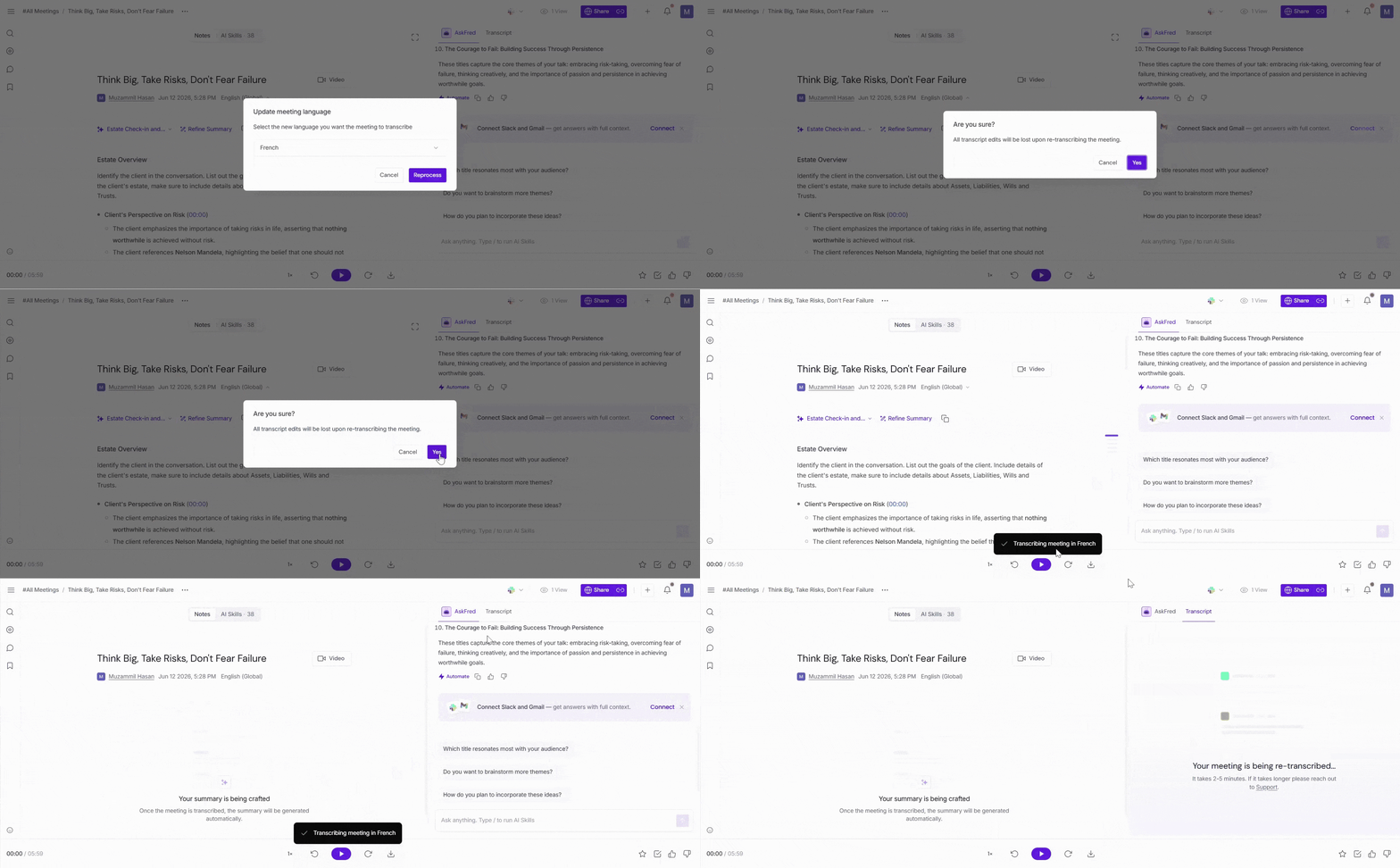
Step 5: A dialog box appears, asking you to select the new language in which you want the meeting to be re-transcribed.
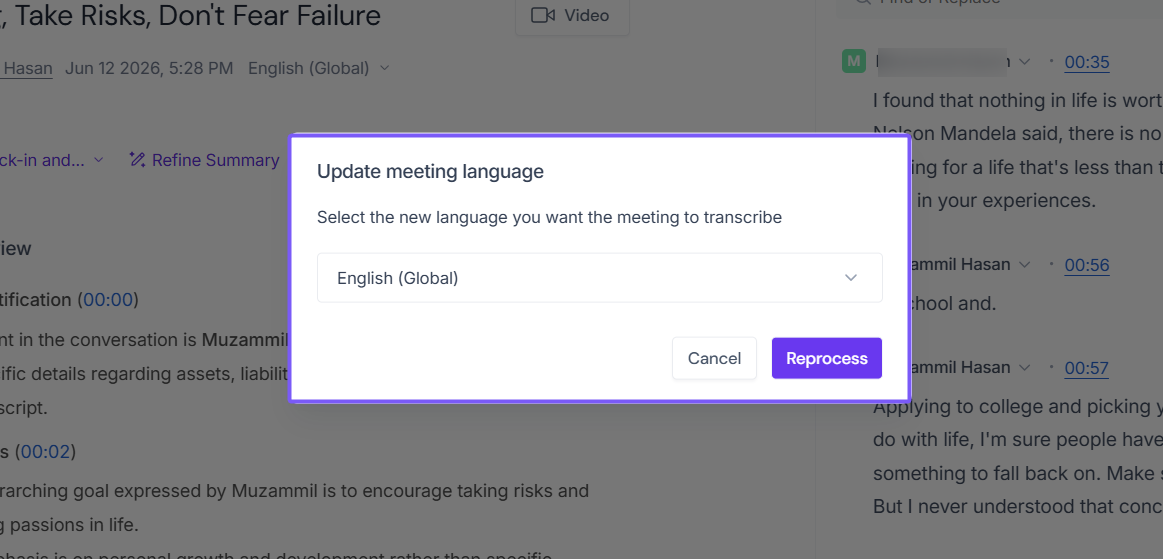
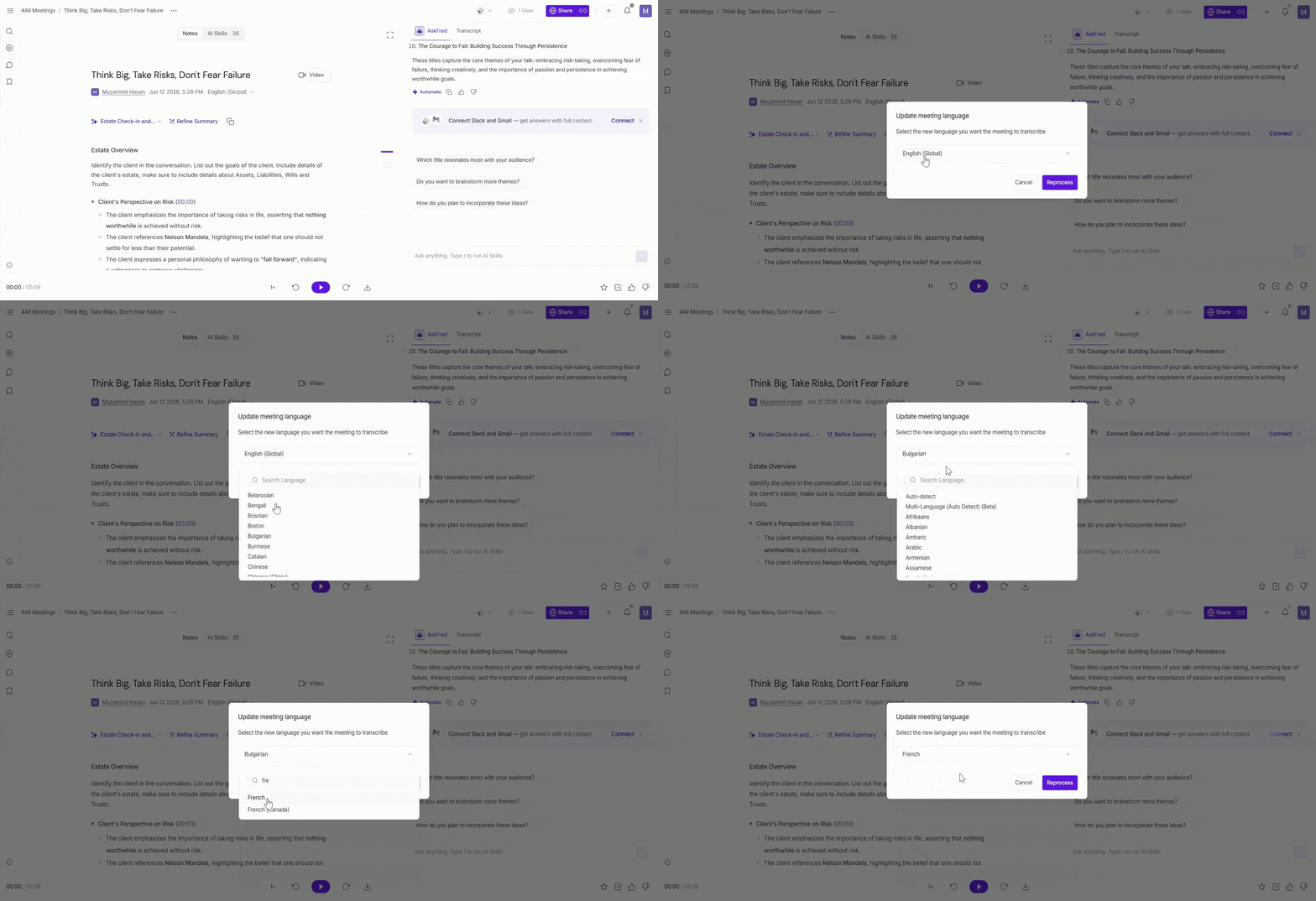
Step 6: Click the language dropdown and select the language you want to re-transcribe the meeting in (for example, French).
You can also use the search bar to quickly find a specific language.
📌 Want to know which languages Fireflies supports? Check out Learn About Fireflies Supported Languages.
Step 6: Click Reprocess.
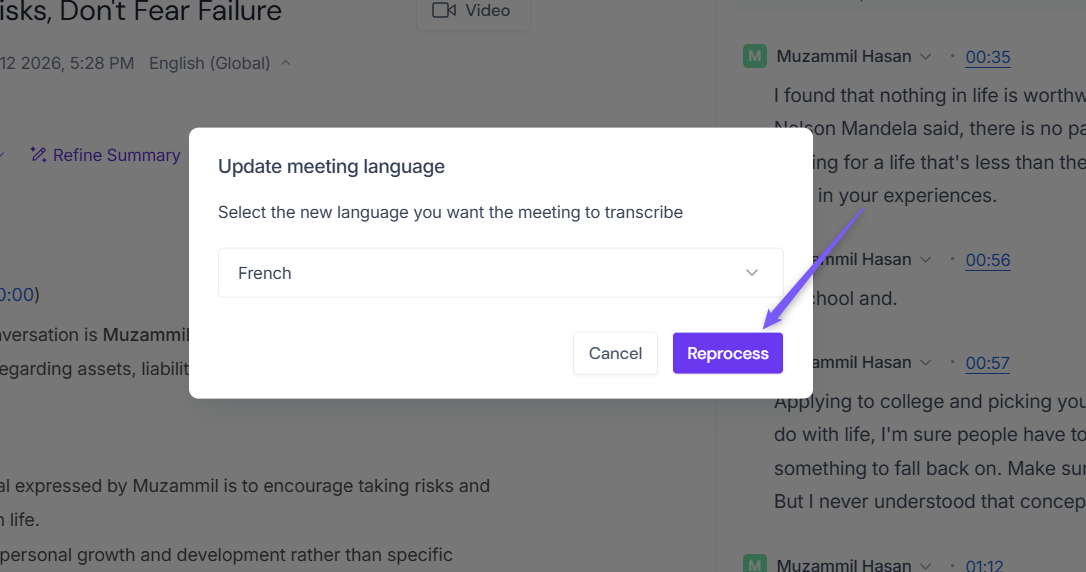
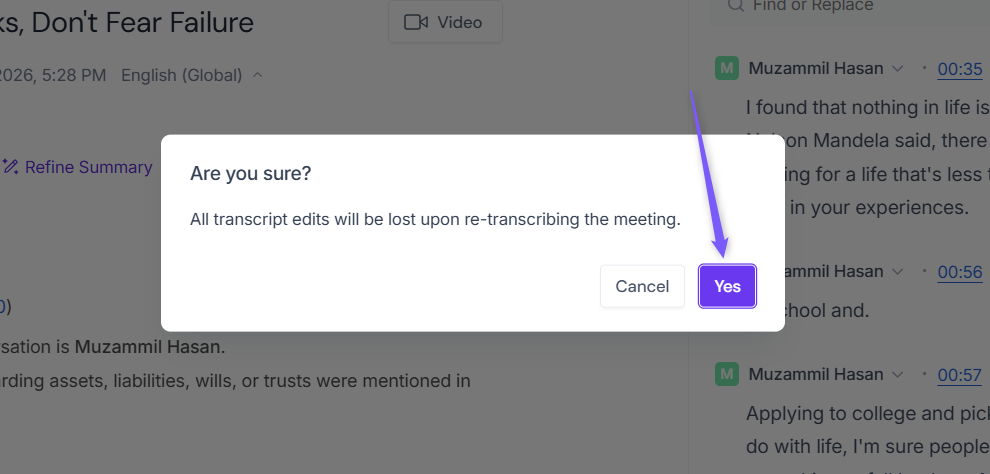
Re-transcribing a meeting replaces the existing transcript. Any manual edits you've made to the transcript will be lost.
Step 7: Click Yes to confirm the re-transcribing request.
Step 8: Fireflies re-processes the meeting and generates a new transcript and summary in the selected language. This may take a few minutes to complete.
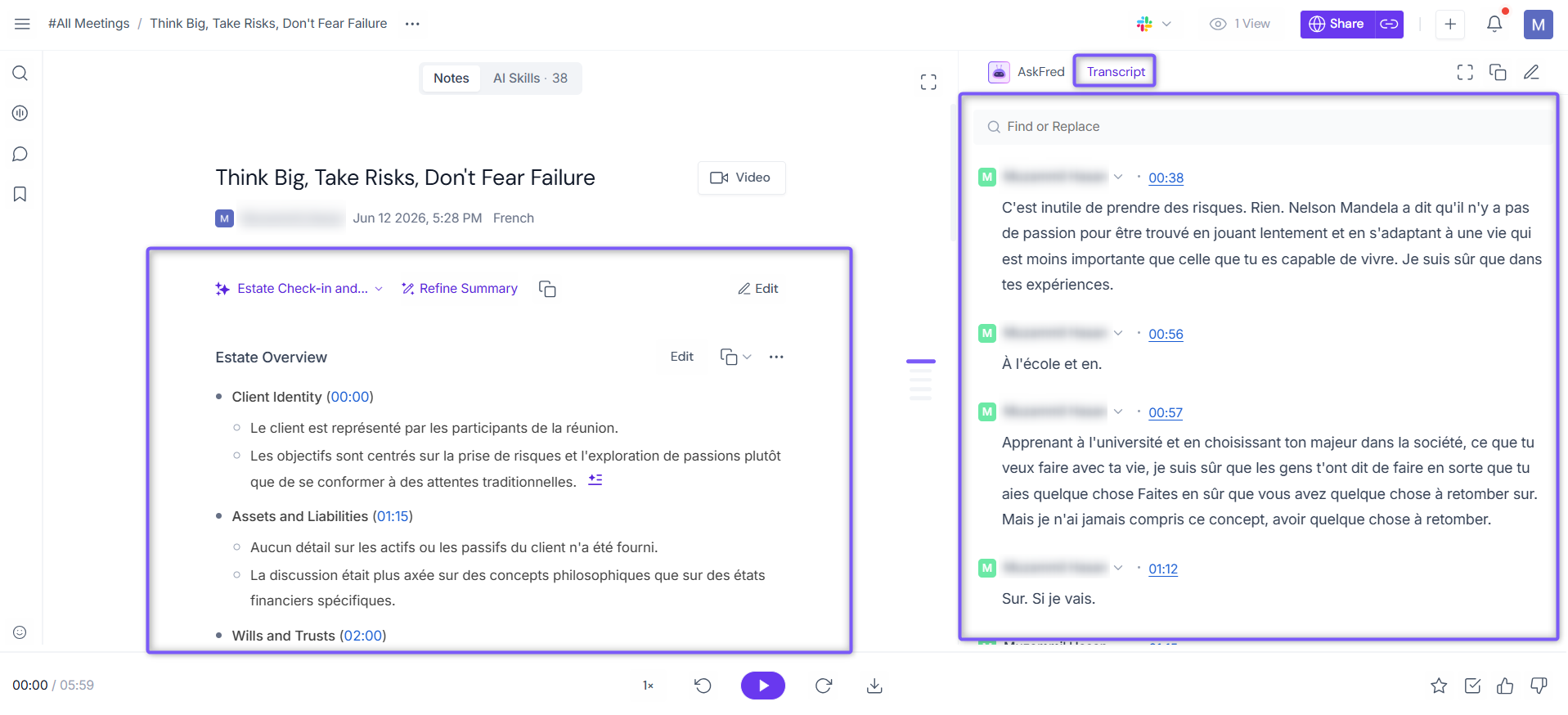
Step 9: Once reprocessing is complete, refresh the page to view the updated transcript and summary in the selected language.
For example, if French is selected as the new meeting language, Fireflies will reprocess the meeting and generate both the transcript and summary in French.
⚠ Important Notes
A meeting can be re-transcribed a maximum of 3 times.
After the third re-transcription, the most recently processed version becomes the final version and the meeting language can no longer be updated.
Re-transcribing a meeting replaces the existing transcript. Any manual edits made to the transcript will be lost.
❓ Frequently Asked Questions
1. Can I update the language of a meeting more than once?
Yes. A meeting can be re-transcribed up to 3 times. After the third re-transcription, the most recently processed version becomes the final version and the meeting language can no longer be updated.
2. Can I re-transcribe only a specific section of a meeting?
No. Re-transcribing a meeting processes the entire meeting transcript. Individual sections cannot be re-transcribed separately.
3. Can I re-transcribe a meeting shared with me by another user?
No. You can only re-transcribe meetings that you own or host.
4. The transcript was updated, but the summary is still not in the selected language. What should I do?
In some cases, the meeting transcript may be successfully re-transcribed while the summary remains unchanged.
To resolve this:
Try Re-generate the summary.
Apply a different summary template.
Follow the troubleshooting steps in Troubleshooting Transcription Language Issues.
5. Will my transcript edits be preserved after re-transcribing?
No. Re-transcribing replaces the existing transcript, and any manual transcript edits will be lost.
6. How do I know which languages are supported?
Refer to Learn About Fireflies Supported Languages for the complete list of supported transcription languages.
7. Can I regenerate or customize the meeting summary after re-transcribing a meeting?
Yes. After re-transcription is complete, you can regenerate the summary or apply a different summary template based on your requirements.
📌 Related: Fireflies AI Meeting Summaries: View, Customize, Expand, and Regenerate