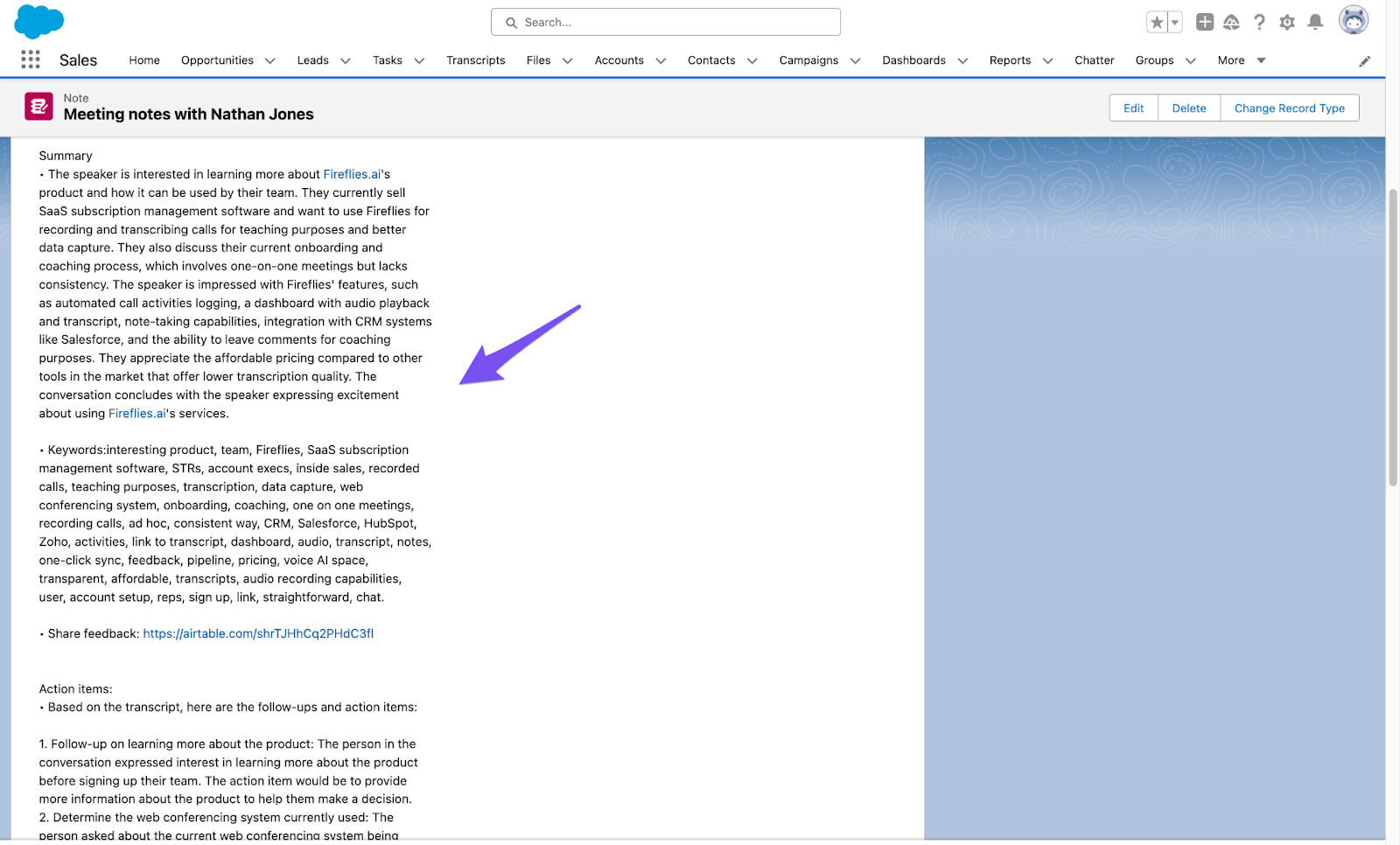
How to save notes under a Salesforce Lead
Last updated: March 17, 2026
This article covers steps to log meeting notes under Salesforce Lead.
Pre requisite
Ensure you've completed the Salesforce-Fireflies integration steps before proceeding further.
Related: How to set up Salesforce and Fireflies integration
Save notes under a Salesforce Lead
Log notes under existing Contacts/Leads only
By default, this setting is OFF, which means Fireflies will log meeting notes even if no matching Contact or Lead exists (and may create a new record based on other settings).
When enabled, Fireflies will only log notes if a matching existing Contact or Lead is found—otherwise, the notes won’t be logged.
Create Leads instead of Contacts
Enabled it, Fireflies will create a Lead instead of contact, helping you manage new prospects separately from existing contacts.
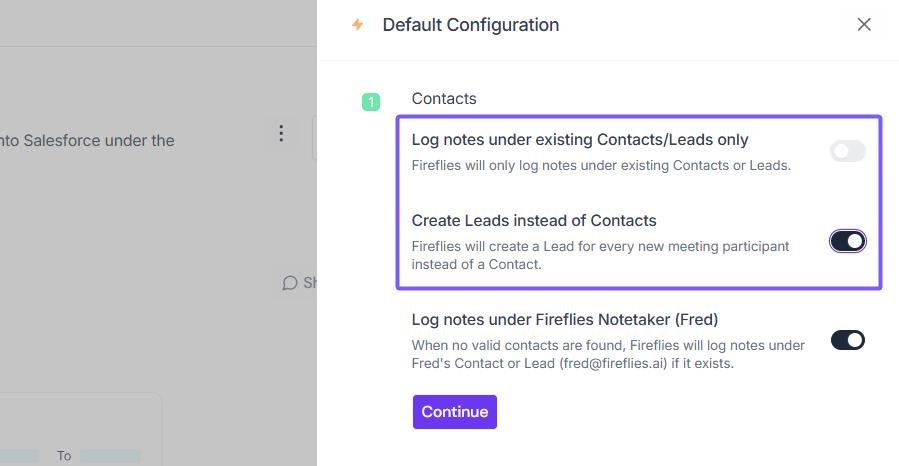
By enabling this toggle, whenever a new participant joins your meeting, Fireflies will create a Lead within the Salesforce Lead page.
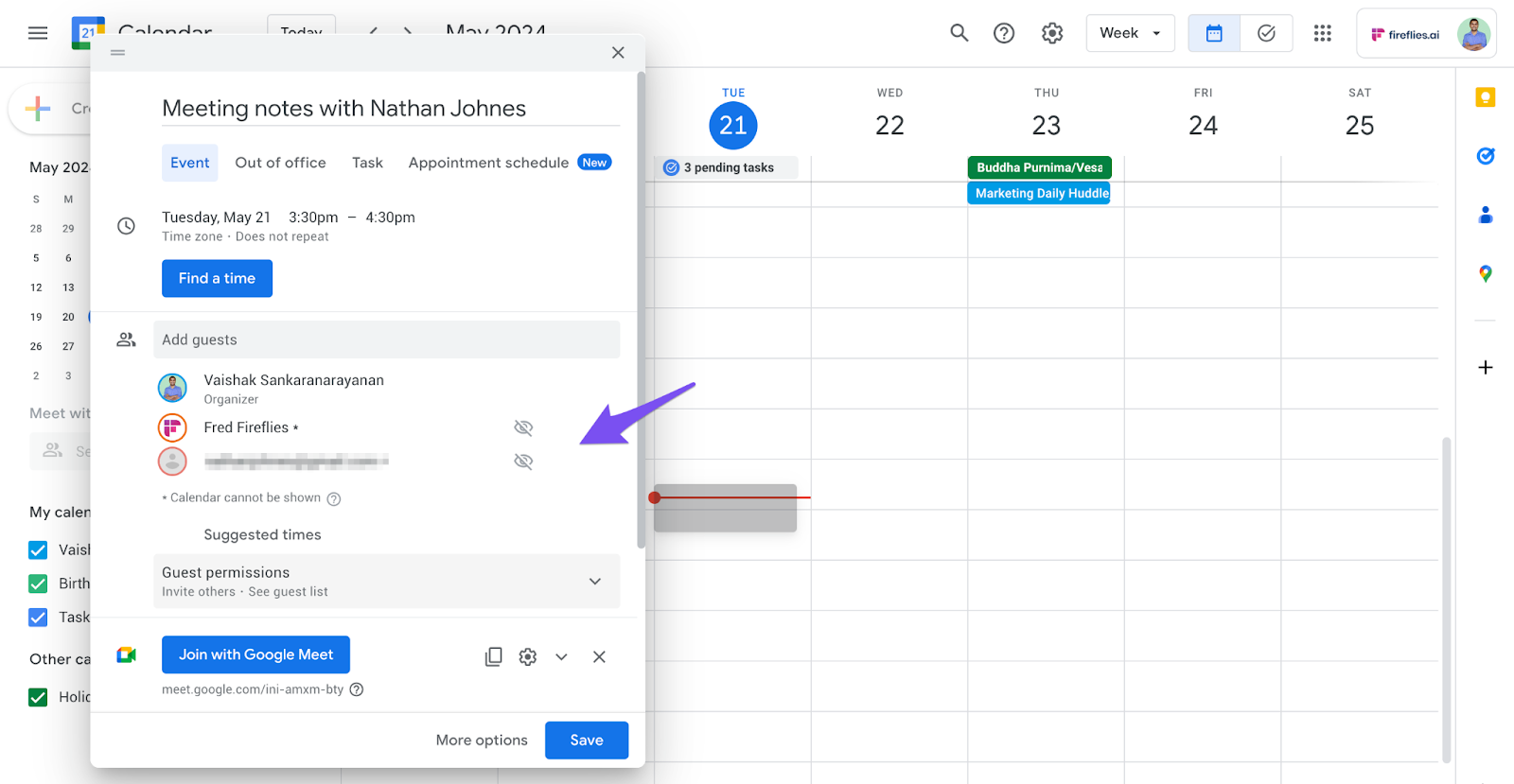
Schedule a meeting with a new lead and add the Fireflies bot to the invite.
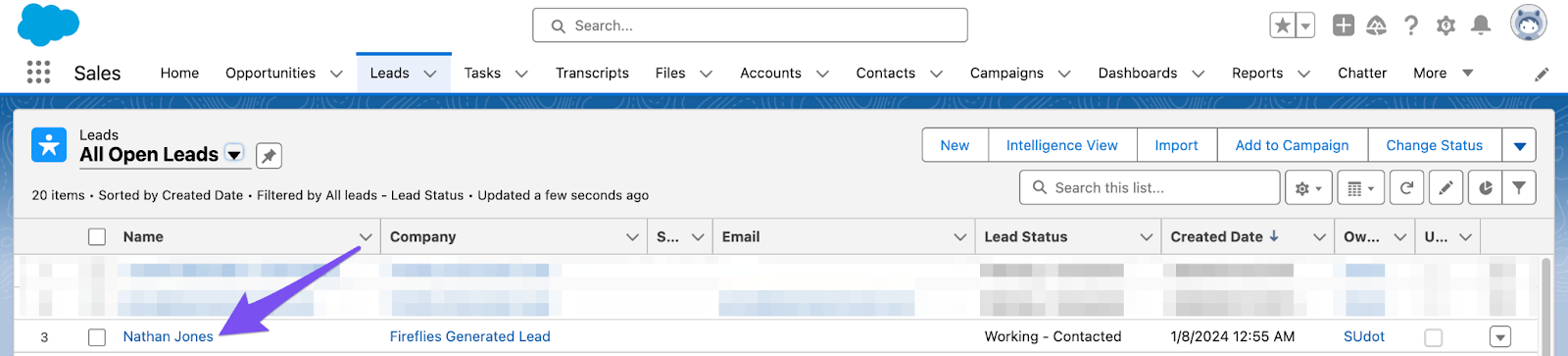
After the meeting, go to Salesforce. Click on Lead > All Open Leads.
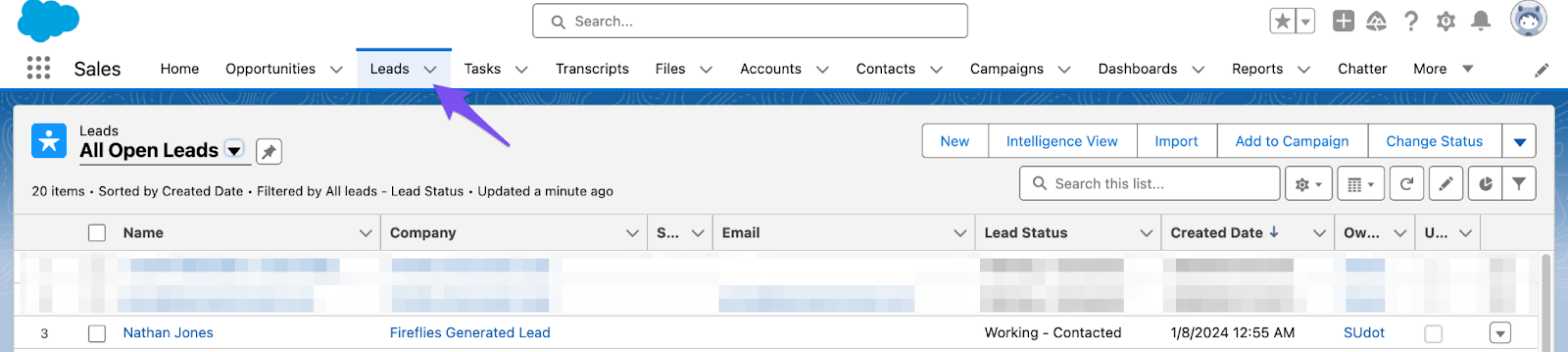
Click on the Lead.
From the Notes & Attachments section, click Meeting notes.
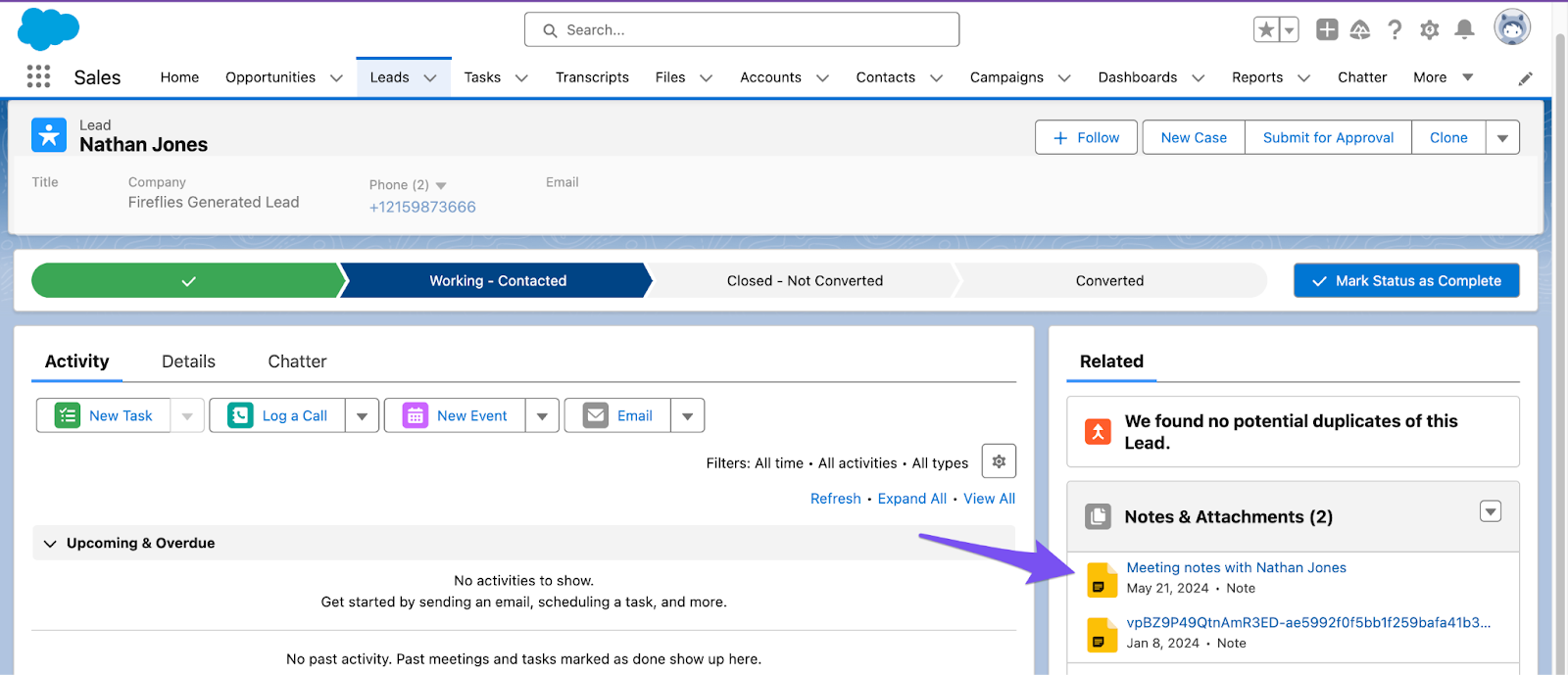
You will find the Summary, Outline, Notes, and Action items logged under the Lead.