How to save meeting notes under Salesforce Opportunities
Last updated: March 17, 2026
This article covers steps to log meeting notes under Salesforce Opportunities.
Pre requisite
Ensure you've completed the Salesforce-Fireflies integration steps before proceeding further.
Related: How to set up Salesforce and Fireflies integration
Save notes under Salesforce Opportunities
In the Fireflies Salesforce integration settings, enable the Attach notes to Opportunity in Salesforce and click Save Settings.
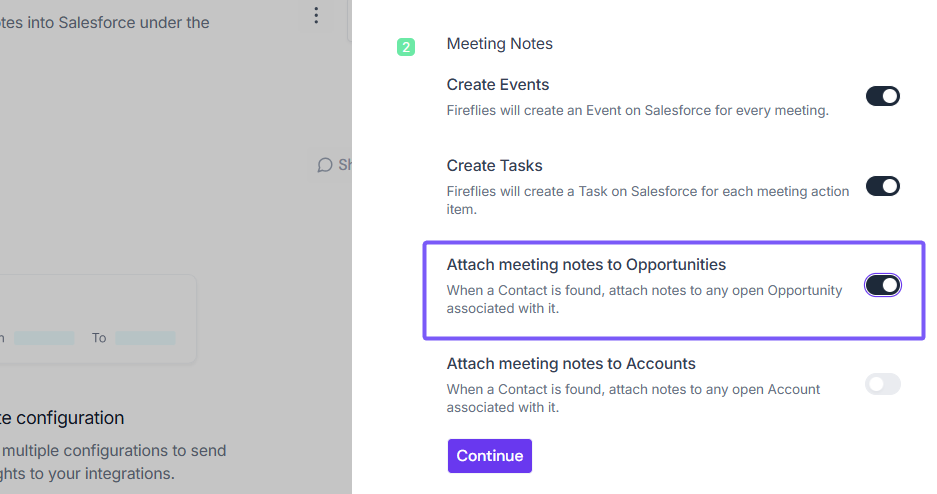
By enabling this toggle, whenever a new participant joins your meeting, Fireflies will create a Lead within the Salesforce Lead page.
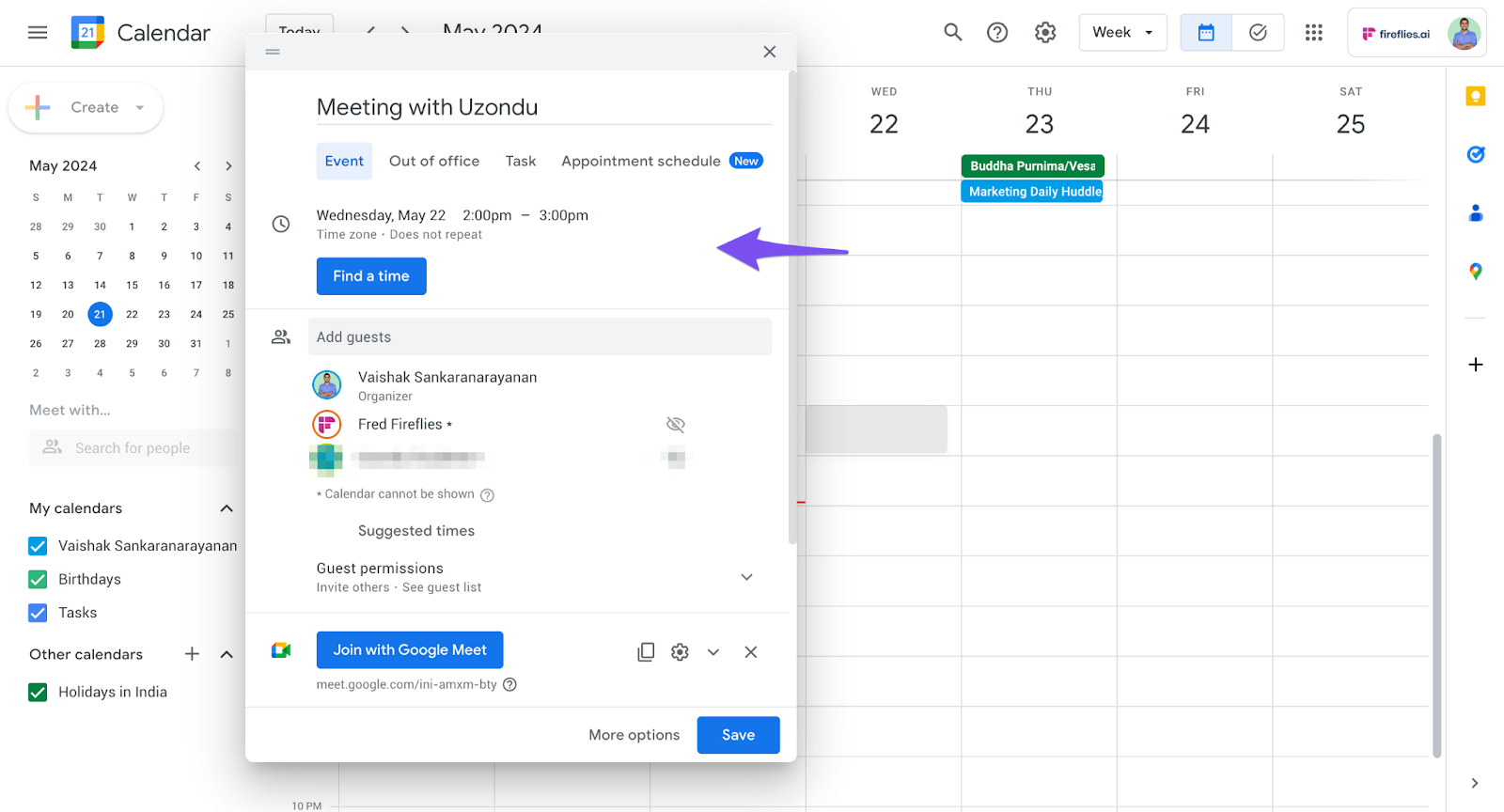
Schedule a meeting with an Opportunity and ensure Fireflies is present in the meeting.
After the meeting, go to Salesforce. Click Opportunity > All Opportunities and then Opportunity.
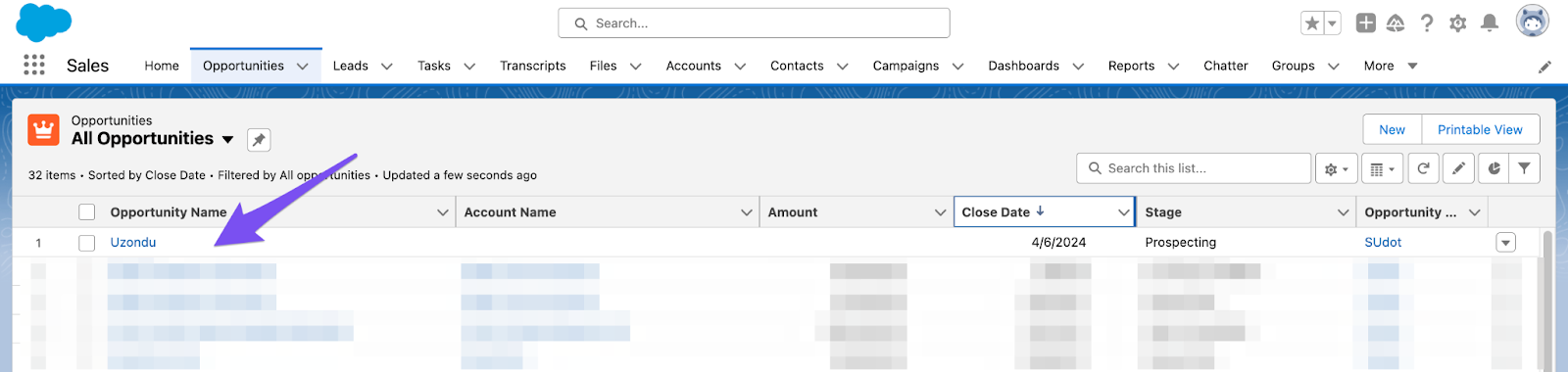
From the Notes & Attachments section, click Meeting notes.
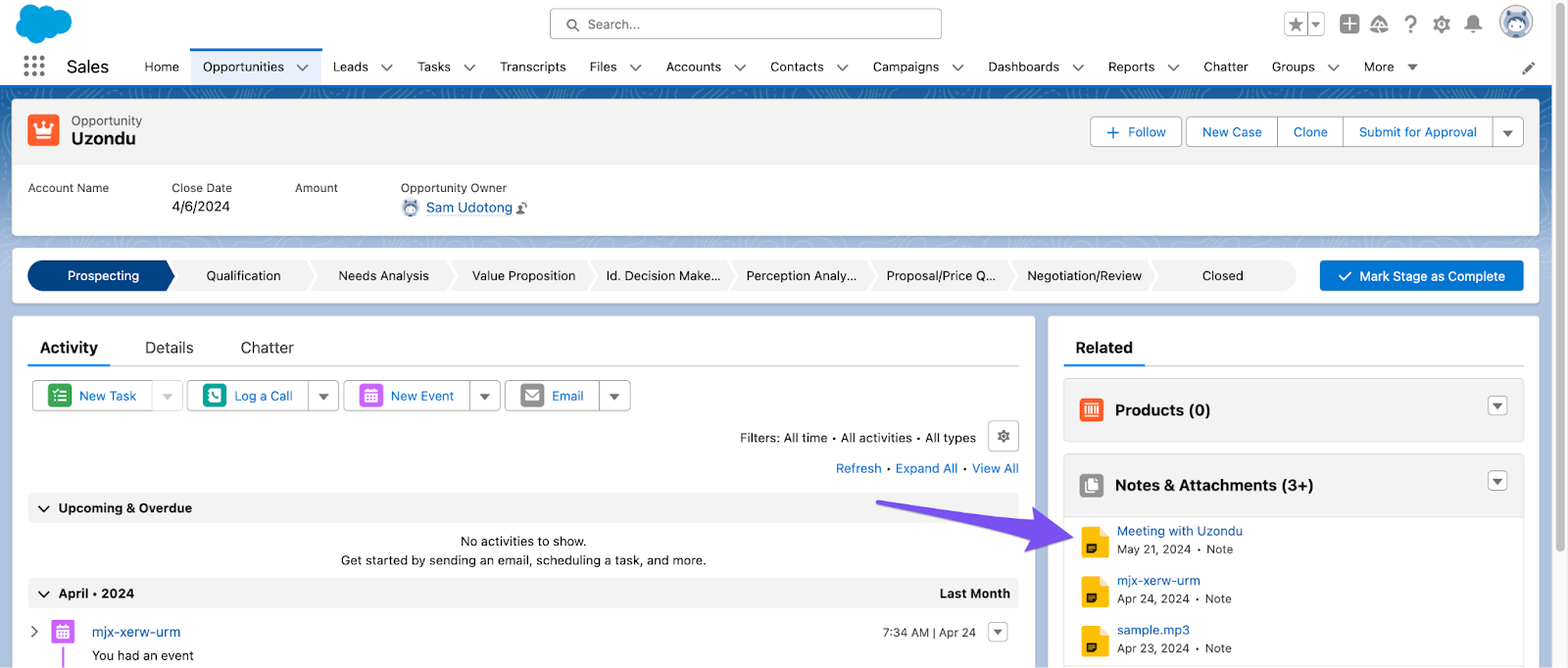
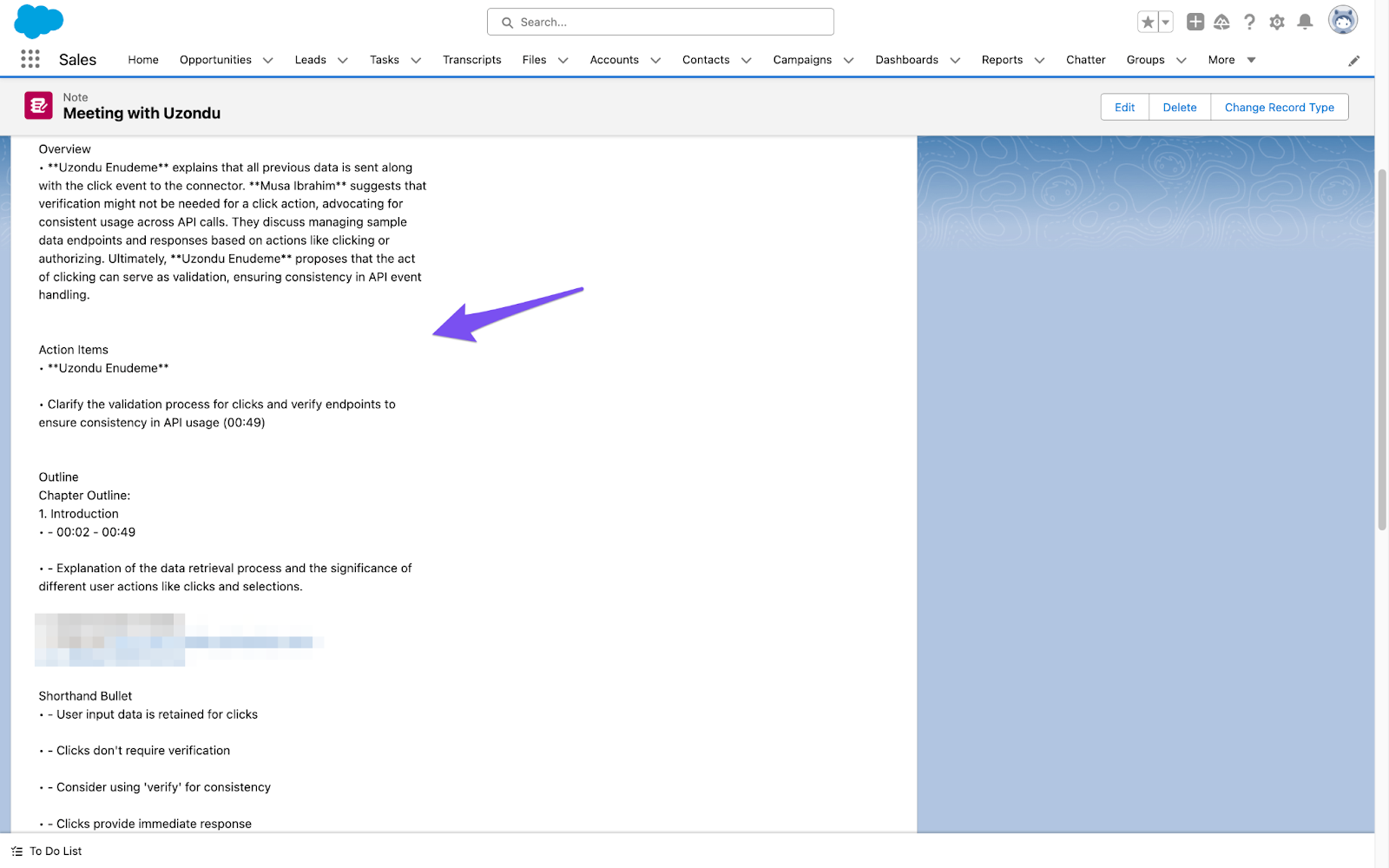
You will find the Summary, Outline, Notes, and Action items logged under the Opportunity.