How to Integrate Zoom Phone with Fireflies
Last updated: July 6, 2026
Keep your Zoom Phone conversations organized without manual uploads. With the Zoom Phone + Fireflies integration, recorded calls are automatically imported into Fireflies, where they're transcribed, summarized, and saved as searchable meeting notes.
Let's get started 🚀
🔍 What Does the Zoom Phone Integration Do?
Once connected, Fireflies automatically imports your recorded Zoom Phone calls and converts them into searchable meeting insights.
Automatically import recorded Zoom Phone calls into Fireflies.
Generate transcripts, AI summaries, and meeting notes.
Access recordings, transcripts, and summaries from your Meetings tab.
Search and review past conversations anytime.
This helps you keep every recorded Zoom Phone conversation organized without manual effort.
🔑 Prerequisites
Before connecting Zoom Phone with Fireflies, make sure you have:
An active Fireflies account
An active Zoom account with Zoom Phone enabled
Call recording enabled in Zoom Phone, as Fireflies can only import recorded calls
Once these are ready, you can connect Zoom Phone to Fireflies.
🔗 Connect Zoom Phone to Fireflies
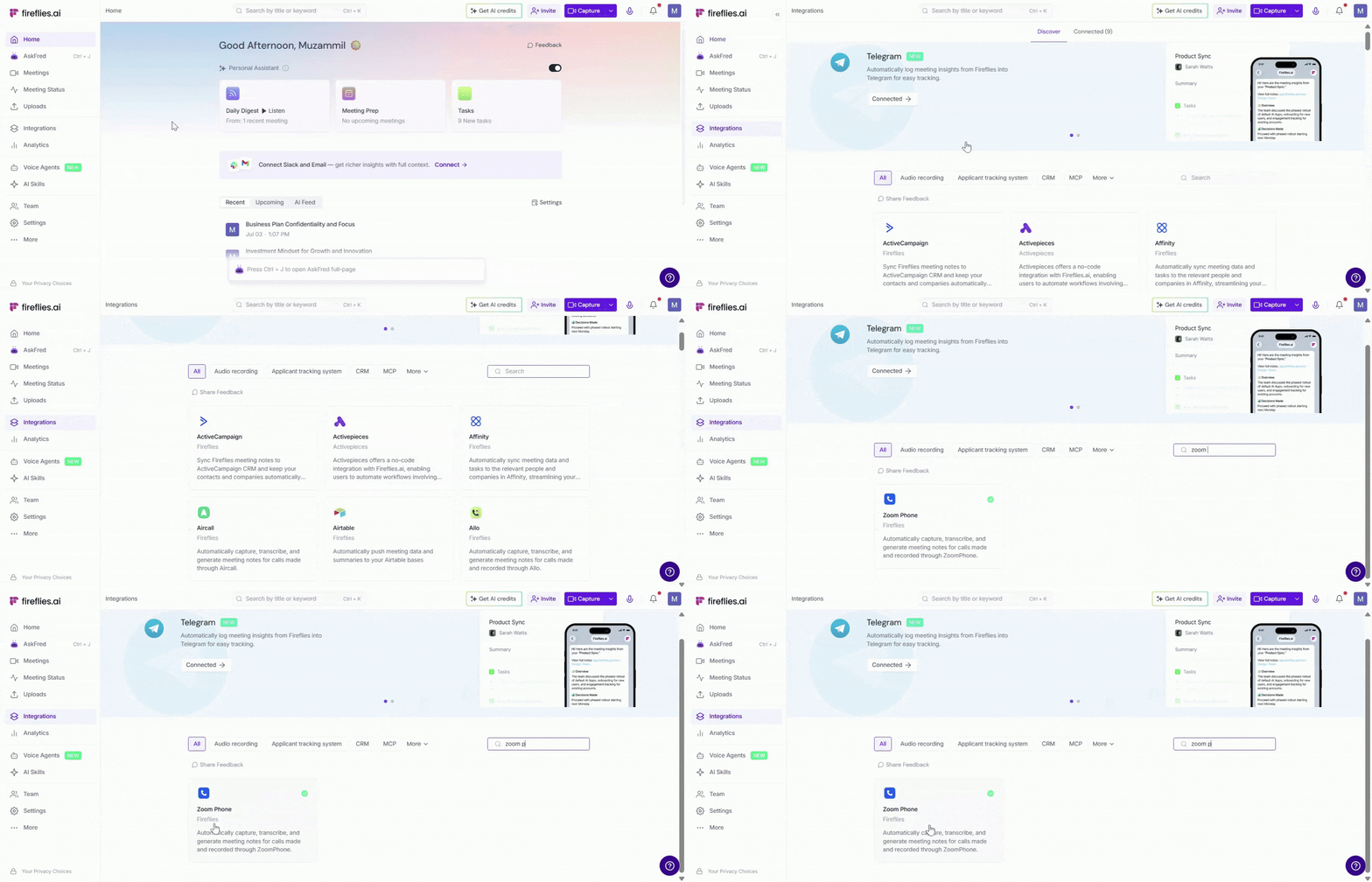
Step 1: Log in to your Fireflies account, navigate to the Integrations page, and search for Zoom Phone. Click on it to get started.
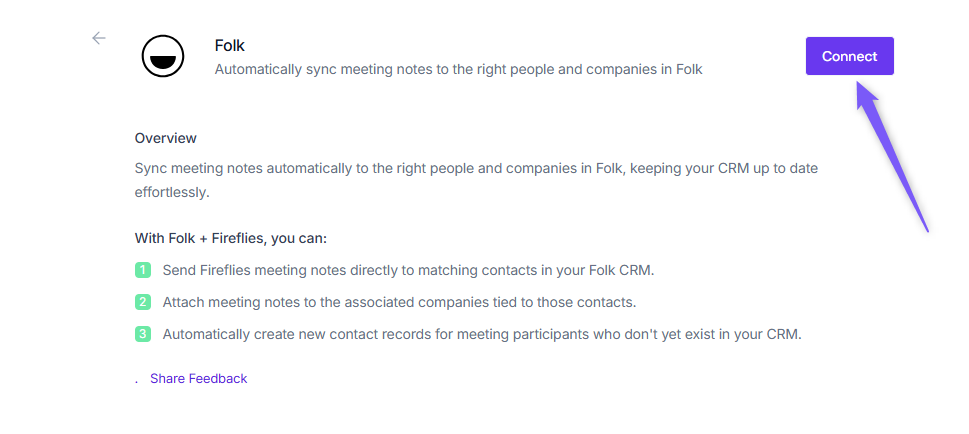
Step 2: Click Connect to start the setup.
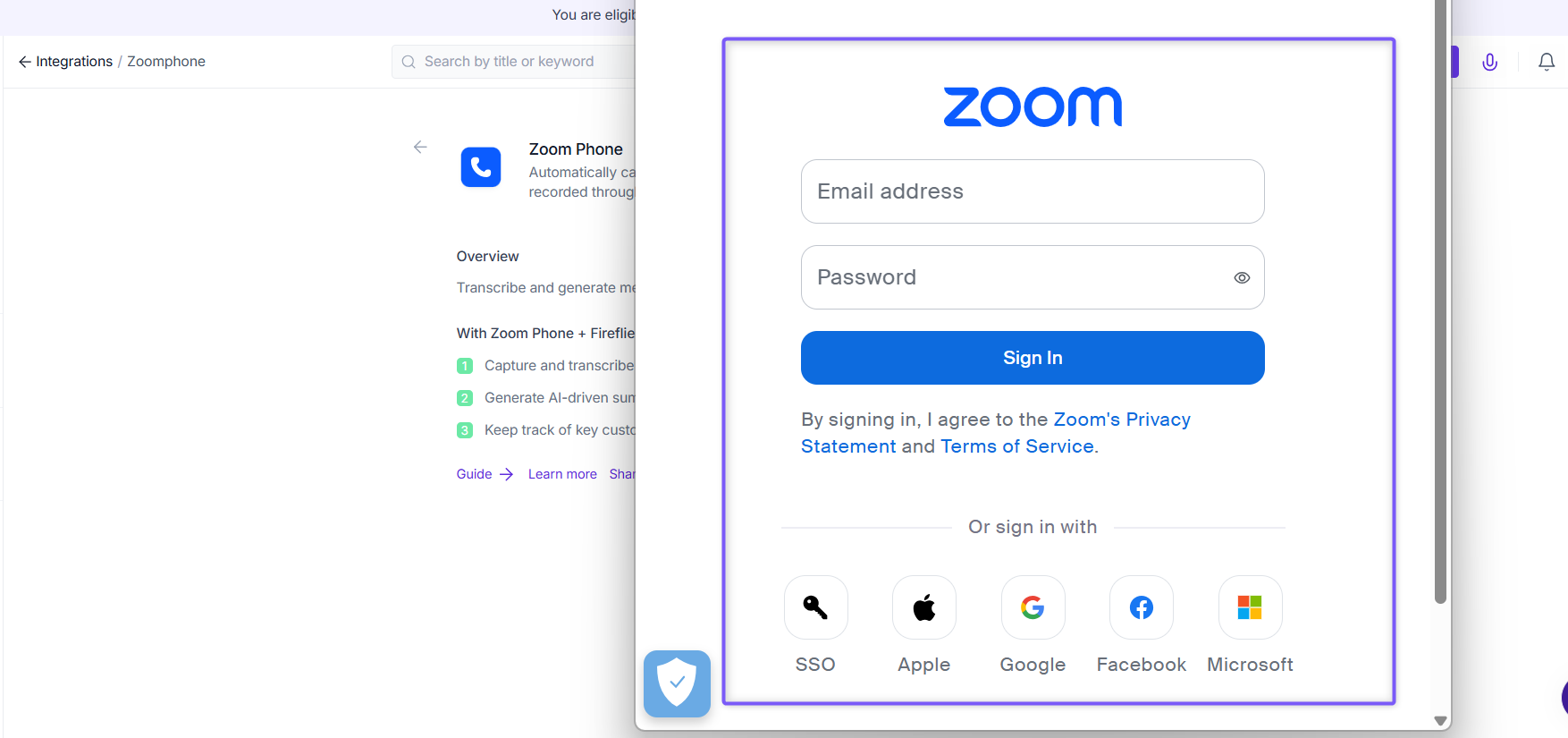
Step 3: Authenticate your Zoom Phone account using your preferred sign-in method. Once authenticated.
Step 4: You'll be redirected to Zoom, where you'll be asked to authorize the connection. Click Allow, and within seconds, Fireflies will securely connect to your Zoom workspace.
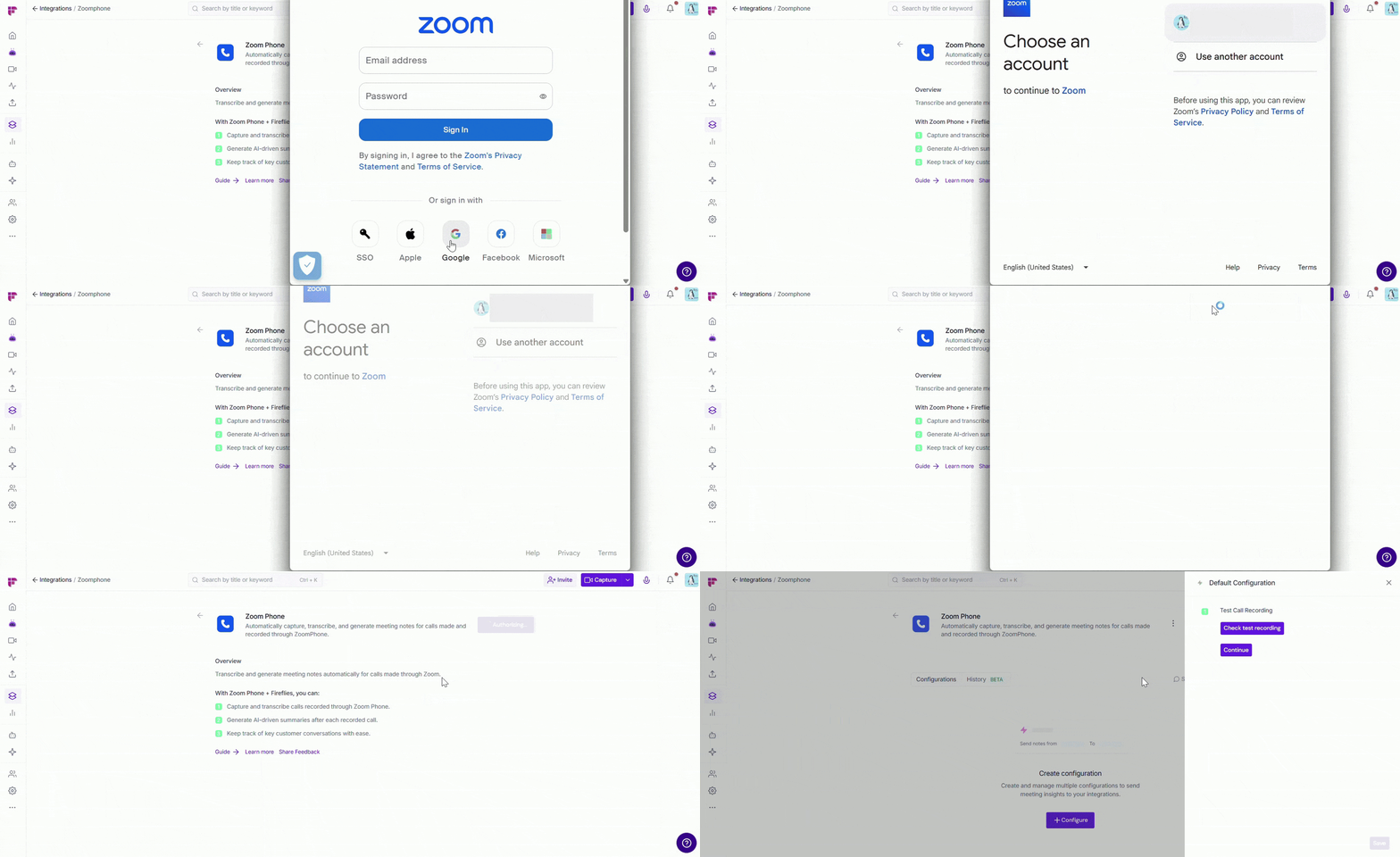
Step 5: Once approved, you’ll be redirected back to Fireflies to configure your integration setup.
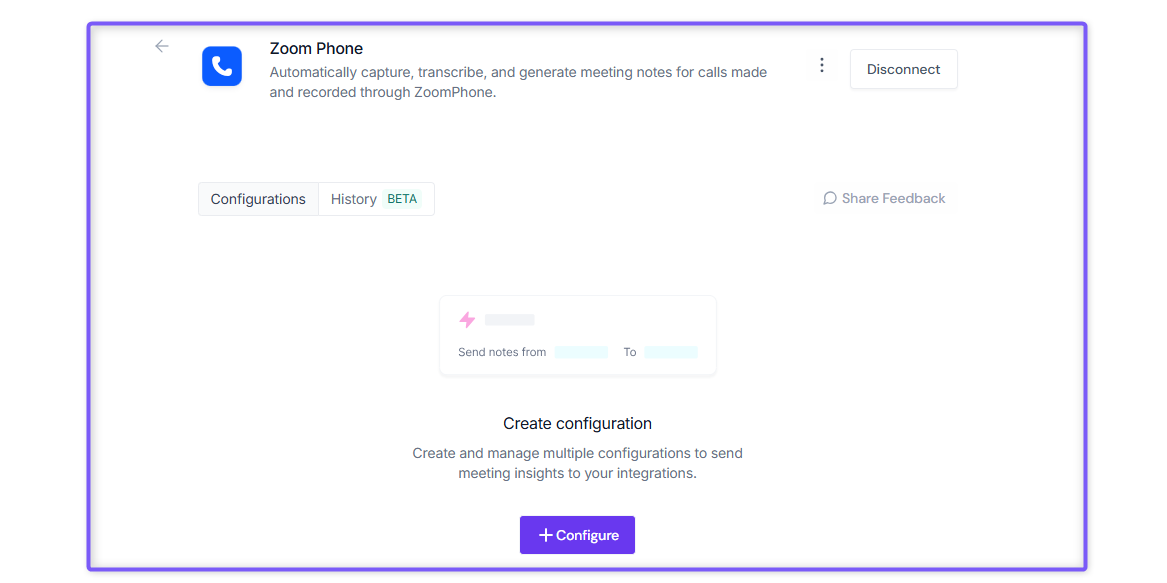
Important: Connecting your Zoom Phone account only authorizes the integration. To start importing your recorded Zoom Phone calls and automatically generate transcripts, summaries, and meeting notes, you'll need to create a default configuration. \
Follow the steps below to complete the setup.
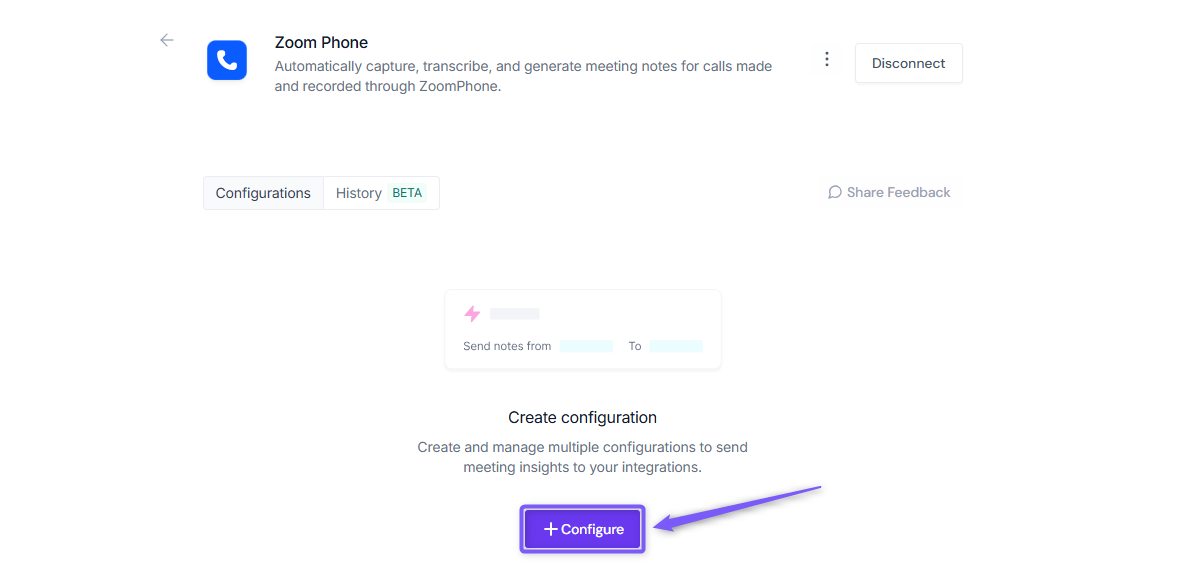
Step 6: Click Configure to create your default Zoom Phone configuration.
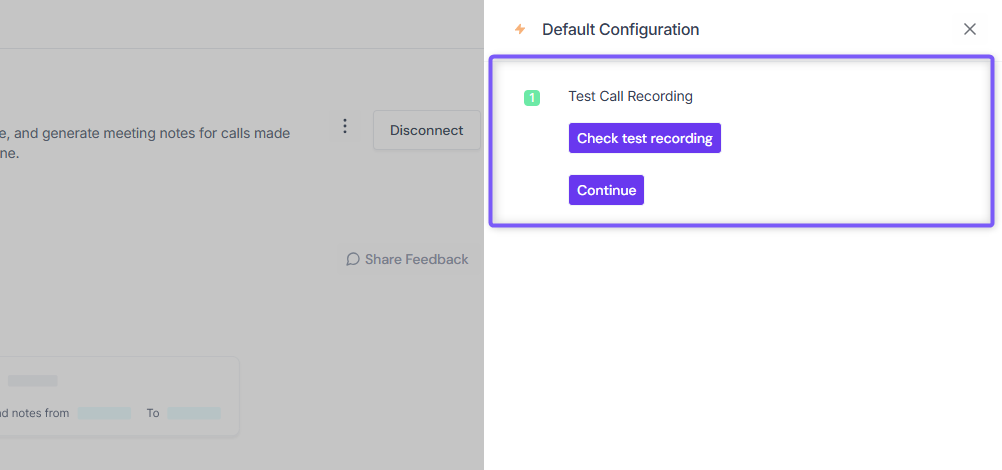
Step 7: Test the Connection
Before finishing setup, you can verify that the integration is working correctly.
Click Check test recording to verify that Fireflies can access your Zoom Phone recordings.
Once the test is successful, click Continue.
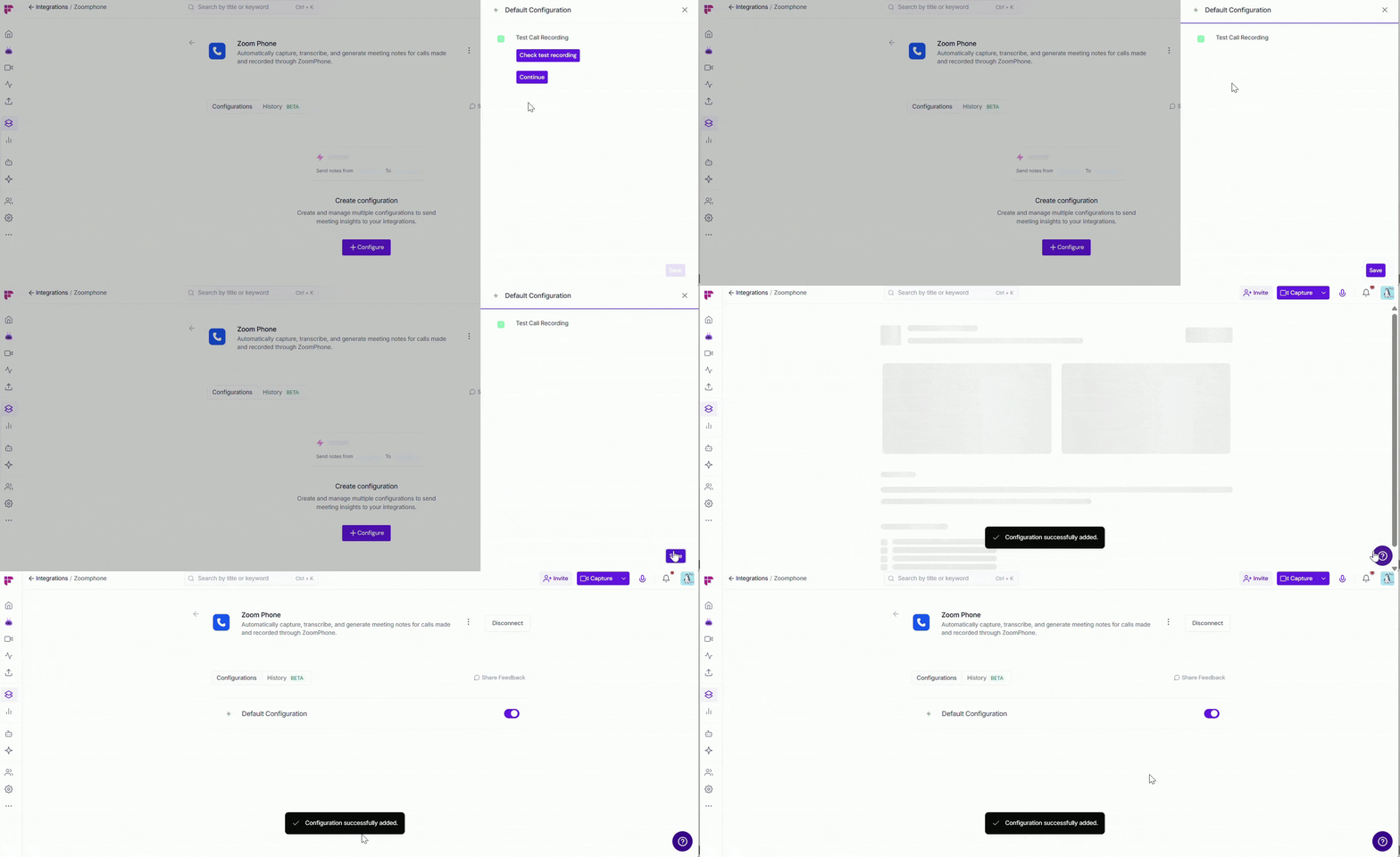
Step 8: Click Save to activate the integration — a flash message will confirm that your configuration has been successfully added.
✅ How the Zoom Phone Integration Works
Once the integration is set up, Fireflies automatically imports recorded Zoom Phone calls and processes them into meeting notes.
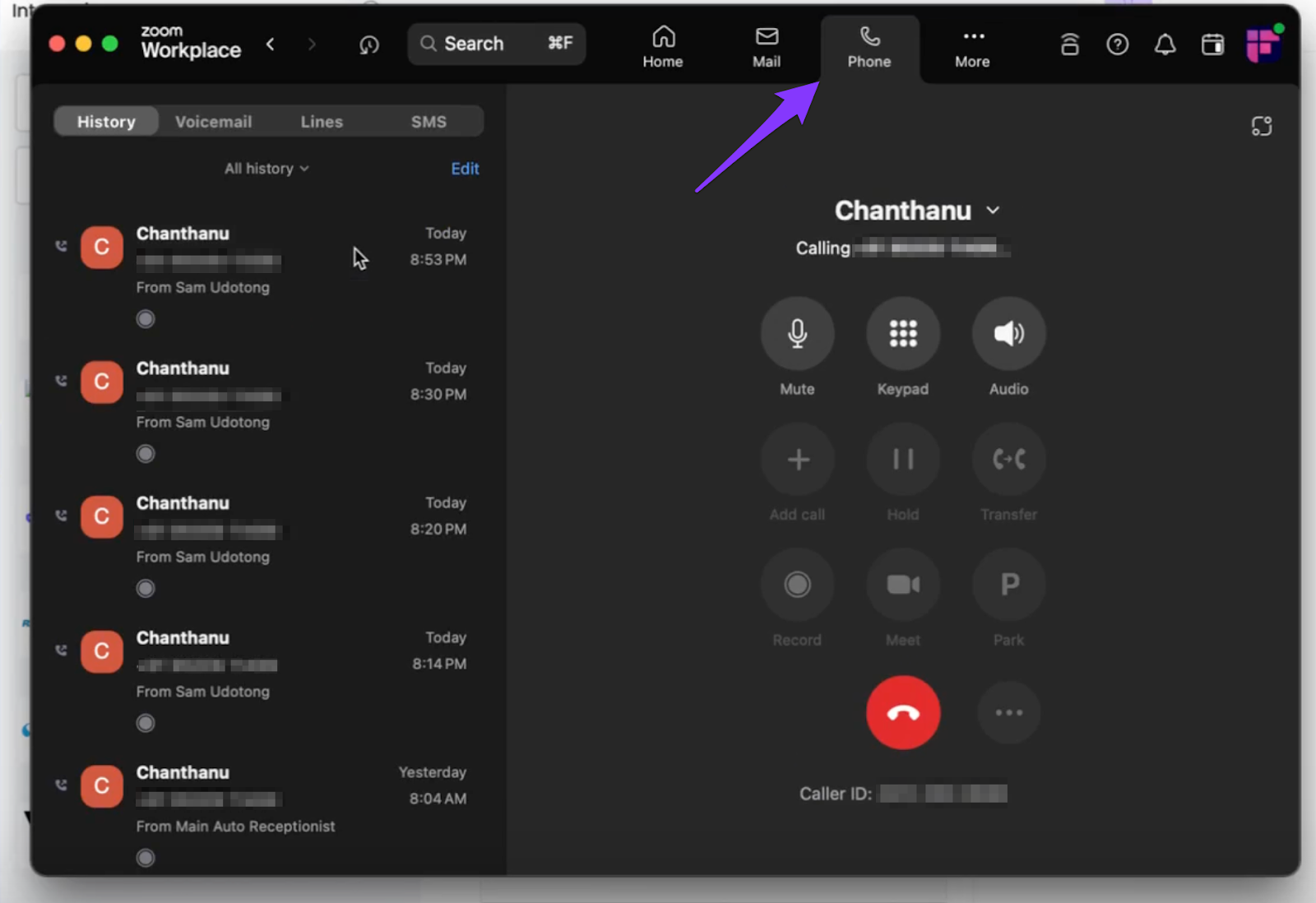
1. Open the Zoom Phone app and start a new call by selecting a contact or dialing a phone number. Once the call begins,
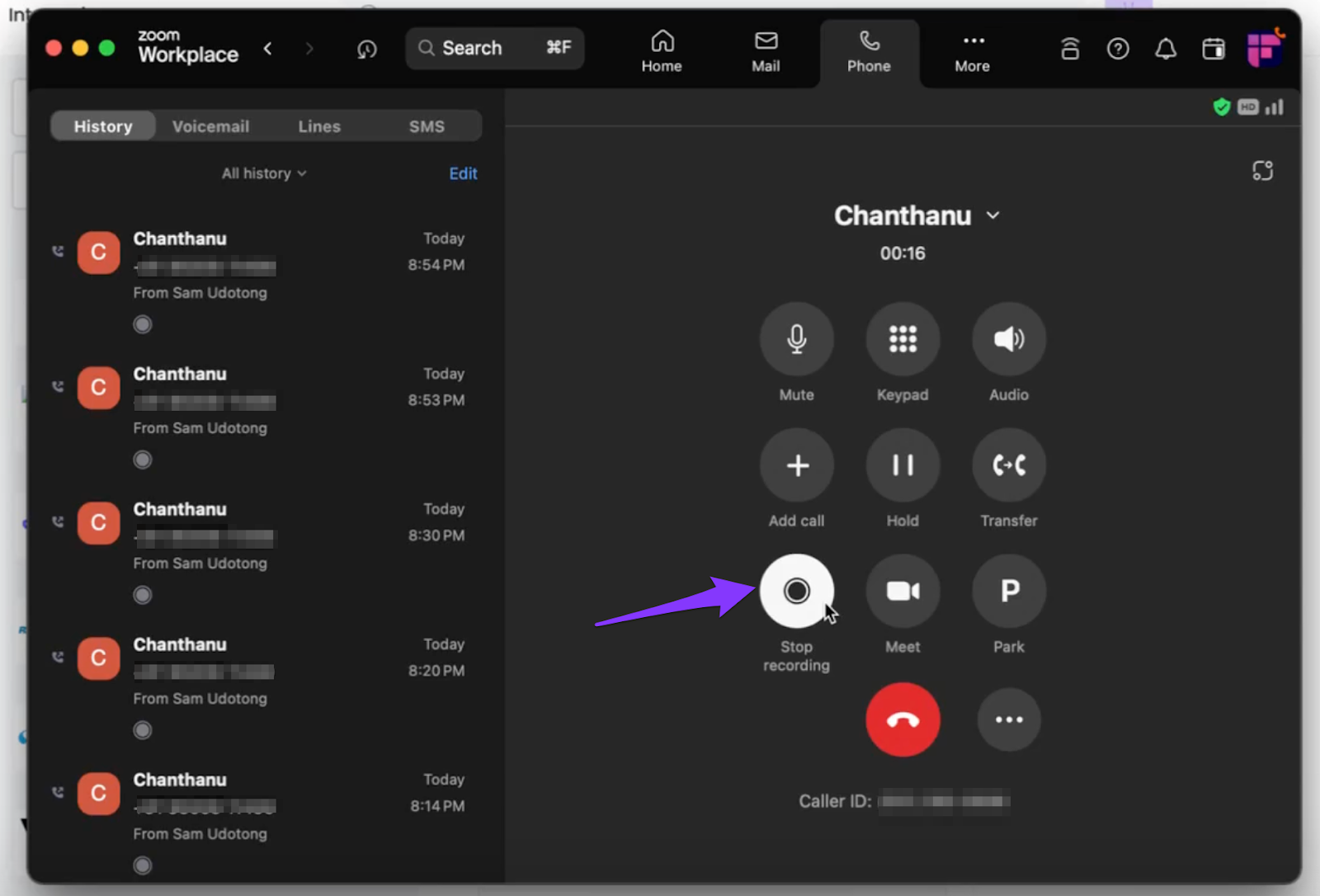
2. Once the call starts, click Record to record the conversation. Fireflies can only import recorded Zoom Phone calls.
Note:
Calls need to be recorded by Zoom for Fireflies to pull the data.
The calls need to be a minimum of 1 minute long for Fireflies to generate transcripts.
After the call ends, the recorded audio will be sent to the Fireflies Notebook.
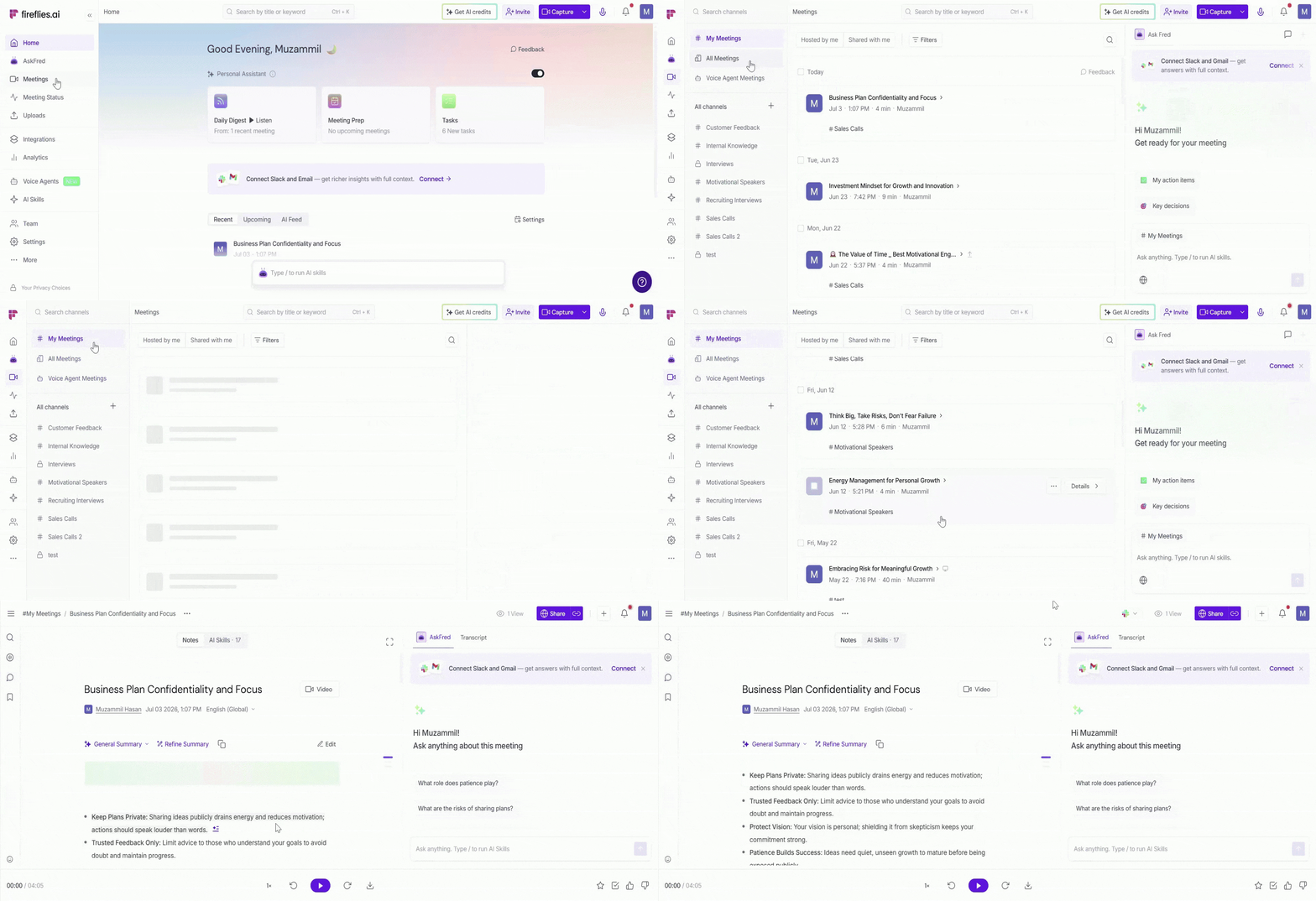
3. Once processing is complete, go to Fireflies → Meetings to view the recording, transcript, AI summary, and meeting notes.
👥 Team Options
If you want all Zoom Phone call recordings to be processed the same way, workspace admins can use Team Options to manage the integration settings for everyone.
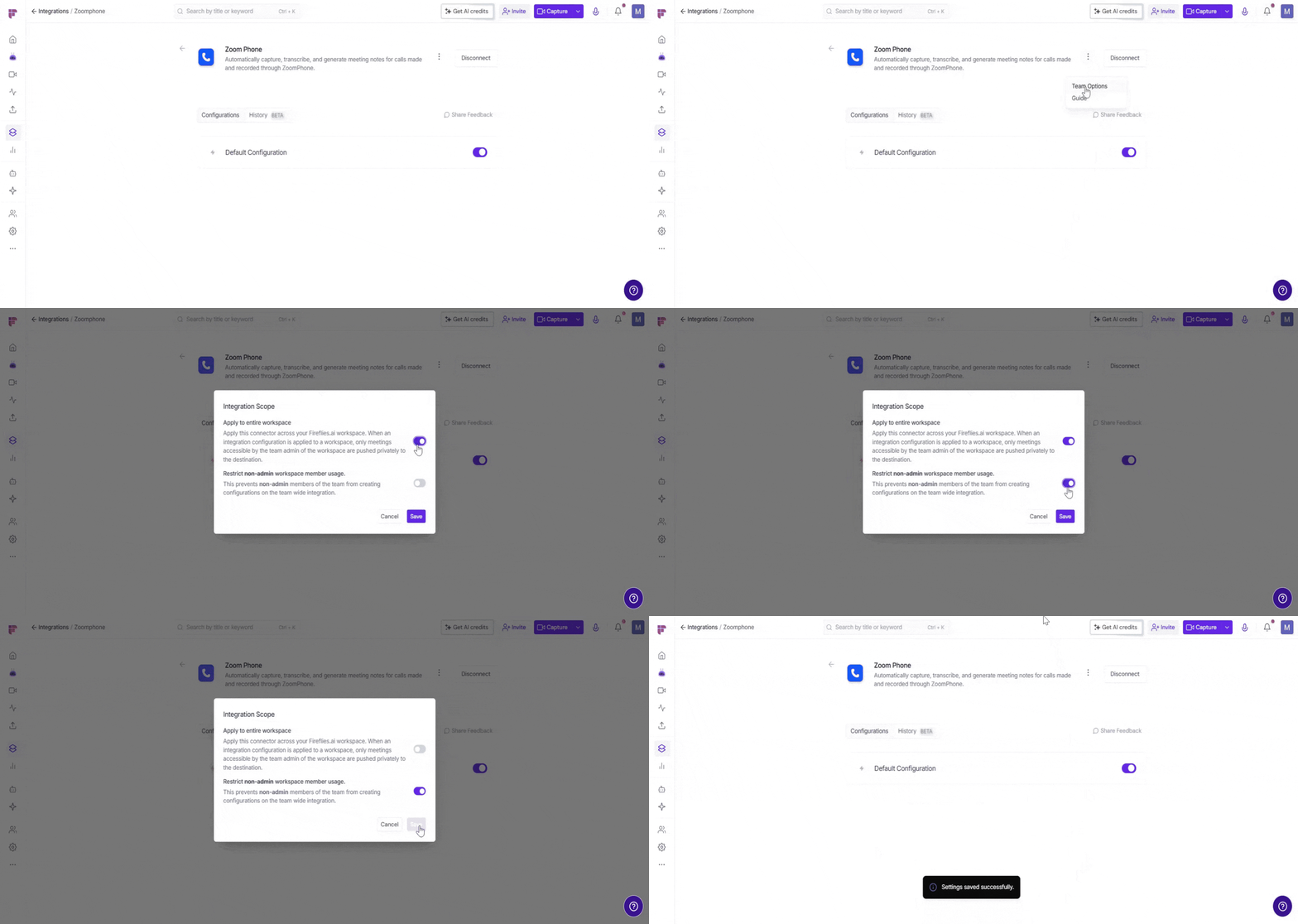
1. Click the vertical ellipsis (⋮) next to your Zoom Phone integration and select Team Options.
2. A modal will show these options:
Apply to entire workspace → When enabled, recorded Zoom Phone calls from team meetings accessible by the admin will be automatically imported into Fireflies.
📌 Calls marked as private in a teammate's Privacy Settings won't be included unless you're a Super Admin.
Restrict non-admin usage → When enabled, only admins can create or manage Zoom Phone configurations.
3. Click Save to apply your changes.
Use workspace-level settings for shared workflows, and personal configurations when individuals want to manage their own notes.
🛠 Manage Configuration
Over time, you may need to update your Zoom Phone integration—for example, to rename a configuration, verify the connection, or remove a configuration you no longer use. Fireflies provides a few simple options to manage it.
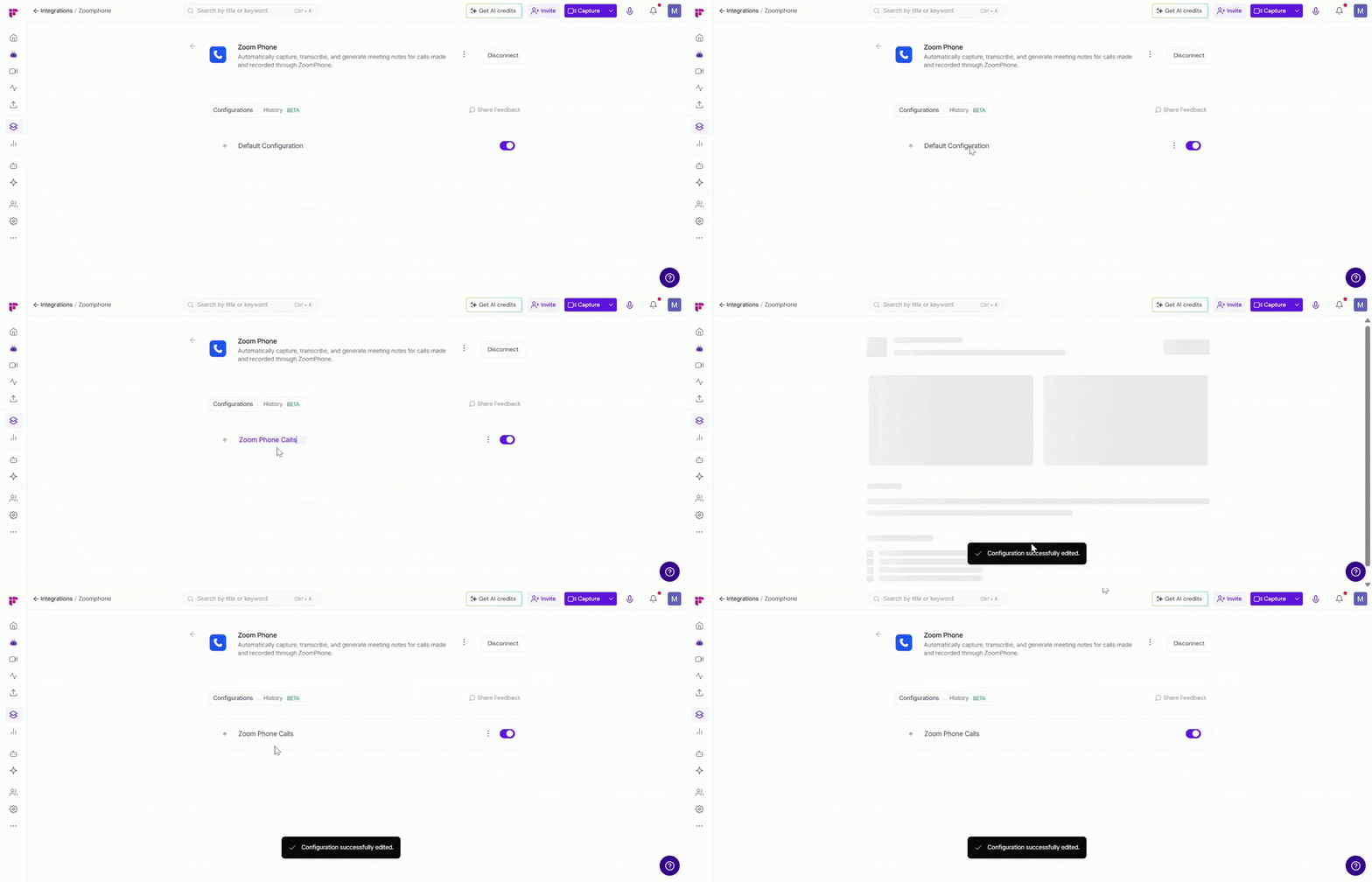
✏ Edit Configuration Name → Give your Zoom Phone configuration a clear, descriptive name so it's easy to recognize. Click the configuration name (for example, Default Configuration), enter a new name (such as Zoom Phone Calls), and click outside the field to save.
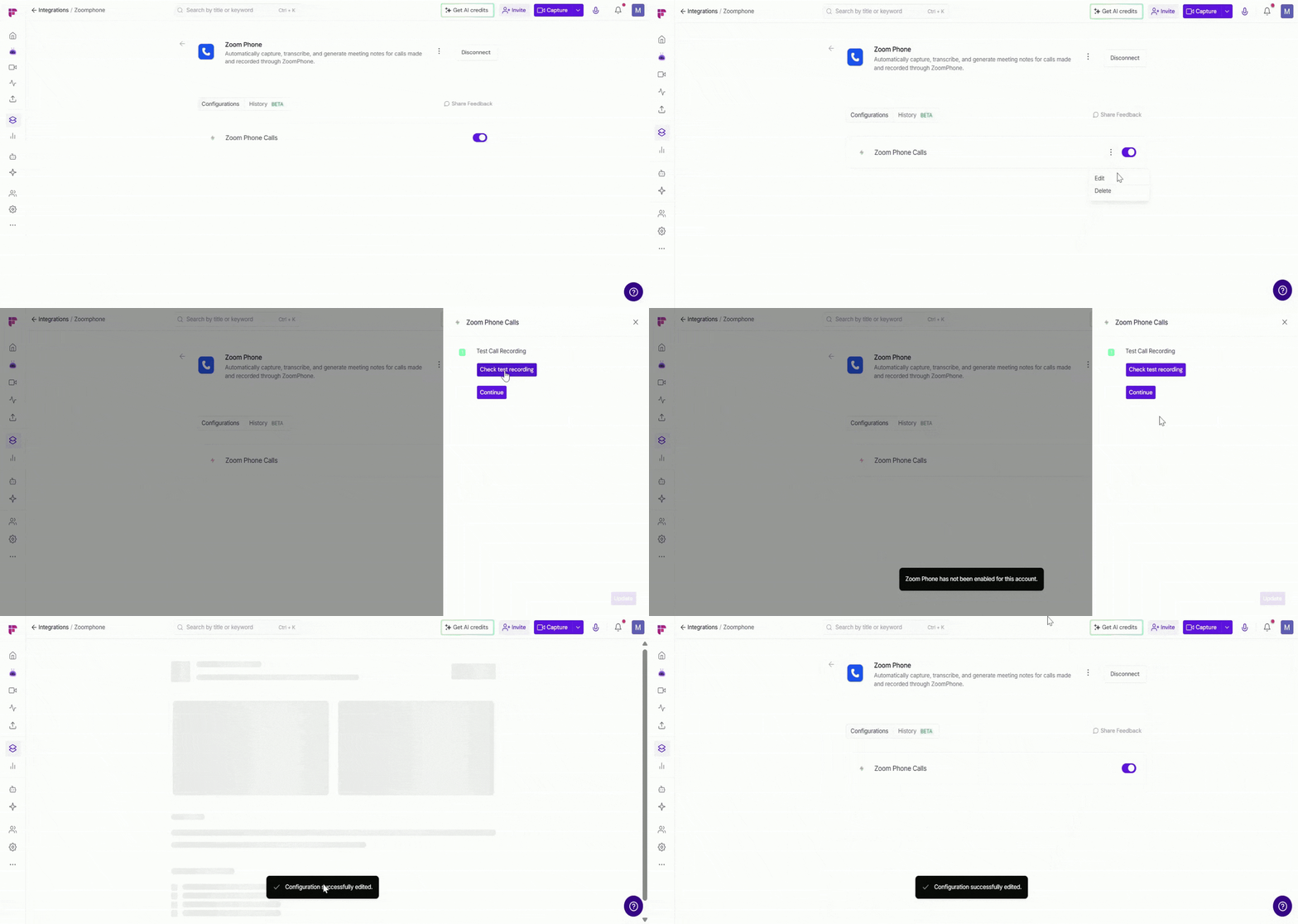
🔗 Verify the Connection → Need to check that Fireflies can access your Zoom Phone recordings? Click the vertical ellipsis (⋮) next to the configuration, select Edit, then click Check test recording to verify the connection.
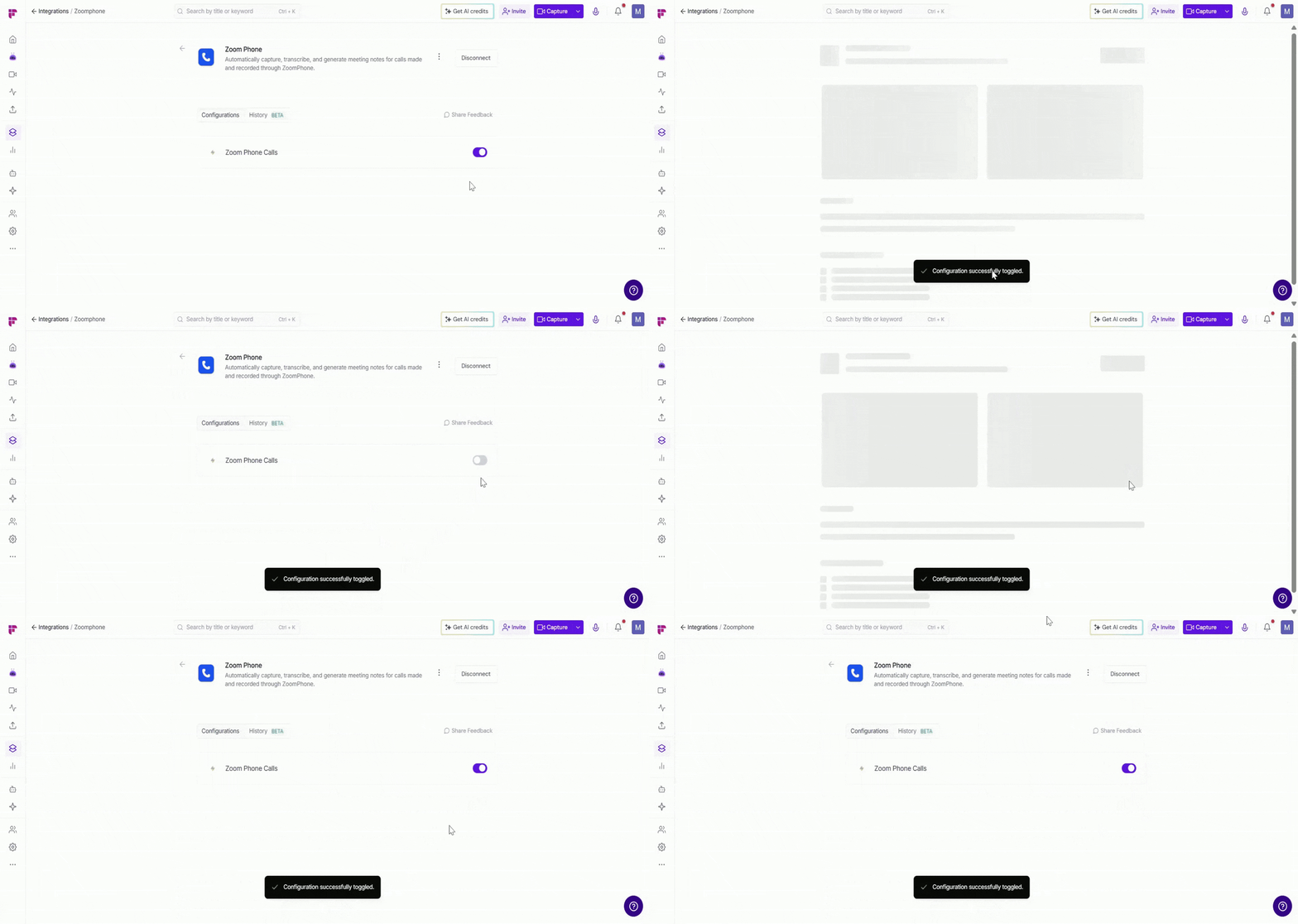
🔘 Enable or Disable a Configuration → Use the toggle next to the configuration to quickly control whether Fireflies imports recorded Zoom Phone calls. Toggle ON to process new recordings, or OFF to pause the integration without deleting the configuration.
🗑 Delete Configuration → If you no longer want Fireflies to process your Zoom Phone recordings, click the vertical ellipsis (⋮) next to the configuration, select Delete, and confirm.
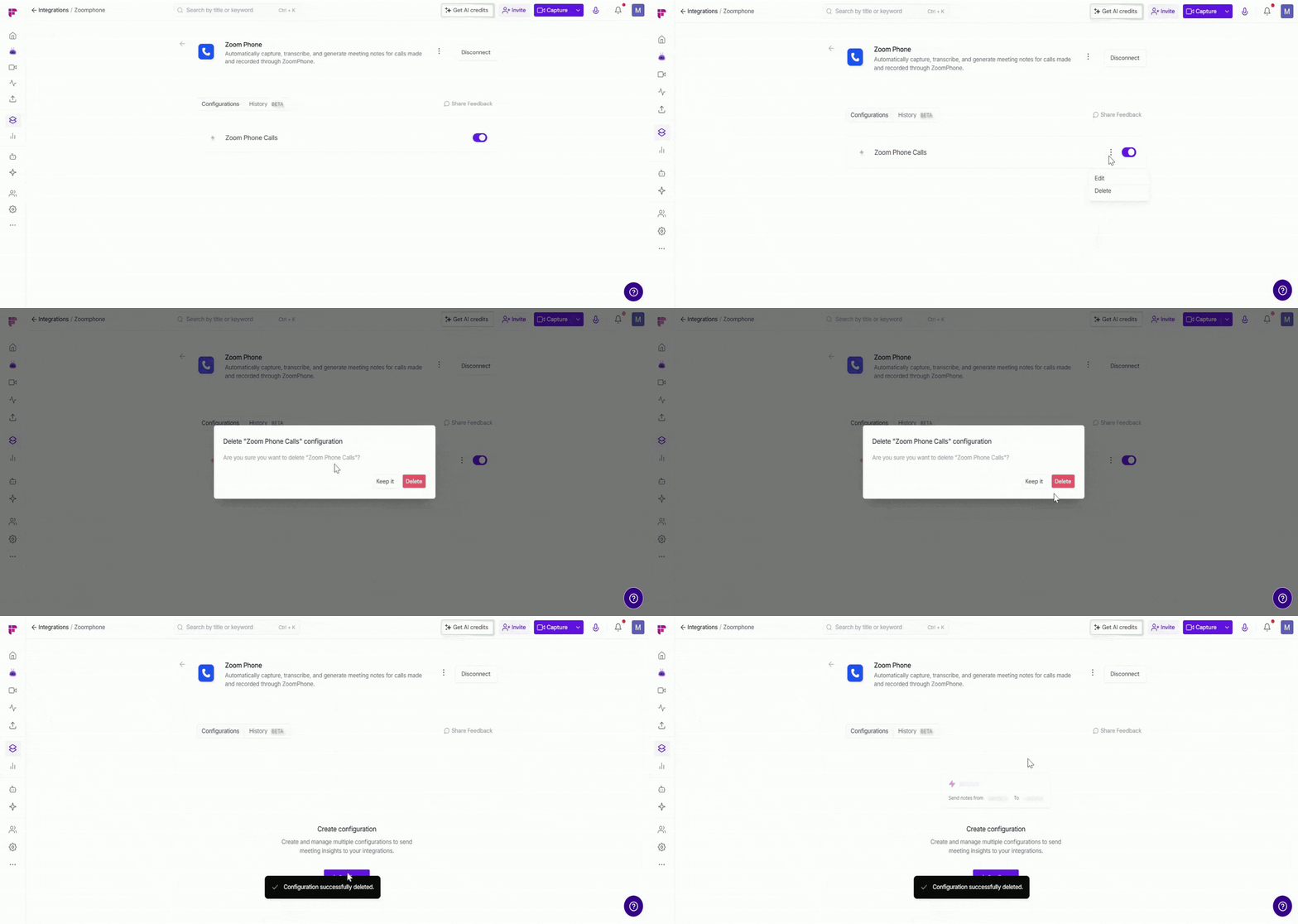
Deleting a configuration stops Fireflies from importing new Zoom Phone recordings until a new configuration is created.
❌ Disconnect the Zoom Phone Integration
If you no longer want Fireflies to import your Zoom Phone call recordings, you can disconnect the integration from Fireflies or revoke its access from your Zoom account.
Method 1: Disconnect from Fireflies
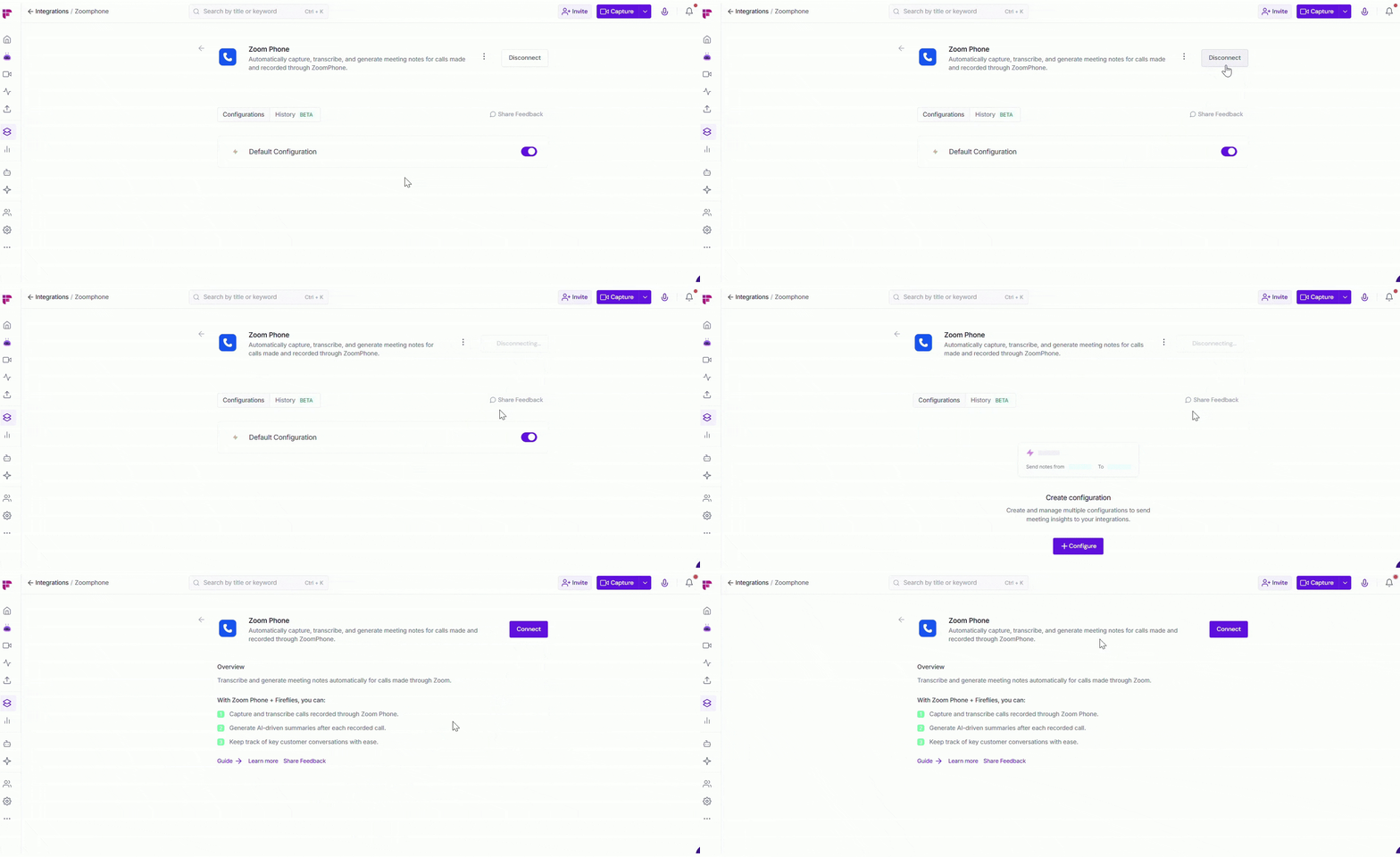
Click Disconnect on the Zoom Phone integration page in Fireflies. This stops Fireflies from importing new Zoom Phone recordings. Your existing transcripts, summaries, and meeting notes will remain available in Fireflies unless you delete them.
Method 2: Remove Fireflies from Your Zoom Account (Optional)
If you want to completely revoke Fireflies' access to your Zoom account, remove the app from the Zoom App Marketplace.
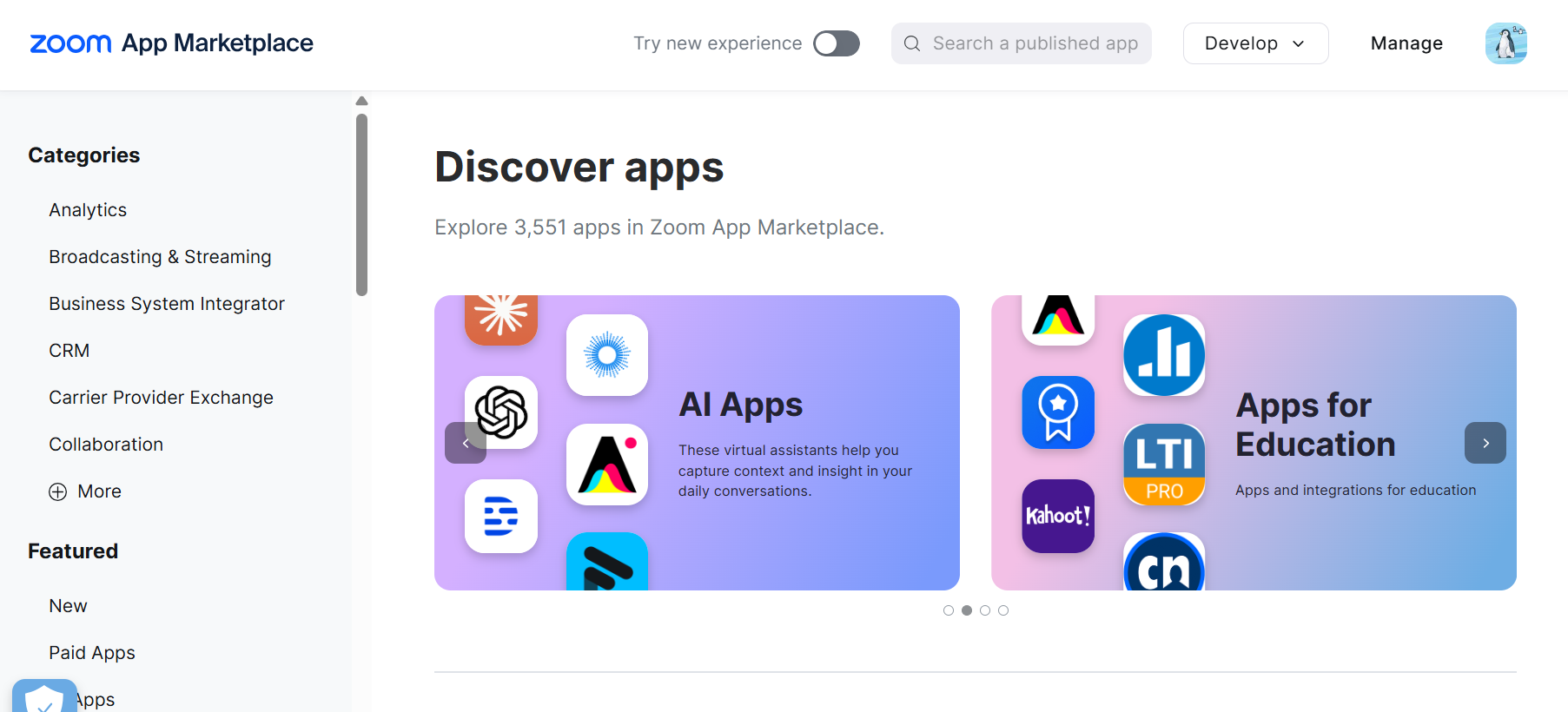
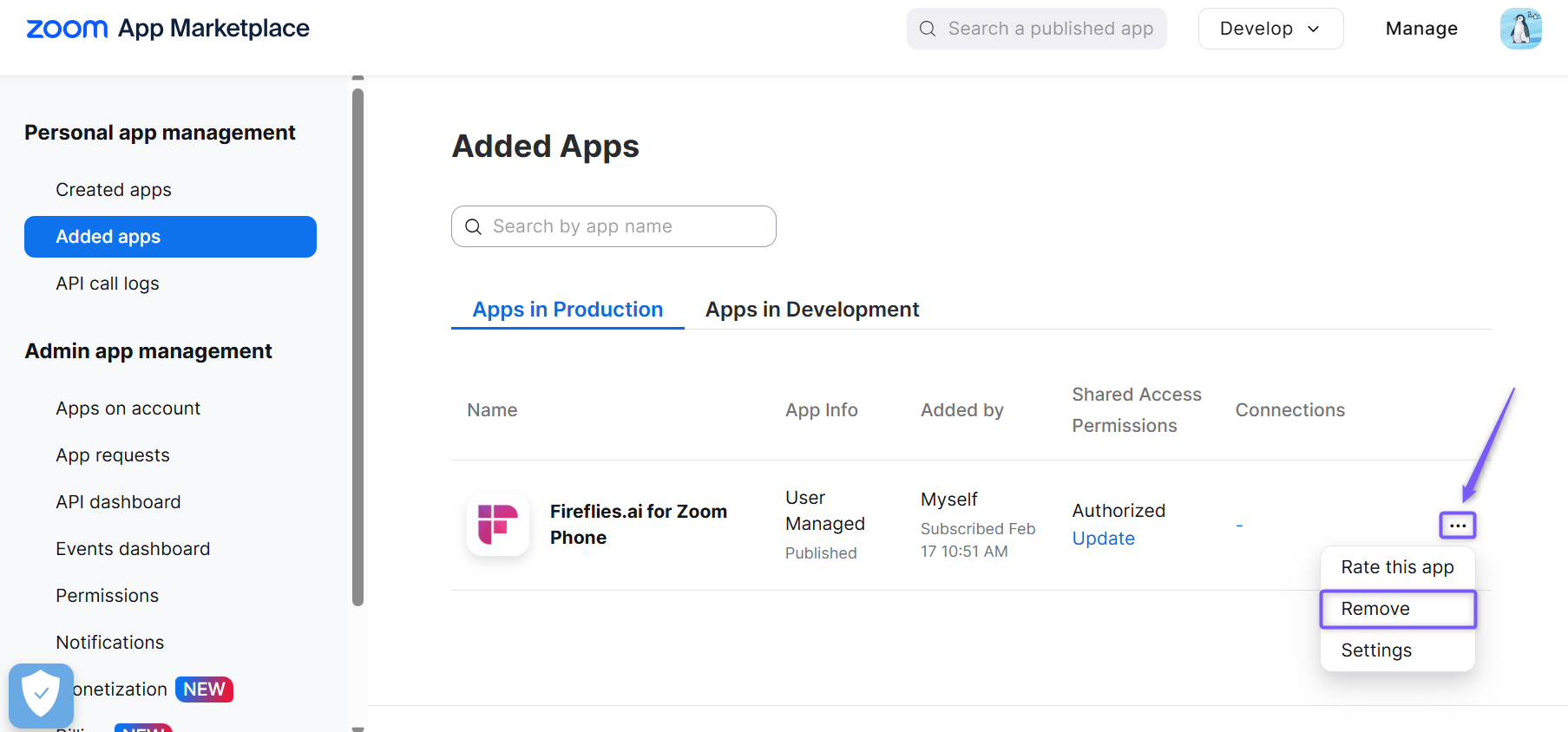
1. Sign in to your Zoom account and open the Zoom App Marketplace.
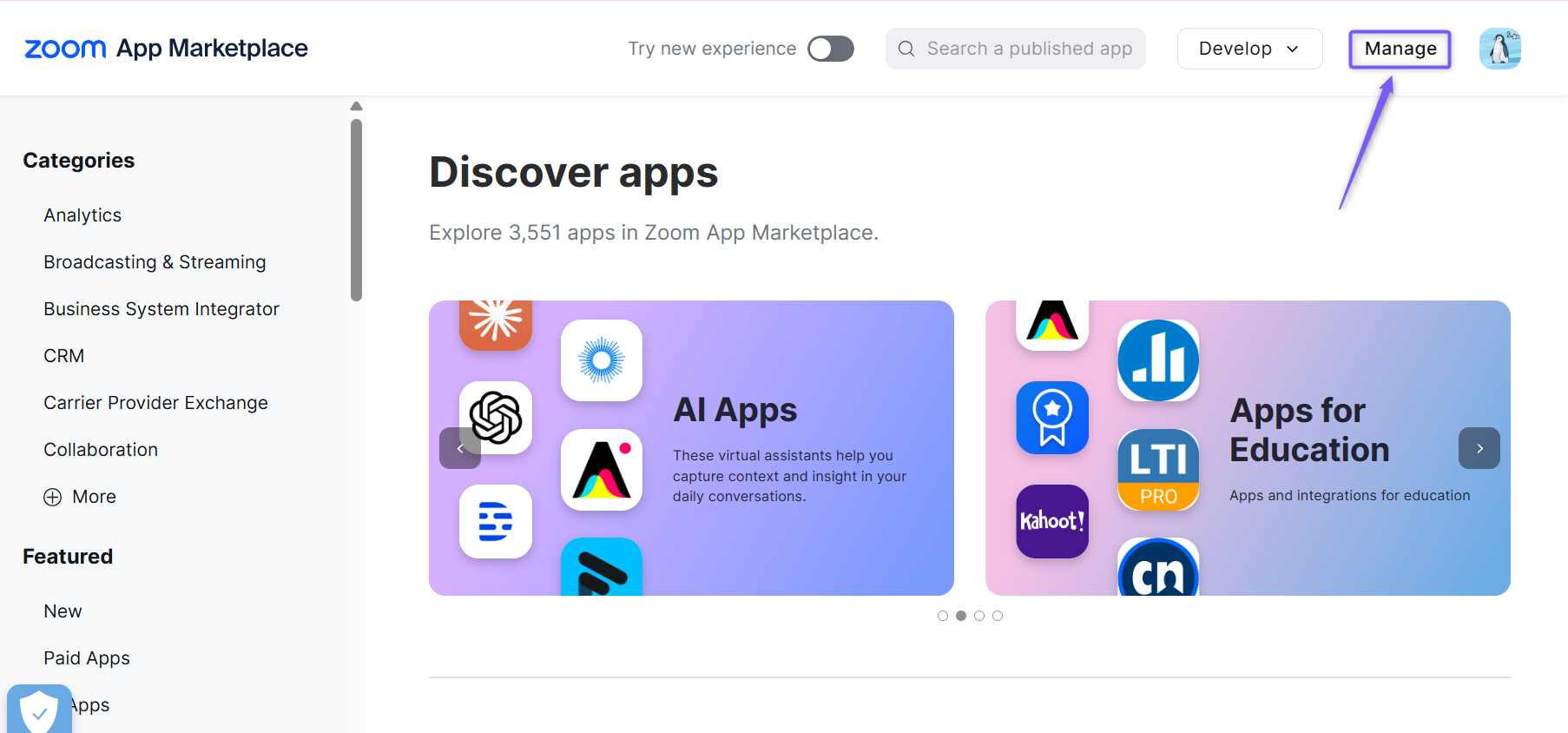
2. Click Manage.
3. Click Added Apps tab and find Fireflies.ai for Zoom Phone.
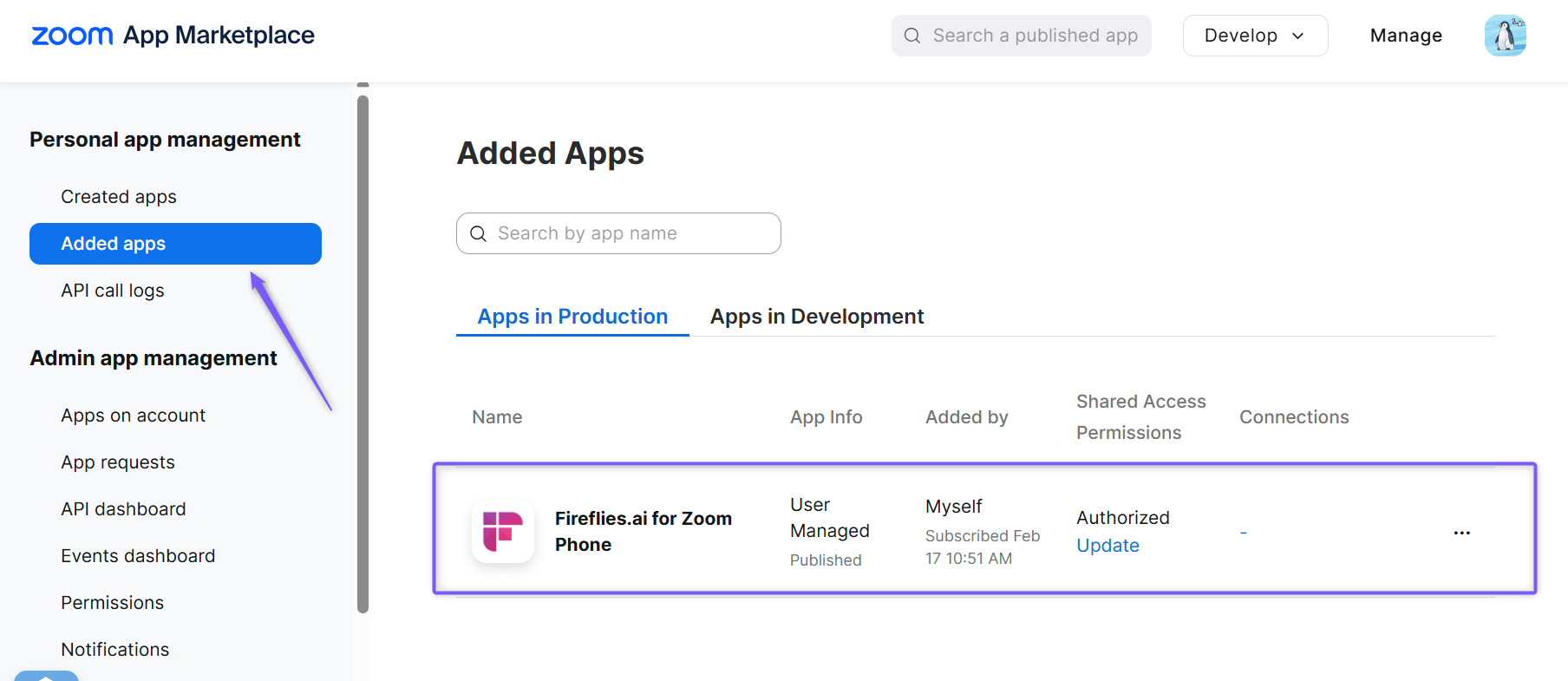
4. Click the ellipsis (...) next to Fireflies.ai for Zoom Phone, then select Remove. This revokes Fireflies' authorization to access your Zoom Phone account.
❓ Frequently Asked Questions
Q1. Why aren't my Zoom Phone calls appearing in Fireflies?
Check the following:
Make sure the Zoom Phone integration is connected.
Verify that you've created a default configuration after connecting the integration.
Ensure the configuration is enabled.
Confirm the call was recorded in Zoom Phone, as Fireflies only imports recorded calls.
Q2. Why wasn't a transcript or summary generated?
Fireflies can only generate transcripts and summaries for eligible recordings.
Make sure the call was recorded in Zoom Phone.
Verify the call lasted at least one minute.
Q3. I saw "Could not verify recordings, but setup completed successfully." What does this mean?
This usually means Fireflies couldn't find a recording to verify during setup. Check the following:
Make sure your Zoom account includes Zoom Phone.
Verify that your Zoom Phone plan supports call recording.
Q4. Will Fireflies import calls recorded before I connected the integration?
No. Fireflies only imports eligible Zoom Phone recordings created after the integration has been connected and your default configuration has been completed.
Q5. What happens if I disconnect the Zoom Phone integration?
Disconnecting the integration stops Fireflies from importing new Zoom Phone recordings. Your existing recordings, transcripts, summaries, and meeting notes will remain available in Fireflies unless you choose to delete them.
Q6. Can I connect one Fireflies account to multiple Zoom Phone accounts?
No. A Fireflies account can only be connected to one Zoom Phone account at a time. Connecting multiple Zoom Phone accounts to the same Fireflies account isn't supported and may prevent the integration from working correctly.
Still stuck? Contact support via this link for more help.
🔄 Recap
You've successfully connected Zoom Phone with Fireflies and completed the integration setup.
Connected and authorized your Zoom Phone account
Created a default configuration to enable call processing
Verified the integration with a test recording
Learned how recorded calls are imported and processed
Know how to manage or disconnect the integration whenever needed
Your future recorded Zoom Phone calls will automatically appear in Fireflies with transcripts, summaries, and meeting notes.
📌 Related Guides
Want to explore more? These guides will help you get the most out of Fireflies:
Dialer Integrations → Explore all dialer integrations(Quo, Aircall, RingCentral etc.) supported by Fireflies.
AI Meeting Summaries Guide → Understand how Fireflies captures, summarizes, and organizes meeting takeaways.
Fireflies Notepad → Learn how to edit and refine your meeting notes before sending them to other tools.