How to configure page layouts in Salesforce
Last updated: May 24, 2025
This article covers steps to configure page layouts in Salesforce. Ensure you've completed the Salesforce-Fireflies integration steps before proceeding further.
Related: How to set up Salesforce and Fireflies integration
Configure page layouts
Fireflies logs meeting notes in the Notes & Attachments related list section for contacts, leads, or deals.
If you're unable to view these notes, you may need to add and configure the Notes & Attachments related list on the respective page layout.
Here are the steps to add the Notes & Attachments related list to the lead page layout:
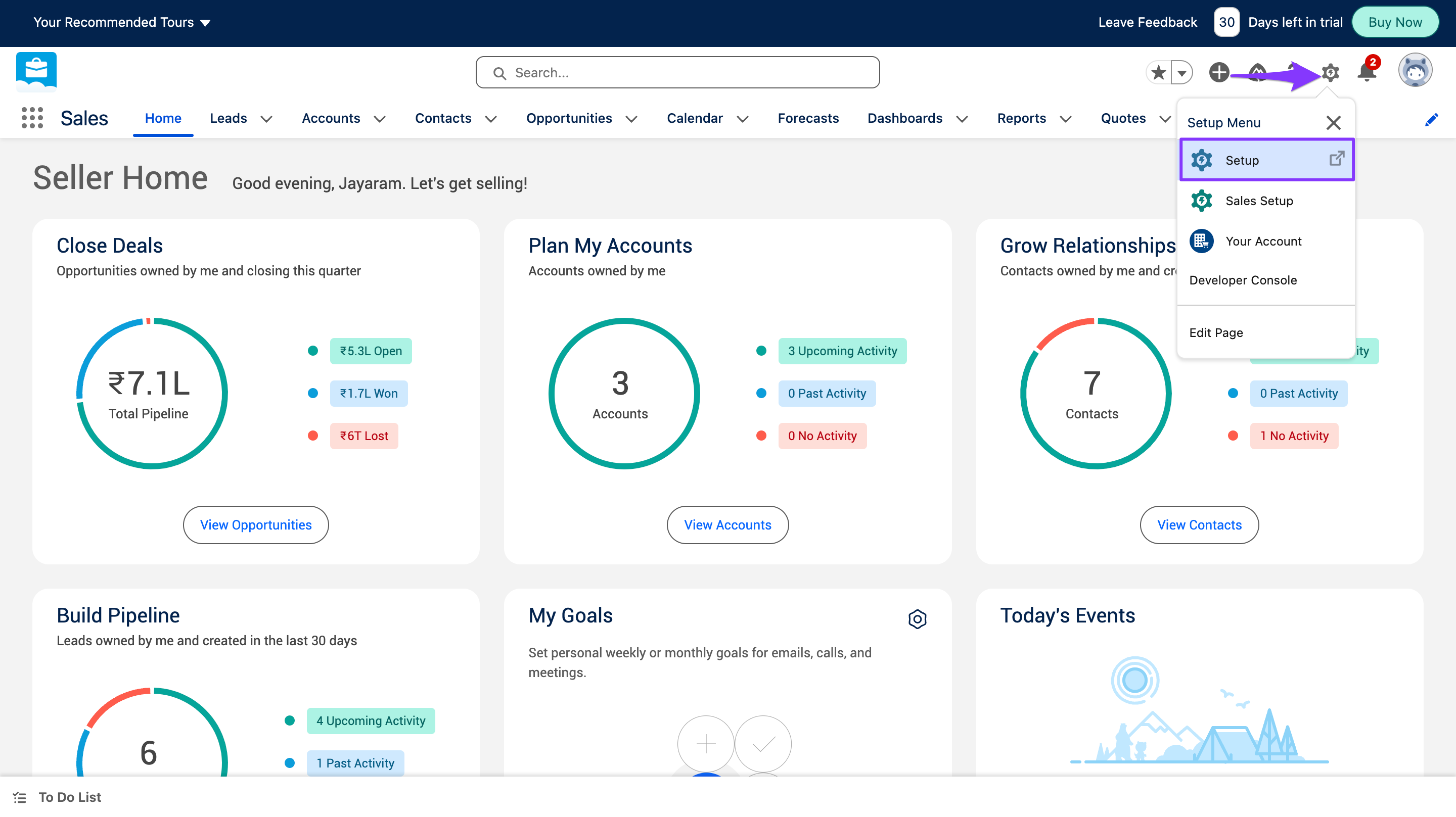
- Click the Salesforce Settings and select Setup.
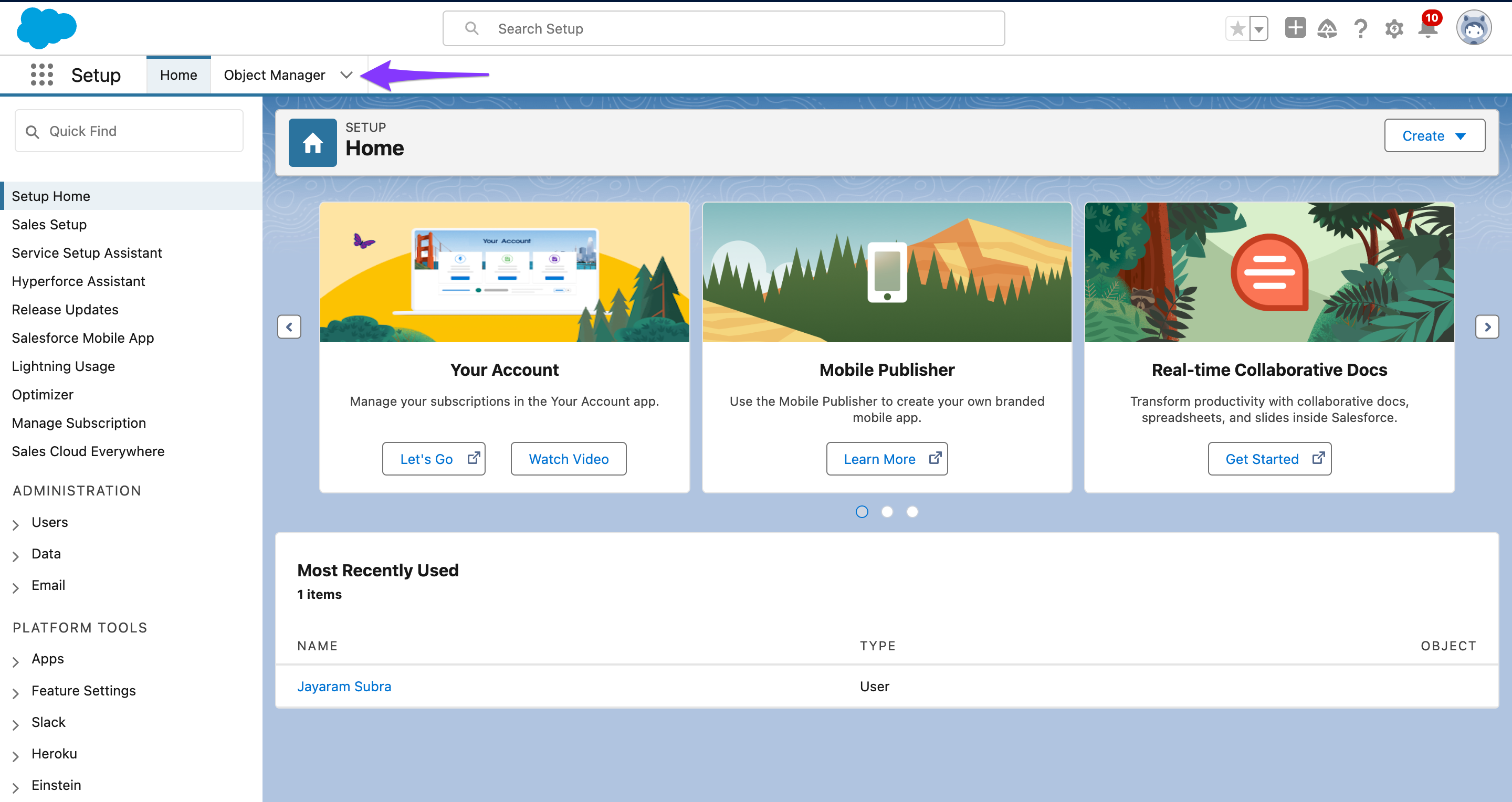
- Click on the Object Manager.
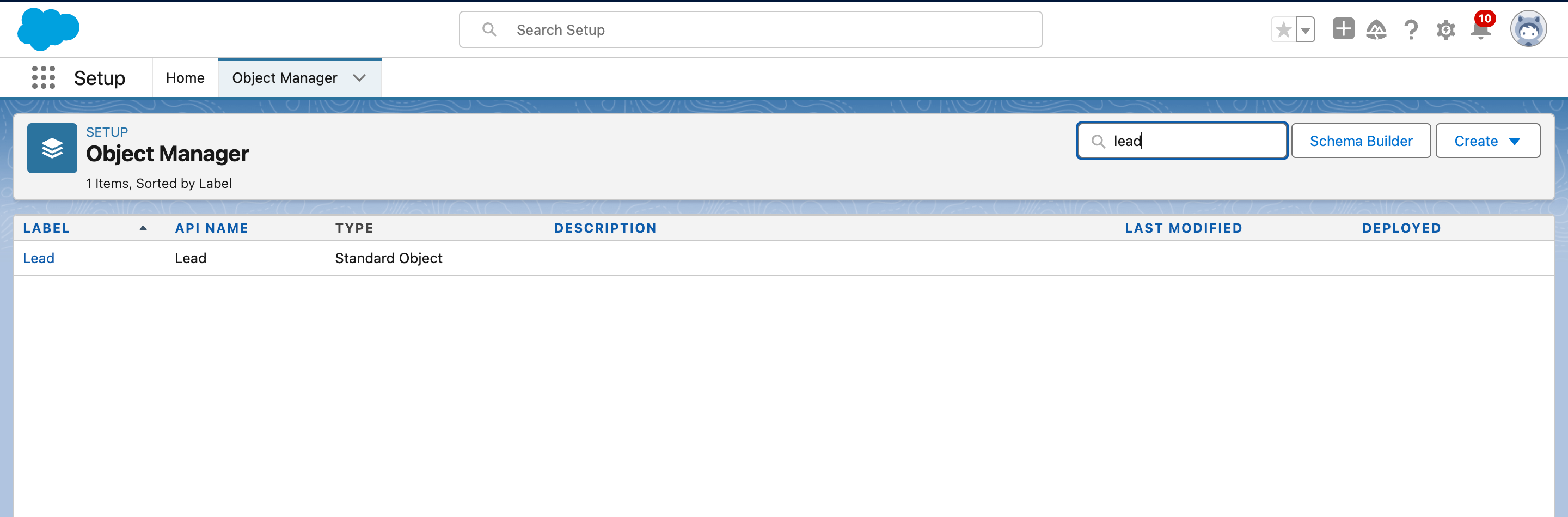
- Under the quick find search bar, type in Lead. Click on the Lead object.
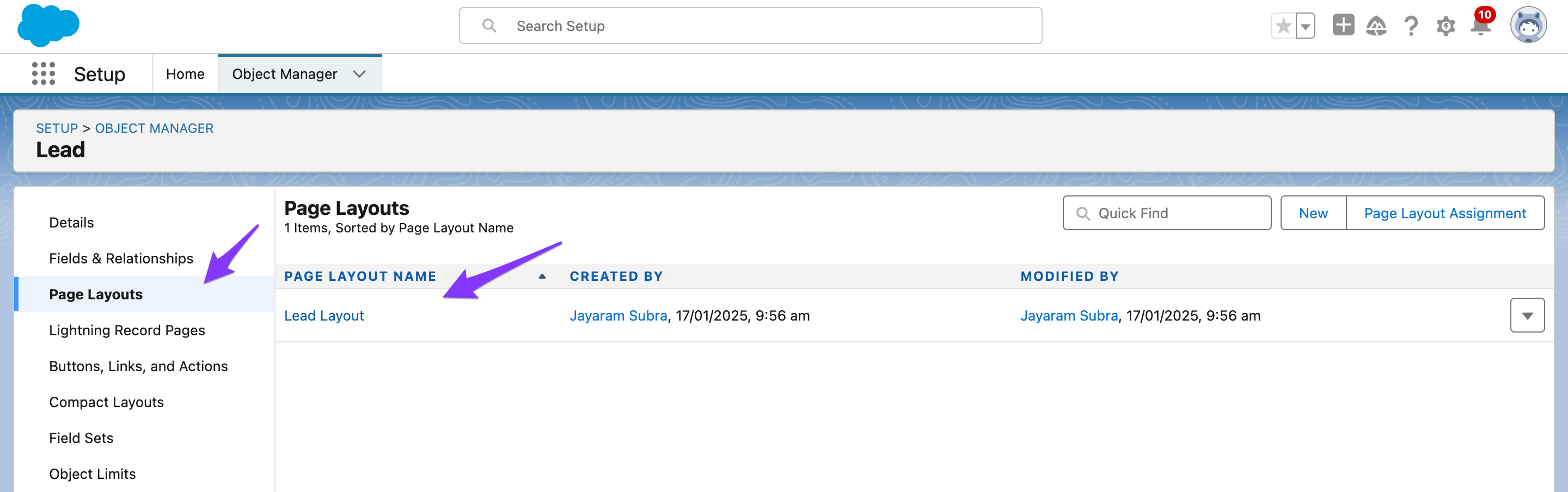
- Click on the Page Layouts and select the Lead Layout.
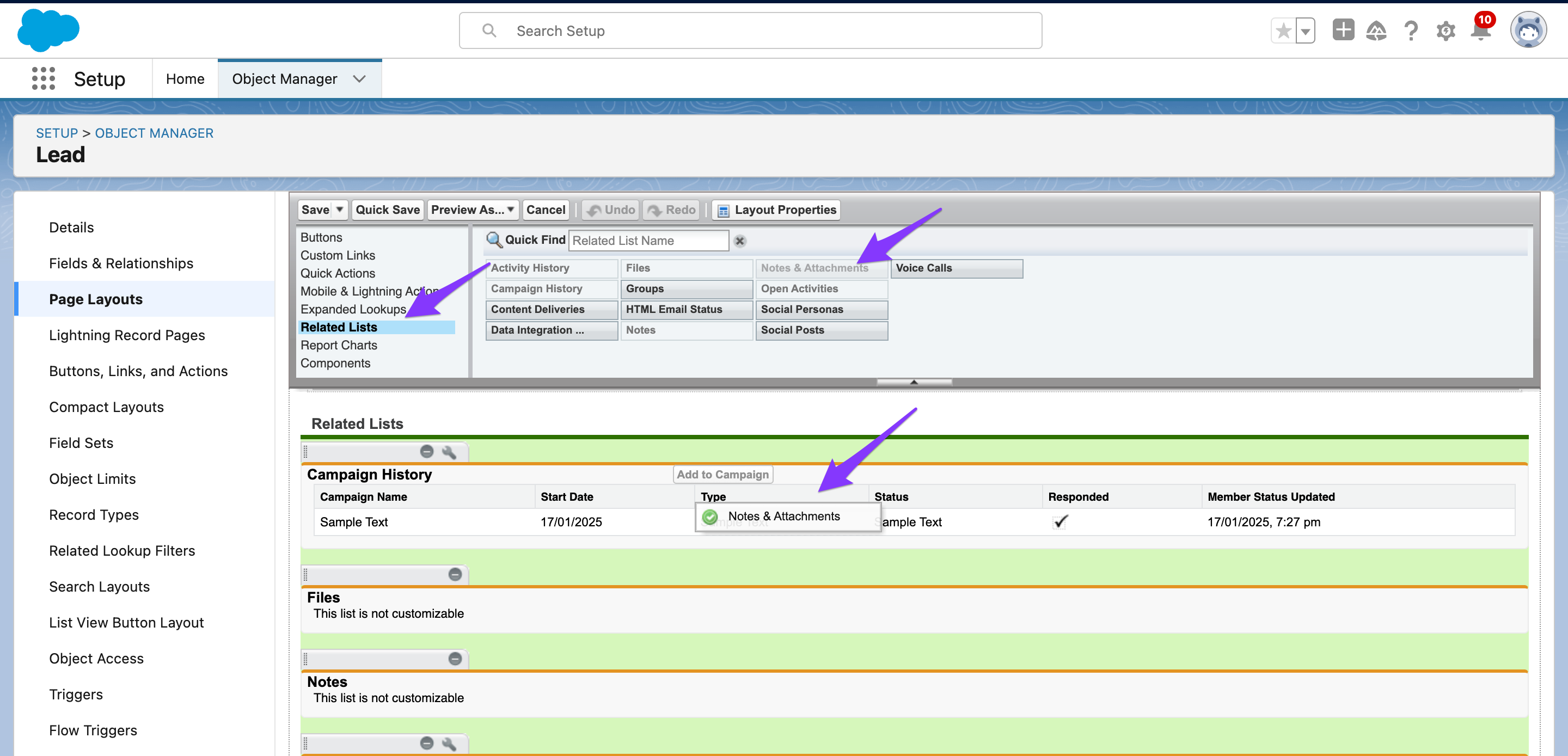
- Drag the Notes & Attachments from the Related List onto the page layout.
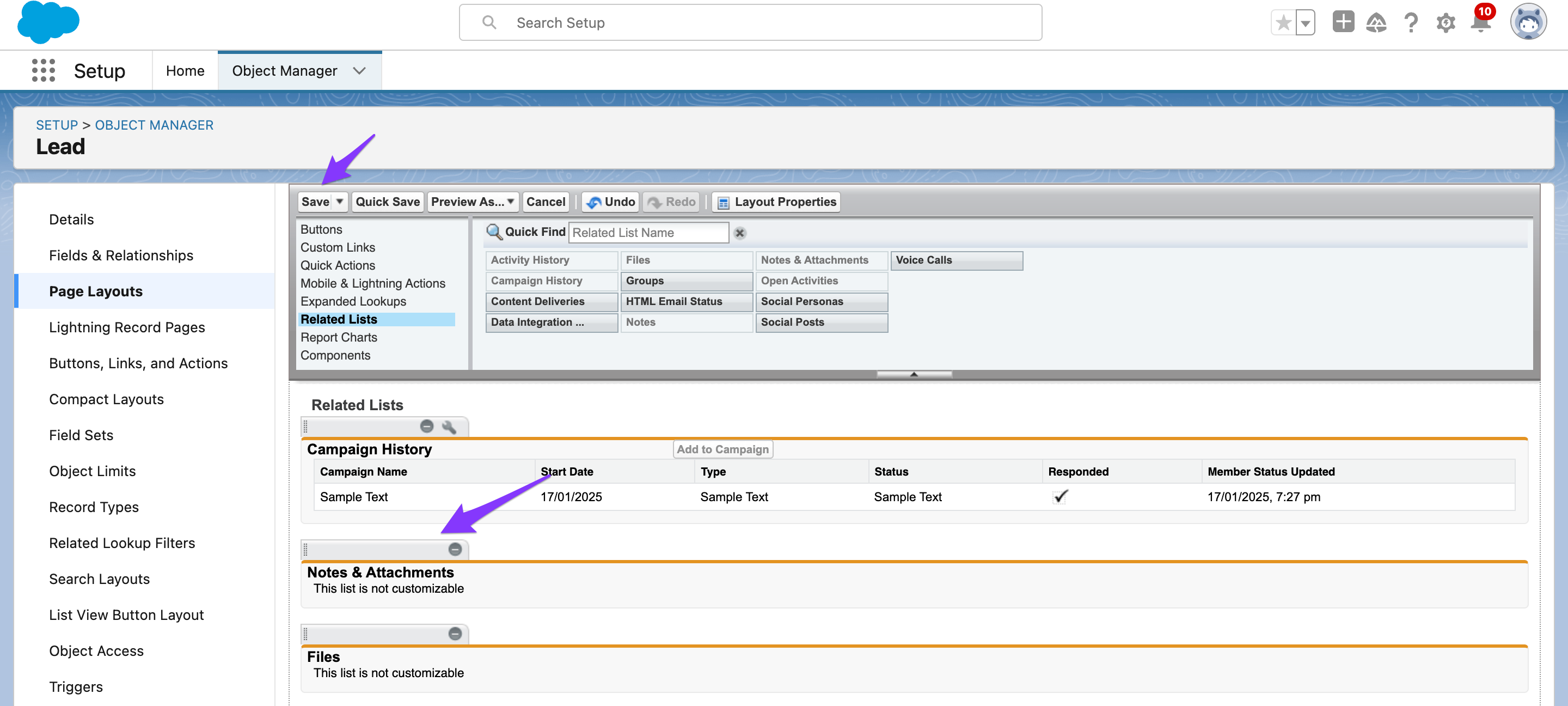
- Click Save.
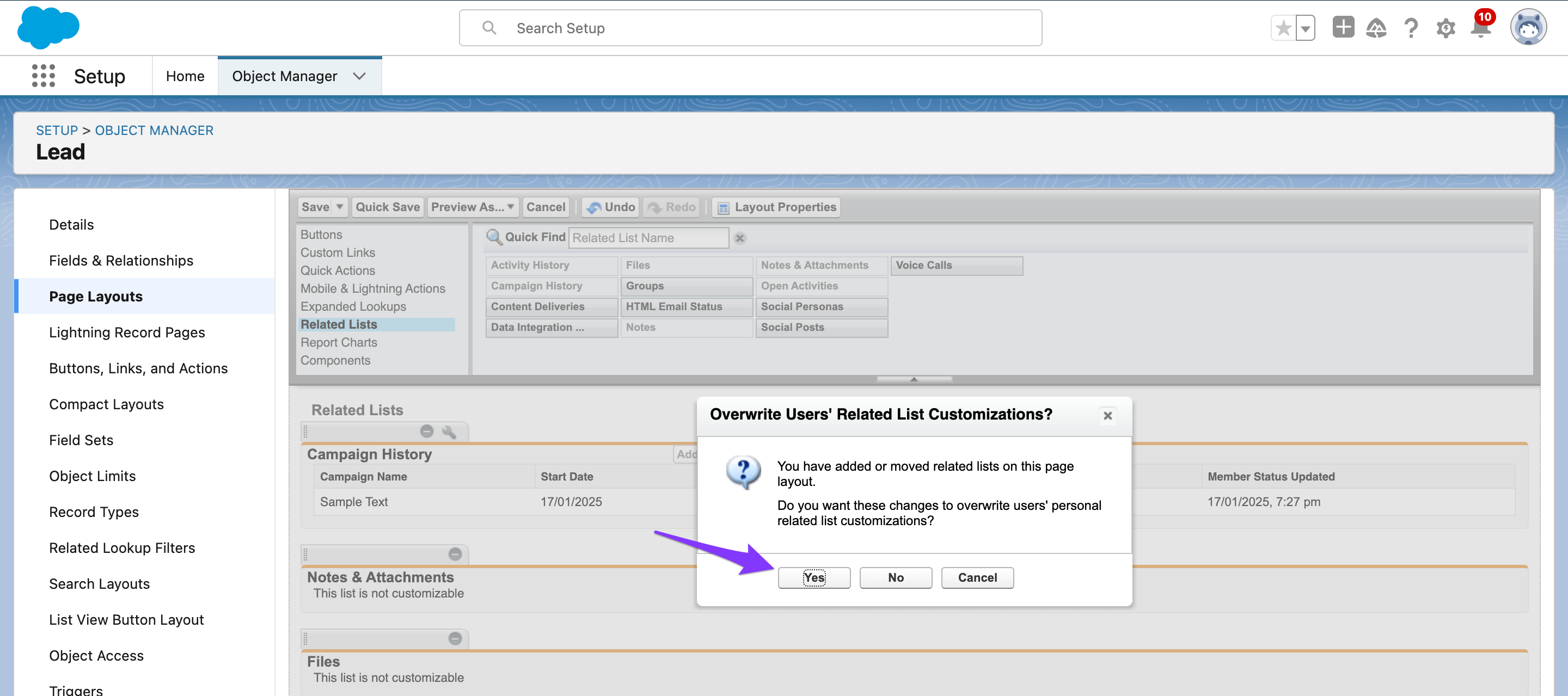
- Click Yes.
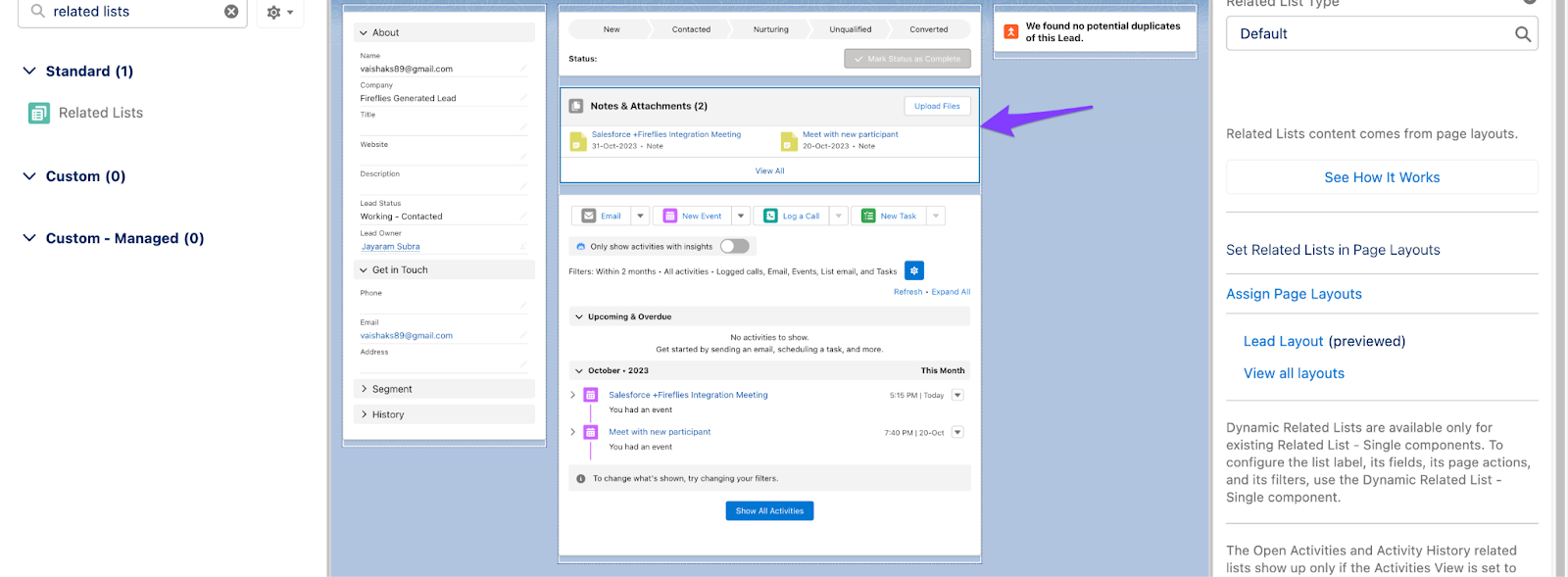
- The Notes & Attachments will now show directly on the page layout.
Likewise, you can configure the page layout for Contacts and Deals.