AskFred: Ask Questions About a Specific Meeting
Last updated: July 20, 2026
Need quick answers from a meeting without scrolling through the entire transcript? AskFred is your built-in AI assistant in Fireflies — think of it like ChatGPT, but specifically designed to help you get insights and answers from your meetings.
You can ask Fred to:
Summarize the meeting and extract action items or decisions
Generate content like follow-up emails, LinkedIn posts, or other written drafts based on the discussion
Answer questions related to the meeting and provide quick insights
Use built-in AI Skills like BANT, 1:1 summaries, and more for faster results
Automate prompts so Fireflies runs them automatically after every meeting
Note: AskFred works best when you ask questions related to the selected meeting. You can ask general questions too, but responses will use that meeting as context.
This guide covers how to use AskFred inside a specific meeting after it has been processed in your Fireflies Notepad.
Want a quick walkthrough first? Read this AskFred prompt playbook for copy-paste prompts organized by job to be done, plus the four habits that make any question return a sharper answer. Then follow the steps below to ask Fred about your meeting.
🚀 How to Access AskFred
You can access AskFred after your meeting has been processed in Fireflies. There are two ways to access it:
1. From the Dashboard
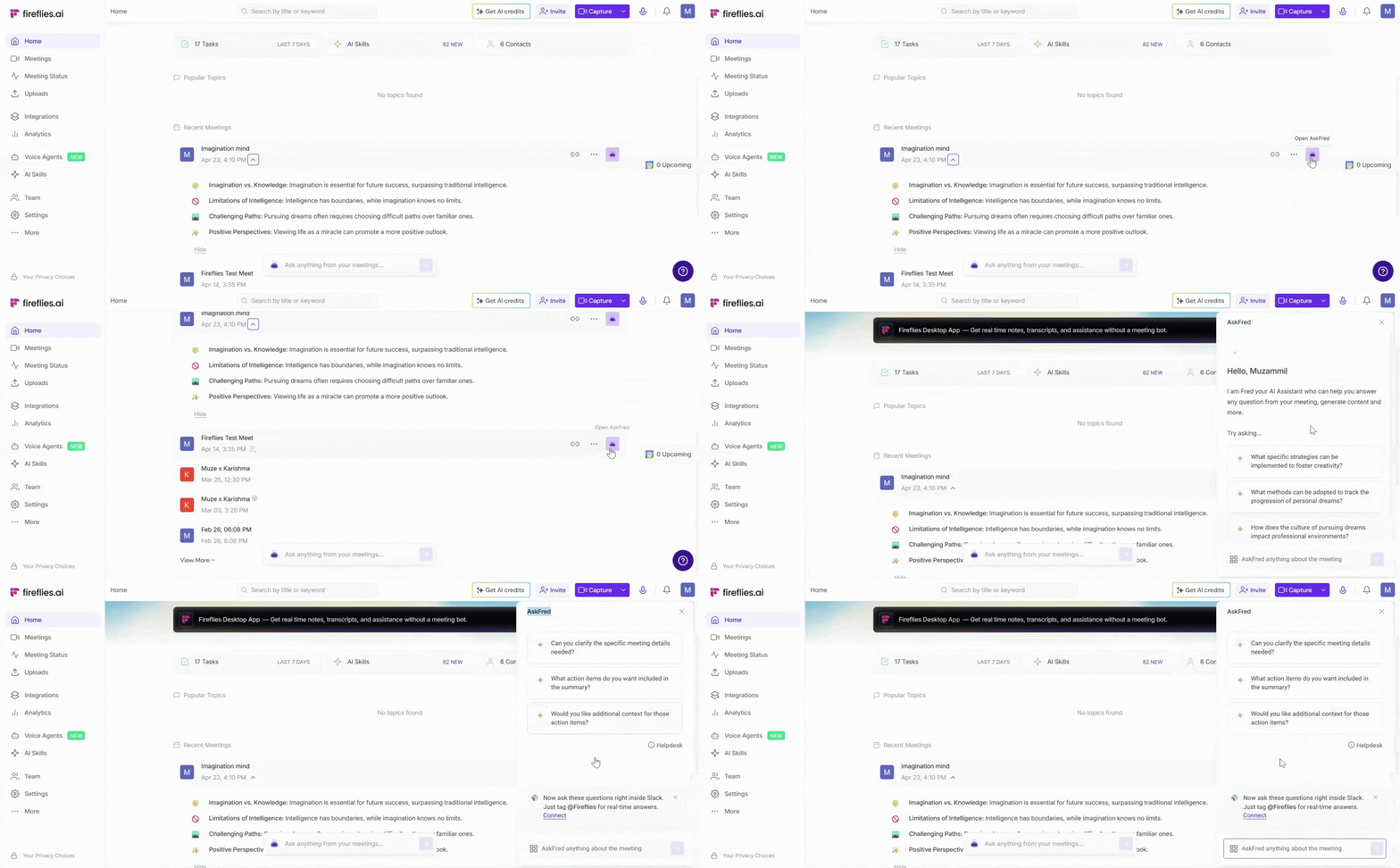
Hover over any processed meeting in your Feed and click the AskFred widget to open it in a side panel. AskFred opens in a side panel—ask away!
2. From the Fireflies Notepad
1. Open any processed meeting in your Meeting Notebook.
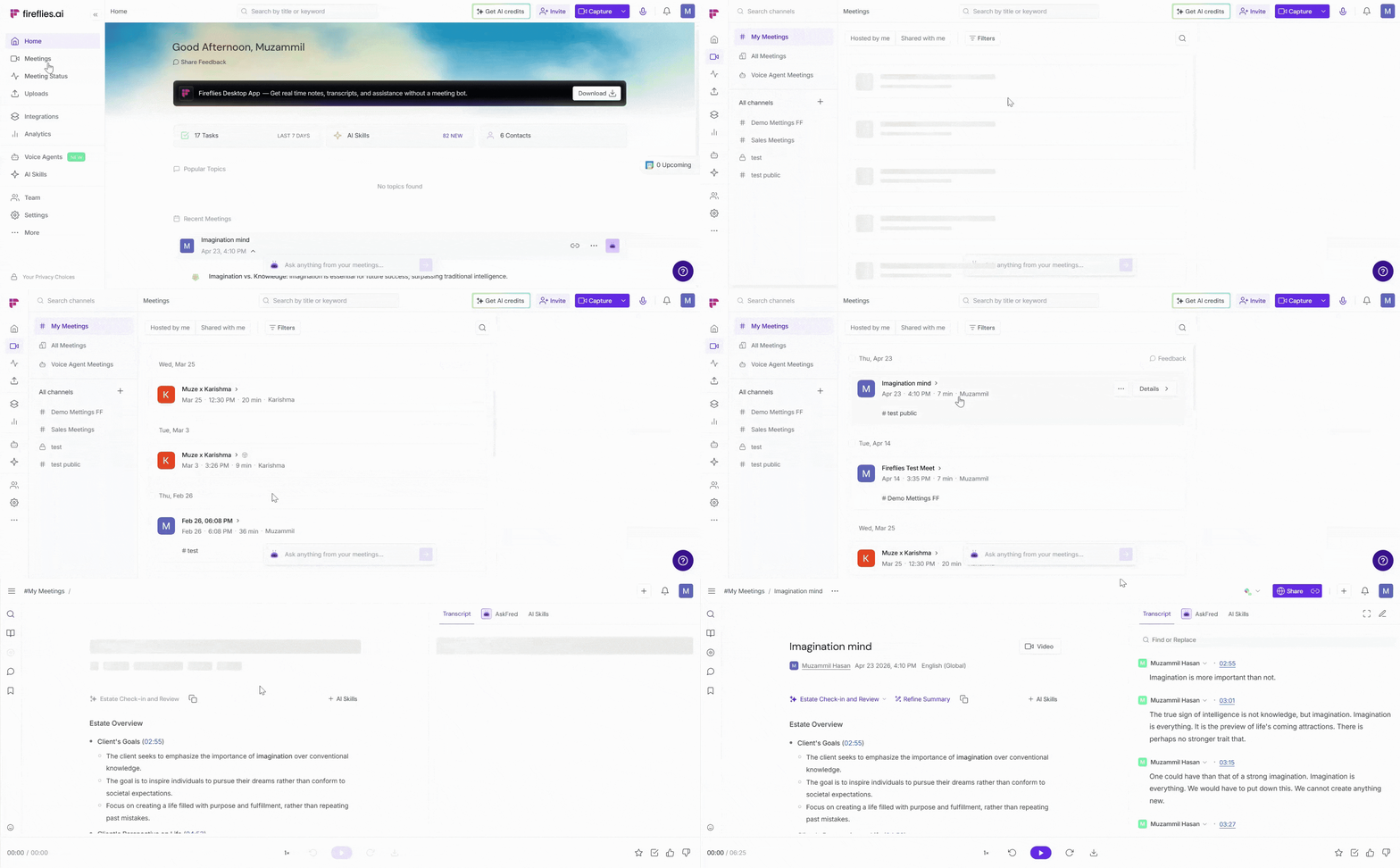
2. On the right-side panel, click the AskFred button next to the transcript to open the chat interface and start asking questions about that meeting.
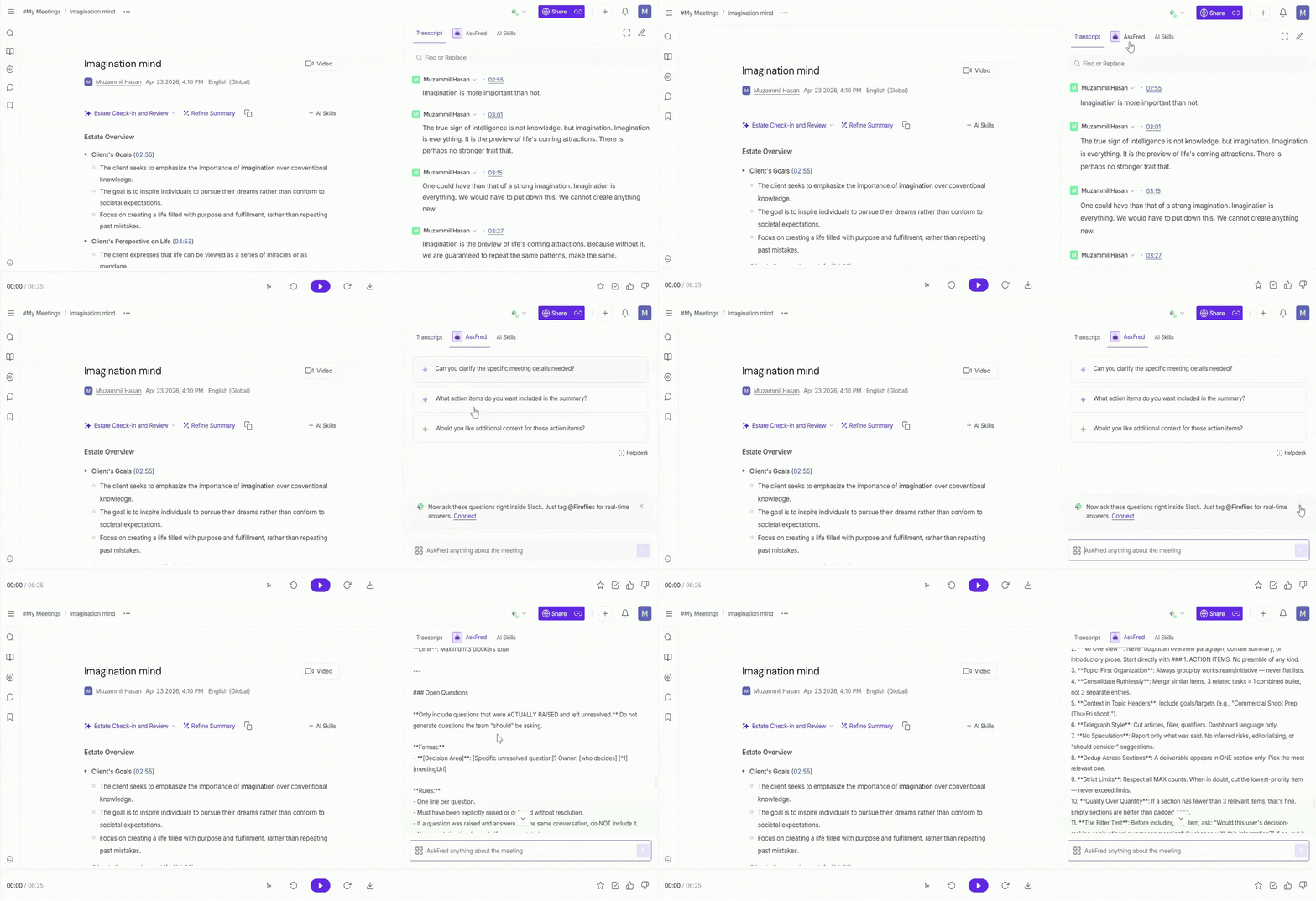
💡 AskFred works only after your meeting has been processed. If the meeting is still in progress, wait a few minutes for it to become available.
💬 What Can You Ask Fred?
AskFred can do a lot more than just answer questions. Whether you want to extract insights from a call or generate content instantly, here's everything you can do:
1. Ask Questions About the Meeting
AskFred lets you query any part of the meeting transcript instantly. You can ask things like:
"What were the key discussion points?"
"What blockers did the team face in launching feature X?"
"What did Speaker X say about the budget?"
"What were the main takeaways?"
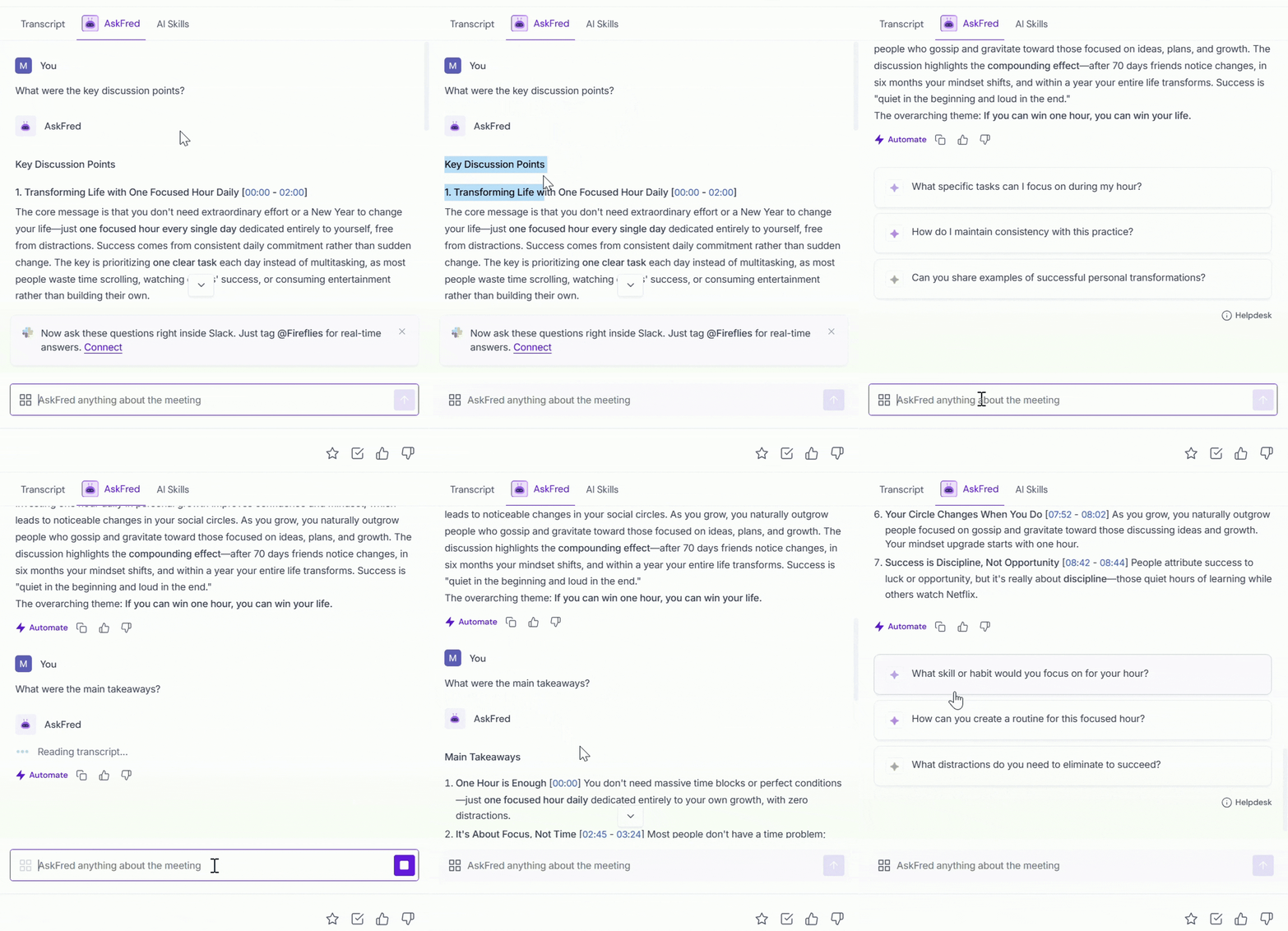
💡 Tip: Be specific. The more focused your prompt, the better your result.
2. Generate Content from the Meeting
Turn your meeting insights into ready-to-use content:
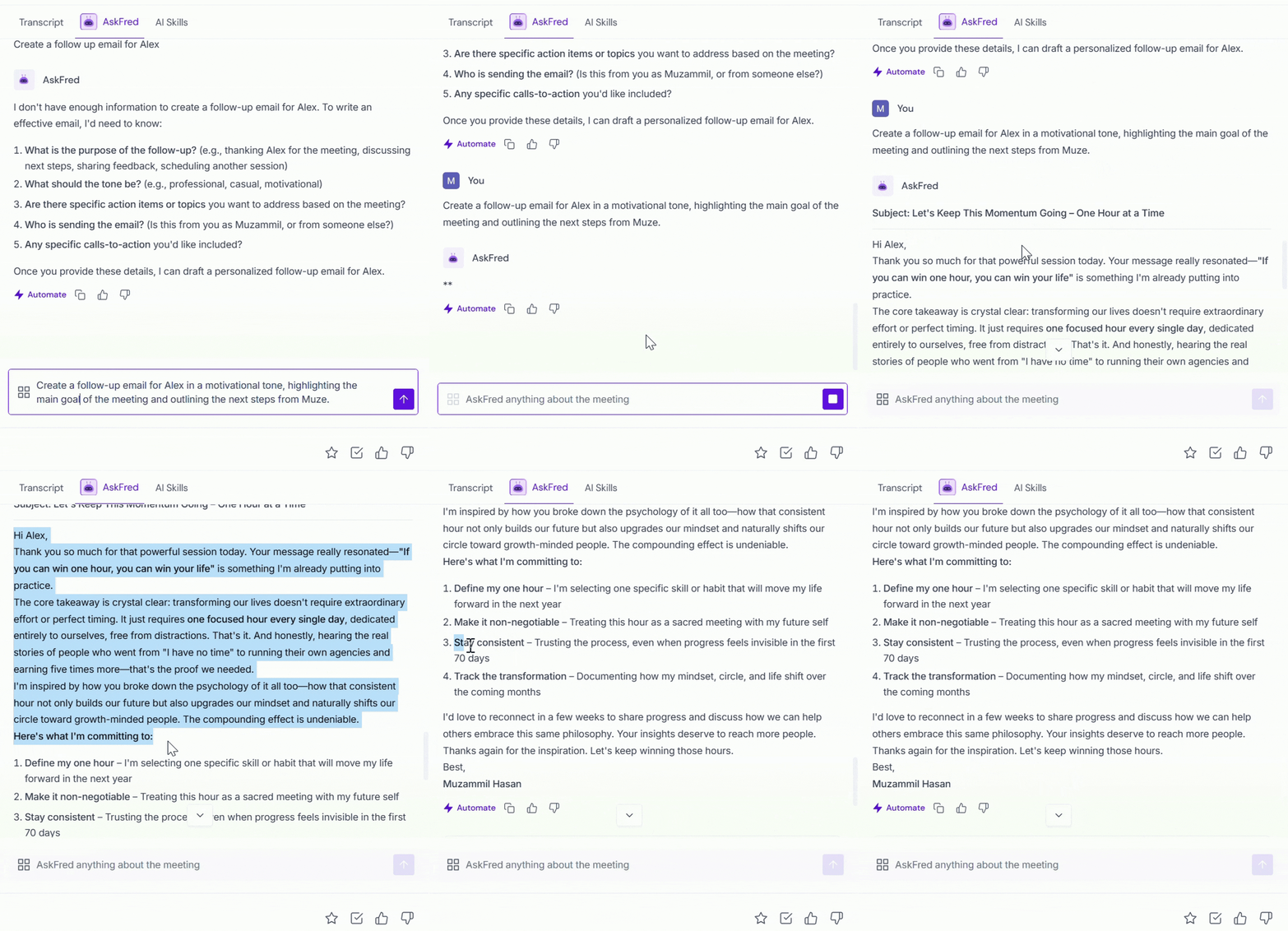
Follow-up emails — "Write a follow-up email to Client A summarizing next steps"
Social media posts — "Turn this meeting into a LinkedIn post about customer feedback"
Blogs or internal summaries — Just tell Fred what kind of content you need and who it's for
3. Ask General Questions
AskFred also works as a general AI assistant — not just for meeting-specific questions. You can ask:Don’t want to talk about the meeting? No problem. AskFred can also answer generic questions.
"What are good follow-up questions to ask after a sales call?"
"What is BANT in sales?"
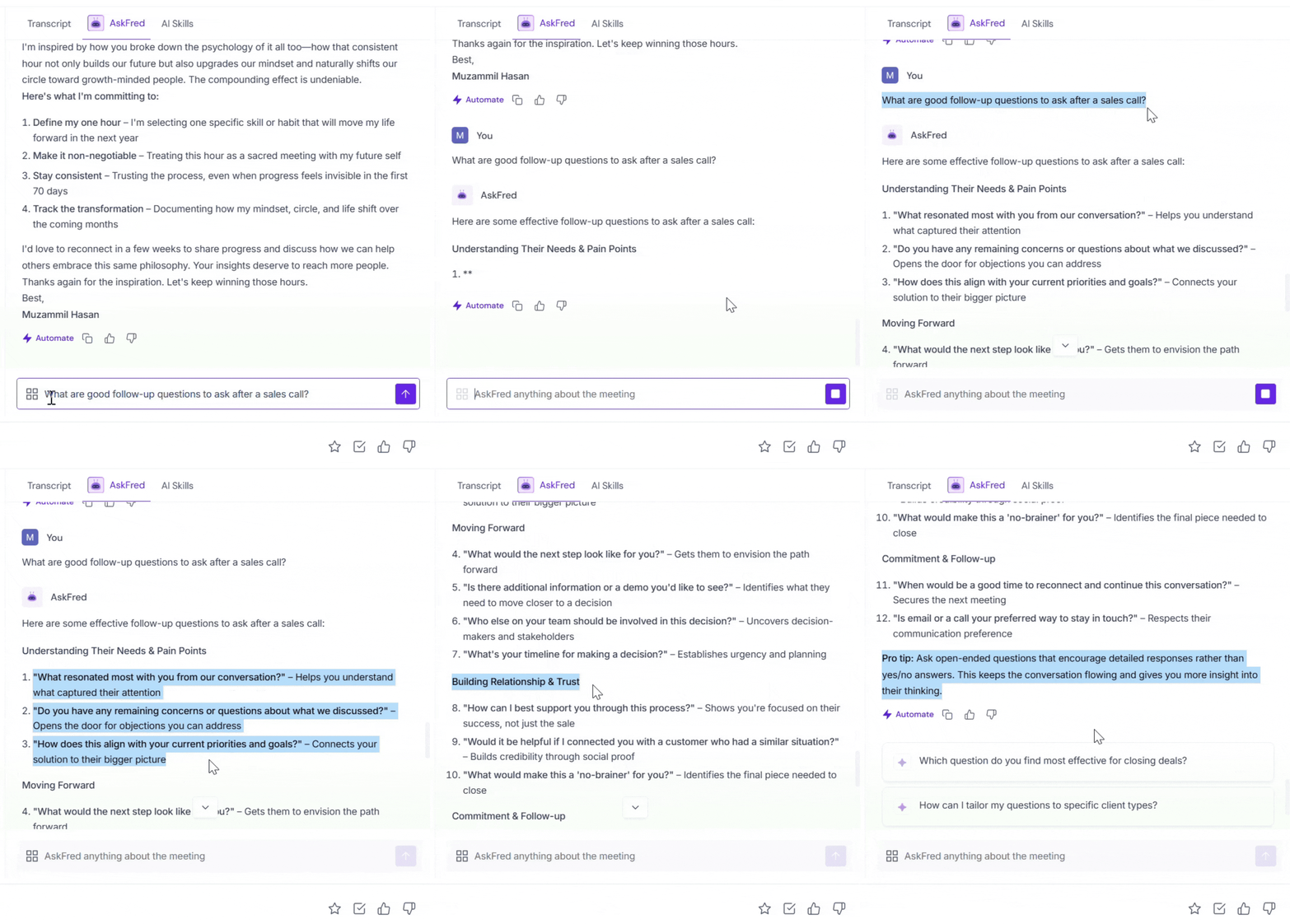
It’s a full AI chatbot—trained to work best with meetings, but flexible enough to help however you want.
4. Additional Features
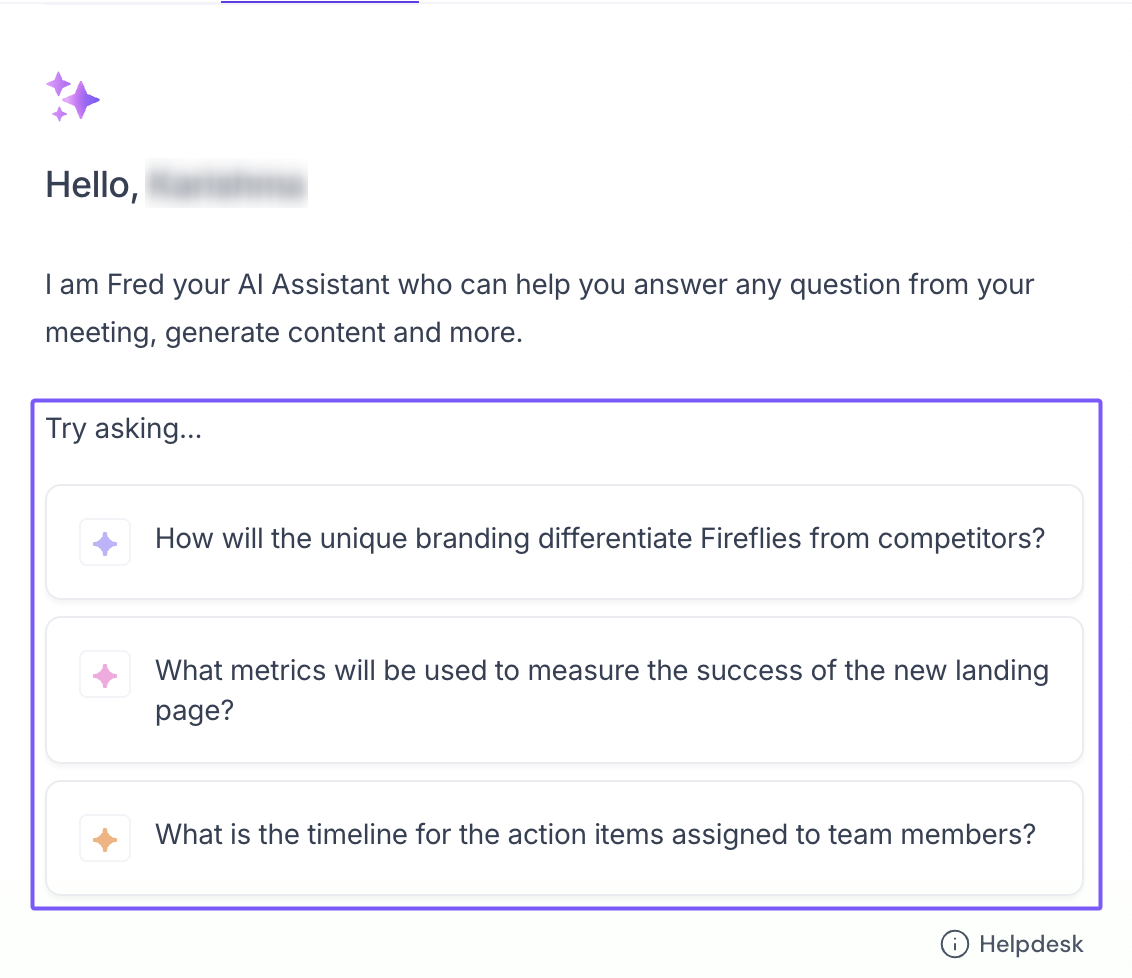
Use suggested questions under the AskFred chat box for quick prompts
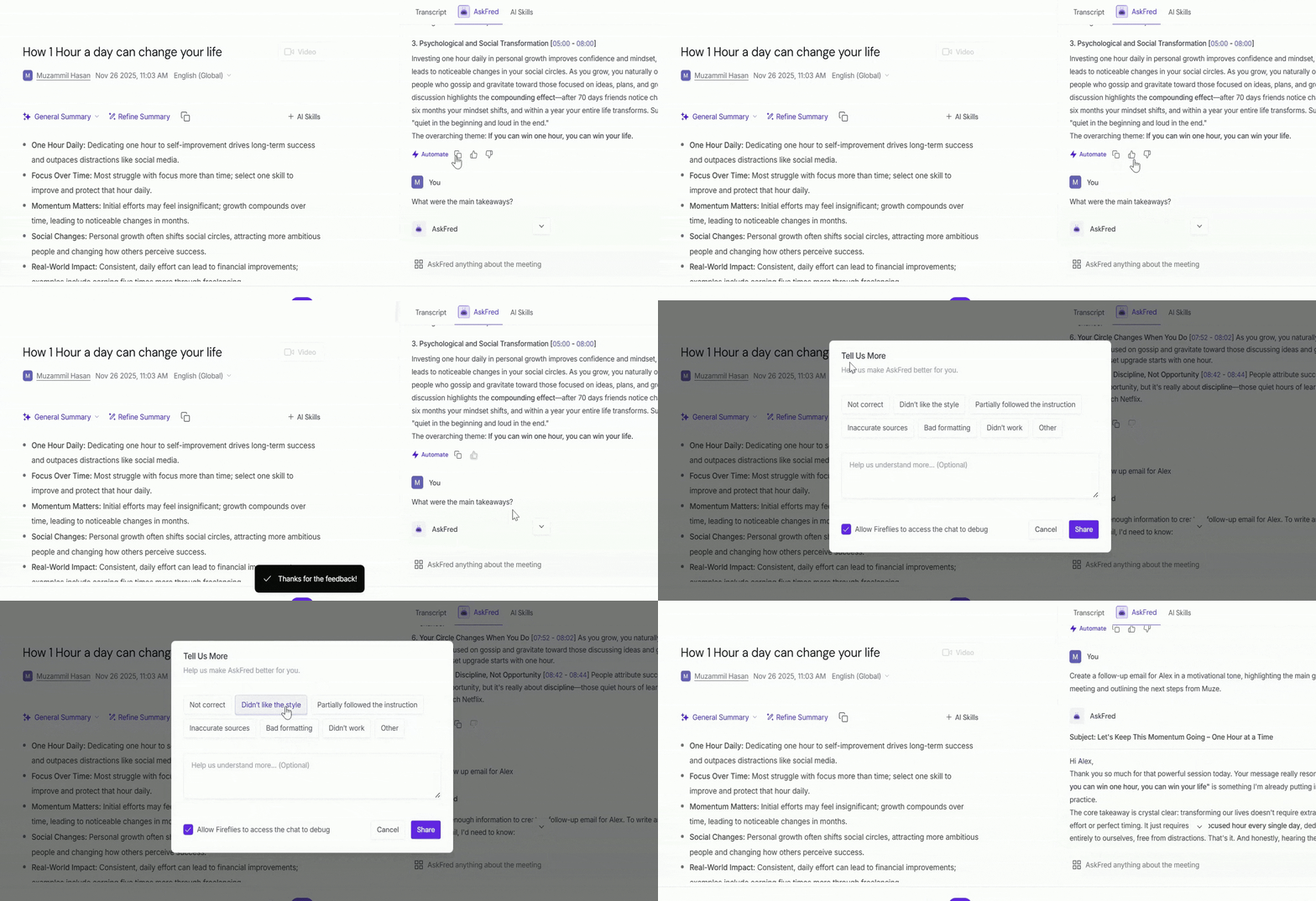
Rate responses with 👍 or 👎 to improve results, and use 📄 to copy answers for easy sharing.
Important: All the questions asked using AskFred for a past meeting is only visible to you and no one else in your team. This is different from AskFred visibility during Live Meetings. AskFred used with Live Assist (in live meetings) will be visible to others based on your privacy settings for Live Assist.
🤖 Use and Automate AI Skills
AI Skills are pre-built or custom prompts that help you quickly generate insights, summaries, and content from your meetings—or automate repeated tasks after every meeting.
1. Use Built-in AI Skills
Fireflies includes built-in AI Skills that generate instant outputs without requiring you to write prompts manually.
Examples include BANT for sales qualification, 1:1 summaries, follow-up emails, action item summaries, and more.
To run a built-in AI Skill, follow these steps:
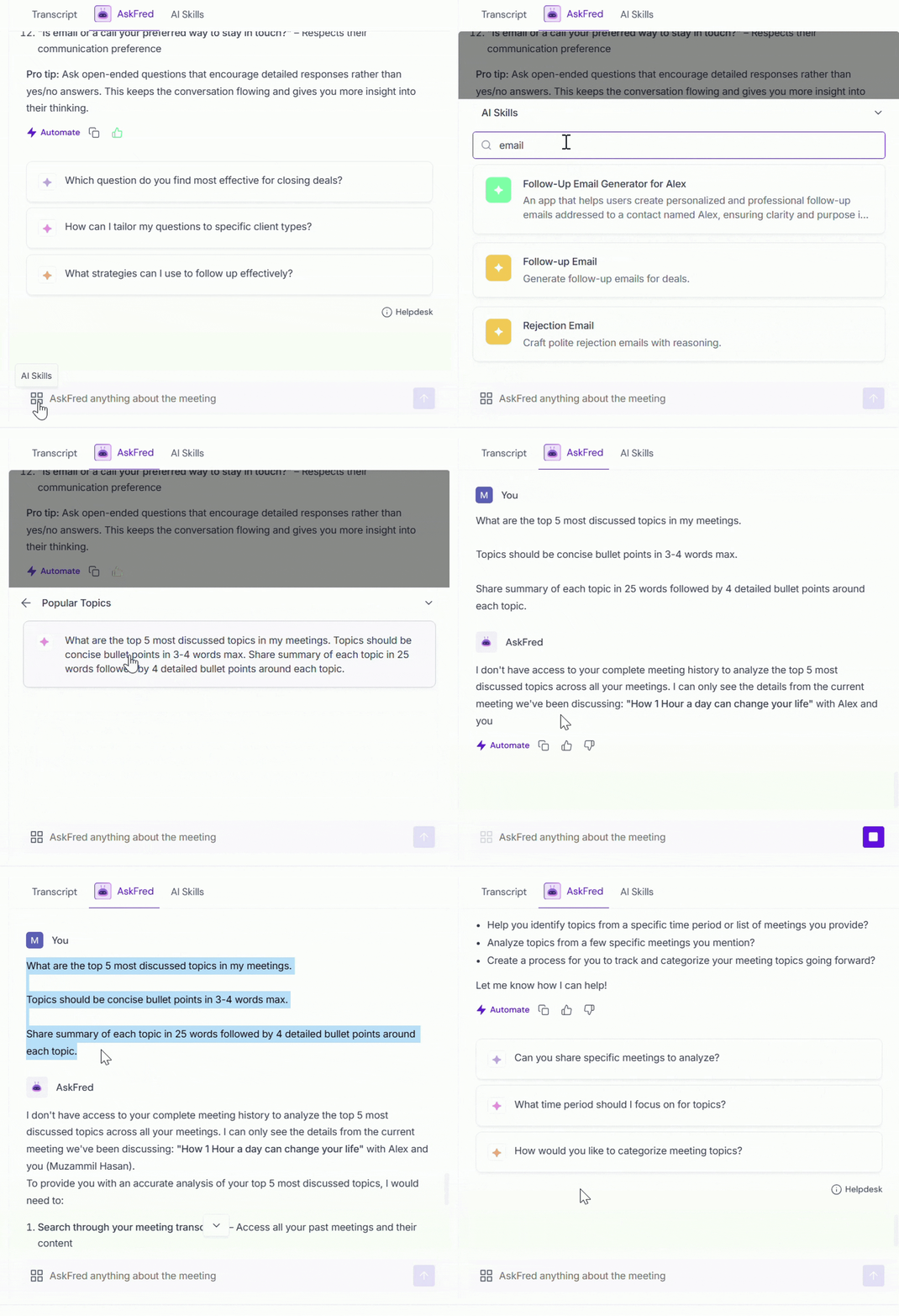
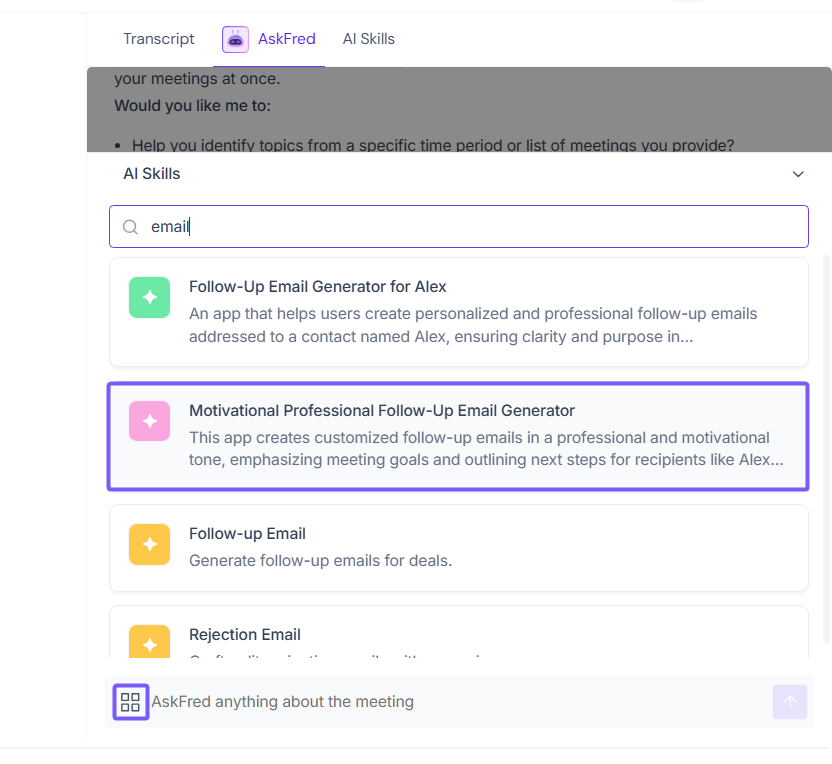
1. In the AskFred chat box, click the four-square icon on the left side to open all available AI Skills, including built-in skills and any custom ones you’ve created.
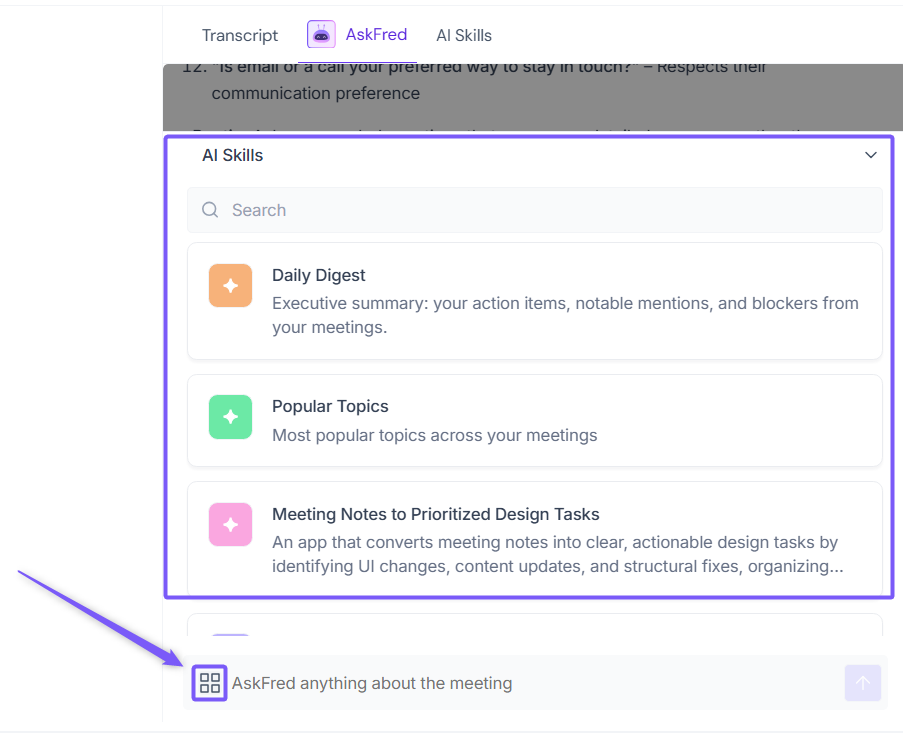
2. Search for or select the AI Skill you want, and let AskFred run it for you automatically.
2. Automate Prompts with Custom AI Skills
If you frequently ask the same question in AskFred, you can save it as an AI Skill and run it automatically after every meeting.
1. Type your prompt in AskFred (for example: “Create a follow-up email for Alex in a motivational tone, highlighting the main goal of the meeting and outlining the next steps from Muze.”).
2. After the response is generated, click the Automate button below the response.
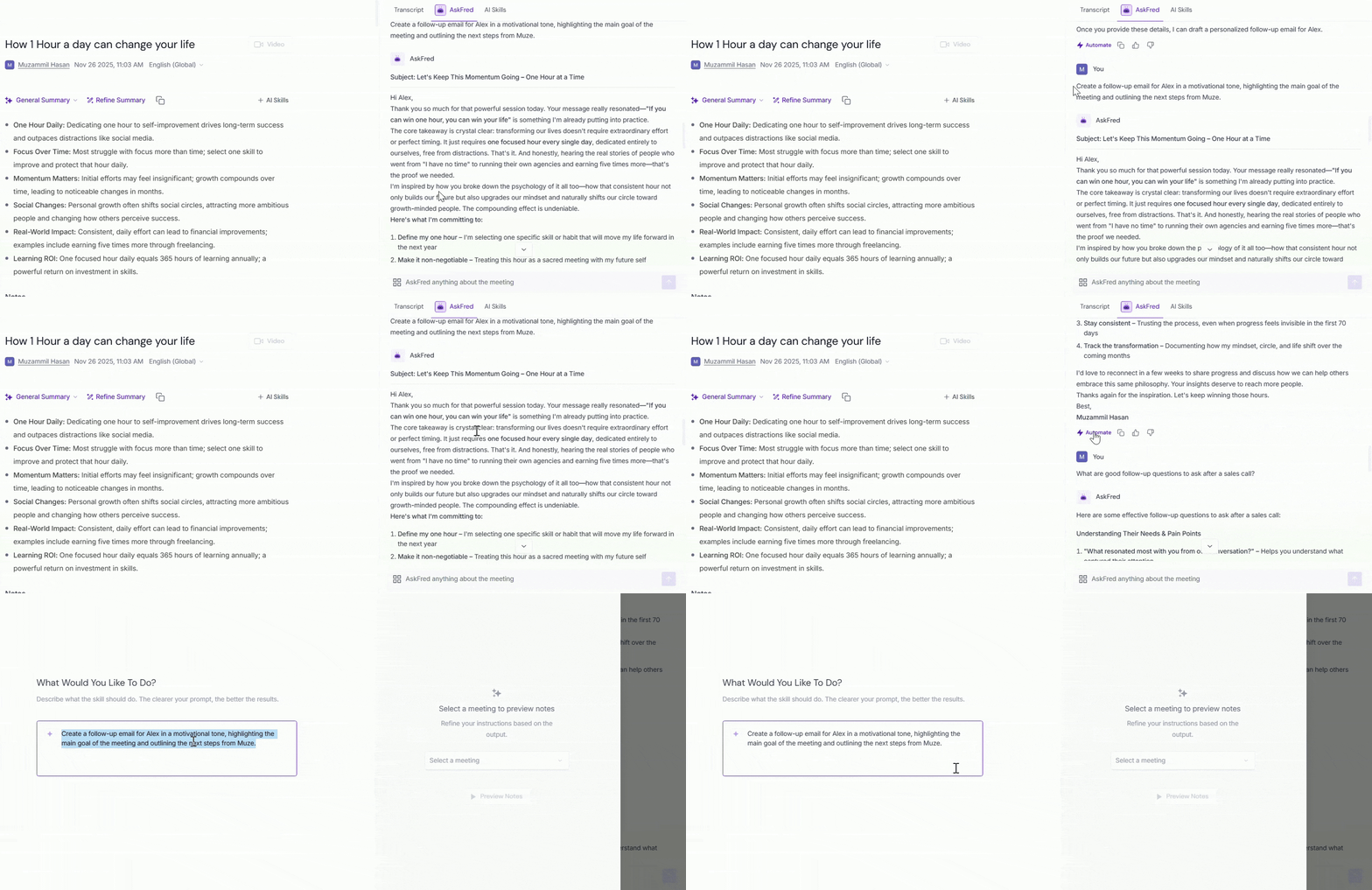
3. Enter a name for your AI Skill and add a clear description of what the prompt should do for more specific results, then click Next.

4. Review and customize the AI Skill settings, such as the schedule, output type, output visibility, and which meetings it should run on.
You can also connect it to your work apps if needed, then click Create Skill.
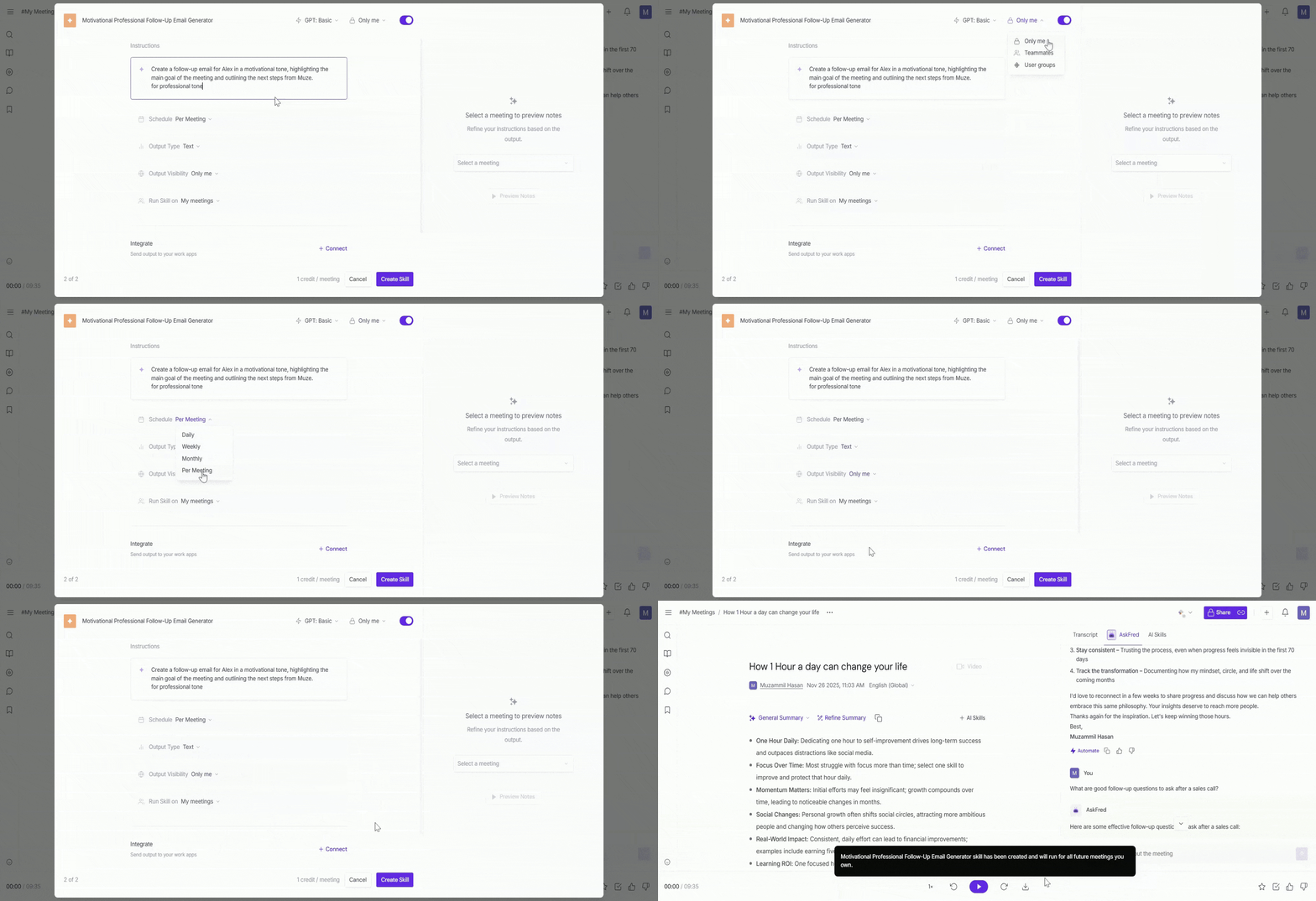
5. To use your new AI Skill, click the four-square icon in AskFred, search for the AI Skill you created, and select it to run.
📌 Want to build powerful automations from your meetings? Learn more about AI Skills and automated workflows.
3. Manage AI Skills
You can manage your custom AI Skills anytime from the AI Skills feed.
1. From your Fireflies dashboard, click AI Skills in the left-side panel.
2. Select the Active Skills tab and locate the AI Skill you created.
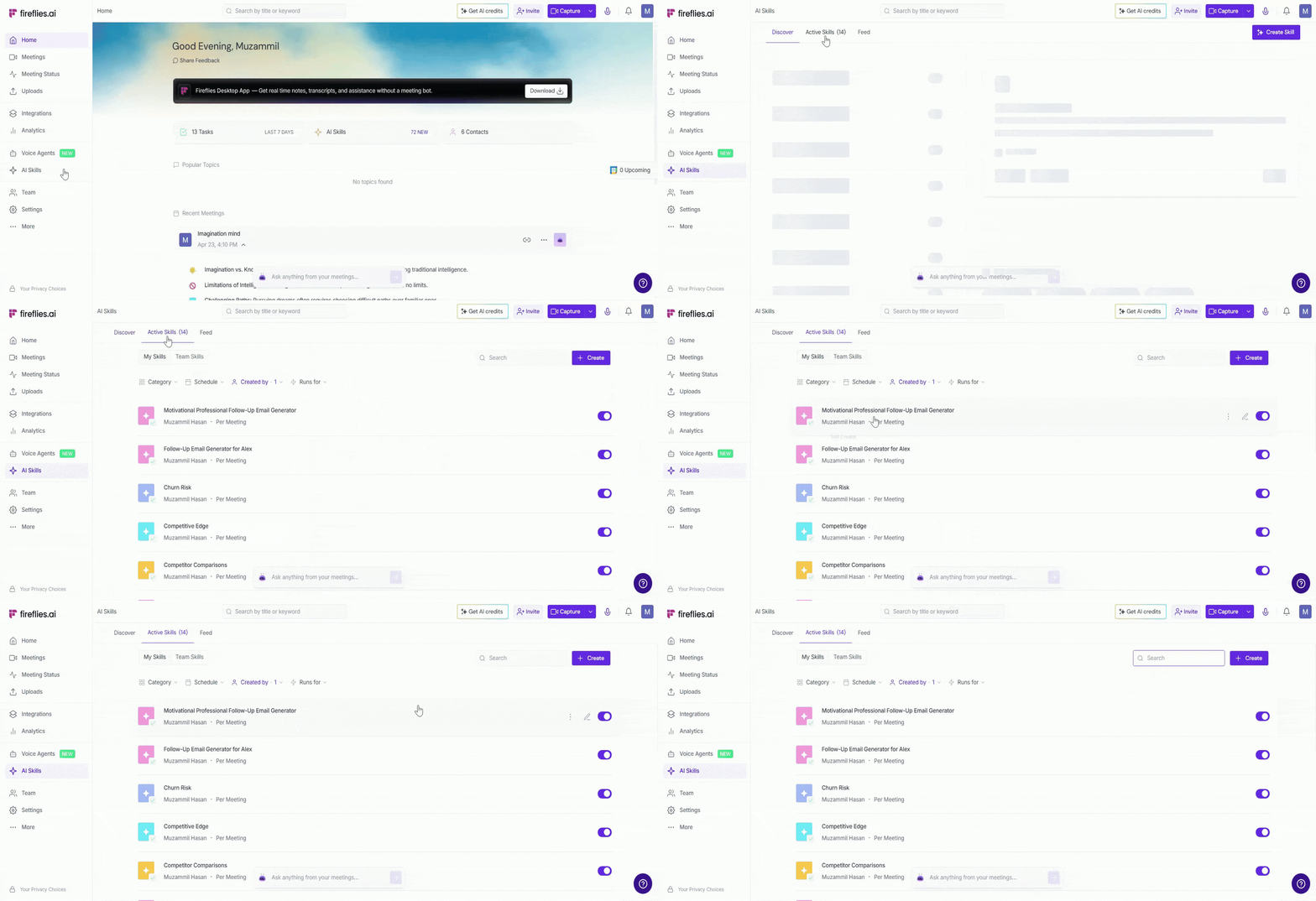
3. From here, you can:
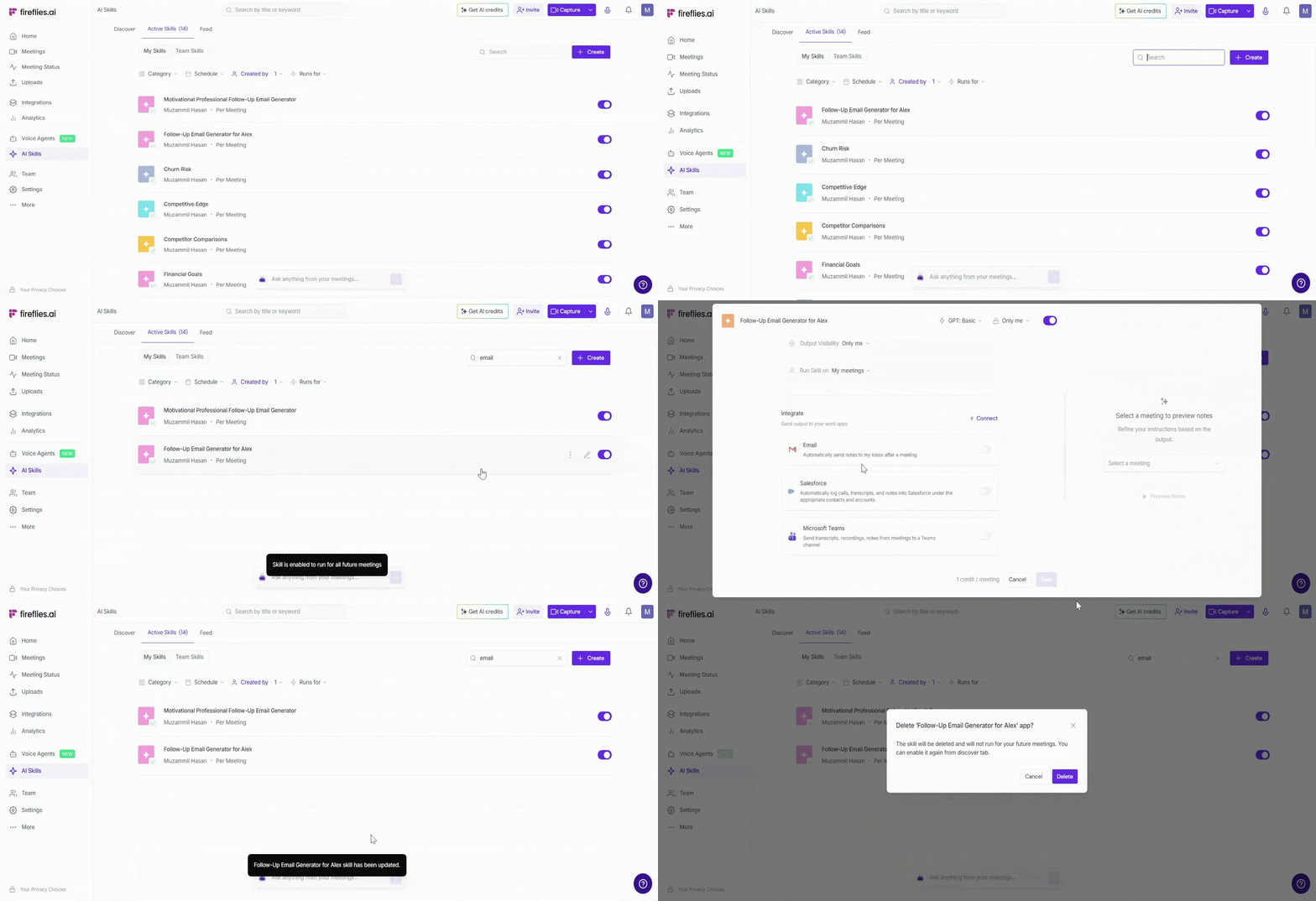
Use the toggle to enable or disable the AI Skill for automation.
Customize the AI Skill and update its settings.
Delete the AI Skill if it’s no longer needed.
✨Do You Need AI Credits to Use AskFred?
That depends on your Fireflies plan:
For paid users (Pro and above):
Asking questions with AskFred inside a processed meeting in the Fireflies Notepad is free and does not consume AI credits.
💡Update: You will not see an option to select AI models anymore. All AskFred responses use a high-quality base model by default.
For free users
Free users get 20 AI credits by default upon signup. These are shared across AskFred and other AI features.
AI credits are dynamically charged based on your usage, the number of credits consumed depends on the complexity and effort required to answer each query.
Once you use up your credits, you’ll see a paywall to upgrade or buy more credits
📌Know more about AI credits here: 🗒How AI credits work in Fireflies.
⚠ Important Note:
AskFred works differently depending on where you use it, including AI credit usage.
1. The following features use dynamic AI credit pricing. AI credits are charged per query, and the number of credits consumed depends on the complexity and effort required to generate the output. Simpler requests may use fewer credits, while more complex query may use more.
AskFred in Live Assist
AskFred in Sales Assist
Global AskFred (Home Dashboard)
AI Skills
2. AskFred in the Fireflies Meeting Notepad
Paid users: AskFred is free and does not consume AI credits.
Free users: AI credits are dynamically charged based on usage. The number of credits consumed depends on the complexity and effort required to answer each query. Simpler requests may use fewer credits, while more complex requests may use more.
3. Meeting summaries
Templates used in summaries don't consume AI credits — only custom summary sections do.
Reprocessing summaries is free. AI credits are charged only for custom summary sections.
📌 Related guides
Looking for answers across all past meetings, broader searches, or general questions? Try Global AskFred.
Need help during a live meeting? Using AskFred in Live Meetings (via Live and Sales Assist)
Want to see AskFred in action? Watch the AskFred office hours session to learn how to ask better questions and use AskFred across Fireflies.