How to Integrate Salesflare with Fireflies
Last updated: October 28, 2025
Ready to automatically log every meeting transcript and note right into Salesflare CRM? Connecting Fireflies ensures every customer chat is instantly attached to the right contact, keeping your team up-to-date and saving you valuable time on manual data entry.
Let's get started! 🚀
🔍 What Does the Integration Do?
The Fireflies x Salesflare integration is a simple yet powerful tool for sales productivity:
Automatic Logging: Fireflies automatically creates meeting transcripts and summaries.
CRM Sync: Log meeting notes directly under the corresponding Contact in Salesflare using email matching.
Centralized Data: Keeps your CRM a single source of truth for all client interactions.
🔑 Prerequisites
To successfully connect Salesflare with Fireflies, you'll need:
A Fireflies Account: Just make sure it's active and ready to connect to external tools.
An active Salesflare account.
The Salesflare API Key (which you'll generate in the steps below).
🔗 Connect Salesflare to Fireflies
We'll kick things off by generating your API key in Salesflare, and then we'll complete the connection in Fireflies.
Part 1: Get the Salesflare API Key
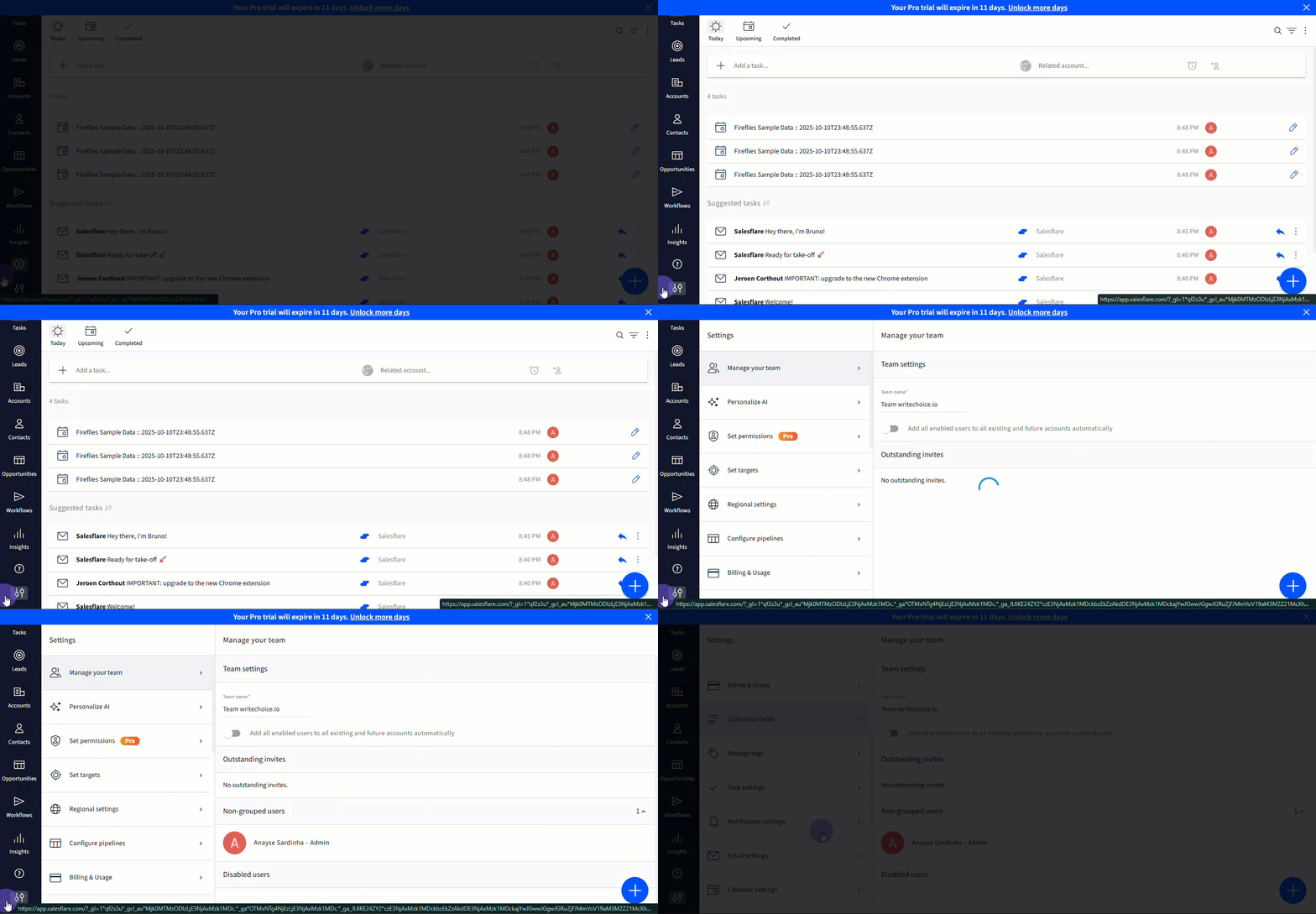
Step 1: Access Settings
Log in to Salesflare. From the left sidebar, click Settings.
Step 2: Create API Key
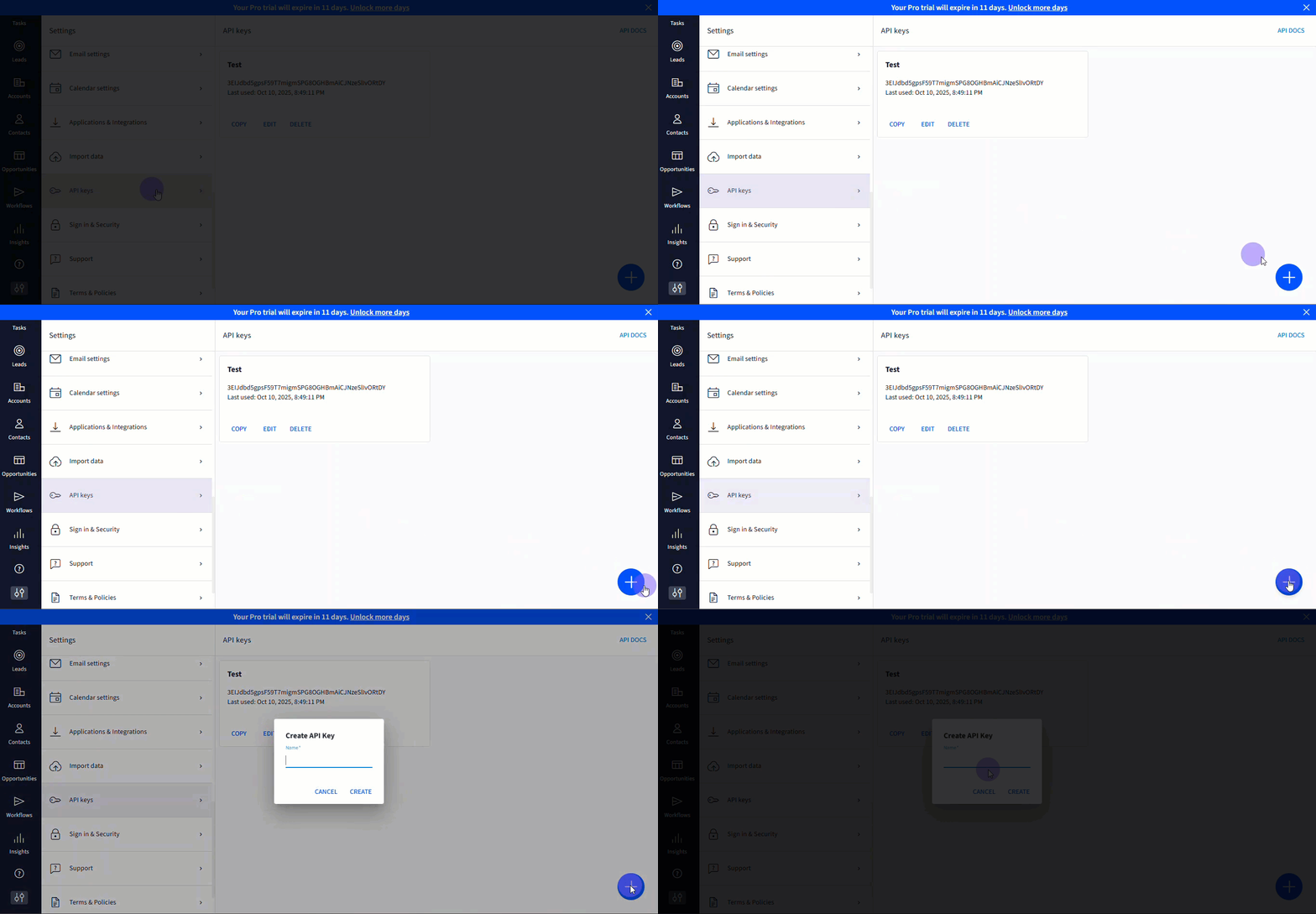
Click API Keys, then click on the + icon to create a new key.
Step 3: Copy Key
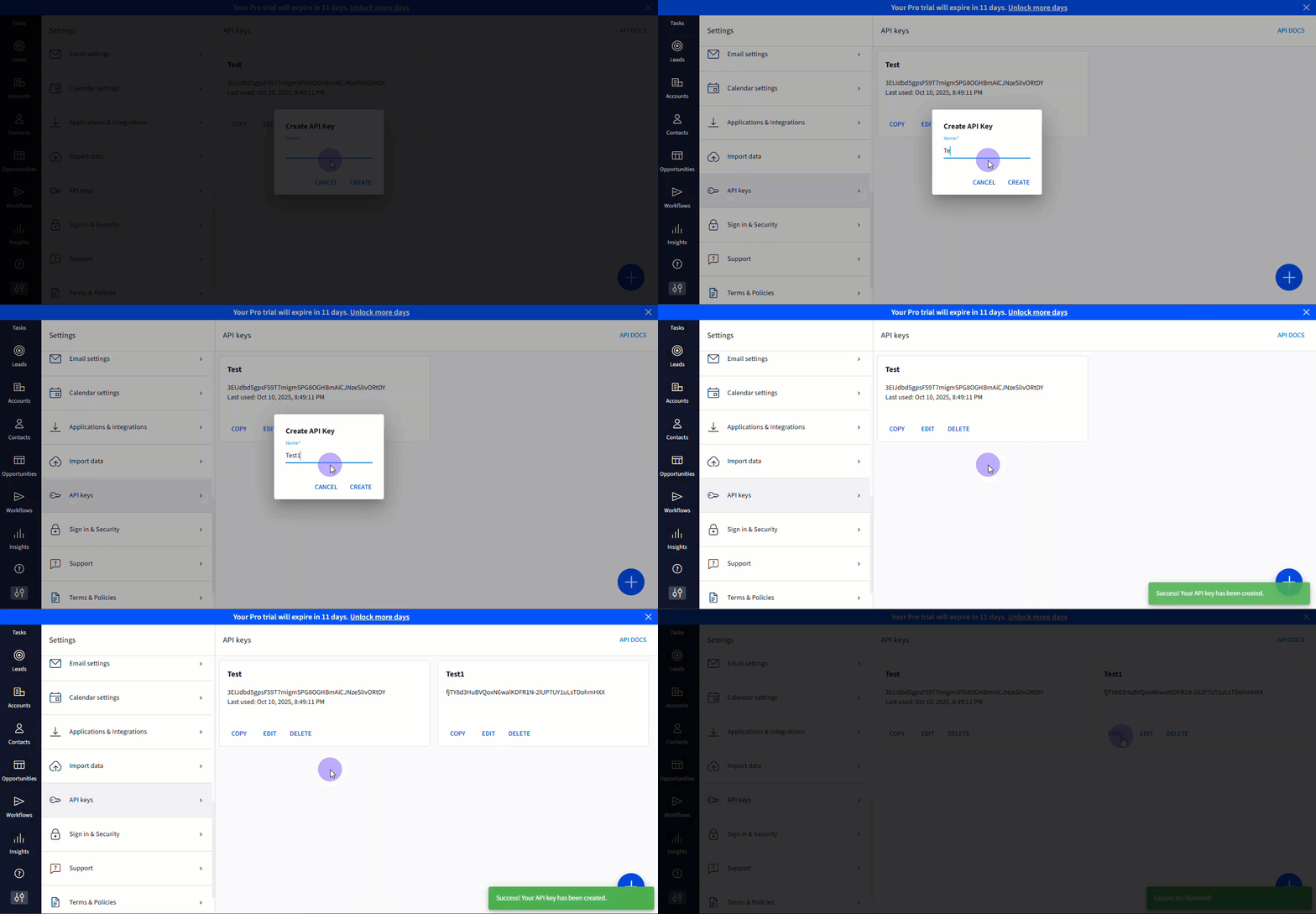
Enter the API key name (e.g., Fireflies Integration) and click Create. Now, copy the API key.
Part 2: Complete the Connection in Fireflies
Step 1: Locate Integration
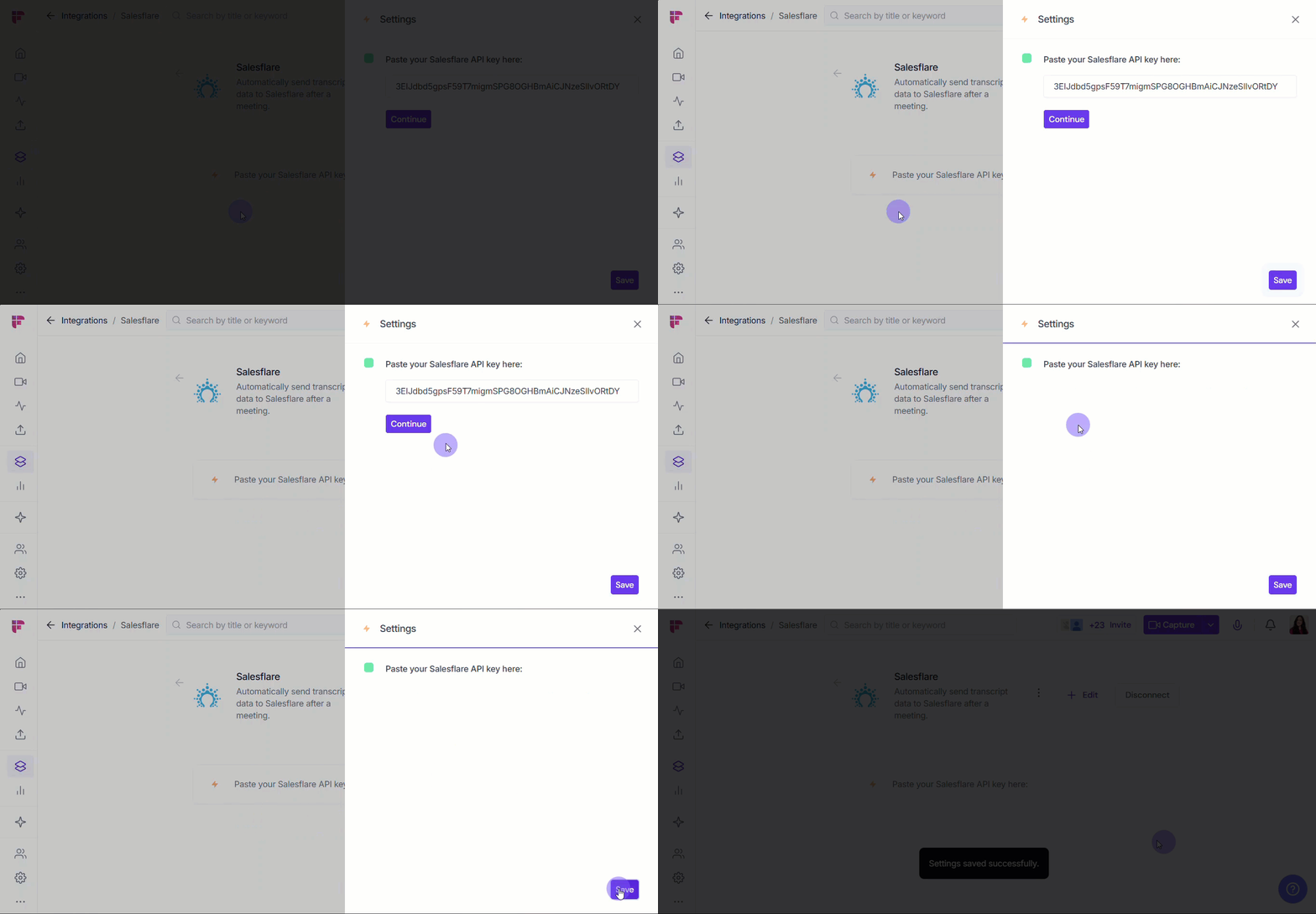
Log in to your Fireflies account and then click Integrations. Find Salesflare and click on the app tile.

Step 2: Complete Connection
Paste the Salesflare API key into the field and click Save.
⚙ Set Up Your Configuration
Since Salesflare integration mainly logs notes from meetings happening after the setup, this step is for processing any older meetings you might want to include.
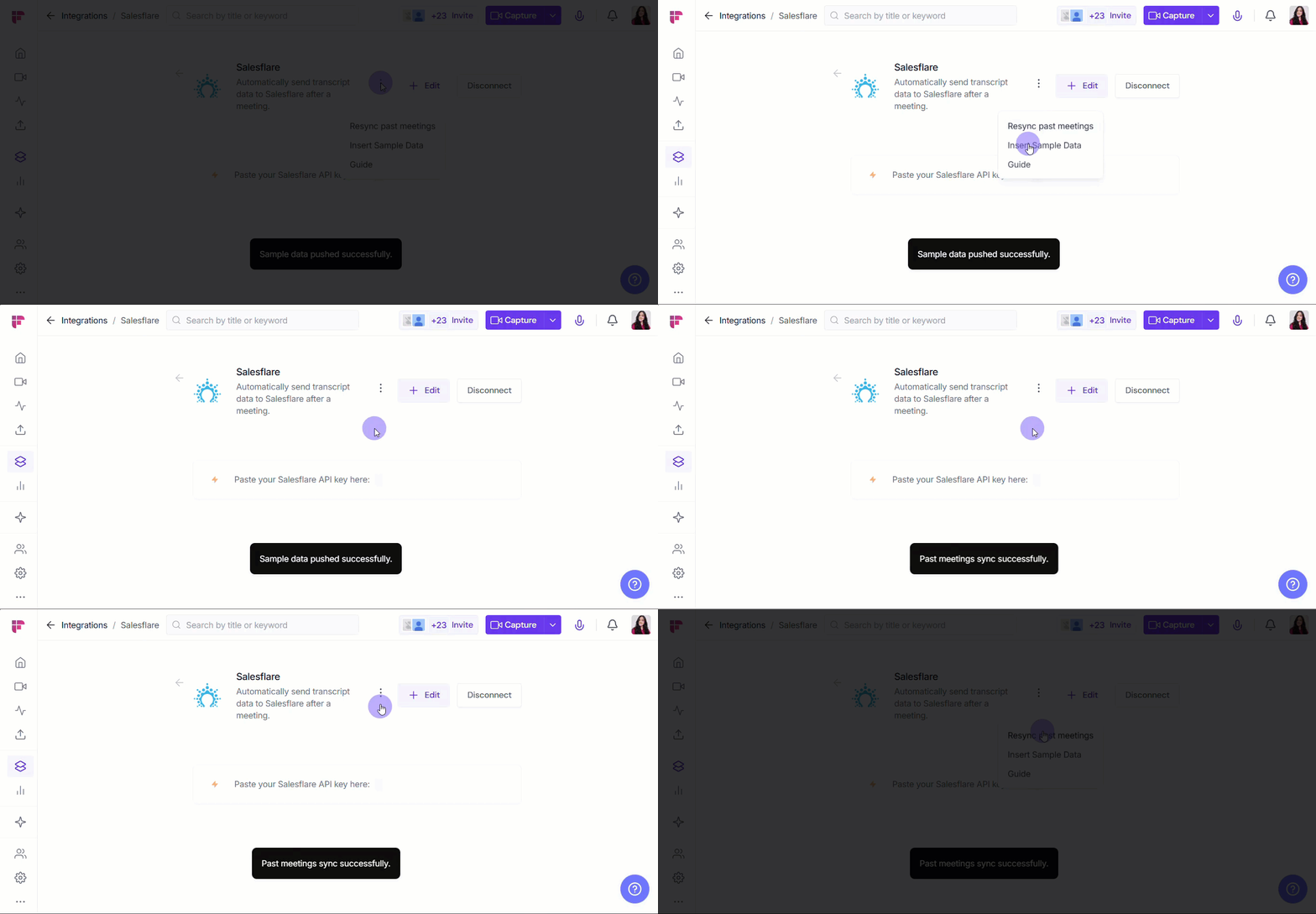
Step 1: Resync Past Meetings (Optional)
Click Resync past meetings if you want Fireflies to retroactively process old meetings that occurred before the integration was active.
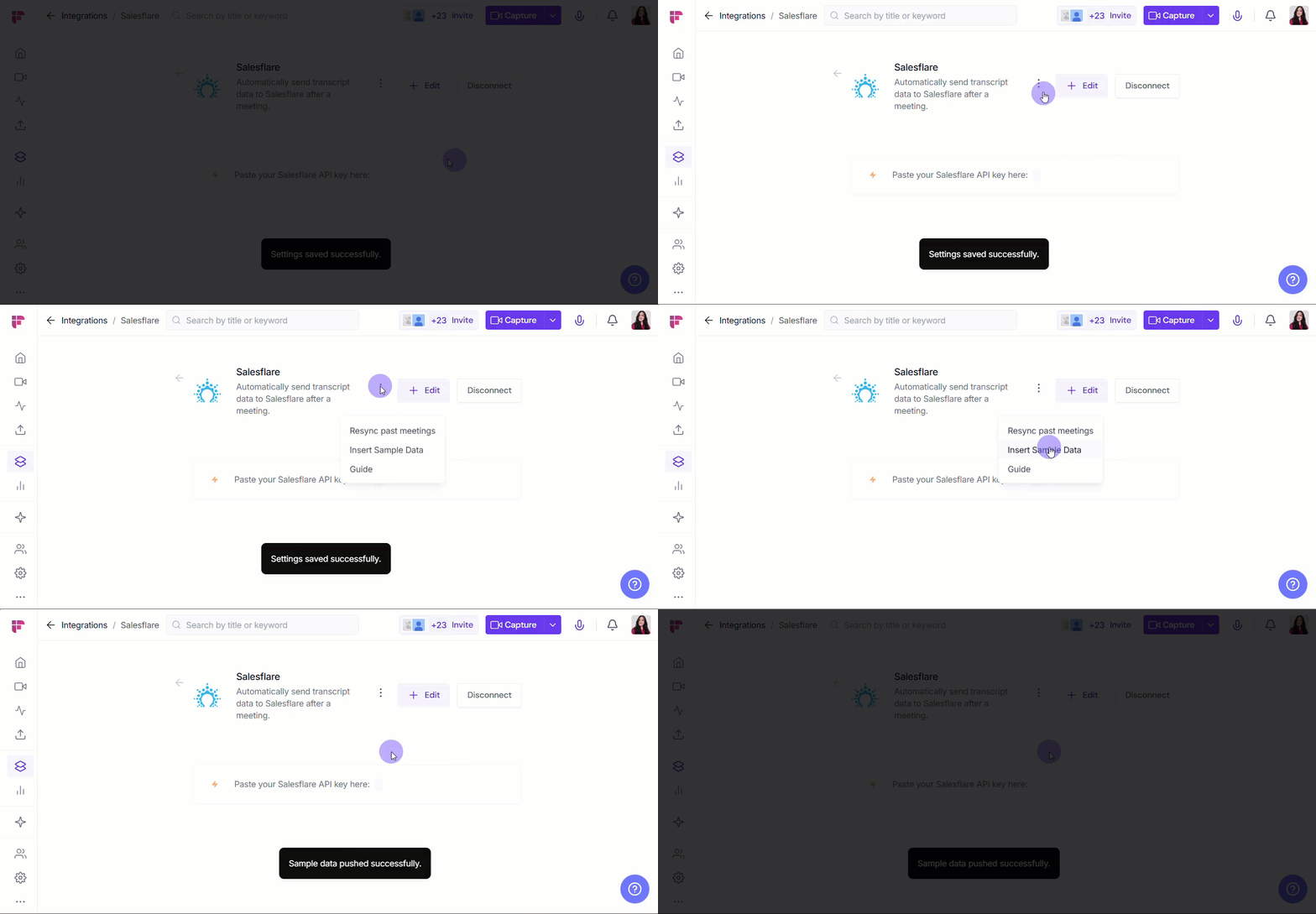
Step 2: Test Your Connection (Optional)
You can test if your integration is working right from the Salesflare Integrations page by selecting Insert Sample Data.
🛠 Manage Configuration
To manage or modify your Salesflare connection, simply visit the Salesflare card in the Integrations section of your Fireflies dashboard.
⚙ Edit Configuration Settings → Need to adjust the API key linked to Fireflies? Select Edit, update the API key, select Continue and click Update to save.

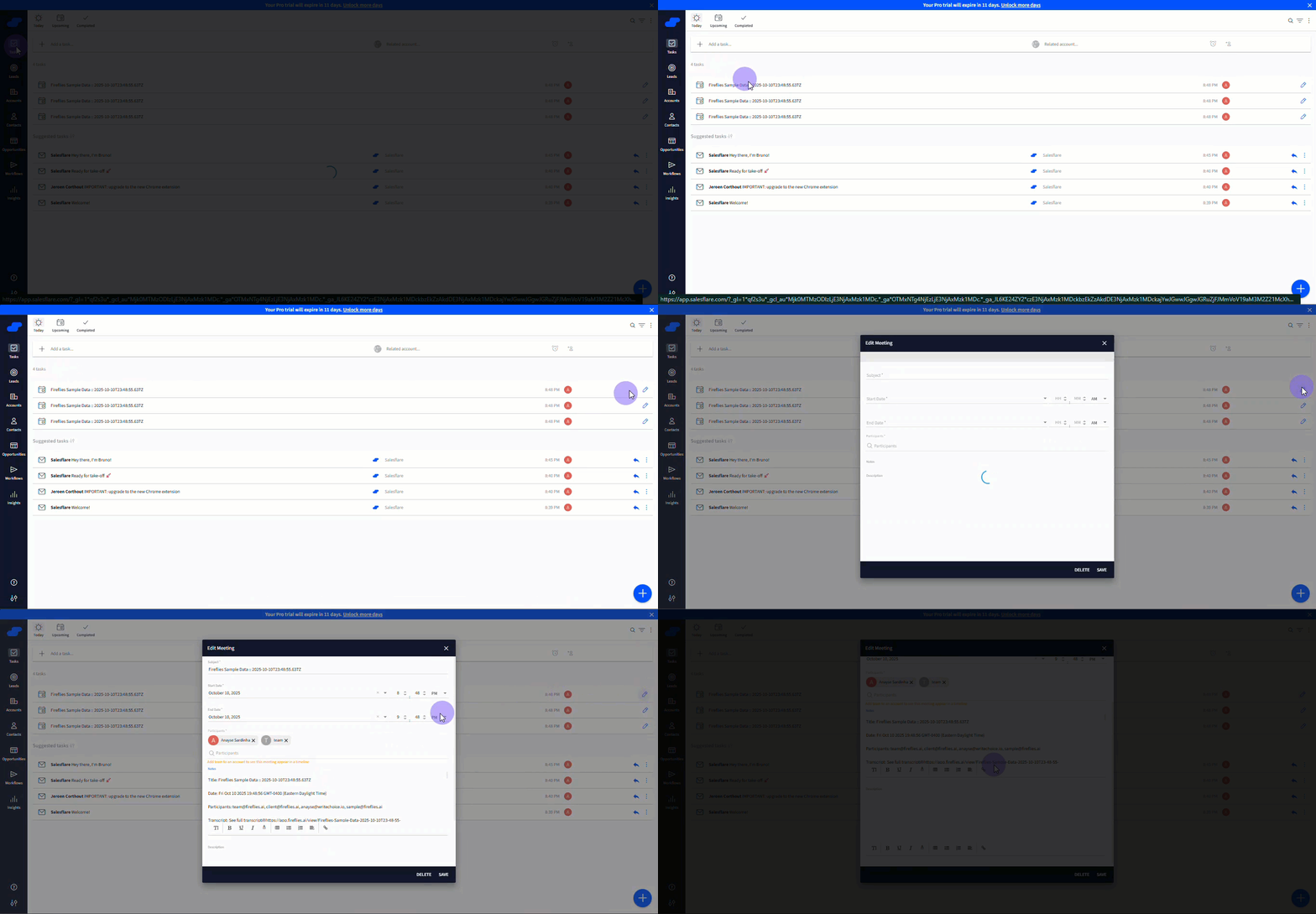
📤 How Data Appears in Salesflare
Fireflies will automatically log the meeting transcript and summary link under the appropriate Contact in Salesflare.
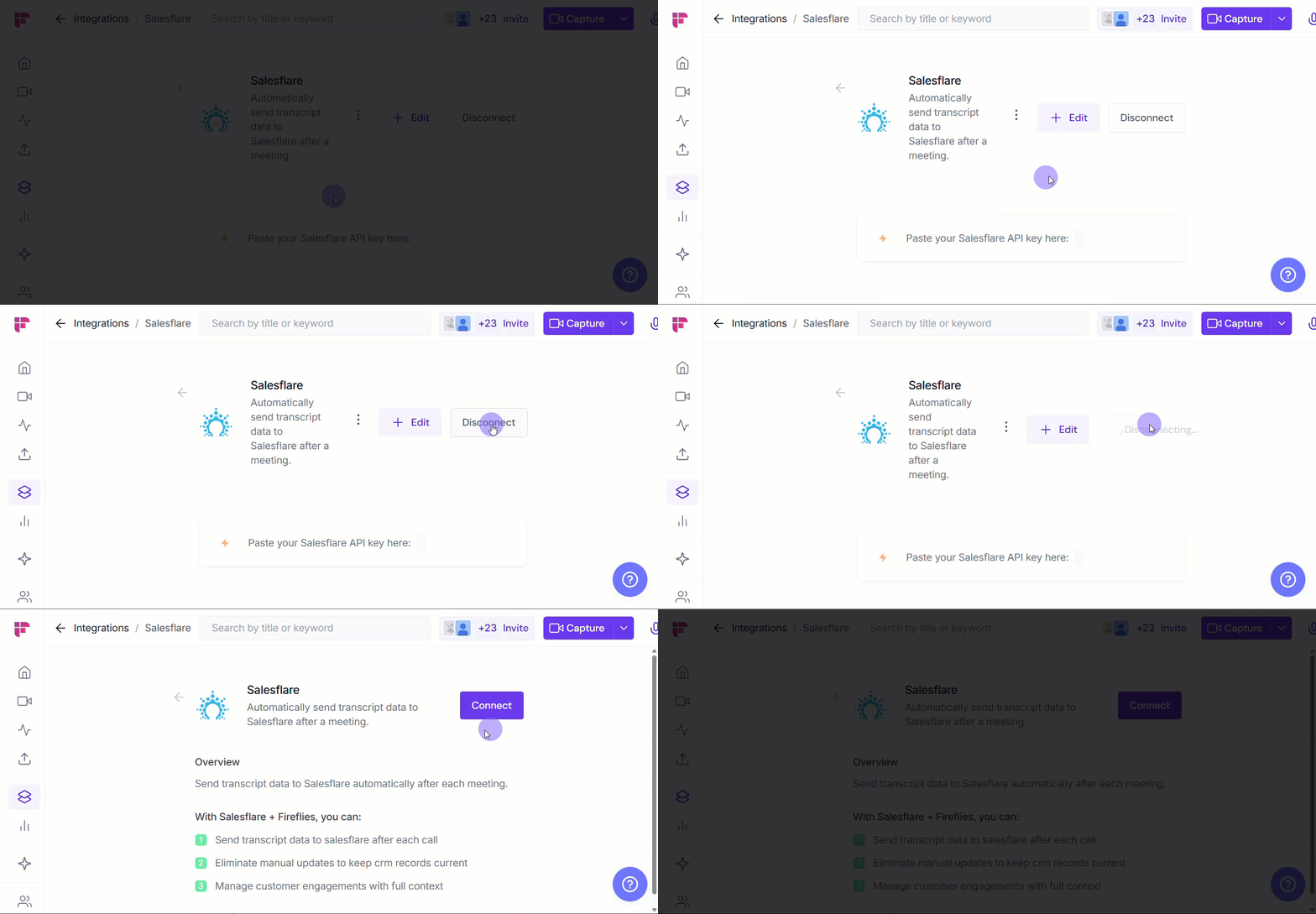
❌ Disconnect Integration
If you no longer need Fireflies connected to Salesflare, click the Disconnect button to immediately end the connection.
Once disconnected, Fireflies will stop sending data to Salesflare. You can always reconnect later if needed.
🛠 Troubleshooting
Meeting notes aren't appearing under the contact.
Fireflies matches contacts by email address. Ensure the meeting participant’s email address in Fireflies exactly matches the email address on the Salesflare contact record.
I received an "Invalid API Key" error.
Go back to Salesflare and create a brand-new API key, then paste it directly into the Fireflies integration field to ensure there are no leading or trailing spaces.
❓ Frequently Asked Questions (FAQ)
Q1. Does Fireflies create new contacts in Salesflare?
Yes. If a meeting participant's email is not found in Salesflare, Fireflies will typically create a new contact record to log the meeting note.
Q2. What kind of meetings get synced?
All meetings transcribed by Fireflies (Zoom, Google Meet, etc.) that have at least one participant whose email address is in your Salesflare database will be synced.
🔄 Recap
You've successfully connected Salesflare and Fireflies! This integration automatically links your valuable meeting notes and summaries to the relevant contact records in your CRM. This automation ensures your entire team is aligned on every customer interaction. You'll boost follow-up efficiency and keep your data clean.
📚 Related Guides
📌 How to set up Topic Trackers - Use Topic Trackers to categorize your Salesflare conversations.
📌 Why is Fred from Fireflies joining (or missing) meetings? Fix with these auto-join settings - Manage your team's auto-join preferences for other meeting platforms.
📌 How to invite Fireflies to meetings - Learn the different ways to invite Fireflies to record your calls.
📌 Learn about the Fireflies Auto-join and Email Recap settings - Control your personal preferences for when Fireflies joins meetings and sends summaries.