How to schedule your AI skills to analyse multiple meetings and give you insights
Last updated: March 17, 2026
Stop analyzing meetings one by one – let AI surface insights across all your conversations automatically.
Why This Matters to You
We know the frustration. You've got valuable insights scattered across dozens of customer calls, competitor mentions buried in weekly team meetings, and product feedback spread throughout months of user interviews. Manually reviewing each meeting to spot patterns? That's hours of work that could be spent on action, not analysis.
Scheduled AI Skills change the game entirely. Instead of running AI analysis on individual meetings, you can now set up intelligent workflows that automatically scan across all relevant conversations – whether that's this week's sales calls, this month's customer feedback sessions, or this quarter's competitive intel discussions.
What You'll Accomplish
By the end of this guide, you'll have automated insights flowing directly to your inbox and dashboard:
Benefit | What This Means for You |
Cross-meeting pattern recognition | Spot recurring themes, objections, and opportunities across all conversations |
Automated scheduling | Set it once, get insights delivered daily, weekly, or monthly |
Targeted analysis | Focus on specific meeting types, teams, or topics that matter most |
Instant delivery | Receive insights via email and see them in your Fireflies feed |
Getting Started
Step 1: Create Your Multi Meeting App
Navigate to your AI Skills hub where all the magic happens.
Go to app.fireflies.ai/skills in your browser
Click + Create in the top right corner
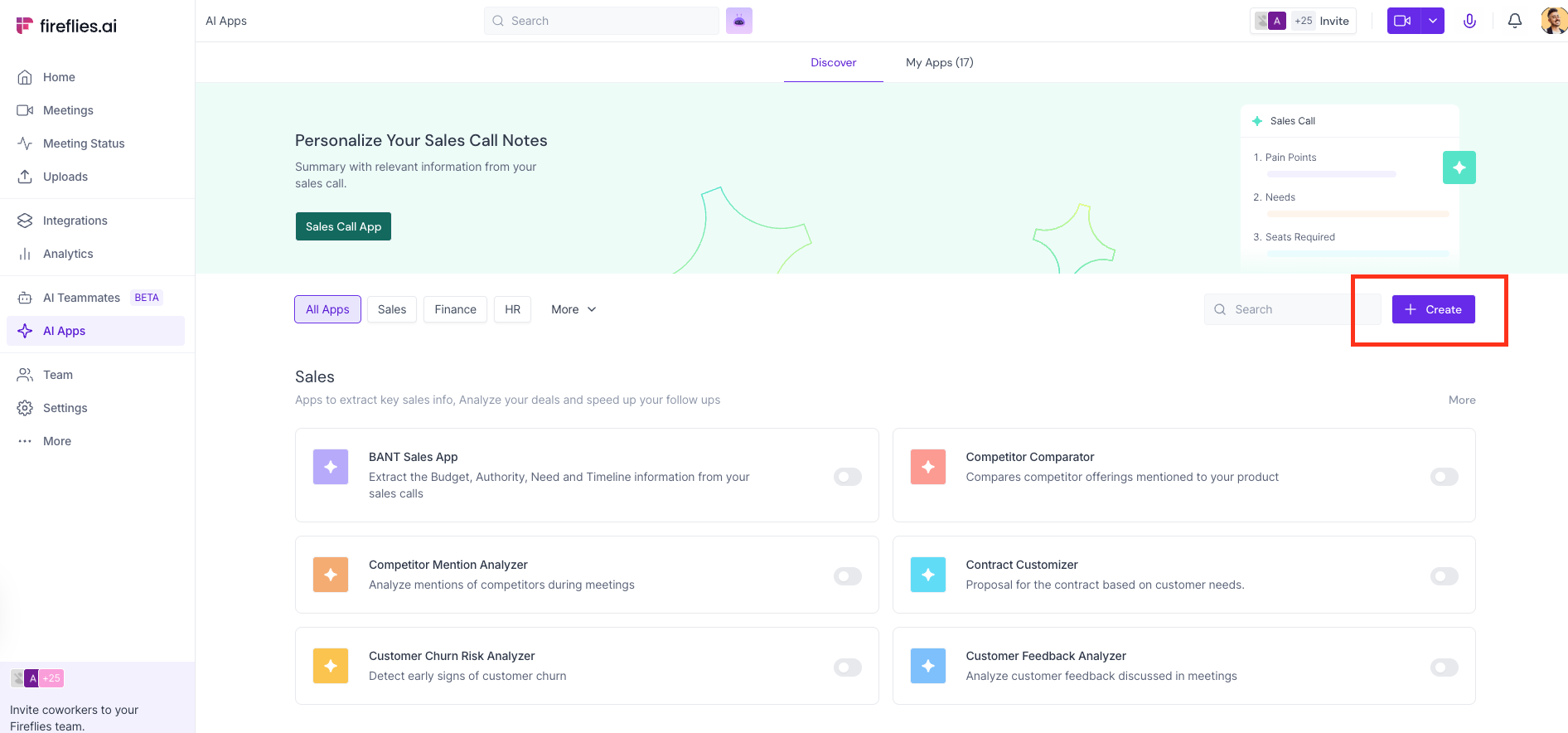
Write up your desired prompt
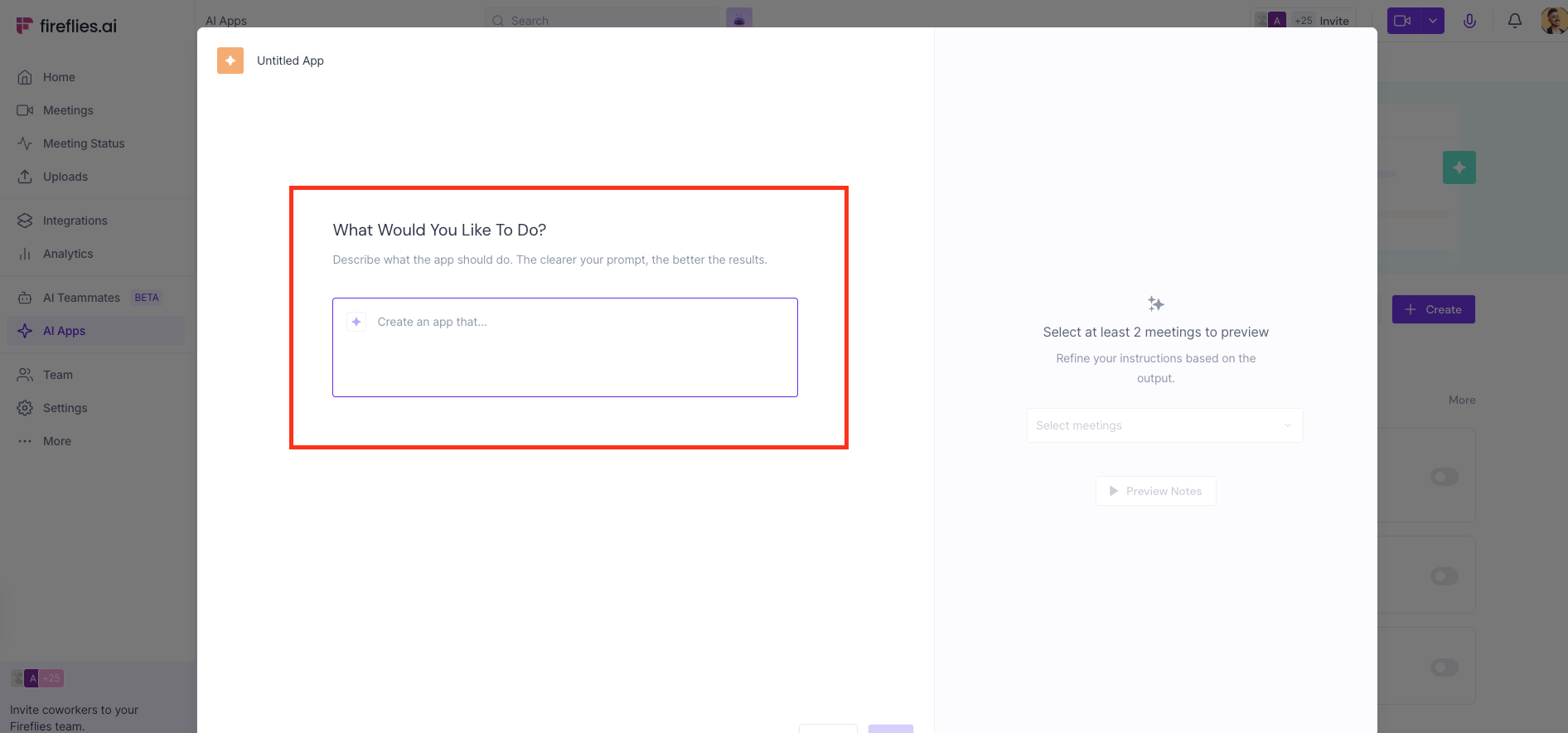
Give your skill a descriptive name like "Weekly Sales Objections" or "Monthly Product Feedback"
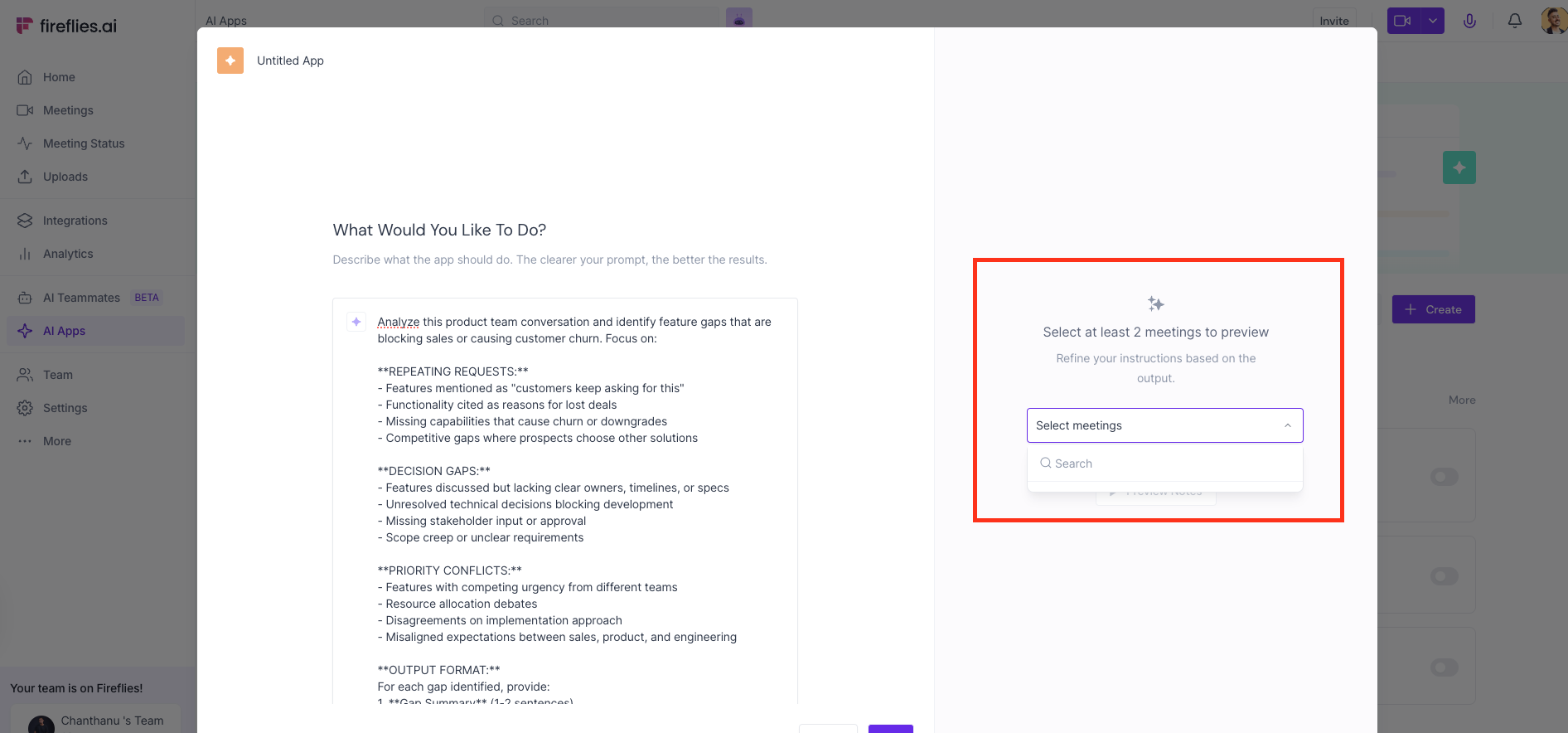
Select at least 2 meetings to preview and adjust your prompt for best results
Step 2: Configure Your Skill Settings
The new consolidated settings make setup straightforward with three key decisions:
Setting | Options | Best For |
Schedule | Daily, Weekly, Monthly, Per Meeting | Match your review cadence – daily for active campaigns, weekly for team insights, monthly for strategic reviews |
Output Visibility | Only me, Teammates | Control who sees sensitive insights like competitor intelligence or customer feedback |
Run skill on | My meetings, All workspace meetings, Custom | Target exactly the conversations that matter for this analysis |
Schedule Options
Choose when your skill analyzes meetings:
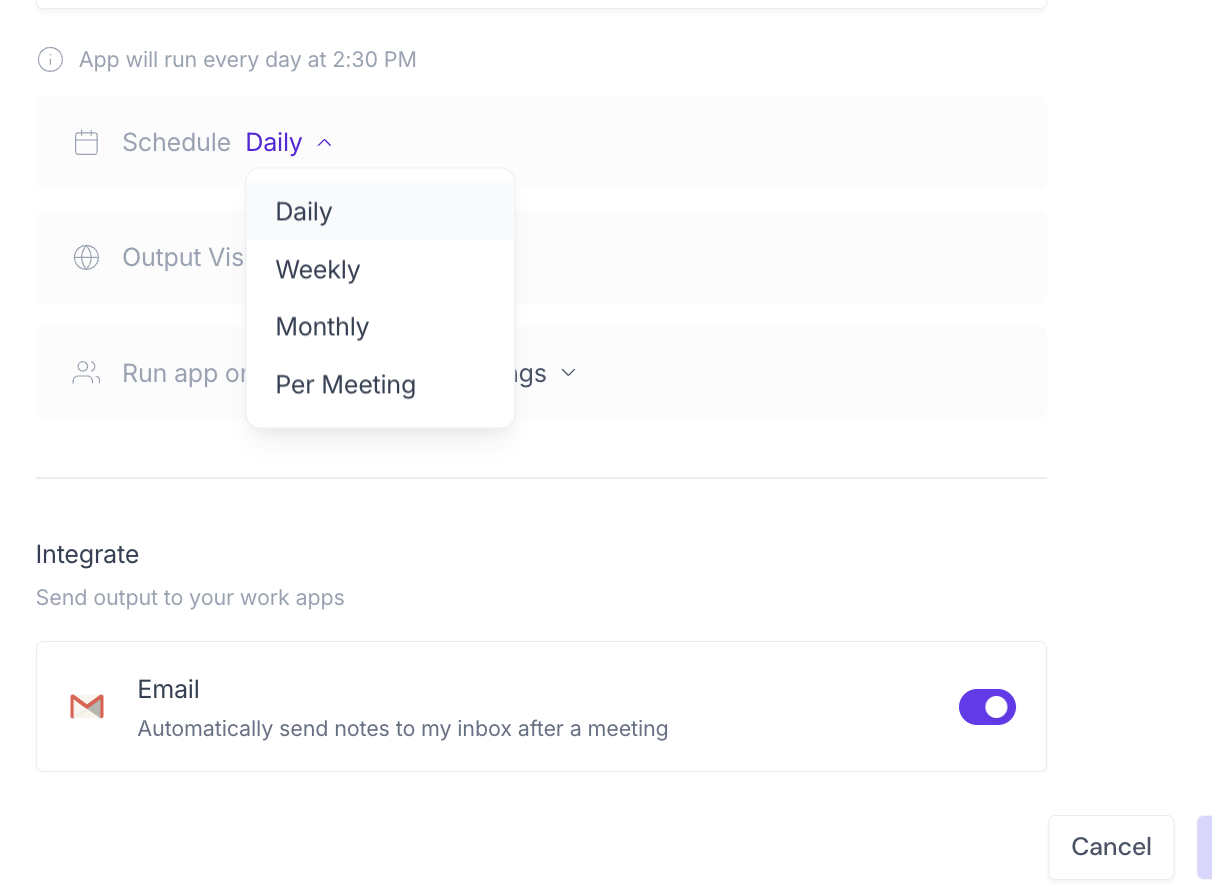
Daily – Runs every day at 9am UTC, perfect for active sales campaigns or customer support monitoring
Weekly – Runs on your chosen day at 9am UTC, ideal for team reviews and strategic insights
Monthly – Runs on a specific date at 9am UTC, great for quarterly planning and trend analysis
Per Meeting – Converts back to single meeting analysis if needed
Output Visibility Settings
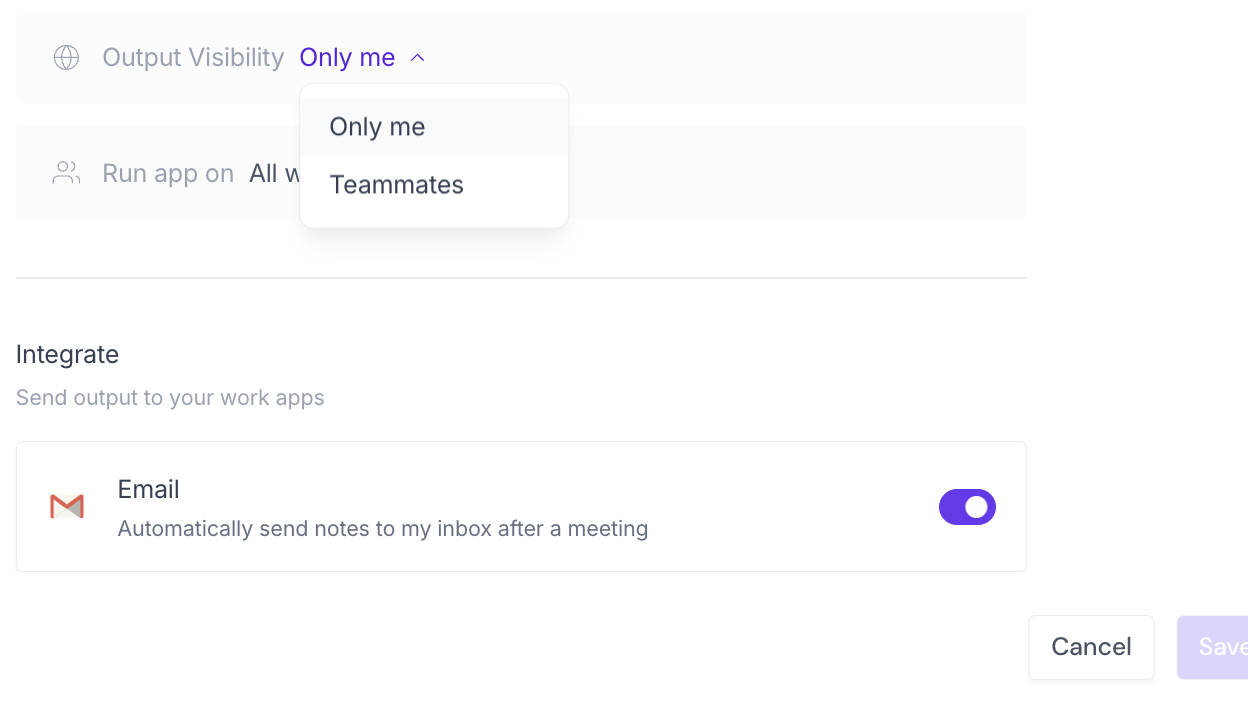
Control who can access your skill's insights:
Only me – Keep sensitive competitive intelligence or customer feedback private
Teammates – Share insights with your team for collaborative decision-making
Meeting Selection Filters
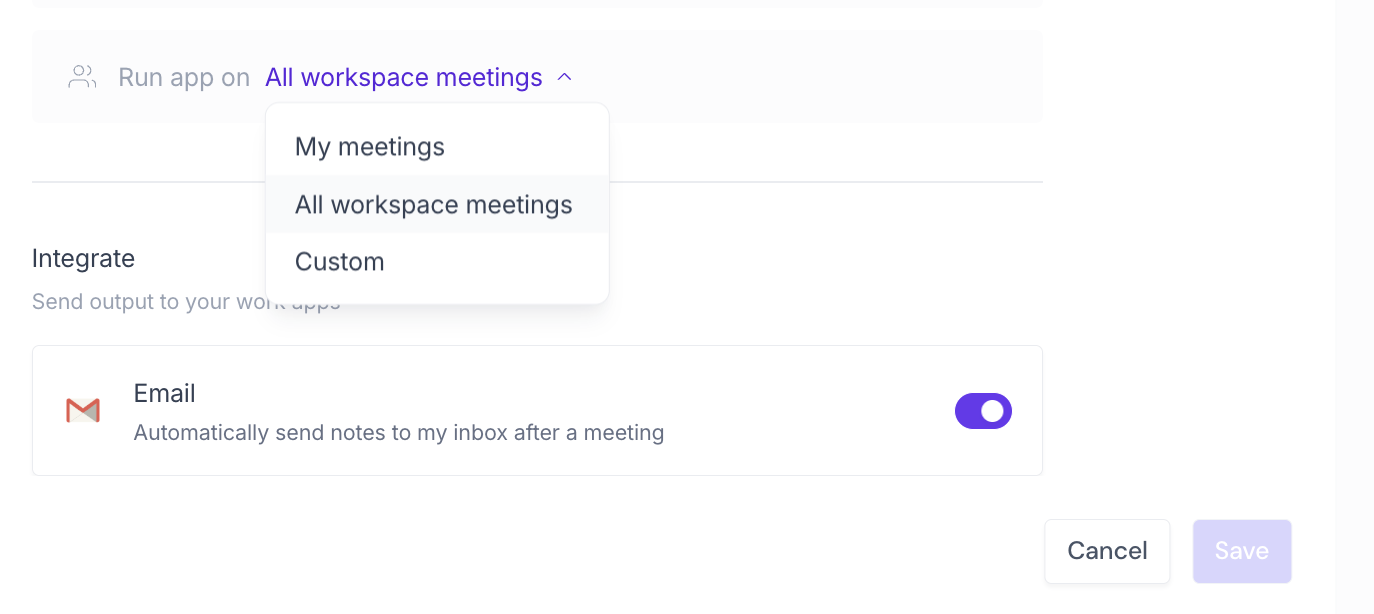
Target the right conversations for analysis:
My meetings – Analyzes only meetings you host or attend
All workspace meetings – Includes every meeting in your organization (admin-only access required)
Custom – Create advanced filtering rules
Setting up Custom filters:
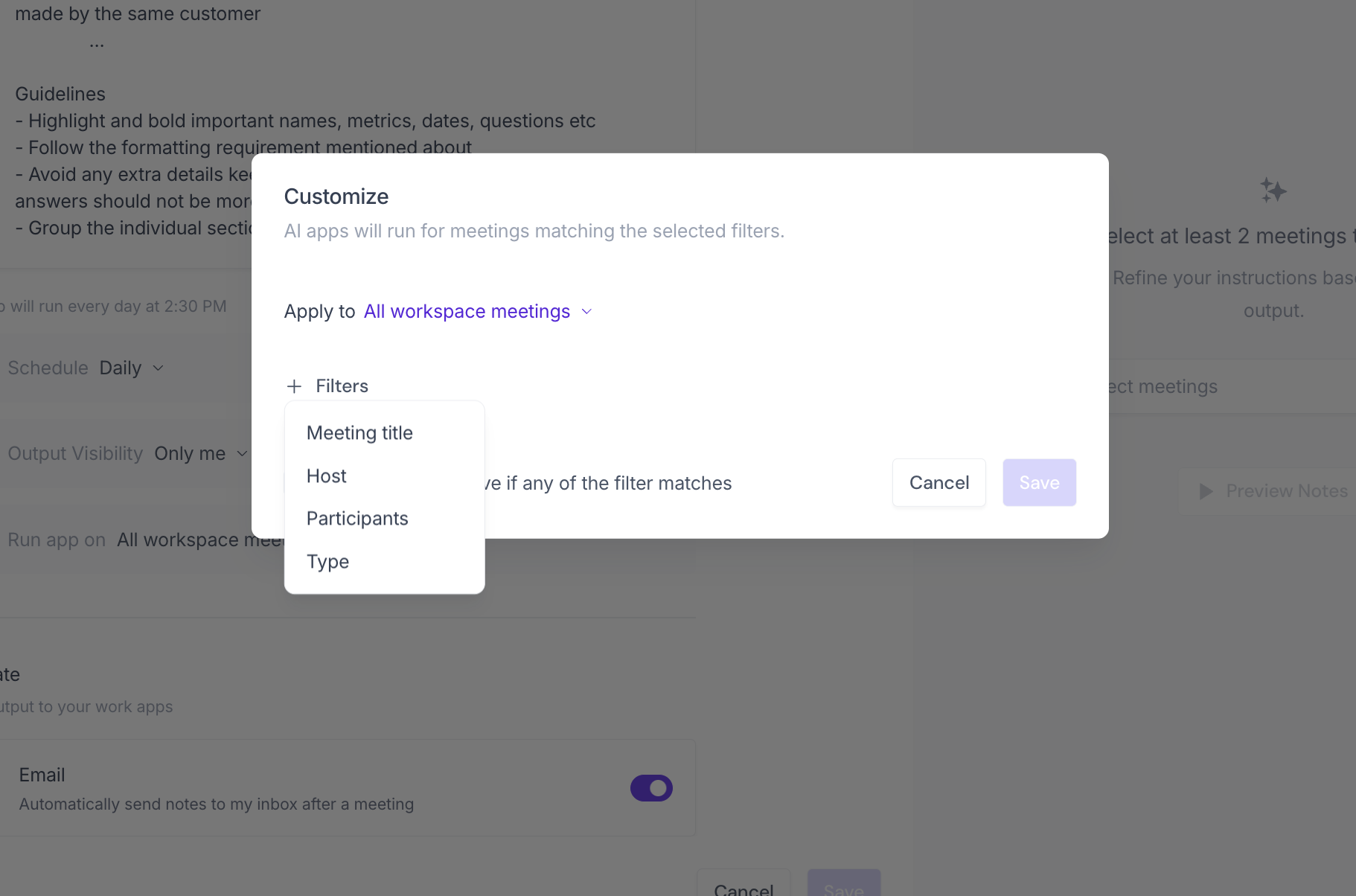
When you select Custom, you can filter by:
Meeting title – Include meetings with specific keywords
Host – Focus on meetings led by particular team members
Participants – Target meetings with specific internal team members (external attendees not supported currently)
Type – Filter by meeting categories or purposes
The system includes meetings that match any of your selected filters, giving you flexible control over which conversations get analyzed.
Step 3: Define Your Analysis Prompt
This is where you tell the AI exactly what insights to surface across your meetings.
Sales team examples:
"Track all customer objections mentioned in sales calls and categorize by frequency and type"
"Identify competitor mentions across all prospect conversations and analyze positioning"
"Compile all pricing feedback and budget constraints raised by prospects"
"Surface common technical requirements mentioned across all demos"
Product team examples:
"Aggregate all feature requests with context about user needs and business impact"
"Track usability issues and friction points mentioned in customer calls"
"Identify integration requirements and third-party tool mentions"
"Discover unexpected use cases and workarounds customers are implementing"
Customer success examples:
"Monitor adoption challenges and onboarding feedback across all customer calls"
"Track satisfaction indicators and potential churn signals"
"Compile support escalations and recurring technical issues"
Screenshot placeholder: Prompt input field with example text and formatting options
Step 4: Preview and Test Your Skill
Before scheduling, see how your skill performs with a quick preview.
Screenshot: Right sidebar showing "Select at least 2 meetings to preview" with meeting selection interface
Click Select meetings in the preview panel on the right
Choose at least 2 recent meetings that match your target criteria
Review the sample output to ensure it captures the insights you need
Click Refine your instructions to adjust your prompt based on preview results
Once satisfied, proceed to schedule your automated runs
The preview helps you perfect your prompt before committing to regular analysis cycles.
Step 5: Review and Launch
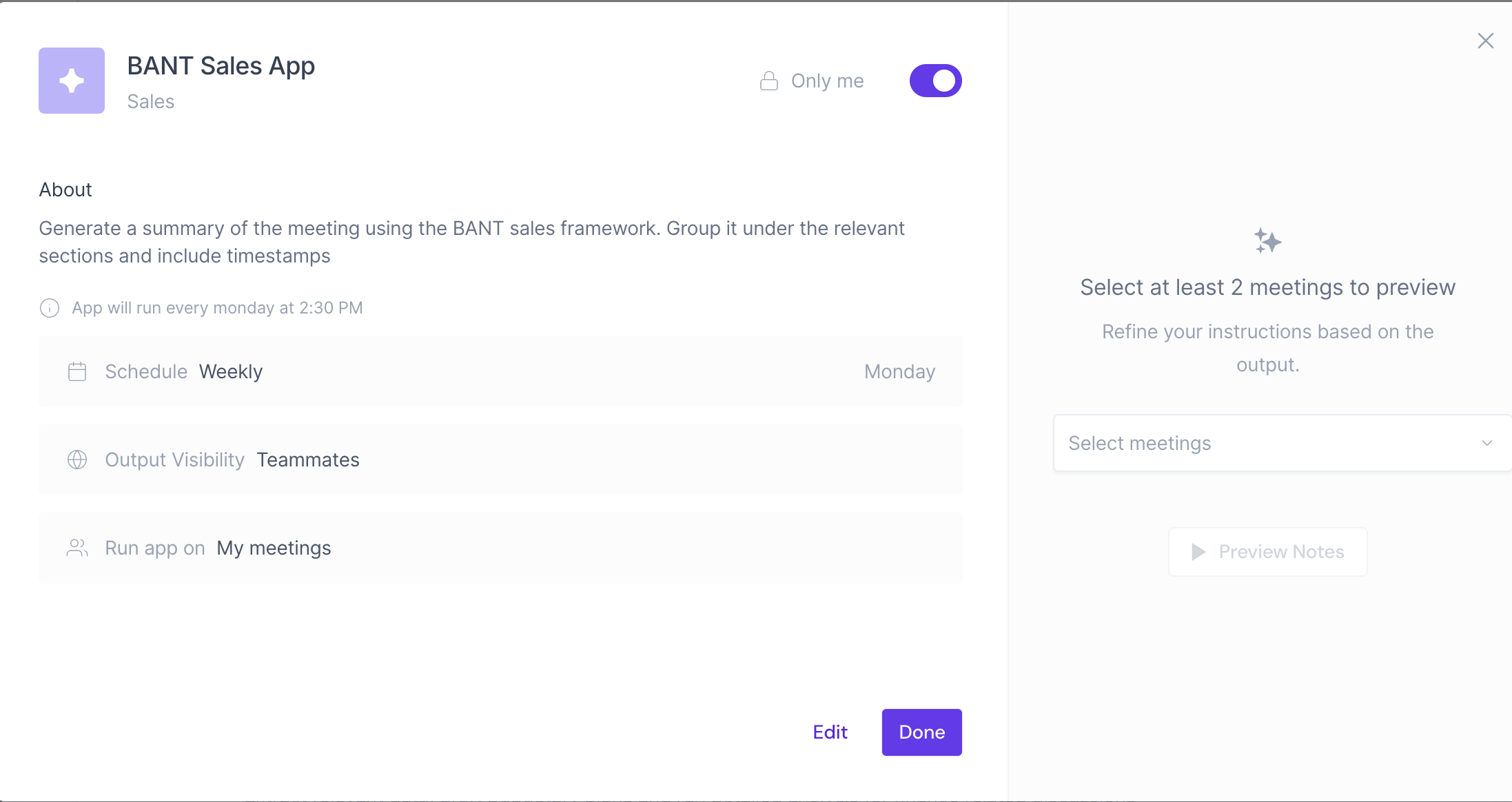
Before your skill goes live, double-check your configuration:
Verify your schedule matches when you want insights delivered (e.g., "Skill will run every monday at 9am UTC")
Confirm the right people have access to the output
Review which meeting scope will be included in future analysis
Click Done to activate your automated insights
Your skill will now run automatically based on your chosen schedule, analyzing the most relevant meetings and delivering insights to your specified audience.
Viewing Your Skill Results
Once your Multi Meeting Apps are running, you can access their outputs in two key locations:
In your Fireflies Feed:
Navigate to your main dashboard feed where skill results appear alongside meeting summaries
Filter by "AI Skills" to see only your automated insights
Click on any skill result to view the full analysis
Via Email Notifications:
Receive alerts when your scheduled insights are ready
Email includes a summary with links back to the full results in Fireflies
This dual delivery ensures you never miss important insights, whether you're checking Fireflies directly or managing your workflow through email.
Managing Your Skills
Monitoring Credit Usage
Multi Meeting Apps consume credits based on the number of meetings they analyze:
Analysis Factor | Impact on Credits | Best Practices |
Number of meetings | More meetings = more credits | Focus on relevant meeting types rather than analyzing everything |
Skill frequency | Daily skills use more credits than weekly/monthly | Match schedule to actual decision-making cadence |
Meeting selection scope | "All workspace meetings" analyzes more than "My meetings" | Start with targeted scopes and expand as needed |
Track your usage in Settings > Billing to ensure your skills align with your credit budget. The system automatically selects the most relevant meetings for analysis to optimize both insights and credit efficiency
Editing and Converting Skills
Skills can be modified or upgraded even after launch:
Editing Active Skills:
Navigate to app.fireflies.ai/skills
Find your skill and click Edit Settings
Adjust schedule, filters, or prompts as needed
Changes take effect with the next scheduled run
Converting Single Meeting Apps: Already have AI Skills that work on individual meetings? You can easily upgrade them:
Open your existing single meeting app
Click Convert to Multi Meeting
Configure scheduling and meeting filters
Your skill now analyzes patterns across multiple conversations
This conversion preserves your original prompt while adding the power of cross-meeting analysis.
What's Next?
Now that your first Multi Meeting App is running, consider expanding your automated insights:
Creating department-specific analysis skills for sales, product, and customer success teams
Setting up competitor intelligence workflows to track market positioning
Building customer health monitoring that flags satisfaction concerns automatically
Converting existing single meeting apps to multi meeting analysis
Coming soon: Additional integrations beyond email delivery are in development to connect your insights directly with Slack, Teams, and other workflow tools
Need Help?
Quick fixes for common scenarios:
Issue | Solution |
Skill not generating insights | Check that meetings match your filters and contain sufficient content |
Credit usage higher than expected | Review meeting selection criteria – consider narrowing meeting scope or frequency |
Insights too broad or generic | Refine your analysis prompt to be more specific about desired outputs |
Team members can't see outputs | Verify output visibility settings include the right users or groups |
Can't access "All workspace meetings" | This option requires admin permissions – contact your workspace administrator |
If you're experiencing other issues or want to discuss advanced use cases, our support team is available through the chat widget in your Fireflies app
Making Sense of It All
Multi Meeting Apps run automatically on your chosen schedule (Daily, Weekly, or Monthly) at 9am UTC, analyzing your most relevant meetings
Preview functionality lets you test your prompts on selected meetings before scheduling full analysis
Skills can be set to analyze My meetings, All workspace meetings (admin-only), or Custom filtered meetings based on your needs
Output visibility can be restricted to "Only me" for sensitive insights or shared with "Teammates" for collaborative analysis
Results appear in both your Fireflies feed and via email notifications for maximum accessibility