How to Integrate Zapier with Fireflies
Last updated: April 20, 2026
We know you want your meeting data to work instantly. That's where Zapier comes in! It connects Fireflies to over 6,000 other services, allowing your meeting insights to flow straight into your CRM, project tools, or spreadsheets. It's pure, automatic magic — zero code required. Now you can finally skip those repetitive tasks and focus on what matters most!
Let's get this set up! 🚀
🔍 What Does the Integration Do?
Fireflies is here to help you turn meeting data into powerful automated workflows across your entire tech stack. Check out just a few possibilities:
Create new rows in Google Sheets with meeting summaries and action items.
Upload meeting recordings and transcripts to Google Drive or Dropbox for easy archiving.
Send meeting summaries and highlights via email or Slack to relevant teammates.
Push meeting insights to Salesforce, HubSpot, or any CRM automatically.
Generate action items in Asana, Trello, or Monday.com directly from discussions.
Schedule follow-up meetings or reminders based on meeting outcomes.
The best part? No coding is required! You get unlimited automation possibilities that seamlessly connect your meeting insights to your entire workflow ecosystem, saving you tons of time.
🔑 Prerequisites
Before you begin, you’ll need to make sure you have everything ready:
A Fireflies account with integration permissions enabled.
Access to the apps you want to connect (e.g., Google Sheets, Slack, Asana).
Tip: A basic understanding of trigger-action workflows will help you build your Zaps faster.
🔗 Connect Zapier to Fireflies
Ready to link your accounts and start building your first automated workflow? You'll start the connection process right from your Fireflies dashboard!
Step 1: Integrate Zapier in Fireflies
Go to the Fireflies dashboard
Select Integrations in the left-hand menu.
Search for Zapier and click on the app tile.
Click the Install button. Fireflies will take you to Zapier’s sign-in page.
Tip: If you are planning to start working right away, click Get API Key to copy it to your clipboard.
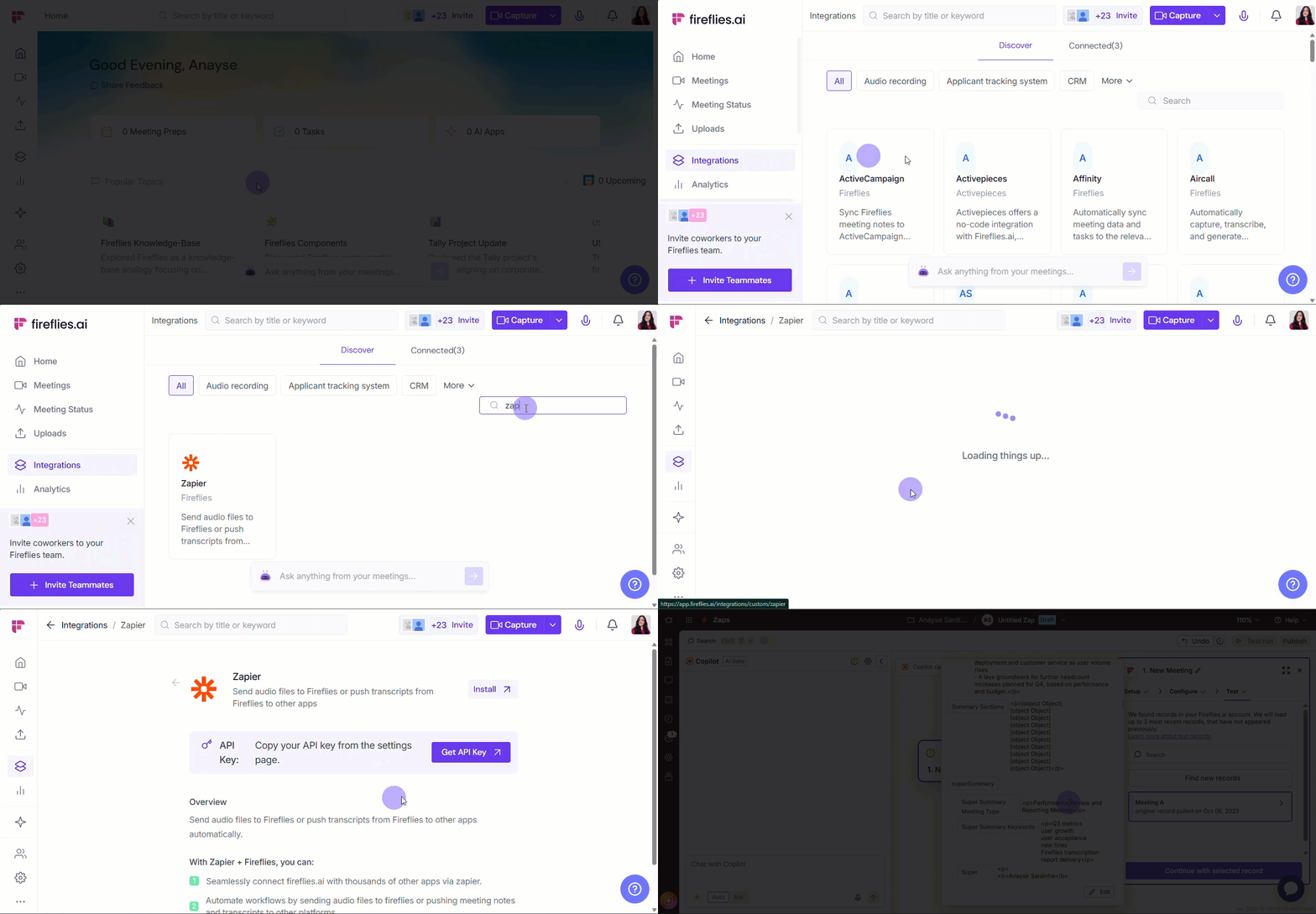
Step 2: In the Fireflies-Zapier window, click Connect Fireflies.ai to 8,000+ apps. Fireflies will automatically be set as your Trigger app.
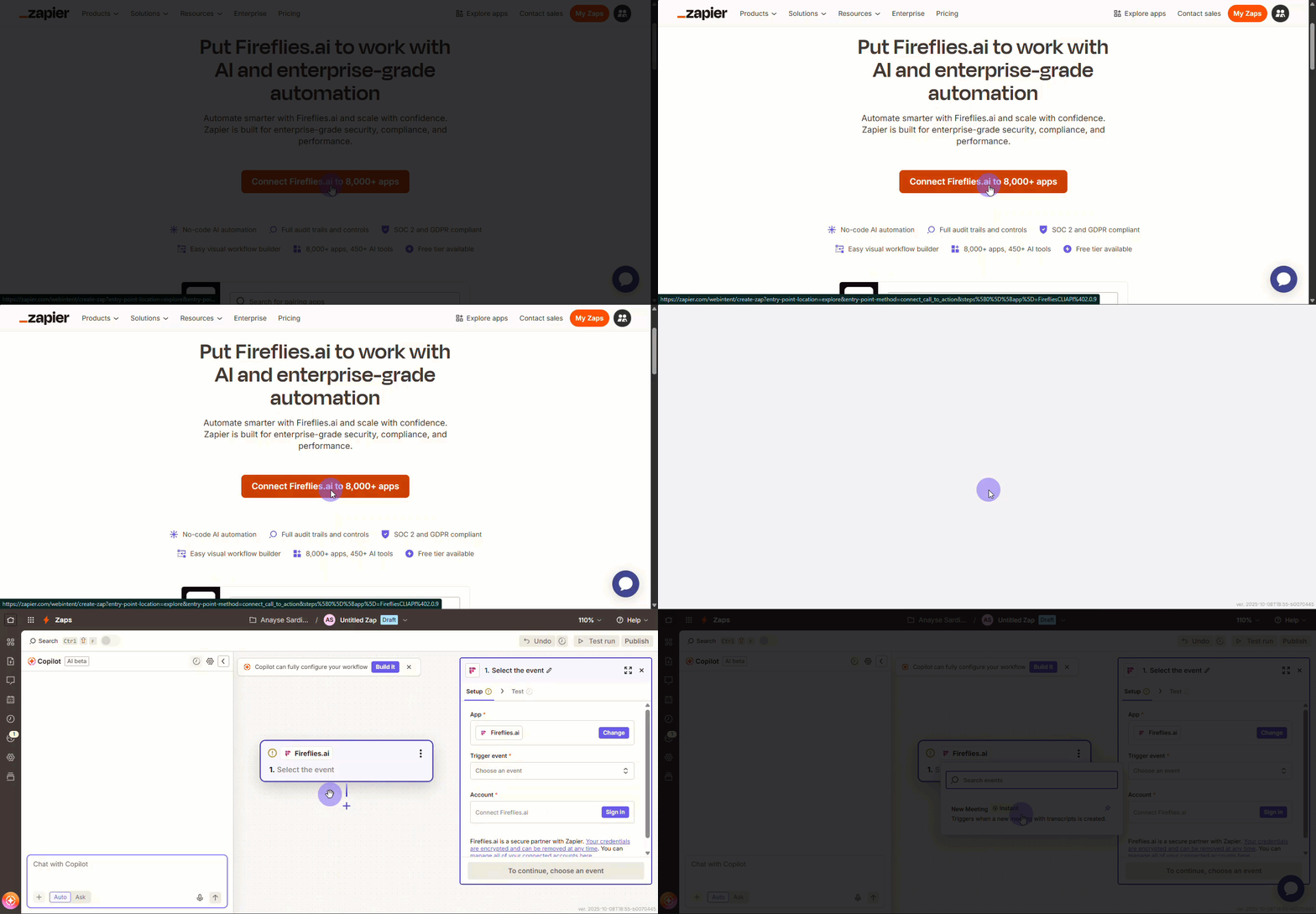
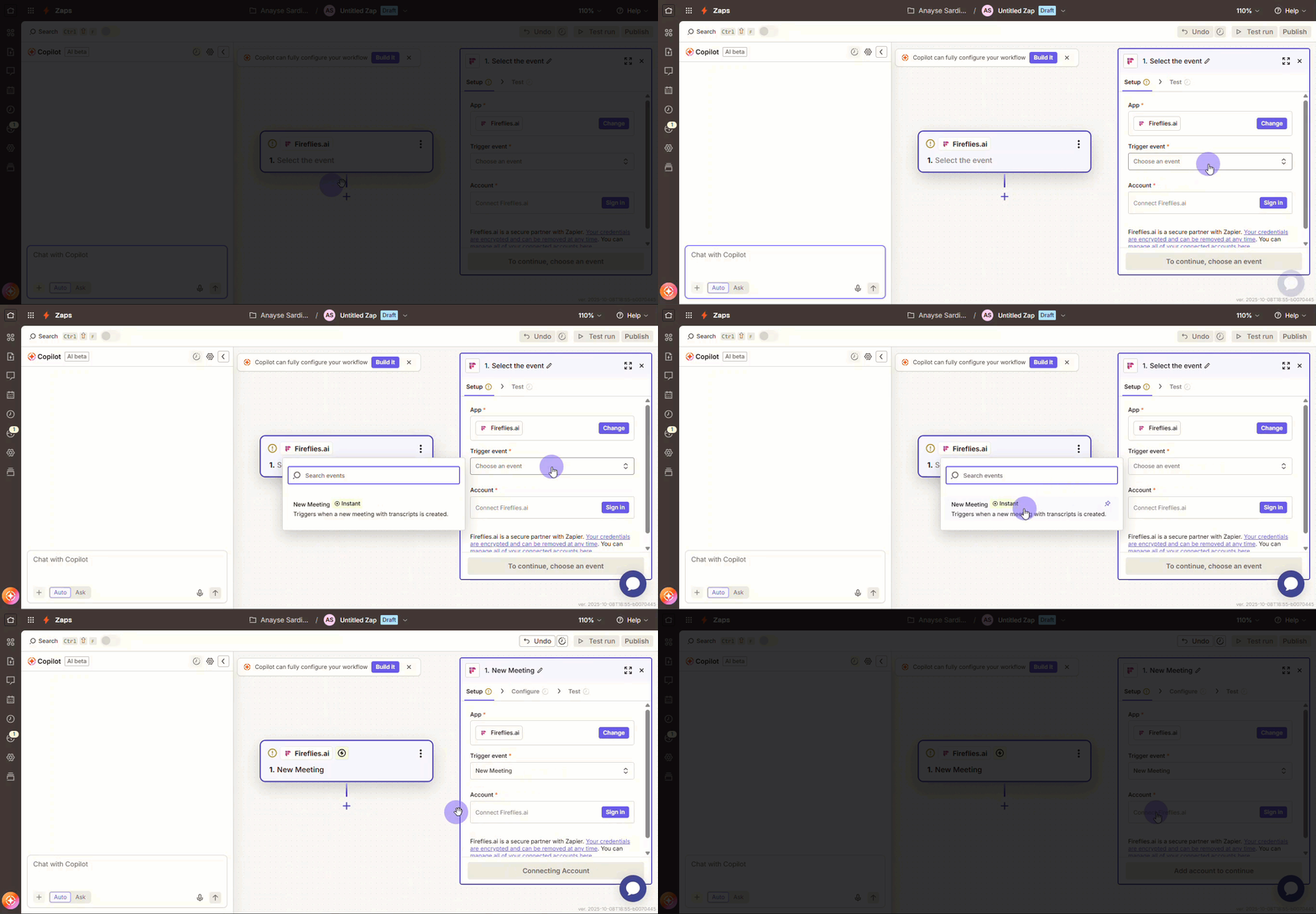
Step 3: Click New Meeting as the trigger event, then Continue.
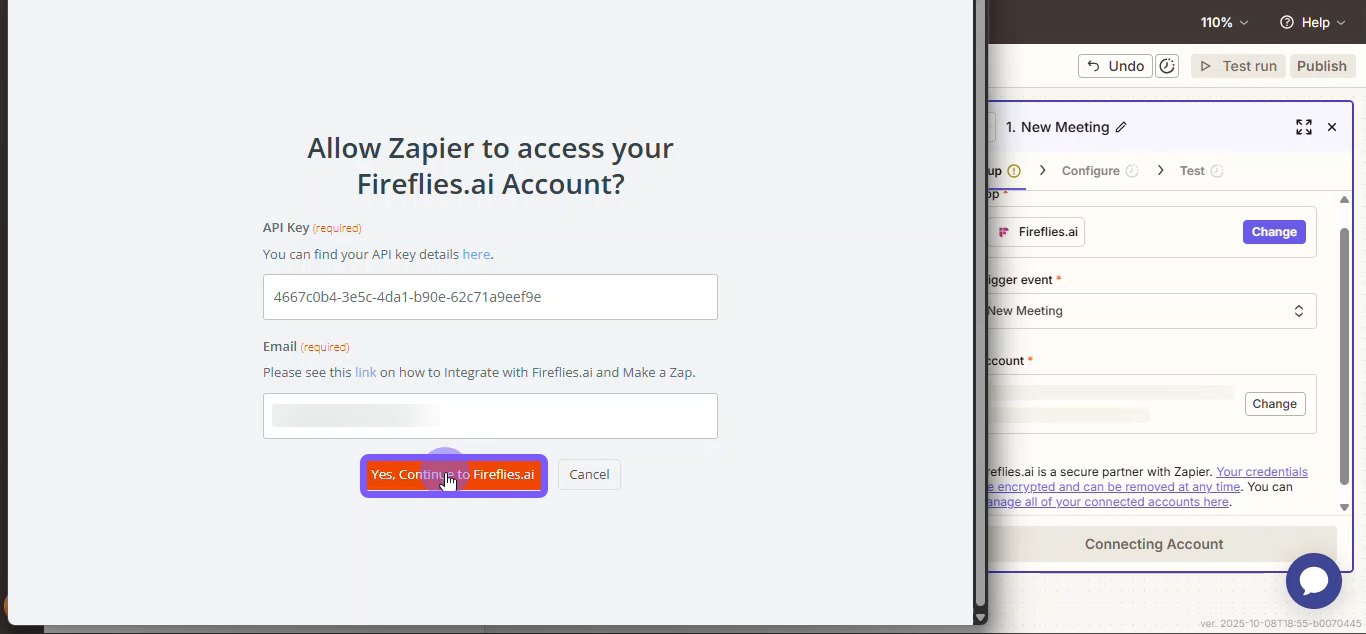
Step 4: Select Sign in to connect your Fireflies account. Then, enter the API Key. (You can find this key in the Fireflies Integration page when you open the Zapier integration.
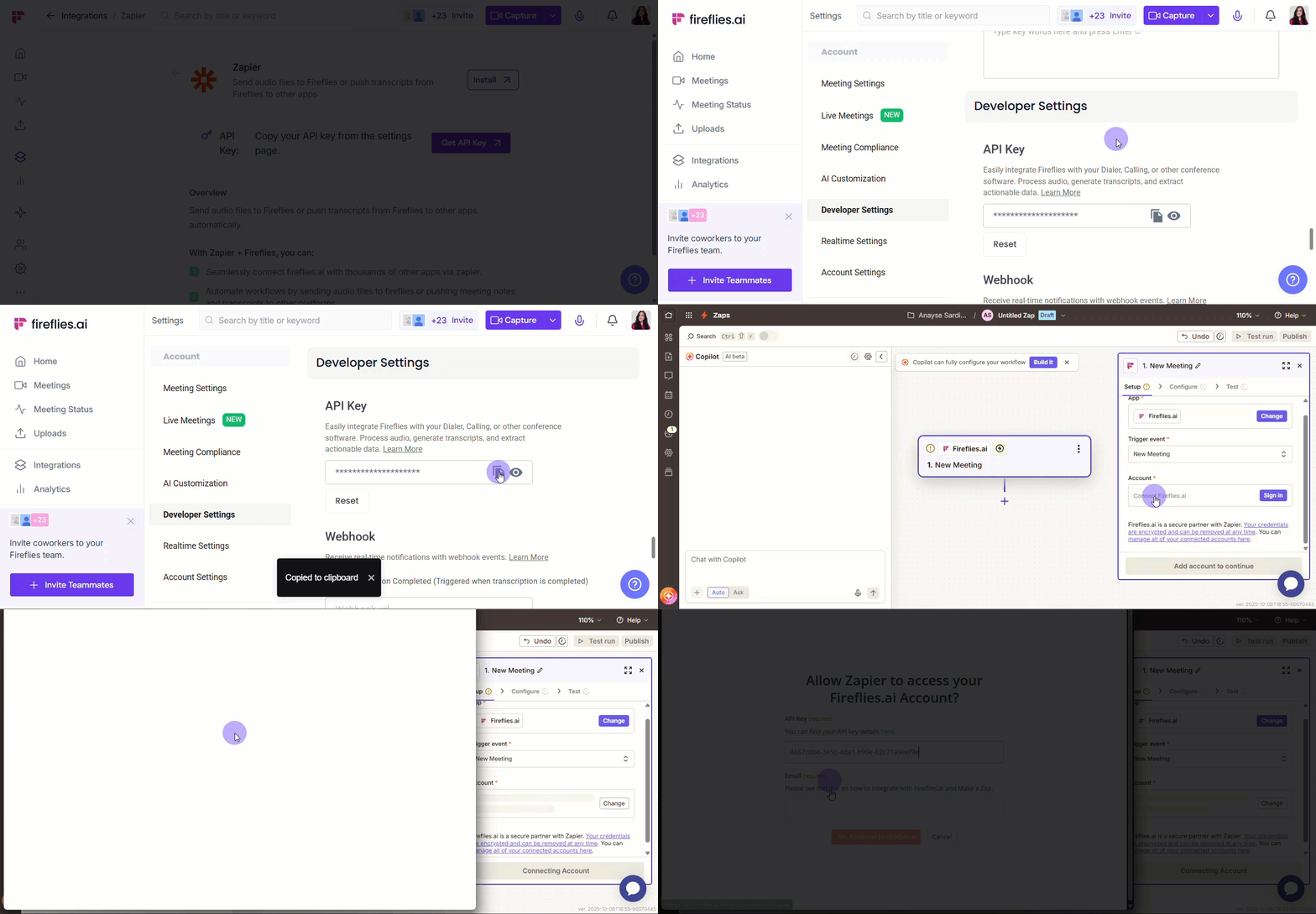
Step 5: Enter your preferred e-mail and select Continue.
Step 6: Select the transcription format you want to use.
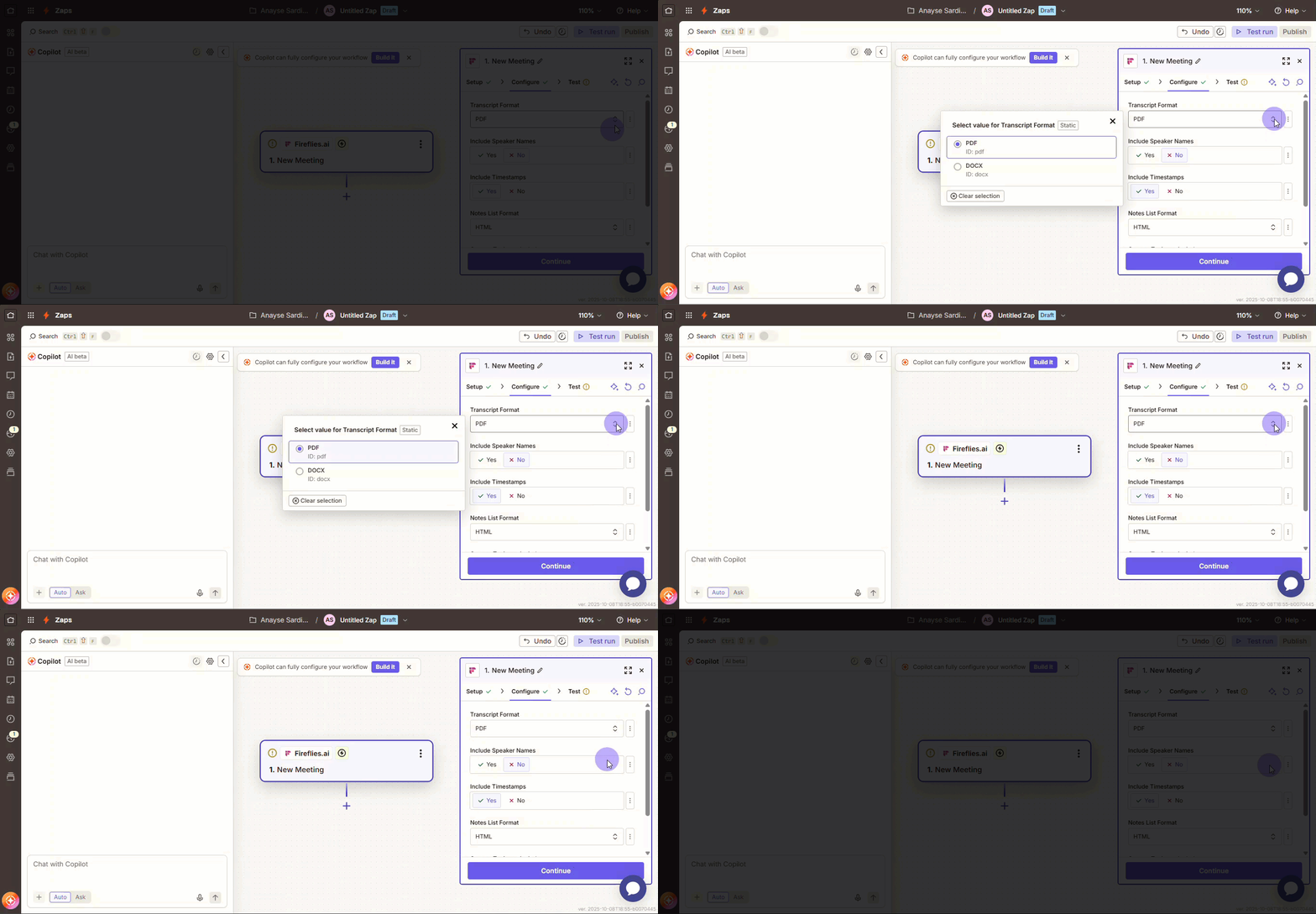
Step 7: Choose your preference for Include Speaker Names and Include Timestamps. Then, select the Notes List Format.

Step 8 (Optional): Configure custom topics.
Custom Topics to Include lets you define specific keywords (like “new feature request”) for Fireflies to track.
When those topics come up, Fireflies tags the meeting, making it easy to search.
This is the key to ensuring your automated workflows (Zaps) only trigger for the most relevant conversations. Just type in the specific keywords you want Fireflies to focus on!
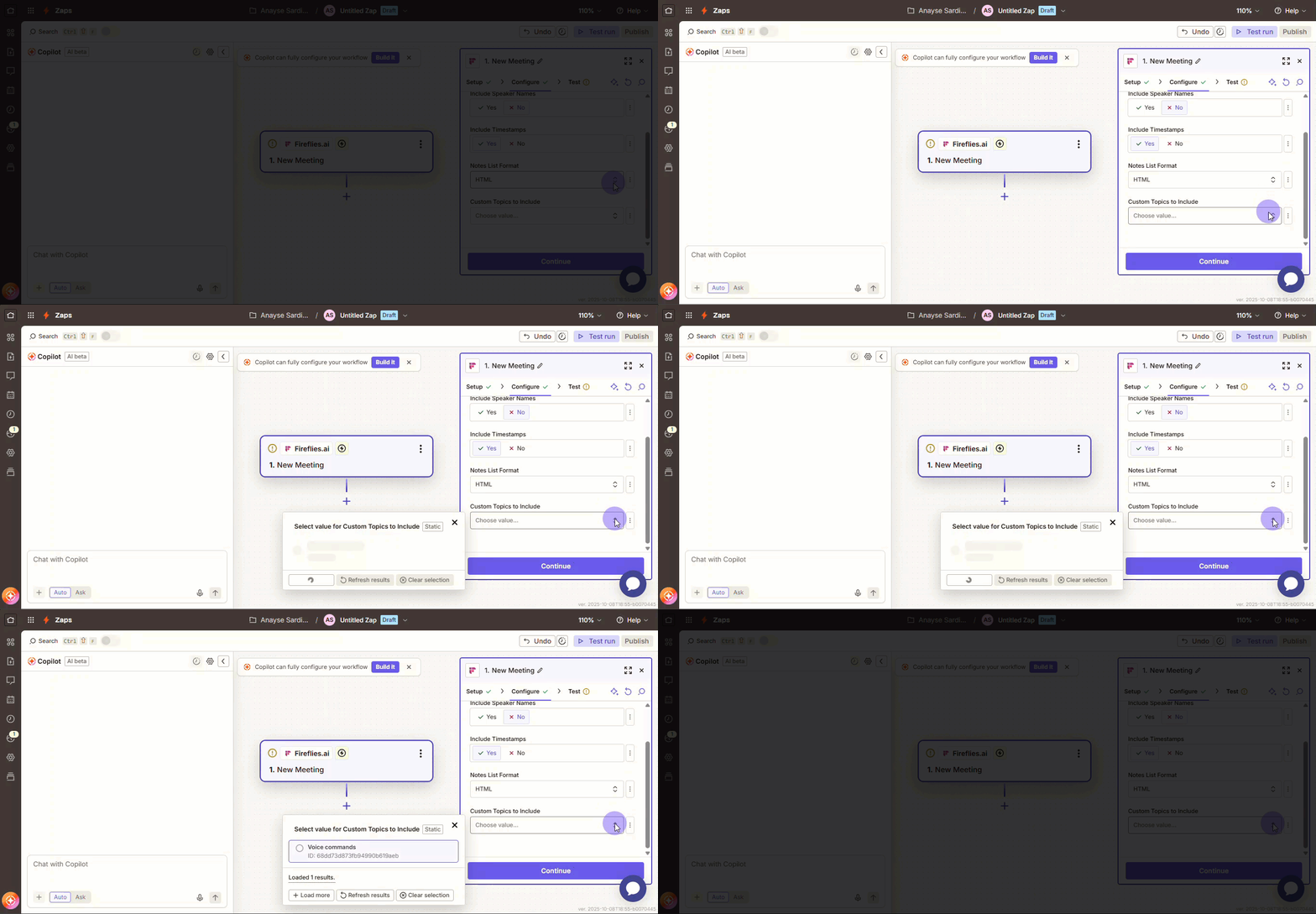
Step 9: Click Continue to save your trigger settings.
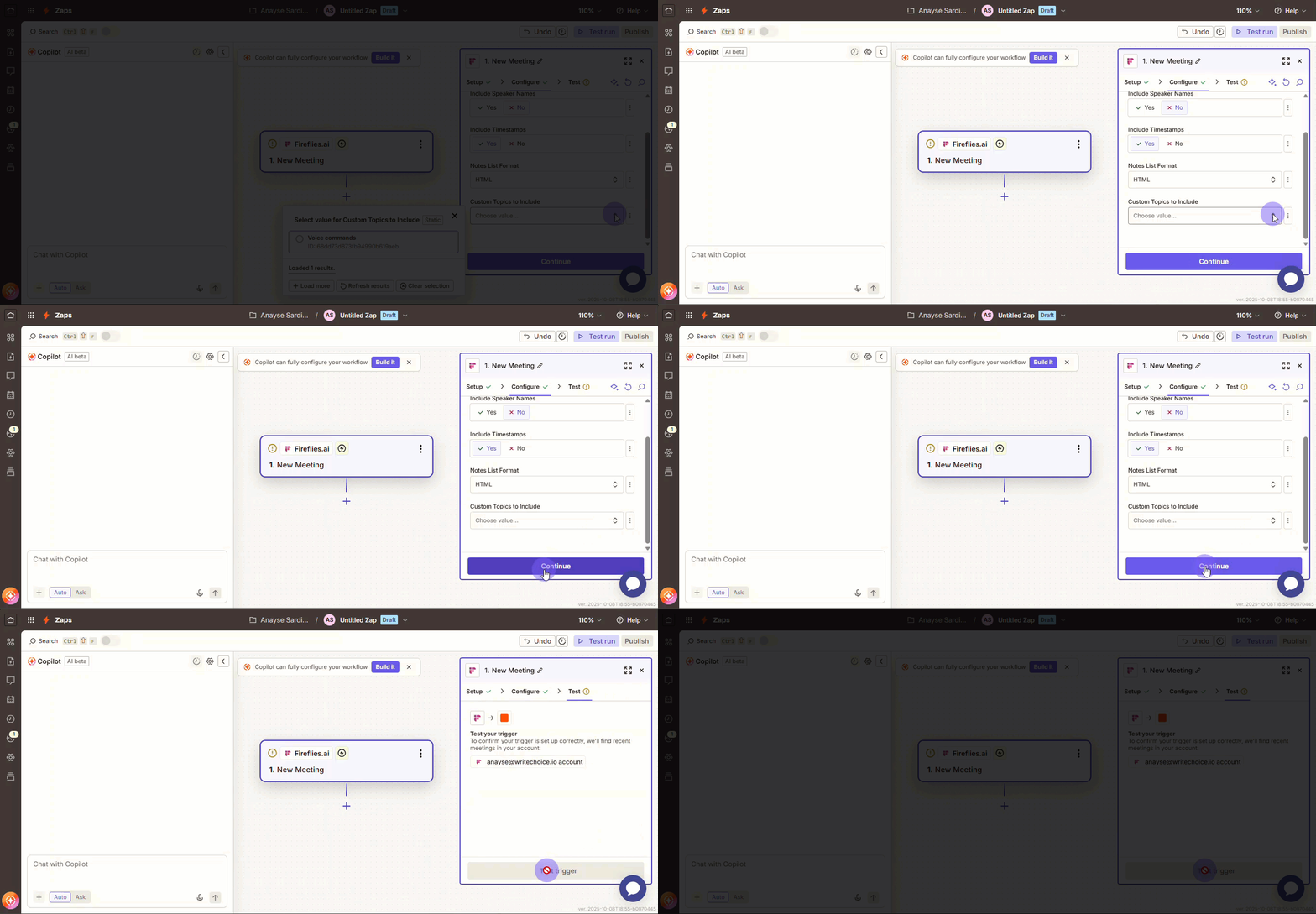
Step 10: Test trigger. Click Test trigger to pull a recent meeting's information from Fireflies. Take a quick look at the sample data that appears to make sure it looks correct.
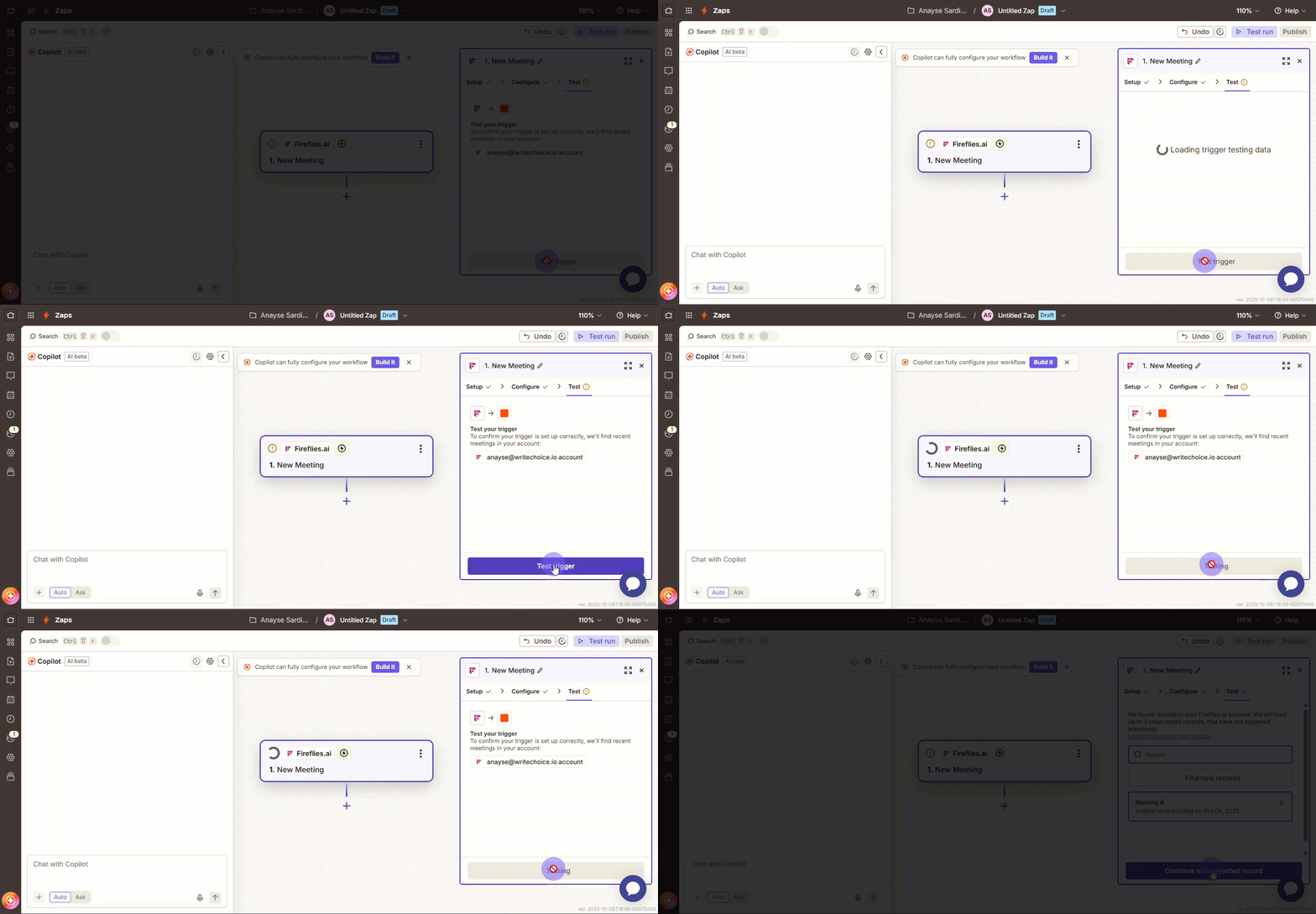
Step 11: Click Continue with selected record to move on to setting up your action app. This step ensures Zapier has the right context before building your workflow.
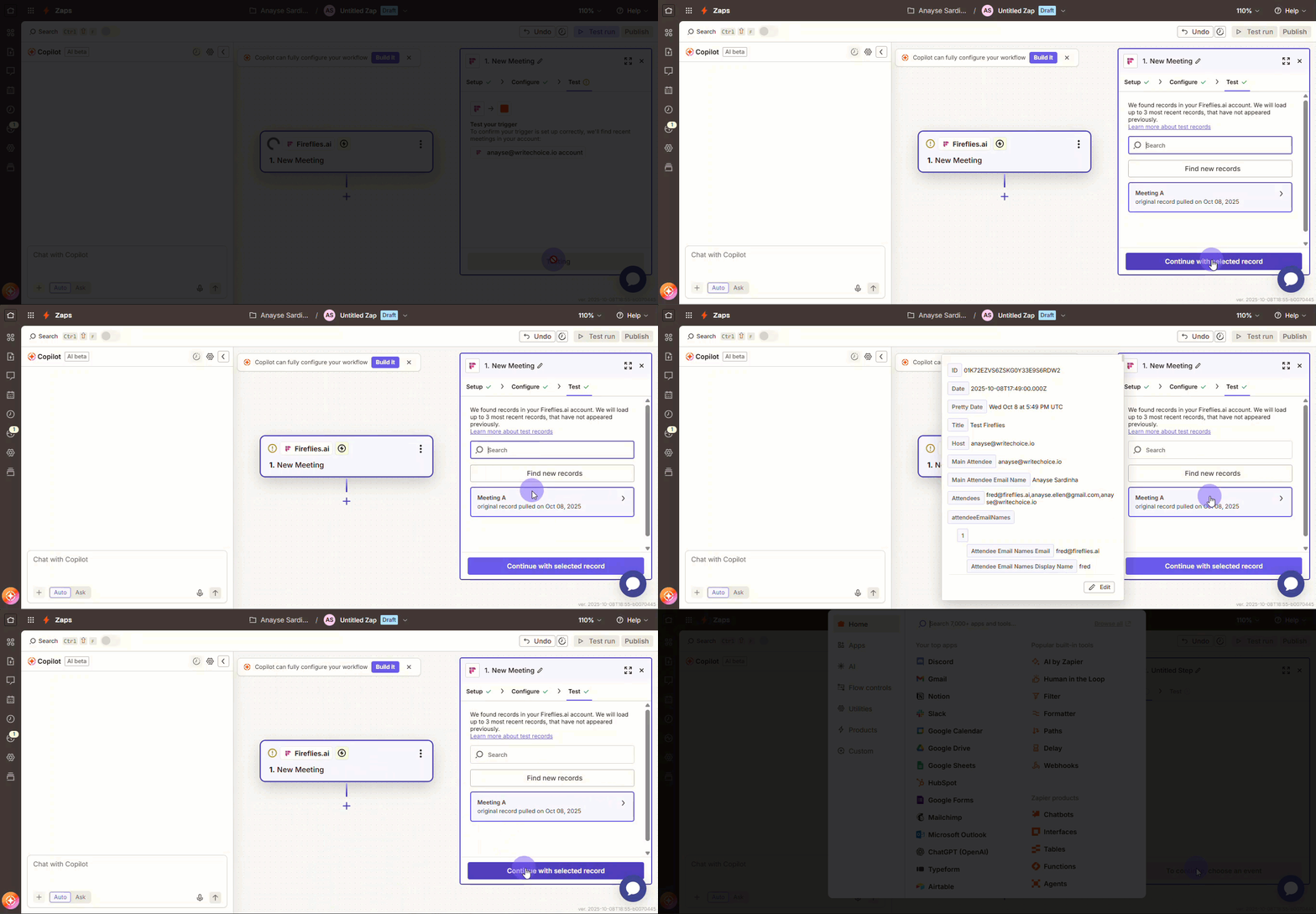
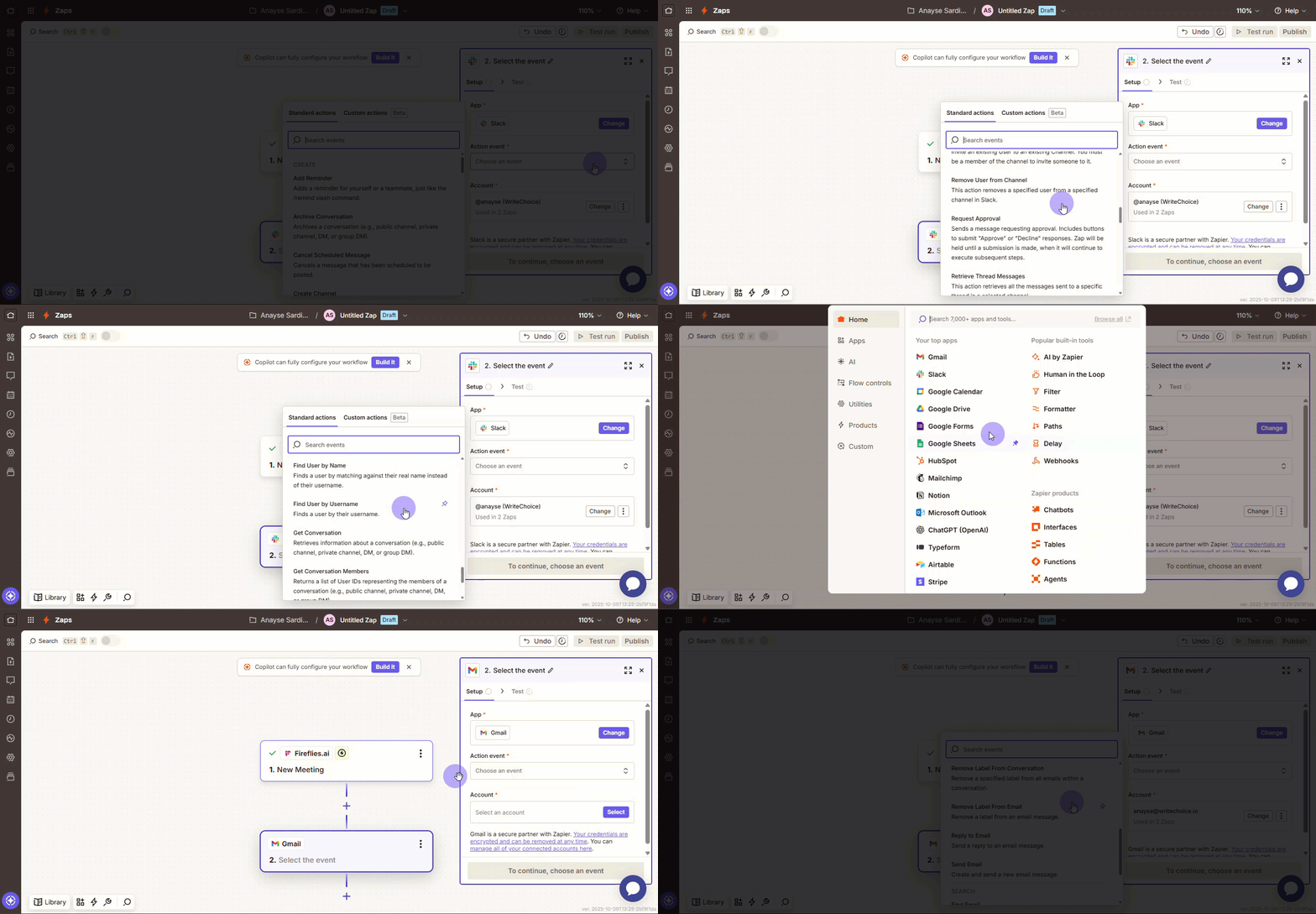
Step 12: Select your action app (e.g., Google Sheets, Slack, Asana). Then, choose the Action event (e.g., "Create Spreadsheet Row").
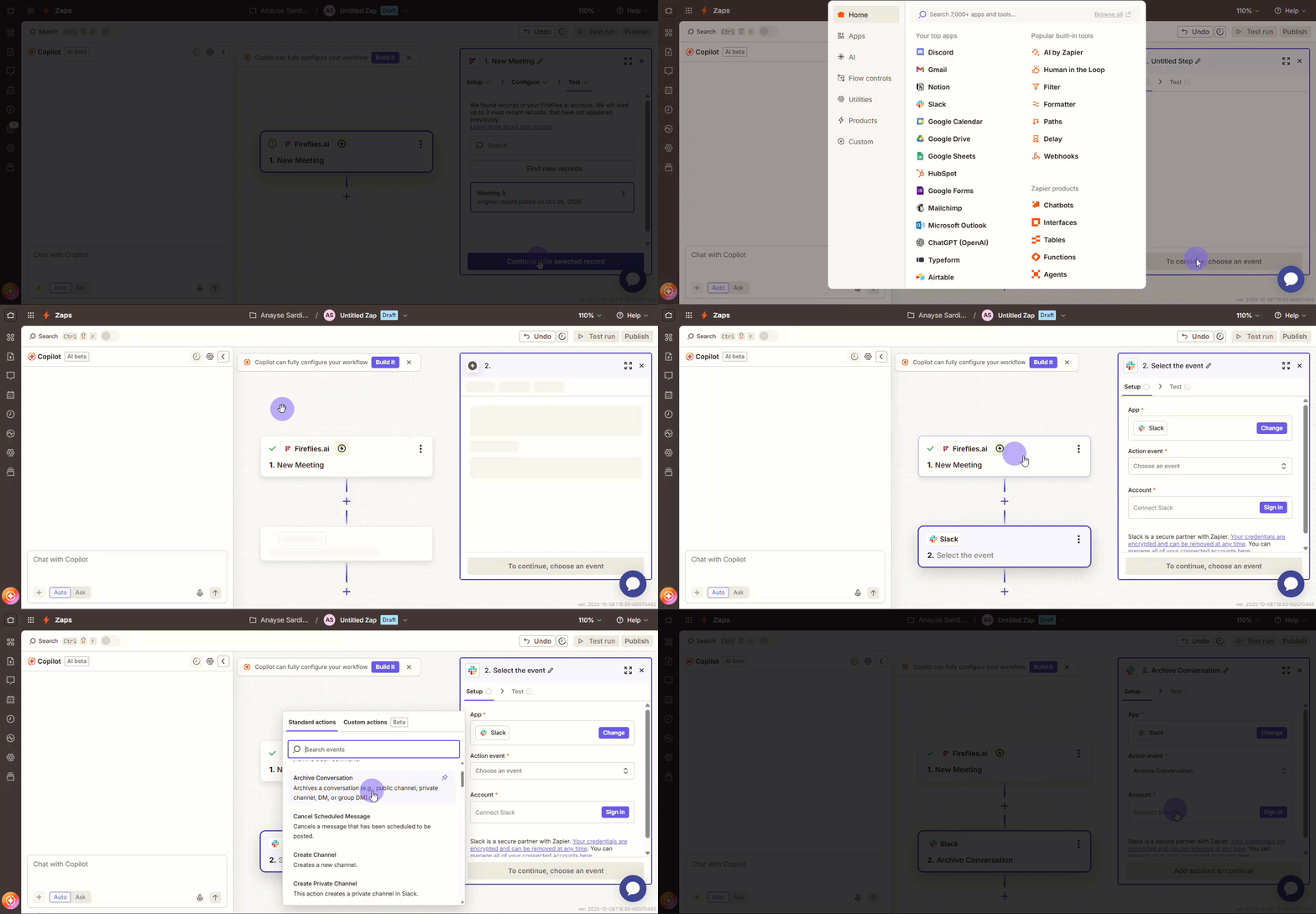
Step 13: In Account, select Sign In and then connect your account for the chosen app.
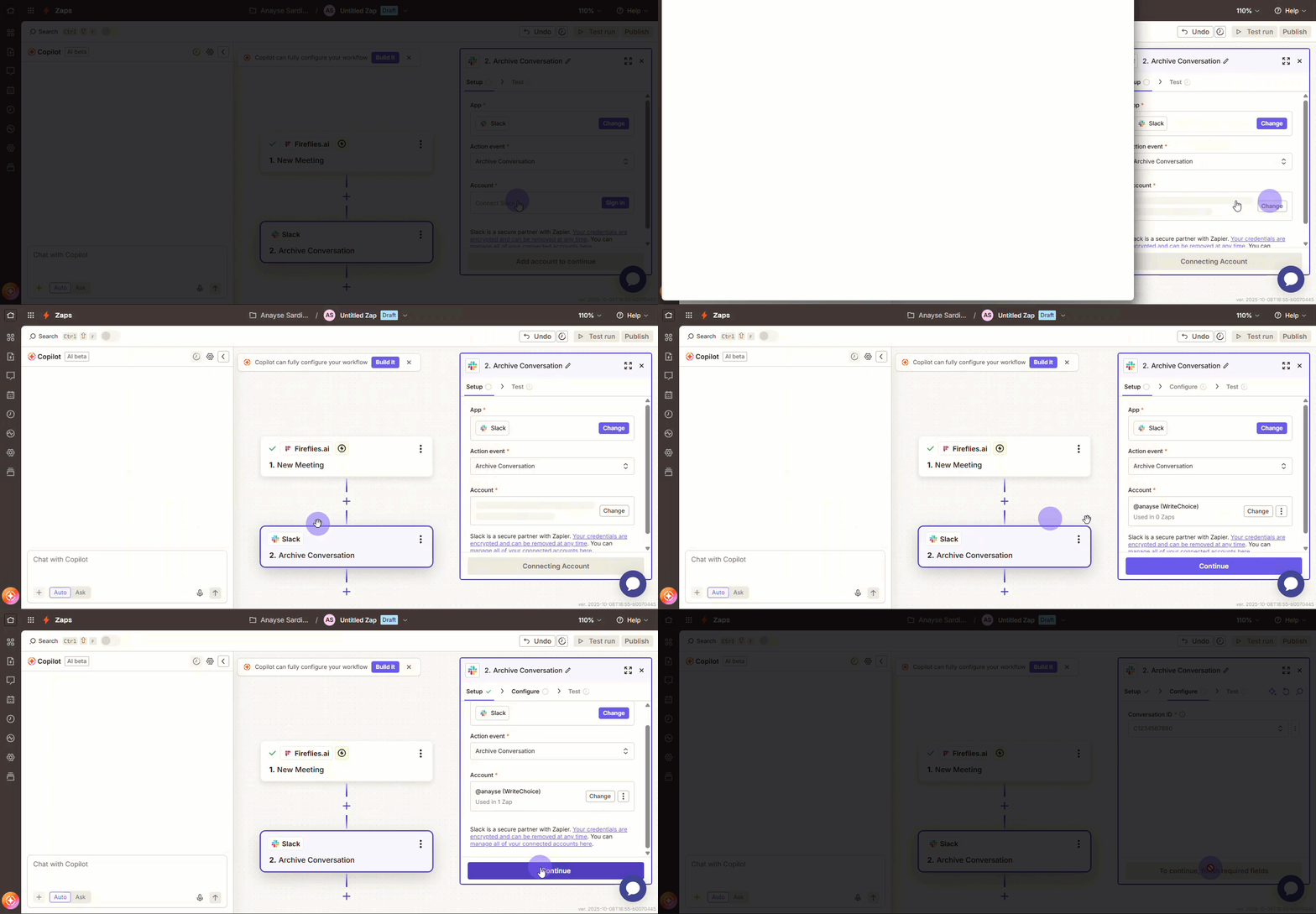
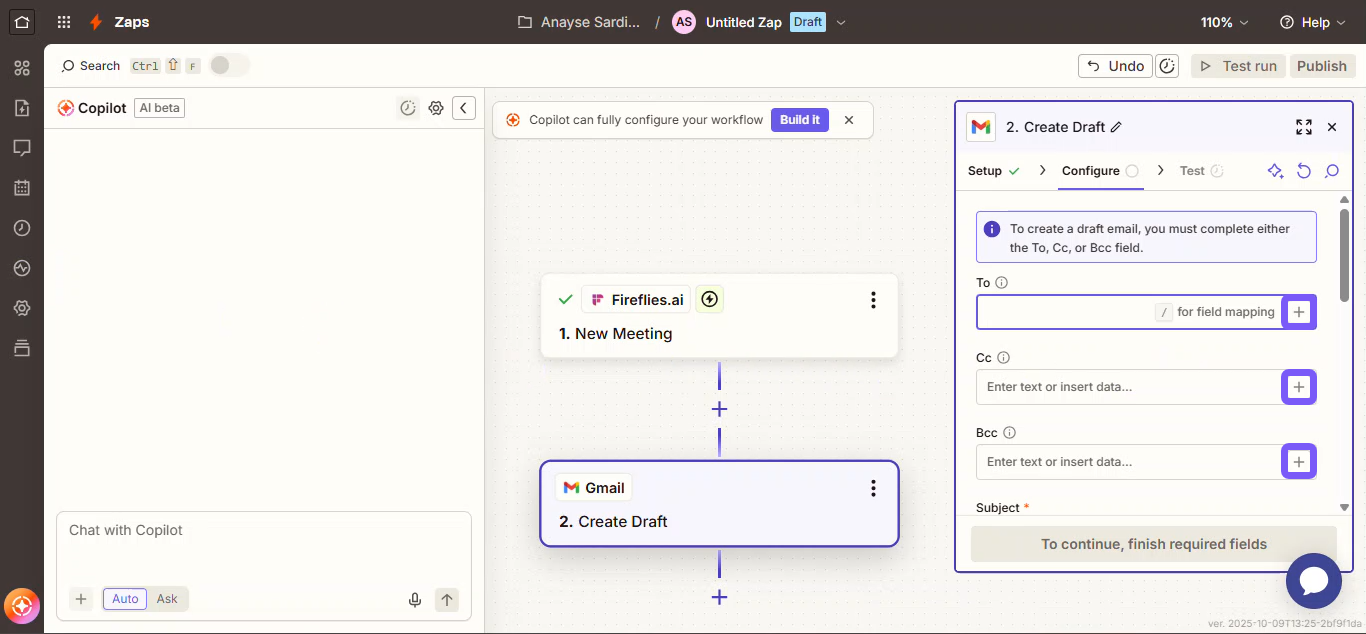
Step 14: Map Fireflies data to the appropriate fields in your action app using the + symbol. This will vary depending on your the Action event you chose in Step 12.
Step 15: Click Continue when mapping is complete.
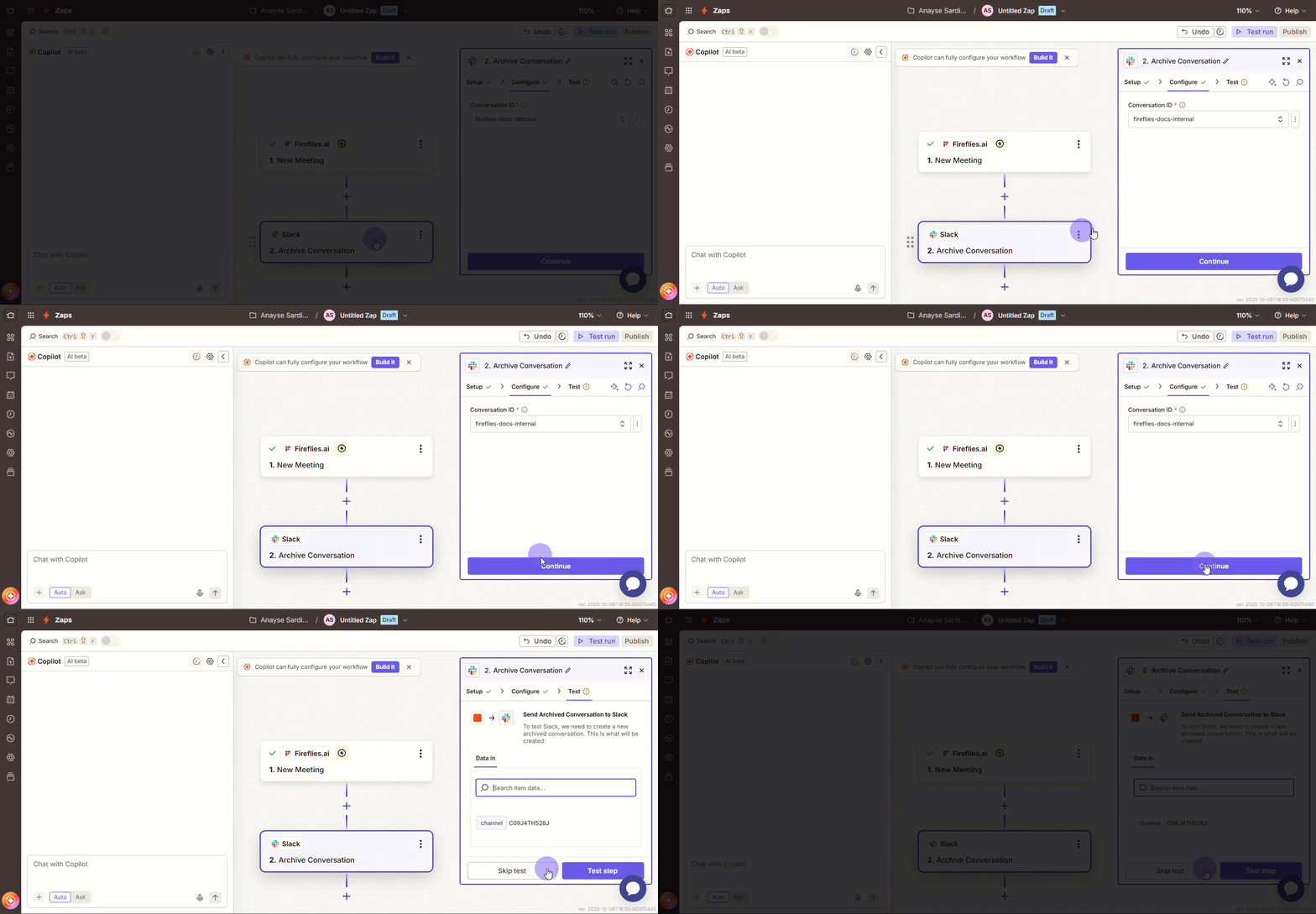
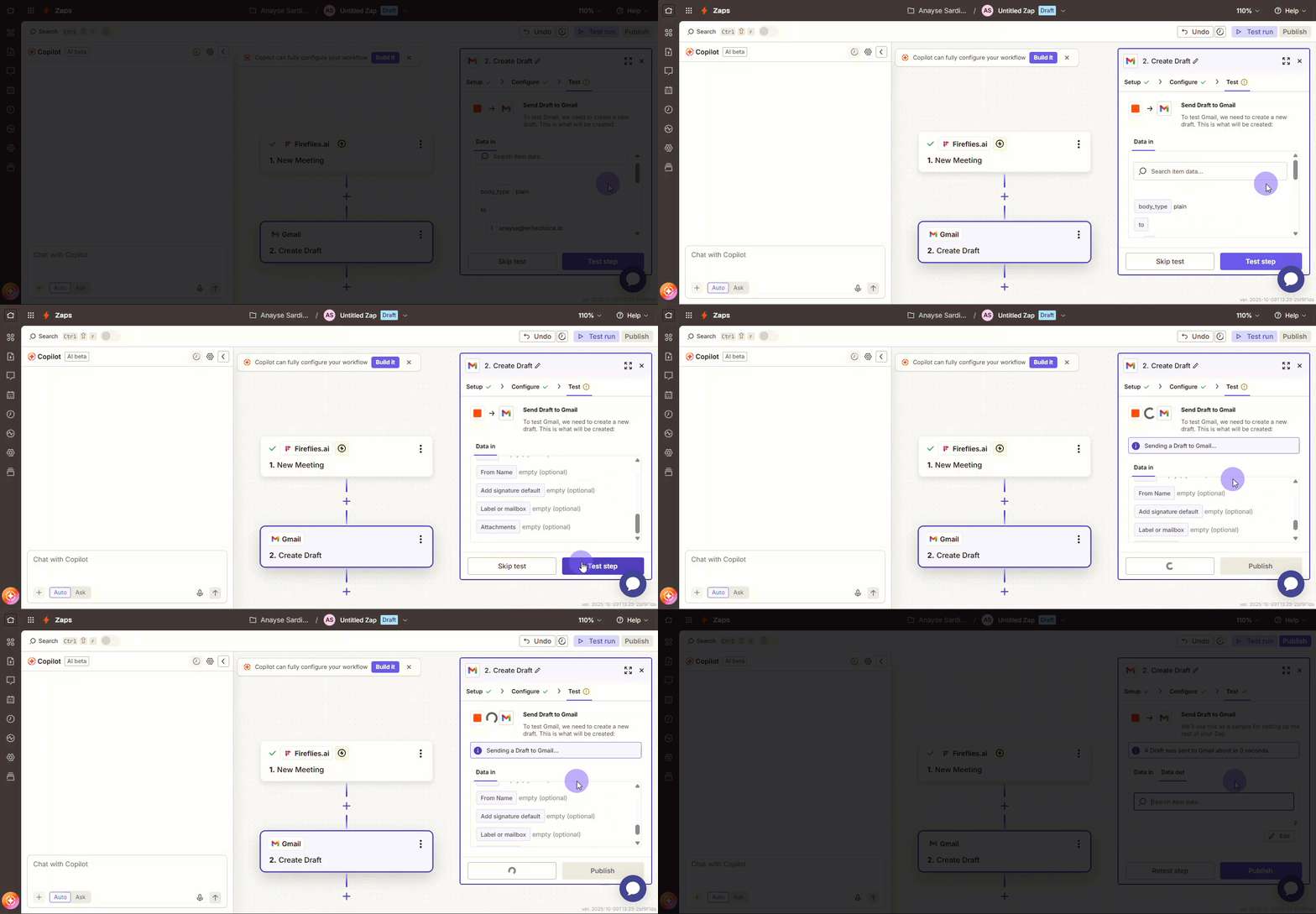
Step 16: Click Test step to run your automation using the sample data.
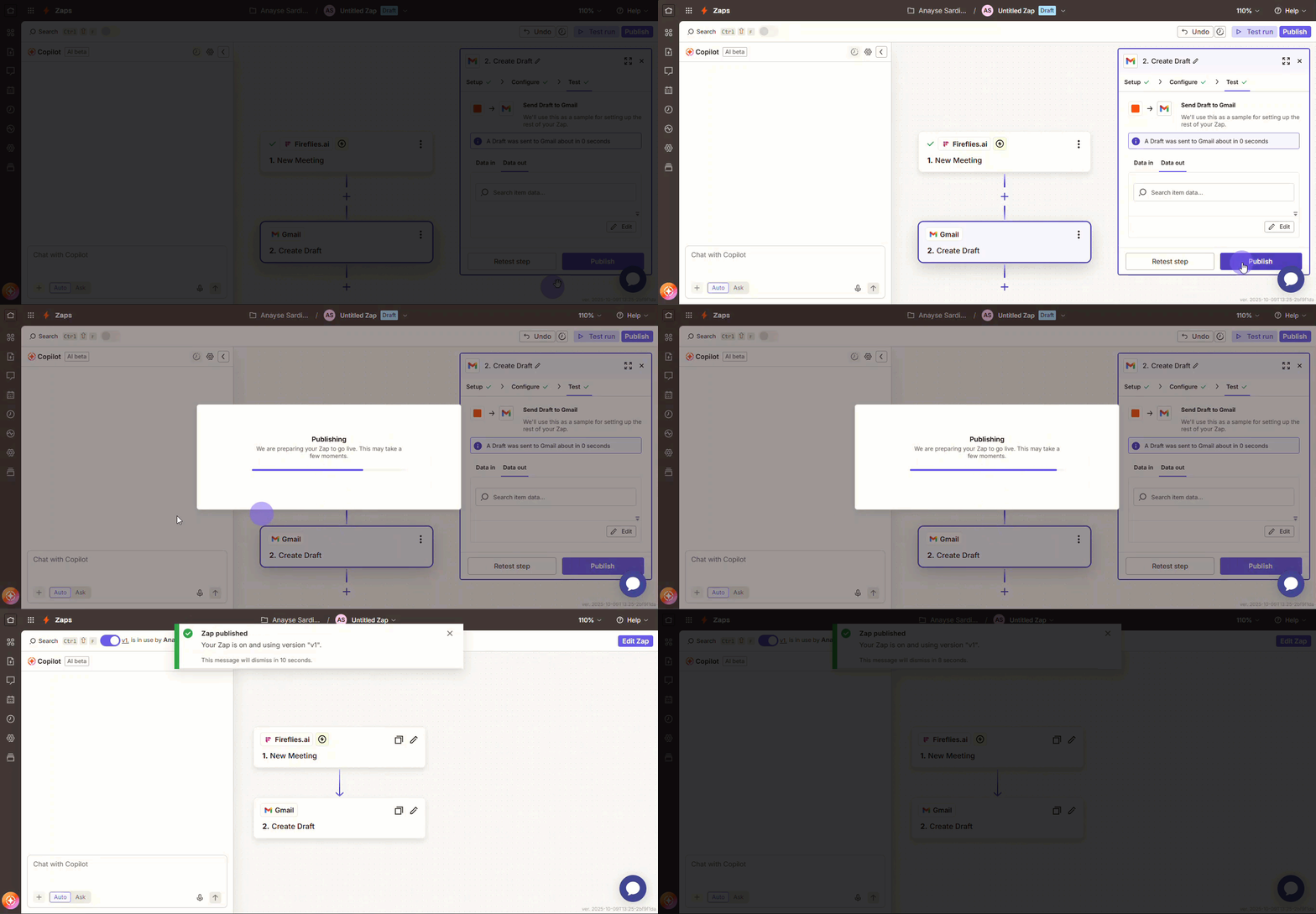
Step 17: Click Publish to activate your workflow. You're all set!
🧩 Filters and Conditional Logic
You'll use Zapier’s Filters to control exactly which meetings trigger your workflows. This helps prevent information overload and keeps your connected apps focused only on the most relevant data.
Filter by Meeting Characteristics:
Use these characteristics to focus your automation only on the meetings that matter:
Meeting duration: Only trigger for meetings longer than a specific time (like 30+ minutes).
Participant count: Focus on large groups or meetings with external attendees.
Meeting titles: Target specific meeting types using keyword matching.
Custom topics: Trigger only when specific subjects are discussed in the conversation.
Build Conditional Logic:
You can create sophisticated rules by combining these filters:
Create spreadsheet rows only for client meetings longer than 30 minutes.
OR Send Slack notifications only when action items are identified.
OR Upload recordings only for external meetings with 3 or more participants.
This ensures only meaningful meetings trigger your automations, keeping routine check-ins and brief calls from cluttering your connected systems.
Start with broad automation rules and gradually add filters as you identify which meeting types provide the most value in your connected apps
🛠 Manage Configuration
Your Fireflies meeting data is full of potential! Use Zapier to unlock it and connect Fireflies to thousands of other tools. Here are the most popular ways people automate their work:
Spreadsheet Logging: Create rows with meeting data in Google Sheets or Excel. This tool is best for meeting tracking, attendance records, and data analysis.
File Management: Upload recordings and transcripts to cloud storage. This is best for compliance documentation and meeting archives.
Communication Workflows: Send summaries via email, Slack, or Teams. This is best for team alignment and stakeholder updates.
CRM Integration: Push meeting insights to sales and customer platforms. This tool is best for lead tracking and relationship management.
Task Automation: Create action items in project management tools. This is best for follow-up accountability and project tracking.
Calendar Workflows: Schedule follow-ups based on meeting outcomes. This is best for meeting sequence automation and reminders.
Tip: Access Zaps to learn more about Zap triggers.
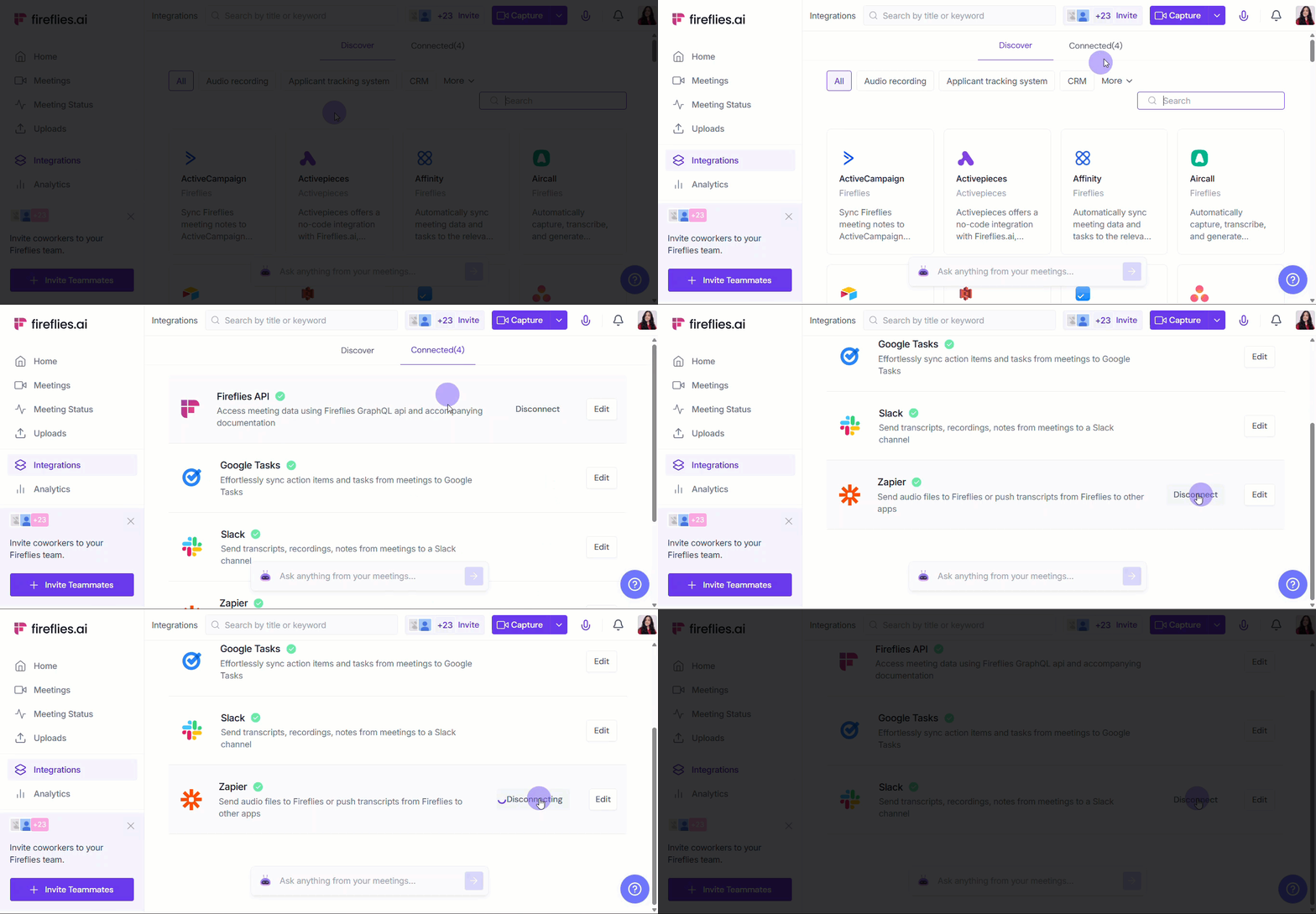
❌ Disconnect Integration
If you no longer need Fireflies connected to Zapier, click the Disconnect button in the Integrations page to end the connection immediately.
Once disconnected, Fireflies will stop sending data to Zapier. You can always reconnect later if needed.
👥 Team Governance (Admins Only)
As a Workspace Admin, you can use centralized governance policies to control exactly how your team members use Zapier automations with Fireflies meeting data.
Why Manage Your Team's Automations?
Data Consistency: You ensure meeting information flows only to your approved systems.
Security Compliance: You control which external apps receive sensitive meeting data.
Workflow Optimization: You prevent duplicate automations and stop data conflicts before they start.
Tip: Create template Zaps for common use cases and share them with your team to ensure consistent automation practices while maintaining data governance.
🛠 Troubleshooting
Zap not triggering?
If you see no automation when meetings end, check Fireflies trigger configuration, verify the meeting matches trigger criteria, and review Zapier task history for errors.
Wrong data mapping?
If you see incorrect information in connected apps, review field mapping in the Zap editor, test the trigger to verify data format, and update mapping for new data fields.
Missing meeting data?
If you see incomplete information in automations, check Fireflies transcription settings, verify custom topic configuration, and review speaker name inclusion settings.
Authorization errors?
If you see "Permission denied" in connected apps, re-authenticate connected app accounts, check app permissions in Zapier, and verify admin access for team integrations.
Duplicate automations?
If you see multiple entries from the same meeting, review Zap trigger frequency settings, check for multiple similar Zaps, and add filters to prevent duplicate triggers.
❓ Frequently Asked Questions (FAQ)
Q1. How quickly does meeting data flow into my Zapier workflow? Your workflow runs in near real-time. Meeting data reaches your connected apps within minutes of the conversation ending and the transcription processing.
Q2. Is there a limit to how many Zaps I can create using the Fireflies trigger? Fireflies doesn't limit the number of Zaps you can create. Your limitations will depend on your specific Zapier plan.
Q3. Can I send different types of meeting data to different apps? Absolutely! You can create one Zap to send summaries to Slack and a separate Zap to send action items to Asana. This flexibility is managed through Step 6: Map Your Meeting Data.
Q4. Will this integration work with all my connected apps, even if I change them later? Yes, Fireflies acts as the Trigger for Zapier. As long as the Action app you choose (like HubSpot or Trello) is supported by Zapier, your workflow will function.
Q5. Do I need a paid Fireflies account to use this integration? All Fireflies users can use the Zapier integration. However, features like Integration Rules (for filtering which meetings trigger a Zap) are available on Business or higher plans.
🔄 Recap
Great job setting up the Zapier integration! Here’s a quick summary of what you can do:
Ensure your Zapier and other app accounts are active with the right permissions to get started.
Connect your meeting data to over 6,000 apps and build powerful automations without writing any code.
Control which meetings trigger your workflows by setting up smart rules based on participants, duration, or keywords.
Map your data with precision, sending specific meeting details to the exact fields you need in your other tools.
Use templates to keep your team's automations consistent, secure, and easy to manage.
Apply filters and conditional logic so that only the most relevant meetings run your automations.
You're all set to save time and streamline your post-meeting tasks!
📚 Related Guides
📌 How to control autojoin and email settings for teammates → Manage how Fireflies joins calls and sends recaps for your entire workspace.
📌 How to invite Fireflies to meetings → Learn the different ways to invite Fireflies to record your calls.
📌 Learn about the Fireflies Auto-join and Email Recap settings → Control your personal preferences for when Fireflies joins meetings and sends summaries.
📌 Using the Audio Upload AI through Zapier → Use Zapier to upload any audio files (MP3 or WAV) to Fireflies.