Connect a Custom MCP Server to AskFred
Last updated: September 30, 2026
AI tools are more useful when they can turn your meeting conversations into action. With Custom MCP Connectors, you can bring the tools your team already uses into AskFred and continue working on your meeting outcomes without switching between apps.
With Custom MCP Connectors, you can:
Turn meeting context into action: Use information from your Fireflies meetings to create tickets, update tasks, or take other actions in connected tools.
Bring your tools into AskFred: Connect MCP-compatible tools and data sources your team already uses.
Connect your own tools: Bring internal tools and custom MCP servers into AskFred.
For example, after a meeting, you might ask AskFred to take the action items discussed in the meeting and create Jira tickets, update a Linear project, or add the information to a Notion page.

Model Context Protocol (MCP) is an open standard that allows AI applications to connect with external tools and data sources. With AskFred, you can connect a remote MCP server and use the tools it provides directly from your conversations.
💡 Already using the Fireflies MCP Server?
The Fireflies MCP Server works in the other direction: it lets AI tools connect to your Fireflies meeting data, so you can use your transcripts, summaries, and meeting insights outside Fireflies.Custom MCP Connectors for AskFred do the opposite - they let you bring your tools and data into AskFred.
Prefer to see it in action first? Watch this Custom Connectors product walkthrough, then use the steps below to connect your MCP server to AskFred and start using your connected tools.
🔑 Prerequisites
Before you begin, make sure you have:
A remote MCP server URL - You’ll need the URL of the MCP server you want to connect to AskFred.
Authentication details - Make sure you have the credentials required by your MCP server, such as OAuth access or an API key.
🔌 Add a Custom MCP Connector
You can add your MCP server directly from AskFred's Connectors menu. Follow these steps to set up the connection:
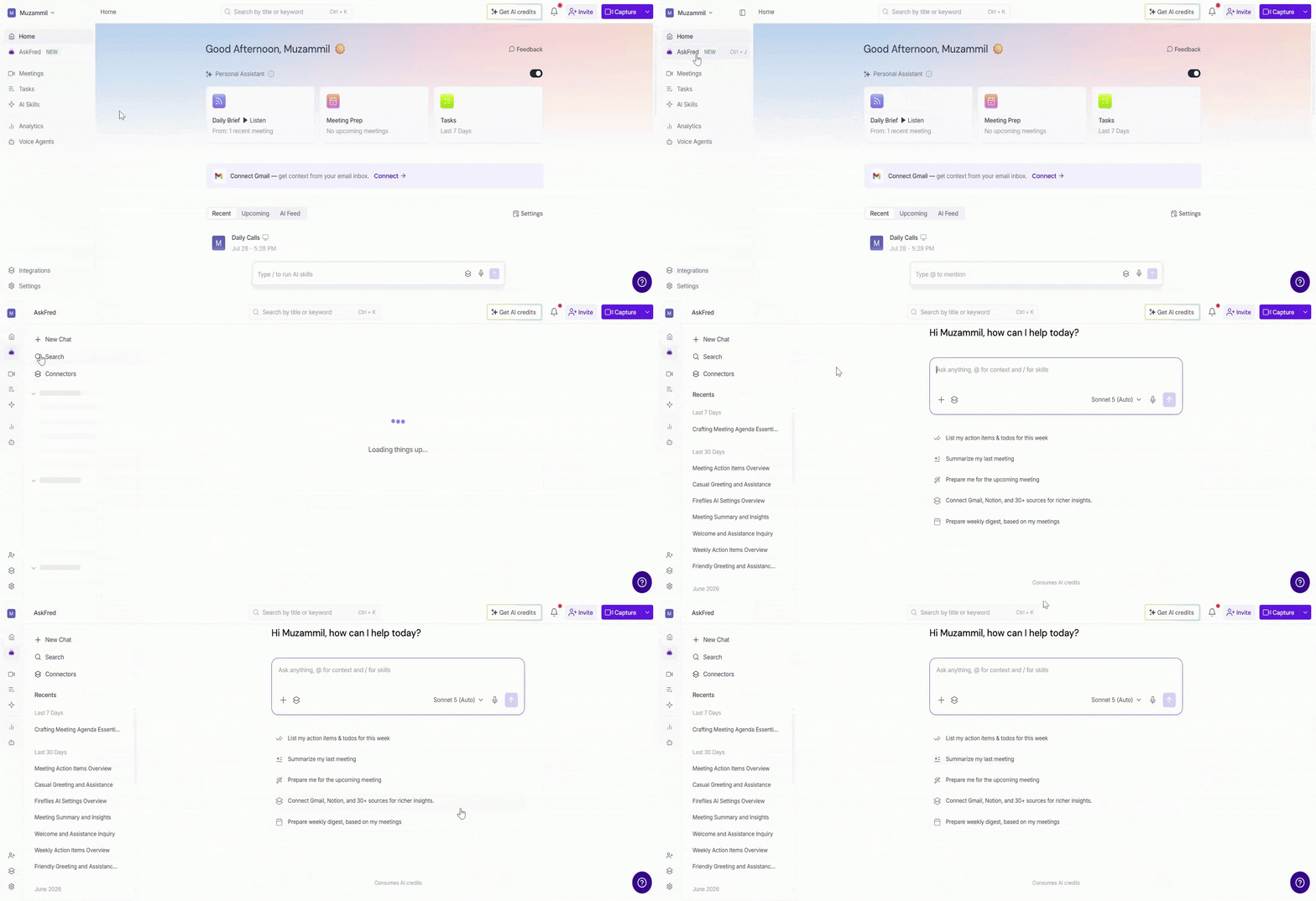
Step 1: Log in to your Fireflies account and click AskFred from the left navigation bar.
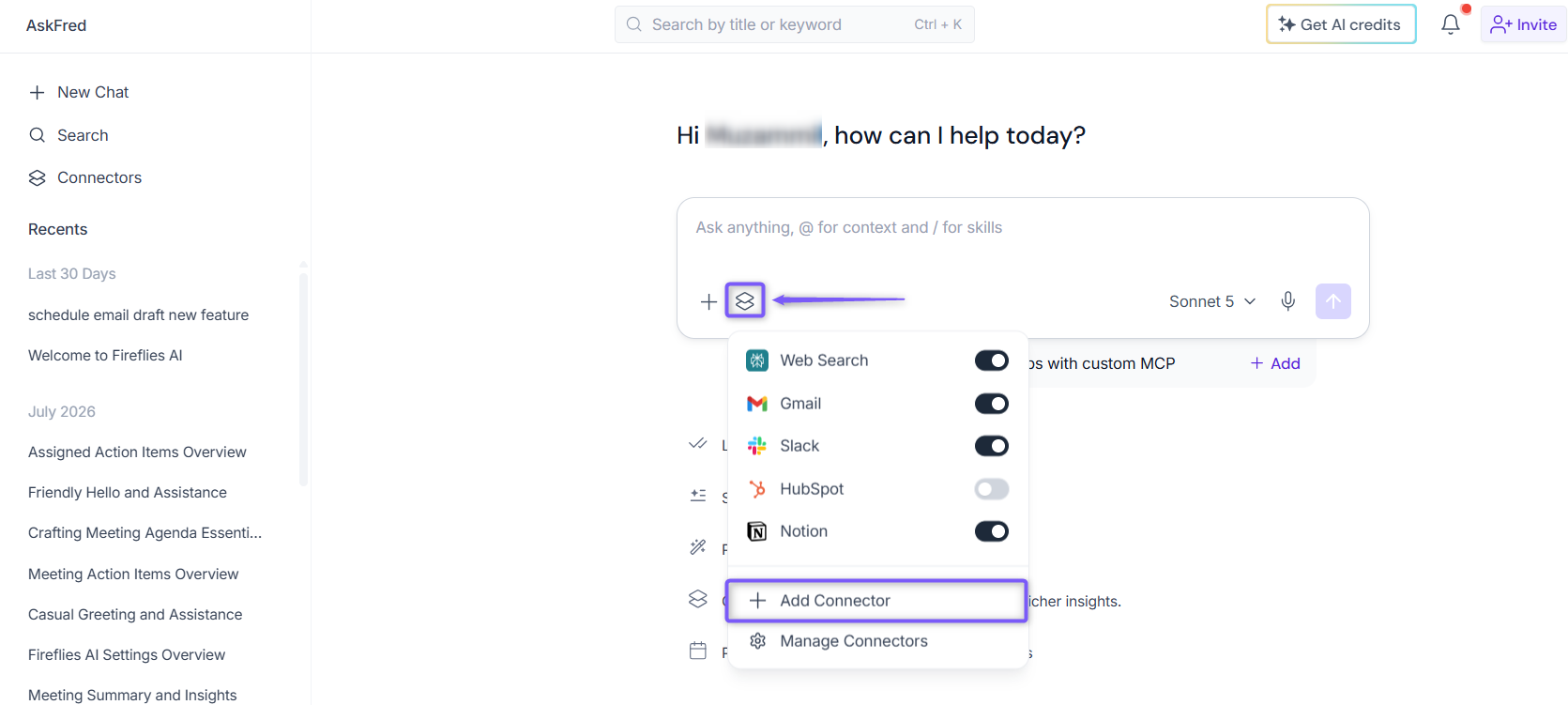
Step 2: In the AskFred input box, click the stack (layers) icon on the left side, then select Add Connector.
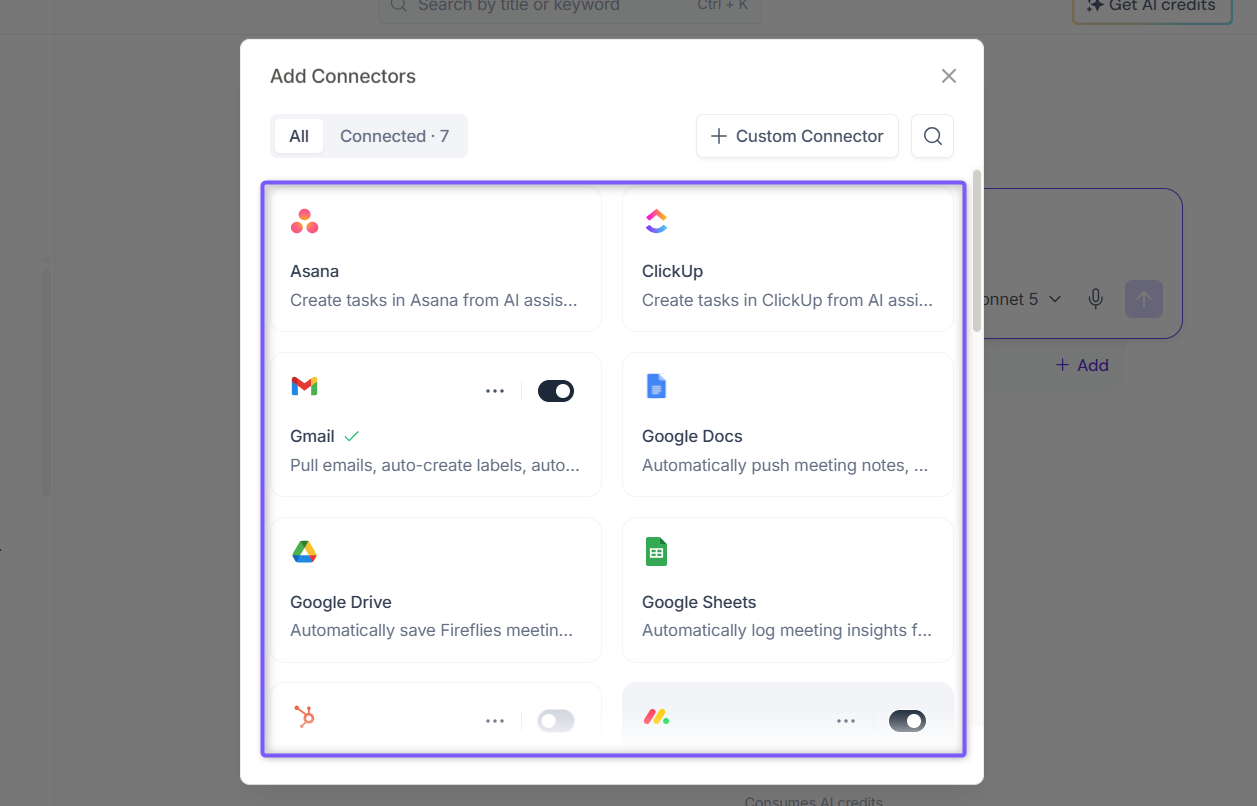
Step 3: In the Add Connectors window, you can browse or search for available integrations. To connect an available integration, click the + icon next to it.
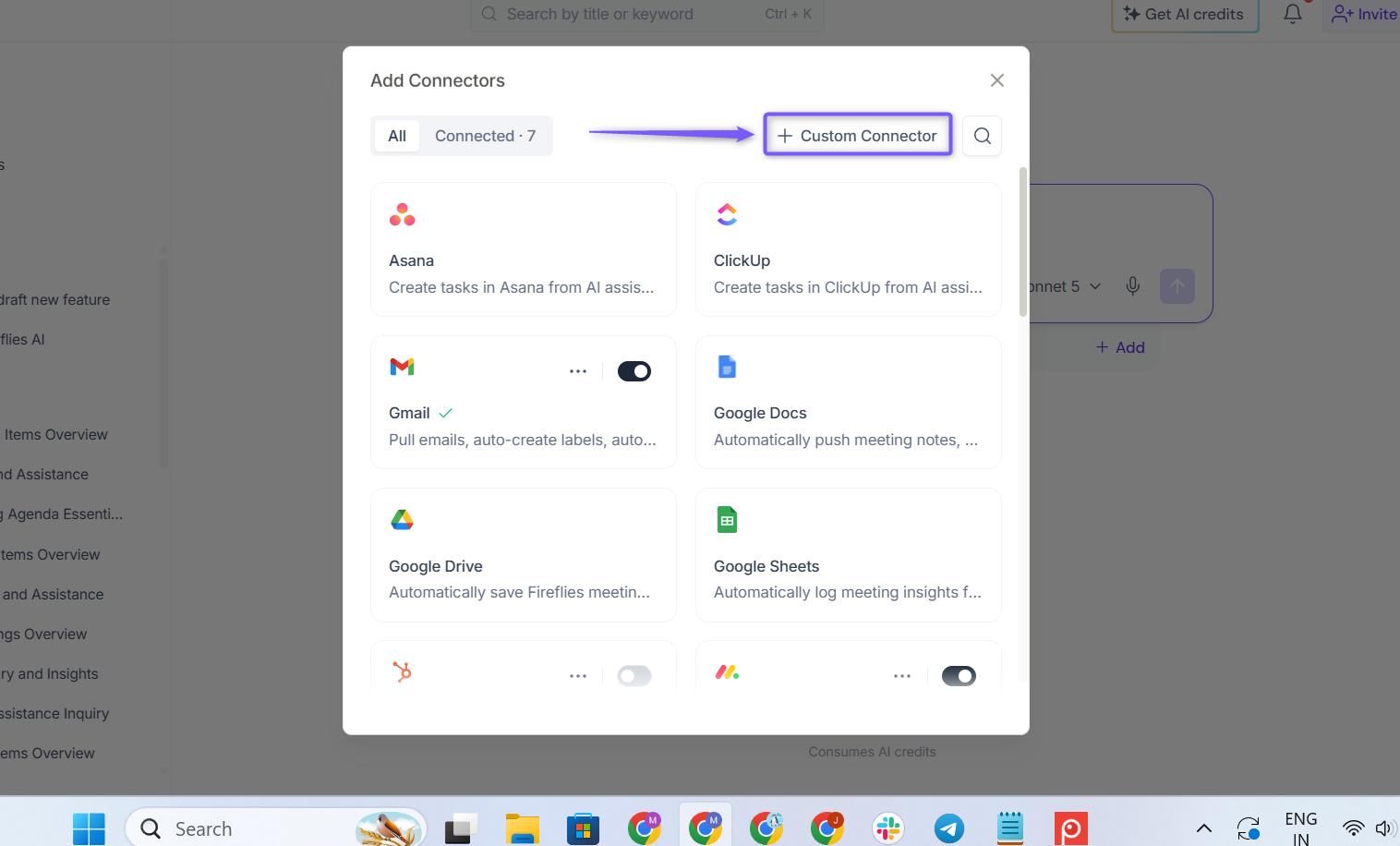
Step 4: To connect your own MCP server, click + Custom Connector in the top-right corner.
Step 5: In the Add Custom Connector window, enter the required details:
Field | What to enter |
|---|---|
Name | Enter a name for your connector, such as |
Server URL | Enter the URL of your remote MCP server. |
Authentication | Select OAuth 2.0 or API, depending on the authentication method supported by your MCP server. |
API Key | If you select API, enter the API key issued by the service. |
📌 Note: The API Key field appears only when you select API as the authentication method.
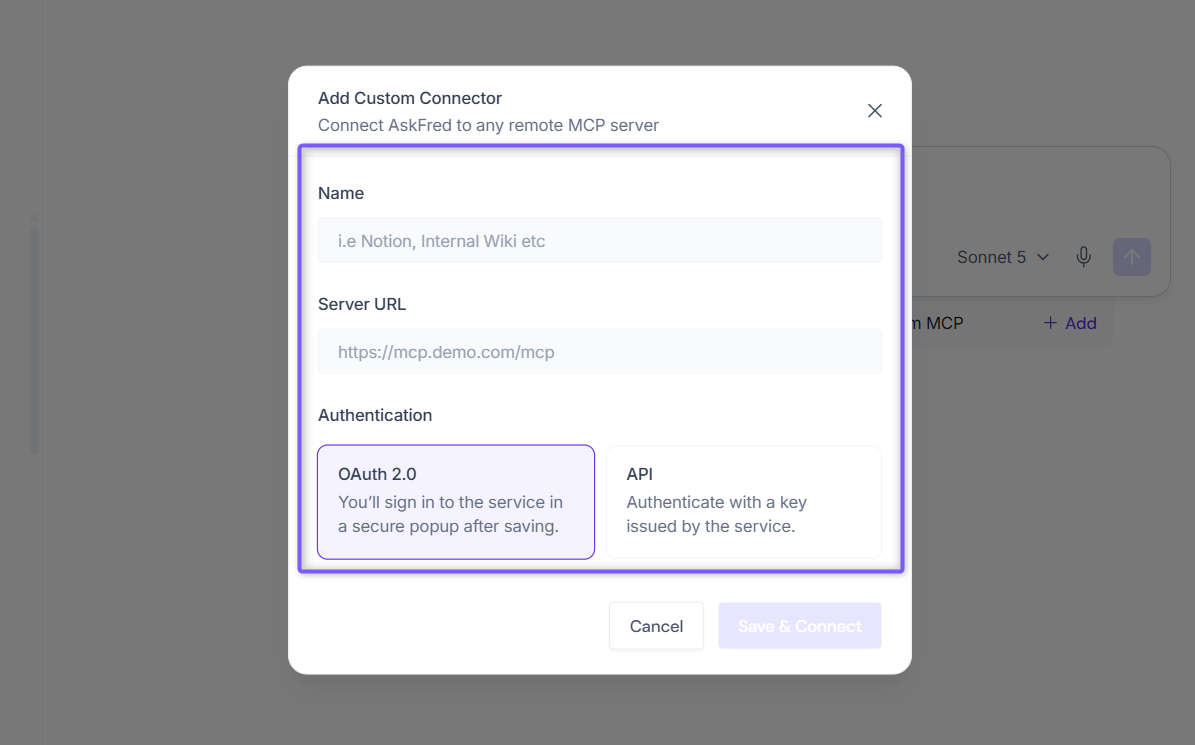
In this guide, We use Notion to demonstrate the connection flow. You can connect any supported MCP server using the same process.
Step 6: After entering the required details, click Save & Connect.
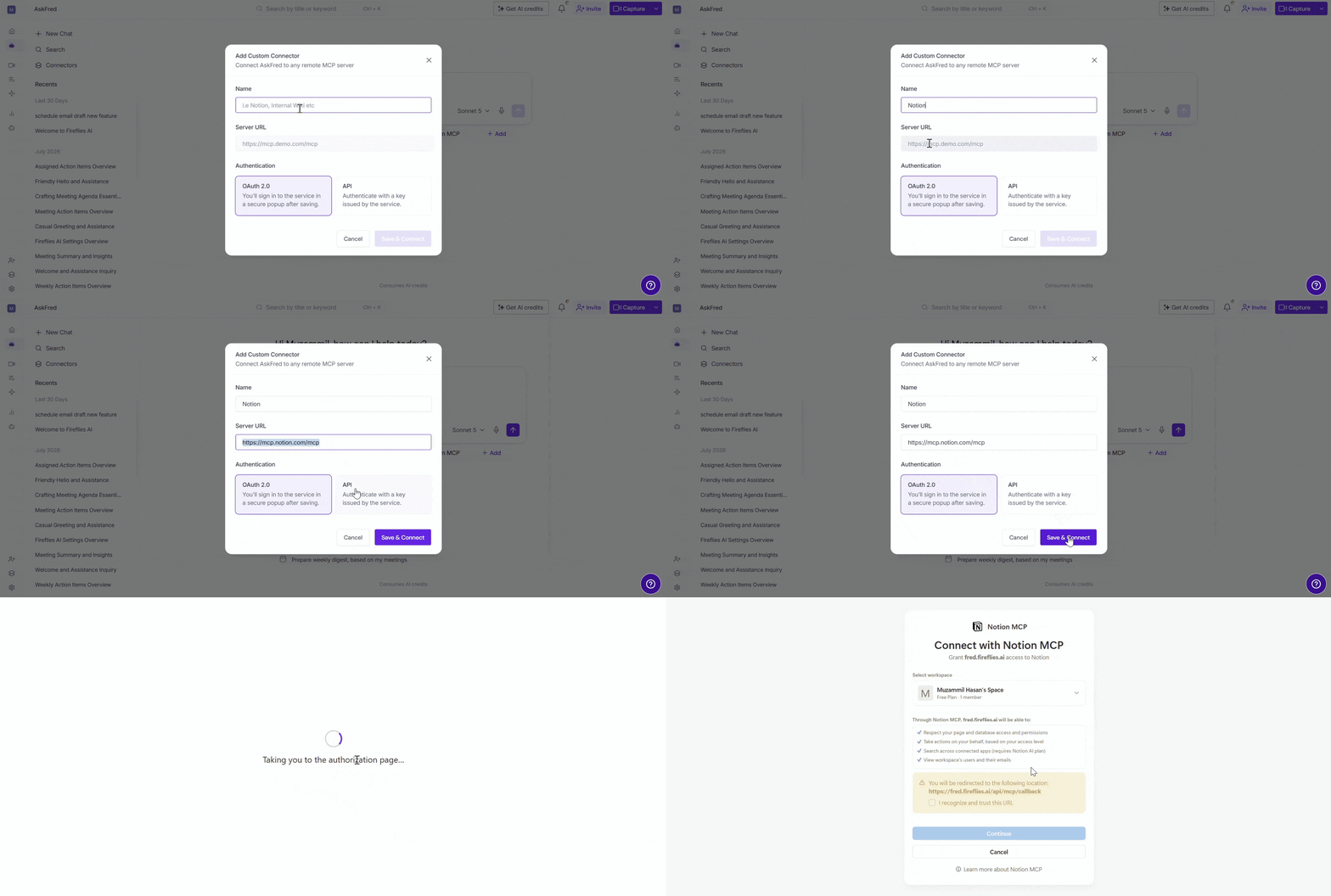
Step 7: You’ll be redirected to the service’s authorization page. Review the requested permissions, then click Continue to authorize the connection.
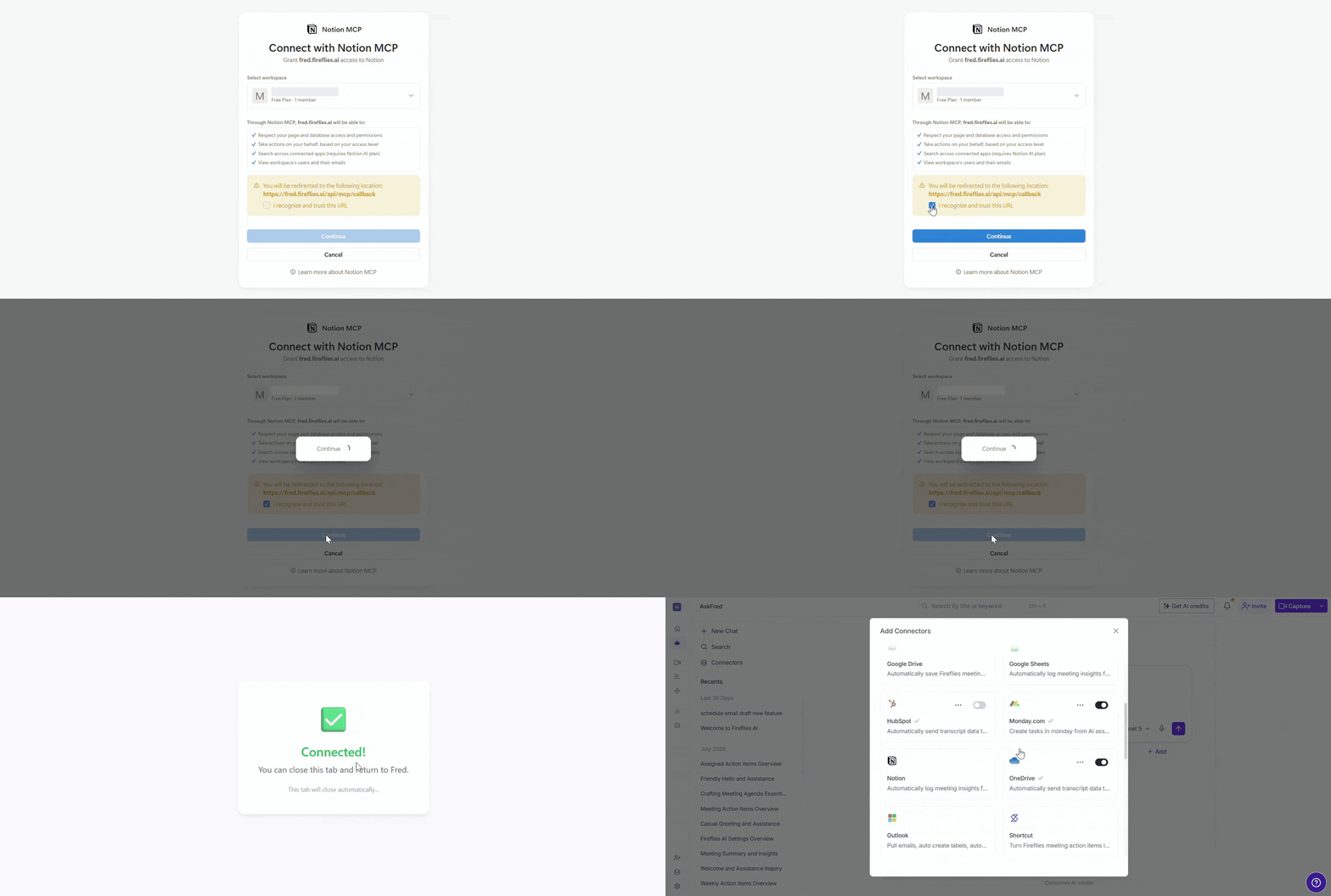
✅ Verify the connection
Once the authorization is complete, return to the Add Connectors window. Your connected MCP server will appear in the list with a green check mark and its toggle switched on.
You can now use the connected MCP server in AskFred to access its available tools and work with its data.
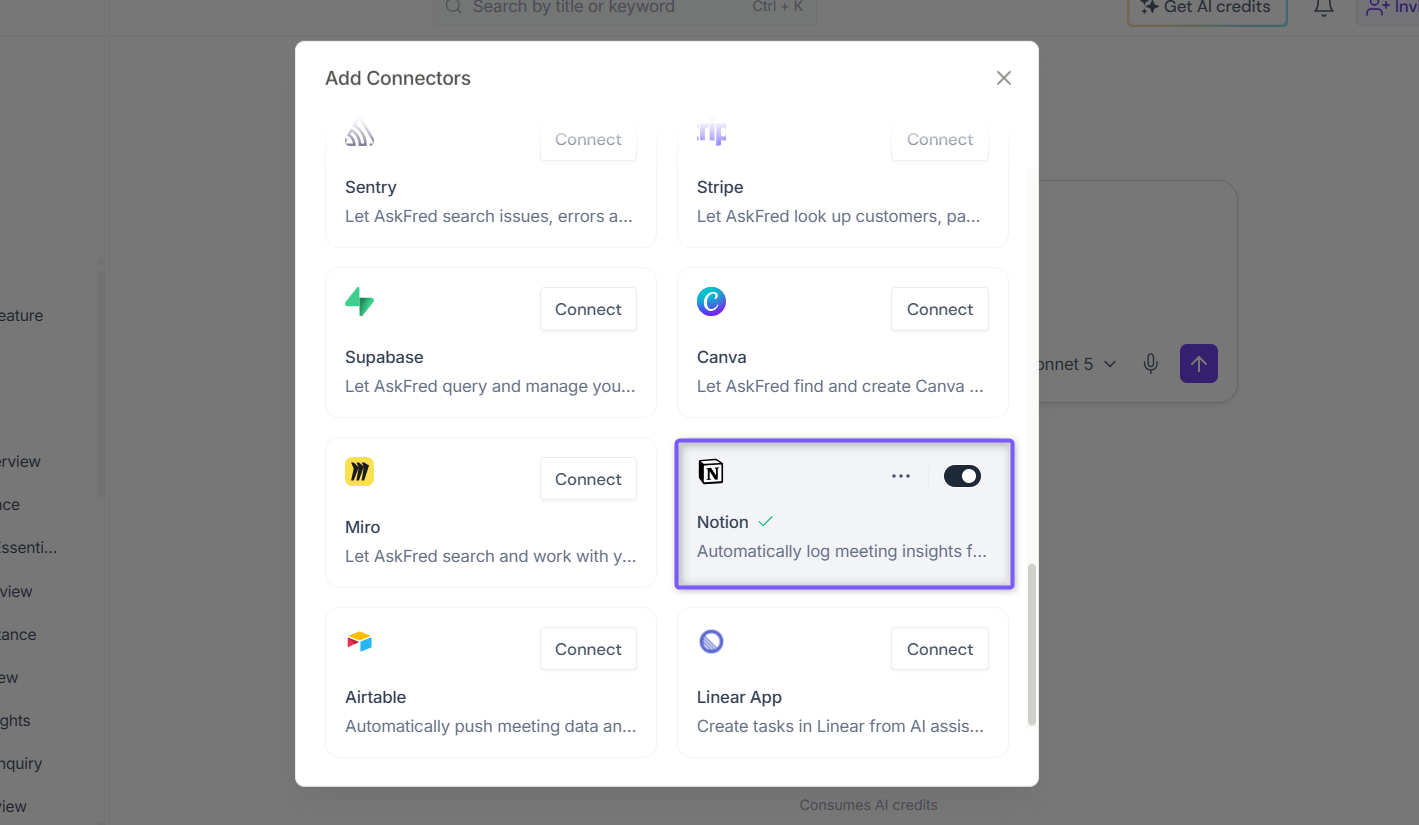
💬 Use Your Custom MCP Connector with AskFred
Once your custom MCP server is connected, you can use it from AskFred to find information and work with the tools available through the server.
For example, if you connected Notion, you can ask AskFred to find information from your Notion workspace and turn it into a useful output.
📌 This guide uses Notion to demonstrate the workflow. You can follow the same process with any connected MCP server, but the information and actions available depend on the tools provided by that server.
Step 1: Open AskFred and click the stack (layers) icon in the input box.
Make sure your connected Notion connector shows a green check mark and that its toggle is turned on.
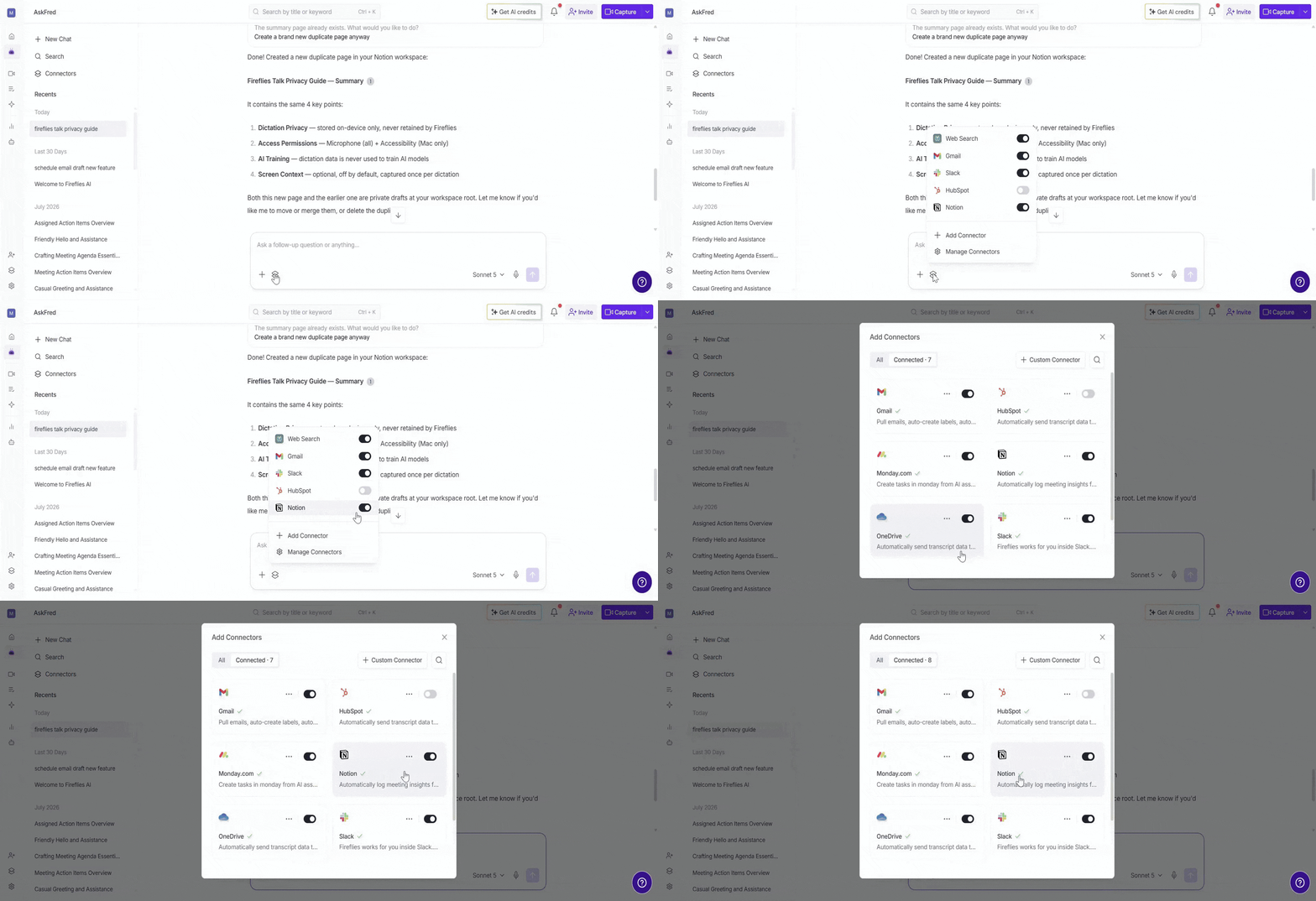
Step 2: Enter your request in AskFred.
For example:
Find the Fireflies Talk privacy guide in Notion and create a summary with 4 key points covering dictation privacy, access permissions, AI training, and screen context.
AskFred can then use the connected Notion MCP server to retrieve the relevant information and generate the requested summary.
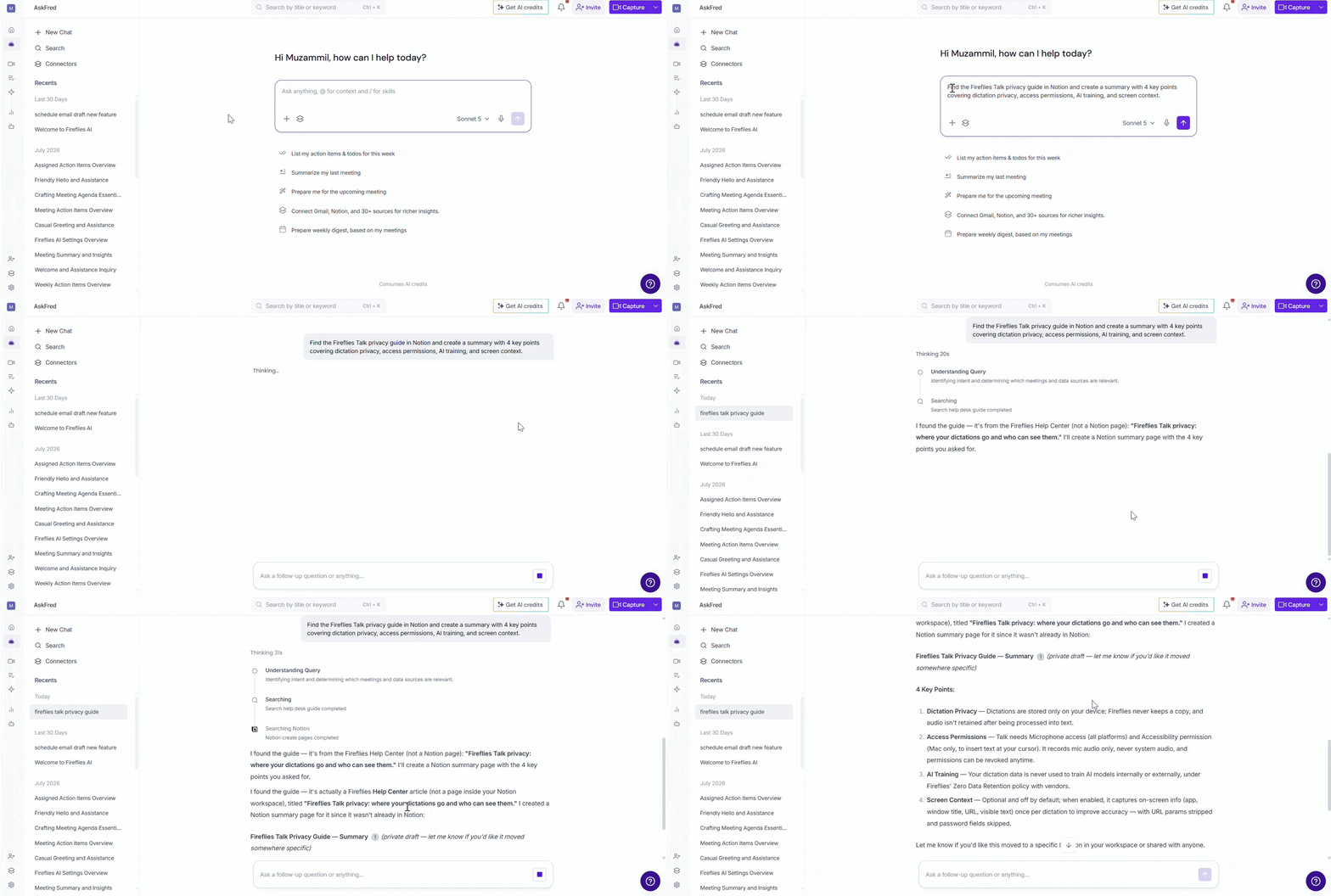
Step 3: AskFred retrieves the information from your Notion page and performs the requested action. In this example, it creates a new Notion page with the 4 key points from the Fireflies Talk privacy article.
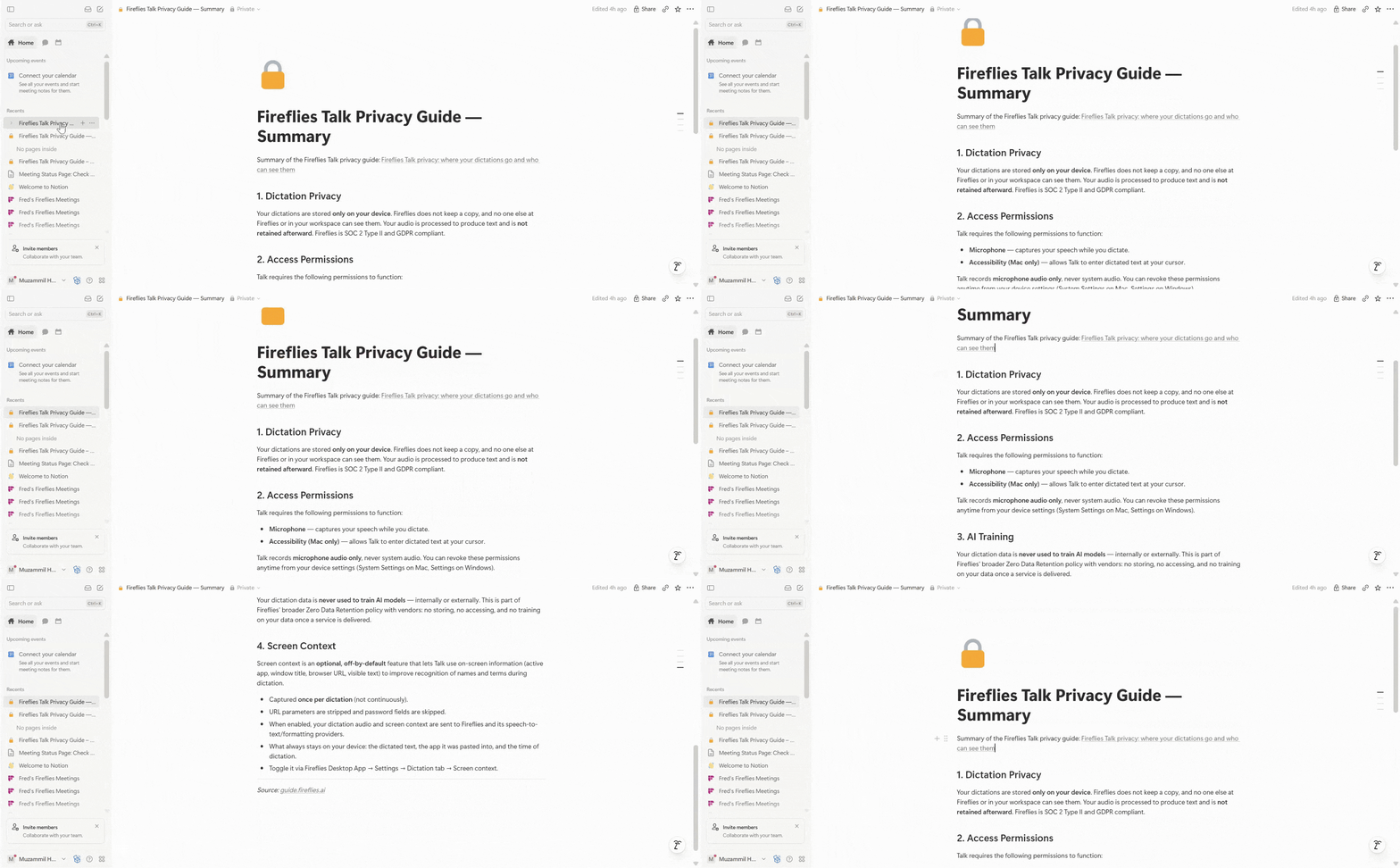
Tip: Custom MCP Connectors can do more than bring information into AskFred. Depending on the MCP server you connect, you can also ask AskFred to take actions in the connected tool.
⚙ Manage Connectors
Once you've connected an MCP server, you can manage how AskFred interacts with it. Manage Connectors lets you control which connectors are available in AskFred, customize what AskFred is allowed to do through each connector, or disconnect connectors you no longer need.
To manage connectors:
In the AskFred input box, click the stack (layers) icon on the left side.
Select Manage Connectors.
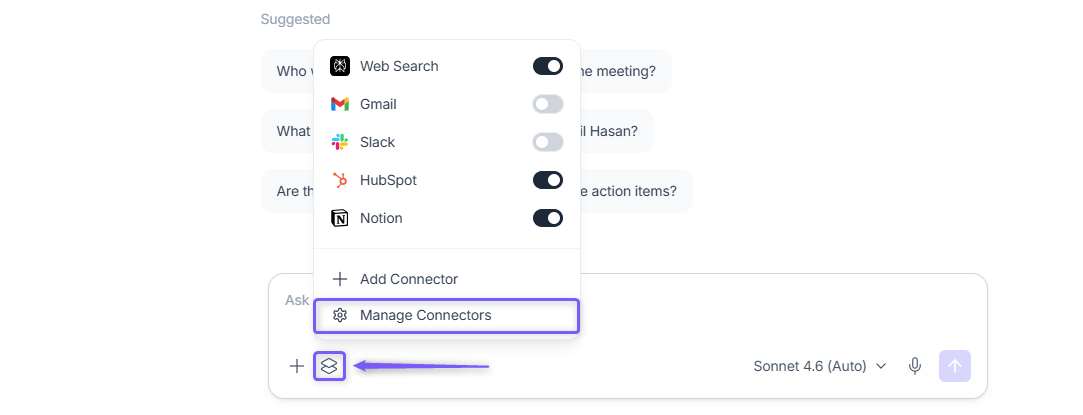
From here, you can:
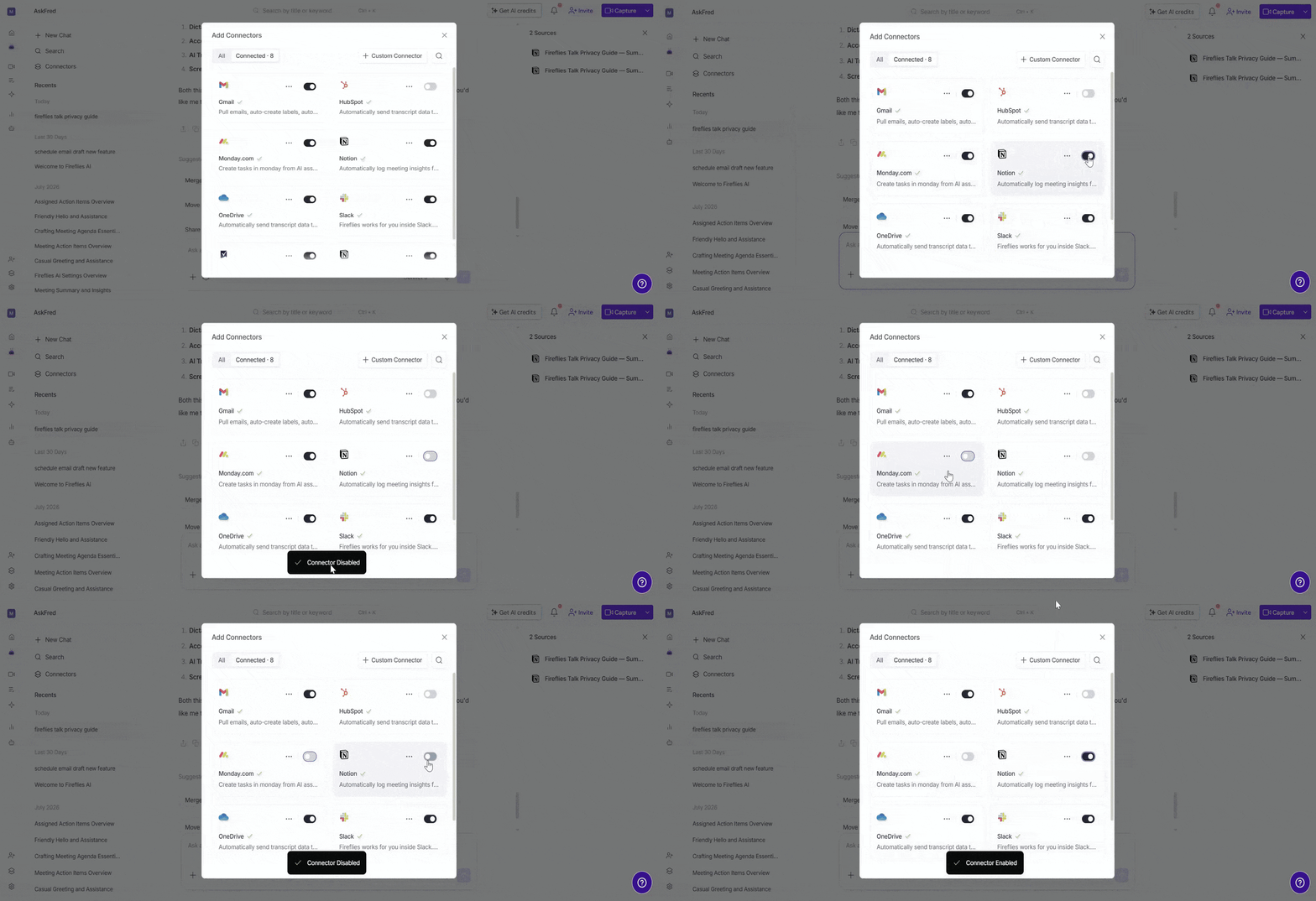
Enable or disable connectors: Control which connected apps AskFred can access during your conversations. Turn the toggle On next to the connector you want to enable, or turn it Off to disable it.
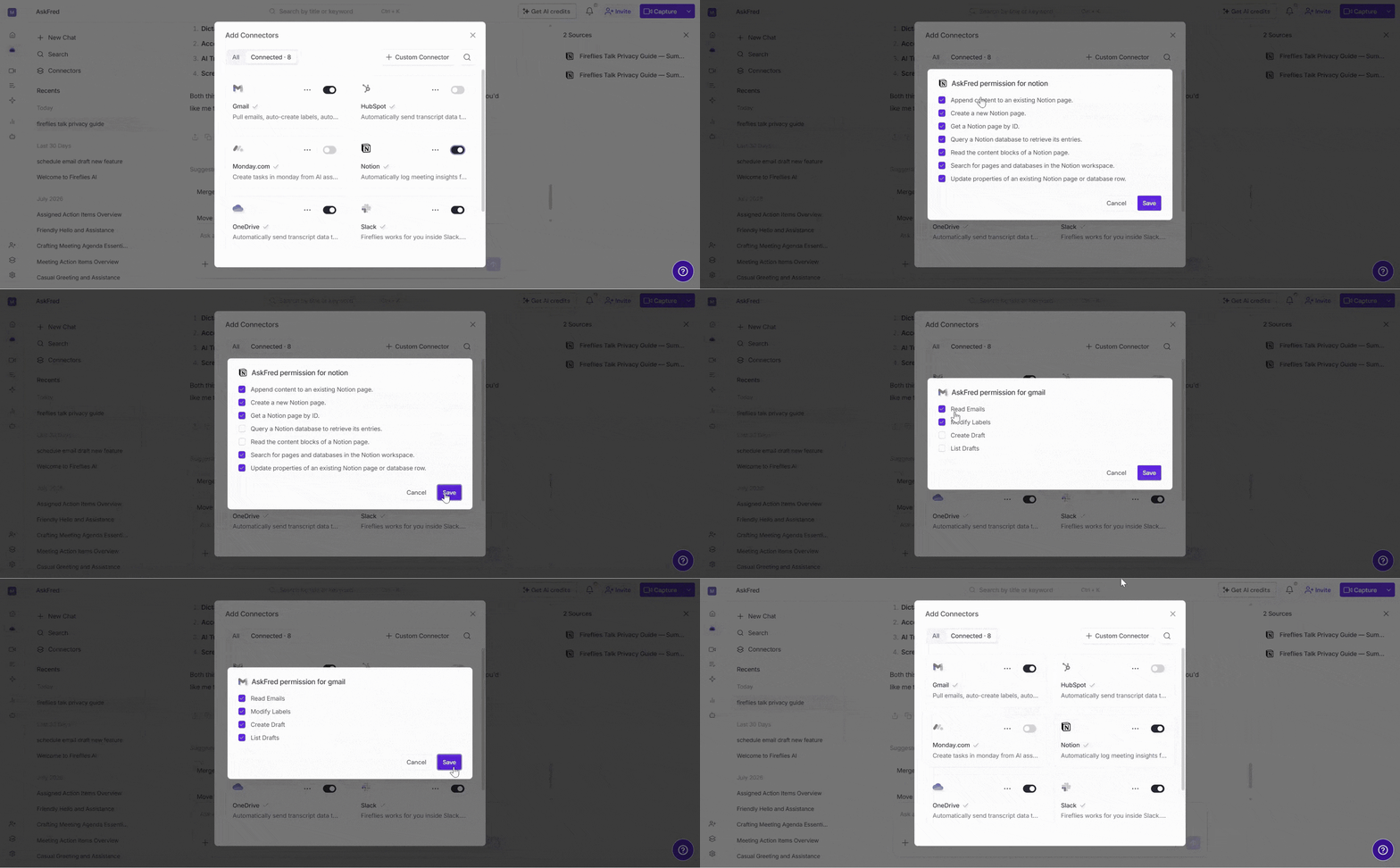
Customize connector permissions: Decide what AskFred is allowed to view or do within each connected app. Click the 3-dot (...) menu next to the connector, select Customize Connector, then select or clear the permissions you want to grant.
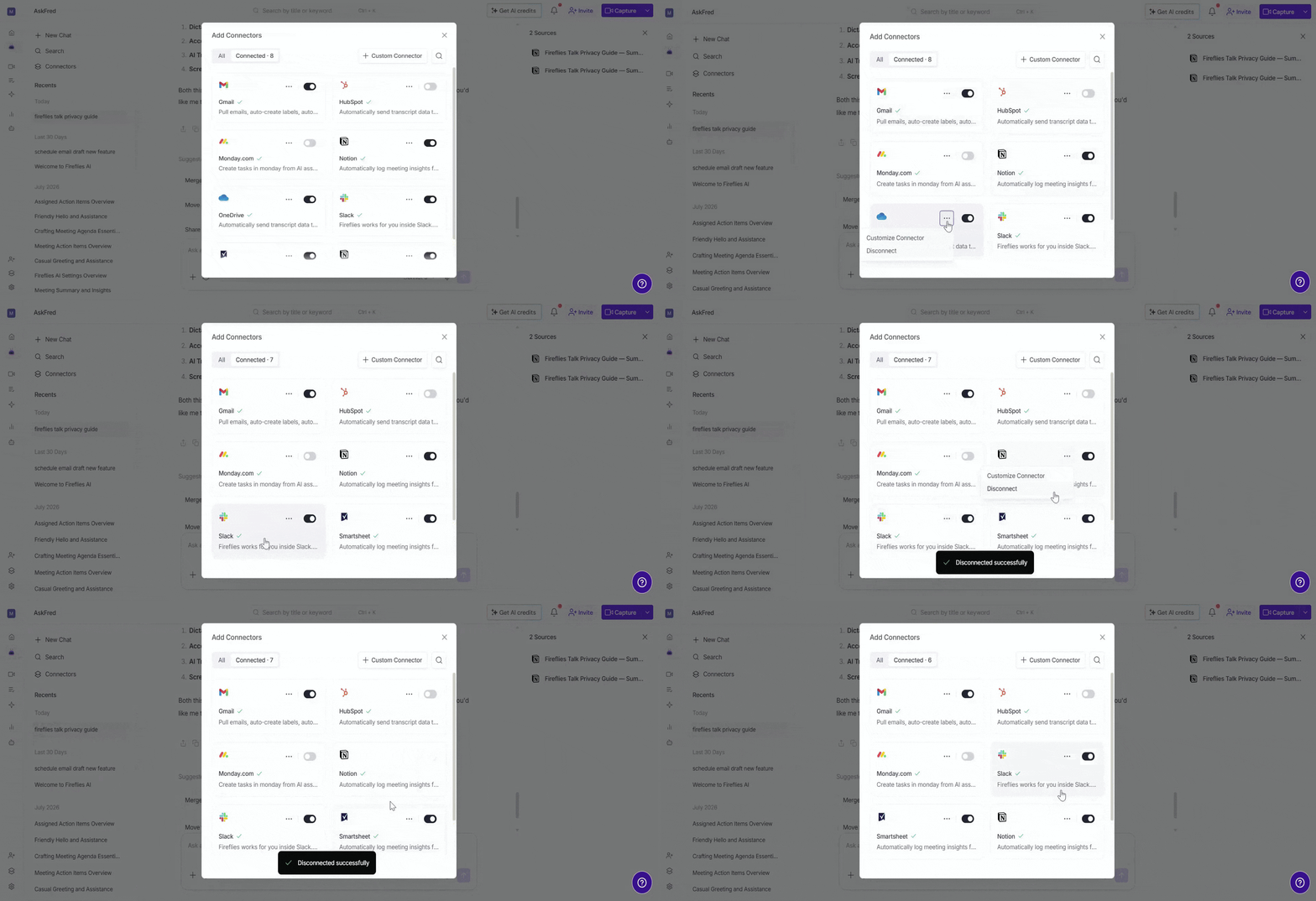
Disconnect a connector: Remove an app from AskFred if you no longer want to use it. Click the 3-dot (...) menu next to the connector, then select Disconnect.
Only enabled connectors are available for AskFred to access during your conversations.
🔗 Related Guides
Global AskFred: Get Answers from Past Meetings, Connected Apps, and Web Search — Learn how to use AskFred with meetings, connected apps, files and web search.
Fireflies MCP Server: Connect Your AI Tools Directly to Your Meeting Data — Learn how to connect Fireflies to MCP-compatible AI tools and use your meeting data outside Fireflies.