Create Reports, Kanban Boards, Timelines, and Other Visualizations with AskFred
Last updated: November 13, 2026
Some meeting insights are easier to understand when you can see them. AskFred can turn information from your meetings into visual outputs, helping you explore trends, organize action items, compare information, and understand decisions at a glance.
Simply describe what you want to see in your AskFred conversation, and Fred will create a visualization based on the relevant information from your meetings.
With AskFred, you can create:
Reports: Visualize meeting data, trends, metrics, and comparisons using charts and graphs.
Kanban boards: Organize action items by owner, status, or other criteria.
Checklists: Turn action items and tasks into an organized checklist.
Timelines: Display decisions, milestones, and events in chronological order.
Comparison tables: Compare information from your meetings side by side.
Flowcharts: Turn processes and workflows discussed in meetings into visual diagrams.
Note: AskFred visualizations are available on the web and aren't currently supported in the mobile app.
📍 Where to Access AskFred
You can create visualizations using either Global AskFred or meeting-level AskFred.
Global AskFred: Open AskFred from the left navigation bar to create visualizations using information across your meetings.
💡Press
Ctrl + J (Cmd + J on Mac)from anywhere in Fireflies to quickly open AskFred.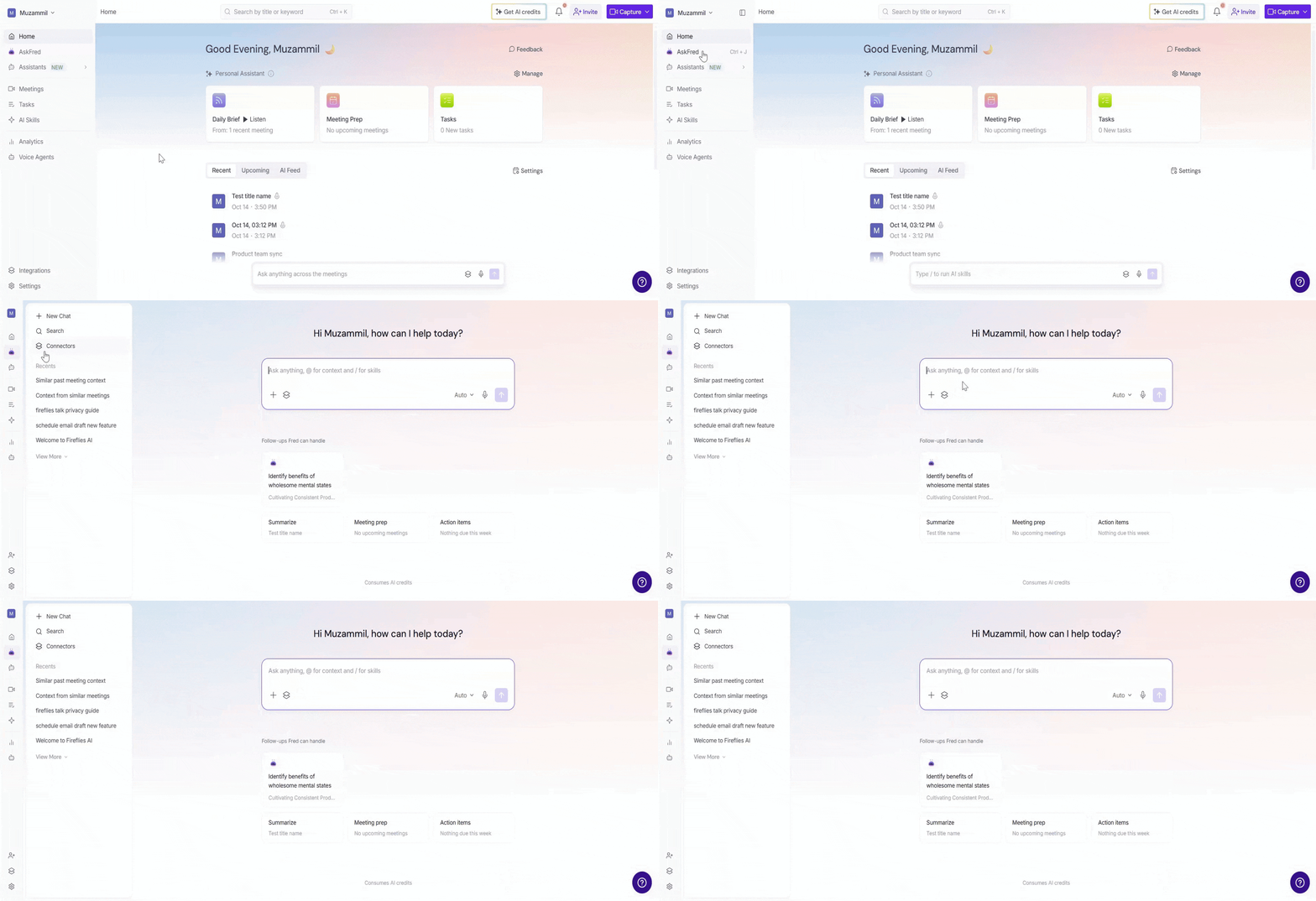
Meeting-level AskFred: Open a pro`cessed meeting and select Ask Fred in the meeting panel to create visualizations using that meeting's context.
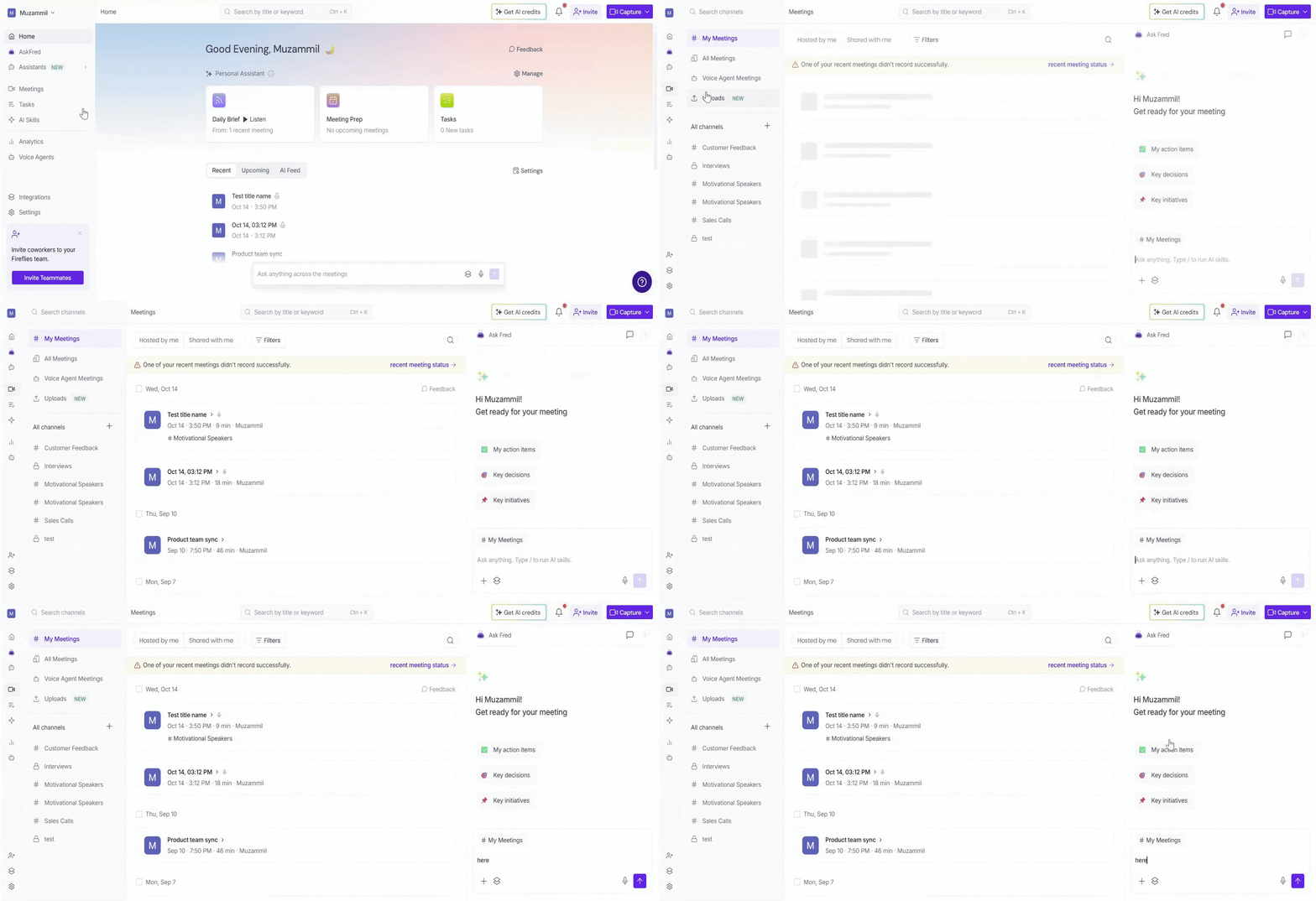
📊 Create a Visualization with AskFred
You don't need to configure a separate setting or build a chart yourself. Just describe the information you want to visualize and the format you prefer.
Open Global AskFred or meeting-level AskFred.
Enter a prompt describing the visualization you want.
Specify the meetings, topics, date range, or information you want AskFred to use.
Send your prompt and let AskFred find the relevant information and generate the visualization.
You can ask for a specific format, such as a Report, Kanban board, checklist, timeline, comparison table, or flowchart.
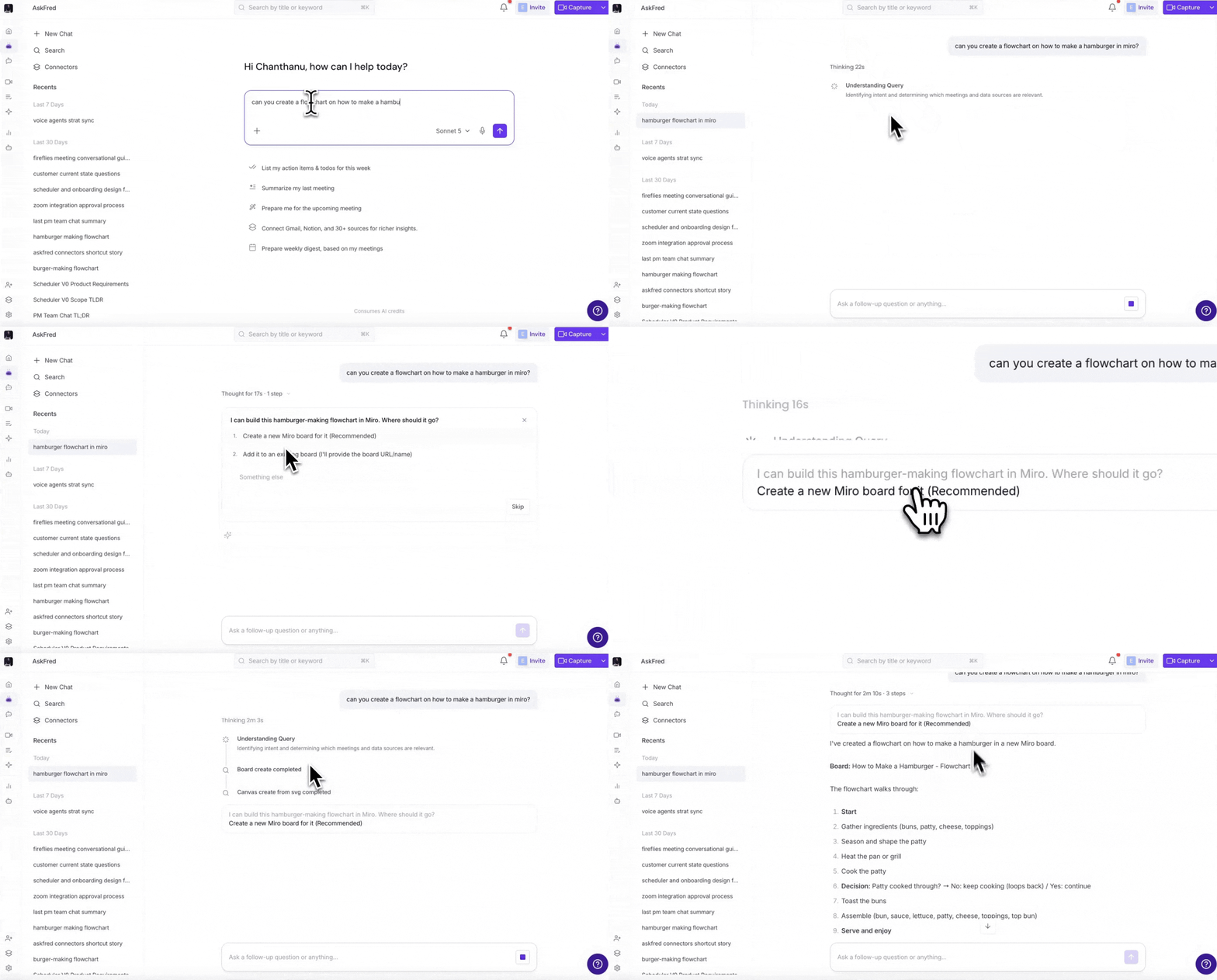
Tip: Want AskFred to work with information from your other apps, too? Connect supported integrations to retrieve information and perform actions in external tools directly from AskFred. See Connect Apps to AskFred: Supported Integrations and How to Connect Them to learn how to connect your apps.
📈 Explore What You Can Create
Here are some examples of visualizations you can generate with AskFred, along with prompts you can try.
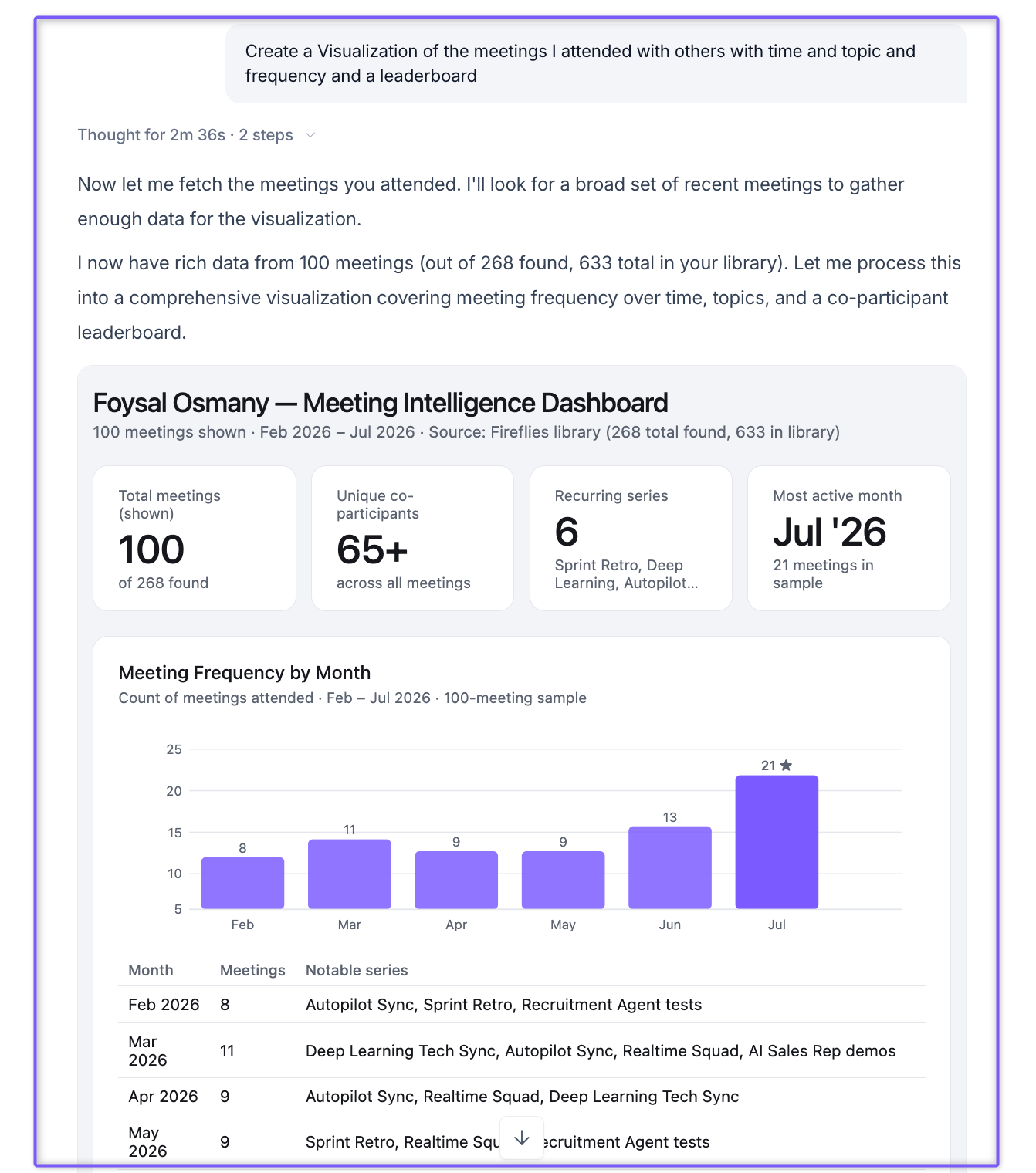
1. Reports (Charts and Graphs)
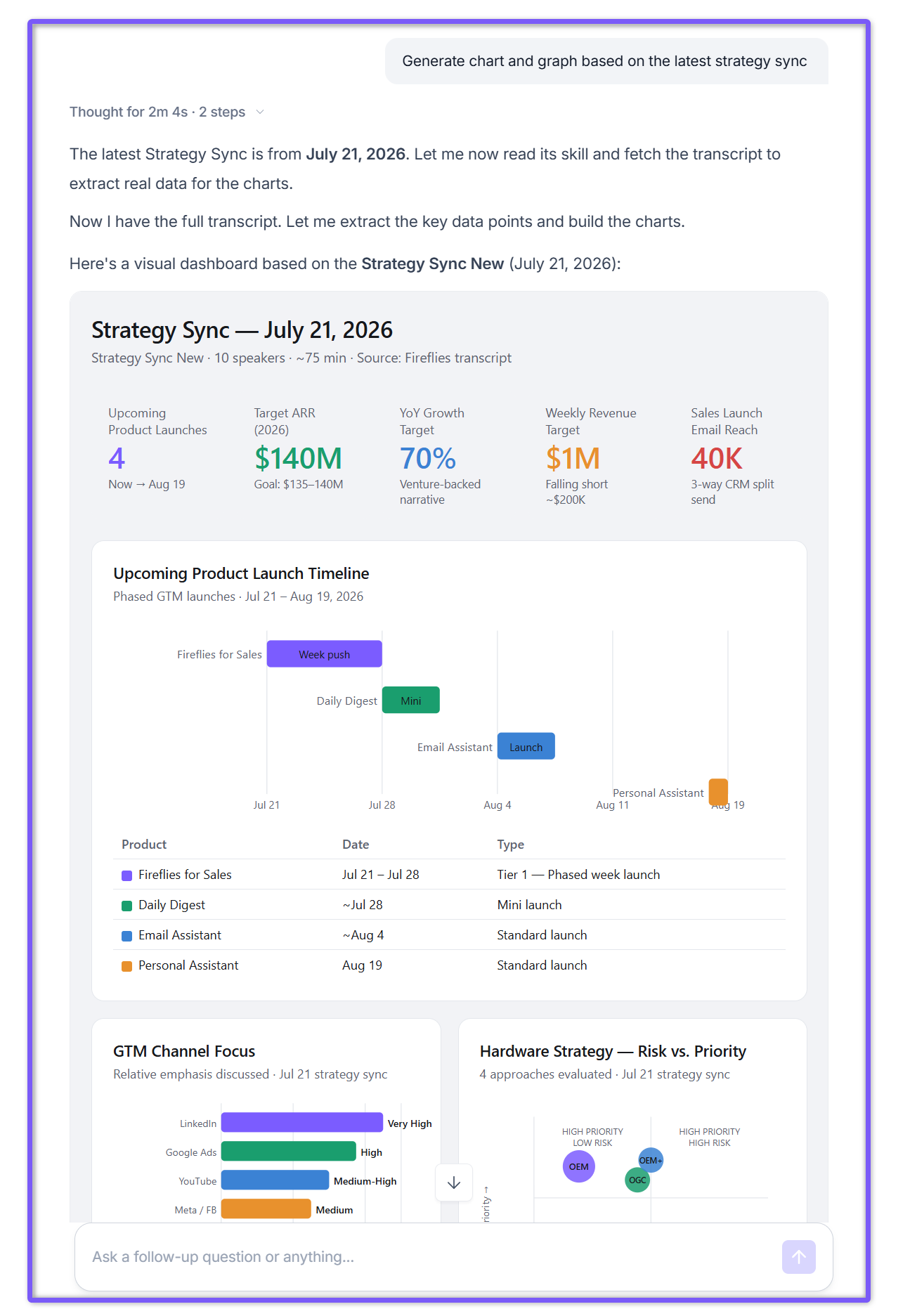
Use Reports to visualize meeting data, identify trends, and compare metrics. You can ask Fred to turn information from one meeting or multiple meetings into charts, graphs, or a dashboard.
Try these prompts:
"Generate a Report based on the latest strategy sync."
"Chart how many action items each team member has open right now."
"Create a visualization of the meetings I've attended, including time, topics, frequency, and a leaderboard."
2. Kanban Boards
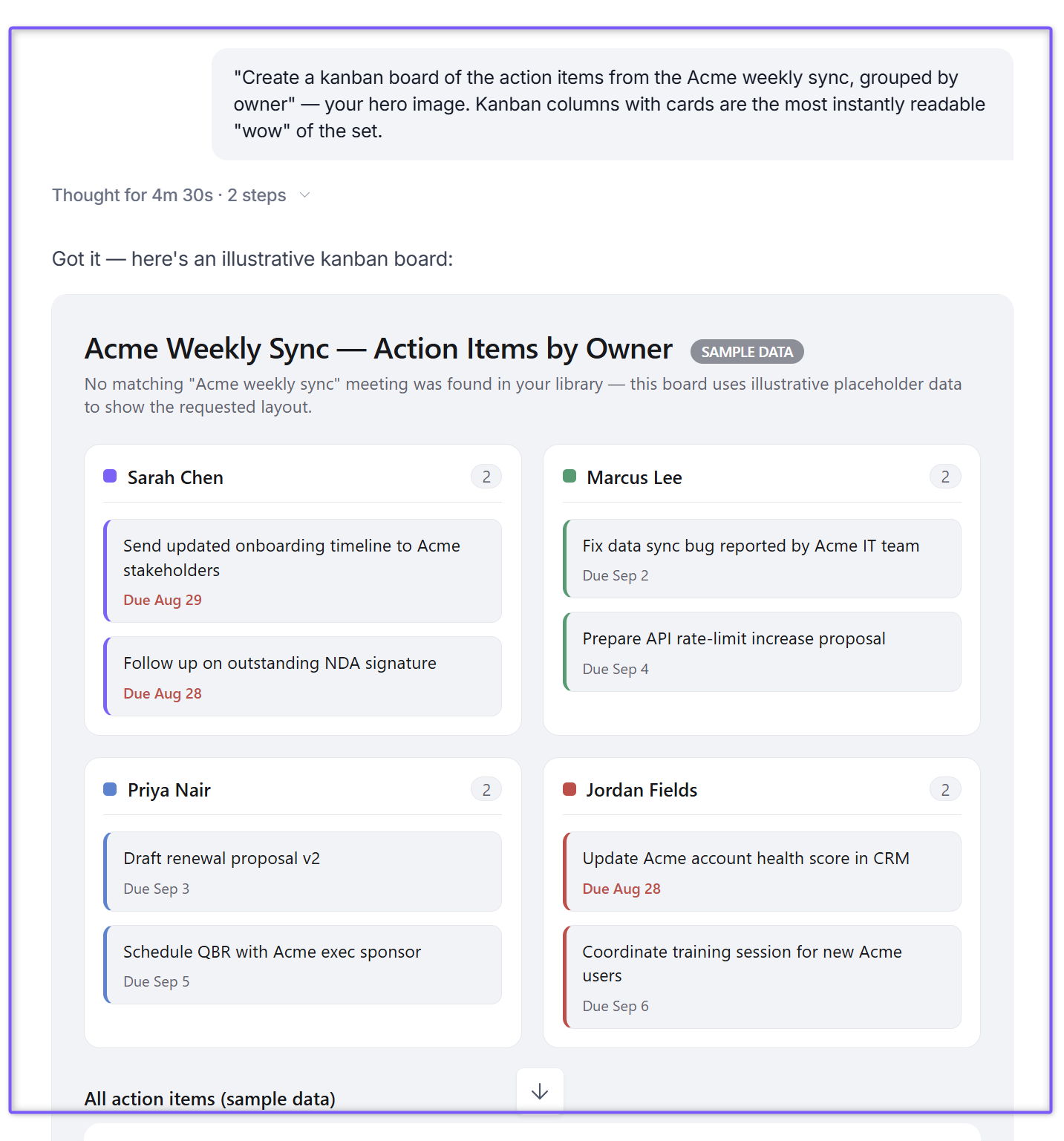
Use Kanban boards to organize action items into columns and see who's responsible for each task or how work is progressing.
Try these prompts:
"Create a Kanban board from the last Deep Learning sync — group by status."
"Build a Kanban board of action items across all my meetings this week, grouped by owner."
3. Checklists
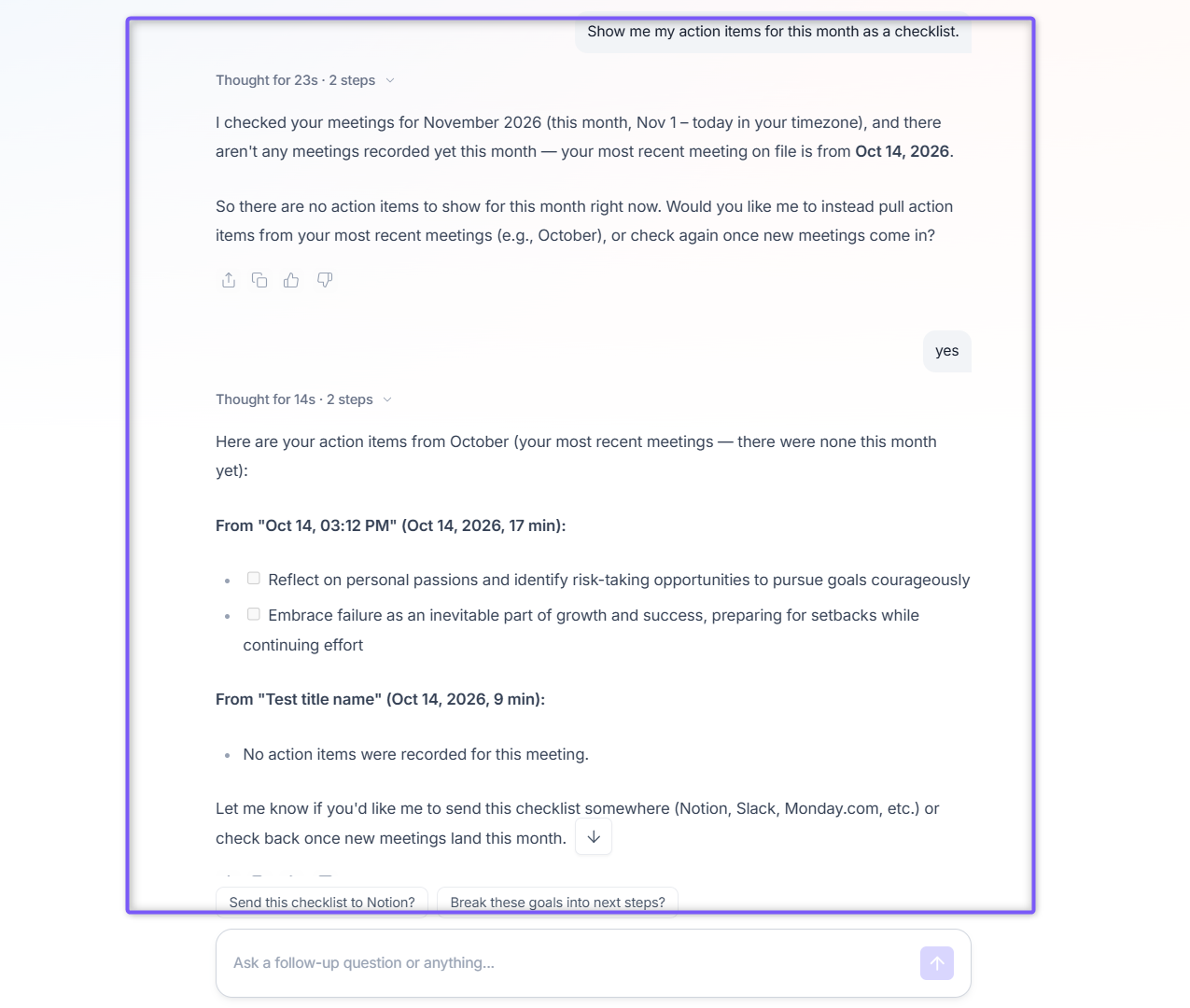
Turn action items from your meetings into a checklist so you can review the tasks in an organized format.
Try this prompt:
"Show me my action items for this month as a checklist."
4. Timelines
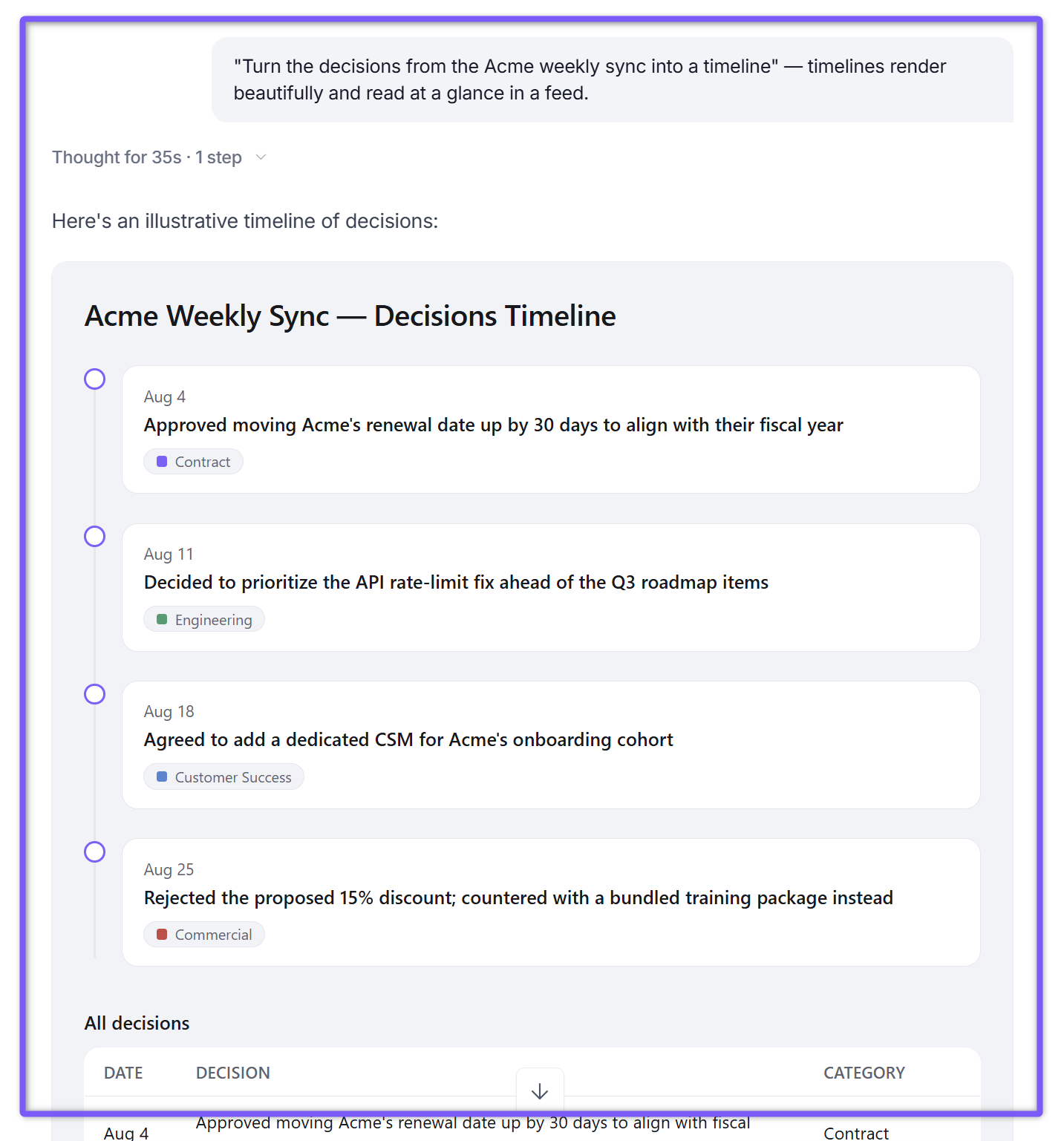
Use timelines to organize decisions, milestones, and events chronologically. This makes it easier to follow how plans and decisions develop over time.
Try these prompts:
"Turn the decisions from yesterday's roadmap review into a timeline."
"Show me a timeline of everything discussed in the last three 1:1s with Sam."
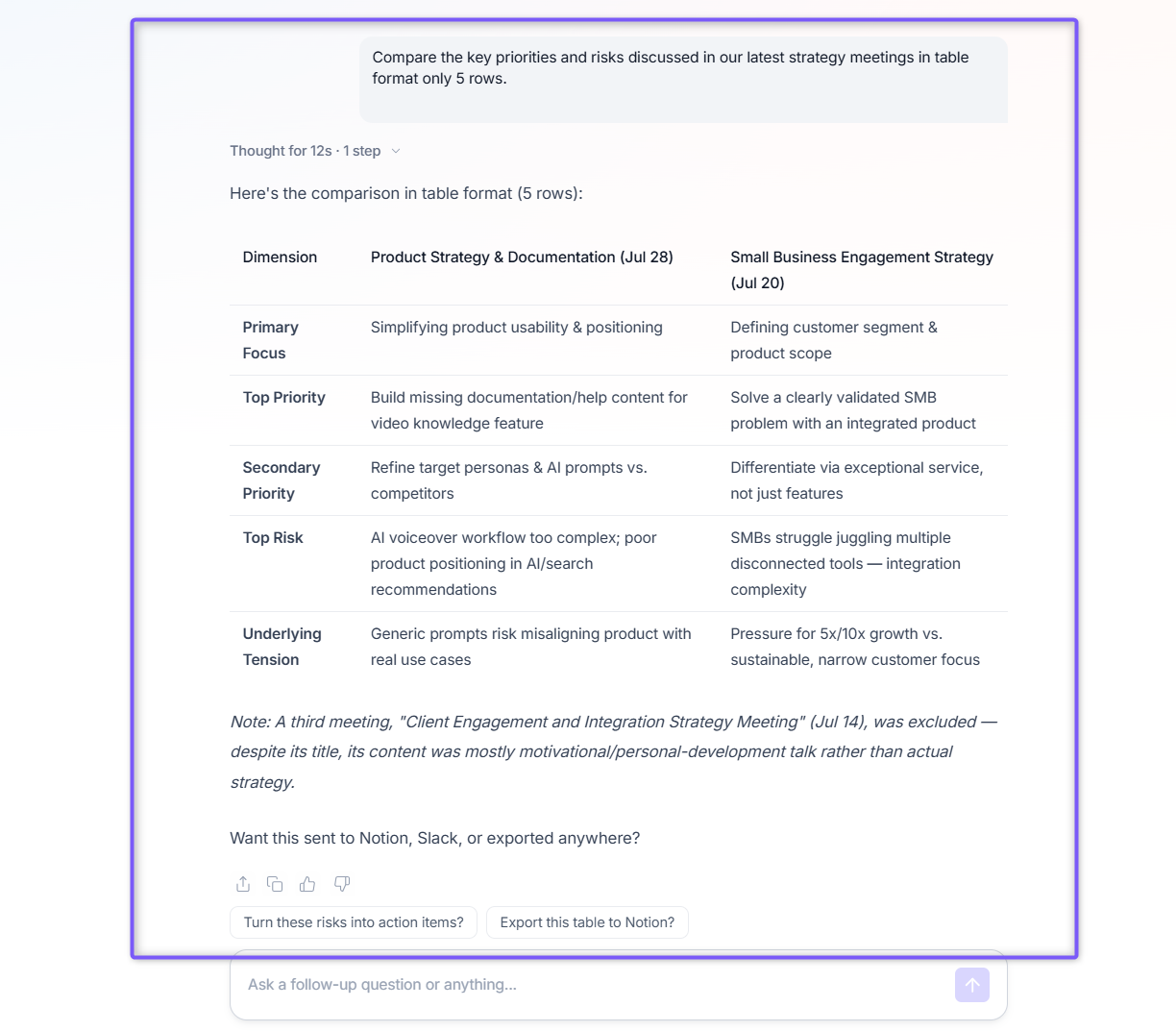
5. Comparison Tables
Use comparison tables to view related information side by side. They're useful when you want to compare priorities, risks, decisions, or other details discussed across meetings.
Try this prompt:
"Compare the key priorities and risks discussed in our latest strategy meetings."
"Compare the key priorities and risks discussed in our latest strategy meetings in table format only 5 rows."
6. Flowcharts
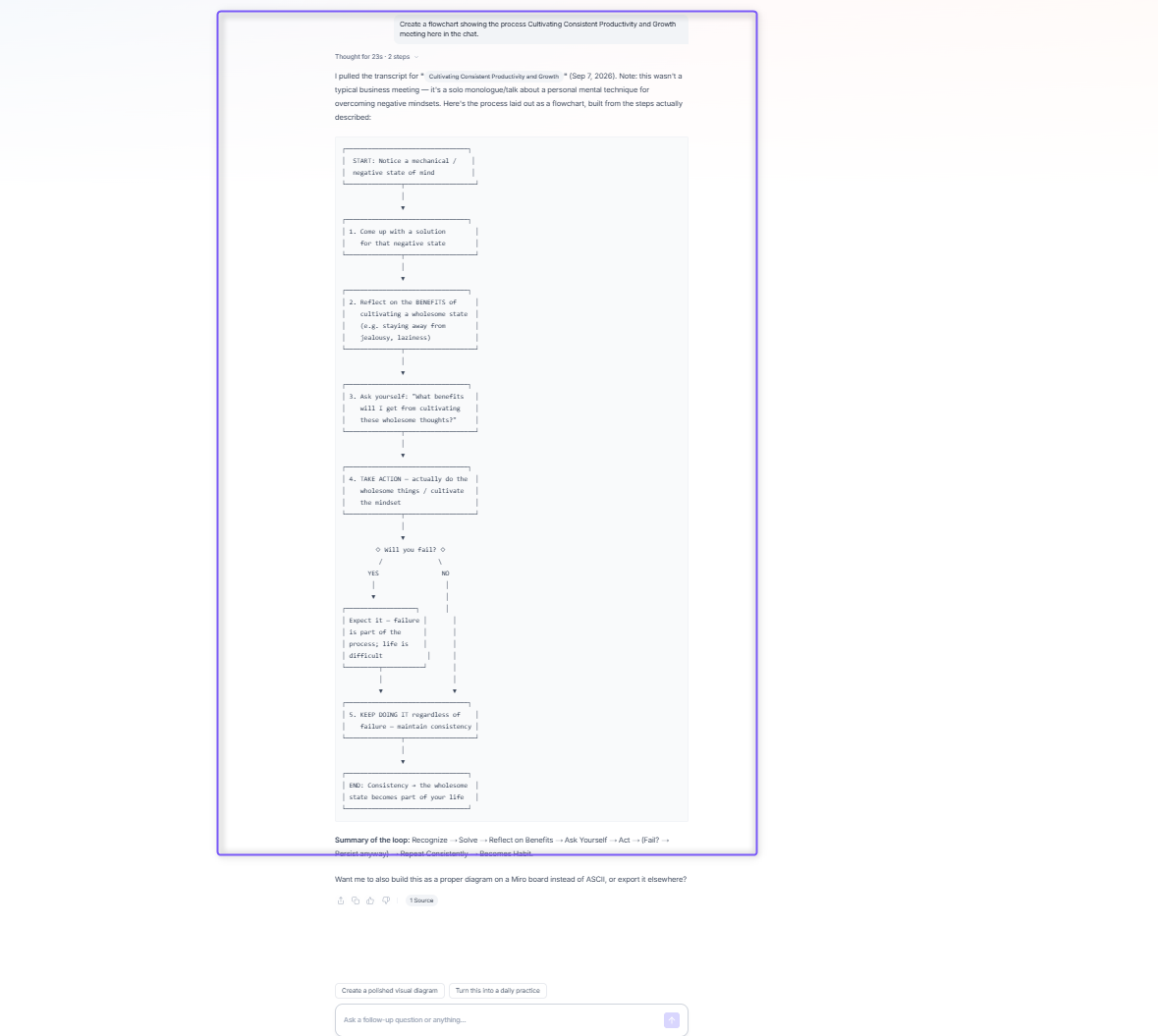
Turn a process or workflow discussed in your meetings into a visual diagram. Flowcharts help you understand the sequence of steps and how different parts of a process connect.
Try this prompt:
"Create a flowchart showing the process we discussed in the latest project planning meeting."
"Create a flowchart showing the process Cultivating Consistent Productivity and Growth meeting here in the chat."
🔎 Review Your Visualizations
Once AskFred generates a visualization, review the output to make sure it includes the information you wanted.
Check the source: Make sure AskFred used the correct meetings, topics, and date range.
Review the details: Verify the displayed figures, labels, owners, and other information against your meeting context.
Refine the output: If you want a different view, send a follow-up prompt describing what you'd like to change.
💡 Tip: Be specific about the meetings, time period, topics, and grouping you want. This helps AskFred find relevant information and generate a visualization that matches your request.
❓ Frequently Asked Questions
1. Can I create visualizations from both Global AskFred and meeting-level AskFred?
Yes. You can create visualizations in both Global AskFred and meeting-level AskFred.
2. Can I create visualizations using AskFred on mobile?
No. AskFred visualizations are currently available on the web, not on mobile.
3. What types of visualizations can AskFred create?
AskFred can create Reports, Kanban boards, checklists, timelines, comparison tables, and flowcharts.
4. How can I get a more accurate visualization?
Make your prompt specific. Mention the meetings, topics, date range, or information you want included. You can also ask follow-up questions to refine the result.
5. Can AskFred create visualizations using information from connected apps?
AskFred supports connected apps through MCP integrations. You can connect supported apps and use them with AskFred. See Connect Apps to AskFred: Supported Integrations and How to Connect Them.
Still have questions or need help? Contact our support team, and we'll be happy to assist you.
📚 Related Guides
Global AskFred: Get Answers from Past Meetings, Connected Apps, and Web Search — Learn how to search across meetings, use connected apps, and explore other AskFred features.
AskFred: Ask Questions About a Specific Meeting — Learn how to use AskFred within an individual meeting.
Connect Apps to AskFred: Supported Integrations and How to Connect Them —Learn how to connect supported integrations to AskFred.