Connect Apps to AskFred: Supported Integrations and How to Connect Them
Last updated: November 13, 2026
Connect your favorite apps to AskFred using MCP integrations and bring your everyday tools into your meeting workflows. AskFred can retrieve information and perform actions in connected apps, helping you get more done without switching between platforms.
With connected apps, you can:
Find information: Retrieve information from your connected apps.
Take action: Create content, update resources, or perform supported actions.
Work seamlessly: Use your connected apps directly within AskFred conversations.
Let's get started 🚀
🔌 Explore Supported MCP Integrations
Fireflies supports 100+ MCP integrations that you can connect to AskFred. These integrations let AskFred interact with the tools and services you already use, helping you retrieve information and perform supported actions directly from your conversations.
Browse the list below to explore the supported integrations and find the apps you want to connect.
Explore Available MCP Integrations 👇🏻
# | Supported MCP Integration |
|---|---|
1 | AgentMail |
2 | Agility CMS |
3 | Ahrefs |
4 | Airbyte |
5 | Alpic |
6 | Amplitude |
7 | Apollo |
8 | Atlassian |
9 | Bolt |
10 | Braintrust |
11 | Buildkite |
12 | Canva |
13 | CB Insights |
14 | ChartMogul |
15 | Clarify |
16 | Clay |
17 | Clerk |
18 | ClickHouse |
19 | Cloudflare |
20 | Cloudinary |
21 | Coda |
22 | Common Room |
23 | Composio |
24 | Consensus |
25 | Contentful |
26 | Contentsquare |
27 | Crustdata |
28 | Customer.io |
29 | Datadog |
30 | Day AI |
31 | DeepL |
32 | Descript |
33 | Devin |
34 | Dropcontact |
35 | Dust |
36 | ElevenLabs |
37 | Eraser |
38 | Fibery |
39 | Figma |
40 | Flodesk |
41 | FullEnrich |
42 | Fullstory |
43 | Gainsight |
44 | GetResponse |
45 | GitLab |
46 | Grafana |
47 | Grist |
48 | Gusto |
49 | Hex |
50 | Higgsfield |
51 | Honeycomb |
52 | Hugging Face |
53 | Inkbox |
54 | Jam |
55 | Jotform |
56 | Jotform Apps |
57 | Jotform Sign |
58 | Klaviyo |
59 | LaunchDarkly |
60 | Legal Data Hunter |
61 | Livestorm |
62 | LlamaParse |
63 | Lovable |
64 | Macaly Cloud |
65 | Magic Patterns |
66 | MailerLite |
67 | Manus AI |
68 | Mapbox |
69 | Meko |
70 | Mem |
71 | Mercury |
72 | Mermaid Chart |
73 | Metaview |
74 | Metricool |
75 | Midpage Legal Research |
76 | Miro |
77 | Mixpanel |
78 | Mobbin |
79 | Moda |
80 | MotherDuck |
81 | Navan |
82 | Neon |
83 | Netlify |
84 | New Relic |
85 | OneSignal |
86 | Padlet |
87 | PayPal |
88 | Perspective AI |
89 | pg-aiguide |
90 | PlanetScale |
91 | Poke |
92 | PostHog |
93 | Postman |
94 | Pulumi |
95 | Replit |
96 | Resend |
97 | Roam Research |
98 | Sanity |
99 | Sentry |
100 | Sprig |
101 | Statsig |
102 | Streak Share |
103 | Stripe |
104 | Subtext |
105 | Supabase |
106 | Superhuman Mail |
107 | Tavily |
108 | TinyFish |
109 | Unstructured Transform |
110 | UptimeRobot |
111 | Vuetify |
112 | Whimsical |
113 | Wix |
114 | Zoho Show |
🔗 Connect Apps to AskFred
You can connect supported MCP integrations to AskFred in two ways: directly from the Integrations page or from AskFred itself.
Tip: Both methods stay in sync, so no matter where you connect an app, it will be available in AskFred.
1⃣ Connect from the Integrations Page
Step 1: Log in to your Fireflies account, navigate to the Integrations page, select the MCP category, and choose the AI tool you want to connect.
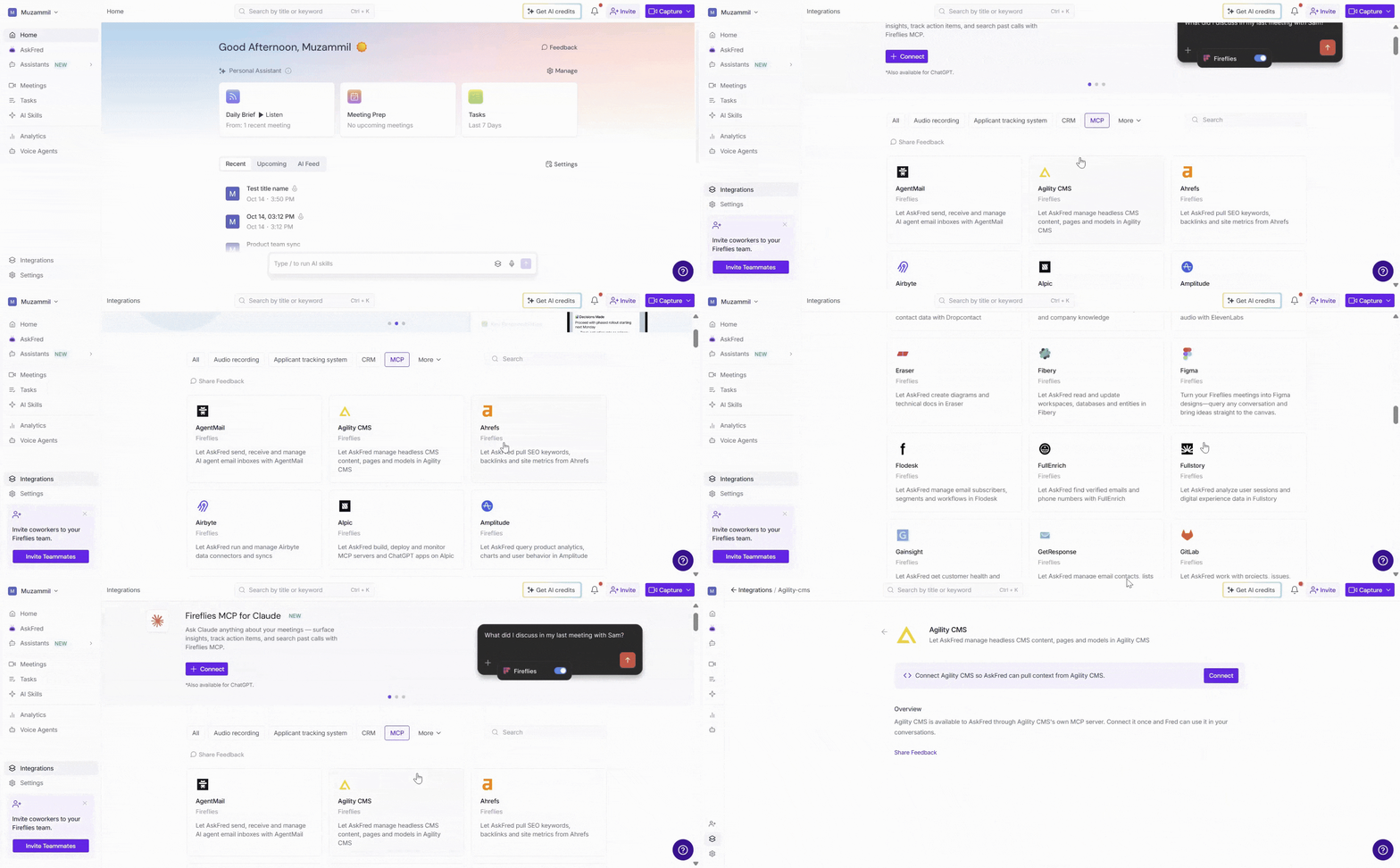
✅ The steps below use Miro as an example, but you can follow the same process to connect Fireflies to other supported AI apps using MCP.
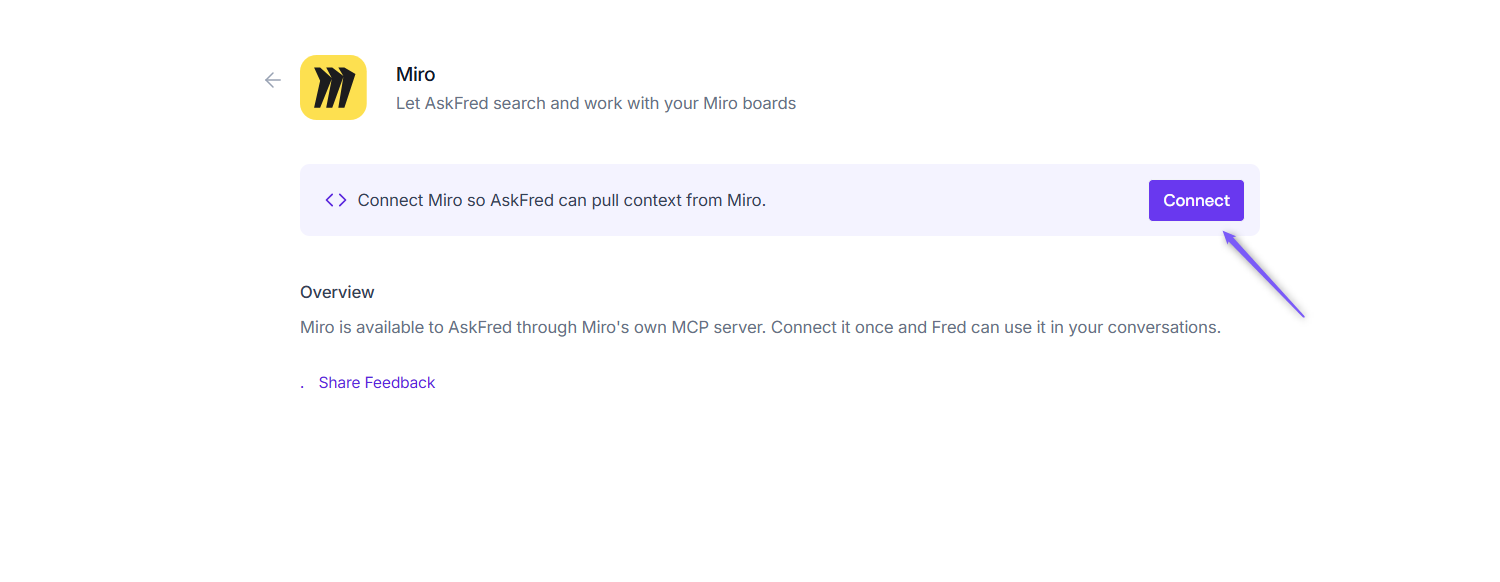
Step 2: On the Miro integration page, click Connect.
Step 3: You'll be redirected to Miro's authorization page. Review the requested permissions and click Allow to authorize the connection. Once authentication is successful, click Continue to return to Fireflies.
💡 Tip: If you're connecting an app for the first time, you may be prompted to authenticate your account with that app after clicking Connect. Follow the on-screen instructions to sign in and authorize Fireflies to access the app.
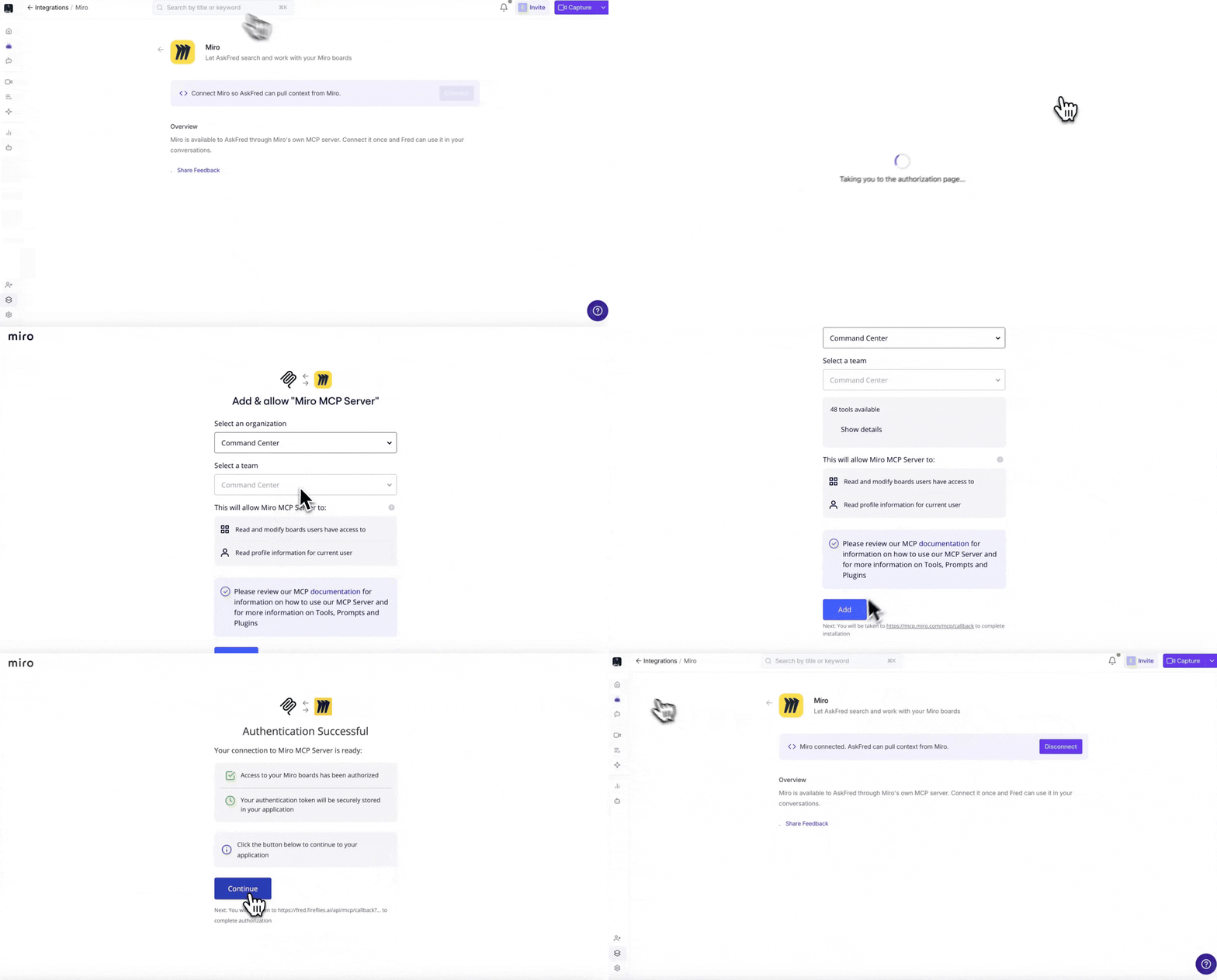
Your connected app will be available in AskFred.
2⃣ Connect from AskFred
You can also connect apps directly from AskFred, whether you're using it within a meeting or opening Global AskFred.
Step 1: Log in to your Fireflies account and open AskFred using either of these options:
Global AskFred: Click AskFred in the left navigation bar, then click Connectors in the left sidebar or the stack (layers) icon below the chat input field.
💡Press
Ctrl + J (Cmd + J on Mac)from anywhere in Fireflies to quickly open AskFred.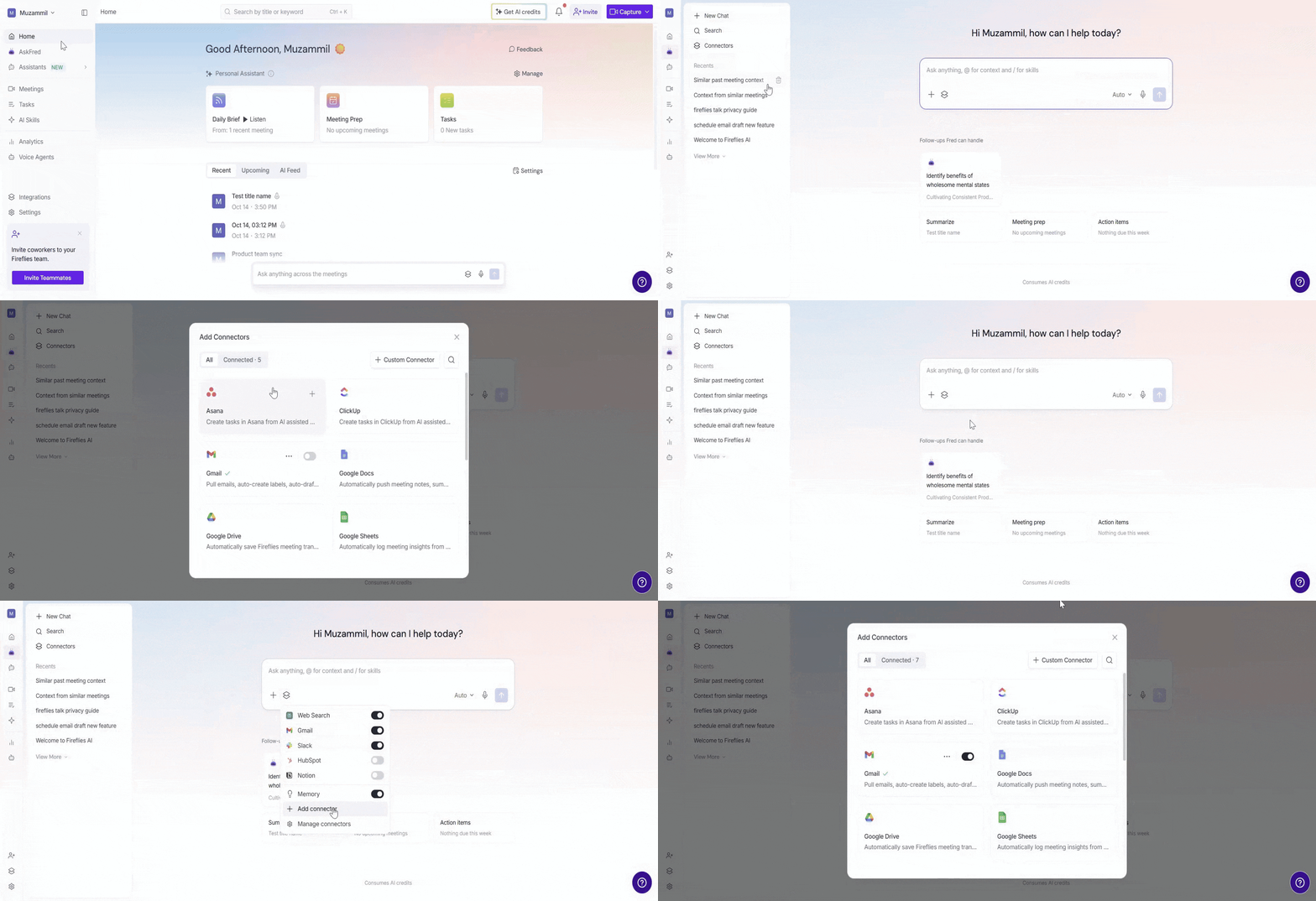
Meeting-level AskFred: Open a meeting, select Ask Fred in the meeting panel, and click the stack (layers) icon below the input field.
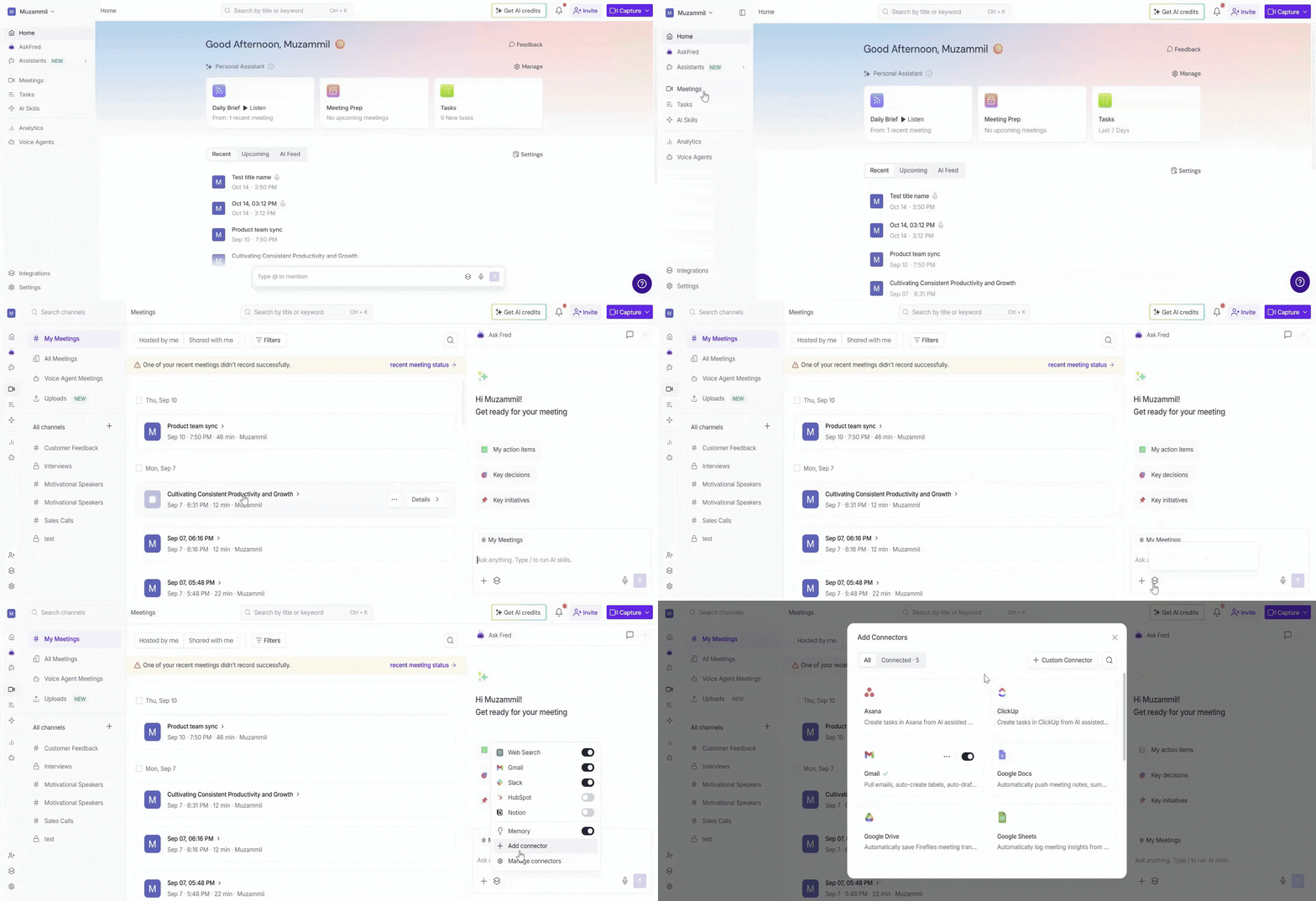
Connect a New App
Click Connectors in the left sidebar or the stack (layers) icon below the chat input field.
Select Add Connector.
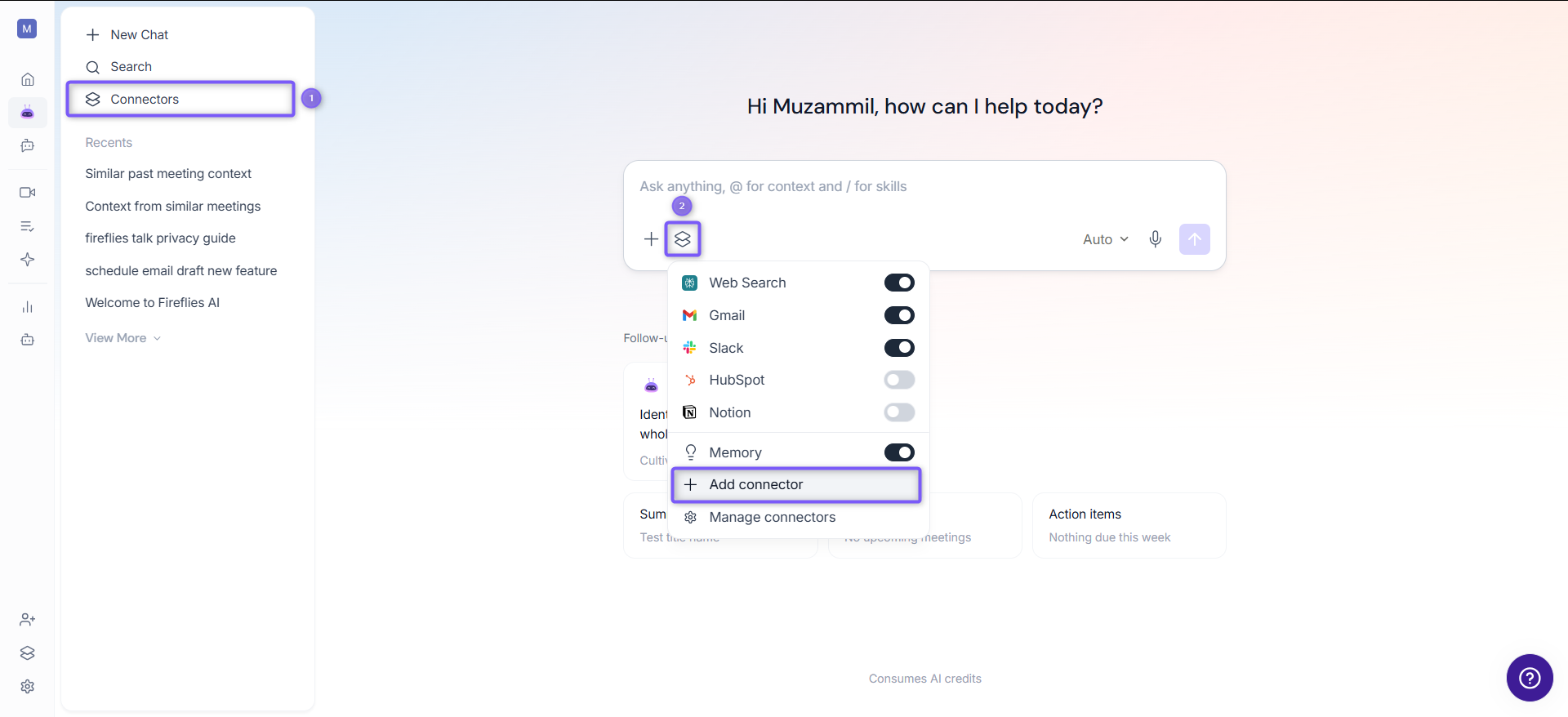
Choose the app you want to connect and click
+.Complete the authentication process.
Once connected, enable the connector to start using it in AskFred.
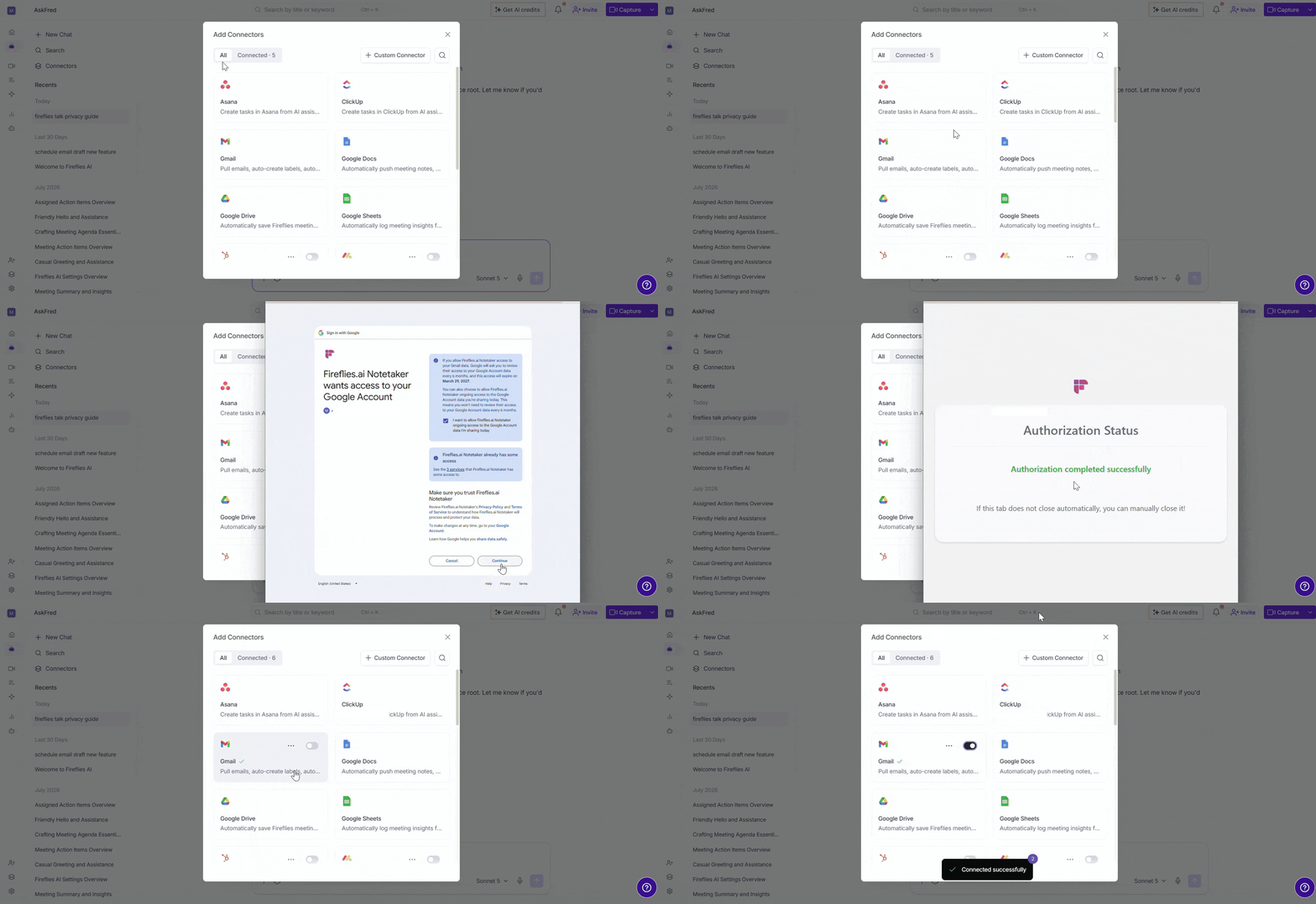
Note: Connections made from the Integrations page and AskFred stay in sync. You only need to connect an app once to access it through AskFred.
3⃣ Connect a Custom MCP Server
Can't find the tool you need in the supported integrations? You can connect your own remote MCP server to bring additional tools and workflows into AskFred.
To add a Custom Connector:
In the AskFred input box, click the stack (layers) icon.
Select Add Connector → + Custom Connector.
Enter the Name and Server URL, then select OAuth 2.0 or API authentication.
Click Save & Connect and complete the authorization if required.
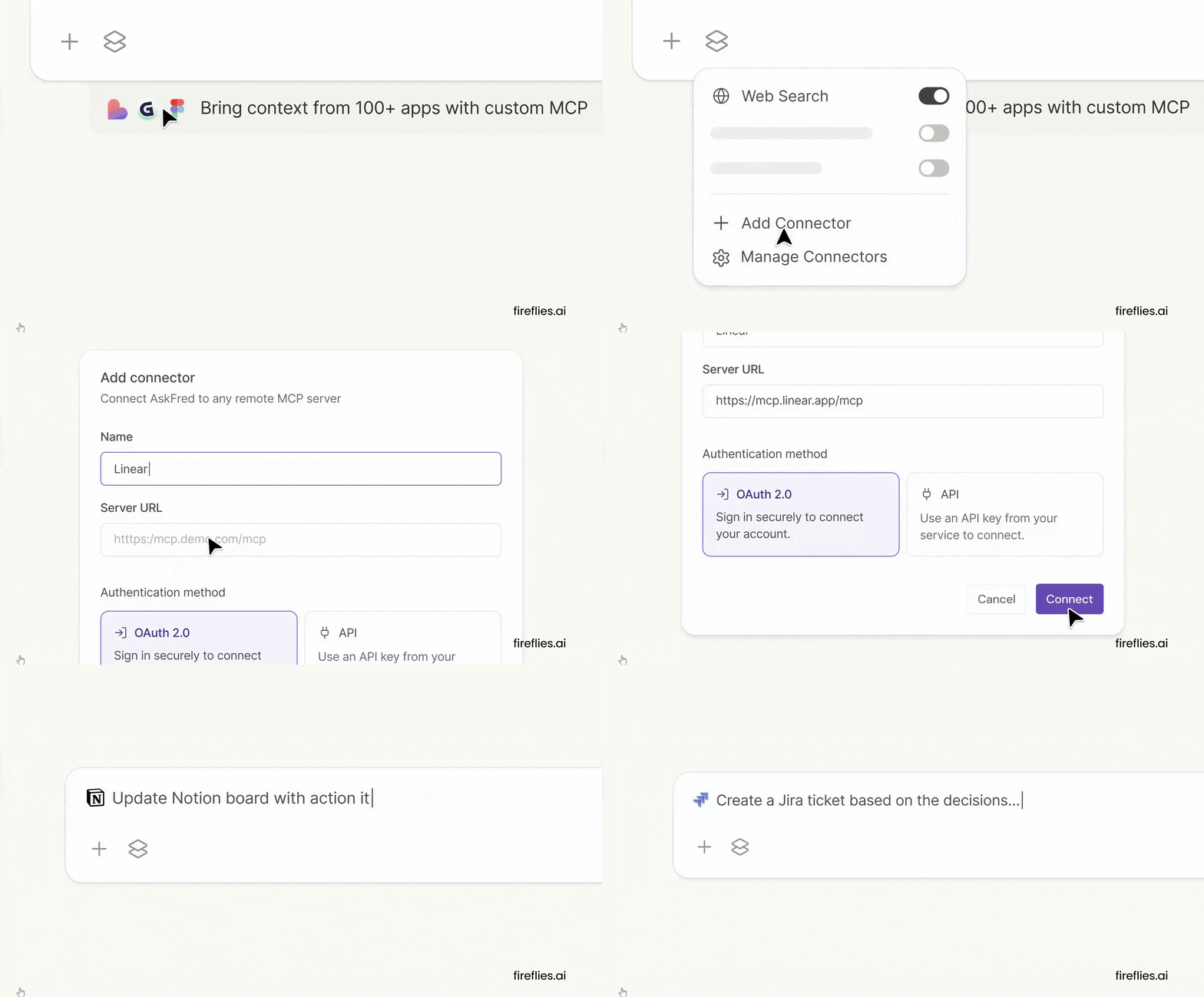
📘 For the full setup walkthrough, see Connect a Custom MCP Server to AskFred.
💬 Use Connected Apps with AskFred
Once your app is connected, you can ask AskFred to retrieve information or perform actions using the tools available through that integration.
For example, with Miro connected, you can ask Fred:
Can you create a flowchart on how to make a hamburger in miro?
AskFred can use the Miro integration to create a new board and generate the requested flowchart. You can then open the board in Miro and continue working on it.
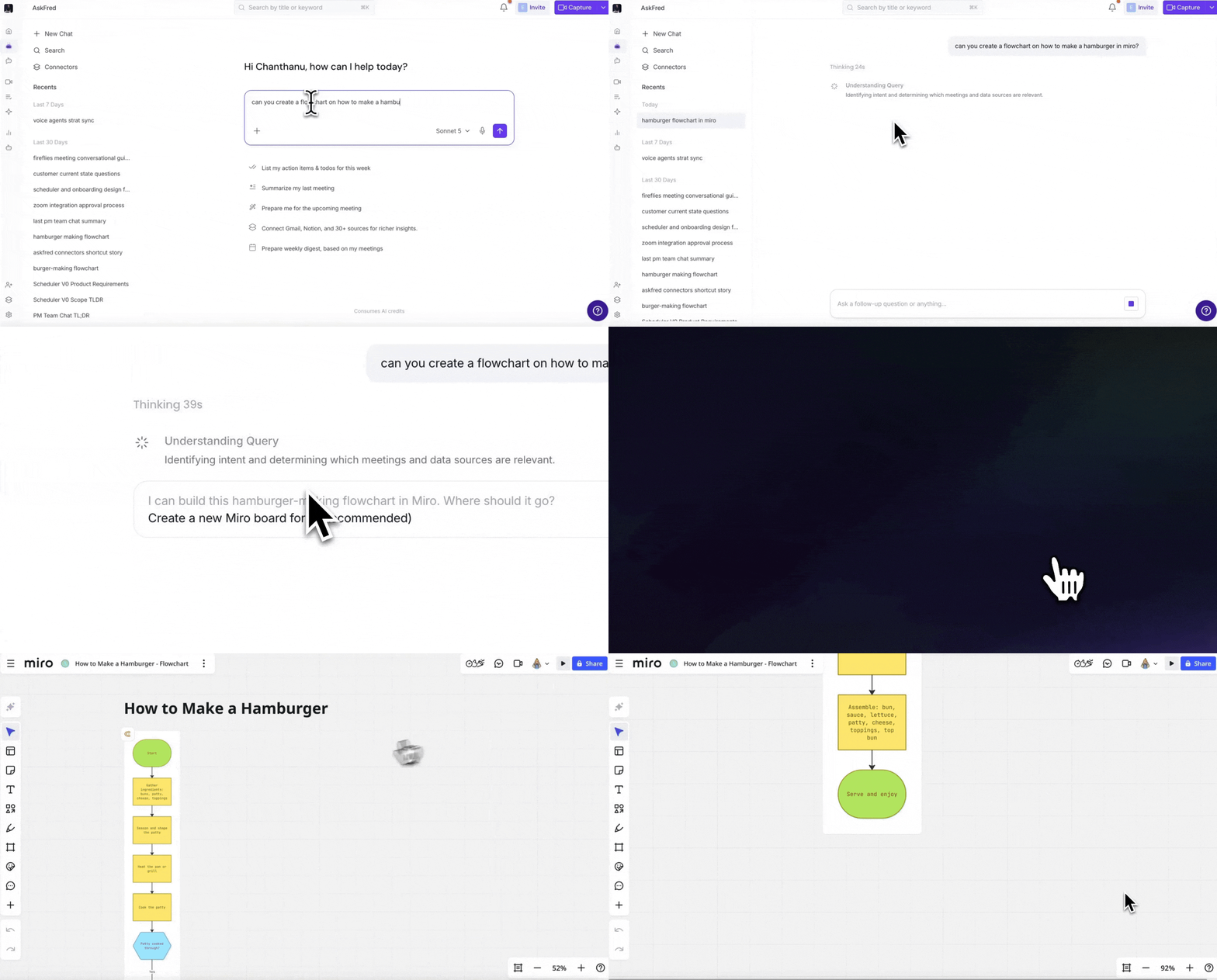
You can also explore other possibilities:
Canva: Work with designs and other supported Canva resources.
Sentry: Look up errors and access supported error information.
Miro: Create flowcharts and visual boards.
The information AskFred can retrieve and the actions it can perform depend on the tools and permissions available through each integration.
⚙ Manage Connectors
Once you've connected an MCP integration, you can manage how AskFred interacts with it. Manage Connectors lets you control which apps AskFred can access, customize the permissions granted to each connector, and disconnect apps you no longer need.
To manage connectors:
In the AskFred input box, click the stack (layers) icon on the left side.
Select Manage Connectors.
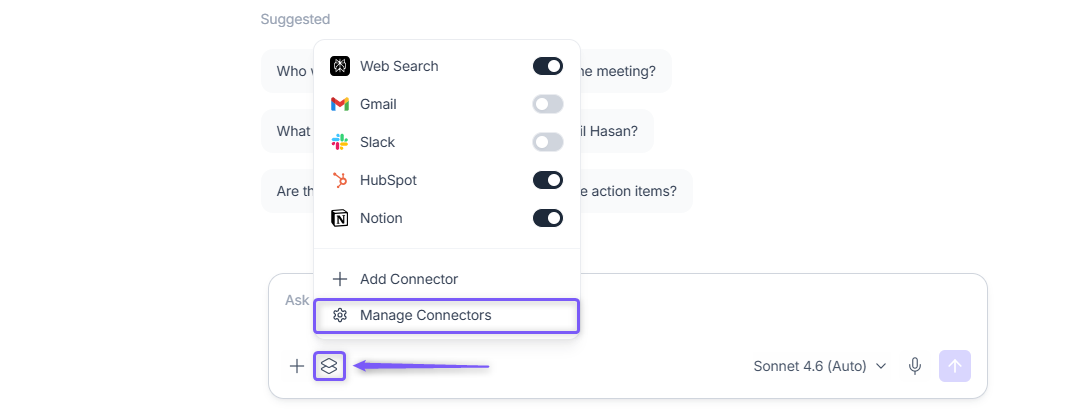
From here, you can:
Enable or disable connectors: Control which connected apps AskFred can access during your conversations. Turn the toggle On next to the connector you want to enable, or turn it Off to disable it.
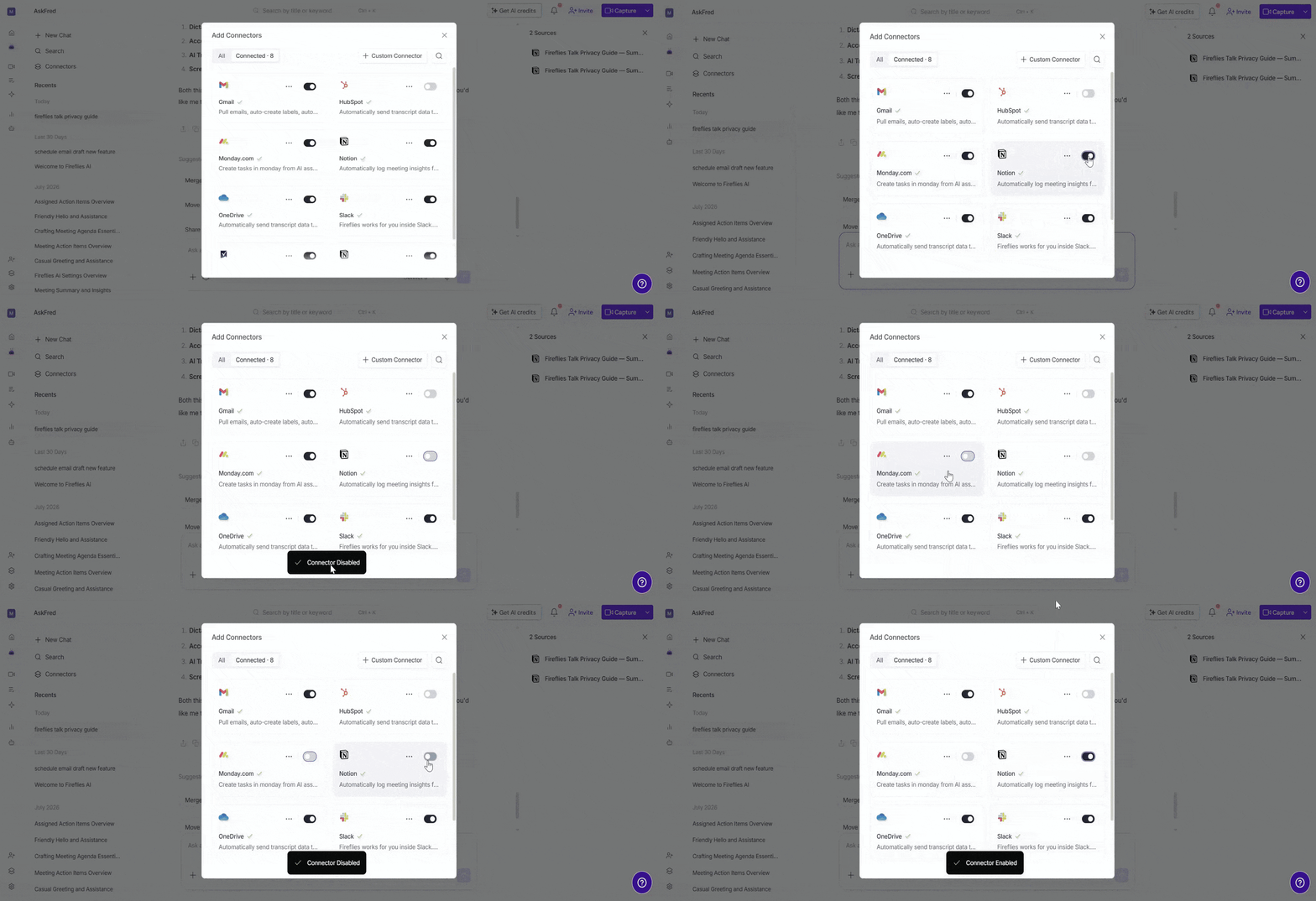
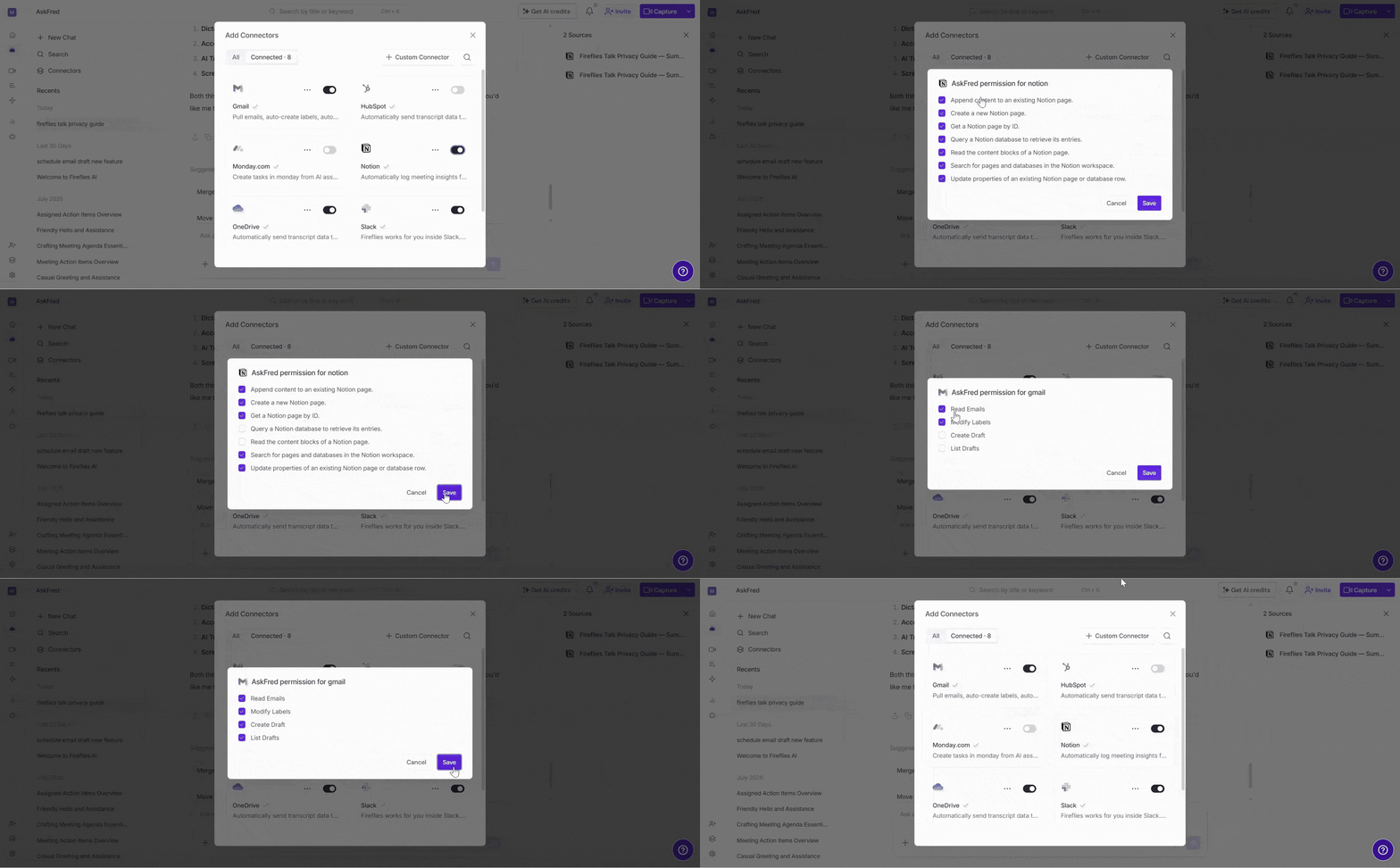
Customize connector permissions: Decide what AskFred is allowed to view or do within each connected app. Click the 3-dot (...) menu next to the connector, select Customize Connector, then select or clear the permissions you want to grant.
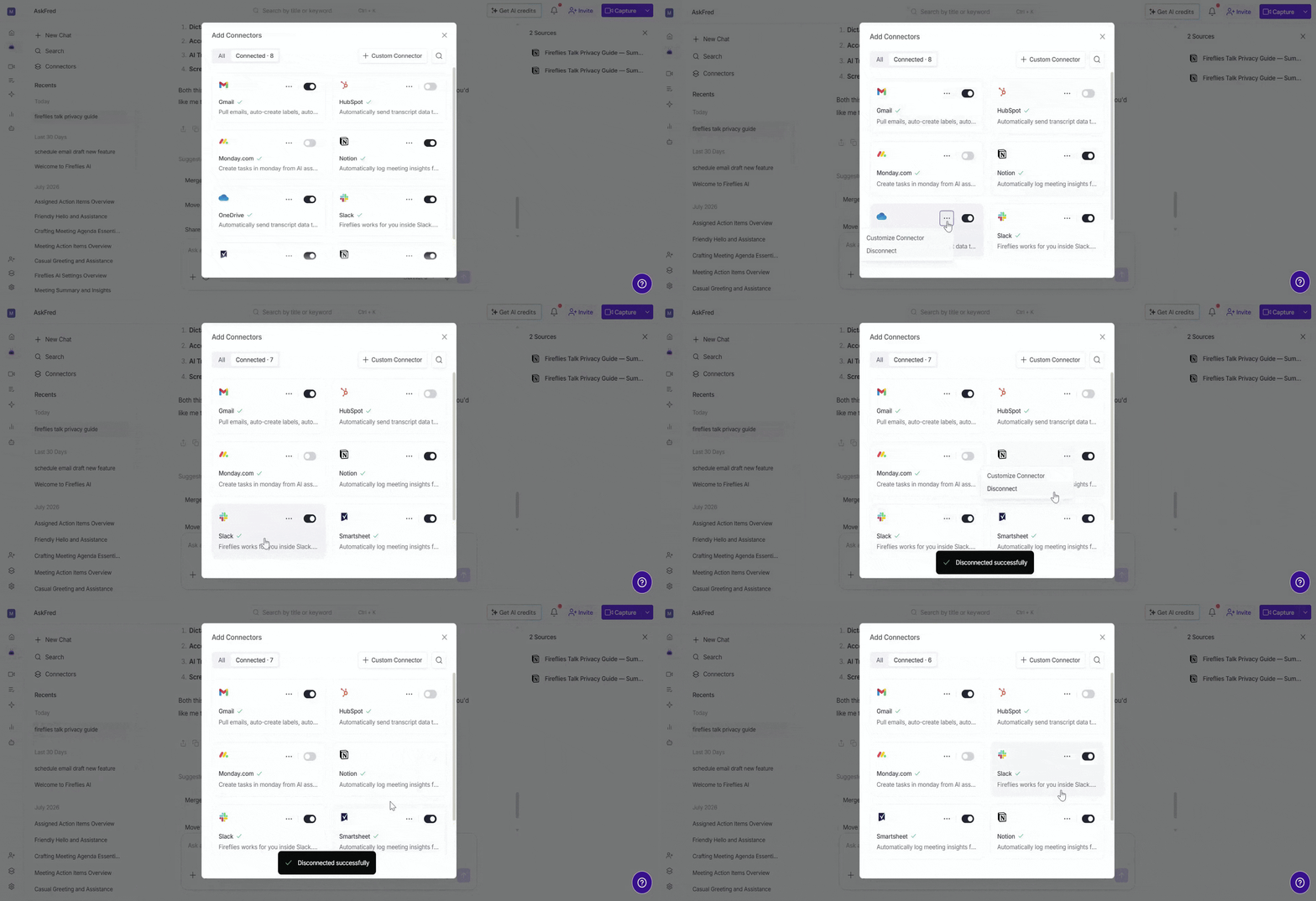
Disconnect a connector: Remove an app from AskFred if you no longer want to use it. Click the 3-dot (...) menu next to the connector, then select Disconnect.
Only enabled connectors are available for AskFred to access during your conversations.
🔗 Related Guides
Global AskFred: Get Answers from Past Meetings, Connected Apps, and Web Search — Learn how to use AskFred with meetings, connected apps, files and web search.
Fireflies MCP Server: Connect Your AI Tools Directly to Your Meeting Data — Connect external AI tools to Fireflies and access your meeting data.
Connect a Custom MCP Server to AskFred — Connect your own MCP server if the tool you need isn't available in the pre-built integrations.