How to set up Pipedrive and Fireflies integration
Last updated: September 4, 2025
Keep your CRM tidy and always up to date. With the Fireflies + Pipedrive integration, meeting notes, transcripts, and summaries flow directly into your CRM — no manual data entry required.
Whether you’re in sales, account management, or customer success, this integration helps you:
✅ Automatically sync Fireflies notes and summaries to Pipedrive contacts, leads, or deals
✅ Keep CRM data accurate with zero manual copy-paste
✅ Track follow-ups and action items inside Pipedrive
🔧 Step-by-Step: Setting Up Pipedrive + Fireflies
From your Fireflies dashboard, go to Integrations.
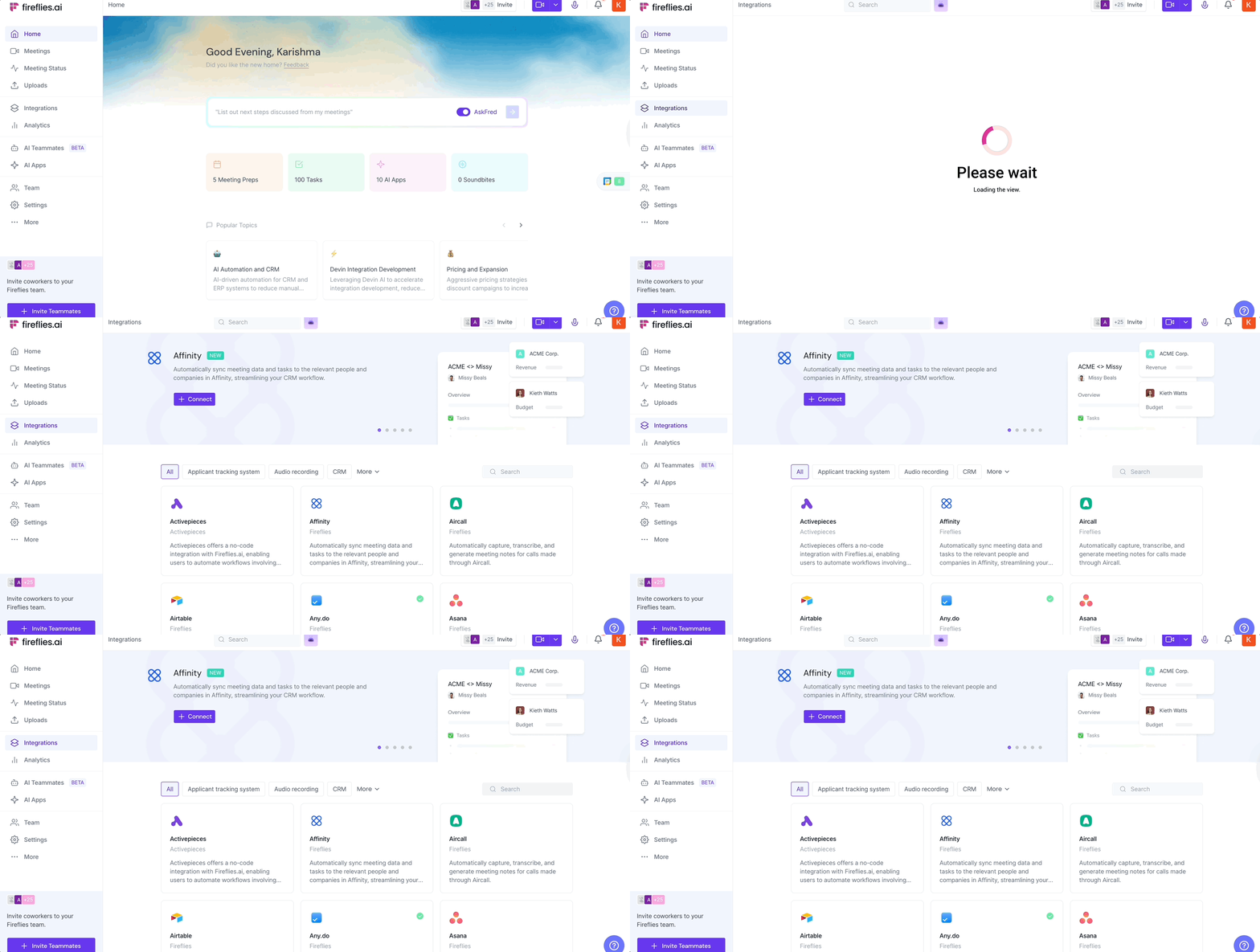
Search for Pipedrive and click on it.
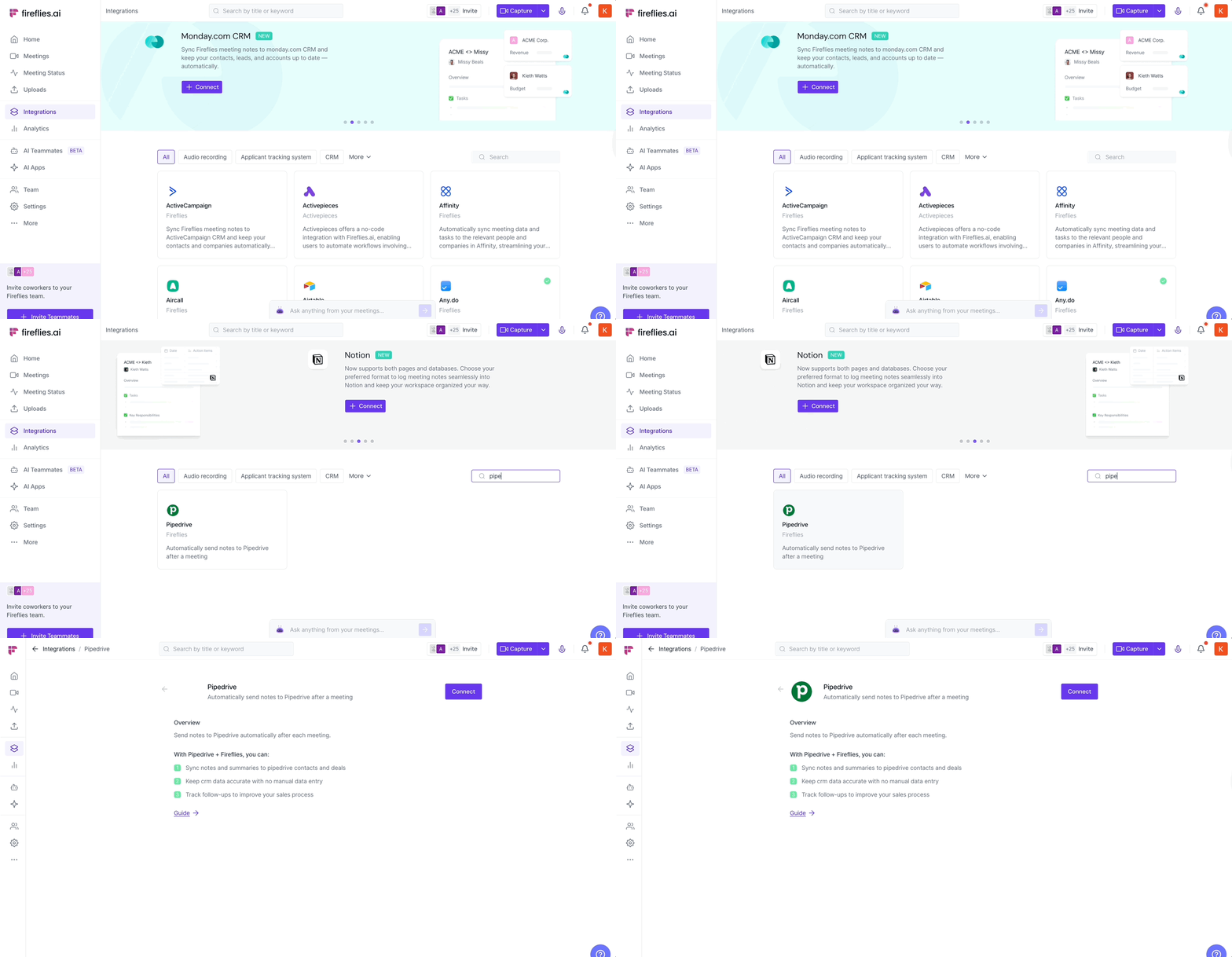
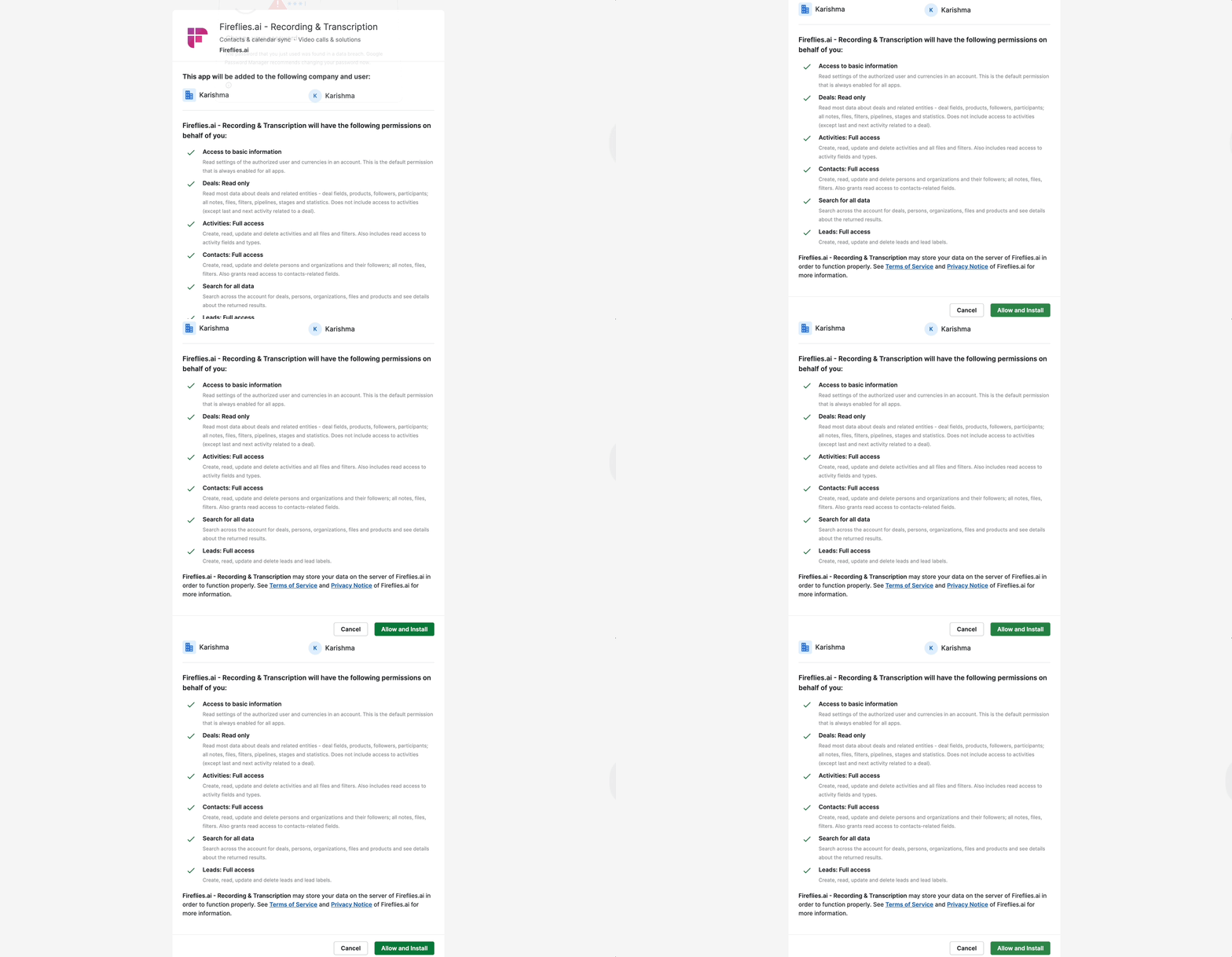
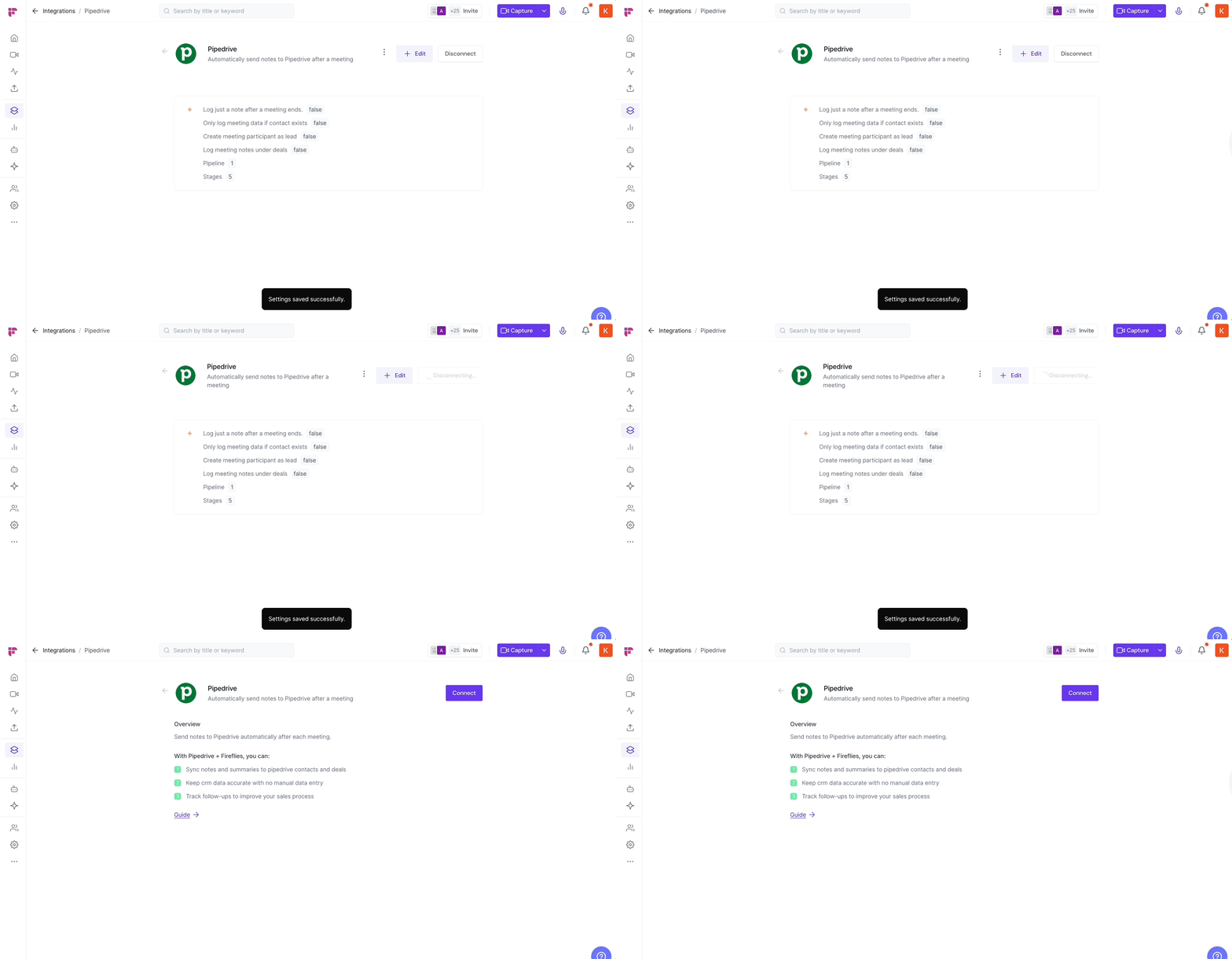
Click Connect. You’ll be redirected to Pipedrive → log in with your account.

Next, Click Allow and Install to grant Fireflies the necessary permissions.
⚙ Configuration Options
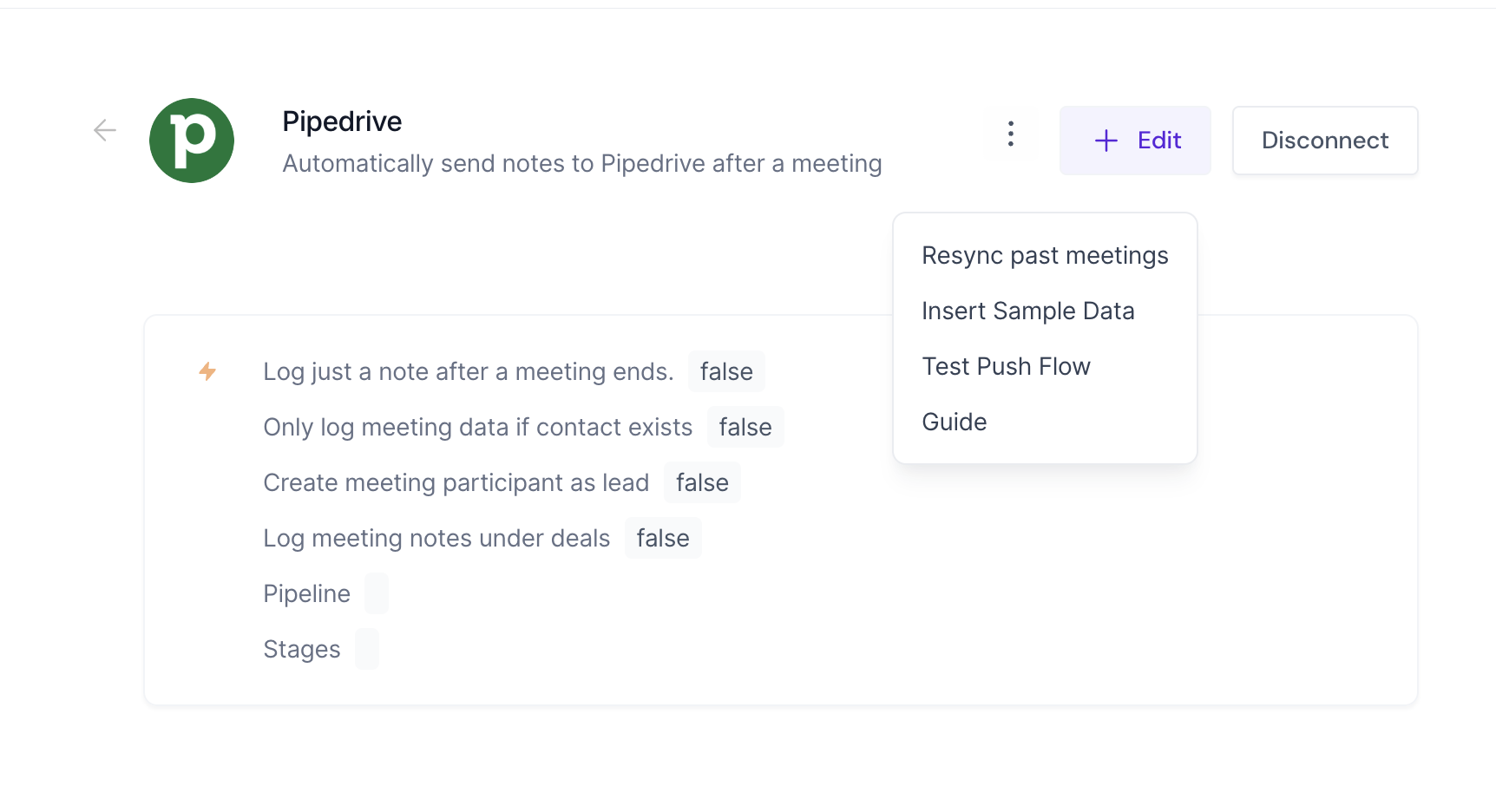
Once connected, you’ll see a list of toggles to control how Fireflies logs your meetings into Pipedrive.
Log just a note after a meeting ends: By default, Fireflies logs the meeting as both a call and a note.
Toggle this ON if you only want Fireflies to save the meeting as a note.
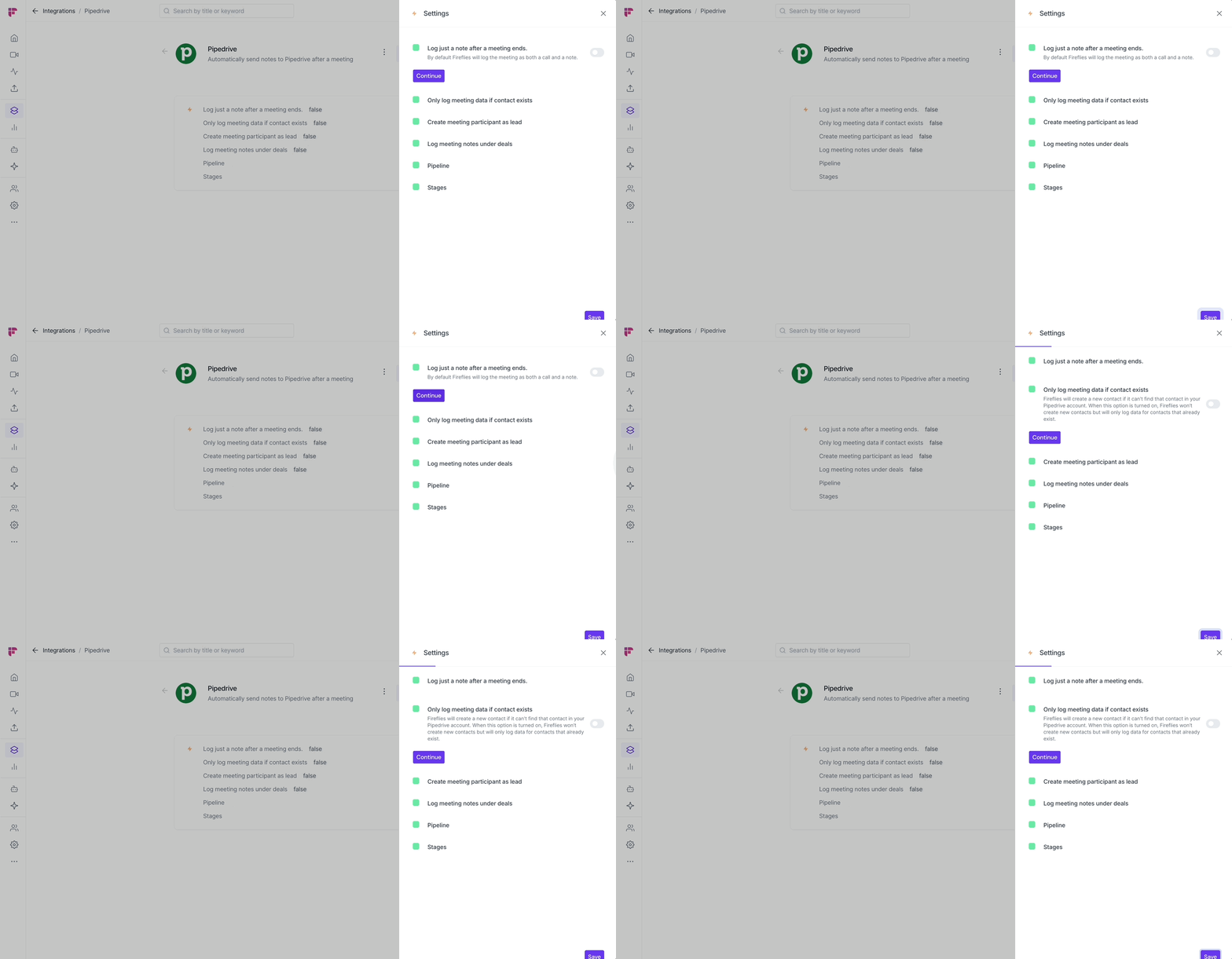
Only log meeting data if a contact exists: When enabled, Fireflies won’t create new contacts. It will only log notes for participants that already exist in Pipedrive.
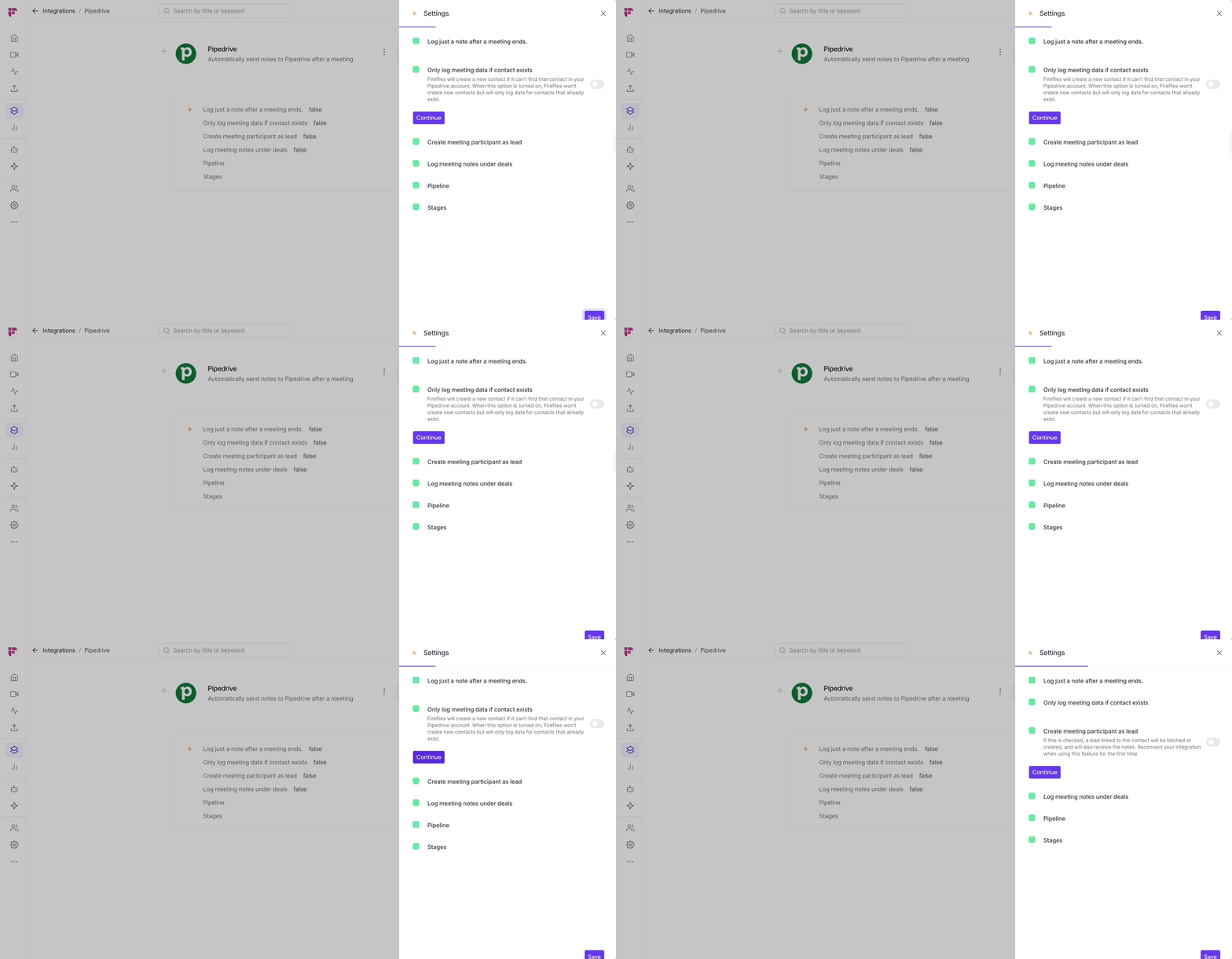
Create meeting participant as lead: If a participant isn’t already a contact, Fireflies can create a new lead linked to that person and log the notes under it.
👉 You may need to reconnect your integration the first time you enable this.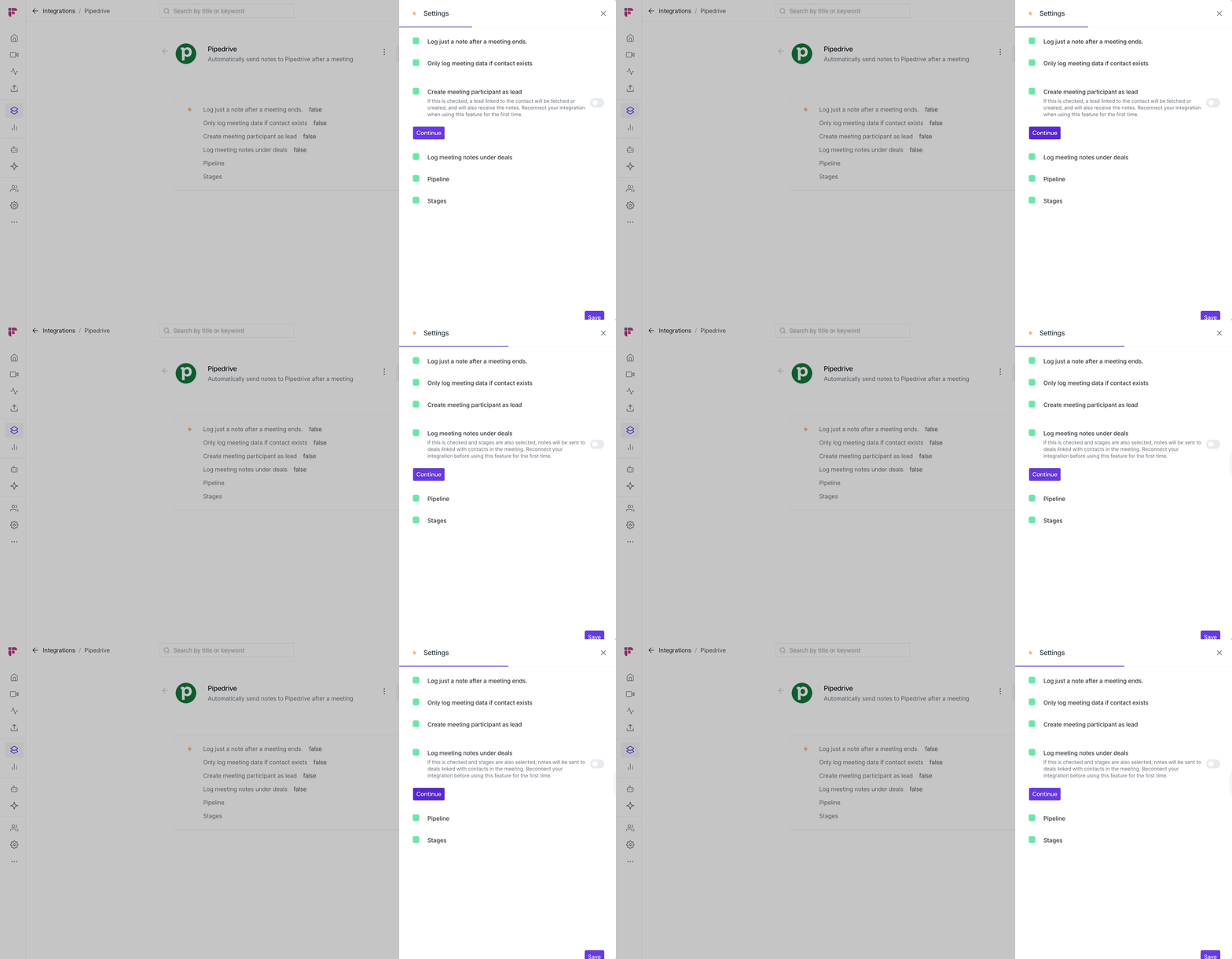
Log meeting notes under deals: Push Fireflies notes directly into deals linked to meeting participants.
👉 Requires reconnection when enabled for the first time.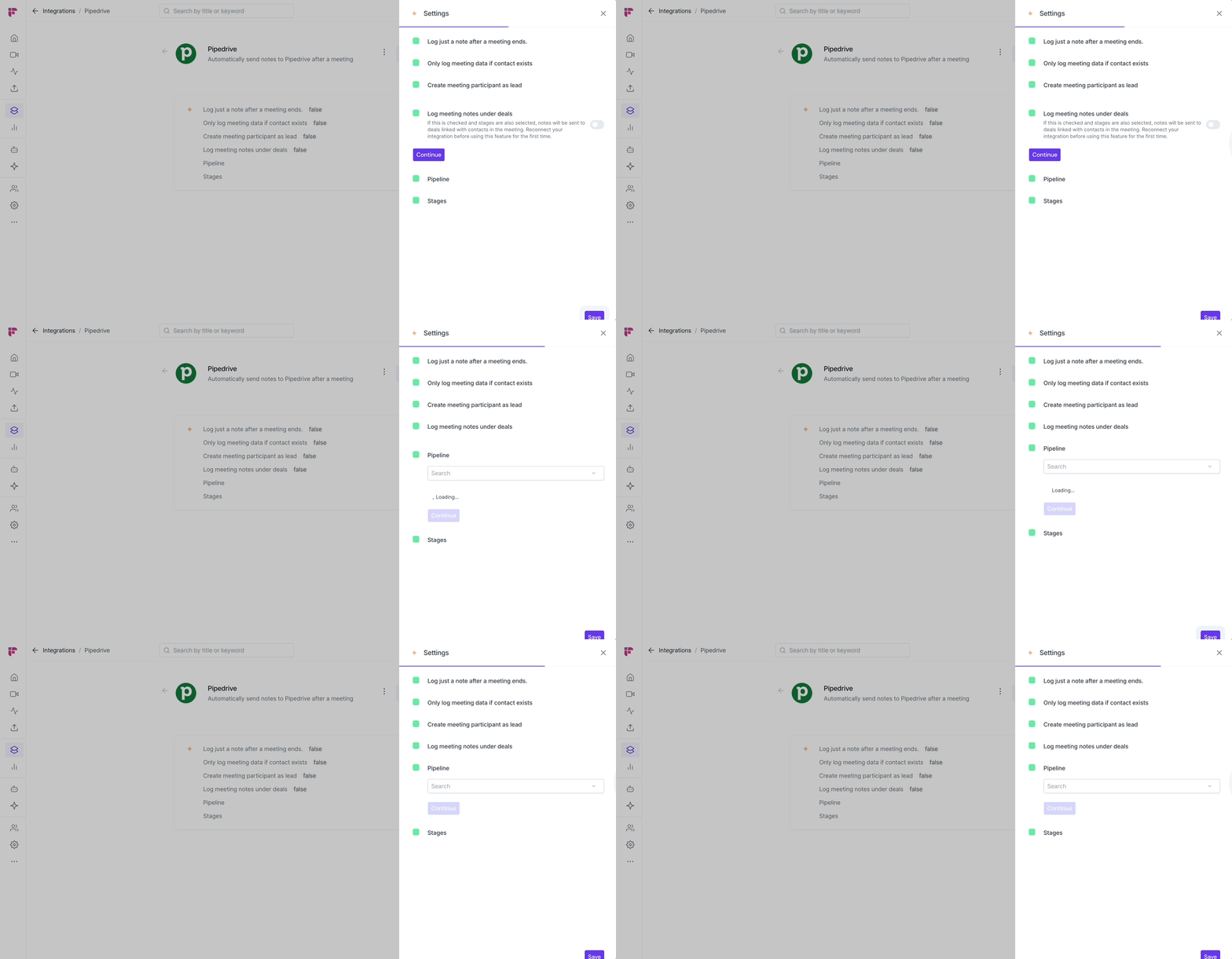
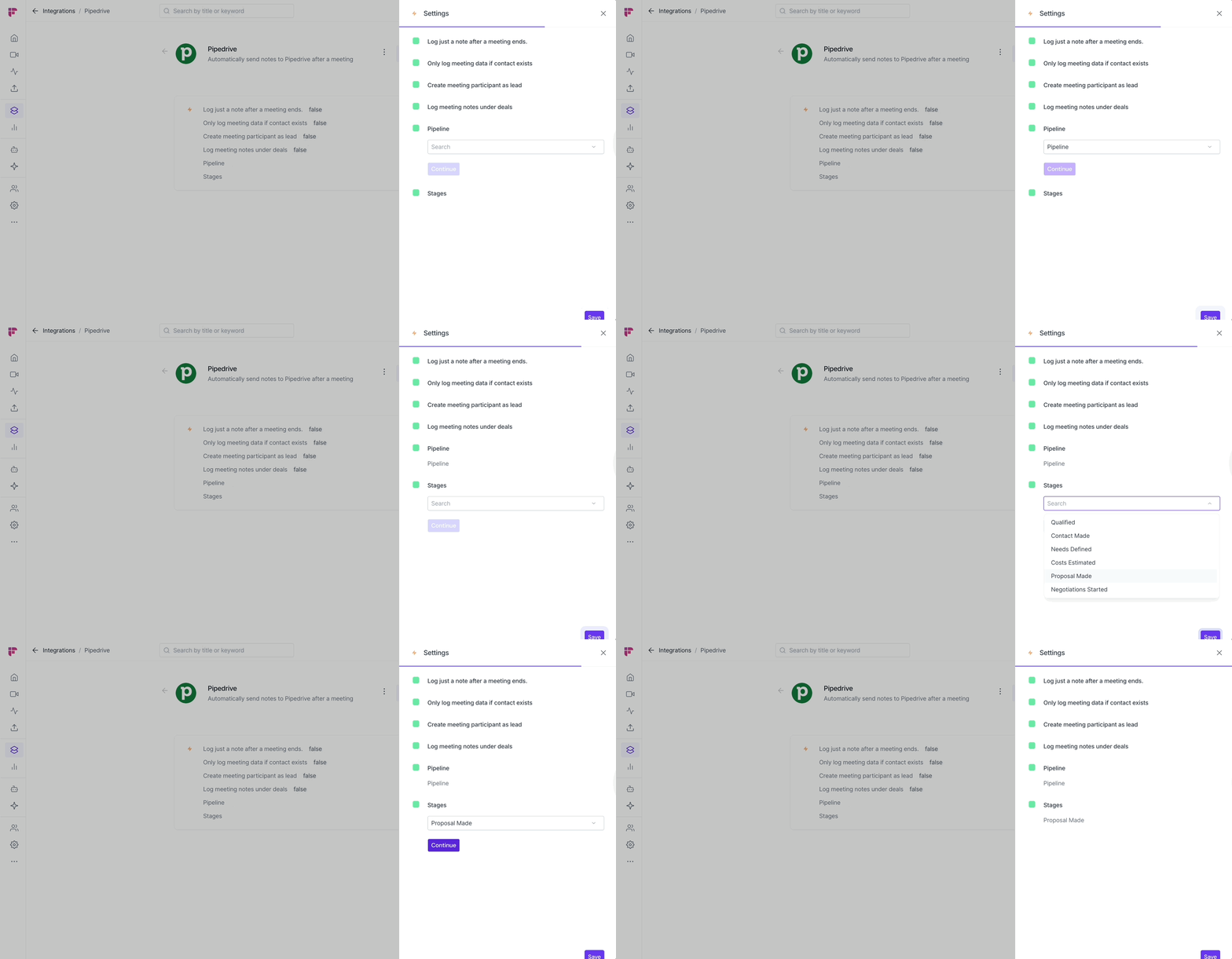
Pipeline & Stages
Choose the pipeline
and specific stages where you want Fireflies to log notes. Perfect for mapping meeting insights to the right stage of your sales funnel.
🧪 Test & Manage Your Integration
Click the ⋮ (three-dot menu) next to Pipedrive in Fireflies to access extra options:
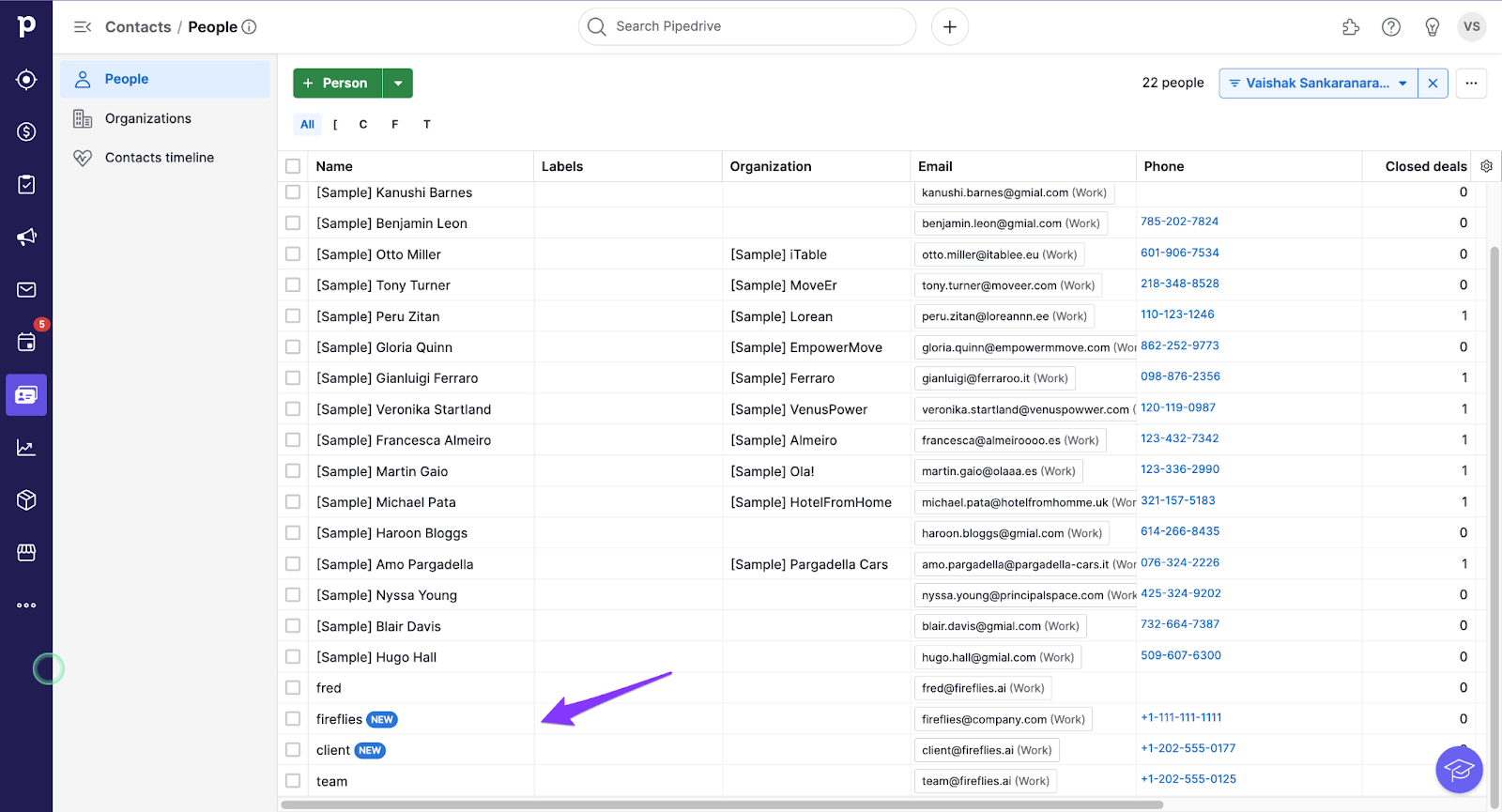
Insert Sample Data → Creates a dummy contact called Fred in Pipedrive so you can see how notes log.
Test Push Flow → Sends a test note from Fireflies to Pipedrive. You’ll see a Test successful confirmation if the connection works.
Resync Past Meetings → Pushes notes from older meetings into Pipedrive if they didn’t sync earlier.
👀 How It Looks in Pipedrive
Once synced, you’ll find Fireflies meeting notes logged under the appropriate:
Contact record (Notes section)
Lead (if the “Create as Lead” option was enabled)
Deal (if you enabled “Log under deals” + chose Pipeline/Stage)
The logged note typically includes:
Meeting title and date
List of participants
Fireflies meeting page link
Summaries, keywords, and action items
This ensures all conversations are documented and easy to track inside your Pipedrive workflow.
🔌 Disconnect
To fully remove access, click Disconnect from the Pipedrive integration page.
✅ That’s it! From now on, Fireflies will handle the logging for you — so you can focus on closing deals, not updating records.