AskFred: Ask Questions About Your Meetings
Last updated: April 28, 2026
AskFred is your AI teammate built right inside Fireflies. It’s like ChatGPT—but specifically designed to help you get insights, answers, and content from your meetings. You can ask Fred to summarize calls, generate follow-up emails, extract action items, or even write a LinkedIn post based on the discussion.
This guide focuses on how to use AskFred within a specific meeting—after it's processed and visible in your Fireflies Notepad.
We’re not covering how to use AskFred during a live call. For those, check this
Once your meeting ends and gets processed, this is where AskFred becomes your productivity powerhouse. Let’s dive in!
1. How to access AskFred
You can access AskFred in two ways:
A. From your Dashboard (Feed)
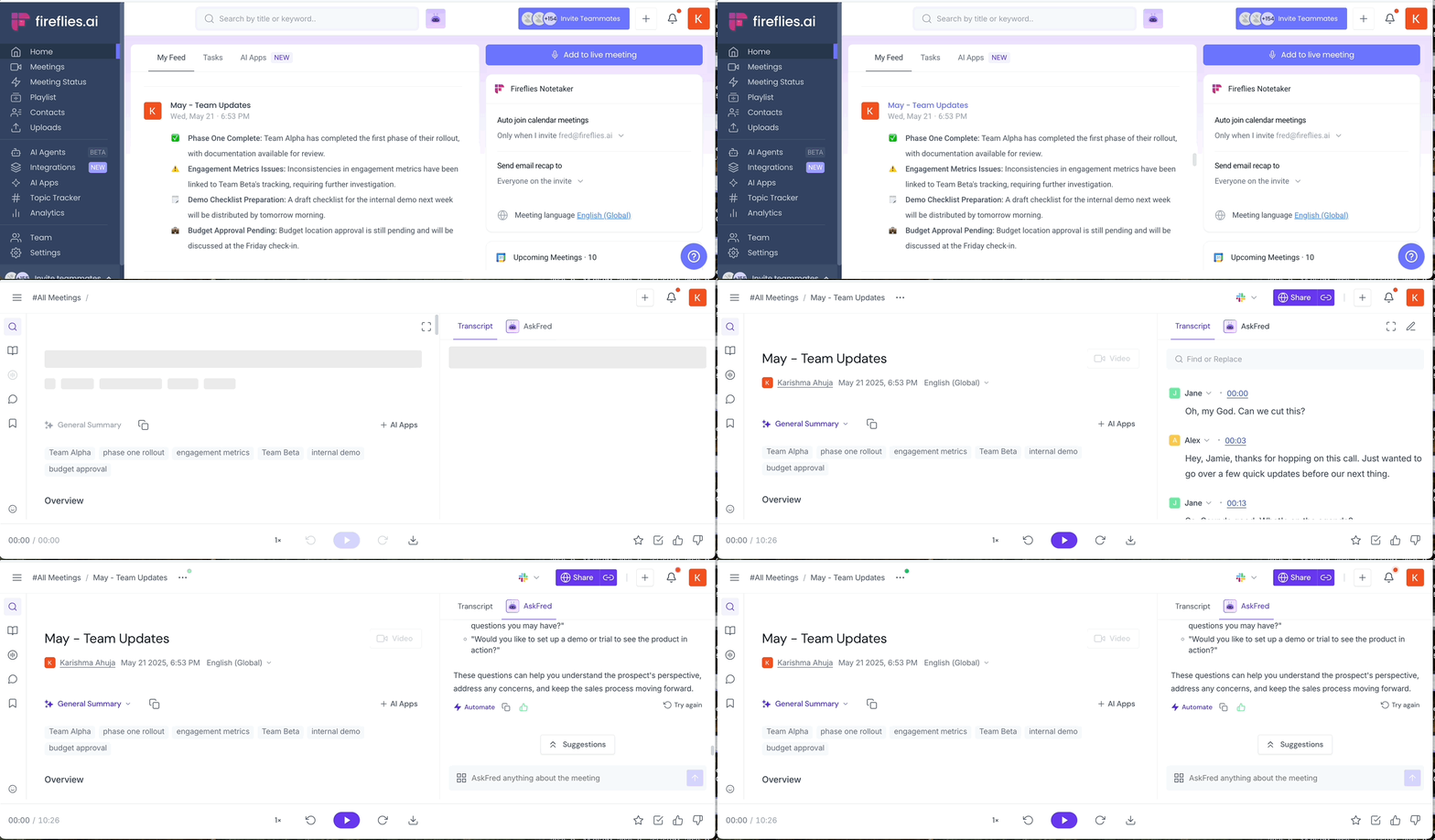
Go to your Fireflies Feed and Hover over any processed meeting
Click AskFred widget on the right
AskFred opens in a side panel—ask away!

B. From the Fireflies Notepad
Open any meeting in your Notebook
Look to the right panel—you’ll see AskFred button next to transcript
Click to open the chat interface
💡 AskFred works only after your meeting has been processed. If it's still in progress, you'll have to wait a couple of minutes.
2. What and how can you ask Fred?
AskFred can do a lot more than just answer questions. Whether you're looking to extract insights from a call or whip up content instantly, here’s everything you can do—and how to get the best results:
1. 🧠 Ask questions about the meeting
AskFred lets you query any part of the meeting transcript—instantly.
You can ask:
"What were the key discussion points?"
"What blockers did the team face in launching the feature X?"
"What did Speaker X say about the budget?"
"What were the main takeaways?"

👉 Tip: Be specific. The more focused your prompt, the better your result.
2. ✍ Generate content from the meeting
Turn your meeting insights into:
Follow-up emails (e.g. "Write a follow-up email to Client A summarizing next steps")
LinkedIn posts or tweets (e.g. "Turn this meeting into a social media post about customer feedback")
Blogs or summaries for internal newsletters - Just tell Fred what kind of content you need and who it's for. It’ll do the rest

3. 💬 Ask general questions—just like ChatGPT
Don’t want to talk about the meeting? No problem. AskFred can also answer generic questions.
Examples:
"What are good follow-up questions to ask after a sales call?"
"What is BANT in sales?"

It’s a full AI chatbot—trained to work best with meetings, but flexible enough to help however you want.
🔥 You can also:
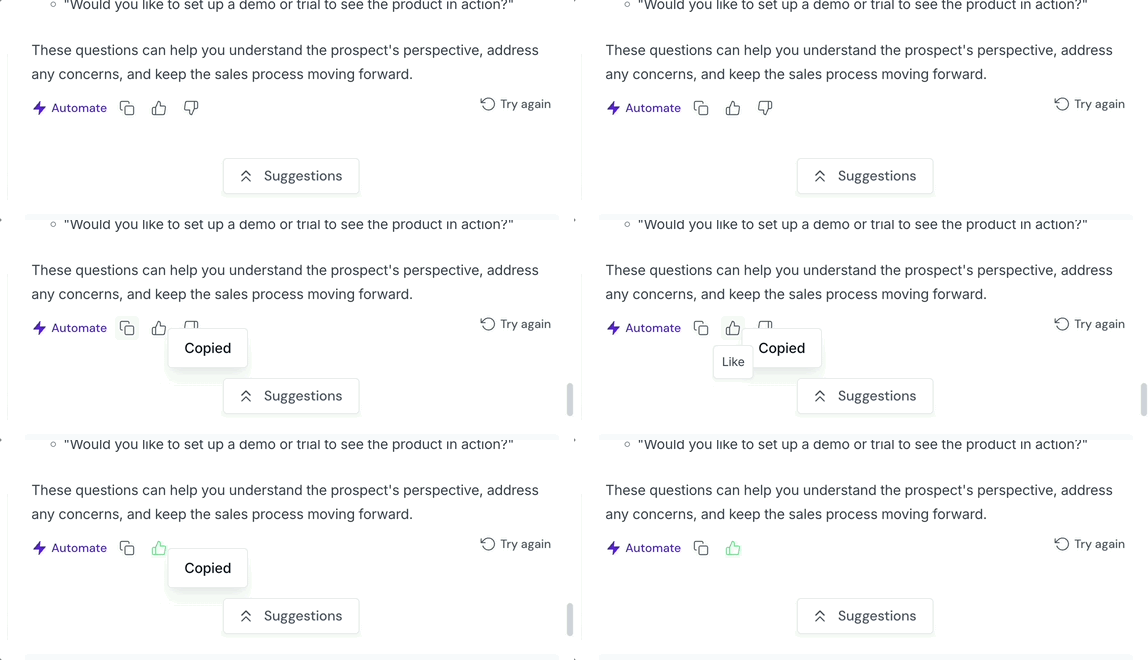
Use suggested questions under the AskFred chat box

Regenerate replies using Try again

Rate answers with 👍 or 👎 to help improve results and also copy the answer to share it 📄
Important: All the questions asked using AskFred for a past meeting is only visible to you and no one else in your team. This is different from AskFred visibility during Live Meetings. AskFred used with Live Assist (in live meetings) will be visible to others based on your privacy settings for Live Assist.
3. How to automate prompts with AskFred Apps
Do you always ask for follow-up emails or 3-bullet summaries?
With AskFred Apps, you can automate those prompts—Fred will run them after every meeting without you lifting a finger.
To automate a prompt:
Type the question (e.g., “Write a follow-up email for this meeting”)
Click Automate and Name your app, add a description
Click Save - You’ll now see this under AI Skills on your dashboard.

3. How to edit, disable, or delete AskFred Apps
Go to Apps > AI Skills
Find your AskFred App (tagged clearly)
Use the toggle to enable/disable it
To make changes:
Click Configure to edit the prompt
Use the 3-dot menu to delete the app

Learn more about AI skills here: 📄 Getting started with AI skills
4. Do you need AI Credits to use AskFred?
That depends on your Fireflies plan:
✅ For paid users (Pro and above)
No AI credits are required. AskFred is included in your plan, and queries don’t consume any credits.
Update: You will not see an option to select AI models anymore. All AskFred responses use a high-quality base model by default.
🆓 For free users
Free users get 20 AI credits by default. These are shared across AskFred and other AI features.
Each AskFred query consumes 1 credit
Once you use up your 20 credits, you’ll see a paywall to upgrade or buy more credits
📌 Tip: Upgrade to Pro or Business to unlock unlimited AskFred usage without credits
Know more about AI credits here: 📄 How AI credits work in Fireflies