Manage who can view or run your AI Skills
Last updated: April 20, 2026
AI Skills automate summaries, insights, and workflows for your meetings — but not every skill should be visible to everyone. Visibility helps you:
Keep personal skills private
Share team-wide workflows with everyone
Limit sensitive skills to specific user groups like Sales, Support, or Leadership
This guide explains AI Skill visibility—who can see or run the skill in your workspace. This is different from Output Visibility, which controls who can see the skill’s generated output. Both settings are managed separately when editing an AI Skill.
Let’s get started 🚀
Step 1: Log in and open the AI Skills page
Log in to your Fireflies dashboard and open AI Skills from the left menu to view, create, and manage your skills.
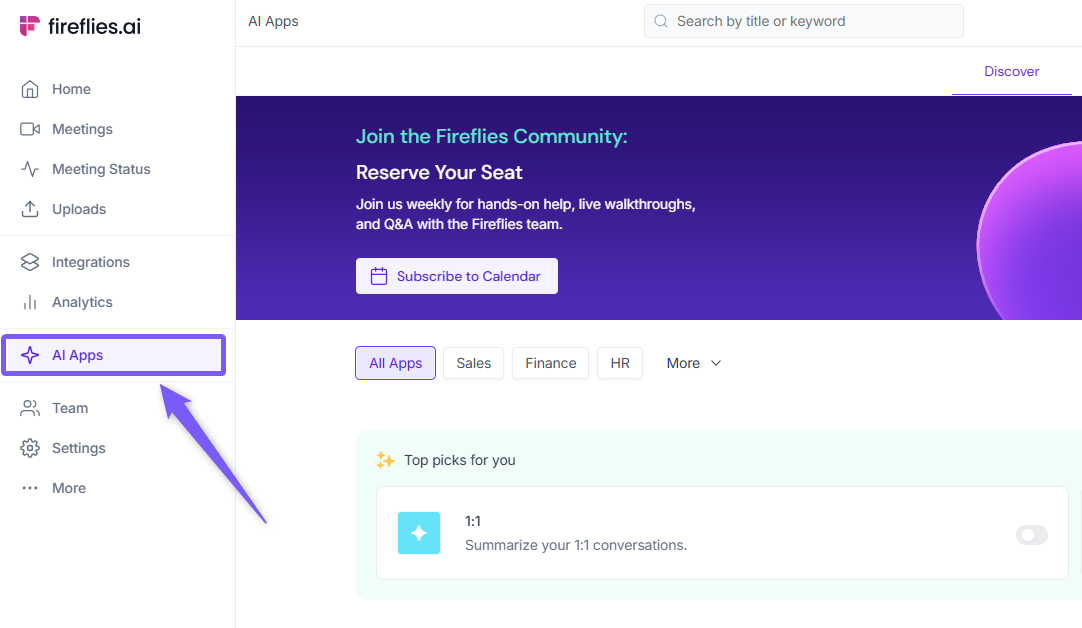
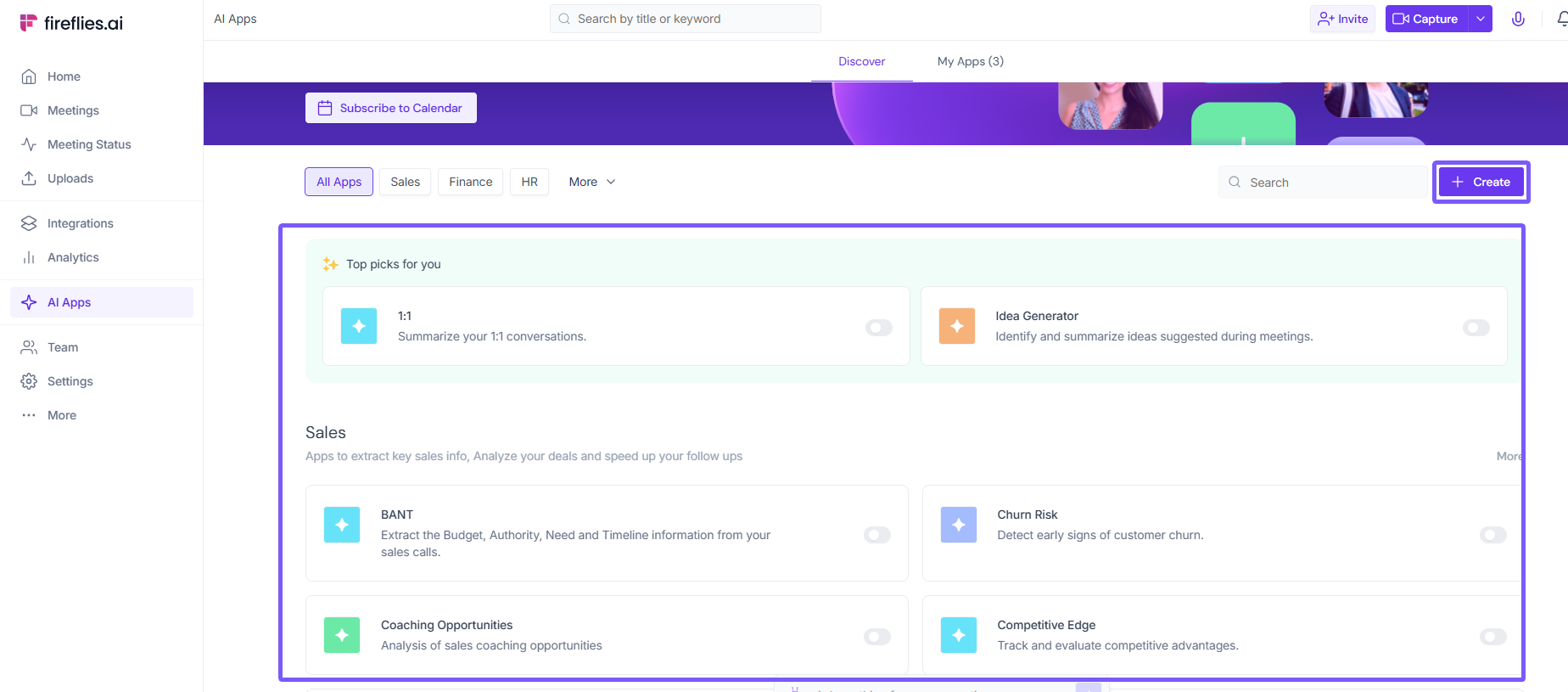
Step 2: Create a new AI Skill or open the one you want to modify
You can update visibility on any AI Skill — whether you’re creating a new one or editing an existing skill.
You’ll follow these same steps when updating visibility for a newly created skill as well.
Learn more → [How to create an AI Skill]
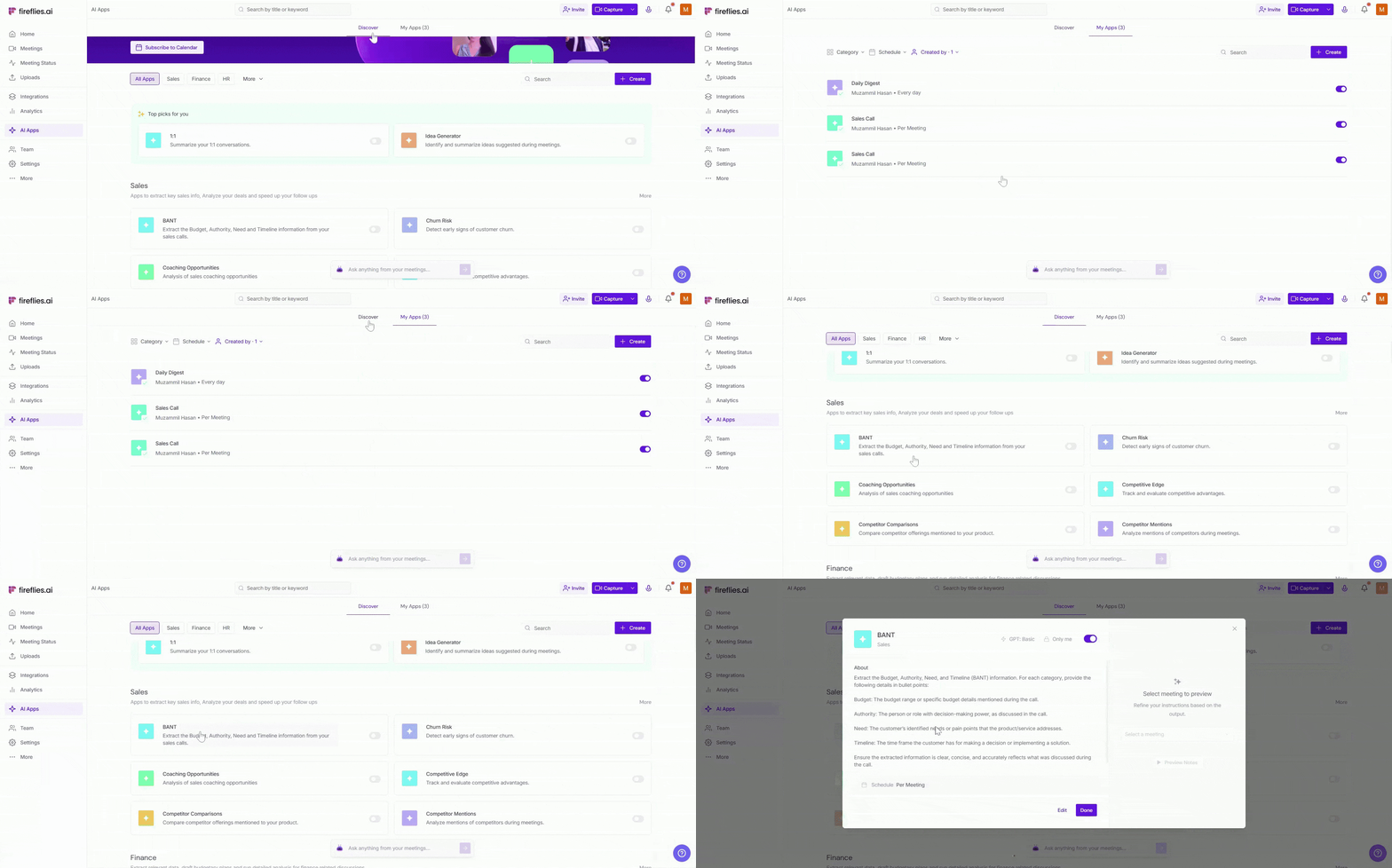
Step 3: Open the skill from the “My Skills”
To update visibility, open the AI Skill you want to modify from the My Skills tab.
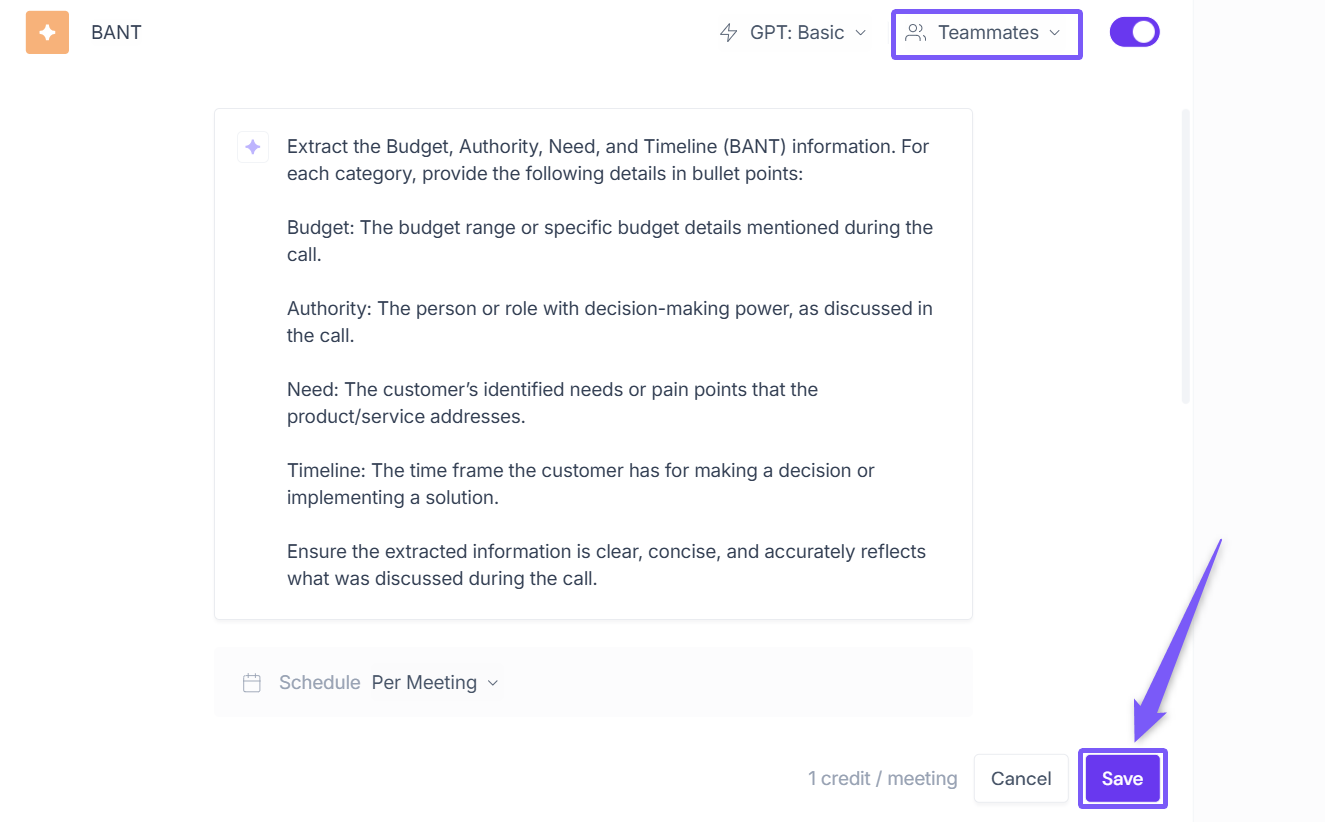
For this demo, we’ll use an already-existing skill — the BANT Sales Skill — so you can easily follow the steps.
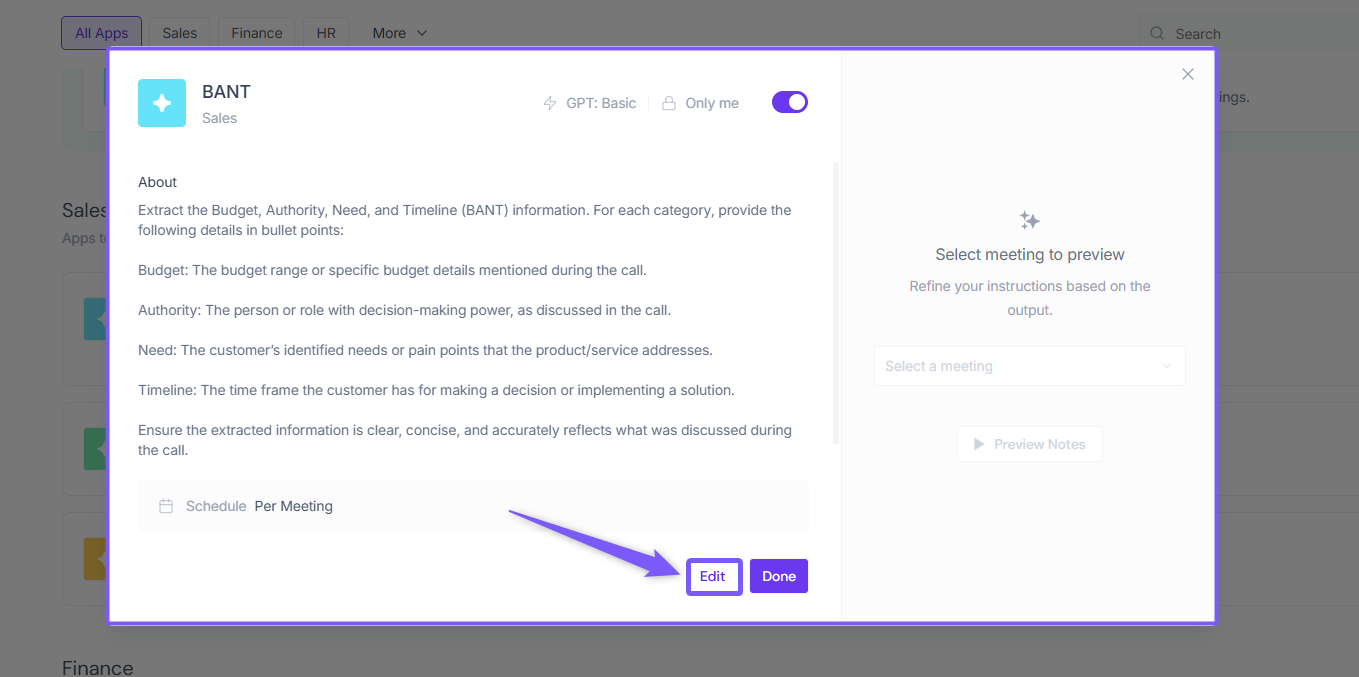
Step 4: Open the skill’s Settings panel
Once you’ve opened the BANT Sales Skill (or any skill you want to update), click the Edit button.
This opens the skill editor, where you can access the Settings panel and update visibility.
Step 5: Select a visibility option
Click the Visibility dropdown and choose who should be able to view or run your AI Skill:
Only me – Keeps the skill private. Only you can view and run it.
Teammates – Share the skill with everyone in your workspace.
User groups – Restrict the skill’s visibility to a selected group of users.
The User Groups option is available only to Admins in the Business plans and above.
Learn more → [How to Create and Manage User Groups]

Step 6: AI Skill Output Privacy (Who Can See the Output)
While AI Skill Visibility controls who can see or run the skill, Output Privacy controls who can see the output generated by the skill — such as summaries, insights, or analysis.
You can adjust Output Privacy when editing an AI Skill:
Only me — only you can view the output
Teammates — members of your team can view it
Link — anyone with the link can view the output
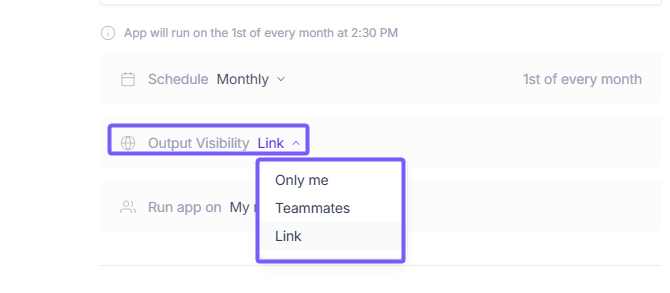
Choose the option that fits how private or shareable you want the generated output to be.
You can view AI Skill outputs anytime from the AI Skills Feed →
Step 7: Save your changes
Once you’ve selected the right visibility option, click Save to apply your changes.
Your skill will instantly become private, team-visible, or restricted to a user group based on your selection.
🔍 Troubleshooting & FAQs
1. I can’t see the visibility option.
Only the creator can change an AI Skill’s visibility. If you’re not the creator, you’ll still be able to view or run the skill (based on permissions), but you cannot update visibility.
2. My teammate can't see the skill I shared.
Double-check that visibility is set to Teammates or the correct User Group. If they’re part of a user group, make sure the group is assigned to the skill.
3. Someone can run my skill but not edit it.
This is expected. Only the creator (and admins, for some settings) can edit an AI Skill.
4. Why can’t I share skills with user groups?
User Groups are available on the Business plan and above. Upgrade or check with your admin if the option isn’t visible.
5. Will changing visibility affect past skill runs?
No. Visibility changes apply moving forward and don’t modify any previous outputs.
6. Who can see the output of my AI Skill?
That depends on the Output Visibility setting you choose while editing the skill: Only me, Teammates, and Link. You can update this anytime by editing the AI Skill.
🔁 Recap
AI Skills help you automate summaries, workflows, and analysis across your meetings.
You can choose between Only me, Teammates, or User Groups.
Visibility controls decide who can view and run your AI Skill.
Output Visibility decides who can see the output of your skill.
Changes apply instantly and do not affect past skill runs.