How to Set Up Freshsales and Fireflies Integration
Last updated: April 20, 2026
Automatically log your meeting transcripts and notes into Freshsales without any extra effort. This integration keeps your CRM up-to-date, connects insights to the right contacts or deals, and helps your sales team act fast on follow-ups.
Let’s get started 🚀
🔍 What does the Freshsales Integration do?
The Freshsales + Fireflies integration automatically logs meeting transcripts and notes into the right contacts or deals in Freshsales.
Key benefits:
Push transcripts automatically → Notes go directly to the correct contact or deal.
Keep your CRM updated → Every meeting is recorded in real-time.
Act faster on insights → Your team sees key details immediately after calls.
🔑 Prerequisites
Before connecting Freshsales with Fireflies, make sure you have the following ready:
Active Freshsales account→ You need a Freshsales account. If you don’t have one, you can sign up on their website.
Fireflies account → Make sure you’re logged into your Fireflies account.
Freshsales API key → You’ll generate this from Freshsales to connect it to Fireflies. Don’t worry, we’ll show you how!
Once these are ready, you’re good to move on to the integration steps.
🔐 Get the Freshsales API Key
Step 1: Log in to your Freshsales account, click your profile icon, and select Personal Settings. Then go to the API tab to access your API key.
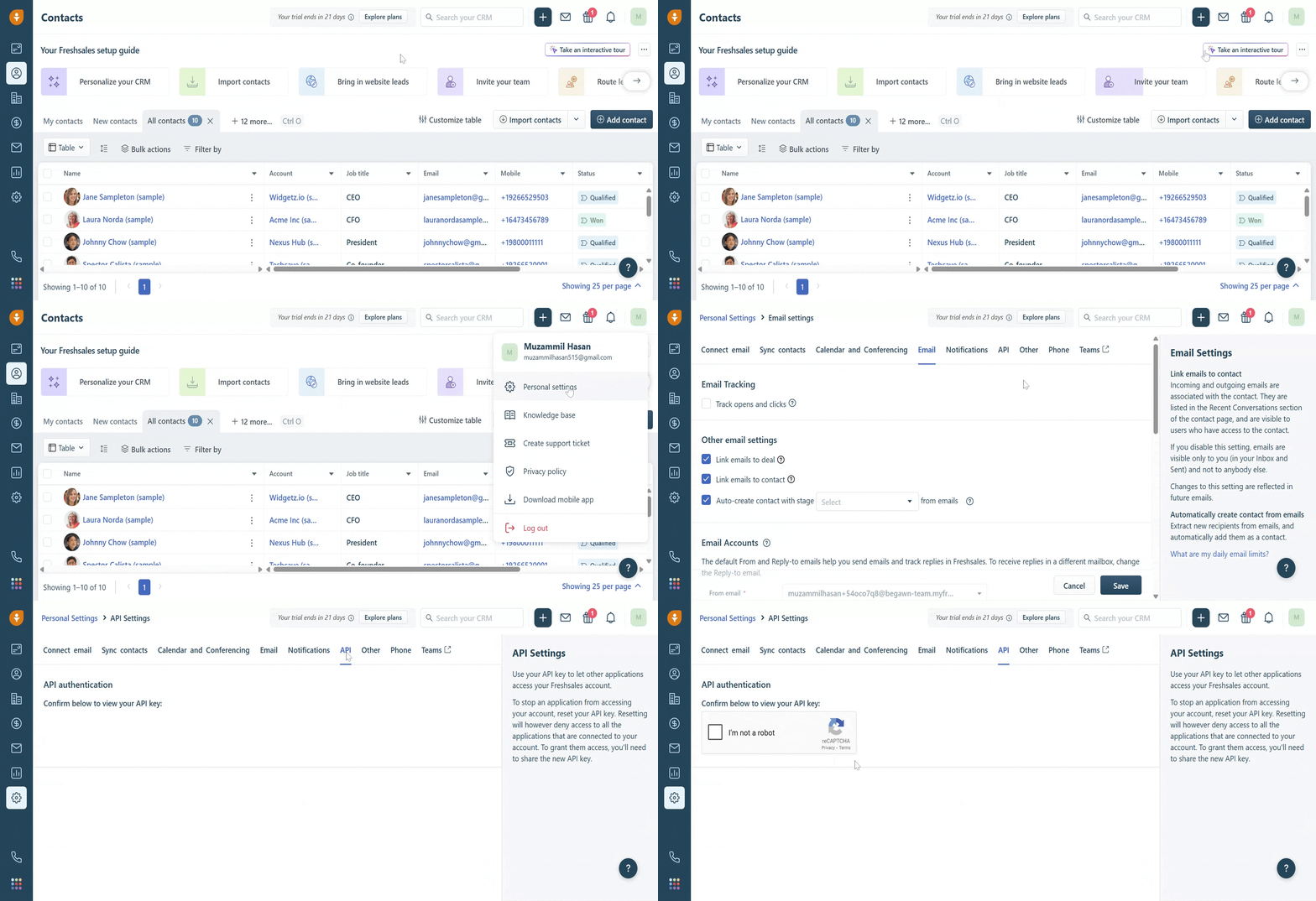
Step 2: Check the box to complete API authentication, then copy your API Key and Bundle Alias (includes your Freshsales account name and CRM domain) for connecting Fireflies.
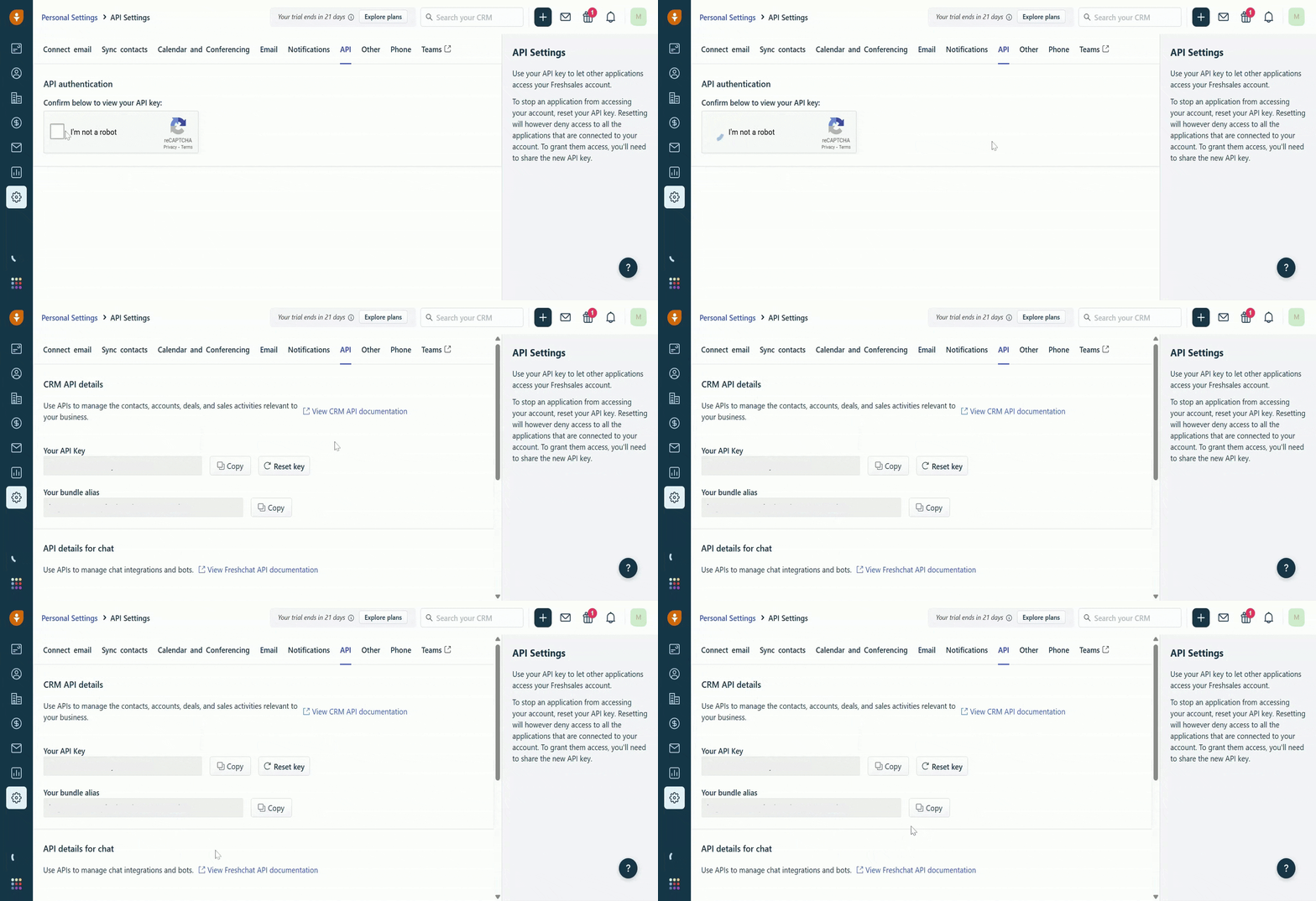
Copy your API Key and Bundle Alias — shown only once, so save them safely!
🔗 Connect Freshsales to Fireflies
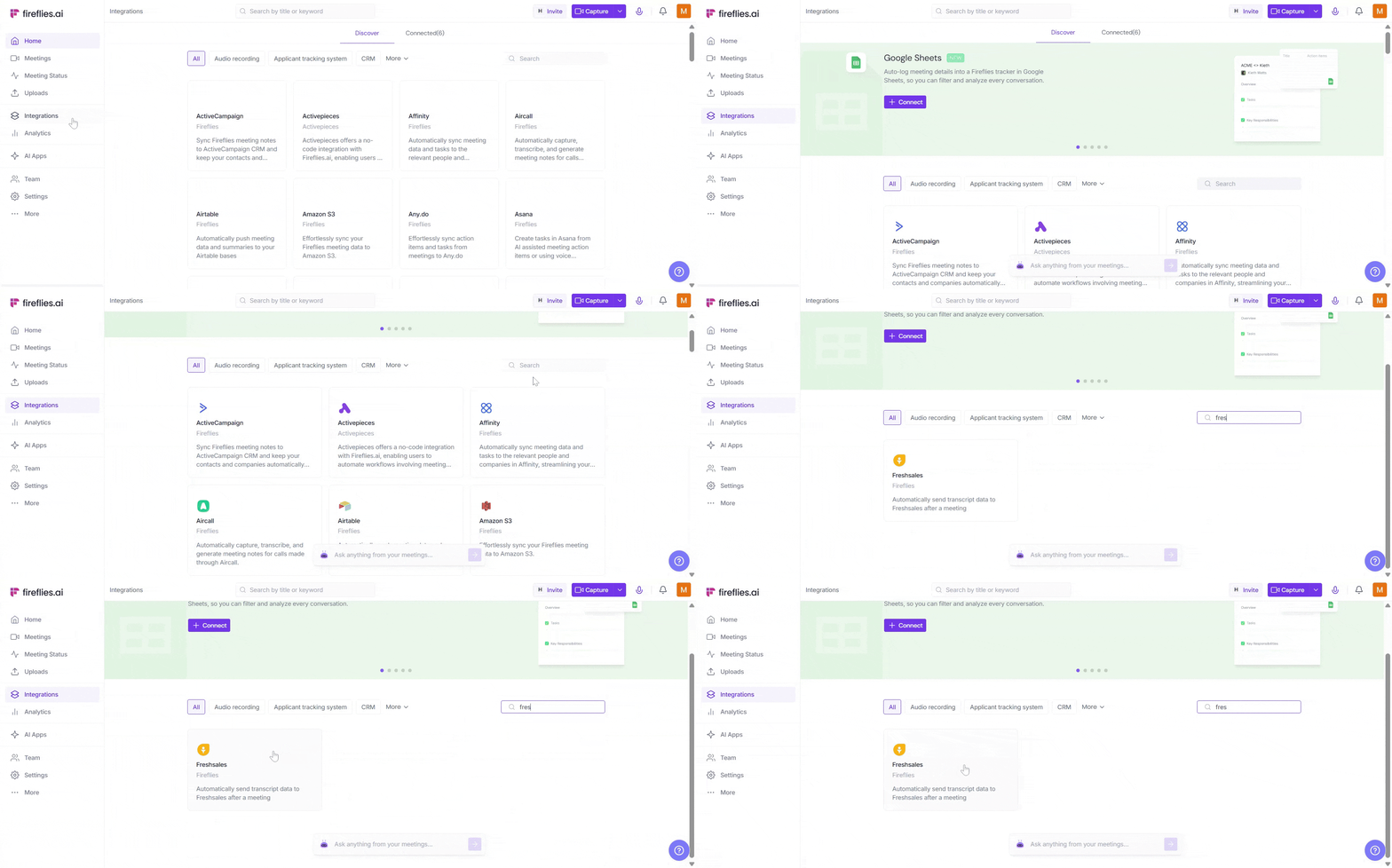
Step 1: Log in to your Fireflies account, go to the Integrations page, and search for Freshsales. Click on it to get started.
Step 2: Click Connect. A modal will open asking you to enter your Freshsales API Key and CRM domain name (Bundle Alias). Once entered, click Authorize to complete the connection.
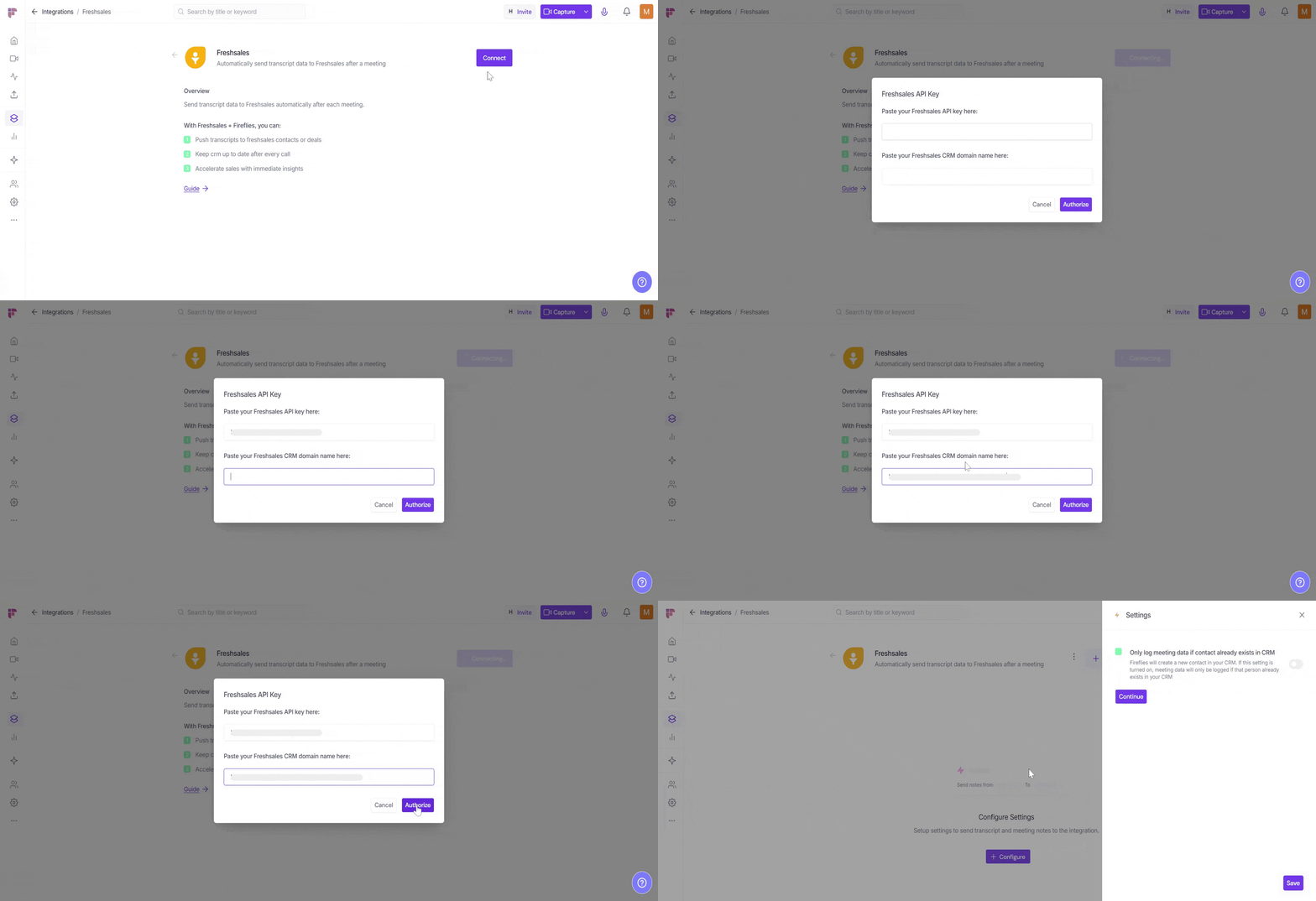
Step 3: Once authorized, you’ll be redirected back to Fireflies to configure your integration setup.
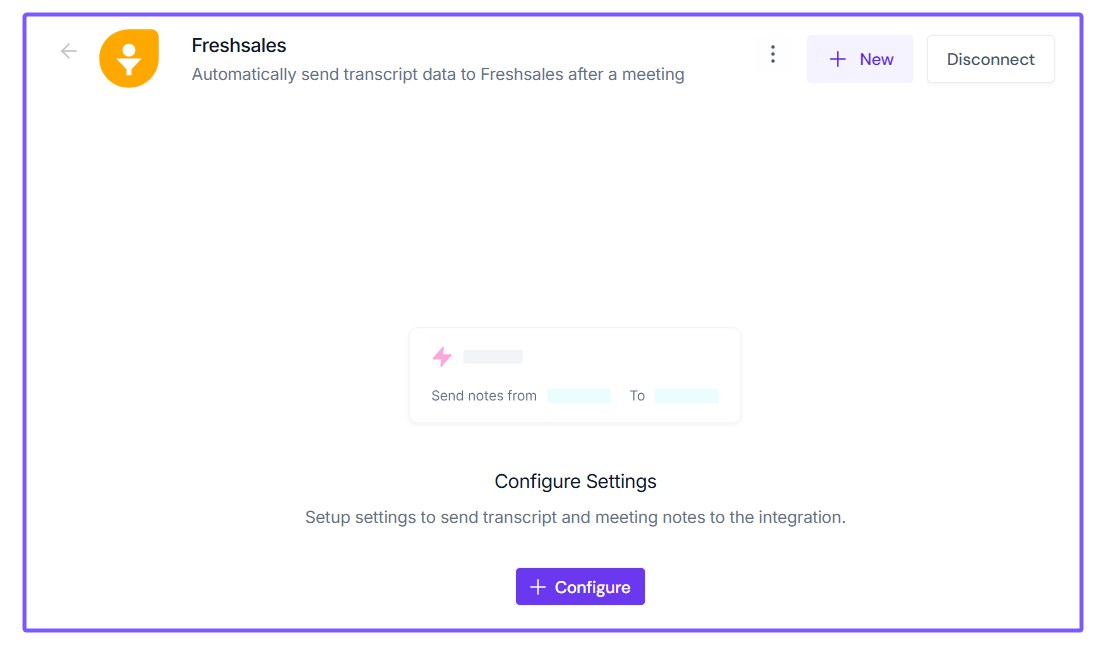
⚙ Setting Up Your Configuration
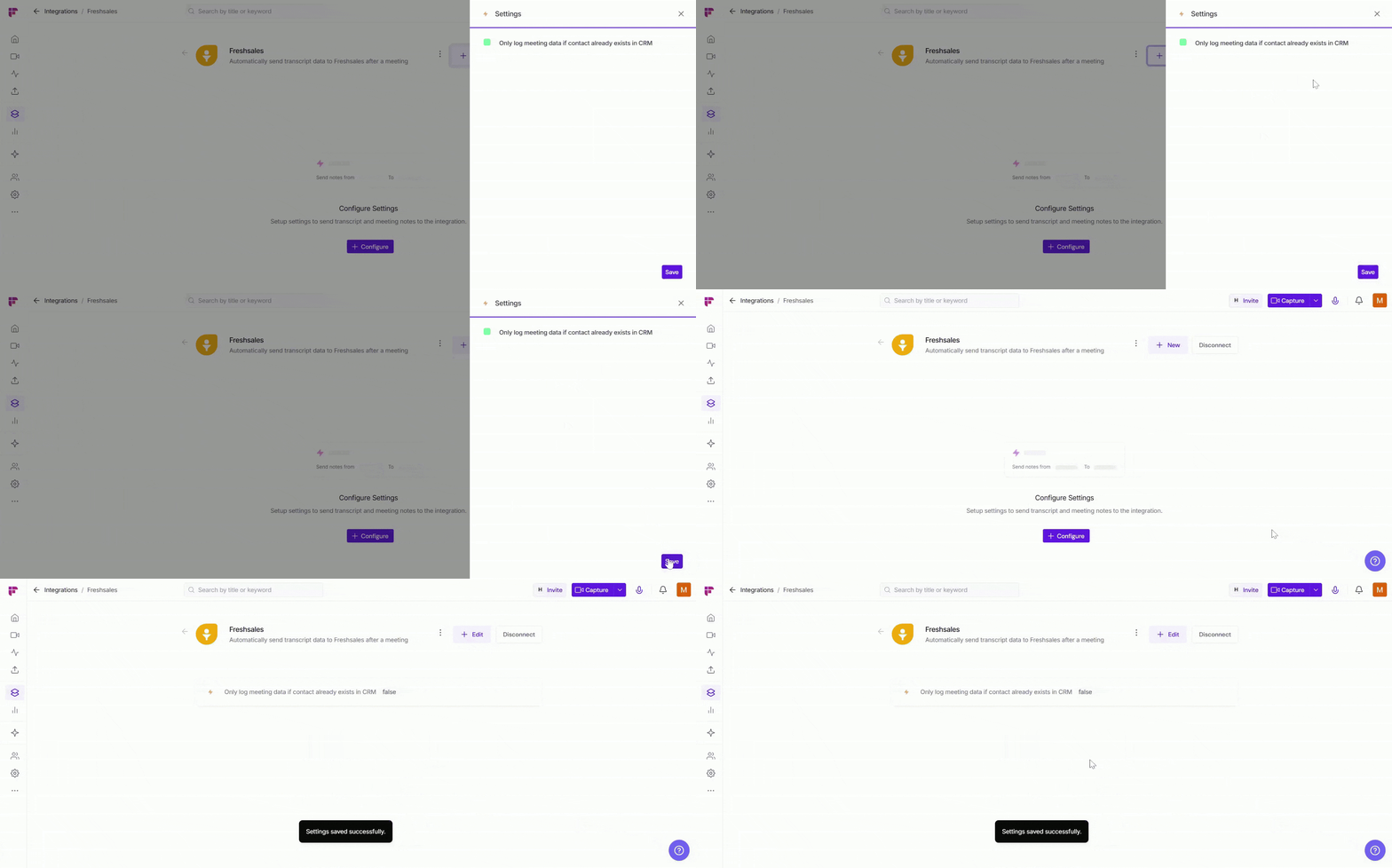
Step 1: Only log meeting data if the contact already exists in CRM
By default, this setting is OFF, so Fireflies will create a new contact if the person isn’t already in Freshsales and log the meeting data.
If you toggle this setting ON, Fireflies will only log data for existing contacts and will not create new ones.
Internal meetings (including when a new contact is created) are logged under team@fireflies.ai. This also applies to meetings recorded with the Chrome extension or Add to Live.

Step 2: Save Your Settings
Click Save to activate the integration — a flash message will confirm that your “Settings saved successfully”.
⚡ Test Integration with Freshsales
Before sending real meeting data, you can quickly test the integration to make sure everything works smoothly.
Insert Sample Data → See how a meeting note appears in Freshsales without affecting real contacts or deals.
Click the vertical ellipsis (⋮) next to your Freshsales configuration and select Insert Sample Data.
A flash message will confirm — “Sample data pushed successfully.”
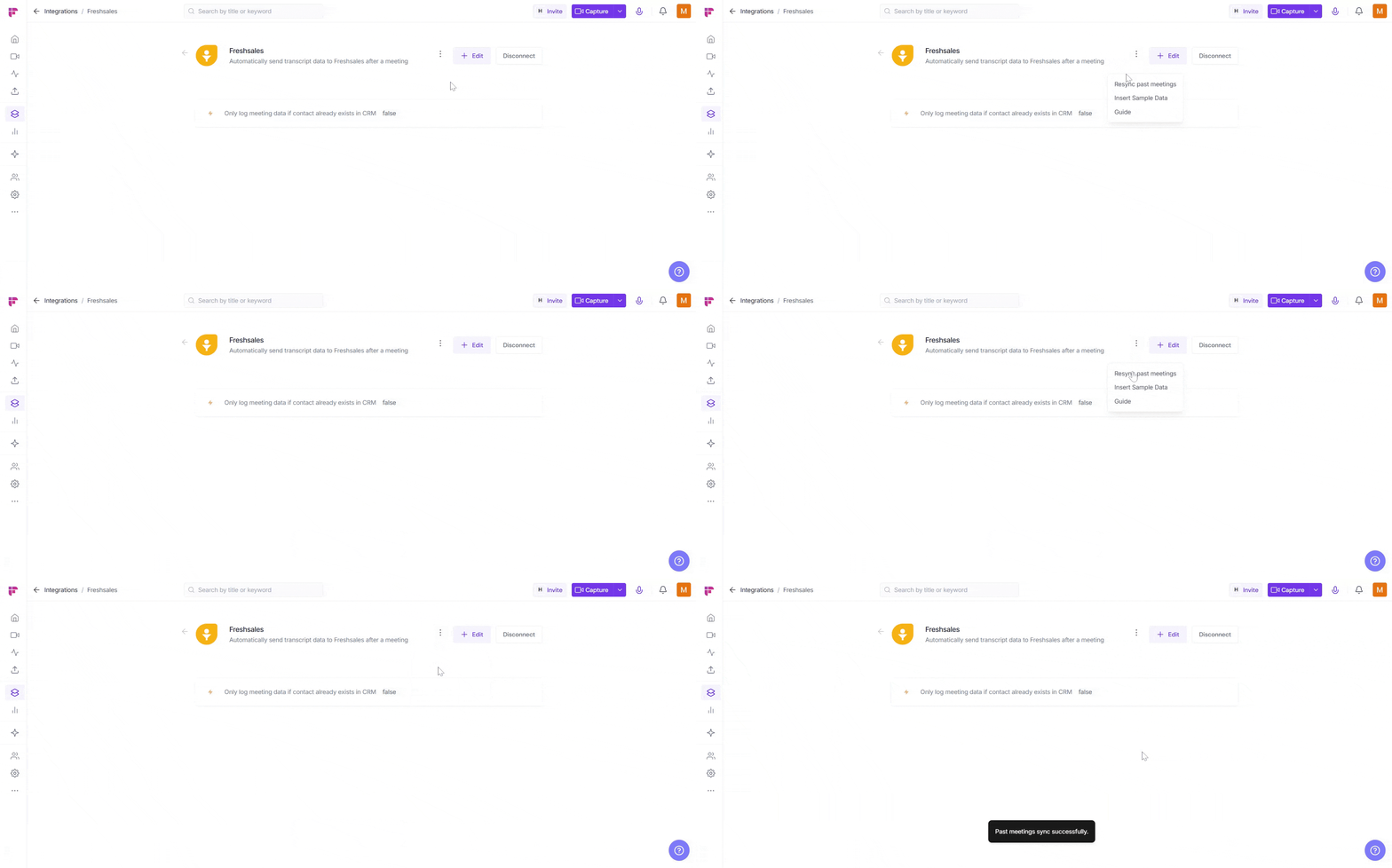
Resync Past Meetings → Sync notes from past meetings to ensure all your Freshsales contacts and deals are up-to-date.
Click the vertical ellipsis (⋮) next to your Freshsales configuration and select Resync Past Meetings.
A flash message will confirm — “Past meetings synced successfully.”
These tests don’t affect your real contacts or deals — they’re just for confirming the setup.
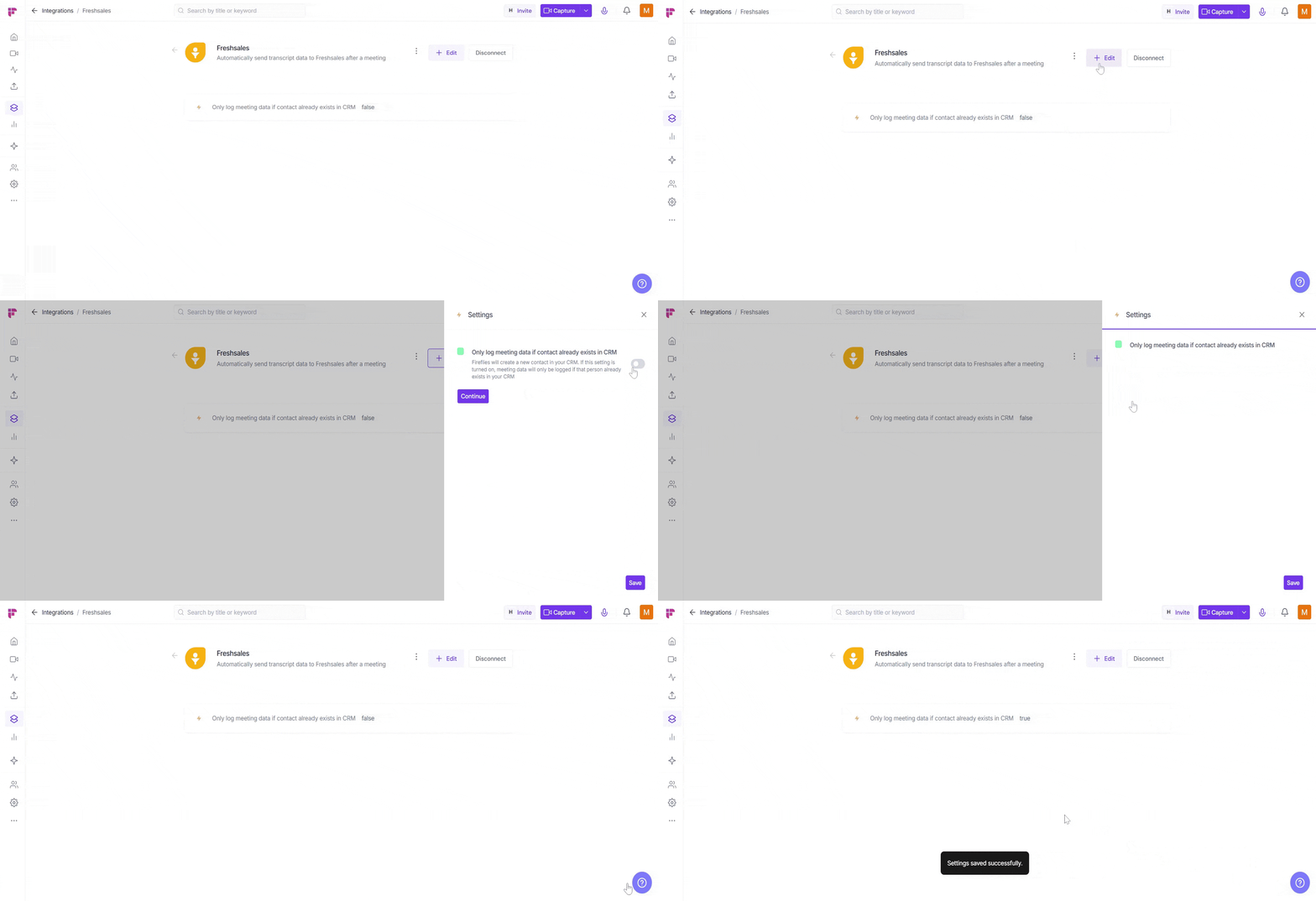
⚙ Edit Settings
Need to adjust how meeting data flows into Freshsales? Click Edit in the top-right of the integration, toggle Only log meeting data if the contact already exists in CRM if needed, and click Save to confirm.
📤 How Meeting Data Appears in Freshsales
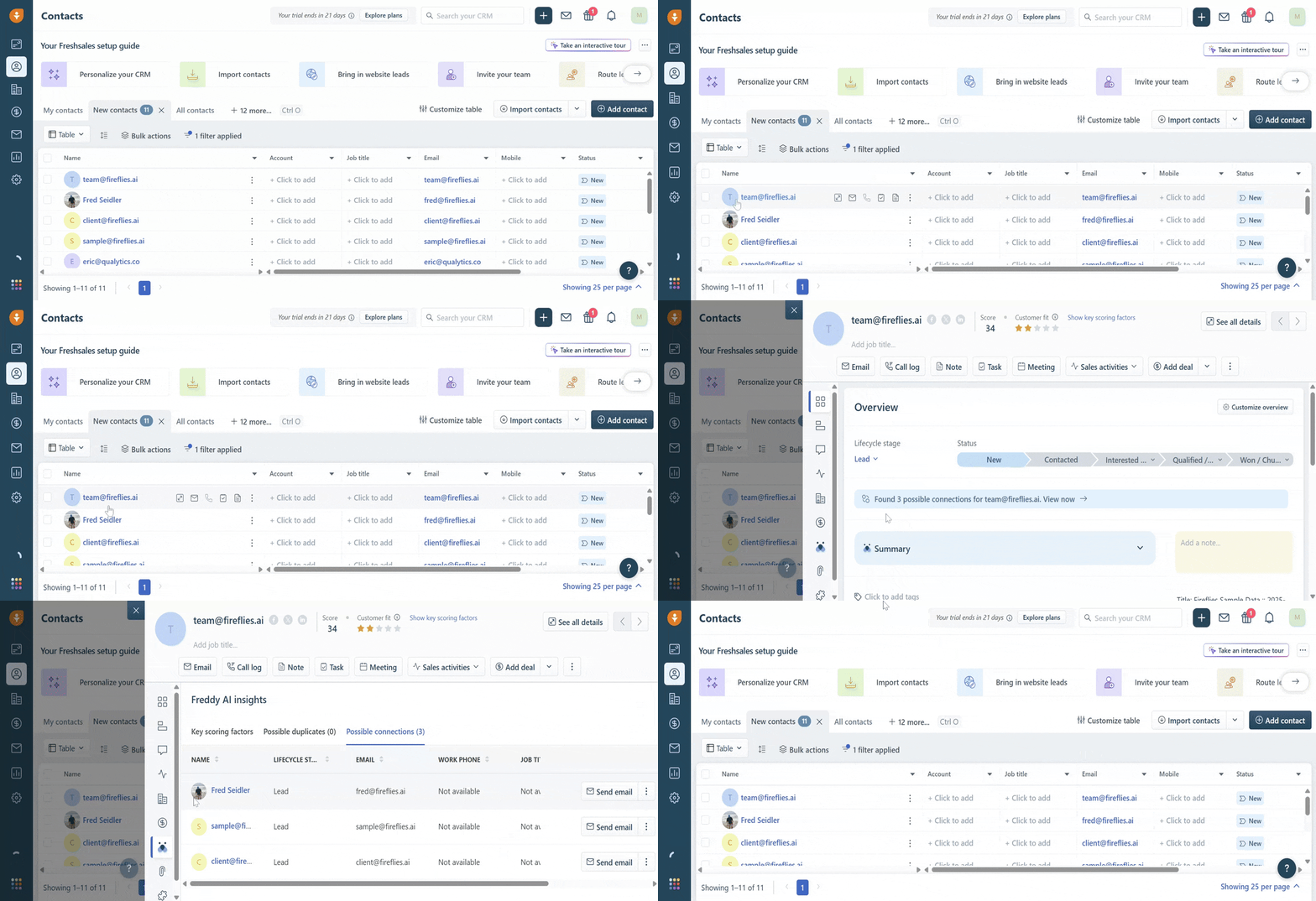
Once the integration is active, Fireflies automatically logs your meeting transcripts and notes directly into Freshsales. You can find all logged data under the relevant Contacts or Deals, giving your sales team an up-to-date view of every conversation.
❌ Disconnect Integration
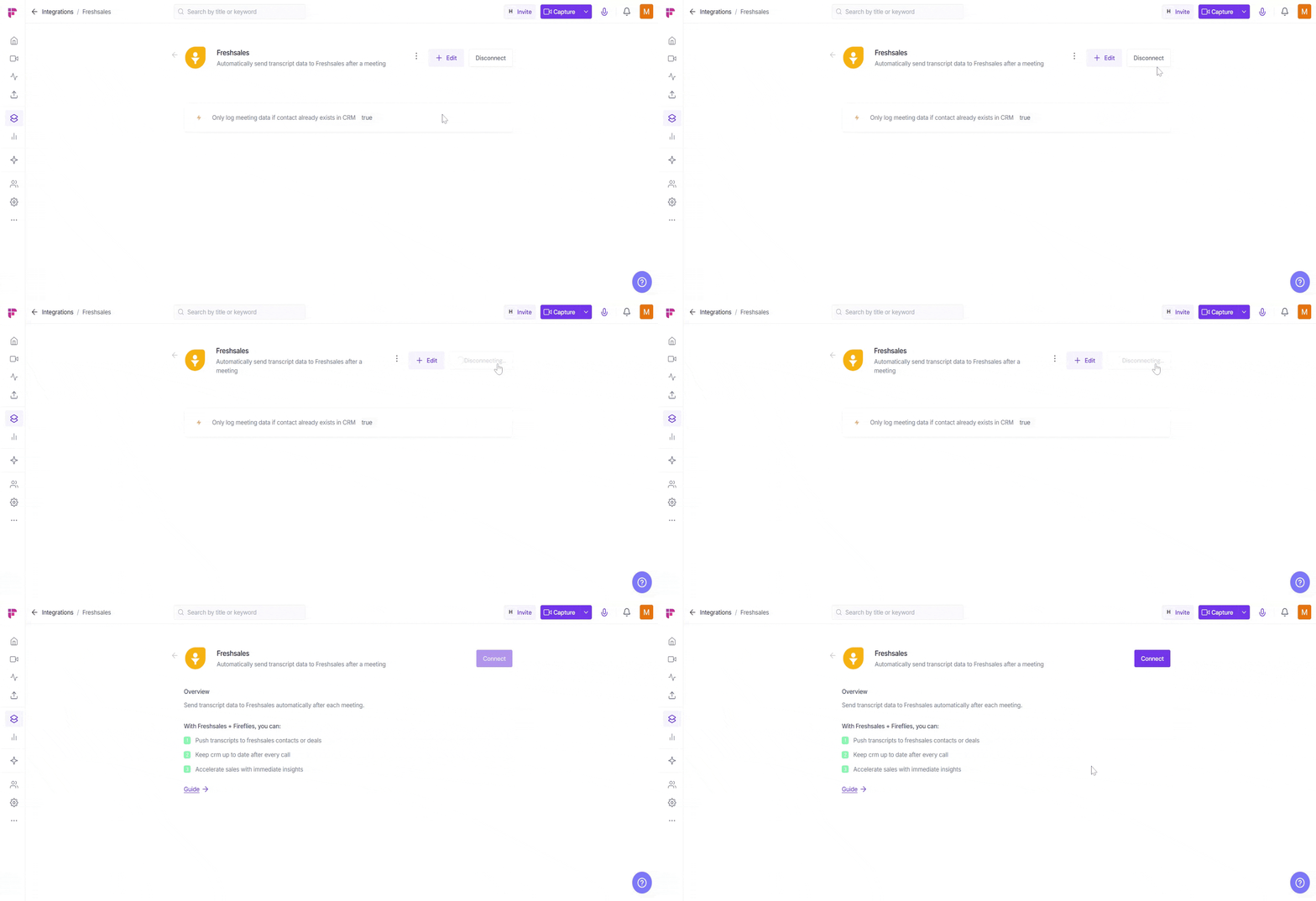
If you no longer need Fireflies connected to Freshsales — for example, when your team switches CRMs or stops using the integration — you can disconnect it with a single click.
Click the Disconnect button to remove the Freshsales integration. This immediately ends the connection, and Fireflies will no longer log meeting data in Freshsales.
Once disconnected, Fireflies will stop sending meeting data to Freshsales. You can always reconnect later if needed.
🛠 Troubleshooting
Issue | What to Check / Do |
Meeting data is not logging | • Ensure the Freshsales integration is active in Fireflies. |
Meeting data logged under the wrong contact | • Check that Only log meeting data if contact exists is toggled correctly. |
Integration disconnected unexpectedly | • Reconnect the Freshsales integration from the Integrations page in Fireflies. |
Permissions issue | • Make sure Freshsales has proper access to the contacts and deals. |
Still stuck? Contact support via this link for more help.
❓ Frequently Asked Questions
1. Can Fireflies create new contacts in Freshsales?
Yes, if the Only log meeting data if contact exists setting is OFF, Fireflies will create a new contact when logging meeting data.
2. How do I reconnect the Freshsales integration?
Go to the Integrations page in Fireflies, find Freshsales, and click Connect.
3. Why isn’t meeting data appearing in Freshsales?
Check that the integration is active and your API Key and CRM domain are correctly entered.
4. How do I fix permissions issues?
Ensure both Fireflies and Freshsales have the necessary permissions to access and log data for contacts and deals.
🔄 Recap
The Freshsales + Fireflies integration automatically logs meeting notes and transcripts into the right contacts and deals in Freshsales, making it easier to keep track of all your meetings:
Automatic logging → Notes and transcripts are added directly to Freshsales.
Works for new or existing contacts → Logs data based on your configuration settings.
Quick testing → You can insert sample data or resync past meetings to verify setup.
📚 Related Guides
Want to explore more? These guides will help you get the most out of Fireflies:
Learn About Fireflies + CRM Integrations – Connect Fireflies with CRMs like HubSpot, Zoho, Close.io, Copper, etc.
AI Meeting Summaries Guide → Learn how to customize and share your meeting summaries.