How to Migrate Your Meetings from Fathom to Fireflies
Last updated: July 17, 2026
If you're moving from Fathom to Fireflies, you can migrate your meetings, transcripts, and related call data in just a few steps. This guide walks you through the migration process, how to track its progress, and how to troubleshoot common issues.
Let's get started 🚀
🔍 What Gets Migrated?
When you migrate from Fathom, the following data is imported into Fireflies:
All your Fathom calls and recordings
Complete transcripts with speaker information
Call metadata and timestamps
Audio files
Call notes and participant information
📌 Prerequisites
Before starting the migration, make sure you have:
Your Fathom login cookies (3 authentication tokens).
Your Fathom team domain.
An active Fireflies account - this is where your calls will be imported.
About 10 minutes to gather your credentials and start the migration.
Need access to the Import Data feature?
The Import Data feature is available on request. If you don't see Settings → Import Data in your Fireflies account, it means the feature hasn't been enabled for your workspace yet.
💬 To request access, click the purple Help widget in the bottom-right corner of your Fireflies dashboard to start a conversation with our support team.
🔑 Get Your Fathom Login Credentials
Before you can start the migration, you'll need to collect the required credentials from your Fathom account.
Get Your Login Cookies:
Log in to your Fathom account.
Open your browser's Developer Tools:
Mac: Press
Cmd + Option + IWindows/Linux: Press
F12
Locate the Cookies section:
Chrome / Edge: Click Application → Cookies →
https://fathom.videoFirefox: Click Storage → Cookies →
https://fathom.video
Copy the value of these 3 cookies (right-click each one and select "Copy value"):
_fathom_sessioncf_clearanceXSRF-TOKEN
Copy and save these values, you'll need them when completing the migration form in the next step.
Find Your Team Domain:
Your team domain is part of your Fathom URL.
For example:
If your URL is
fathom.video/company, your team domain is company.If your URL is
company.fathom.video, your team domain is company.
📌 Copy only the team name. Do not include any additional text or information.
🔗 Steps to Migrate Your Data from Fathom to Fireflies
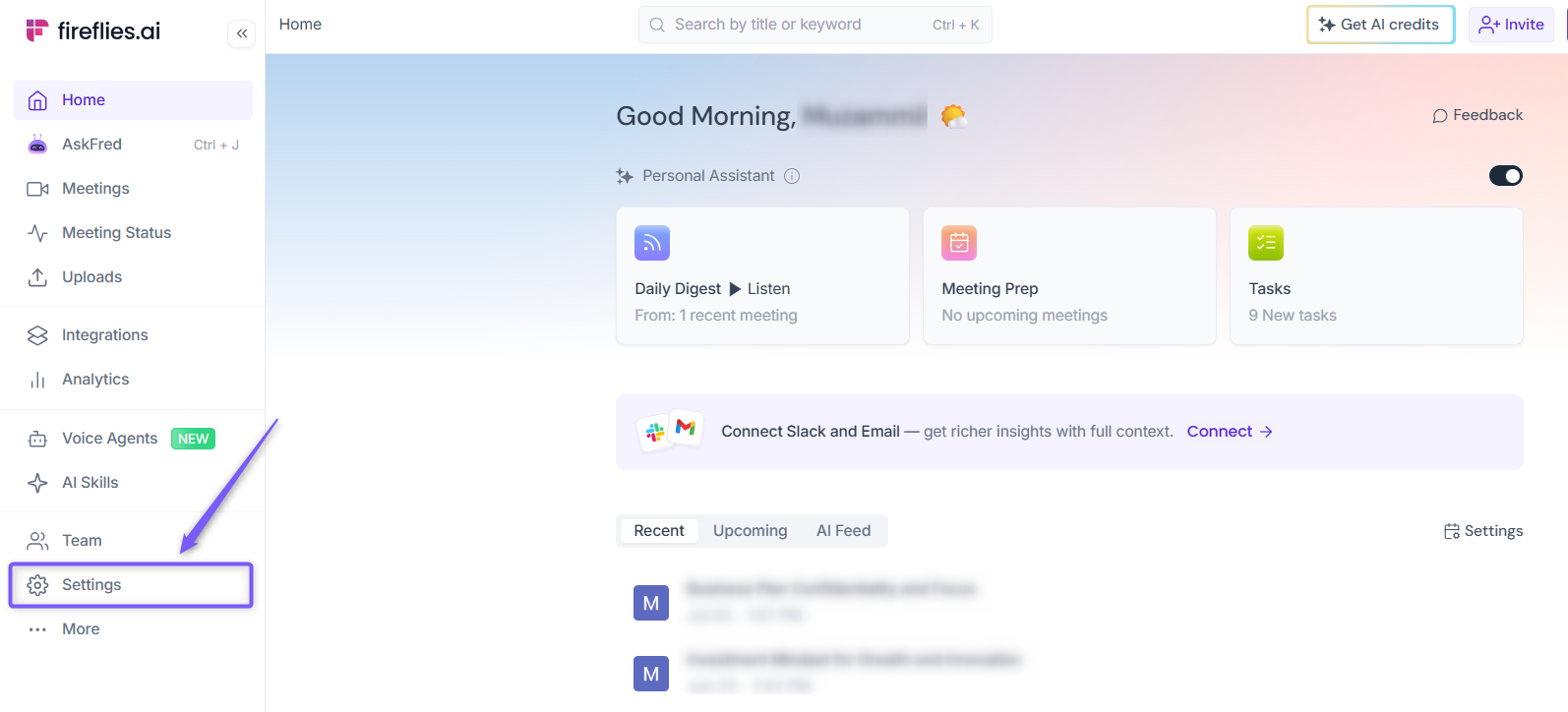
Step 1: Log in to your Fireflies web app and click Settings from the left side menu.
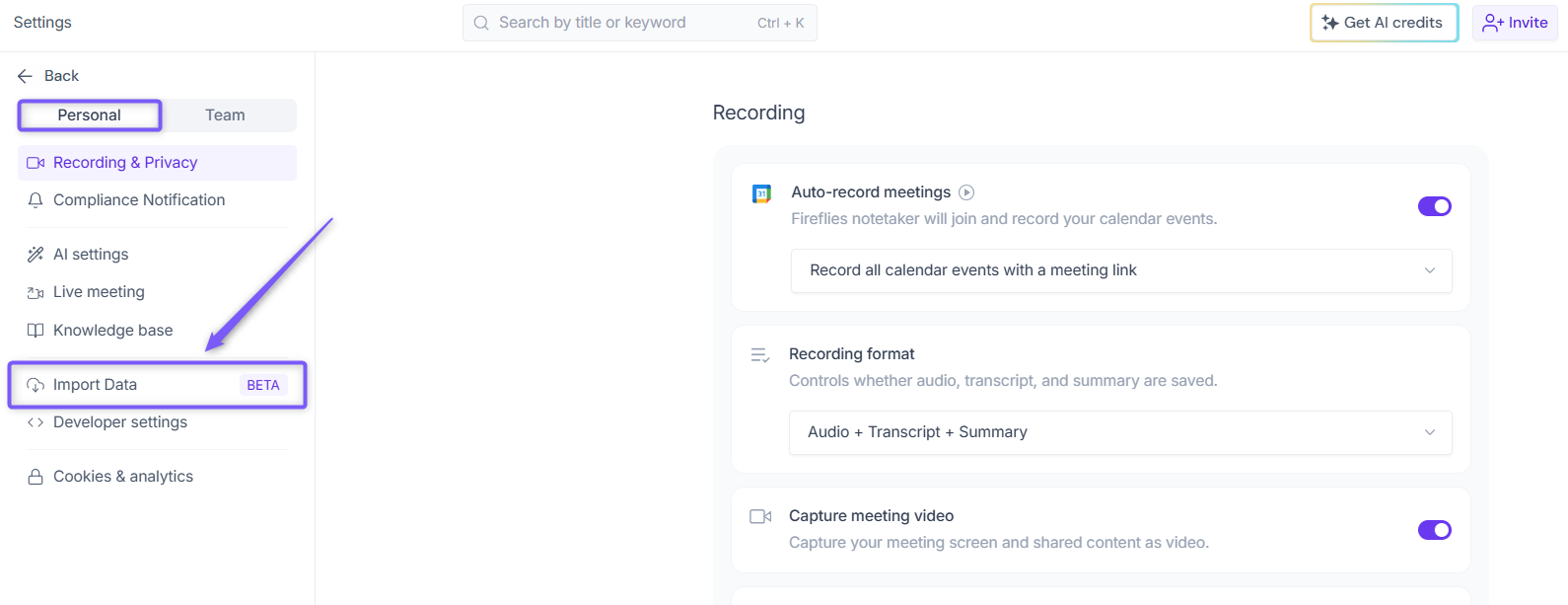
Step 2: Under the Personal tab, click Import Data from the left navigation menu.
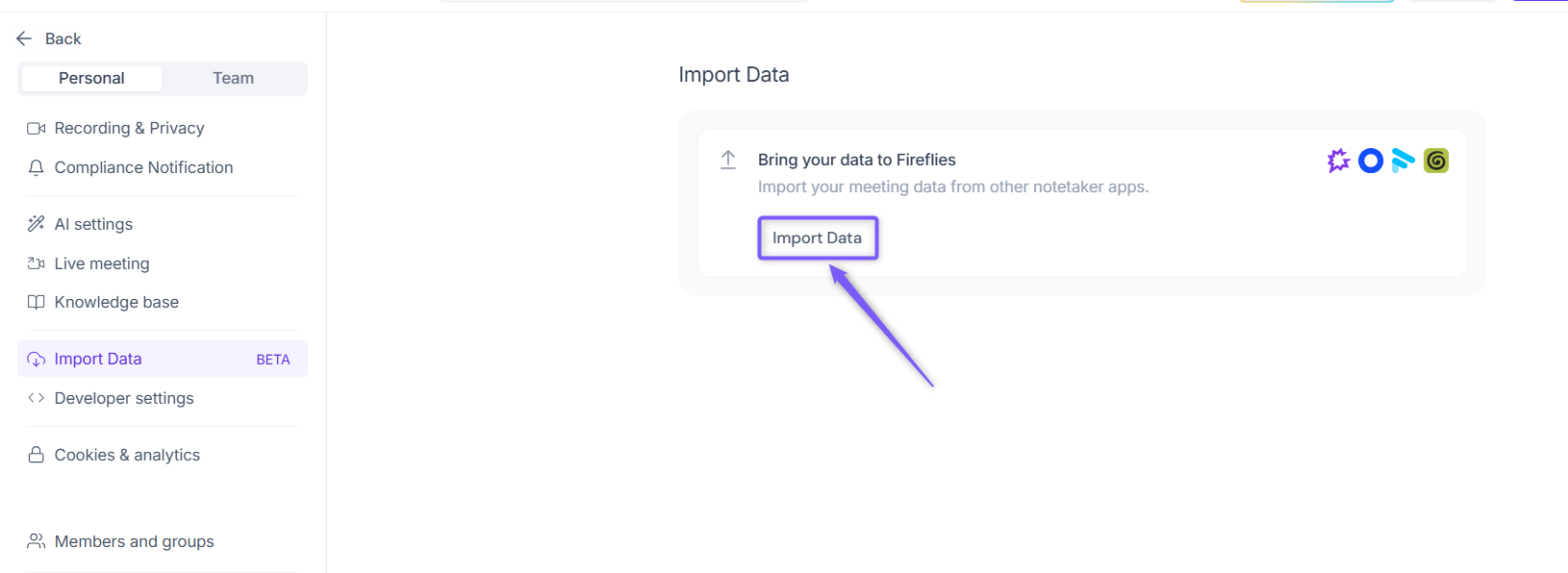
Step 3: Click Import Data to open the list of available migration sources.
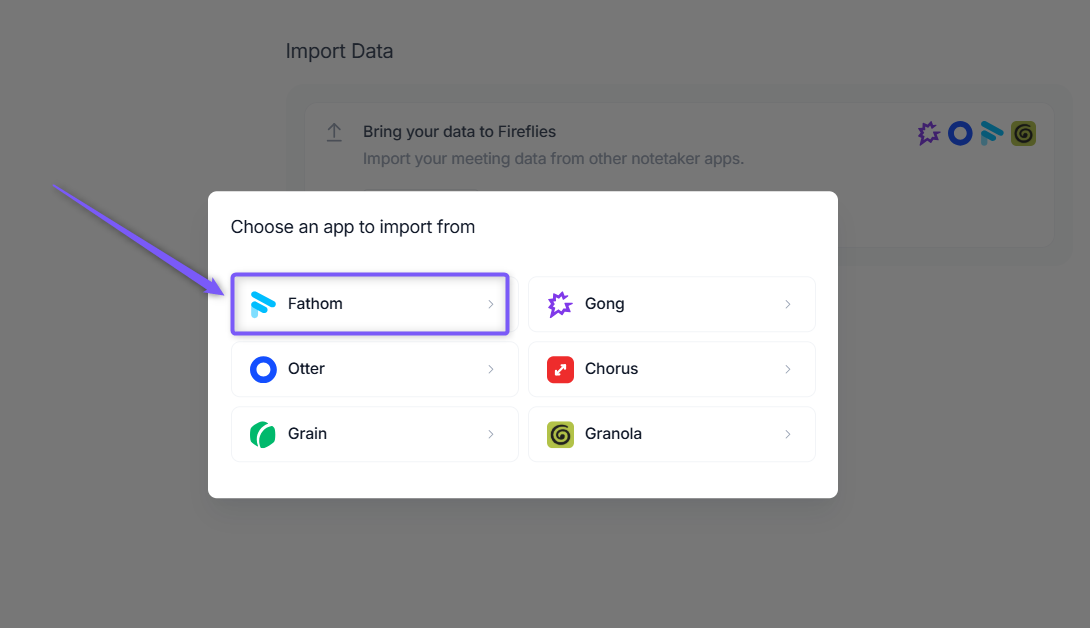
Step 4: Select Fathom as your migration source.
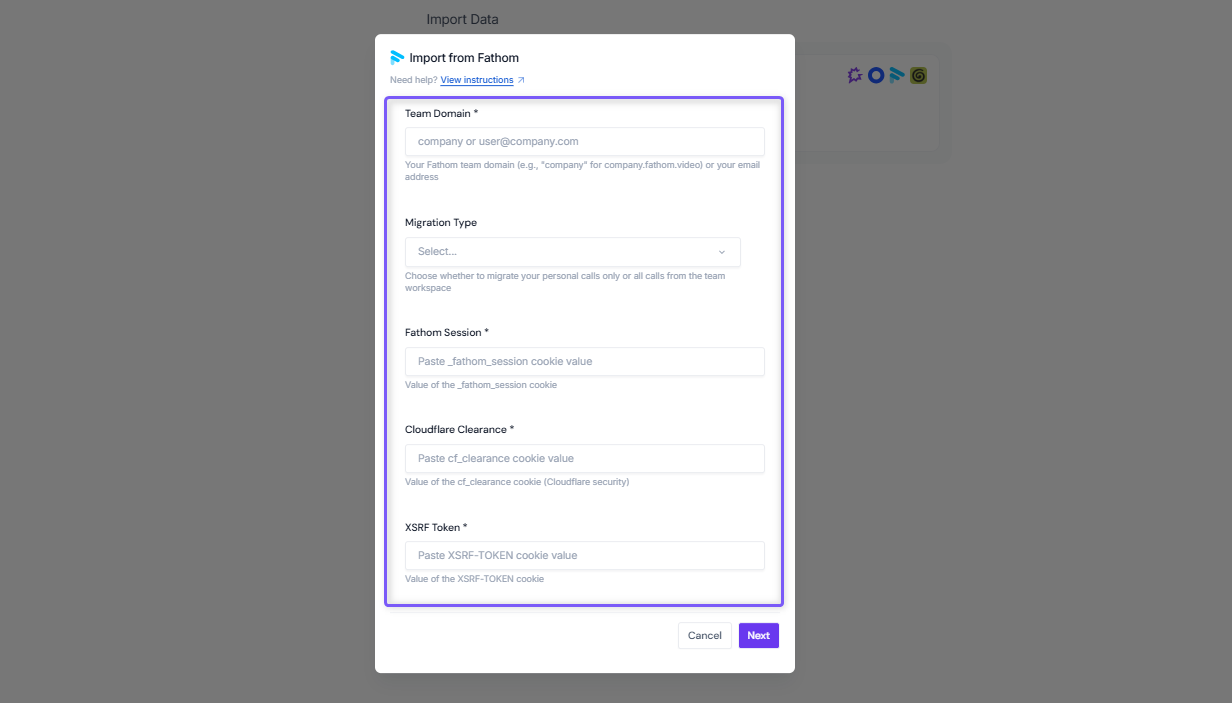
Step 5: Enter your Fathom migration credentials:
Field | Value |
Team Domain | Enter your Fathom team domain (for example, |
Migration Type | Select Individual to migrate only your calls, or Team to migrate all calls from the workspace. |
Fathom Session | Your |
Cloudflare Clearance | Your |
XSRF Token | Your |
Step 6: Click Next. Fireflies starts fetching data from your Fathom account and displays the migration progress in real time.
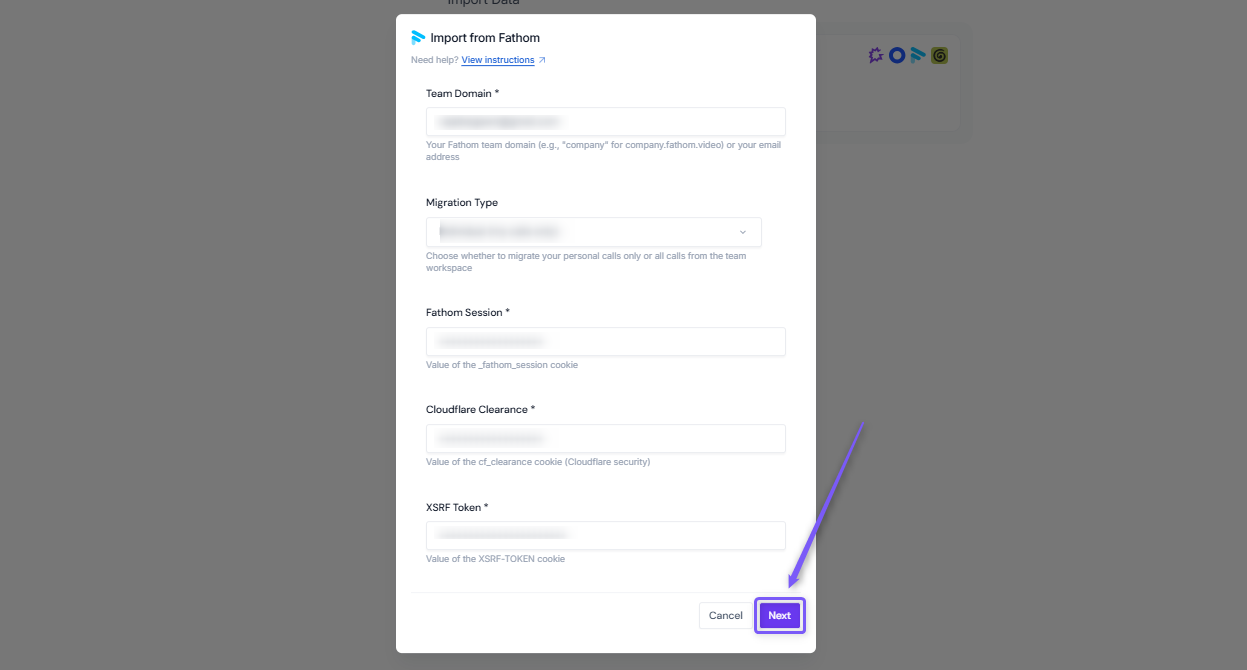
Once the migration starts, a migration ID is generated. Save this ID so you can track the progress of your import.
Migration is running:
The migration runs automatically in the background. You don't need to stay on this page or remain logged in while the import is in progress. You can close this window or even close your browser, the migration will continue running until it is complete.
📊 Track Your Progress
You can return to the migration page at any time to monitor the status of your import. The migration page shows:
Status | Description |
Current progress | Shows how many calls have been processed so far (for example, "Processing 45 out of 100 calls"). |
Current stage | Shows the current step of the migration (for example, Downloading, Converting, or Importing). |
Estimated time remaining | Shows the approximate time left until the migration is complete. |
Import issues | Highlights any calls that encountered issues during the migration process (for example, a call that could not be imported successfully). |
🛠 Troubleshooting
Issue | What to Check / Do |
Invalid Credentials or Authentication Failed | •Go back to Fathom and refresh the page. |
Cloudflare is Blocking | • Visit Fathom in your browser. |
Migration seems stuck | • Check whether the progress percentage is changing. |
❓ Frequently Asked Questions
1. How long will my migration take?
It depends on the number of calls you have. Migration time varies based on the size of your call library.
2. Can I use my Fathom account while the migration is happening?
Yes. You can continue using Fathom normally while the migration is running. The migration only imports your data and does not make any changes to your Fathom account.
3. What if the migration stops?
Don't worry. Migrations can be safely stopped and resumed. The migration will continue from where it left off and skip any calls that have already been imported.
4. What if a call fails to migrate?
It's rare, but you'll see it in the migration report. You can:
Check the call in Fathom.
Try migrating that call separately.
Contact Fireflies Support.
5. Will my calls be duplicated if I run the migration twice?
No. Fireflies detects calls that have already been imported and skips them automatically.
6. My cookies keep expiring. What should I do?
Cookies expire naturally. If a migration is interrupted because a cookie expires, get fresh cookies from Fathom and start the migration again. Fireflies will skip calls that have already been imported.
7. Do I need any technical knowledge to complete the migration?
No. All you need is:
Your Fathom login cookies.
Your Fathom team domain.
An active Fireflies account.
8. What if I made a mistake?
You can:
Delete imported calls from Fireflies.
Start a new migration.
Contact Fireflies Support if you need help.
🎉 After Your Calls Arrive
Once your migration is complete, take a few minutes to verify that your data was imported successfully.
Verify the Migration
Log in to Fireflies web app.
Check your call count and confirm it matches your Fathom account.
Open a few calls and verify that transcripts appear complete.
Search for a topic discussed in a call to confirm your data is searchable.
Explore Fireflies Features
Now that your content is available in Fireflies, you can:
🔍 Search - Find topics discussed across your calls.
📝 Summaries - Review AI-generated call summaries.
✓ Action Items - Track follow-ups and tasks mentioned during calls.
👥 Speaker View - See each participant's contribution to the conversation.
📤 Export - Download calls and transcripts in supported formats.
🎯 Sharing - Share calls with teammates and stakeholders.
🔒 Your Data Is Safe
You might be wondering about security. Here's what you need to know:
Your Fathom account is never modified: Migration is read-only - it only downloads and copies your data.
Your cookies are never stored permanently: They expire naturally and are used only during the migration.
Duplicate protection: The system won't import the same call twice, even if you run the migration again.
If something goes wrong and you want to undo it, you can delete imported calls from Fireflies anytime. Your original Fathom account stays exactly as it was.
Need help with your migration?
If you run into any issues during the migration process, our support team is here to help.
📧 Email: support@fireflies.ai
💬 Chat: Use the in-app chat at Fireflies.